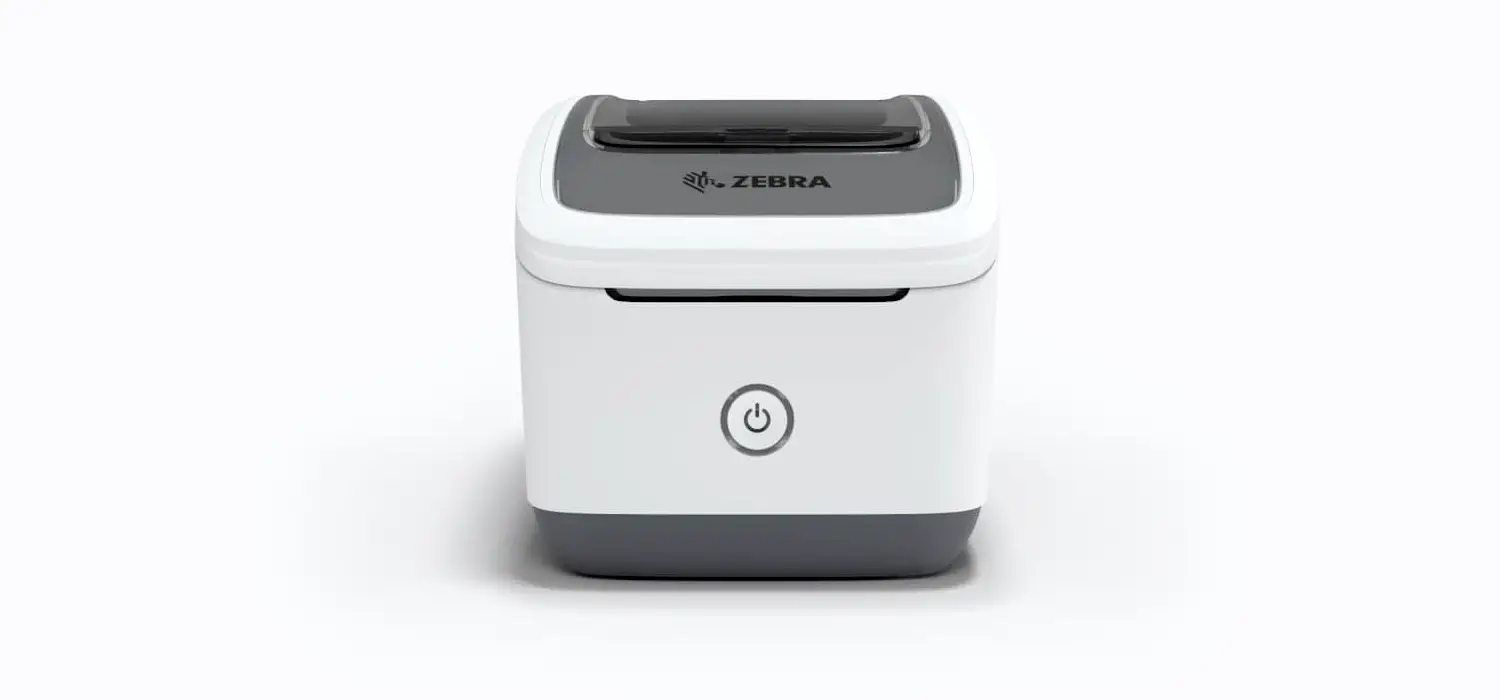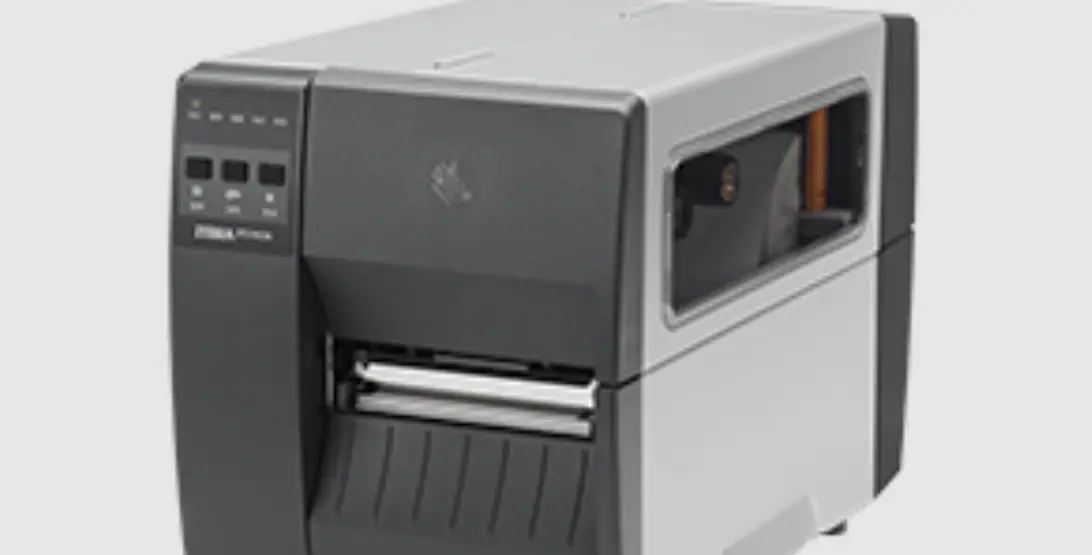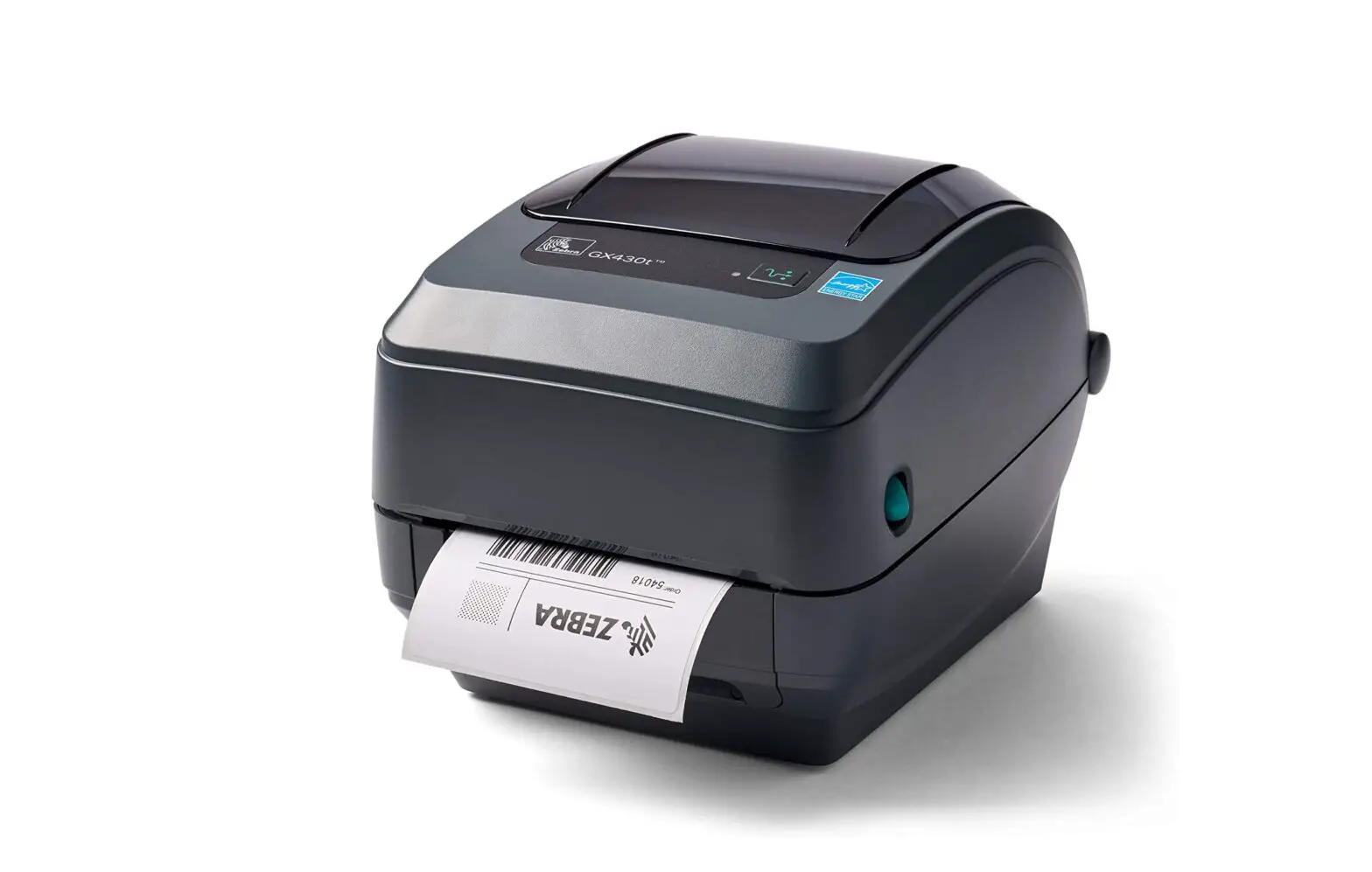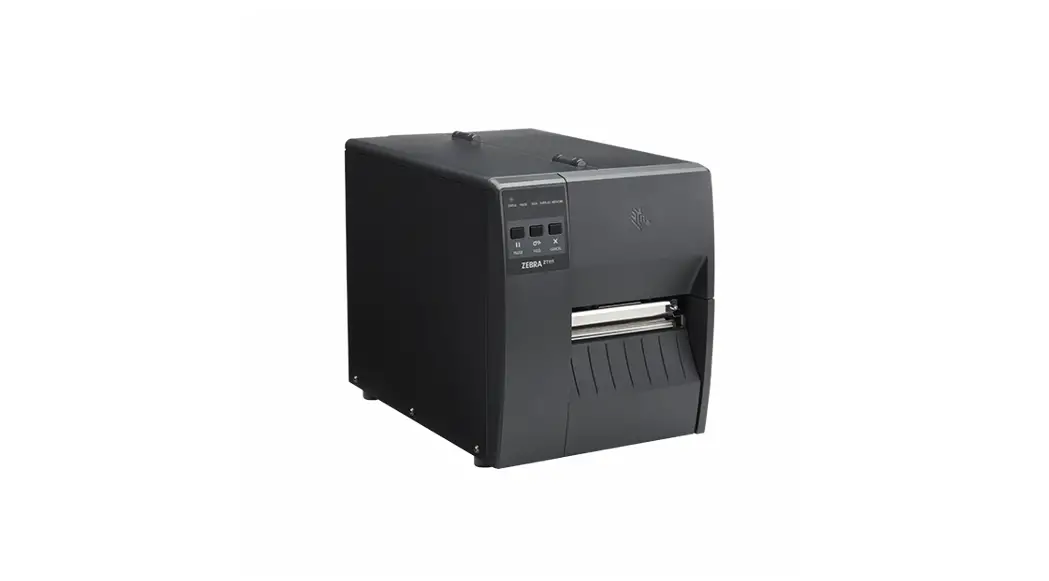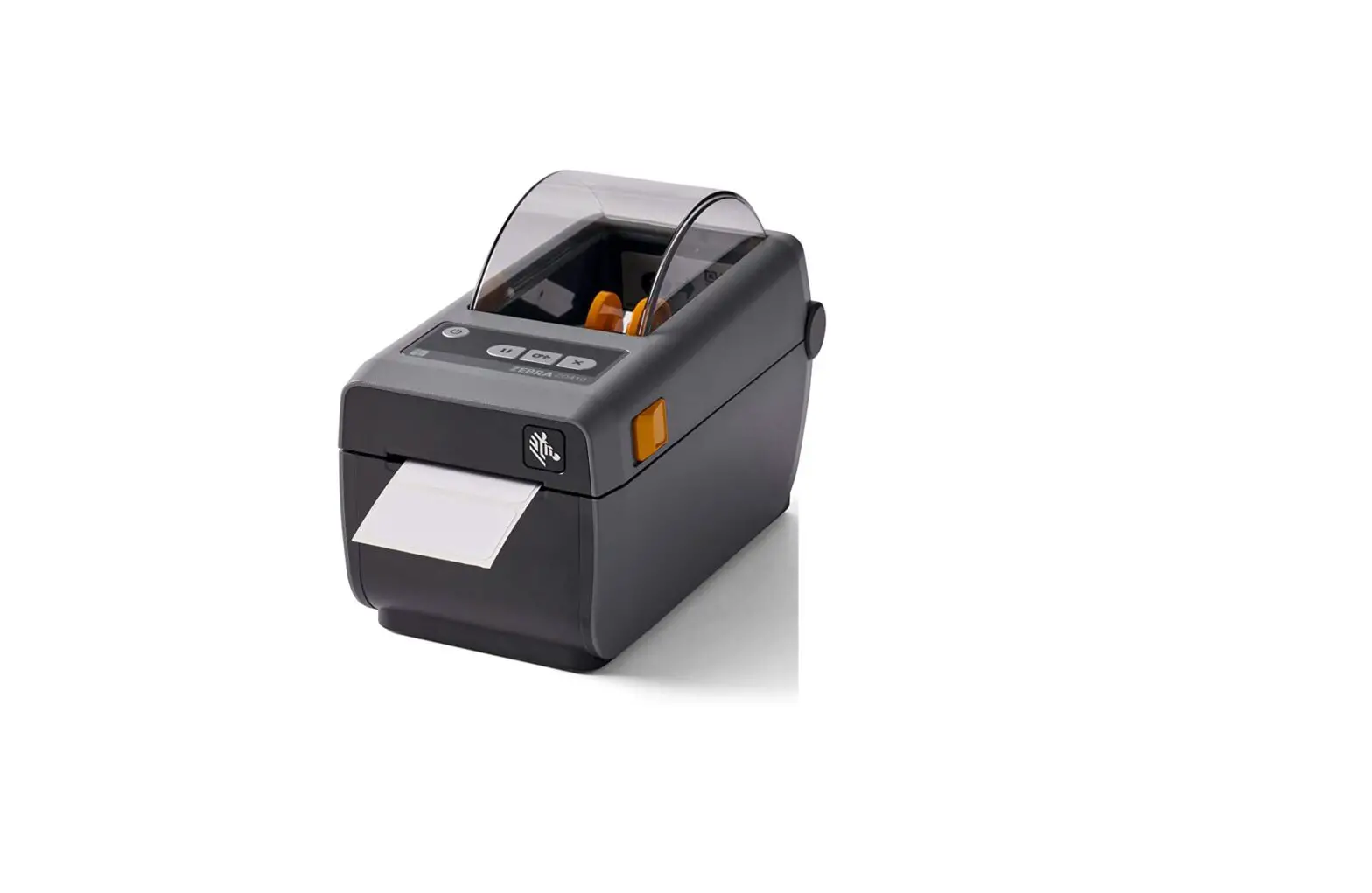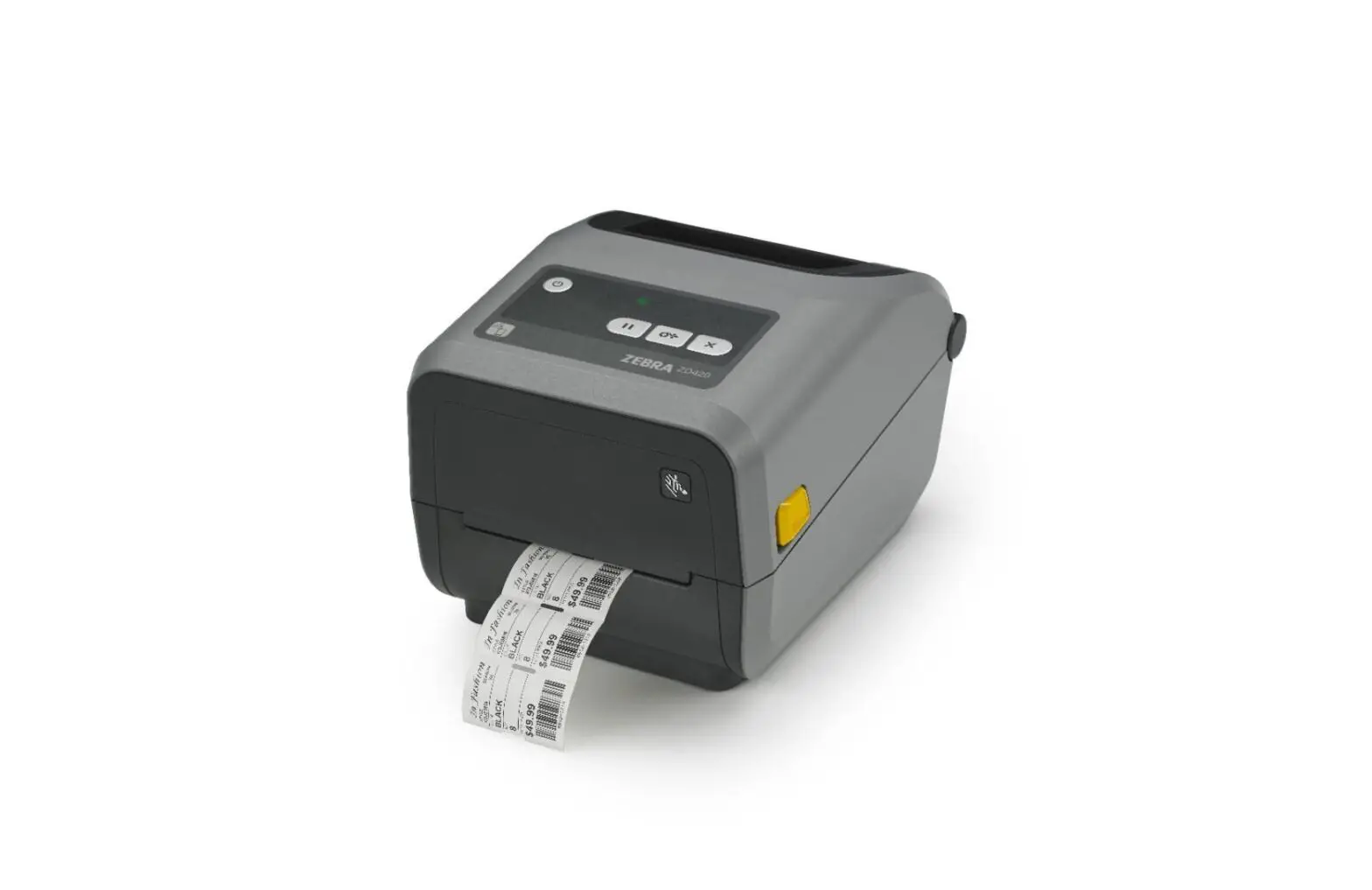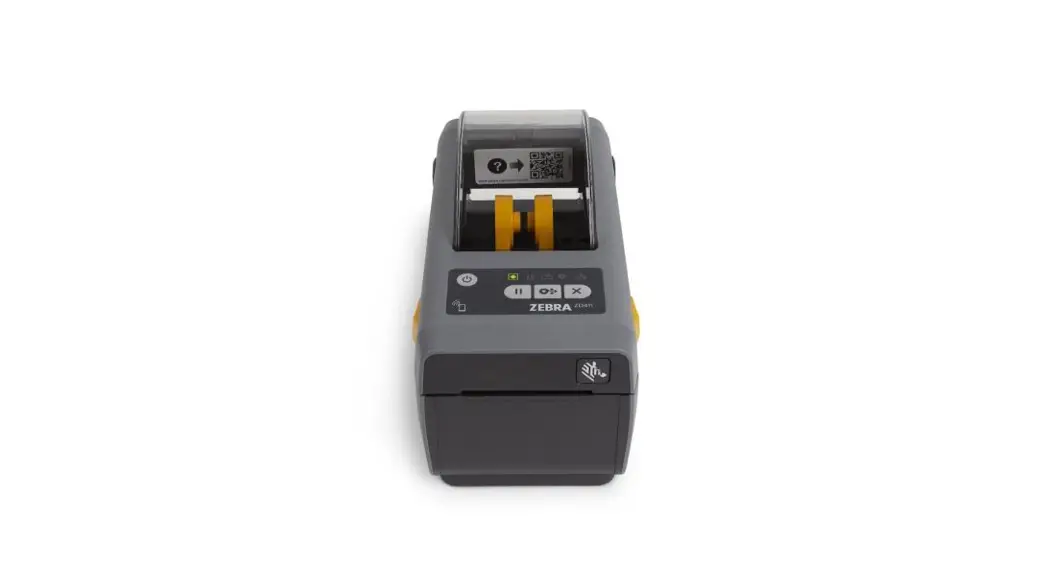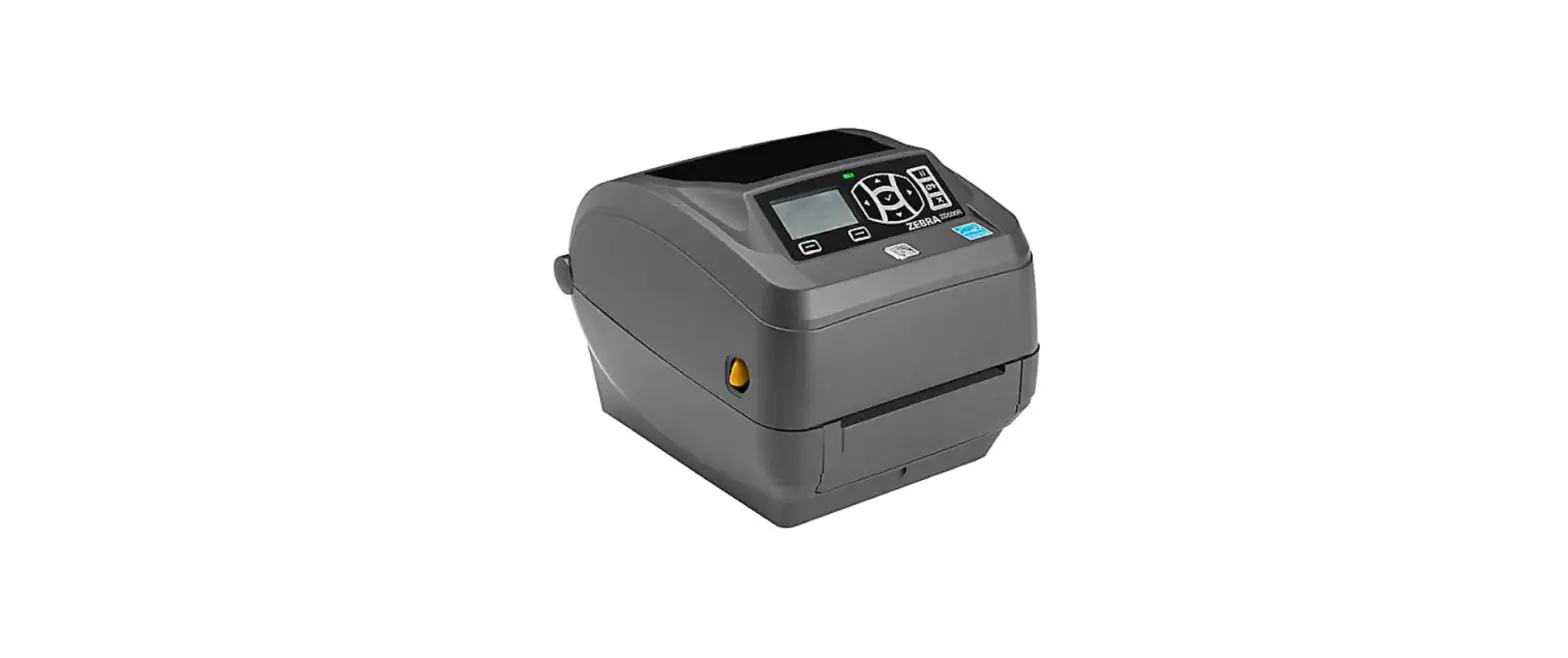
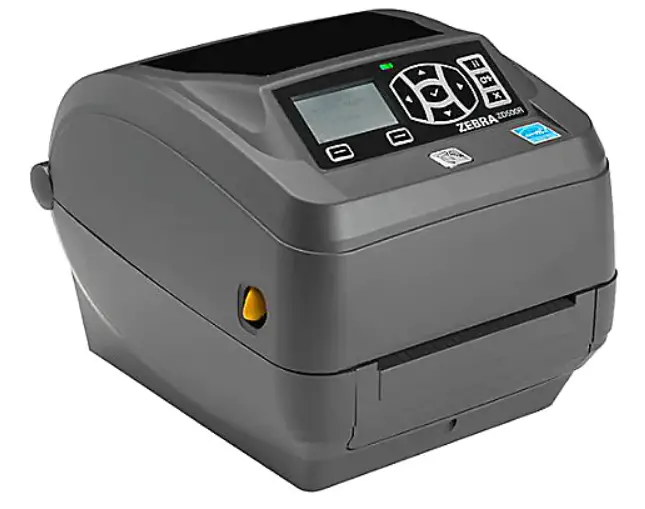
Zebra ZD500 Direct Thermal Label Printer
Quick Setup:
- After completing the hardware setup, and having the printer connected to the network please follow these steps to setup the Zebra ZD printers outside of a registration App.
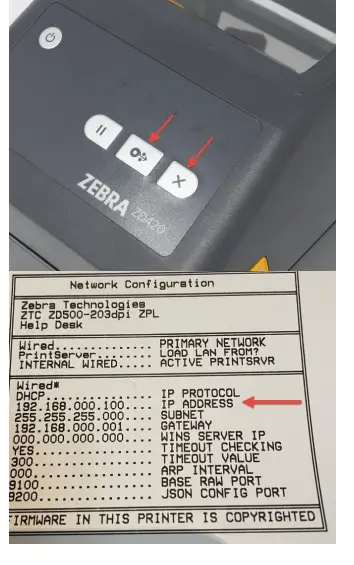
- Open a Web Browser (Safari) and type the printer’s IP Address on the Address Bar, press enter. You can find the IP address on the screen of your ZD500/ZD620. For non-screen models push and hold Feed + Cancel for 3-seconds to retrieve a status sheet.

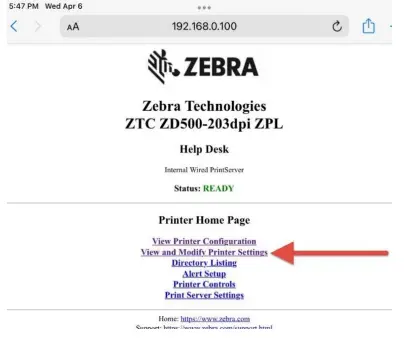
- Once the “Internal Wired PrintServer” page loads select “View and Modify Printer Settings. Password is “1234”.

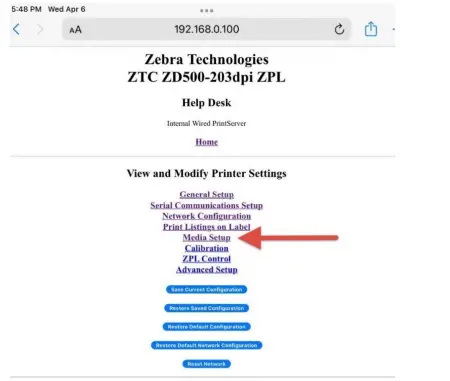
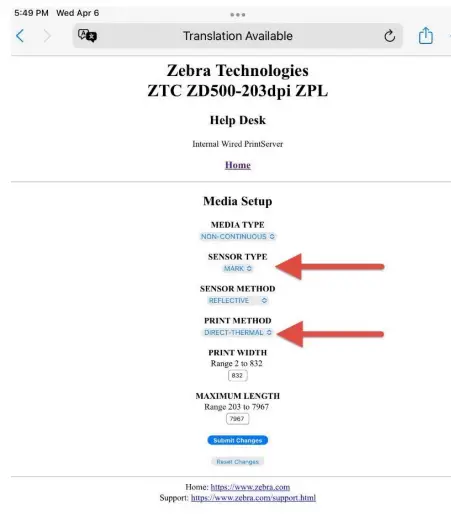
- Now go to “Media Setup” and set the “Sensor Type” and “Print Method” according to your badge-stock specifications. Most common options are Sensor Type: Mark
Print Method: Direct Thermal.
- Select “Submit Changes”.
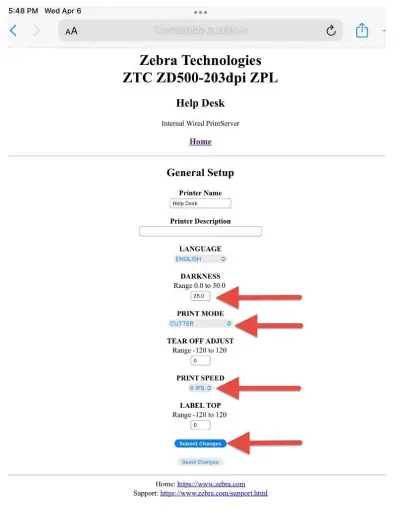
- Select once again “View and Modify Printer Settings” then select “General Setup”.

- Select once again “View and Modify Printer Settings” then select “General Setup”.
- Select “Submit Changes”.
- Now you can go to your registration/check-in app to do a Test print and confirm the printer is correctly set-up.

Setup Video Guide: Scan this QR code with your phone camera for video.
Contact our Support Team: www.choose2rent.com/help
+ 1 (800) 622-6484 Ext. 3 (USA)
+ 49 40 226 360 – 590 (Europe)
 Choose 2 Rent Help and Support for Event Rental Equipment