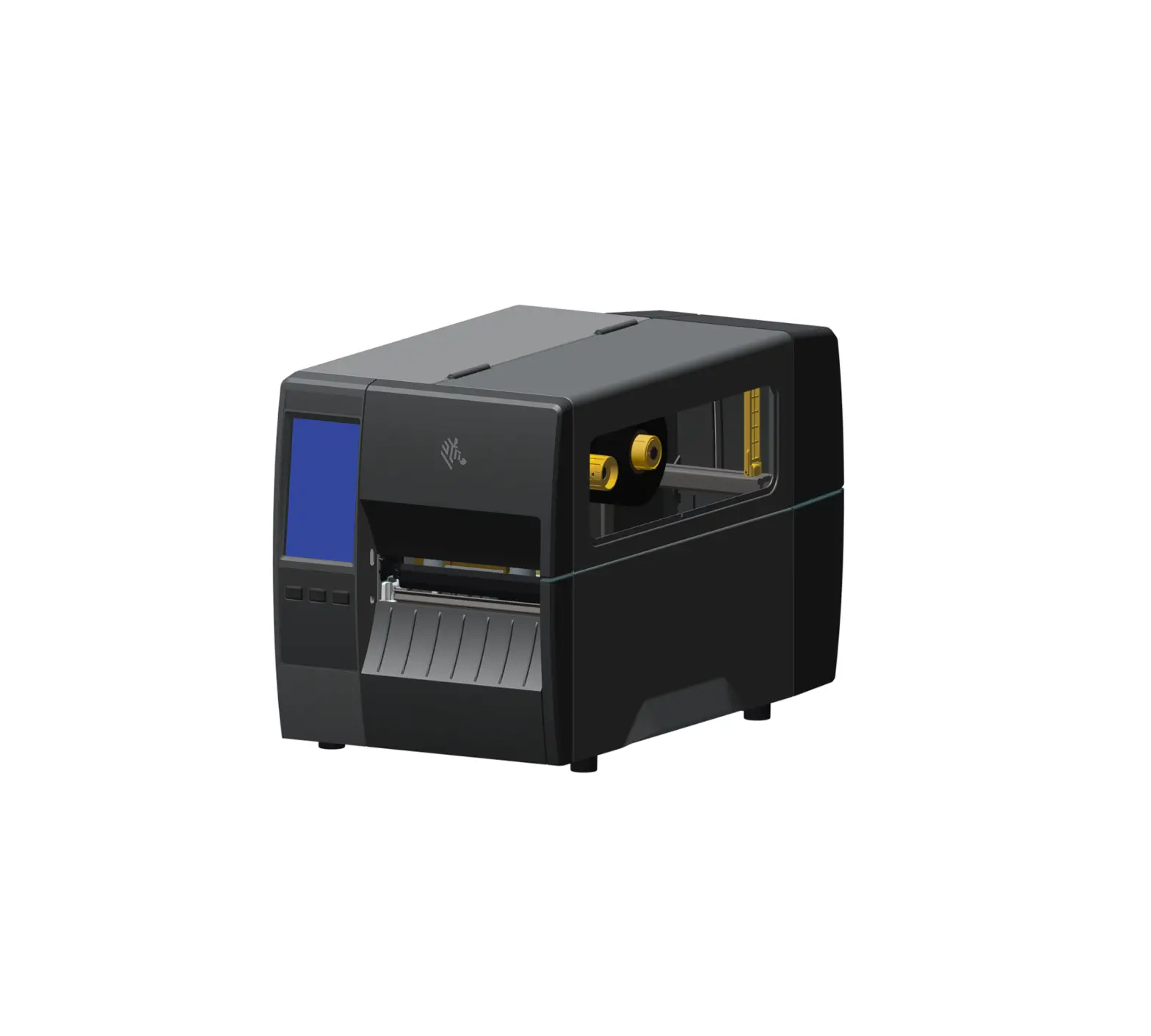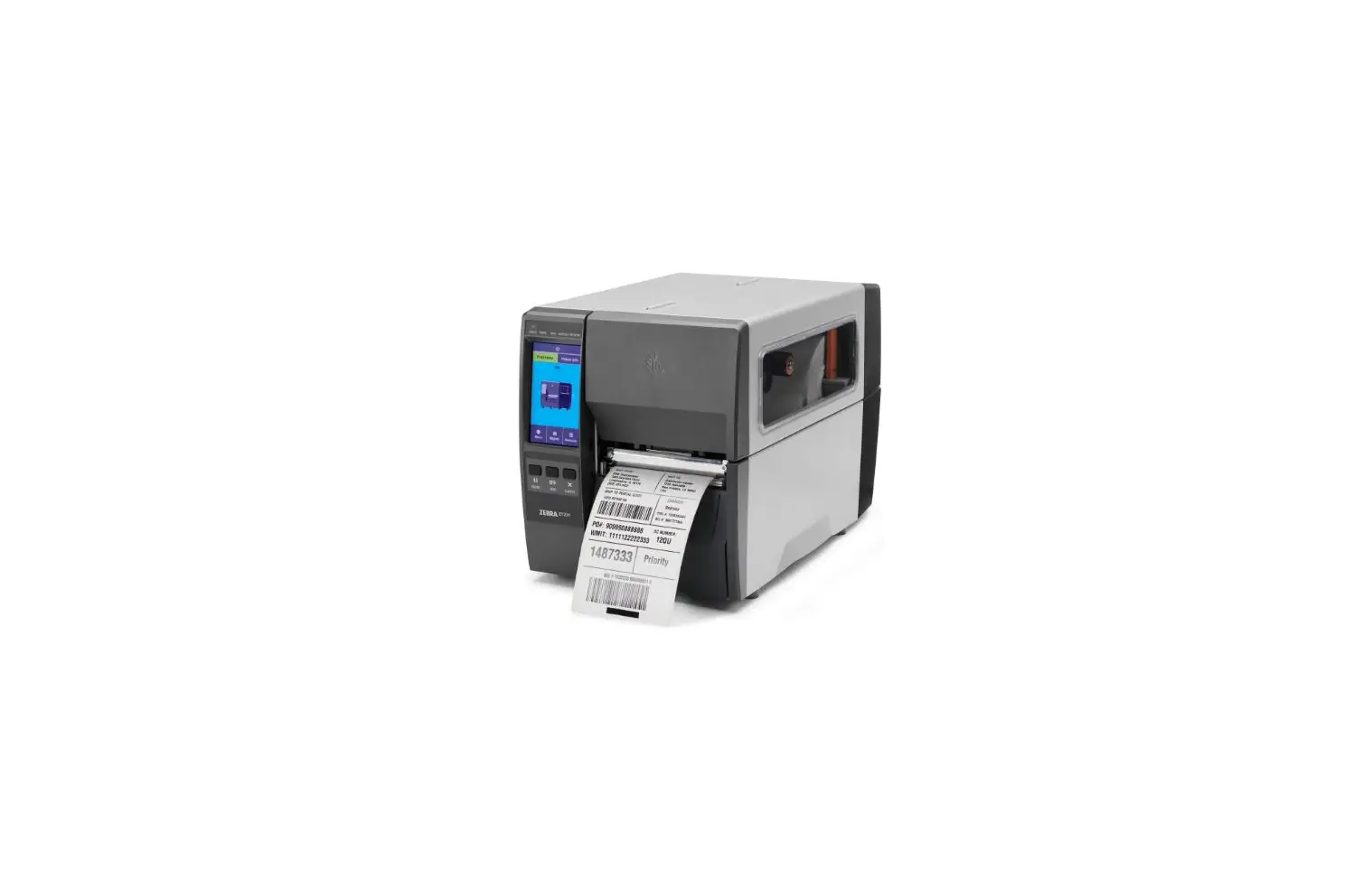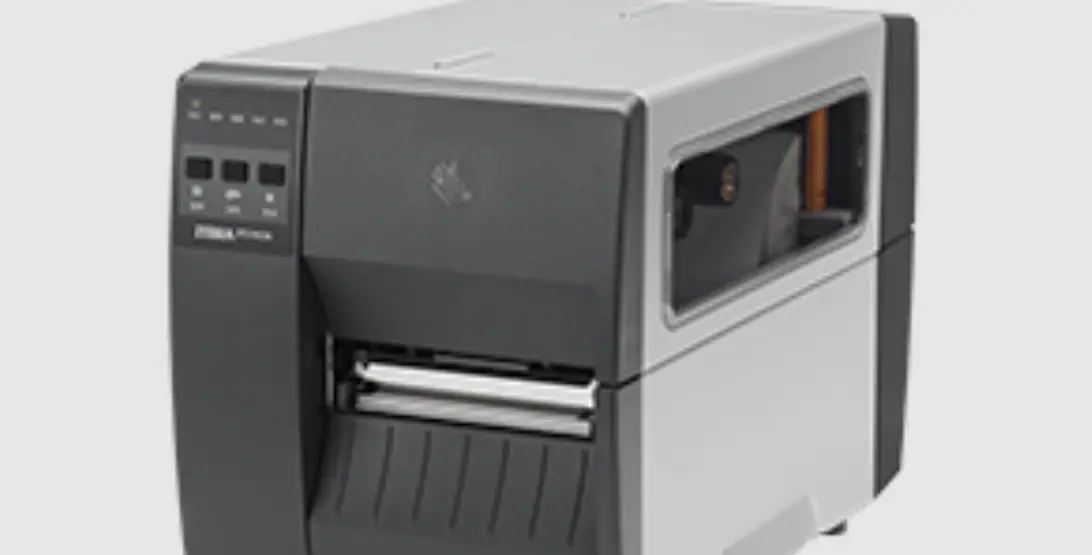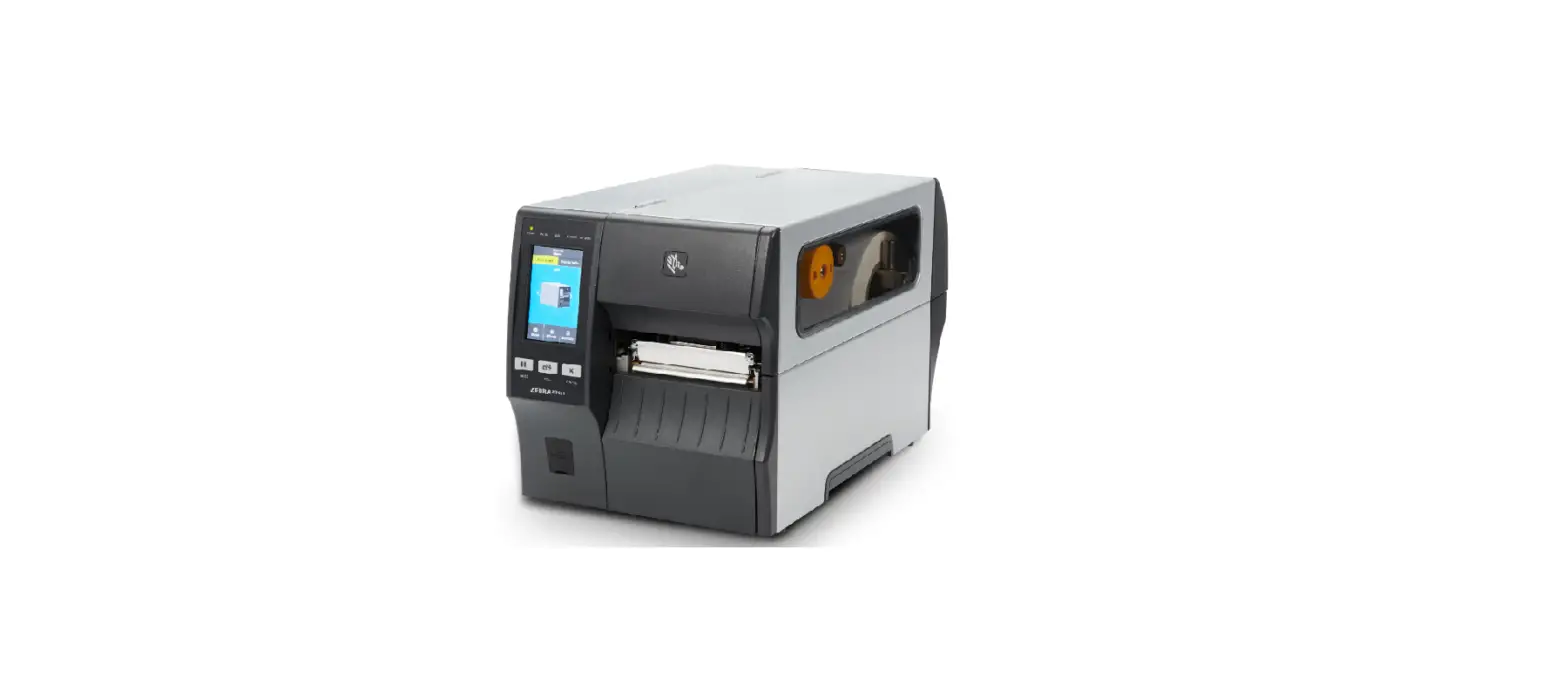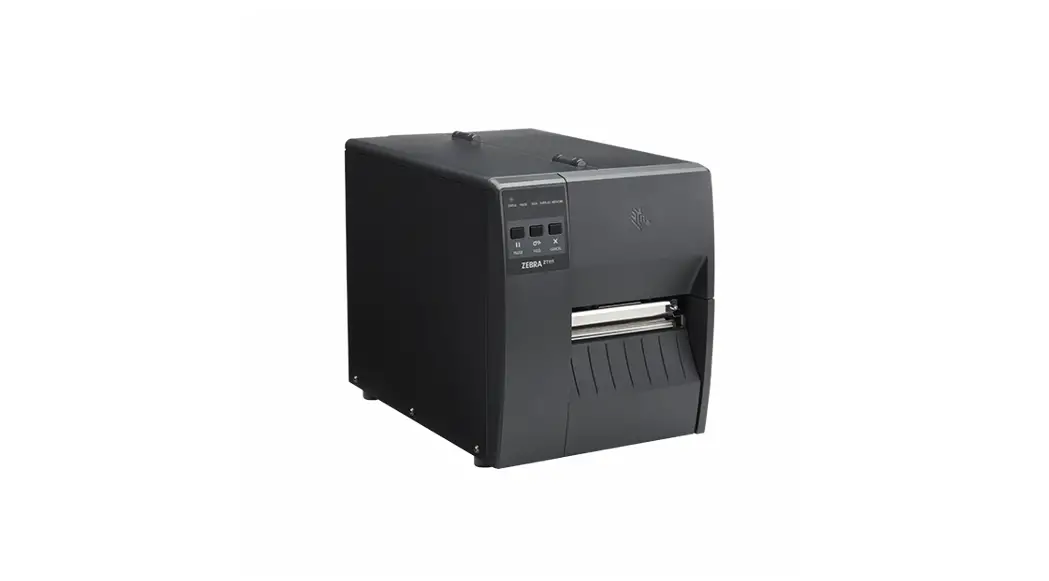
 ZT111
ZT111
Quick Start Guide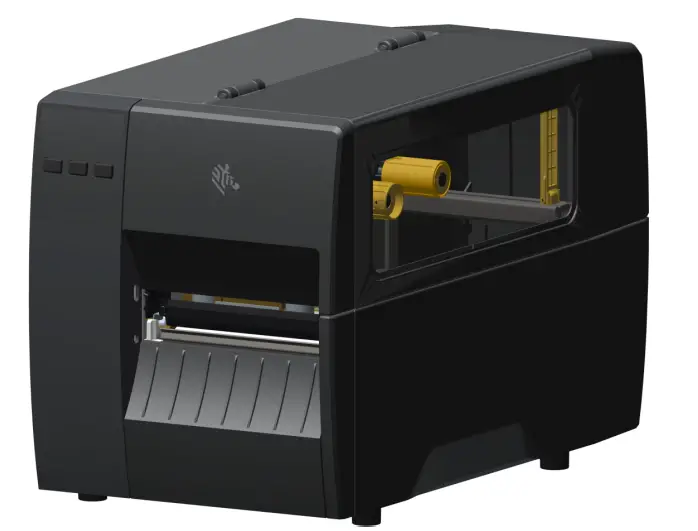

Zebra Technologies | 3 Overlook Point | Lincolnshire, IL 60069 USA zebra.com
ZEBRA and the stylized Zebra head are trademarks of Zebra Technologies Corp., registered in many jurisdictions worldwide. All other trademarks are the property of their respective owners. © 2022 Zebra Technologies Corp. and/or its affiliates. All rights reserved.
Install the Printer Driver
IMPORTANT
Go to zebra.com/zt111-info and install the driver for your printer.
 The driver MUST be installed before connecting the printer to the computer, or it will cause complications. If your Microsoft Windows-based computer does not have the driver installed for this printer, download it from zebra.com/zt111-info and install it before continuing.
https://www.zebra.com/gb/en/support-downloads/printer-software/printer-setup-utilities.html
Remove the Printer from the Box
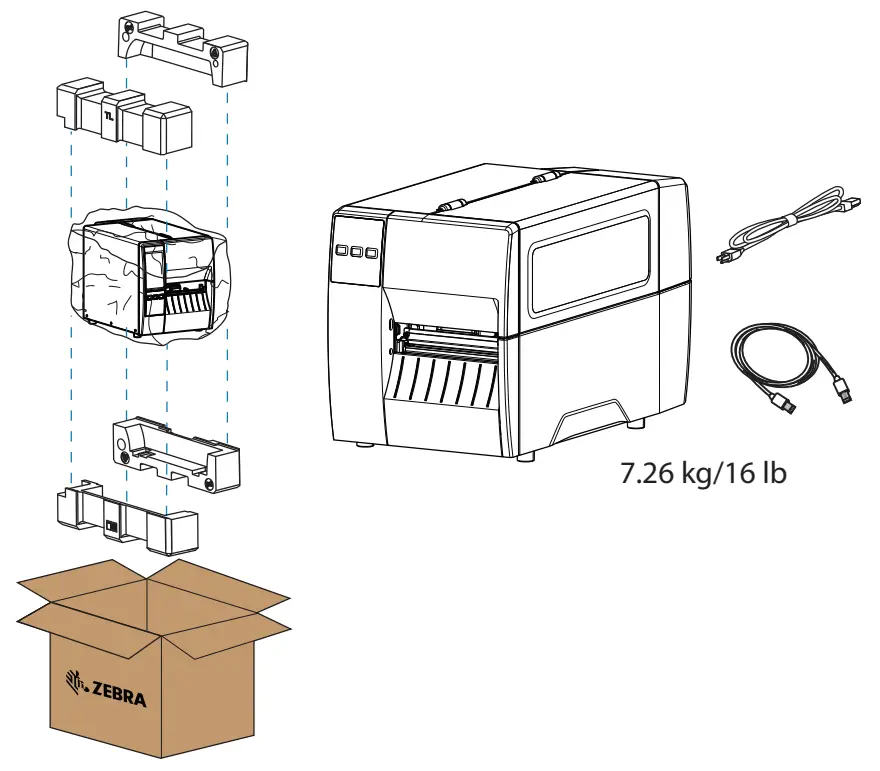
Save the box and packaging materials in case you need to store or ship your printer in the future.
Connect the USB Cable
a – Remove the port blocker label.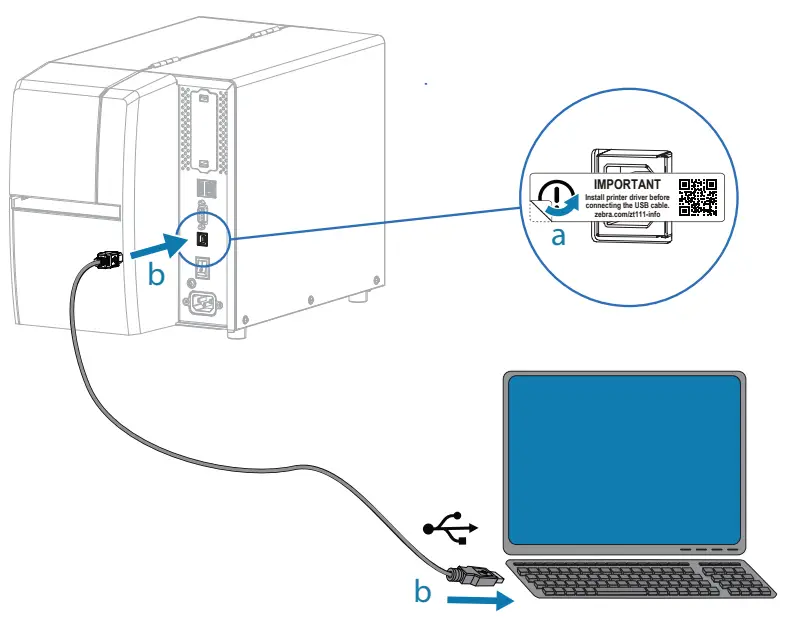
b – Connect the USB cable to the printer and your computer.
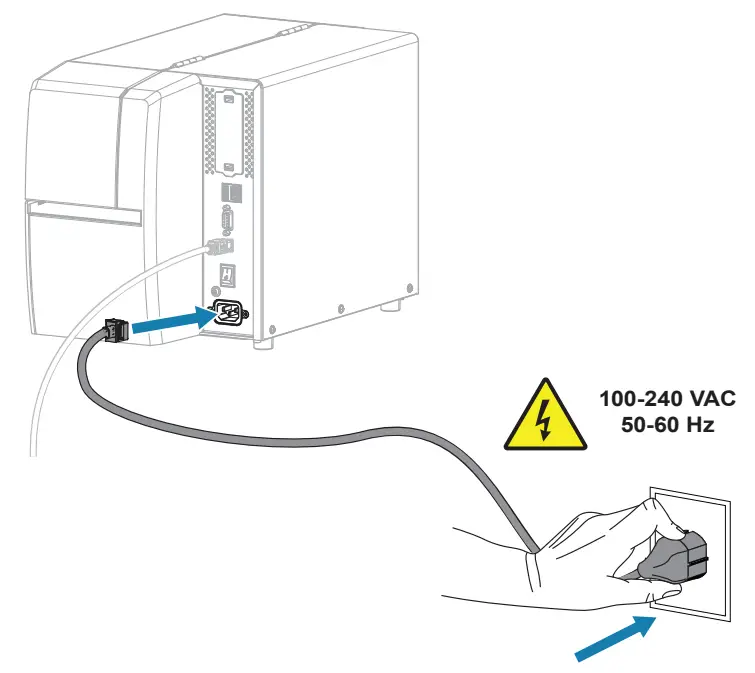
Plug the Printer into an Electrical Outlet
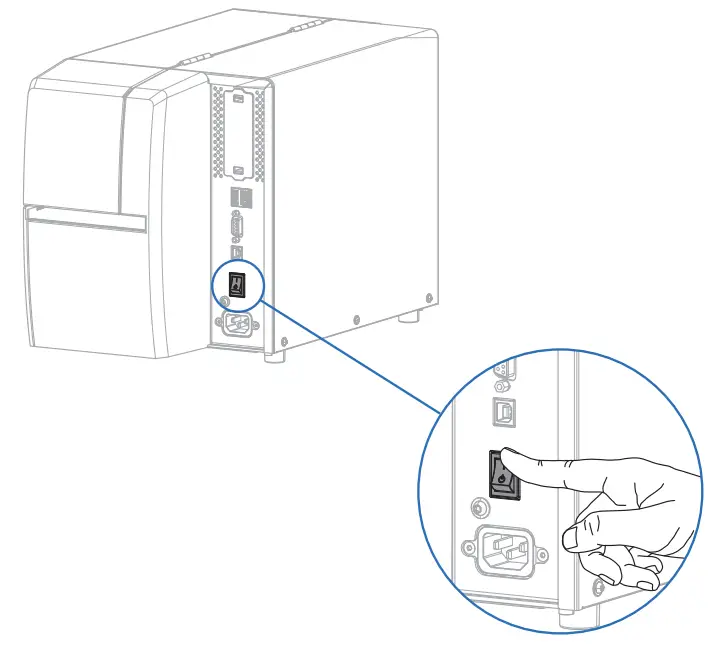
Turn on the Printer Power
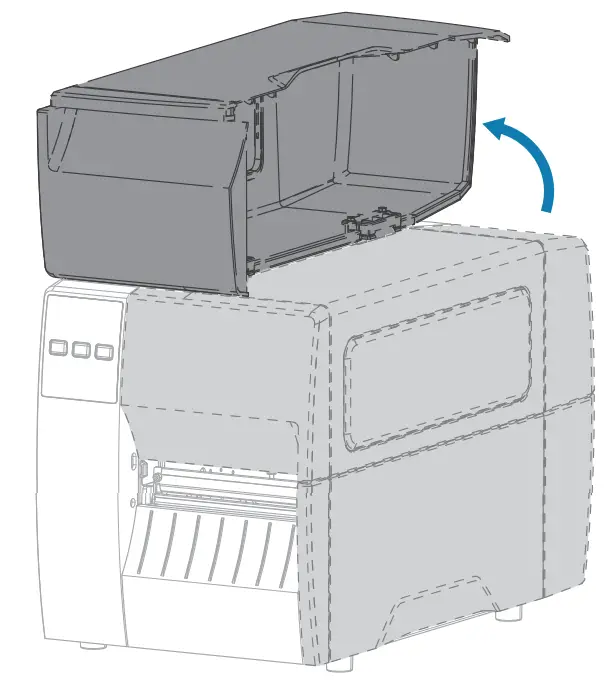
Open the Media Cover
Release the Printhead Assembly
Rotate the printhead latch (a) to release the printhead assembly (b).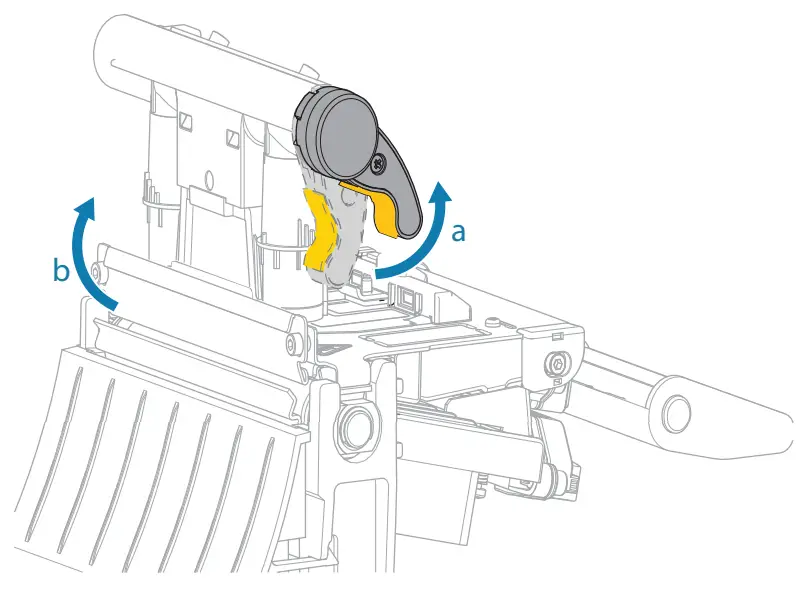
Remove Damaged Labels
Remove and discard any dirty or torn labels.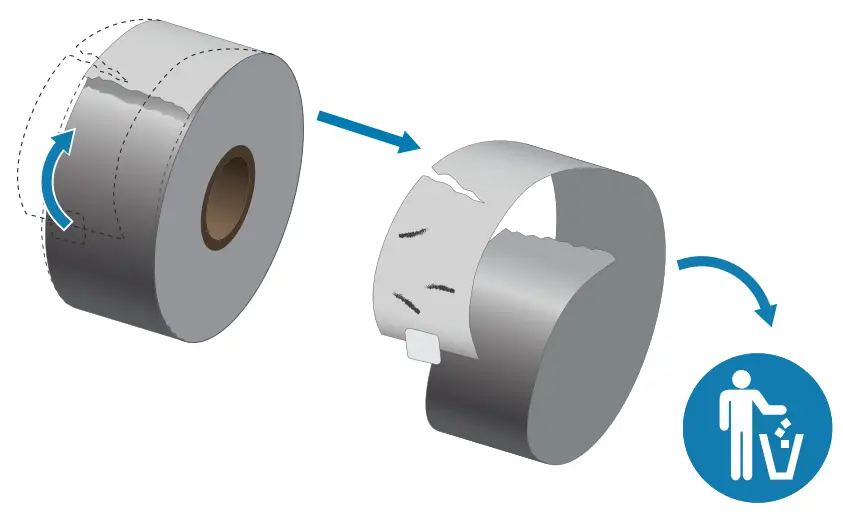
Load Media
a – Fold down the media guide.
b – Hang the roll of media on the media hanger.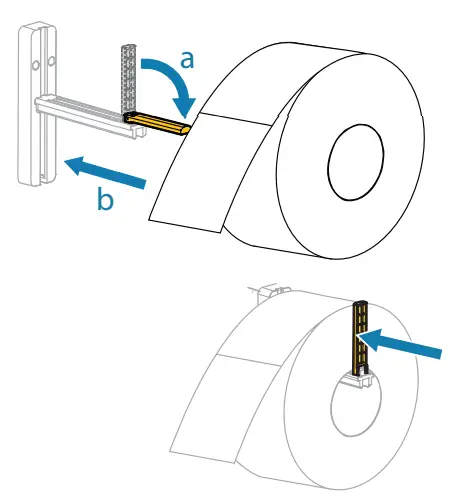
 Watch the video
https://me-qr.com/VtKSub
Feed the media as shown:
a – Under the black media dancer
b – Inside the gap sensor
c – Under the inner media guide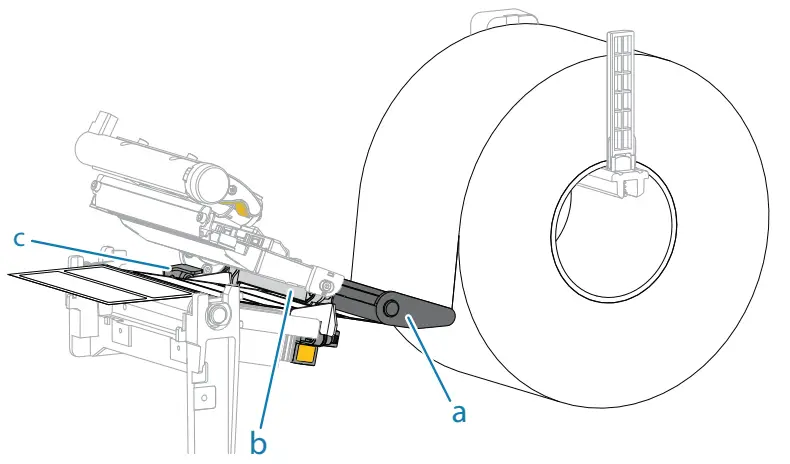
Adjust the outer media guide until it almost touches the edge of the media.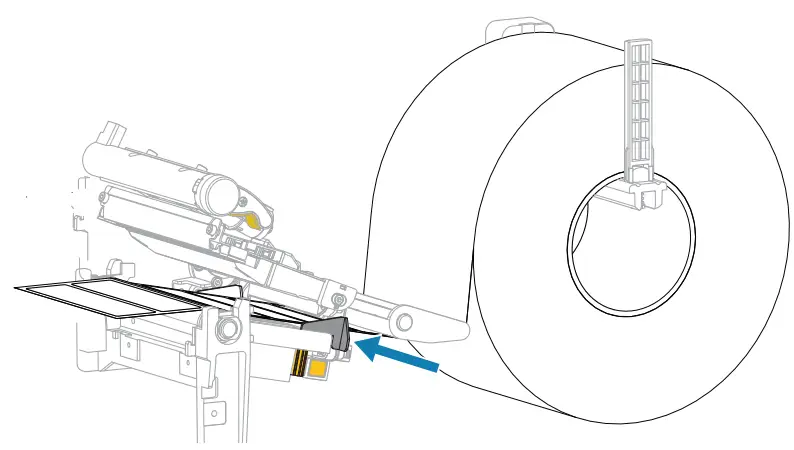
Load Ribbon
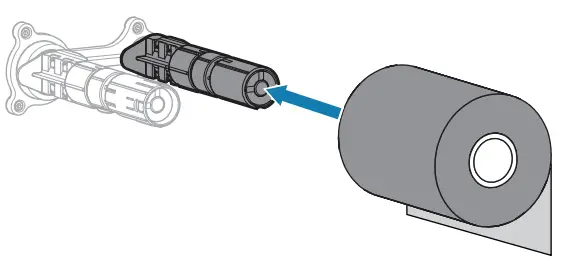
Place the ribbon on the ribbon supply spindle as shown. Push the roll back as far as it will go.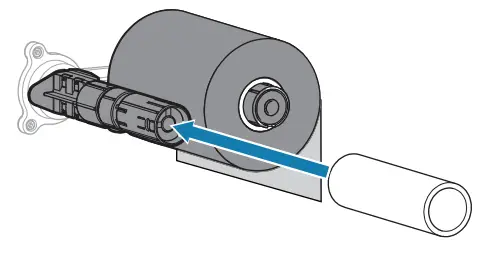
Place an empty core on the ribbon take-up spindle as shown.
Push the core back as far as it will go.
Feed the ribbon as shown.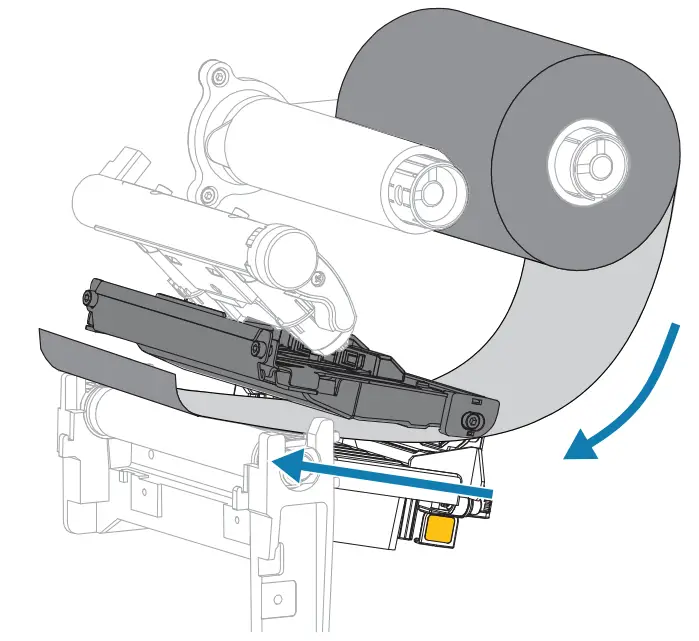
Wrap the ribbon around the core several times, and then rotate the spindle to tighten and align the ribbon.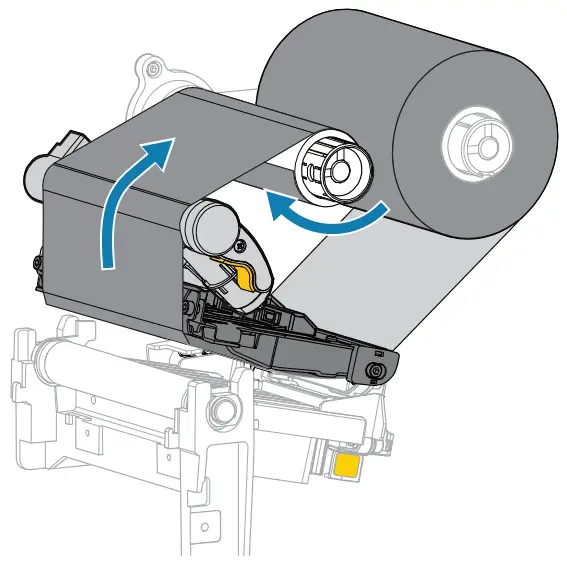
Support and information
 | View user documentation and how-to videos. https://me-qr.com/RNuqy |
 | Need to design a label? www.zebra.com/zebradesigner |
 | Learn about genuine Zebra supplies. www.zebra.com/supplies |
 | Need to manage your printer? zebra.com/profilemanager |
 | View Quick Answers and Knowledge Base. www.zebra.com/knowledge |
 | Join Community Connection of Zebra users and ambassadors. www.zebra.com/supportcommunity |
 | Contact Zebra about your printer. www.zebra.com/contact |
 | Need to secure your printer? www.zebra.com/printsecure |
Prepare for Printing
Rotate the printhead lever down to close the printhead.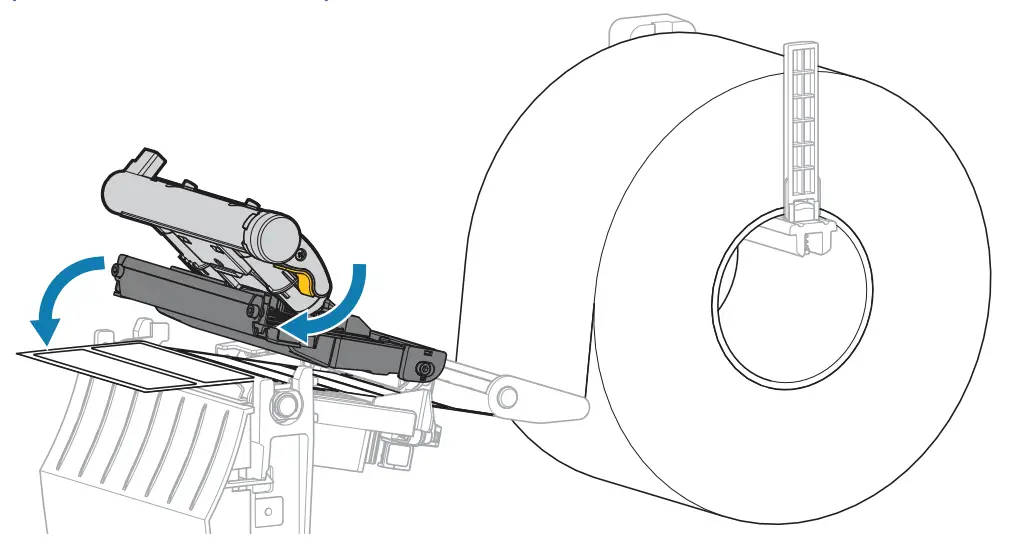
Press PAUSE
– The printer auto-calibrates and several labels feed.
– The ribbon tightens and aligns on the printhead.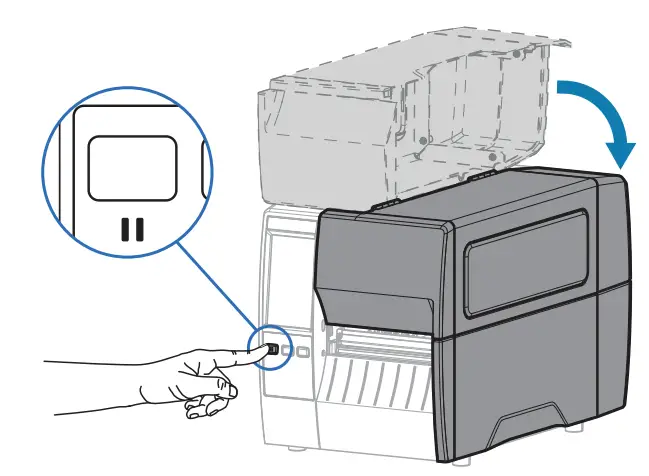
Close the media cover.
References
 Zebra Technologies | Visible. Connected. Optimized.
-
Contact Technical Support & Repair | Zebra
-
Zebra Customer Community
-
PrintSecure | Zebra
-
Printer Profile Manager Enterprise | Zebra
-
Printing Supplies | Zebra
-
Zebra Customer Community
-
ZebraDesigner | Zebra
-
ZT111 Industrial Printer Support & Downloads | Zebra
 Zebra Technologies | Visible. Connected. Optimized.