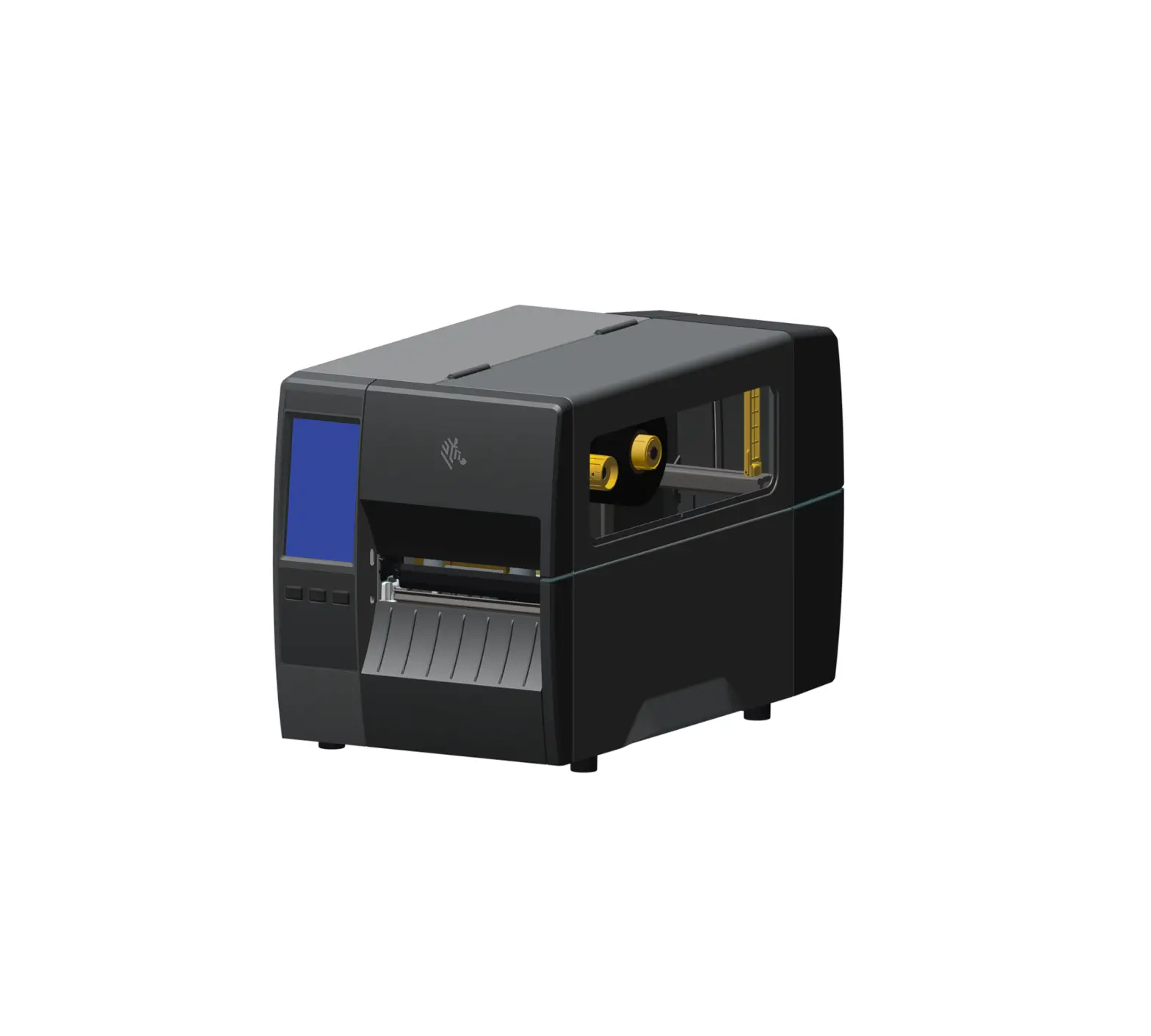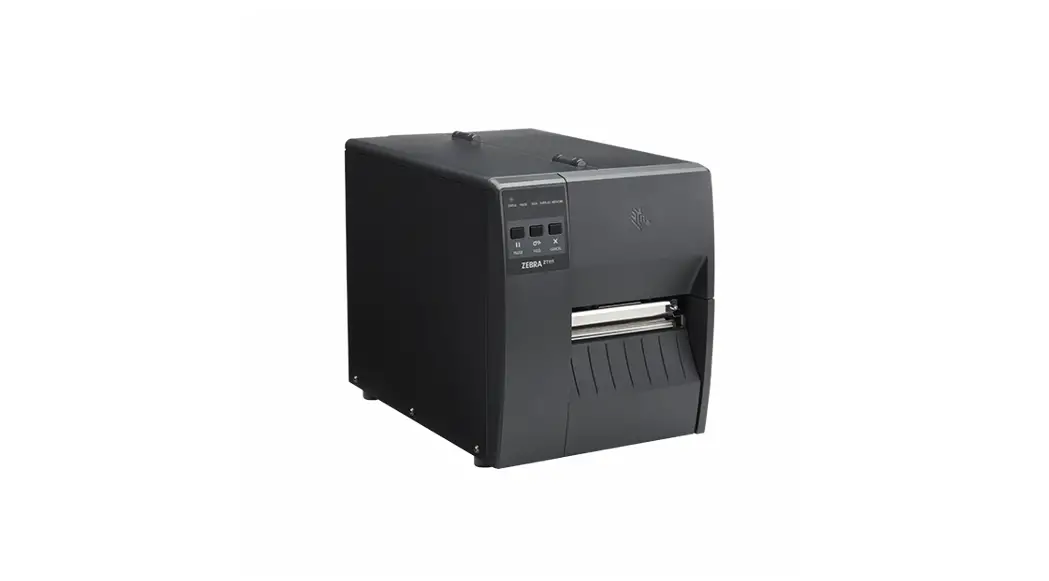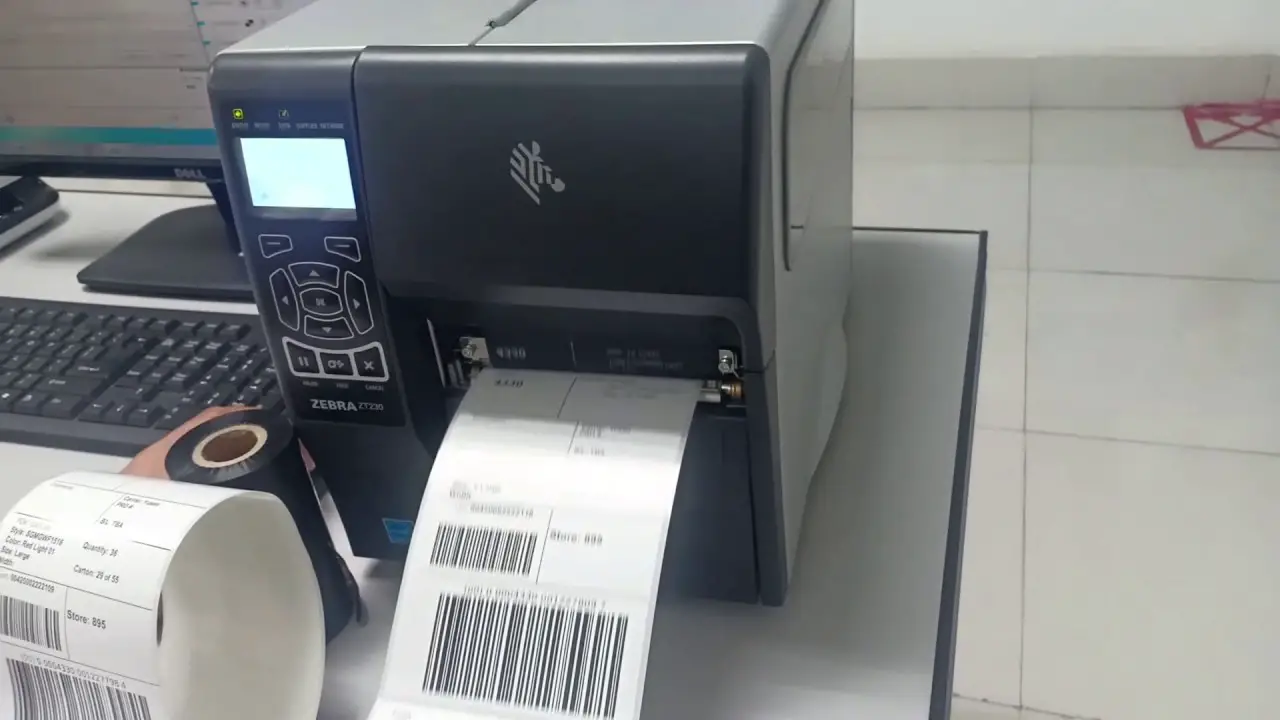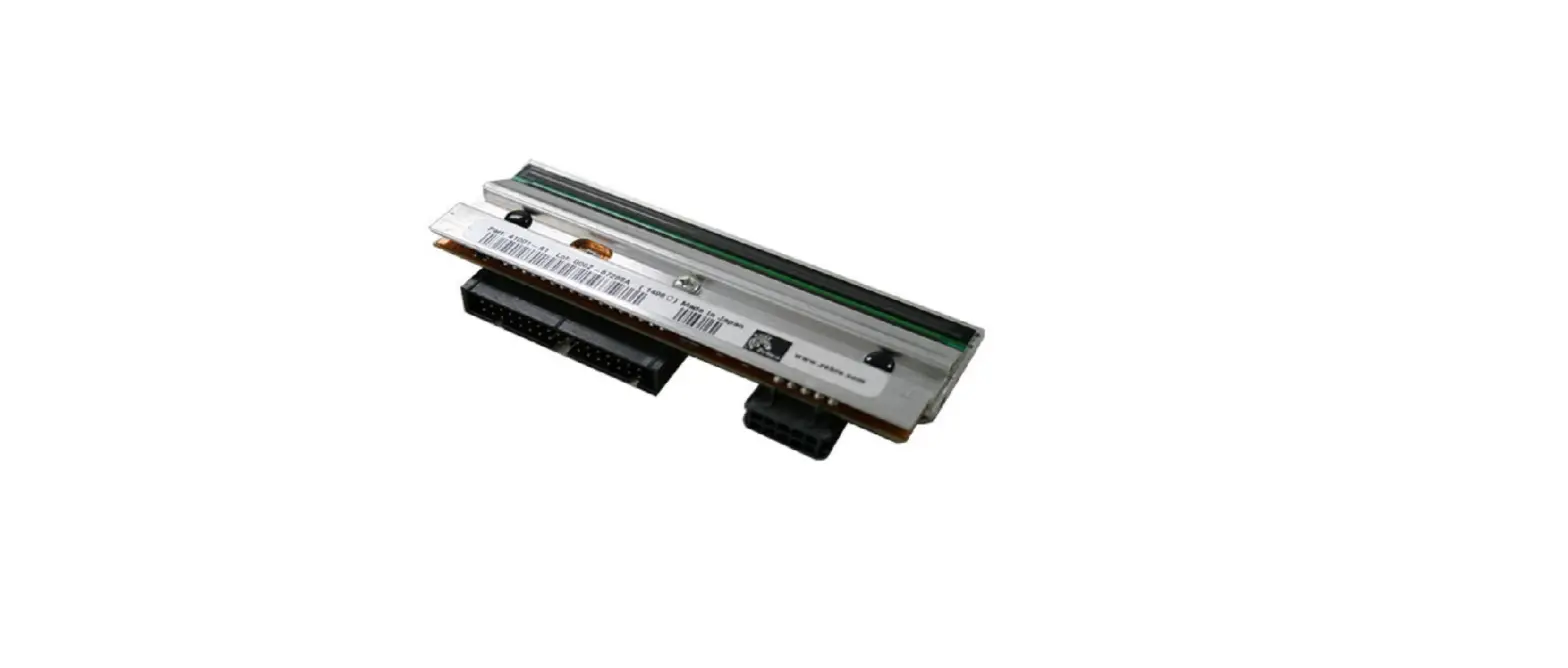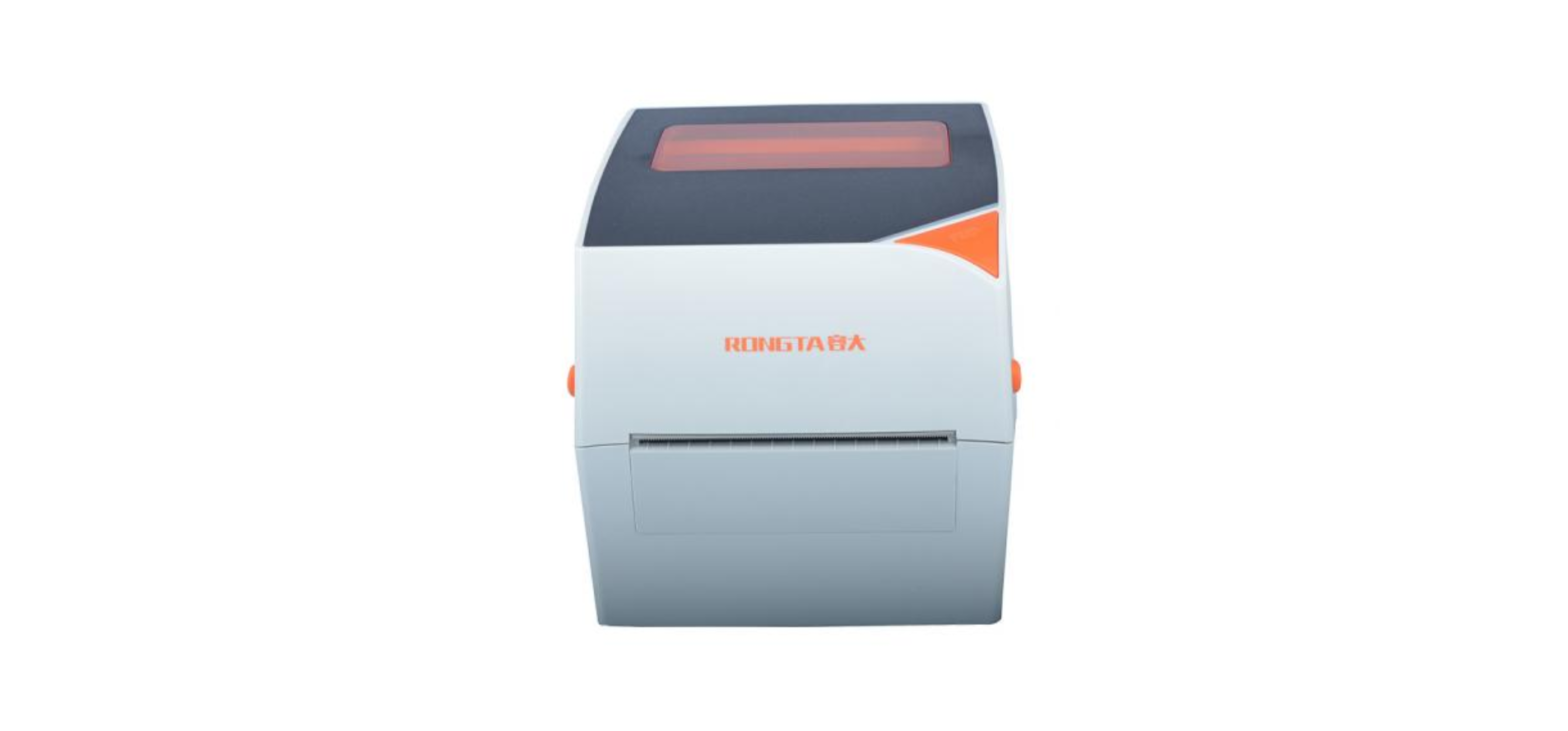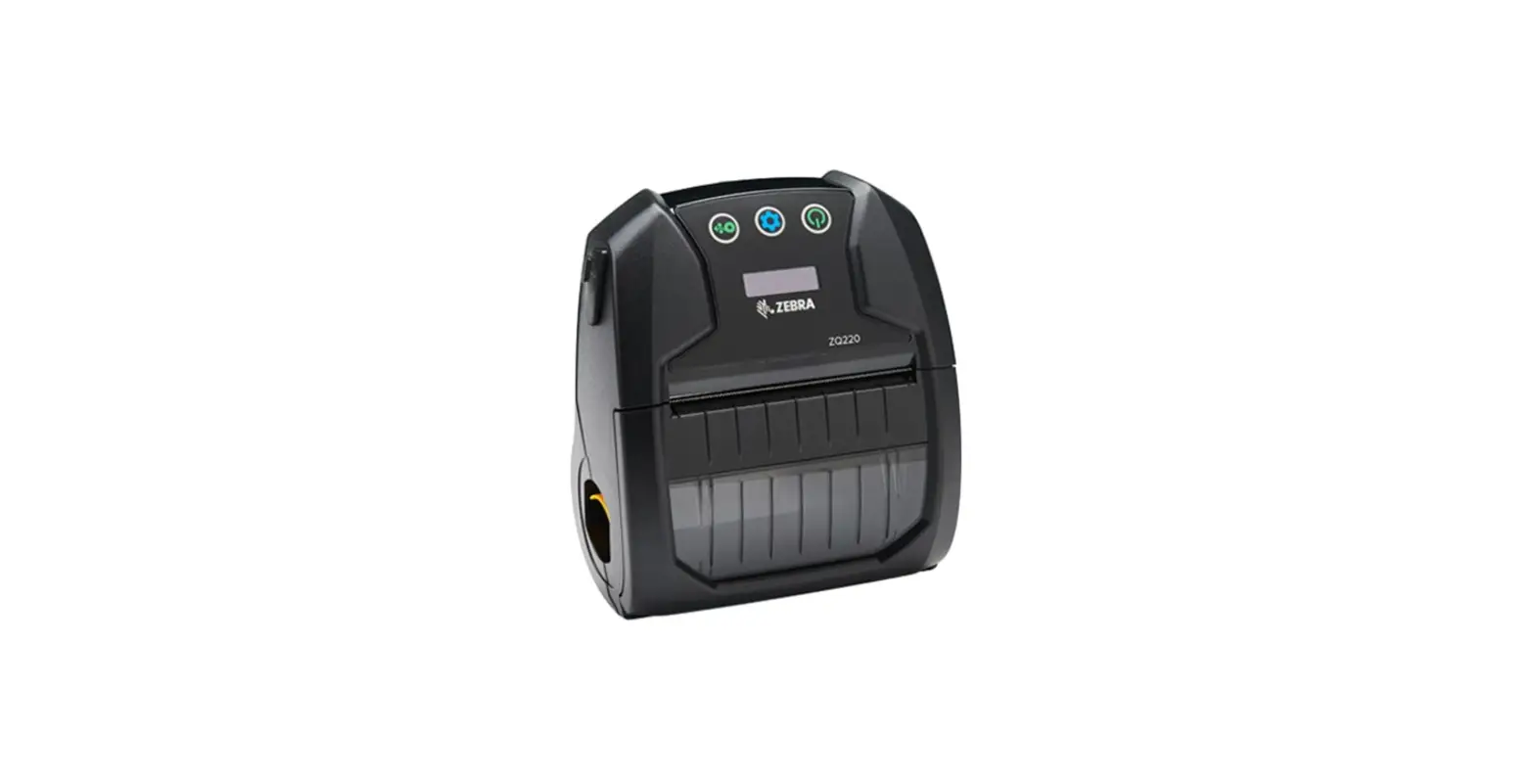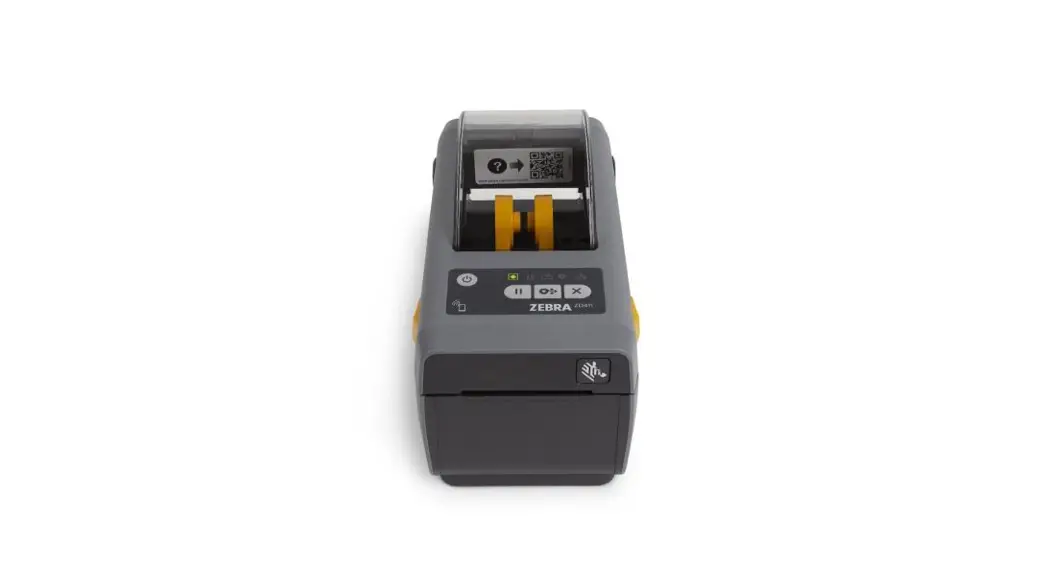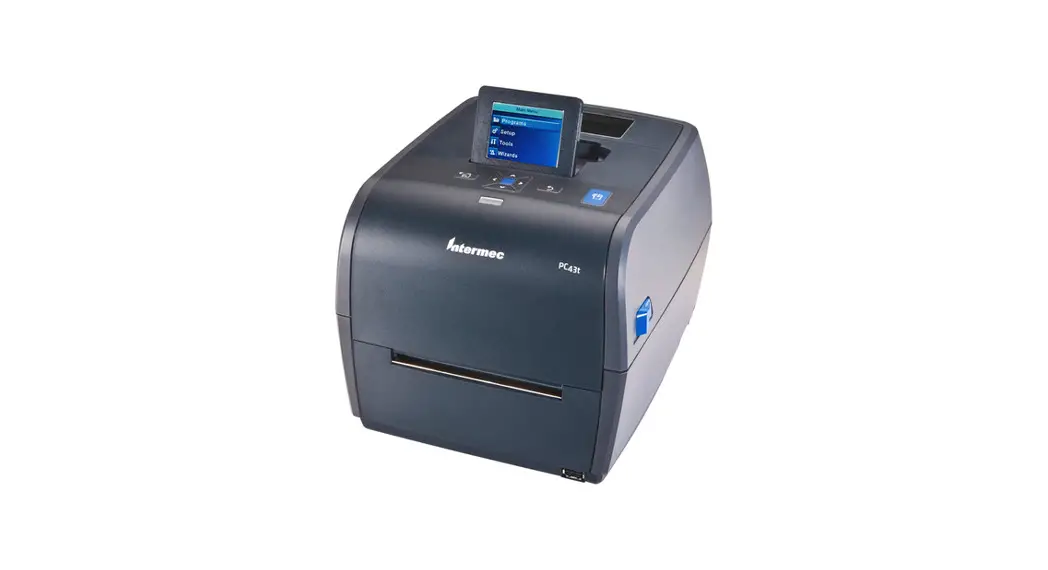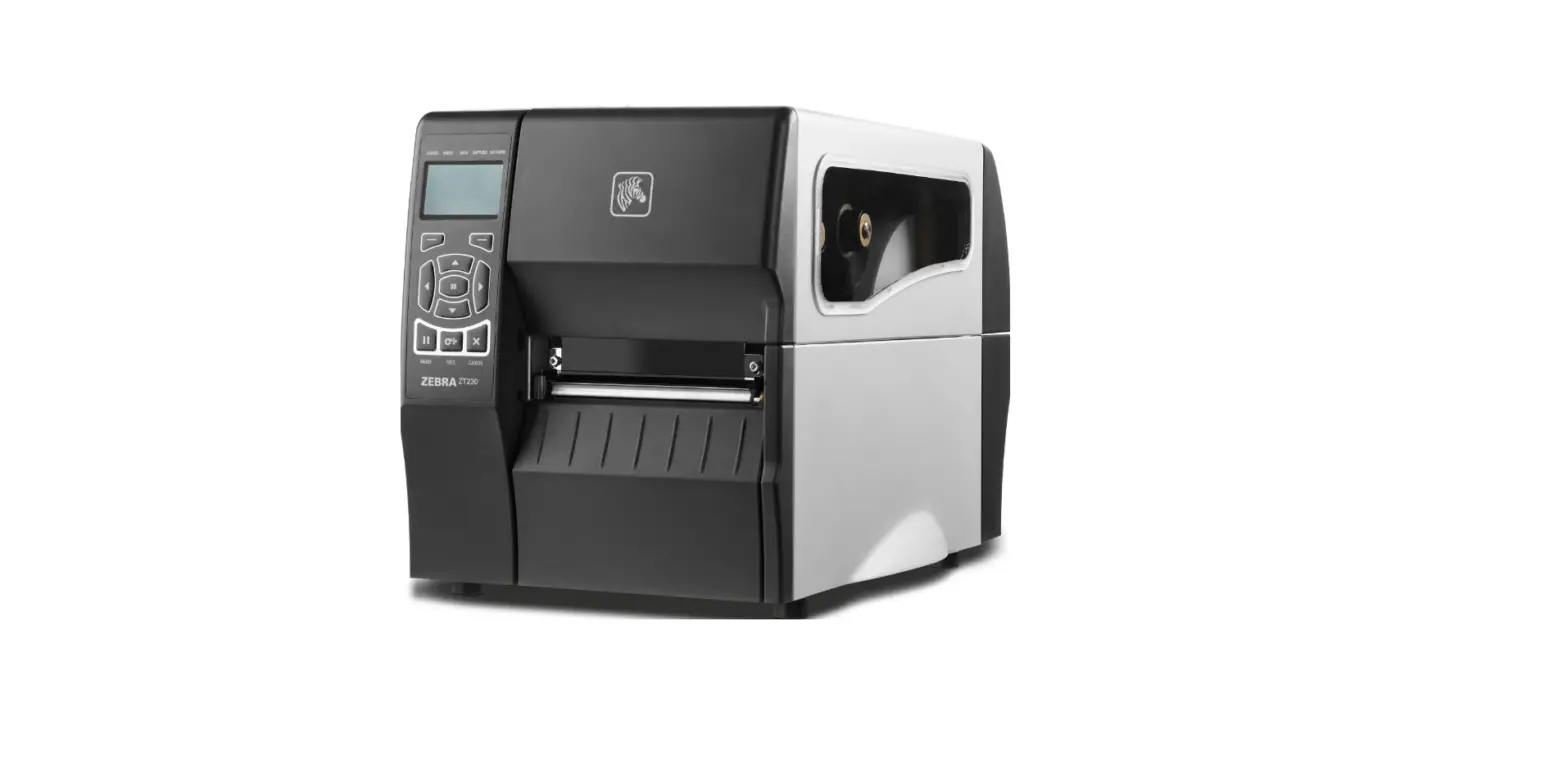
ZEBRA ZT230 Industrial Barcode Printer
Product Information
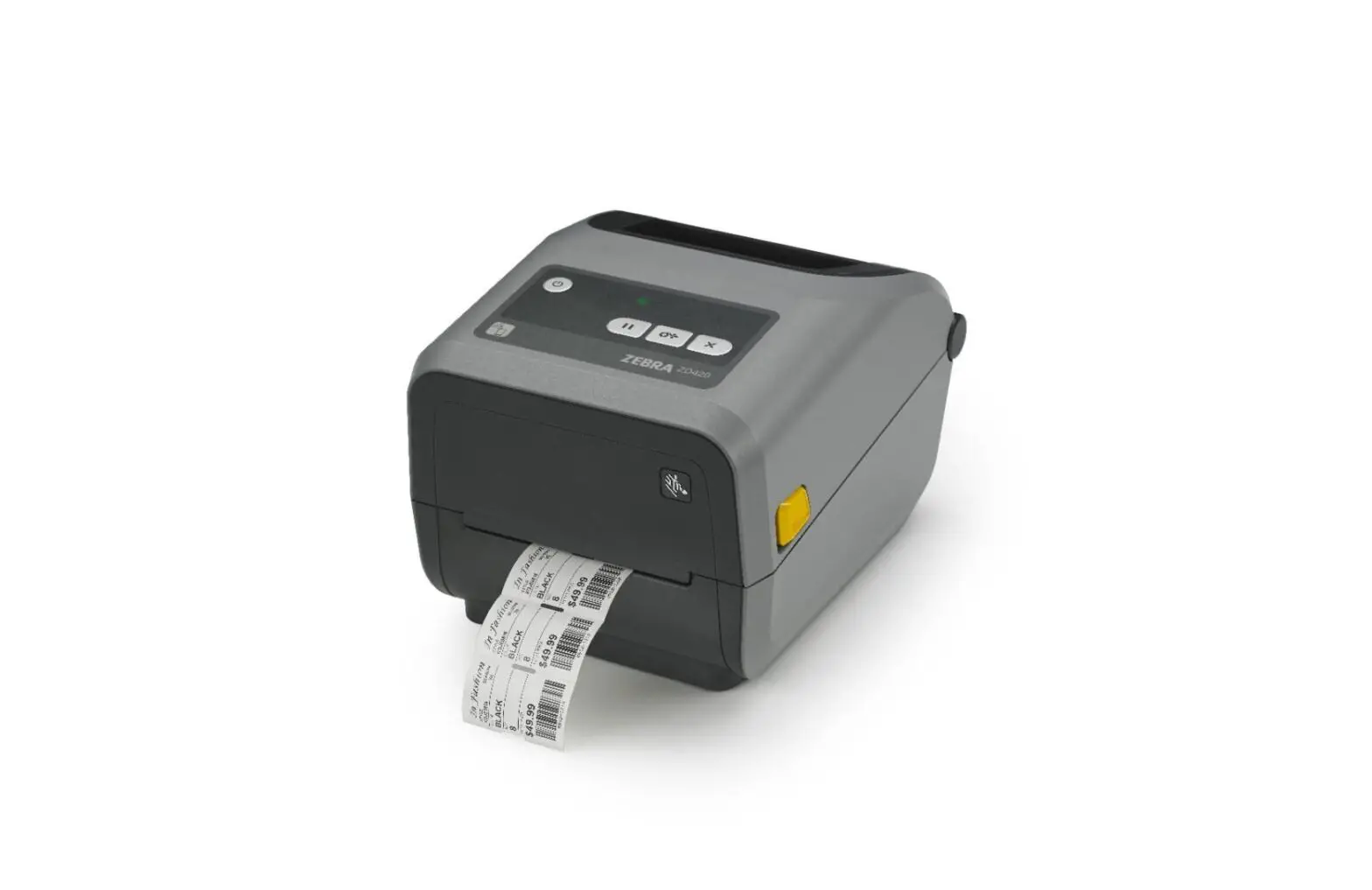
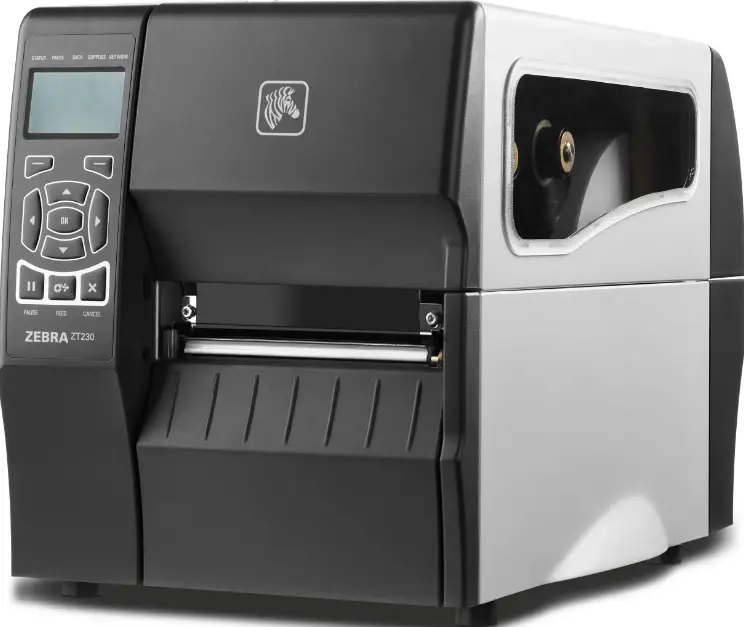
The ZT230 printer is an industrial-grade label printer by Zebra Technologies. It can handle a wide range of label sizes and types and can print both text and graphics. The printer comes with USB connectivity and requires a driver to be installed before use. It also has a ribbon cartridge for printing with thermal transfer technology.
Product Usage Instructions
- Install the Printer Driver:
- Go to zerbra.com and download the driver for your printer.
- Install the driver before connecting the USB cable to your computer.
- Remove the Printer from the Box:
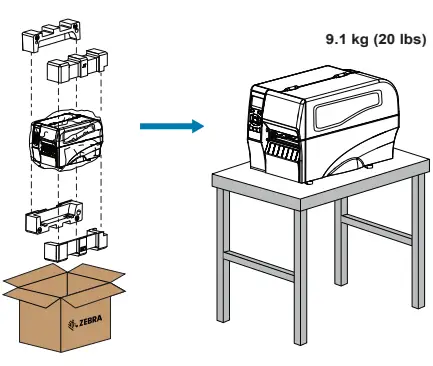
- Remove packaging materials and lift the printer out of the box.
- Connect the USB Cable:
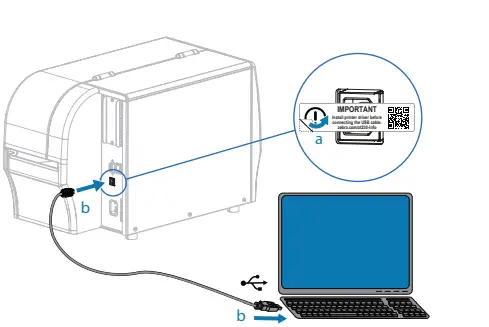
- Remove the port blocker label from the printer.
- Connect the USB cable to the printer and your computer.
- Make sure the driver is installed before connecting the USB cable.
- Plug in the Printer:
- Plug the printer into an electrical outlet.
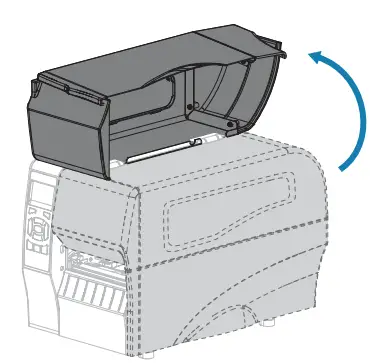
- Open the Media Cover:
- Press the latch on the media cover to open it.
- Load Media:
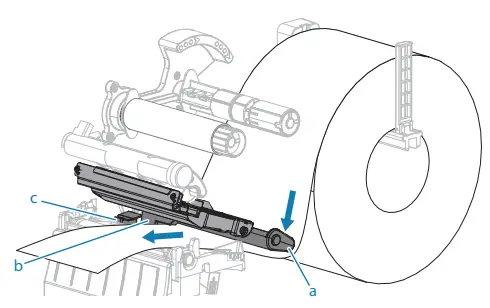
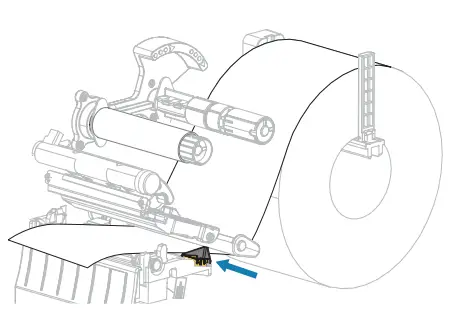
- Feed the label roll under the gray media dancer, inside the gap sensor, and under the inner media guide.
- Fold down the media guide and hang the roll of media on the
media hanger. - Fold up the media guide and slide it in until it almost touches the edge of the media.
- Load Ribbon:
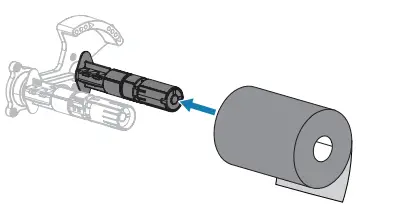
- Place the ribbon on the ribbon supply spindle and feed it through the ribbon path.
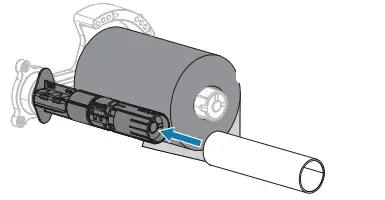
- Place an empty core on the ribbon take-up spindle.
- Release the Printhead Assembly:
- Rotate the printhead latch to release the printhead assembly.
- Recycle Damaged Labels:
- Remove and discard any dirty or torn labels.
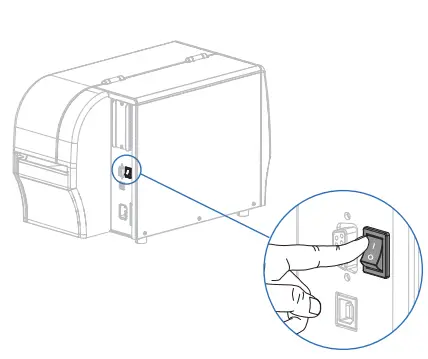
- Turn on the Printer Power:
- Turn on the printer power switch.
For more information on how to use your ZT230 printer, refer to the user documentation and how-to videos available on Zebra Technologies’ website. You can also contact Zebra for support and to learn about genuine Zebra supplies.
Install the Printer Driver
IMPORTANT
Go to zebra.com/zt230-info and install the driver for your printer.
- The driver MUST be installed before connecting the printer to the computer, or it will cause complications.
- If your Microsoft Windows-based computer does not have the driver installed for this printer, download it from zebra.com/zt230-info and install it before continuing.


Remove the Printer from the Box
Connect the USB Cable
- a – Remove the port blocker label.
- b – Connect the USB cable to the printer and your computer

Plug the Printer into an Electrical Outlet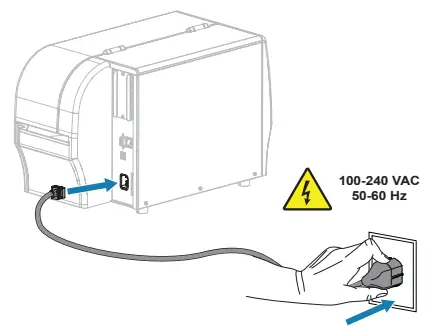
Turn on the Printer Power
Open the Media Cover
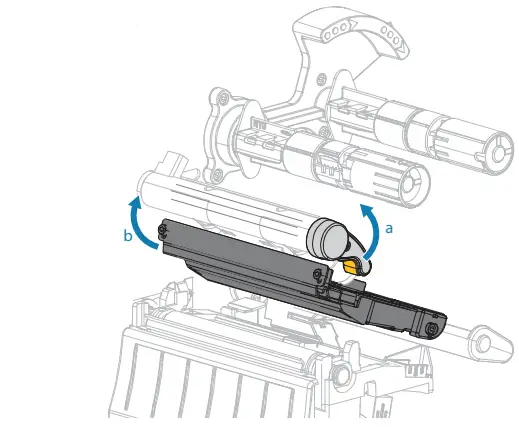
Release the Printhead Assembly
- Rotate the printhead latch (a) to release the printhead assembly (b).

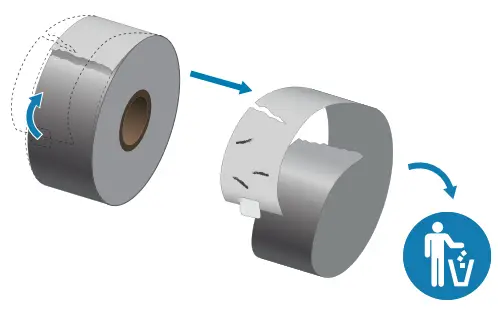
Recycle Damaged Labels
- Remove and discard any dirty or torn labels.

Load Media
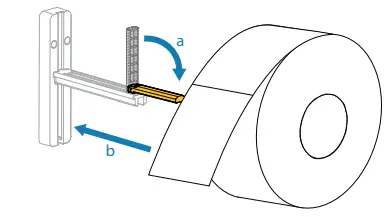
- a – Fold down the media guide
- b – Hang the roll of media on the media hanger
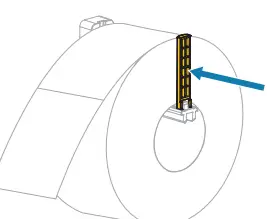
- Fold up the media guide, and then slide it in until it almost touches the edge of the media.
- Feed the media as shown:
- a – Under the gray media dancer
- b – Inside the gap sensor
- c – Under the inner media guide

- Adjust the outer media guide until it almost touches the edge of the media.

Load Ribbon
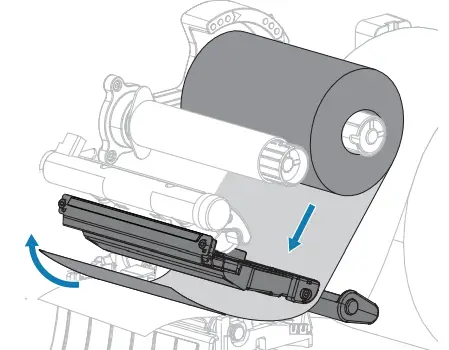
- Place the ribbon on the ribbon supply spindle as shown. Push the rollback as far as it will go.

- Place an empty core on the ribbon take-up spindle as shown. Push the core back as far as it will go.

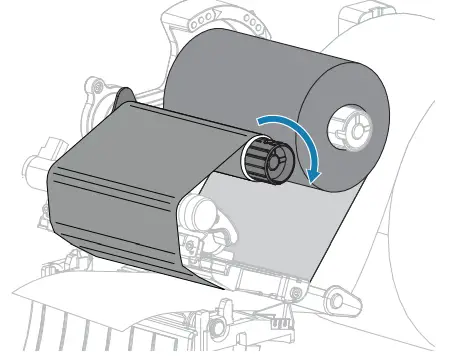
- Feed the ribbon as shown.

- Wrap the ribbon around the core several times, and then rotate the spindle to tighten and align the ribbon.

Support and information
- View user documentation and how-to videos. zebra.com/zt230-info
- View Quick Answers and Knowledge Base. zebra.com/knowledge
- Need to design a label? zebra.com/zebradesigner
- Join Community Connection of Zebra users and ambassadors. zebra.com/supportcommunity
- Learn about genuine Zebra supplies. zebra.com/supplies
- Contact Zebra about your printer. zebra.com/contactsupport
- Need to manage your printer? zebra.com/profilemanager
- Need to secure your printer? zebra.com/printsecure
Prepare for Printing
Rotate the printhead lever down to close the printhead.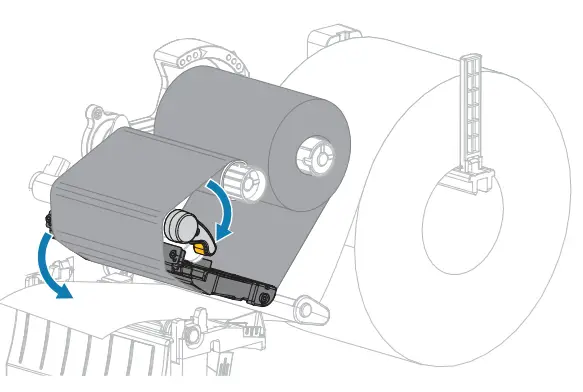
Press PAUSE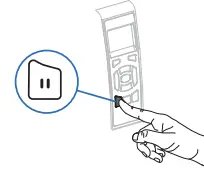
- The printer auto-calibrates and several labels feed.
- The ribbon tightens and aligns on the printhead
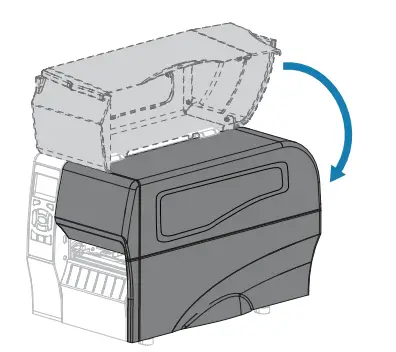
- Close the media cover.

- Zebra Technologies | 3 Overlook Point | Lincolnshire, IL 60069 USA zebra.com
- ZEBRA and the stylized Zebra head are trademarks of Zebra Technologies Corp., registered in many jurisdictions worldwide. All other trademarks are the
property of their respective owners. © 2022 Zebra Technologies Corp. and/or its.
References
 Zebra Technologies | Visible. Connected. Optimized.
-
Contact Technical Support & Repair | Zebra
-
Zebra Customer Community
-
PrintSecure | Zebra
-
Printer Profile Manager Enterprise | Zebra
-
Printing Supplies | Zebra
-
Zebra Customer Community
-
ZebraDesigner | Zebra
-
ZT230 Industrial Printer Support & Downloads | Zebra
 Zebra Technologies | Visible. Connected. Optimized.