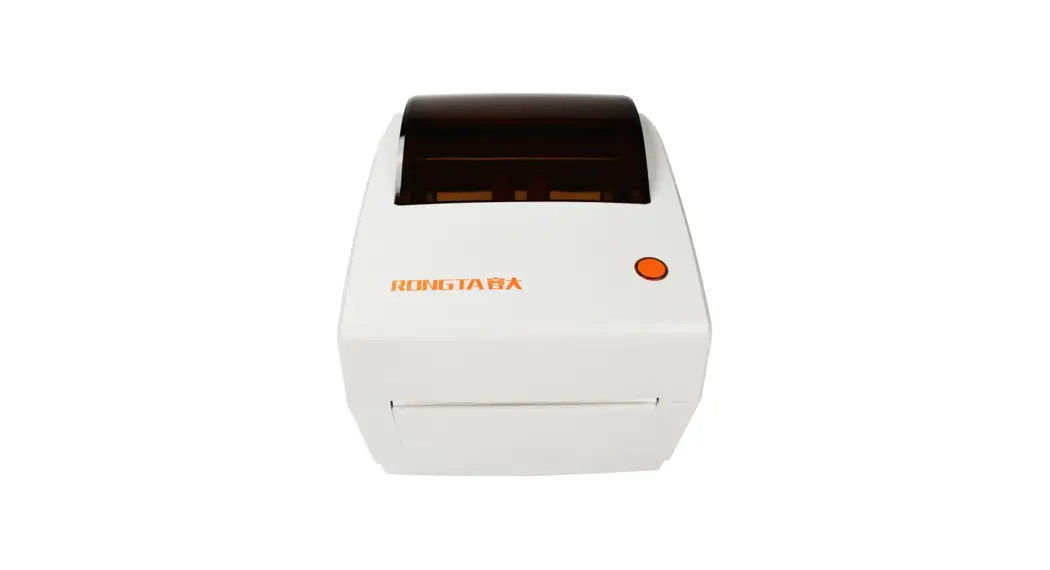

Label Barcode Printer
User Manual
Product Introduction
Thank you for purchasing the label printer produced by our company. This Label Printer provides you with safe, reliable, and efficient printing quality at a reasonable economic price. At the same time, The printer is widely used in supermarkets, the Catering industry, the clothing industry, the warehousing industry, etc. due to its super functions and easy operation.
1.1 Safety Warnings
 Warning: Do not touch the paper cutting knife or paper-tearing knife of the printer. Warning: The print head is a heating component. Do not touch the print head and its surrounding components when the printer is still warm in temperature. Warning: Do not touch the surface of the thermal print head and connectors. to avoid electrostatic damage to the print head.
1.2 Main Features
- High printing quality
- Low noise 7 The attractive appearance
- Reasonable structure, simple use, and maintenance
- Label off intelligent handling function
- The bad point detection function
- Fast printing, with a print speed of up to 180mmis, saving printing time greatly.
- Superior heat dissipation can handle heavy printing workload
- The reprinting function can effectively avoid the loss and omission of label information in the printing process caused by a lack of paper.
- Automatic paper positioning after re-opening and re-closing the cover can effectively avoid the trouble and waste of labels caused by printing dislocation
- Automatic identification of paper
Safety Instructions
Before operating and using the printer, please carefully read the following items and strictly observe the use rules.
- Please install the printer on a stable surface to avoid the printer suffering from any vibration and shocks.
- Do not use and store the printer in places with high temperature, high humidity, and high pollution.
- Connect the printer’s power adapter to an appropriate grounding socket. Avoid using the same socket with large motors or other equipment that may cause voltage fluctuation of power supply.
- Keep water or conductive materials (such as metal) out of the printer. Once it occurs, Power should be turned off immediately.
- Never use the printer without paper, otherwise, it will seriously damage the printing rubber roller and thermal head.
- Unplug the product from the power outlet if the printer is idle for a long time.
- Do not disassemble or modify the product personally.
- Use only the power adapter specified in this instruction.
- In order to ensure the printing quality and prolong the service life of the product, it is recommended to use the recommended or equivalent thermal printing paper.
- Do not plug/unplug the product with the product powered on.
- When plugging and unplugging the printer power cord, please hold the arrow position of the printer power connector with your hand, not the cord of the printer power cord.
- Please keep this manual for future use and reference.
Appearance and Components
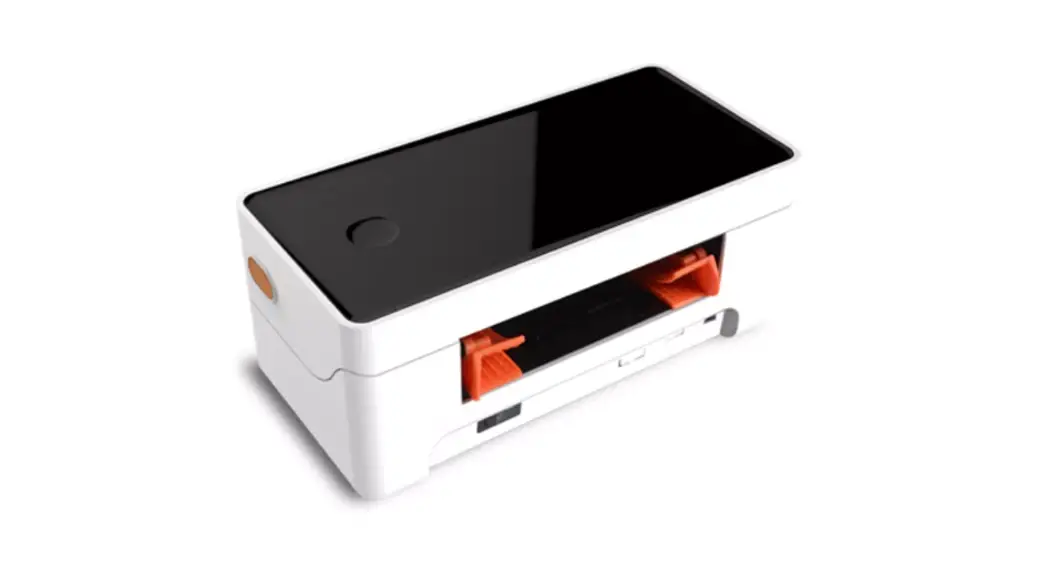
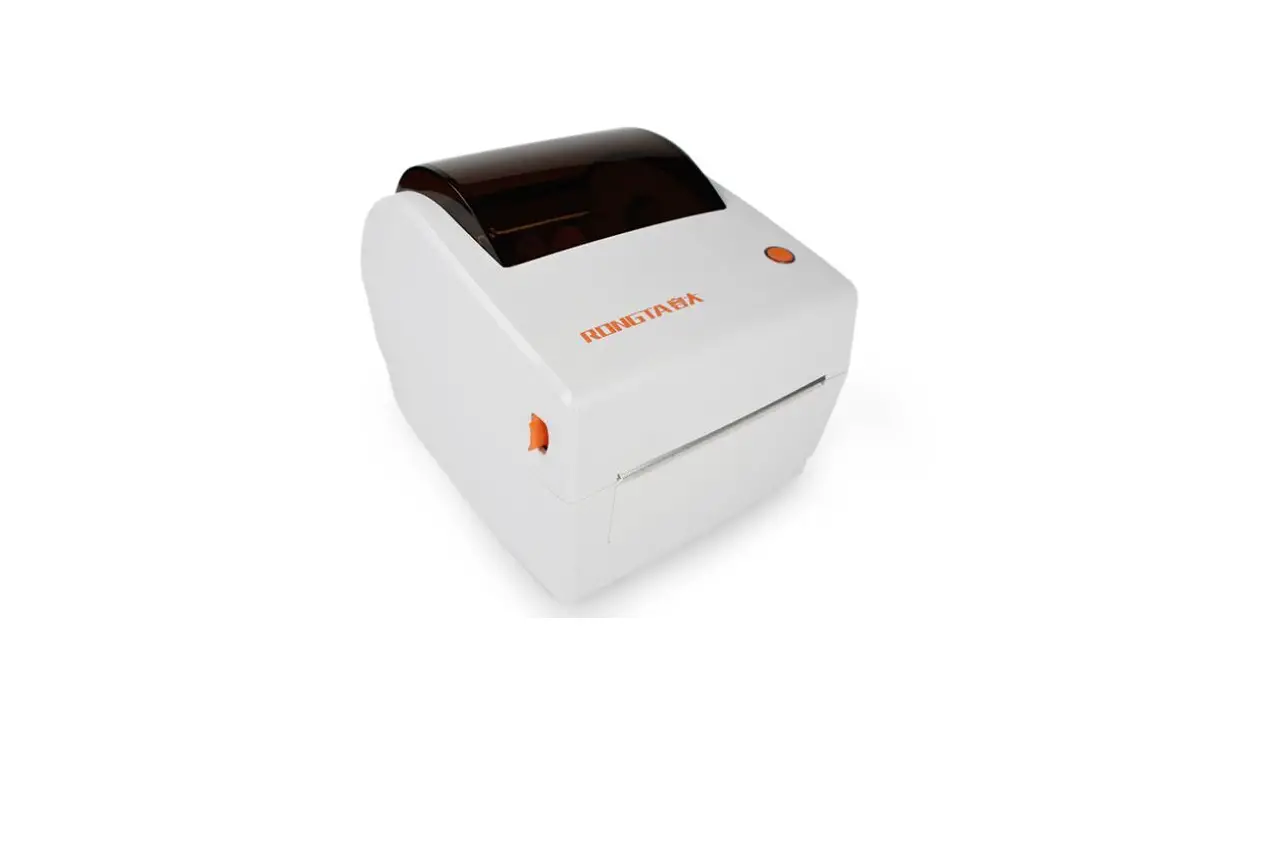
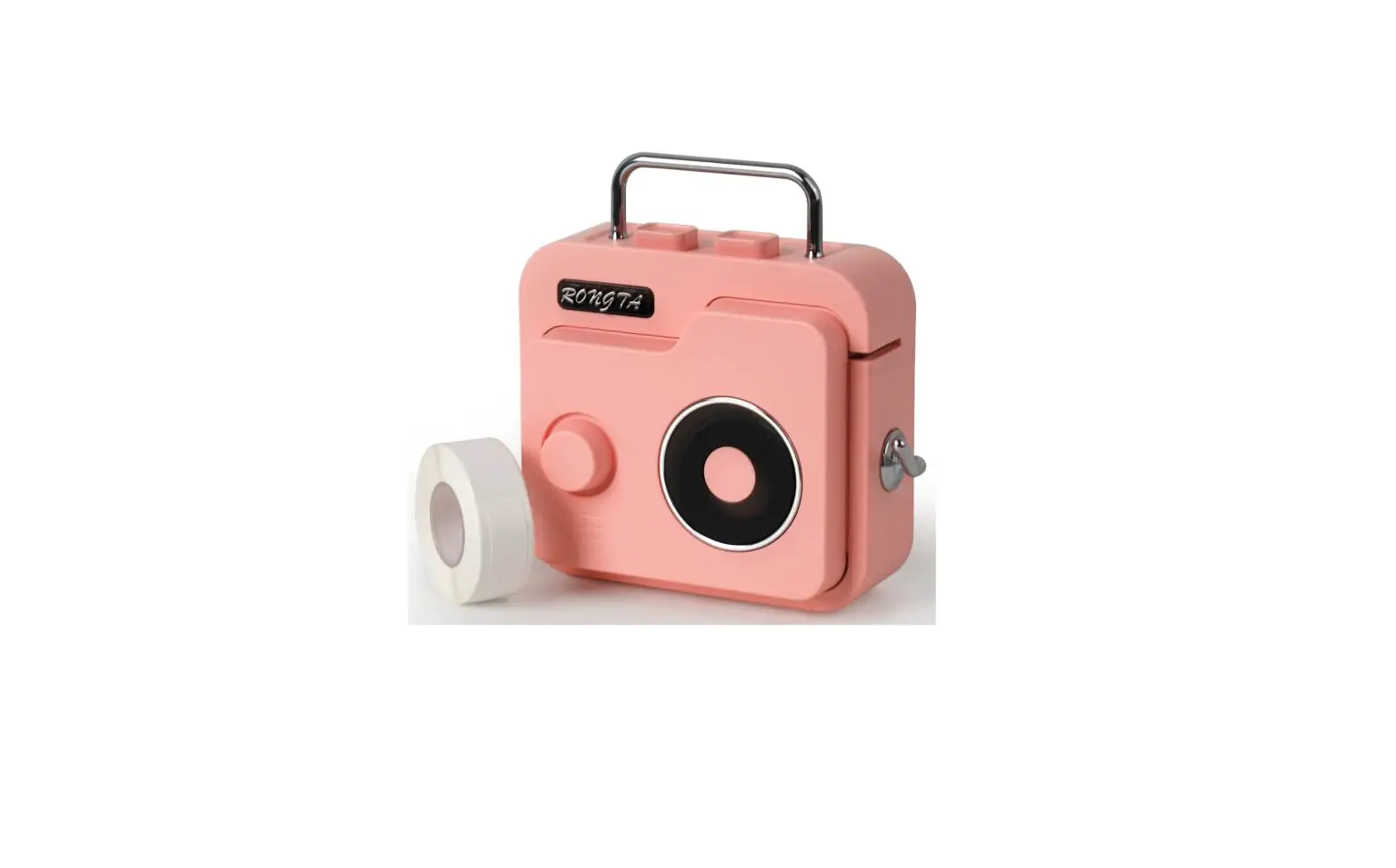
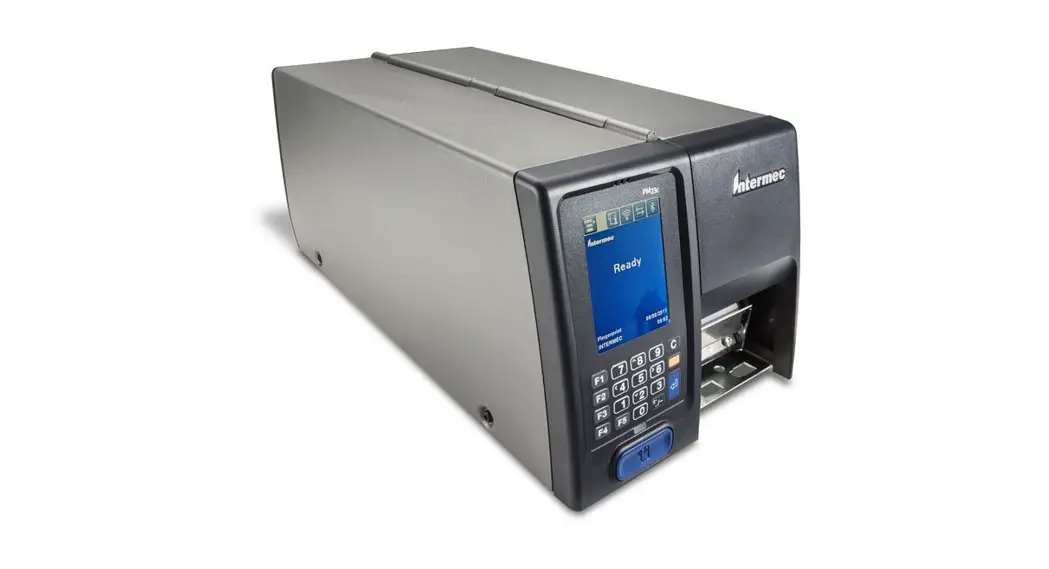
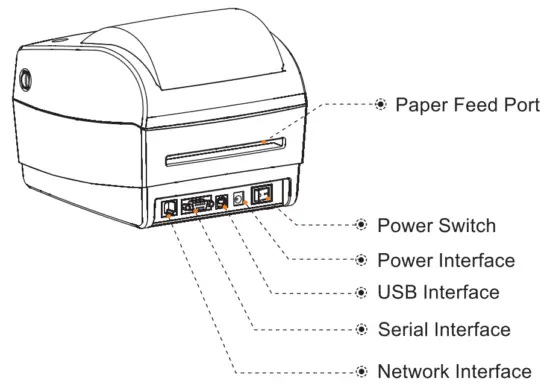
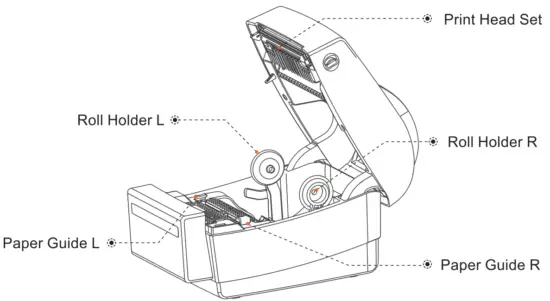
Product A label printer
Front View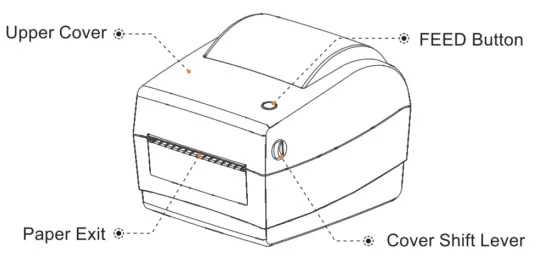 Rear View
 Inside View
 Application Field
- Supermarket Cashier system
- Catering industry cashier system
- Garment industry cashier system
- Warehousing industry cashier system
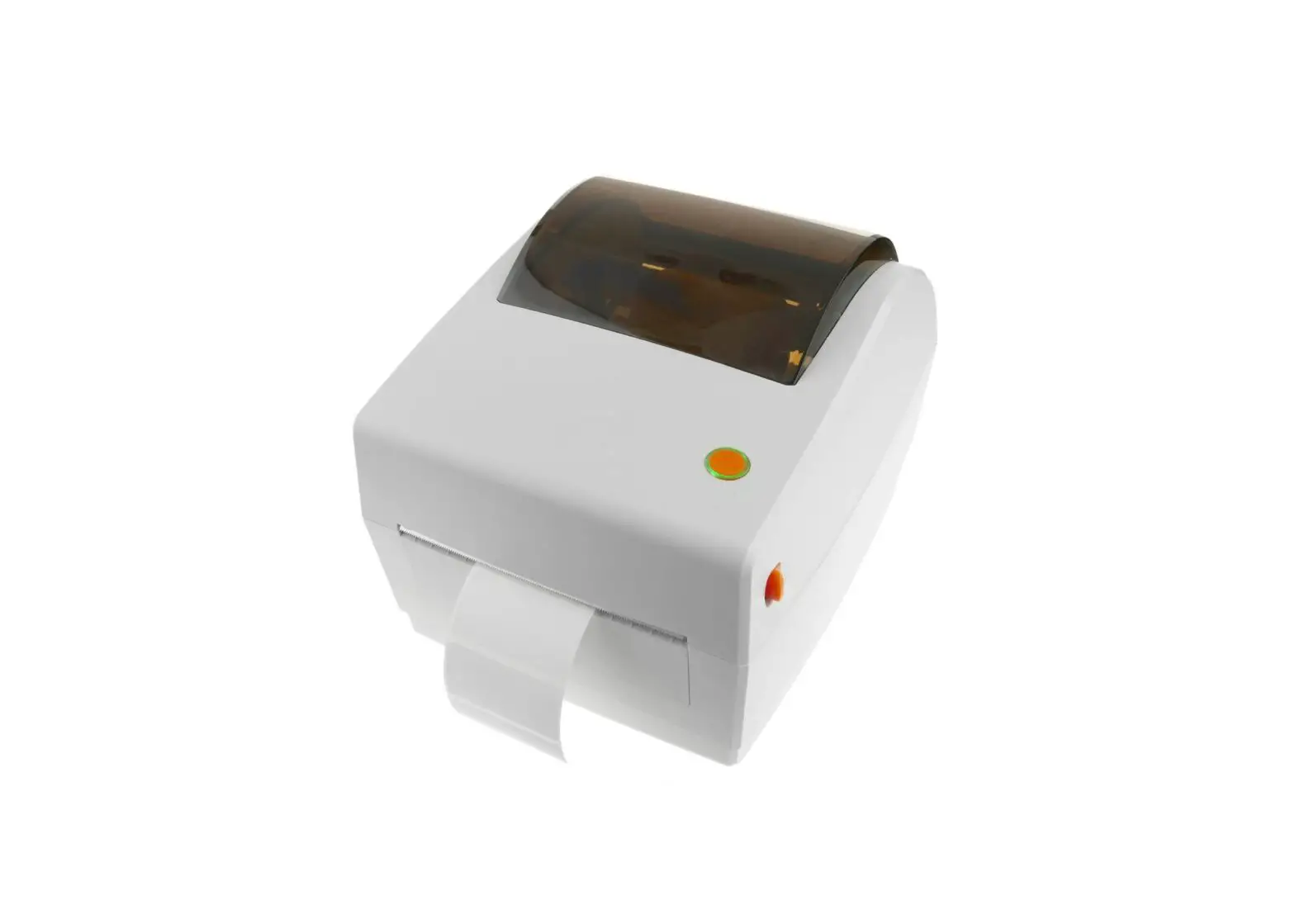
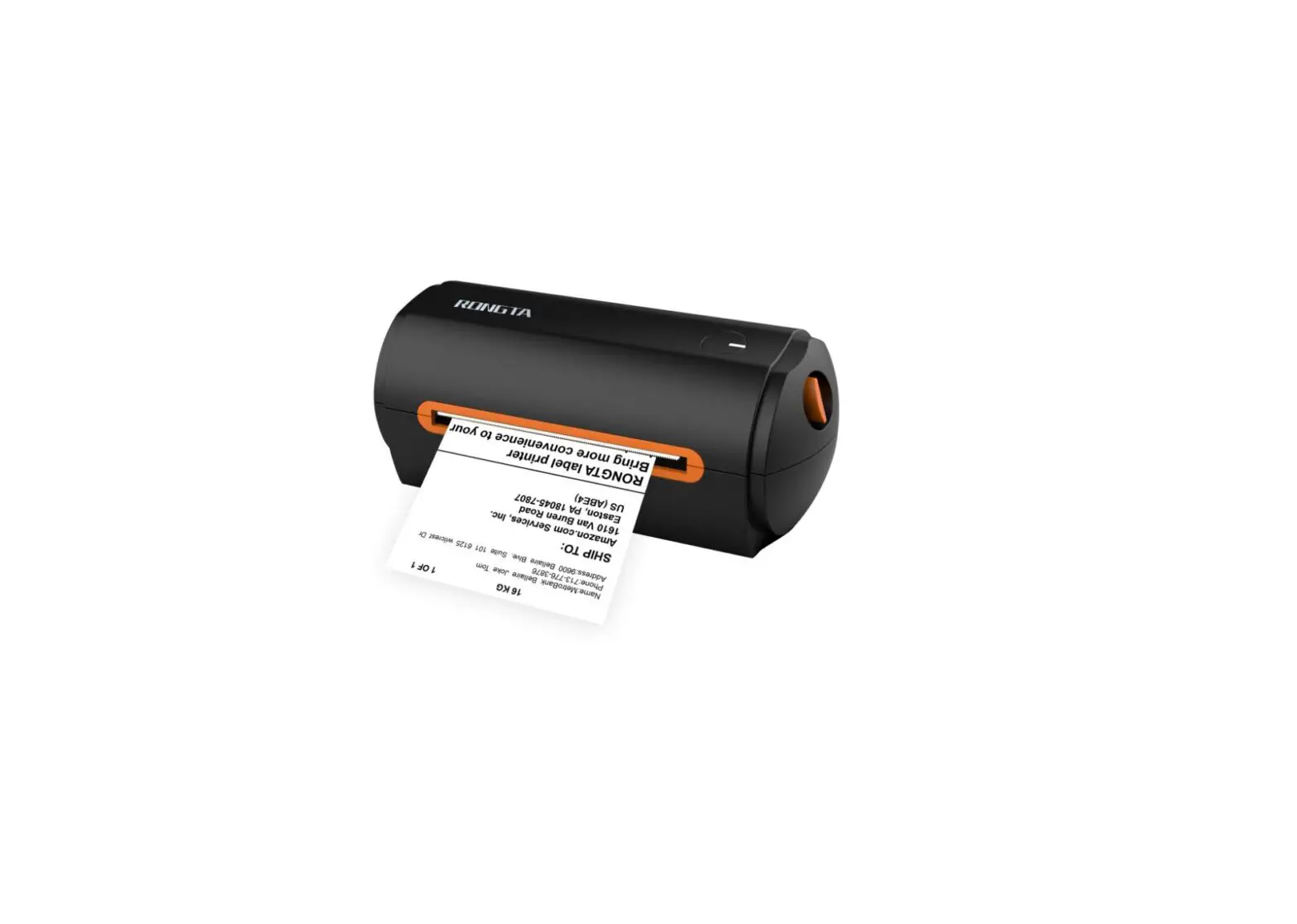
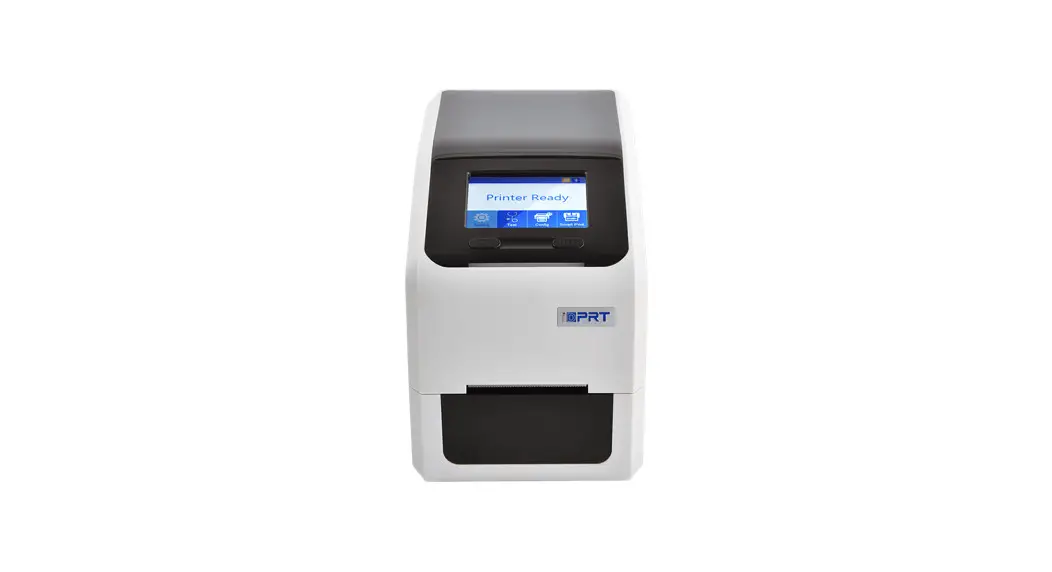
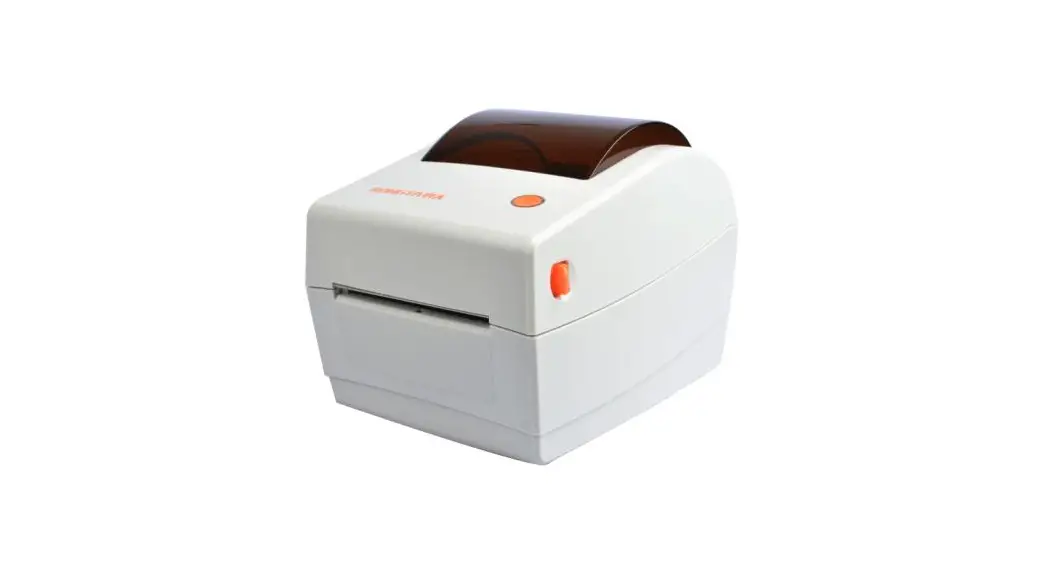
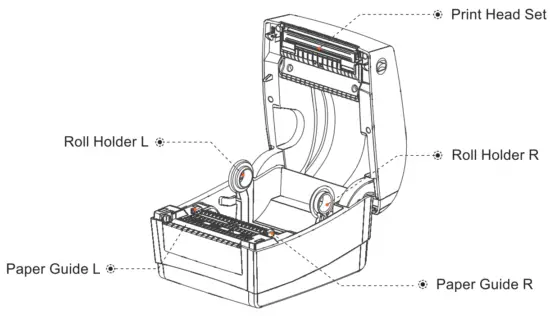
Product B label printer
Front View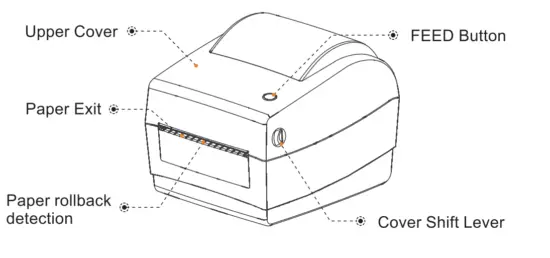 Rear View
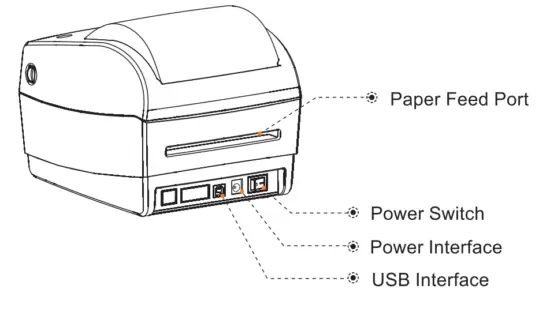 Inside View
 Application Field
- Supermarket Cashier system
- Catering industry cashier system
- Garment industry cashier system
- Warehousing industry cashier system
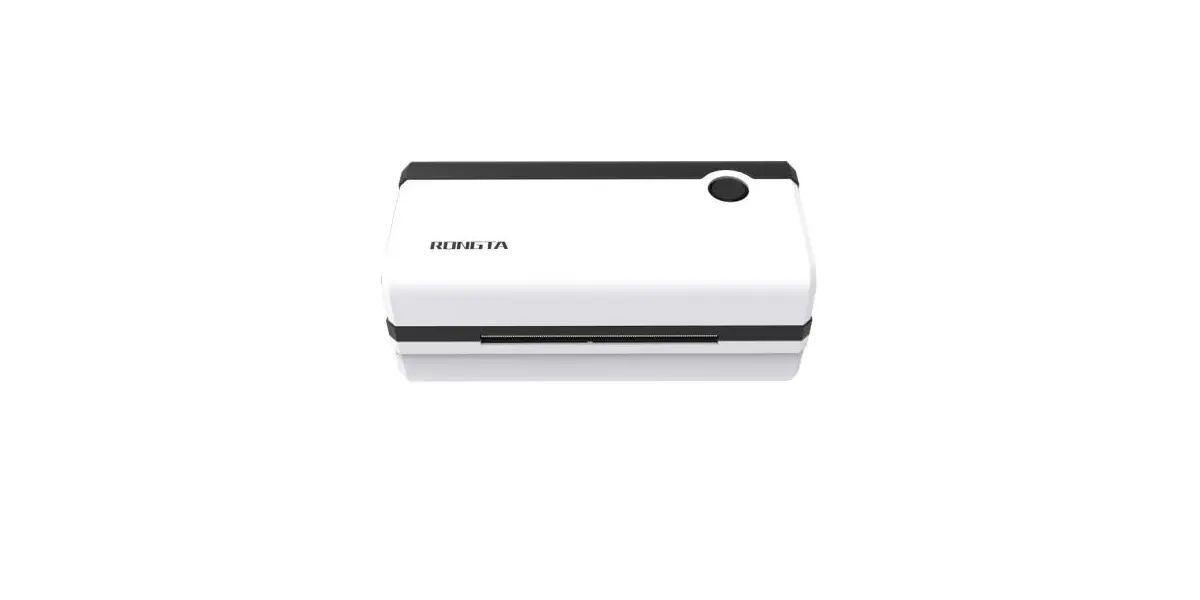
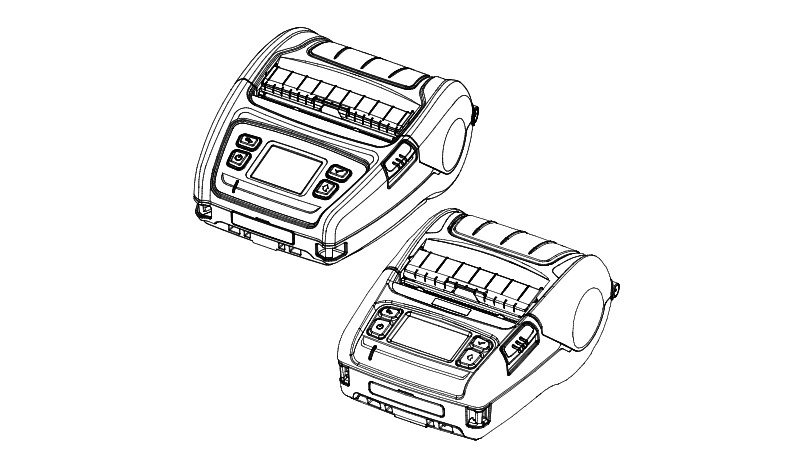
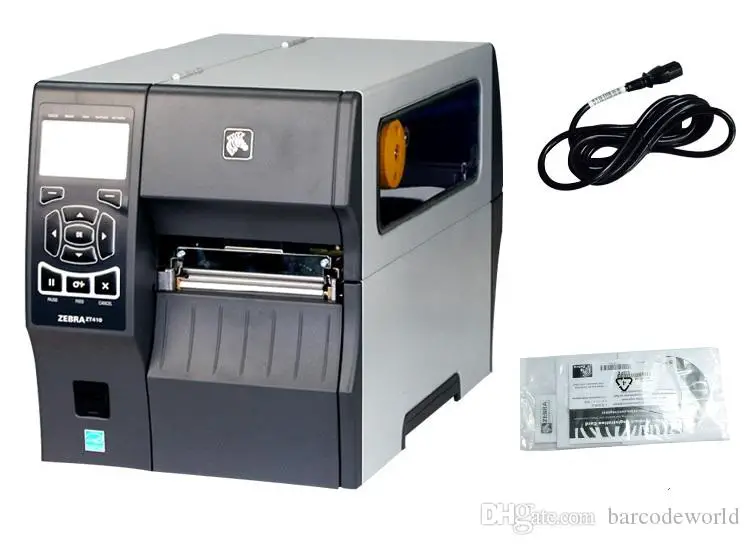
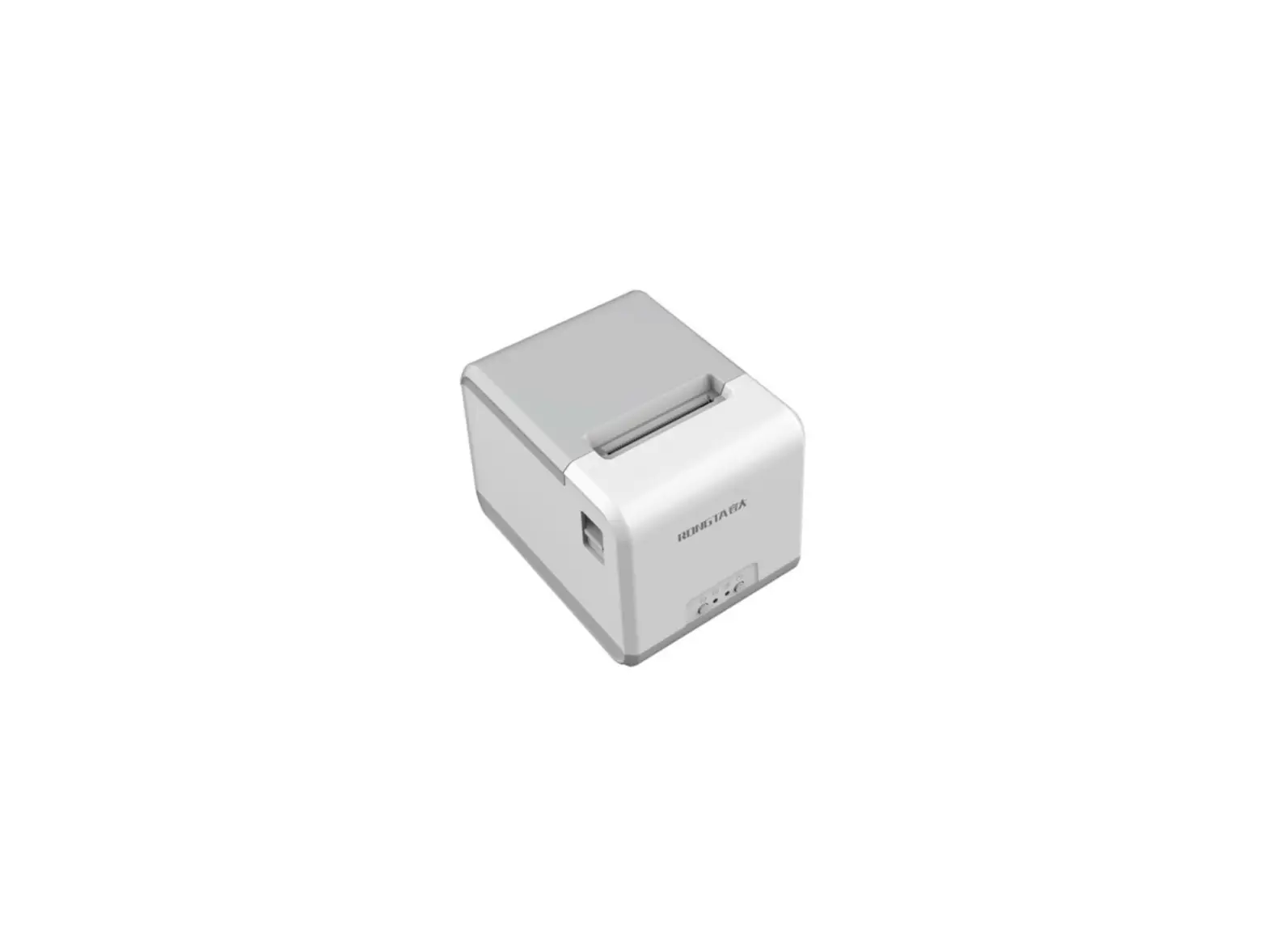
Product C label printer
Front View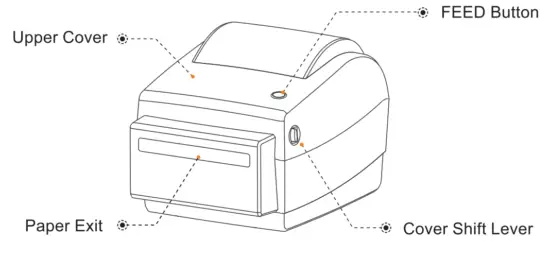 Rear View
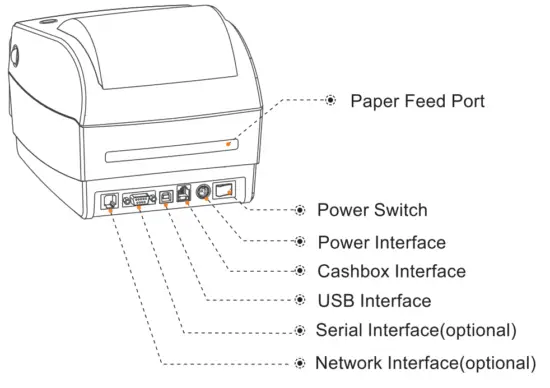 Inside View
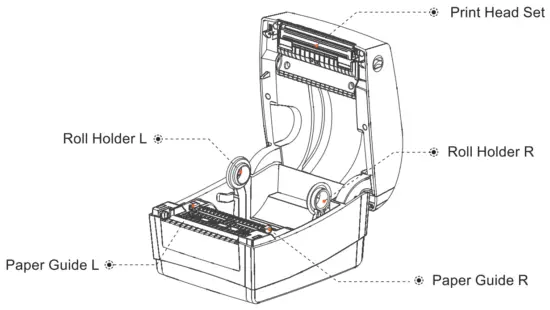 Application Field
- Supermarket Cashier system
- Catering industry cashier system
- Garment industry cashier system
- Warehousing industry cashier system
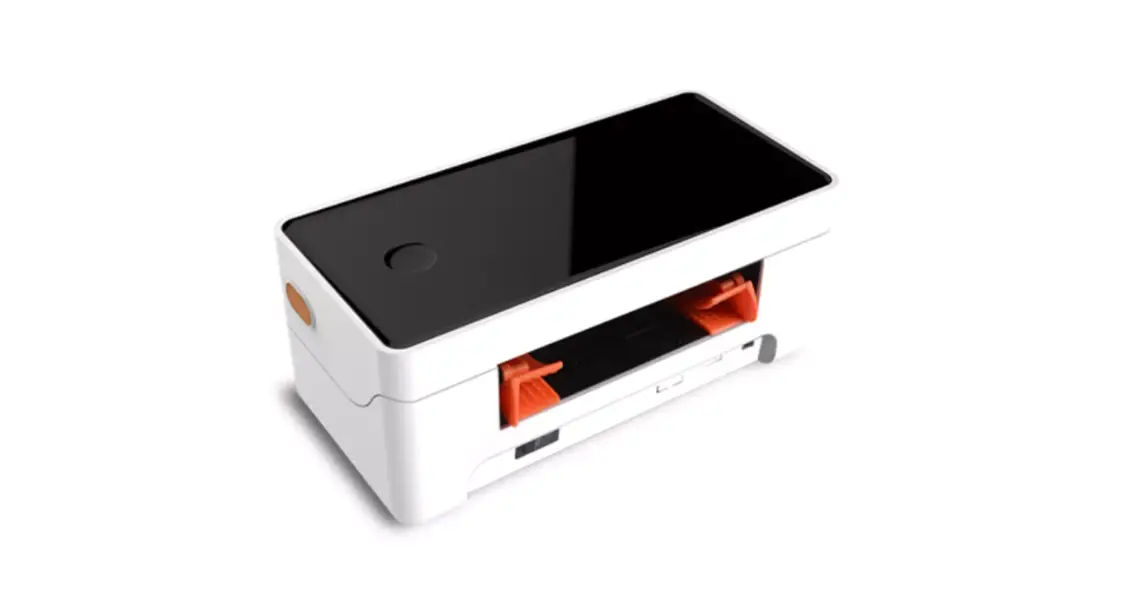
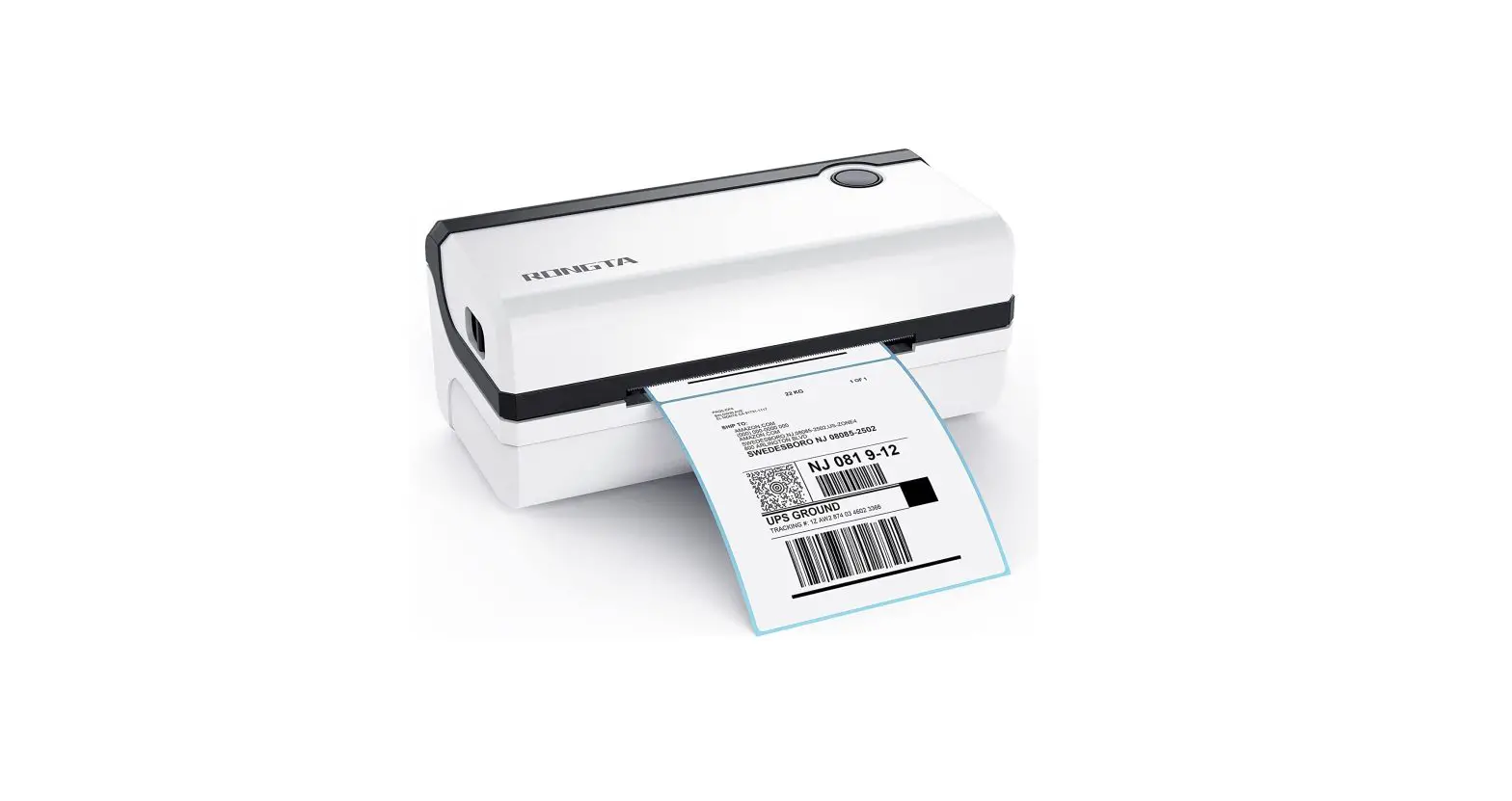
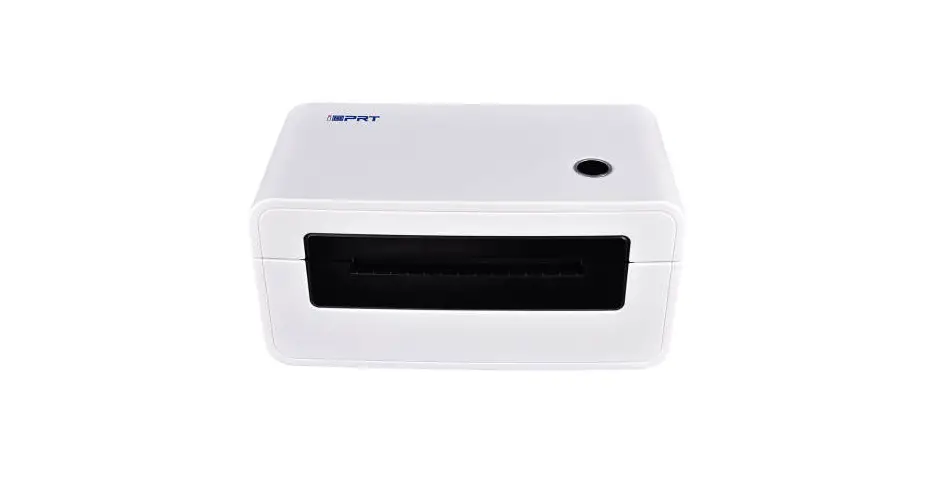
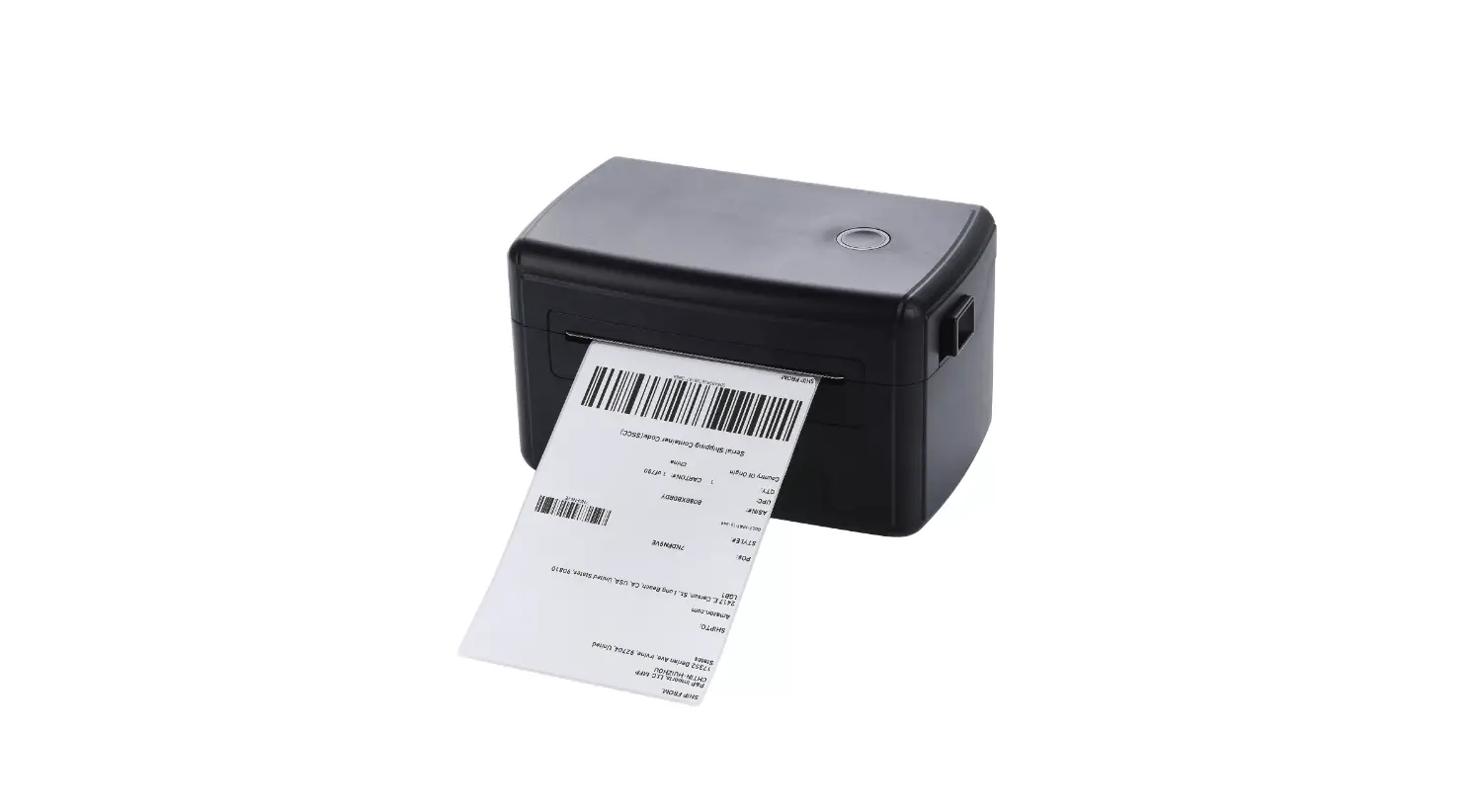
Product D label printer
Front View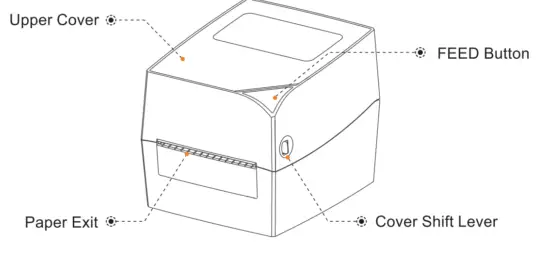 Rear View
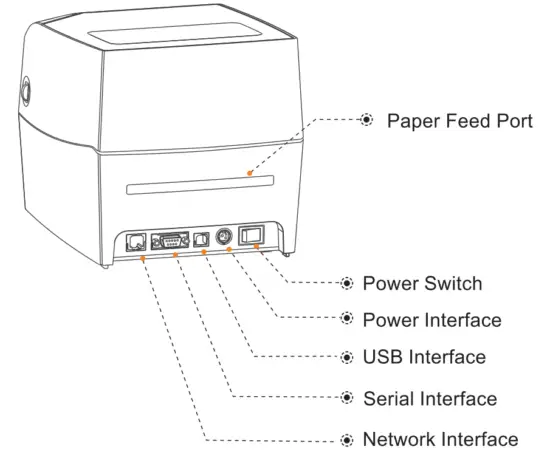 Inside View
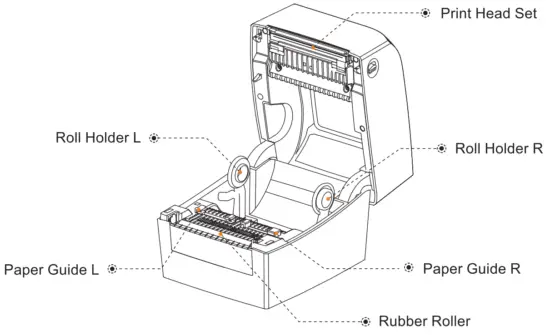 Application Field
- Supermarket Cashier system
- Catering industry cashier system
- Garment industry cashier system
- Warehousing industry cashier system
Technical Parameters
4.1 Printing Parameters
| Printing method Printing speed Printing paper width Effective resolution Thckressil prating paper Effective printing width Character size | Thermal line printer 127mnVs (Remark:Product 150mM/S) 26.7-120 mm 203 dpi 0.06-0.18mm 104mm (Product D: compatible with 108mm paper) ASCII Font A: 12×24 ASCII Font B: 9×17 Chinese character 24×24 | 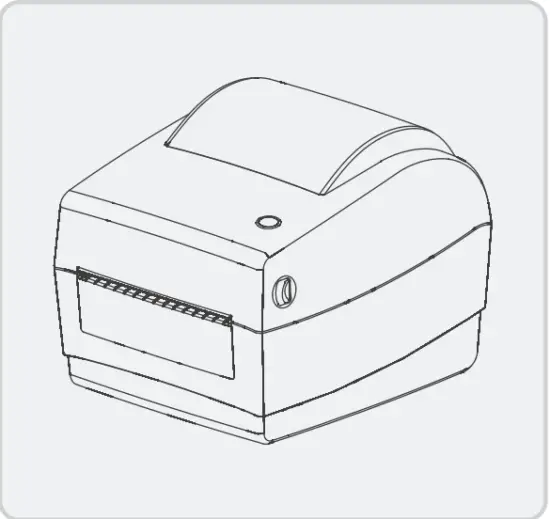 |
Print character
| ASCII character set National Standard Class land II Chinese Character Font Type of bar code | 12×24 dot. 1.25 (width)X3.00 (height)mm 24×24 dot. 3.00 (width)X3.00 (height)mm One-dimensional code:Code39. 39C. ITF25, EAN128. Code, Codebar. EAN8-2. EAN8+2. EAN8+5. EAN•13. EAN13+5, UPC-A. UPCA+2. UPCA+5. UPC-E. UPCE+2. UPCE+5MSIC, ITF14. EAN 14. CODE11, POST ORcode:CIRCODE, PDF417(optional) | 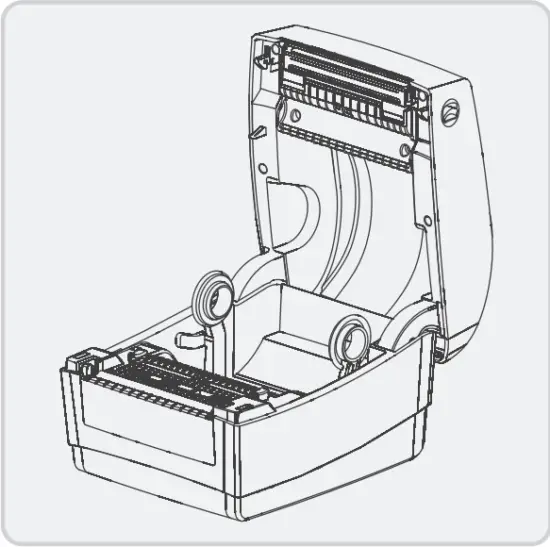 |
| Extended character table | CP437, CP850. CP852. CP860. CP863. CP865. CP866 WPC1250. WPC1251. WPC1252. WPC1253. WPC1254 ETC., 12INTERNATIONAL LANGUAGES IN TOTAL |
Power supply
| Power adapter Input power supply Environmental requirements | AC 100  240V 240VDC 24V 2.5A | 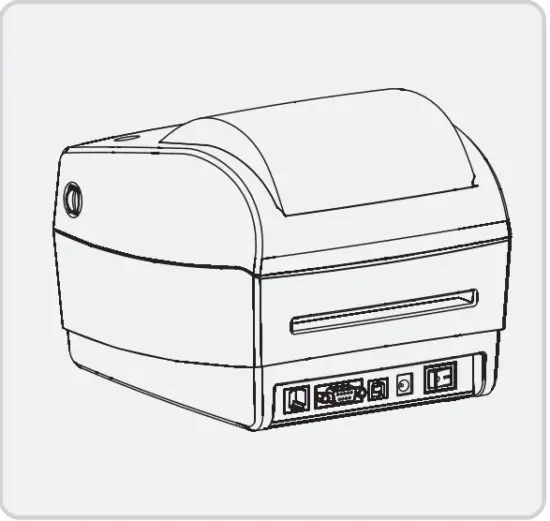 |
| Working env’wonment Storage environment Environmental conditions | Operating temperature: 0- 45°C. operating humidity: 20-90% Storage temperature:-10 – 60°C, storage humidity: 10-90% (Except paper roes ) | |
| Drive Print command Character Printing | WINXKWIN7AVIN8NVINIO ESC/POS/TSPL/CPCL(optional)/ZPL(optionat) It supports double width and double height printing of AN K characters, custom characters and Chinese characters; adjusts dot patterns of character spacing for printing; |
 Remark: The interface is optional or customized, and the specific interface is subject to the actual object.
❑ The pictures are for reference only, please subject to practicality.
Installation and Operation of Printer
5.1 Printer Unpacking
Check the parts:
Before use, make sure the accessories are included in the package(the following picture is an example). If any thing is missing, contact the supplier or manufacturer. The specific accessories may not be included depending on the printer model.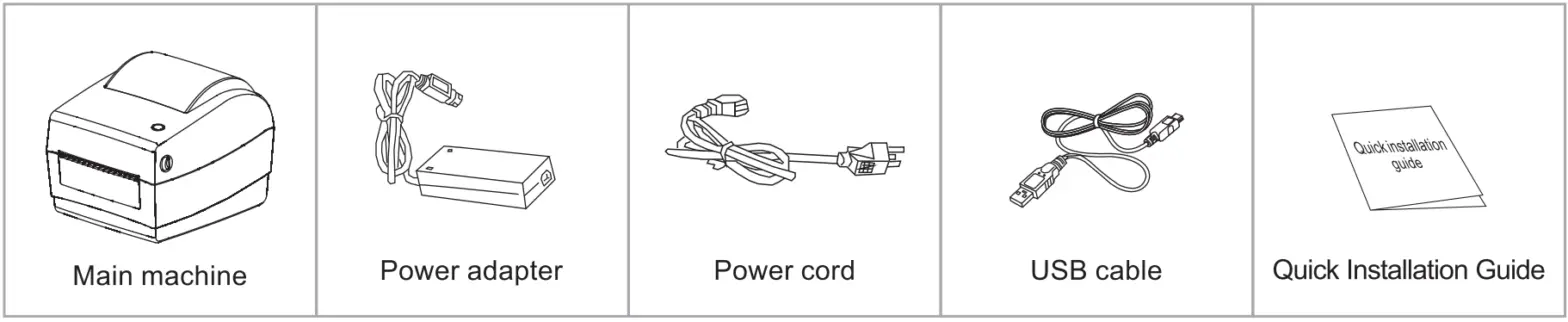 The pictures are for reference only, please subject to practicality. 5.2 Connecting the Printer
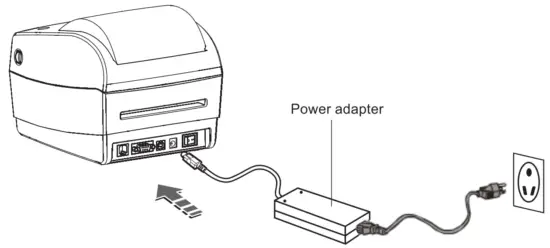
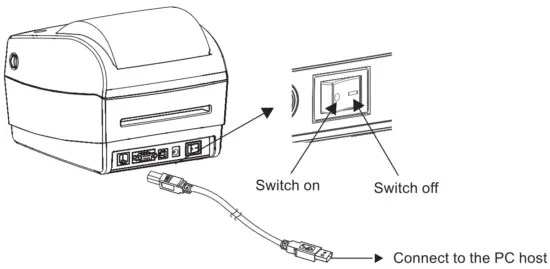
❑ Connect the power line
- Confirm that the power switch is in an off (0) state
- Connect the power adapter to the printer
- Connect the power line to the power adapter
- Connect the other end of the power line to a nearby socket
Use the special power adapter for the printer. The connection diagram is as follows:
❑ Connect the USB cable
- Connect the USB cable to the printer
- Connect the USB cable to the PC host
- Turn the power switch to on (1) state
5.3 Loading Paper
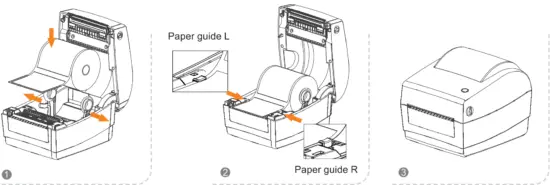
The Label Printer receipt printer uses 120mm thermal paper rolls and adopts an easy paper loading mechanism, which is very convenient for paper loading.
5.3.1 The loading method of the internal thermal paper roll is as follows:
- Pull out the roll holder, confirm that the print side of the paper roll faces upward, and load the paper roll.
- Send the front end of the paper roll through the paper guide and pull it out beyond the rubber roller; close the paper guide to fix the two sides of the paper according to the paper width.
- Close the upper cover of the printer and press down gently until the top cover closes with a “click” sound.
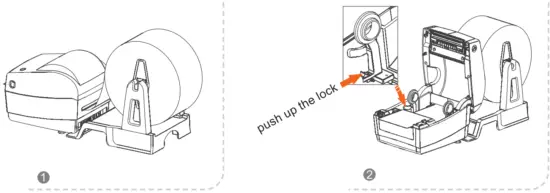
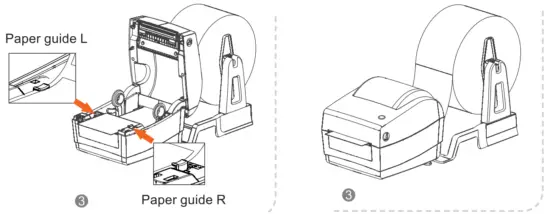
5.3.2 The loading method of the external thermal paper roll is as follows:
- Ensure that the print side of the paper roll faces upward and put the front end of the paper roll through the feed port on the back of the printer;
- Pull out the roll holder and push up the lock on the holder L to lock it.
- Send the front end of the paper roll through the paper guide and pull it out beyond the rubber roller; close the paper guide to fix the two sides of the paper according to the paper width.
- Close the upper cover of the printer and press down gently until the top cover closes with a “click” sound.