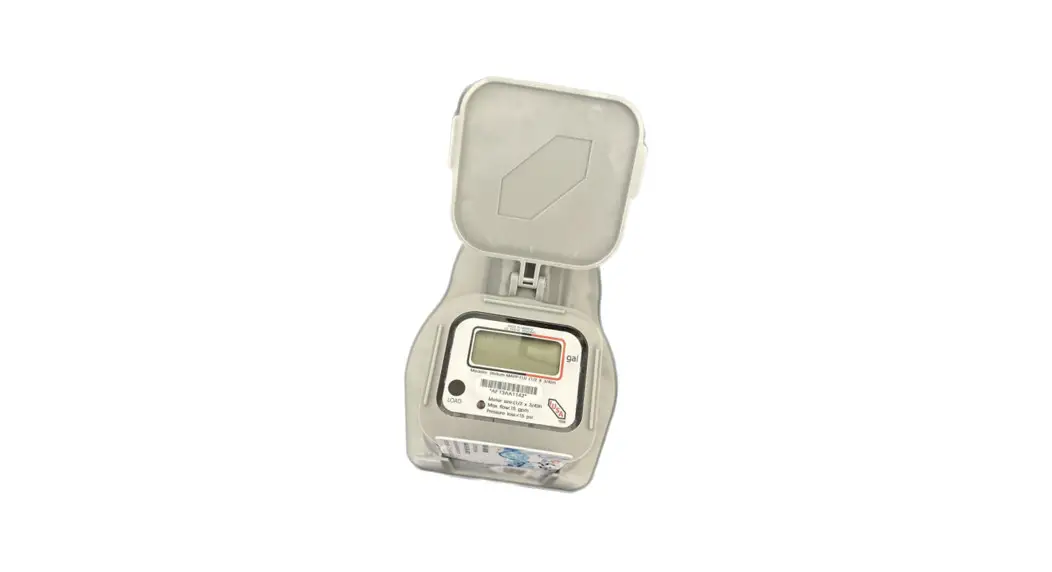
 Stellum-MAPP-FLU Smart
Self-Management System + Android
User Manual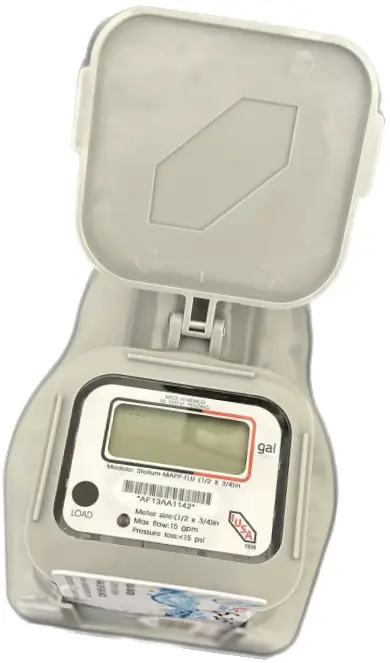
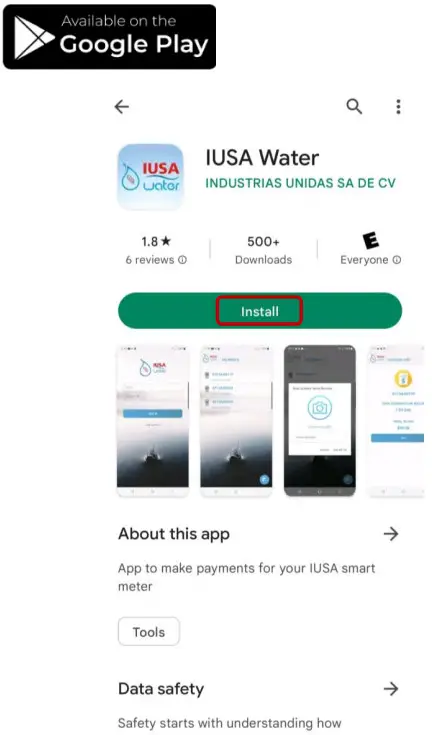
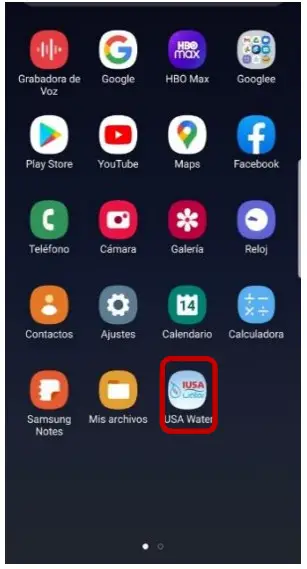
Download App
Look in the Play Store for the IUSA Water App 
- Download

Registration
To register your account
- Enter to IUSA Water App

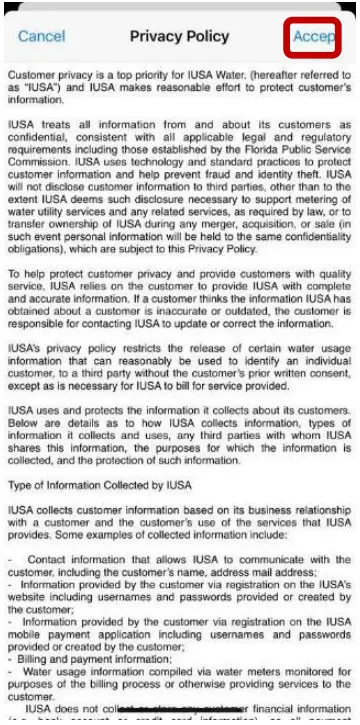
- Accept Privacy Policy
Read and Accept the Privacy Policy
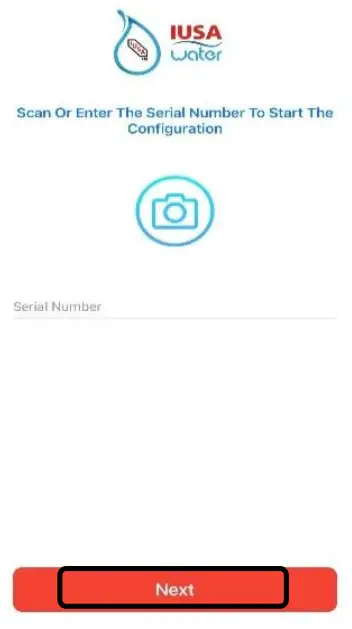
- Meter Version Identification
Scan the meter serial number to identify which version of the meter is being used.
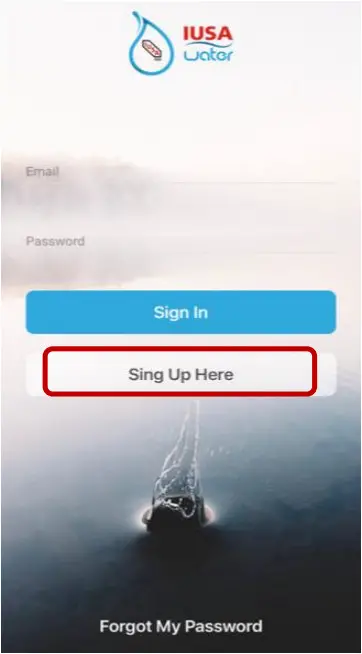
- Select ‘’Sign Up Here’’

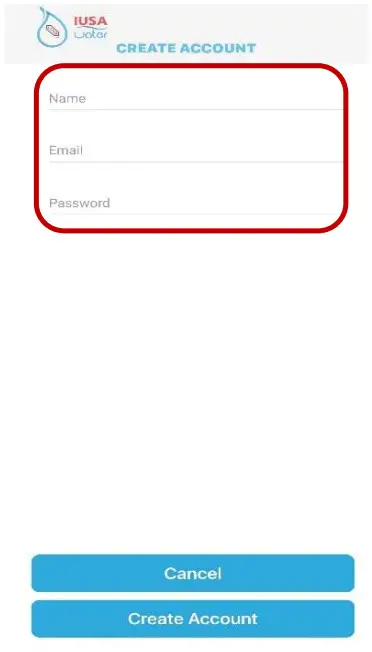
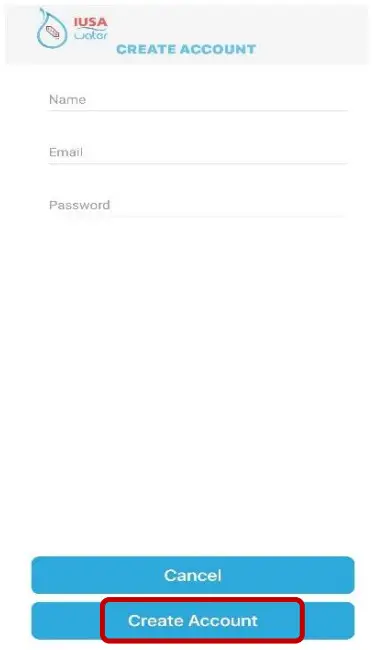
- Create Account
Fill in all required fields to set up the account.
- Select Create Account

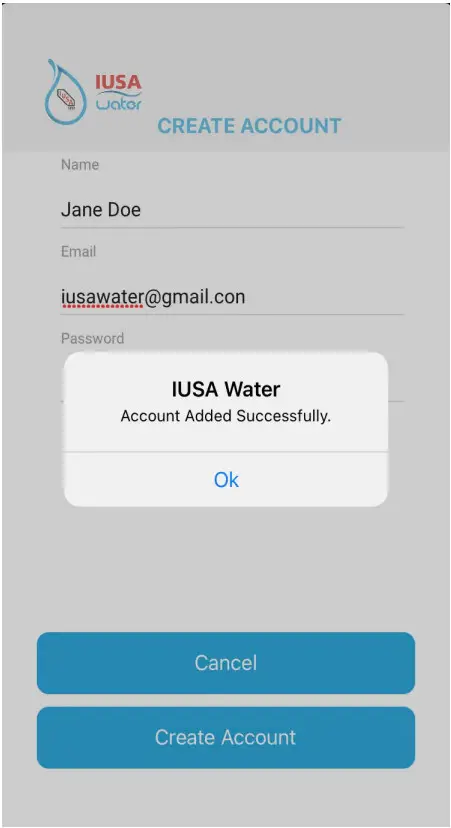
- Account Created
A message confirming that the account was added successfully will be displayed.
Select “OK” to finalize the process.
Login
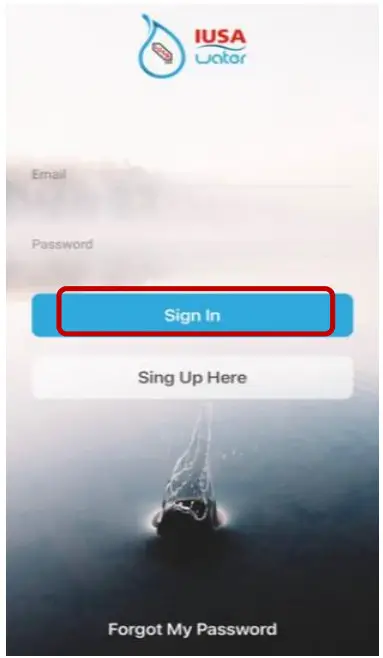
- Using the credentials registered; select sign in to log in to your account.
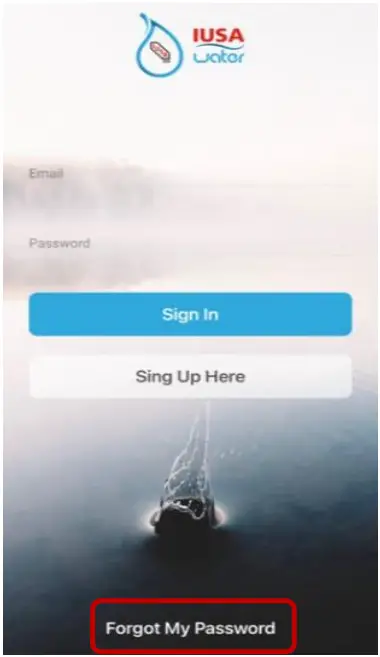
 If you can’t remember your credentials, reset the password.
Select “Forgot My Password” and follow the instructions. An email will be sent to the email registered to change your password. (Email should be received within 2 minutes. Check the spam folder if email is not found in the inbox)
 - After successfully logging in the System will present the ‘’Home Page’’
You will now be able to add the meter to your account by selecting the sign as shown below.
 If you can’t remember your credentials, reset the password.
 (Email should be received within 2 minutes. Check the spam folder if email is not found in the inbox)
 sign as shown below.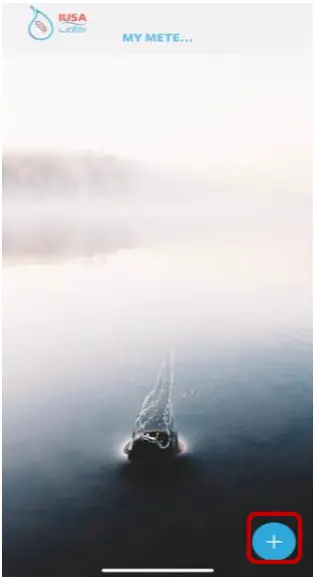
Add Meter
Meter can be added to the account by entering or scanning the serial number (to scan the camera must be enabled)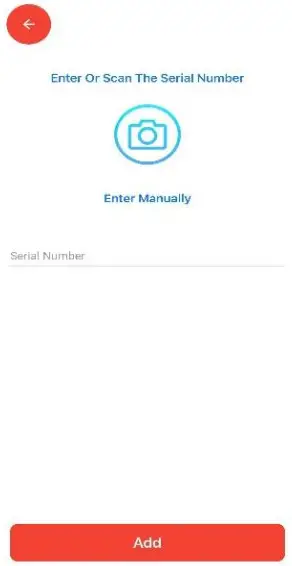
- Identify Meter
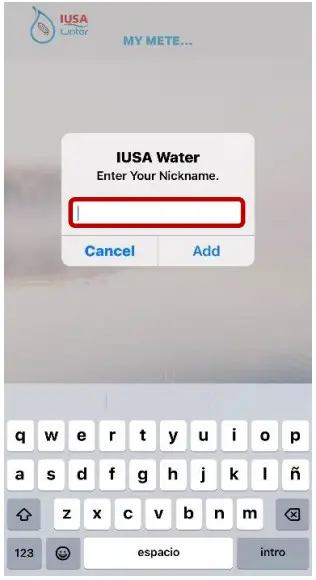
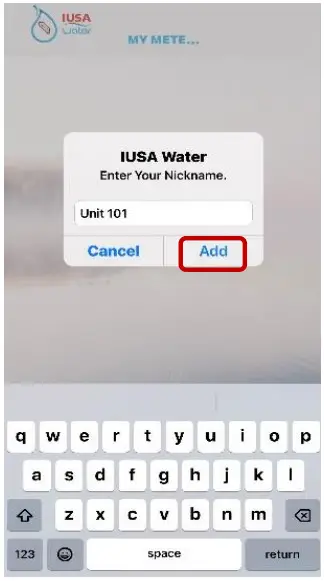
You may assign a nickname to identify your meter. - Select ‘’Add’.
 Once completed, the following image will be displayed indicating that the meter was added successfully. At this time select “Accept” to conclude the process.
 Once completed, the following image will be displayed indicating that the meter was added successfully. At this time select “Accept” to conclude the process.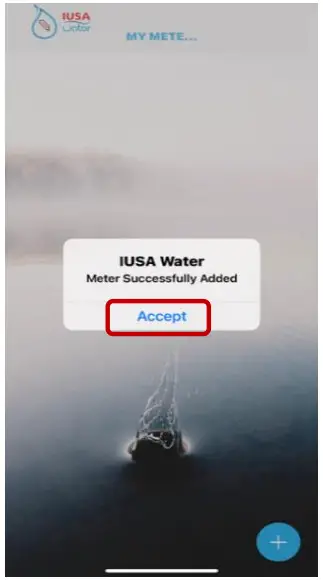
Payment
**** TO AVOID INTERFERENCE, REMOVE THE SMART CARD FROM THE METER BEFORE PROCEEDING TO MAKE A PAYMENT ****
To make a Payment:
- Select the meter from “My Meters” list.

- Enable Bluetooth / Read consumption
Bluetooth must be enabled in order to connect to the meter to read the consumption.
When prompted to allow Bluetooth, select “ok” to accept. Once Bluetooth is enabled, the process of reading the consumption will begin. You must remain near the meter for successful communication with the meter.
 You must remain near the meter for successful communication during the entire process.
 - To obtain a copy of the bill before paying, select ‘’Bill’’ and a copy will be emailed to you.

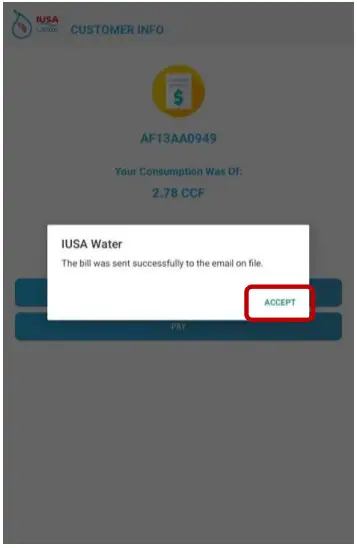
- A message will be displayed once the bill has been sent to the E-mail address registered to the account. Select “Accept” to end the process. (Email should be received within 2 minutes. Check the spam folder if email is not found in the inbox)

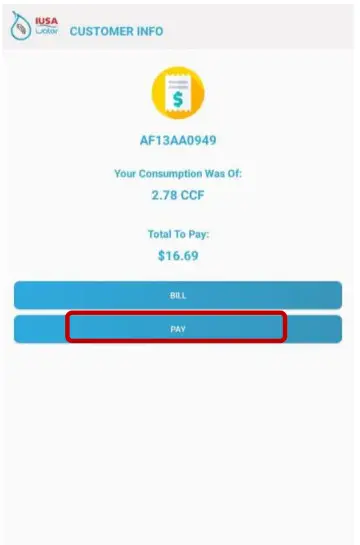
- To make a payment, select “Pay”.

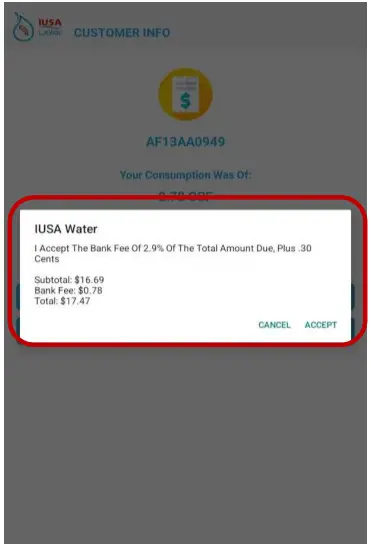
- A message detailing the charges to pay will be displayed.
 If you don’t wish to pay at this time, select “Cancel”.
 - To accept the charges and proceed to pay, select “Accept”

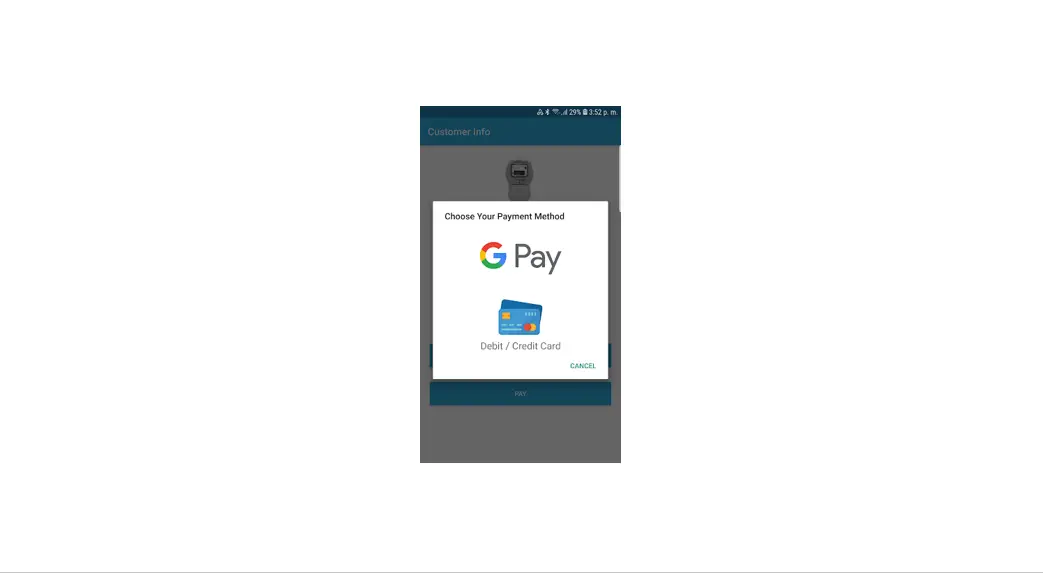
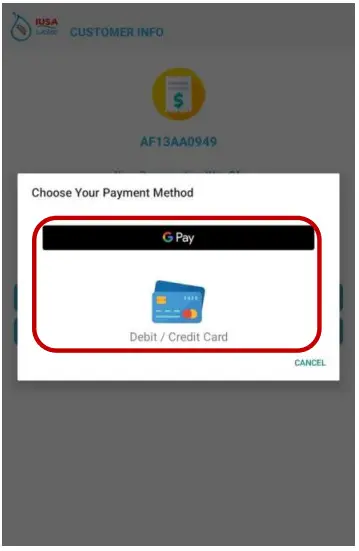
- Select Payment Method.
• Credit/Debit card
• Google Pay
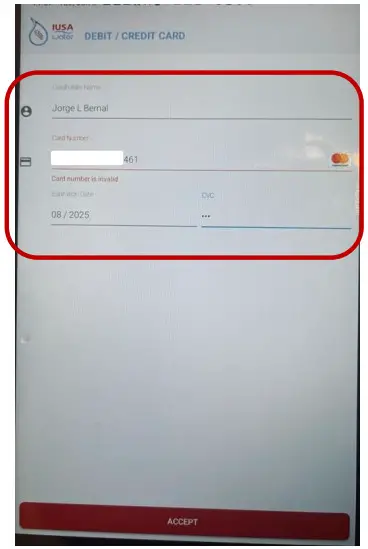
- Enter the credit/debit card information as shown on your card.

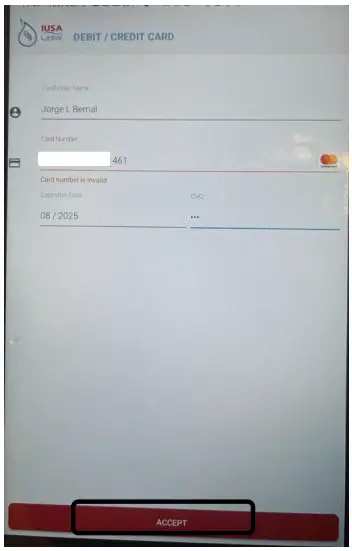
- Select ‘’Accept’.

- Once paid, the image below will be displayed confirming payment has been made and a receipt of payment will be sent to the email on file. (Email should be received within 2 minutes. Check the spam folder if email is not found in the inbox)
 To end the process, select “ok”.
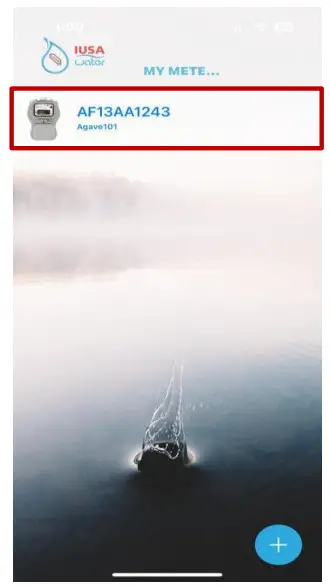
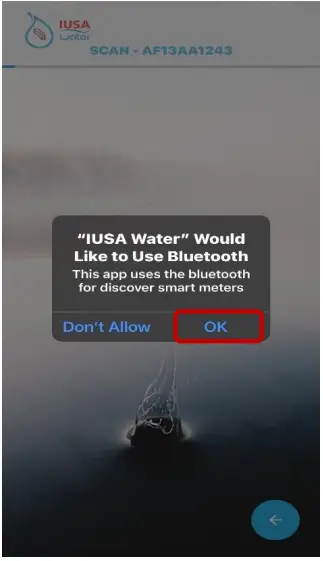 Once Bluetooth is enabled, the process of reading the consumption will begin. You must remain near the meter for successful communication with the meter.
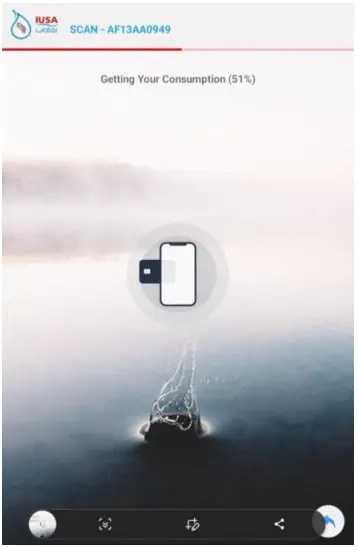 You must remain near the meter for successful communication during the entire process.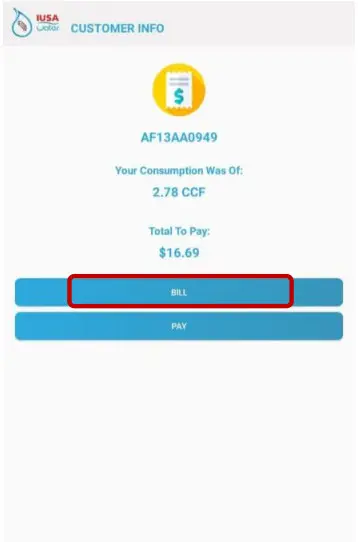
 If you don’t wish to pay at this time, select “Cancel”.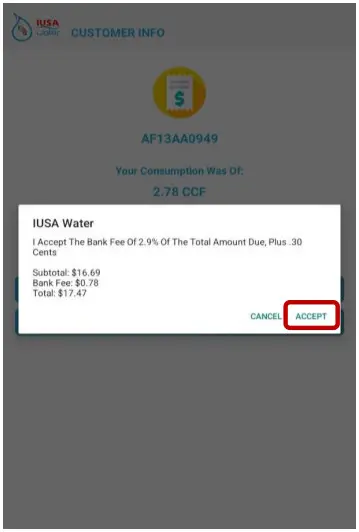
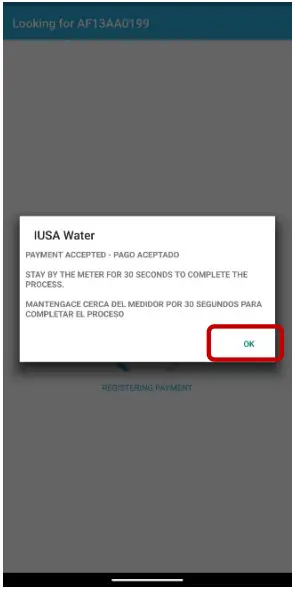 To end the process, select “ok”.
‘’Confidential Information’’ Property of IUSA S.A. DE C.V.