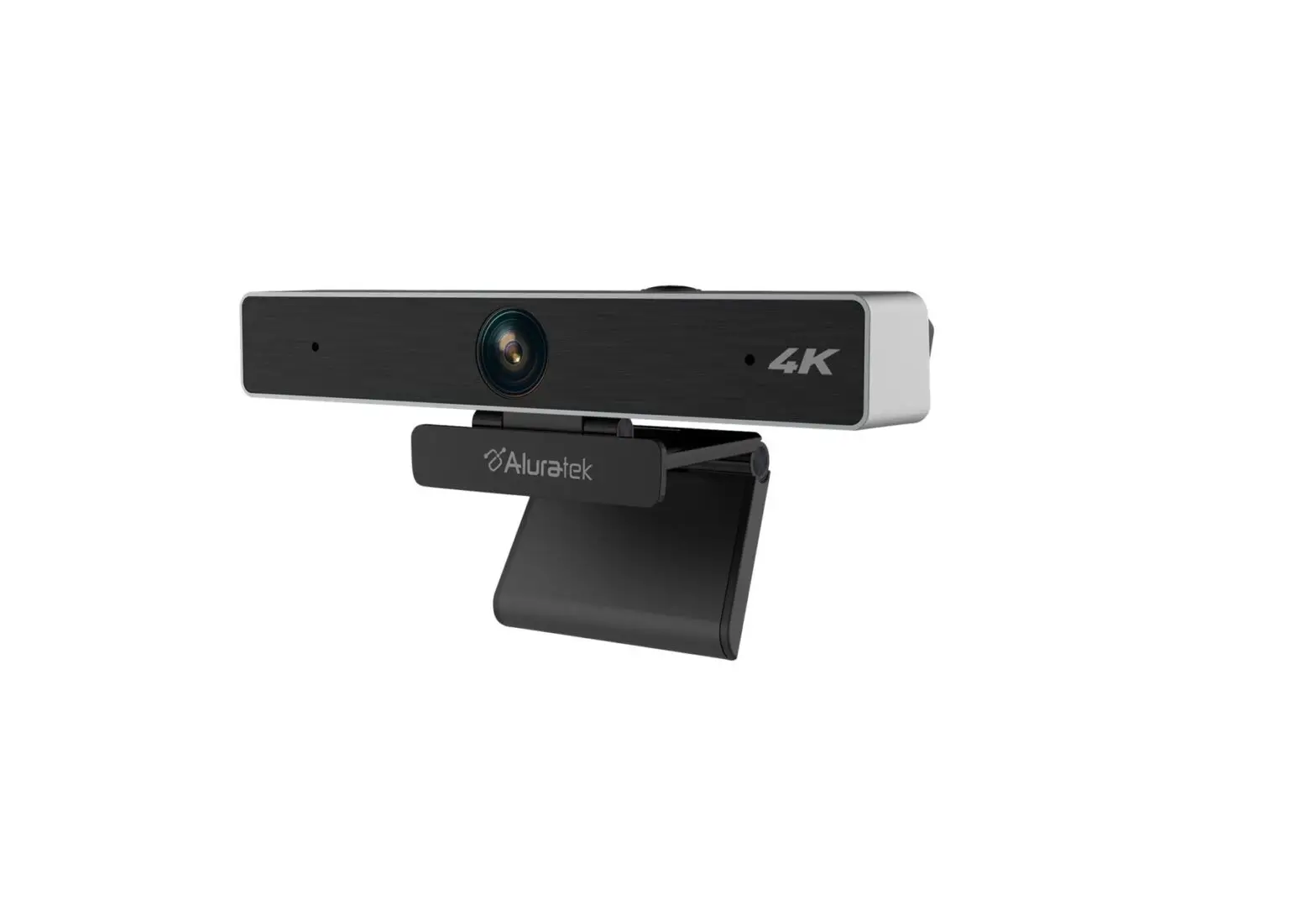
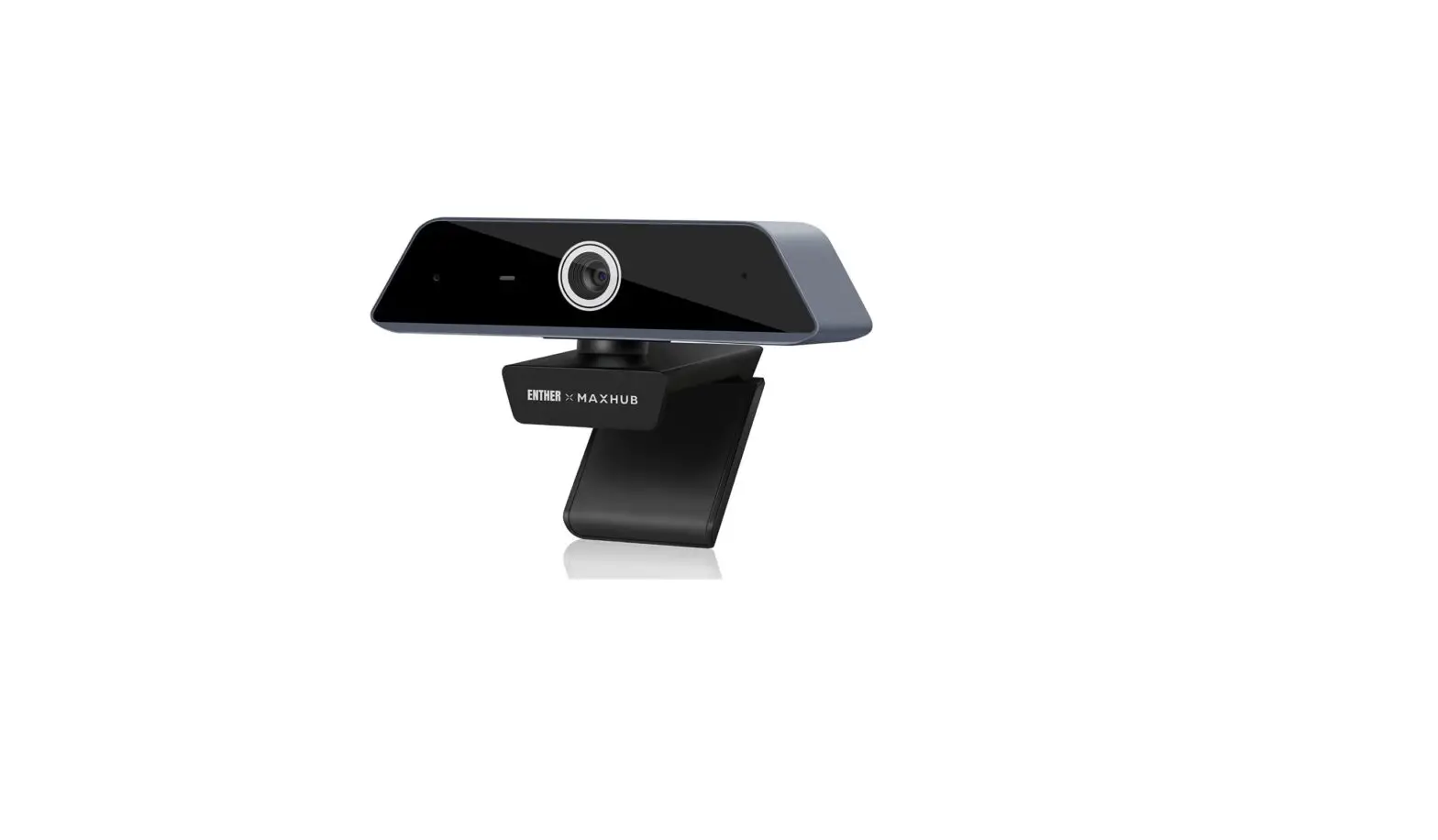
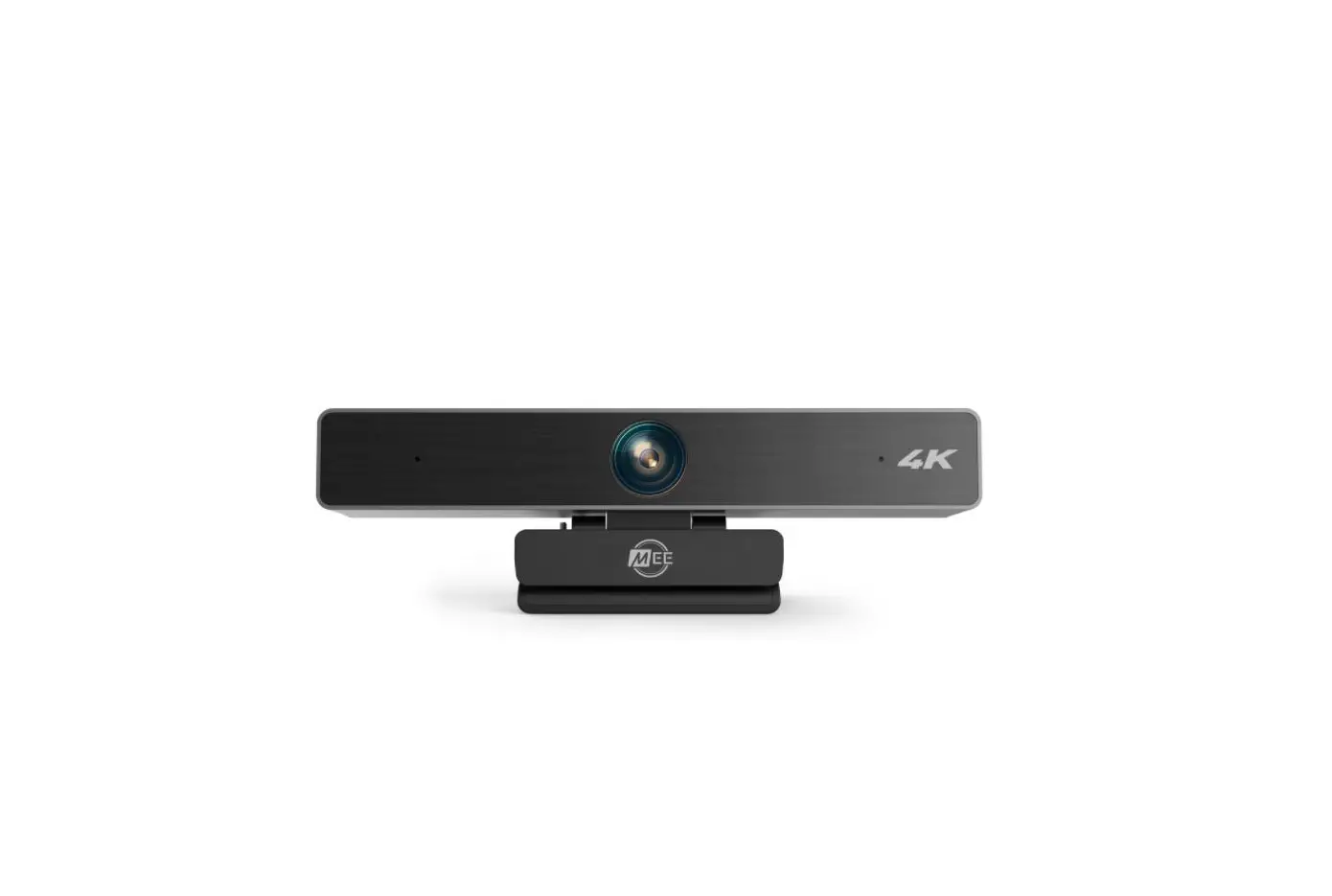
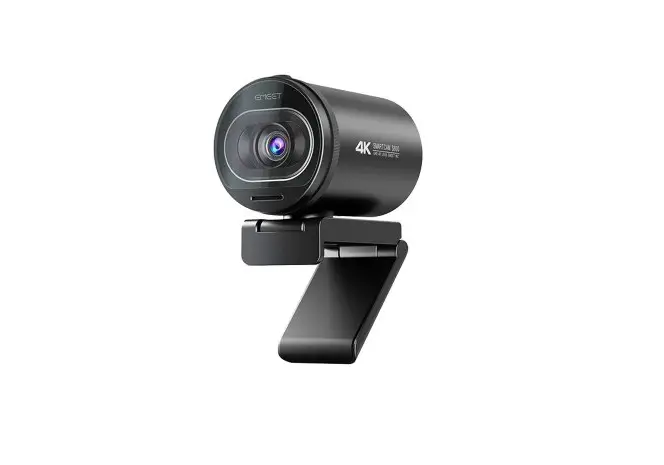
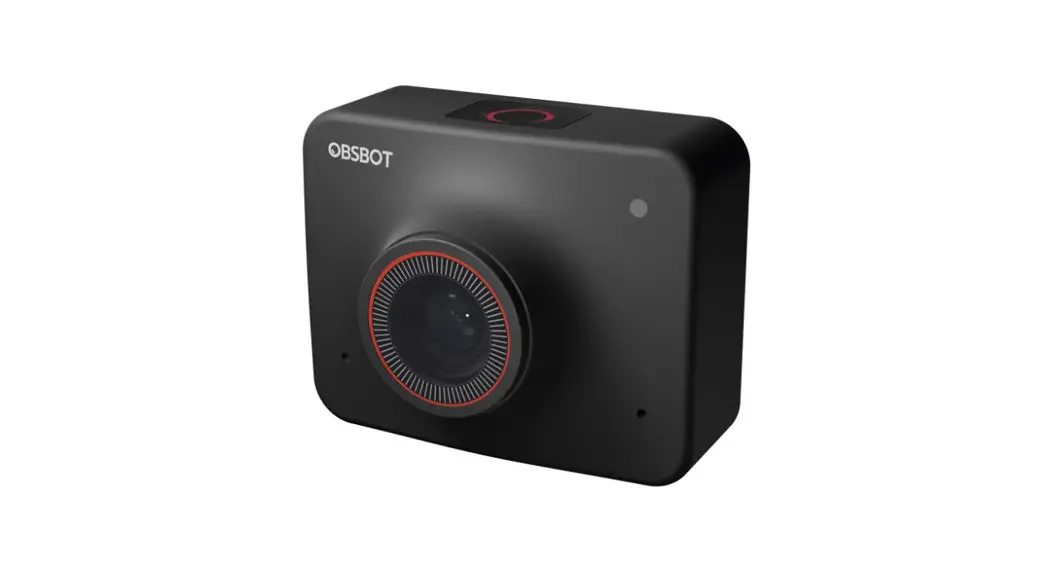
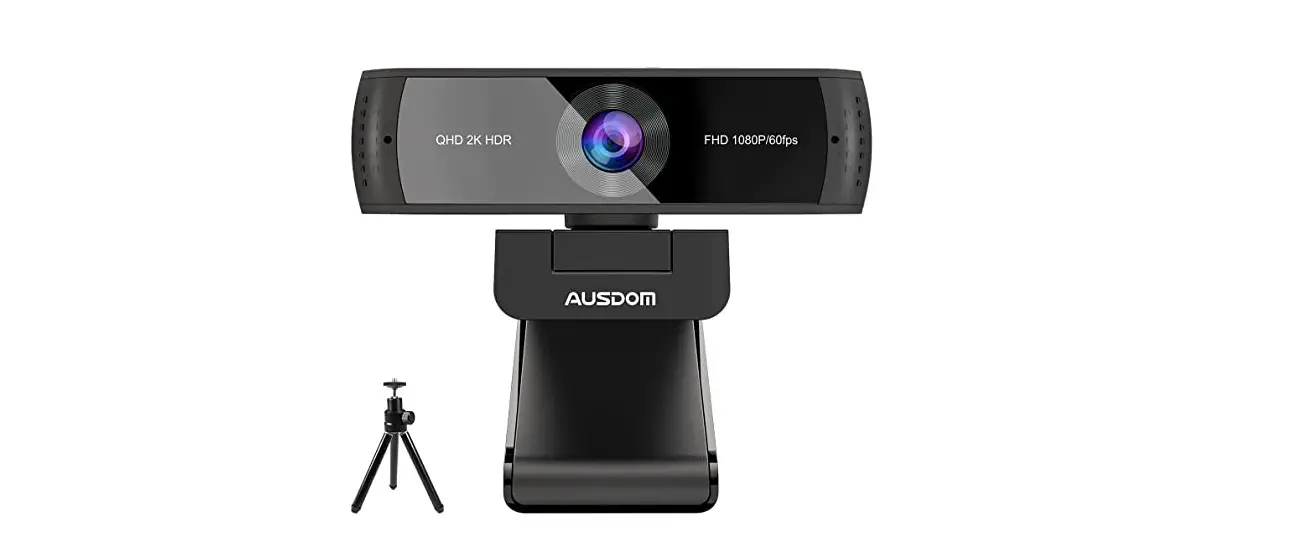
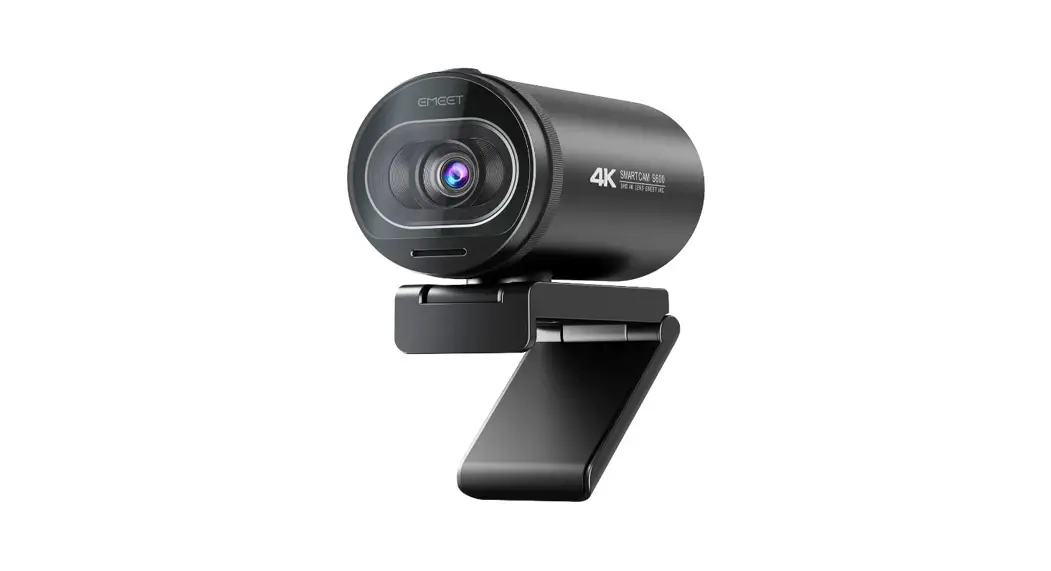
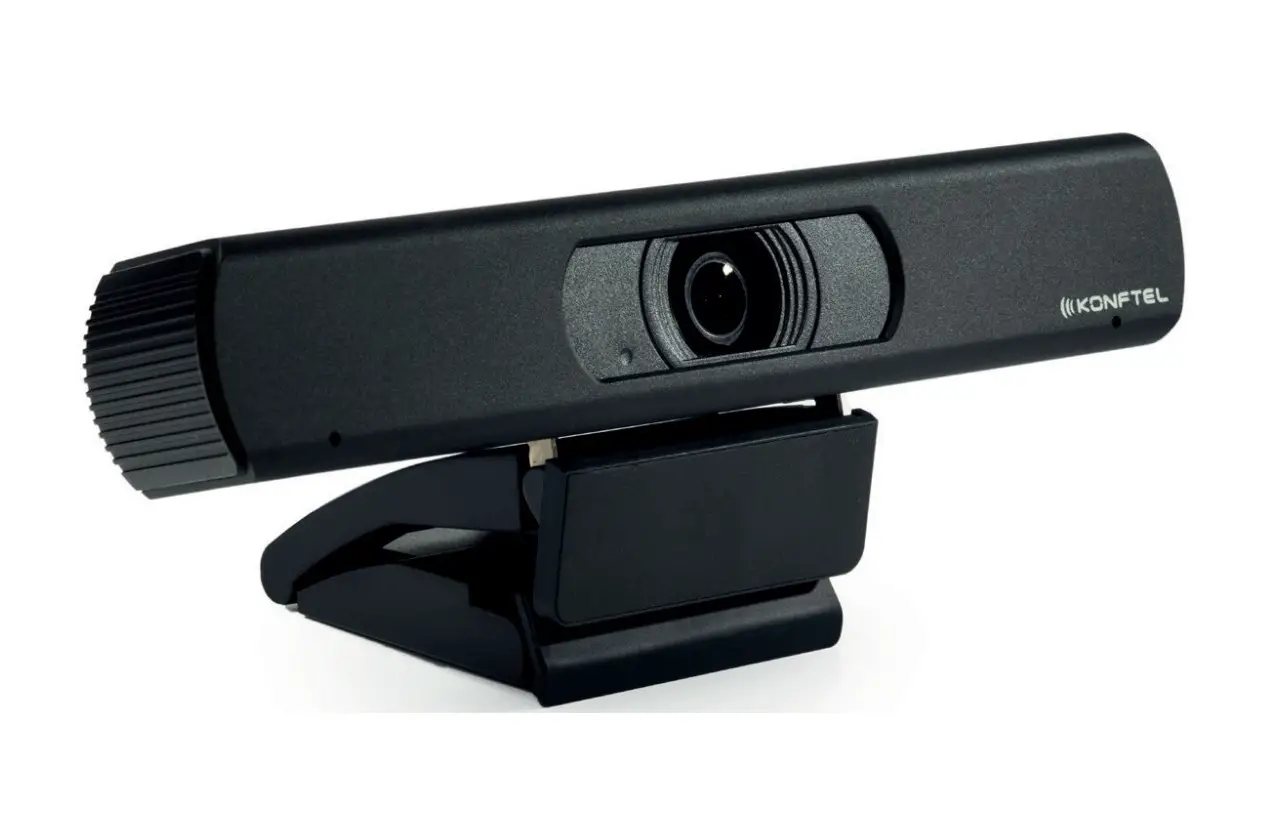
MAXHUB Enther-Webcam 4K Video Conference System


Note: The product images are for illustrative purposes only and may slightly differ in appearance, color, size, etc. from the actual product.
Safety Warning and Precautions
Before using and operating this device, please read thoroughly and comply with the following precautions in order to prevent accidents or abnormal operations.
Operating Environment
- Do not place the product in dusty and humid environments in case of an internal short circuit.
- Do not place the product near heating devices(such as electrical heaters).
- The operating temperature is 0-40℃, operating humidity is
10%-90%RH. Please use the product accordingly.
Children Safety
The product and accessories may contain some small parts. Please keep them from children to avoid accidental swallowing or danger.
Power supply
Please use the standard power adapter.
Keep Dry
The product is NOT waterproof. Please keep it dry.
Maintenance
- Please contact technical support for maintenance services.
- Do NOT insert any sharp or pointed object into the device.
- Prevent the device from falls and collisions with other objects, which may cause damage.
Statement
- Intellectual property right statement: The patents cover the hardware design and software of this product. Anyone reproduces the product or the contents of this instruction without prior written permission from the Company shall be liable to legal prosecutions.
- The description, illustrations, etc. in this document may subject to change per the latest product specification and performance.
- The product images are for illustrative purposes only and may slightly differ in appearance, colour, size, etc. from the actual product.
- The Company reserves the rights to improve and change the appearance and design of the product without notice.
NOTE: Users may find the type approval code of this product on the product’s nameplate.
Accessories introduction
Please check the following items in the product box:
- HDMI cable x1
- USB cable ×1
- Battery ×2
- Peeping cover x1
- Wall-mounted components x1
- Power adapter ×1
- Remote control x1
- Warranty card ×1
- User Manual ×1
- Quick Use Guide ×1
Product Function
Please familiarize yourself with the interface and buttons of the device before using this device. 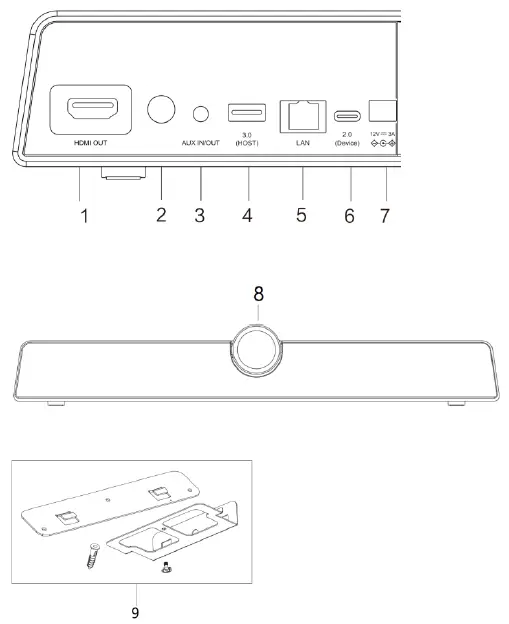
- HDMI OUT: Connect to the devices with the HDMI input function
- POWER : Tap to enter energy-saving, press and hold for at least 2 seconds to enter standby mode
- AUX IN/OUT: Used for external audio equipment
- 3.0:USB 3.0, used for upgrading and connecting with external mouse/keyboard
- LAN: Connect RJ45 terminals
- 2.0:Device can be connected to a computer through a USB Type-A to Type-C data cable, providing the computer with camera, microphone and speaker
- DC:Used for 12V power input power supply
- Camera:Shooting performance
- Hanging components
Mounting
- Placed directly on the desktop.
- Wall-mounted: Fix the bracket onto the wall with screws, then place the integrated video conferencing terminal onto the bracket.

- Use with tablet:Fix the bracket onto the supporting bracket with screws, then place the integrated video conferencing terminal onto the bracket.
 Note: The connection of different samples may slightly differ. Please refer to the actual product.
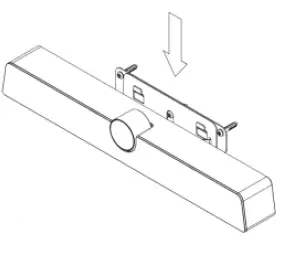
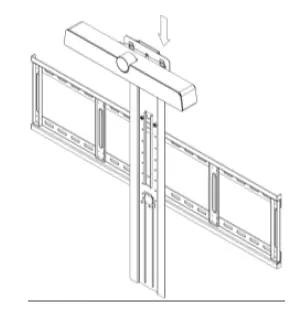 Note: The connection of different samples may slightly differ. Please refer to the actual product.
Quick Start
- Please use HDMI cable to connect this product to the monitor.
- To turn on the device, press the power button on the back of the product or use remote control.
- For the first use, please complete the network connection and device activation during device boot.
- After successful activation, this product function would be fully functional.
Federal Communication Commission Interference Statement
This equipment has been tested and found to comply with the limits for a Class B digital device, pursuant to Part 15 of the FCC Rules. These limits are designed to provide reasonable protection against harmful interference in a residential installation. This equipment generates, uses, and can radiate radio frequency energy and, if not installed and used in accordance with the instructions, may cause harmful interference to radio communications. However, there is no guarantee that interference will not occur in a particular installation. If this equipment does cause harmful interference to radio or television reception, which can be determined by turning the equipment off and on, the user is encouraged to try to correct the interference by one or more of the following measures:
- Reorient or relocate the receiving antenna.
- Increase the separation between the equipment and receiver.
- Connect the equipment into an outlet on a circuit different from that to which the receiver is connected.
- Consult the dealer or an experienced radio/TV technician for help.
FCC Caution:
This device complies with Part 15 of the FCC Rules. Operation is subject to the following two conditions:
- This device may not cause harmful interference, and
- This device must accept any interference received, including interference that may cause undesired operation.
Caution: The user is cautioned that changes or modifications not expressly approved by the party responsible for compliance could void the user’s authority to operate the equipment.
This equipment complies with FCC radiation exposure limits set forth for an uncontrolled environment. This equipment should be installed and operated with a minimum distance of 20cm between the radiator and any part of your body.
Non-modification Statement:
Changes or modifications not expressly approved by the party responsible for compliance could void the user’s authority to operate the equipment.
IC Radiation Exposure Statement for Canada
This device contains licence-exempt transmitter(s)/receiver(s) that comply with Innovation, Science and Economic Development Canada’s licence-exempt RSS(s). Operation is subject to the following two conditions:
- This device may not cause interference.
- This device must accept any interference, including interference that may cause undesired operation of the device.
This equipment complies with ISED RSS-102 radiation exposure limits set forth for an uncontrolled environment. This equipment should be installed and operated with a minimum distance of 20cm between the radiator and any part of your body.
If this equipment does cause harmful interference
to radio or television reception, which can be determined by turning the equipment off and on, the user is encouraged to try to correct the interference by one or more of the following measures:
- reorient or relocate the receiving antenna.
- increase the separation between the equipment and receiver.
- Connect the equipment into an outlet on a circuit different from that to which the receiver is connected.
- Consult the dealer or an experienced radio/TV technician for help.
FCC Caution:
This device complies with Part 15 of the FCC Rules. Operation is subject to the following two conditions:
- This device may not cause harmful interference, and
- this device must accept any interference received, including interference that may cause undesired operation.
Caution: The user is cautioned that changes or modifications not expressly approved by the party responsible for compliance could void the user’s authority to operate the equipment. This equipment complies with FCC radiation exposure limits set forth for an uncontrolled environment. This equipment should be installed and operated with a minimum distance of 20cm between the radiator and any part of your body.
Non-modification Statement:
Changes or modifications not expressly approved by the party responsible for compliance could void the user’s authority to operate the equipment.
IC Radiation Exposure Statement for Canada
This device contains licence-exempt transmitter(s)/ receiver(s) that comply with Innovation, Science and Economic Development Canada’s licence-exempt RSS(s). Operation is subject to the following two conditions:
- This device may not cause interference.
- This device must accept any interference, including interference that may cause undesired operation of the device.
This equipment complies with ISED RSS-102 radiation exposure limits set forth for an uncontrolled environment. This equipment should be installed and operated with a minimum distance of 20cm between the radiator and any part of your body.
7668 RF & Power
- Frequency Range Output Power (Max.)
- 2412 to 2472 MHz 19.17 dBm
- 5150 to 5250 MHz 19.23 dBm
- 5725 to 5825 MHz 13.02 dBm
- Antenna Type:PCB
- Antenna Gain: 2.4G Wifi 2.44dBi;5G wifi(5150 to 5250 MHz)2.02dBi;
- 5G wifi (5150 to 5250 MHz ) 2.85dBi
- Antenna Impedance:50Ω
8821 RF & Power
- Frequency Range Output Power (Max.)
- 2412 to 2472 MHz 18.67 dBm
- 5150 to 5250 MHz 12.54 dBm
- 5725 to 5825 MHz 12.44 dBm
Antenna Type:FPC
Antenna Gain: 2.4G Wifi 5.95dBi;5G wifi(5150 to 5250 MHz)3.48dBi; 5G wifi (5150 to 5250 MHz )2.32dBi
Antenna Impedance:50Ω
Hereby, Guangzhou Shrui Electronics Co., Ltd. declares that the radio equipment type UC S10 is in compliance with Directive 2014/53/EU.
The full text of the EU declaration of conformity is available at the following internet address: www.maxhub.com.
This symbol, affixed to the product or its packaging, indicates that the product must not be processed with househlod waste. It must be brought to an electric and electronic waste collection point for recycling and disposal. By the appropriate disposal of this product you also help in preventing potentially negative consequences for the environment and human health. The recycling of materials helps preserve our natural resources. For further information regarding the recycling of this product, please contact your municipality, local waste disposal centre or the store where the product was purchased.
Romote Control
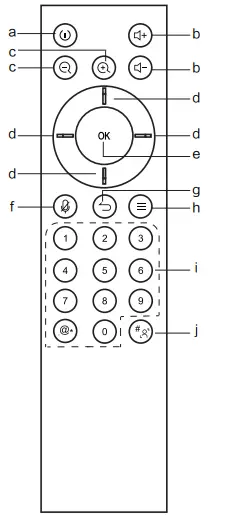
- Power Button,press to start the power off countdown.
Press and hold for 3 seconds to power off. - Volume Button, press to adjust the system volume.
- Digital Zooming,press to digitally zoom the camera. (Available only when auto framing is disabled). After zooming in, the direction button may move the picture.
- Direction Button: Press the direction buttons to move the camera or selection.
- OK Button: Confirm the selection. During digital zooming, press this button would restore the default view.
- Mute Button,press the turn on or off the microphone.
- Return Button: Press to return to previous menu or quit an app.
- Menu Button,press to invoke the menu in different interfaces.
- Number keys and : Number Buttons,press to input the numerals.
- Auto Framing Button: Press to type in “#”.
Press and hold to enable/disable the auto framing feature. (” ” means open, ” ” Means off.)
Presets:
- Set and switch the presets in settings.
- Press and hold the number button “1/2/3” for 2 seconds to save the current view as a preset.
- Each preset may including zooming level, viewing angle information. Up to three presets are supported.
- Press 1/2/3 to switch amongst the presets.
NOTICE:
The terms HDMI and HDMI High-Definition Multimedia Interface, and the HDMI Logo are trademarks or registered trademarks of HDMI Licensing LLC in the United States and other countries.
FAQS
What does the remote control do?
Our video conference camera is equipped with a remote control, you can use it to set up functions, switch the machine, connect to WiFi and many other operations.
Does the webcam have a speaker?
No, it does not have a speaker. This is a Full HD webcam with built-in mics and privacy cover for a PC or MAC.
Is this compatible with a desk top hp computer?
yes, it should be compatible with your computer. All you have to do is plug it in and you are good to go. No need to download any software.
is it possible to connect it to a smart tv?
We have connected it to a Samsung smartphone TV and it works well.
How long is the cord length?
About a meter
Does it come with a USB cord?
Yes. USB cord is connected from the camera and cannot be removed. The cord is even long enough for the camera to be set aside from the computer.
How many participants can share their screen through this camera,also do i need a special hub?
This S10 video conference camera can share 4 screens at the same time without HUB, directly connect to the hotspot or download and run the MAXHUB Share software in the same local area network to share the screen.
Audio works but camera does not unless zoom is being used from the enther & maxhub device. cannot find a way to connect using my own device (mac)?
No
Does this usb camera have night vision?
No night vision, but you can see the bright and clear image in the low-light because it adopts 3D-DNR.
Can any separate microphone be paired into mac then camera has sound?
Our conference video system integrates camera, speaker and microphone. You can choose one of the functions according to your needs.
What is the frame number of this camera?
It’s 30 fbs.
Es compatible con Google Meet
Yes, but Google Meet might try to use your sound card for a mic as default, and you’ll need to switch it to the “usb” mic in the camera the first time. That’s what we’ve experienced.