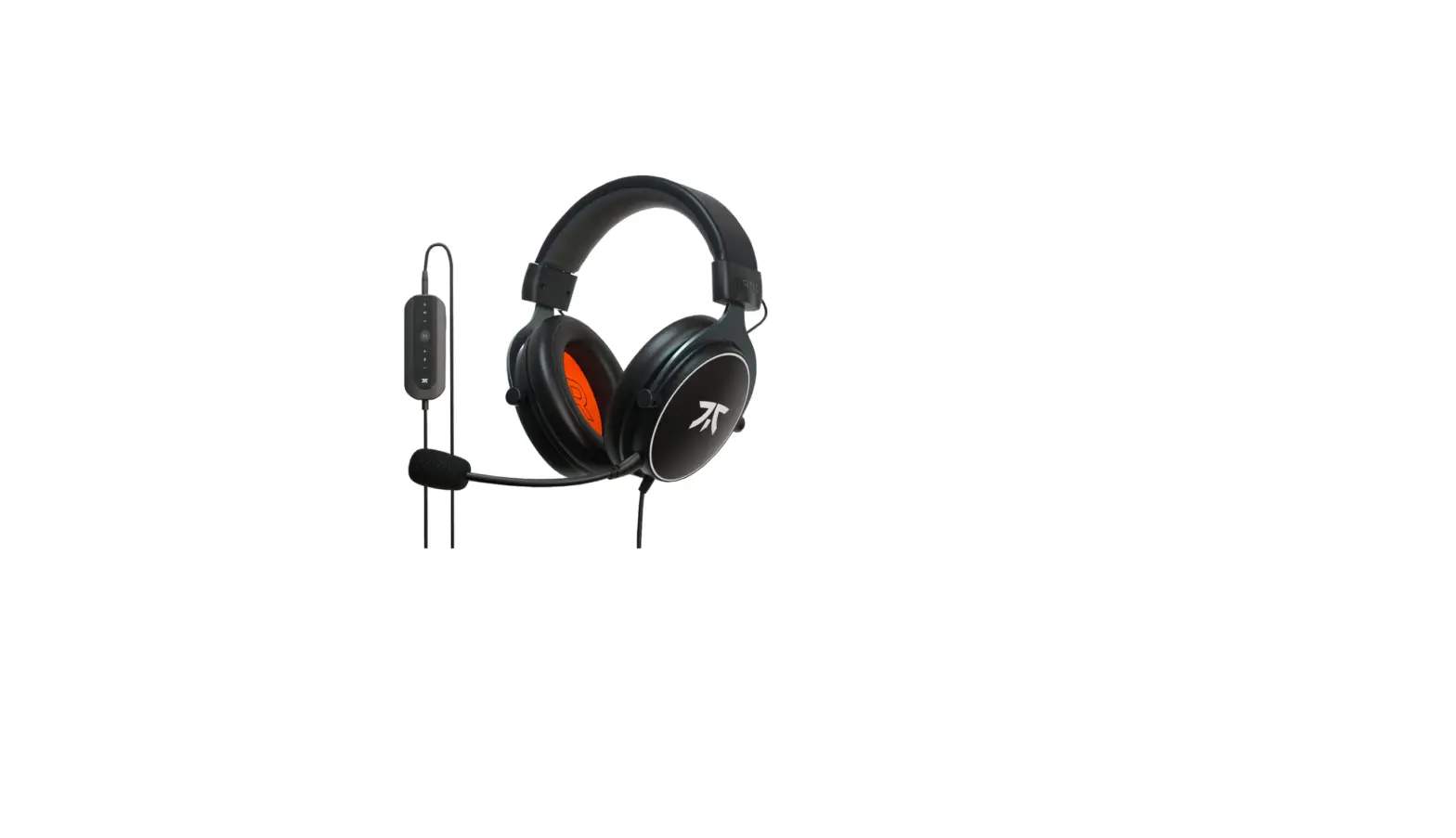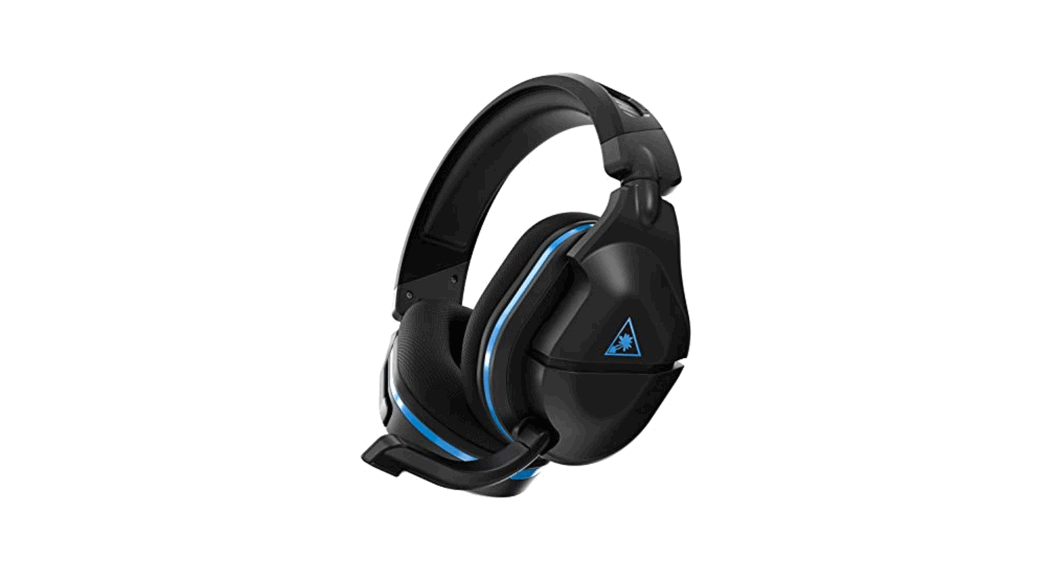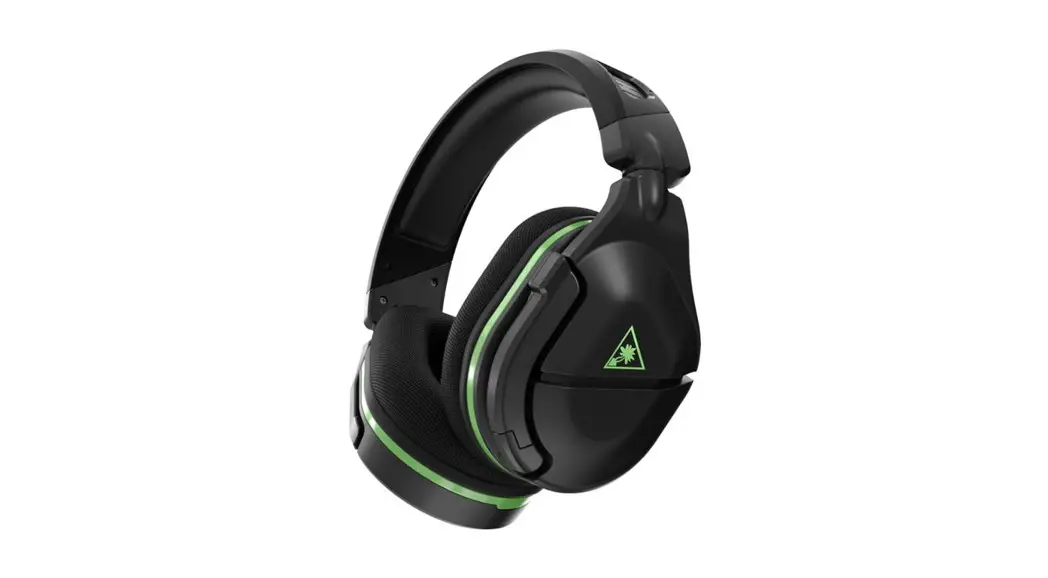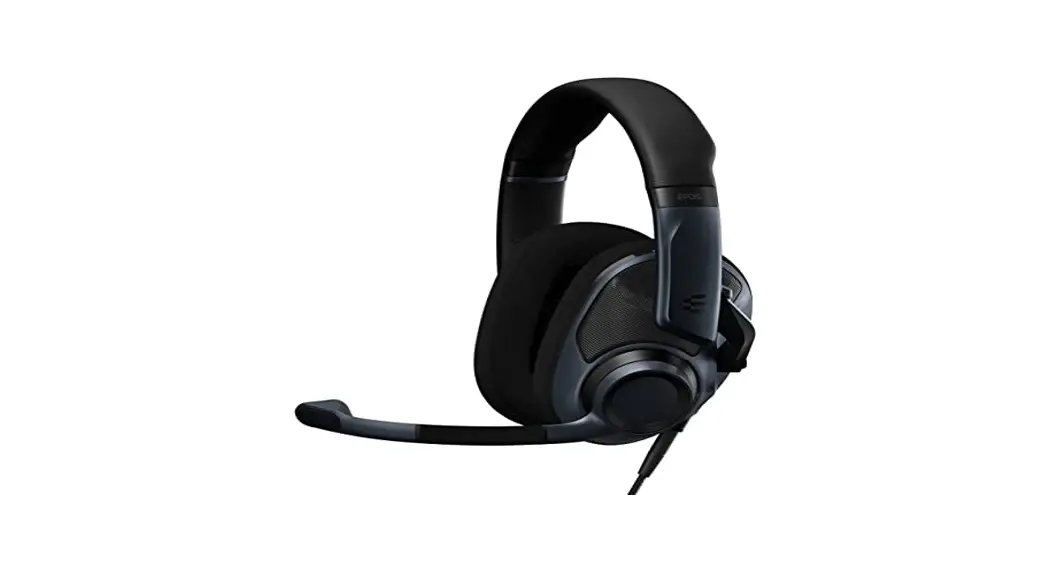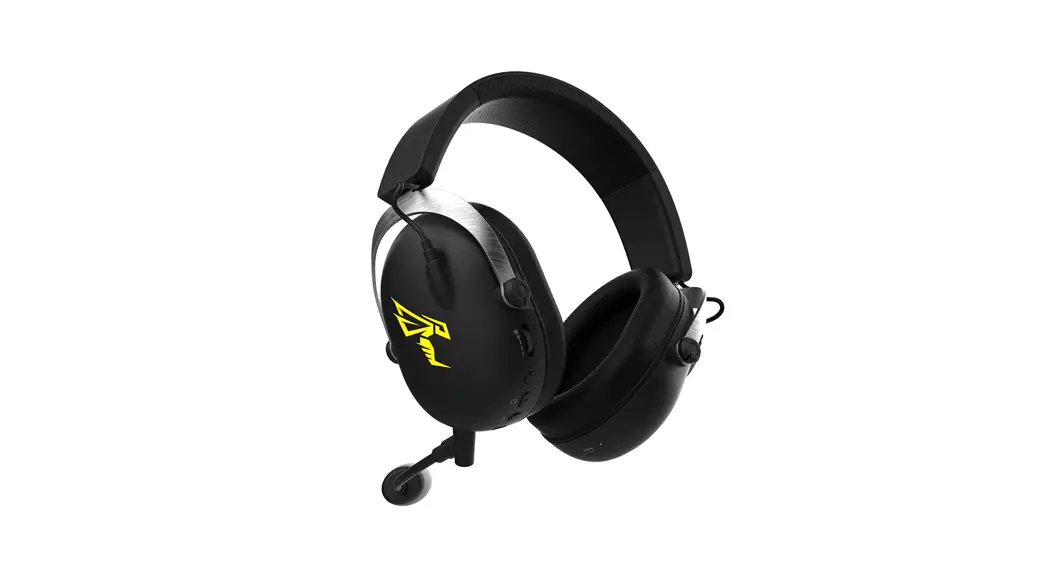

CYBERPOWERPC SLCY602400A Gaming Headset for Esports
Specifications
- SPECIFIC USES FOR PRODUCT: Gaming
- BRAND: CyberpowerPC
- OPERATING SYSTEM: Windows 11 Home
- MEMORY STORAGE CAPACITY: 1000 GB
- SCREEN SIZE: 0.1
- RAM MEMORY INSTALLED SIZE: 16 GB
- SERIES: Gamer Supreme Liquid Cool Y60
- INCLUDED COMPONENTS: Desktop, Keyboard, Mouse, Power Cord
- CPU MODEL: Core i7
- COLOR: White
- PROCESSOR: 3.6 GHz core_i7
- HARD DRIVE: 1 TB HDD
- CHIPSET BRAND: NVIDIA
- CARD DESCRIPTION: Dedicated
- GRAPHICS CARD RAM SIZE: 12 GB
- WIRELESS TYPE: 802.11ac
- ITEM WEIGHT: 44.3 pounds
- PACKAGE DIMENSIONS: 21.5 x 21.5 x 16 inches
Introduction
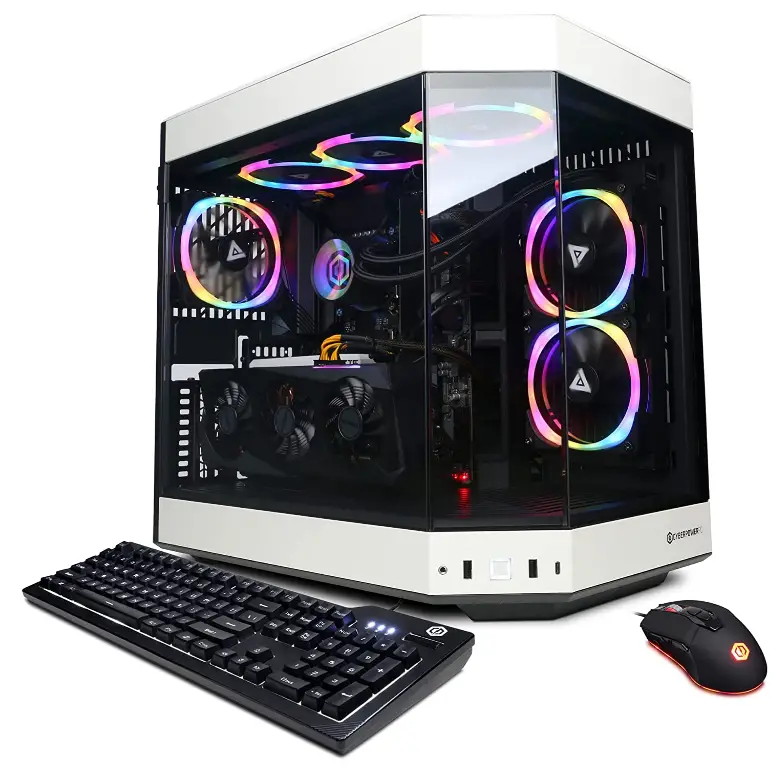
The CyberPowerPC Gamer Supreme Liquid Cool Y60 includes our proprietary Hyte Y60 chassis, which has an unobstructed 3-piece panoramic tempered glass for a display of your gaming system unlike any other. It also features the high-performance components and liquid cooling you’ve come to expect. The CyberPowerPC Gamer Supreme Liquid Cool Y60 includes our proprietary Hyte Y60 chassis, which has an unobstructed 3-piece panoramic tempered glass for a display of your gaming system unlike any other. It also features the high-performance components and liquid cooling you’ve come to expect. The vertical GPU mount puts the system’s top gaming components front and center for everyone to see. This innovative, high-airflow design has exceptional airflow and cooling capacity to keep your system running smoothly.
WHAT’S IN THE BOX
- Desktop
- Power Cord
- Keyboard
- Mouse
HOW TO GET CYBERPOWERPC TO WORK
Connect the computer’s power cord, which is included, to the AC wall outlet and the back of the device. To turn on your computer, make sure the PSU switch is in the ON position and press the power button on the top or front of the PC.
HOW TO CHANGE LED LIGHTS
The power button and the fan LED light switch are located on the top of my Cyberpower PC. It is a toggle switch, with an arrow-pointing circle on one side and the typical on/off symbol on the other. Ito changes the LED color on this specific PC using the side with the circle and arrow.
HOW TO RESET
Switch off the UPS and shut down your PC. Turn the UPS back on once ten seconds have passed. This ought to reset the gadget.
HOW TO CONNECT THE MONITOR
Take a regular HDMI cable, connect one end to the PC’s output, and the other to the input of your primary display. Windows will recognize the display on its own. By default, the primary display will be the first one to connect.
FAQs
Yes, using the included remote.
The system’s component manufacturer, model, and specifications may change based on what was in stock at the time the PC was constructed.
The system’s component manufacturer, model, and specifications may change based on what was in stock at the time the PC was constructed.
Although the parts that come with this system can be upgraded, it is always advisable to verify for compatibility before investing in additional hardware.
Yes
The 3080 I own has two display ports and one HDMI port.
The system’s component manufacturer, model, and specifications may change based on what was in stock at the time the PC was constructed.
One VGA port and two HDMI connectors each boost frame rate to 75Hz, giving you the visual advantage, you need to win any game you play.
The motherboard had 4 RAM slots and was an Asus Prime B450M-A.
No. We just preinstall the necessary video card/motherboard drivers and software, along with the Windows 10 operating system.
The disc drive is being accessed, as shown by the red light.
When the power indicator illuminates and is amber or orange, it typically means that the device has failed POST.
Verify each connection between the components of your computer and the power supply. Double-check that all the cables on the power supply unit are connected properly and reconnect all the wires.
Yes, it has built-in Bluetooth.
CyberPowerPC NVIDIA GeForce RTX 3080.