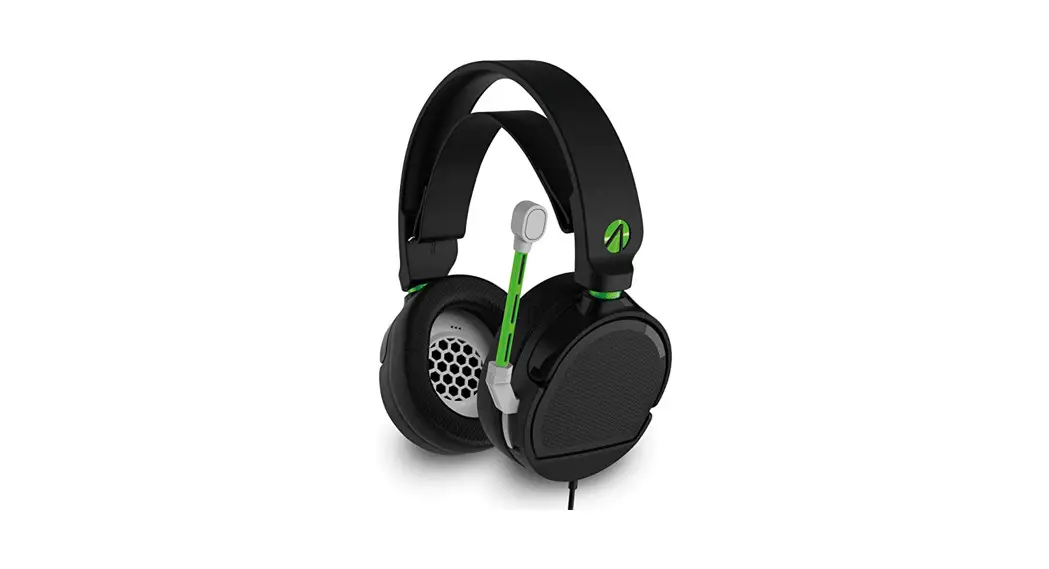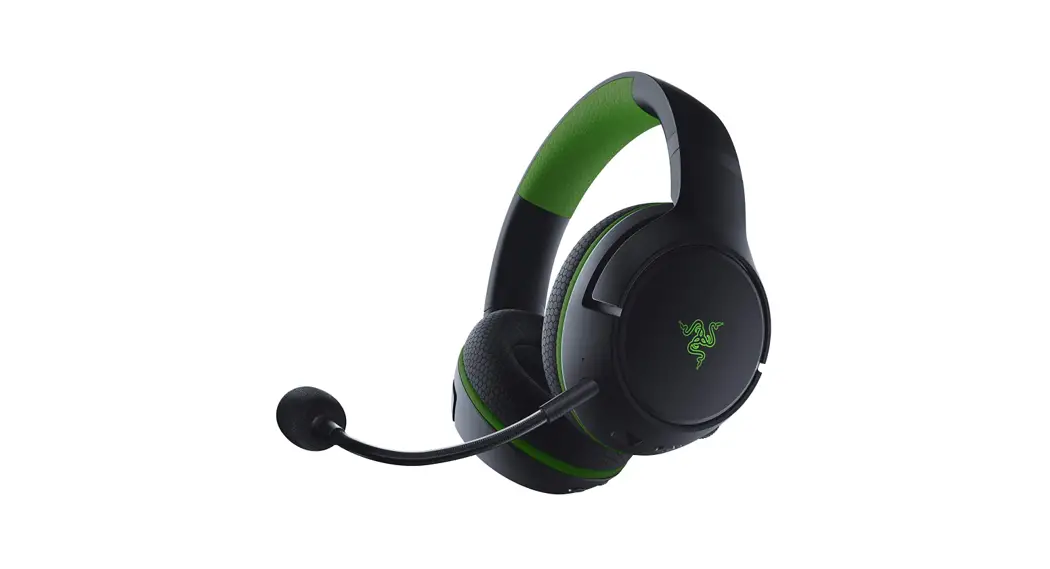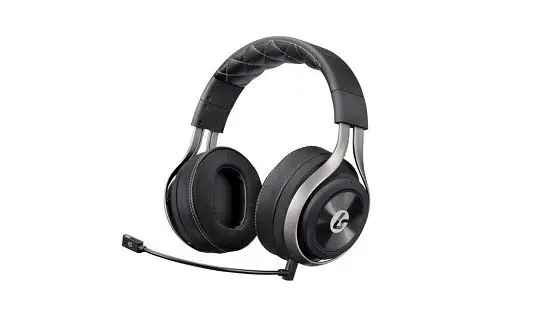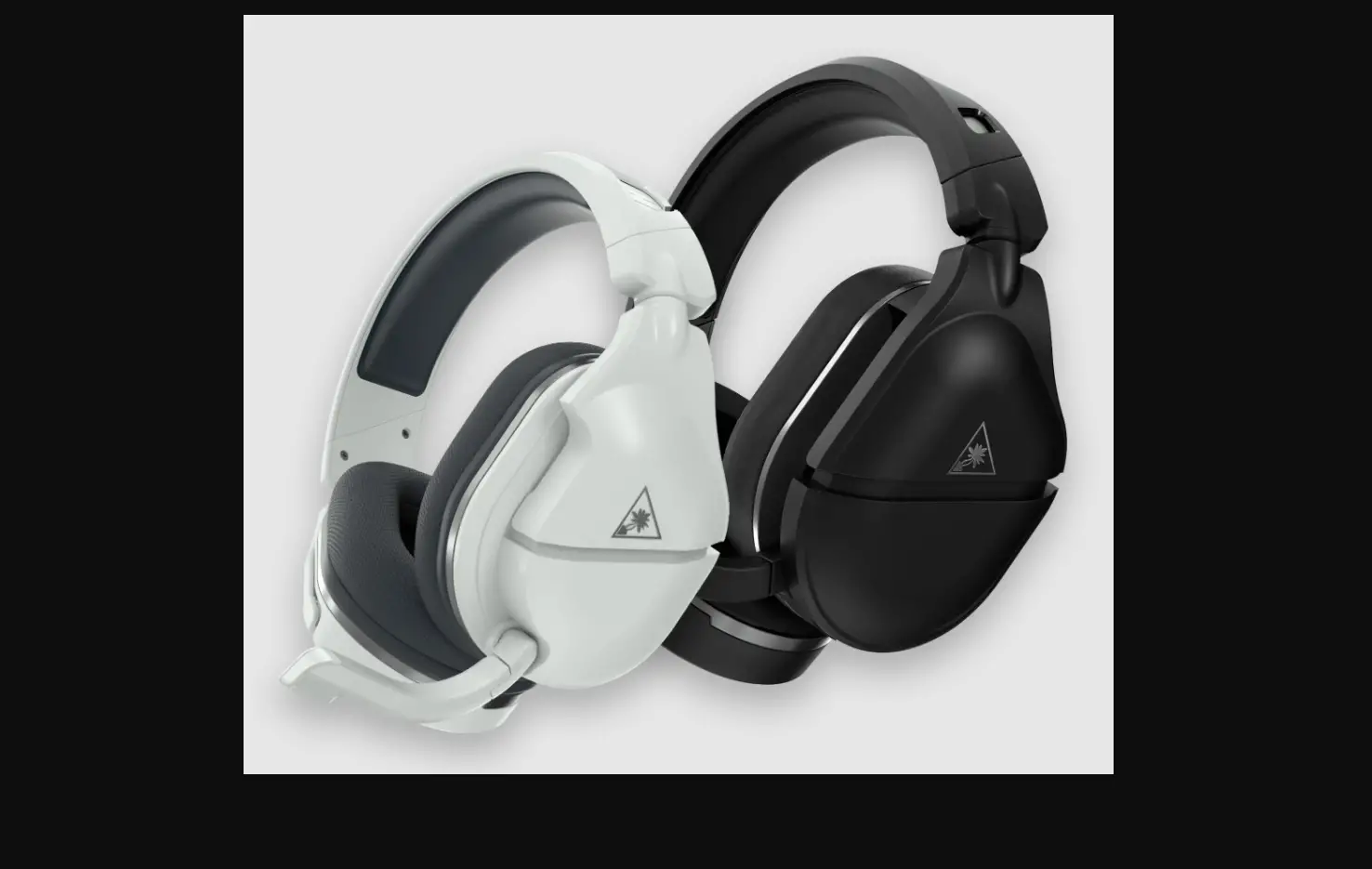

for / pour
XBOX SERIES X/S
WINDOWS SONIC SETUP
XBOX SETUP
Please see the below guide. The setup is currently the same across all Xbox One consoles.
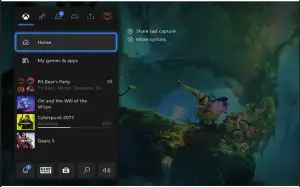
Provided your XBOX ONE/SERIES X|S console is up to date (subject to this guide’s publication), you’ll be seeing the following screen as part of Microsoft’s October 2020
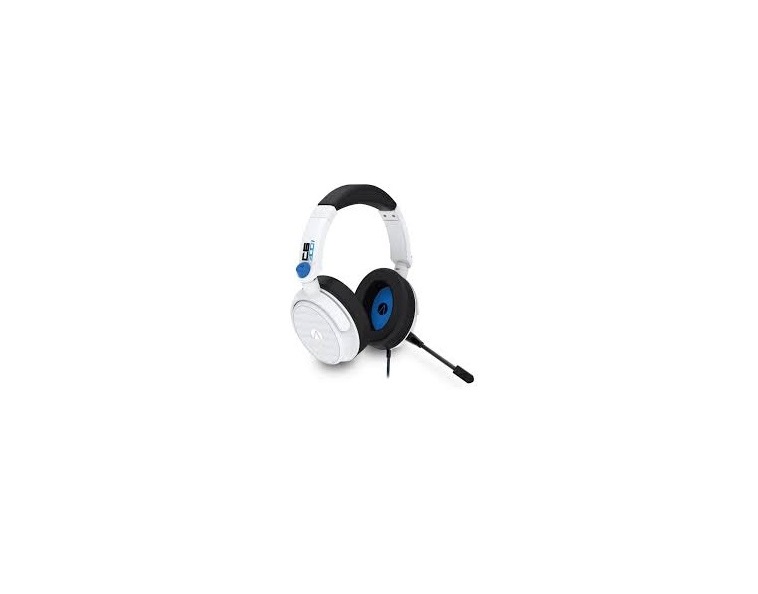
Xbox One Guide update. Once you press the Xbox button at the center of your controller to access the ‘Home’ tab, you’ll be able to see a number of widgets. Firstly, please make sure your headset has been plugged straight into the controller. You should hear a ‘click’ for confirmation. You should also be seeing a headset icon at the top right area of the screen above the time on the Xbox; which signals the headset has registered.
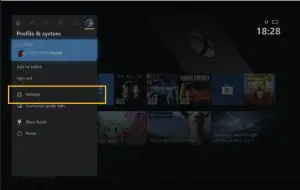
The FULL XBOX ONE/SERIES X | S setup is then as follows – Scroll from HOME to PROFILE &SYSTEM > SETTINGS
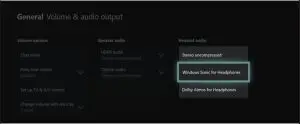
GENERAL > VOLUME & AUDIO OUTPUT
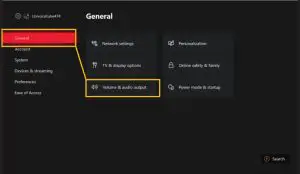
‘PARTY CHAT OUTPUT’ CHOOSE ‘HEADSET’ > HEADSET AUDIO > HEADSET FORMAT > SELECT ‘WINDOWS SONIC FOR HEADPHONES’ > USING HDMI/OPTICAL CABLE BOX REMAINS UNTICKED
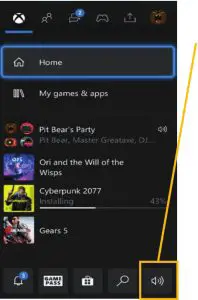
PRESS XBOX BUTTON ON CONTROLLER TO RETURN HOME > Access AUDIO along the bottom TO OPEN HEADSET CHAT MIXER SETTINGS
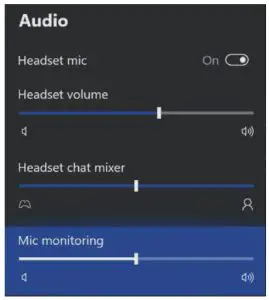
CONFIGURE AUDIO SET UP ON SCREEN AS FOLLOWS TO COMPLETE SET UP –
STEALTHGAMING.NET/SUPPORT
F: STEALTHGAMING.NET / T: @STEALTHGAMENET /
I: STEALTHGAMING_NET