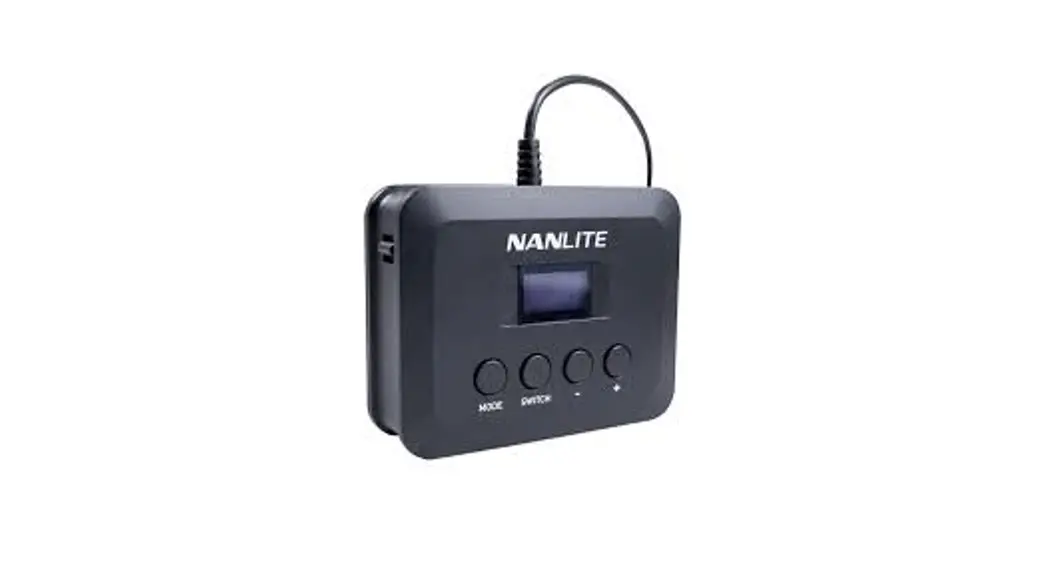
WC-USBC-C1 Wire Controller
Product Information: WC-USBC-C1 Wire Controller
WC-USBC-C1 wire controller is a device that is used to control
the lighting modes and options of PavoBulb 10C and PavoTube T8-7X.
It has a power switch, hand strap hole, USB Type-C connector,
display screen, MODE button, and SWITCH button. The device is
manufactured by Guangdong NanGuang Photo&Video Systems Co.,
Ltd.
Product Diagram

Compatibility
WC-USBC-C1 wire controller is compatible with PavoBulb 10C and
PavoTube T8-7X.
Product Usage Instructions
- Connect the wire controller to the fixture, then toggle the
power switch to turn on the wire controller. The NANLITE logo will
be displayed on startup. - When the wire controller is connected to the fixture, the wire
controller will first read the information of the fixture,
including the address and fixture model. When the wire controller
is not connected to the fixture, the display will show
“Disconnected”. When the wire controller is connected to the
fixture, the screen will display the corresponding lighting mode
interface or menu of the fixture. - Use the MODE button to switch between lighting modes and
menus. - Use the SWITCH button to switch between corresponding options
under different light modes, or to switch the channel, language,
DMX mode, DMX pixel (only for PavoTube T8-7X), wireless protocol
(only for PavoBulb 10C), Bluetooth reset, firmware update, and
version under the menu options. - Use the + and – buttons to adjust the value of the
corresponding options under the lighting mode. - Press the MODE button to enter the menu. Use the SWITCH button
to select the desired option and use the + and – buttons to adjust
the value of the option. - For PavoTube T8-7X, use the DMX PIXEL setting to adjust the
number of DMX pixels. For PavoBulb 10C, use the wireless protocol
setting to select the desired wireless protocol.
WC-USBC-C1
USER MANUAL
Guangdong NanGuang Photo&Video Systems Co., Ltd
WC-USBC-C1 Wire Controller
Product Diagram
Power switch
Hand strap hole USB Type-C connector
Display + – buttton
MODE button SWITCH button WC-USBC-C1 wire controller is compatible with PavoBulb 10C and PavoTube T8-7X.
USB Type-C port
1
Usage
1. Connect the wire controller to the fixture, then toggle the power switch to turn on the wire controller, the “NANLITE” logo will be displayed on start up.
MODE SWITCH
MODE SWITCH
2
2. When the wire controller is connected to the fixture, the wire controller will first read the information of the fixture, including the address and fixture model. When the wire controller is not connected to the fixture, the display will show “Disconnected” (As shown in figure 1); When the wire controller is connected to the fixture, the screen will display the corresponding lighting mode interface or menu of the fixture. (As shown in figure 2)
%JTDPOOFDUFE
Mode
CCT
DIM: 100% CCT: 5600K C/M: 0
Battery level
figure 1
figure 2
Note(1) When the wire controller is connected to PavoBulb 10C, the lighting mode options including CCT, HSI and EFFECT.
(1) When the wire controller is connected to PavoTubeT8-7X, the lighting mode options including CCT, HSI, EFFECT, PIXEL FX.
3. MODE button: For switching lighting modes and menu.
CCT
DIM: 100% CCT: 5600K C/M: 0
CCT
DIM: 100% HUE: 000 SAT: 100
MODE SWITCH
3
4. SWITCH button: For switching corresponding options under different light modes, or to switch the channel, language, DMX mode, DMX pixel (only for PavoTube T8-7X), wireless protocol (only for PavoBulb 10C), Bluetooth reset, firmware update and version under the menu options.
CCT
DIM: 100% HUE: 000 SAT: 100
CCT
DIM: 100% HUE: 000 SAT: 100
MODE SWITCH
5. + – button: For adjusting the value of the corresponding options under the lighting mode. (As shown in figure 3)
CCT
DIM: 100% HUE: 000 SAT: 100
CCT
DIM: 100% HUE: 001 SAT: 100
MODE SWITCH
figure 3 4
6. Press MODE button to enter the menu.
MENU CH: 512 LANGUAGE: ENG
MODE SWITCH
Channel (address code) setting MENU CH: 512 LANGUAGE: ENG
MENU
CH: 512 LANGUAGE: ENG
MODE SWITCH
Press SWITCH button to CH.
5
MENU
CH: 512 LANGUAGE: ENG
MENU
CH: 511 LANGUAGE: ENG
MODE SWITCH
Press + – button to adjust the value of the address code.
Language setting
MENU
CH: 512 LANGUAGE: ENG
MENU
CH: 512 LANGUAGE: ENG
MODE SWITCH
Press SWITCH button to LANGUAGE.
6
MENU CH: 512 LANGUAGE: ENG
512
MODE SWITCH
Press + – button to select Chinese or English. DMX mode setting
MENU CH: 512 LANGUAGE: ENG
MENU DMX MODE: CCT 8bit DMX PIEXL: 01
MODE SWITCH
Press SWITCH button to DMX MODE.
7
MENU DMX MODE: CCT 8bit DMX PIEXL: 01
MENU DMX MODE: CCT 16bit DMX PIEXL: 01
MODE SWITCH
Press + – button to select the desired DMX mode. DMX PIXEL setting (Note: Only controllable with PavoTube T8-7X.)
MENU DMX MODE: CCT 16bit DMX PIEXL: 01
MENU DMX MODE: CCT 16bit DMX PIEXL: 01
MODE SWITCH
Press SWITCH button to DMX PIXEL.
8
MENU DMX MODE: CCT 16bit DMX PIEXL: 01
MENU DMX MODE: CCT 16bit DMX PIEXL: 04
MODE SWITCH
Press + – button to adjust the number of DMX pixels. Wireless protocol setting (Note: Only controllable with PavoBulb 10C.)
MENU DMX MODE: CCT 16bit DMX PIEXL: 04
MENU WIRELESS PROTOCOL: V1.0 BT: RESET
MODE SWITCH
Press SWITCH button to WIRELESS PROTOCOL.
9
MENU WIRELESS PROTOCOL: V1.0 BT: RESET
MENU WIRELESS PROTOCOL: V2.0 BT: RESET
MODE SWITCH
Press + – button to select V1.0 or V2.0. Bluetooth Reset
MENU WIRELESS PROTOCOL: V2.0 BT: RESET
MENU WIRELESS PROTOCOL: V2.0 BT: RESET
MODE SWITCH
Press SWITCH button to BT.
10
MENU WIRELESS PROTOCOL: V2.0 BT: RESET
BT RESET
BACK
RESET
MODE SWITCH
Press + – button to enter the interface of bluetooth reset.
BT RESET
BACK
RESET
BT RESET
BACK
RESET
MODE SWITCH
Press SWITCH button to RESET.
11
BT RESET
BACK
RESET
MENU WIRELESS PROTOCOL: V2.0 BT: RESET
MODE SWITCH
Press MODE button to confirm reset and it will return to the menu interface after resetting the bluetooth.
Firmware update
(1)Firmare update for the wire controller Switch off the the wire controller, and then insert the USB flash drive with the new firmware for wire controller, the screen will show as below:
FOUND FIRMWARE V1.00.10
FOUND FIRMWARE V1.00.10
BACK
UPDATE
BACK
UPDATE
MODE SWITCH
Press SWITCH button to UPDATE. 12
FOUND FIRMWARE V1.00.10
BACK
UPDATE
FIRMWARE UPDATING ……
FIRMWARE UPDATED
MODE SWITCH
Press MODE button to confirm the update, it will prompt “FIRMWARE UPDATED” after the firmware is upgraded.
(2)Firmware update for fixtures via wire controller Switch on the controller and connect it to the fixture to be upgraded, insert the USB flash drive with the new firmware of the fixture, turn on the fixture, then press the MODE button to switch to the menu interface.
MENU WIRELESS PROTOCOL: V2.0 BT: RESET
MENU
FW: UPDATE VERSIONV1.00.10
MODE SWITCH
In the menu, press the SWITCH button to firmware update. 13
MENU
FW: UPDATE VERSIONV1.00.10
SEARCHING FOR FIRMWARE FILE
……
MODE SWITCH
Press + – button to enter the firmware update interface.
FOUND FIRMWARE PavoBulb_10C_FW
BACK
UPDATE
FOUND FIRMWARE PavoBulb_10C_FW
BACK
UPDATE
MODE SWITCH
Press SWITCH button to UPDATE.
FOUND FIRMWARE PavoBulb_10C_FW
BACK
UPDATE
14
FOUND FIRMWARE PavoBulb_10C_FW
BACK
UPDATE
FIRMWARE UPDATING ……
FIRMWARE UPDATED
MODE SWITCH
Press MODE button to confirm the update, it will prompt “FIRMWARE UPDATED” after the firmware is upgraded. Version
MENU FW: UPDATE VERSION: V1.00.10
MENU FW: UPDATE VERSION: V1.00.10
MODE SWITCH
Press SWITCH button to VERSION.
15
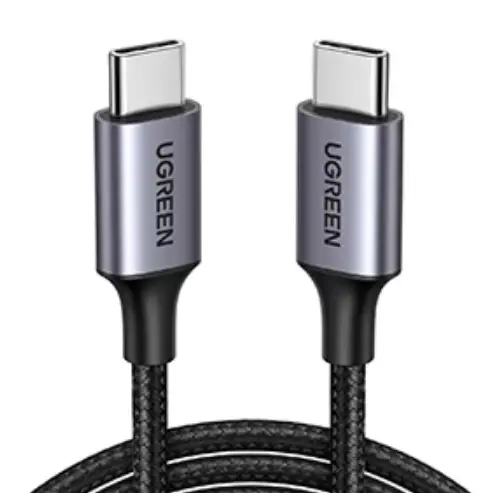
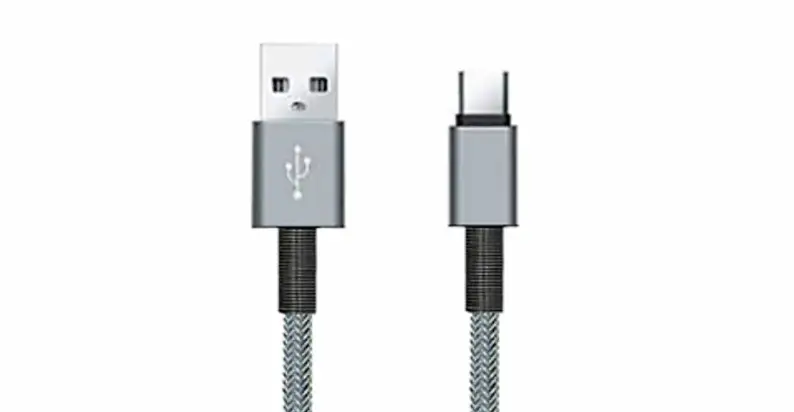
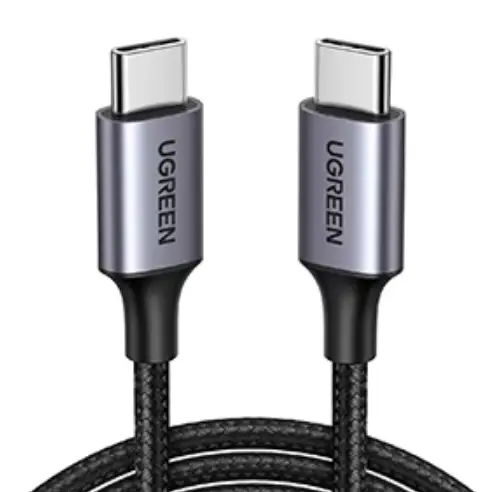
7. USB Type C port: For firmware updates, or connect with the USB cable, and then connect to the USB adapter with an output of 5V/2A or above to charge the wire controller.
8. The wire controller has a built-in lithium battery and can power the PavoBulb 10C and PavoTube T8-7X directly. 9. Please switch off the controller when not in use.
Notice
1. The wire controller is only compatible with PavoBulb 10C and PavoTube T8-7X. 2. When the battery level is low, it is recommended to reduce the brightness to less than 50% for charging, or turn it
off and fully charge before using again. 3. When the wire controller is not connected to the fixture and is powered off, connect the power supply, now the
display will show “” and icon is scrolling; when the battery is fully charged, the display shows “”. This manual has been compiled according to the rigorous testing of our company’s products. Product designs are subject to change without prior notice. You can download the latest version of the manual for this particular product from www.nanlite.com.
16
Version: V2 2022-02-16
+86-754-85751187 [email protected]
+86-754-85300887 Zhanglin,324,Dongli Chenghai Shantou Guangdong China
www.nanlite.com
 NANLITE