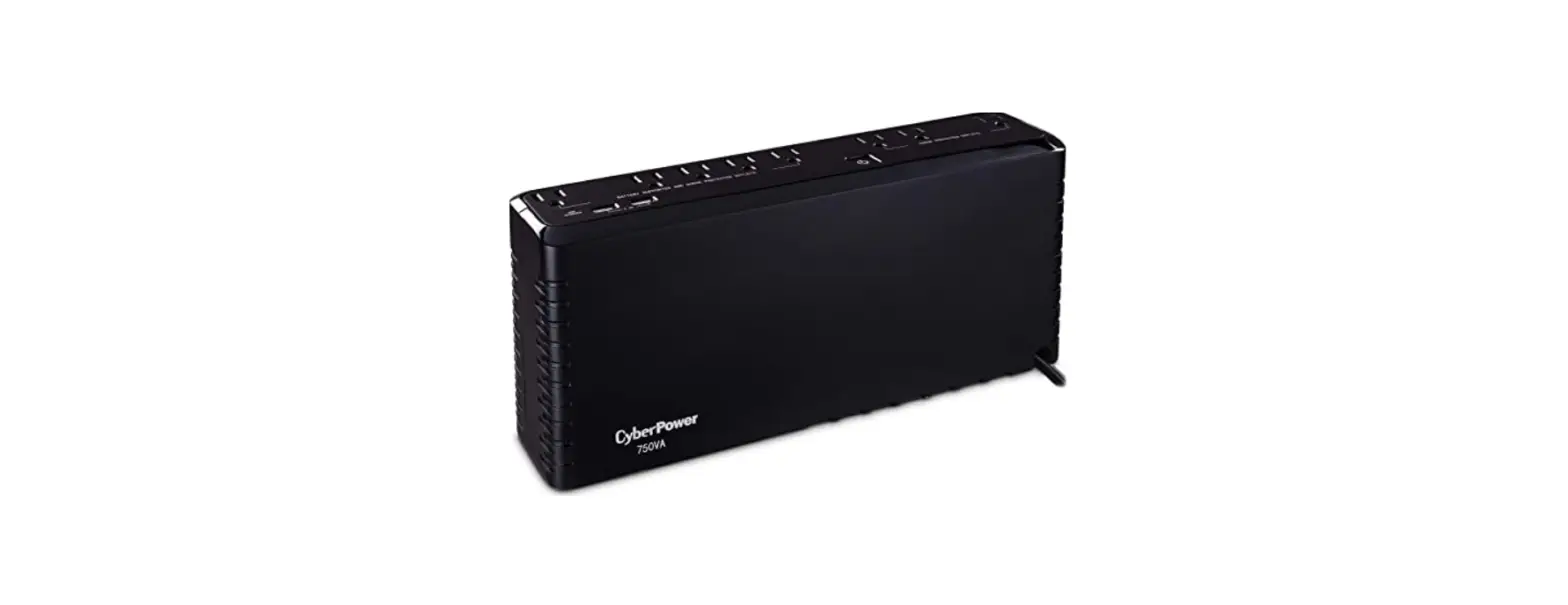
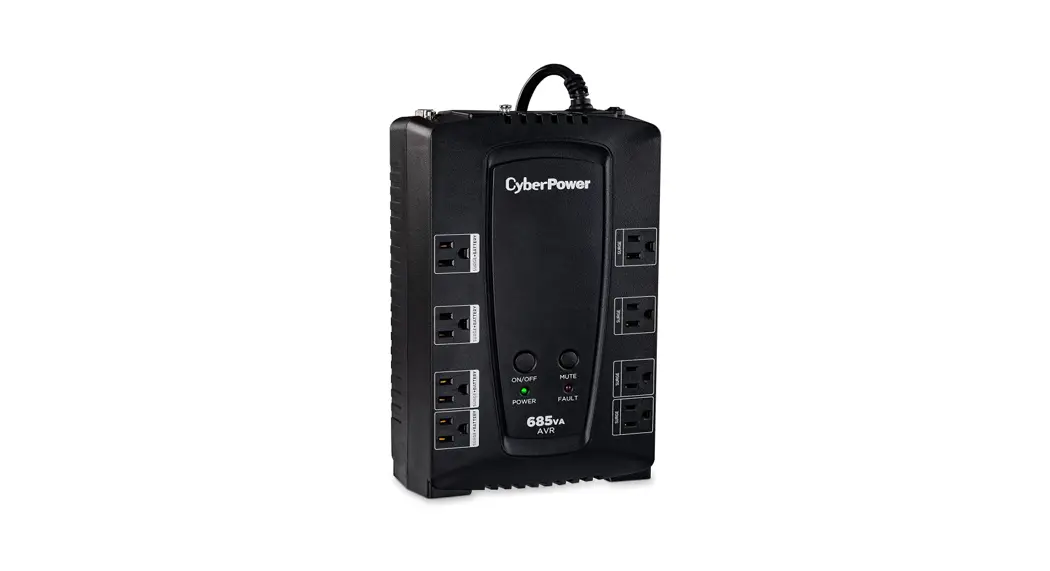
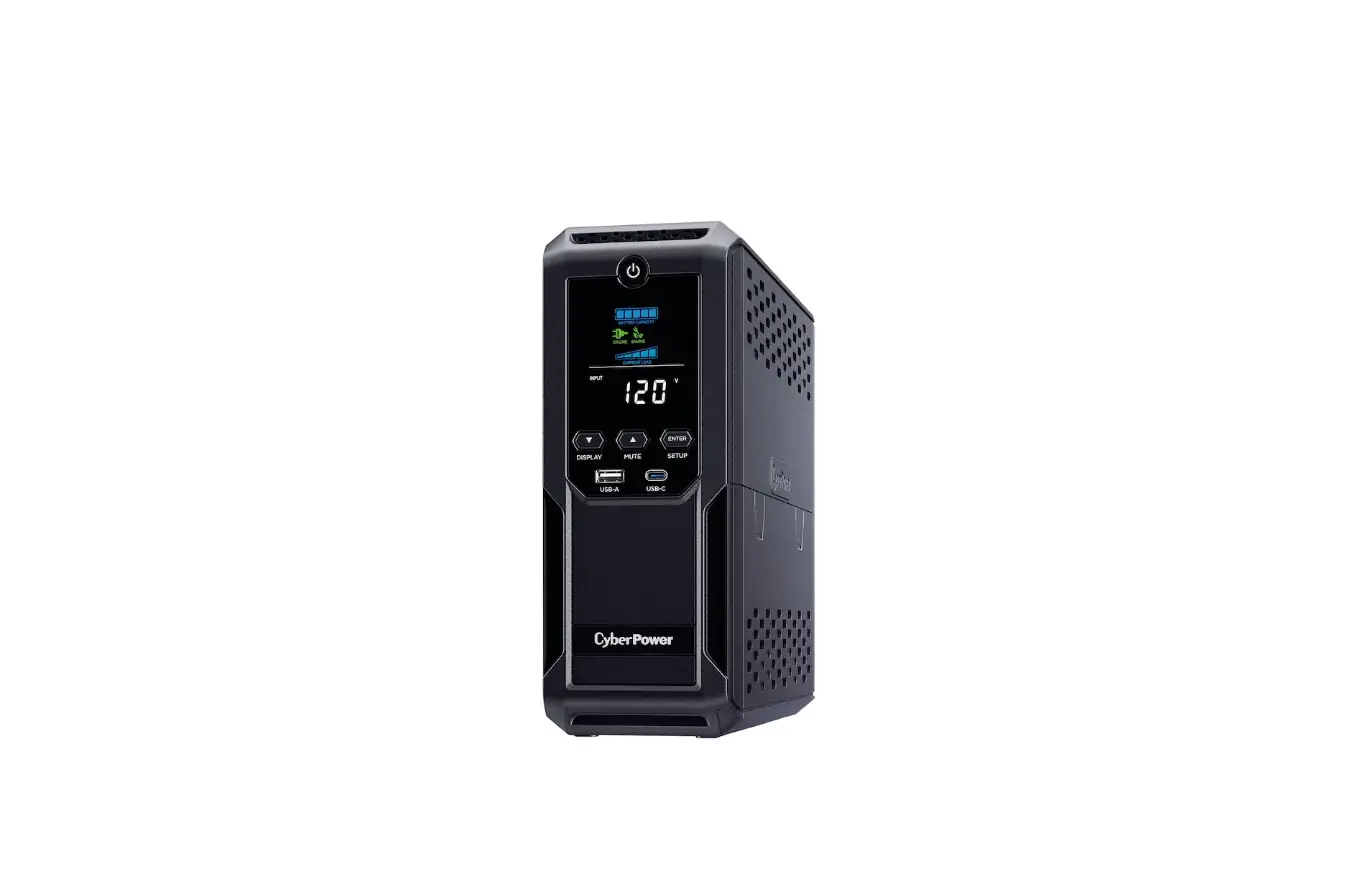
SL700U Backup UPS System
Product Information: Cyber Power Standby UPS Series (SL700U /
SL750U)
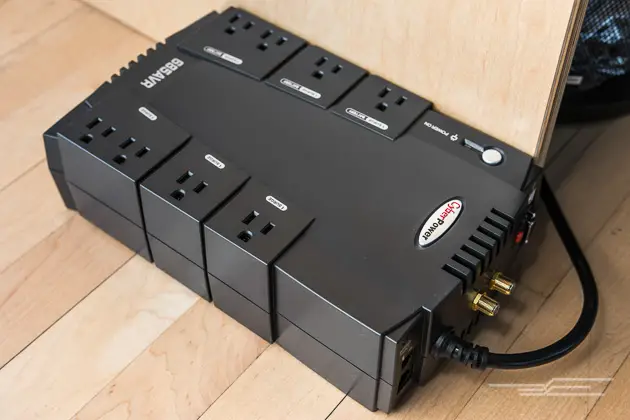
The Cyber Power Standby UPS Series is your ultimate ally in
power protection. It is designed to provide unsurpassed power
protection, operation, and performance during the lifetime of the
product. The UPS comes with features such as:
- Power Switch
- Power On Indicator
- Battery and Surge Protected Outlets
- Full-Time Surge Protection Outlets
- Circuit Breaker
- USB Port to PC
- Wiring Fault Indicator (red)
- Outlets Designed for AC Adapters
The product is manufactured by Cyber Power Systems (USA), Inc.
and the company address is 4241 12th Avenue East, Suite 400 |
Shakopee, MN 55379 | CyberPowerSystems.com.
Product Usage Instructions:
Please read and follow all instructions carefully during
installation and operation of the unit. Before attempting to
unpack, install, or operate your UPS, read the manual thoroughly.
Here are some important usage instructions:
Product Registration:
Thank you for purchasing a CyberPower product. Please take a few
minutes to register your product at
www.CyberPowerSystems.com/registration. Product registration
certifies your product’s warranty, confirms your ownership in the
event of a product loss or theft, and entitles you to free
technical support. Register your product now to receive the
benefits of CyberPower ownership.
Important Safety Warnings:
Save these instructions as they contain important safety
instructions. Please read and follow all instructions carefully
during installation and operation of the unit.
Installation:
- Install the UPS in a temperature and humidity controlled indoor
area free of conductive contaminants. - Do not remove the cover. There are no user serviceable parts
inside. - The UPS must be connected to an AC power outlet with fuse or
circuit breaker protection. - Do not plug into an outlet that is not grounded.
- To avoid electric shock, turn off the unit and unplug it from
the AC power source before connecting equipment to the unit.
Usage:
- Connect only to a circuit provided with 20 amperes maximum
branch circuit over current protection in accordance with the
National Electric Code, ANSI/NFPA 70. - Do not open or mutilate batteries. Released electrolyte is
harmful to the skin and eyes. It may be toxic. - DO NOT use for medical or life support equipment! CyberPower
Systems does not sell products for life support or medical
applications. - DO NOT use with or near aquariums! Condensation from the
aquarium can cause the unit to short out. - DO NOT use the UPS on any transportation! Do not use the unit
on any transportation such as airplanes or ships. The effect of
shock or vibration caused during transit and the damp environment
can cause the unit to short out. - Not for use in a computer room as defined in the Standard for
the Protection of Electronic Computer / Data Processing Equipment,
ANSI/NFPA 75.
YOUR ULTIMATE ALLY IN POWER
STANDBY UPS SERIES
SL700U / SL750U
USER MANUAL
FEATURES
1. Power Switch 2. Power On Indicator 3. Battery and Surge Protected Outlets 4. Full-Time Surge Protection Outlets
5. Circuit Breaker 6. USB Port to PC 7. Wiring Fault Indicator (red) 8. Outlets Designed for AC Adapters
Cyber Power Systems (USA), Inc. 4241 12th Avenue East, Suite 400 | Shakopee, MN 55379 | CyberPowerSystems.com
PRODUCT REGISTRATION
Thank you for purchasing a CyberPower product. This UPS is designed to provide unsurpassed power protection, operation, and performance during the lifetime of the product. Please take a few minutes to register your product at: www.CyberPowerSystems.com/registration. Registration certifies your product’s warranty, confirms your ownership in the event of a product loss or theft, and entitles you to free technical support. Register your product now to receive the benefits of CyberPower ownership.
IMPORTANT SAFETY WARNINGS (SAVE THESE INSTRUCTIONS)
This manual contains important safety instructions. Please read and follow all instructions carefully during installation and operation of the unit. Read this manual thoroughly before attempting to unpack, install, or operate your UPS.
CAUTION! To prevent the risk of fire or electric shock, install in a temperature and humidity controlled indoor area free of conductive contaminants. (Please see specifications for acceptable temperature and humidity range).
CAUTION! To reduce the risk of electric shock, do not remove the cover. There are no user serviceable parts inside.
CAUTION! Hazardous live parts inside can be energized by the battery even when the AC input power is disconnected.
CAUTION! The UPS must be connected to an AC power outlet with fuse or circuit breaker protection. Do not plug into an outlet that is not grounded. If you need to de-energize this equipment, turn off and unplug the unit.
CAUTION! To avoid electric shock, turn off the unit and unplug it from the AC power source before connecting equipment to the unit.
CAUTION! To reduce the risk of fire, connect only to a circuit provided with 20 amperes maximum branch circuit over current protection in accordance with the National Electric Code, ANSI/NFPA 70.
CAUTION! Do not open or mutilate batteries. Released electrolyte is harmful to the skin and eyes. It may be toxic.
DO NOT USE FOR MEDICAL OR LIFE SUPPORT EQUIPMENT! CyberPower Systems does not sell products for life support or medical applications. DO NOT use in any circumstance that would affect operation and safety of life support equipment, any medical applications or patient care.
DO NOT USE WITH OR NEAR AQUARIUMS! To reduce the risk of fire or electric shock, do not use with or near an aquarium. Condensation from the aquarium can cause the unit to short out.
DO NOT USE THE UPS ON ANY TRANSPORTATION! To reduce the risk of fire or electric shock, do not use the unit on any transportation such as airplanes or ships. The effect of shock or vibration caused during transit and the damp environment can cause the unit to short out.
CAUTION! Not for use in a computer room as defined in the Standard for the Protection of Electronic Computer / Data Processing Equipment, ANSI/NFPA 75.
CAUTION! Do not dispose of batteries in a fire. The batteries may explode.
INSTALLING YOUR UPS SYSTEM
UNPACKING
Inspect the UPS upon receipt. The box should contain the following:
(a) UPS unit (b) User’s manual (c) USB device cable
*PowerPanel® Personal Edition software is available on our website. Please visit www.cyberpower.com and go to the Software Section for free download.
DETERMINE THE POWER REQUIREMENTS OF YOUR EQUIPMENT
1. Ensure that the equipment plugged into the outlets does not exceed the UPS unit’s rated capacity SL700U/SL750U. If the rated capacities of the unit are exceeded, an overload condition may occur and cause the UPS unit to shut down or the circuit breaker to trip.
2. There are many factors that can affect the amount of power that your computer system will require. For optimal system performance keep the load below 80% of the unit’s rated capacity.
HARDWARE INSTALLATION GUIDE
1. Your new UPS may be used immediately upon receipt. However, after receiving a new UPS, to ensure the battery’s maximum charge capacity, it is recommended that you charge the battery for at least 8 hours. Your UPS is equipped with an auto-charge feature. When the UPS is plugged into an AC outlet, the battery will automatically charge whether the UPS is turned on or turned off.
2. With the UPS unit turned off and unplugged, connect your equipment requiring battery backup into the battery power supplied outlets. Plug the other peripheral equipment (printer, scanner, speakers) into the full-time surge protection outlets. DO NOT plug a laser printer, paper shredder, copier, space heater, vacuum, sump pump or other large electrical device into the “Battery and Surge Protected Outlets”. The power demands of these devices will overload and possibly damage the unit.
3. Plug the UPS into a 2-pole, 3-wire grounded receptacle (wall outlet). Make sure the wall branch outlet is protected by a fuse or circuit breaker and does not service equipment with large electrical demands (e.g. air conditioner, refrigerator, copier, etc…). The warranty prohibits the use of extension cords, outlet strips, and surge strips.
4. Press the power switch to turn the unit on. The Power On indicator light will illuminate green and the unit will “beep” twice.
5. If an overload is detected, an audible alarm will sound and the unit will emit one long beep. To correct this, turn the UPS off and unplug at least one piece of equipment from the battery power supplied outlets. Make sure the circuit breaker is depressed and then turn the UPS on.
6. To maintain optimal battery charge, leave the UPS plugged into an AC outlet at all times.
7. To store the UPS for an extended period of time, cover it and store with the battery fully charged. While in storage, recharge the battery every three months to ensure optimal battery life.
8. For pluggable equipment, the socket-outlet shall be installed near the equipment and shall be easily accessible.
9. Lay the UPS horizontally or use the keyhole mounting slots to affix the UPS to the wall in the proper orientation.
BASIC OPERATION
1. Power Switch
To turn the UPS on, press the power button for approximately 2 seconds – you will hear a constant tone (1 second) – and release after a short beep. To turn the UPS off, press the power button for approximately 2 seconds – you will hear a constant tone (1 second) – and release after two short beeps. Alarm setting: The audible alarm can be turned OFF or ON by quickly pressing the POWER button twice. The default setting is for the Alarm On. To turn the Alarm Off, quickly press the power button twice. You will hear two short beeps when the Alarm is turned Off. To turn the Alarm back ON, quickly press the power button twice. You will hear a single short beep when the Alarm is turned On. *When the Alarm is turned Off, there will be no audible notification when the UPS reaches a low battery state.
2. Power On Indicator
This LED is illuminated when the utility power is normal and the UPS outlets are providing power, free of surges and spikes.
3. Battery and Surge Protected Outlets
The unit has five battery powered and surge protected outlets to ensure temporary uninterrupted operation of your equipment during a power failure. (DO NOT plug a laser printer, paper shredder, copier, space heater, vacuum cleaner, sump pump, or other large electrical device into the “Battery and Surge Protected Outlets.” The power demands of these devices will overload and possibly damage the unit.)
4. Full-Time Surge Protection Outlets
The unit has three surge suppression outlets.
5. Circuit Breaker
Located on the side of the UPS, the circuit breaker provides overload and fault protection.
6. USB Port to PC
The port allows connection and communication between the USB port on the computer and the UPS unit. The UPS communicates its status to the PowerPanel® Personal Edition software.
7. Wiring Fault Indicator (red)
This LED indicator will illuminate to warn the user that a wiring problem exists, such as bad ground, missing ground or reversed wiring. If this is illuminated, disconnect all electrical equipment from the outlet and have an electrician verify the outlet is properly wired. The UPS will not provide surge protection without being plugged into a grounded and properly wired wall outlet.
5. Outlets Designed for AC Adapters
The UPS unit has two widely-spaced outlets, so AC power adapters can be plugged into the UPS without overlapping or blocking adjacent outlets.
SYSTEM FUNCTION BLOCK DIAGRAM
Input
EMI Filter
Surge Suppressor
Output
Normal Mode Battery Mode
Charger AC / DC
Battery
Inverter
TROUBLESHOOTING
Problem
Possible Cause
Full-time surge protection outlets stop providing power to equipment. Circuit breaker button is projecting from the side of the unit.
Circuit breaker has been tripped due to an overload.
The UPS does not perform expected runtime.
Battery not fully charged. Battery is worn out.
The on/off switch is designed to prevent damage from rapidly turning it off and on.
The unit is not connected to an AC outlet.
The UPS will not turn on.
The battery is worn out.
Mechanical problem.
The frequency is beyond 47-63Hz
PowerPanel® Personal Edition is inactive (all icons are gray).
The USB cable is not connected.
The USB cable is connected to a bad USB port.
The unit is not providing battery power.
Solution
Turn the UPS off and unplug at least one piece of equipment. Reset the circuit breaker by depressing the button, and then turn the UPS on.
Recharge the battery by leaving the UPS plugged in.
Contact CyberPower Systems about replacement batteries at: cyberpowersystems.com/support.
Turn the UPS off. Wait 10 seconds and then turn the UPS on.
The unit must be connected to a 120V 60Hz outlet.
Contact CyberPower Systems about replacement batteries at: cyberpowersystems.com/support.
Contact CyberPower Systems at: cyberpowersystems.com/support.
Turn the UPS off. Make sure the frequency range is within 47-63Hz. Or you can turn on with battery mode.
Connect the USB cable to the UPS unit and an open USB port on the back of the computer.
Check for a different USB port and plug the cable in.
Shutdown your computer and turn the UPS off. Wait 10 seconds and turn the UPS back on. This should reset the unit.
DEFINITIONS FOR LED INDICATORS & AUDIBLE ALARMS
POWER On
ALARM Off
Normal
CONDITION
On *
Beep twice every 30 seconds
Utility Failure – Battery Mode The UPS is providing power to battery power-supplied outlets from its battery.
On *
Rapid beeping every
1/2 second
Utility Failure – Low Battery The UPS is providing battery power. Rapid beeping indicates the unit will run out of power soon.
Battery Overload Occurs when connected equipment exceeds the rating of
Off
Constant tone battery outlets of the UPS. Turn the UPS off, unplug at least one piece of equip-
ment from battery outlets, reset the circuit breaker and turn the unit on.
On
Constant tone
Utility Failure The frequency is beyond 47-63Hz. The UPS will not turn on in line mode.
* When it beeps, the power on LED will flash accordingly.
TECHNICAL SPECIFICATIONS
Model Capacity
SL700U 700VA / 370W
SL750U 750VA / 375W
Nominal Input Voltage
120 Vac
Input Frequency
50/60Hz ± 3Hz
On-Battery Output Voltage
120 Vac ± 5%
On-Battery Output Frequency
50Hz/60Hz ± 1% (auto-sensing)
Max. Load for UPS Outlets
Max. Load for Full-Time Surge Protection outlets
On-Battery Output Wave Form
700VA / 370W
750VA / 375W
12 Amps
Simulated Sine Wave Form
Operating Temperature
+ 32°F to 104° F / 0° C to 40° C
Operating Relative Humidity Size (W x H x D) Net Weight
0 to 95% non-condensing
12.76″ x 5.4″ x 2.76″ 324 x 138 x 70 mm
6.78 lbs / 3.07 kg
Typical Battery Recharge Time
8 hours typical from total discharge
Typical Battery Life
3 to 6 years, depending on number of discharge/recharge cycles
Recommended Battery
Sealed Maintenance Free Lead Acid Battery
Safety Approvals
UL1778(UPS), cUL CSA C22.2 No.107.3-05, FCC/ DoC Class B
*Run times based on testing fully-charged, new batteries at normal operating conditions. Runtime curve is approximate and varies based on battery age, level of charge at test, environment, and other variables.
CYBERPOWER GREENPOWER UPSTM TECHNOLOGY
Advanced Energy-Saving Design
The GreenPower UPSTM has a high-efficiency charger, which makes it the most energy-efficient UPS in its class. The advanced high-frequency charging system significantly improves charging efficiency and conserves energy. As a result of this advanced design, the GreenPower UPSTM uses less energy compared to competitive models. The GreenPower UPSTM is manufactured in accordance with the Restriction on Hazardous Substances (RoHS) directive making it one of the most environmentally-friendly UPS systems on the market today.
GREENPOWER UPSTM
Energy-Saving Technology
FCC COMPLIANCE STATEMENT
This device complies with part 15 of the FCC rules. Operation is subject to the following two conditions: (1) this device may not cause harmful interference, and (2) this device must accept any interference received, including interference that may cause undesired operation. Note: This equipment has been tested and found to comply with the limits for a Class B digital device, pursuant to part 15 of the FCC Rules. These limits are designed to provide reasonable protection against harmful interference in a residential installation. This equipment generates, uses, and can radiate radio frequency energy and, if not installed and used in accordance with the instructions, may cause harmful interference to radio communications. However, there is no guarantee that interference will not occur in a particular installation. If this equipment does cause harmful interference to radio or television reception, which can be determined by turning the equipment off and on, the user is encouraged to try to correct the interference by one or more of the following measures: – Reorient or relocate the receiving antenna. – Increase the separation between the equipment and receiver. – Connect the equipment to an outlet on a circuit different from that to which the receiver is connected. – Consult the dealer or an experienced radio/TV technician for help. Warning: Changes or modifications not expressly approved by the party responsible for compliance could void the user’s authority to operate the equipment.
Canadian Compliance Statement CAN ICES-3 (B)/NMB-3(B)
LIMITED WARRANTY AND CONNECTED EQUIPMENT GUARANTEE
Please visit www.CyberPowerSystems.com for a copy of the Limited Warranty and Connected Equipment Guarantee.
Where Can I Get More Information? The application of the United Nations Convention of Contracts for the International Sale of Goods is expressly excluded. CyberPower is the warrantor under this Limited Warranty. For further information please feel free to contact CyberPower at: Cyber Power Systems (USA), Inc. 4241 12th Ave E., STE 400, Shakopee, MN 55379; call us at (877) 297-6937; or submit a web ticket online at cyberpowersystems.com/support.
Cyber Power Systems (USA), Inc. encourages environmentally sound methods for disposal and recycling of its UPS products. Please dispose and/or recycle your UPS and batteries in accordance to the local regulations of your state.
© 2022 CyberPower Systems (USA), Inc. PowerPanel® Personal is a trademark of Cyber Power Systems(USA) Inc. All rights reserved. All other trademarks are the property of their respective owners.
 CyberPower UPS Systems, Battery Backup, PDUs, USB Surge Protectors
 CyberPower | UPS Systems & PDUs | Professional Power Solutions
 CyberPower UPS Systems, Battery Backup, PDUs, USB Surge Protectors