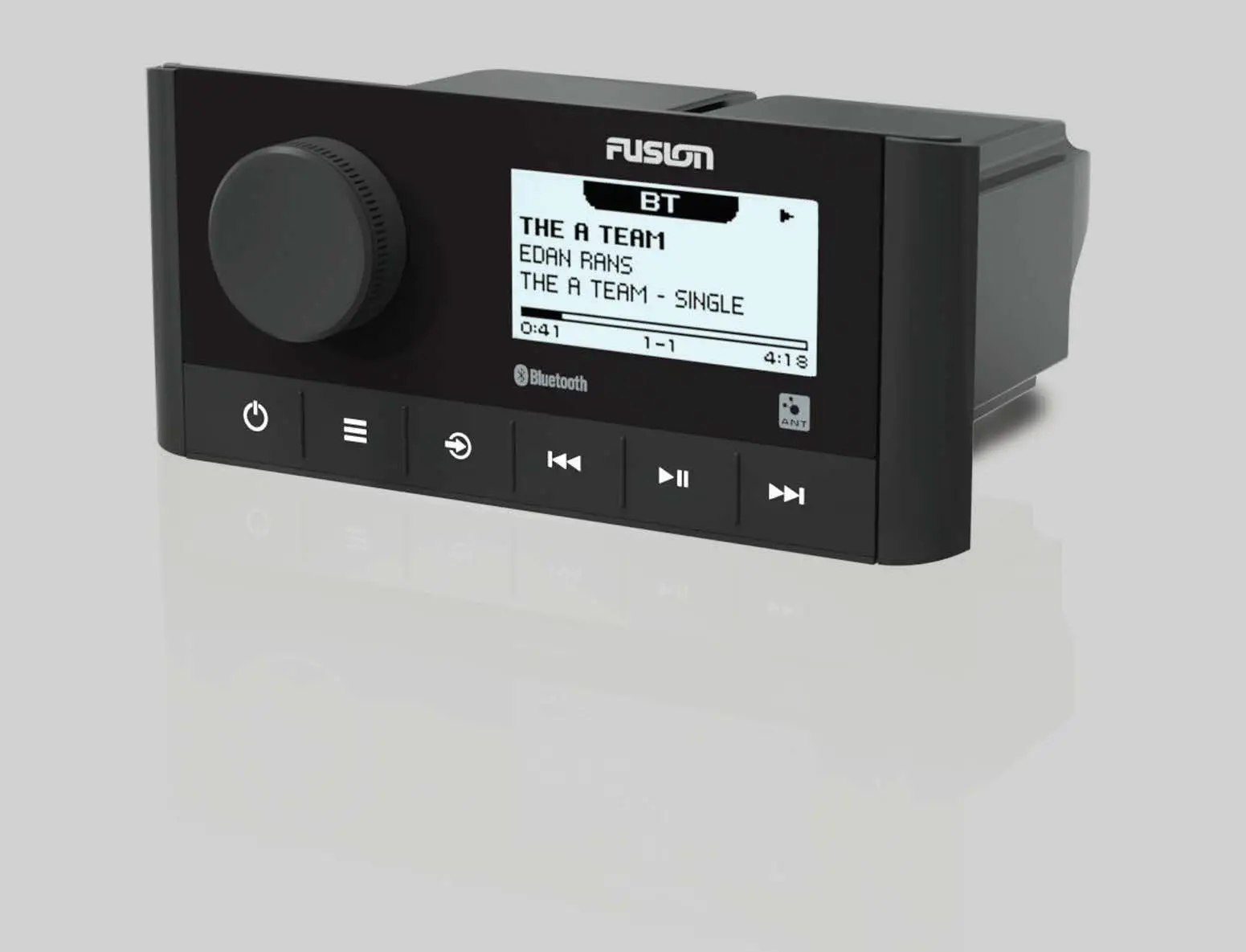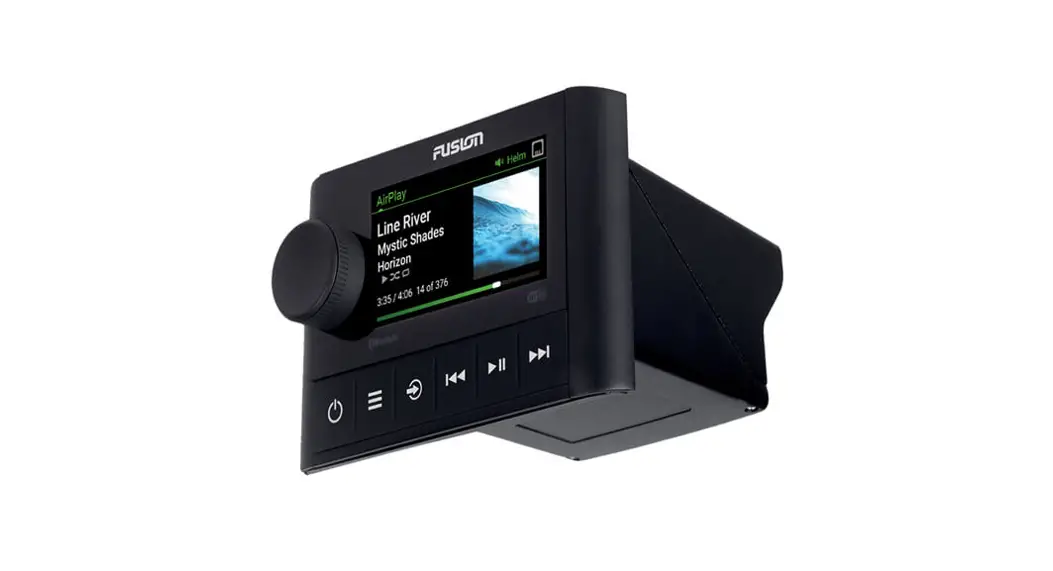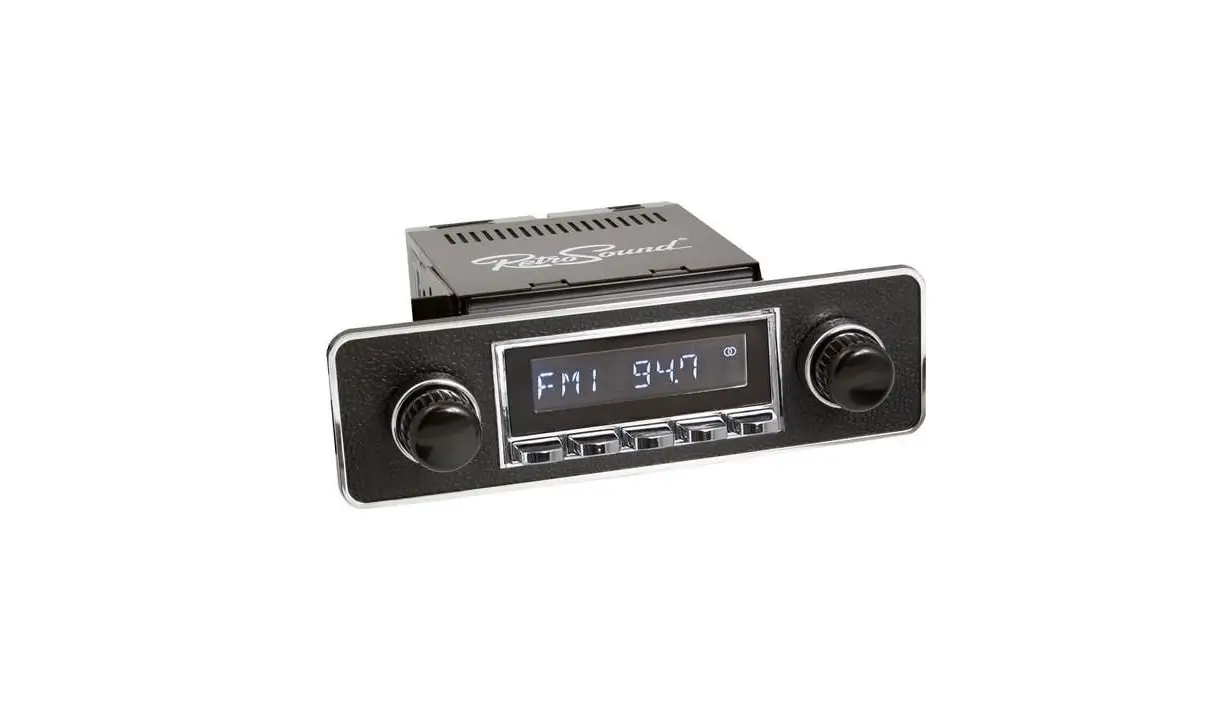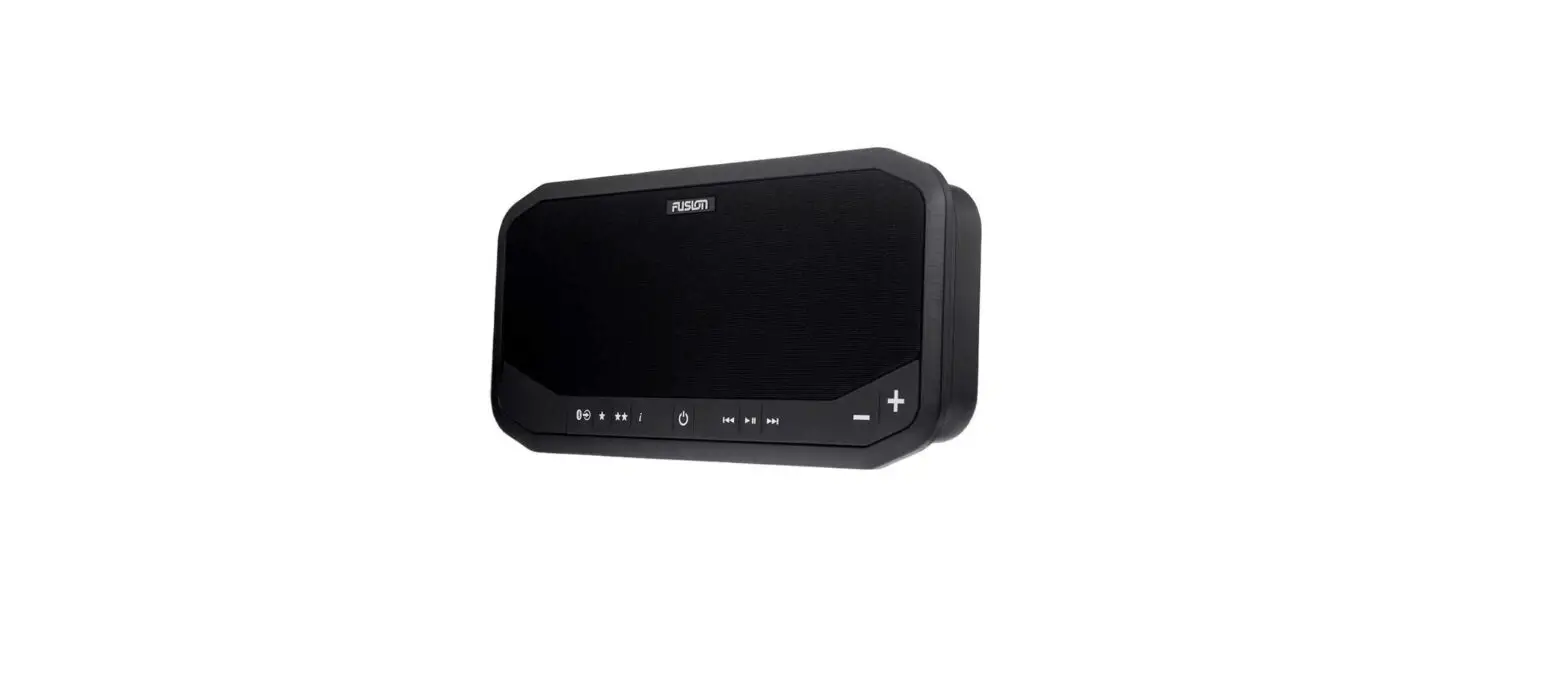

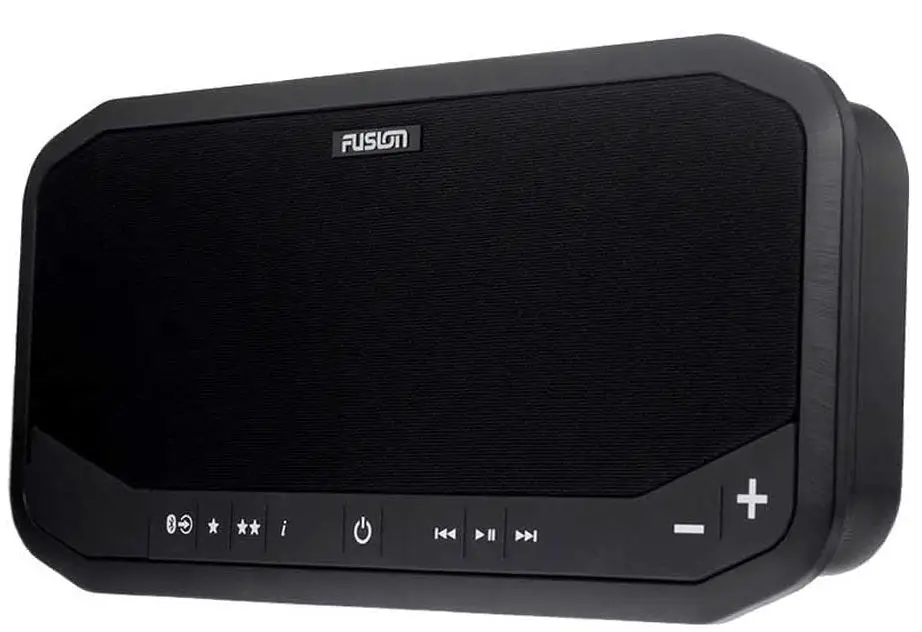
Fusion PS-A302B Panel-Stereo
© 2018 Garmin Ltd. or its subsidiaries
All rights reserved. Under the copyright laws, this manual may not be copied, in whole or in part, without the written consent of Garmin. Garmin reserves the right to change or improve its products and to make changes in the content of this manual without obligation to notify any person or organization of such changes or improvements. Go to www.fusionentertainment.com for current updates and supplemental information concerning the use of this product.
Garmin®, the Garmin logo, FUSION®, and the Fusion logo are trademarks of Garmin Ltd. or its subsidiaries, registered in the USA and other countries. These trademarks may not be used without the express permission of Garmin.
Android™ is a trademark of Google™ Inc. Apple® and the Apple logo are trademarks of Apple Inc., registered in the U.S. and other countries. App StoreSM is a service mark of Apple Inc., registered in the U.S. and other countries. The trademark iPhone® is used in Japan with a license from Aiphone K.K. Bluetooth® word mark and logos are owned by the Bluetooth SIG, Inc. and any use of such marks by Garmin is under license. Other trademarks and trade names are those of their respective owners.
Getting Started
WARNING
See the Important Safety and Product Information guide in the product box for product warnings and other important information.
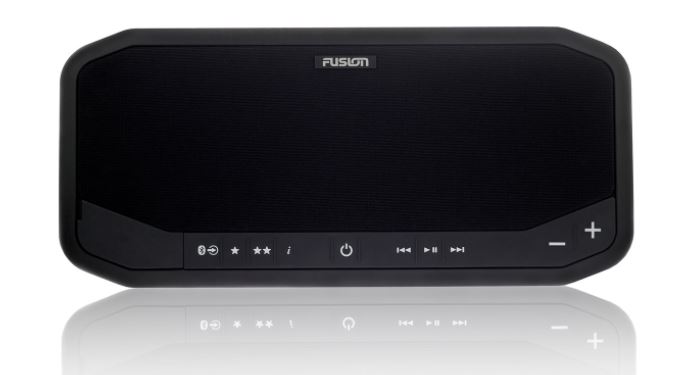
FUSION® Panel-Stereo Controls
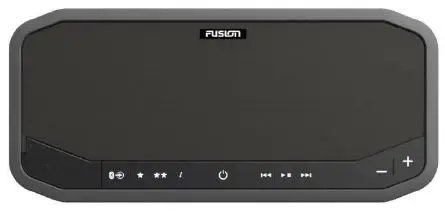
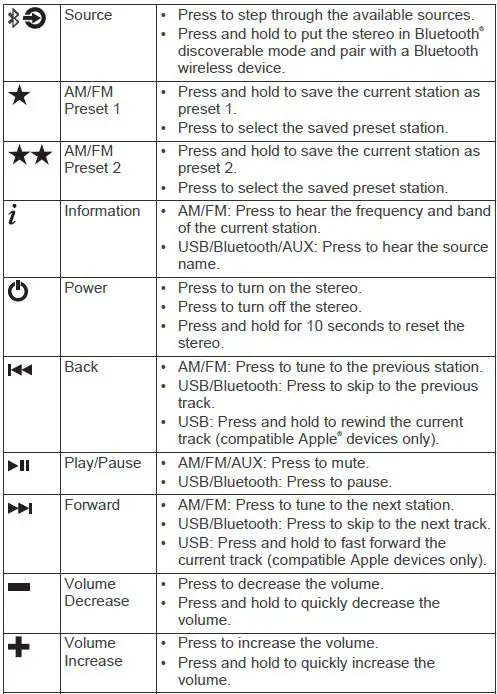
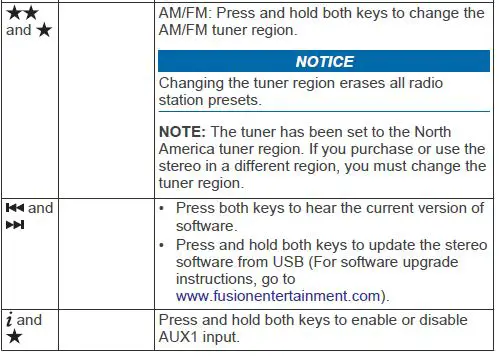
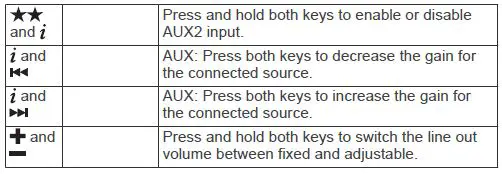
FUSION Panel-Stereo USB Port
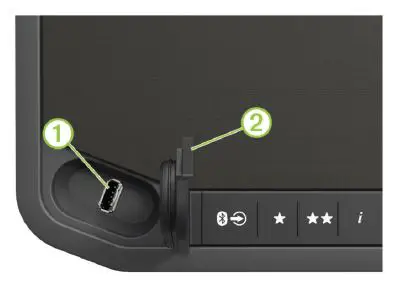
| USB port for your mobile device connection or a low-profile USB flash drive. Charges your mobile device. | |
| Weather cap. When properly closed, this cap provides a cover that is water resistant to IPX5. |
Connecting Devices
Connecting a Compatible Bluetooth Device to the Stereo
You can play media from a compatible Bluetooth device using the Bluetooth wireless connection.
You can control the music playback with the media app on a Bluetooth device or using the FUSION-Link™ remote control app. For information about the FUSION-Link app for compatible Apple or Android™ devices, go to the Apple App StoreSM or the Google Play™ store.
- Enable Bluetooth on your compatible Bluetooth device.
- Bring the compatible Bluetooth device within 10 m (33 ft.) of the stereo.
- On the stereo, press and hold until you hear Discoverable and flashes blue.
- The stereo remains discoverable for two minutes.
- On your compatible Bluetooth device, select Panel-Stereo from the list of discovered devices. turns solid blue when the device is connected to the stereo.
- If your compatible Bluetooth device does not connect to the stereo, repeat the above steps.
NOTE: The FUSION-Link app works for any audio source, but you must select the Bluetooth source on the stereo to stream audio.Play music using your Bluetooth device. - If you want to stream Bluetooth audio, select the Bluetooth source on the stereo.
NOTE: remains solid blue when a Bluetooth device is connected to the stereo, regardless of the selected source.
Immediately after the stereo is turned on, it connects automatically to the last connected device when it is within range and Bluetooth wireless technology is enabled. You can connect a previously paired Bluetooth device by selecting Panel-Stereo from the Bluetooth device’s list of previously paired devices.
Connecting a Compatible USB Device to the Stereo
You can connect a compatible USB flash drive, compatible Apple device, or compatible Android AOA device to the USB port to play music and charge compatible Apple or Android devices.
The FUSION-Link remote control app is required to navigate folders on the USB flash drive. When using a USB flash drive without the FUSION-Link app, the stereo plays music files saved in the root directory by default. If the FUSION-Link app has been previously used to navigate to a different folder on the USB drive, the stereo plays music files from the last folder navigated to.
When using a USB flash drive, the file load time varies based on size of the flash drive and the number of files on the flash drive.
- Connect the USB flash drive or the USB cable included with your media player to the USB port on the stereo.
- If you want to stream Bluetooth audio, select the Bluetooth source on the stereo.NOTE: The FUSION-Link app works for any audio source, but you must select the Bluetooth source on the stereo to stream audio.
- Play music using the connected USB device.
When an unsupported USB device is connected, the stereo beeps to indicate the error.
| One beep | Unsupported hub attached |
| Two beeps | Unsupported USB device attached |
| Three beeps | Device not responding |
| Four beeps | Unsupported USB device attached that exceeds the 1 A charging rating of the stereo |
USB Flash Drive Size
The weather cap should be sealed on the device to avoid corrosion. To ensure the weather cap can be properly inserted and locked, you must use a low profile USB flash drive that is no longer than 22 mm (0.86 in.), measuring from end to end. The optional FUSION MS-USB16 accessory is a low-profile, 16 GB flash drive, and is the correct size to allow the weather cap to be closed and sealed.



FREQUENTLY ASKED QUESTIONS
Download the PDF Link: Fusion PS-A302B Panel-Stereo Owner’s Manual