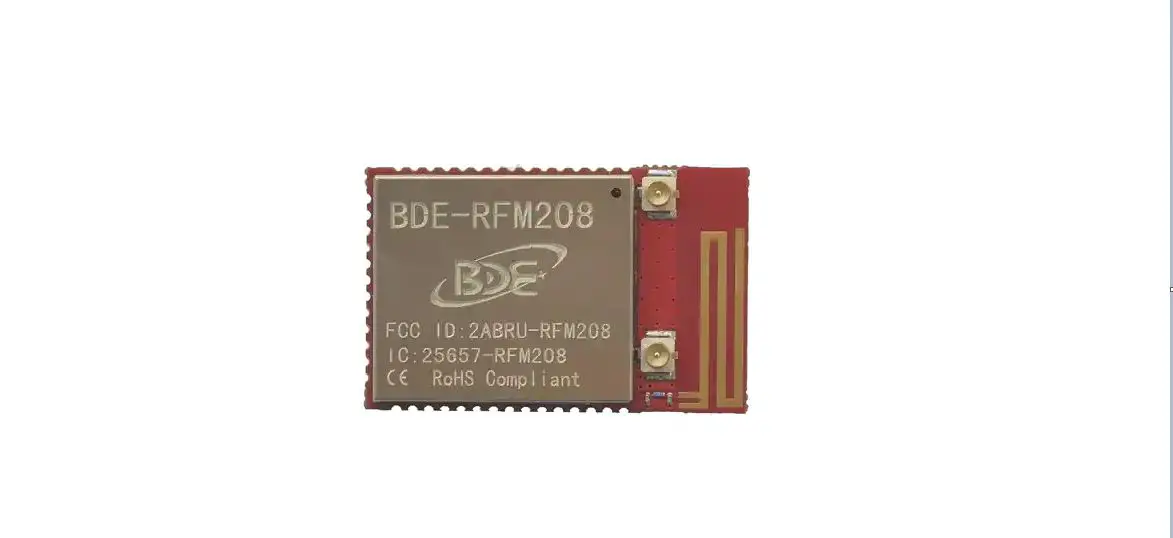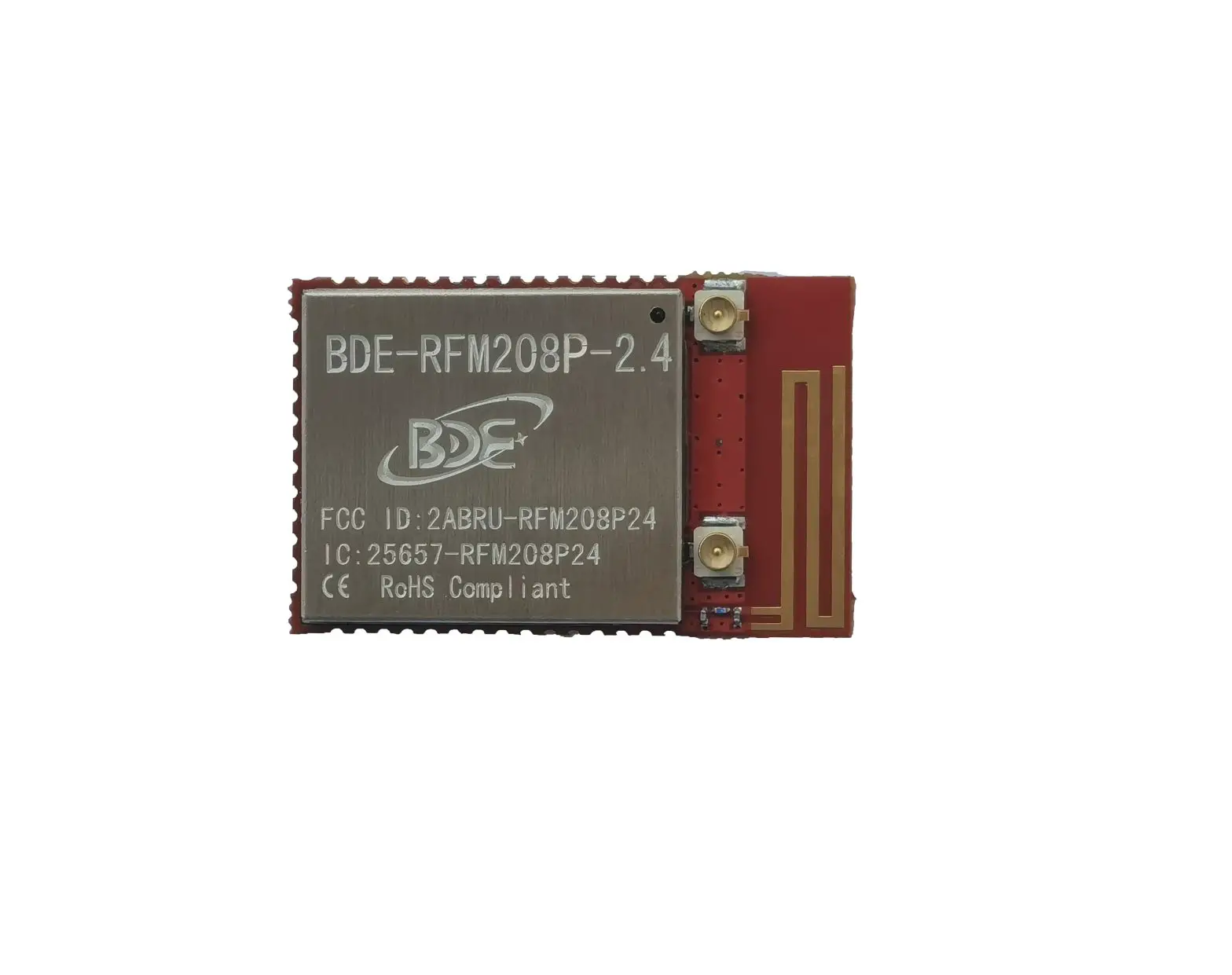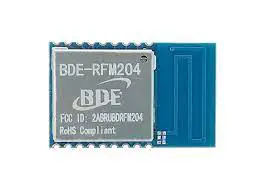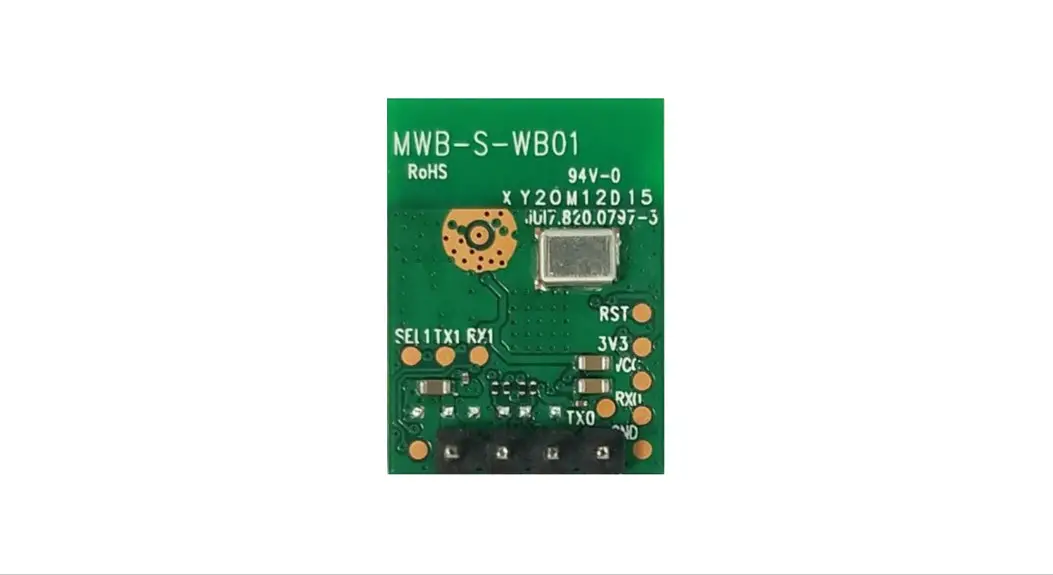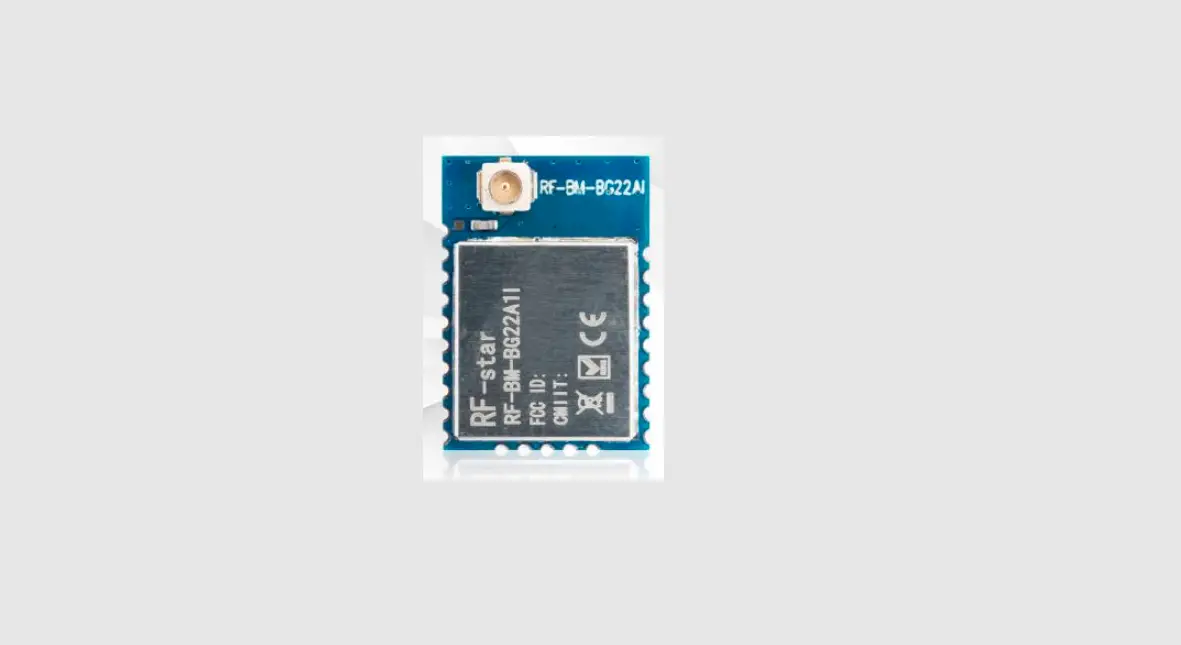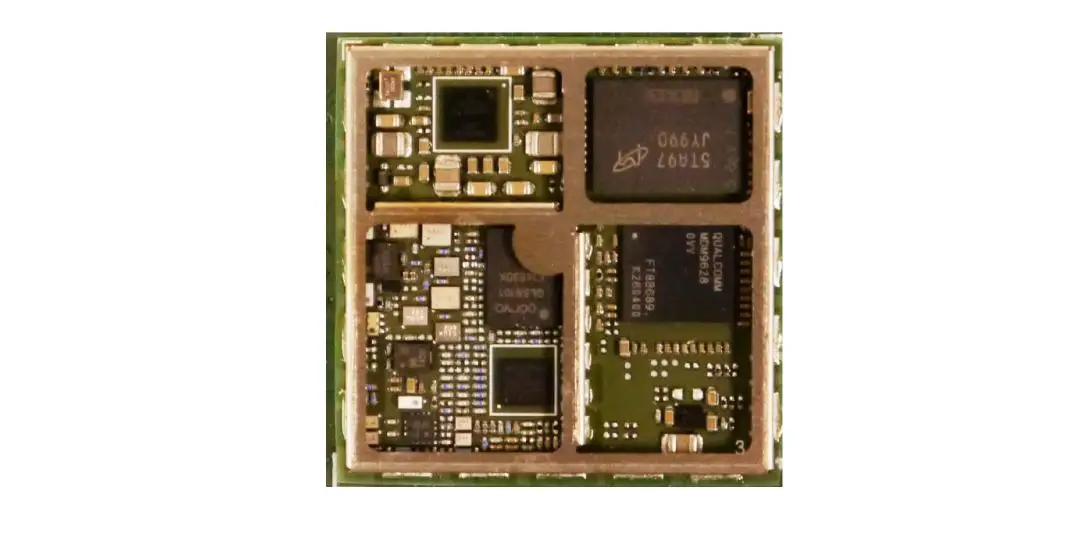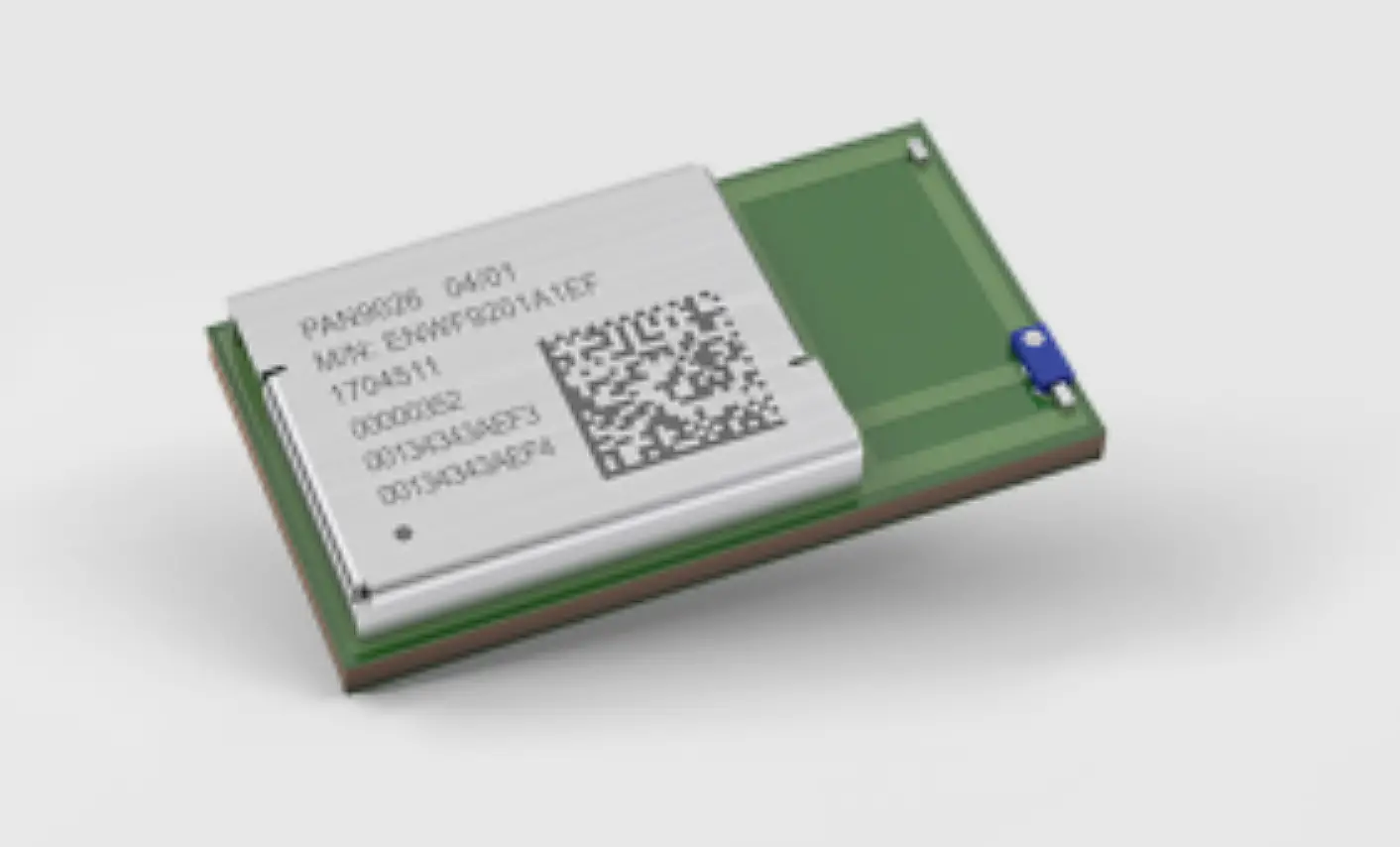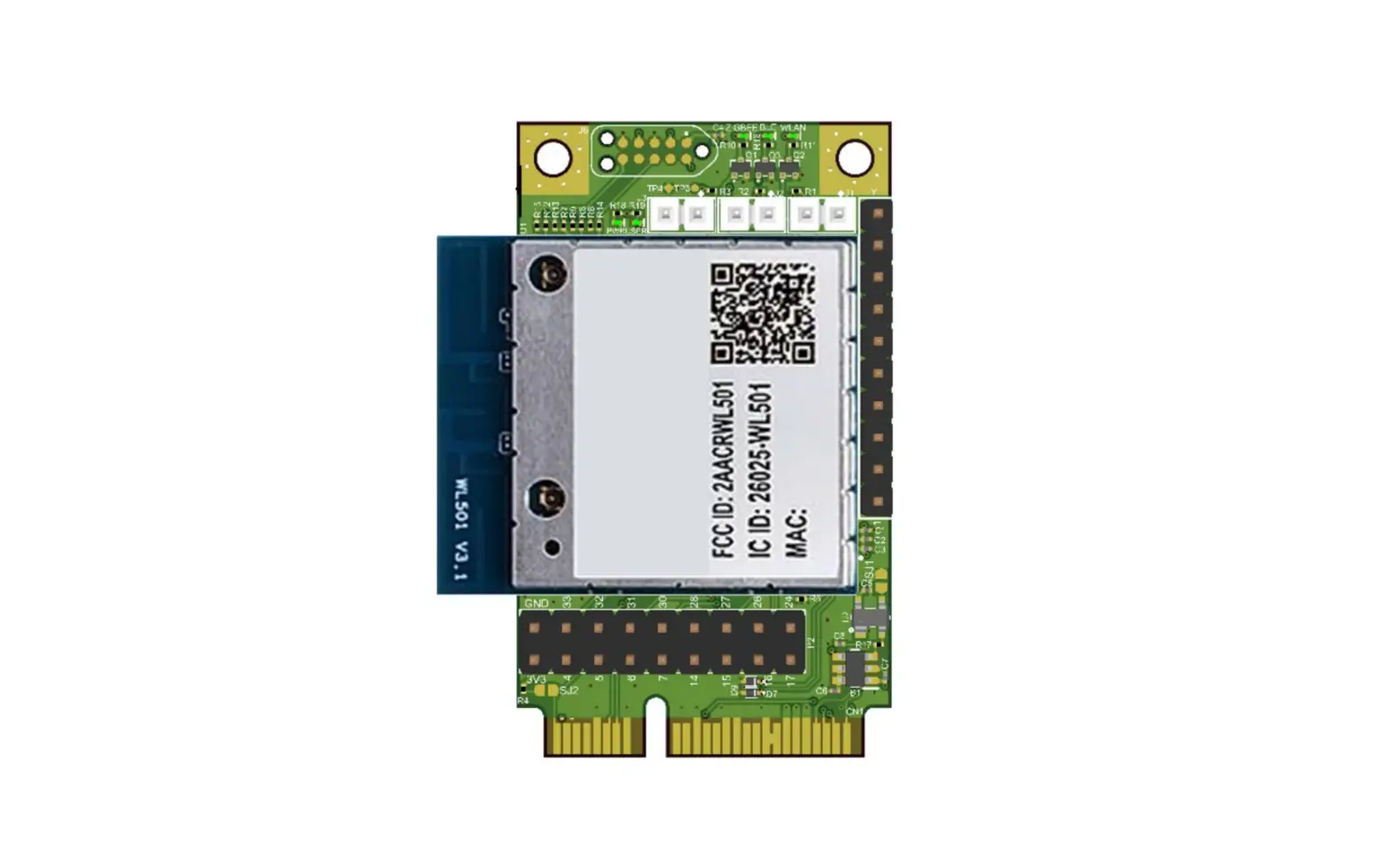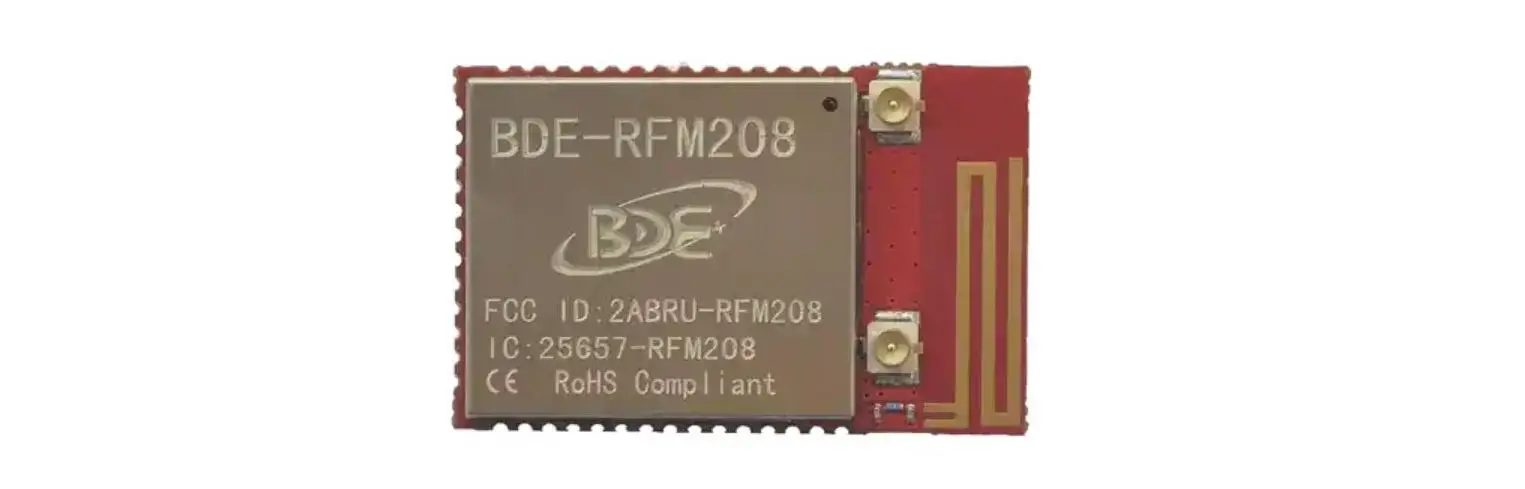

BDE-RFM208-IN Multi-Band Wireless Module 
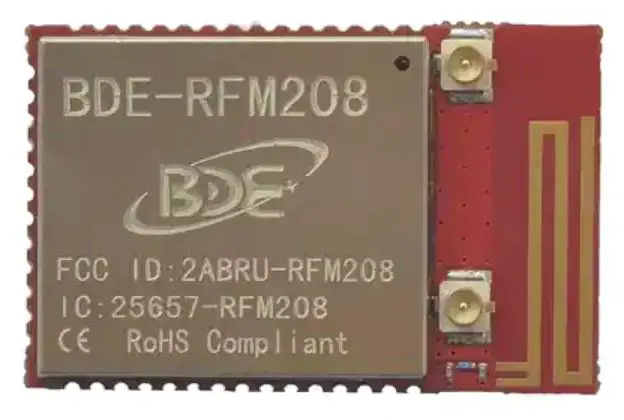
Introduction
This user guide is for BDE-RFM208-IN, a Wireless Module based on TI CC1352R. It is a quick start guide for how to connect the module with the evaluation board BDE-EVB07 or with the TI launchpad, and how to build the first application. It also shows a demo for how BDE-RFM208-IN receives a data packet that is sent from another BDE-RFM208-IN.
Get Ready
The following tools are recommended to develop with BDE-RFM208-IN.
Hardware tools:
- Two modules of BDE-RFM208-IN (BDE-RFM208-IN-BDE Technology Inc. (bdecomm.com))
- Two BDE-ADP208 V1.0 (adaptor board)
- PC or Laptop
- Two BDE-EVB07 ( BDE-EVB07-BDE Technology Inc. (bdecomm.com))
or - Two TI Launchpad (LAUNCHXL-CC13X2R1 Evaluation board | TI.com)
- USB cable for power supply and debugging
Software tools:
- Terminal software such as CCS, IAR.
- CCS download
- Software Development Kit (SDK)
Build Your First Application
Once have the Hardware and Software tools in place, please following the following steps:
Connect the Hardware
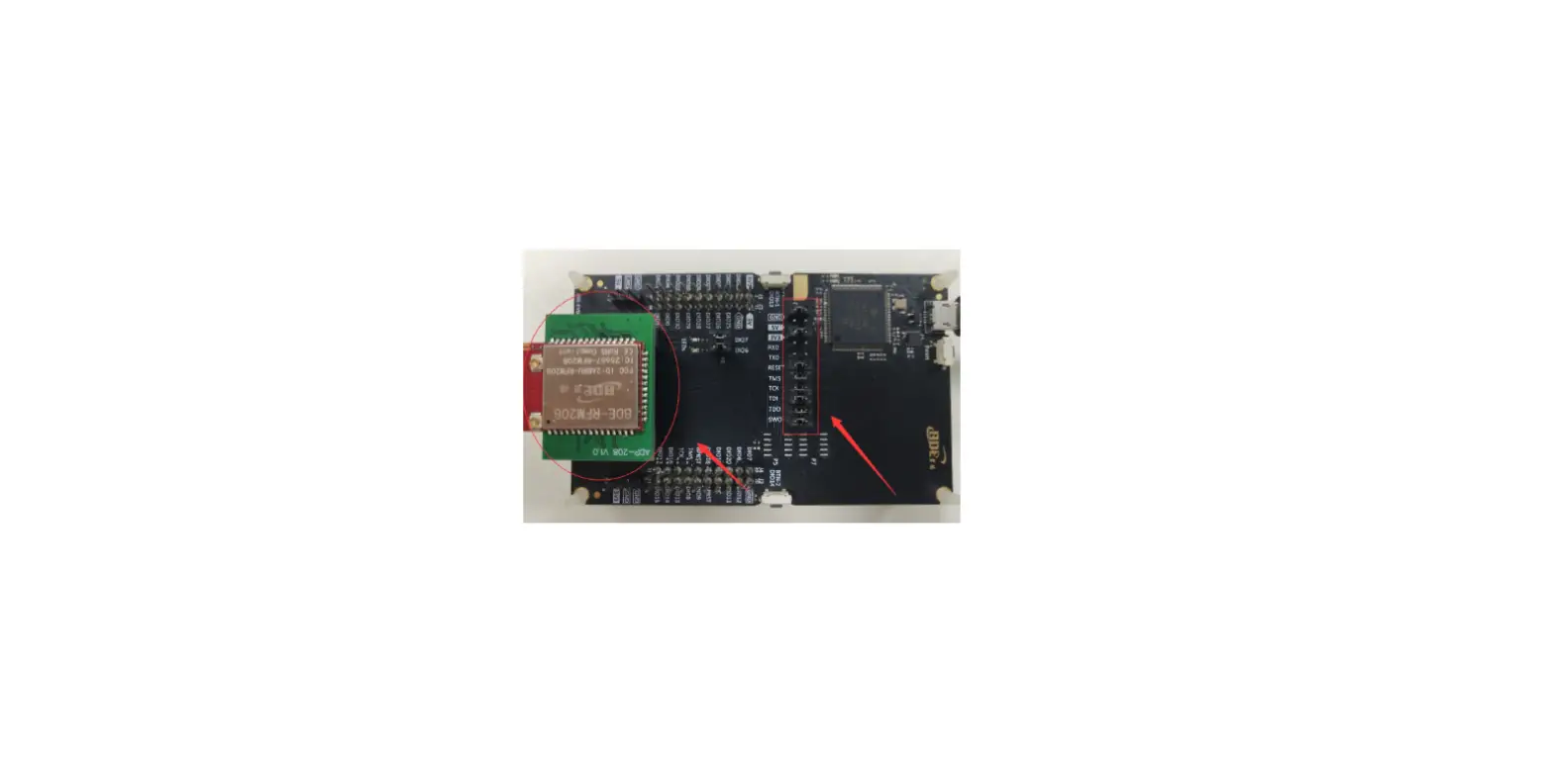
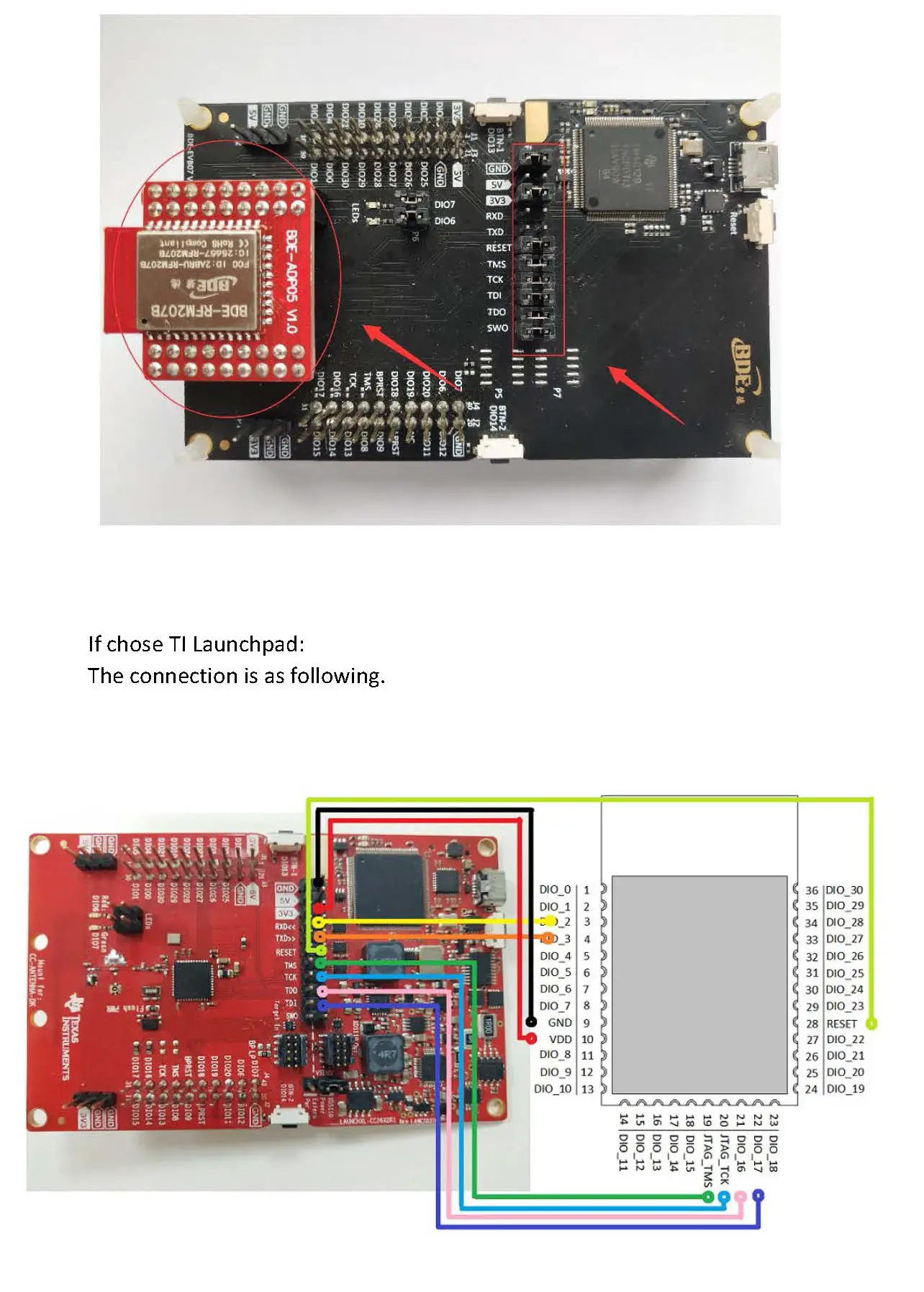
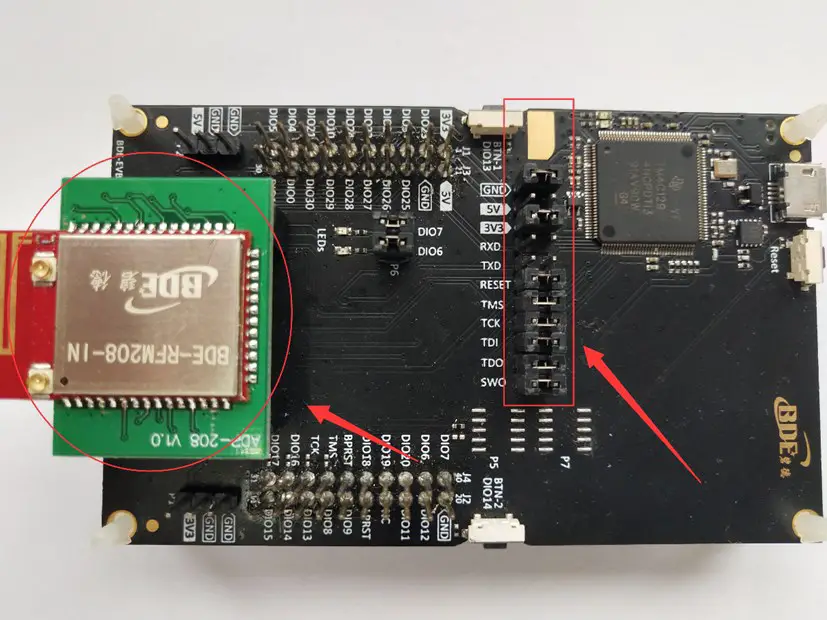
If chose EVB07: Use USB cable to connect EVB07 and PC or laptop. Plug BDE-RFM208-IN with the adaptor board into the dev board and connect all the pins with Jumpers as the following picture shows.
Multi-Band Wireless Module
If chose TI Launchpad: The connection is as follows.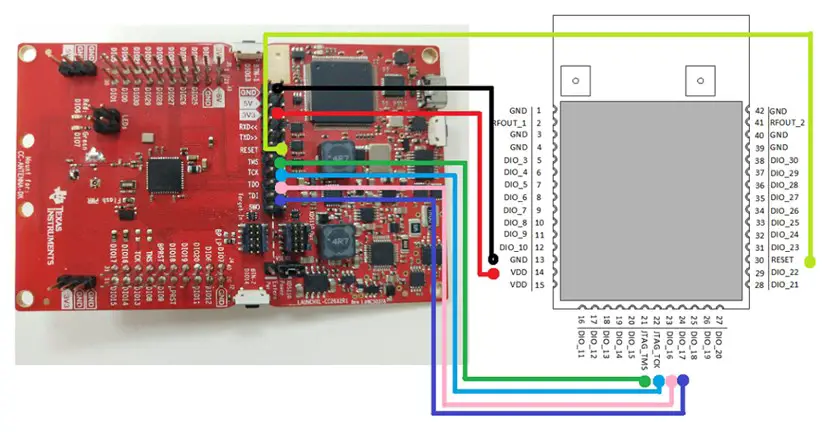
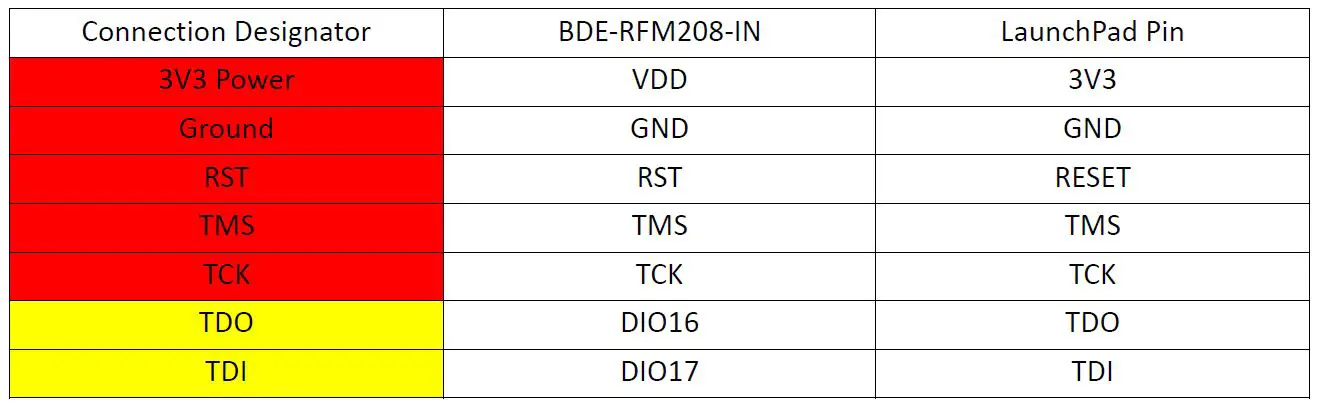
Optional: TDO TDI RXD TXD
Build the Application
- Download and install the CCS and SDK
From the above links, follow the instructions in the following steps to download and install the CCS and SDK. - ◼ CCS Installation
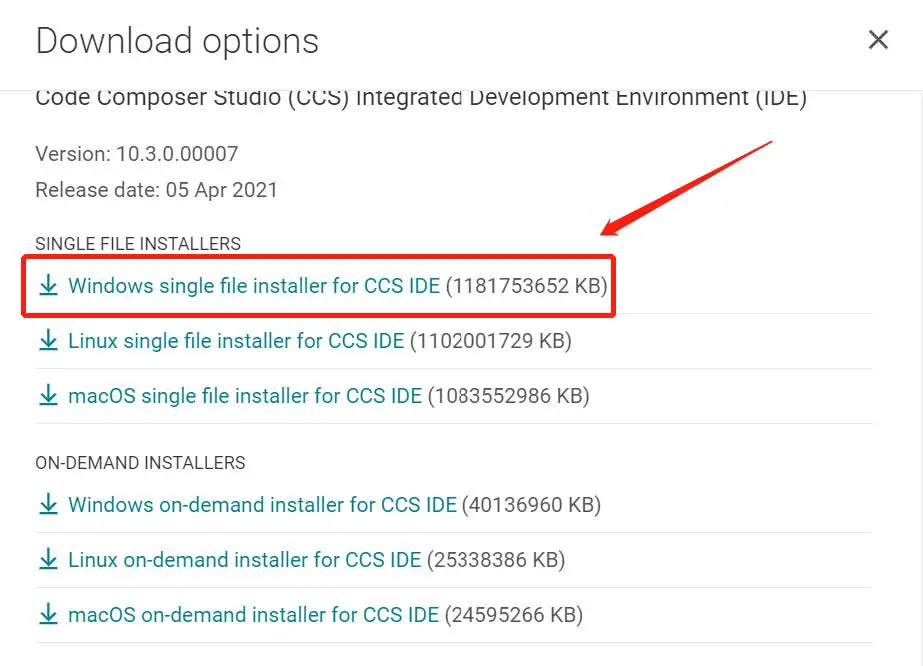
- Click on this option

- Select an option to download CCS

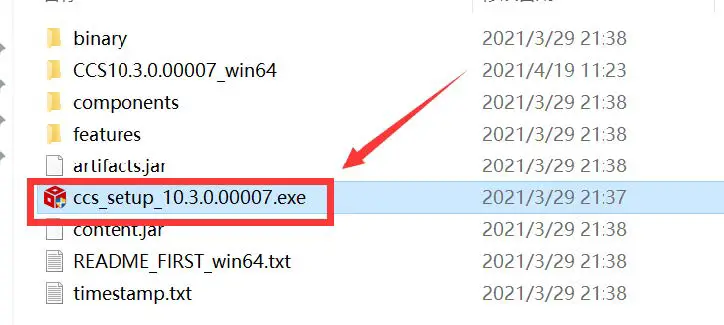
- Unzip the package to a local disc

- Click the setup of CCS

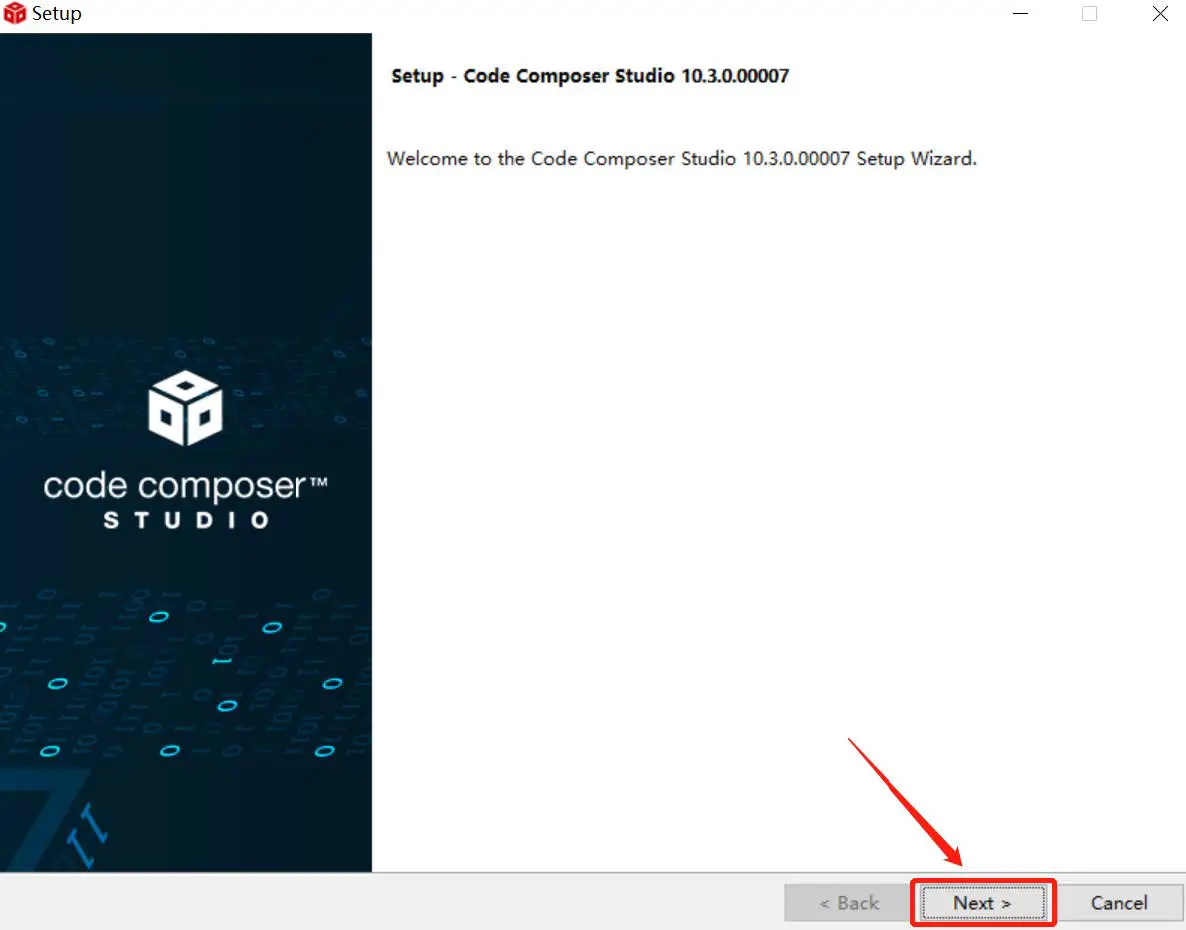
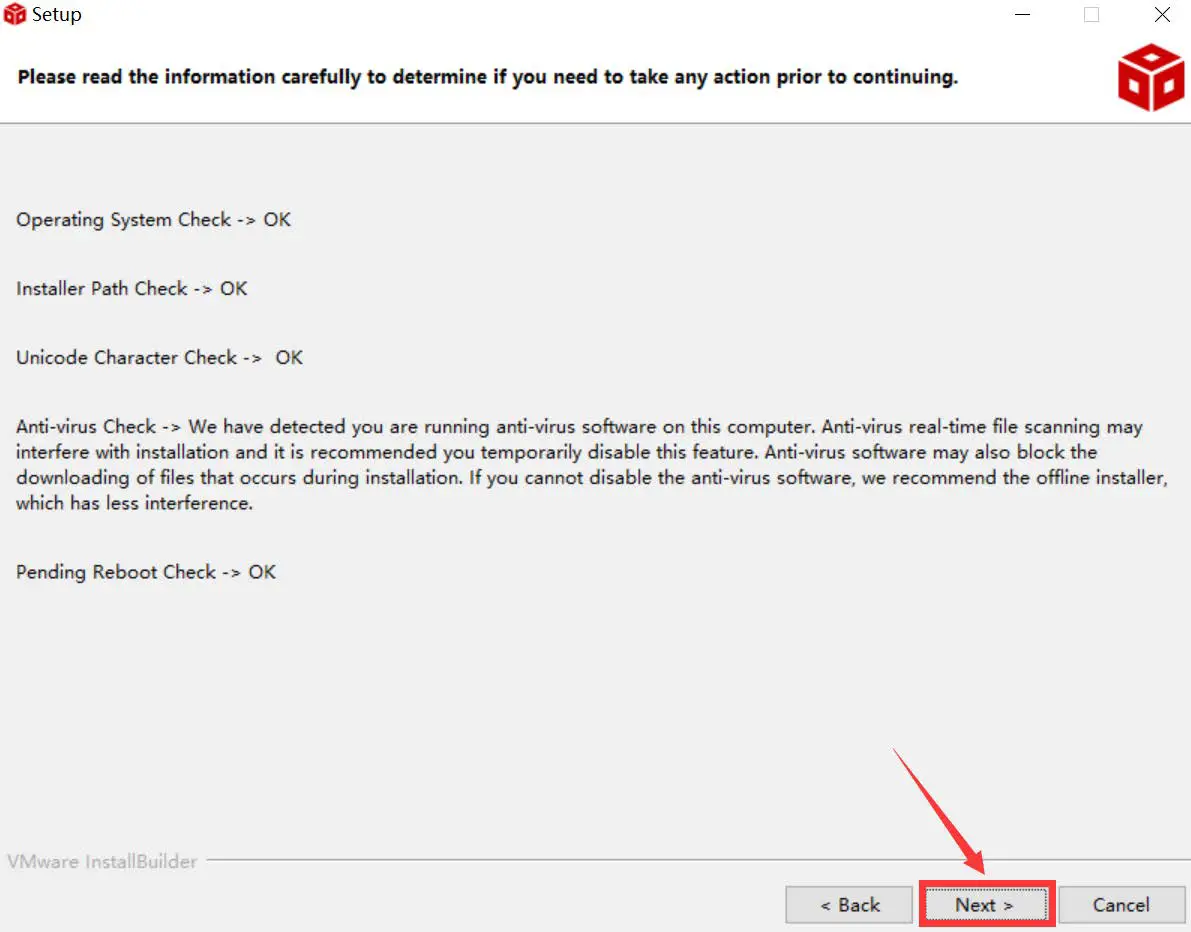
- Click “Next”

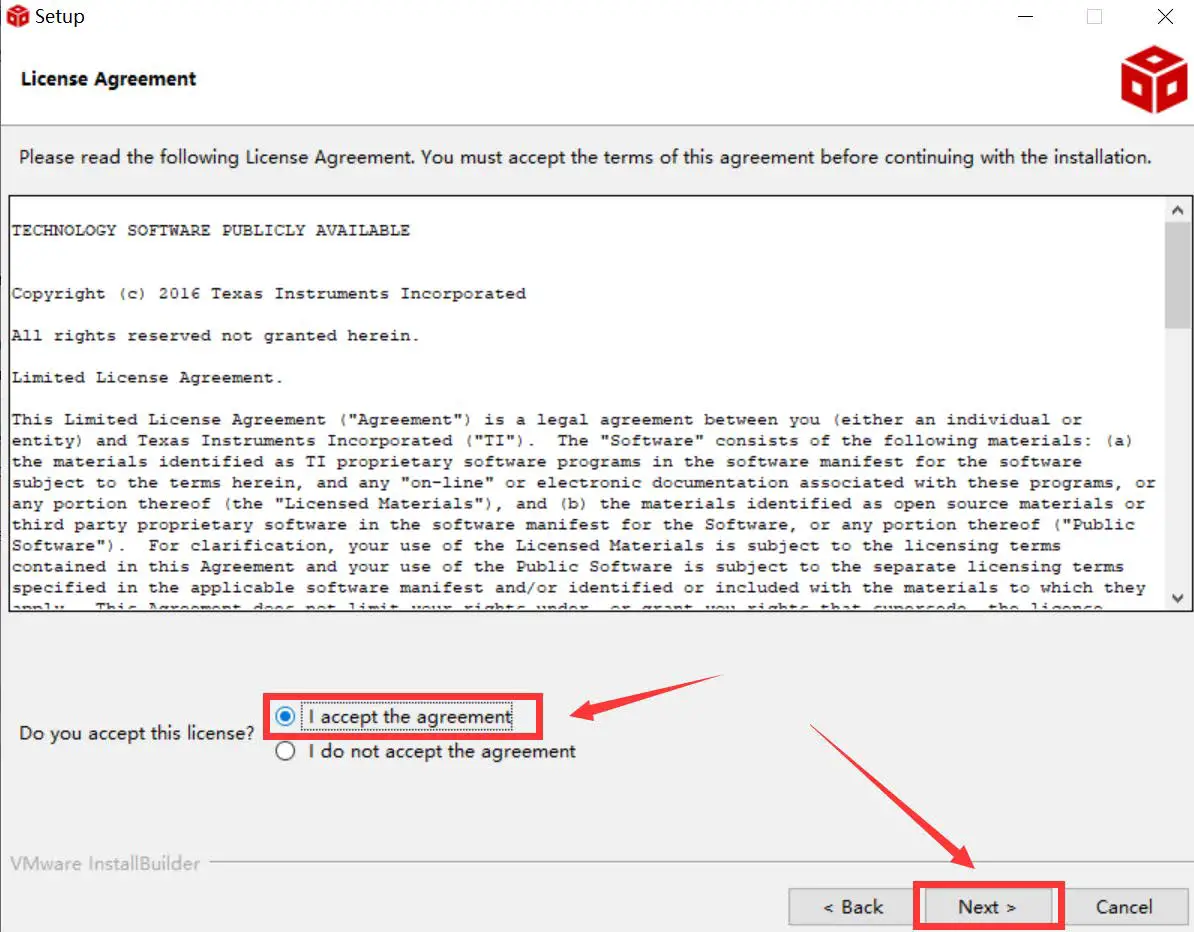
- Select the default option

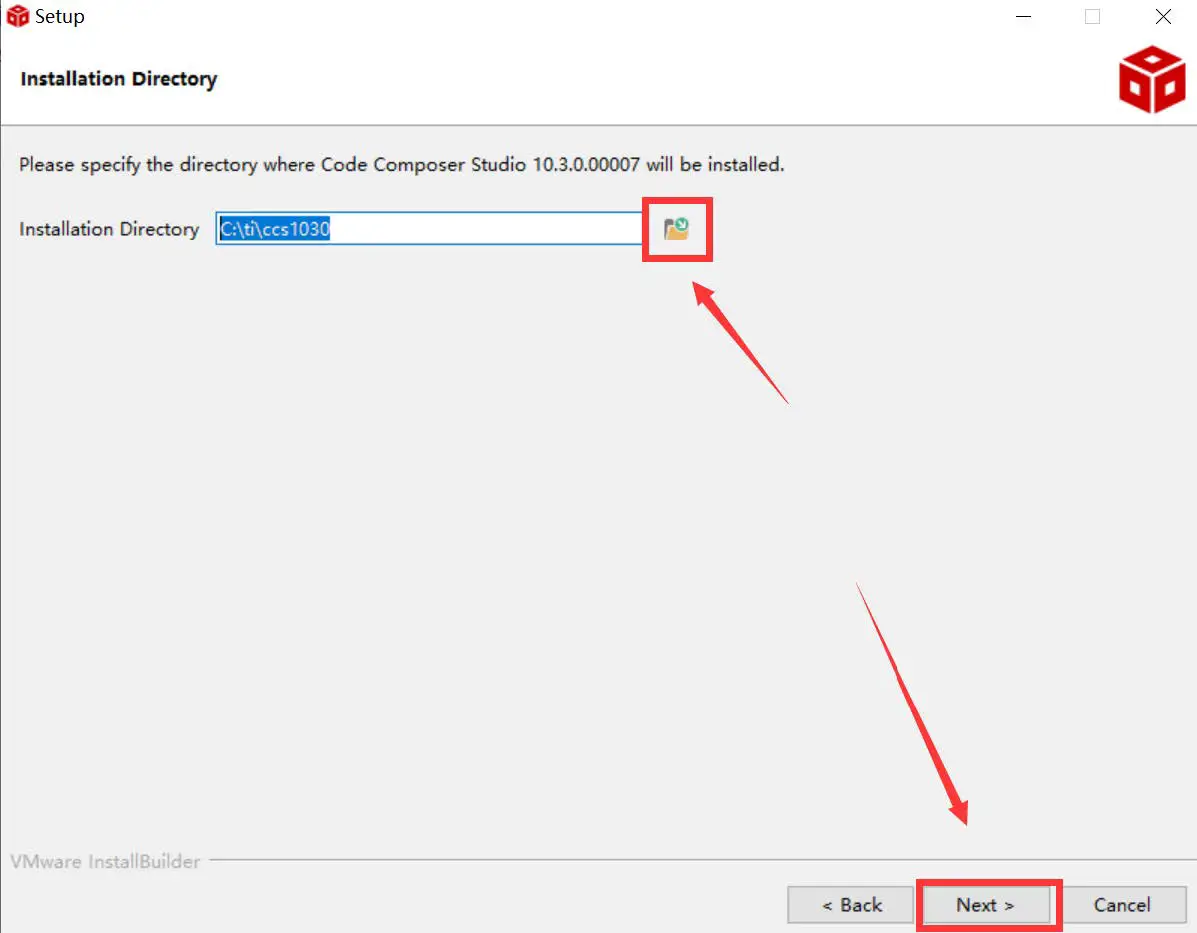
- Click “Next”

- Select the Installation Directory

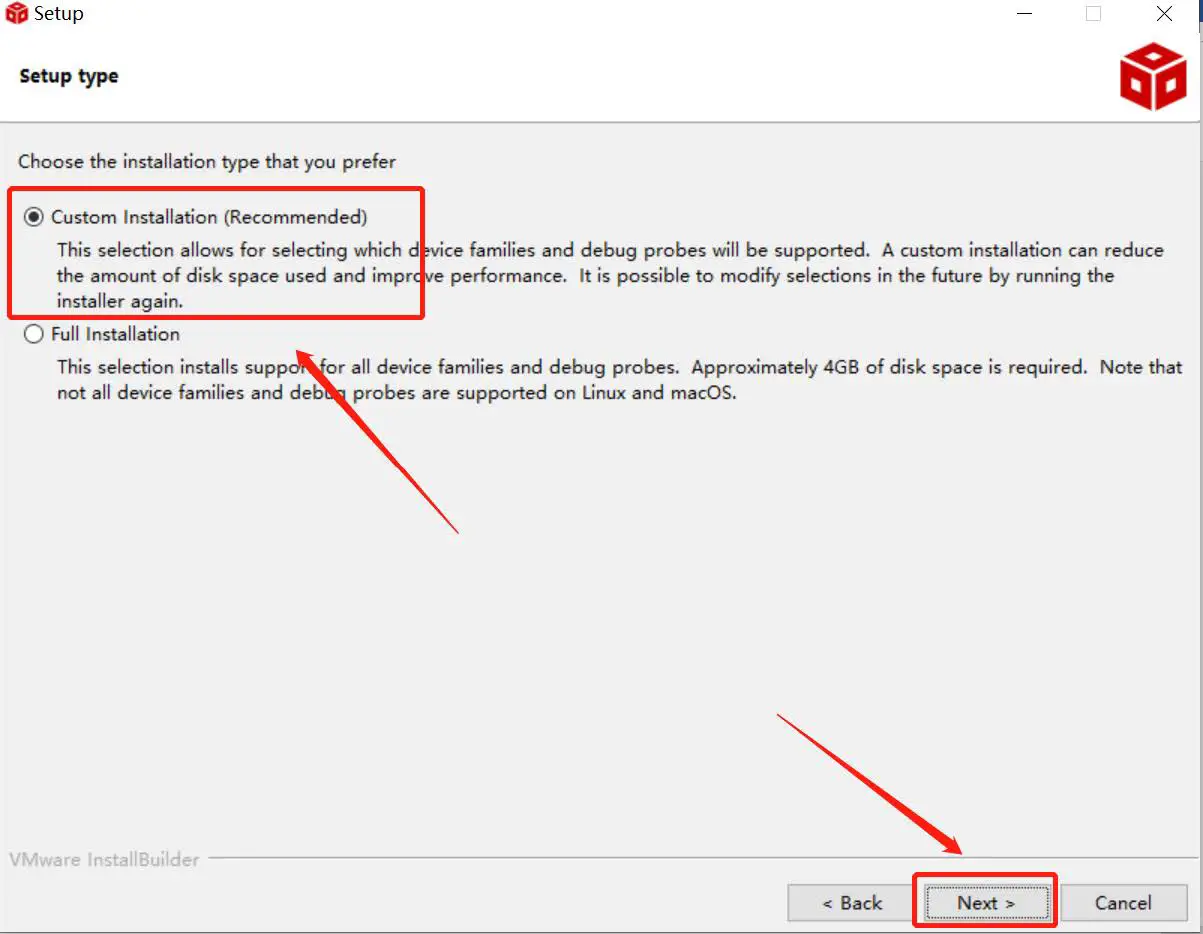
- Select the default option

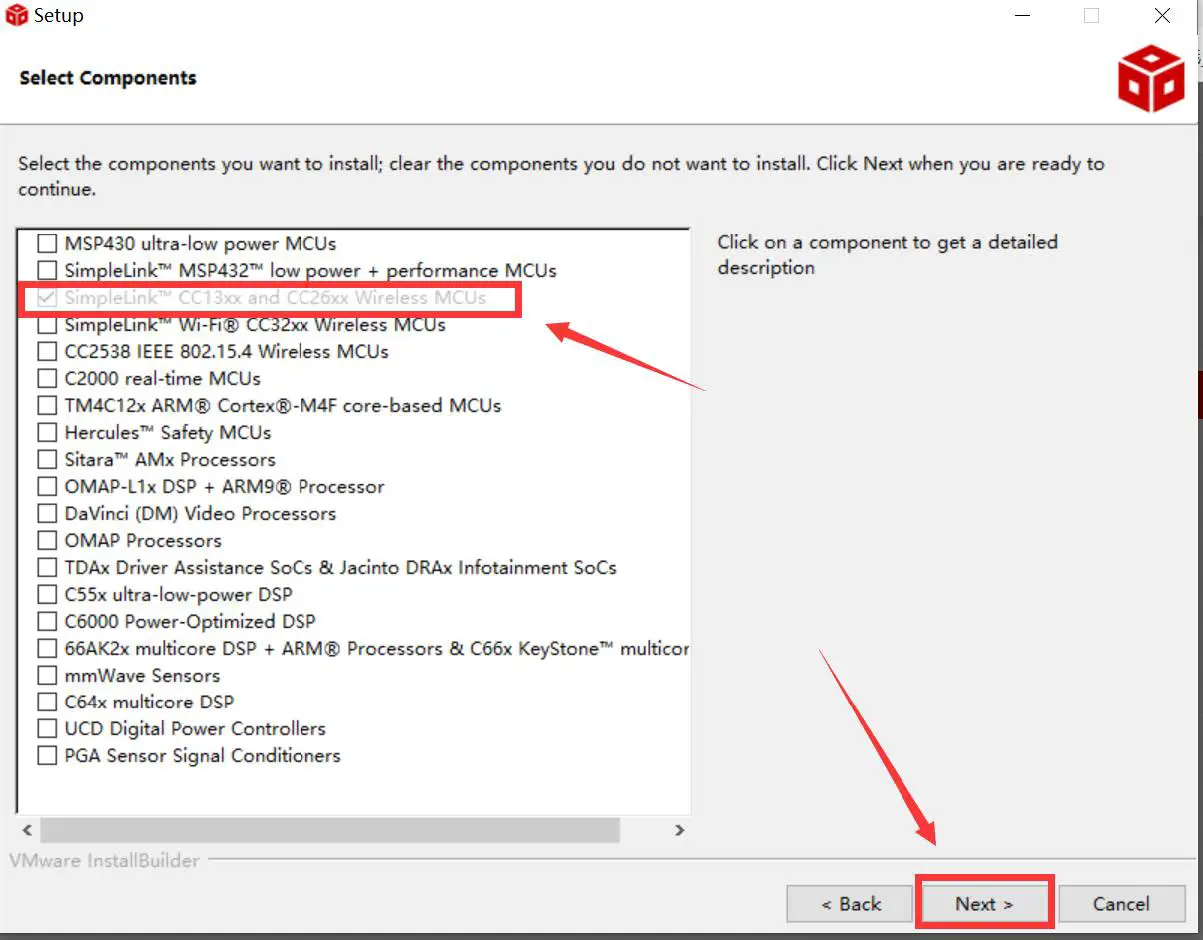
- Select the component

- Select the default option

- Click “Next”

- Click “Next”

- Waiting for installation to complete

- Click on this option
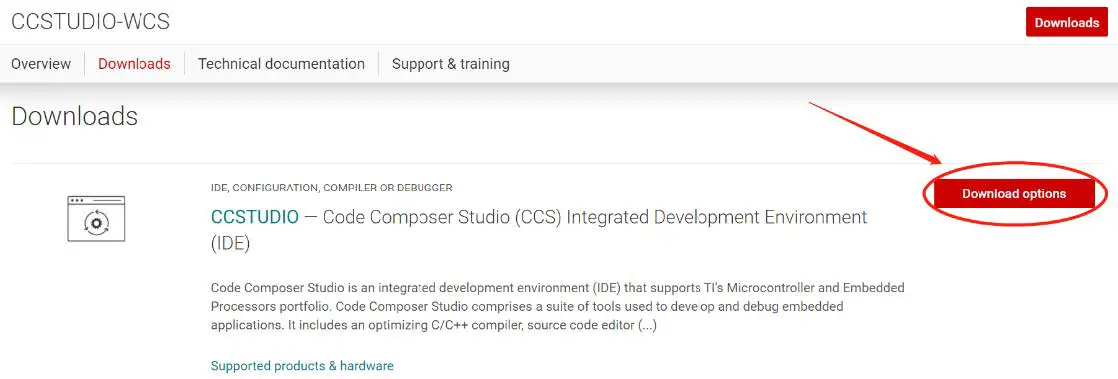

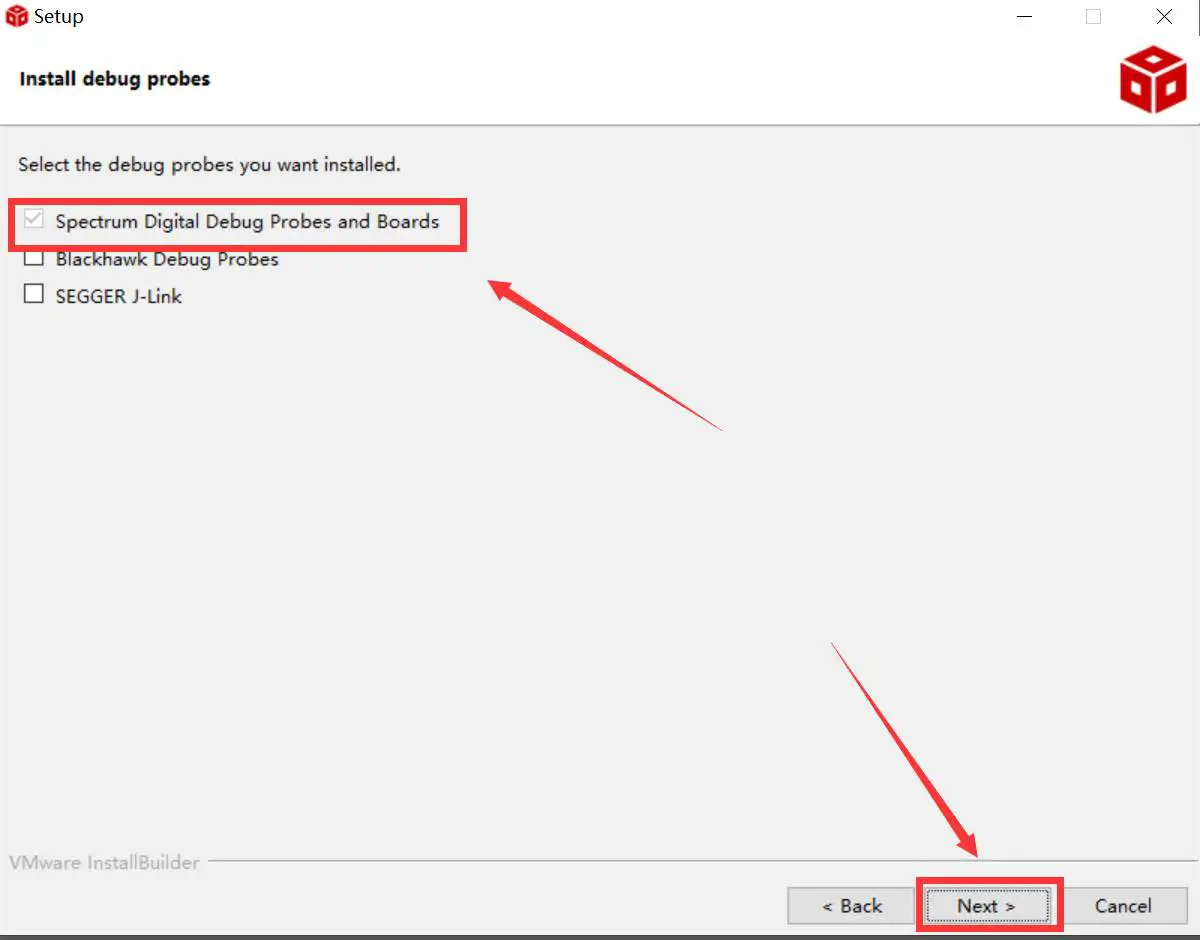
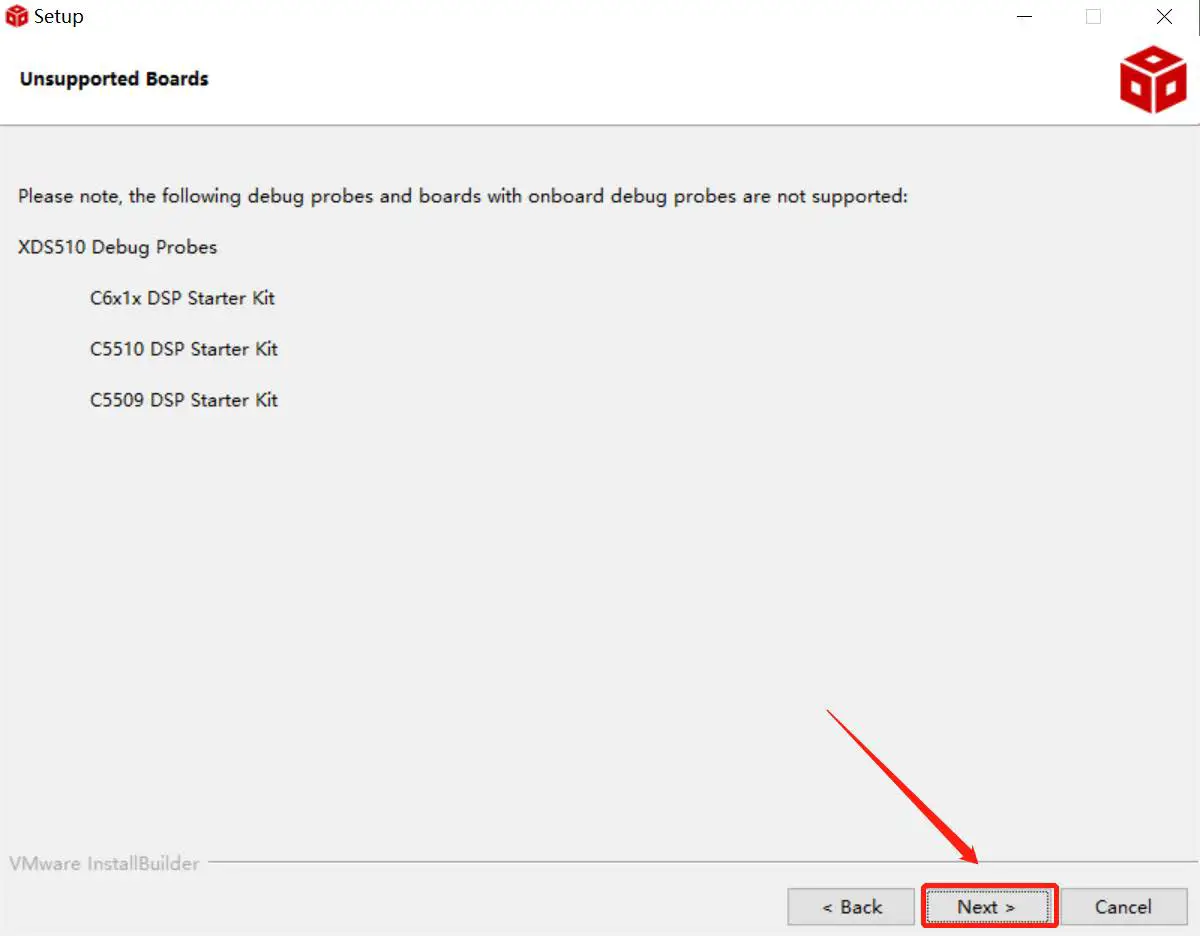
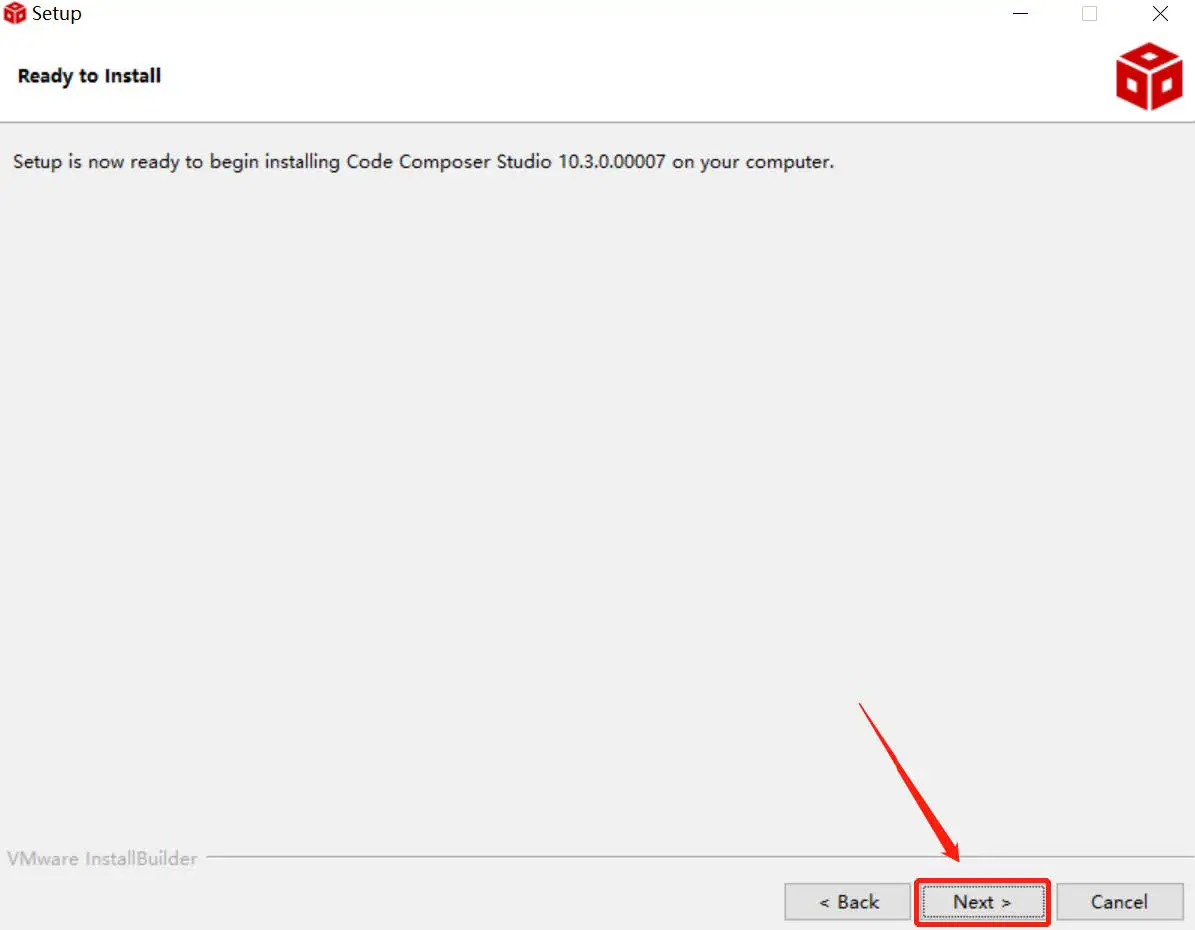
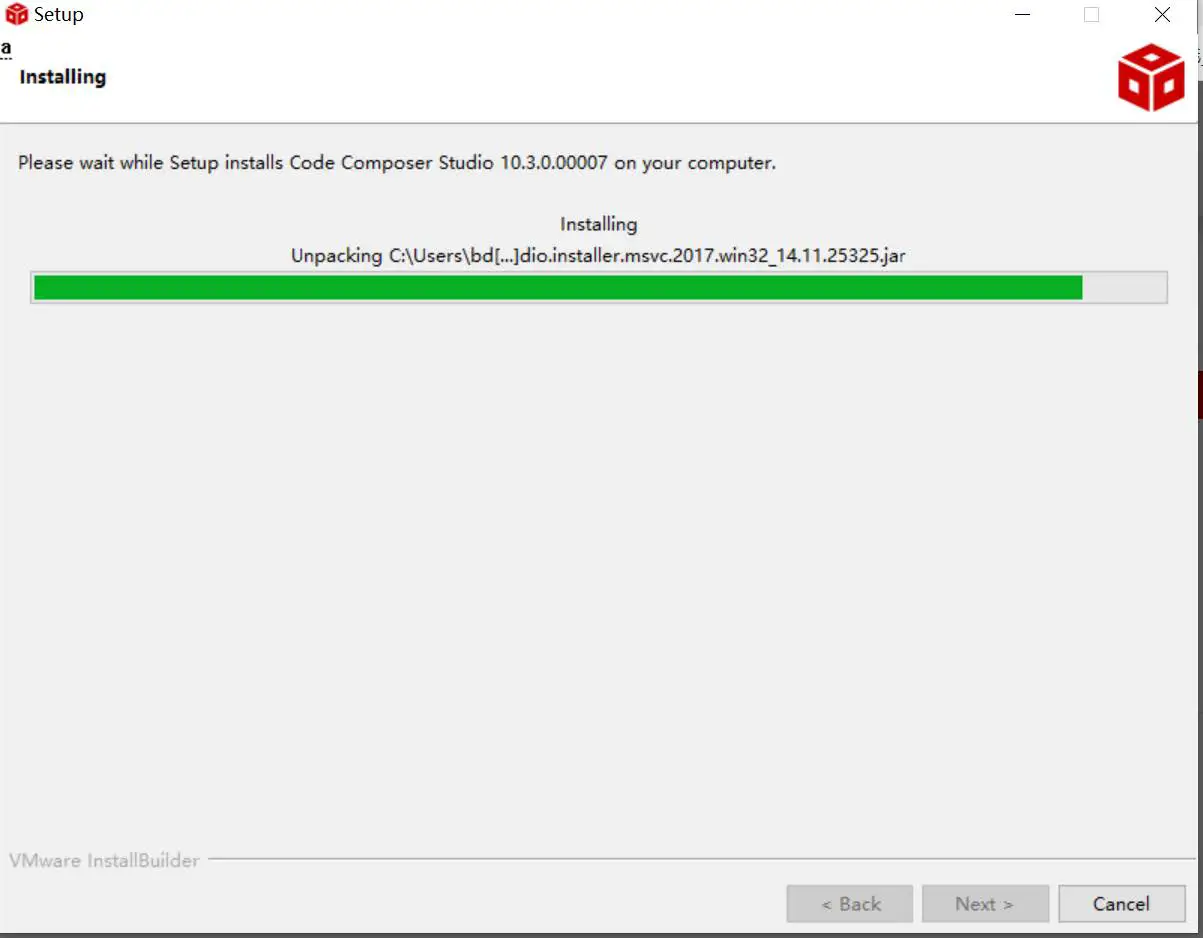
Software Development Kit (SDK) installation
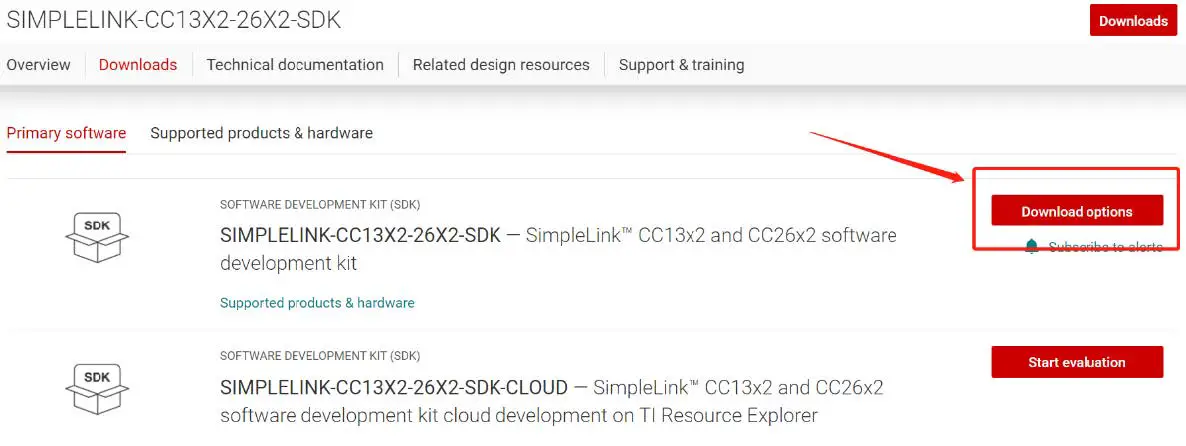
- Click on this option

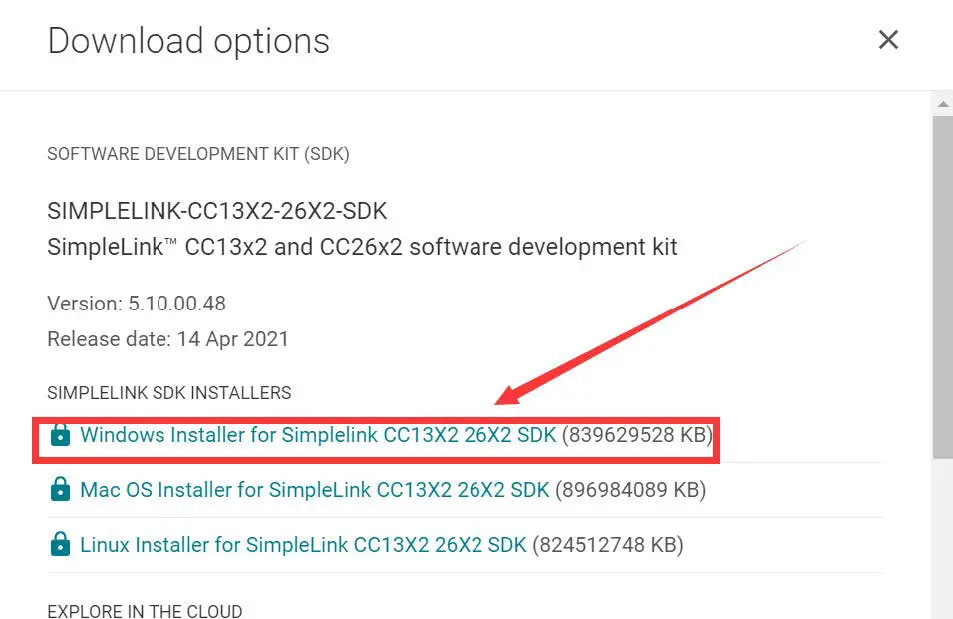
- Select an option you need to download SDK

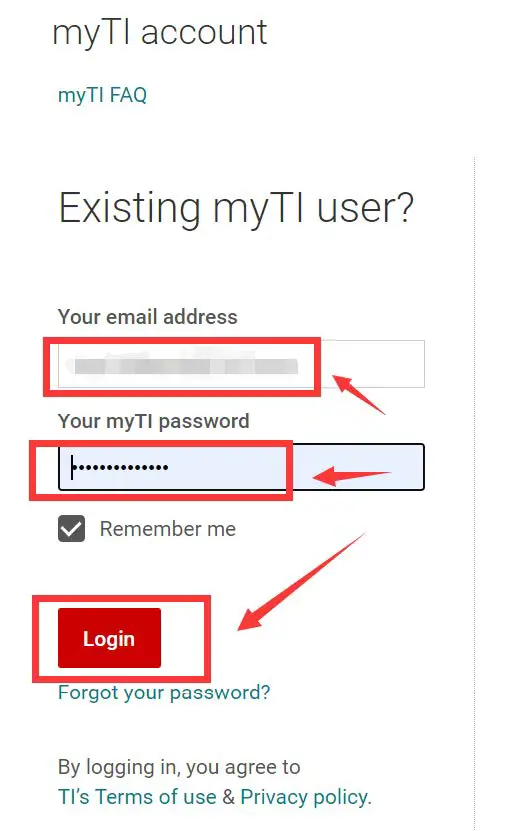
- Log in to your TI account, if you are a new user, register a TI account first

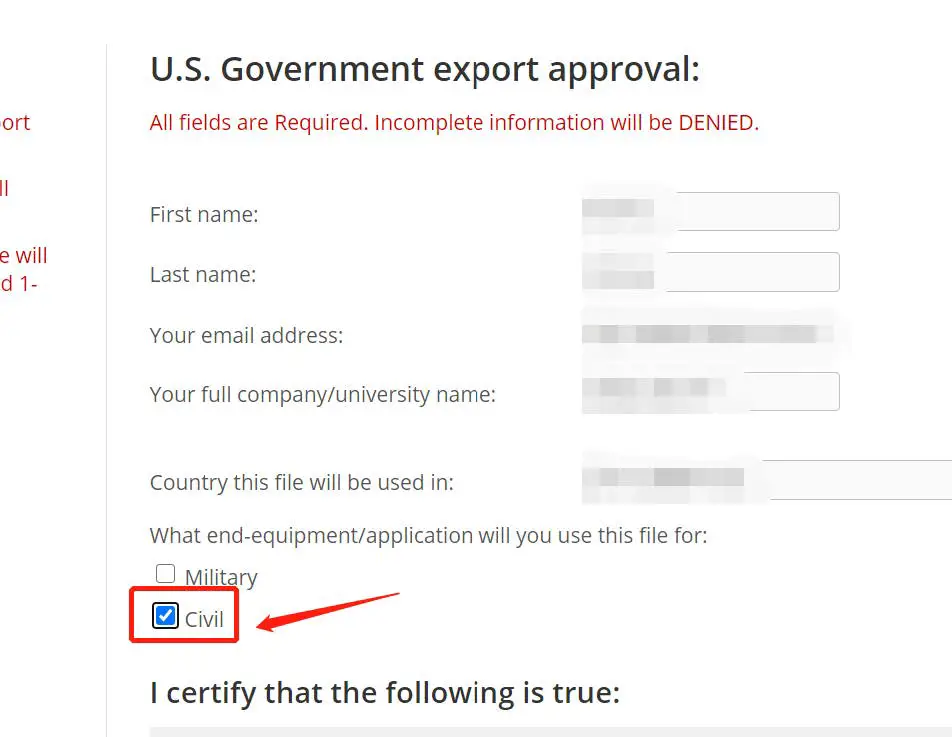
- Select “civil” if your application is for civil use

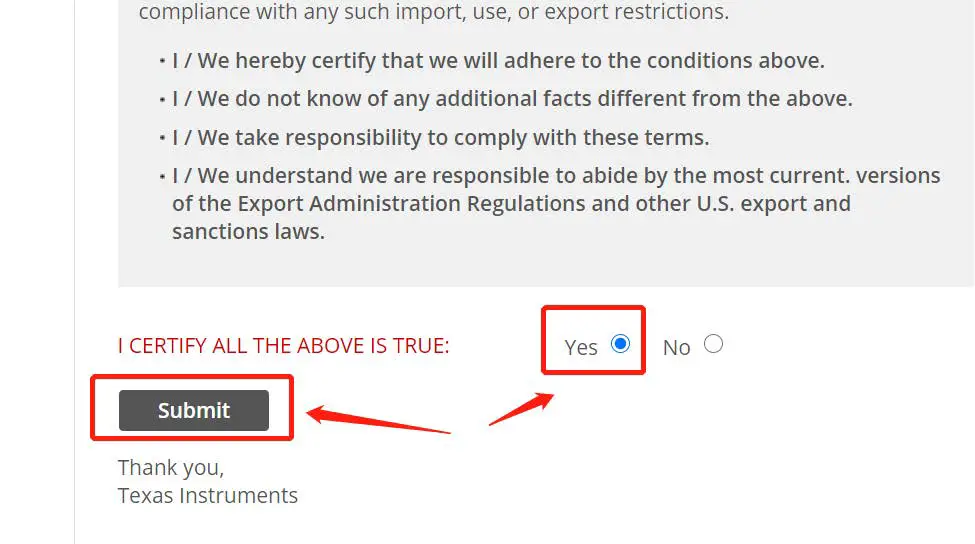
- Select “Yes” and submit

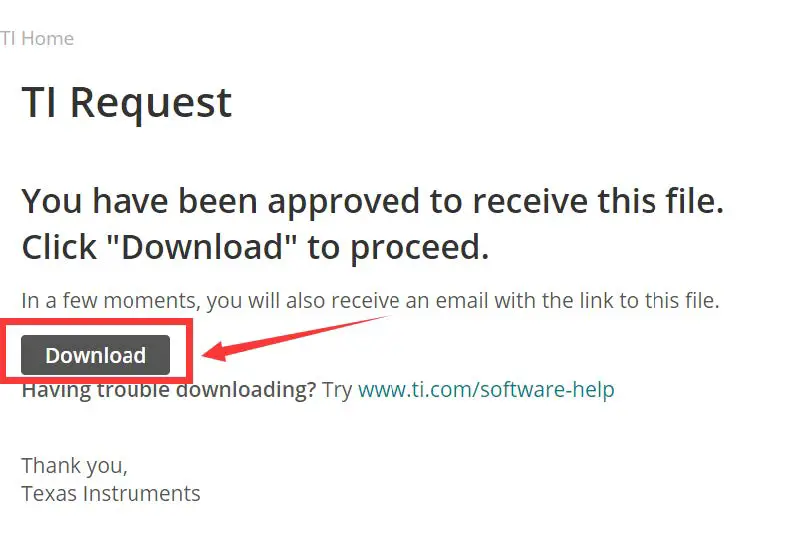
- Download SDK

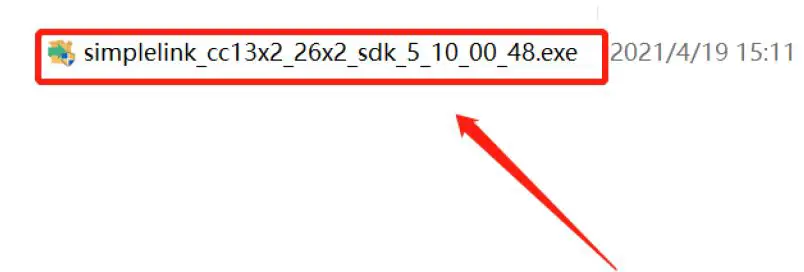
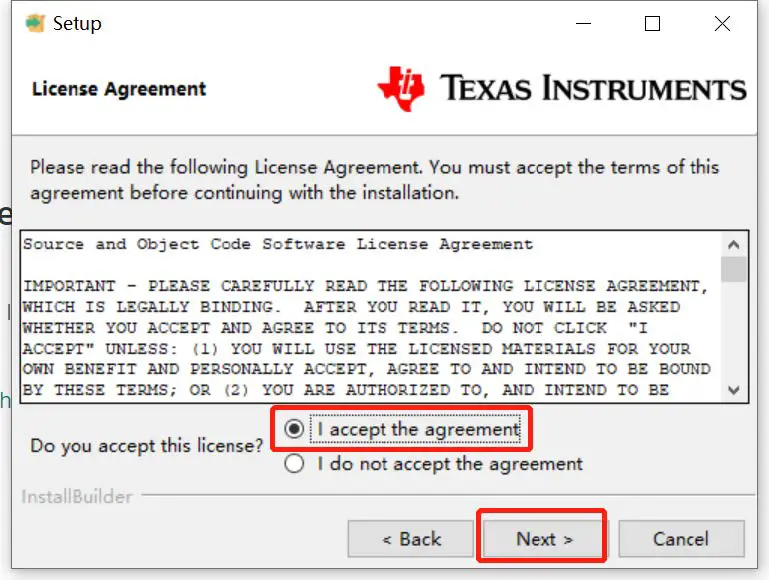
- Installation

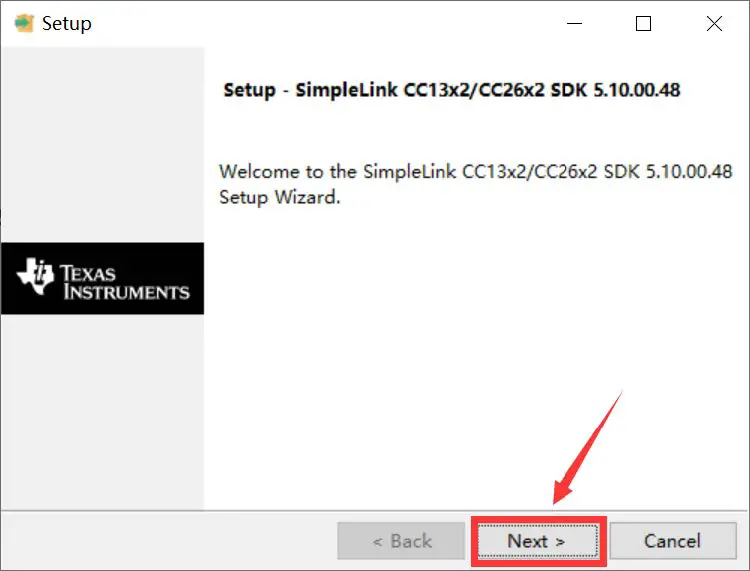
- Click “Next”

- Select the default option

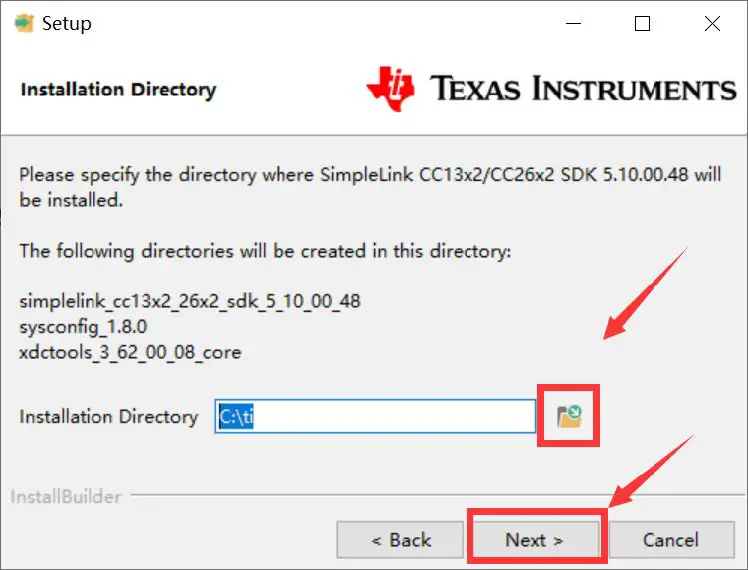
- Select the Installation directory

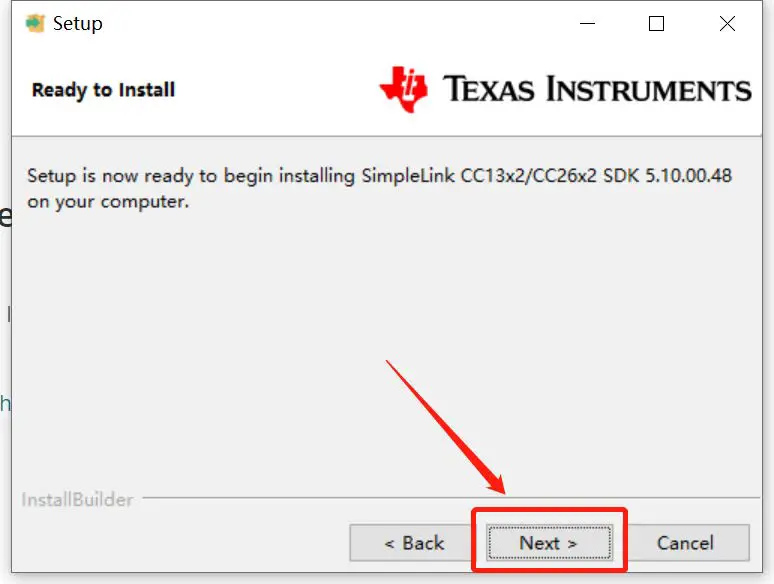
- Click “Next”

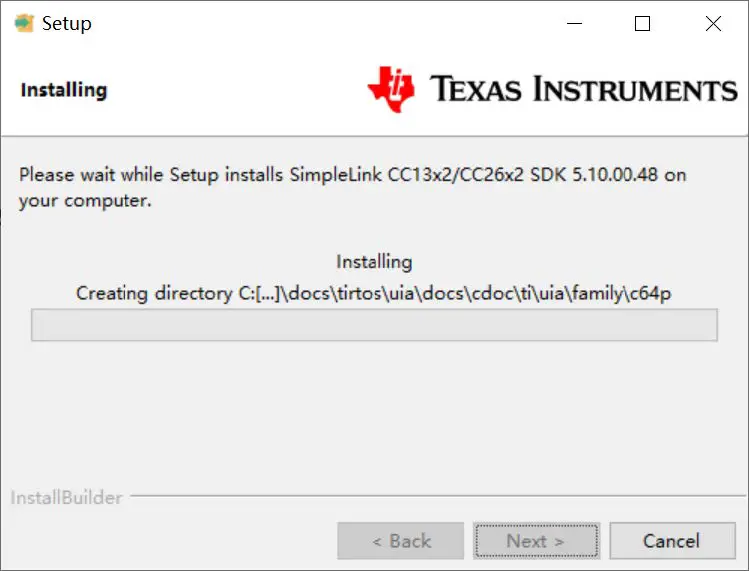
- Waiting for installation to complete

Run an example/demo code
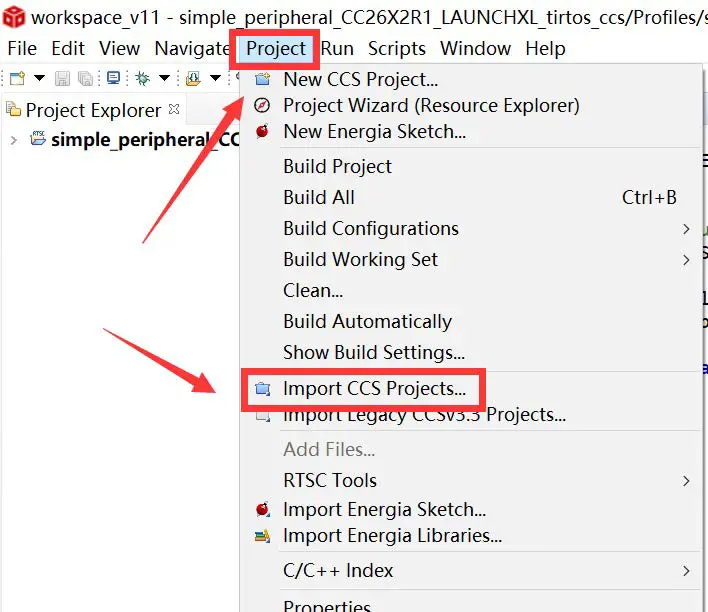
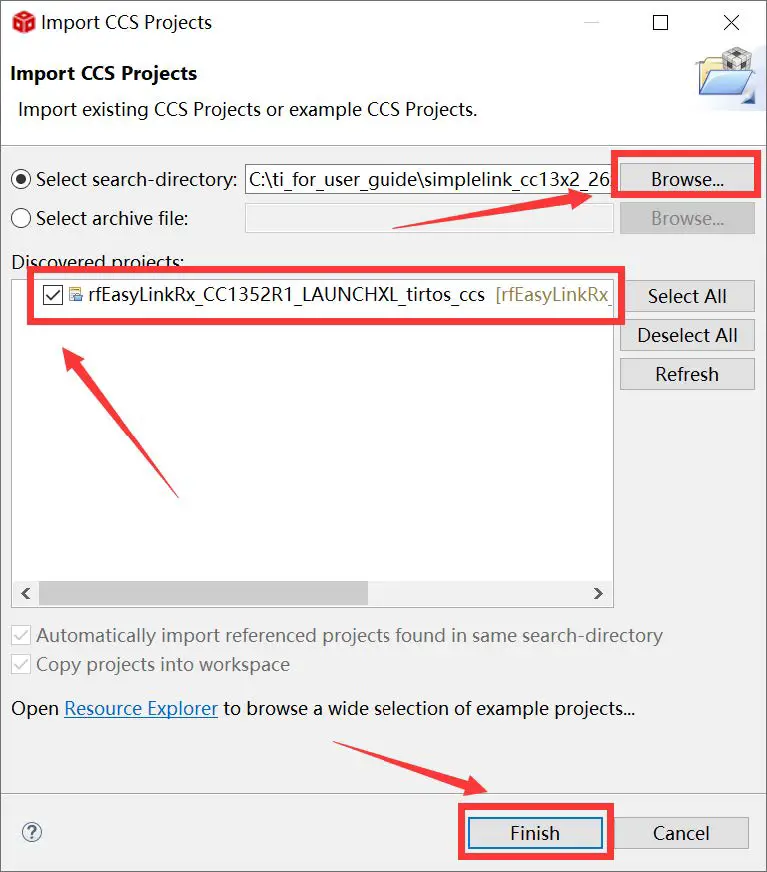
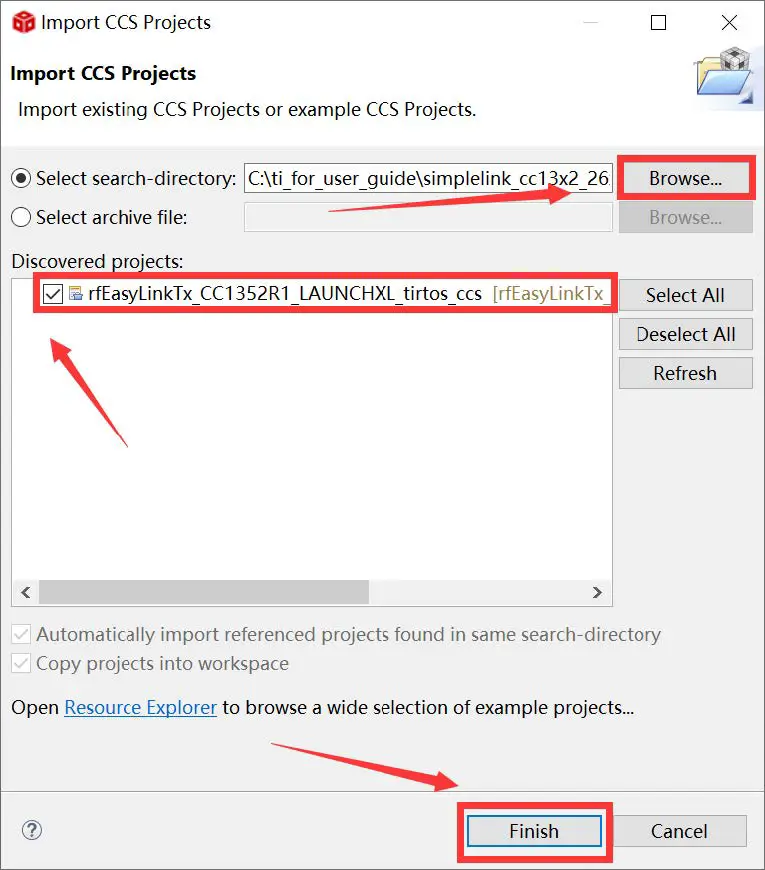
- For the first module, find the option named “Import CCS project…”

- According to the following path to find the sending end project: ti\simplelink_cc13x2_26x2_sdk_5_10_00_48\examples\rtos\CC1352R1_LAUNCHXL\ easylink\ rfEasyLinkRx\tirtos\ccs

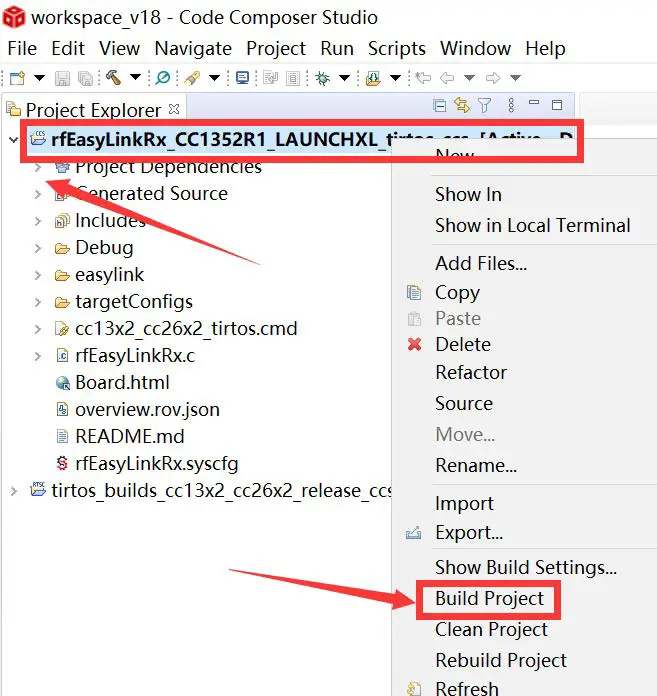
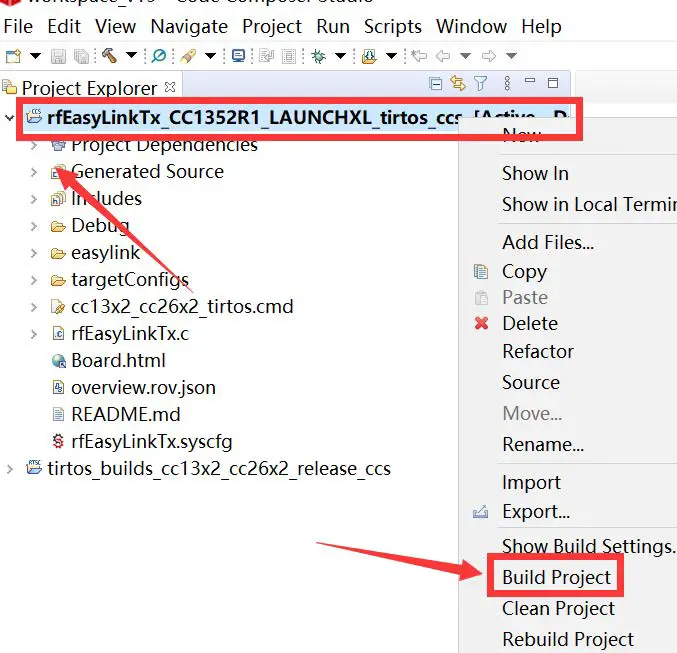
- Right Click the project to build the receiving end project

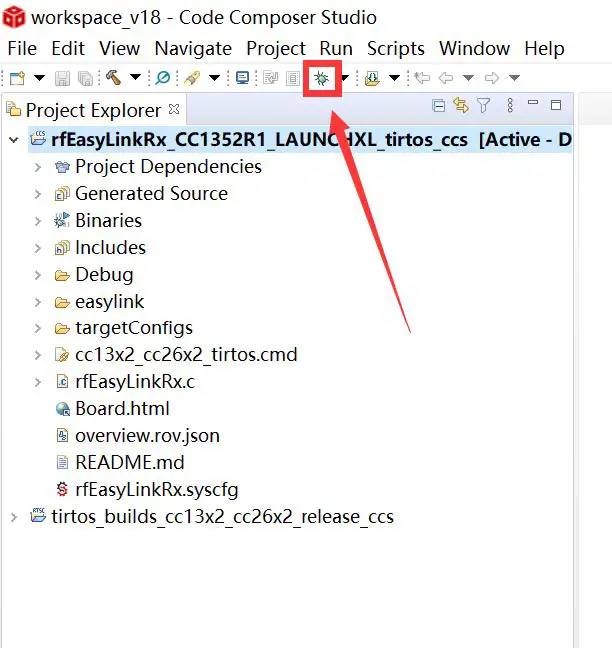
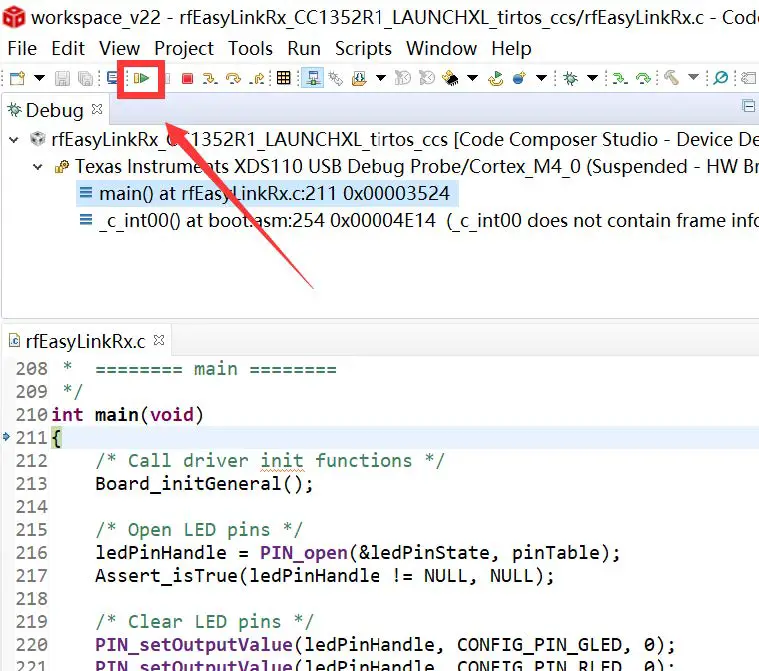
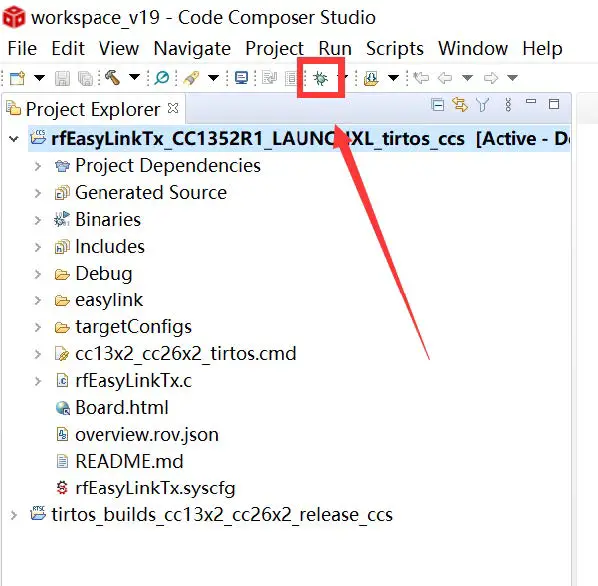
- Click this bug icon (means download and debugging)

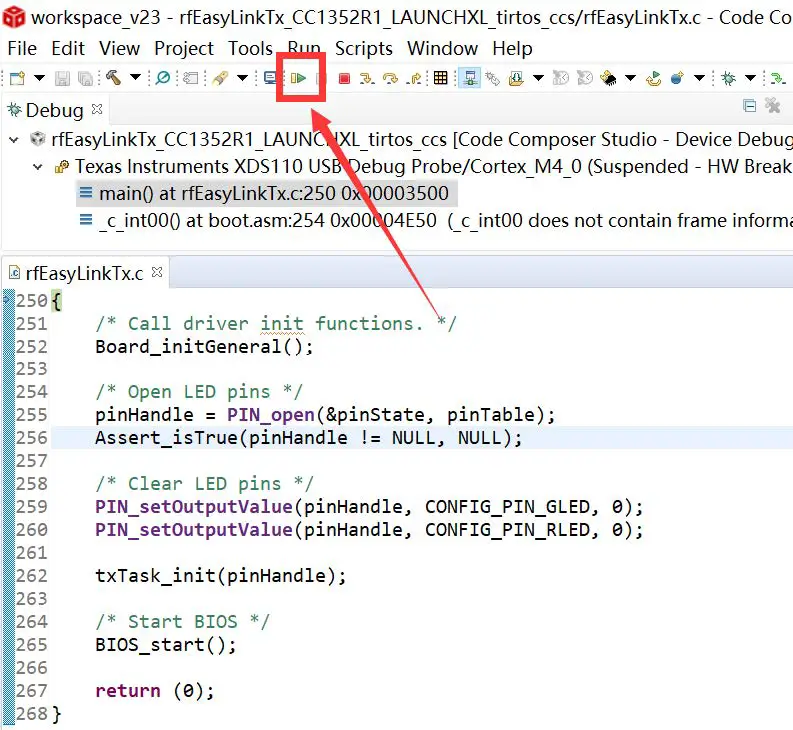
- C lick on this option to start debugging

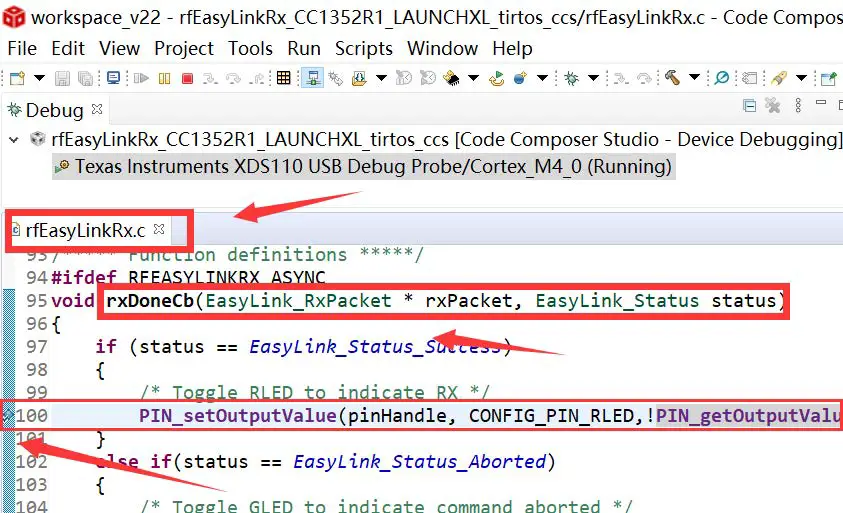
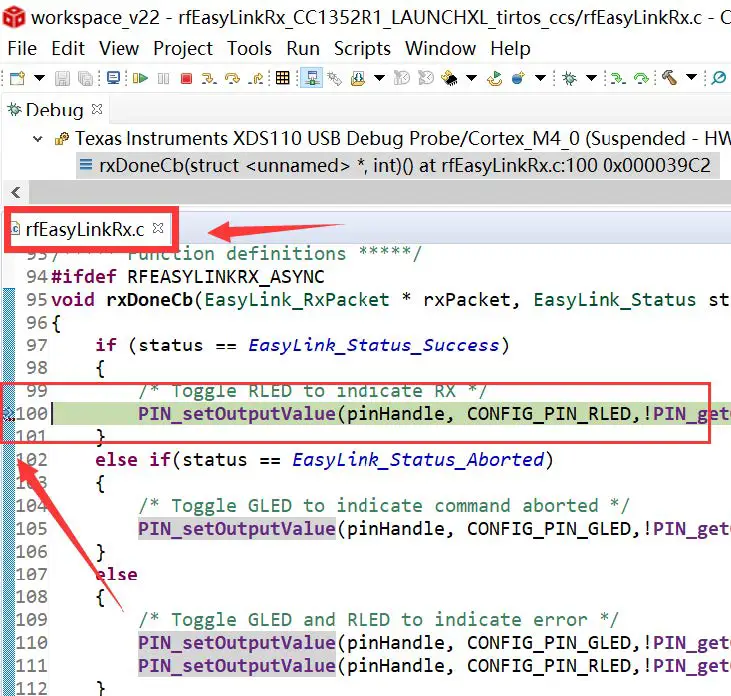
- Find the file which is named “rfEasyLinkRx.c” and the function which is named “rxDoneCb”, and set a breakpoint at the line as the arrows shows

- For another module, according to the following path to find the sending end project: ti\simplelink_cc13x2_26x2_sdk_5_10_00_48\examples\rtos\ CC1352R1_LAUNCHXL \ easylink\ rfEasyLinkTx\tirtos\ccs

- Right Click the project to build the sending end project

- Click this bug icon (means download and debugging)

- Click this bug icon (means download and debugging)

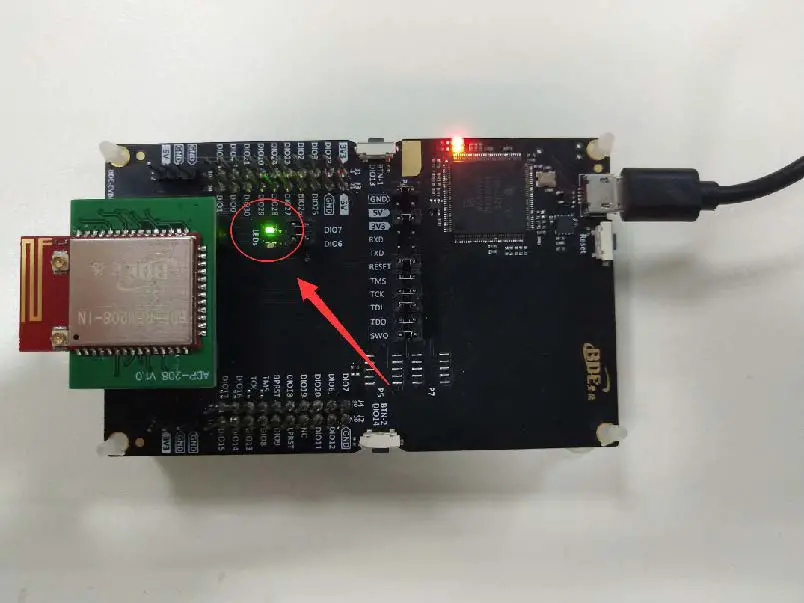
- You can see the lights flashing (means sending a data uninterruptedly)

- The program stops at the breakpoint

By far you should’ve built your first application successfully.
For further development, please check out the CC1352R1 datasheet, product information, and support | TI.com page and download the User Guide (https://www.ti.com/lit/pdf/swcu185)
Other Resources
- Mac OS Installer for SimpleLink CC13X2 26X2 SDK
- Linux Installer for SimpleLink CC13X2 26X2 SDK
- Mac OS Installer for Code Composer Studio IDE
- Linux Installer for Code Composer Studio IDE
- CC1352R SimpleLink™ High-Performance Multi-Band Wireless MCU
- Windows Installer for SmartRF Flash Programmer 2
Revision History
| Revision | Date | Description |
| V1.0 | 15-Feb-2020 | Initial Released |
| V2.0 | 14-Apr-2021 | Changed template |
More Questions:
Please search existing answers on TI E2E support forums
Contact your local TI sales representative.
Or
Contact BDE Technology, Inc.
China:
B2-403, 162 Science Ave, Huangpu District, Guangzhou, 510663
Tel: +86-020-28065335
Website: http://www.bdecomm.com/cn/ Email: s[email protected]
USA:
67 E Madison St, #1603A, Chicago, IL 60603
Tel: +1-312-379-9589
Website: http://www.bdecomm.com/ Email: [email protected]