SHOUT nano Pocket Sized Self Contained Satellite Tracker
Product Information
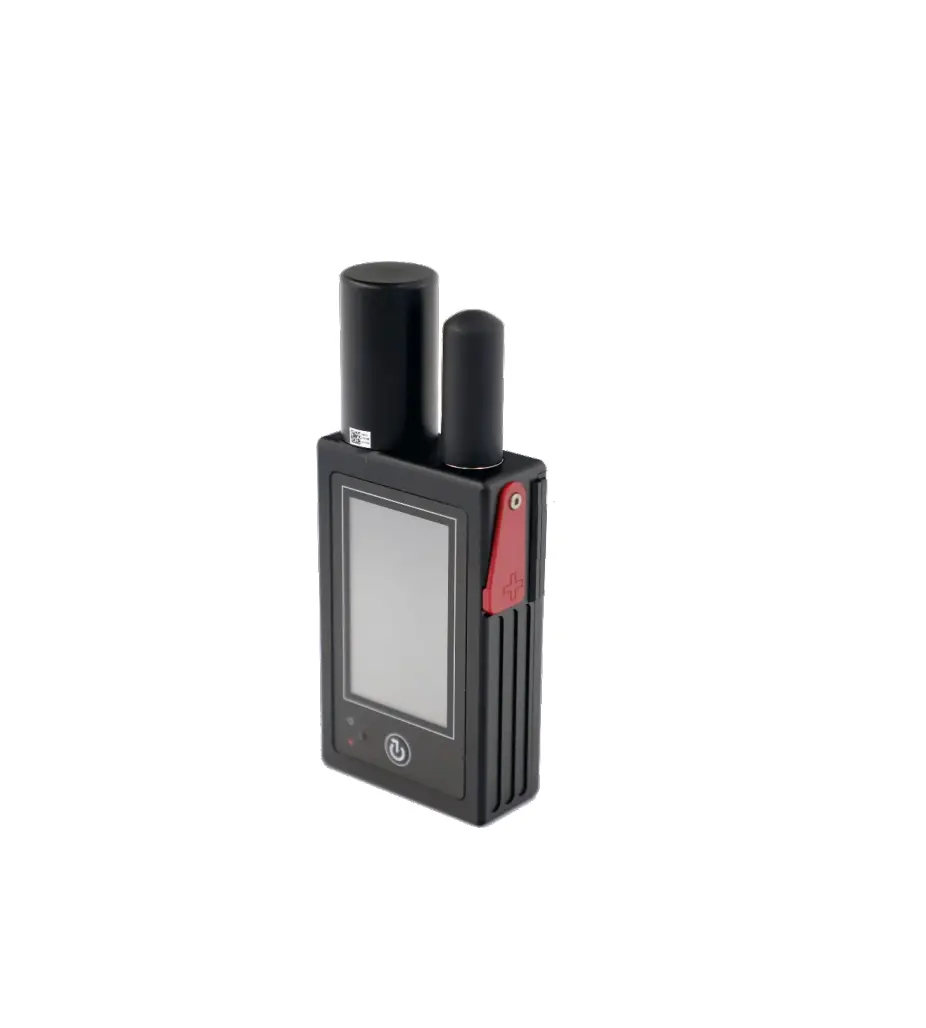
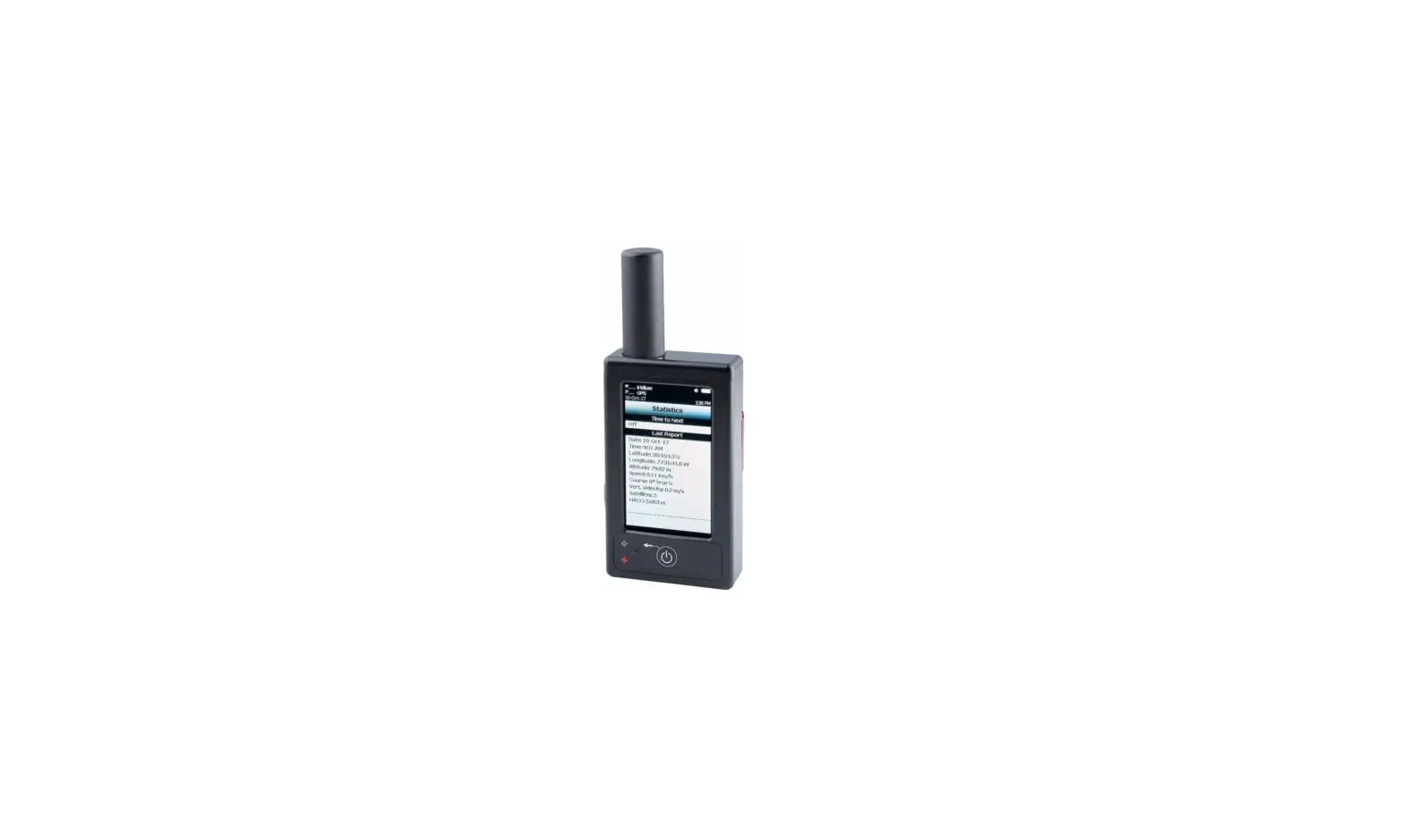
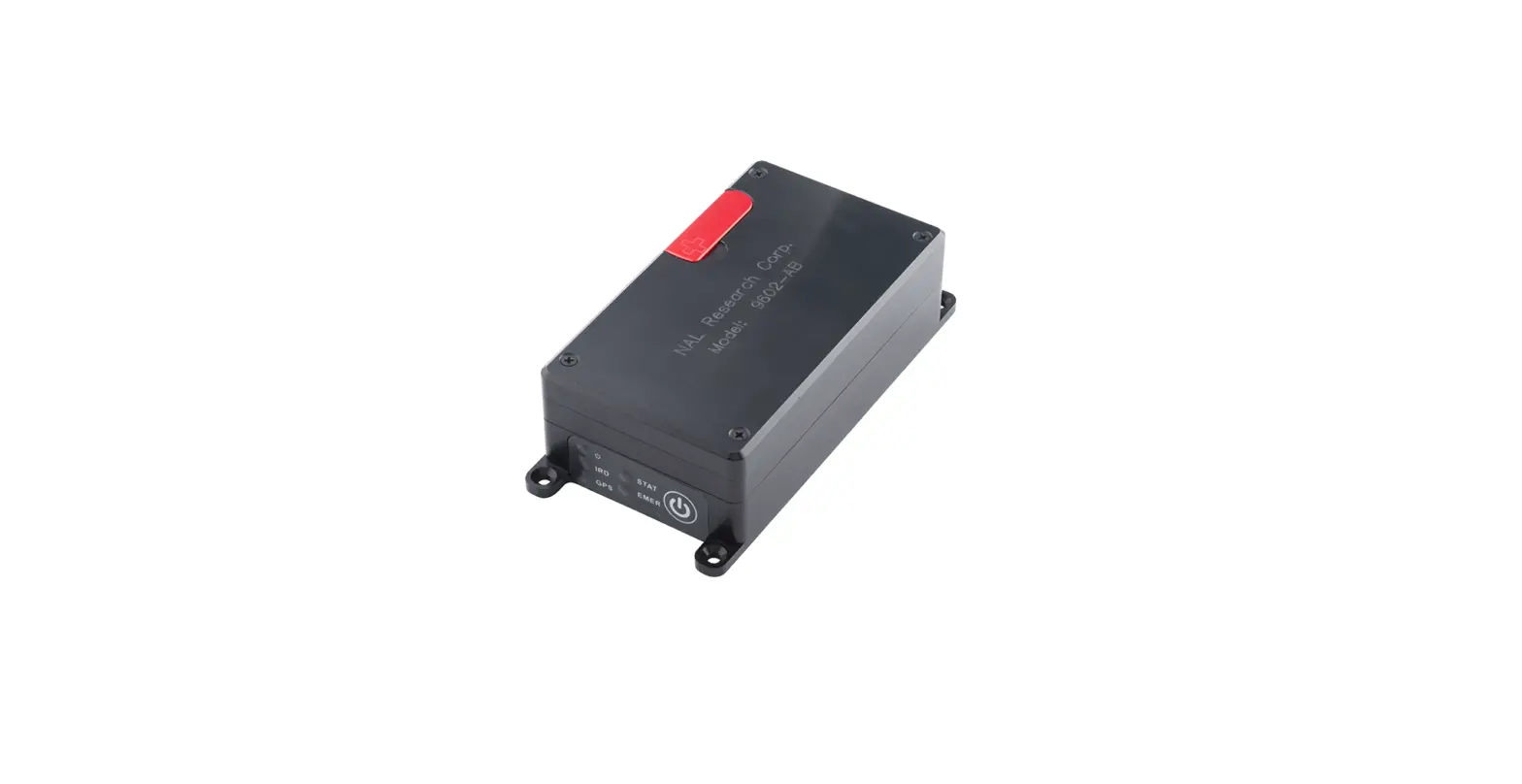
The SHOUT nano is a compact device that includes the following
features:
- Touchscreen
- Power/Enter button
- LED Status Display
- Guarded Emergency button
- Navigation buttons
- USB mini port
- Rugged Screen Protector
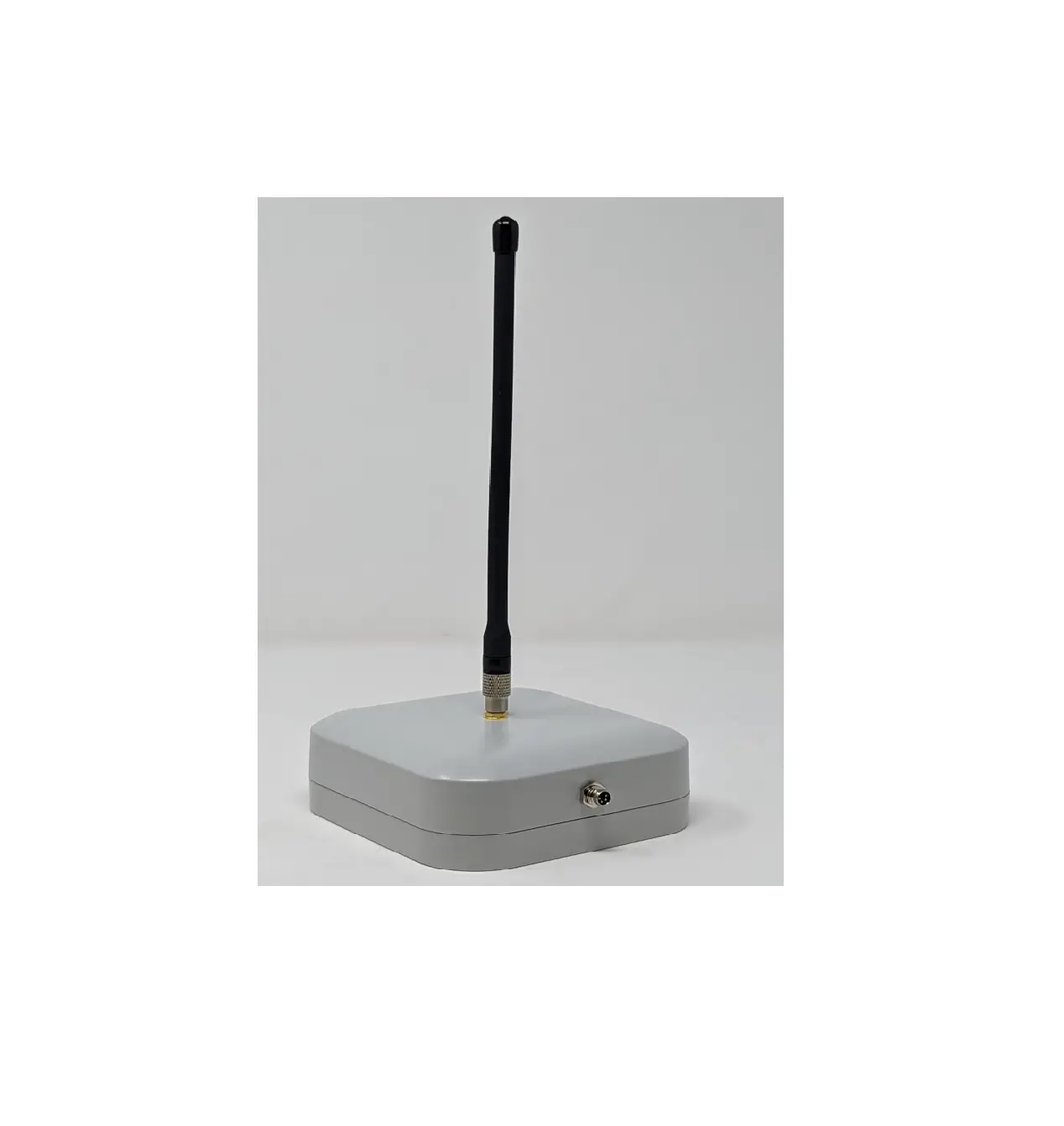
- Iridium Antenna
- GPS Antenna (embedded)
Product Usage Instructions
911 Emergency
To activate the 911 Emergency mode, follow these steps:
- Press the 911 Emergency button on the back of the device,
located underneath a rotating guard. The device status bars turn
red and the LED status display turns solid green. - An alert is immediately sent to a designated monitoring
center(s).
To cancel the 911 Emergency mode, follow these steps:
- Navigate to the Tracking Menu.
- Select “Cancel 911”.
- The cancellation message is queued in the Outbox to be
transmitted, and the Emergency mode ends immediately. - Note: Turning off the SHOUT nano does not cancel the Emergency
mode. You must select the “Cancel 911” option to cancel the
emergency.
Power On/Off Device
To power on the SHOUT nano, press the Power button for two
seconds. To power off the device, follow these steps:
- Press the Power button for two seconds.
- A Power-down Screen appears.
- Press “Turn Off” to turn off the SHOUT nano.
- Press “Lock” to go back to the power-up screen, or press
“Cancel” to return to the previous screen.
Important Note: The SHOUT nano must have a
clear view of the sky during transmission.
To navigate through the menus and options, use the Navigation
arrow buttons and the Power/Enter button:
- Press the Navigation arrow buttons to position the cursor over
the menu icon of interest. - Press the Power/Enter button to select the highlighted
option. - Note: Each menu has a BACK button, which returns the device to
the previously accessed screen. - The device automatically goes to sleep after 90 seconds of
inactivity.
Basic Keyboard Usage
The SHOUT nano has three different keyboard layouts. To switch
between the keyboards, follow these steps:
- Press the Up key repeatedly to switch between the
keyboards. - Use the four arrow buttons on the SHOUT nano to navigate around
the keyboards.
SHOUT nano/SHOUT nano-BTI QUICK START GUIDE
Support Phone#: 571-833-2169 [email protected] 451-92681-003A
2023-03-31
DEVICES DESCRIPTION SHOUT nano: The SHOUT nano comprises a touchscreen, a Power/Enter button, an LED Status Display, a guarded
Emergency button, navigation buttons, and a USB mini port.
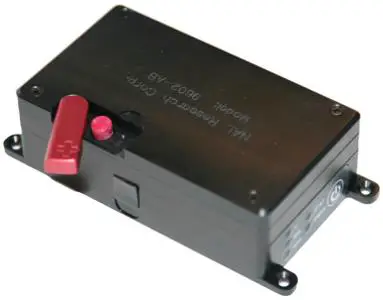
SHOUT nanoBTI: The 9602-BTI is a variation of the original SHOUT nano. It functions the same as the SHOUT nano,
but also is designed with a Rugged Screen Protector.
Iridium Antenna
GPS Antenna (embedded)
LED Status Display
Touchscreen Up Nav Button Check-In Soft Key Left Nav Button Down Nav Button
Device Status Rotating Guard
USB Micro-B Port
Emergency Button
Way Point Soft Key
Right Nav Button
Power/Enter Button
1
SHOUT nano/SHOUT nano-BTI QUICK START GUIDE
Support Phone#: 571-833-2169 [email protected] 451-92681-003A 2023-03-31
DEVICE STATUS SYMBOLS: Device status symbols are displayed along the top three lines of all screens. Some symbols do not appear until an event is initiated, such as sending or receiving a message.
One or more unread messages are in the Inbox One or more messages are in the Outbox ready to be sent or one or more messages in queue failed to send.
Iridium Signal
GPS Signal
Audio Battery Indicator
Date
Time
Tracking on when the symbol is bright white. The symbol turns dimmed blue when tracking is off.
SHOUT nano/SHOUT nano-BTI QUICK START GUIDE
Support Phone#: 571-833-2169 [email protected] 451-92681-003A 2023-03-31
911 EMERGENCY The red 911 emergency button is located underneath a rotating guard on the back of the SHOUT nano.
Activate 911 Emergency: Press the 911 Emergency button on the device. The Status device bars turn red and the LED status displays turns solid green. An alert is immediately sent to a designated monitoring center(s).
The status LED turns solid green under emergency mode.
These two Status bars turn from blue to red under emergency mode.
Cancel 911 Emergency: Navigate to the Tracking Menu and select Cancel 911 .
NOTE: The Cancellation message is queued in the Outbox to be transmitted, and the Emergency mode ends immediately. Turning the SHOUT ts off does not cancel the Emergency mode. You MUST select the Cancel 911 option to cancel the emergency.
SHOUT nano/SHOUT nano-BTI QUICK START GUIDE
Support Phone#: 571-833-2169 [email protected] 451-92681-003A 2023-03-31
POWER ON/OFF DEVICE Press the Power button for two seconds to turn on device.
Press the Power button for two seconds to turn off device. A Power-down Screen appears.
Press Turn Off to turn off the SHOUT nano.
Press Lock to go back to the power-up screen, or press Cancel to return to the previous screen.
IMPORTANT: The SHOUT nano must have a clear view of the sky during transmission.
BASIC NAVIGATION
Press the Navigation arrow the Power/Enter button. NOTE: Each menu has a BACK
buttons to the to position the cursor over menu icon of interest, and then press button, which returns the device to the previously accessed screen. The device
automatically “goes to sleep” after 90 seconds of inactivity
BASIC KEYBOARD USAGE
There are three (3) different keyboard layouts. Press the Up key repeatedly to switch between the keyboards.
The four arrow
buttons on the SHOUT nano
are for navigating around the keyboards.
Press the Power/Enter button to select highlighted character(s).
MESSAGES Check Messages
SHOUT nano/SHOUT nano-BTI QUICK START GUIDE
Support Phone#: 571-833-2169 [email protected] 451-92681-003A 2023-03-31
1. Select Messaging from the Home screen.
2. Select Inbox from the Messaging screen.
· Read messages have a white opened envelope symbol next to them. · Unread messages have a green closed envelope symbol . · A closed envelope symbol appears at the top of the screen when an unread
message(s) is in the Inbox. Compose Message
1. Select Messaging from the Home screen.
2. Select Compose from the Messaging screen.
NOTE: From the Compose menu, you can enter, edit, and send canned messages, free-text messages, or a combination of canned and free-text messages to a NOC server, a predefined list of email addresses, and/or any email addresses entered via the keyboards.
Sent Messages
1. Select Messaging from the Home screen, then select Sent from the Messaging screen. This displays a list of messages that were successfully sent to the NOC. A message can be resent, forwarded, or deleted.
CHARGING BATTERY
SHOUT nano/SHOUT nano-BTI QUICK START GUIDE
Support Phone#: 571-833-2169 [email protected] 451-92681-003A 2023-03-31
Fully charge the SHOUT nano before use. The SHOUT nano must be kept in environments between 0°C (32°F) and
45°C (113°F) when charging. When charging is complete, the icon displays five bars
(not counting the last
battery icon.
The SHOUT nano can be charged with the supplied AC wall adapter or connect to a standard USB device.
NOTE: the battery symbol turns red when the remaining power is less than 20%. A warning message appears when the remaining power is less than 10%.
WARNING!
All batteries can cause property damage, injury, or burns if a conductive material, such as jewelry or keys, touches exposed terminals. The material may complete an electrical circuit and become extremely hot. To protect against such unwanted current drain, exercise care in handling any charged battery, particularly when placing it inside your pocket, purse, or other container with metal objects.
Do not disassemble the SHOUT ts for battery replacement. Return it to NAL Research for services. Risk of explosion if battery is replaced with an incorrect type. Dispose of the batteries (ts) according to local, state, and federal regulations or laws.