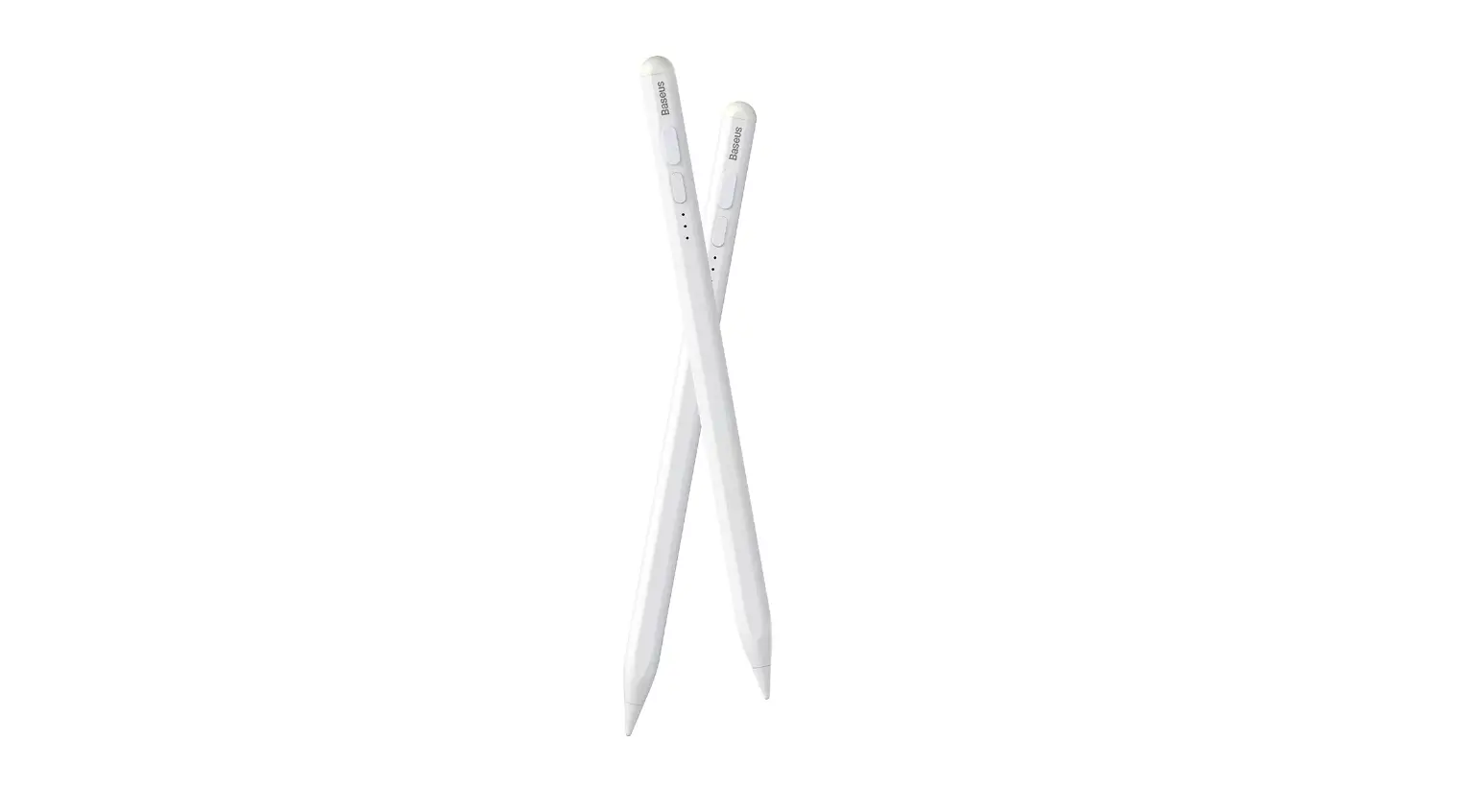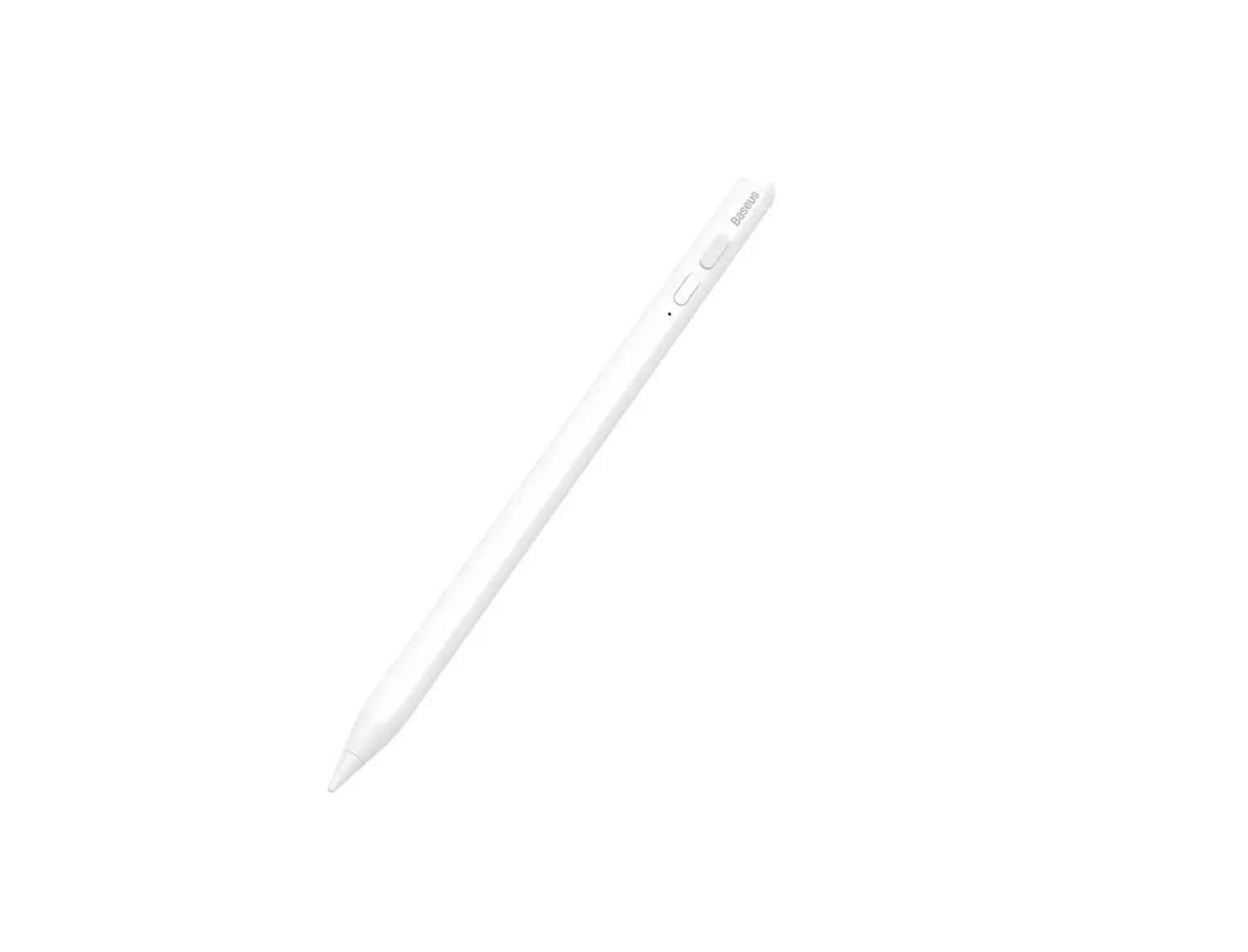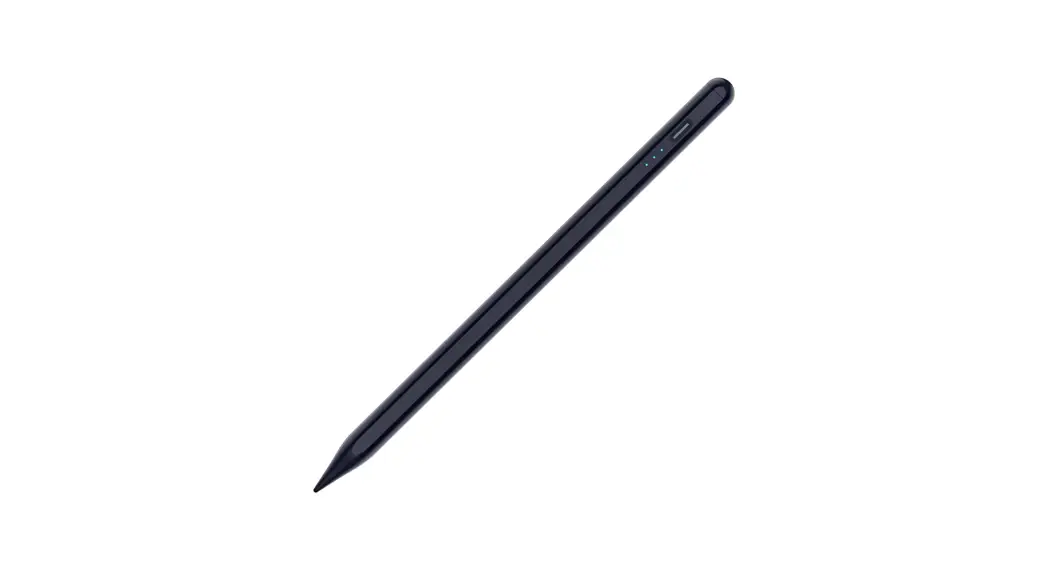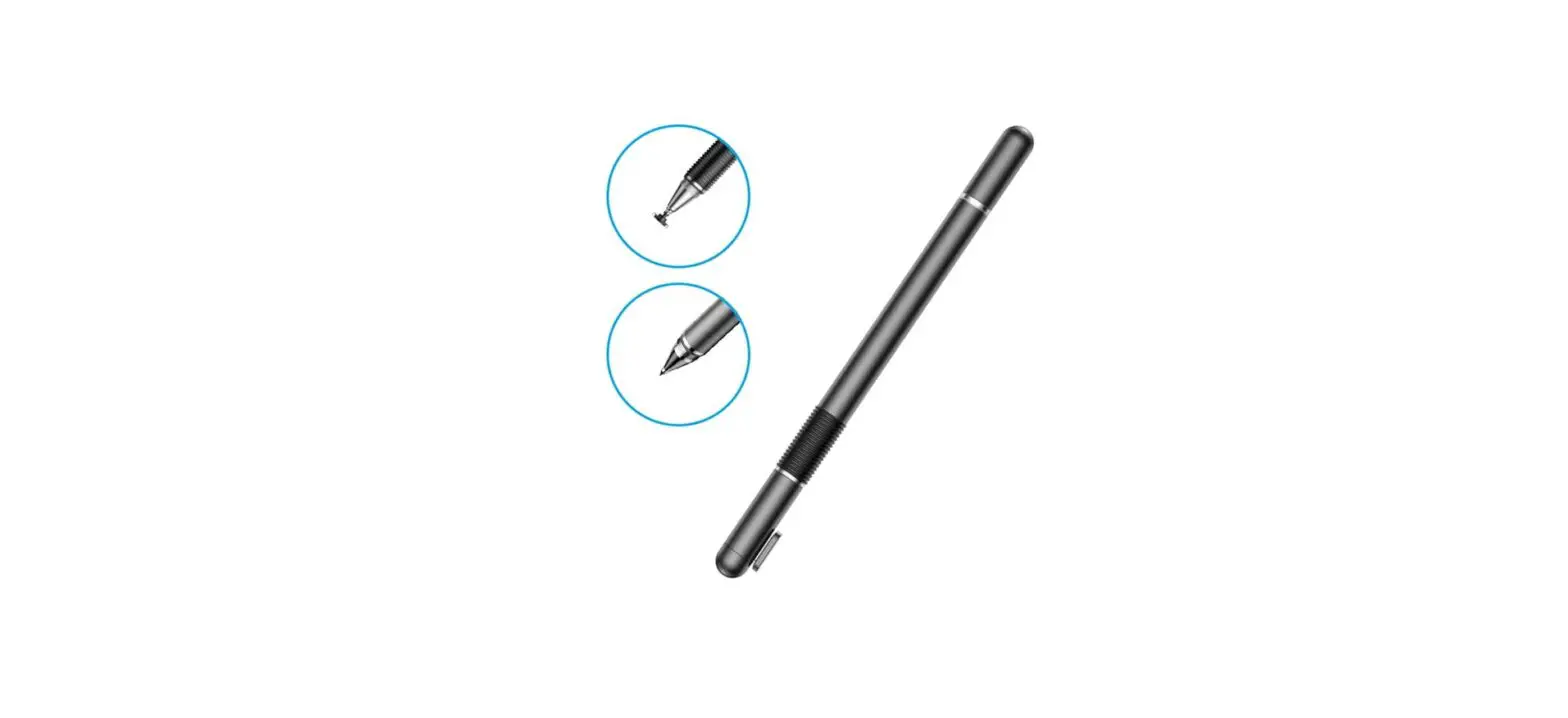

Baseus BS-PS003 Smooth Writing Wireless Charging Stylus
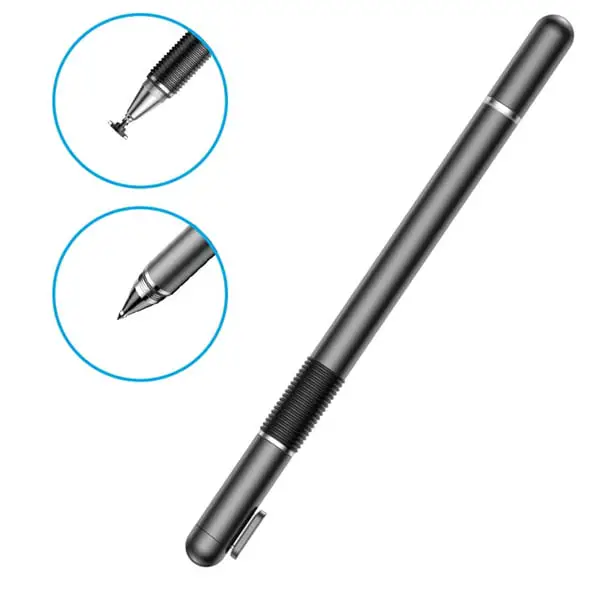
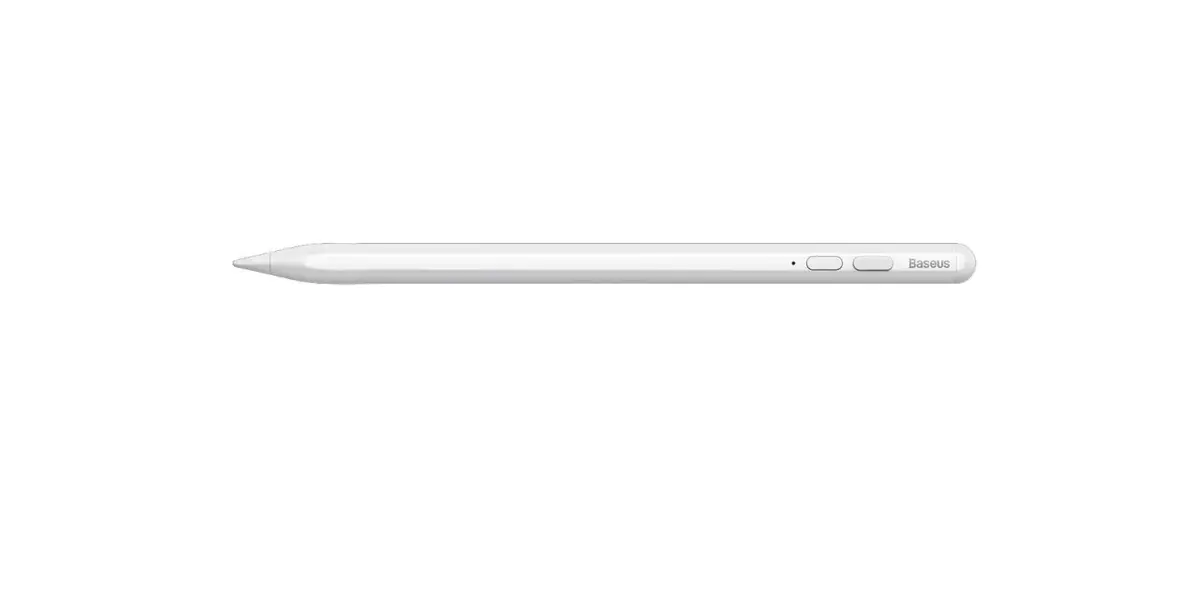
Product Diagram
- Power button
- Built-in magnet
- Built-in battery
- POM tip
- HOME Button
- Power Button
- Brightness +
- Brightness –
- Recently Used Apps
- Volume +
- Volume –
- Previous Page
- Next Page
- Mute
- Search
- Photograph
- Quick Screenshot
- Editable Screenshot
Product Specification
- Name: Baseus Smooth Writing Wireless Charging Stylus (Active+Wireless Version) Model No.: BS-PS003
- Main functions: Drawing, writing, taking notes, touch control, battery level display (Bluetooth connection), double-tap shortcut function (Bluetooth connection) Material: Aluminum alloy barrel,
- POM plastic tip
- Color: White
- Battery Type: 68430
- Battery Capacity: 130mAh
- Size: 1.5mm*9mm*165.5mm
- Weight: About 14.7g
- Accessories: Replaceable tip*1, User manual*1
- Compatible Model:
| Model | Model No. | Software Version | Release Time |
| Pad 6 | A1893/A1954 | 12.1.4 | 2018 |
| Pad 7 | A2197/A2198/A2200 | 13.1 | 2019 |
| Pad 8 | A2270/A2428/A2429/A2430 | 14 | 2020 |
| Pad 9 | A2602/A2604/A2603/A2605 | 15 | 2021.9 |
| Pad mini 5 | A2133/A2124/A2126/A2125 | 12.2 | 2019 |
| Pad mini 6 | A2567/A2568/A2569 | 15 | 2021.9 |
| Pad Air 3 | A2152/A2123/A2153/A2154 | 12.2 | 2019 |
| Pad Air 4 | A2316/A2324/A2325/A2072 | 14 | 2020 |
| Pad Air 5 | A2588/A2589/A2591 | 15.1 | 2022 |
| Pad Pro | A1980/A2013/A1934/A1979 | 12.2 | 2018 |
| Pad Pro 3 | A1876/A2014/A1895/A1983 | 12.2 | 2018 |
| Pad Pro | A2228/A2068/A2030/A2231 | 13.4 | 2020 |
| Pad Pro 4 | A2229/A2069/A2232/A2233 | 13.4 | 2020 |
| Pad Pro 3 | A2377/A2459/A2301/A2460 | 14 | 2021.4 |
| Pad Pro 5 | A2378/A2461/A2379/A2462 | 14 | 2021.4 |
User Instructions
Bluetooth Connection
- Press the power button on the stylus to turn on and when the blue indicator flashes, enter pairing mode;
- Go to “Settings” on your tablet, and enter “Bluetooth”, choose “Baseus Pencil Pro” to connect;
- After it’s successfully connected, the indicator stays blue, and the pairing is completed.
Connection
- Please turn on the stylus, and connect to the Bluetooth;
- Download the Baseus App in the App Store;
- Add the stylus in the Baseus App, it’s under the Lifestyle & Office catalog.
- Make sure the stylus is not connected to another device and the remaining battery is sufficient during the connection to the app;
- If the connection fails, please restart the stylus and try to re-connect;
- After you add the stylus to the app, enter the stylus interface and you can customize your own gestures for the settings.
Use without Connecting to Bluetooth
- The press power button on the stylus, after the 30s of flashing, the blue indicator will stay on, and then you can use the stylus.
Turn off - When you press the power button again, the stylus will power off. After 5min of standby (not using the stylus), it will automatically turn off.
Use
- You can use the stylus instead of your fingers to tap and drag on the screen. Or use it to write, and draw in some apps.
- Double-tap the shortcut control cap for more already set-up shortcut functions.
Battery Charging
- Snap the stylus onto the iPad for magnetic wireless charging, the indicator flashes green during charging and goes out when it’s fully charged.
- The indicator lights up blue, which means the battery level is between 70% and 100%; green means the battery level is between 30% and 70%; red means the battery level is below 30% and needs to be charged.
Not edible, Not washable.
FCC STATEMENT Requirement
Any changes or modifications not expressly approved by the party responsible for compliance could void the user’s authority to operate the equipment. This device complies with Part 15 of the FCC Rules. Operation is subject to the following two conditions:
- this device may not cause harmful interference, and
- this device must accept any interference received, including interference that may cause undesired operation.
Note:
This equipment has been tested and found to comply with the limits for a Class B digital device, pursuant to Part 15 of the FCC Rules. These limits are designed to provide reasonable protection against harmful interference in a residential installation. This equipment generates, uses, and can radiate radio frequency energy, and if not installed and used in accordance with the instructions, may cause harmful interference to radio communications. However, there is no guarantee that interference will not occur in a particular installation. If this equipment does cause harmful interference to radio or television reception, which can be determined by turning the equipment off and on, the user is encouraged to try to correct the interference by one or more of the following measures:
- Reorient or relocate the receiving antenna.
- Increase the separation between the equipment and receiver.
- Connect the equipment into an outlet on a circuit different from that to which the receiver is connected.
- Consult the dealer or an experienced radio/TV technician for help.