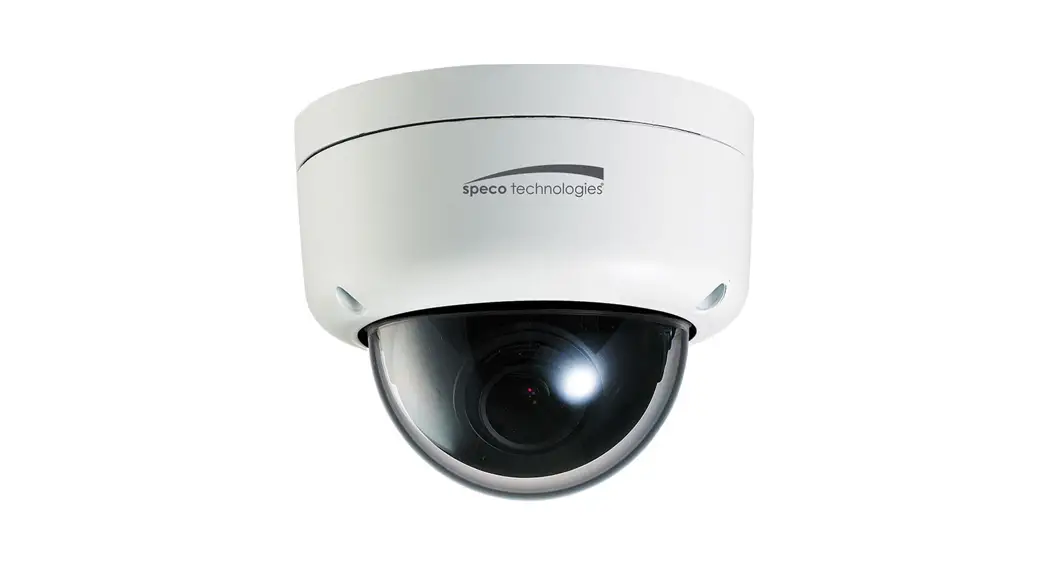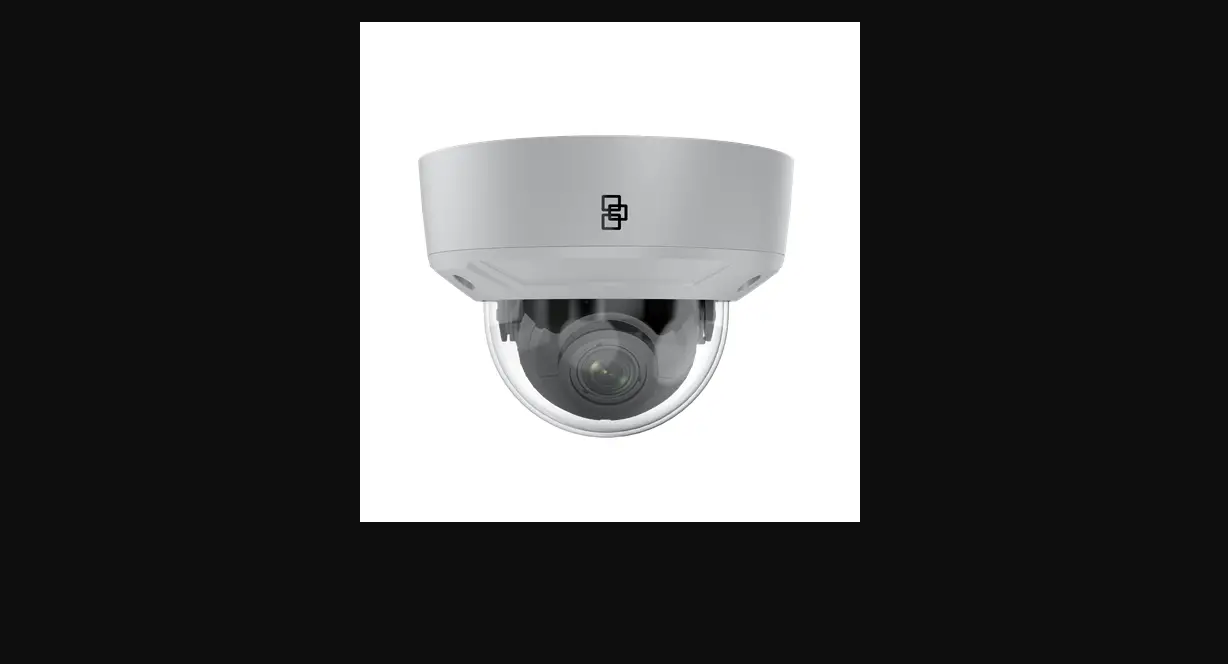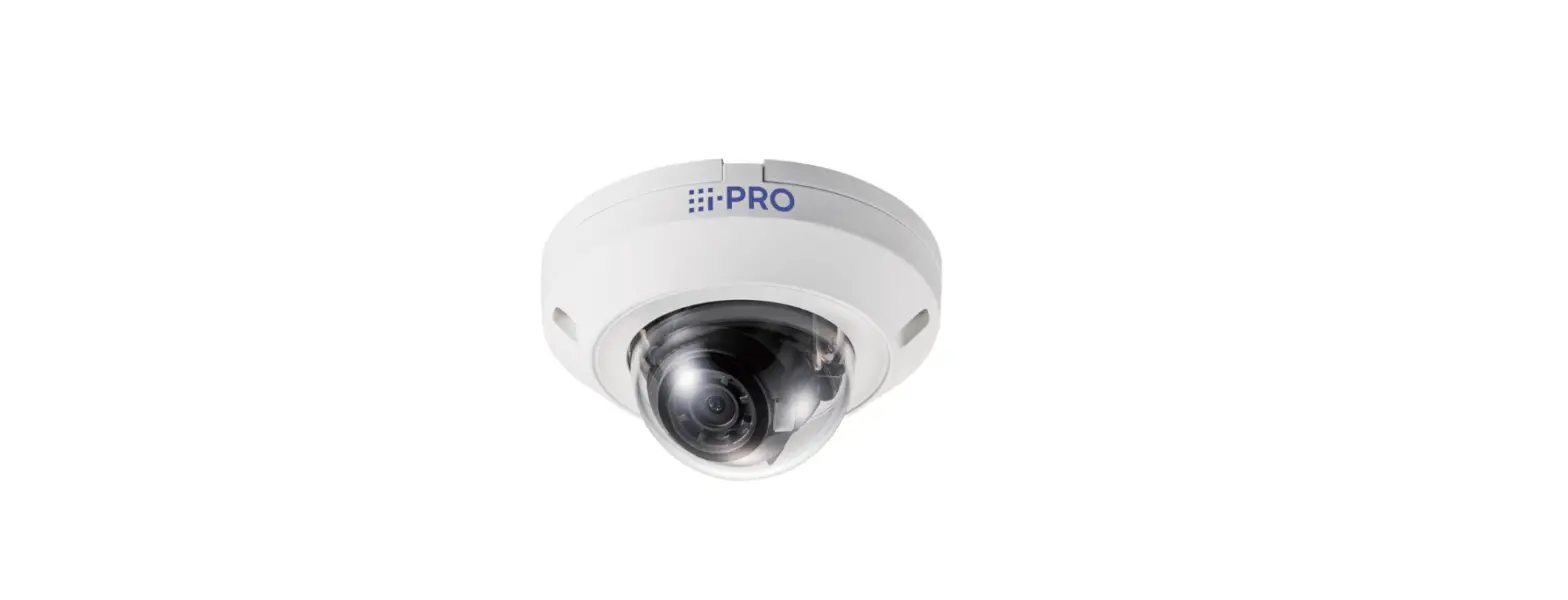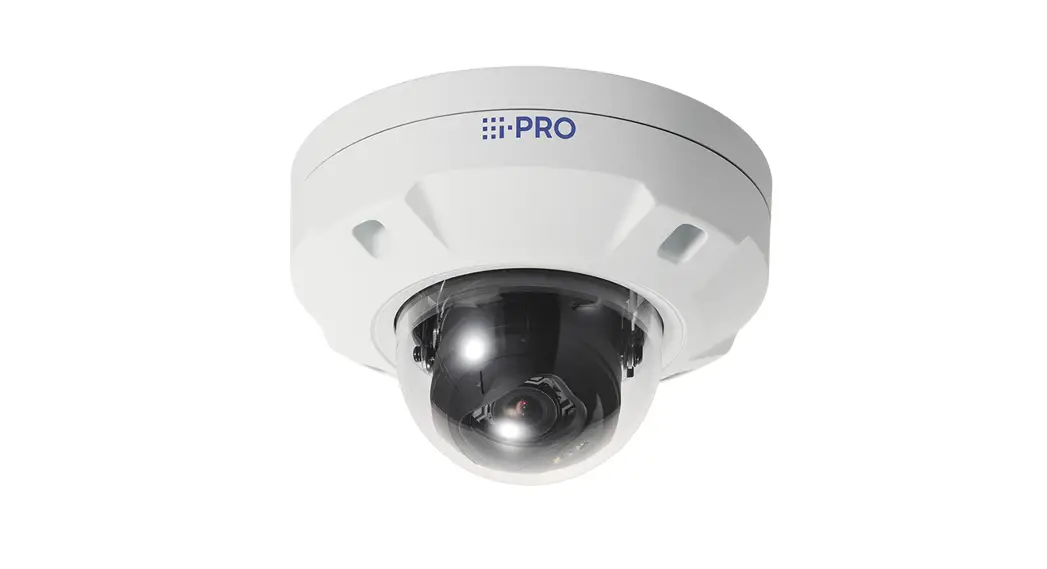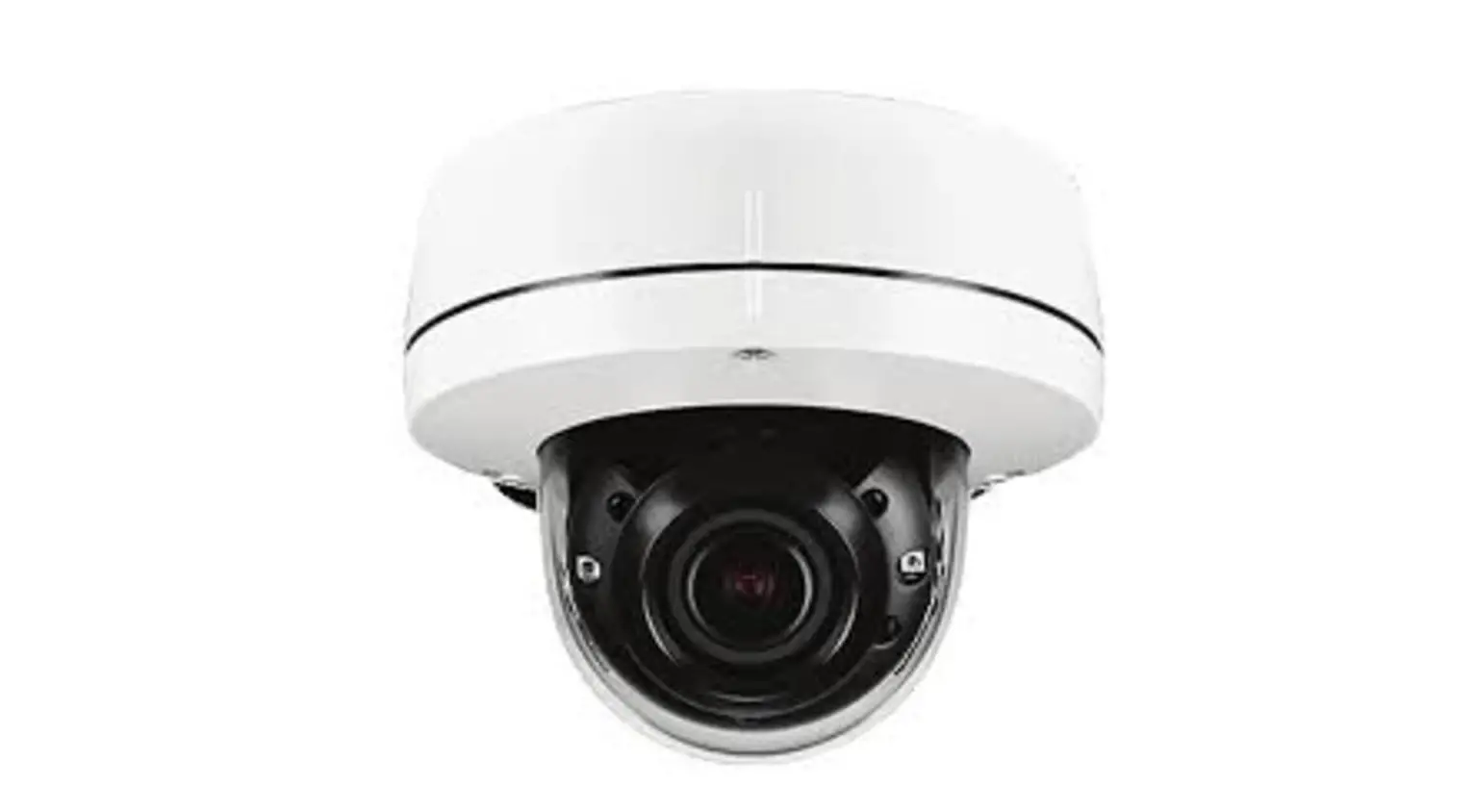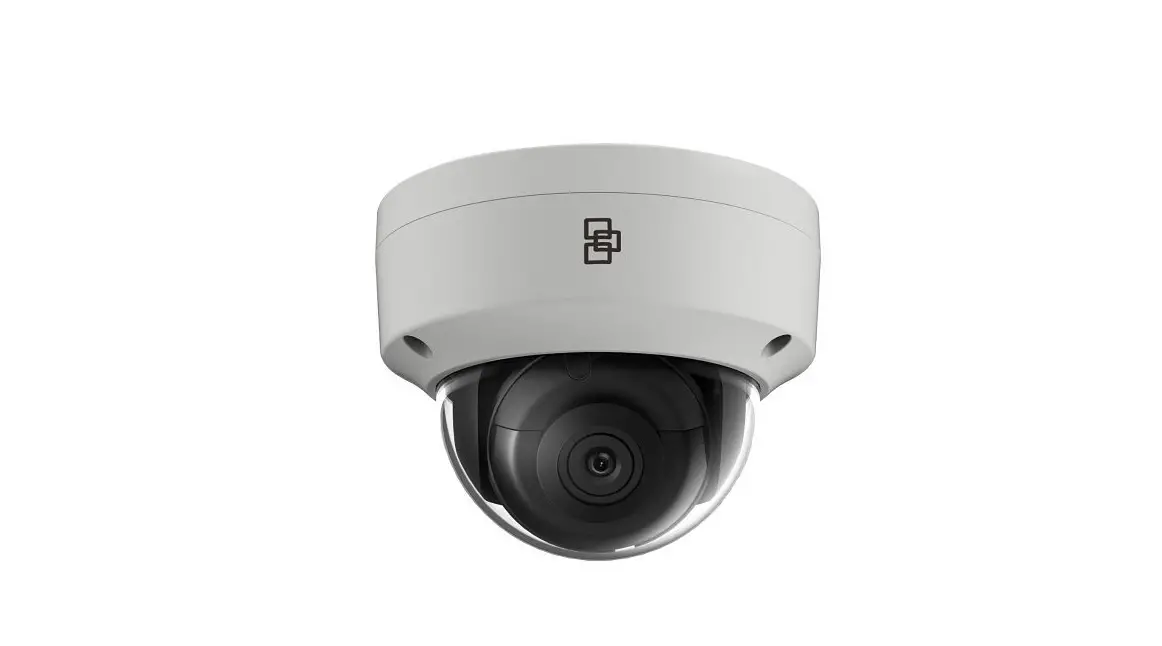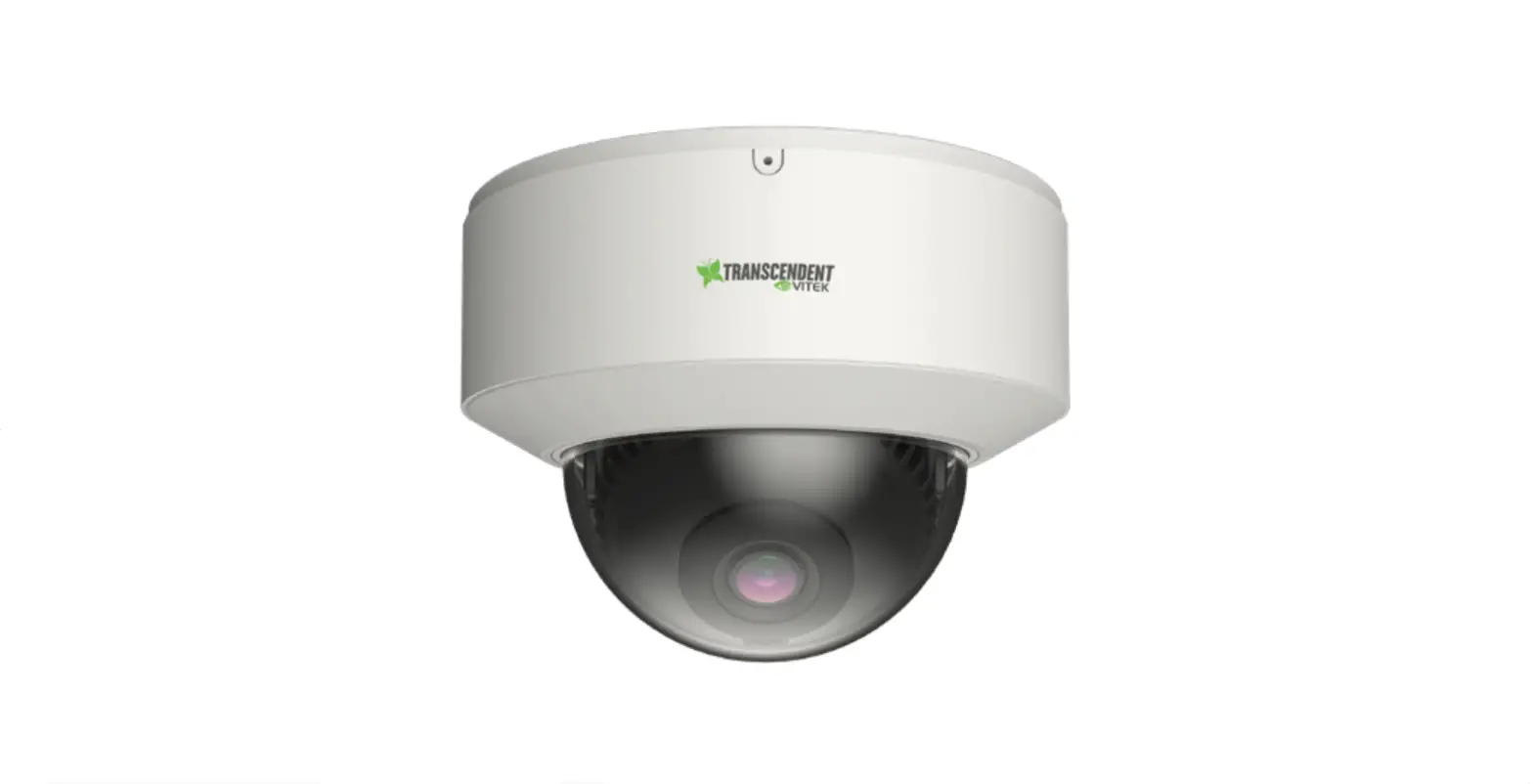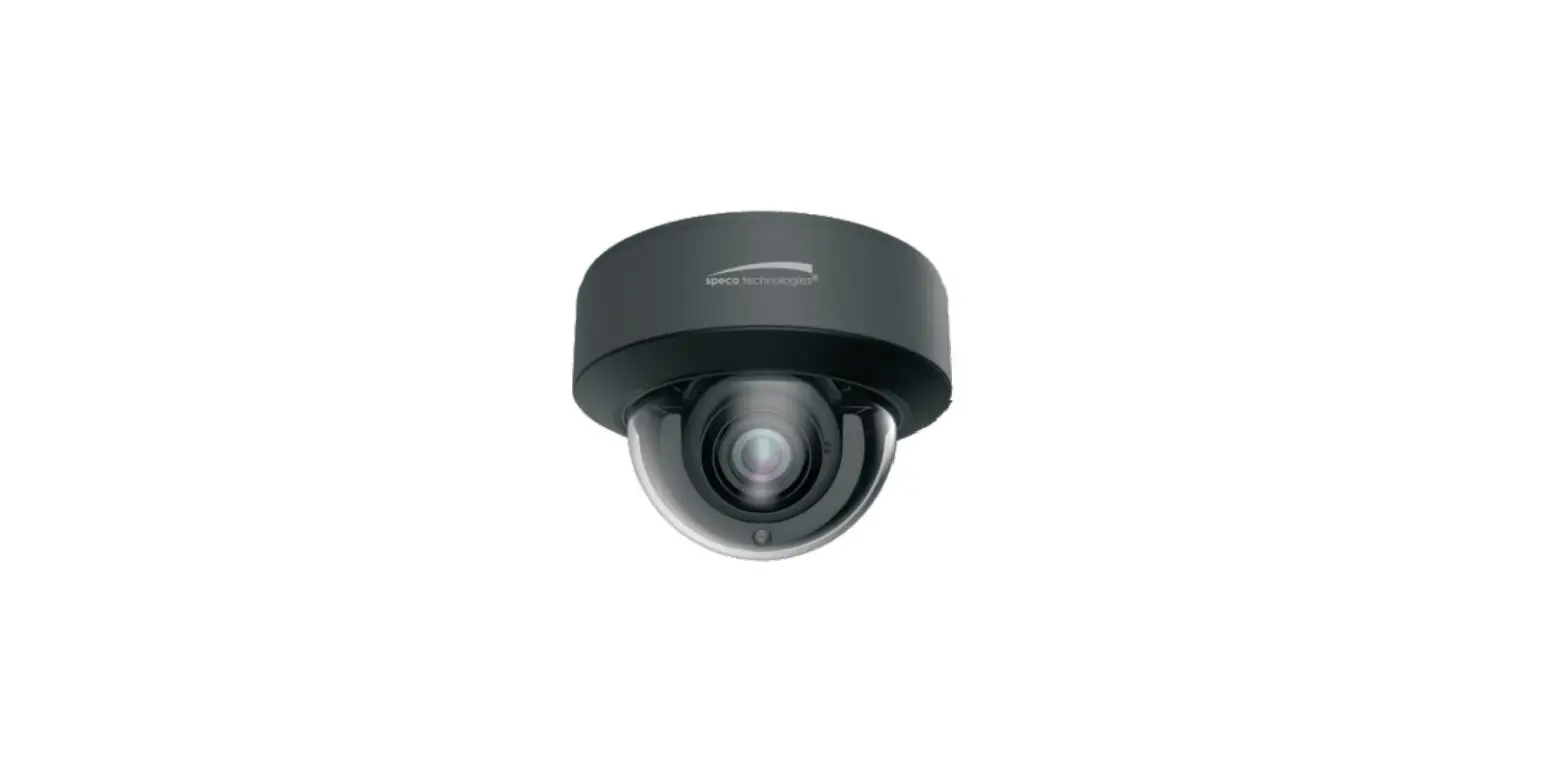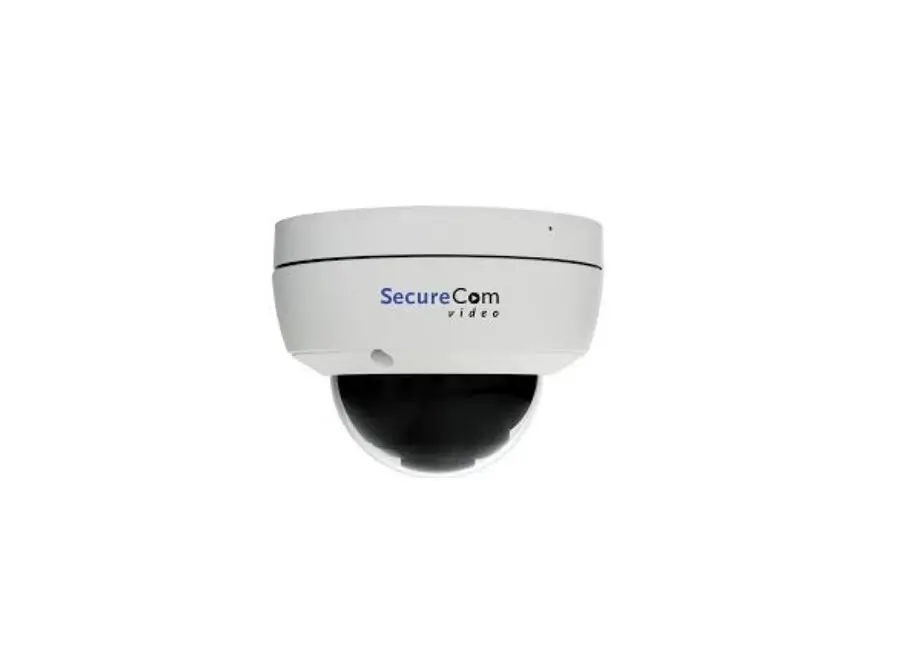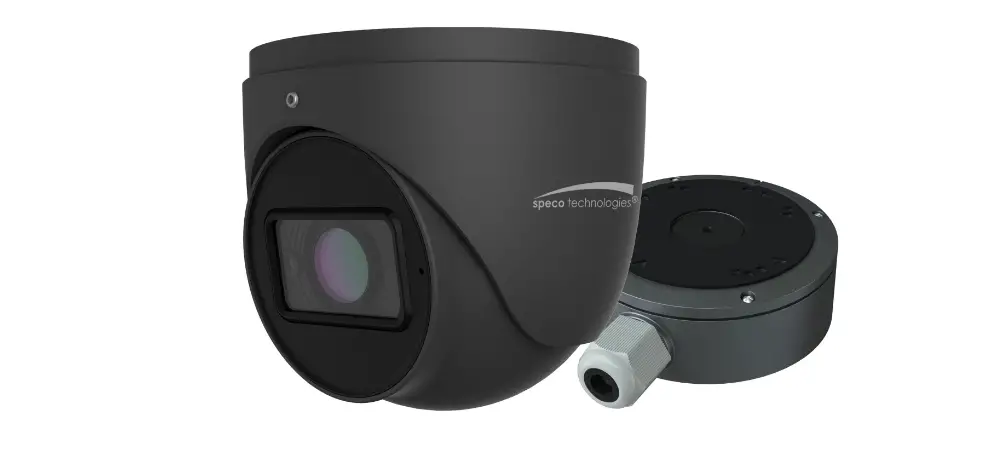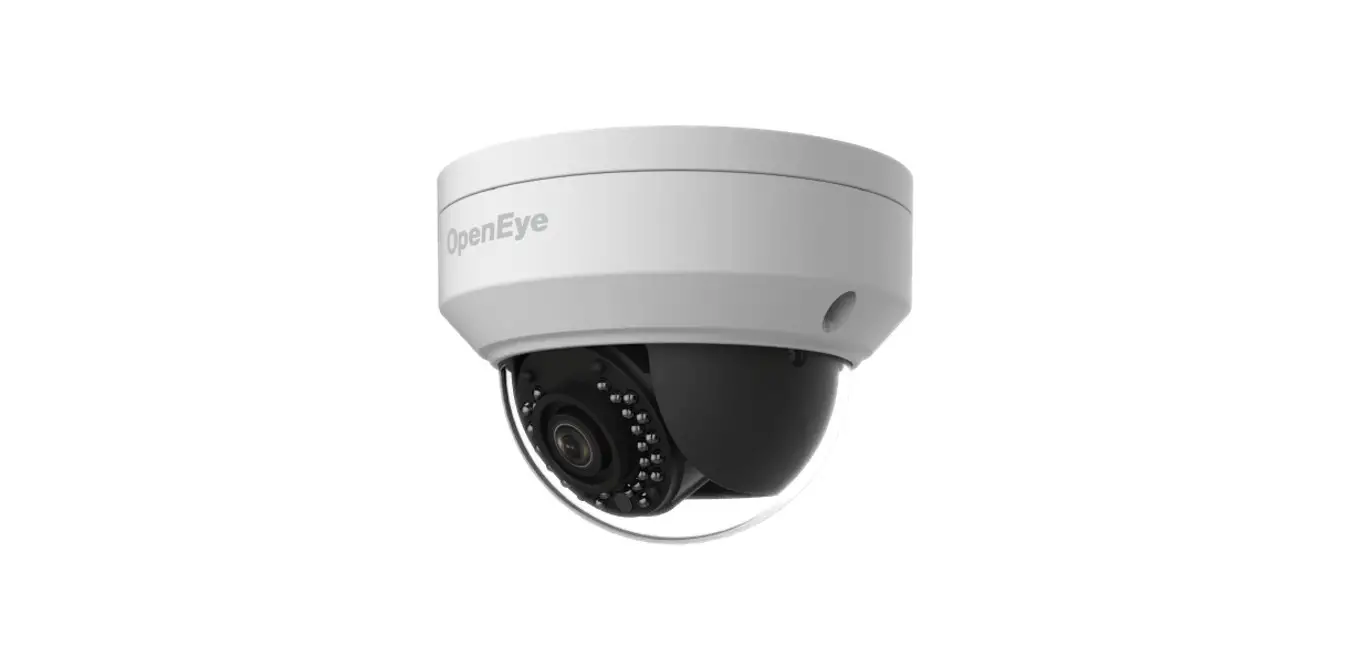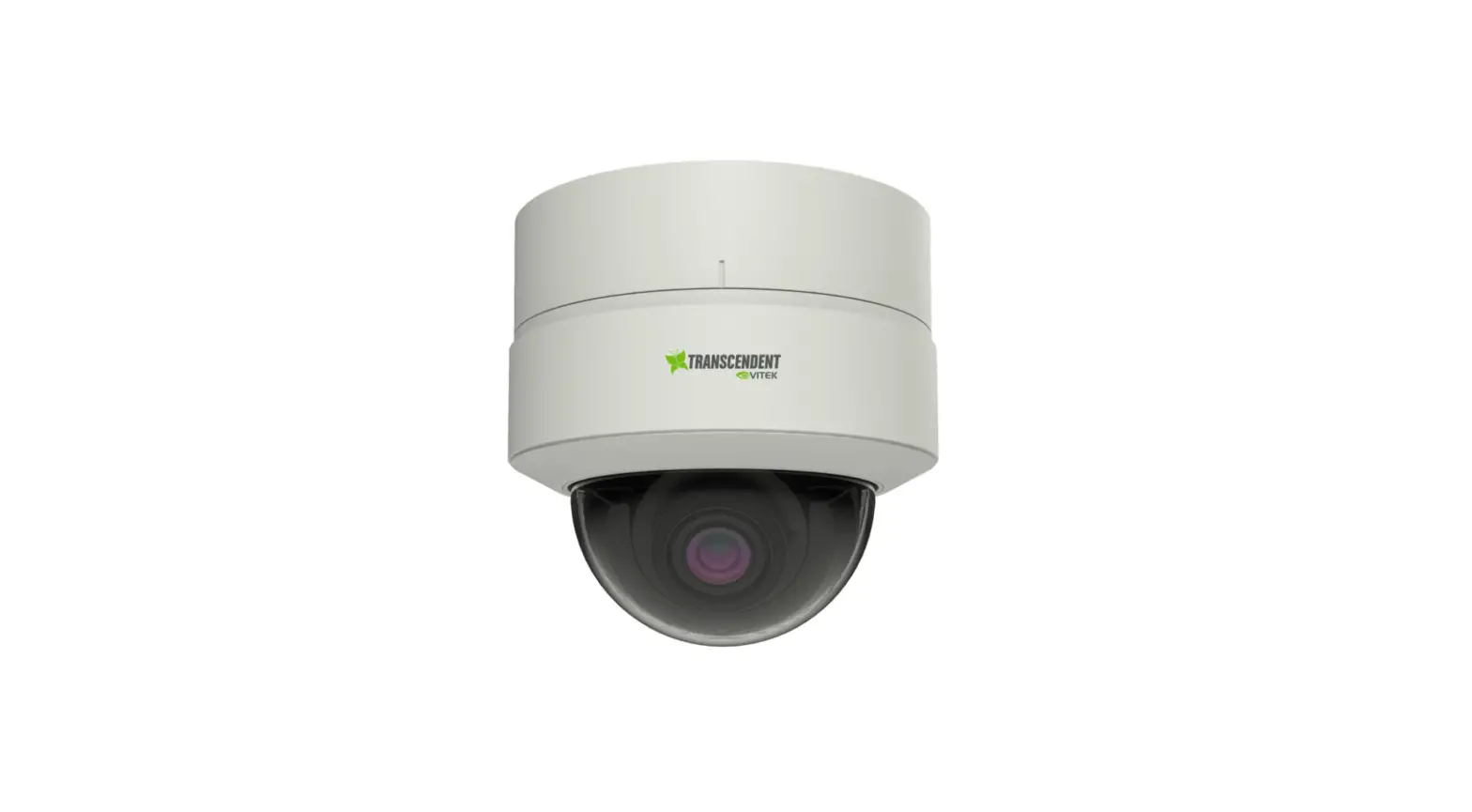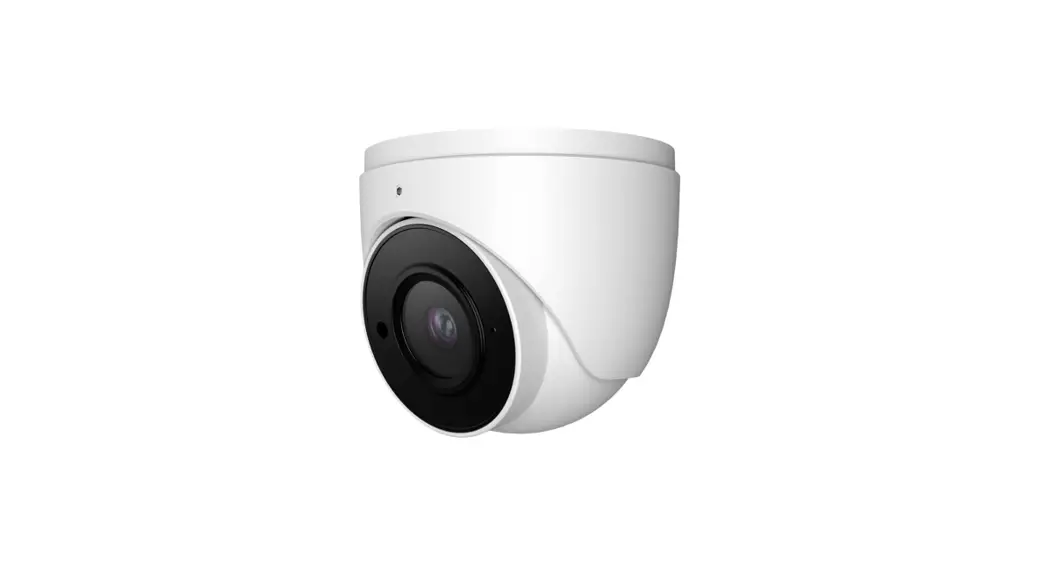

VIM-4300 Indoor/Outdoor Full HD IP Dome Camera
Installation Guide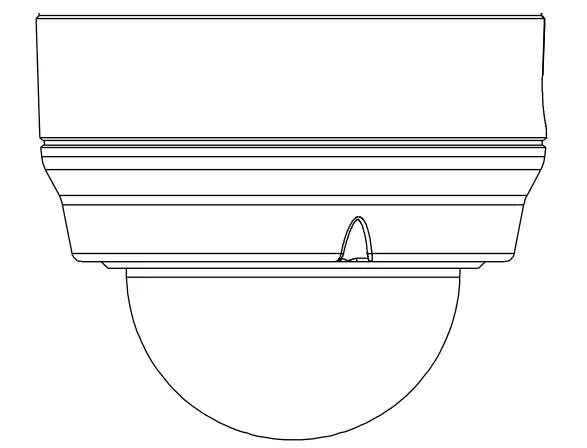
VIM-4300
Installation Guide
INFORMATION TO USER
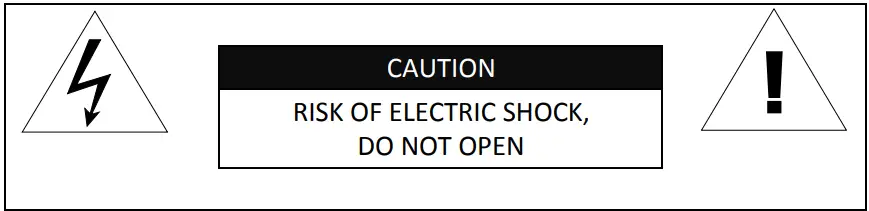
CAUTION: TO REDUCE THE RISK OF ELECTRIC SHOCK, DO NOT REMOVE COVER (OR BACK).
CONTACT QUALIFIED SERVICE PERSONNEL FOR INTERNAL PARTS.
 This symbol is intended to alert the user the presence of un-insulated “dangerous voltage” within the product’s enclosure, which may be sufficient magnitude to constitute an electric shock risk to persons.
 This symbol is intended to alert the user the presence of important operating and maintenance (servicing) instructions within the guide manual.
FEATURES
Camera
- Full HD outdoor dome IP camera (Vandal proof)
- High quality compression in real time streaming
- 1/2.7” High Quality CMOS Image Sensor
- True Day / Night (ICR) and WDR
- Improvement of color rolling suppression
- Remote Zoom/Focus Control (One Click AF)
- 32 IR LEDs
Streaming
- Triple streaming mode (such as different codec/resolution/bit rate and so on.)
- De-interlacing on DSP
- Burnt-in text supported
- Unicast/Multicast supported
Video/Audio
- Video compression: H.265/H.264/MPEG4 (Planned for the future release.)/MJPEG, 25/30FPS@1080p(PAL/NTSC)
- Audio compression: G.711(µLaw, aLaw)/PCM
- Analog video out
- Video motion detection supported
- Built in Microphone
Network
- RTSP/ HTTP protocol supported
- 10/100 Base-T Ethernet
Additional Features
- Micro SD card support (64 GB Max)
- PoE support
- Built-in Video Content Analysis
- Two Alarm Inputs
- One Alarm Output
- IP66 certified
PACKAGE CONTENTS
Unpack carefully and handle the equipment with care. The packaging contains:
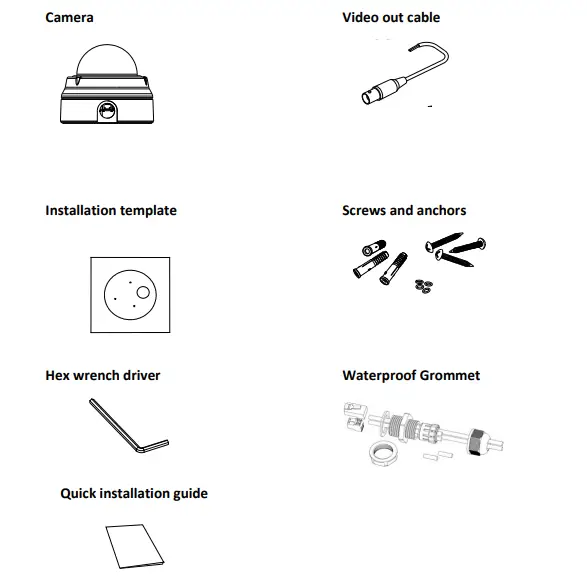
 The above contents are subject to change without prior notice
PART NAMES
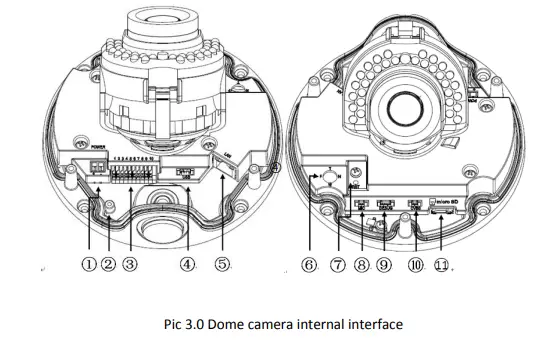
- DC12V and AC24V
- Ground Pole
- Signal Cable (see sticker on the camera for details)
- Debugging interface, for manufacture staff only.
- Ethernet
- Motorized lens control with One-button focus
- Reset
- Built in Mic (4300 Only)
- Debugging interface, for manufacture staff only.
- Analog Video-Out
- MicroSD card slot (64 GB Max)
INSTALLATION
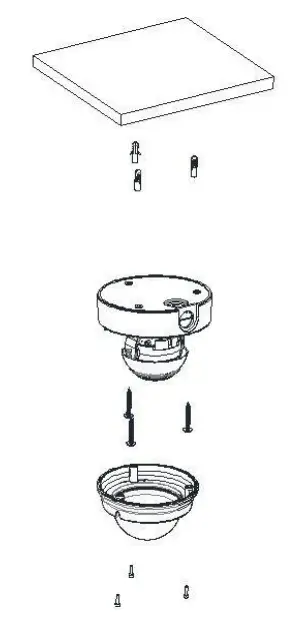
- Place the installation template (paper) that is included in the package on the desired installation surface.
- Drill three holes in correct positions based on the template paper, and insert anchor blocks into the holes.
- Place the camera body to the installation surface and match three alignment holes with three anchor blocks. Then tighten the surface anchor studs.
- Connect all the required cables to the camera. If the camera may be exposed to water, install the waterproof grommet to help prevent damage.

- Adjust the lens position. Detailed information can be found in 4.2. Setting the Lens Position.
- Place the dome cover on the main body of the camera. Dome cover has three alignment holes that match camera body’s alignment holes.
- Once properly placed, insert screws into the three holes of the body and tighten them up.
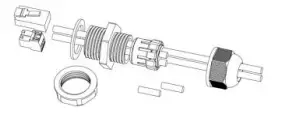
To prevent products from damaging, place the camera on stable and non vibrating surfaces. If the stability is in doubt, consult with safety personnel for reinforcements, and then proceed with the installation. Use waterproof silicone to seal all connections and surfaces.
4.1. Installation Template
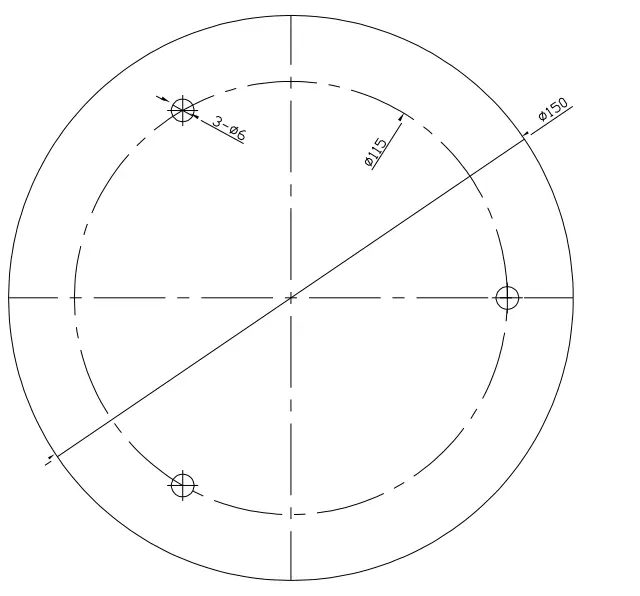
Installation template image’s size scale in this installation guide is not 1:1.
The correct-size template design paper can be found inside the package separately.
4.2. Setting the Lens Position
Instruction below describes how to set the lens positions and manually adjust zoom and focus.
- Remove the dome cover.
- Set the lens position by rotating the camera gimbal; to pan, rotate the reinforced lower body of the gimbal; to tilt, vertically adjust the camera gimbal.
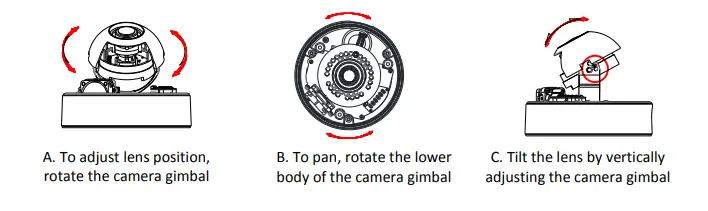
Refrain from continuously rotating the camera gimbal with excessive force to a single direction as it is attached with the IR-LED cable inside the dome.
The camera image’s brightness, contrast, saturation and sharpness are adjustable through the image settings. (Configuration > Camera Set > Image Set).
CONNECTIONS
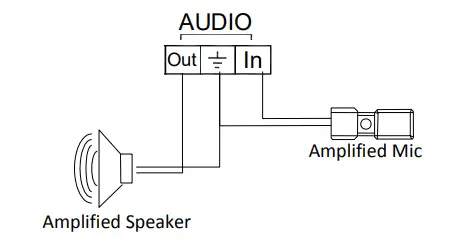
- Audio input/output
The camera has a mono audio input and a mono audio output. Due to low audio output power, an amplified speaker is recommended for enhanced sound
(Do not connect a headphone or earphone directly to the camera)
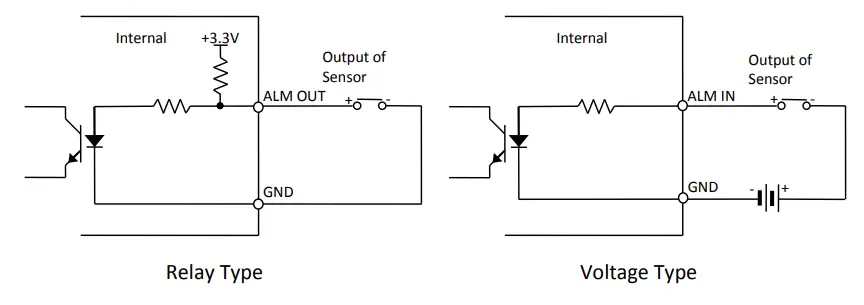
- ALM IN connection
The camera provides 2 channel ALM IN. It can be connected to either a voltage type sensor or a relay type sensor as the following figures. Settings can be done through the camera’s webpage.
Input voltage range: 0VDC minimum to 5VDC maximum, Max 50mA Input voltage threshold: 1.5V Do not exceed the maximum input voltage or relay rate.
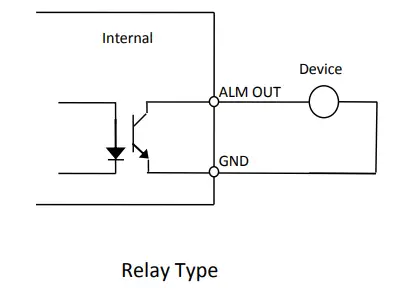
- ALM OUT connection
Only the relay type is supported.
Relay Rating: Max 24VDC 50mADo not exceed the maximum relay rating.
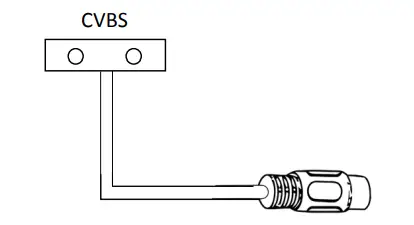
- Video Output (Use Supported Cable Only)
The camera provides 1 video out
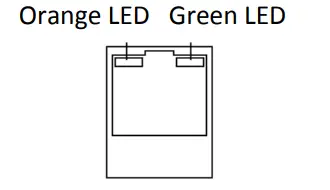
- LAN connection
This is a RJ45 LAN connector for 10/100 Base-T Ethernet. Connect a LAN cable.
When the device is connected, the orange LED blinks while green LED stays on.
CONFIGURATION
6.1. Custom IP Environment
Search Config Tool is provided in the dealer portal. (http://help.visualint.net)
Search Config Tool is a management tool, which automatically scans all of the network products for users to perform administrative tasks, which includes network configurations, firmware update, device reboot, and device organizations.
Web streaming and device configurations are supported through ActiveX program. When the ActiveX installation window appears, authorize and install the ActiveX.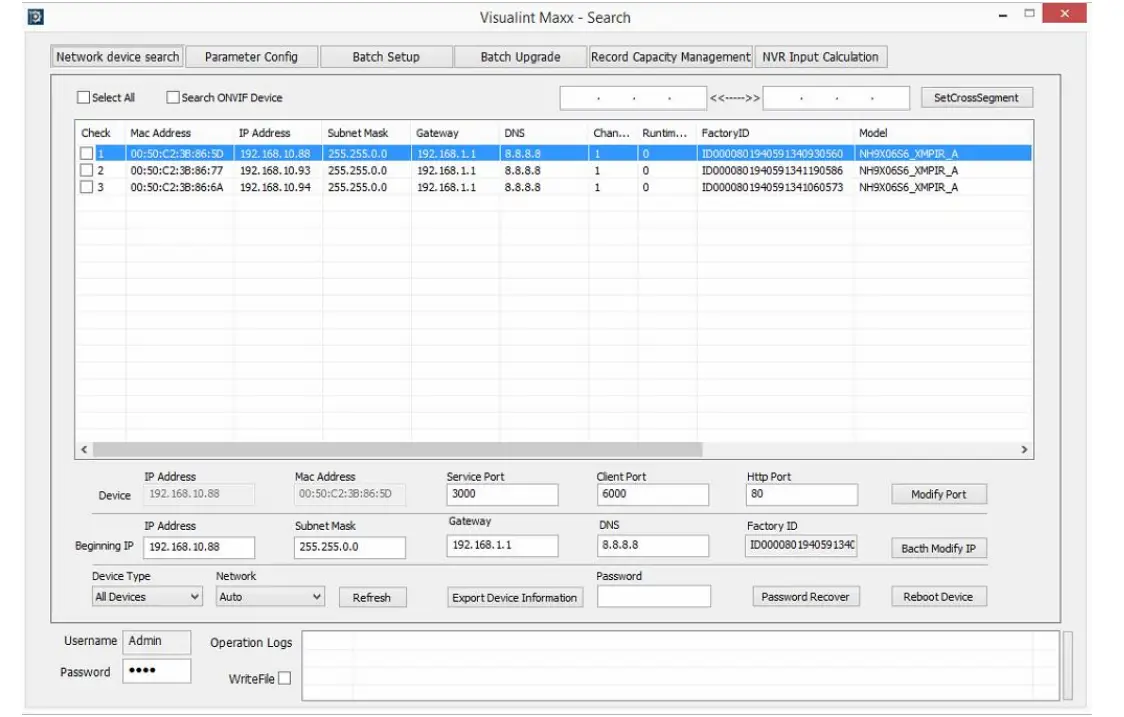
To modify the device’s default IP address for customized network area;
- Find the device from the Search Config Tool’s list and check the box next to the device.
- Enter the Beginning IP Address / Subnet Mask / Gateway / DNS
- Click ‘Batch Modify IP’ to complete the modification.
6.2. View video on web page
Type the proper IP address to view the live streaming images through a web browser.
The default username and password is admin / admin. When visiting the web interface the first time an Active X plugin will need to be installed.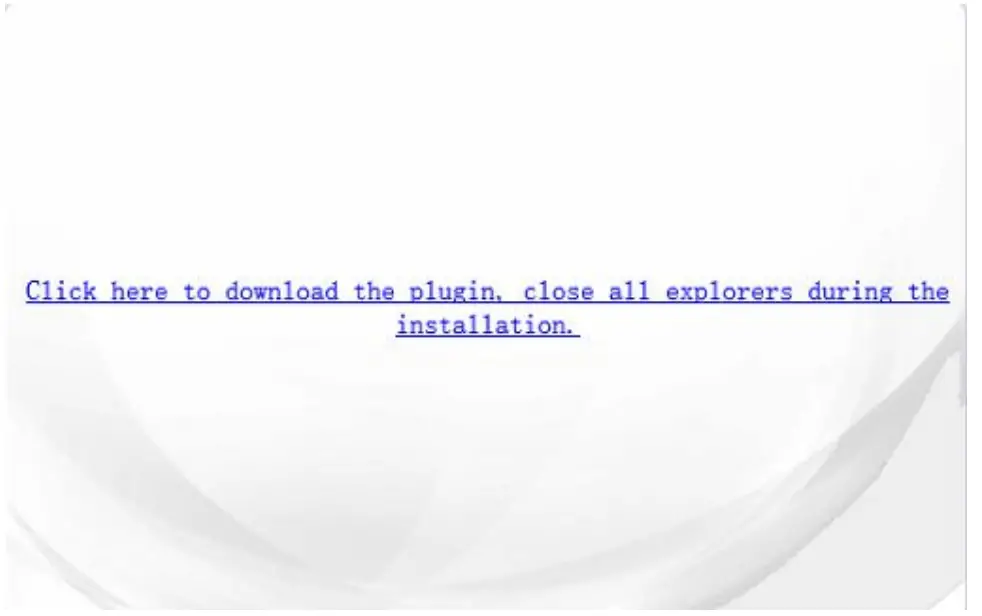
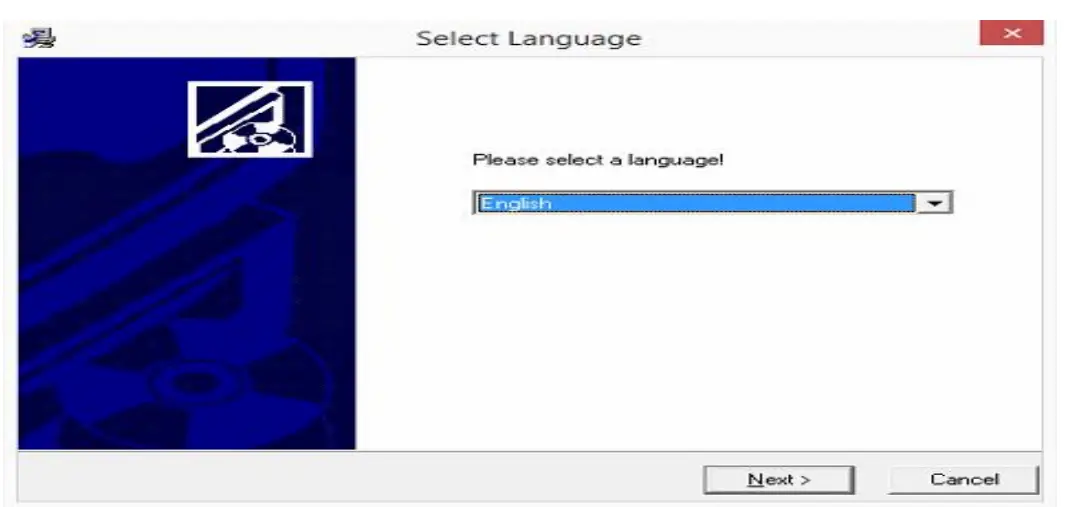
- Setup.exe installation link or pop-up window appears, depends on Microsoft® Internet Explorer version. Click Run.

- Select English

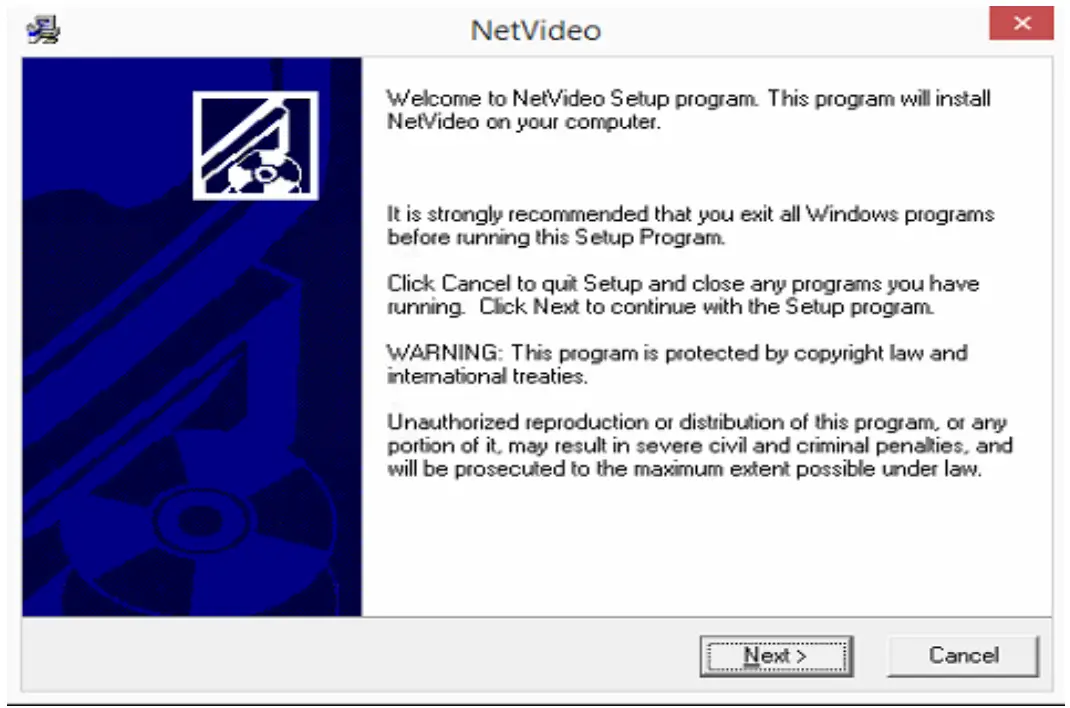
- Follow the instructions of the dialog boxes and complete the installation. Once the installation is complete, start the web browser again. Click the Allow for All sites button displayed in bottom of the main view frame.
6.3. Access through Search Configuration Tool
Search Configuration Tool automatically searches all activated network encoders and IP cameras and shows the product name, IP address, MAC address and etc.
From the Search Configuration Tool product list, select the device by highlighting it.
- Right-click the mouse and select Enter IE
- The system’s default web browser opens the device’s address. Please make sure you are running Internet Explorer 8 or later (Microsoft Edge is not supported)Whether directly accessing the streaming video through typing IP address on a web page or taking steps through Search Configuration Tool, the ActiveX is needed to be installed for the Microsoft® Internet Explorer to have the complete administrative privileges.
6.4. Export Device Information
Perform the following procedures to Export the Device Search in .csv format:
- Click the Export Device Information.
- Choose the target save location.
- Click ‘Save’.
6.5. Reboot Device
Perform the following procedures to Reboot the Device:
- Find the device from the Search Configuration Tool’s list and check the box next to the device.
- Click the “Reboot Device” Button
- Click ‘OK’ to confirm Reboot
- Device will Reboot.
The factory default settings can be inferred as follows:
| IP address: | 192.168.1.3 |
| Network mask: | 255.255.0.0 |
| Gateway: | 192.168.1.1 |
| User ID: | admin |
| Password: | admin |
APPENDIX (A): SPECIFICATIONS
Summary
| Camera Module | ||
| CMOS | Image Sensor | 1/2.8″ Sony Exmor CMOS |
| Effective Pixels | 2048 x 1536 | |
| Scanning system | Progressive scanning | |
| ELECTRICAL | Resolution | 1920 x 1080 |
| Min. Illumination | Color: 0.05 Lux @ (F1.2, AGC On) B/W: 0.01 Lux @ (F1.2, AGC on); 0 Lux with IR | |
| Core Processor | Cortex A7 Architecture Processor | |
| Operating System | Embedded Linux | |
| AGC Control | Auto | |
| Lens | 2.8-12mm, Motorized Lens | |
| Day & Night | Dual ICR | |
| Video | ||
| Video Compression | H.265/H.264/MJPEG | |
| Bit Rate | 32Kbps — 16Mbps | |
| Audio Compression | G.711/AAC/ADPCM | |
| Bit Rate | 8K — 48Kbps | |
| Frame Rate | 50Hz: 25fps (2048×1536), 50fps (1920×1080) 60Hz: 30fps (2048×1536), 60fps (1920×1080) | |
| Triple Stream | Mainstream: 3MP (2048×1536) Sub-stream: D1 (704×576) 3rd Stream: D1 (704×576) | |
| Max Resolution | 2048×1536 | |
| Image Settings | Configurable Brightness, Saturation, Contrast, Flip Mode | |
| Motion Detection | Built-in | |
| Burnt-in Text (Digital) | Video stream overlay text | |
| Output | Analog video output for installation only | |
| Audio | ||
| Input/output | AUD IN /AUD OUT | |
| Compression Format | G.711u Law | |
| Function | ||
| ALM IN / ALM OUT | 2/1 channel | |
| Video Analytics | Tripwire/ Perimeter/ People Counting/ Missing & Removed Object/ Dwell | |
| Network | 10/100 Base-T | |
| Power over Ethernet | Supported | |
Electrical Characteristics
| Power Supply | DC12V±10%AC 24V±10%, PoE (802.3af) (not included) |
| Power Consumption | 4.5W (IR off), 8.5W (IR on) |
| Video Output | 1-ch Vp-p composite output (75 Ω, BNC) |
| Audio Input | 2-ch |
| Audio Output | 1-ch |
| Circuit Protection | TVS 6000V, Lightning/Surge 2000V Protection |
Environment Condition
| Operating Temperature | -35 ºC ~ 60 ºC, (-31 ºF ~ 140 ºF) |
| Operating Humidity | Up to 95% RH |
Mechanical Condition
| Material | Aluminum Die Casting |
| Color | White |
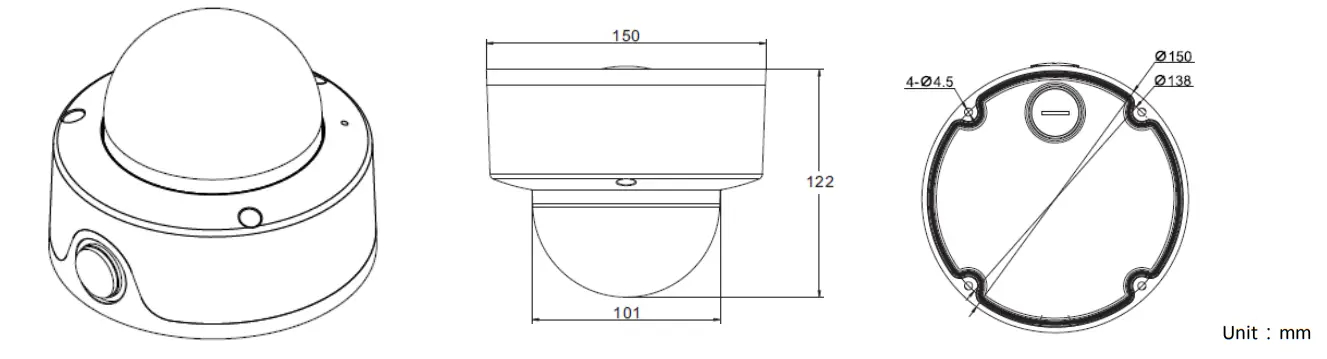
| Dimension | Housing: 150 (Ø) x 122(H) mm Dome: 101(Ø) mm |
| Weight (Approx.) | 1.5 kg |
APPENDIX (B): POWER OVER ETHERNET
The Power over Ethernet (PoE) is designed to extract power from a conventional twisted pair Category 5 Ethernet cable, conforming to the IEEE 802.3af Power-over-Ethernet (PoE) standard.
IEEE 802.3af allows for two power options for Category 5 cables.
The IEEE 802.3af-2003 standard allows up to 15.4 W power to device. However, 12.95W is the maximum available power, as some power gets lost in the cable.
PoE has advantages over conventional power in such places where AC powers cannot be reached or expensive to wire.
Note: For proper activation of 12V PoE, the Category 5 cable must be shorter than 140m and conform the PoE standard.
PoE compatibility
With non-Power Sourcing Equipment (PSE)
When it is connected with non PSE, the power adaptor (not included) should be connected.
With power adaptor
Connecting both PSE and power adaptor does not do any harm to the product, but power adaptor will be the only power source for the device as it has priority over PSE. In this case, disconnecting power adaptor while it is operating will cause the device to reboot. And PoE will be the power source for the device after the reboot.
Power classification
The PoE Power Class supported by the IP device is Class 0.
APPENDIX (C): DIMENSIONS
Copyright ©2022, Snap One, LLC. All rights reserved. Snap One and its respective logos are registered trademarks or trademarks of Snap One, LLC (formerly known as Wirepath Home Systems, LLC), in the United States and/or other countries. 4Store, 4Sight, Control4, Control4 My Home, SnapAV, and Visualint are also registered trademarks or trademarks of Snap One, LLC. Other names and brands may be claimed as the property of their respective owners. Snap One makes no claim that the information contained herein covers all installation scenarios and contingencies, or product use risks. Information within this specification subject to change without notice.
Version 220121
2001A.04
 Visualint | Snap One