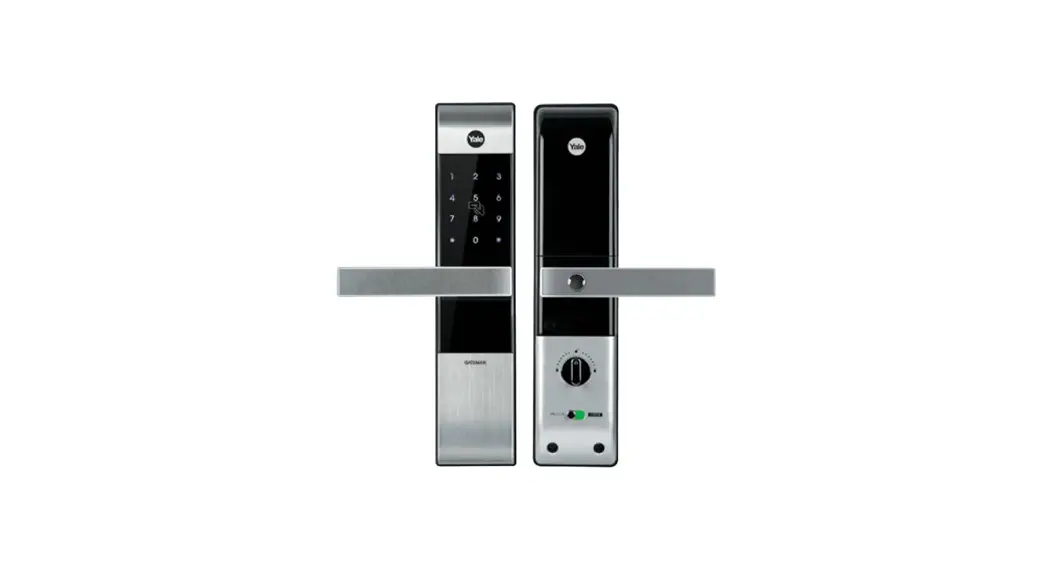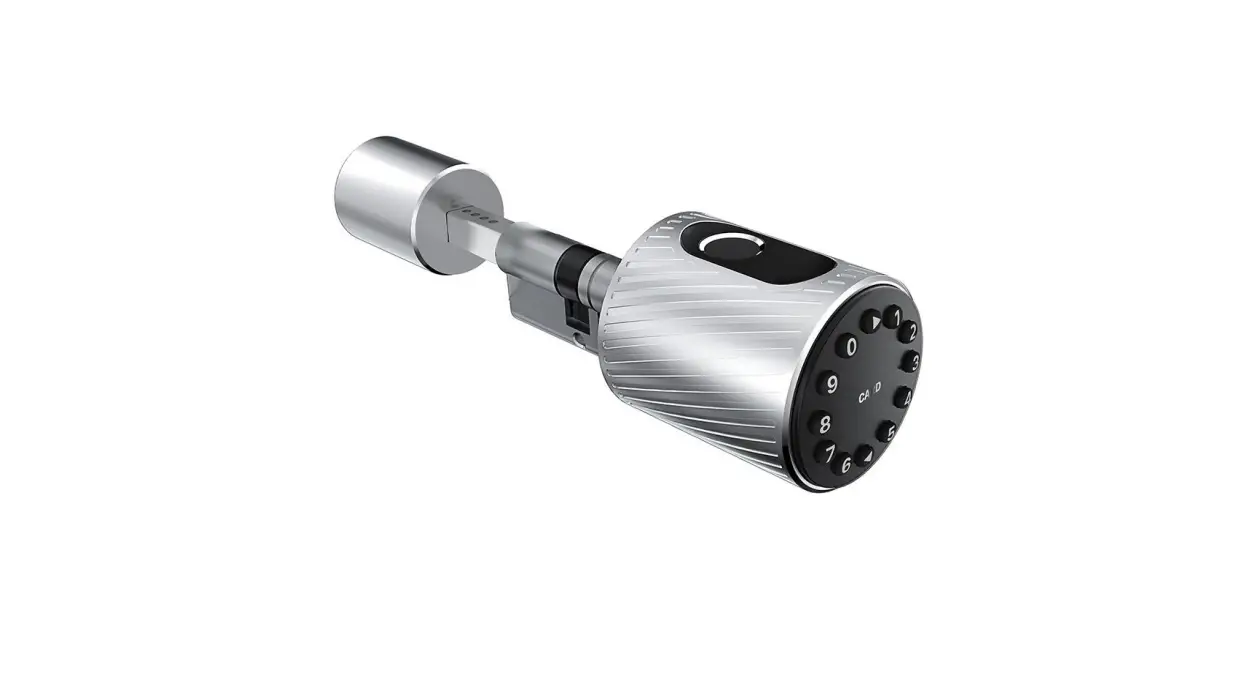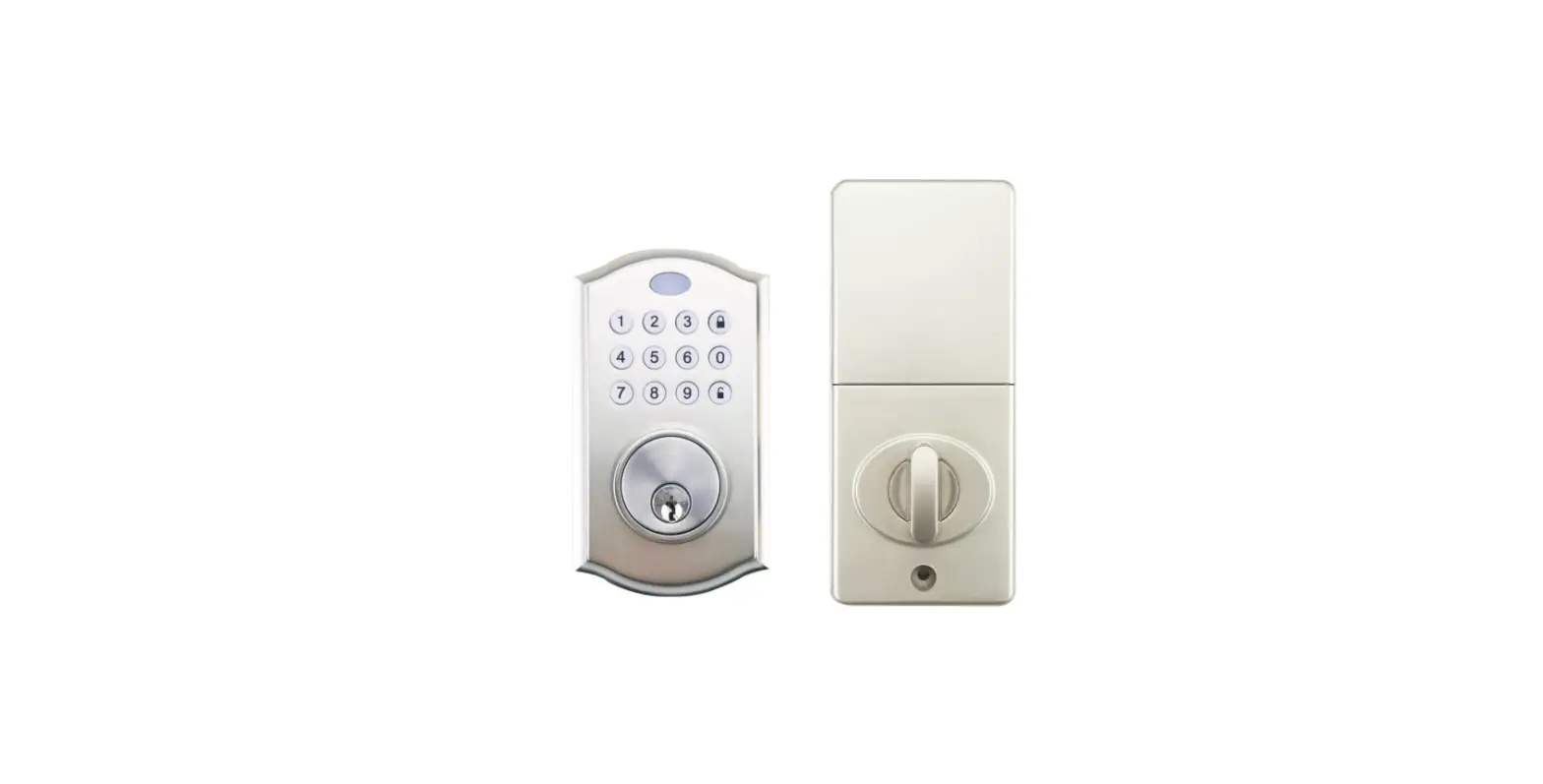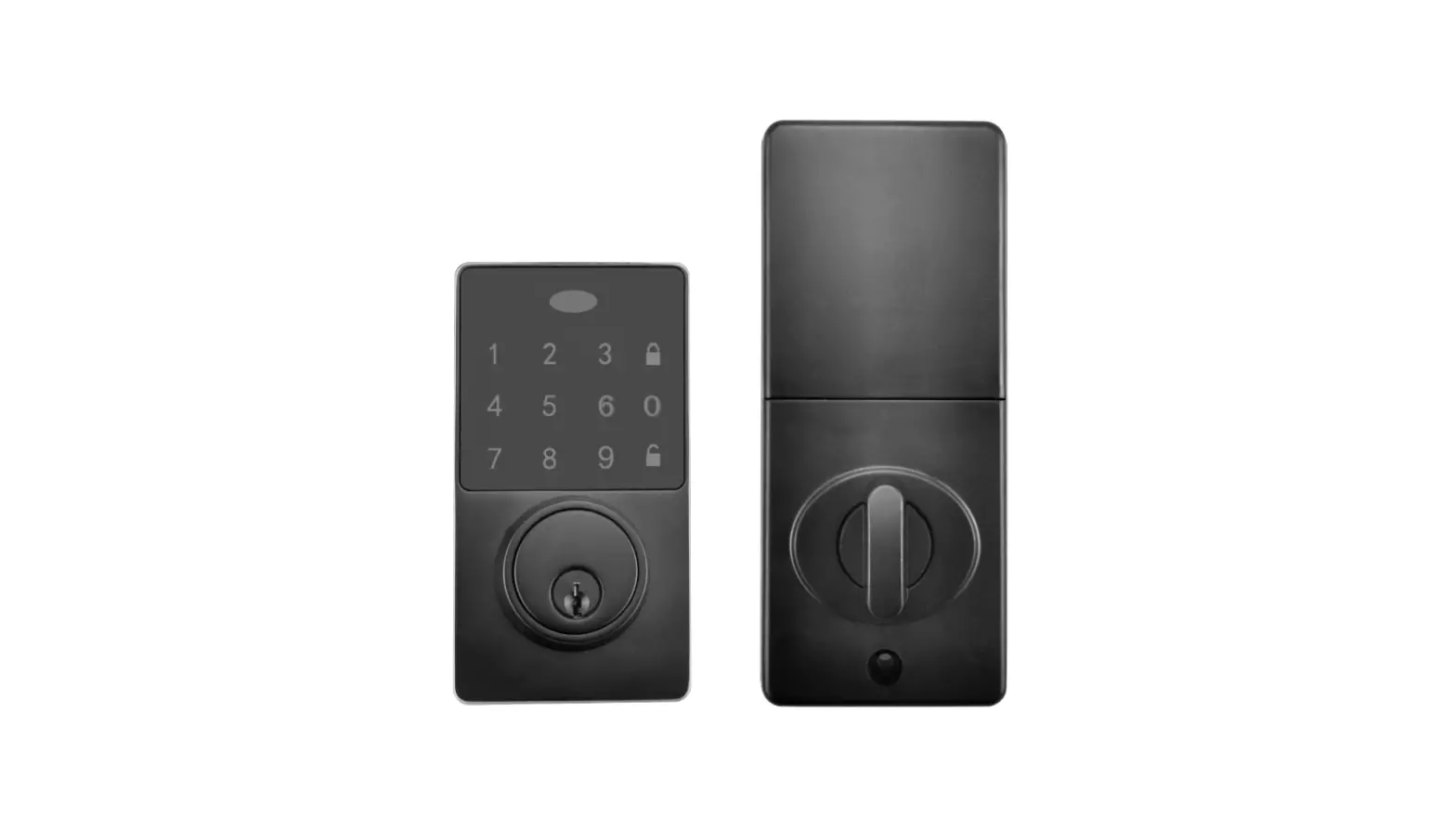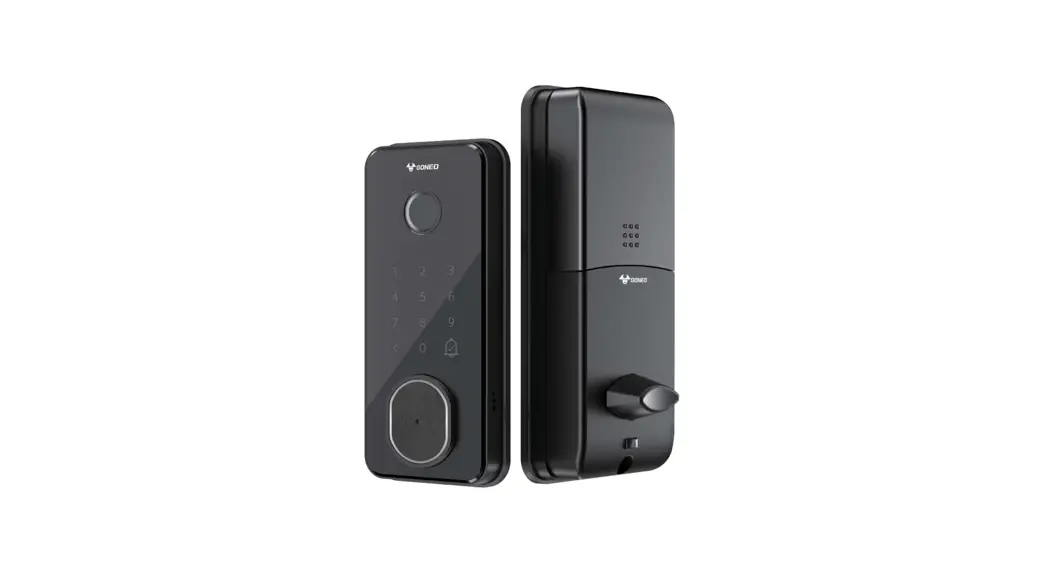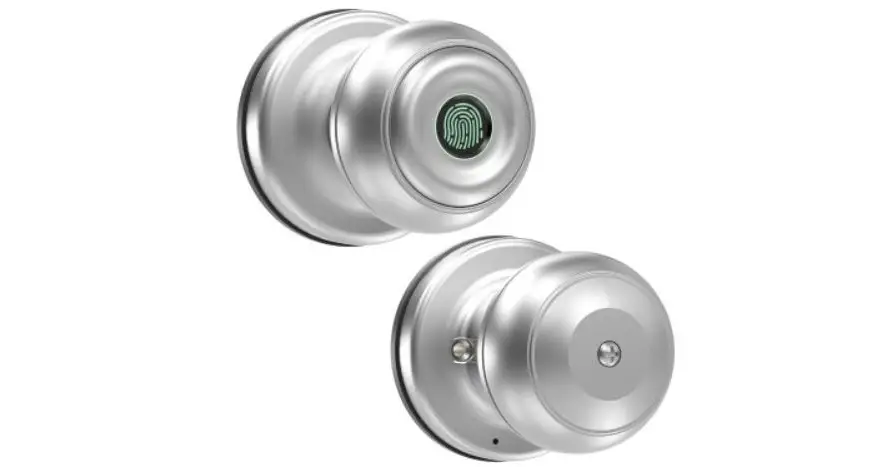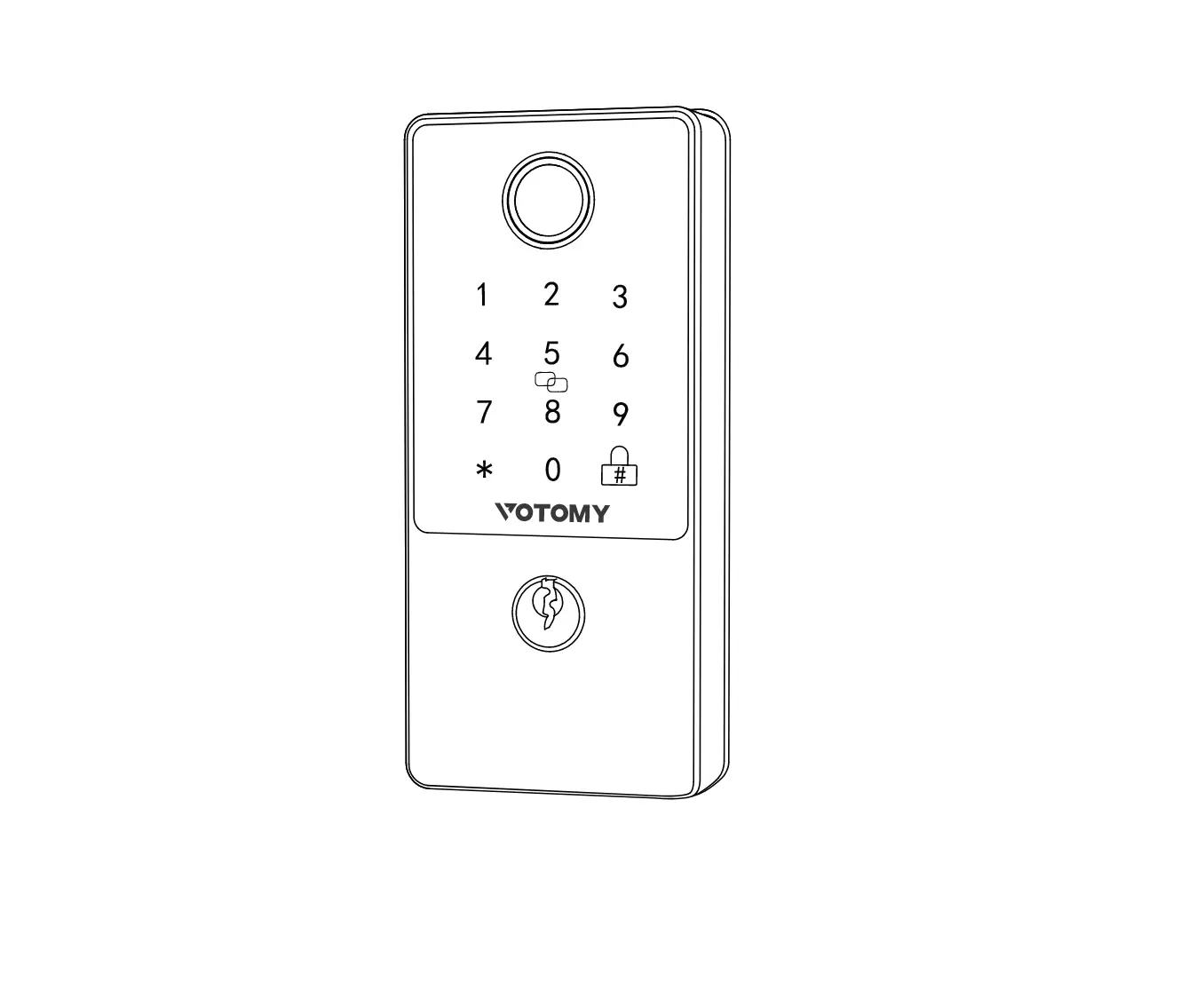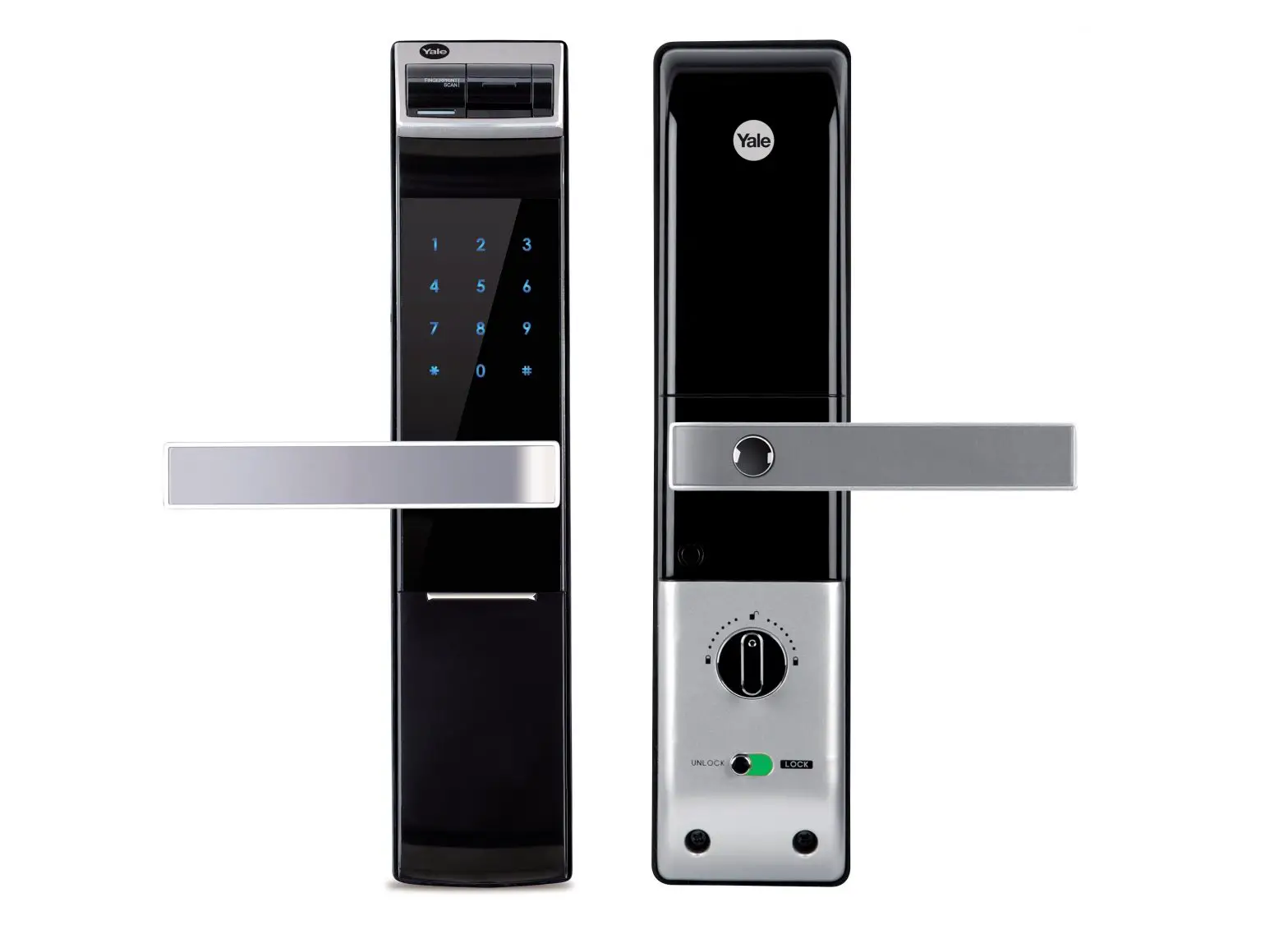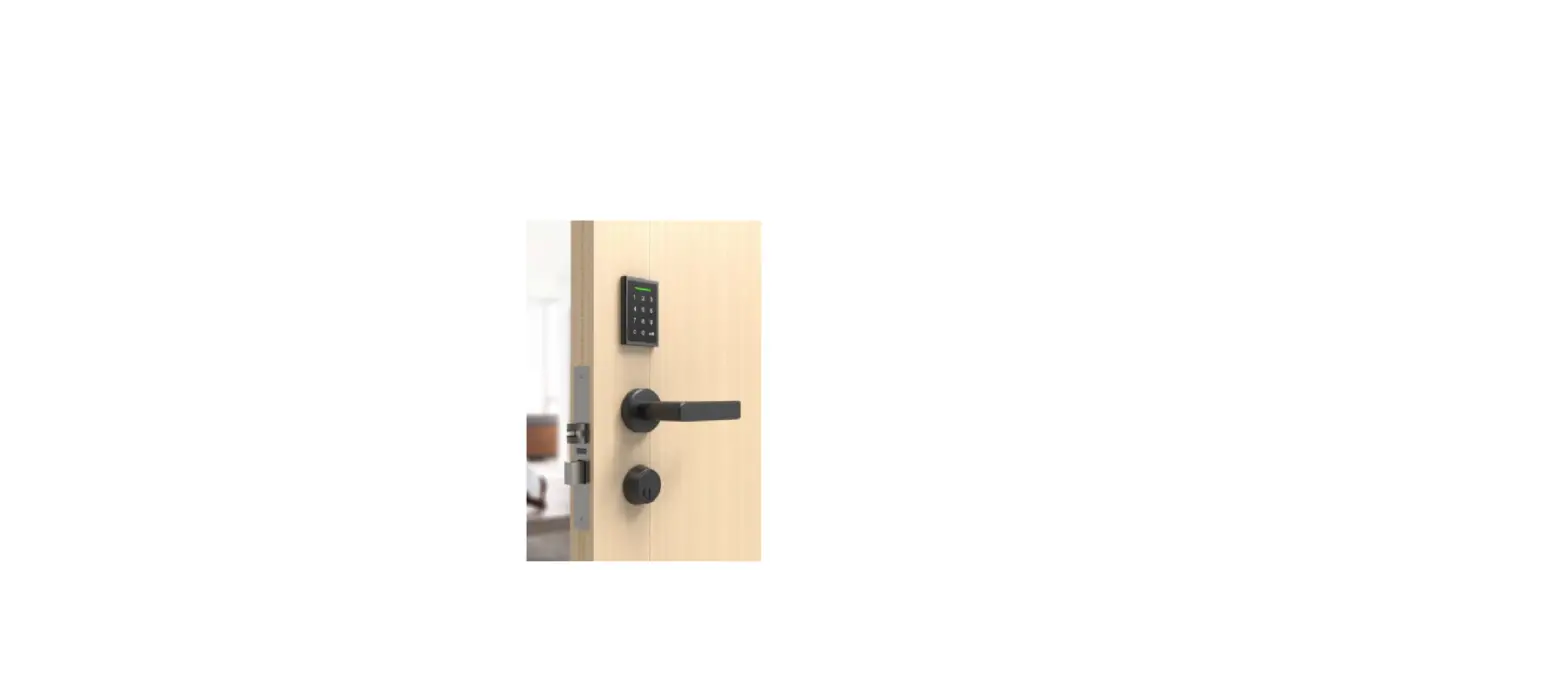

PASSTECH HP 100 Hotel Door Lock
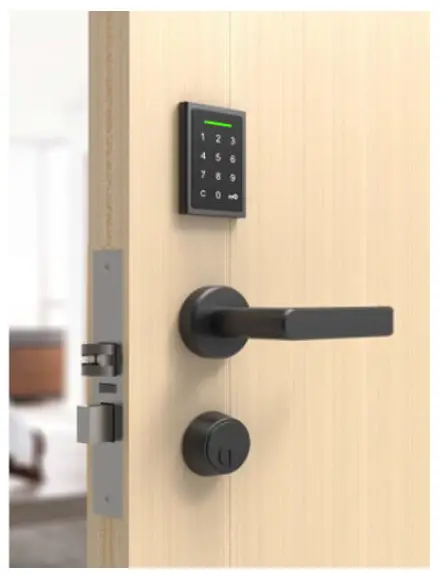
Understanding HP100, HP 200 , H P200E Hote l Do or Lock
What is HP100, HP 200 HP200E Hotel Door Lock?
- HP100, HP200 , HP200E hotel door lock is operated by eithe r 13,5 6 MHz RF keys or Mobile.
- HP100, HP200 HP 200E can work as b o th offline (stand alone) and online mode.
- To set HP100, HP200 , HP200E a s online system, additional peripherals such as Access point, Server and client software are necessary.
Features by model
| FEATURES | HP100 | HP200 | HP200E |
| Front Design | 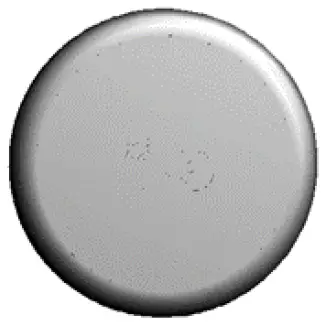
| 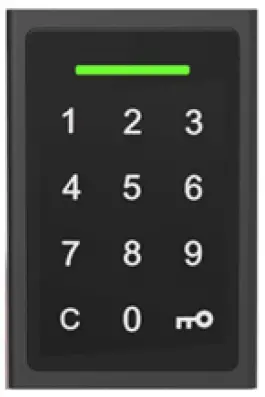 | 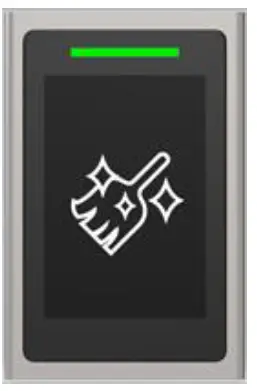 |
| e-Paper display | – | – | Yes |
| Touch Key (12 Key) | – | Yes | – |
| Support Mortise | ANSI(top), ANSI Standard(bottom), Euro #6 | ANSI(top), ANSI Standard(bottom), Euro #6 | ANSI(top), ANSI Standard(bottom), Euro #6 |
| Support deadbolt | Yes | Yes | Yes |
| Panic release | Yes | Yes | Yes |
| Mechanical key override | Yes | Yes | Yes |
| Low battery indicator | Yes | Yes | Yes |
| Power supply | 4 x AA (Alkaline battery) | 4 x AA (Alkaline battery) | 4 x AA (Alkaline battery) |
|
Battery Lifetime | 18 months for wireless online lock | 18 months for wireless online lock | 18 months for wireless online lock |
| 24 months for standalone lock | 24 months for standalone lock | 24 months for standalone lock | |
| Block/Unblock card | Yes | Yes | Yes |
| Online Intrusion alarm (over 3 times of unauthorized open trial) |
Yes |
Yes |
Yes |
| Online Ajar alarm | Yes | Yes | Yes |
| Instant Stay Extension | Yes | Yes | Yes |
| Instant Room change | Yes | Yes | Yes |
| Automatic unlock/lock | Yes | Yes | Yes |
| Passage mode | Yes | Yes | Yes |
| Remote audit trail | Yes (Online: Unlimited/Offline:2,000 events) | Yes (Online: Unlimited/Offline:2,000 events) | Yes (Online: Unlimited/Offline:2,000 events) |
| Remote Maintenance reporting | Yes | Yes | Yes |
| Mobile Key Access | Yes | Yes | Yes |
Operation cards
| Card Name | Description | Card type |
| Key card | • Security Key value to be loaded to locks at scanning. • Then, the locks will accept only the RFID cards which have the same security key value. |
Mifare 1KB |
| Setup card | • Lock will be programmed with various options at scanning. • Setup card can be set from PTHMS Client Pro Software | |
| Staff card | • For staffs access card • Set name/title/authority/holiday, etc. | |
| Emergency card | • All rooms can be opened with an emergency card. Particular attention should be paid to loss | |
| Blocking card | • A Blocking card is used to block all user groups on a particular door. For example, this card is used to block all groups except Maid by reading the blocking card when Maid cleans the Fitness Club. | |
| Clearance card | • A card that cancels the registered Guest Card. This card can only be used after the Employee (Maid) Card has been read. | |
| Passage Mode card | • A card to unlock the door until the specified time for the defined door. | |
|
Privacy card | • It is operated by the Toggle concept in order to display “D.N.D” on the door with the card provided in each room. It can be operated only when Guest Card is registered. In order to delete it, Maid must read Maid Card/Employee Card and then Erase Card/Power-Down Card to cancel it, or it will be automatically cancelled when a new guest card is registered. | |
| Audit trail card | • A card for collecting usage histories for each lock. (Up to 2000 cases) | Combi card (Mifare + Kona COS) |
| Lock info card | • A card to read the setting value of each door. |
Types of Lock Operating Scenario
HP 100/ H P 200 HP200E Hotel Door locks are designed to work for the various operation requirements by simple set up process. Following operation modes can be set by hotel staffs and guests
Guest Card issue
Guest issue
It is a screen for checking in and issuing a guest card for the guest s who stay in a general room.
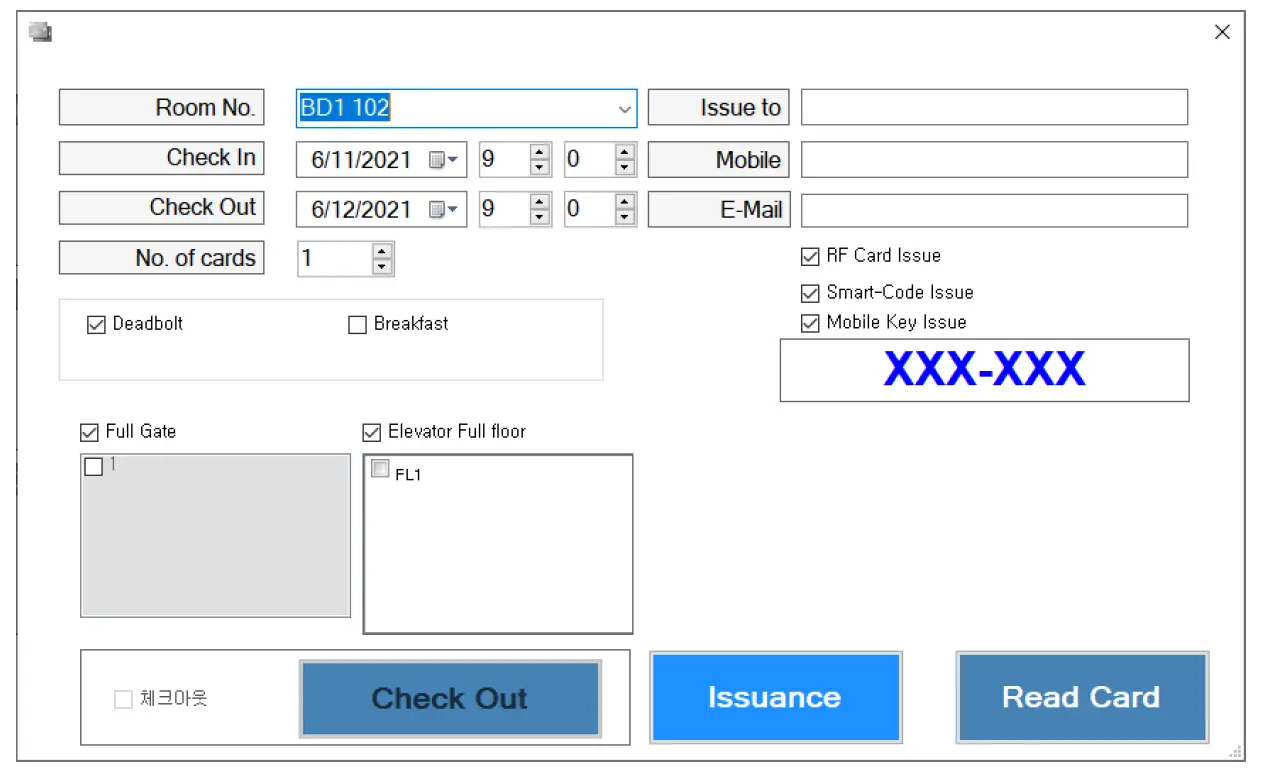
Main Item Description
| Item | Description |
| Room No. | Room Number you just chose to check-in will be shown. – Room number must be at least 3 digits for floor number and room number. . Ex) Floor→1, Room→1 è “101” |
| Floor→10, Room→2 è “1002” Floor→11, Room→12 è “1112” ※ If you enter more than 10 floors and input 1~9 rooms, please note that it will be recognized as another floor when the number is below 4 digits. | |
| Check In | Check in date and time |
| Check Out | Check out date and time |
| No. of cards | Number of guest card you are going to issue |
| Issue to | Guest’s name |
| Mobile | Guest’s mobile number (Smartcode will be sent to this number) |
| Guest’s E-mail address (Mobile key app link will be sent to this address) | |
| Option (Combo box) | If ticked, it means it will be available for the option. – Deadbolt: Deadbolt availabilty – Breakfast: Breakfast option – Full Gate: Gate that the card will be accepted Individual gates can be ticked separately. – Elevator Full floor: Accessibility of the elevators(floor) Individual floors can be ticked separately. – RF Card Issue: If you want to issue the RF card – Smart-code Issue: If you want to issue smartcode to the guest’s mobile phone. – Mobile key Issue: If you want to issue mobile key to the guest. – Check-out: If you are checking out. |
If you have selected the item you want to use, you can place the card to be issued on the DE 620 Reader and press button to issue the card.
If you are issuing multiple cards, you will be prompted to put the next card on t he reader
If the card is lost, reissue the card in the Reissuance guest card section (by clicking mouse right button on the room n umber)
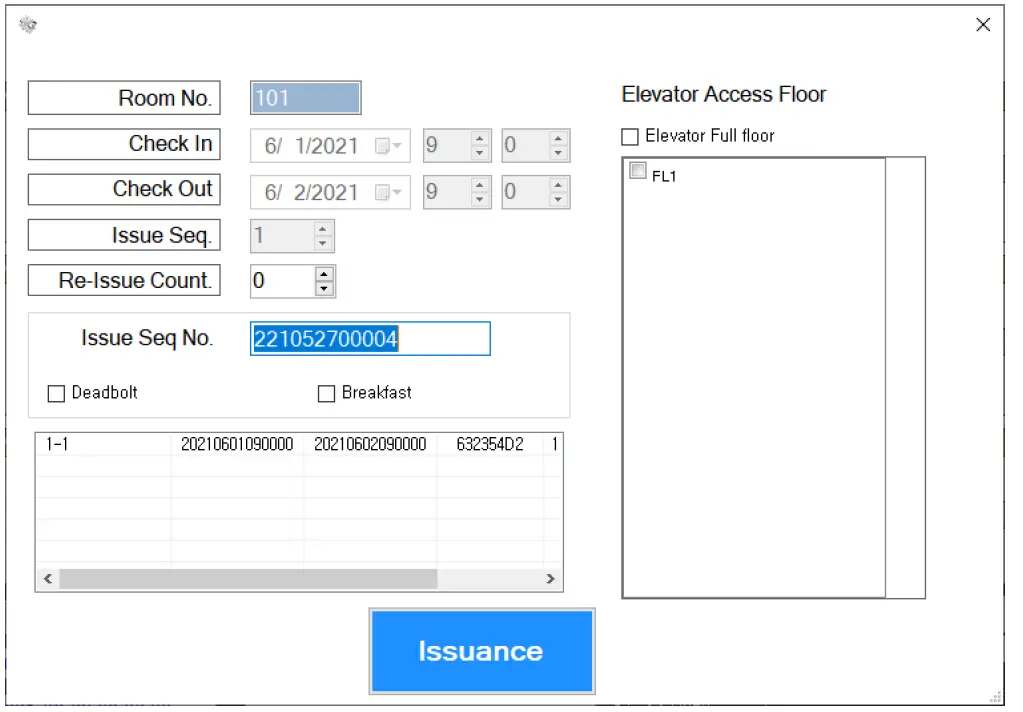
Using RFID card
Once successfully complete above steps , guest card may scan the lock and it will work nice and easy.
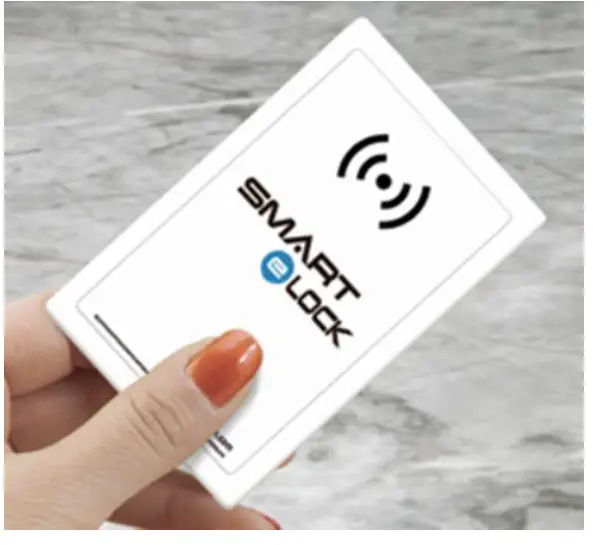
Using Smart phone
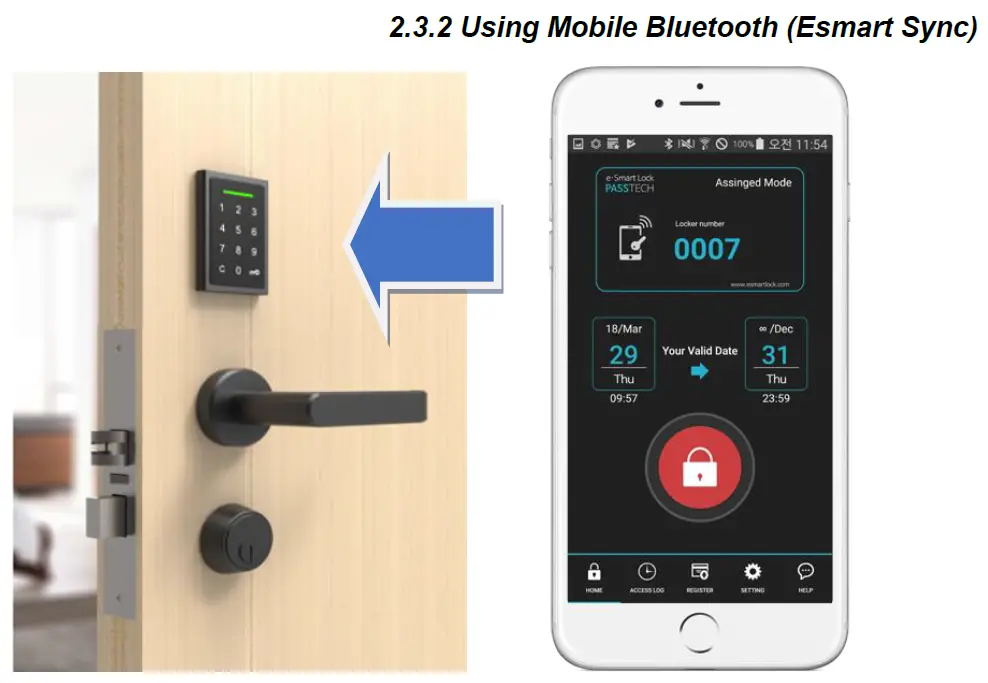
Passtechs all hotel door locks are wireless online , which means they are operate d not only with RFID credentials, but also with your smartphone by incorporating an innovative BLE mobile access technology The solution provides more advanced and efficient approach towards managing the rooms
at various kinds of venues where requires highest level of security
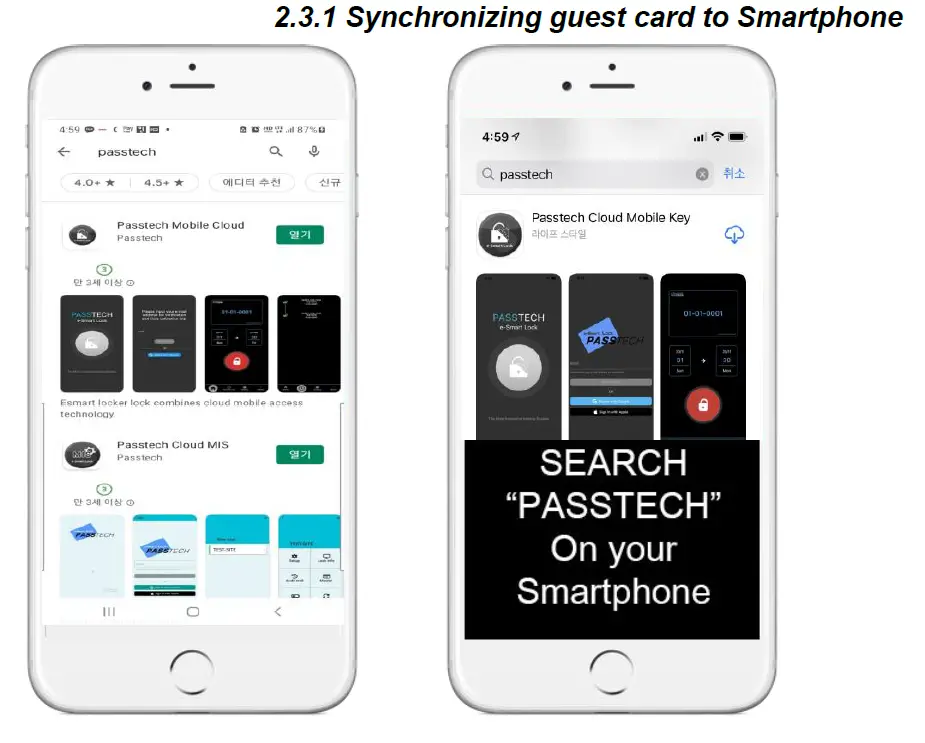
- Go visit “Google Play Store” or “APP Store”, and search “PASSTECH”.
- Download Application (Passtech Mobile Cloud Android / Passtech Cloud Mobile Key Apple) and install it in the guest s smartphone
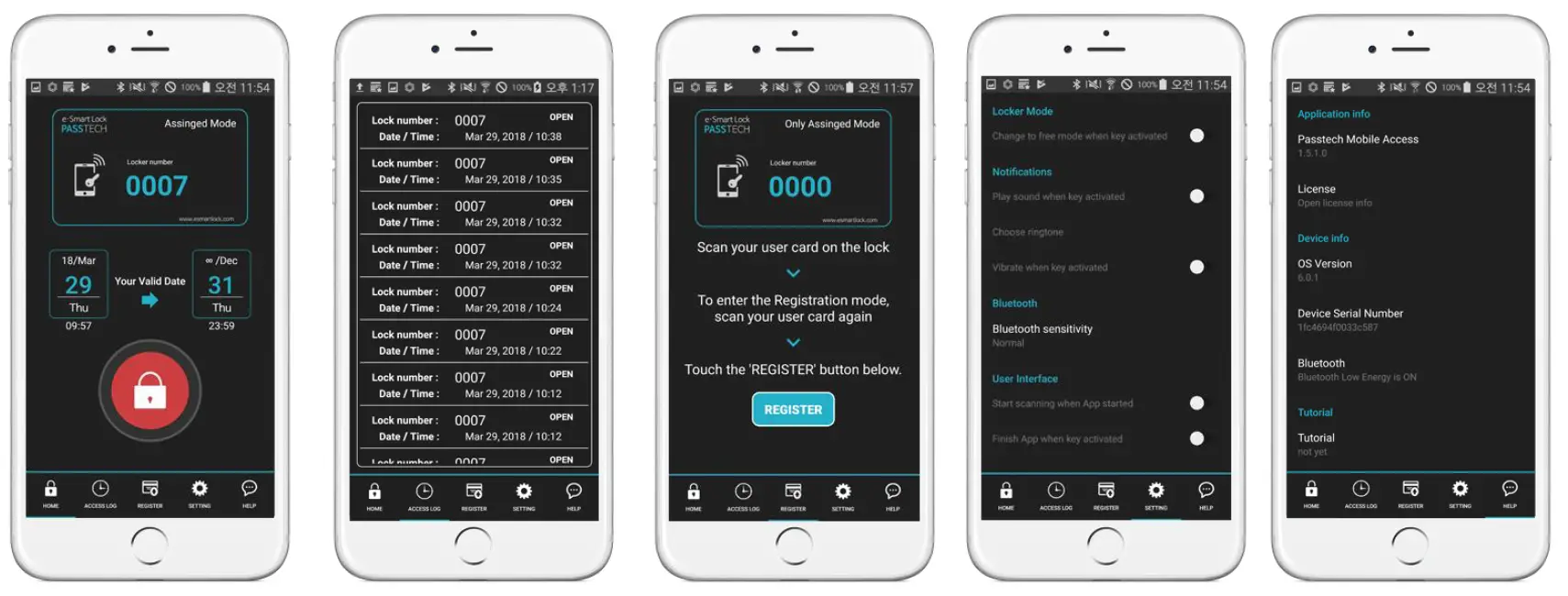
- When execute Application, your guest will see below display screens
- From this step, it is simple and important t o sync to mobile. When the guest enters the hotel room wit h RFID guest Card, the guest opens the door at first time.
- Then guest should open the door from inside to outside of the room.
- Scan Guest card on the lock 2 times. times.(Described above ① ② ③

- Right after scan the Guest card, press “Register ” button on their Application. (Displayed as above picture ⑦
- The screen will display guest card information as above picture. (Displayed as above picture ⑧

Check your ro om number and valid time, i f those are all set successfully, press Red button on the display, then it will open using BLE communication.
| Display | Explanation |
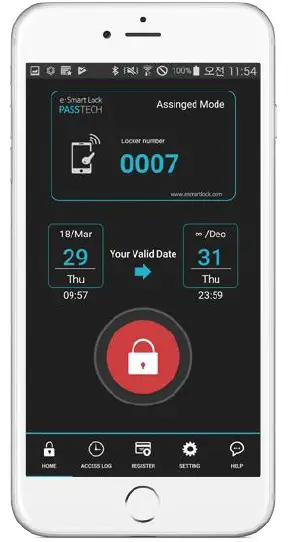 | Guest will mainly use this display. – Operation Mode – Lock Number – Valid time – Open command |
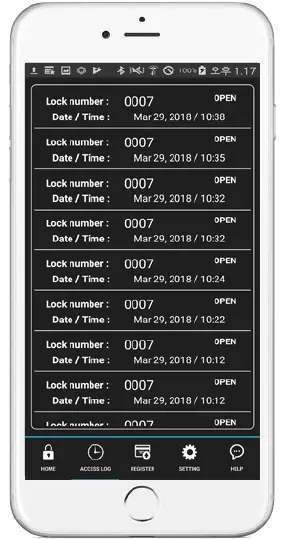 | This is display for log history. All history of their logs will be displayed, it’s so, the guest shouldn’t require to visit front desk for ask their log history. |
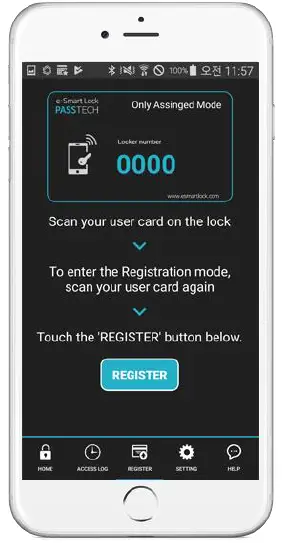 | This is for register the lock on mobile. |
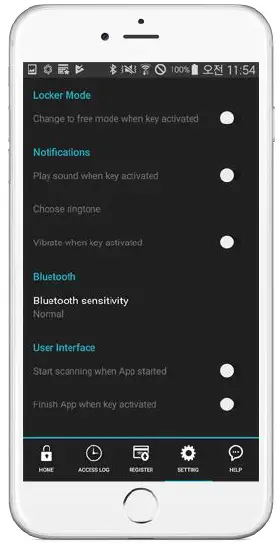 | This is display for setting mobile option such as sound on/off, vibration on/off and Bluetooth sensitivity, etc. |
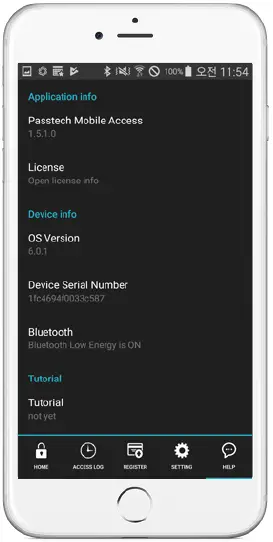 | This is application information display. |
Lock Operation
HP100, H P 200 , HP200E can be accessed with both RF tags and BL E Mobile .
Lock Installation
Dimensions
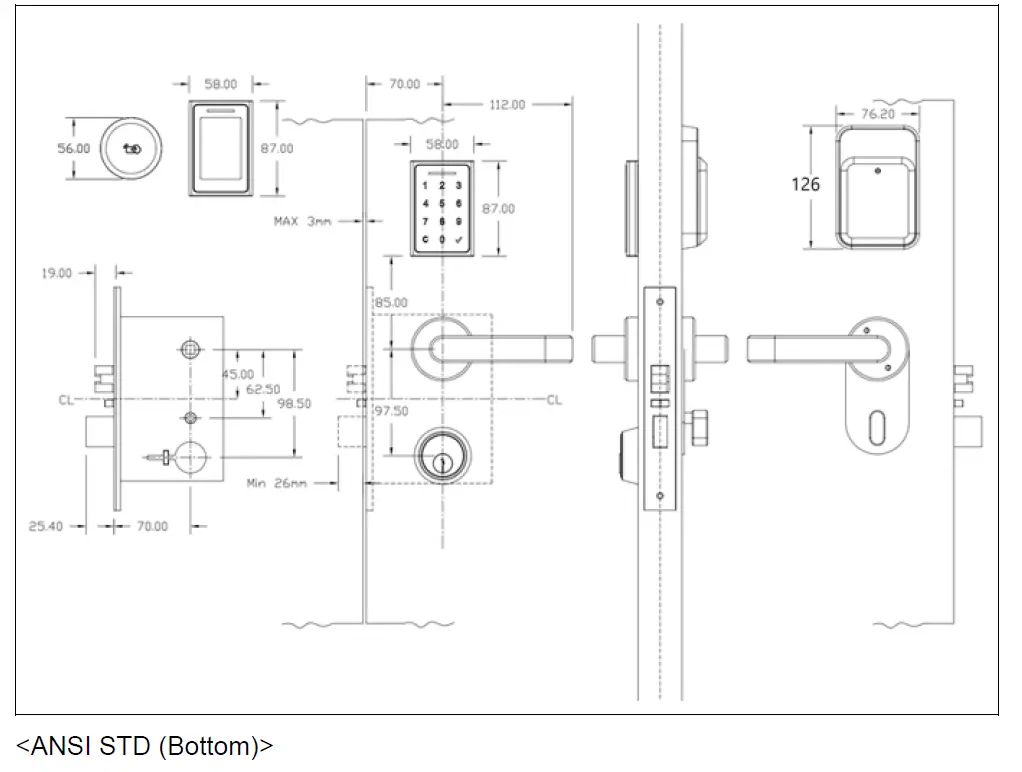
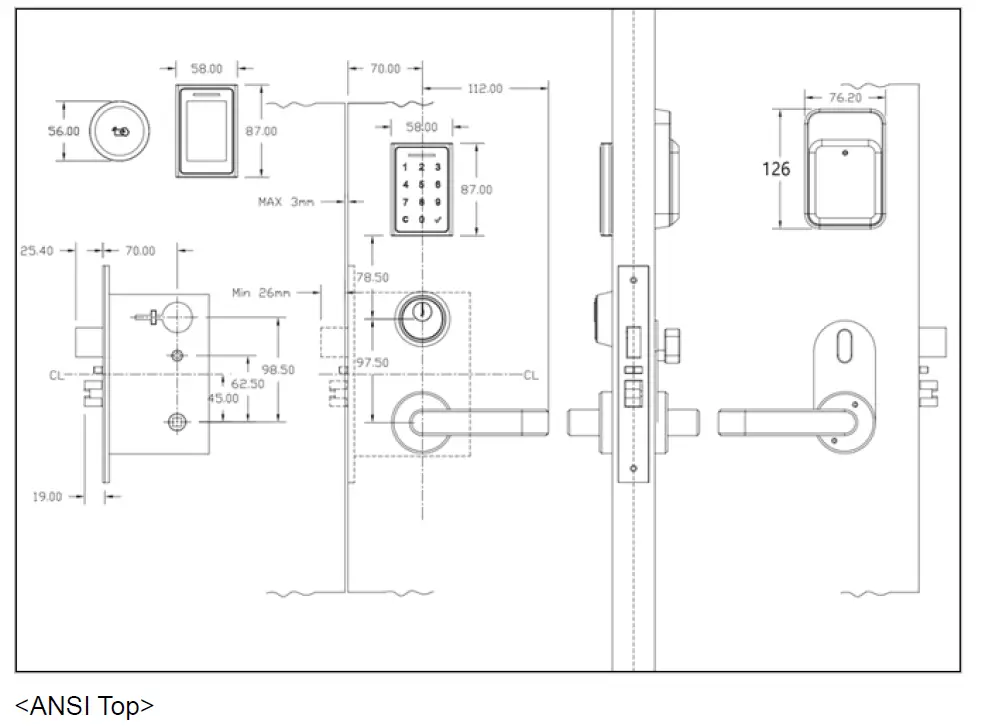
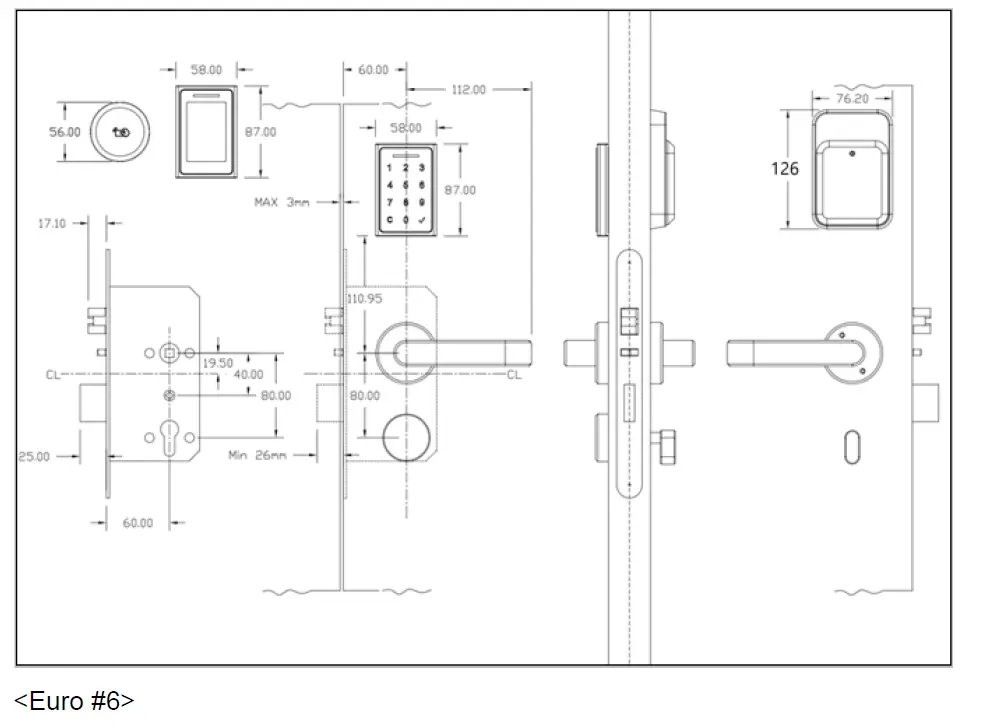
Handles
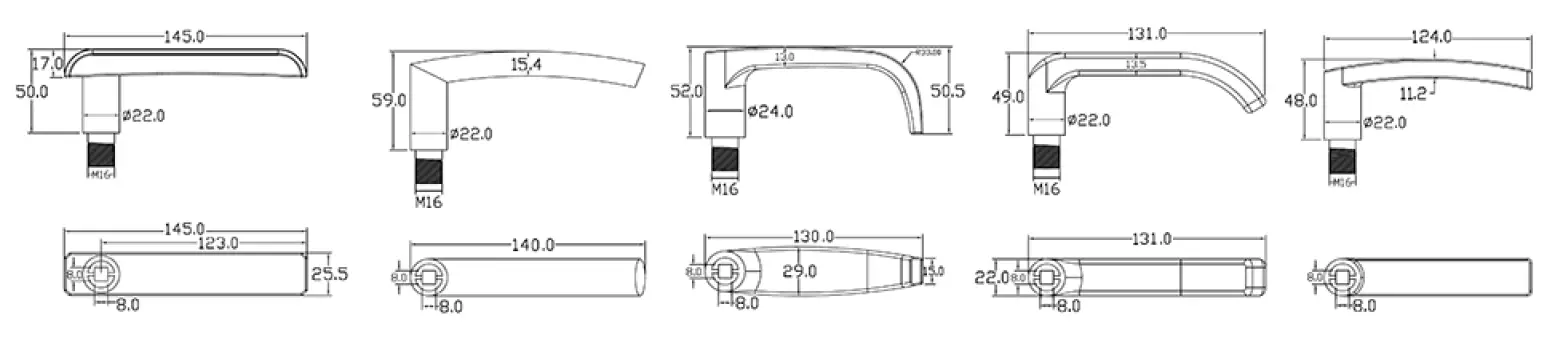
Installation
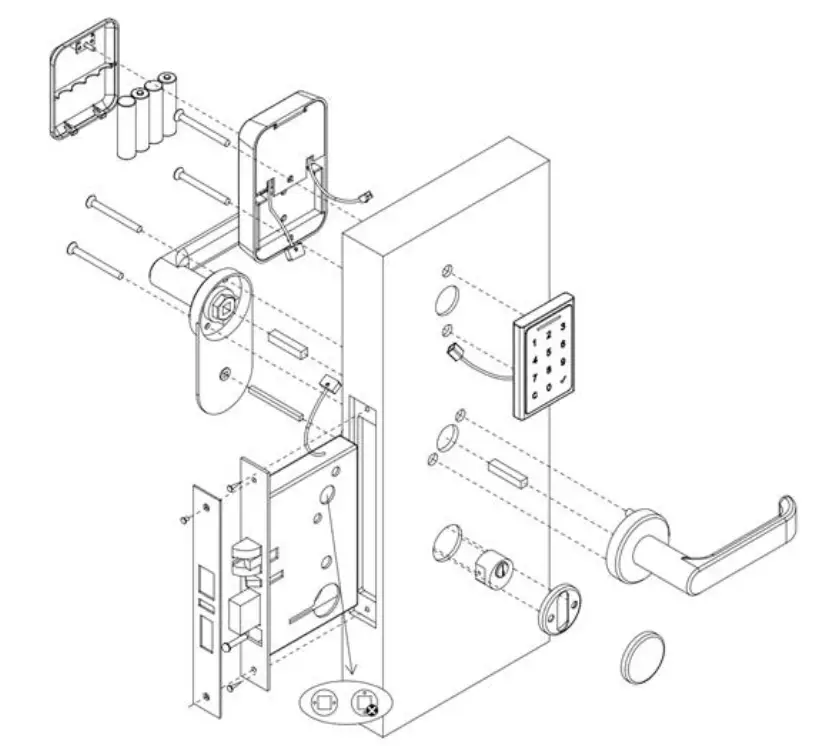
Recommended installation is executed by installation experts.
Lock Setting (LIS) card
A screen for issuing a Setup card for setting installation information in each door lock after the locks are installed.
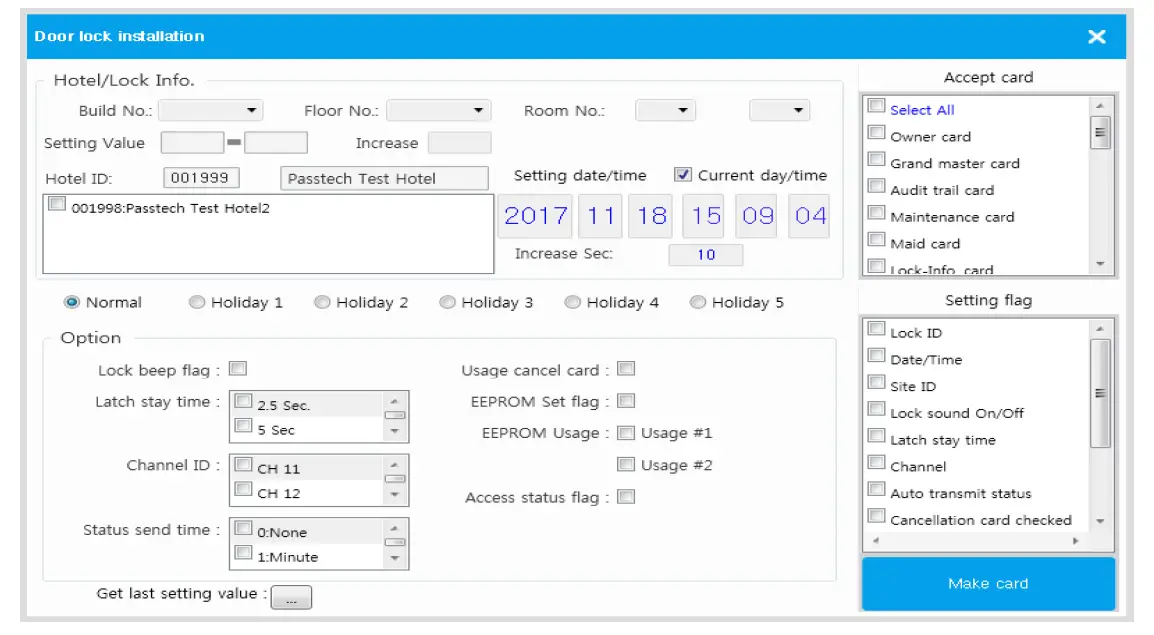
Main Item Description
| Group | Item | Description |
| Hotel/Lock Info. | Build No. | Building No.(1~99) ※ Applicable only if you select the corresponding letter in the Combo Box. |
| Floor No. | Floor No. ※ Applicable only if you select the corresponding letter in the Combo Box. | |
| Room No. | Room No. (From ~ To) ※ Applicable only if you select the corresponding letter in the Combo Box. | |
| Setting value | From/To Value of selected |
| Build/Floor/Room | ||
| Increase | Number of selected rooms | |
| Hotel ID | – Shows the Hotel ID registered in Account’s Hotel info. – If the Issuer Key is same and the Affiliate ID is wrong, you can select whether to accept it from the Listbox. |
| Group | Item | Description |
| Hotel/Lock Info. | Setting date/time | – If you select Current day/time, it is set to the current time of the computer. – If not selected, it is set to the time specified by the user. |
| Increase Sec | It sets the time to set the lock time by increasing the time by several seconds everytime Door lock is set. | |
| Time Schedule | Normal | Uses Normal Schedule of Access Time schedule set in Staff Card. |
| Holiday1/ Holiday2/ Holiday3/ Holiday4/ Holiday5 | Use the corresponding Holiday Schedule in the Access Time schedule set in the Staff Card. | |
| Option | Lock beep flag | Use Buzzer on Door |
| Latch stay time | The Latch time of staying (sec) after opening. | |
| Status send time | The time(minute) for transmitting the current state of the Door lock from time to time. | |
| Usage cancel card | Use of Cancel card(for Checking) | |
| EEPROM set flag | Not currently enabled.(Future) | |
| EEPROM Usage | Usage #1/#2 (Future) | |
| Access status flag | Future |
| Accept Card | Accept card | Type of Staff card accepted from Door Lock |
| Setting flag | Setting flag | Whether to apply what you checked in the Option to the Door lock. |
Open in Emergency
In case of Emergency such a fire or any types of disasters that require urgently evacuate the building; there are two ways to o pen all locks
Emergency Open (Client Software)
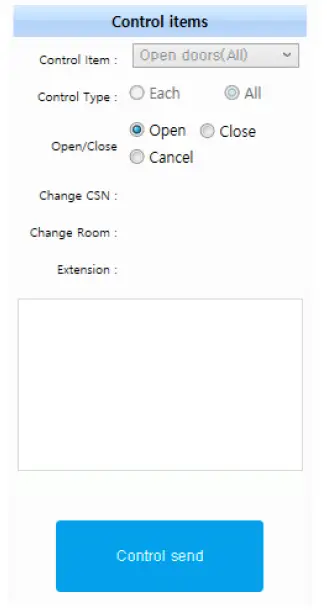
- From C lient Software, in right hand corner, you may see as above picture.
- Click “Open” and “Control send” butt on, then it will send the command AP(Access Point) and when you touch the lock to wake it up , then the lock will be open.
Emergency Card
Emergency card is a card with unlimited access, which means you have unlimited access to all the doors of the hotel. If you lose the card, y ou mus t immediately register
the BL so that it cannot be used.
Note that an Emergency card must be issued at installatio n time, but you may issue an emergency card later if necessary.
It is important to keep Emergency card in a safe place when not in use. The Emergency card is opened at the time of usage and remains open until the card is used to close the door In other words, it performs the Toggle function.
If the door is open, it can also be closed by the close door command from the system.
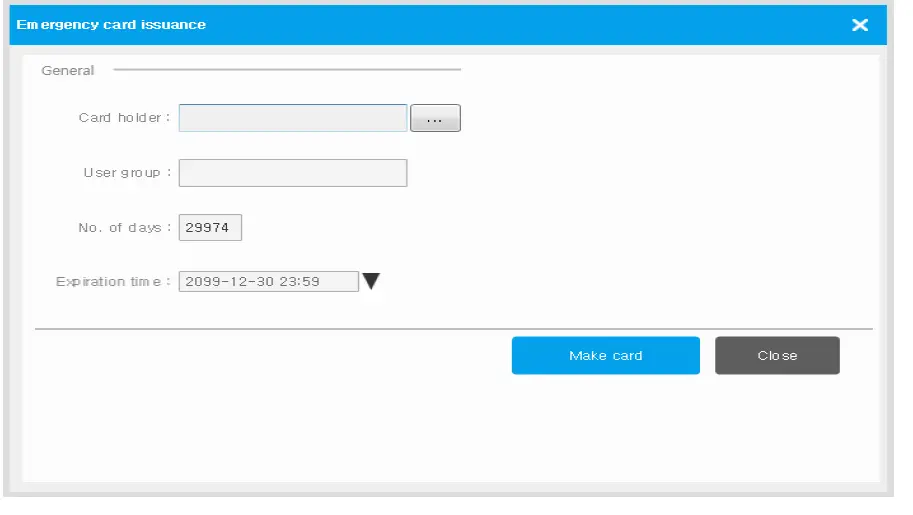
Main Item Description
| Group | Item | Description |
| General | Card Holder | Guest Card Holder Staff Name |
| User group | Card type by Staff | |
| No. of days | Date of use | |
| Expiration time | Expiration date and time |
After selecting the card holder, you can place the card to be issued o n the DE 620
Low Battery warning and battery change
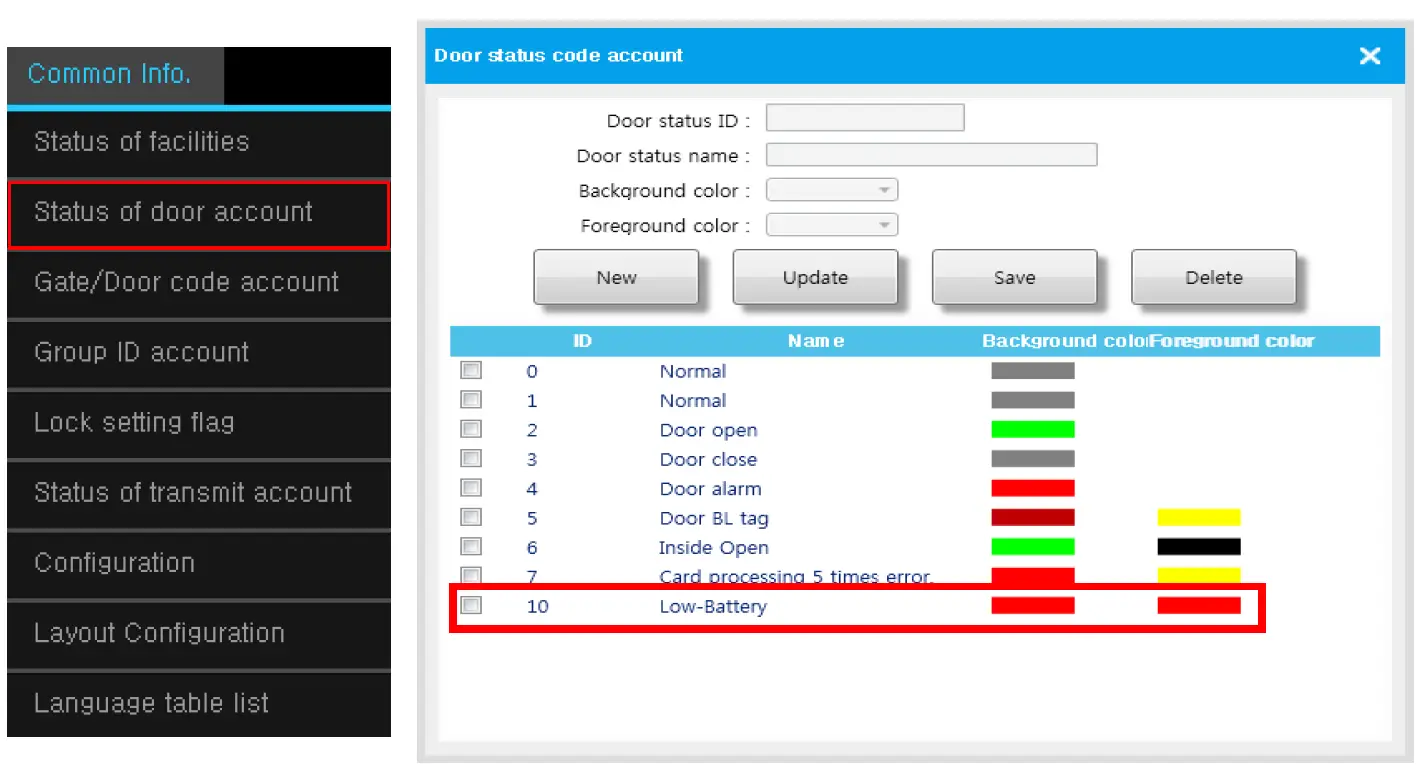
This is the place to manage the door status code and it is mainly used to display the status information about the open/close of the Door Symbol.
When you’ve set your account as above, the Low Battery alarm will display.
Recommended to change the battery in case of display “Low Battery”.
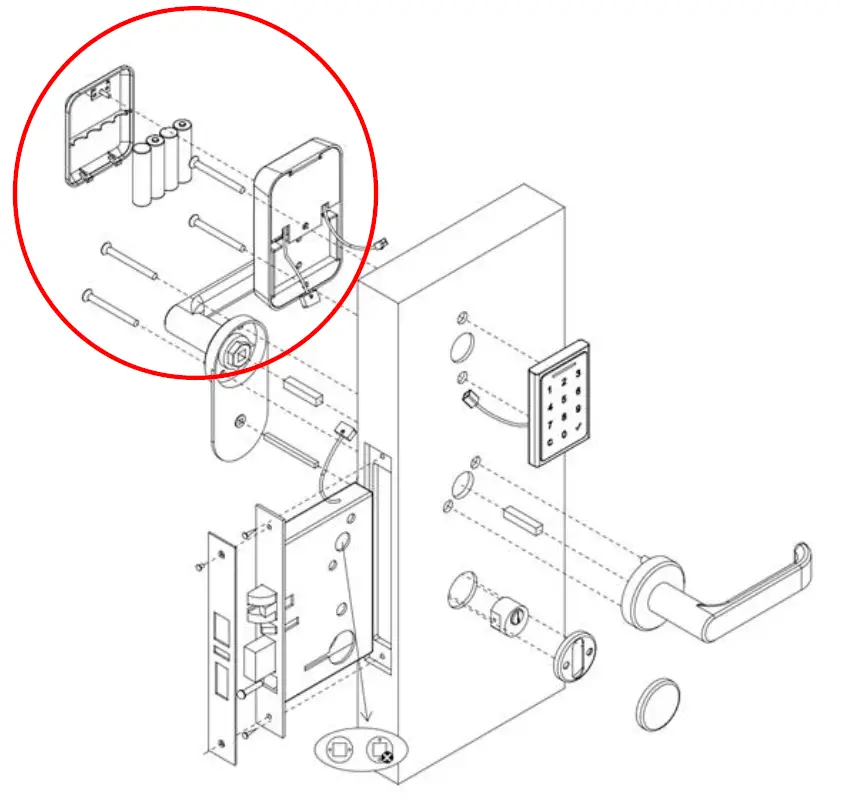
In Case of battery is off with lock closed status, use mechanical key to open the door and change the battery
CAUTION
RISK OF EXPLOSION IF BATTERY IS REPLACED BY AN INC
ORRECT TYPE. DISPOSE OF USED BATTERIES ACCORDING TO THE INSTRUCTIONS
Specification
| Item | Spec |
| Material | Stainless Steel |
| Communication | 2.4Ghz Wireless(ONLINE COMUNICATION) BLE(MOBILE KEY) |
| Security | AES128 |
| Door open | Touch-key (PIN, HP200 Only), Mobile Key, RFID CARD, Wireless control |
| Power Supply | AA*4 6V DC(Alkaline) Battery |
| RFID | Mifare Classic & Desfire at default, ISO14443 Type A |
| Indicator | Buzzer, Red/Green LED, E-PAPER (HP200E only) |
| Dimension | HP100 : 56mm*56mm HP200, HP200E : 58mm * 87mm * 11.5mm (W*H*D) |
| Operation TEMP | 0 °C to 50 °C |
| Battery life | 1.5year(online) 2year(stand alone) |
| Certification | CE, FCC |
Indication Instruction
- Guest Card Open One time Beep sound / Green LED 0.5sec
- Successful programming : A melody ( Do,Mi,So,Fa) / Green LED 0.5sec
- Indicate for mistake Three times Beep sound / Red LED three times.
- Low voltage : Beep 3 times
ANNEX A Beep & LED Table & Trouble Shooting
| No | Lock Status | Sound | LED | Additional Info. |
| 1 | Battery Change | So,La,Ti,Do,La | – | |
| 2 | Succeed Key Card | Do,Mi,So,Fa | Green 0.5sec | |
| 3 | Succeed Setup Card programming | Do,Mi,So,Fa | Green 0.5sec | |
| 4 | Succeed registration Smartphone on the Hotel Lock | Do,Mi,So,Fa | Green 0.5sec | |
| 5 | Succeed Clearance Card | Do,Mi,So,Fa | Green 0.5sec | |
| 6 | Succeed Debug Card | Do,Mi,So,Fa | Green 0.5sec | |
| 7 | Succeed Staff Card | Do,Mi,So,Fa | Green 0.5sec | |
| 8 | Low Battery Detect | Beep 3 times | – | |
| 9 | Succeed Emergency Card | Do,Mi,So,Fa | Green 0.5sec | |
| 10 | Succeed Maintenance Card | Do,Mi,So,Fa | Green 0.5sec | |
| 11 | Succeed Cancel Card | Do,Mi,So,Fa | Green 0.5sec | |
| 12 | Succeed Blocking Card | Do,Mi,So,Fa | Green 0.5sec | |
| 13 | Succeed Lock Info Card | Do,Mi,So,Fa | Green 0.5sec | Total 2,000 events |
| 14 | Succeed Privacy Card | Do,Mi,So,Fa | Green 0.5sec | |
| 15 | Over events of memory from Lock Info Card | Beep 4 times | – | |
| 16 | Succeed collecting 100 events Audit Trail | Beep 1 time |
– | Total capability is 2,000 events, Total 20 times Beep sound. |
| No | Lock Status | Sound | LED | Additional Info. |
| 17 | Succeed collecting all, Audit Trail Card | Do,Mi,So,Fa | – | |
| 18 | Open the door using Guest Card | Beep 1 time | Green 0.5sec | |
| 19 | RTC Date Time setting failure | So,La,Ti,Do,La | – | |
| 20 | Automatically setting default date & time (2010.Jan.01), due to RTC error | So,La,Ti,Do,La | – | |
| 21 | Latch Open failure | Do,Re 3 times | – | |
| 22 | Latch Open failure and retrial is failed again | Do,Re 3 times | – | |
| 23 | Sensing Latch Push from opening inside of the door | – | Green 0.5sec | |
| 24 | Sensing forcibly Open | Do,Re 1.5sec | – | |
| 25 | State of Read Error any cards | Beep 3 times | NG 3회 | |
| 26 | State of Write Error any cards | |||
| 27 | State of any other error of all cards | |||
| 28 | State of valid expired for all cards | |||
| 29 | Mismatched Guest Card room No. | |||
| 30 | Unauthorized/inaccessible Staff Card’s room No. | |||
| 31 | Unauthorized/inaccessible Staff Card’s where the lock has been set for Privacy | |||
| 32 | Undefined type of card reading error | |||
| 33 | In case of scanning blocked card | |||
| 34 | Deadbolt Rejection error | |||
| 35 | Multiple trial “One Time Card” | |||
| 36 | State of registration for smartphone. (Open from inside and scan Guest card two times) | Beep 2 times | Repeat “Green”/”Red | |
| 37 | Connect Front and Body of the lock | Beep 2 times | – |
Regulatory Statement
The revised User Manual does not contain the FCC required warning statements.
Rule
Part 15.19(a)(3): This device complies with part 15 of the FCC Rules. Operation is subject to the following two conditions: (1) This device may not cause harmful interference,
and (2) this device must accept any interference received, including interferenc e that may cause undesired operation.
Rule Part 15.21: The users manual or instruction manual for an intentional or unintentional radiator shall caution the user that changes o r modifications not expressly approved by the party responsible f or compliance could void the user’s authority to operate the equipment.
Note: This equipment has been tested and found to comply with the limits for a Class B digital
NOTE: This equipment h as been tested and found to comply with the limits for a Cl ass B digital dev ice, pursuant to part 15 of the FCC Rules. These limits are designed to provide reasonable protection against harmful interference in a residential installation. This equipment generates, uses and can radiate radio frequency energy and, if not installed and used in accordance with the instructions, may cause harmful interference to radio communications. However, there is no guarantee that interference will not occur in a particular installation. If this equipment does cause harmful interference to radio or television reception, which can be determined by turning the equipment off and on, the
user is encouraged to try to correct the interference by one or more of the following measures:
- Reorient or relocate the receiving antenna.
- Increase the separation between the equipment and receiver.
- Connect the equipment into an outlet on a circuit different from that to which the receiver is connected.
- Consult the dealer or an experienced radio/TV technician for help
Responsible Party
Cardcom
Address: 1301 S. Beach Blvd. Ste
PLa Habra, CA 90631
Tel.: 562943 6300
Email: [email protected]