EARISE
EARISE T26 Pro Karaoke Machine
Introduction
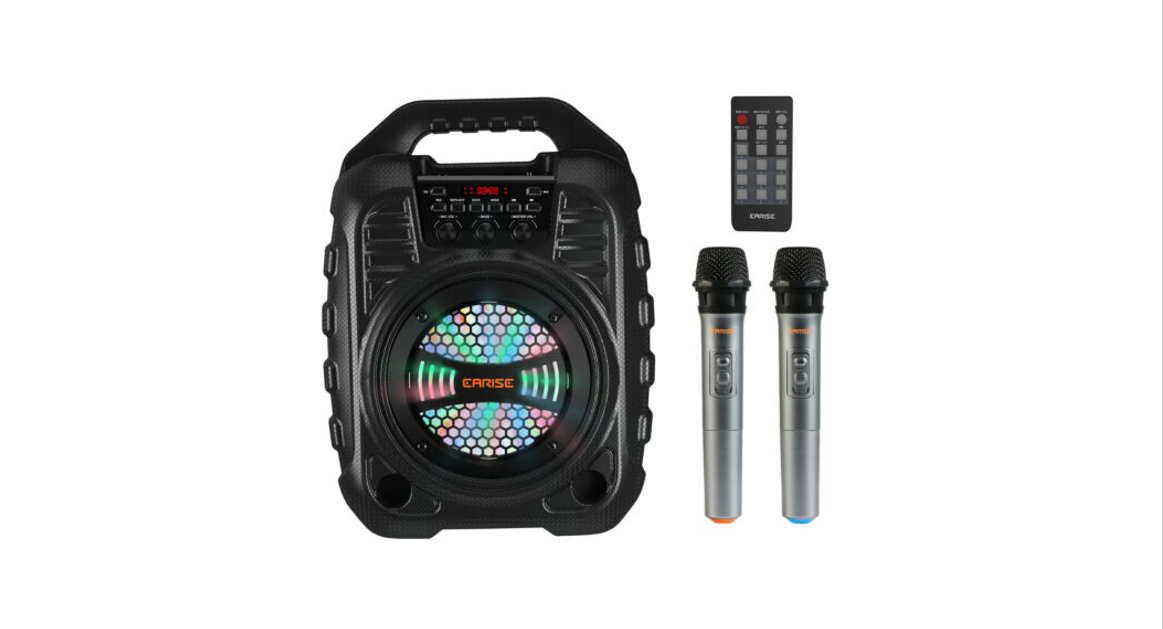
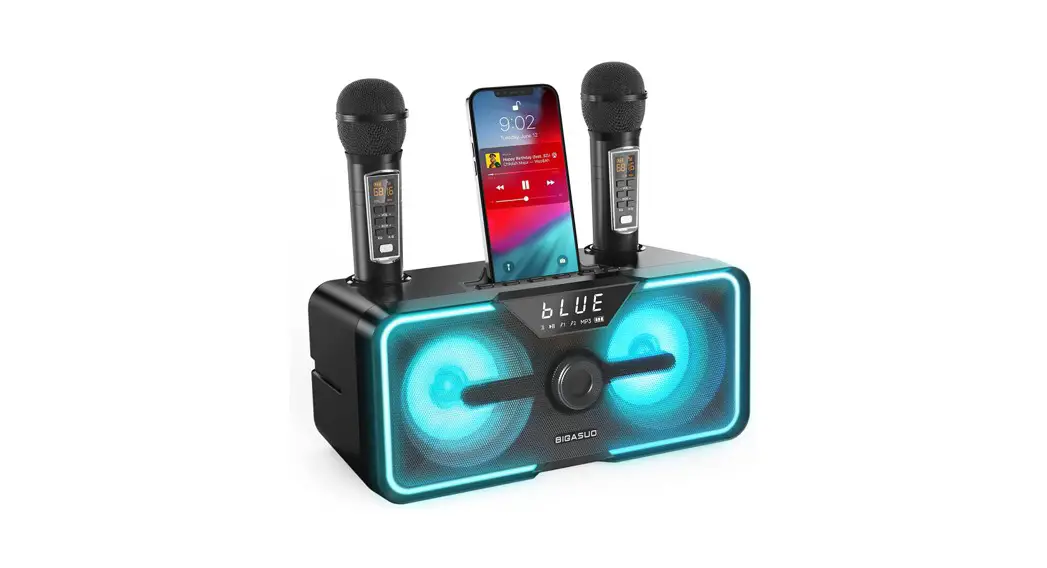
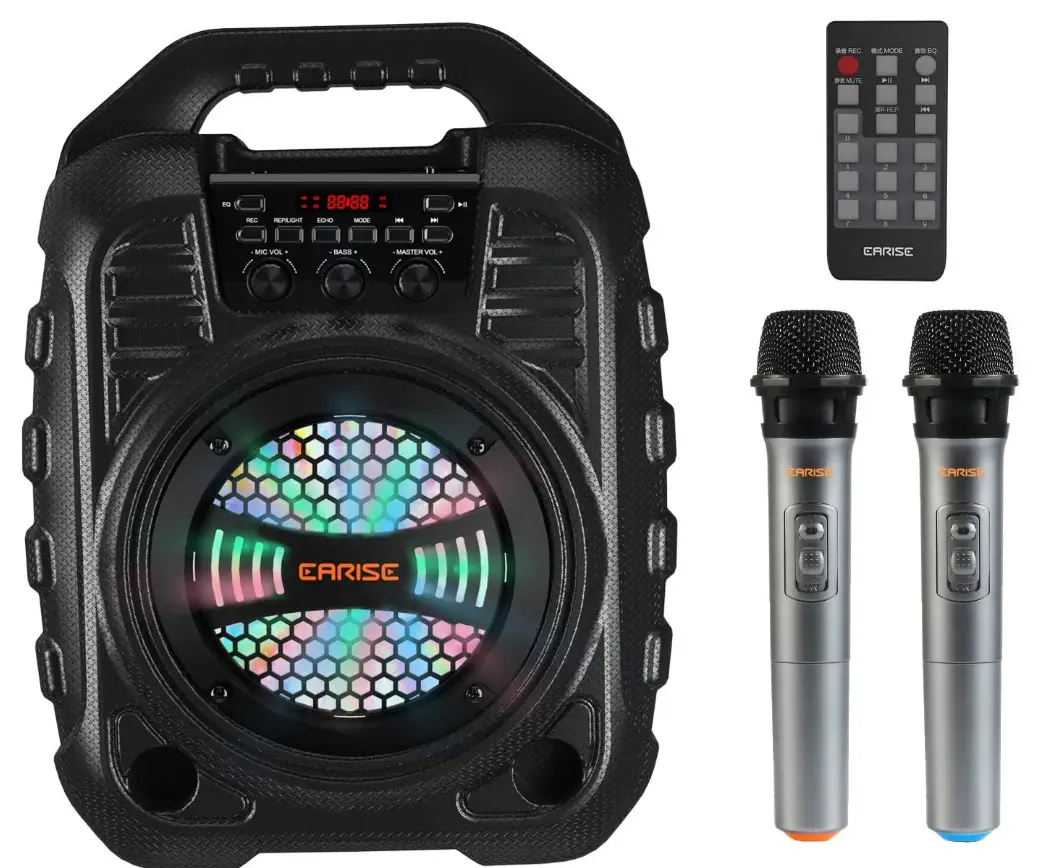
An improved version of T26 is T26 Pro. Two wireless microphones are included with this karaoke system so you may enjoy singing with loved ones or friends. In addition to Bluetooth connectivity, it has AUX-in and TF/USB input. This surprisingly small and portable PA system is suitable for people of all ages and events.
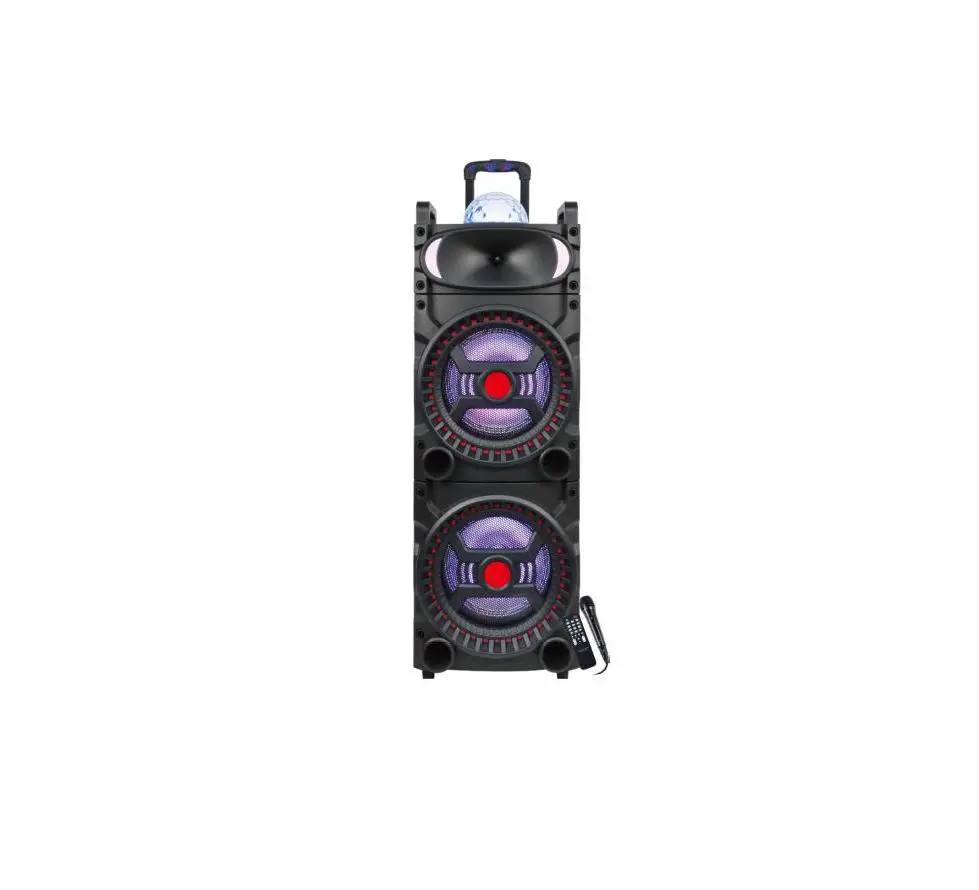
LED lights in various colors are present on this karaoke speaker. There are 7 optional modes. The flashing light effects add a whole new level of entertainment to your music and guarantee a fun stage or party environment. The lights will flash in time with the music’s beat.
WARNING
- Do not place in a humid environment or expose to rain. Avoid severe collisions.
- Keep the product away from high temperature and open flame environments to prevent dangers such as battery explosion.
- Do not open the cabinet of the product, or it will cause machine damage and other accidents.
- For maintenance, contact the service station or professional personnel if needed.
- Can only be replaced with the same or equivalent type of battery
- In order to avoid charging issues, the product must be charged with the original USB cable. Accidents and machine damage caused by using other charging cable will not covered by warranty.
DISPLAY SCREEN
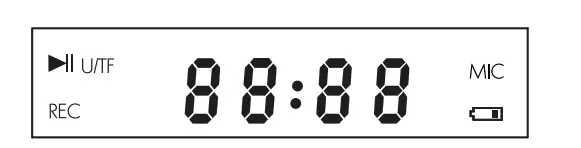
- With a USB flash drive or TF card inserted, this symbol will light up when music is paused. As for AUX in or FM radio mode, this symbol will light up when music is muted.
- [U/TF]: When a USB flash drive or TF card inserted, this symbol will light up
- [MIC]: When the microphone is in use, this symbol will light up.
- [ 88:88 ]: When using the AUX function, “LINE IN” will be displayed on the screen; When in the FM radio mode, it will display the number of current channel; When playing music through a USB flash drive or TF card, it will display the song playing time.
- Battery This will light up when there’s only 20% power left. The volume will automatically decrease to about 70%.
- [REC]: This symbol will light up during recording.
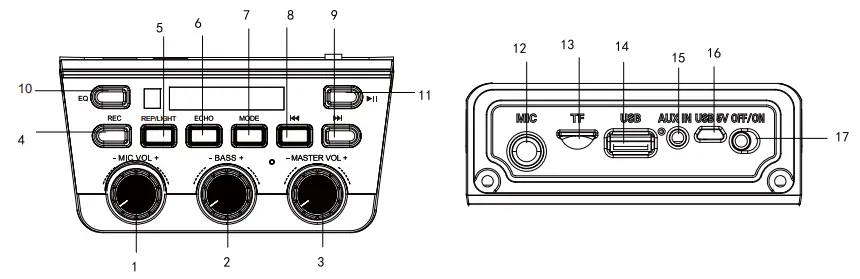
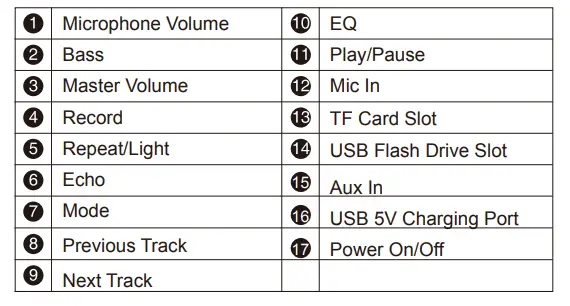
THE OPERATION PANEL
BLUETOOTH
- Power on the speaker. The default mode is Bluetooth. The screen display shows “BLUE” and it will flash.
- Turn on the device’s Bluetooth, search for “EARISE T26 Pro”, and click to pair.
- A voice prompt “Bluetooth connected” to be heard indicates a successful connection. The display “BLUE” stops flashing.
MICROPHONE
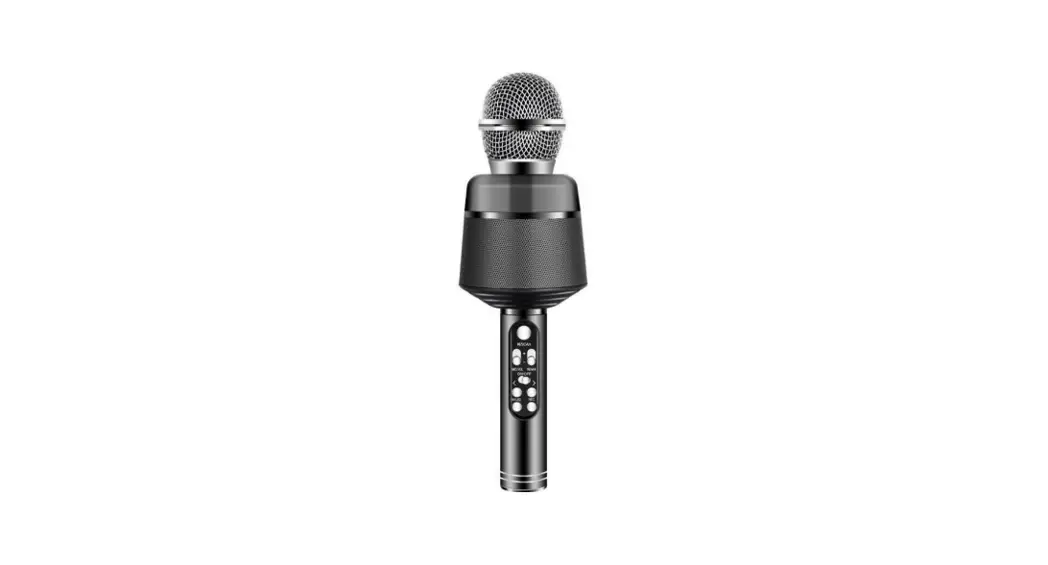
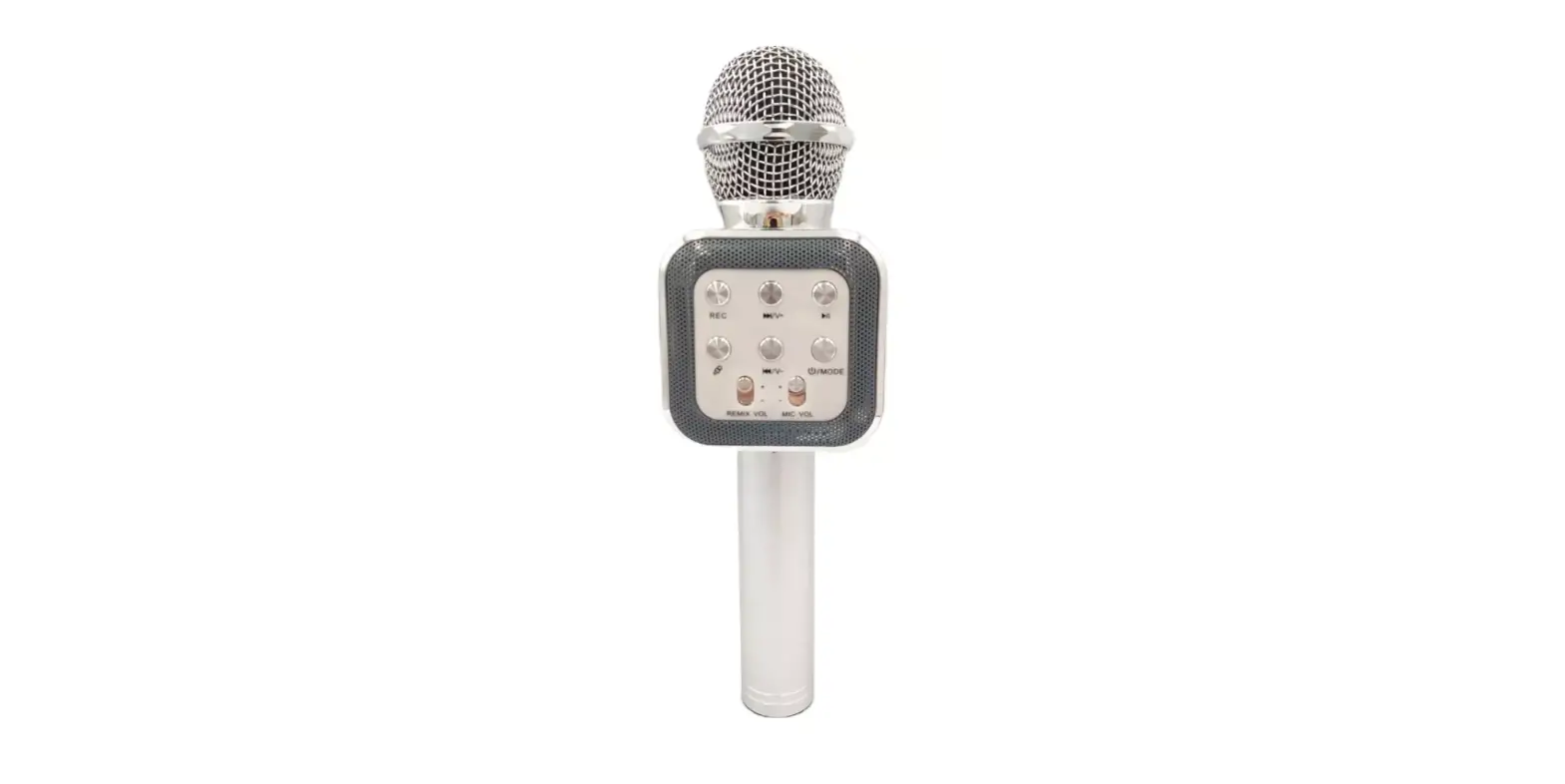
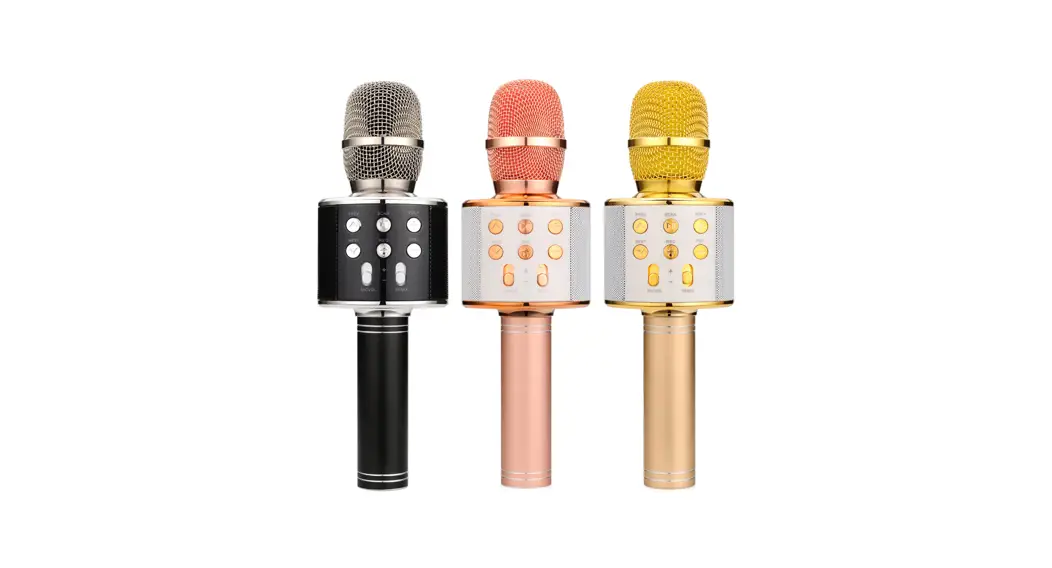
- The package includes two wireless microphones.
- Each microphone needs 2pcs AA batteries, which are not included.
- After installing the batteries, push the power switch to the top side to turn on the microphone, the screen display shows “MIC” at the same time.
- When the power switch is in the middle, it means the microphone is standby.
- Please keep the microphones 1 meters far away from the speaker, or it will cause a shrill noise.
DISCO LIGHT
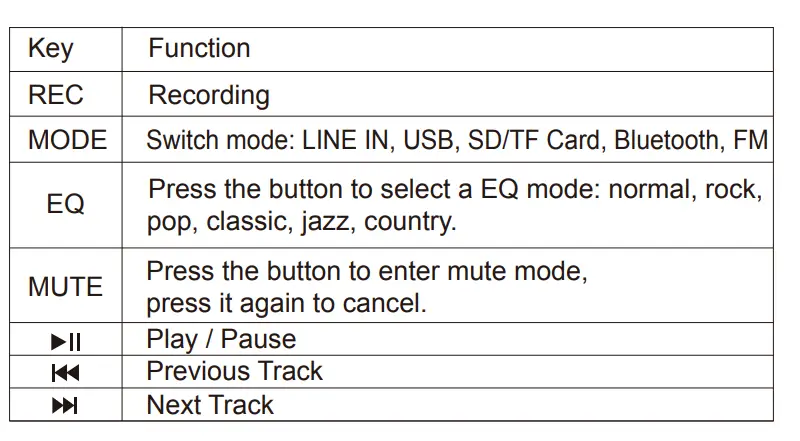
- Press and hold the “REP/Light” button to choose a light mode: multi-color mode 1 (default, cold light), multi-color mode 2 (warm light), fast flashing in several colors, and alternating single-color and two-color flashing. The disco light will flash according to the music.
- Press the “REP/Light” button twice to turn off the disco light.
- Press the “REP/Light” button twice again to turn on the disco light.
EQ
- EQ function only works for USB / TF mode.
- Press the “EQ” button to select a EQ mode.
- There are 5 EQ modes: normal, rock, pop, classic, jazz, country.
FM RADIO
- Press the “MODE” button to switch to FM radio mode
- Press and hold the Next” button to automatically search for FM stations. The station will be saved automatically, the display screen shows “P01”, “P02”, etc.
- When searching for stations, you can stop searching by Stop pressing the
- After searching, press “the button to select a saved station.
- If you are listening to a saved station “P05″ in which FM range is 92.0 MHz, press and hold ” button to searching stations from 92.0MHz to 108.0MHz, and the found station will be saved automatically as “P06″; press and hold ” button to searching stations from 87.5MHz to 92.0 MHz, and the found station will be saved automatically as “P04”
- The FM range is 87.5MHz-108.0MHz
- It is suggested to search for radio stations automatically the first time you use it.
AUX IN
- The speaker has a 3.5 mm AUX jack for connecting non-Bluetooth devices.
- One end of the cable is plugged into the AUX jack, and the other end is connected to the audio output port of the device, such as a computer, mobile phone and amplifier
- The speaker will automatically switch to AUX IN mode. Alternatively, you can switch to the AUX IN mode by pressing the “MODE” button.
MIC IN
- The speaker has a “MIC IN” jack (6mm AUX jack) for a third microphone.
- If connected to a wired microphone, simply connect via the “MIC IN” jack.
- If connected to a wireless microphone, simply connect the wireless receiver via the “MIC IN” jack.
- Please note that the frequency of the wireless microphone cannot be the same as the original microphones’, otherwise it will cause interference.
USB
- Press the “MODE” button to switch to USB / TF mode.
- Insert a USB flash drive and the speaker will automatically start playing the existing music from the first song. The display shows “U / TF” in the upper left corner.
- The song file format must be MP3.
- The USB flash drive must have a capacity of 8G to 32G.
- The USB flash drive must be USB 2.0 and the file system must be FAT32.
- If the USB flash drive is formatted and the file system is not FAT32, it will not work properly.
TF CARD
- Insert the TF card and the speaker will automatically start playing the existing music from the first song. The display shows “U / TF” in the upper left corner.
- The song file format must be MP3.
- The capacity of the TF card must be 8G to 32G.
- The file system of the TF card must be FAT32.
ECHO
- Press the “ECHO” button to select the intensity of the reverb, there are 4 levels: E00, E01, E02, E03. E00 is off, and E03 is the strongest.
- Please note that the reverb only works for the microphone, it doesn’t work on the background music.
RECORD
- The recording function only work when a TF card or USB flash drive inserted. 1. Insert the TF card or USB flash drive, the speaker will automatically switch to USB / TF mode, and “U / TF” will be displayed in the upper left corner of the display screen.
- Before recording, make sure that you have sufficient recording storage space.
- Make sure there is at least one song in the TF card or USB flash drive, otherwise the recording function will not work.
- Please turn on the microphone before press the “REC” button, otherwise the recording function will not work.
- Press and hold the “REC” button to start recording.
- Press the “REC” button to pause or resume recording.
- Press and hold the “REC” button again to finish recording.
- After recording, press the “REC” button to listen to the recording file just recorded.
- Deleting a recording file: When playing a recording file, press and hold the “MODE” button to delete the current recording file.
- The recording file format is MP3.
- Please note that it cannot play music in recording mode.
REPEAT
- The repeat function only work when a TF card or USB flash drive inserted.
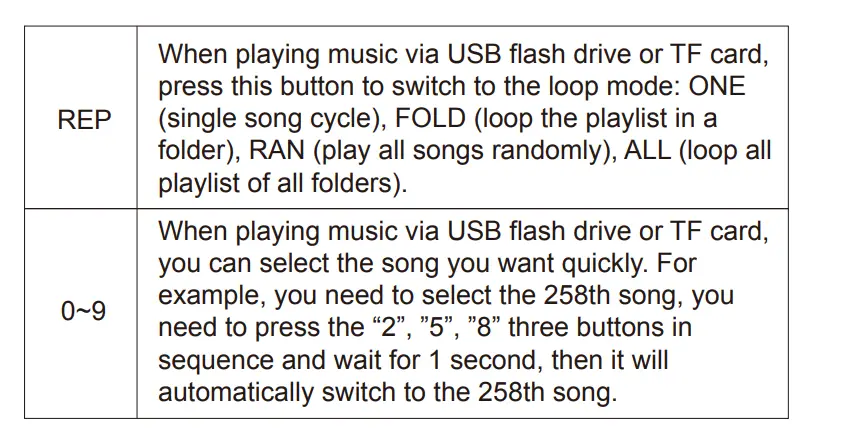
- Press the “REP/Light” button to select a loop mode.
- There are 4 modes: ONE (single song cycle), FOLD (loop the playlist in a folder), RAN (play all songs randomly), ALL (loop all playlist of all folders).
LOW BATTERY ALERT
- When there’s only 20% power left, “Battery ” will flash on the display screen and the volume will automatically decrease to about 70%,
- Use the included USB cable to charge the speaker. One end of the USB cable is connected to the USB 5V charging port on the speaker and the other end is connected to the power outlet. (The adapter is not included)
- During charging, the charging indicator lights up and turns off when fully charged.
- When using for the first time, the charging time should not be less than 12 hours.
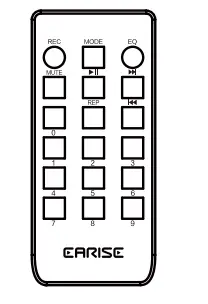
THE REMOTE CONTROL
SPECIFICATION
- Power Output: 12W R.
- Frequency: 90Hz-20KHz
- Li-ion battery: 3.7V / 4400mAh
- Drive Unit: 5.25″2Ω*1
- S/N Ratio: ≥60dB
- DC Input: USB 5V
- Power Supply: AC 100-240V
- Dimension: L282*W192*H374mm
WHAT’S IN THE BOX
- 1 x T26 Pro PA Speaker
- 2 x Wireless Microphones
- 1 x Remote Control
- 1 x USB Cable
- 1 x AUX Cable
- 1 x User Manual
WARRANTY
EARISE guarantees one and a half years warranty and 60 days hassle-free return. We provides lifetime technical support. Please reach us via [email protected].
Frequently Asked Question
Yes, two microphones can be used at the same time.
Yes, you can add a third microphone via the “MIC” jack.
Press and hold the “play/pause” button to disconnect the Bluetooth.
No
Yes, you can turn it off by pressing the “Echo” button.
You can use Apple music on your phone, and connect the machine via Bluetooth.
When the red charging indicator light goes out, it means it’s fully charged.
We have wireless microphone set. Please search EARISE W2 mircrophone.
Yes, you can play the music from your cell phone on the speaker by connecting the Bluetooth. Switch the speaker mode to Bluetooth Mode. The screen display shows “BLUE” and it will flash. Turn on your phone’s Bluetooth, search for “EARISE T26 Pro”, and click to pair. A voice prompt “Bluetooth connected” to be heard indicates a successful connection.
I have not had any problems with it. If using without the cord make sure it is charged up.
No
Yes, double press the “LIGHT” button to turn off the lights.
Not sure if I understand your question, but if you mean without any music playing and just talk on the wireless microphones, then yes. I’ve noticed if no music is playing & you’re just using the microphones, it will go into sleep mode in 15mins but I believe there’s a way to turn this setting off.