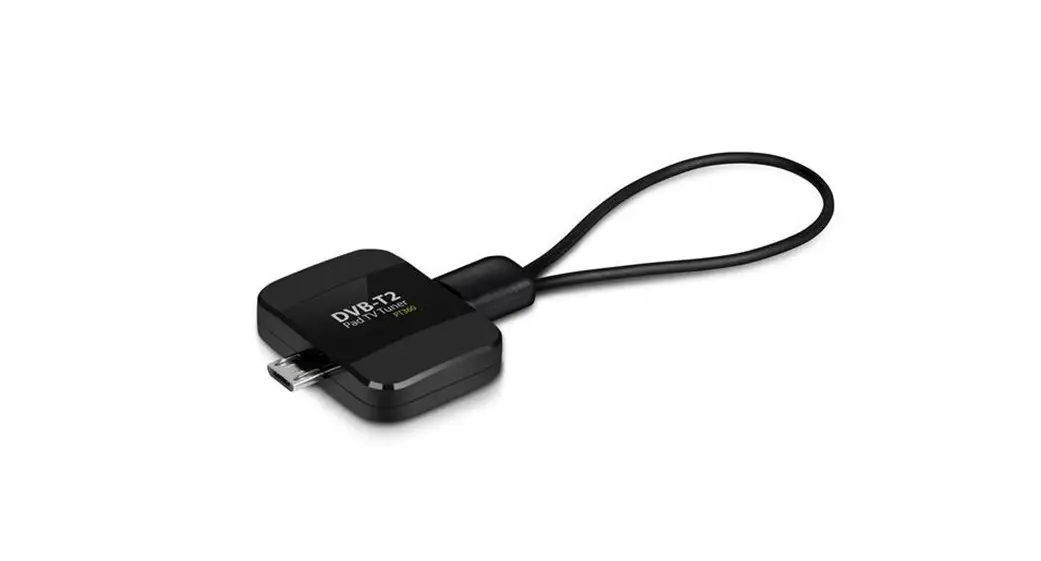

PadTV HD
User’s Guide
Installation
Step1: Download and install the Pad TV HD apk in your Android Device. you can find the apk in Google Play store by searching Pad TV HD
Note: your Android Devices system must be 4.4 or higher to use Pad TV HD apk
Step2: Plug in the dongle to your Android device mirco usb or Type-c port.A pop up message will appear saying Open Pad TV HD when this USB device is connected? Click OK to start the application. If you check the Use by default for this USB device option, next time when you plug in the PadTV dongle, the appincation will start automatically
Connection
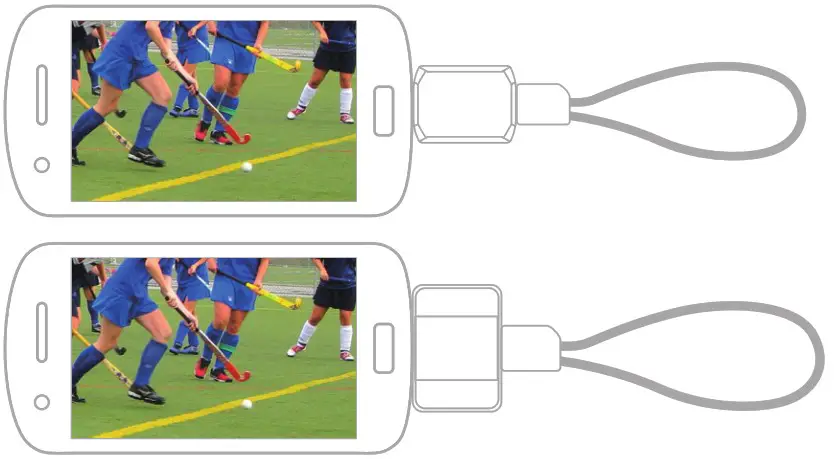
Connect PadTV to your device mirco usb or Type-c port
Note: Your Android device must has USB-OTG function
- Once PadTV HD is open, you will first need to scan for TV channels, click on menu
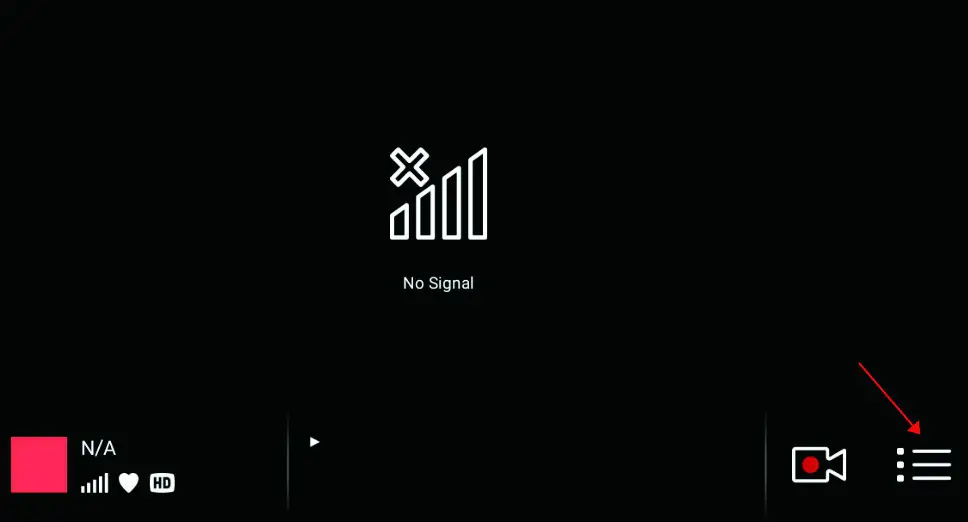
- Select Settings
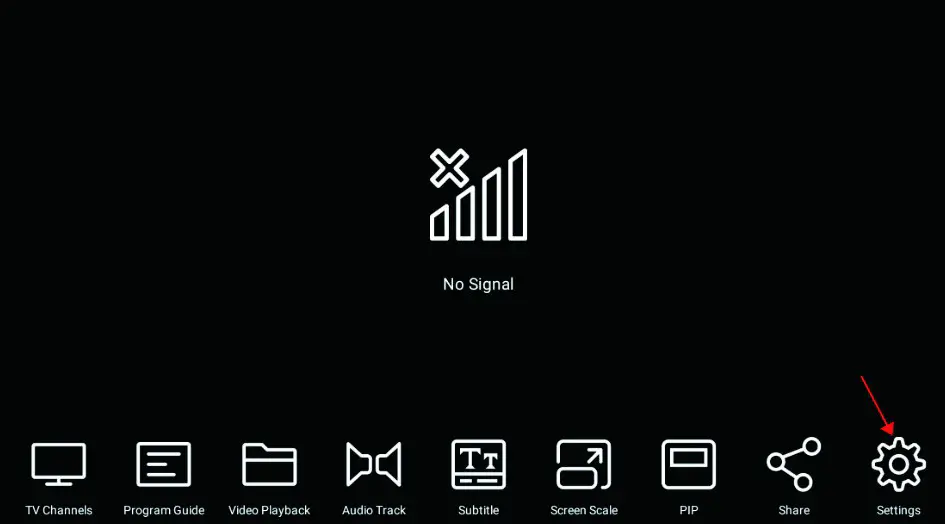
- Select Scan channel
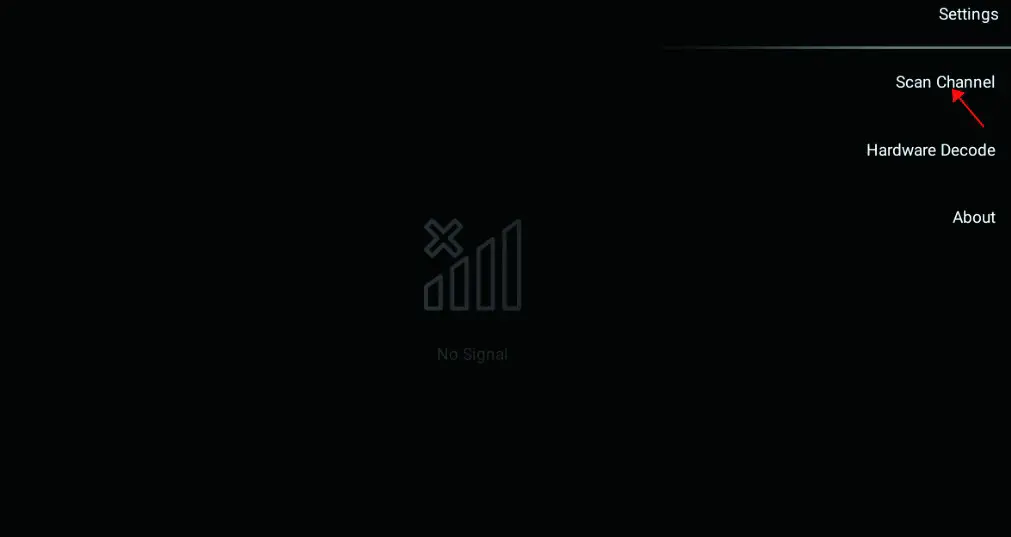
- Click on country
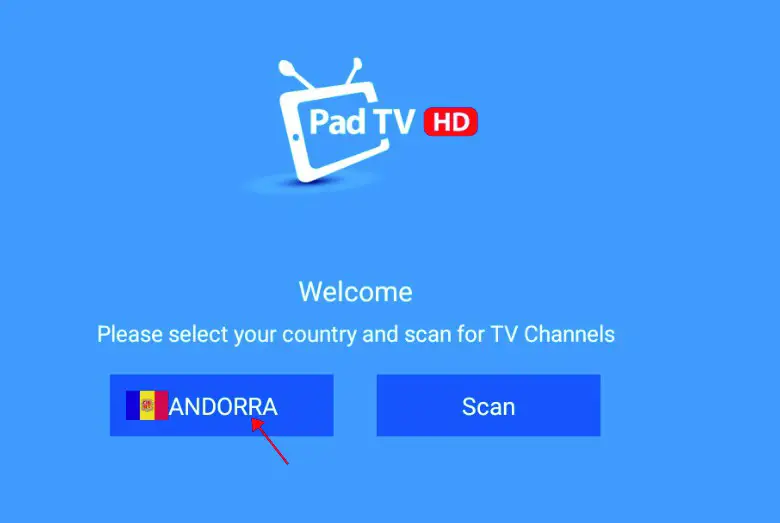
- Select Scan to start scanning for TV Channels
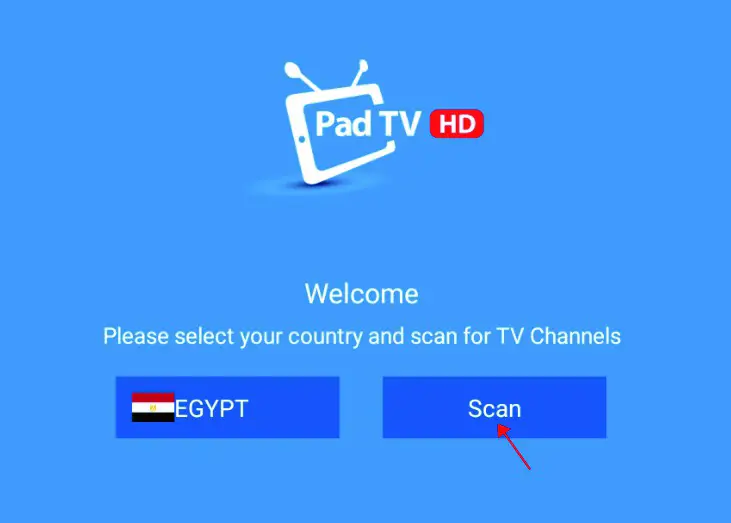
- Note: Scanning will take approx. 3 mins, the numbers of TV Channels found will be listed. Once it is finished, click Next.
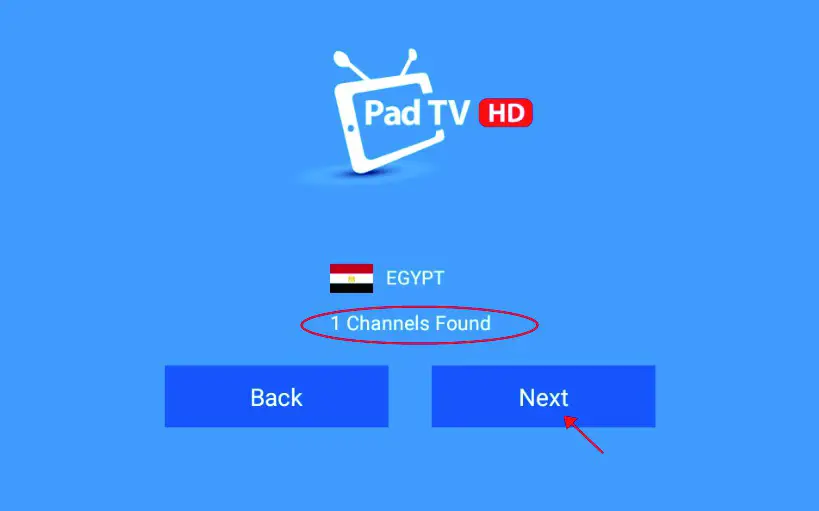 FAQ: If you select Egypt and cannot find any channel, you can switch to Taiwan and search again. To change country: Click back to go back to the previous screen and search for Taiwan from the list.
 - After scanning is finished, click on Watch TV Now.
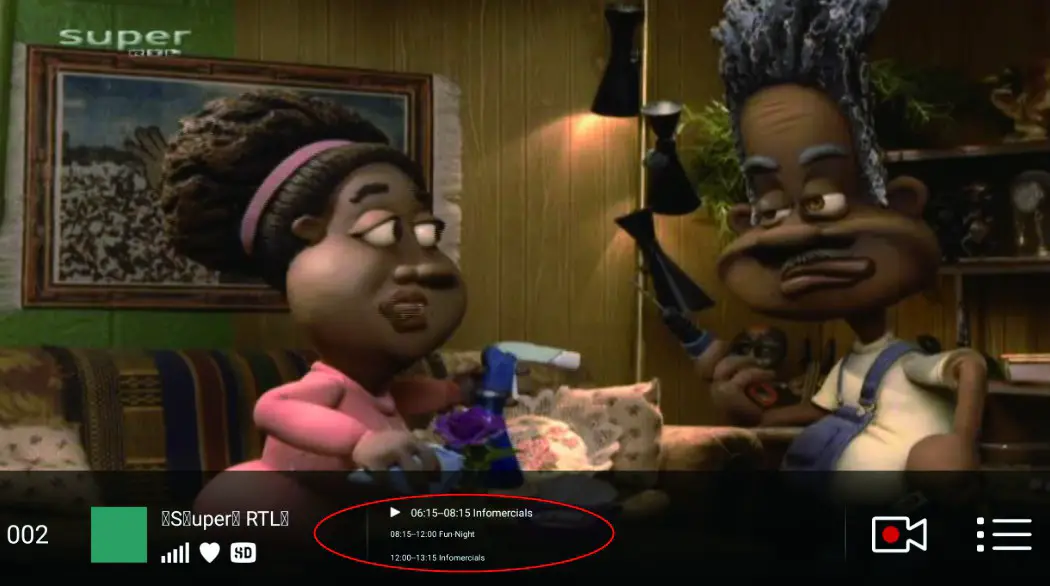
- Now you should see the TV channels, information of the current channel will be shown in the middle (circle by the red circle )
 FAQ: A. If there is 0 result for channel scan, or very few channel found(compare to other devices), or the TV channels have serious mosaic issue. These issue might due to weak signal. Suggestion is to test outdoor, or change to another better antenna. (the next pictures shows different antenna connection, please change antenna following the list order.) To change antenna: Unplug the antenna from the device, the screen will show No Signal (which is normal), then plugin the new antenna and the playback will continue.
FAQ: B. If the TV channels playback is not smooth (for example: lag, video and audio is not synchronize), and the signal is pretty good, these might be due to mobile specification/performance. You can turn on Hardware decoding to improve the performance. To turn on (or off ) Hardware decoding: first click on the screen to bring up the menu, select the menu button (last one on the right corner), then select settings and select Hardware Decode. You can turn on hardware decoding (as shown in the following picture) then click on Watch TV Now to return to watch TV. * The button on the left indicate the status of Hardware decoding, if it is “ON” then it means hardware decoding is turn on, if it is “OFF” it means hardware decoding is turn off. (Some mobile might not support Hardware Decoding, if you got a black screen when watching TV, please goto settings and turn off hardware decoding)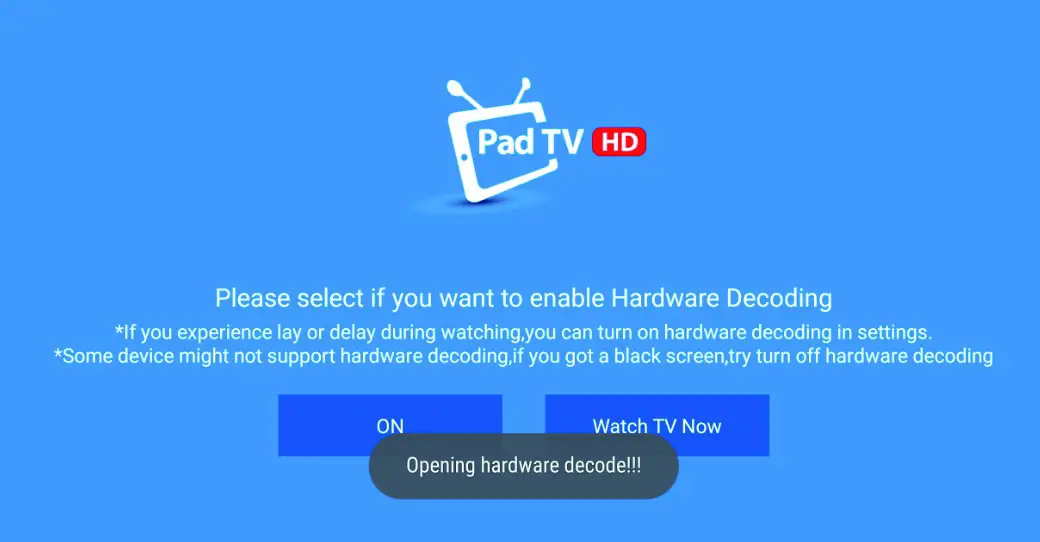
- Click on the screen will bring up the menu, you can select TV channels to bring out the TV Channel list.
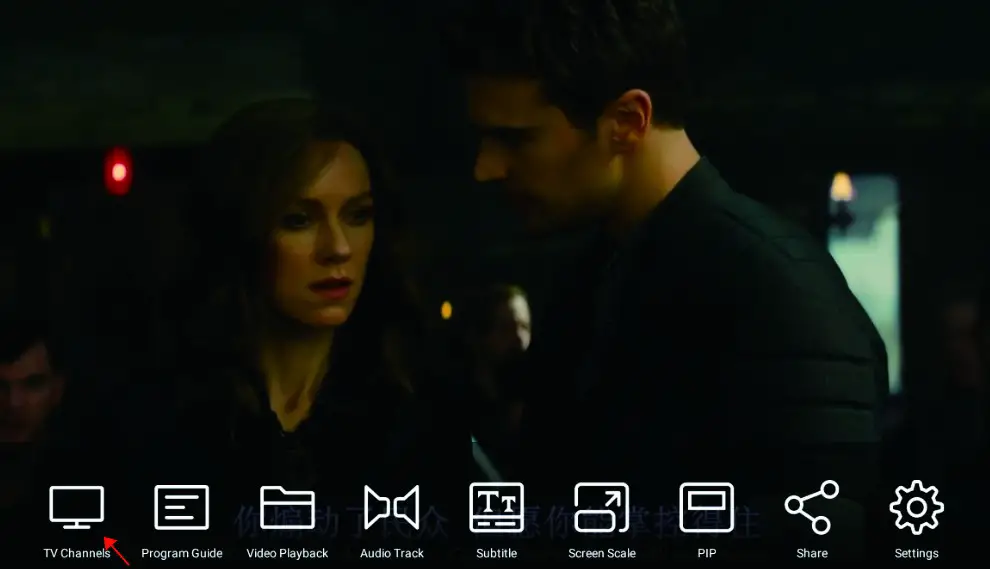
- This is the TV Channel list.
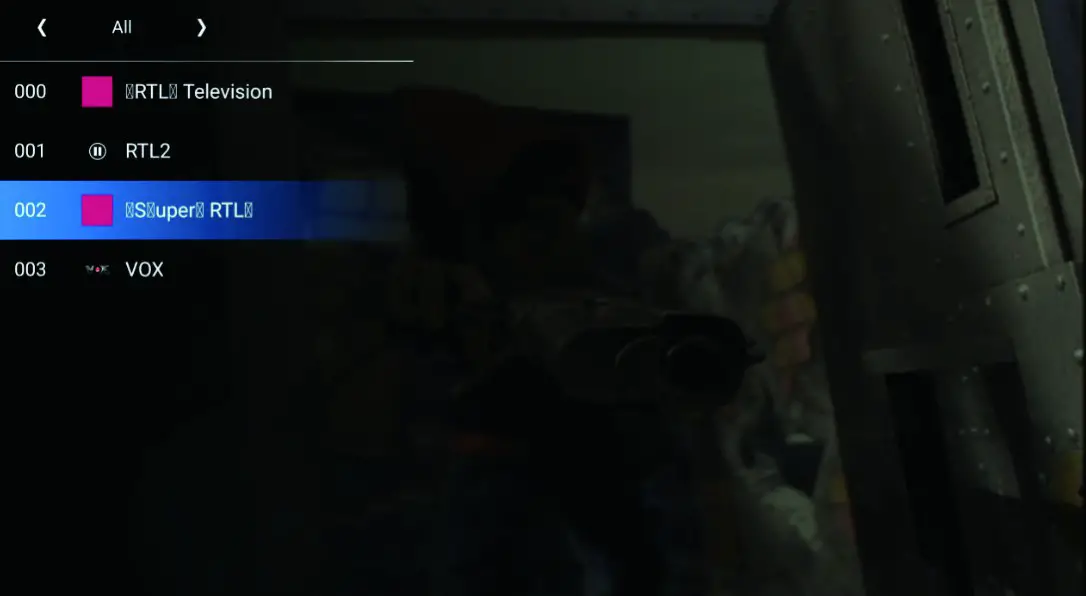
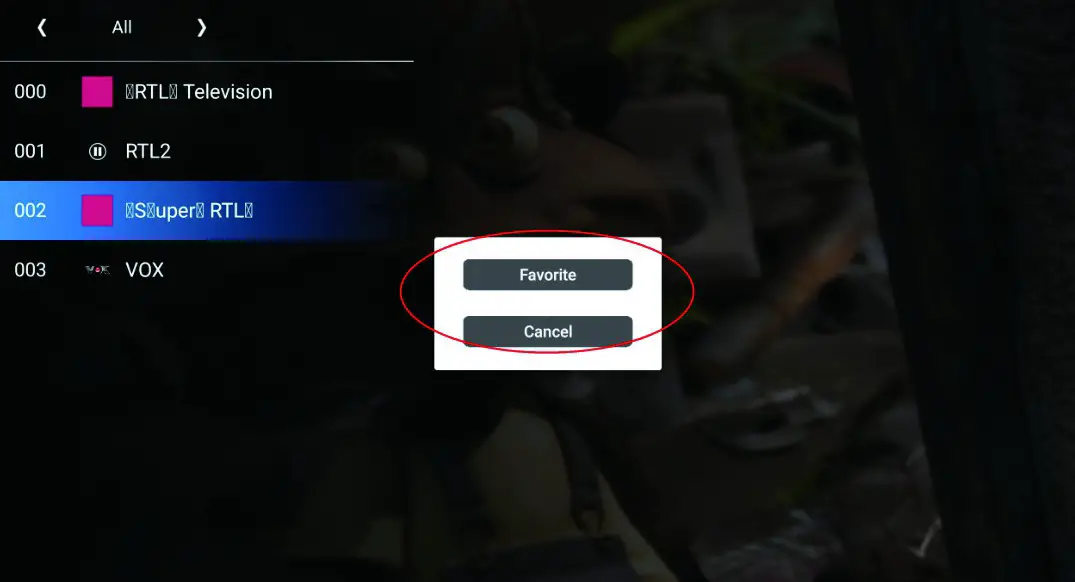
- Once you are in TV channels, Long press a channel name can add it to Favorite.
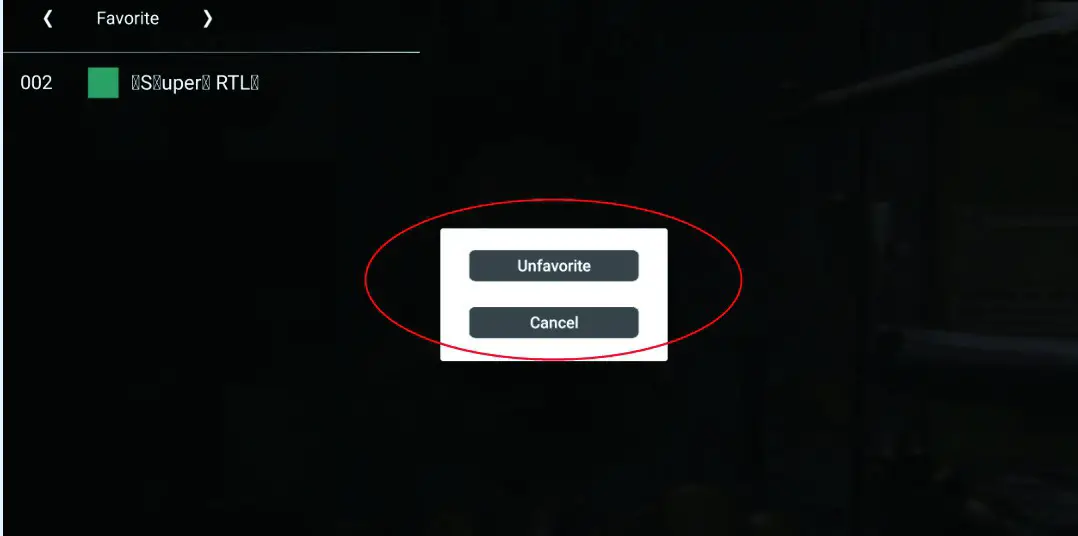
- You can switch to different channel list by clicking the arrow button on the top (switching from ALL/TV/Radio/Favorite), you can remove any channel in the favorite list by long pressing the channel name and select Unfavorite.
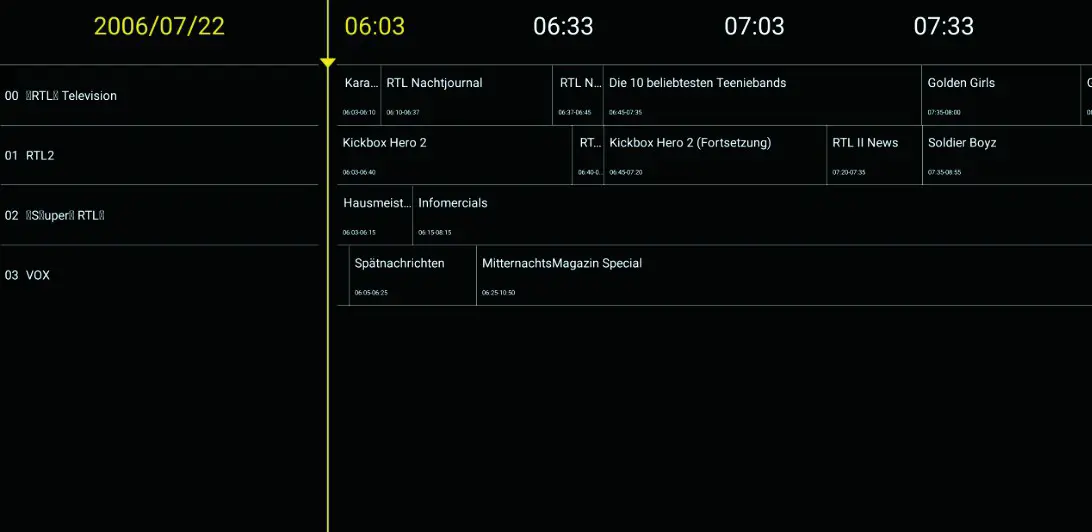
- Click on Program Guide will brings up EPG. You can check all the TV Channels program guide here. To return you need to click on your phone return button.
- You can click the record button to record the TV channel and save to your mobile.
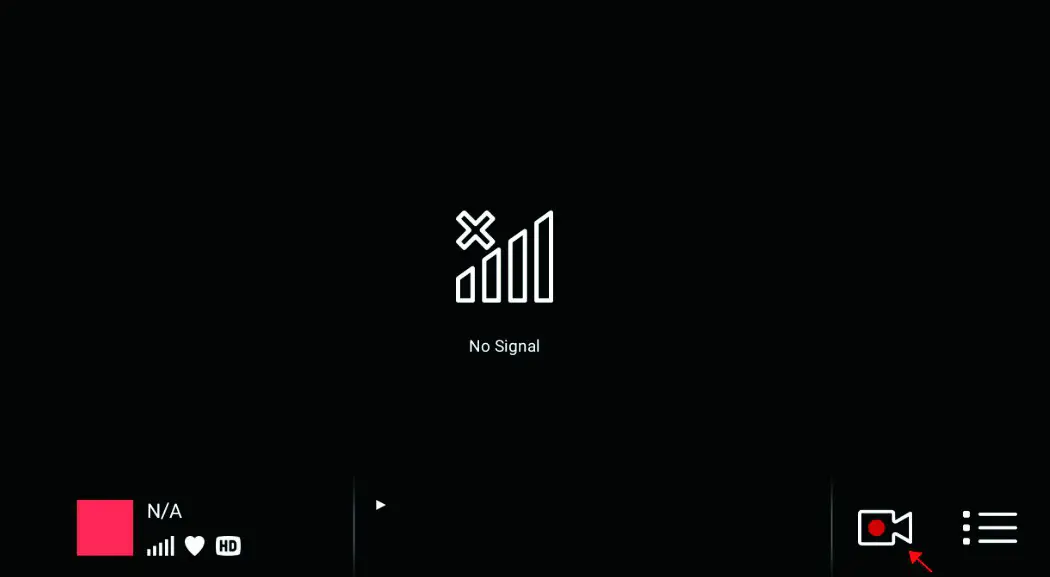
- Recorded video can be found under Video playback.
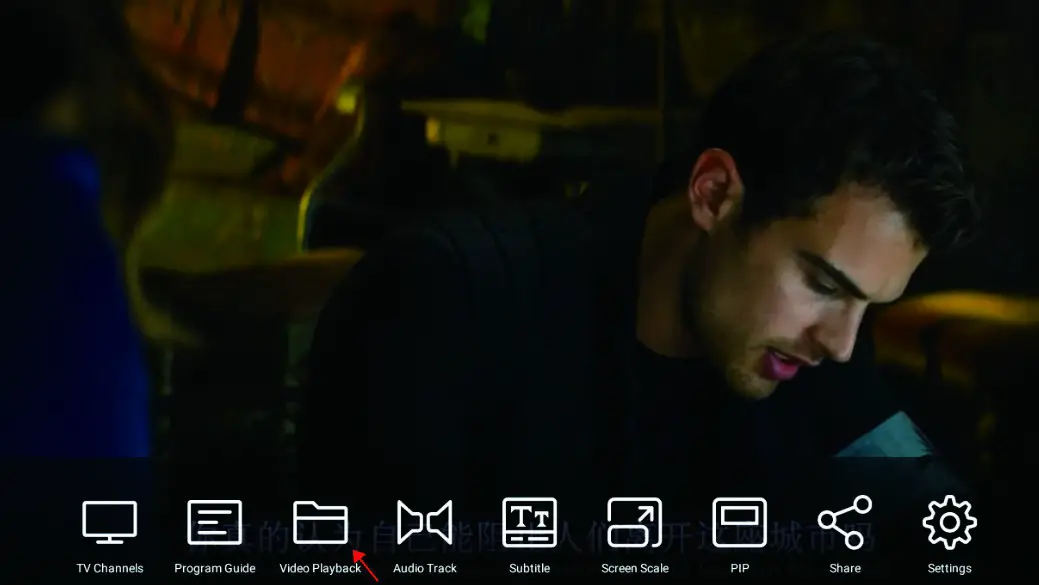
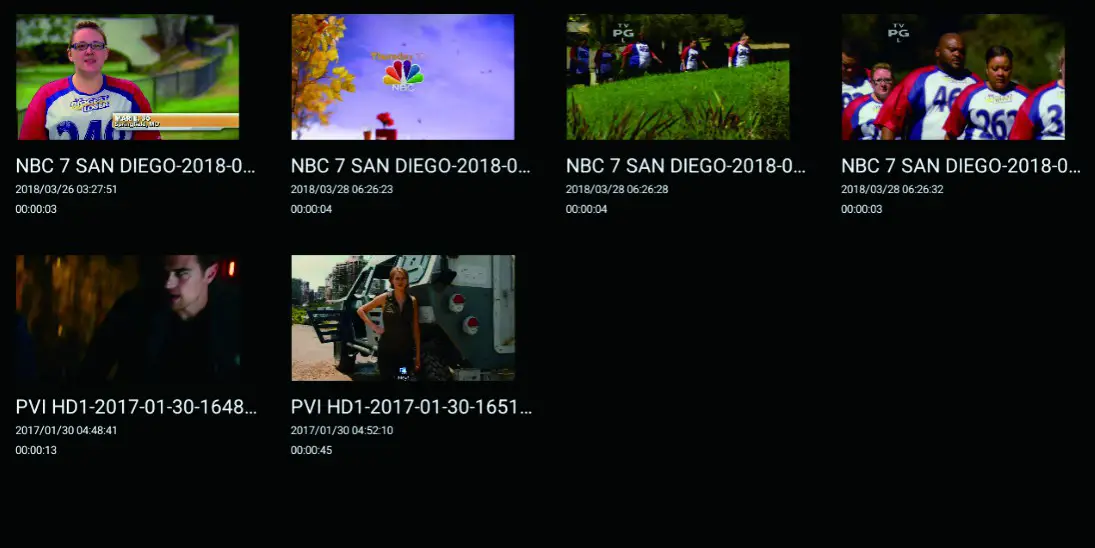
- All the recorded TV shows will be list here, with channel name and date as file name.
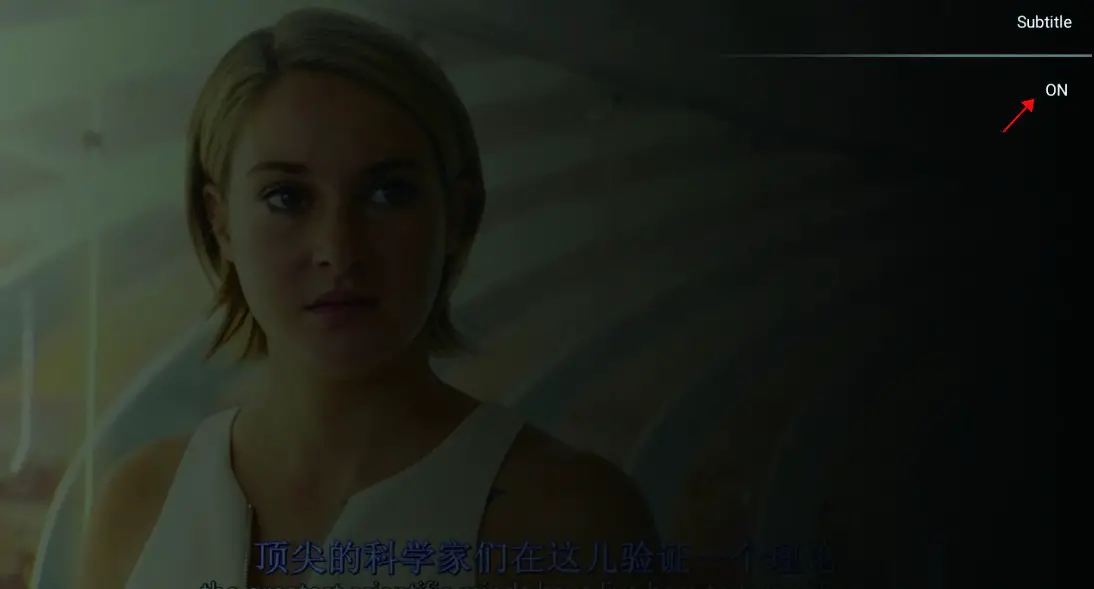
- You can turn on Subtitle, but this function only works if the channel comes with subtitle data. (some TV channels do not contain subtitle data.)
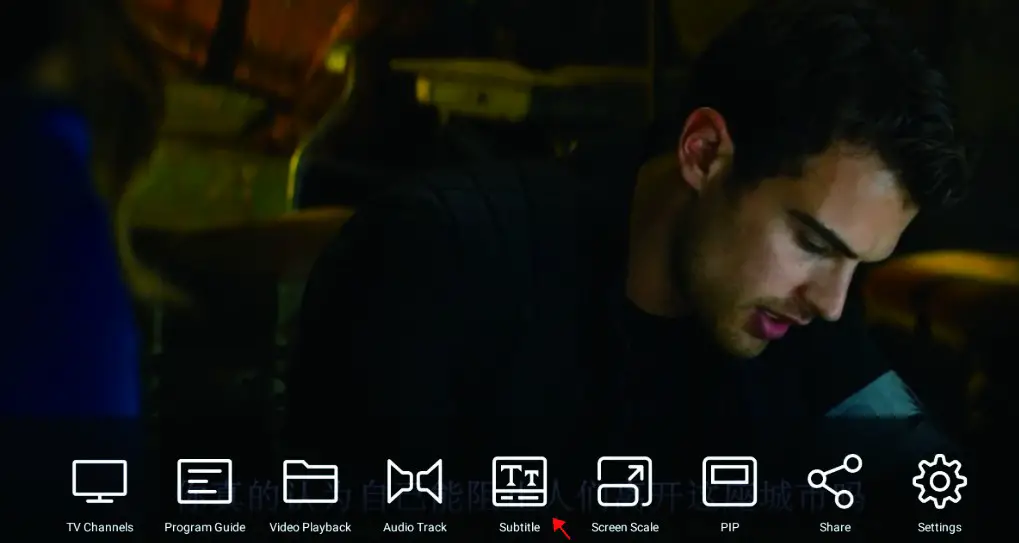
- Select ON/OFF to turn on / off subtitle.
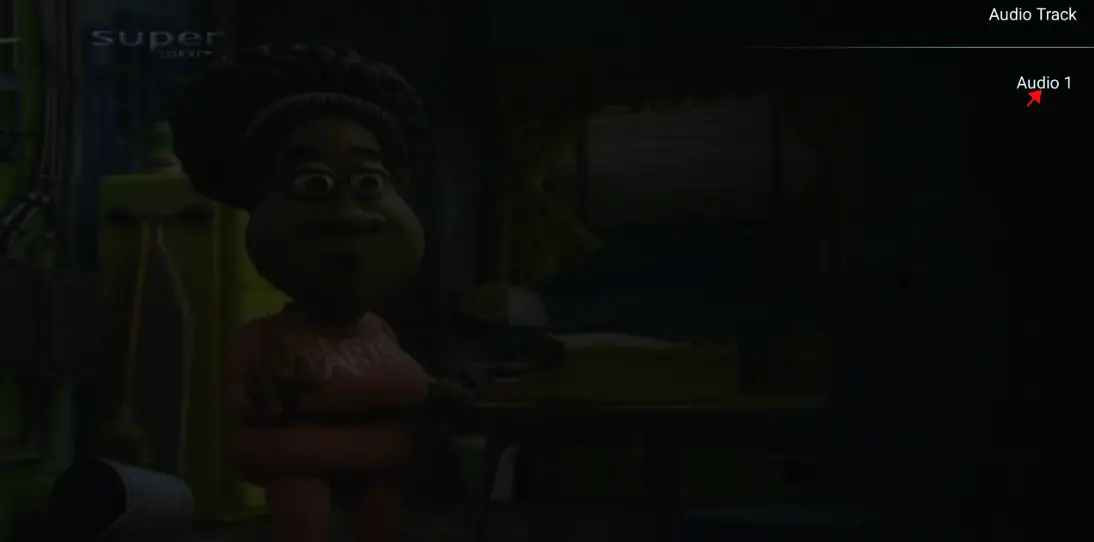
- Some TV channel support different audio track (most of the time is different language audio) you can select Audio Track to change. This function depends on if the TV channel itself has more then 1 audio track or not.
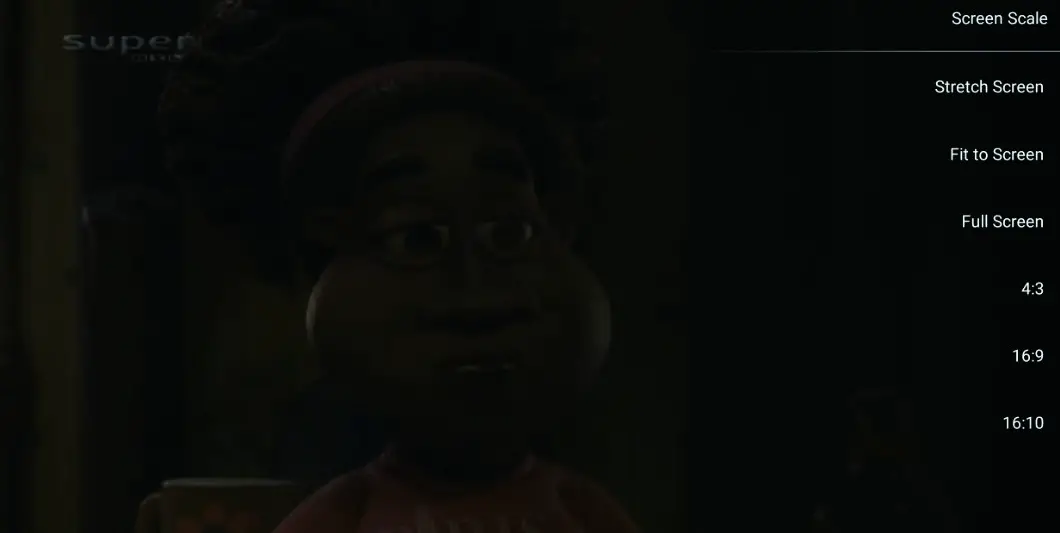
- Select Screen Scale can switch to different display ratio.
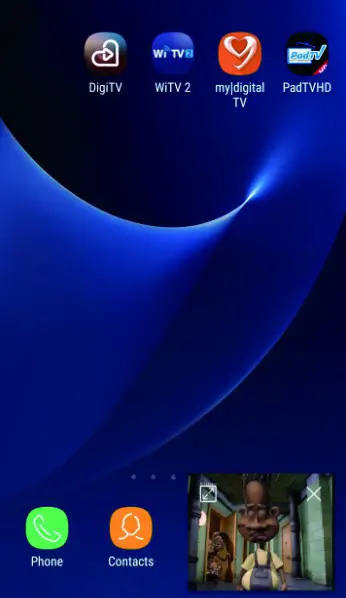
- Select PIP can enter picture in picture mode. You can drag and move the window around. (the top left icon in the PadTV HD screen can turn the screen back to full screen, the top right icon will close the application.)
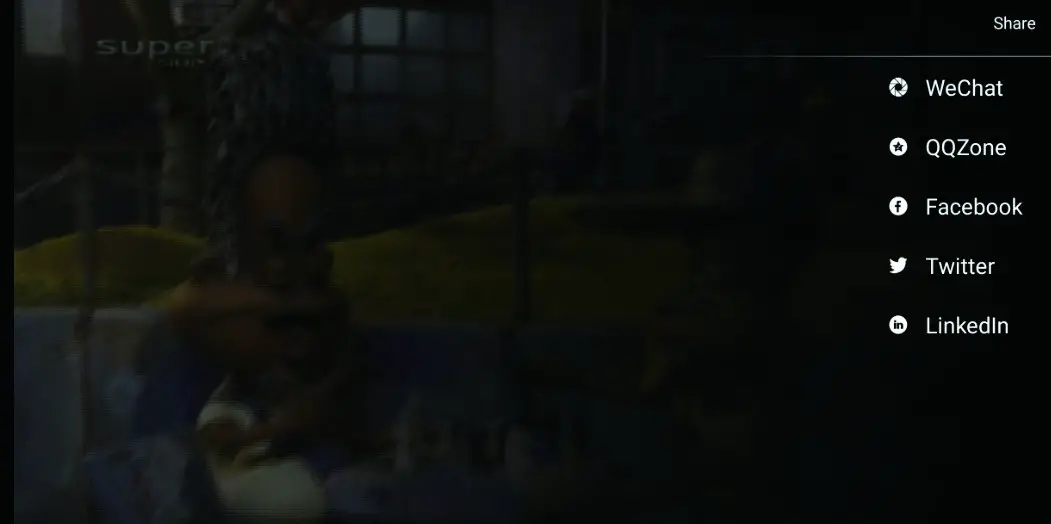
- Select SHARE can share the current screenshot to other community application, for example: WeChat, Facebook, Twitter. But your mobile must have already install these application before you can share.