 Quick Installation Guide
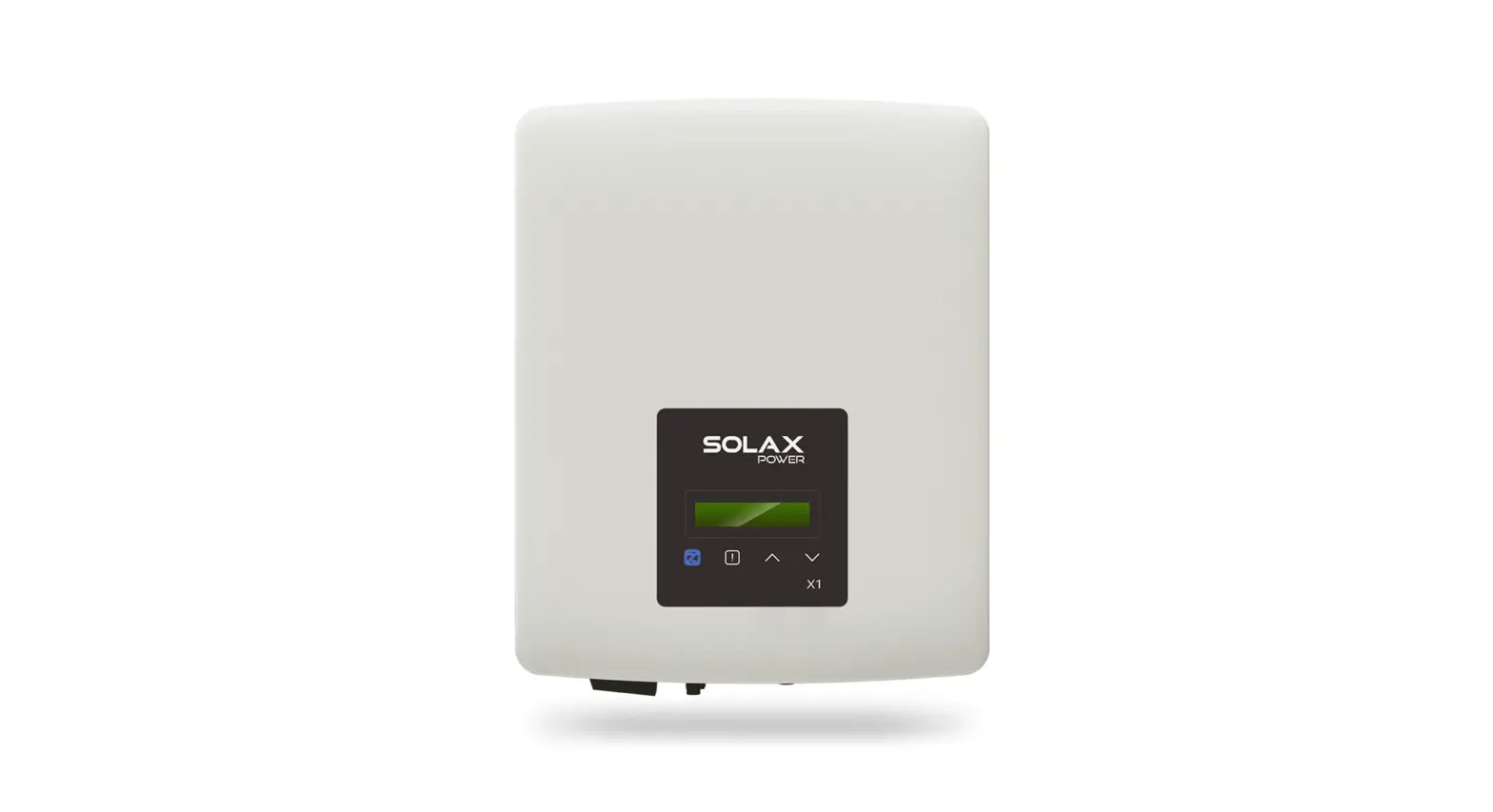
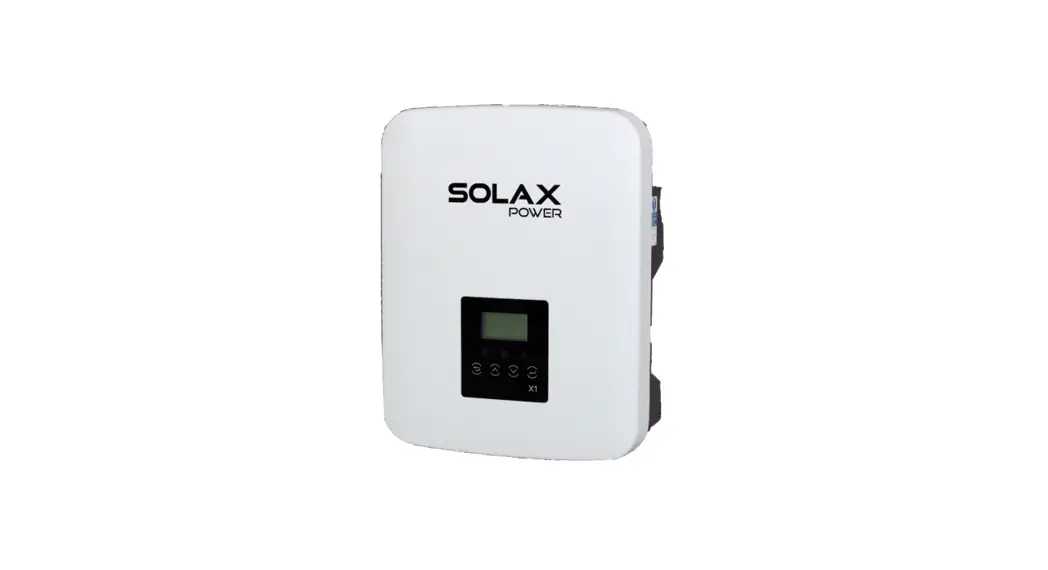
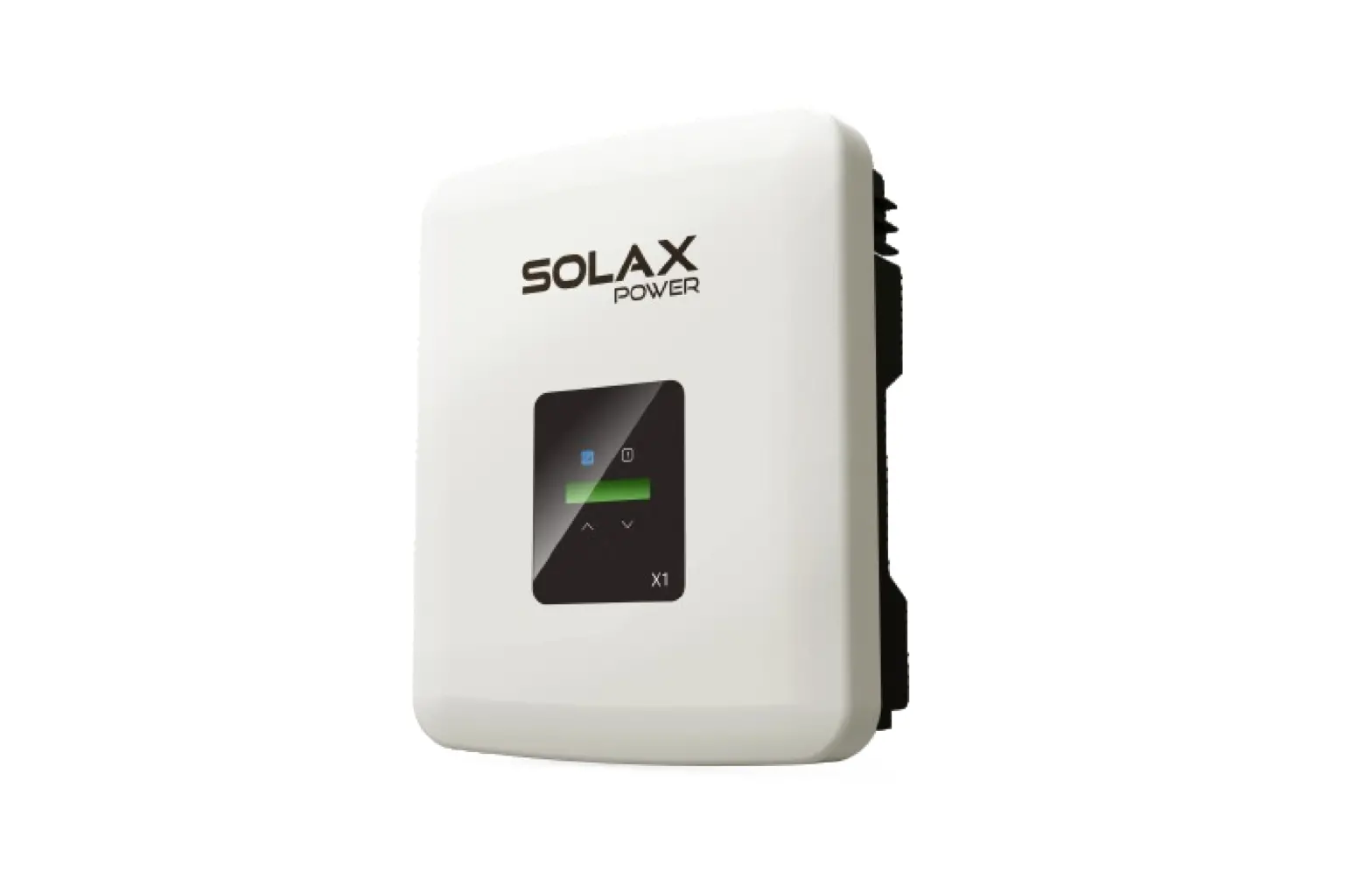
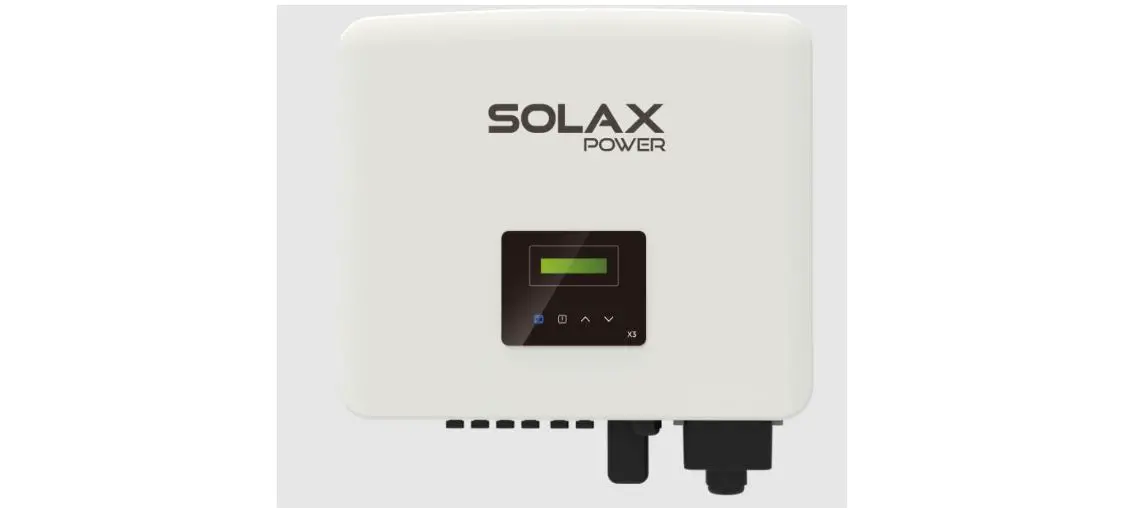
X1 Series 0.6KW-3.6KW
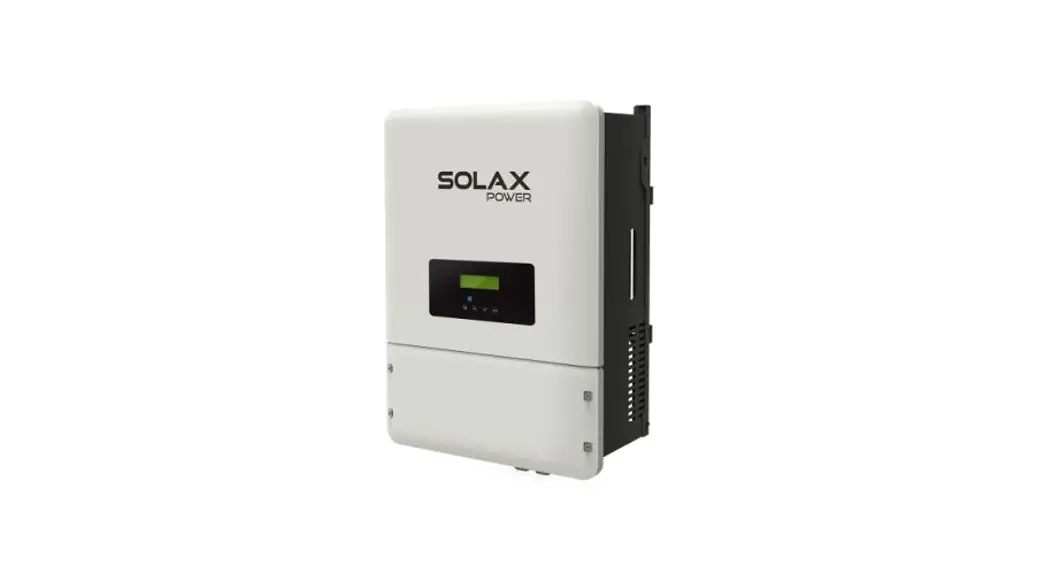
X1 Series 20KW On-Grid Inverter
Packing Lists
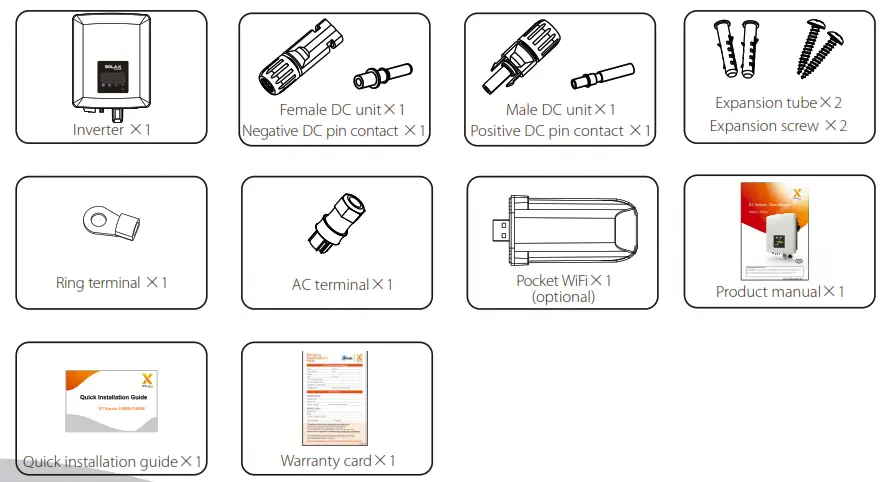
Note:
1) Please refer to the appropriate instruction manual for the usage of optional accessories.
Inverter Installation
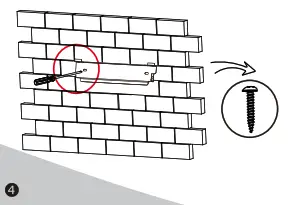
– Unscrew the bracket from the back of the inverter.
– Mark the position of the two holes.
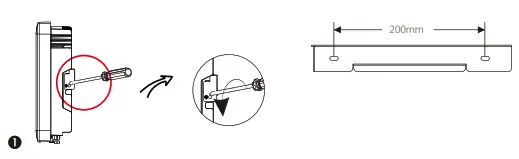
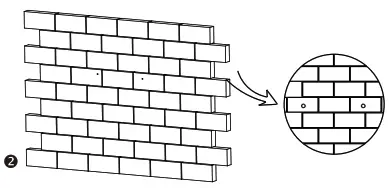
– Drill holes with φ10.
– Depth: at least 50mm.
– Tighten the expansion tubes.
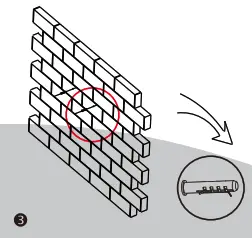
– Screw the expansion screws.
– Match the inverter with the bracket.
– Screw the cross-recessed screw on the right side. 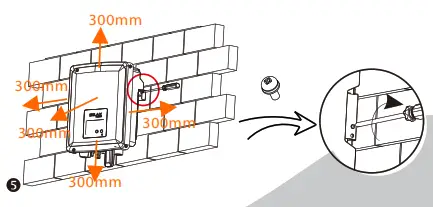
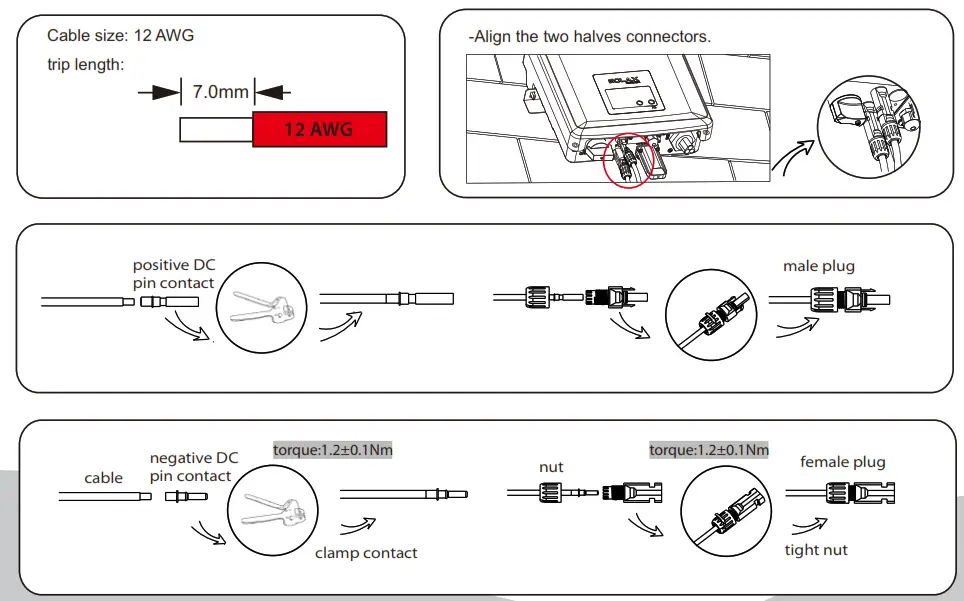
PV Connection
AC Connection
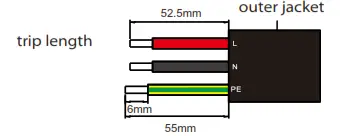
| Model | X1-0.6/0.7/ | X1-2.0 | X1-2.5/3K/3.3K | X1-3.6K |
| L,N cable(mm²) | 2.5-6 | 2.5-6 | 2.5-6 | 6-Apr |
| PE cable(mm²) | 2.5-6 | 2.5-6 | 2.5-6 | 2.5-6 |
| Micro-breaker | 10A | 16A | 20A | 20A |
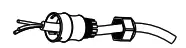
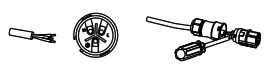
- Slide the cable nut and back shell onto the cable.

- Insert the stripped end of each three wires into holes in the female insert, then tighten each screw with an L-type wrench.

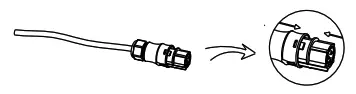
- Screw down the threaded sleeve of the pressure screw.

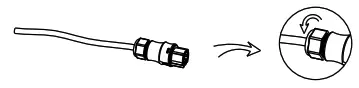
- Screw down the pressure screw

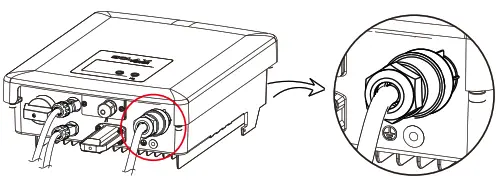
- Connect the AC plug to the inverter, and screw down the pressure screw on the top part of the AC terminal.

Firmware Upgrading
– Open the communication lid on the bottom of the inverter as below.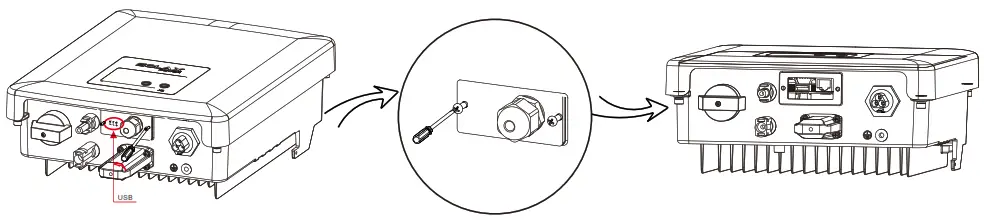
– Download the upgrade program into the USB flash drive.
– Insert the USB flash drive with the program into the “USB” port on the bottom.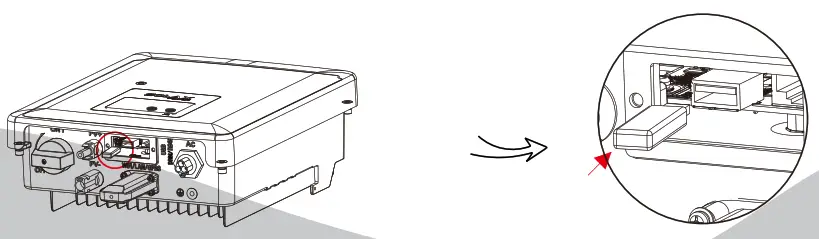
Connections and Overview
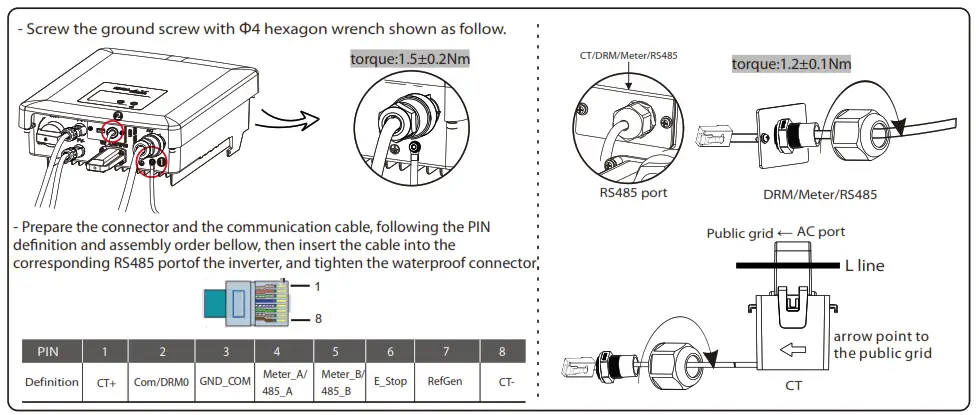
– Overview for connection.
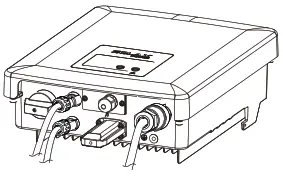
- After checking all connections are correct, turn on the external DC /AC breakers.
- Turn on the DC switch to the “ON” position.
- The inverter will start automatically when PV panels generate enough energy. The LED will be blue and the LCD screen will display the main interface.
Firmware Upgrading
 For the inverter with LCD, the user can refer to the following:
-Please contact Solax service to get the latest firmware. Then add a new folder named “Update” in the root directory on your U-disk, and two more sub-folders named “ARM” and “DSP” under “Update”. Please copy the firmware files into ARM and DSP respectively.
It will be like this:
update\ARM\618.00207.00_X1_BOOST3.0_MINI2.0_AIR2.0_ARM_V1.21_20200826.usb;
“update\DSP\618.00381.00_X1_BOOST3.0_MINI2.0_AIR2.0_DSP_V2.03_20201117.usb
Press and hold the “Enter” key for 5 seconds to enter Off Mode. Then unscrew the waterproof lid and insert the U-disk into the “upgrade” port.
– When the user turns on all the switches, the LCD will show pictures as below.
And at the same time, the user can choose the program you need by short-pressing “⋀” and “V” keys, and then long press “V” to confirm and upgrade the inverter. — After the upgrade is complete, please pull off the USB flash drive, and then screw the panel of the USB port.
* Please contact our service support to get the updated package, and extract it into your USB flash drive.
Please DO NOT modify the program file name! Otherwise, it may cause the inverter not to work anymore!