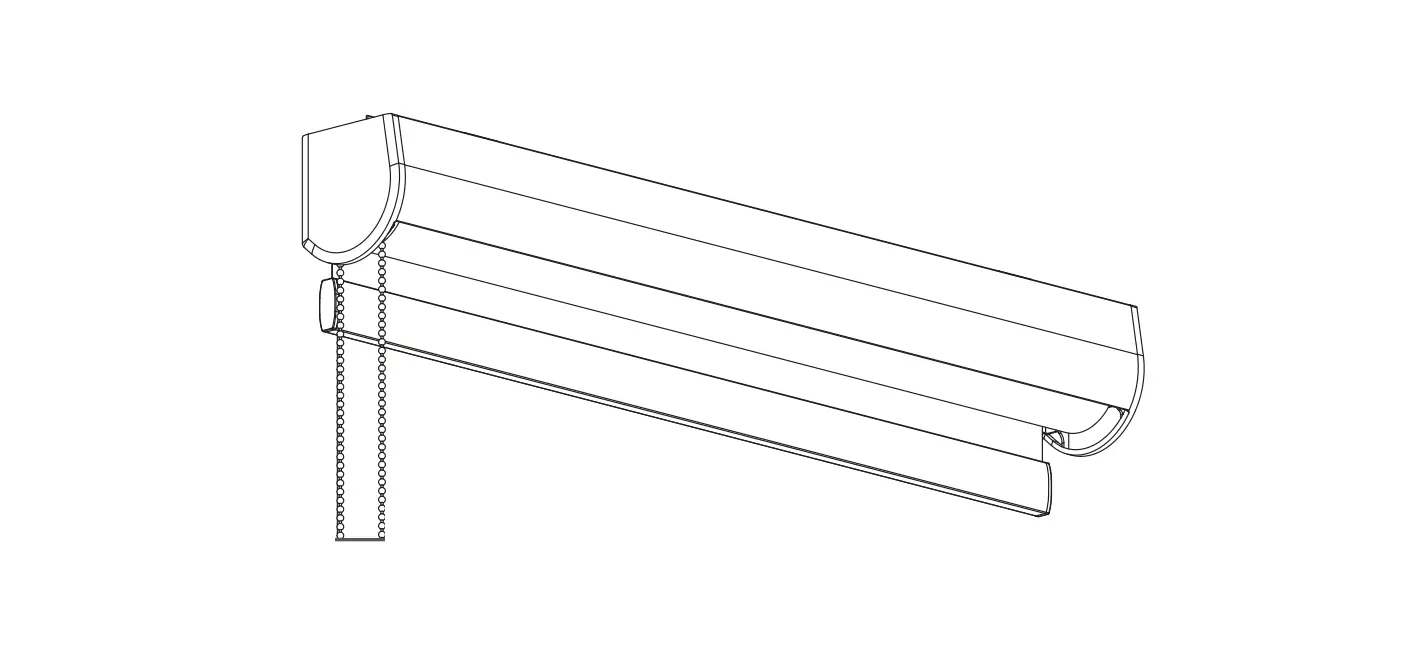
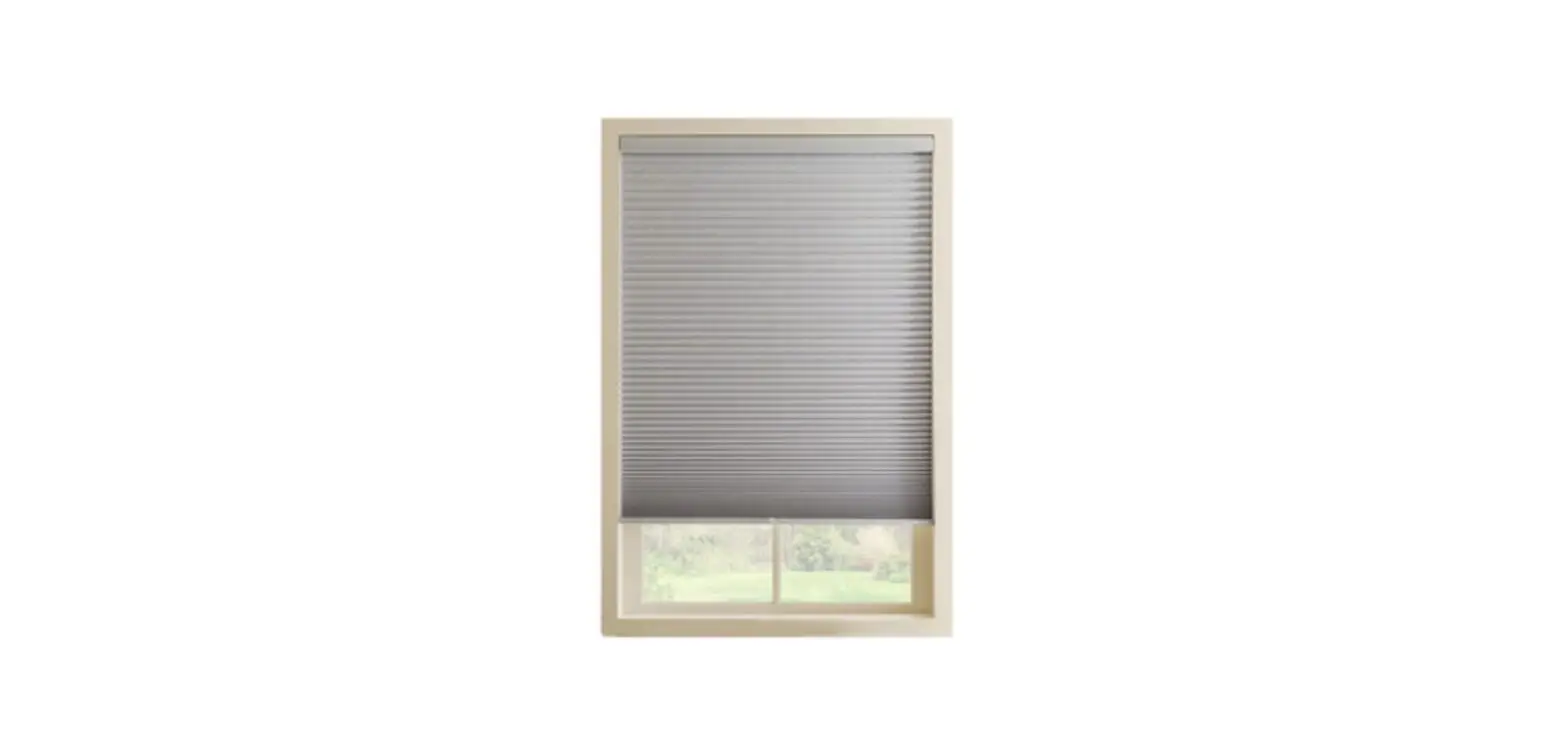
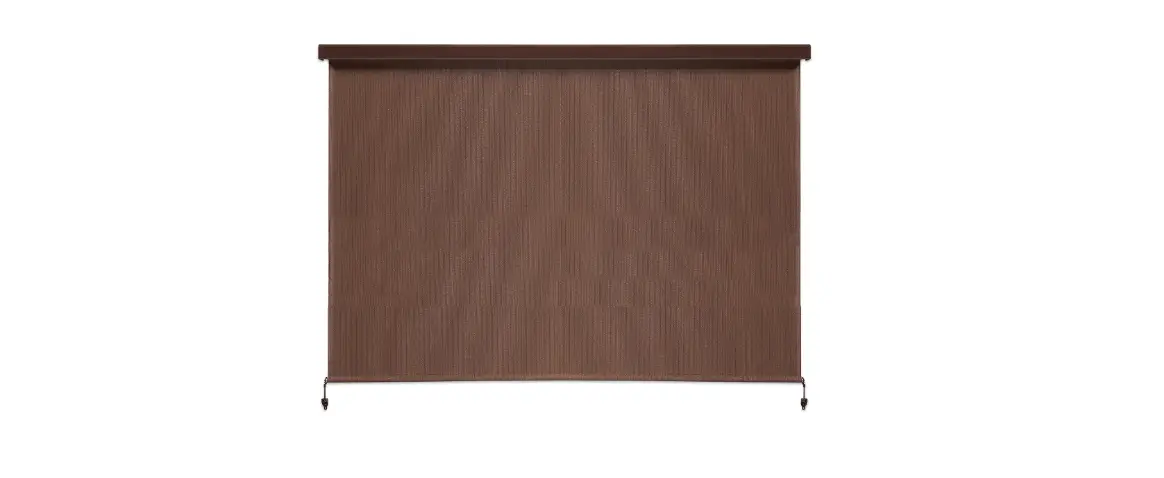
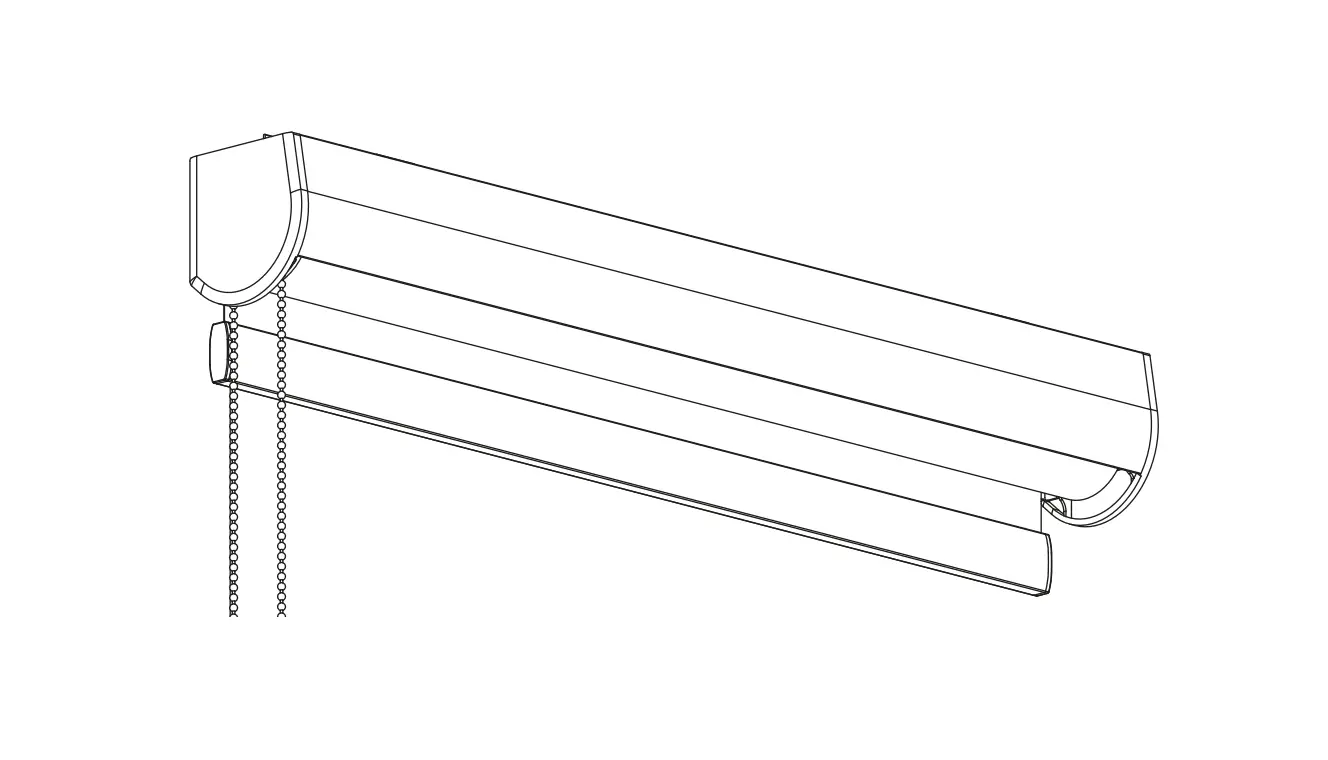
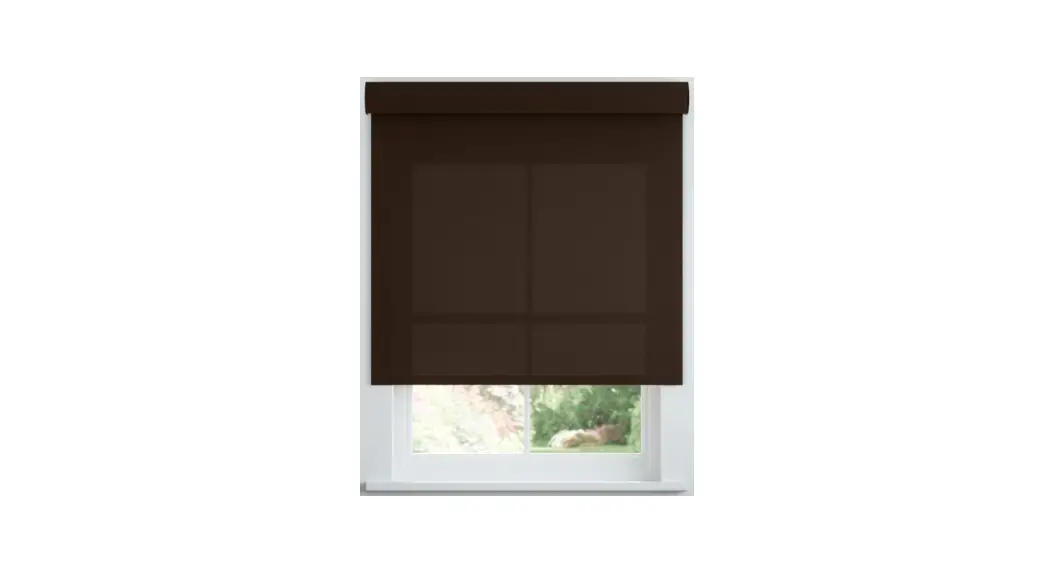
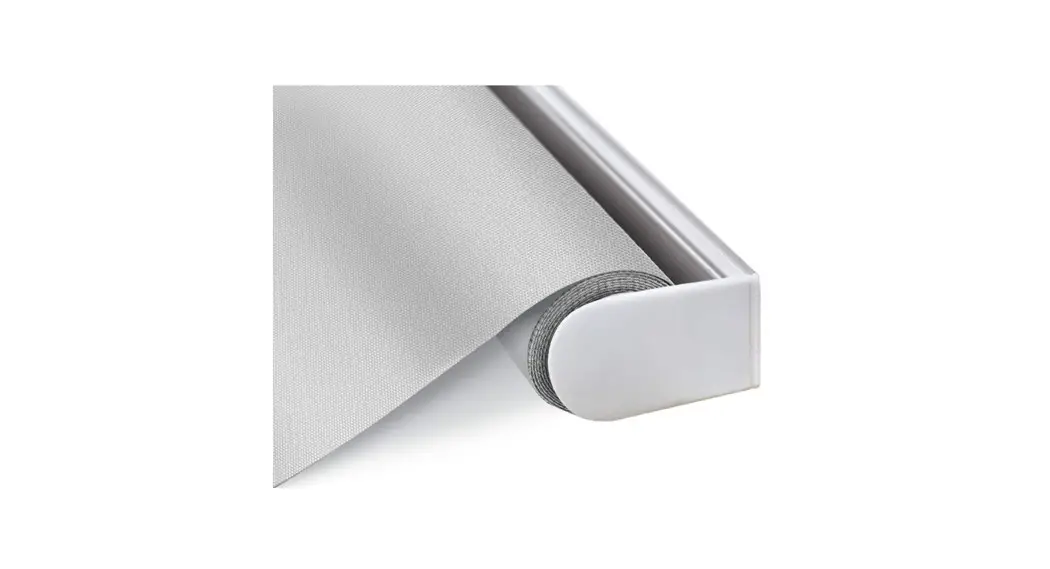
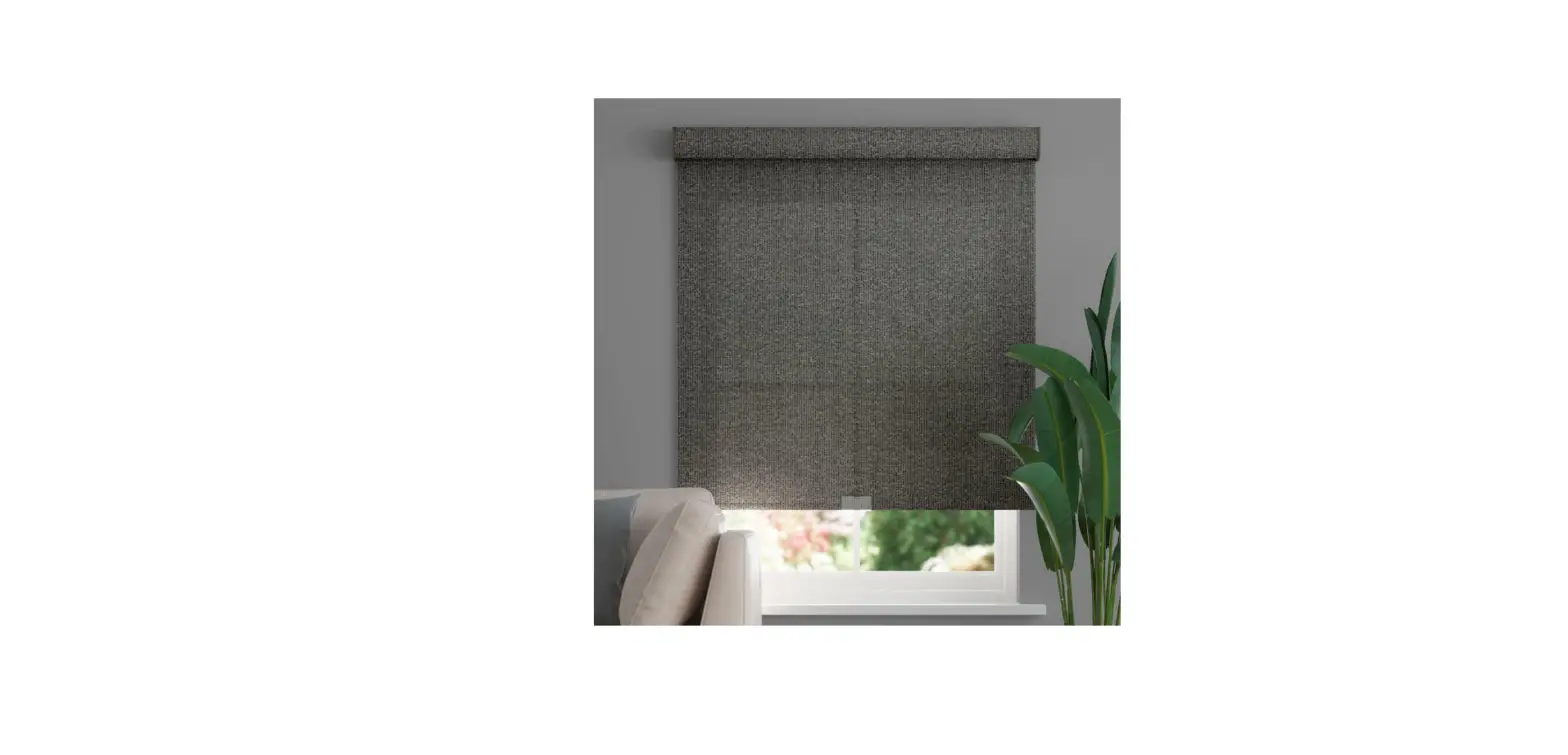
Lifestyle Roller Shades
Product Information: Lifestyle Roller Shades
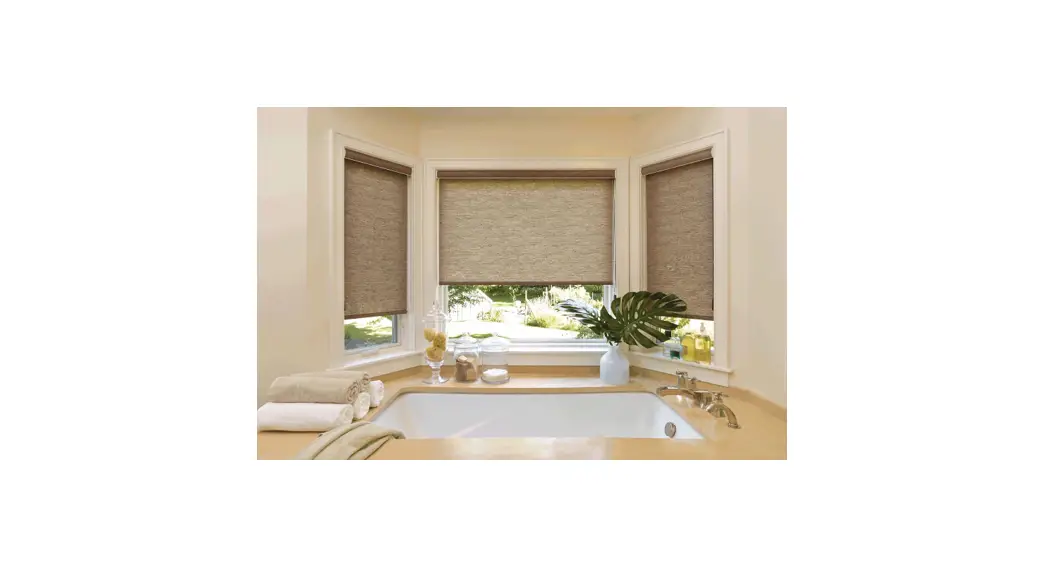
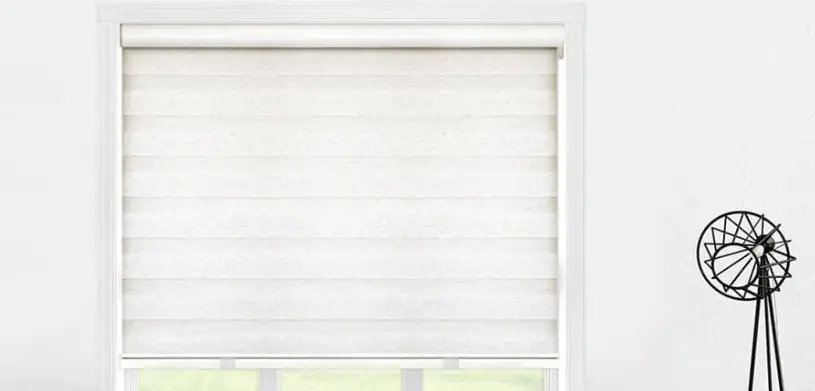
The Lifestyle Roller Shades are motorized window shades designed
for both inside mount (IB) and outside mount (OB) installations.
The shades come with two different options for installation: Open
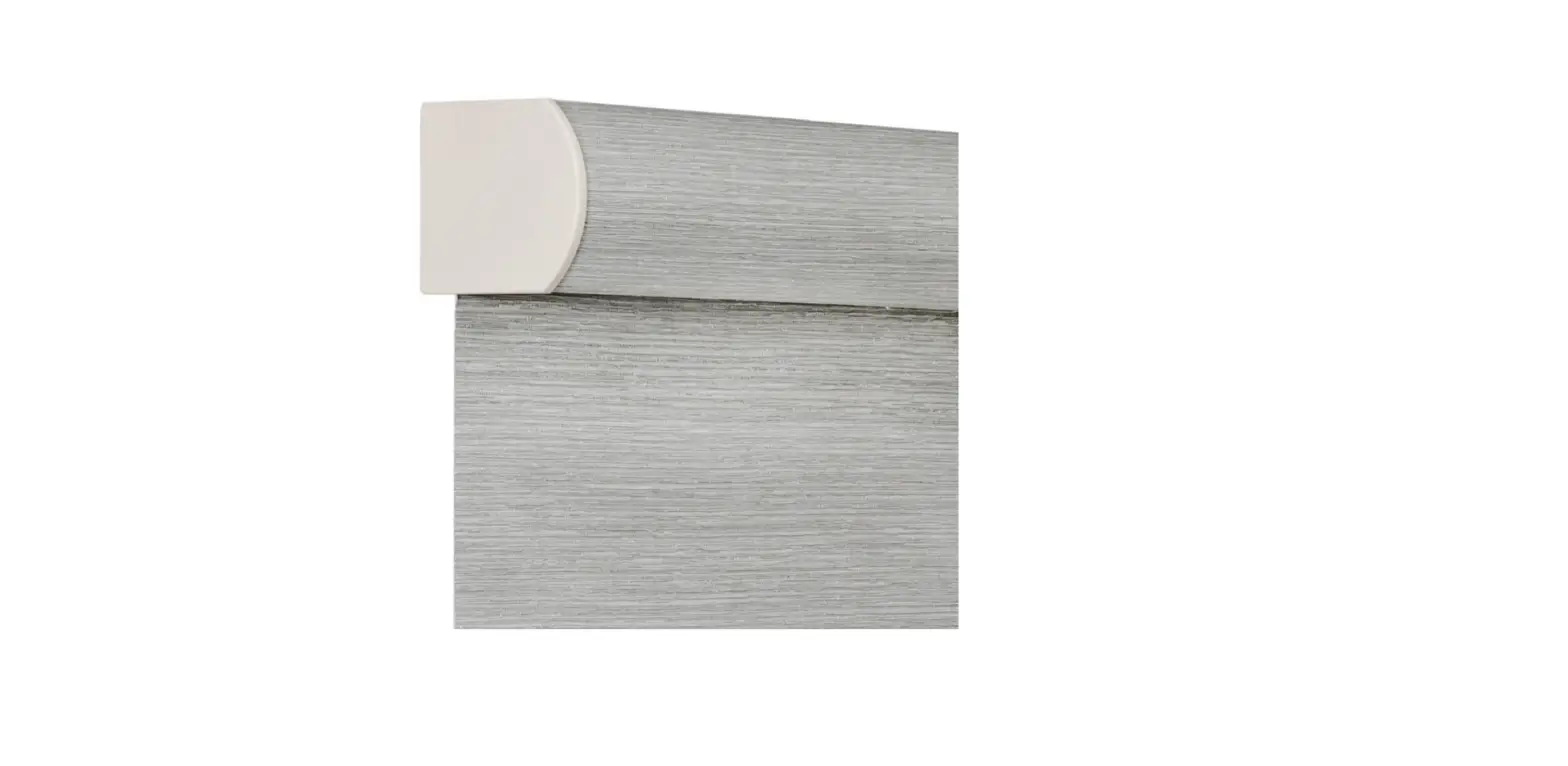
Roll and Deco Fascia. The Open Roll option features roller shade
installation brackets, while the Deco Fascia option includes fascia
brackets for a more finished look. The shades can be controlled
using a remote control, which needs to be paired with the shade
before installation.
Installation Instructions: Motorized with Open Roll
- Install the Brackets: Secure the roller shade installation
brackets with the supplied screws. - Install the Shade: Attach the roller shade to the
brackets. - Install the Bracket Covers (if applicable): Click the
spring-loaded pin end of the covers onto the motor side of the
brackets.
Installation Instructions: Motorized with Deco Fascia
- Install the Fascia Brackets: Attach the fascia brackets to the
desired location. - Install the Brackets: Secure the roller shade installation
brackets with the supplied screws. - Install the Shade: Attach the roller shade to the
brackets. - Install the Deco Fascia: Attach the deco fascia to the fascia
brackets.
Optional Step: Install the Returns
If desired, install metal or plastic returns on the ends of the
roller shade for a finished look. Metal returns are for outside
mount installations only and include a plastic corner connector.
Plastic returns are for inside mount installations with outside
mounted fascia and snap onto the end of the fascia.
Initial Set-up
- Pair / Unpair Remote Control: Follow the instructions provided
with the remote control to pair or unpair it with the motor. - Change Motor Direction (if necessary): Press the Up or Down
button on the remote control to check the shade’s movement. If the
direction needs to be reversed, press and hold both the Up and Down
buttons simultaneously until the motor jogs and beeps. - Setting the Upper and Lower Limits: Adjust the upper and lower
limits of the shade’s movement using the Up, Down, and Stop buttons
on the remote control.
Adjust Limits
- Adjust the Upper Limit: Press the Up button to raise the shade
to the desired upper limit, then press the Stop button. Press and
hold both the Up and Stop buttons simultaneously until the motor
jogs and beeps. - Adjust the Lower Limit: Press the Down button to lower the
shade to the desired lower limit, then press the Stop button. Press
and hold both the Down and Stop buttons simultaneously until the
motor jogs and beeps.
INSTALLATION INSTRUCTIONS
Open Roll
Lifestyle Roller Shades
Motorized
Deco Fascia
Important: Prior to installing the shade, pair the remote using the instructions included with the remote. Do not set the upper and lower limits until the shade is installed.
Motorized with Open Roll
1. Install the Brackets
2. Install the Shade
OB IB
Secure the roller shade installation brackets with the supplied screws. If shade was ordered as outside mount (OB), attach the supplied screw covers on to the bracket for a finished look.
3. Install the Bracket Covers (if applicable)
Click
1 Spring loaded
pin end
2
Motor Side
1
INSTALLATION INSTRUCTIONS
Motorized with Deco Fascia
1. Install the Fascia Brackets
2. Install the Brackets
IB OB
OB
IB
Outside mount (OB) requires a T-Bracket installation. Space brackets evenly. Note: Do not attach the Deco Fascia until the shade has been installed.
Secure the roller shade installation brackets with the supplied screws. If shade was ordered as outside mount (OB), attach the supplied screw covers on to the bracket for a finished look.
3. Install the Shade
4. Install the Deco Fascia
1
2
3
1
Spring loaded pin end
Inside Mount (IB)
1
2
3
2 Motor Side
Outside Mount (OB)
5. Install the Returns (Optional)
Metal returns (Outside mount only) include a plastic corner connector. Plastic returns (Inside mount with Outside Mounted fascia) snap on the end of the fascia. 2
Initial Set-up
1. Pair / Unpair Remote Control
a. Press “P1” button (about 2 sec) on the motor head until Action on
a.
motor jog x1 and beep x1.
Motor
b. In the next 10 secs, press and hold “Stop” button on the Motor Response remote control until motor jog x2 and beep x3.
* Repeat the same procedure to unpair remote control.
Action on
b.
Remote Control
Motor Response
P1
Jog x1
Beep x1
Stop Jog x2
Beep x3
2. Change Motor Direction (if necessary)
Press “Up” or “Down” button to check if the shade moves in the desired direction.
If you need to reverse the direction, press and hold (about 2 sec) “Up” and “Down” buttons simultaneously until motor jog x1 and beep x1.
Action on Remote Control
Motor Response
*The operation is only valid when there are no limits. If the motor has already set the upper and lower limit, then you can only switch direction by pressing P1 button (See P1 button instructions).
+
Up
Jog x1
Down Beep x1
3. Setting the Upper and Lower Limits
Set Upper Limit
a. Press “Up” button to raise the shade, then press “Stop” button when it is in the desired upper limit.
b. Press and hold (about 5 sec) “Up” and “Stop” buttons simultaneously until motor jog x2 and beep x3.
Action on Remote Control
Motor Response
a. Up
b.
+
Up
Stop
Jog x2
Beep x3
Set Lower Limit
a. Press “Down” button to lower the shade, then press “Stop” button when it is in the desired lower limit.
b. Press and hold (about 5 sec) “Down” and “Stop” buttons simultaneously until motor jog x2 and beep x3.
Action on Remote Control
Motor Response
*If you exit the limit setting status before you finish the limit settings, the motor will take the previous existing limits.
a. Down
b.
+
Down
Stop
Jog x2
Beep x3
1
TM REMOTE | PROGRAMMING GUIDE
Adjust Limits
1. Adjust the Upper Limit
a. Press and hold (about 5 sec) “Up” and “Stop” buttons simultaneously until motor jog x1 and beep x1.
b. Use “Up” button to raise the shade to the desired highest position, and use “Up” or “Down” button to do the final adjustment if necessary.
c. Press and hold (about 5 sec) “Up” and “Stop” buttons simultaneously until motor jog x2 and beep x3.
Action on Remote Control
Motor Response
Action on Remote Control Motor Response
a.
+
Up Jog x1
c.
+
Up Jog x2
Stop Beep x1
Stop Beep x3
b. Up
2. Adjust the Lower Limit
a. Press and hold (about 5 sec) “Down” and “Stop” buttons simultaneously until motor jog x1 and beep x1.
b. Use “Down” button to lower the shade to the desired lowest position, and use “Up” or “Down” button to do the final adjustment if necessary.
c. Press and hold (about 5 sec) “Down” and “Stop” buttons simultaneously until motor jog x2 and beep x3.
Action on Remote Control
Motor Response
Action on Remote Control Motor Response
a.
+
Down Jog x1
c.
+
Down Jog x2
Stop Beep x1
Stop Beep x3
b. Down
2
TM REMOTE | PROGRAMMING GUIDE
Favorite Position
1. Set Favorite Position
a. Use “Up” or “Down” button to move the shade to desired Favorite position.
b. Press one “P2” button on the back of remote control until motor jog x1 and beep x1.
Action on Remote Control
Motor Response
c. Press “Stop” button until motor jog x1 and beep x1.
Action on Remote Control
d. Once more, press “Stop” button until motor jog x2 and beep x3.
Motor Response
a. Up
or
Down
or
c. Stop
Jog x1
Beep x1
b.
P2
Jog x1
Beep x1
d. Stop
Jog x2
Beep x3
2. Send Shade to Favorite Position
Action on
Remote Control
Stop
Press and hold (about 2 sec) “Stop” button, motor will move
to Favorite position.
Shade Response
or
3. Delete Favorite Position
a. Press one “P2” button until motor jog and beep x1.
Action on
a.
Remote Control
b. Press “Stop” button until motor jog and beep x1.
Motor Response
c. Once more, press “Stop” button until motor jog x1 and
long beep x1.
Action on
c.
Remote Control
P2
Jog x1
Beep x1
Stop
Motor Response
Jog x1
Beep x1
b. Stop
Jog x1
Beep x1
3
TM REMOTE | PROGRAMMING GUIDE
Add or Remove Additional Remote
1. Using Current Remote Control
Action on
a.
Remote Control
a. On the current remote control, press one “P2” button until motor jog x1 and beep x1.
b. Once more, on the current remote control, press one “P2” button until motor jog x1 and beep x1.
Motor Response
Action on
c.
c. On the New remote control, press one “P2” button until Remote Control
motor jog x2 and beep x3.
*Repeat the same procedure to remove additional remote control.
Motor Response
Current Remote Control P2
Jog x1
Beep x1
New Remote Control P2
Jog x2
Beep x3
2. New Remote Control
Follow instructions on page 8 under the section Pair / Unpair Remote Control
b.
Current Remote Control
P2
Jog x1
Beep x1
Adjust Motor Speed
1. Acceleration Speed
a. Press one “P2” button until motor jog x1 and beep x1. b. Press “Up” button until motor jog x1 and beep x1. c. Once more, press “Up” button until motor jog x2 and beep x1.
Action on
a.
Remote Control
Motor Response
Action on
c.
Remote Control
Motor Response
P2
Jog x1
Beep x1
Up
Jog x2
Beep x1
2. Deceleration Speed
Action on
a.
Remote Control
a. Press one “P2” button until motor jog x1 and beep x1.
b. Press “Down” button until motor jog x1 and beep x1.
Motor Response
c. Once more, press “Down” button until motor jog x2 and
beep x1.
Action on
c.
Remote Control
*If the motor has no response, it already has a Maximum or Minimum speed.
Motor Response
P2
Jog x1
Beep x1
Down
Jog x2
Beep x1
4
TM REMOTE | PROGRAMMING GUIDE
b. Up
Jog x1
Beep x1
b. Down
Jog x1
Beep x1
Roller or Sheer Mode
1. Roller Shade Mode – continue movement after a short press – Default Mode
a. Press and hold (about 5 sec) “Up” and “Down” buttons simultaneously until motor jog x1.
b. Press and hold (about 2 sec) “Stop” button until motor jog x2 and beep x3.
Action on Remote Control
Motor Response
Action on Remote Control
Motor Response
a. Up
+
Down Jog x1
b. Stop
Jog x2
Beep x3
2. Sheer Shade Mode – jog movement after a short press (continue movement after a long press)
a. Press and hold (about 5 sec) “Up” and “Down” buttons simultaneously until motor jog x1.
Action on Remote Control
Motor Response
b. Press and hold (about 2 sec) “Stop” button until motor jog x1 and beep x1.
Action on Remote Control
Motor Response
a. Up
+
Down Jog x1
b. Stop
Jog x1
Beep x1
5
TM REMOTE | PROGRAMMING GUIDE
Remote Function
1. Channel Options
Select A Channel
Action on
Remote Control
a. Press “<” button on the remote to select a lower channel.
b. Press “>” button on the remote to select a higher channel.
Remote Response
a. Lower Channel
1
b. Higher Channel
15
Hide Unused Channels
a. Press and Hold (about 3 sec) “<” and “>” buttons simultaneously until remote control displays “C” (channel).
Action on Remote Control
a.
+
Lower
Higher
Channel
Channel
Remote Response
b. Press “<” or “>” button to select required quantity of
C
channel (between 1 to 15).
c. Press “Stop” button to confirm selection (the example
Action on
c.
shows a 5-channel selection). The LED will display “O” (OK) Remote Control
Stop
once to confirm selection.
Remote Response
5
0
b.
or
Lower
Higher
Channel
Channel
11
2. Advanced Setting – Disable Limit Setting
a. Remove the cover from the backside of remote, the lock switch is in the right corner.
b. Move the switch to the “Lock” position to disable the following commands, remote will show “L” (lock):
– Change Motor Direction – Setting the Upper and Lower Limit – Adjust Limit – Roller Mode or Sheer Mode
c. Move the switch to “Unlock” position to assess all remote functions, remote will show “U” (unlock).
*This advanced feature is intended to be used after all shade programming is completed. User Mode will prevent accidental or unintended changing of limits.
a.
Switch
b.
Unlock Lock
L
Switch
c.
Unlock Lock
U
Switch
6
TM REMOTE | PROGRAMMING GUIDE
P1 Button Instructions
2. P1 Button Location
LED light
P1 button Lithium Battery Switch
25B / 28B / 25BDC
2. P1 Button Instruction
1 Test Motor
Happening as you press for 1 second Press P1
1 Less than 1 sec.
2 Activate Pairing Mode
Happening as you press for 2 seconds
Press P1
2 Approx. 2 sec.
Until Shade:
Jog x1
3 Sleep Mode
Happening as you press for 6 seconds
Press P1
6 Approx. 6 sec.
Until Shade:
Jog x2
4 Reverse Direction
Happening as you press for 10 seconds
Press P1
10 Approx. 10 sec.
Until Shade:
Jog x3
5 Reset To Factory Settings
Happening as you press for 14 seconds
Press P1
14 Approx. 14 sec.
Until Shade:
Jog x4
7
TM REMOTE | PROGRAMMING GUIDE
when released Motor Response: Wakes & Runs
when released Motor Response:
Beep x1
when released Motor Response:
Beep x2
when released Motor Response:
Beep x3
when released Motor Response:
Beep x4