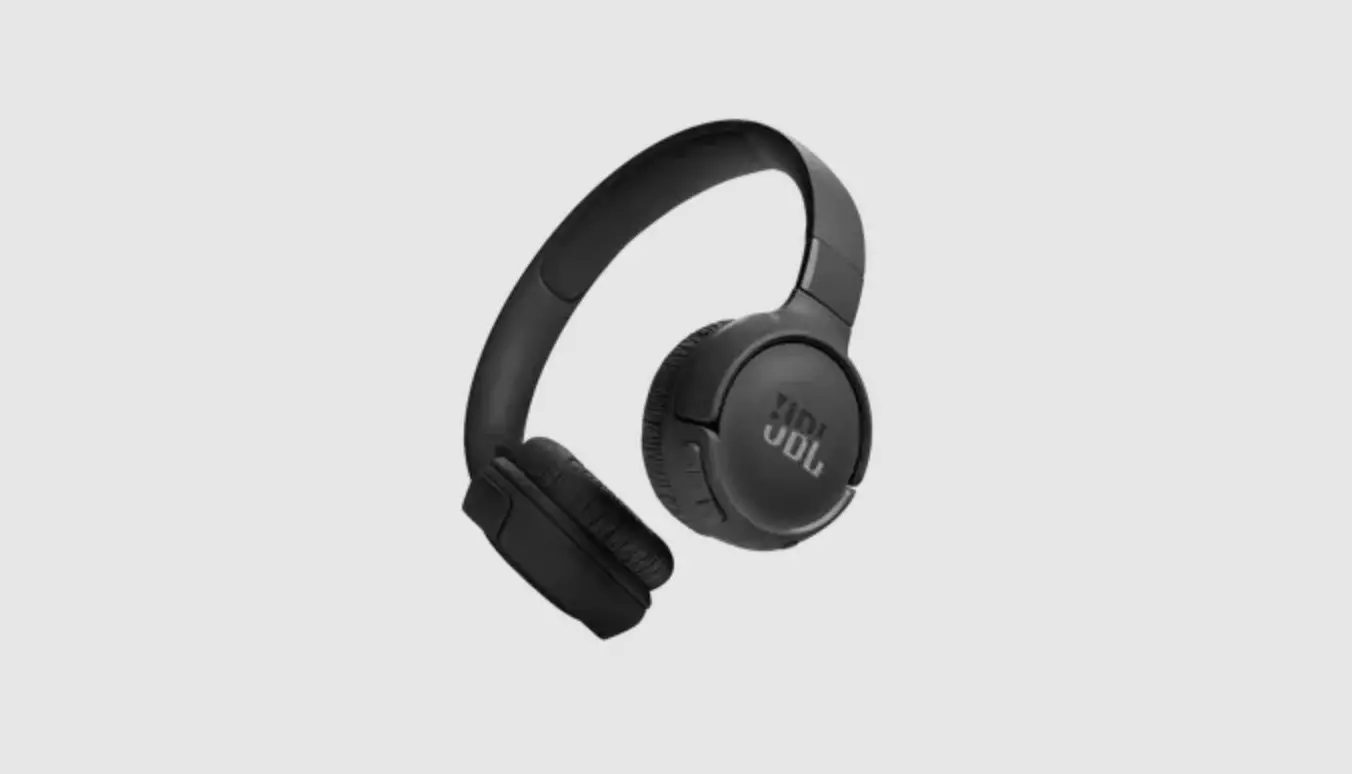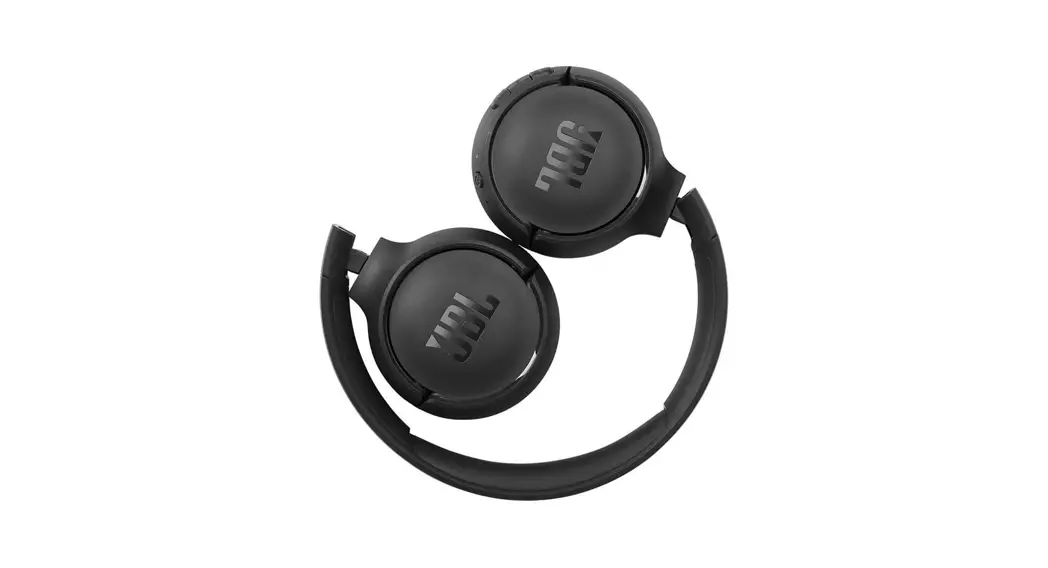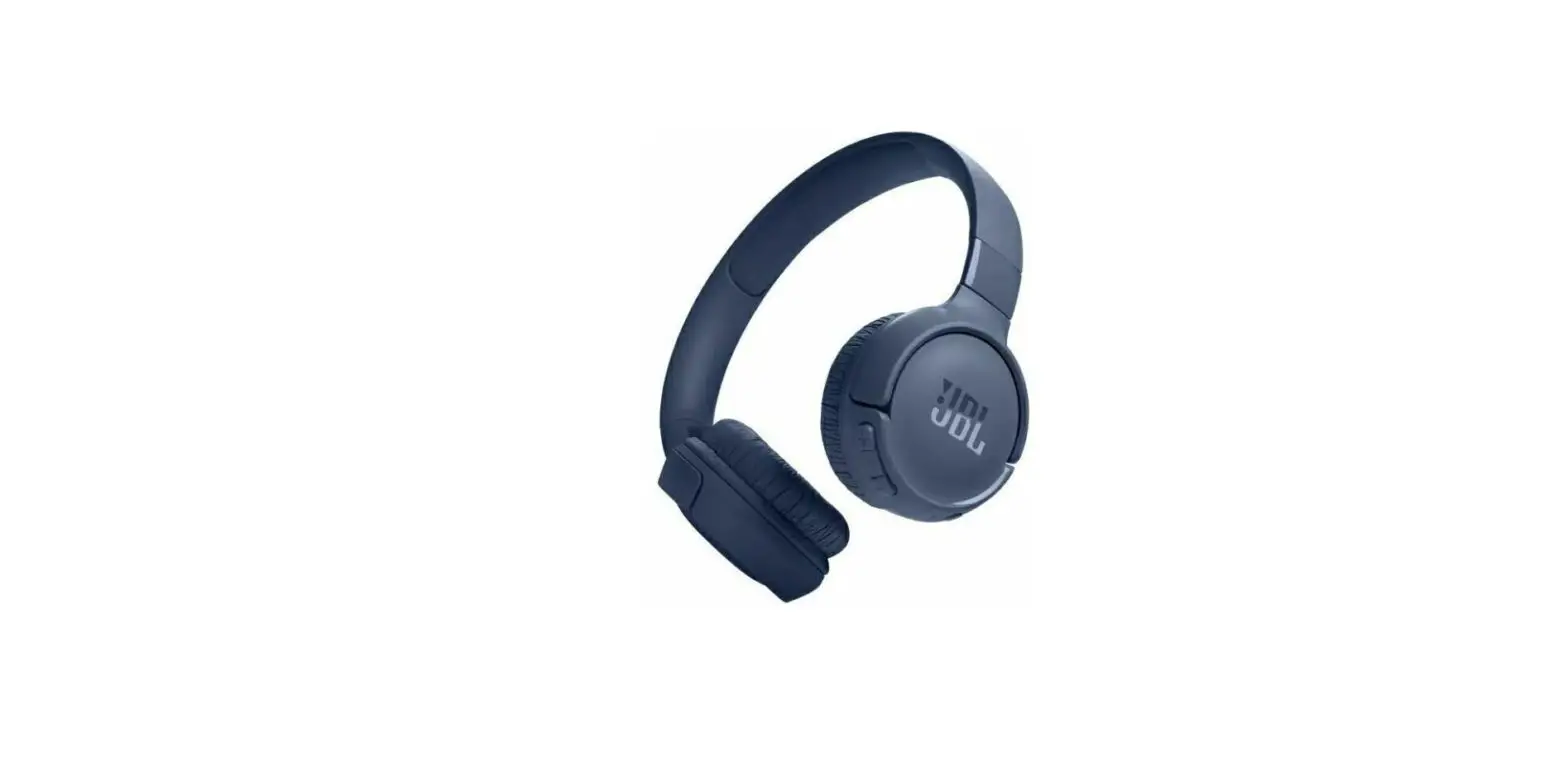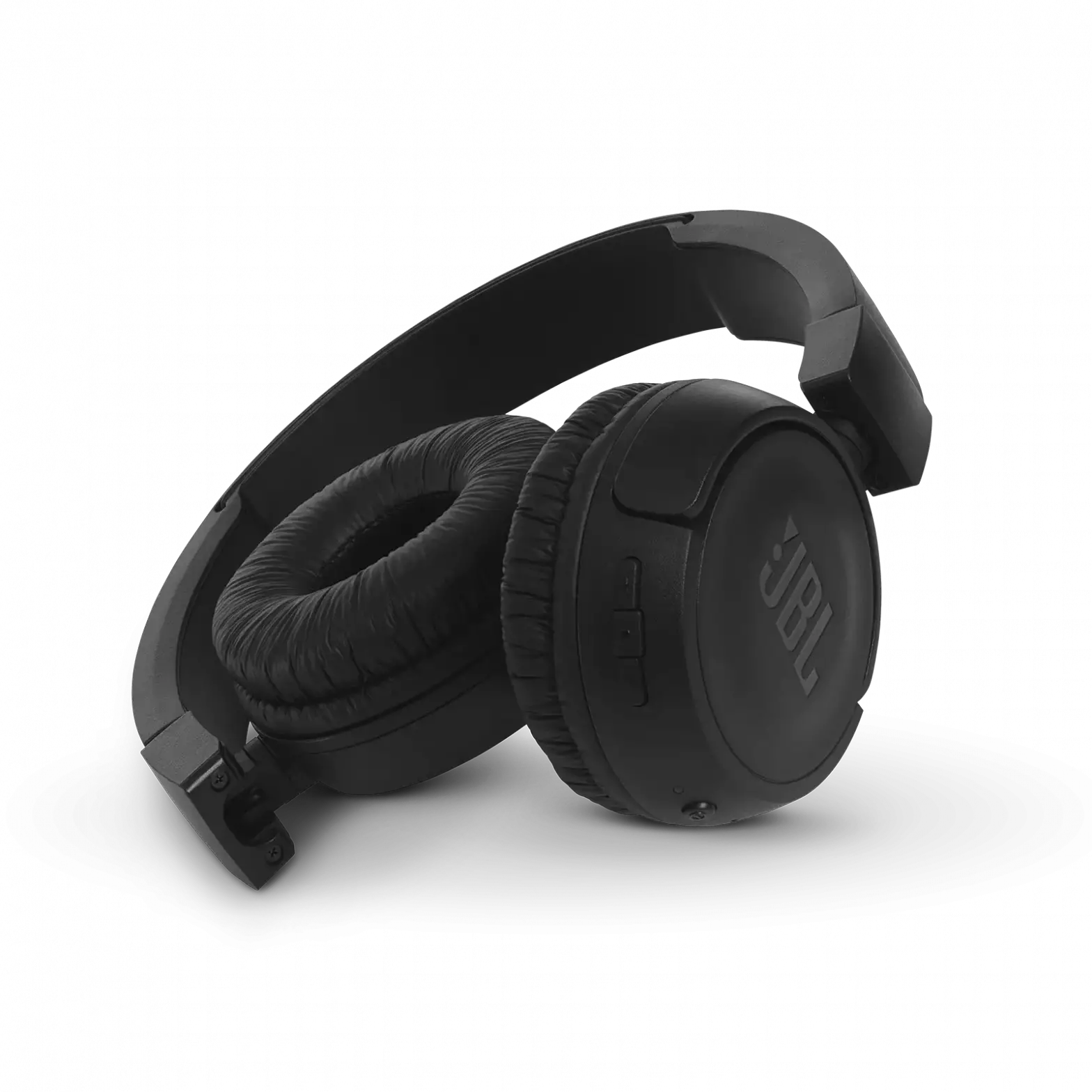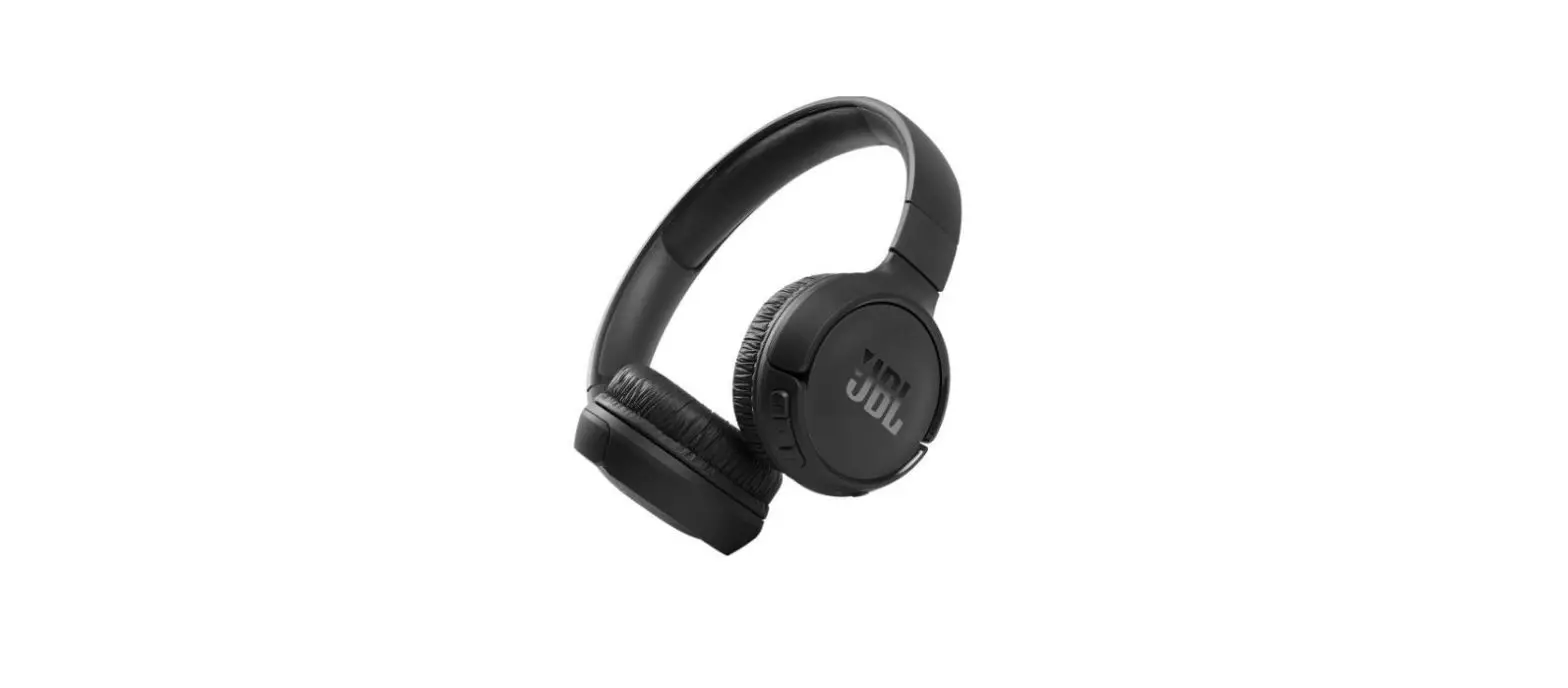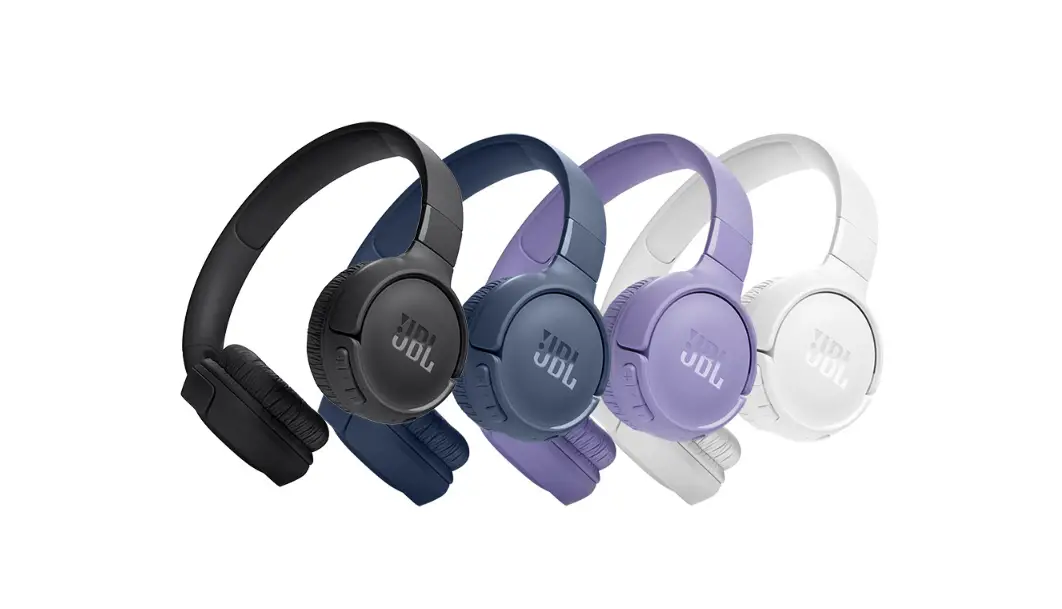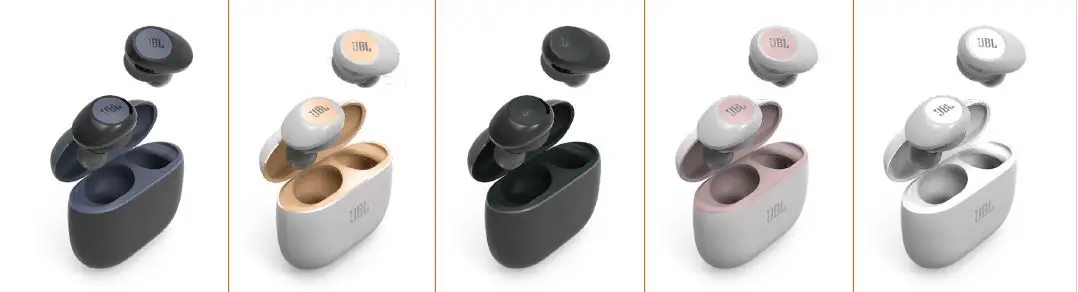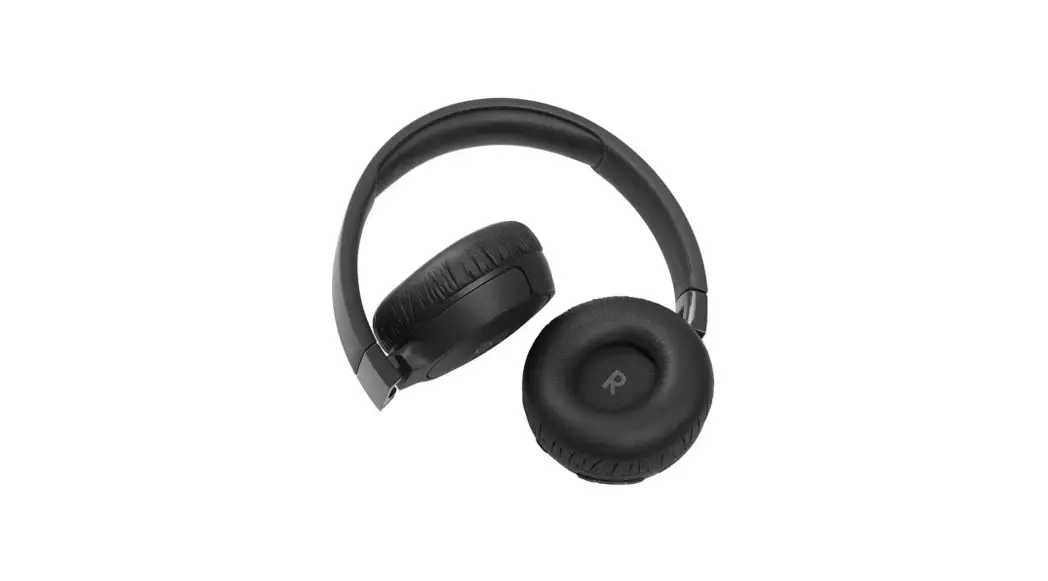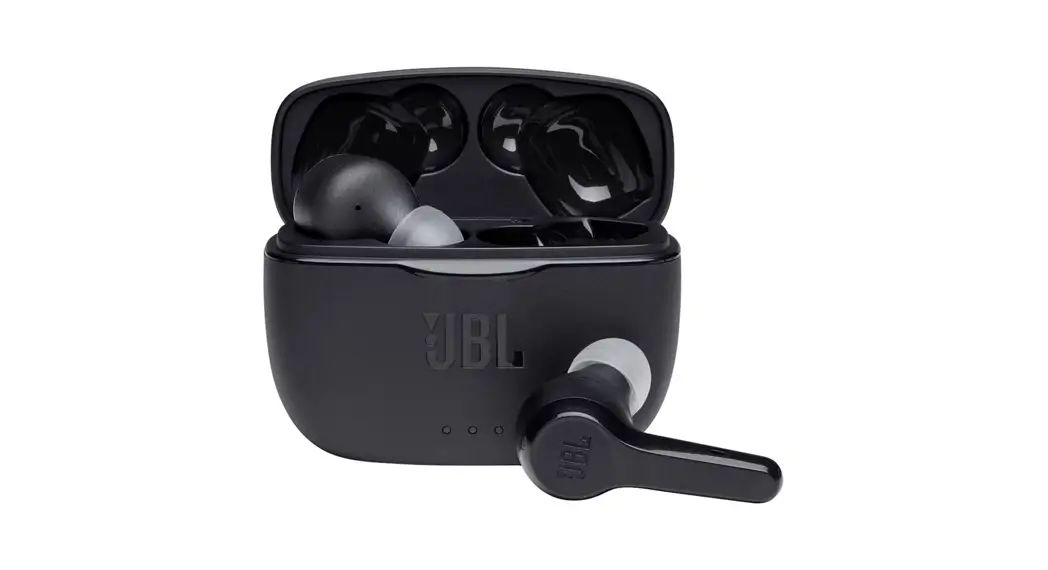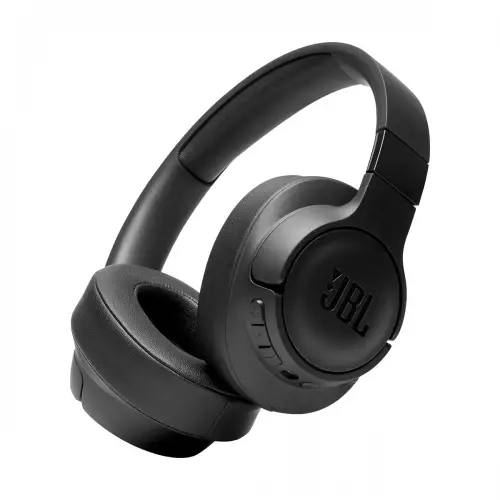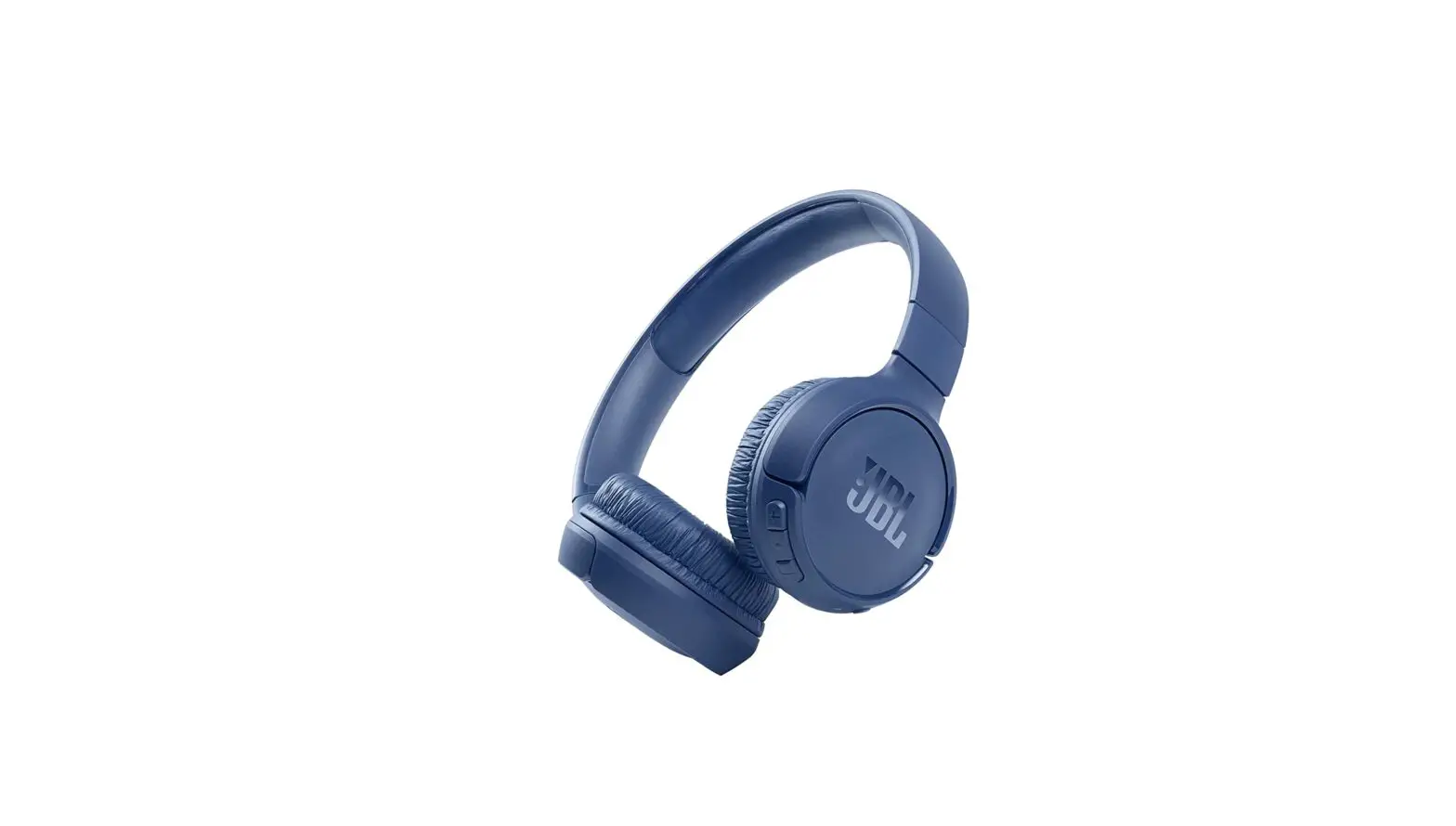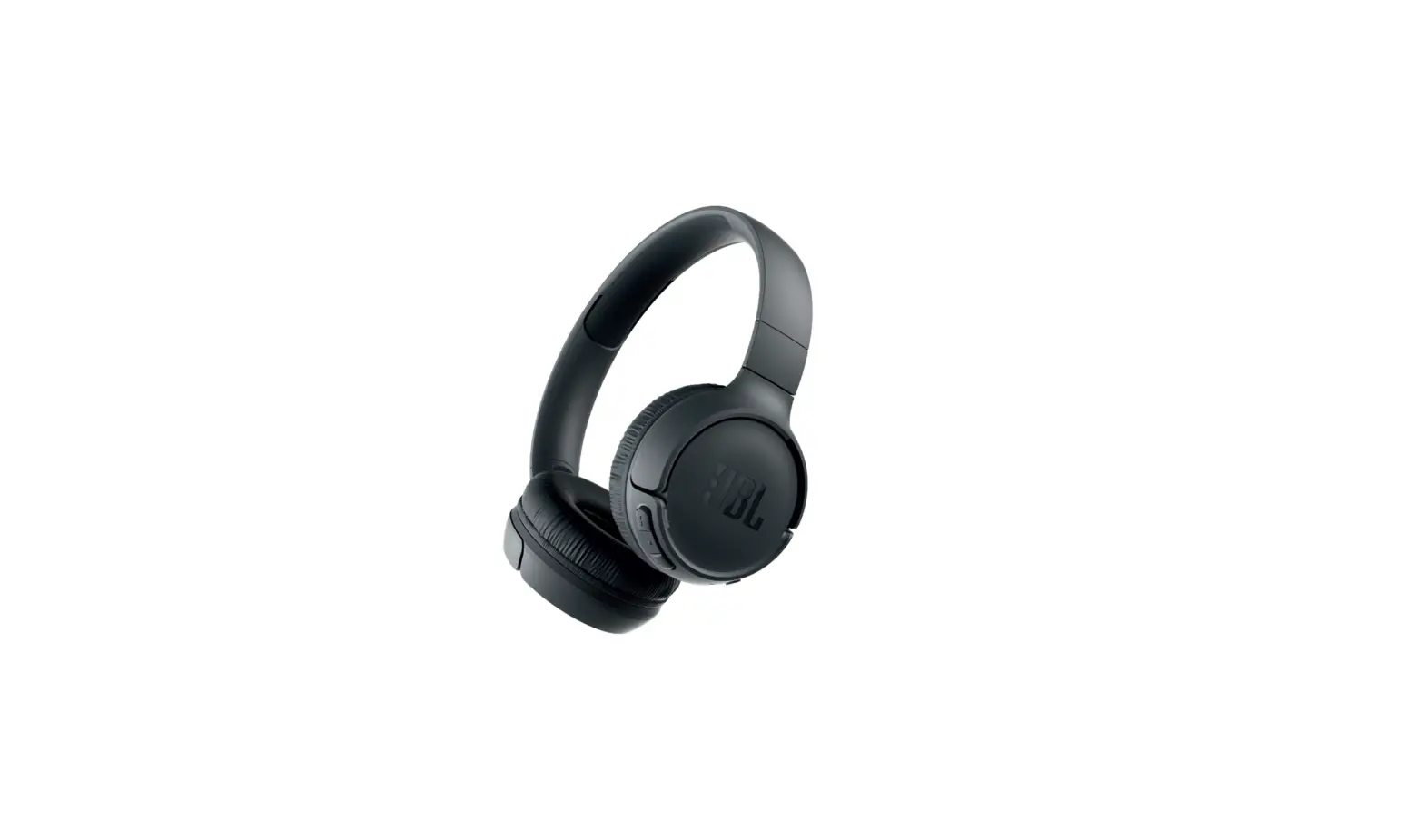

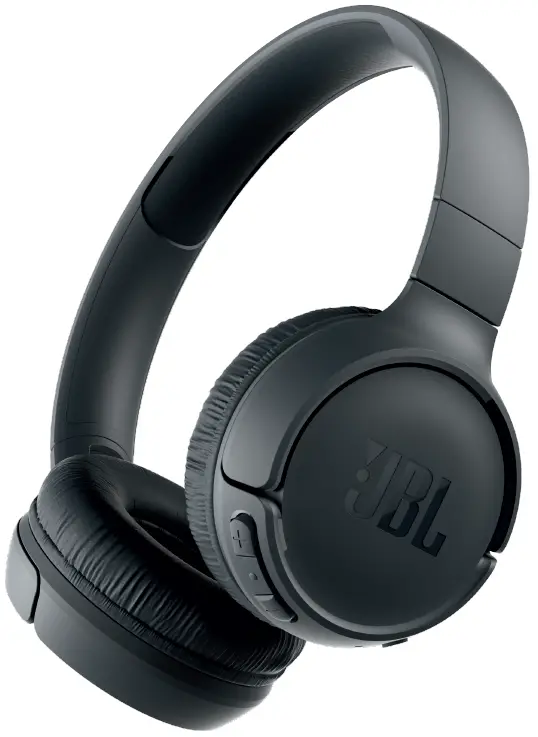
JBL TUNE 560BT Wireless On-Ear Headphones
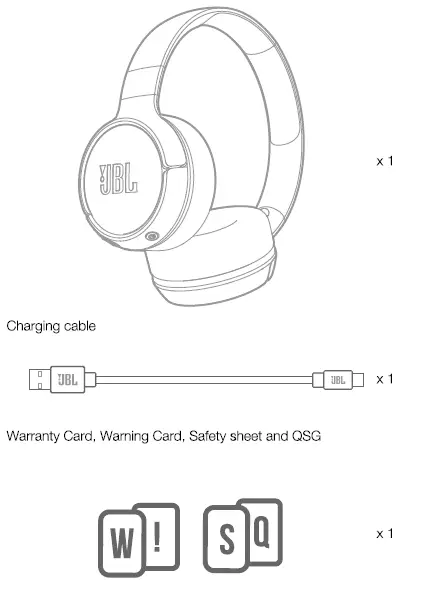
What’s in the Box
 Other Top JBL Tune Manuals:
- JBL Tune 510BT Wireless On-Ear Headphone User Guide
- JBL Tune 125BT Headphones User Guide
- JBL Tune 115 TWS Headphone User Guide
Overview
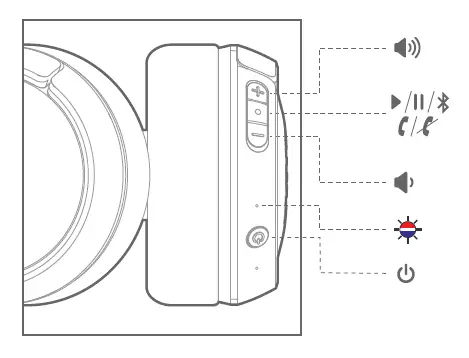
- Buttons & LEDs
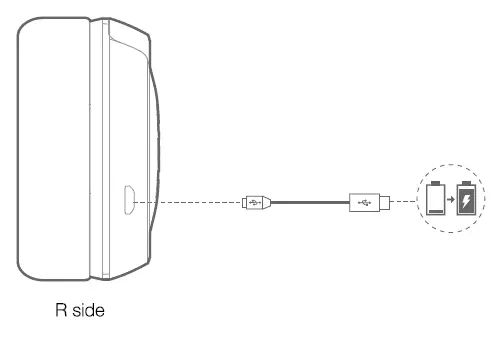
Charging
Bluetooth Connections
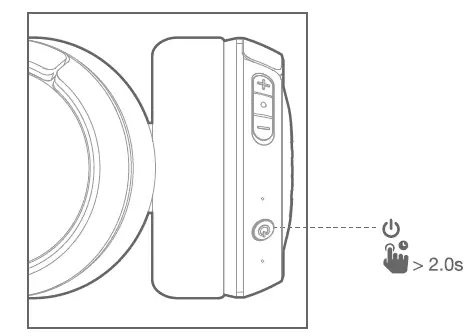
- Turn on / off the Headphone

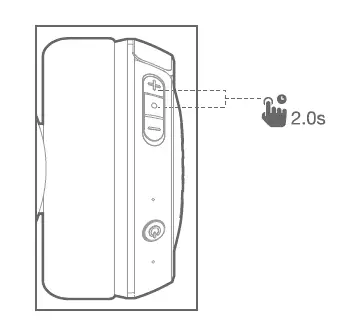
- If connecting for the first time, the headphone will enter pairing mode automatically after It is powered on.
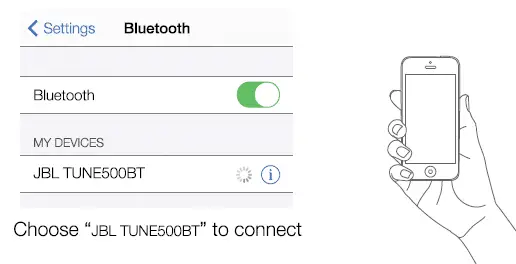
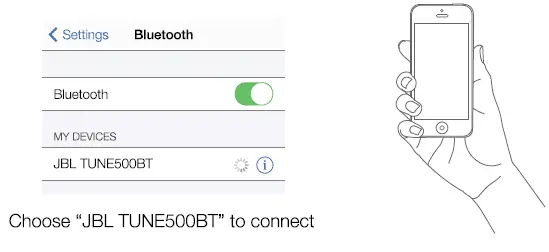
- Connect to Bluetooth device
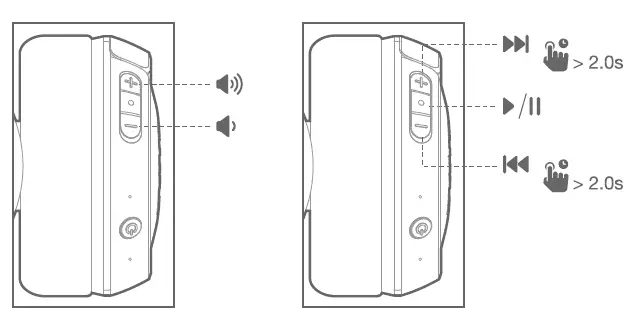
Music Controls
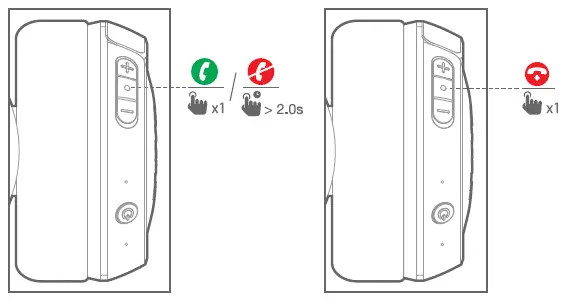
Phone Call
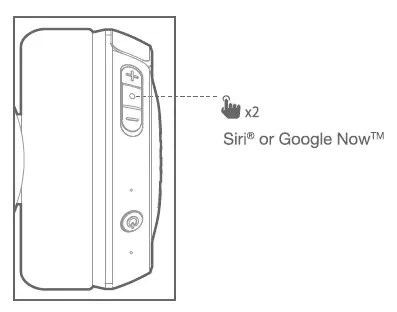
Voice Assistant
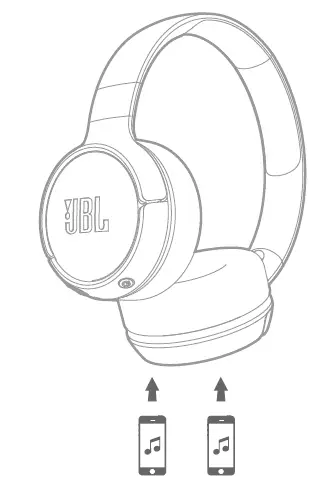
Seamlessly switch between devices
- Per and connect the headphone with the 1st Device. (see Section 3 Bluetooth Connection)
- Per and connect the headphone with the 211 Bluetooth Device
3. Connect to Bluetooth Device
Items to note:
- a. Maximum 2 devices can be connected simultaneously
- b. To switch the music source, pause the music on the current device and select play on the 2rc device.
- c. Phone calls will always take priority.
- d. If one device goes out of Bluetooth range or powers off, you may need to manually reconnect the remaining device. See Section 7 Step 3.
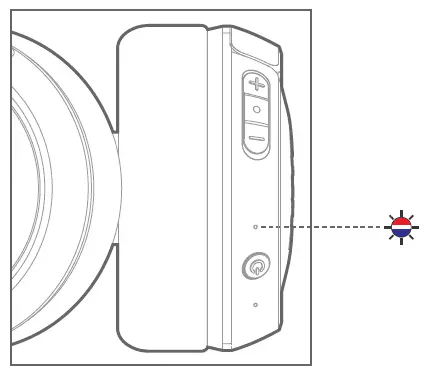
LED Behavior
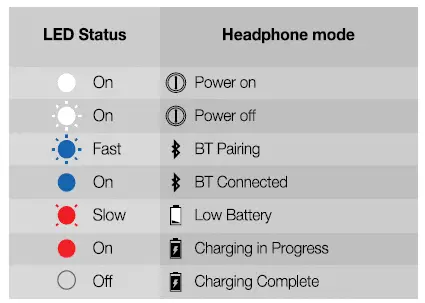
Specification
- Driver size: 32mm
- Frequency Response: 20Hz — 20kHz
- Bluetooth transmitter power: < 4dBm
- Bluetooth transmitter modulation: GFSK, o/4 DQPSK, 8DPSK
- Bluetooth frequency: 2.402 — 2.480GHz
- Bluetooth Profile: BT 4.1, A2DP v1.2, AVRCP v1.5, HFP v1.6, HSP v1.2
- Battery type: Lithium-ion Polymer (3.7V, 300mAH)
- Charging time: 2 hrs
- Music play time with BT on 16 hrs
- Weight: 0.155kg
FAQ’s
They lack a jack for a headphone connection since they are wireless.
The headphones already have a battery. These headphones are rechargeable. Connect and charge.
As Bluetooth is not supported by Xbox, these headsets will by default not function as a wireless headsets with your Xbox. To enable for semi-wireless use while playing, they may be connected to your controller utilizing the headphone connection on the bottom side. Nevertheless, I’m not sure if, in this case, the audio from the game would also operate as an online chat.
Activate the headphones. 2) Hold down the Power button for 7 seconds or until the LED alternately flashes blue and red. 3) On your Macbook Pro, access the Bluetooth options. 4) Choose “JBL TUNE 500BT” and connect to your Macbook Pro. 5) On your Macbook Pro, go to Bluetooth settings and choose “JBL TUNE 500BT.” 6) To change devices, pause music on one device and start it up again on another. 7) You might need to manually rejoin the remaining device if one device loses Bluetooth connectivity or shuts off.
A red solid light indication will be present at the bottom LEFT ear cup while the headphones are charging. The red light will go off when the device is completely charged.
With the JBL TUNE 560BT headphones, you may stream powerful audio for up to 16 hours without any restrictions. eligible for pickup or next-day delivery. Complimentary delivery is offered.
Unfortunately, noise cancellation is not a feature of the JBL Tune 510BT. The JBL Tune 660NC, however, does.
To activate, just lift the lid of the charging case or remove one or both of the earphones. 2. Turn on Bluetooth on your phone, then choose “JBL Quantum TWS” from the list of Bluetooth devices. When the connection is complete, you can hear “BT connected” coming from the headphones.
The buttons on the ear cups of the headphones can be used for this. To pick the next song, answer the phone, or change the volume, press one of these buttons.
The JBL Free is your versatile companion for calls, music, and an active lifestyle. It is completely wire-free and simple to use.
Yes. While using the USB charging wire to charge your headset, you may still use it. If a cable—such as an audio or charging cable—is attached to the headset’s USB port, you could notice a modest increase in warmth there.
Tap the + sign in the upper left corner to change the sound settings on your own. Three bars for the bass, midrange, and treble are now visible. On the left and right, there are circles. Put your finger on the line that joins the two circles, and adjust its height as necessary.
Enjoy 40 hours of wireless listening time as the battery is recharged in as little as 2 hours with the handy Type-C USB cord. You may listen to two more hours of music after a simple 5-minute recharge.
Just push the button located between the up and down volume controls to answer a call. This is the same button you use to pause or resume music while using the headphones to listen to music. While using headphones, you may end a call by pressing the same button you used to answer it.
Yes. You may disable noise-canceling by using the JBL Headphones app, which can be downloaded on an Android or iOS smartphone. Moreover, you may change it such that the “S” button toggles it on and off rather than altering its settings as it does by default.
Download this PDF Link: JBL TUNE 560BT Wireless On-Ear Headphones Quick Start Guide