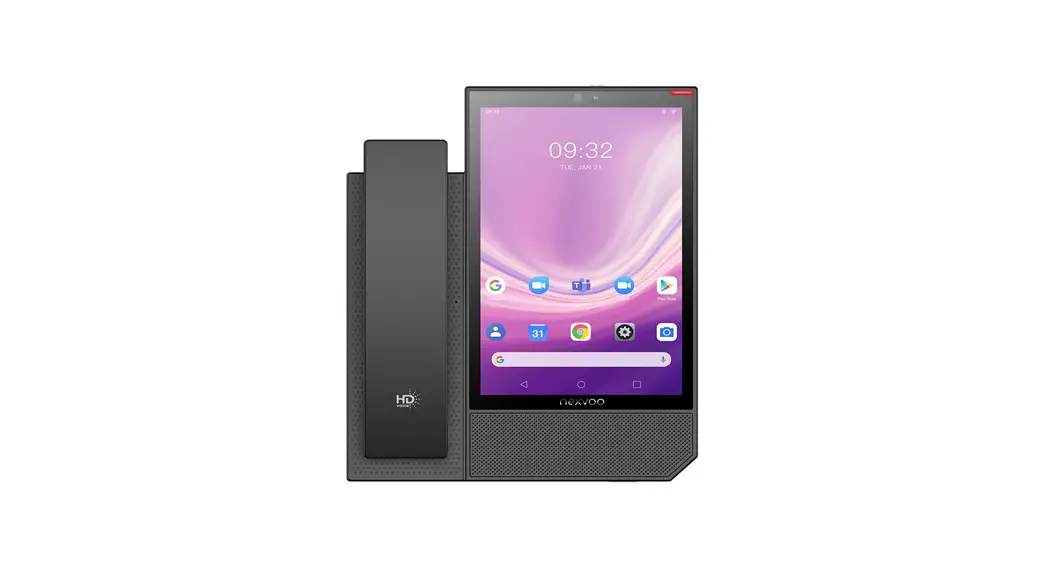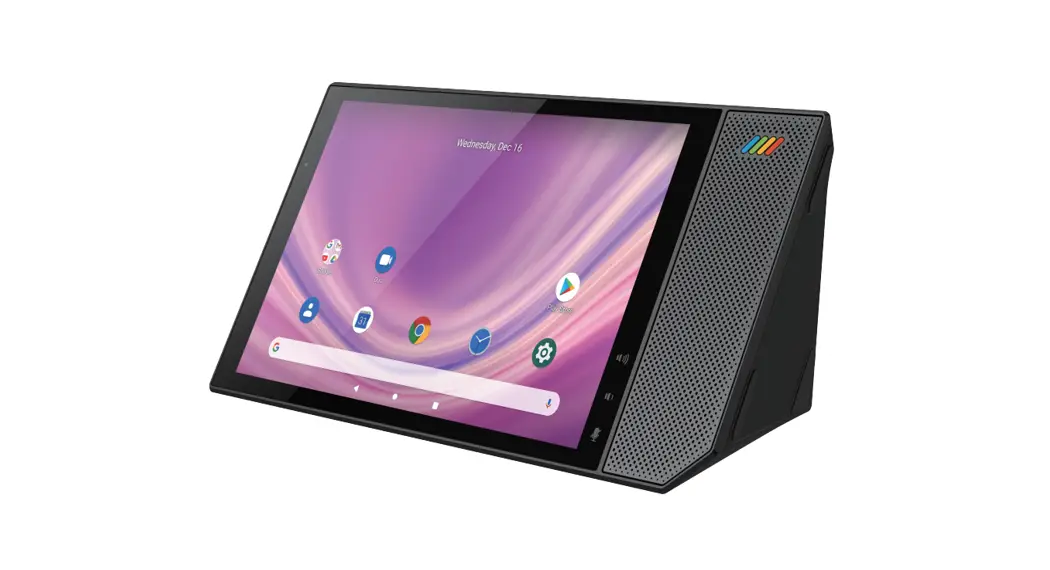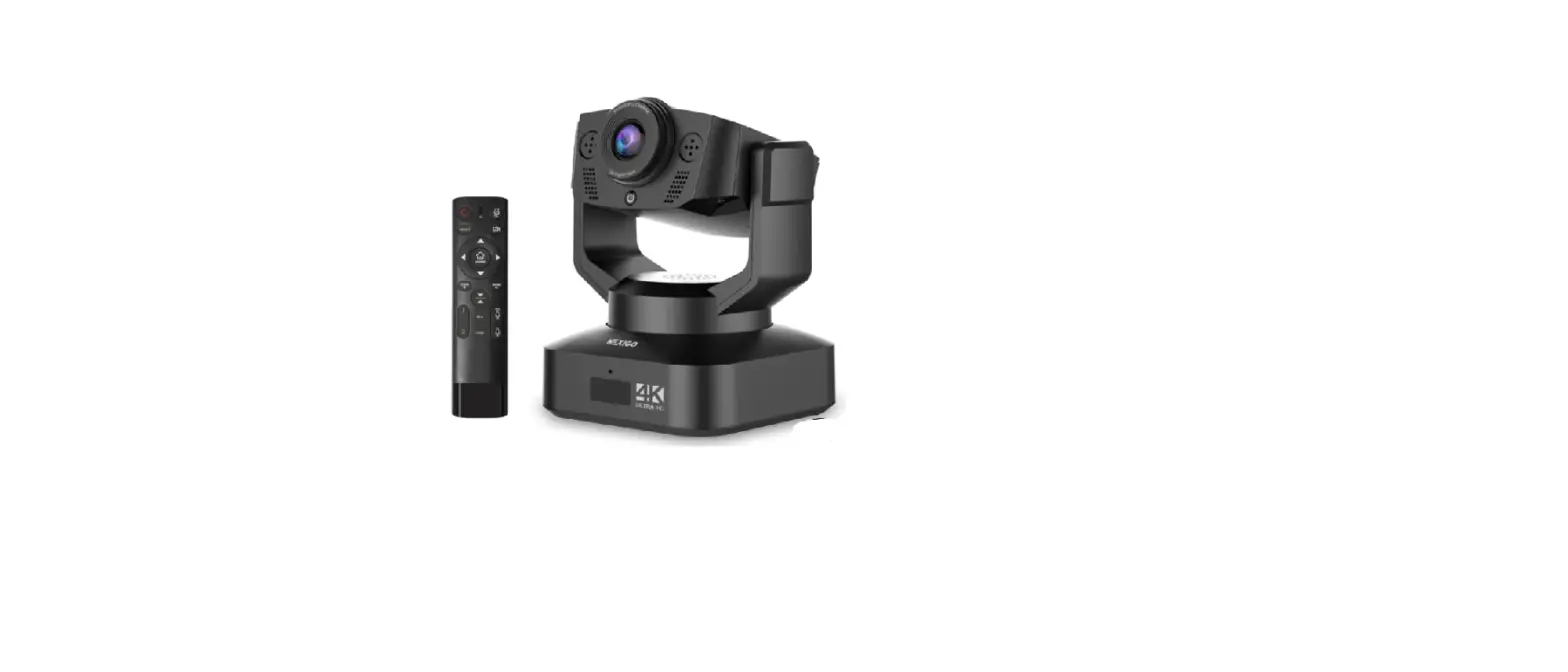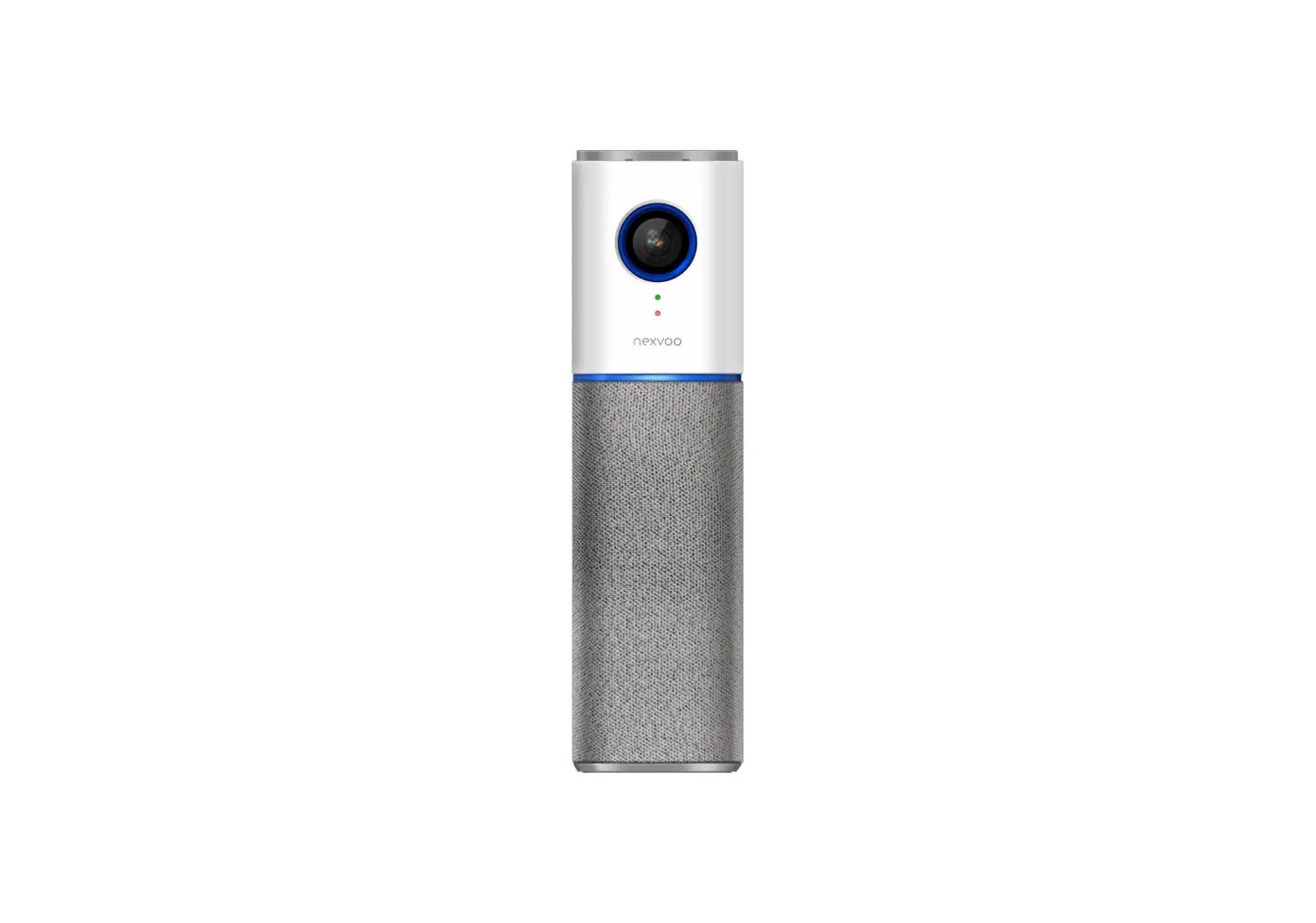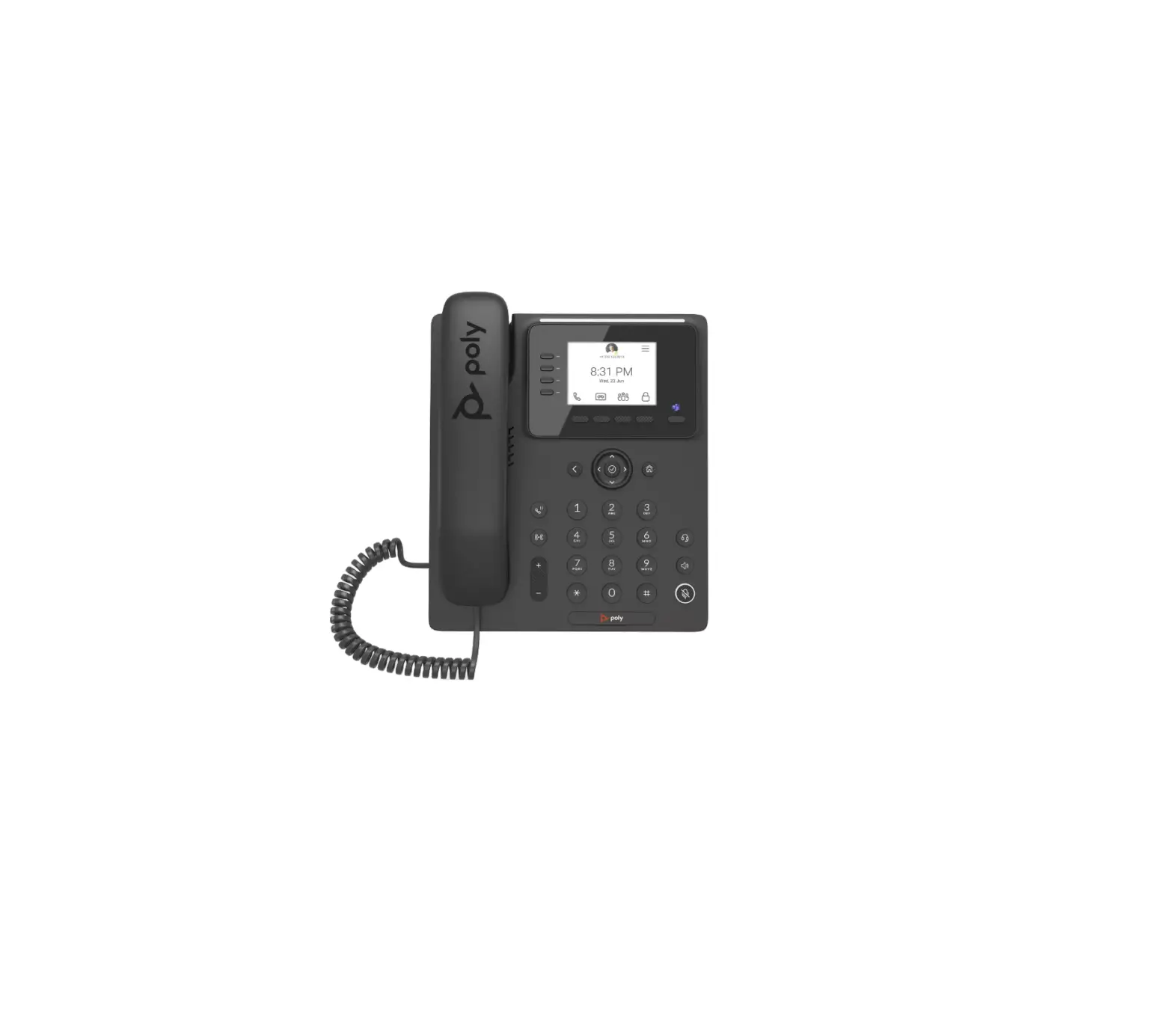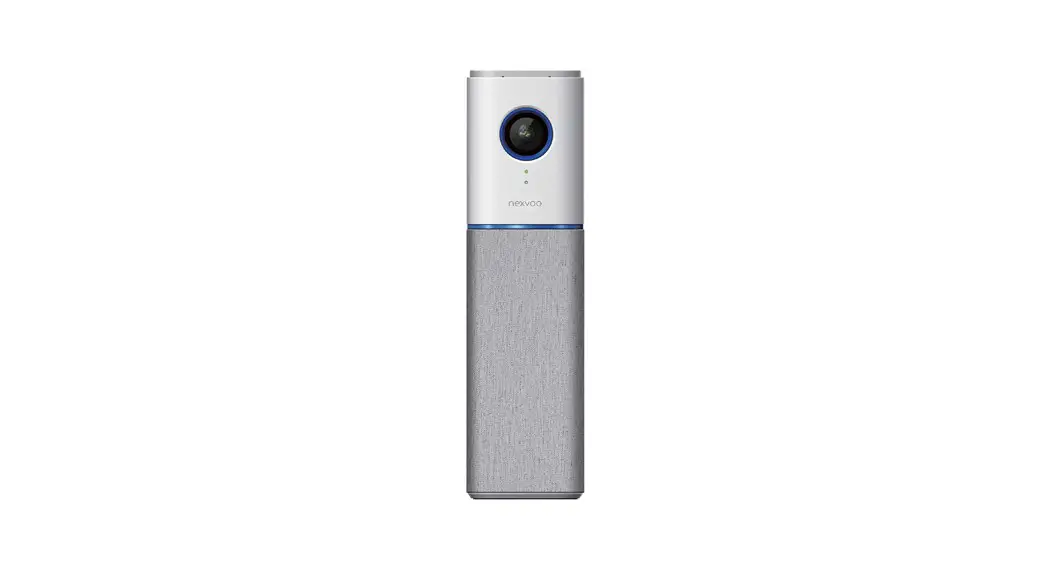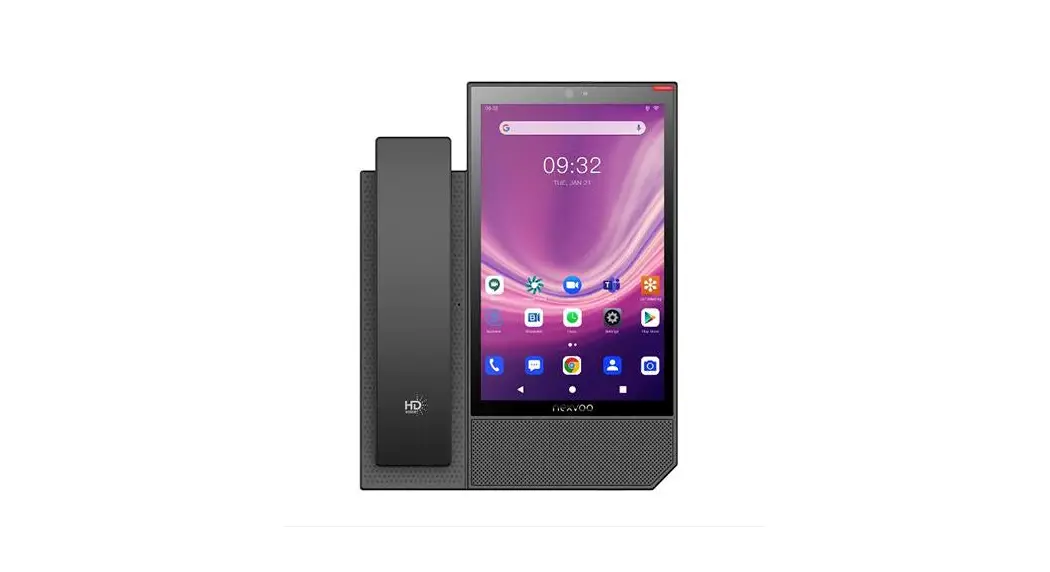

 N380 4K HD Google Certified Business Media Desk Phone
User Guide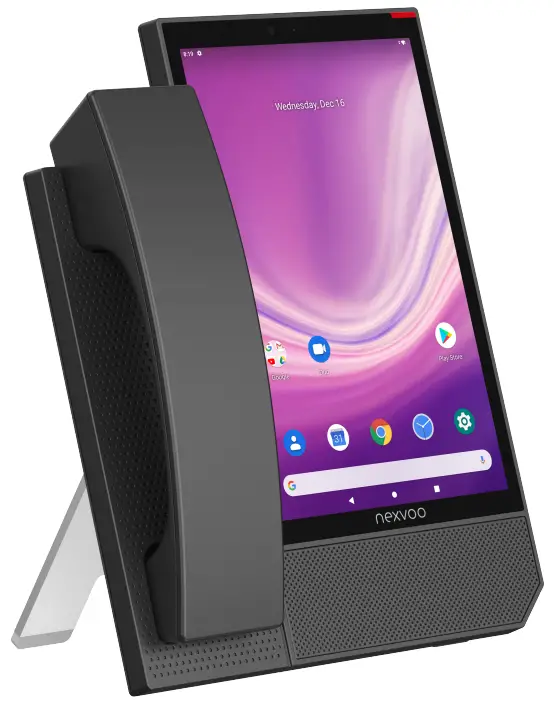 QUICK START GUIDE
(Version Vl.l)
Package Contents
The following items are included in your package. If you find anything missing, please contact your system administrator.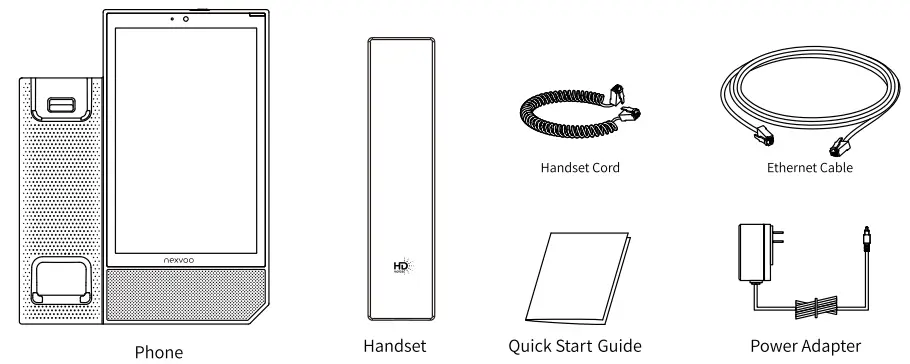
Assembling Your Phone
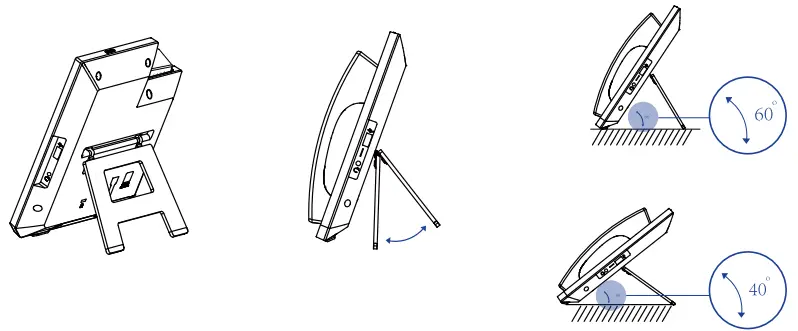
- You can adjust the angle of bracket according to your preference, as shown below:

- Connect the handset and optional headset, as shown below:
 Note: N380 supports 3.5mm headset and RJ9 headset, but you can only connect one kind of headsets at a lime. You can choose Nexvoo optional headset.
 - Connect the AC power or PoE, as shown below:
 Note:N380 should be used with Nexvoo original adapter(5V/2A) only. The use of unapproved third-party adapter may damage your phone. If you want to connect a PC to your phone, we recommend that you can use the Ethernet cable provided by Nexvoo. If inline power(PoE) is provided, you don’t need to connect the power adapter. Make sure the hub/switch is PoE-compliant.
 - Connect the optional USB headset or USB flash drive, as shown below:
 Note: The USB port (on the side of the phone) can also be used to connect USB-headset.
 - Connect to the network, as shown below:
You have two options for network connection. You can select one of them according to the current office environment.
a) Connect to the wired network:
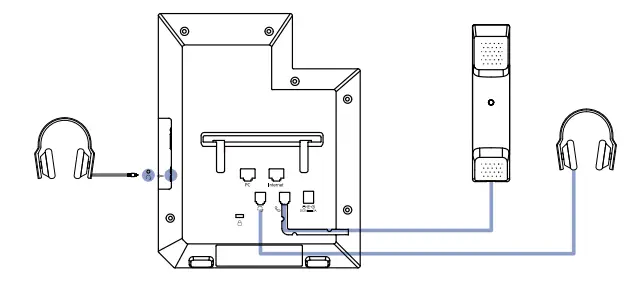 Note: N380 supports 3.5mm headset and RJ9 headset, but you can only connect one kind of headsets at a lime. You can choose Nexvoo optional headset.
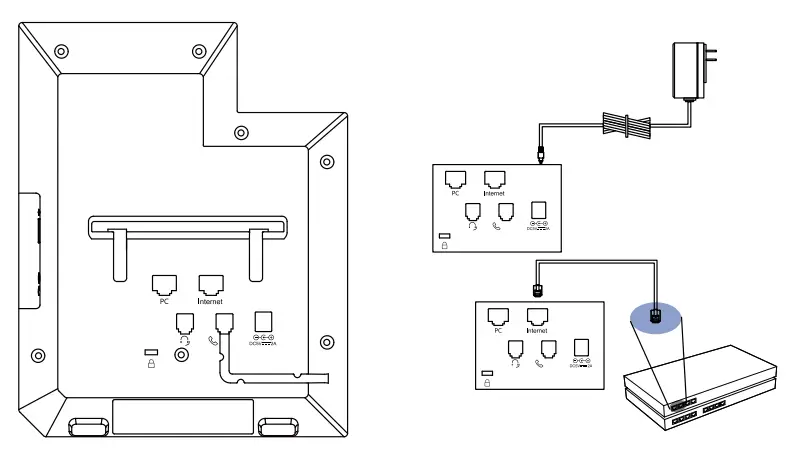 Note:N380 should be used with Nexvoo original adapter(5V/2A) only. The use of unapproved third-party adapter may damage your phone. If you want to connect a PC to your phone, we recommend that you can use the Ethernet cable provided by Nexvoo. If inline power(PoE) is provided, you don’t need to connect the power adapter. Make sure the hub/switch is PoE-compliant.
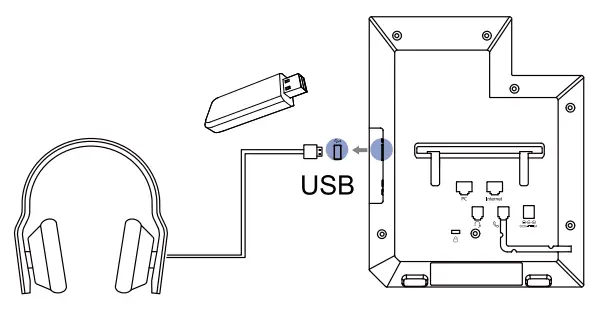 Note: The USB port (on the side of the phone) can also be used to connect USB-headset.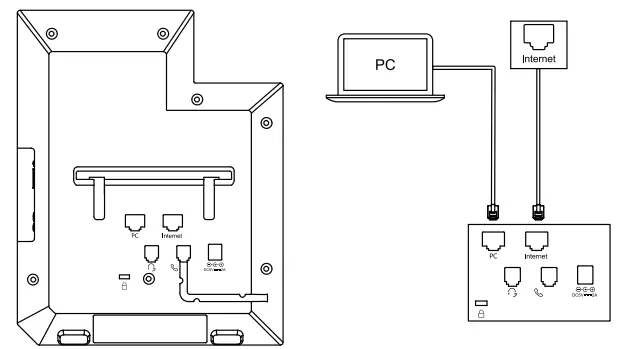
Note: If you are connecting a PC to your phone, you should use the Ethernet cable provided by Nexvoo.
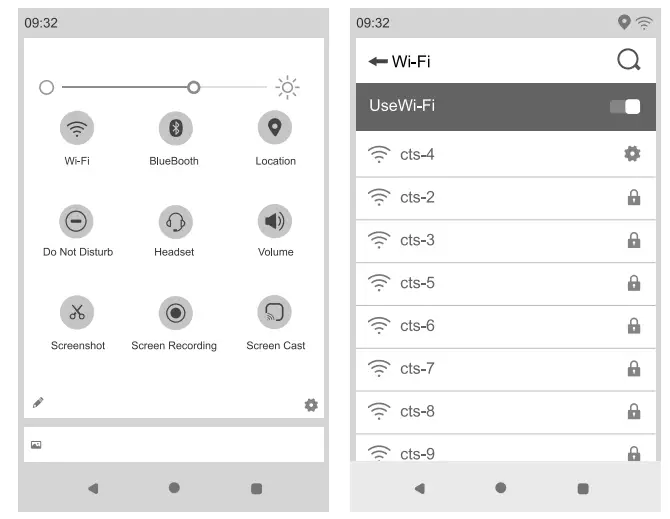
b) Connect to the wireless network:
- Swipe down from the top of the screen to enter the control center.
- Long press @ for 2 seconds.
- Tap the On radio box in the Use Wi-Fi field. The phone will automatically search for available wireless networks in your area.
- Select an available wireless network from the list of networks.
- If the network is secure, enter its password in the Password field.
- Tap Connect to connect to the wireless network.

Physical Devices Layout
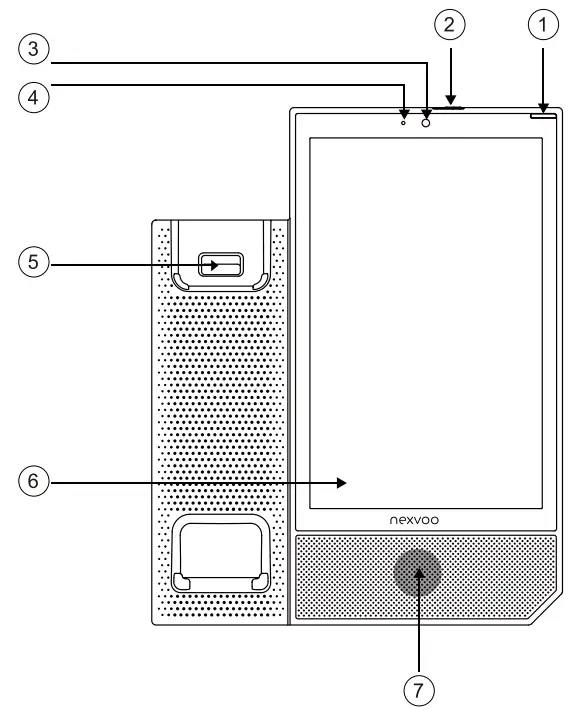
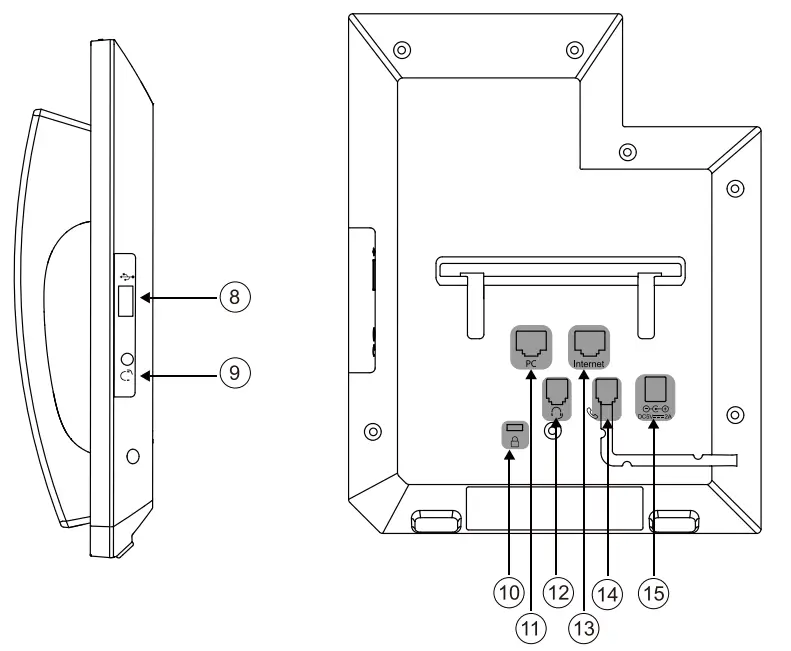
| Item | |
| 1 | Status indicator |
| 2 | Privacy shutter |
| 3 | Camera |
| 4 | Camera indicator |
| 5 | Hook switch |
| 6 | Touch screen |
| 7 | Speaker |
| 8 | USB-A 2.0 port |
| 9 | 3.5mm headset jack |
| 10 | Kensington |
| 11 | RJ45 PC port |
| 12 | RJ9 headset port |
| 13 | RJ45 PoE internet port |
| 14 | Handset port |
| 15 | Power adapter connector |
Privacy Shutter
N380 provides a physical shutter to protect your privacy.
When you slide the shutter to the left, the camera is still on, but it only transmits a black background. The camera indicator is also on, indicating that the camera is working.
Procedure
- Slide the camera shutter to the left, so that the camera is entirely covered with the shutter. If the shutter does not cover the entire camera, the camera might capture partial video.
- Slide the camera shutter to the right, the shutter opens and the camera is uncovered.
Kensington lock
You can buy a safety lock to lock in Kensington lock to protect your phone. 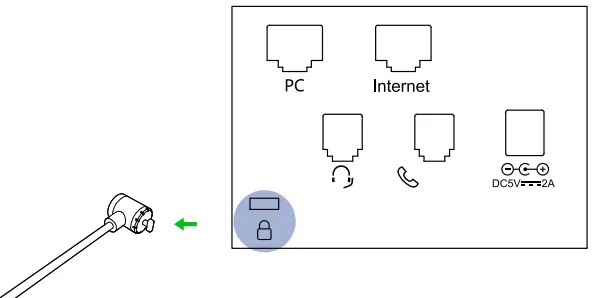
Boot up
After the phone is supplied with power, it automatically begins the initialization process. After start up, the phone is ready for use. 
Idle screen
The phone uses Android™ native idle screen by default.
You can slide the screen up and down to switch between the idle screen and the application screen.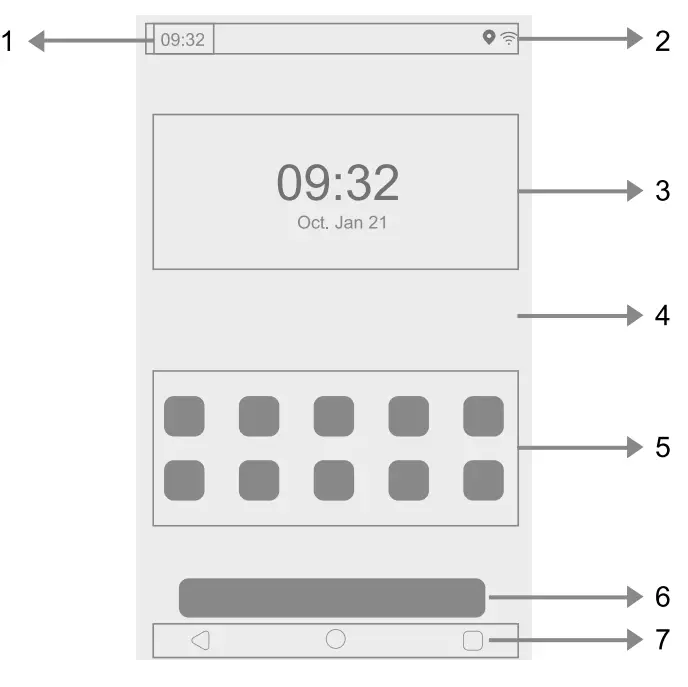
| Item | Description | |
| 1 | Time | Time is on the left side of the status bar |
| 2 | Status bar | Display function status icon and time |
| 3 | Digital clock component | Show date and time |
| 4 | Wallpaper | Show wallpapers, can customize wallpapers |
| 5 | App shortcut icon | Shortcut icon for main application, click to open the corresponding application |
| 6 | Google search bar | Stay in the know with the Google App |
| 7 | Navigation key |  : Go back to the previous screen : Go back to the previous screen |
 : Return to the idle screen : Return to the idle screen | ||
 : view and manage recently used applications : view and manage recently used applications |
Indicator function
Status indicator
The red light is on during the initialization process, then off after entering the idle screen.
And it is reserved for certain App.
Camera indicator
The green light is on when the camera is on, otherwise will be off when camera is off.
Application screen
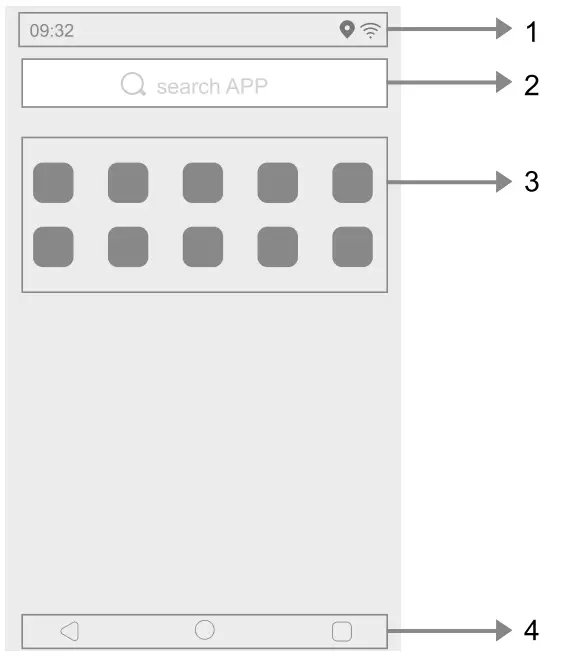
| Item | Description | |
| 1 | Status bar | Display function status icon and time |
| 2 | Search bar | Quick search application |
| 3 | APP | Show installed apps |
| 4 | Navigation key | : Go back to the previous screen |
| : Return to the idle screen | ||
| : View and manage recently used applications |
Lock screen
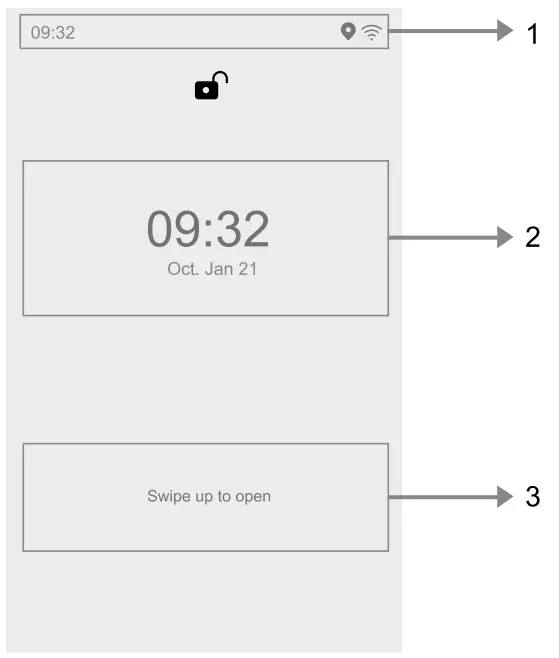
| Item | Description | |
| 1 | Status bar | Display function status icon and time |
| 2 | Digital clock component | Show date and time |
| 3 | Unlock area | Phone unlocking method and instructions |
Control center
Swipe down from the top of the screen to enter the control center.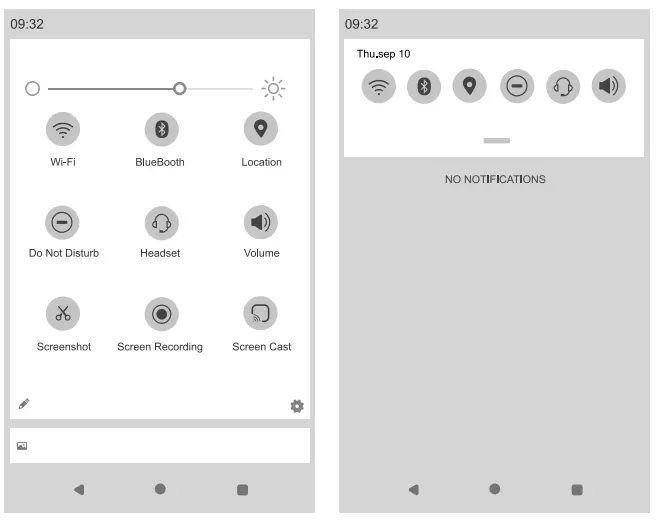
| Item | ||
| 1 | Brightness bar |  |
| 2 | Wi-Fi |  |
| 3 | Bluetooth |  |
| 4 | Location |  |
| 5 | Do Not Disturb |  |
| 6 | Headset |  |
| 7 | Volume |  |
| 8 | Screenshot |  |
| 9 | Screen Recording |  |
| 10 | Screen Cast |  |
- handset mode: Pick up the handset and automatically switch to handset mode.
- 3.5mm headset or RJ9 headset mode: connect 3.5mm headset or RJ9 headset, click
 to switch to headset mode, click again to exit headset mode.
Status Icons
The icons on the status bar of the touch screen give information about the phone:
| Item | Icon | |
| 1 | USB Headset mode | |
| 2 | Microphone mute |  |
| 3 | Do Not Disturb |  |
| 4 | Wi-Fi |  |
| 5 | Network connection |  |
| 6 | Bluetooth | |
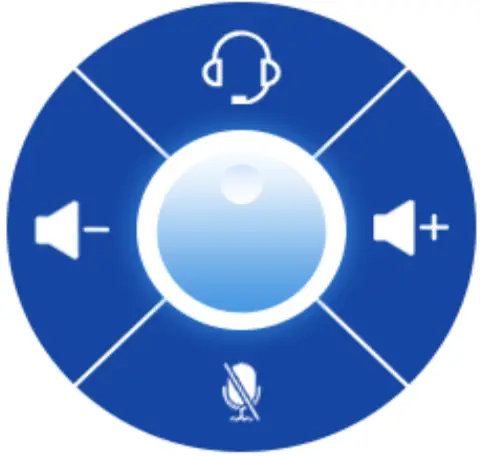
Navigate to Settings->Display–>Advanced–>Floating button–>Display on the Screen, you can display or hide floating button.
- 3.5mm headset or RJ9 headset mode: Click to switch to headset mode, click again to exit headset mode.
- Microphone mute: Click
 to mute the microphone, click again to unmute the microphone.
 - Volume up: Click
 to increase the volume.
 - Volume down: Click
 to decrease the volume.
 to mute the microphone, click again to unmute the microphone.
 to increase the volume.
 to decrease the volume.
 Regulatory Notices
 Regulatory Notices
Operating Ambient Temperatures
- Operating temperature: +32 to 104°F (0 to 40C)
- Storage temperature: -22 t0 +160F (30 t0 +70€)
- Relative humidity: 5% to 90%, non-condensing
Warranty
Our product warranty is limited only to the unit itself, when used normally in accordance with the operating instructions and the system environment. We are not liable for damage or loss resulting from the use of this product, or for any claim from a third party. We are not liable for problems with Nexvoo device arising from the use of this product; we are not liable for financial damages, lost profits, claims from third parties, etc., arising from the use of this product.
Explanation of the symbols DC
Symbol is the DC voltage symbol. WEEE Warning symbol
• 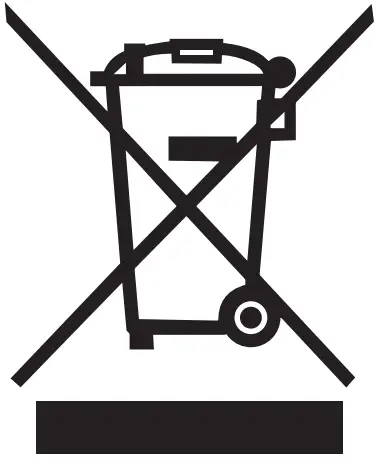 To avoid the potential effects on the environment and human health as a result of the :a:- presence of hazardous substances in electrical and electronic equipment, end users of – electrical and electronic equipment should understand the meaning of the crossed-out wheeled bin symbol. Do not dispose of WEEE as unsorted municipal waste and have to collect such WEEE separately.
Restriction of Hazardous Substances Directive (ROHS)
This device complies with the requirements of the EU ROHS Directive.
Statements of compliance can be obtained by contacting [email protected]
Safety Instructions
Save these instructions. Read these safety instructions before use! General Requirements
- Before you install and use the device, read the safety instructions carefully and observe the situation during operation.
- During the process of storage, transportation, and operation, please always keep the device dry and clean, avoid collision and crash.
- Please attempt not to dismantle the device by yourself. In case of any discrepancy, please contact the appointed maintenance center to repair.
- Please refer to the relevant laws and statutes while using the device. Legal rights of others should be respected as well.
Environmental Requirements
- Place the device at a well-ventilated place. Do not expose the device under direct sunlight.
- Keep the device dry and free of dusts.
- Do not place the device on or near any inflammable or fire-vulnerable object, such as rubber-made materials.
- Keep the device away from any heat source or bare fire, such as a candle or an electric heater.
Operating Requirements
- Do not let a child operate the device without guidance.
- Do not let a child play with the device or any accessory in case of accidental swallowing.
- Please use the accessories provided or authorized by the manufacturer only.
- The power supply of the device shall meet the requirements of the input voltage of the device. Please use the provided surge protection power socket only.
- Before plugging or unplugging any cable, make sure that your hands are completely dry.
- Do not spill liquid of any kind on the product or use the equipment near water, for example, near a bathtub, washbowl, kitchen sink, wet, basement or near a swimming pool.
- During a thunderstorm, stop using the device and disconnect it power supply. Unplug the power plug to avoid lightning strike.
- If the device is left unused for a rather long time, disconnect it from the power supply and unplug the power plug.
- When there is smoke emitted from the device, or some abnormal noise or smell, disconnect the device from the power supply, and unplug the power plug immediately.
- Contact the specified maintenance center for repair.
- Do not insert any object into equipment slots that is not part of the product or auxiliary product.
- Before connecting a cable, connect the grounding cable of the device first. Do not disconnect the grounding cable until you disconnect all other cables.
 Cleaning Requirements
- Before cleaning the device, disconnect it from the power supply.
- Use a piece of soft, dry and anti-static cloth to clean the device.
- Keep the power plug clean and dry.
Troubleshooting
The unit can not supply power to Nexvoo device.
- There is a bad connection with the plug.
1. Clean the plug with a dry cloth.
2. Connect it to another wall outlet. - The usage environment is out of operating temperature range.
1. Use in the operating temperature range. - The cable between the unit and the Nexvoo device is connected incorrectly.
1. Connect the cable correctly. - You can not connect the cable properly.
1. You may have connected a wrong Nexvoo device.
2. Use the correct power supply. - Some dust, etc., may be in the port.
1. Clean the port.
Contact your dealer or authorized service facility for any further questions.
FCC Statement
This device complies with part 15 of the FCC Rules. Operation is subject to the following two conditions:
- This device may not cause harmful interference, and
- this device must accept any interference received, including interference that may cause undesired operation.
IMPORTANT NOTE
Any Changes or modifications not expressly approved by the party responsible for compliance could void the user’s authority to operate the equipment.
Note: This equipment has been tested and found to comply with the limits for a Class B digital device, pursuant to part 15 of the FCC Rules. These limits are designed to provide reasonable protection against harmful interference in a residential installation. This equipment generates, uses and can radiate radio frequency energy and, if not installed and used in accordance with the instructions, may cause harmful interference to radio communications. However, there is no guarantee that interference will not occur in a particular installation. If this equipment does cause harmful interference to radio or television reception, which can be determined by turning the equipment off and on, the user is encouraged to try to correct the interference by one or more of the following measures:
- Reorient or relocate the receiving antenna.
- Increase the separation between the equipment and receiver.
- Connect the equipment into an outlet on a circuit different from that to which the receiver is connected.
- Consult the dealer or an experienced radio/TV technician for help.
FCC Radiation Exposure Statement:
This equipment complies with FCC radiation exposure limits set forth for an uncontrolled environment.This equipment should be installed and operated with minimum distance 20cm between the radiator & your body.
Technical Specification
- Transmitter Frequency:
Bluetooth/BLE:2402-2480MHz
2.4G WiFi:2412-2472MHz
5.2 G WiFi:5150-5250MHz
5.8 G WiFi:5725-5850MHz - Receiver Frequency:
Bluetooth/BLE: 2402-2480MHz
2.4G WiFi:2412-2472MHz
5.2 G WiFi:5150-5250MHz
5.8 G WiFi:5725-5850MHz - RF-Output power:
Bluetooth: 9.84dBm
BLE: 1.82dBm
2.4G WiFi: 11.15dBm(802.11 b ), 9.94dBm(802.11 g), 9. 72dBm(802.11 n-HT20)
5.2 G WiFi: 10.53dBm (802.11a), 10.60dBm(802.11n20),10.67dBm (802.11ac20)
5.8G WiFi: 10.04dBm (802.11a), 9.42dBm(802.11n20), 9.42dBm (802.11ac20)
 | AT | BE | BG | HR | CY | CZ | DK |
| EE | Fl | FR | DE | EL | HU | IE | |
| IT | LV | LT | LU | MT | NL | PL | |
| PT | RO | SK | SI | ES | SE | UK |
In all EU member states, operation of 5150 -5250 MHz is restricted to indoor use only.
FCC PART 68 HAC statement
- This equipment complies with Part 68 of the FCC rules and the requirements adopted by the ACTA. On the bottom of this equipment is a label that contains, among other information, a product identifier in the format US:AAAEQ##TXXXX. If requested, this number must be provided to the telephone company.
- A plug and jack used to connect this equipment to the premises wiring and telephone network must comply with the applicable FCC Part 68 rules and requirements adopted by the ACTA. A compliant telephone cord and modular plug is provided with this product. It is designed to be connected to a compatible modular jack that is also compliant. See installation instructions for details.
- The telephone company may make changes in its facilities, equipment, operations or procedures that could affect the operation of the equipment. If this happens the telephone company will provide advance notice in order for you to make necessary modifications to maintain uninterrupted service.
- If trouble is experienced with this equipment [US:R1JIPNANUC-N380], for repair or warranty information, Service can be facilitated through our office at:
U.S.Company name: Nexvoo, Inc Address: 1702 W Michigan St Indianapolis, IN 46222 USA. Email:[email protected]
If the equipment is causing harm to the telephone network, the telephone company may request that you disconnect the equipment until the problem is resolved. - Please follow instructions for repairing if any (e.g. battery replacement section); otherwise do not alternate or repair any parts of device except specified. For repair procedures, follow the instructions outlined under the limited warranty.
- If the telephone company requests information on what equipment is connected to their lines, inform them of:
a) The ringer equivalence number [NAN]
b) The USOC jack required [RJ45]
c) Facility Interface Codes (“FIC”) [NIA]
d) Service Order Codes (“SOC”) [NIA]
e) The FCC Registration Number [US:R1JIPNANUC-N380] - The REN is used to determine the number of devices that may be connected to a telephone line. Excessive RENs on a telephone line may result in the devices not ringing in response to an incoming call. In most but not all areas, the sum of RENs should not exceed five (5.0). To be certain of the number of devices that may be connected to a line, as determined by the total RENs, contact the local telephone company. The REN for this product is part of the product identifier that has the format US: AAAEQ##TXXXX. The digits represented by## are the REN without a decimal point. For this product the FCC Registration number is [US:R1JIPNANUC-N380] indicates the REN would be NAN.
- We suggest the customers use a surge arrestor to protect the device.
- This equipment is hearing aid compatible. [If available]
Copyright
Except where expressly stated, otherwise no use should be made of the Documentation, Software, Hosted Service, or hardware provided by Nexvoo. All content the documentation, Hosted Service, and the product provided by Nexvoo including the selection, arrangement and design of the content is owned either by Nexvoo or its licensors and is protected by copyright, and other intellectual property laws including the suigeneris rights relating to the protection of databases. You may not modify, copy, reproduce, republish, upload, post, transmit or distribute in any way any content, in whole or in part, including any code and software unless expressly authorized by Nexvoo.
Unauthorized reproduction, transmission, dissemination, storage, and or use without the express written consent of Nexvoo can be a criminal, as well as a civil offense.
Third Party Components
“Third Party Components” mean certain software programs or portions thereof included in the Software or Hosted Service may contain software (including open source software) distributed under third party agreements (“Third Party Components”), which contain terms regarding the rights to use certain portions of the Software (“Third Party Terms”). As required, information regarding distributed Android source code (for those products that have distributed Android source code) and identifying the copyright holders of the Third Party Components and the Third Party Terms that apply is available in the products, Documentation or such successor site as designated by Nexvoo. The open source software license terms provided as Third Party Terms are consistent with the license rights granted in these Software License Terms, and may contain additional rights benefiting You, such as modification and distribution of the open source software. The Third Party Terms shall take precedence over these Software License Terms, solely with respect to the applicable Third Party Components to the extent that these Software License Terms impose greater restrictions on You than the applicable Third Party Terms. Trademark
Google and Android are trademarks of Google LLC.
Any Changes or modifications not expressly approved by the party responsible for compliance could void the user’s authority to operate the equipment.