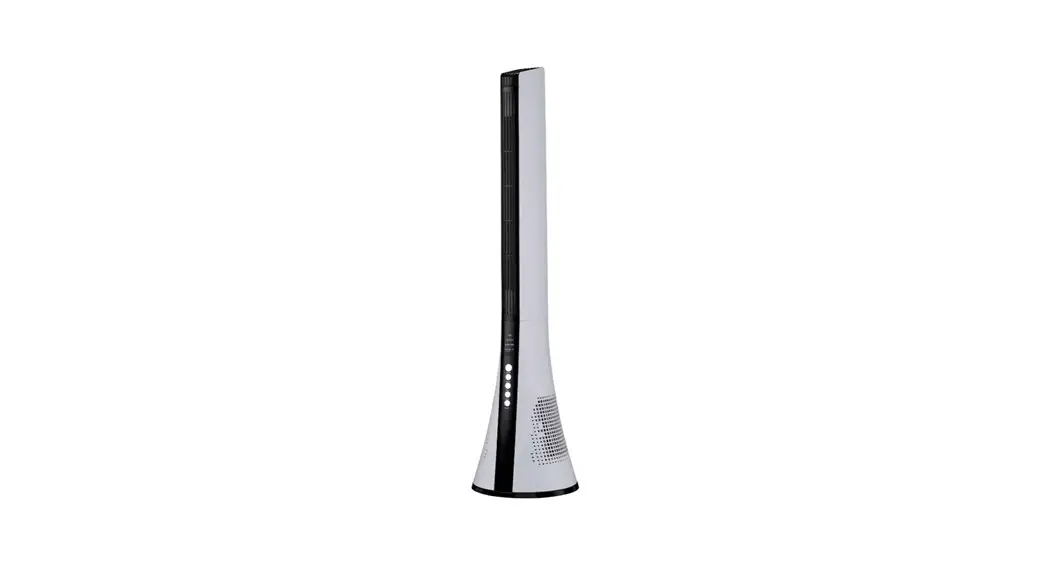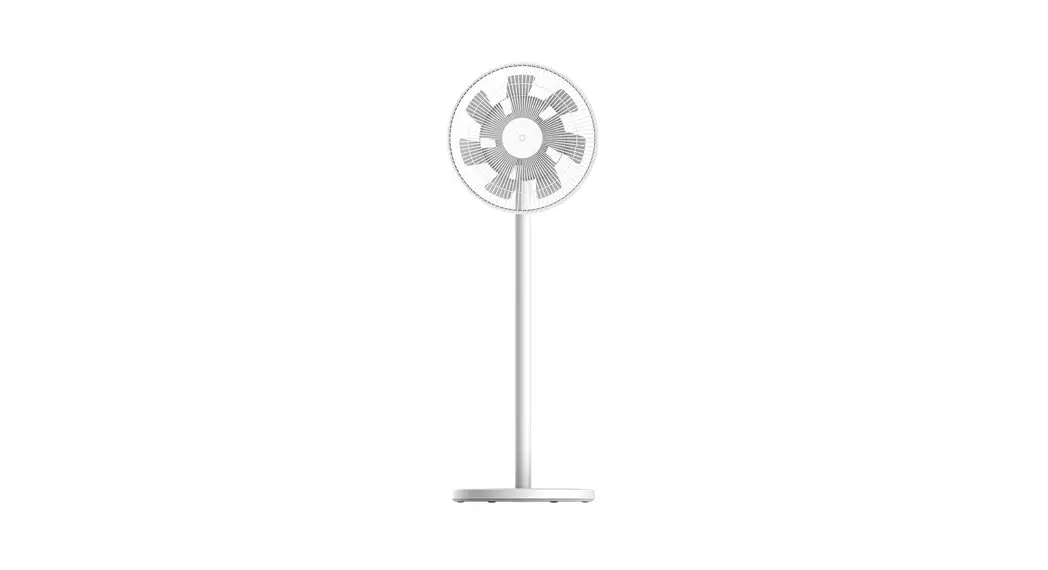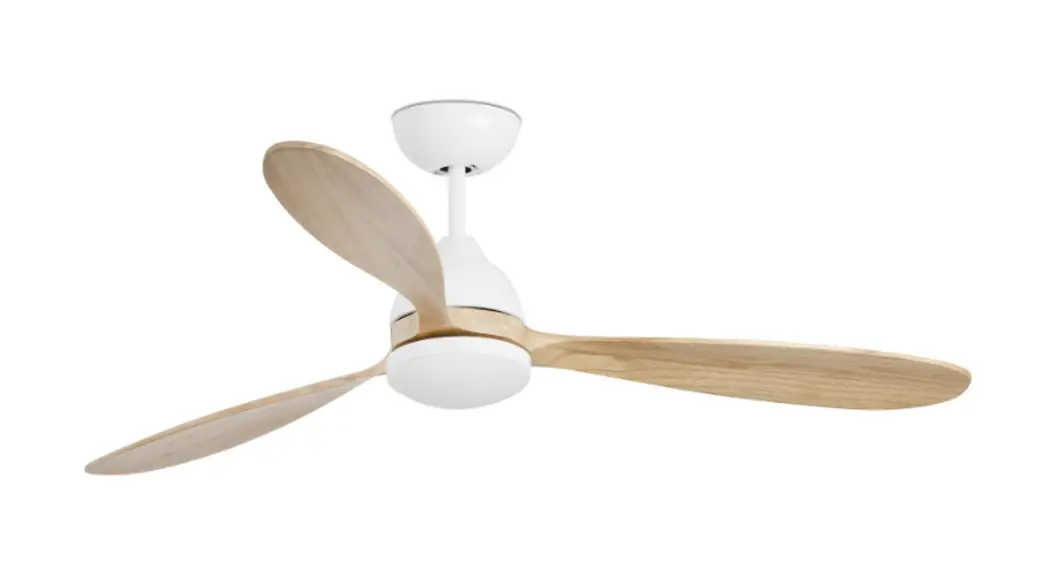
 Smart Fan
User Guide
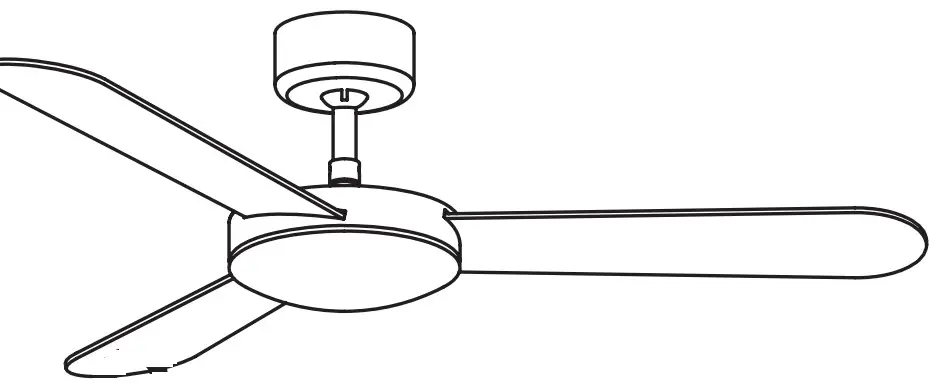
Pair the remote control with the receiver
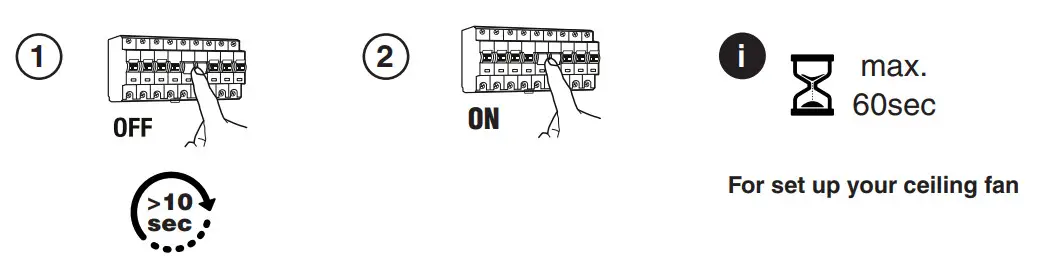
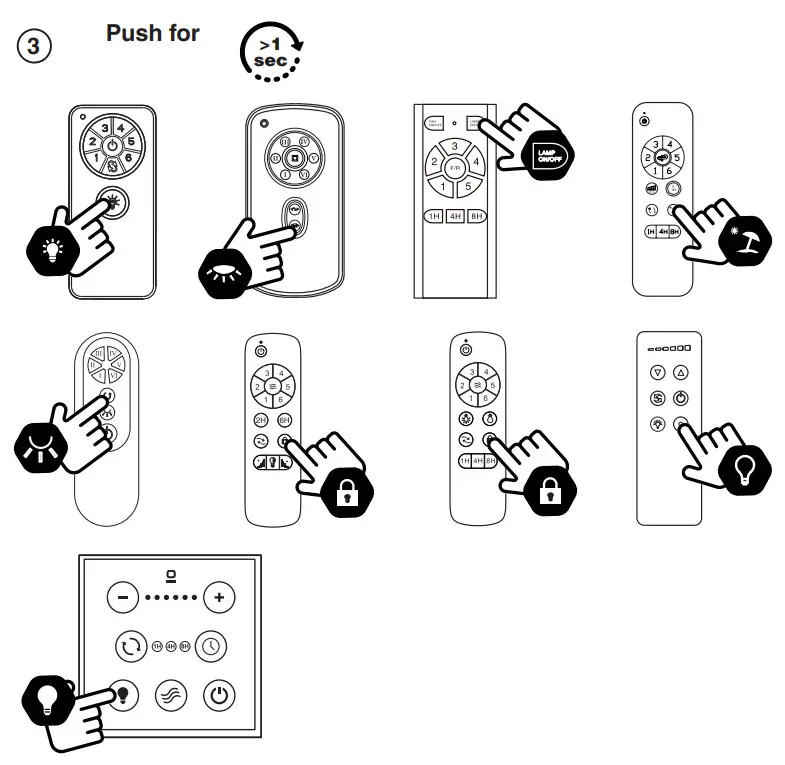
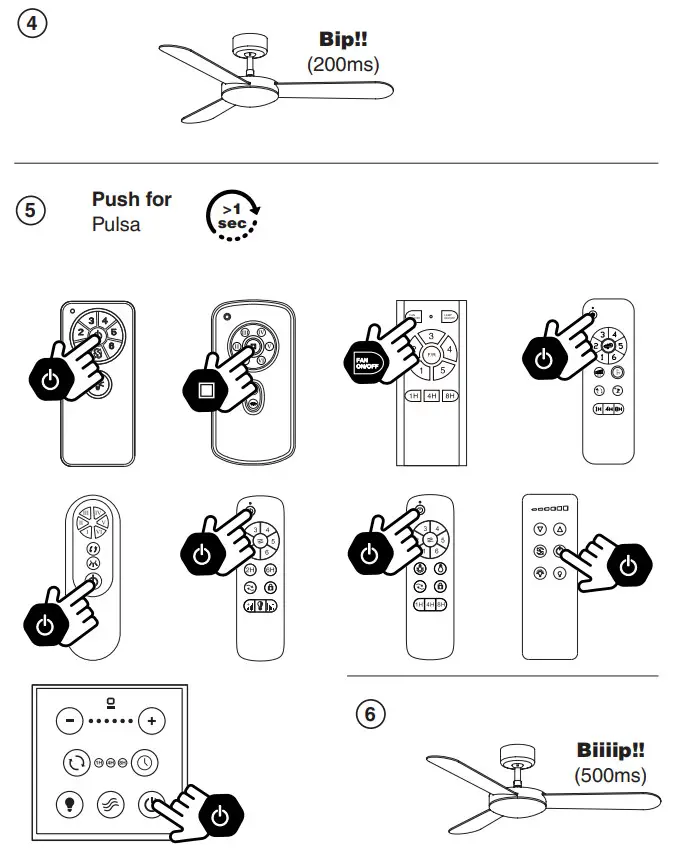
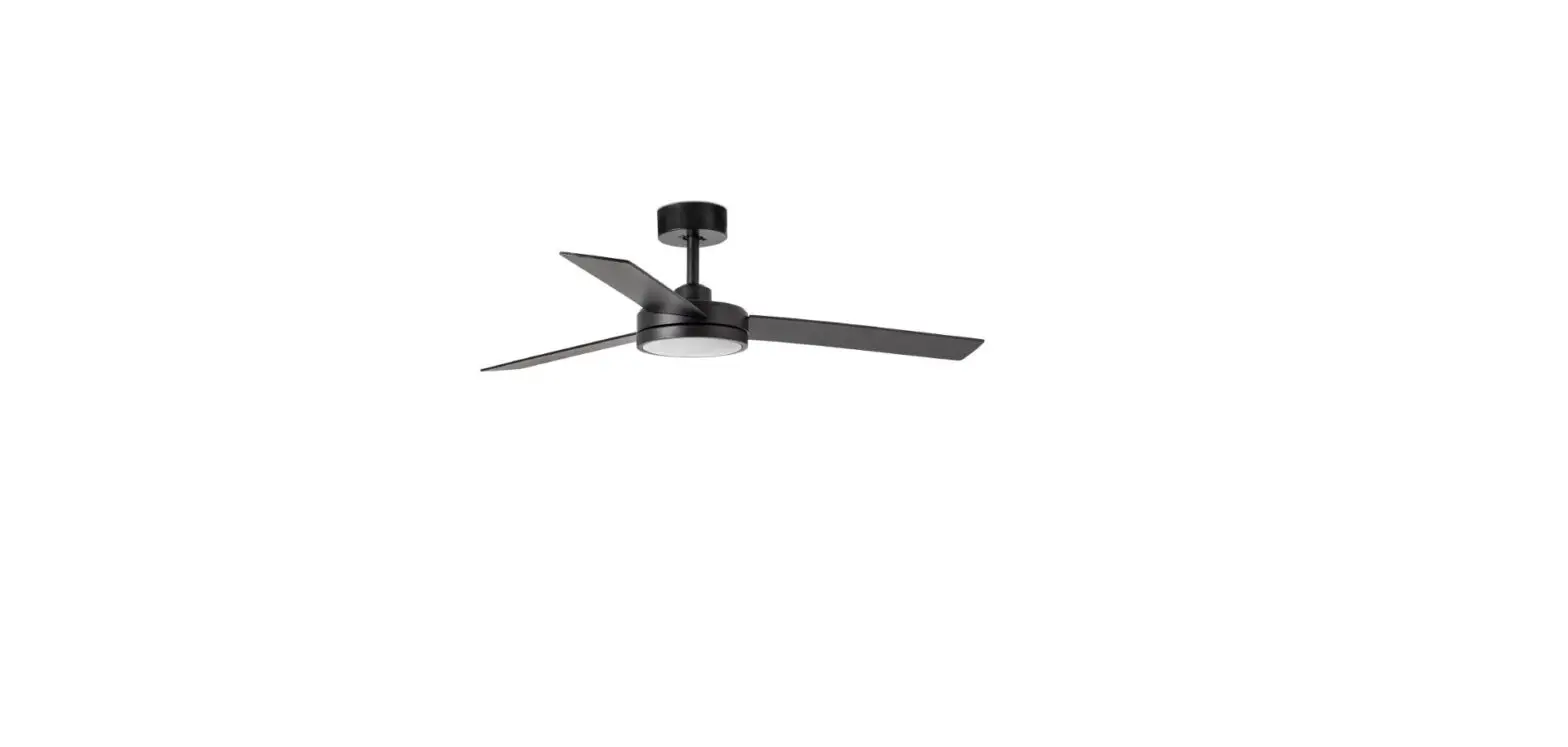
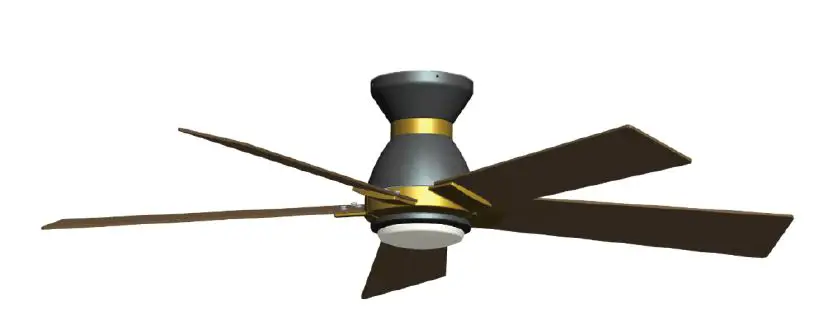
Set up the ceiling fan
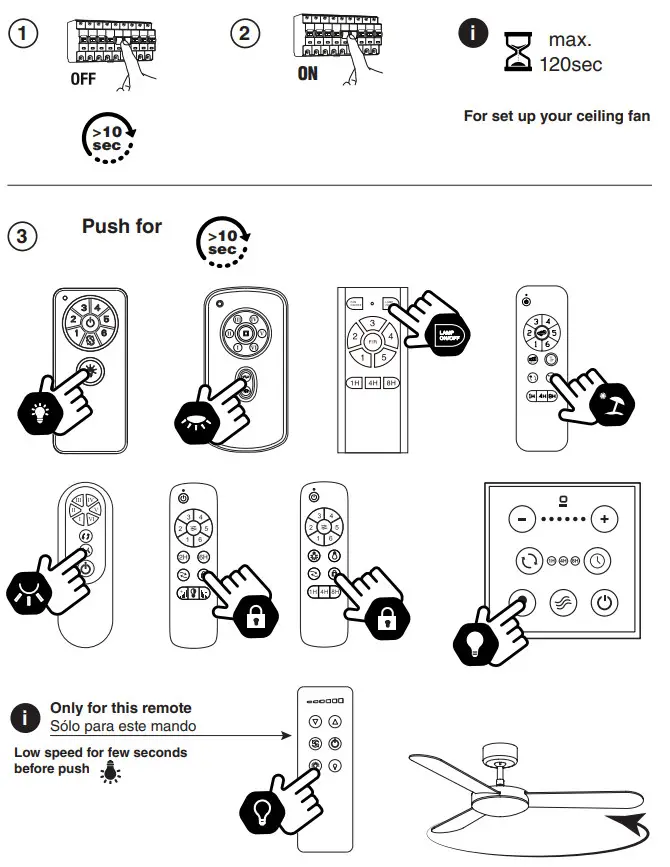
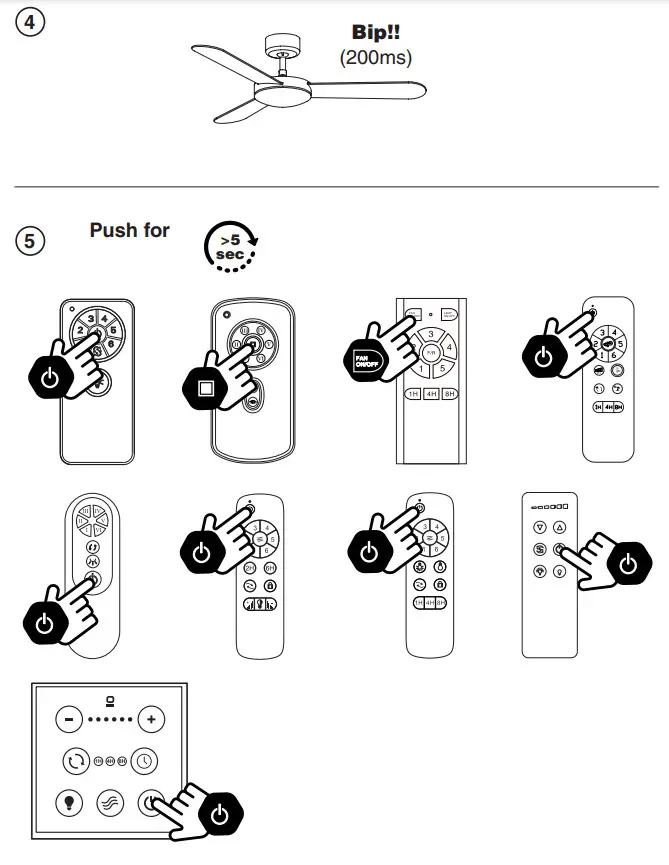
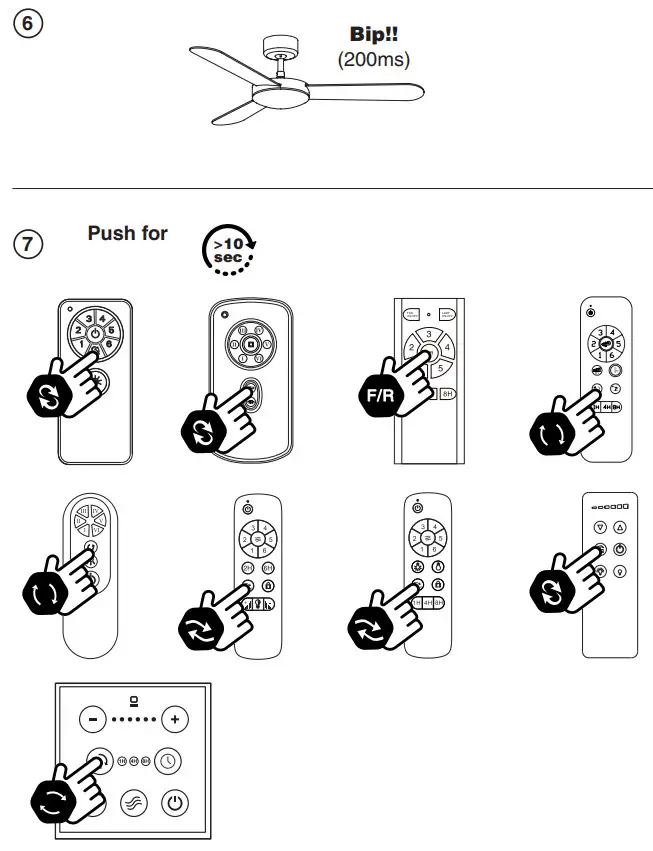
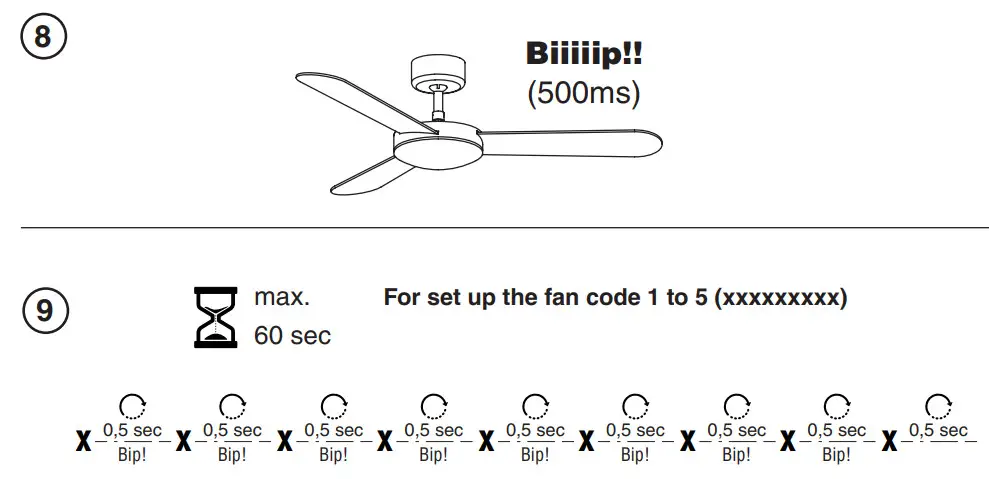
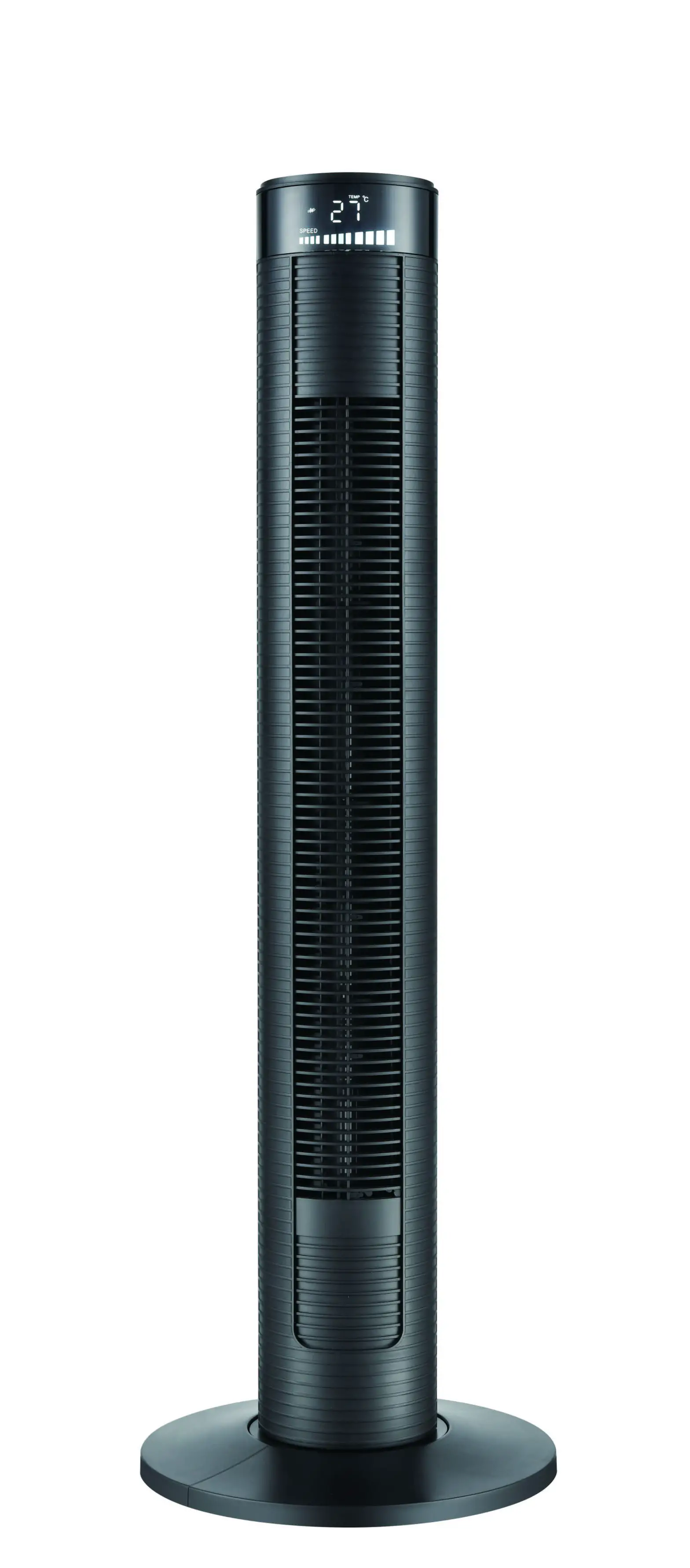
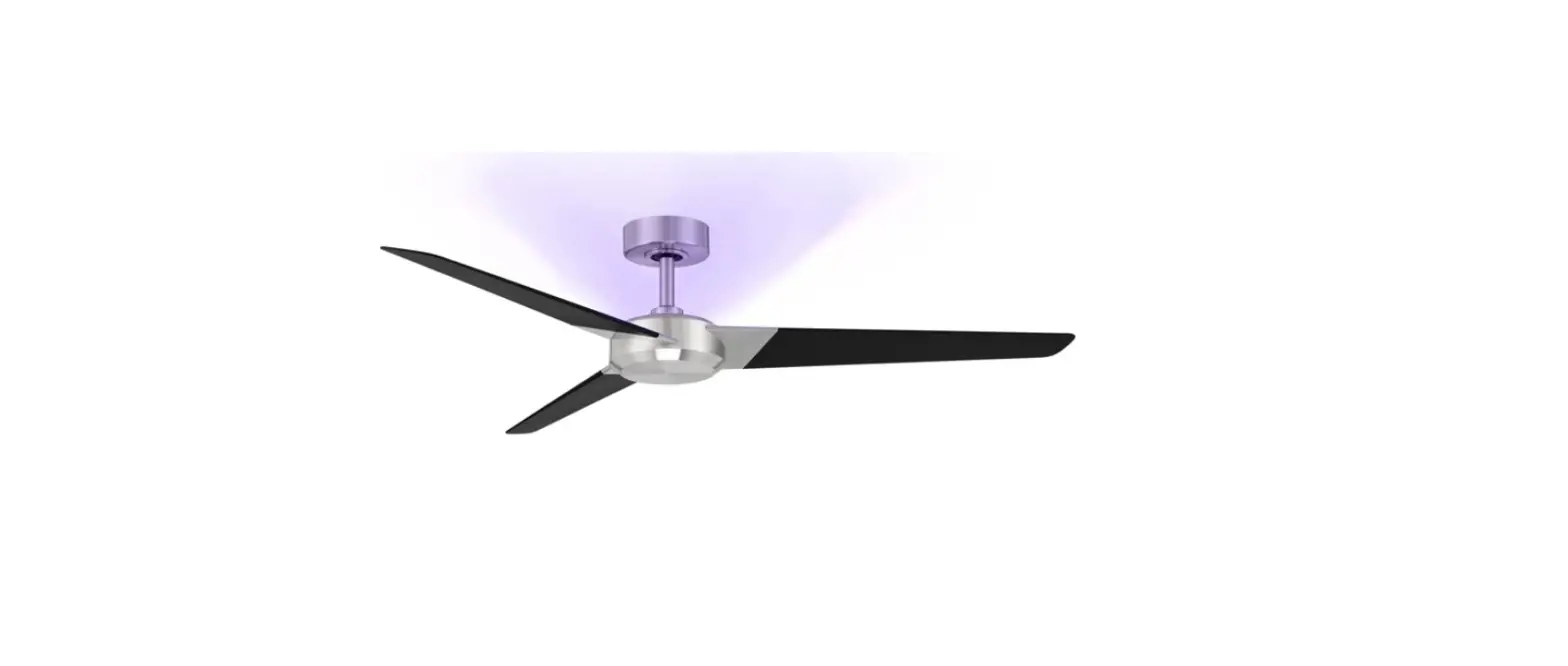
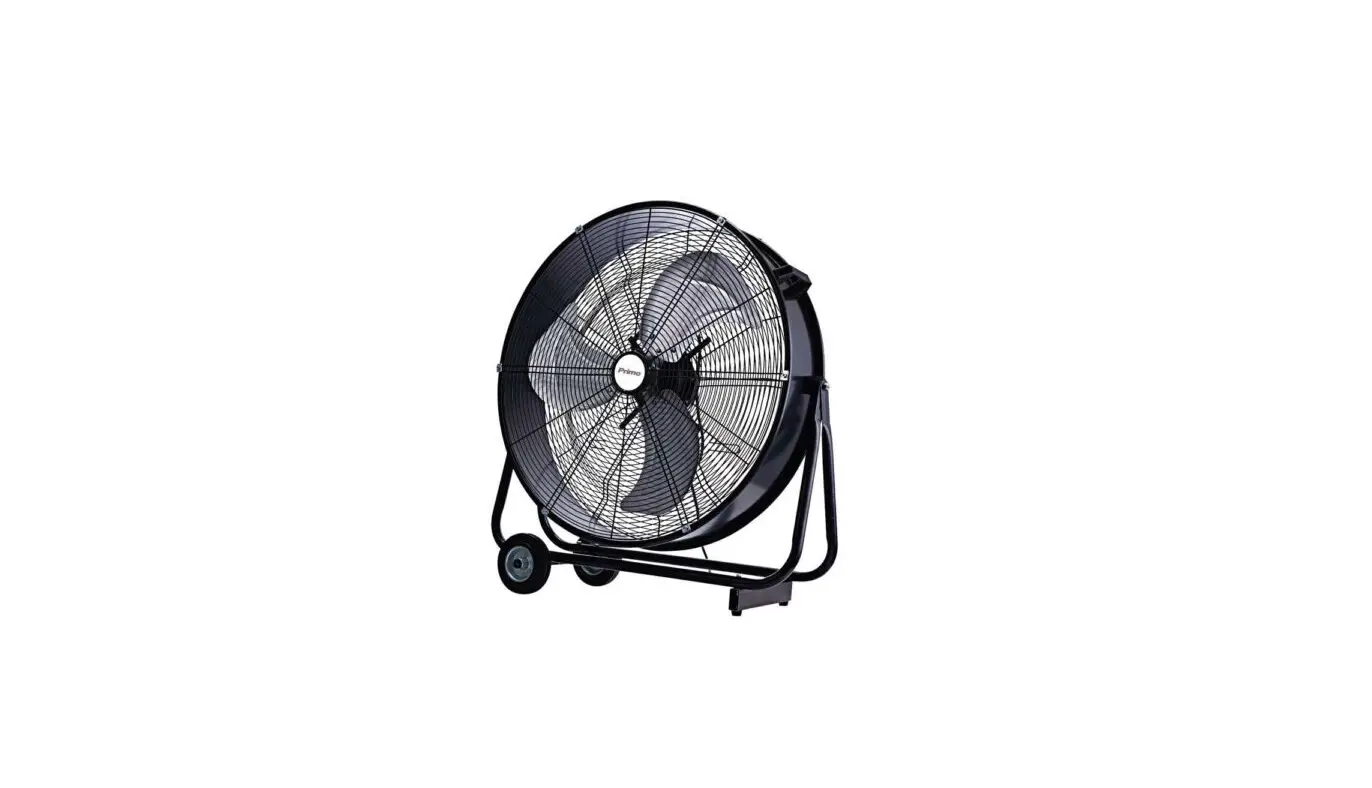
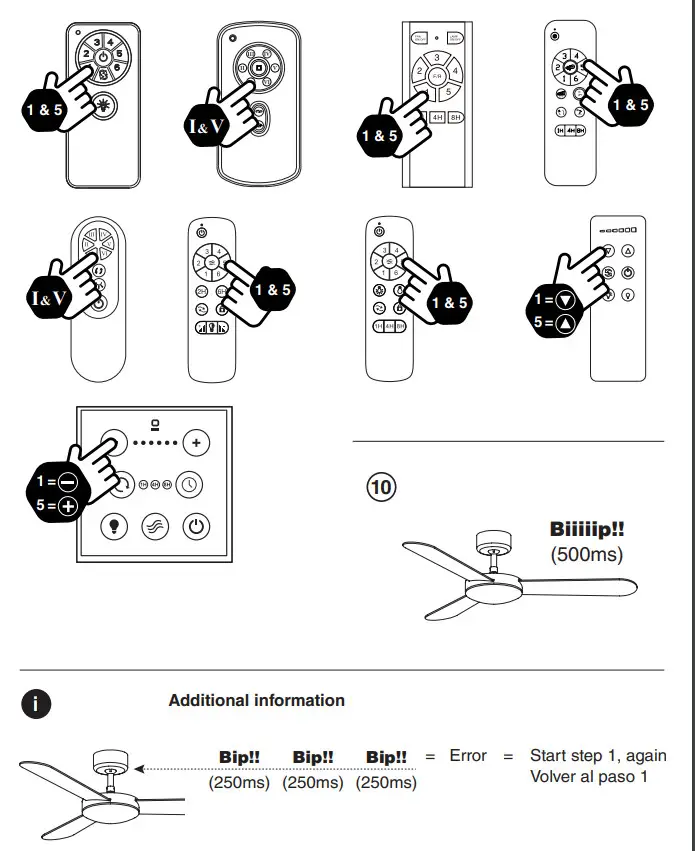
| Model | Code | Model | Code | Model | Code | |
| Attos | 151511111 | Just Fan XL | 155155515 | Punt | 511551151 | |
| Century | 511111511 | Just Fan XS | 551151151 | Rodas | 155511151 | |
| Cies | 515551551 | Kauai | 151551511 | Samos | 515515515 | |
| Cocos | 511511155 | Leyte | 151511551 | Saona | 151151515 | |
| Copper fan | 115111555 | Milos | 151511515 | Sioux | 551515515 | |
| Deco fan | 115111555 | Mini Eterfan | 115111555 | Siros | 155551111 | |
| Eterfan | 115111555 | Mini Tube fan | 115111555 | Tonic | 111115511 | |
| Fraser | 511555155 | Morea | 151555155 | Tube fan | 115111555 | |
| Gotland | 111115555 | Nassau | 151111555 | Typhoon | 151551555 | |
| Grid | 155155111 | Nuu | 515555151 | Typhoon UL | 551511555 | |
| !slot | 515151511 | Polaris | 551111111 | Winche UL | 111515111 | |
| Izaro | 111551515 | Polea | 511515151 | Vulcano | 515551111 | |
| Just Fan | 115111555 | Poros | 555151111 | Winche | 515511555 |

Control your fan with an app.
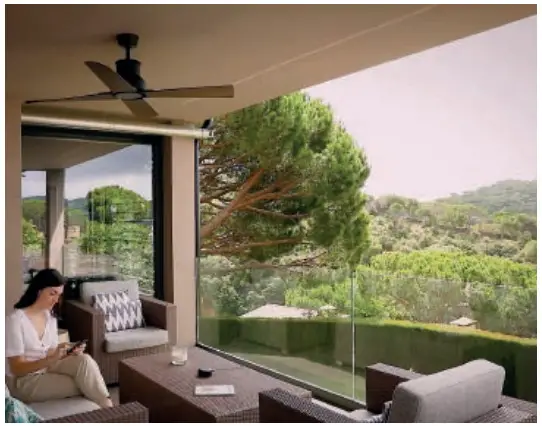
All fans identified *Smart Fan can be controlled with this technology.
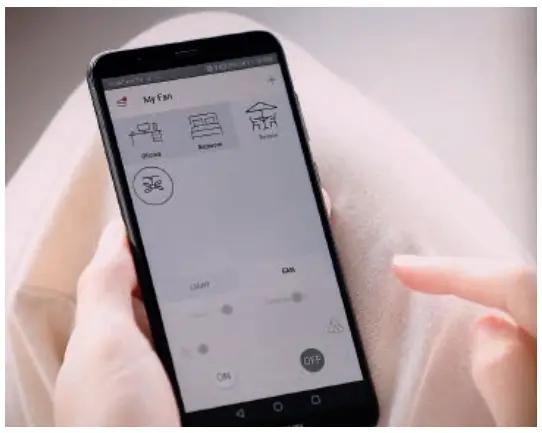
 It works with WiFi
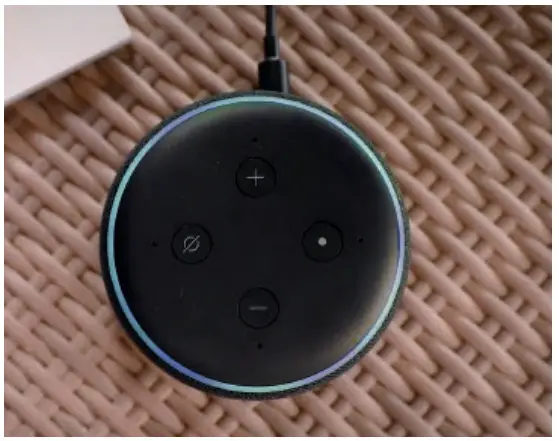
 Compatible with Alexa, Google & Siri
 Same features as a remote control
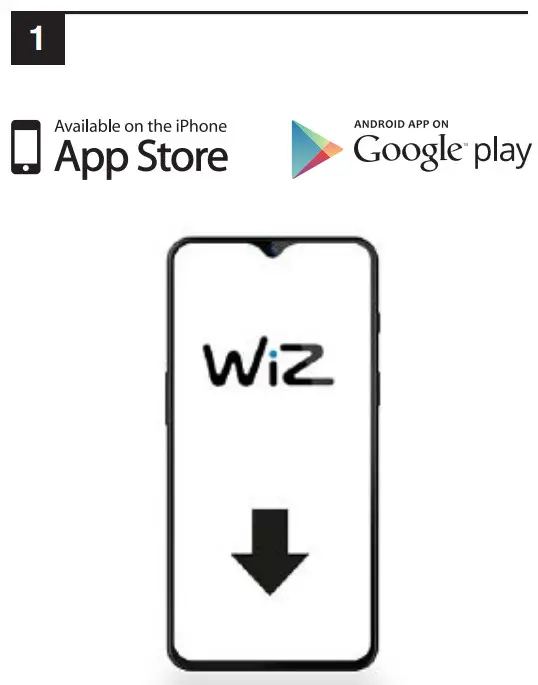
Find the APP Wizz in:
App Store and Google Play
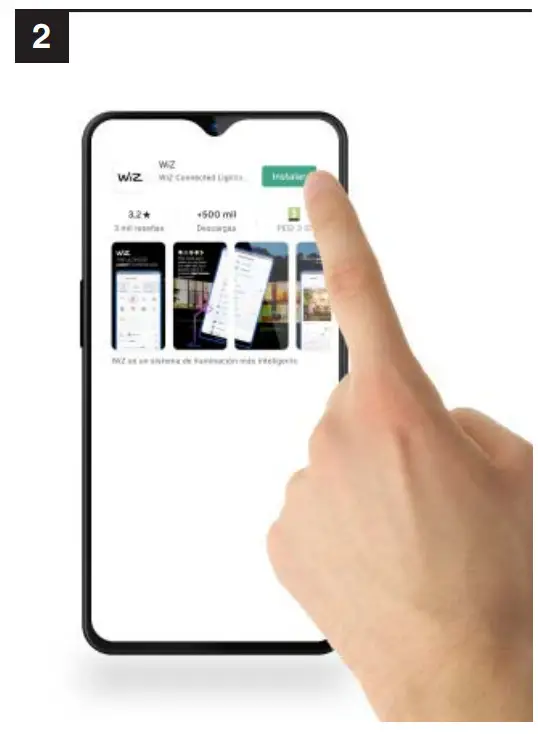
Install it and follow the steps
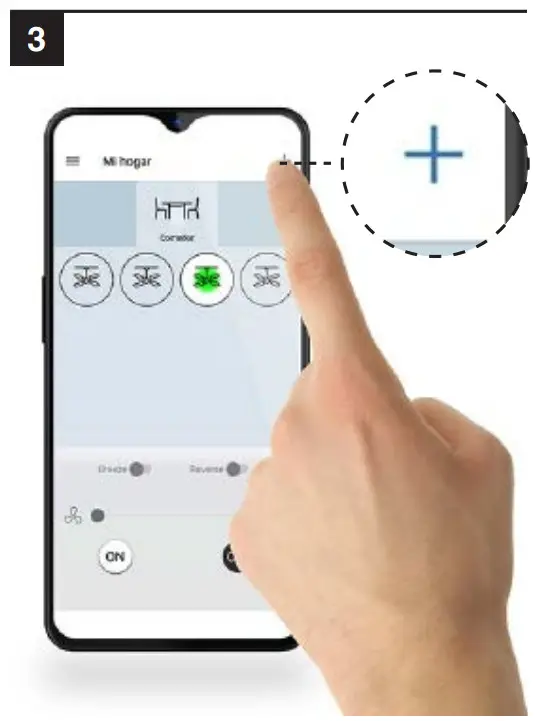
Tap on adding a new device. At the top right, the plus button
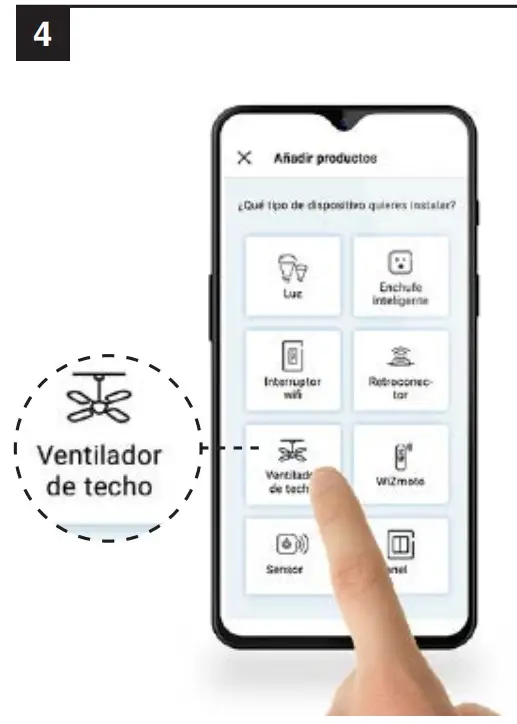
Install it and follow the steps
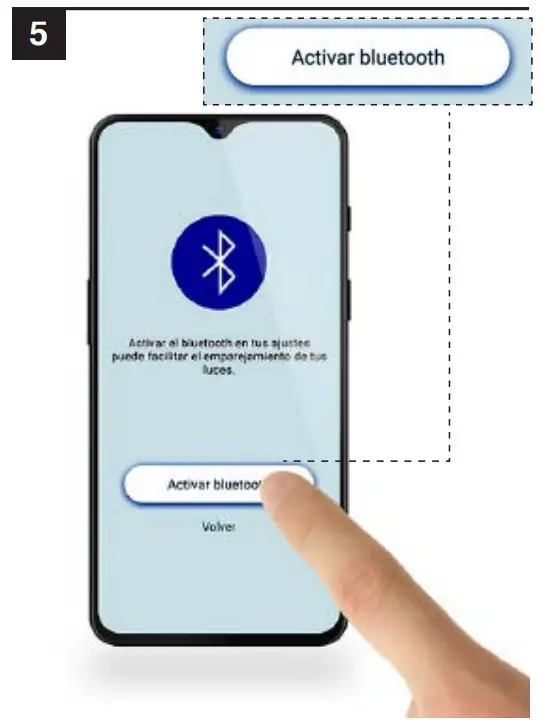
Activate Bluetooth
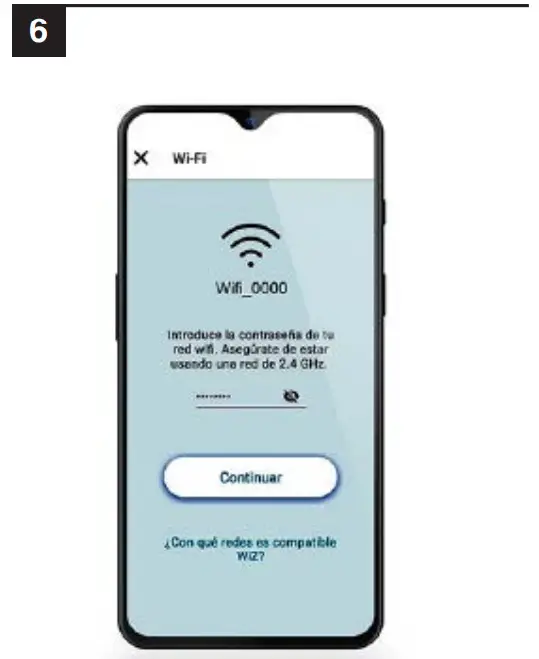
Find your Wifi and add your password
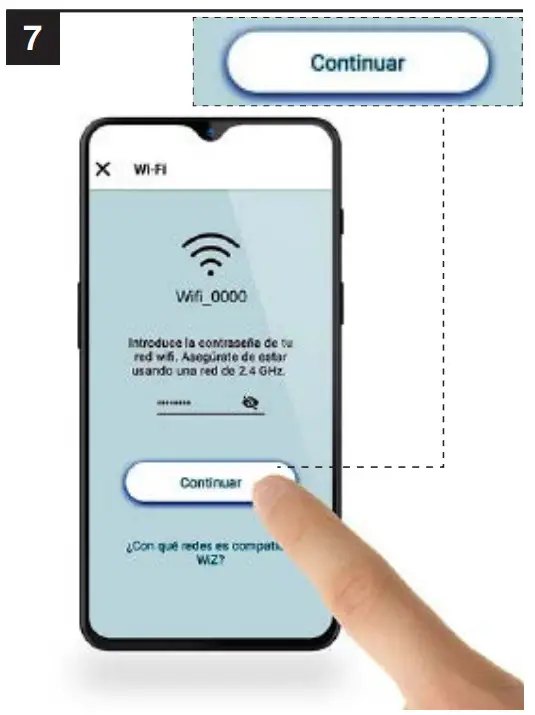
Click “Continue”
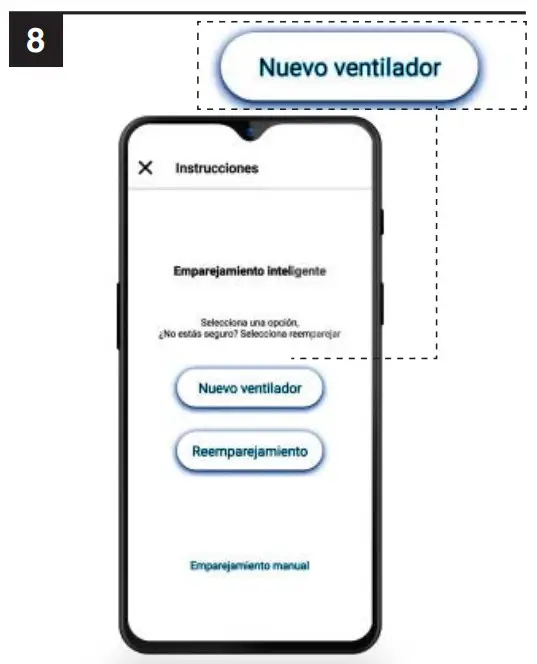
Select “New Fan”
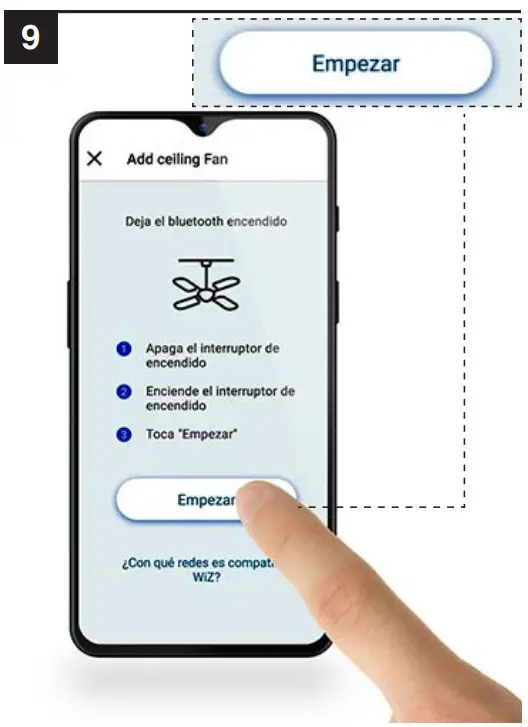
Select “Start”
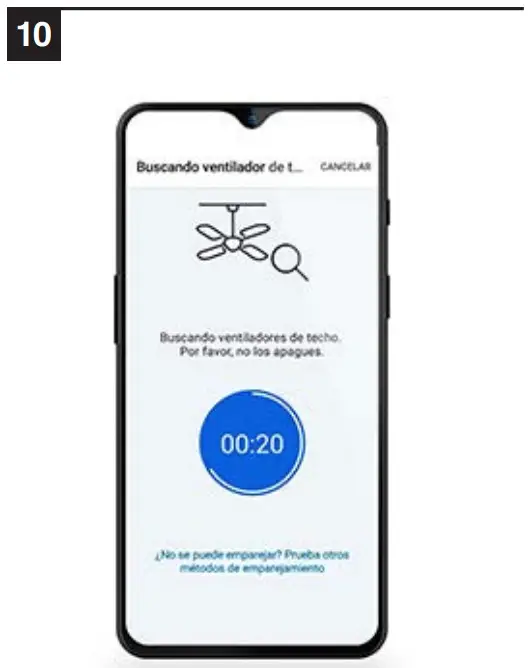
Wait until Wizz finds your ceiling fan. If it doesn’t work go strait to page 8
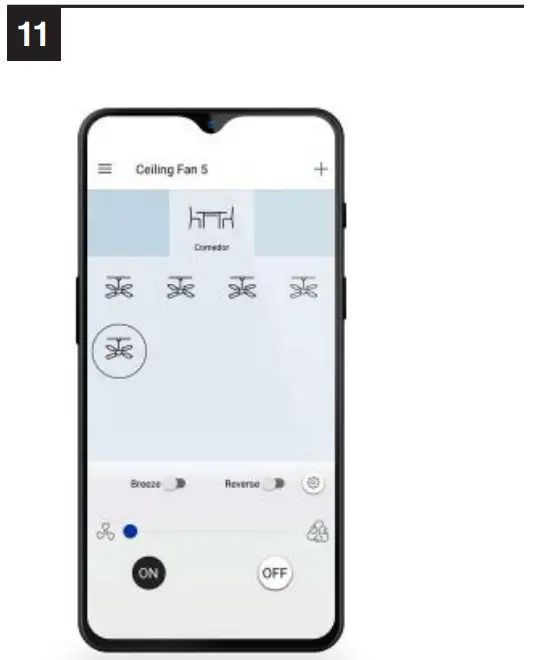
Using fan functions: On, Off, Speeds, Reverse, Breeze
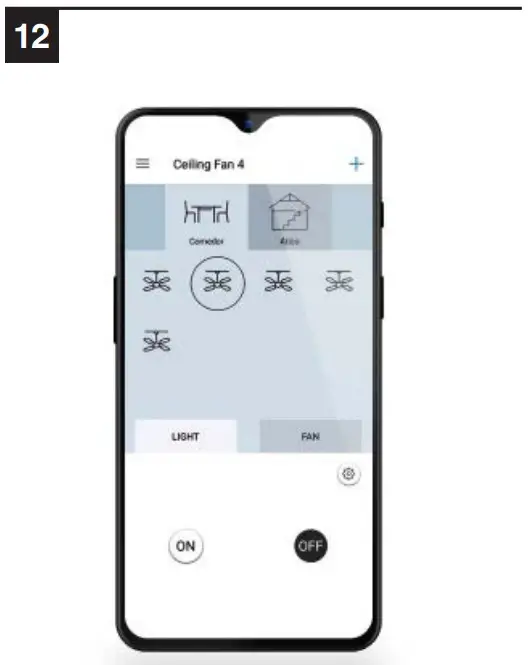
Using light kit functions: On, Off, Dimmer
Manual Pairing
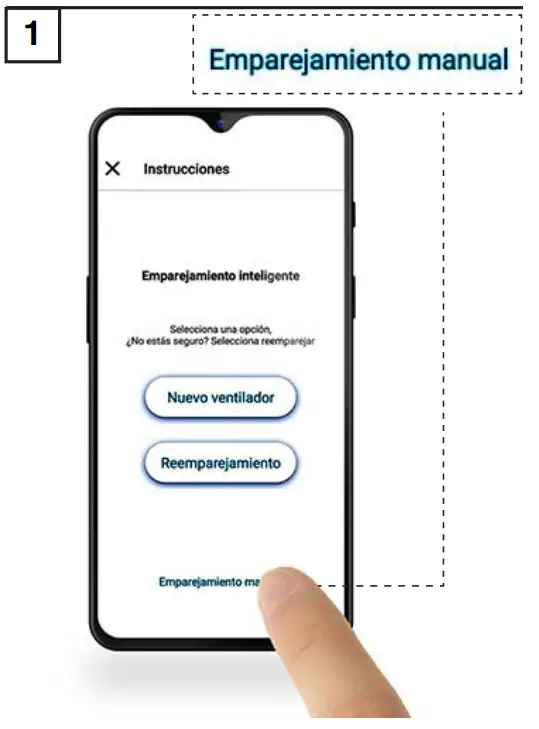
Go to step 8 and select the manual pairing
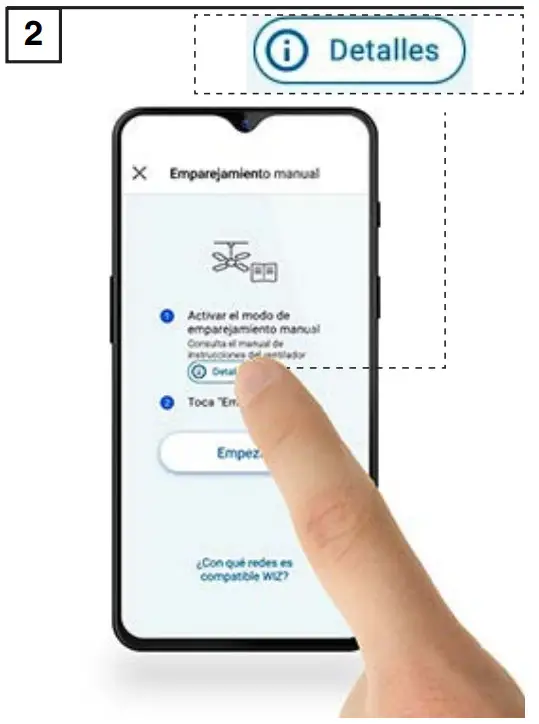
Select “Details”
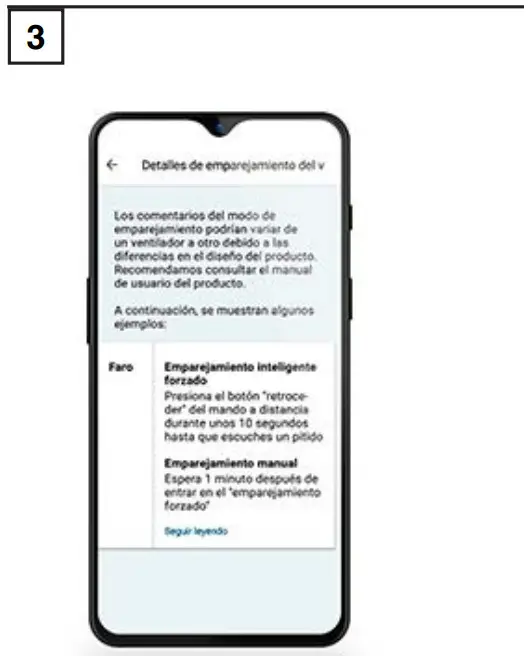
Follow the “manual repair” information
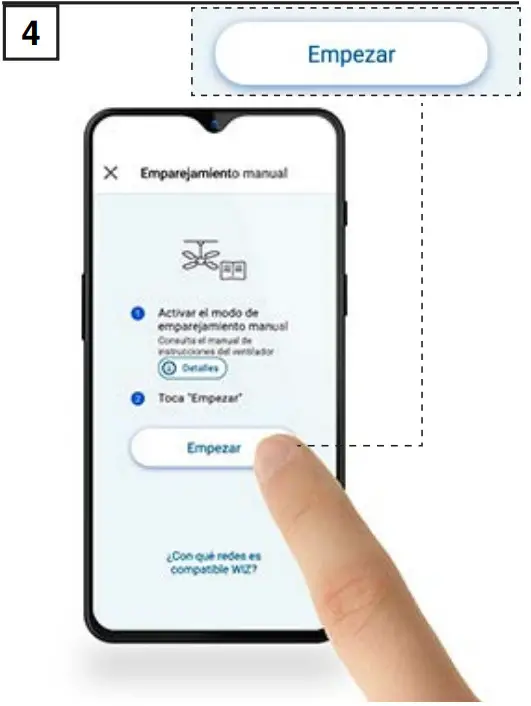
Select “Start”
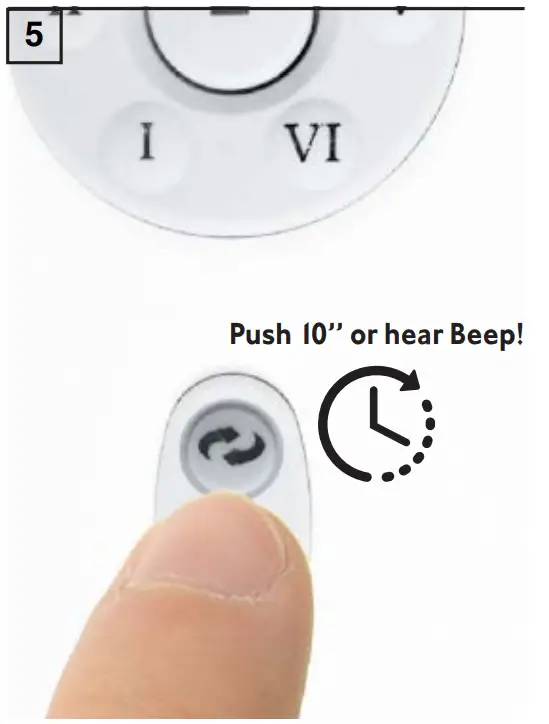
Push 10 seconds “reverse function” in your remote control or until you hear “beep”
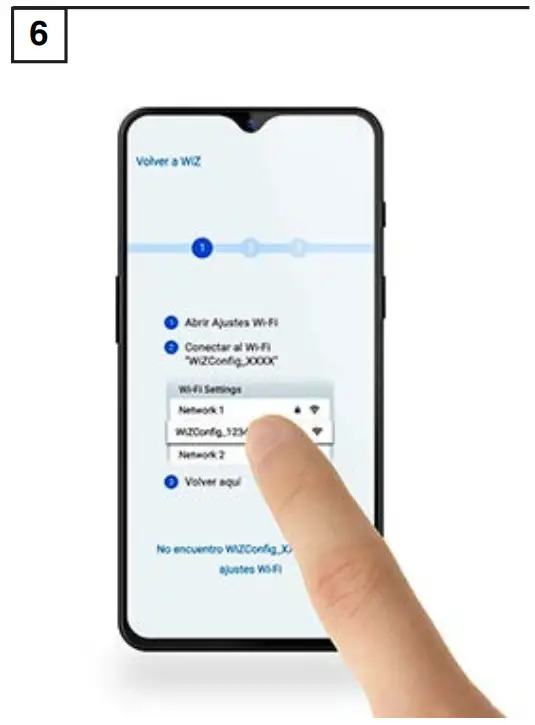
Select your Wifi
 Together we take care of the planet.
Together we take care of the planet. This is why we reduce paper consumption. Please refer to the safety, maintenance, and warranty instructions at www.faro.es.
If you cannot access it, call us at +34 937 723 965 or write to [email protected].
 Faro Barcelona - Experts in lighting and ventilation