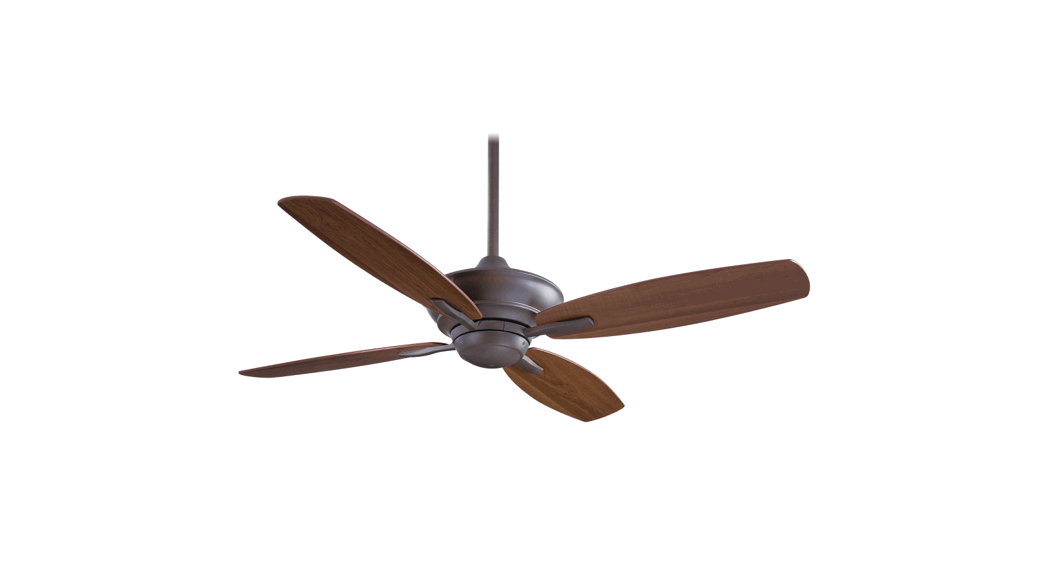
Smart Ceiling Fan User Guide
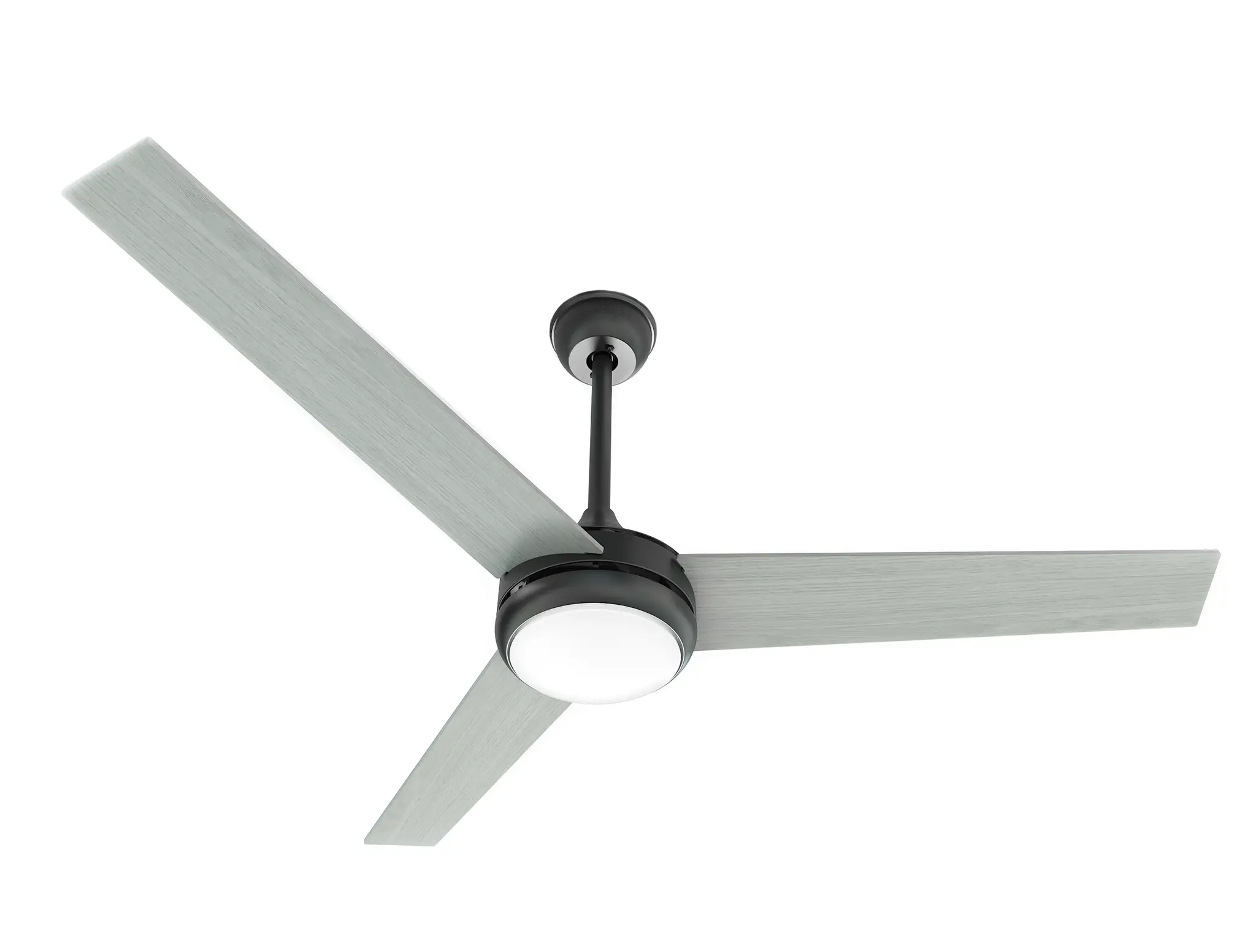
Installation Instructions
Controlling your Smart Ceiling Fan
Light
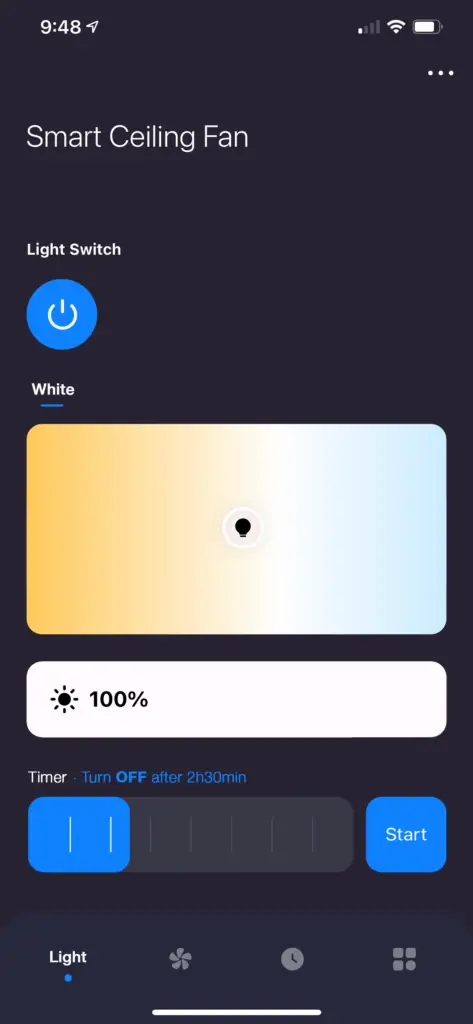
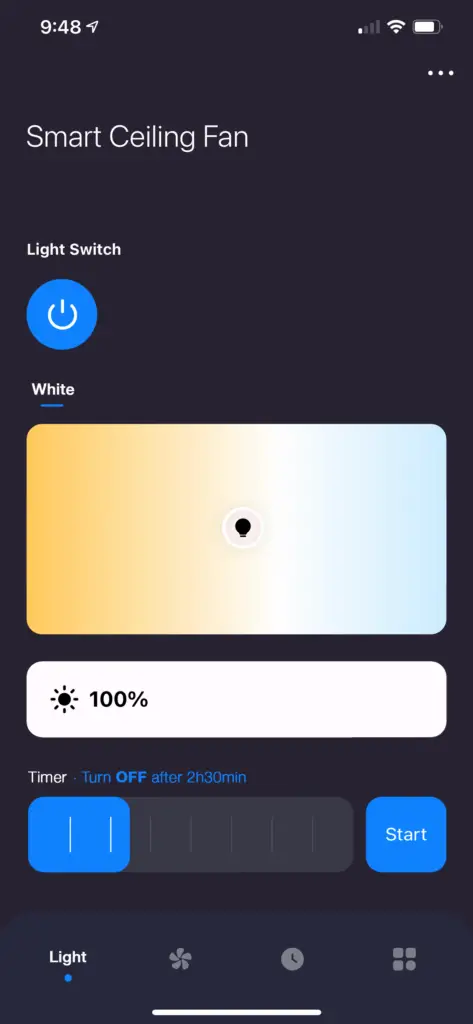
Light Switch – Turn ON/OFF your Smart Ceiling Fan (Light)
White – Choose warm, neutral, cool or everything in between
Brightness – Control the light brightness 1-100%
Timer – Add a timer to turn ON/OFF the light after a determined period. Press ‘Start’ to activate your timer.
Fan
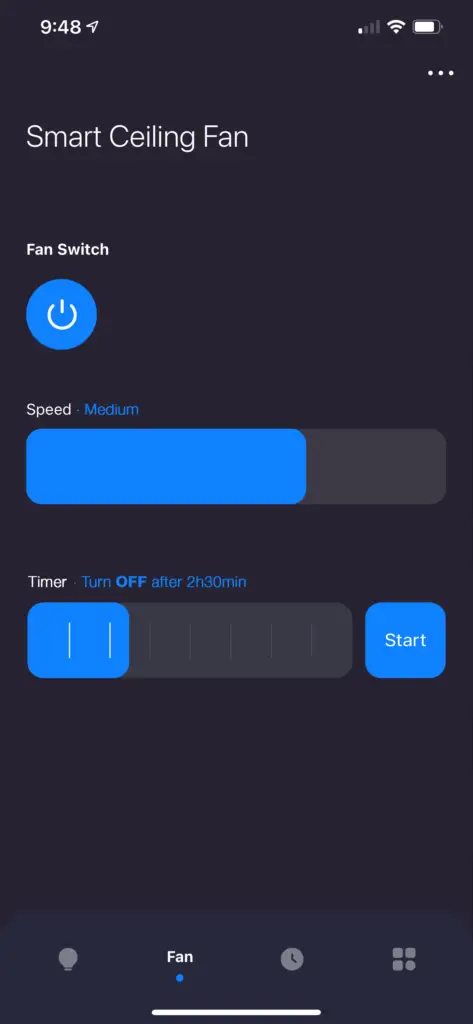
Fan Switch – Turn ON/OFF your Smart Ceiling Fan (blades)
Speed – Change the fan speed between Low, Medium and High
Timer – Add a timer to turn ON/OFF the fan after a determined period. Press ‘Start’ to activate your timer.
Schedule
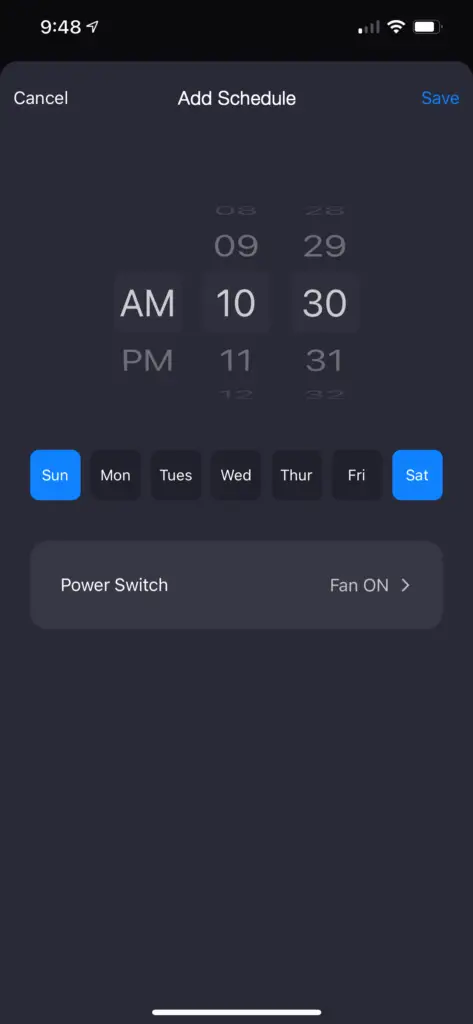
The ‘Schedule’ feature allows you to create weekly schedules to turn ON/OFF your fan/light based on your settings.
More
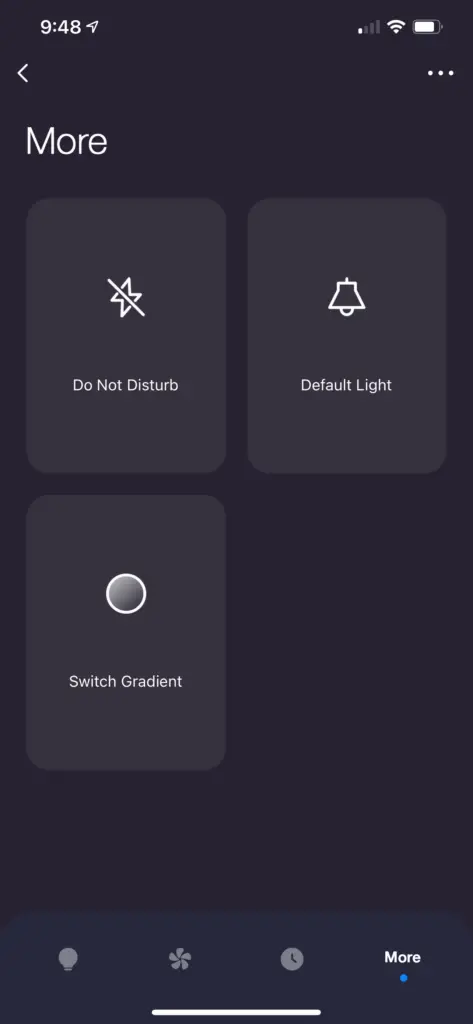
Do Not Disturb
Disabled: Light will always turn ON after a power outage (or when you turn ON your physical light switch)
Enabled: If the light status was OFF (in the app), it will remain OFF after a power outage (or when you turn ON your physical light switch)
In order to turn it on again using your physical light switch, follow the steps below:
- Start with the light switch OFF and wait a few seconds
- Turn ON and wait 2 seconds
- Turn OFF and wait 2 seconds
- Turn ON
Default Light – Select if the light should remember the last settings or be set to a determined brightness / white temperature once it is powered OFF/ON via a physical light switch
Switch Gradient – Select the amount of seconds the light should take to turn ON/OFF (Fade effect)
Scheduling
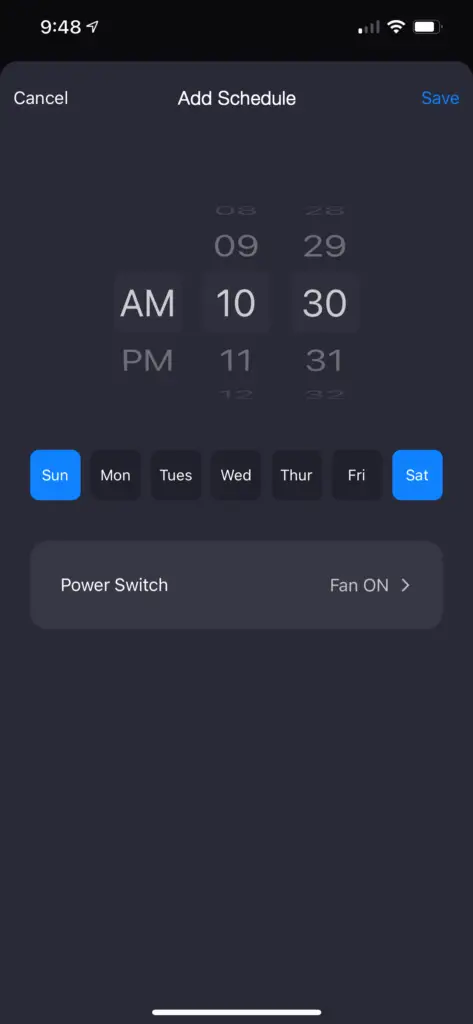
The ‘Schedule’ feature allows you to create weekly schedules to turn ON/OFF your fan/light based on your settings.
You can also use automations to create additional schedules. Click here to learn more.
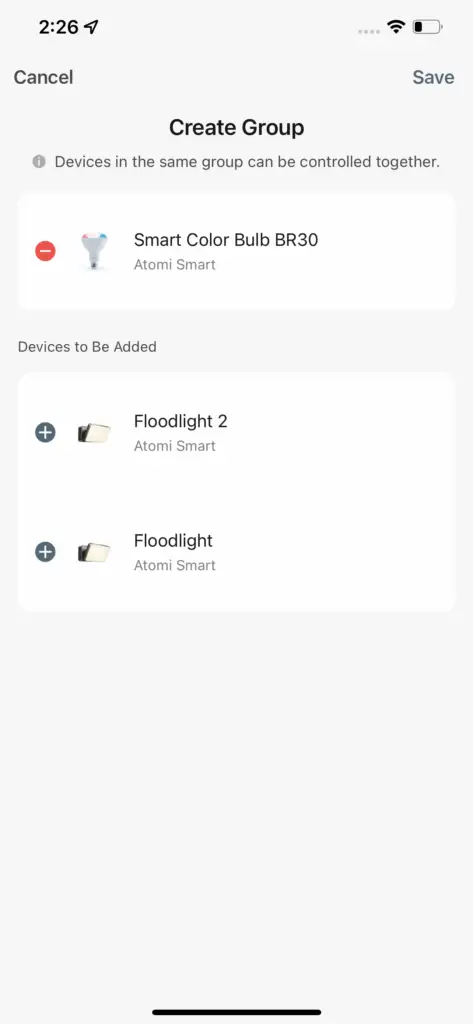
Creating Groups to control multiple fans together
1. Make sure that all of your Smart Ceiling Fans are online and powered ON
3. Press ‘Create Group’ and select the devices you wish to be included. Press ‘Save’. You can now control your fans simultaneously.
FAQ & Troubleshooting
The popup does not appear when adding a device.
Make sure that you are allowing the app to access your phone’s Location (Android), Bluetooth and Local Network (iOS).
If the popup still doesn’t appear, follow the steps below:
- Press “Add Device” or the “+” sign and select your Atomi Smart device.
- Follow the on-screen instructions (Make sure you connect to a 2.4GHz WiFi Network).
I can’t find the atomi-smart-XXXX network in my WiFi list.
Make sure your Atomi Smart device is powered on and the light is flashing white. If not, reset your device.
My WiFi network doesn’t appear in the Atomi Smart app.
Cannot connect to my WiFi network.
Make sure that you have entered the correct WiFi password during the WiFi setup. Check if there are problems with your internet connection. If the WiFi signal is too weak, reset your WiFi router and try again.
I’m getting “Failed to Add Device”, “Failed to find router” or “DHCP” error.
- Confirm that your phone is connected to a 2.4GHz WiFi network
- Check whether the router password you entered is correct.
- Confirm that the DHCP service is enabled on your router settings.
- Make sure that your WiFi signal is strong.
- Temporarily disable your 5GHz network.
- If you have a mesh network/router that does not allow you to disable 5GHz, try to move farther away from your router until your phone moves to the 2.4GHz band.
- For more Connection Troubleshooting tips, visit connection-troubleshooting
Refresh the device list.
I just replaced my router.
If you replace your router, you will need to reset your devices and add them again to the app.
How to reset my device?
– Turn off the light switch
– Turn ON, OFF and wait 1-2s
– Turn ON, OFF and wait 1-2s
– Turn ON, OFF and wait 1-2s
– Turn ON, OFF and wait 1-2s
– Turn ON and wait a few seconds. The light should start flashing white.
The wires are too long and I’m unable to place them inside the canopy
The wires can be cut. However, please leave at least 8” extending from the top part of the downrod.
Important: ONLY cut the 3 thin wires (red, black and white). Do NOT cut the thicker ones.
The Ceiling Fan does not work
- Make sure that the circuit breaker power is turned on.
- Confirm that your wall switch is on.
- Turn off the power from your circuit breaker and check the fan’s wiring for any connection issues.
The Ceiling Fan is too noisy
Confirm that the blades are properly installed.
The Ceiling Fan is wobbling
- Confirm that the downrod was correctly attached to the mounting bracket.
- Make sure that the mounting screws are firmly screwed in.
- Confirm that the canopy is firmly attached to the mounting bracket.
- Note any warped blades. If even one blade is slightly distorted, it can create an imbalance. Check for warping by standing on a secure ladder and looking down the edge of the blade toward the motor. If there’s any curvature, the blade is considered warped. Repeat this step for every blade. If they do not appear uneven, confirm that the screws that attach the blades are tightened and secure. Warped blades cannot be balanced.
- Use the included balance kit to even out the blade weight distribution.
Remote Control doesn’t work
- Make sure that the AAA batteries (not included) are correctly in place.
- Replace the batteries with new ones.
Download User Guide
The Atomi Smart Ceiling Fan user guide is available- [ Download PDF ]
The Balancing Kit user guide is available -[ Download PDF ]