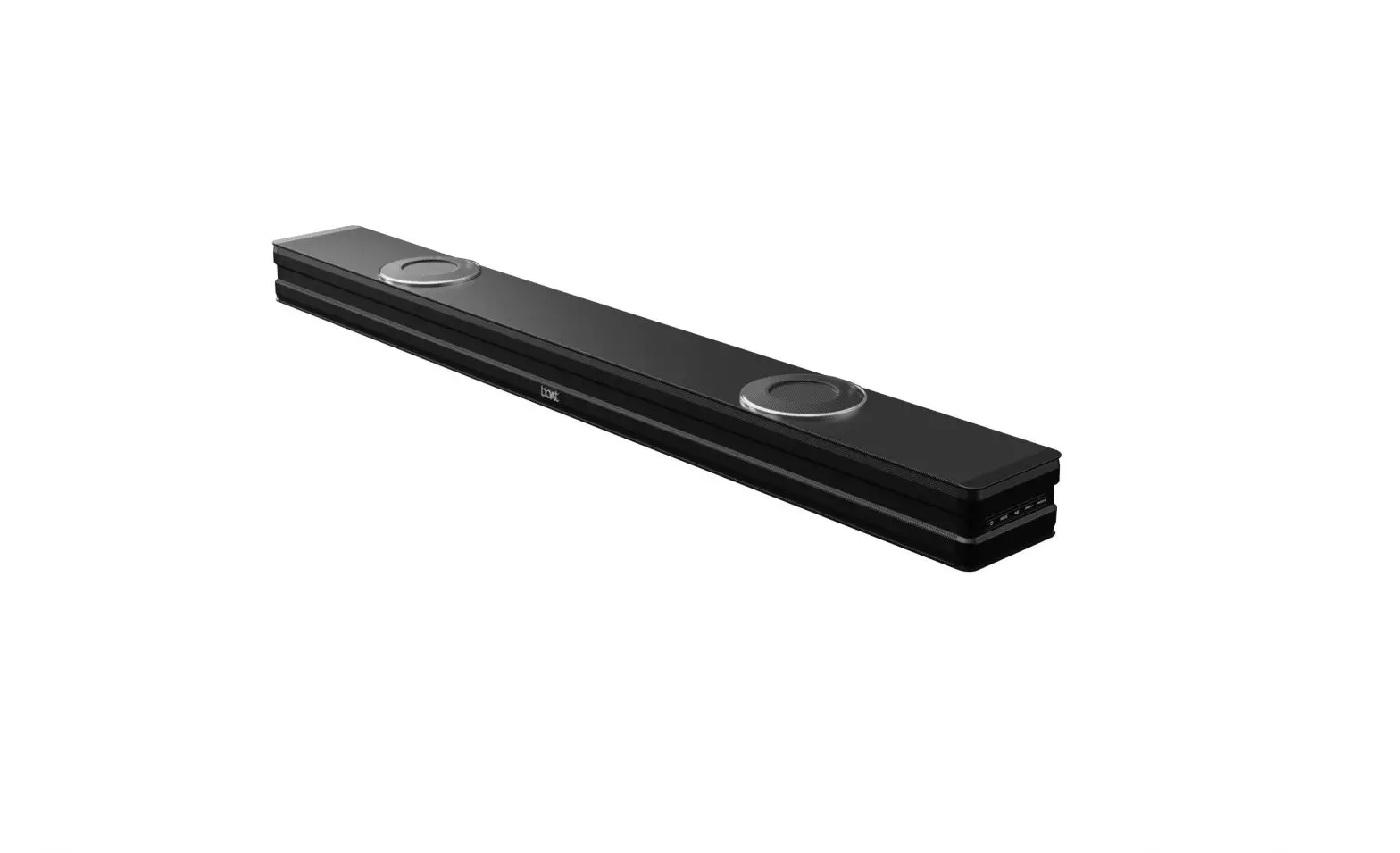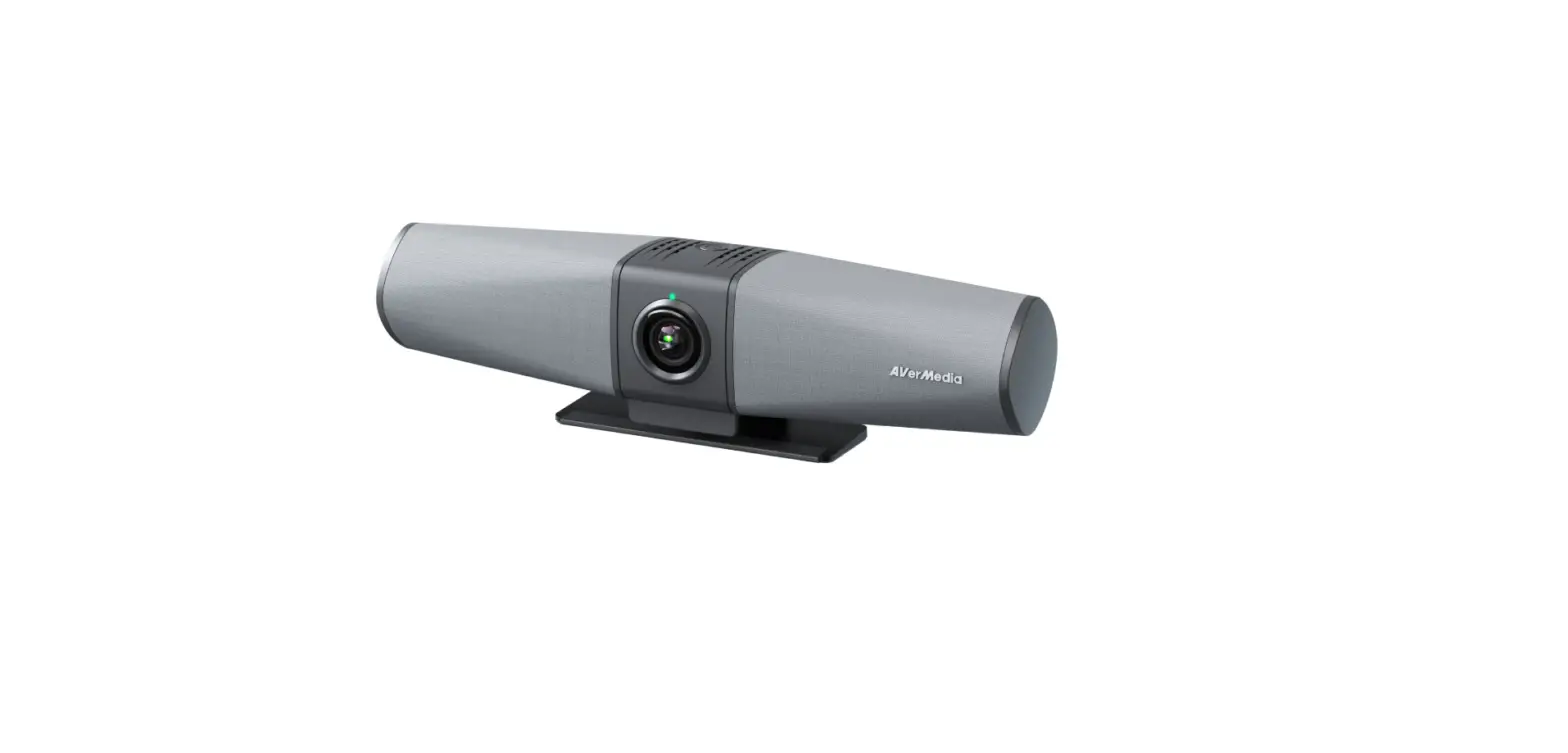

AVerMedia PA511D Mingle Bar
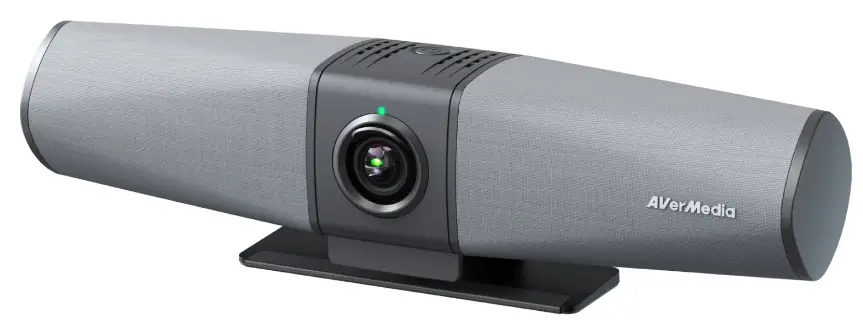
Introduction
- This document is your User’s Guide for the Mingle Bar (PA511D). We have written this guide to provide you with the information you need to quickly and smoothly use the video bar.
- After a quick introduction of the video bar and who this product is intended for, we will dive into its key features, system requirements, and technical specs and show you how to set up and install the device. Lastly, this guide will finish with a link to our technical support team and with some brief information on AVerMedia’s background.
- Thank you for taking the time to use and try out our latest video bar, we hope you enjoy using it as much as we enjoyed making it. If you have any questions or suggestions on our products or need any further editorial assistance, please don’t hesitate to contact us.
Mingle Bar (PA511D)
Be seen, Be heard, Be Connected
- Rather than worrying about setting up separate cameras, microphones, speakers, and other equipment, Mingle Bar (PA511D) is plug-and-play and combines all the necessary equipment into one convenient device.
- The intelligent audio pickup with AI noise reduction, beamforming, and far-field adaptive technologies reproduces resonant voice from anywhere in the room. Mingle Bar provides real-time, highly sensitive HDR, 3DNR, and AWB technologies with great image optimization in any lighting environment, so you’ll always look sharp and professional. The 124° FoV and 4K UHD quality cover all people and whiteboard to communicate and collaborate effectively. Find and frame everyone with the AI auto-framing function with AI Gesture recognition.
Key Features
4K image quality with ultra-wide FOV
- Ultra-wide 124° diagonal field of view to capture more of the room or include additional participants. Supports multiple resolutions, including 4K (Ultra HD) 1080p (Full HD), and 720p (HD) to best support the quality offered by your application and monitor.
Look professional in any light
- Provides real-time highly sensitive 3DNR, HDR, and AWB technologies with great image optimization in any lighting environment so that you will always look sharp and professional.
AI-powered auto framing
- Find and frame everyone in the room with the AI auto-framing function with AI Gesture recognition.
Intelligent audio pickup
- The intelligent audio pickup with AI noise reduction, beamforming, and far-field adaptive technologies picks up and reproduces resonant voices from anywhere in the room.
Rich I/O with one-cable connection
- One cable connection to get all you need (display, webcam, speakerphone, wired network) to start a meeting easily.
Multiple mounting options
- Freedom to mount wherever it works best—tabletop, wall, tripod, or monitor—for the best possible huddle room experience.
Works with most video conferencing applications
- Compatible with virtually any video conferencing software app.
Kensington security slot
- Built-in Kensington security slots to help secure the device.
System Requirements
Mingle Bar
Operating System:
- Windows 10 or later; macOS 10.14 or later;
Chrome OS 85.0.4183.131 or later
- Software Compatible: Facebook, YouTube, Facebook Messenger, FaceTime, Line, GoToWebinar, Cisco Webex, Microsoft Teams, ZOOM, OBS, StreamLab OBS, Skype, Skype for Business, Slack, Google Meet, Lifesize, Amazon Chime, Whereby (Appear. in)
Hardware System Requirement
- CPU: 3.2 GHz Intel® Core™ i5-4460 processor or better
- RAM: 4 GB or more
- USB: USB 3.1 Gen 1 compatible with USB 2.0 (lower resolution)
Technical Specifications
| Camera | |
| Maximum Resolution/Frame Rate | 3840×2160/30fps |
| Field of View | 124° (D), 115°(H), 79°(V) |
| Format | MJPEG, YUY2, and NV12 of UVC 1.0 |
| Zoom | 4x Digital Zoom |
| Image Processing | Auto Framing, Gesture Recognition, 3D Noise Reduction, High Dynamic Range, Auto Lighting Correction, Auto Face Exposure |
| Privacy Shutter | Yes |
| Audio | |
| Microphone | Dual Omnidirectional Stereo Microphones |
| Microphone Pickup Distance | 4 m/13.12 ft. |
| Speaker | 5W with Bass Enhancement |
| Audio Processing | AI Noise Reduction, Acoustic Echo Cancellation, Beamforming, Far-Field Adaptive, Full Duplex |
| Others | |
|
Interfaces | 1 x HDMI (4K) 1 x USB-A (3.2 Gen 1) 1 x USB-C (3.2 Gen 1) 1 x RJ45 1 x Aux port for recommended expansion microphone (optional) 1x LED Indicator 2 x K-Slot Power Connector |
| Software Add-on Value | Image Adjustment Firmware Update Issue Report |
| Dimensions (W x D x H) | 295 x 70.4 x 78.7 mm / 11.6 x 2.8 x 3.1 in. |
| Weight | 555 g/19.6 oz. |
| What’s in the Box | PA511D Quick Start Guide USB-C Cable or USB-C to USB-A Cable (Selectable) Power Adapter (12V/1.5A) |
- Specifications are subject to change without prior notice.
Product Overview
Front View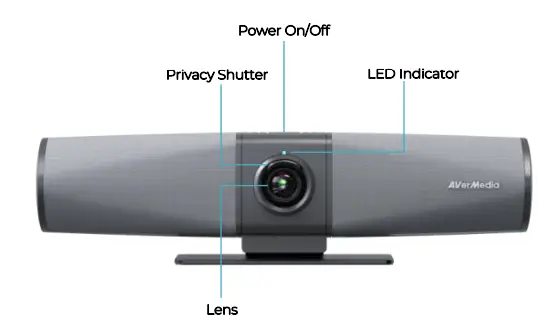
Rear View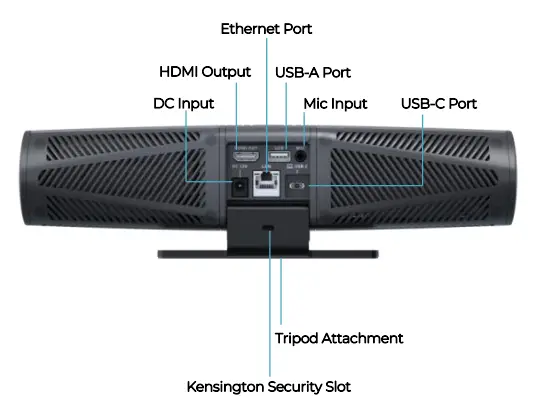
Installation
- Plug Mingle Bar into a power outlet.
- Connect a monitor/TV to Mingle Bar via an HDMI cable.
- Connect Mingle Bar’s USB-C port to your laptop using the included USB cable.

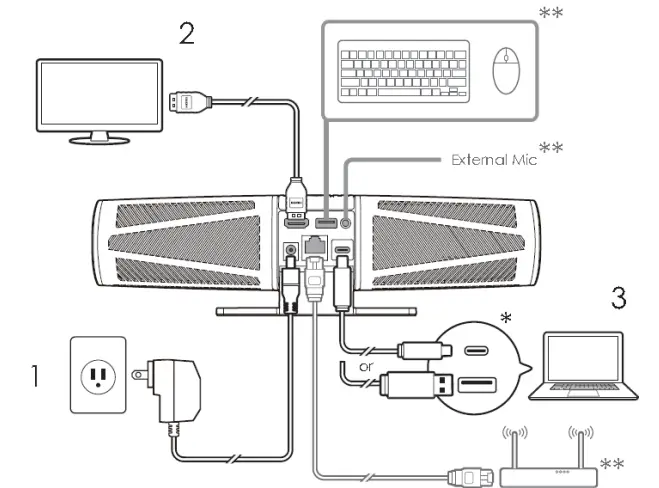
Note:
- Ensure the computer’s USB port supports DisplayPort Alt Mode for HDMI to function properly on Mingle Bar.
- Optional: Mingle Bar is also capable of hosting other devices such as keyboards, external microphones, routers, etc. when needed.
Placement
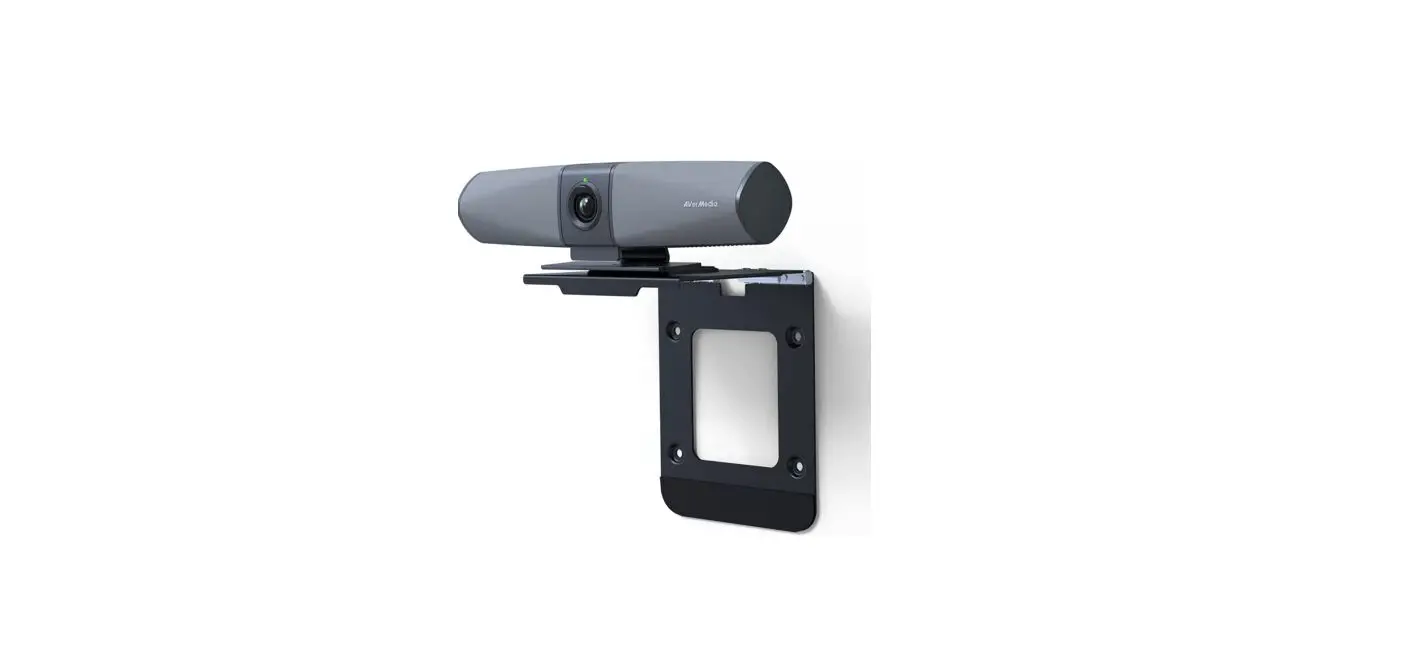
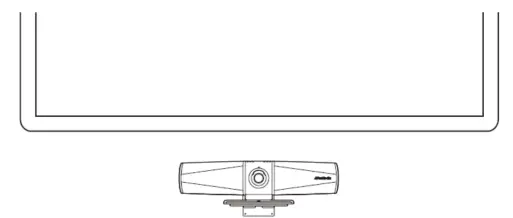
It is recommended to place Mingle Bar below or near the monitor/TV as close to eye level as possible. The accessories for the mounting options below are sold separately and require additional installations.
Mount to the TV
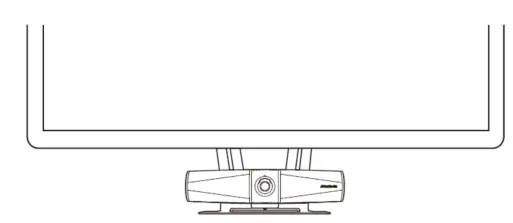
- Mount on the Wall

- Table / Shelf

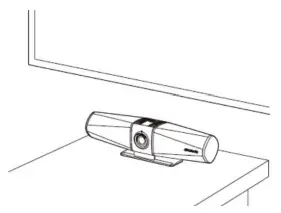
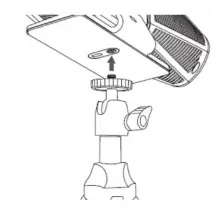
Tripod
- (Tripod not included)

LED Status Indicator
| Flashing White | Booting/firmware updating |
| Solid White | Ready |
| Solid Yellow | Playing audio |
| Solid Green | In use: video calling/video previewing |
| Flashing Green | Incoming calls |
| Flashing Blue Twice | Turning on AI Framing |
| Flashing Purple Twice | Turning off AI Framing |
| Solid Red | Microphone muted (3rd party app) |
AI Framing Function with Gesture Control
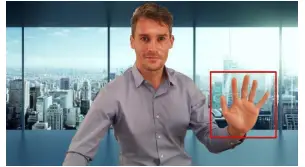
This feature enables the webcam to automatically adjust and recenter the image when additional people enter its field of view. It can be turned on or off using a hand gesture—just hold up your hand within one meter in front of the camera for three seconds until the power indicator flashes (blue: on, purple: off) twice. 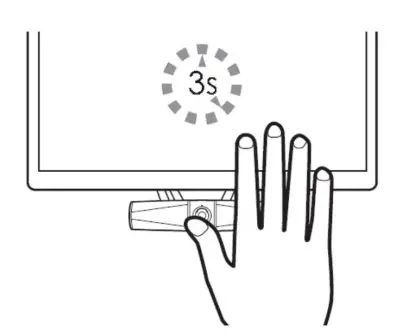
Using Connect

- Connect is a simple and intuitive software that allows you to manage devices easily. It provides image preview, image adjustment, digital zoom, image mirror/flip, AI adjustment, and firmware updates to enhance your video calls.
- Download Connect at https://www.avermedia.com/product-detail/Connect

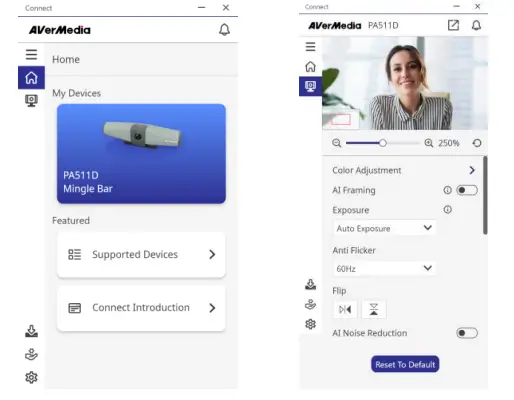
Simple Video Adjustment
- Adjust your device’s color, exposure, zoom, and field of view to look your best in meetings.
Change the Color Settings
Add a color filter preset to suit your needs. Or manually turn on/off or adjust the exposure settings. 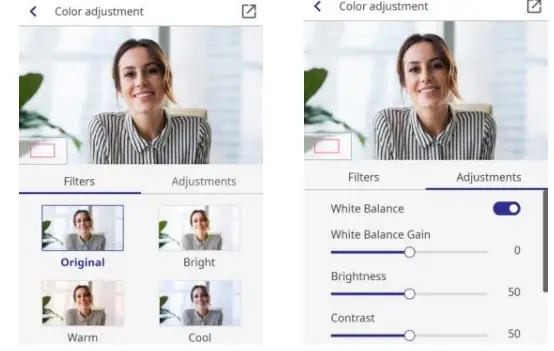
Digital Zoom and AI Framing Controls
You can either turn AI Framing on and let it get the best shots for you or use the digital zoom function (up to 400%) to frame manually. 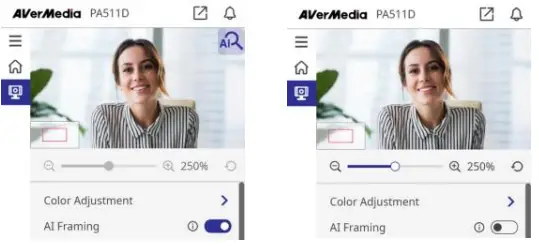
Look Great in Various Lighting Conditions
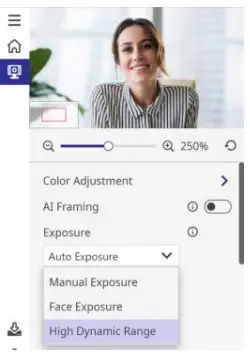
Connect provides exposure methods to make you look natural in different lighting conditions.
- Auto Exposure: Automatically adjust the exposure value of the video according to the ambient light.
- Manual Exposure: Manually adjust the video exposure and gain.
- Face Exposure: Enhanced exposure for faces, suitable for dark indoor environments.
- High Dynamic Range (HDR): Automatically enhance the contrast according to the ambient light to obtain the best video quality. Suitable for environments with high contrast.

Deliver Uninterrupted Voice
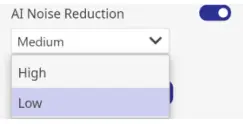
- You can choose to turn on the “AI Noise Reduction” function to suppress distracting background noise if needed. There are three levels to choose from.

Stay Up to Date
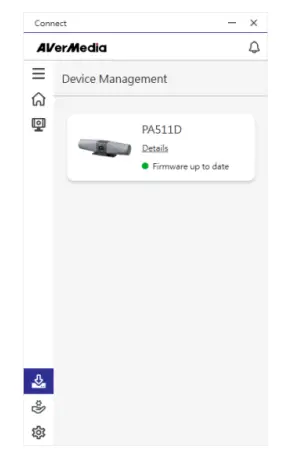
- Connect delivers notifications to let you know when an update is available and ready for installation. It also provides information on the connection status and warnings.

Contact Us
- Please contact us here should you have any questions or suggestions.
About AVerMedia
- AVerMedia empowers people to easily connect and boldly create through innovative audiovisual technology. Our solutions help people work productively, build new relationships, and expand their horizons in ways that weren’t possible before. Our products include a wide range of powerful yet easy-to-use devices such as webcams, video capture cards, and microphones for content creators, schools, and businesses. We also provide hardware design services for a range of AI and IoT applications, from smart retail to smart cities.
- AVerMedia is guided by a philosophy of contributing to society- whether through products that change customers’ lives for the better or by ensuring our operations are socially responsible.
Connect with AVerMedia:
- Website: https://www.avermedia.com/
- LinkedIn: https://www.linkedin.com/company/avermedia-technologies
Appendix – F.A.Q
- How to enable auto framing (AI Framing, ePTZ)?
- Method 1. By hand gesture:
- You may turn on Auto Framing by hand gesture. Just hold your right or left hand with your palm facing the Video Bar for three seconds until the power indicator flashes twice.
- The following are sample hand gestures. The correct one is an open hand palm, like showing number five:

- Please show a complete hand palm, without being hidden by shirts.

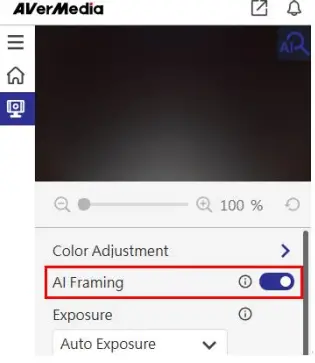
- Method 2. By Connect software:
- To enable Auto Framing, another way is to use AVerMedia Connect software, by tweaking the toggle as marked below :

- Is my computer’s USB Type-C port able to output videos to Mingle Bar (PA511D)?
- Make sure the USB Type-C port in use supports DisplayPort Alt Mode or Thunderbolt 3 or 4 projection, for videos to be exported through PA511D and to display on a monitor or a TV.
- How to identify if a USB Type-C port supports DisplayPort Alt Mode or Thunderbolt 3 / 4 projection?
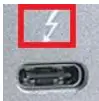
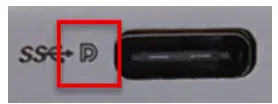
- Check if there is one of the following symbols next to the USB Type-C port:
- A lightning bolt symbol indicating Thunderbolt 3 or 4

- A D-shaped icon indicating DP Alt Mode

- Why do I need AVerMedia PA511D’s AI noise reduction, considering some video conferencing applications should be capable of it as well?

- Compared to using Microsoft Teams or Zoom with CPU loading consumed, the AI noise reduction by AVerMedia PA511D helps on reducing noise, whereas it does not consume any extra CPU loading. The AI noise reduction filters non-human background noise coming from coffee machines, keyboard typing, cooling fans, etc.
- ©2023 by AVerMedia
 Redirecting to Appear
 AVerMedia | Create and Connect