Contents hide

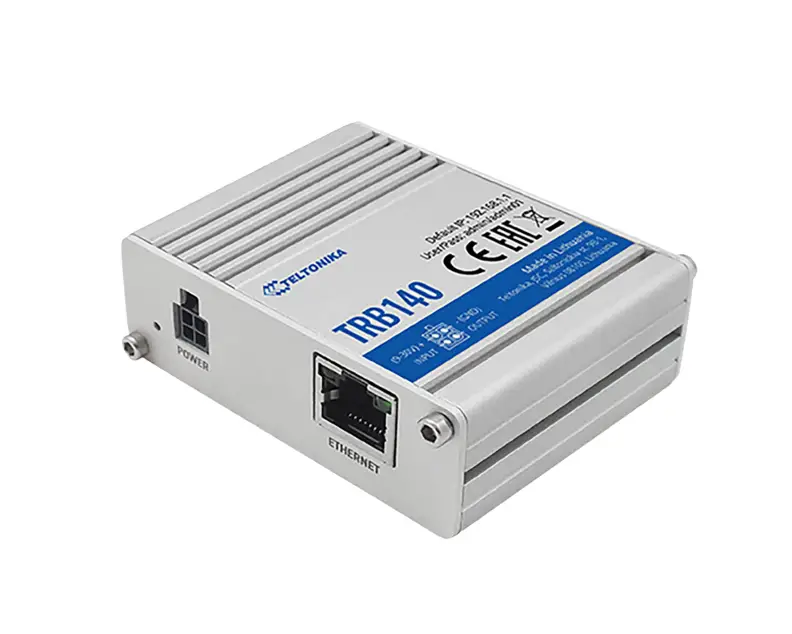
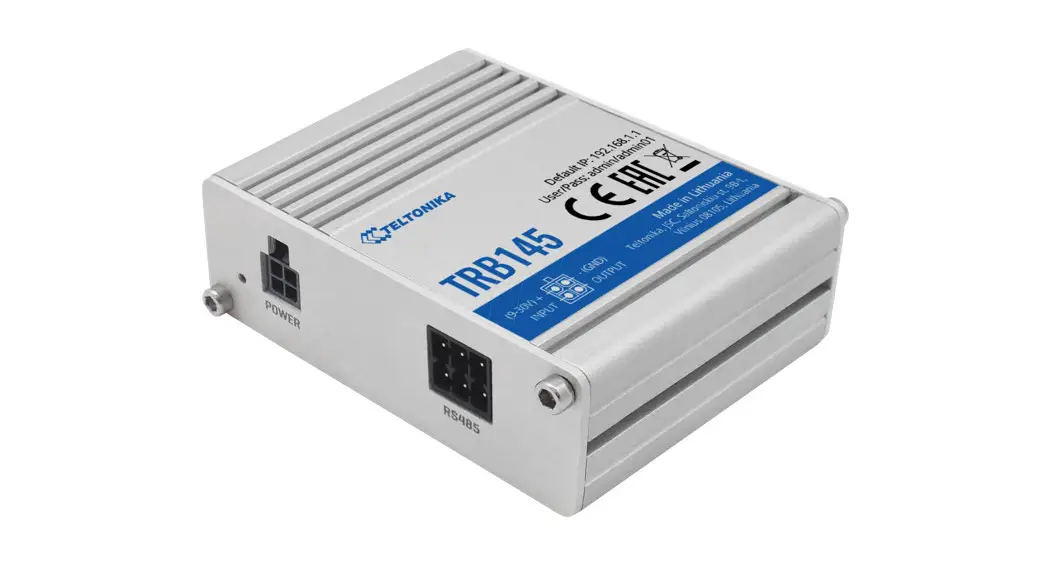
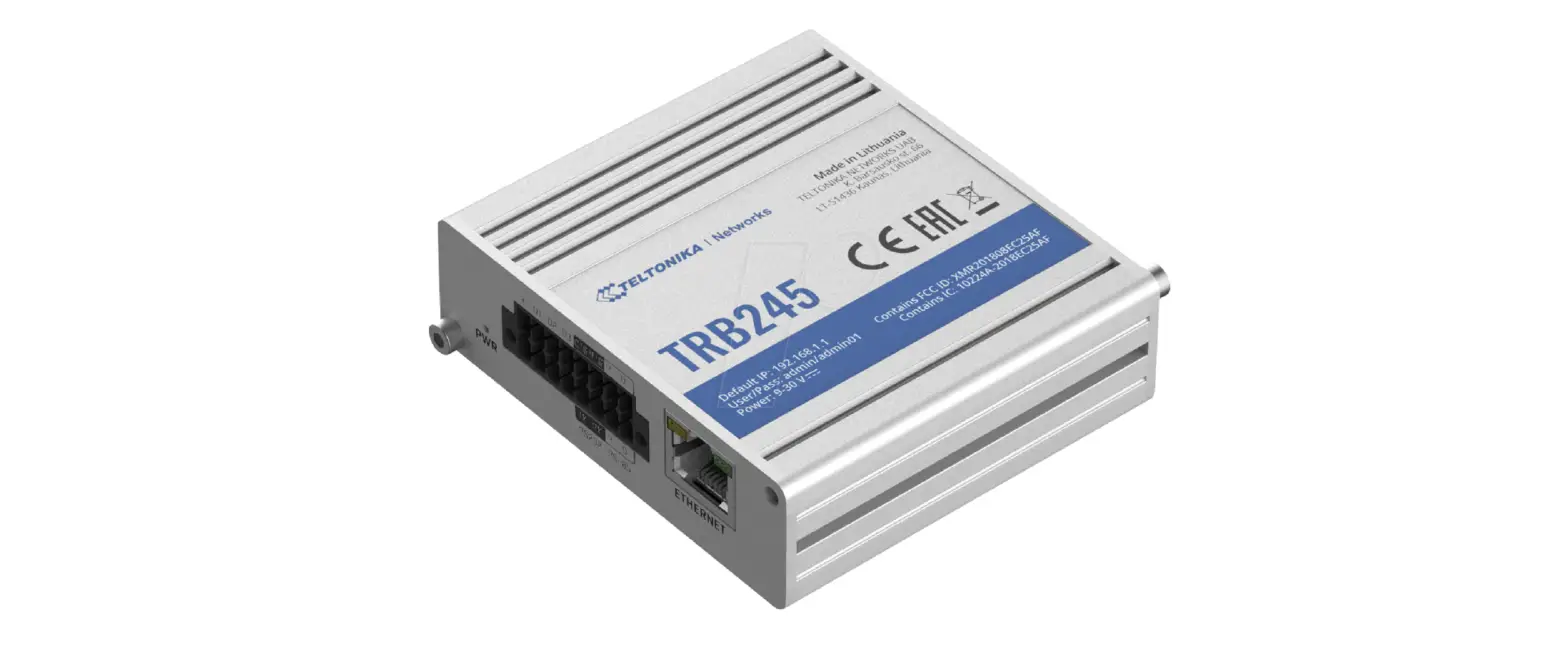
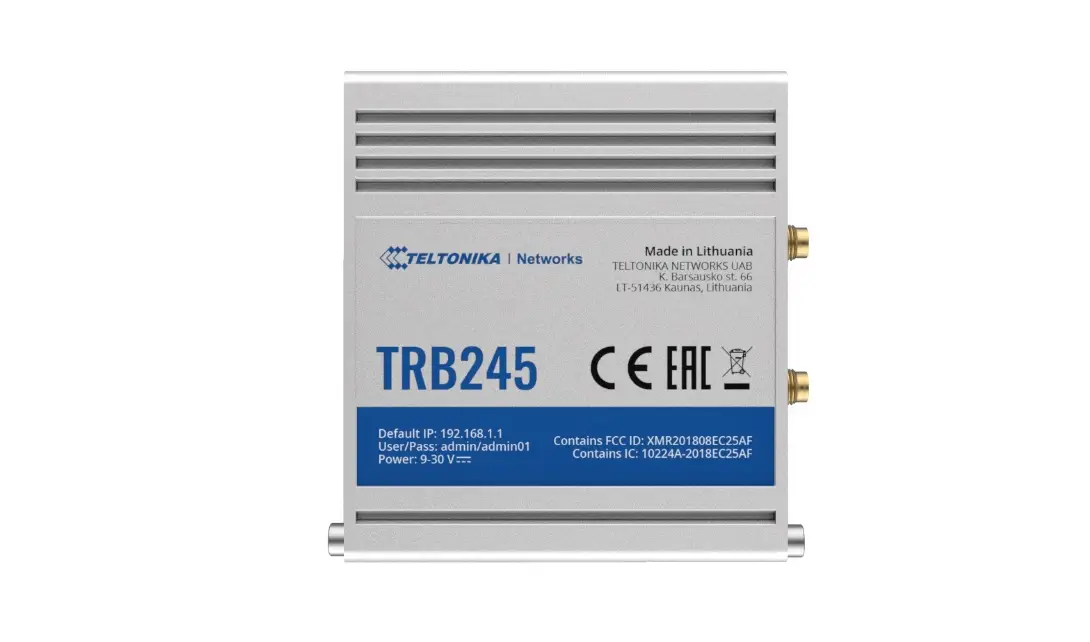
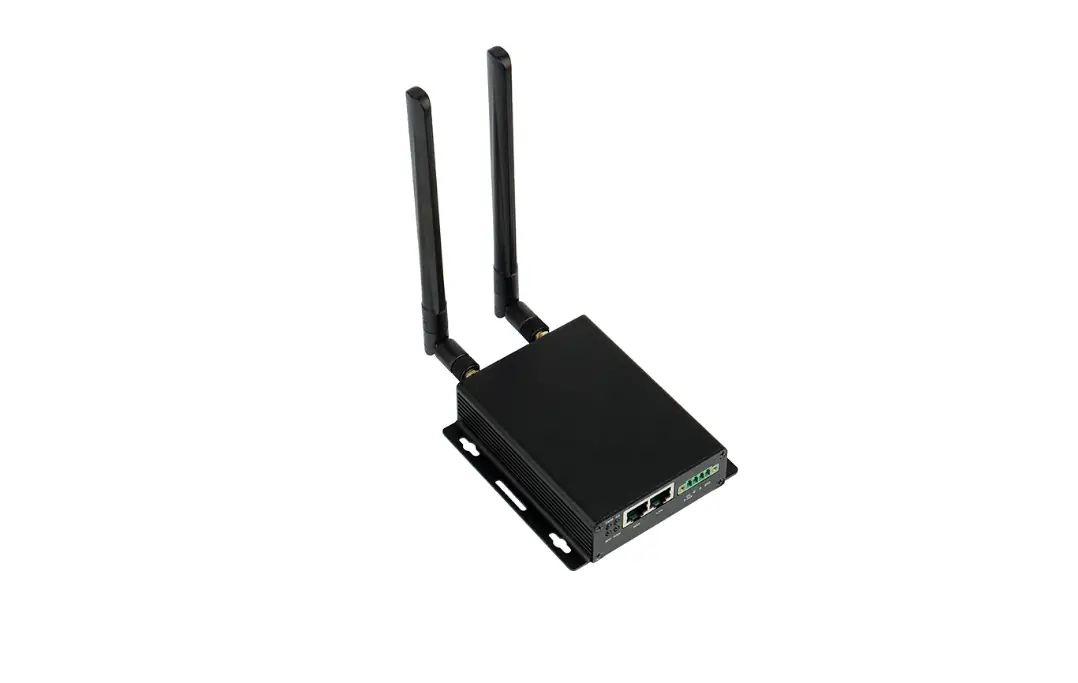
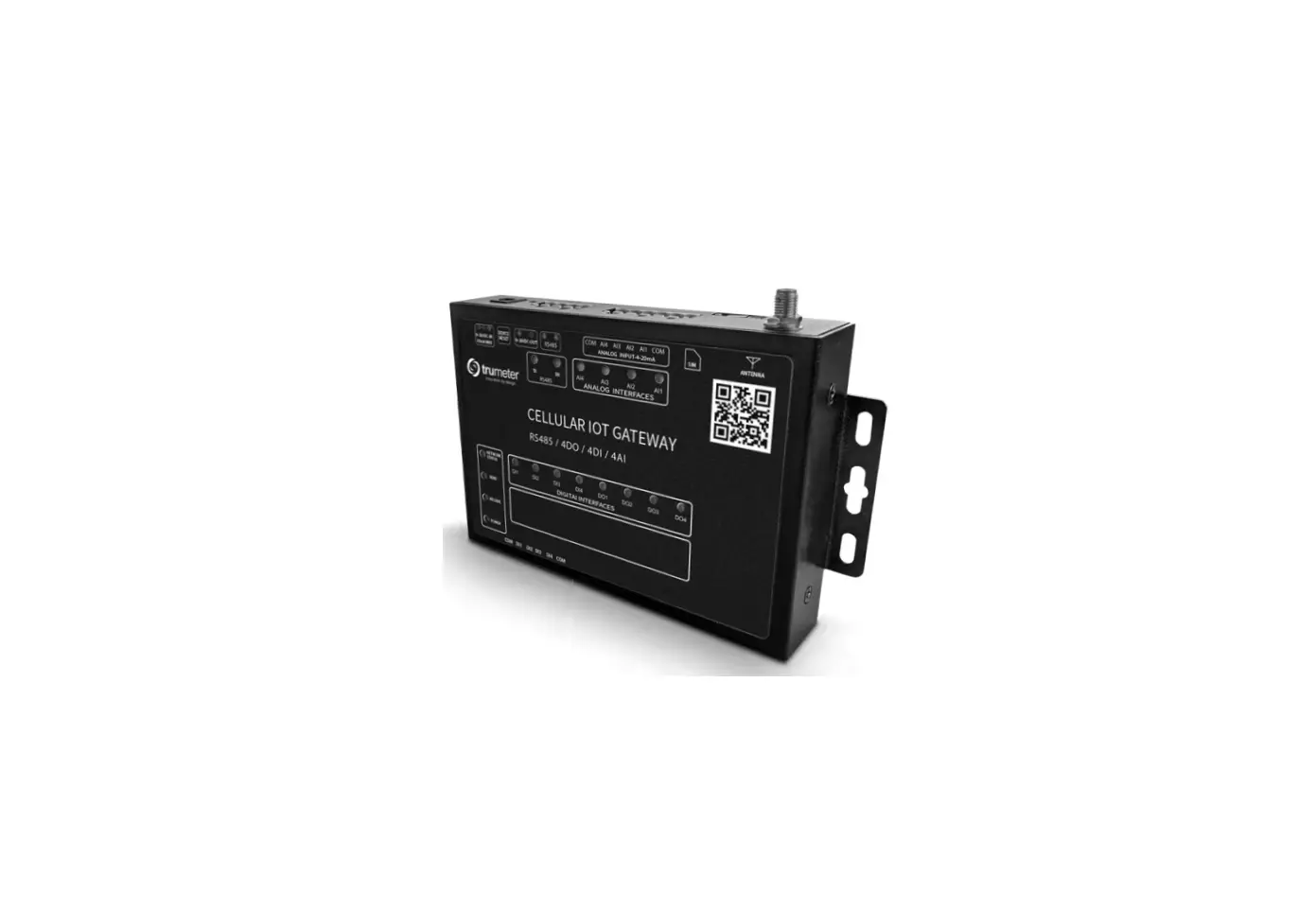
trumeter 4G-LTE IOT GATEWAY ETHERNET
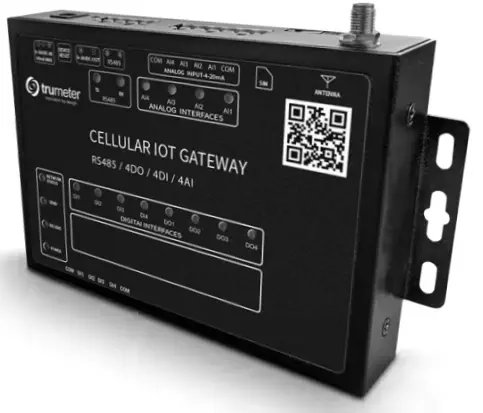
DEVICE LIGHT SUMMARY
| Name
NETWORK STATUS | Status
2000ms off / 300ms on 300ms off / 300ms on | 4G Gateway | Ethernet Gateway |
| No cable connection | |||
| OFF | No cellular network | ||
| ON | Router is initialising | Ethernet link established | |
| 1000ms off 1000ms on | Cellular network is initialising | DNS error | |
| 1500ms off 100ms on 100ms off 100ms on | SIM card error | ||
| 200ms off 200ms on | Getting IP from cellular network | ||
| 500ms off, 500ms on | Cellular connection established | ||
|
SEND | OFF | No Cloud link | No Cloud link |
| ON | Cloud link established | Cloud link established | |
| Flashing | Sending data | Sending data | |
|
RECEIVE | OFF | No Cloud link | No Cloud link |
| ON | Cloud link established | Cloud link established | |
| Flashing | Receiving data | Receiving data | |
|
POWER | OFF | No power to device | No power to device |
| ON | Device is powered | Device is powered |
DEVICE DIAGRAM
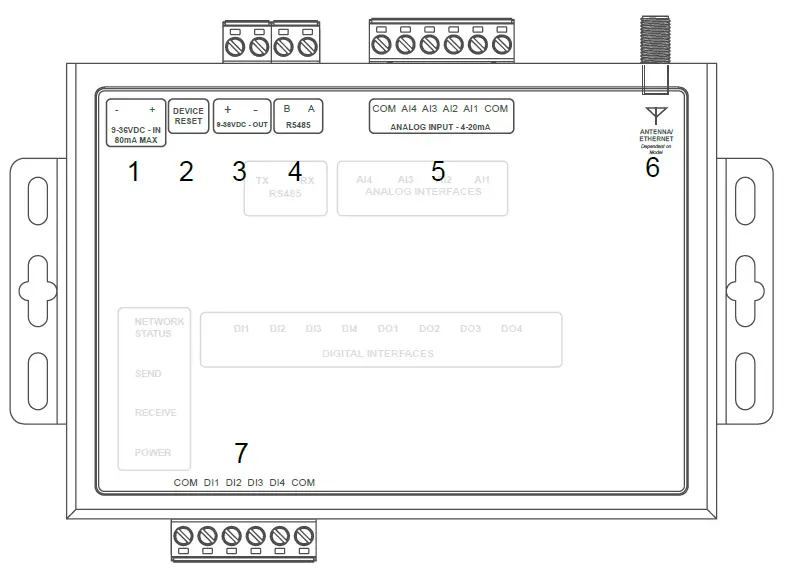
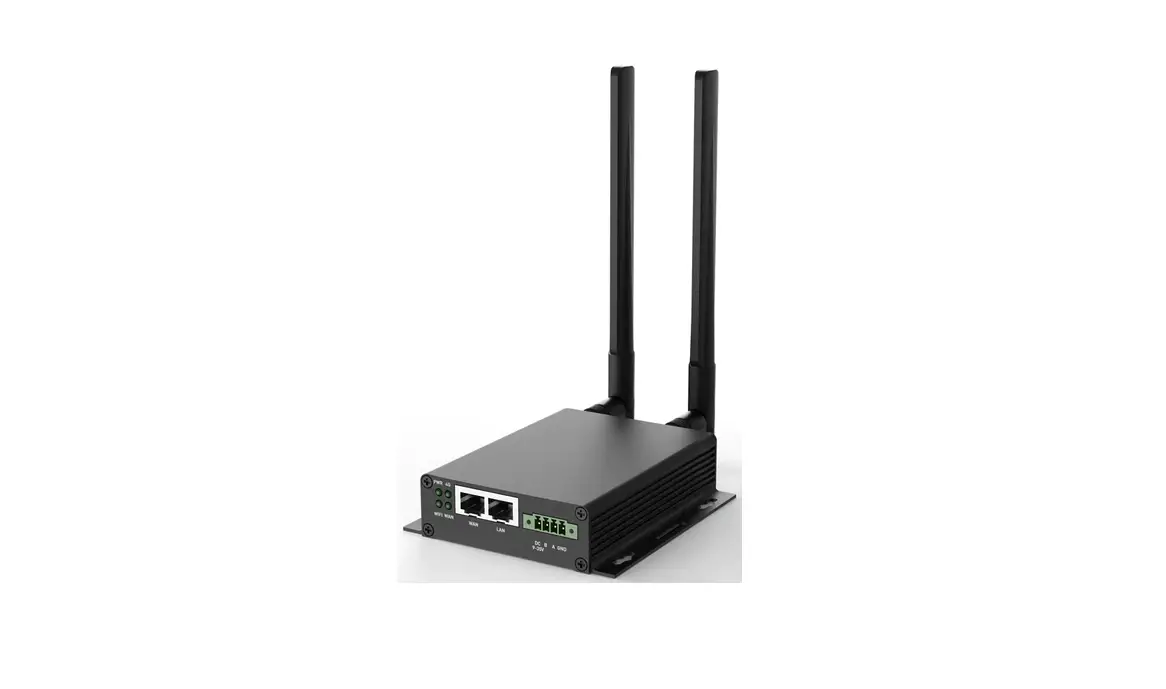
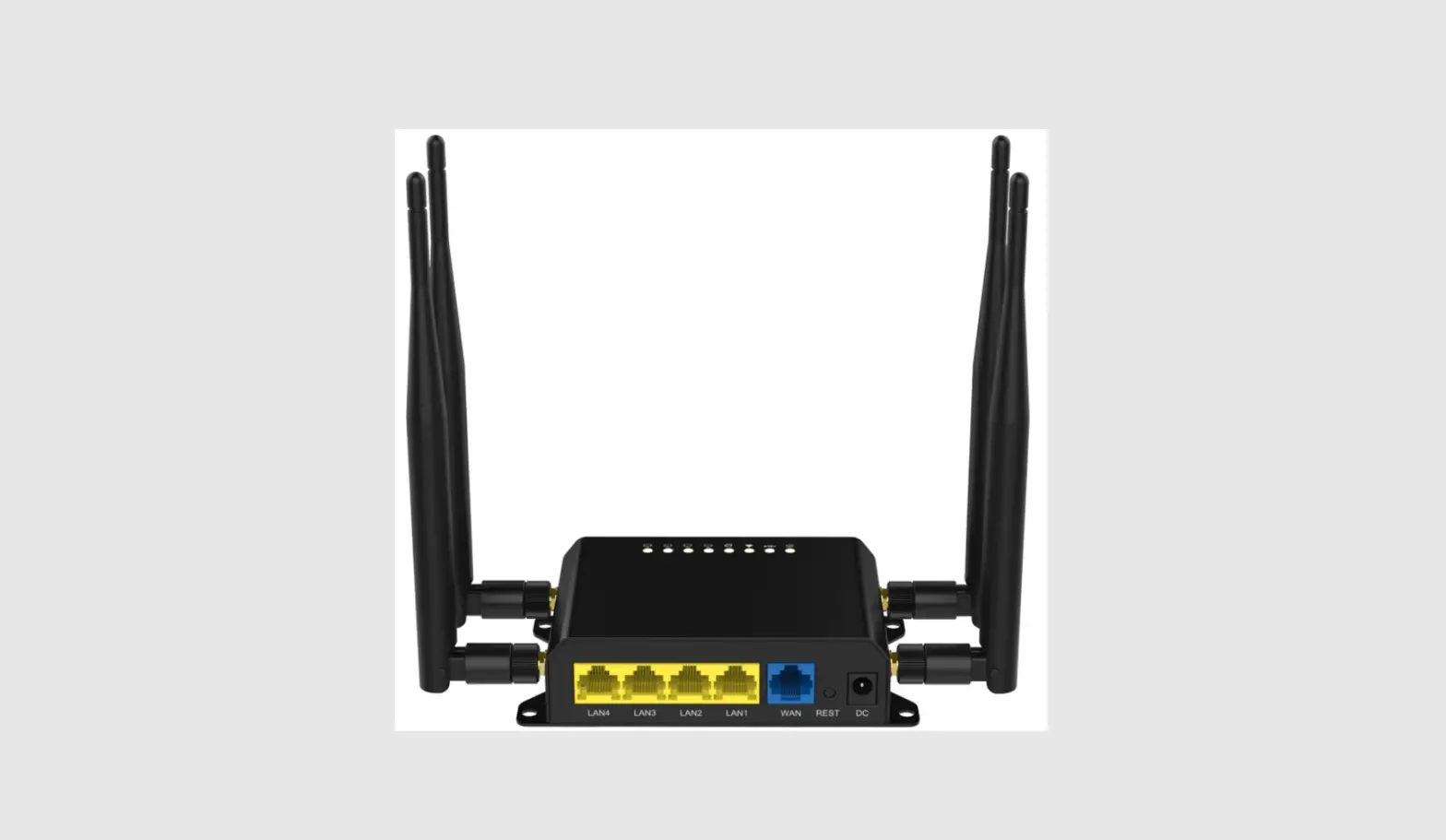
- DC power supply: 5.5*2.5mm, 9-36V
- Device Reset: Reset button
- Power Supply Output: Loopback (directly connected to power supply input terminal)
- Serial Port: RS485, 5.08mm terminal block plug-in
- Analog Input: AI1~44 current input detection
- Antenna: Main antenna
- Digital Input: DI1~DI4 is 4 way dry/wet node input detection
HARDWARE CONFIGURATION
Device Wiring
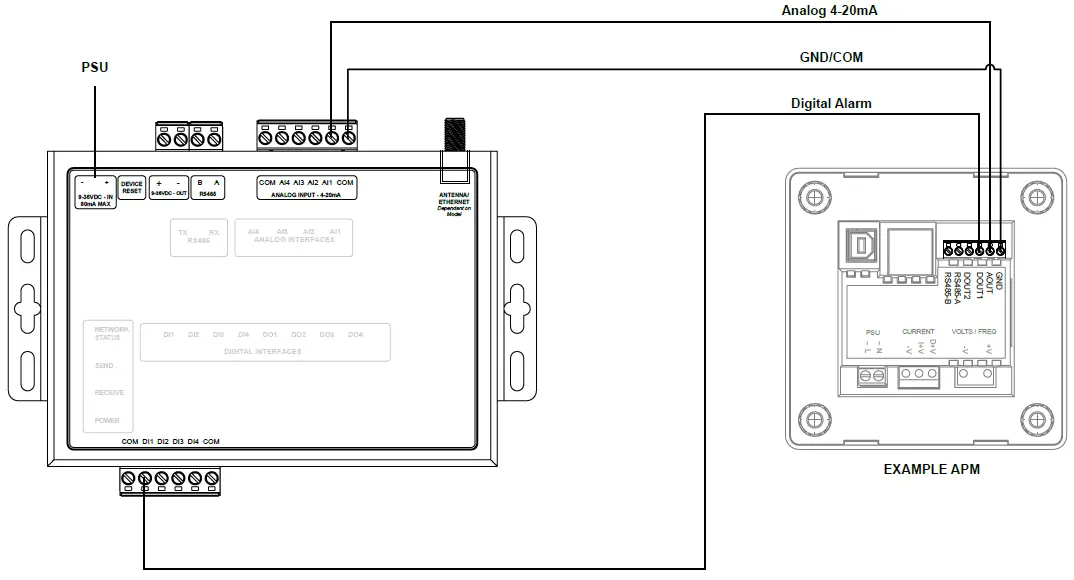
- Wire selected APM meters 4-20ma connections to router
- Wire selected APM meters digital outputs (for alarm feature) to router
- Configure meters to ensure alarms are set (APM configurator)
- Plug multi adaptor into router without power
- Check all wiring connections are correct
Powering Device
- Power router by plugging in multi adaptor
- Check and wait for network connection
- Confirm Analog Input and Digital Input connection LED’s depending on how many meters are connected to router
Device Mounting
- Attach IoT Router to wall and or cabinet
- Connect the antenna to the router via screw terminal
- Place antenna outside of any metal enclosure to ensure best reception
CLOUD ACCESS
To access the Trumeter Cloud dashboard, go to cloud.trumeter.com
There are two types of user account:
- Customer User
- Read-only User
A Customer User can create and modify parameters within the dashboard including adding and managing gateways and users. A Read Only user has access to the dashboard and can view and monitor parameters from a gateway.
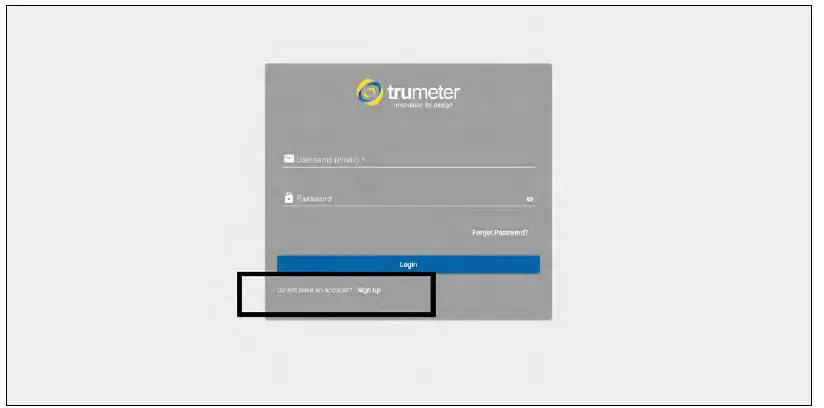
Registering a Customer User Account
- Go to cloud.trumeter.com
- Click Sign Up to go to the registration screen
- Once registered a confirmation email will be sent to the email address used for the account

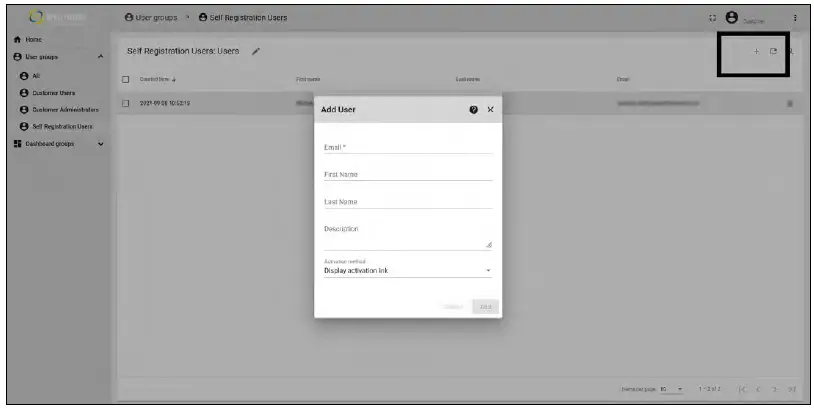
Adding a New User
- Go to cloud.trumeter.com
- Login as a Customer User
- Go to User Groups > Self Registration Users
- Click on “+” and create new user
- You can activate the user or send an email with activation link to the email address used for the new account. See full manual for assigning read only permissions

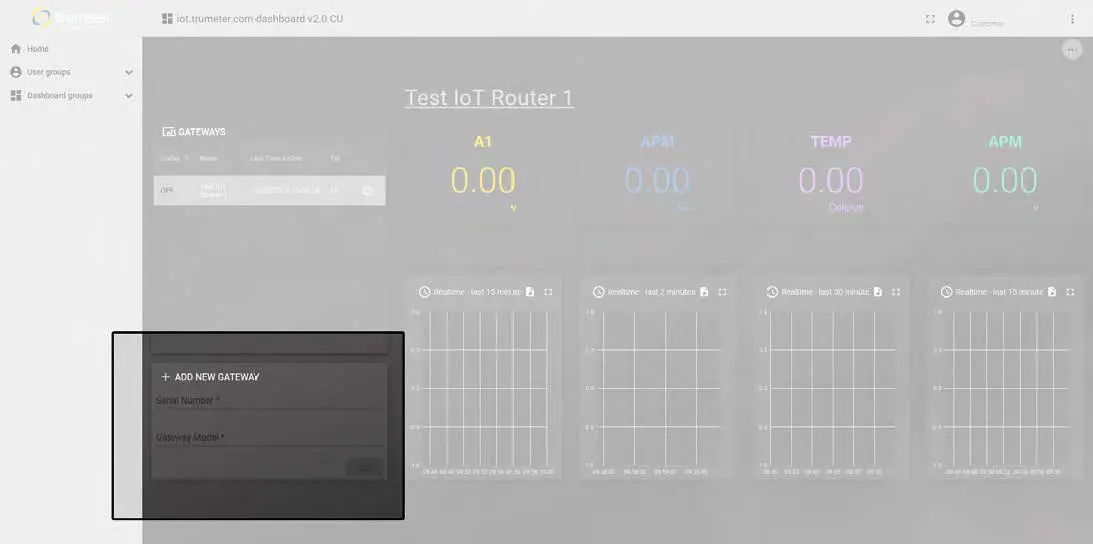
Adding a New Gateway
- Go to cloud.trumeter.com
- Open dashboard as Customer User
- Add unique serial code and model in the “add new gateway”
- Device will be claimed and added to the list of gateways

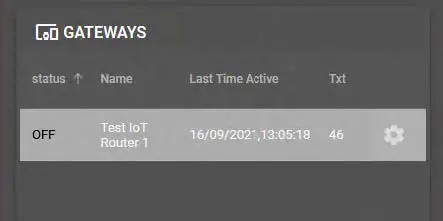
Editing Gateway Configuration
- Go to cloud.trumeter.com
- Open dashboard as Customer User
- Click cog on the gateway you want to configure
- Change the configuration and click save when done

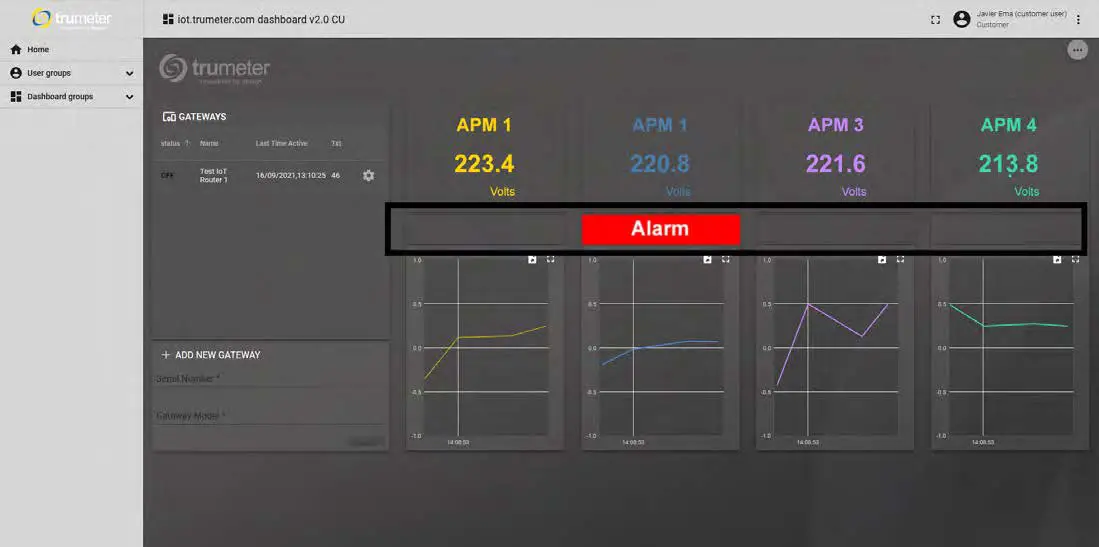
ALARM SETUP
- Set APM alarm output thresholds using APM configurator
- Ensure wiring from APM output to Digital Input on gateway
- When triggered, alarms will appear on the cloud dashboard assigned to the APM

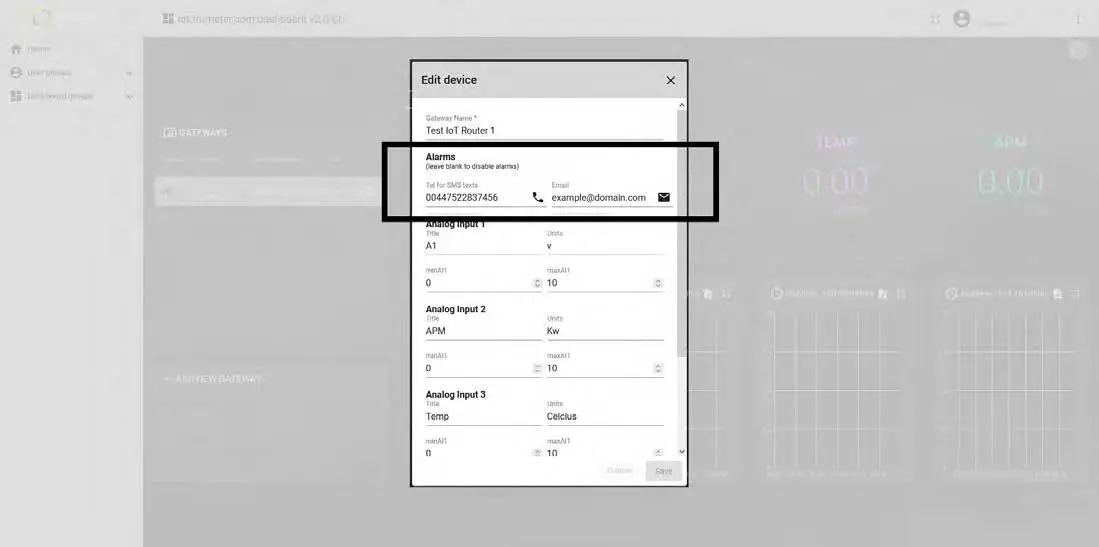
SMS and Email Setup
- Go to cloud.trumeter.com
- Login as Customer User
- Click on the “cog” on the gateway you want to add SMS or email
- If you leave it blank it will not send (SMS or Email)
- If you have made an error when editing, the dashboard will tell you that the message is not being sent
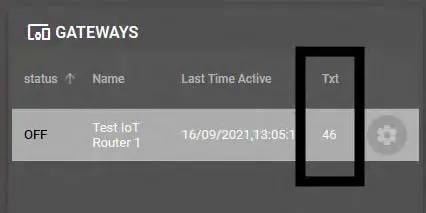
- In the Gateway list you can see the number of texts you have left this month (Txt)
- If there has been an error in the text and the message is not sent, the text will not be counted

Graph Visualization and Data Export
- Go to cloud.trumeter.com
- Open dashboard as Customer User
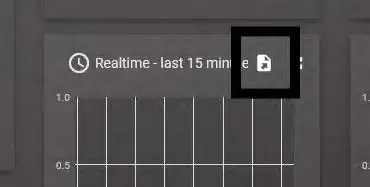
- Click on “Export Widget Data” to export in either CSV, XLS or XLSX

WIRING DIAGRAM
Contacts
Trumeter (Europe)
- Trumeter, Pilot Mill, Alfred Street, Bury, Lancashire BL9 9EF, United Kingdom
- Tel: +44 161 674 0960
- Email: [email protected]
Trumeter (The Americas)
- Trumeter, 6601 Lyons Rd, SUITE H-7, Coconut Creek, Florida, FL 33073, USA
- Tel: +1 954 725 6699
- Email: [email protected]
Asia Pacific Distributor
- Innovative Design Technologies Sdn. Bhd, Lot 5881, Lorong Iks Bukit Minyak 1 Taman Perindustrian Iks, 14000 Bukit Tengah Penang, Malaysia
- Web: www.idtworld.com
- Tel: + 604 5015700
- Email: [email protected]
- www.trumeter.com
- 033061-01 Issue 1.0 12/21
 IoT Gateway for APM - Trumeter
 Our Expertise - Trumeter
 Home - Trumeter