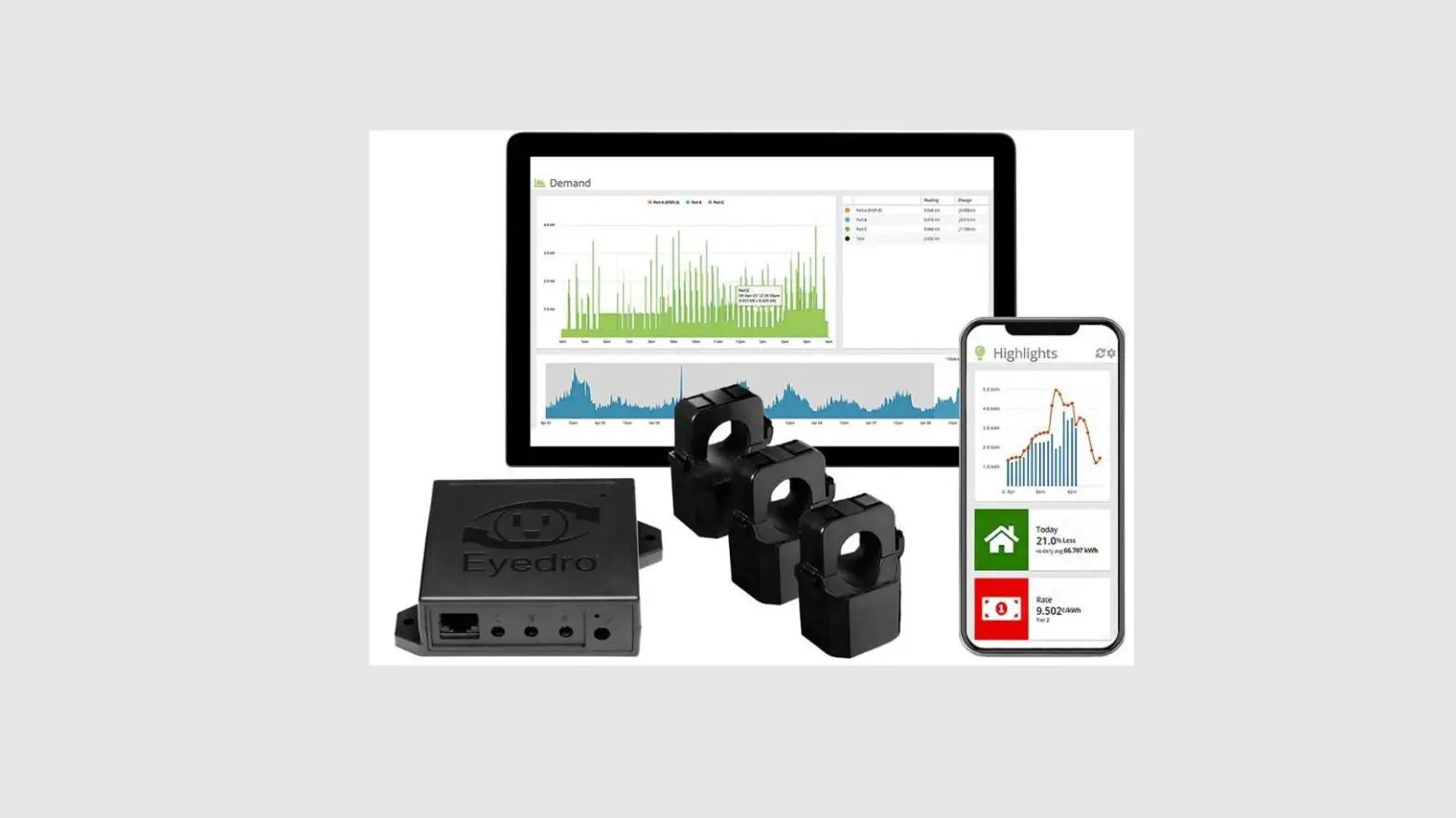

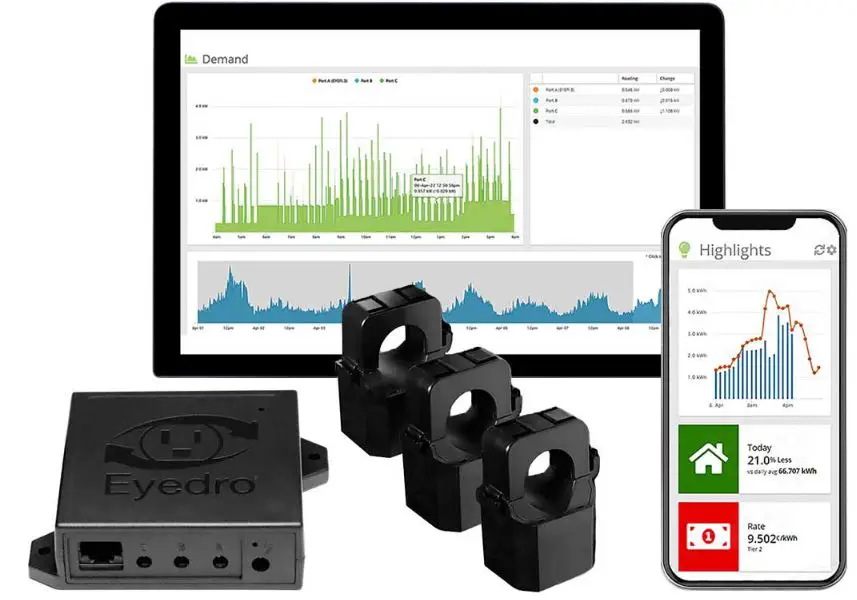
EYEDRO5-BEW Electricity Monitoring System
Before Getting Started
This insert provides very high-level installation instructions. Complete installation ineyedro.com/ instructions can be found at support (see Product Manual and Support videos)Installation may require the cover of the main electrical panel to be removed while some wires are still electrified. Even when certain areas of the ’ OFF ‘main breaker has been turned panel may still be dangerous and carry the risk of shock, burn, and electrocution. Installation should be performed by a qualiattempt installation unless you DO NOT fied electrician. know where electrified areas within the panel are.
Notes:
- Always use the AC power adapter that came with 1. BEW system. – your EYEDRO5
- Do not plug your Eyedro power adapter into a 2. Uninterruptible Power Supply (UPS) as this will result in incorrect measurements.
- The AC power adapter must be powered via circuit 3. which is downstream of the panel where the current. sensors are installed
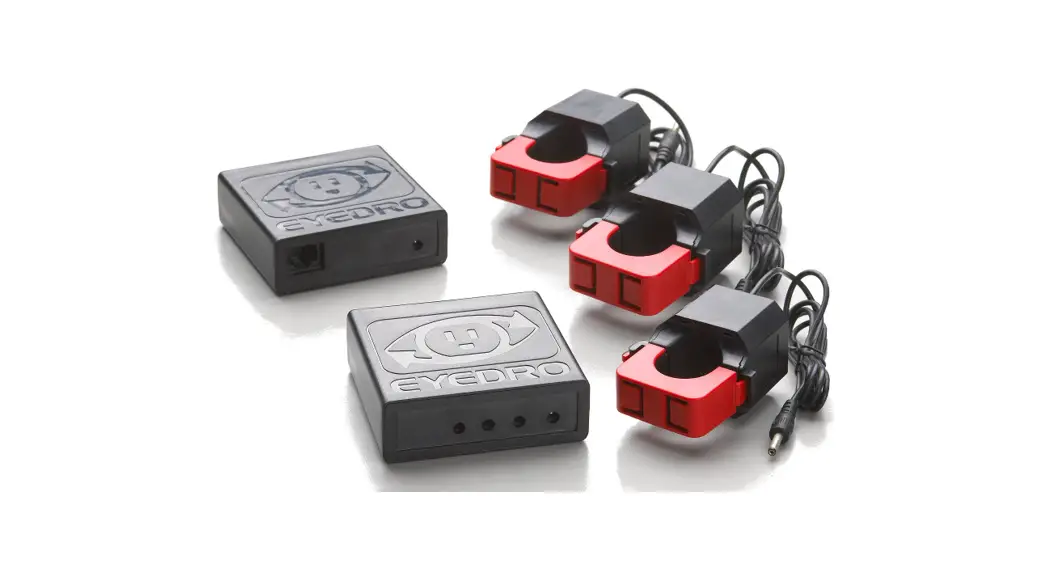
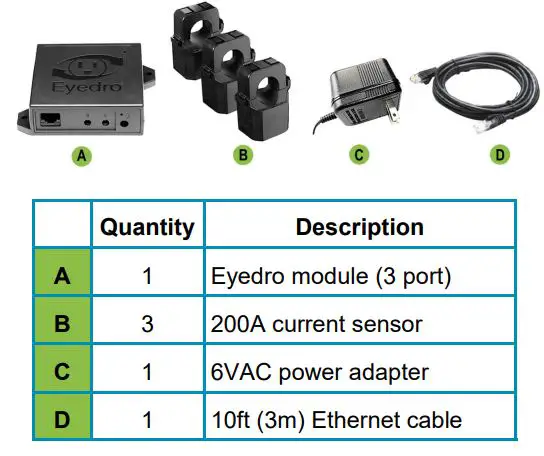
Verify Package Contents
Record Serial Number:
(located under the barcode on the module)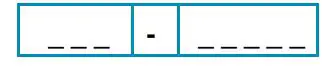
Install Hardware
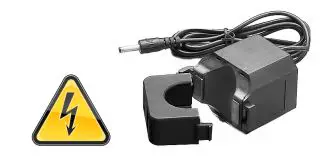
- Install current sensors on the line1 conductor of the circuits(s) to be monitored

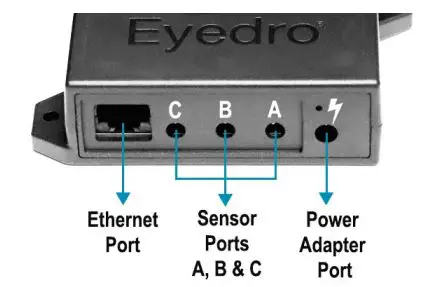
- Connect sensors, Ethernet cable (if using) & power adapter to the Eyedro module.

Connect the Device to the Internet
- If connecting by Ethernet, connect one end of the supplied Ethernet cable to an open port on your router and the other end to the Eyedro module.
- If connecting by WiFi (2.4GHz), use your computer or mobile device to connect to the WiFi network created by your Eyedro: Eyedro [Serial#].
- Open a browser tab and go to eyedro.com/setup.

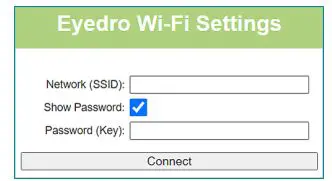
- From the WiFi Settings page, enter the name (Network SSID) and password (Key) for the wifi network in your building. Click Connect.
- Reconnect your mobile device or computer to the network that you just passed to your Eyedro.
- Open a browser tab and go to eyedro.com/setup.
Create a MyEyedro User Account
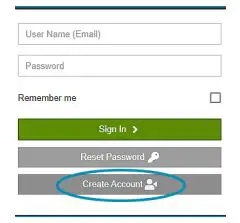
- Go to my.eyedro.com to create your online account (or log in if you have an existing account)

- Add the device to your user account: go to Configuration, select Devices then enter the serial number you recorded in Step 2.
- ENJOY! Log into MyEyedro as often as you like to view your electricity consumption.
- For more details about the MyEyedro cloud service, review the MyEyedro User Guide located at eyedro.com/support
 Electricity Monitors for Home and Business
 MyEyedro