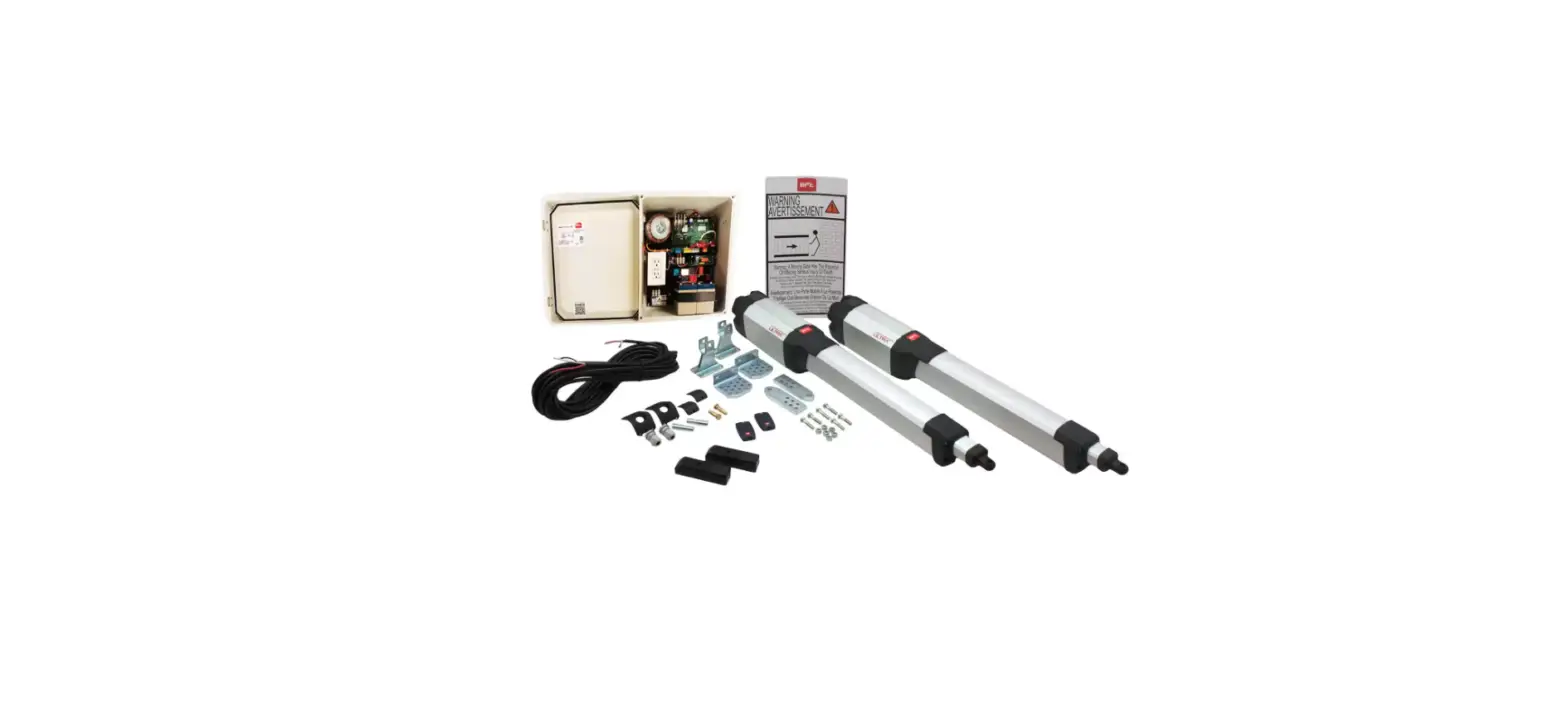
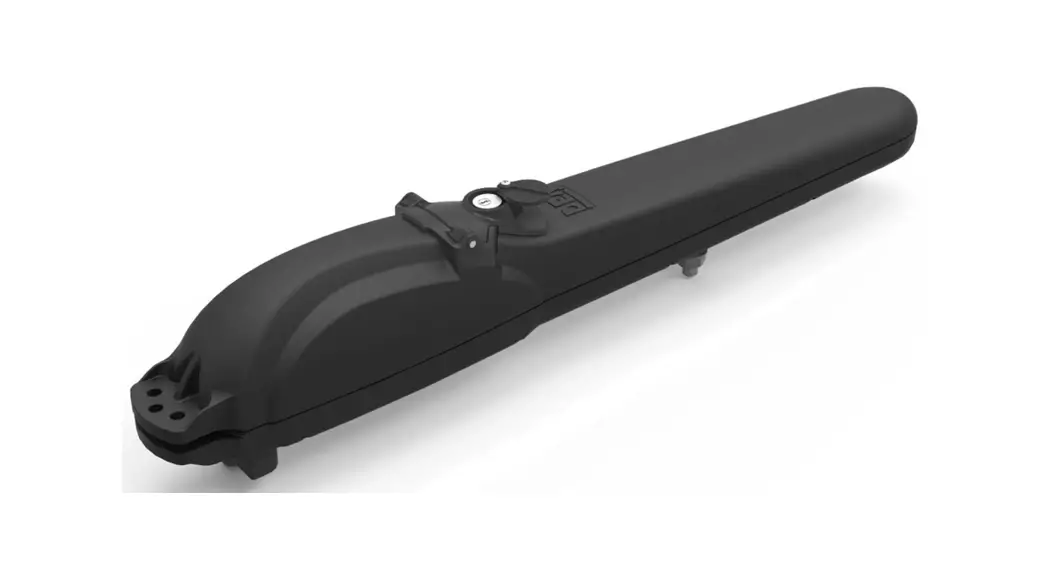
CM6-DCFP 24V Battery Backup Swing Gate Operator
Product Information
| Power | 110-120V AC, 7 Amps |
|---|---|
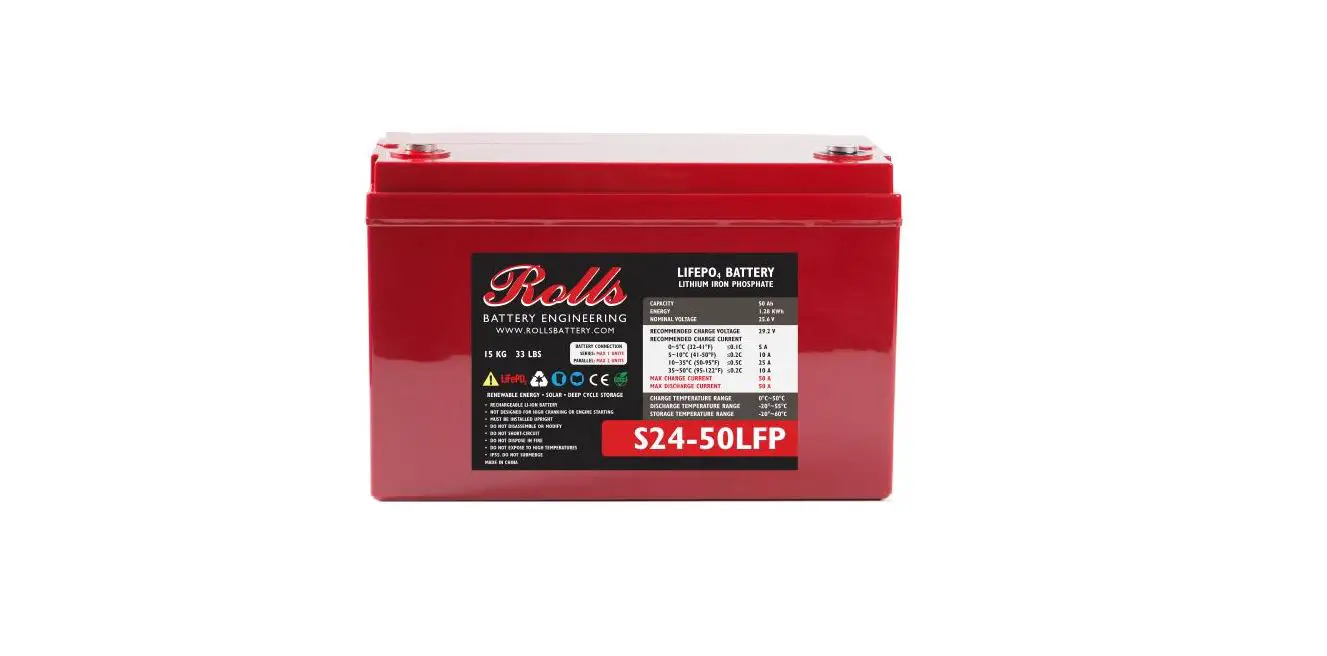
| System Operating Voltage | 24V DC |
| Maximum Output Current | 30 amp |
| Fuse | 24V DC 30 Amp |
| Remote Control Distance | >150 Feet (50 meters) |
| Maximum Gate Weight | 1000 lbs |
| Maximum Gate Length | 18 Feet |
Product Usage Instructions
Step 1: Installing the Base
The base, also known as a pad, is a raised platform. Follow
these steps to install the base:
- Lay out the position of 6 wedge anchors by measuring clearance
between anchors and inside edge of the gate. (Refer to Figure
1) - Install underground conduits in the area for conduits. (Refer
to Figure 2)
Step 2: Door Arm Installation
Follow these steps to install the door arm:
- Satisfactorily test the arm in the full open and closed
positions. - Weld the following:
- Gate bracket to gate.
- Gate bracket to long arm.
- Short arm to gate opener metal bar.
Step 3: Connecting the Power
Follow these steps to connect the power:
- Use UL approved power wires with a minimum capacity for 15 amp
current. The maximum wire length for different wire gauges are as
follows:- 14 AWG – 1,150 ft
- 12 AWG – 1,850 ft
- 10 AWG – 2,950 ft
- All operators must be properly grounded. Use a dedicated
circuit for power supply. - When the power is connected, turn the operator power switch to
the ON position.
Step 4: Open Direction
Determine which direction your gate opens when viewed from the
inside (exit side). The Dip Switch #6 on the bottom of the gate
operator circuit board controls the open direction. Switch ON =
opens to the right, Switch OFF = opens to the left.
Step 5: Installing the Photo Eye
Follow these steps to install the photo eye:
- Plug the photo eye cable to the back of the gate opener, behind
the circuit board. (Refer to Figure 11)
Instruction Manual
CM6-DCFP Swing Gate Operator 24V Battery Backup
www.calimetco.com 9949 Hayward Way South El Monte, CA, 91733 Tel: (626) 452-9009
Product Specs
PRODUCT SPECS
Power: 110-120V AC, 7 Amps System Operating Voltage: 24V DC Maximum Output Current: 30 amp, Fuse: 24V DC 30 Amp Remote Control Distance: >150 Feet (50 meters) Maximum Gate Weight: 1000 lbs Maximum Gate Length: 18 Feet
LANGUAGES
To download this user manual in a different language, visit calimetco.com/manuals Para descargar este manual de usuario en otro idioma, visite calimetco.com/manuals
WARNING
To reduce the risk of INJURY or DEATH: · Never let children operate the gate or play around the gate. Keep the remote control away
from children. · Always keep people and objects away from the gate. Cars, people, and other objects should
never enter when the gate is closing. · Verify this operator is proper for the type and size of gate. · Make sure the gate has been properly installed and slides freely in both directions. Repair
or replace all worn or damaged gate hardware prior to installation. · Test gate operator monthly. The gate must reverse when it comes in contact with a solid
object, or stop when an object activates the non-contact sensors. After adjusting the force or travel limit, re-test the gate operator. Failure to maintain the gate operator properly can increase the risk of injury or death. · Use the emergency release only when the gate is not moving. · Keep the gate properly maintained. Read the owner’s manual on how to maintain your gate. Have a certified service technician make repairs or install gate operator hardware. · The gate entrance should be used for vehicles only. Pedestrians should use a seperate entrance. · Keep these instructions.
1
UL325 Installation
(OPTIONAL) Requirements for UL Compliant Installation
UL 325 standard is a safety standard for electric gate openers. If the gate operator installation requires a UL325 installation, follow these instructions. For full instructions, visit the UL325 website. REQUIRED ENTRAPMENT PROTECTION A – Inherent (built-in) Entrapment protection System B1 – Non-contact sensor such as a photo-eye or equivalent B2 – Contact sensor such as edge sensor or equivalent C – Inherent adjustable clutch or pressure relief device D – Actuation device requiring continous pressure to maintain gate motion E – Inherent Audio Alarm Class I – Residential Locations & Class II – Commercial Locations / Multi-family housing Slide Gates: Primary Device: A | Secondary Device (one required): B1, B2, D Swing Gates: Primary Device: A, C | Secondary Device (one required) A, B1, B2, C, D Class II – Commercial Locations / Multi-family housing Slide Gates: Primary Device: A | Secondary Device (one required): B1, B2, D Swing Gates: Primary Device: A, C | Secondary Device (one required) A, B1, B2, C, D Class III – Industrial Locations / Limited Access Vehicular Gates Slide Gates: Primary Device: A, B1, B2 | Secondary Device (one required): A, B1, B2, D, E Swing Gates: Primary Device: A, B1, B2, C | Secondary Device (one required) A, B1, B2, D, E Class IV- Guarded Industrial / Restricted Access Locations Slide Gates: Primary Device: A, B1, B2, D | Secondary Device (one required): A, B1, B2, D, E Swing Gates: Primary Device: A, B1, B2, C, D | Secondary Device (one required) A, B1, B2, C, D, E
NOTE: The same type of device shall not be utilized for both the primary and secondary entrapment protection means. Use of a single device to cover both the opening and closing directions is in accordance with the requirement; however, a single device is not required to cover both directions.
2
UL325 Installation
(OPTIONAL) Requirements for UL Compliant Installation Continued
Additional UL Requirements · A minimum of two (2) warning signs shall be installed, one on each side of the gate where easily visible. · The gate must have sufficient room when opening and closing. Swinging gates should open inwards and not into public access areas. The gate must be properly installed and move freely in both directions. · Install the gate operator only when: 1) The operator is appropriate for the construction of the gate and the usage Class of the gate, 2) All openings of a horizontal slide gate are guarded or screened from the bottom of the gate to a minimum of 4 feet (1.2 m) above the ground to prevent a 2-1/4 inch (57.15 mm) diameter sphere from passing through the openings anywhere in the gate, and in that portion of the adjacent fence that the gate covers in the open position, 3) All exposed pinch points are eliminated or guarded, and 4) Guarding is supplied for exposed rollers, could be UL approved · The gate must be properly installed and work freely in both directions prior to the installation of the gate operator. Do not over-tighten the operator clutch or pressure relief valve to compensate for a damaged gate. · For gate operators utilizing Type d protection: 1) The gate operator controls must be placed so that the user has full view of the gate area when the gate is moving, 2) The placard as required by 52.1.1.6 shall be placed adjacent to the controls, 3) An automatic closing device (such as a timer, loop sensor, or similar device) shall not be employed, and 4) No other activation device shall be connected. · Controls must be far enough from the gate (at least six feet) so that the user is prevented from coming in contact with the gate while operating the controls. Controls intended to be used to reset an operator after 2 sequential activations of the entrapment protection device or devices must be located in the lineof-sight of the gate. Outdoor or easily accessible controls shall have a security feature to prevent unauthorized use. · For gate operators utilizing a non-contact sensor in accordance with 30A.1.1: 1) See instructions on the placement of non-contact sensors for each Type of application, 2) Care shall be exercised to reduce the risk of nuisance tripping, such as when a vehicle, trips the sensor while the gate is still moving, and 3) One or more non-contact sensors shall be located where the risk of entrapment or obstruction exists, such as the perimeter reachable by a moving gate or barrier. · For a gate operator utilizing a contact sensor in accordance with 30A.1.1: 1) One or more contact sensors shall be located at the leading edge, trailing edge, and post mounted both inside and outside of a vehicular horizontal slide gate. 2) One or more contact sensors shall be located at the bottom edge of a vehicular vertical lift gate. 3) One or more contact sensors shall be located at the pinch point of a vehicular vertical pivot gate. 4) A hardwired contact sensor shall be located and its wiring arranged so that the communication between the sensor and the gate operator is not subjected to mechanical damage. 5) A wireless contact sensor such as one that transmits radio frequency (RF) signals to the gate operator for entrapment protection functions shall be located where the transmission of the signals are not obstructed or impeded by building structures, natural landscaping or similar obstruction. A wireless contact sensor shall function under the intended end-use conditions.
3
Installation
Step 1: Installing the Base
The base, also known as a pad is a raised platform. We recommend using a concrete base.
1. Lay out position of 6 wedge anchors by measuring clearance between anchors and inside edge of gate. Figure 1
2. Install underground conduits in area for conduits. Figure 2
Wedge Anchor
1/2″ x 3 1/2″
Size of concrete base A minimum of 2″ on each side of the operator is recommended.
Contact local underground utility locating companies before digging more than 12 inches deep to avoid damaging underground power, gas, or other utility lines.
4
Installation
Step 2: Door arm installation
Figure 3 After you’re satisfied with testing the arm in the full open and closed positions, weld the following: 1. gate bracket to gate, 2. gate bracket to long arm, 3. short arm to gate opener metal bar.
Figure 4 A. Should be at least 1/4 the gate length. NOTE: Uphill or heavy gates should be at least 1/3 gate
length. B. 14″ minimum for open gate clearance (2″ thick gate) C. 27″ distance D&E. Arm should be 90° from gate when open and in the straight “locked”. D=L*0.6, E=L*0.4
5
Installation
Figure 5 A. DO NOT allow the arm to touch the gate operator’s hood when the gate is in the open position. Too much stress is put on the arm in this position during gate operation.
Figure 6 A. Preferred arm position is 90° from the open gate. B. NOTE: If dimension between open gate and wall is 20″ to 32″ then compact installation is
necessary. (See Figure 7) C. Distance between door and machine: 2″ min
6
Installation
Figure 7 Support bar should be installed at the gate bracket height across the entire gate to keep the gate pickets from bending.
7
Installation
Figure 8
Figure 9
Step 3: Connecting the Power
1. MUST use UL approved power wires, power wires MUST have
minimum capacity for 15 amp current.
Maximum Wire Length 14 AWG – 1,150 ft 12 AWG – 1,850 ft 10 AWG – 2,950 ft
2. All operators MUST be properly grounded in order to prevent an electrical charge. Must use a dedicated circuit for power supply.
3. When the power is connected, turn operator power switch to ON position.
8
Installation
Step 4: Open Direction
See which direction your gate opens when viewed from the inside (exit side). Dip Switch #6 (Figure 10) on the bottom of the gate operator circuit board controls the open direction. ON = opens to the right, OFF = opens to the left
Step 5: Installing the Photo Eye
1. Plug the photo eye cable to the back of the gate opener, behind the circuit board, Figure 11
2. Press the reset button on the gate operator control board. 3. Mount the photo eye on the stationary part of your gate or a post next
to your gate, about 21″ from the ground. 4. Press the orange button on the photo eye to turn on the infrared beam. 5. Mount the reflector to the opposite side. Make sure the infrared beam hits inside the circle of the reflector. Figure 12 6. Press the orange button on the photo eye to turn off the infrared beam.
Figure 10
Plug photo eye cable here
Figure 11 Infrared beam inside circle
Figure 12
Youtube Youtube video with more details on how to install the photo eye: https://youtu.be/F7NpB9W_OMY
9
Installation
Step 6: Gate Travel Limit
This controls the position of where the gate stops when it opens and closes. 1. Use a screwdriver to loosen the nails on the top and bottom limit cams 2. Turn left or right on both limit cams to adjust the position of where the gate opens and closes. Figure 9 TIP: Use the OPEN, CLOSE, STOP buttons on the gate operator circuit board for faster testing 3. Use the screwdriver and screw back in the limit cam nails
Figure 13 Youtube More detail on travel limit programming: https://youtu.be/_DeVM5dgZPs Finished! You are now finished installing your gate operator.
10
Features
EMERGENCY RELEASE
The emergency release allows you to open the gate manually, such as in cases where there is a power outage and there is no electricity. Opening the gate 1. Disconnect power. 2. Push release pedal downward and move slightly to the right until it is locked in. 3. Hold and push gate to desired direction. Reset the Pedal Reset the pedal only when the operator doesn’t work while using the remote control. 1. Push the pedal downward from locked position and slightly move to the left. 2. Allow the pedal rise up to the reset position and release the pedal.
Figure 14
11
Features
Entrapment Protection
Safety and Exit Loop This is an optional step. If you wish to install a exit loop detector, see figure 15 for the position of the safety and exit loops.
Figure 15
12
Features
Dual Gates Setup – Master/Slave
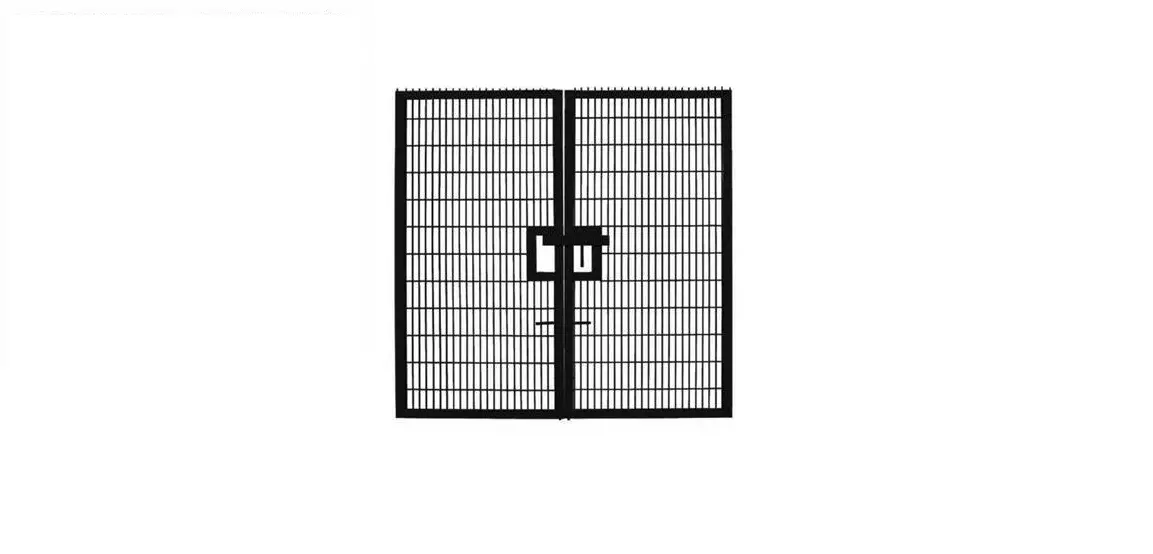
This setup is for dual swing gates. A single button press of the remote control can open both gates. This requires 2 swing gate operators. One gate operator is the “Master”, and the other is the “Slave”.
1. On the SLAVE gate operator circuit board, set dip switch #5 to ON (Figure 1).
2. Press the reset button on the SLAVE gate operator circuit board.
3. A 20 awg cable (or higher gauge) with two conductors is required.
Figure 1
Figure 2
A. Locate the green terminal (Figure 2) on the bottom of the circuit board with the words DATA- and DATA+.
B. Use a flathead screwdriver to release the 2 locks on the top of the green terminal.
C. For conductor 1, connect the DATA+ on the MASTER circuit board to the DATA+ on the SLAVE circuit board.
D. For conductor 2, connect the DATA- on the MASTER circuit board to the DATA- on the SLAVE circuit board.
E. Use the flathead screwdriver to close the two locks on the top of the green terminal.
4. Place the cable underground in an electrical conduit. 5. Make sure all remote controls, photosensors, loop detectors, and any other accessories are installed on the MASTER gate operator, and not the SLAVE. The setup is now complete.
13
Features
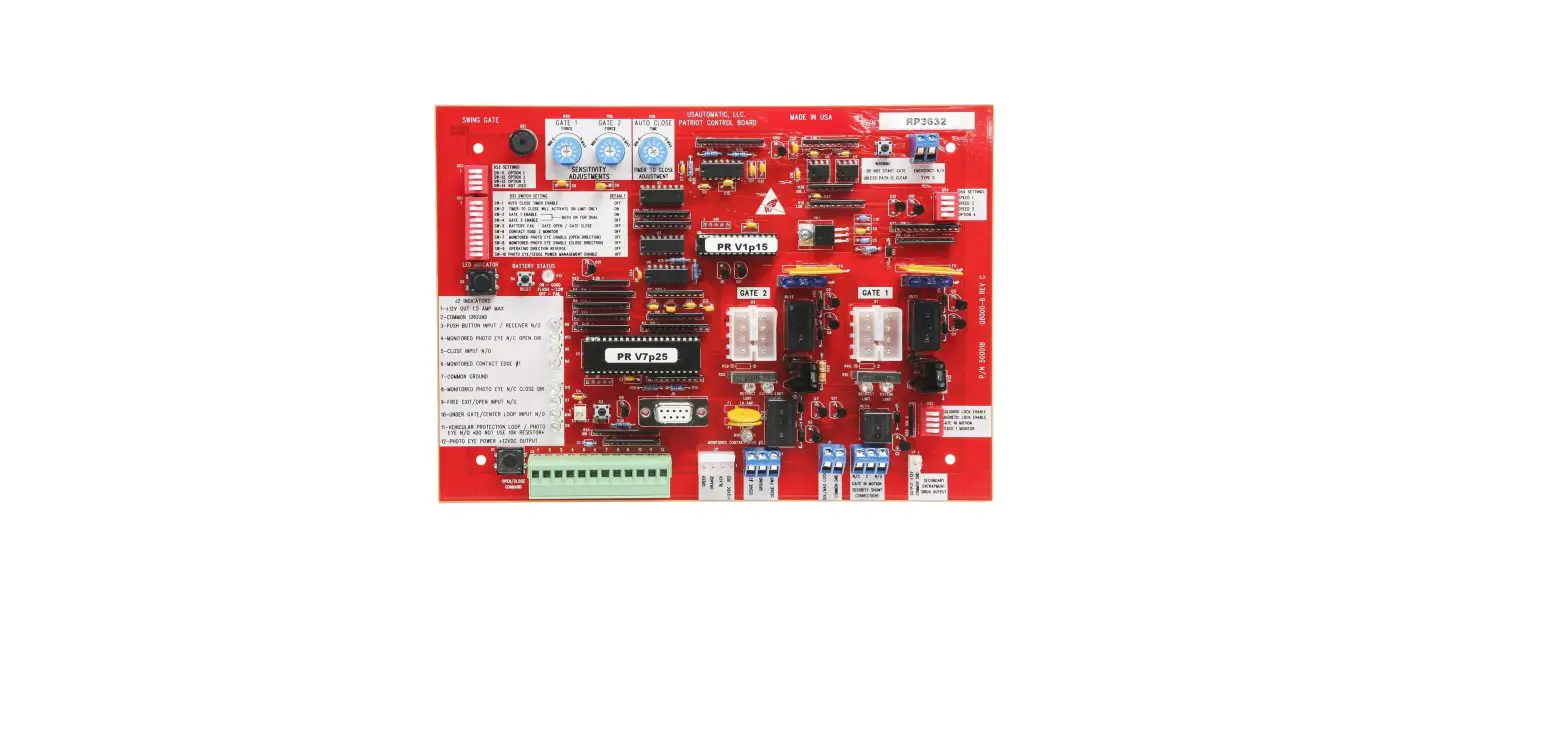
Control Board Layout
This is a picture of the control board. Use this for reference. Youtube Circuit board Programming Guide: https://youtu.be/_7iBuKr1ZtY
Figure 16
14
Features
Connecting Additional Remote Controls
By default, the remote controls are already connected to the gate operator. You do not need to do any of the following steps unless you are adding more remote controls.
There are two ways to connect your remote control: Study Mode & Numeric Mode.
Study Mode
Study mode can fit up to 60 different remote controls.
Connect using Study Mode On your gate operator circuit board, look for the study key. Press and hold the button on the remote control. Press and hold the study key for 1.5-2 seconds. Done, the remote is now connected to the gate opener.
Removing existing remote controls Press the STUDY key on the gate operator circuit board and hold for 8 seconds. Done. All remote controls are now removed.
Numeric Mode
A. On your circuit board, turn the SW9 key to the ON position.
B. Unscrew the back of the remote control to gain access to the control board. You should see 1-8 dip switches. Each switch has 3 positions: up, middle, bottom. Flip these 1-8 switches to any position you’d like.
C. On the gate opener control board, look for the same 1-8 dip switches, and set the same combination as you did on the remote.
D. Finished.
Note: On switch SW10, KEY 1 and KEY 2 are used for the 2-button model of remote controls. Note: if KEY 1 code was set with BUTTON ONE on remote control; KEY 1 will NOT work with BUTTON TWO on the remote control.
Youtube Youtube video that explains more on remote control programming: https://youtu.be/QfT6O4apTI8
15
Figure 17
Features
Dip Switch Features
Figure 18 DIP switch 1. CL-DELAY: Gate Closing delay, switch to ON position, turn timer to 1- 6 seconds. 2.TIMER: 1-60 Timer: Auto activated to close gate upon set time ( 1~ 60 seconds). 3. OSC: Remote control priority. Allow remote control to direct gate movement whenever gate is moving in any direction. Use first signal to stop gate, use second signal to move gate to opposite direction. 4. 1 PASS: Anti-tailgating system – When ON, after a vehicle has cleared the safety loop, the gate will
start to close immediately. If a second vehicle crosses the loop while the gate is closing, the gate will stop. The second vehicle must get off the loop before the gate closes completely. 5. SLAVE: Secondary operator activation 6. OPEN L/R: Choose gate open direction Left or Right.
Installing Non-Calimet Brand Photosensors
Figure 19 Follow infrared control instruction to connect power. Common wire is connected to Common pole, signal wire is connected to OPEN or CLOSE pole.
16
Features
External Receiver
External connectors are installed on the rear side of mainboard protector box. Figure 20
17
Features
Electronic Reversing Device (ERD)
The Electronic Reversing Device (ERD) is a feature on the circuit board which detects when the gates comes in contact with an obstruction, causing the gate to reverse. The open and close knobs determine the amount of force required to reverse the gate (figure 22). We generally recommend leaving the knob at 75, or around a 3:00 position. You may adjust the positions based on your needs. If the gate reverses without touching an obstruction, the ERD is too sensistive. If the gate does not reverse when it hits an obstruction, the ERD is not sensitive enough.
Test ERD every 6 months. Figure 22
Remote Control & Timer Delay Closing
Figure 23
Figure 24
Figure 25
A. Remote Control delay closing
1. Choose time delay to activate operator between 0~6 seconds by turning knob on DELAY
Auto Close
This allows your gate to automatically close after opening it.
1. On your gate operator circuit board in the bottom, turn Dip Switch #2 to the ON position. Figure 24
2. On the gate operator circuit board, adjust the delay by turning the second blue knob from 0-60 seconds. Figure 25
18
Features
Main Board Light Status Chart
Other: 1. BAT: 24V external Battery Connector 2. LOOP DETECTOR: Only compatible with Calimet Loop detector device. 3. RELAY-1: Signal light connector, this light only turns on when door is in motion
No.
Name
1
CL
2
PED-SW
3
SATETY
4
PHANTOM
5
EXIT LOOP
6
LIMIT1
7
LIMIT2
8
RADIO
9
RESET
10
POWER
Status/Light
ON when CLOSE input is activated ON when STAND BY, OFF when the STOP input is activated or foot pedal is pressed down. ON when Stand By, OFF when SAFETY LOOP input is activated
ON when incoming signal is detected
ON when EXIT LOOP input is activated ON when limit nut is activating the limit 1 switch ON when limit nut is activating the limit 2 switch ON when the RADIO input is activated ON when circuit board is RESET ON when STAND BY, blinks when motor is on
19
Features
11
B.L-POWER ON when back up battery is fully charged, blinks when low battery
12
M/S LINK
Blinks when master/slave communication is active
13
TIMER
Blinks when TIMER is counting down to close automatically
14
OPENING
ON when gate is in the open cycle
15
CLOSEING
ON when gate is in the close cycle
16
MON-FAULT ON when photo eye has malfunctioned
17
MON-OPEN ON when photo eye is functioning during open cycle
18
MON-CLOSE ON when photo eye is functioning during close cycle
20
9949 Hayward Way South El Monte, CA 91733
Tel: 626-452-9009 Alternate: 626-482-3066 Fax: 626-452-9010 Email: [email protected] www.calimetco.com
 Instruction Manuals
 Calimet® Gate Openers - Electric Gate Operators