INSTRUCTION MANUAL
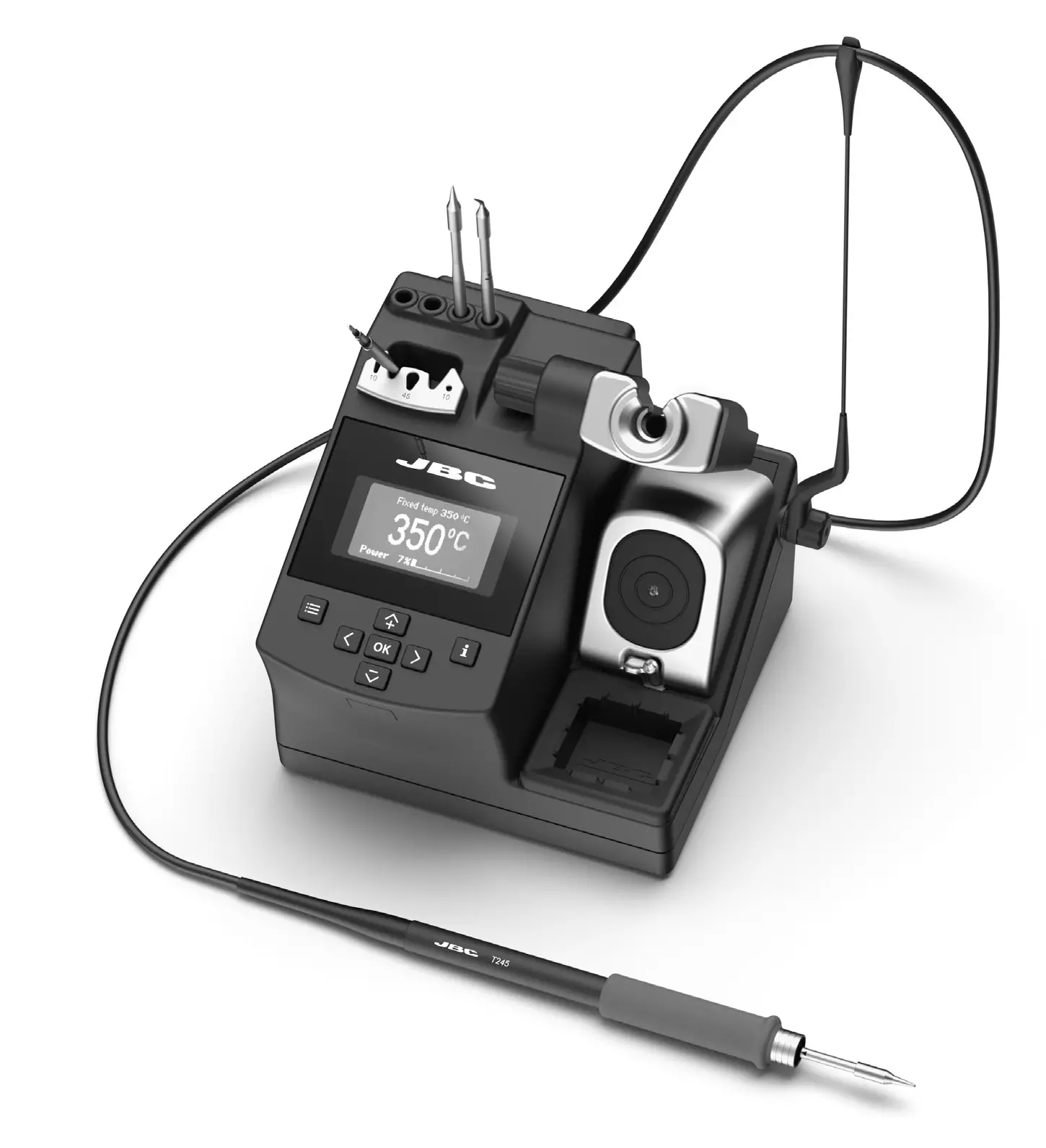
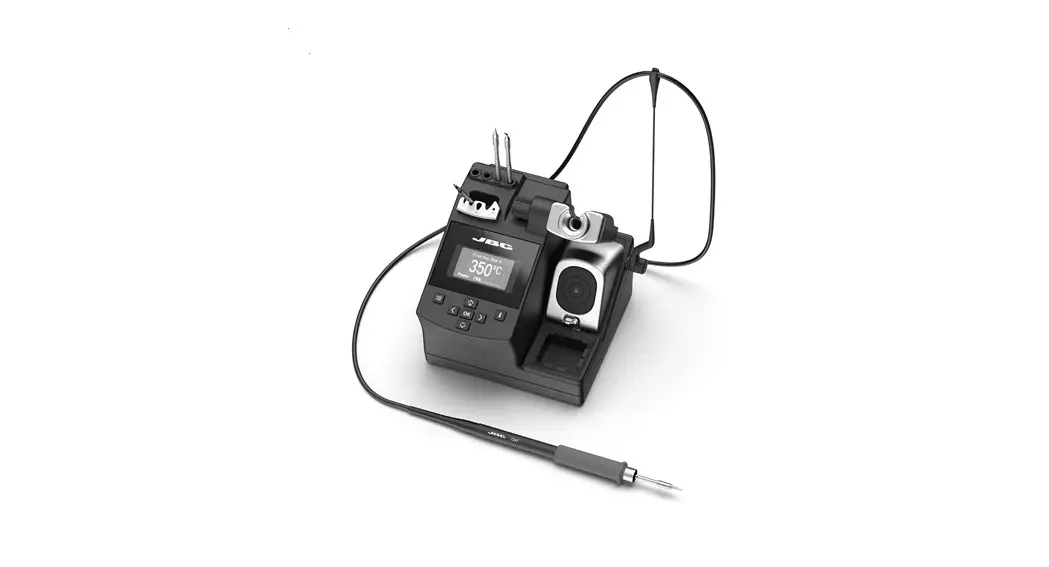
CDB
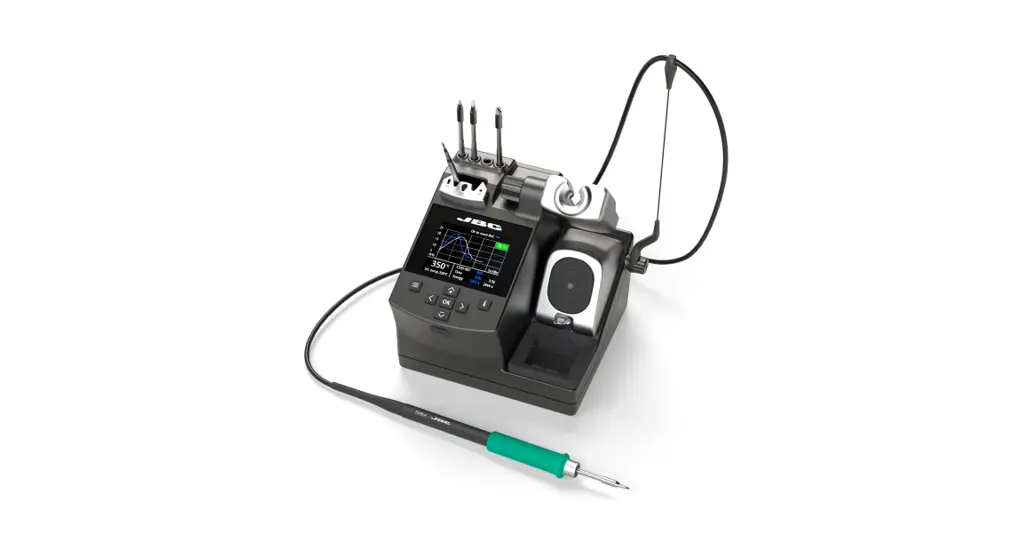
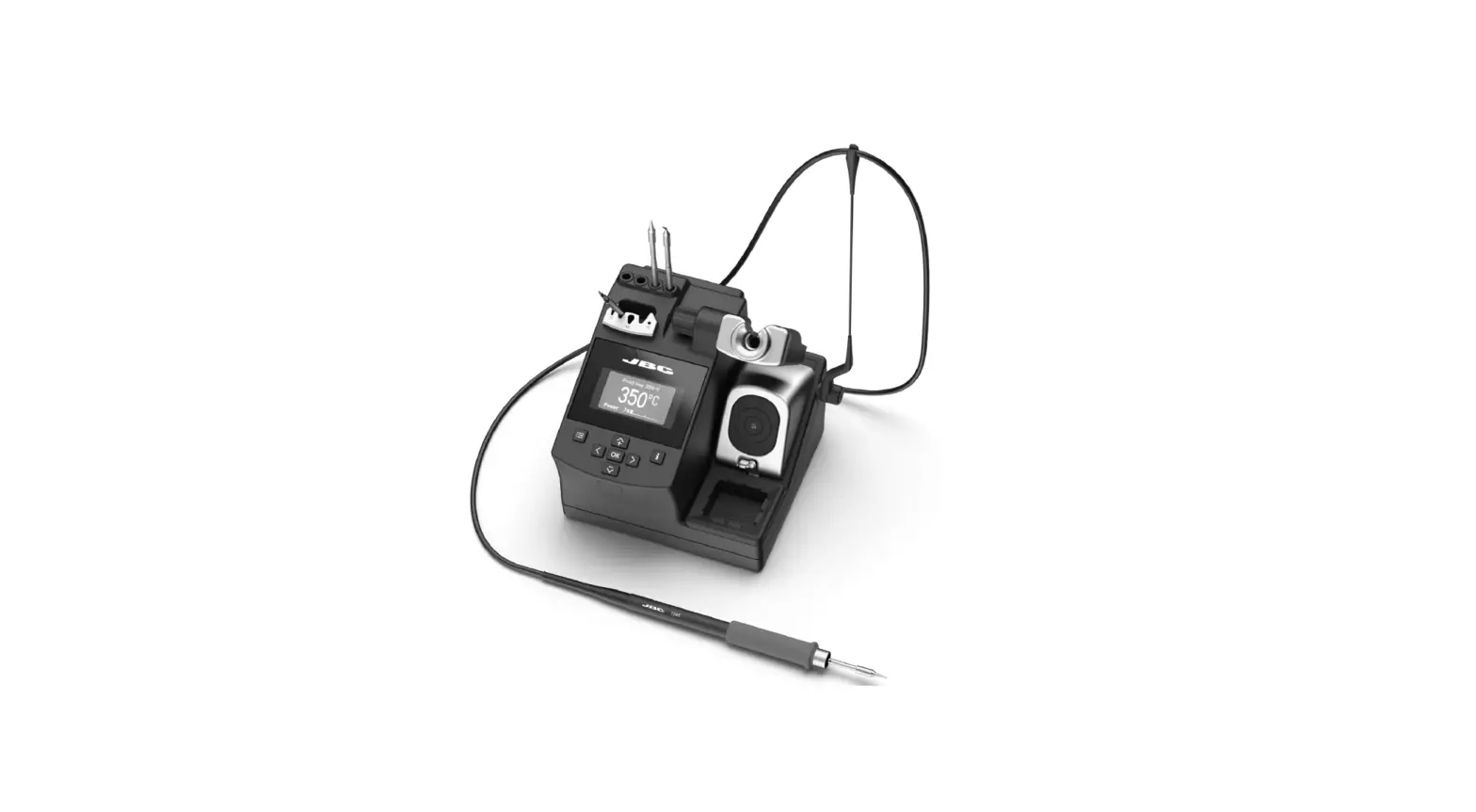
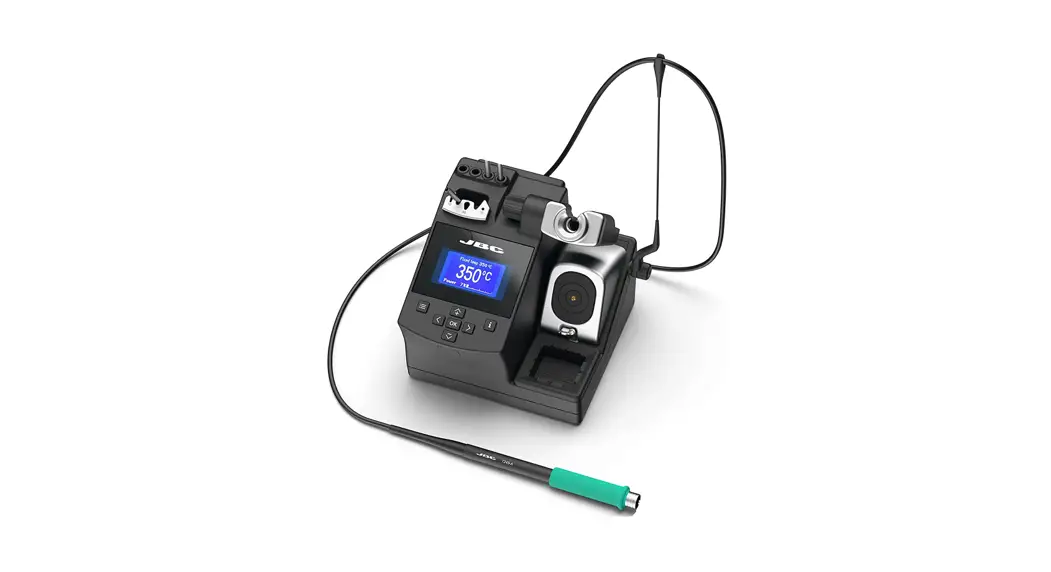
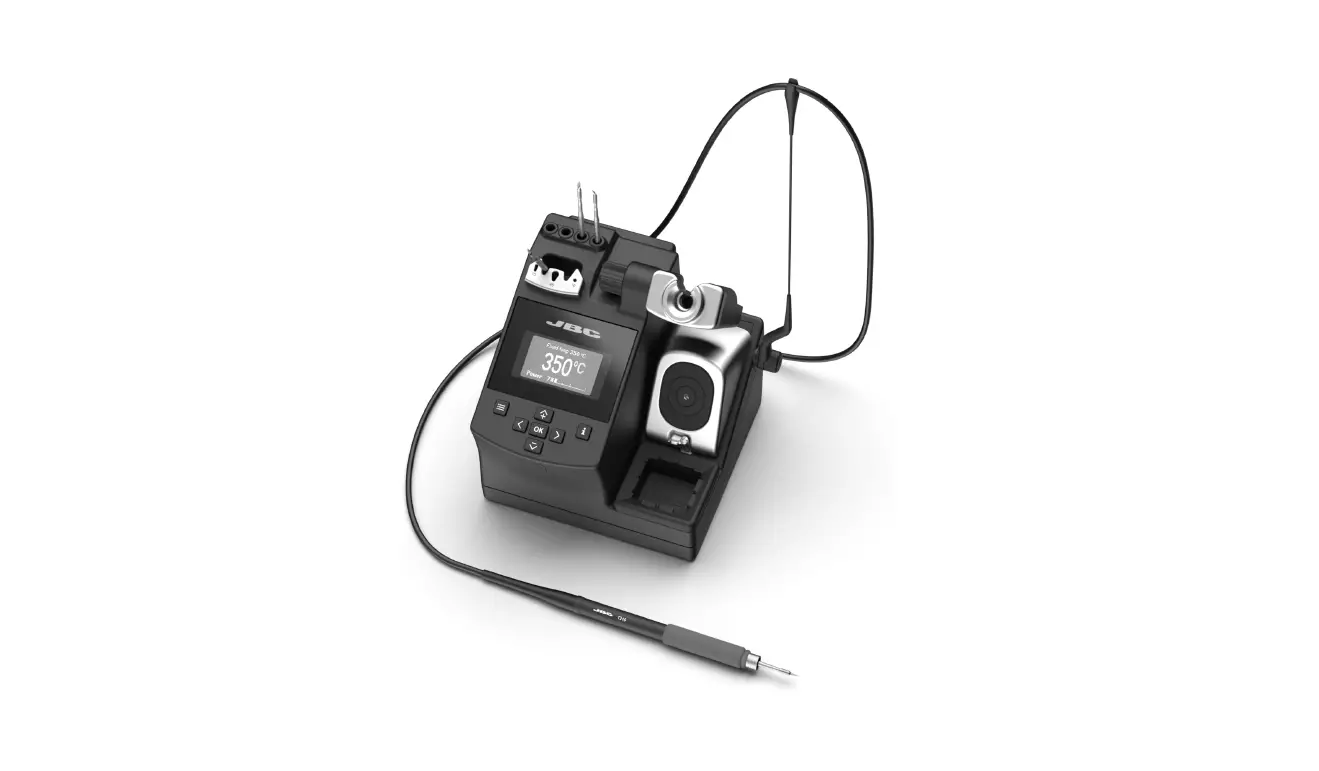
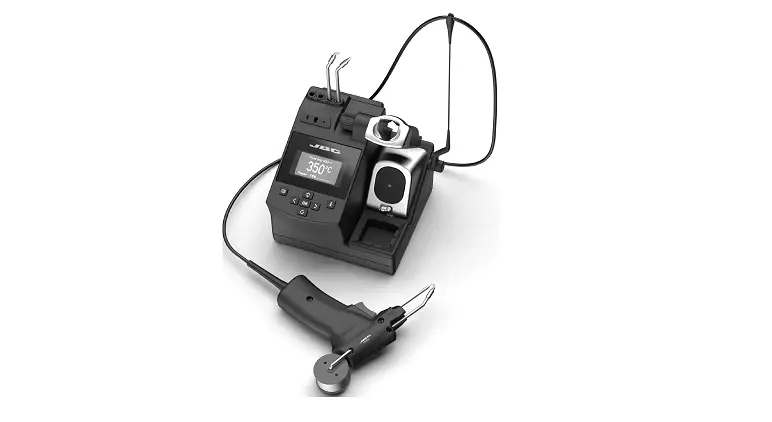
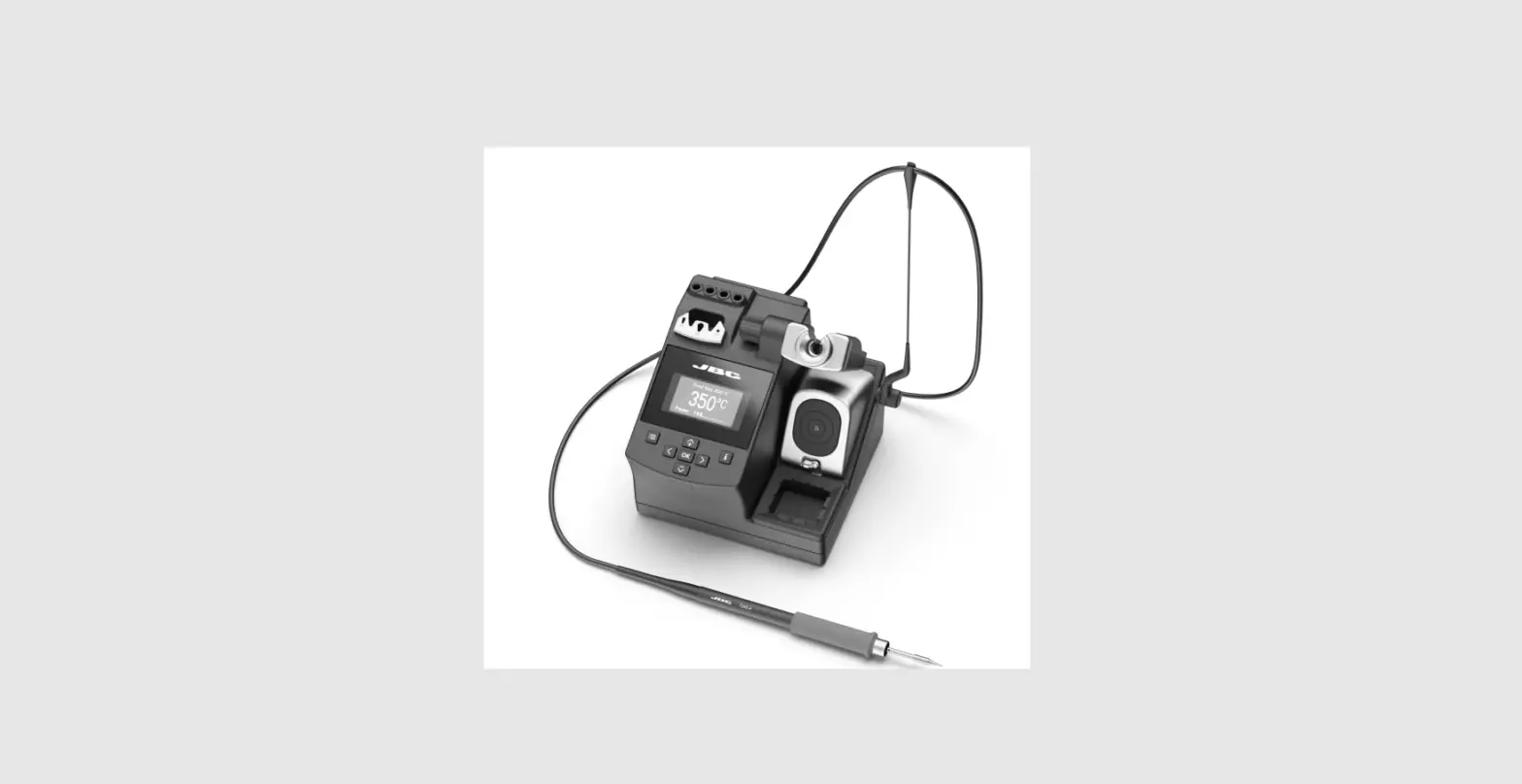
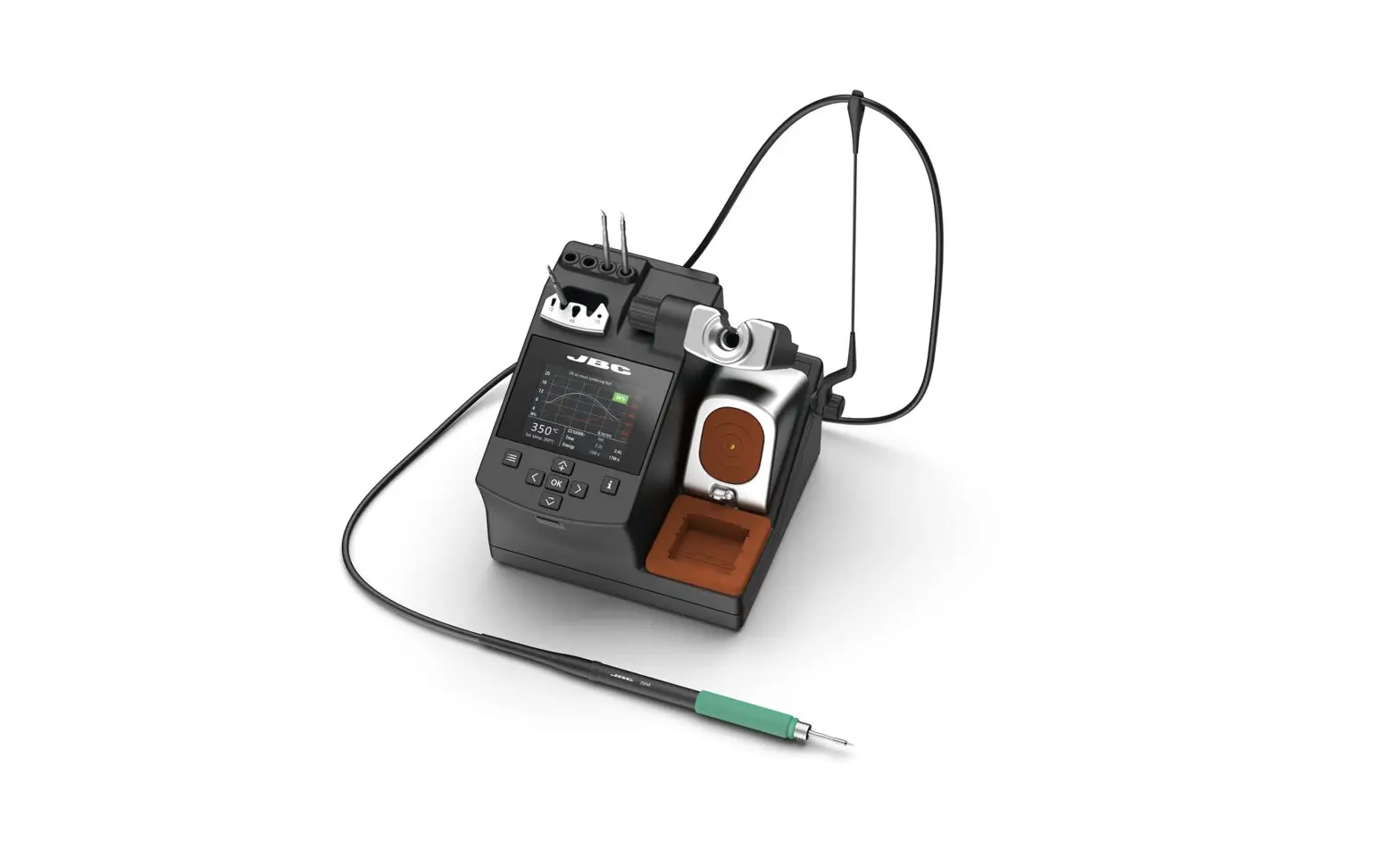
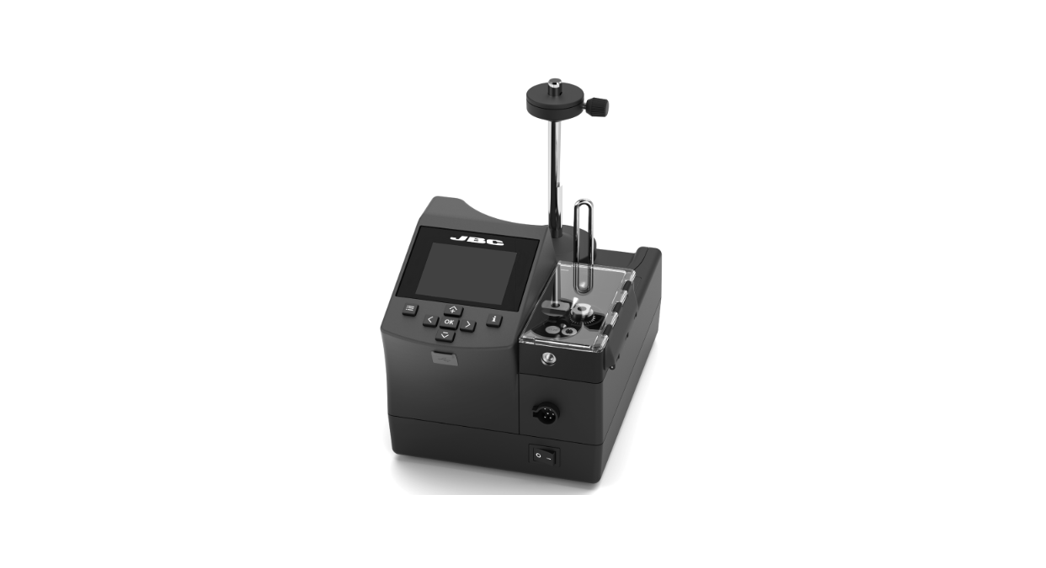
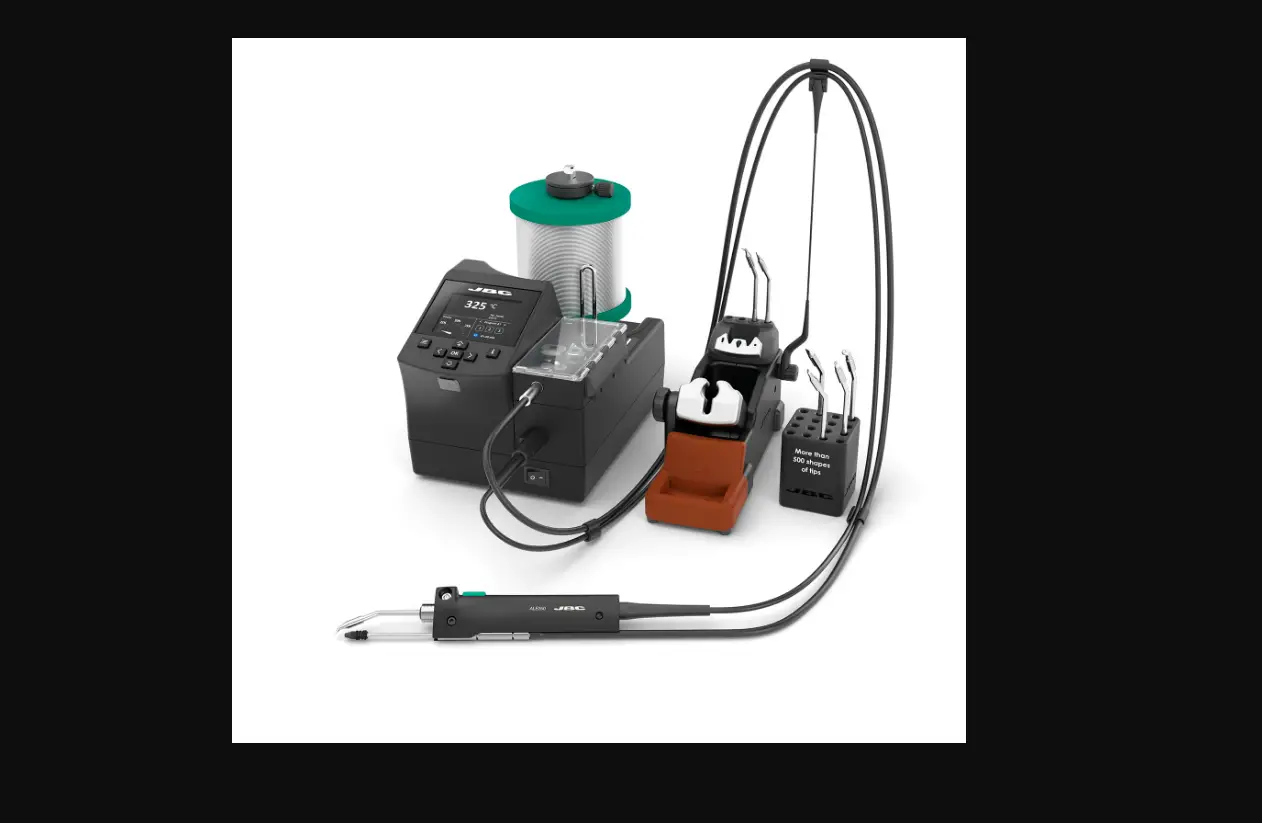
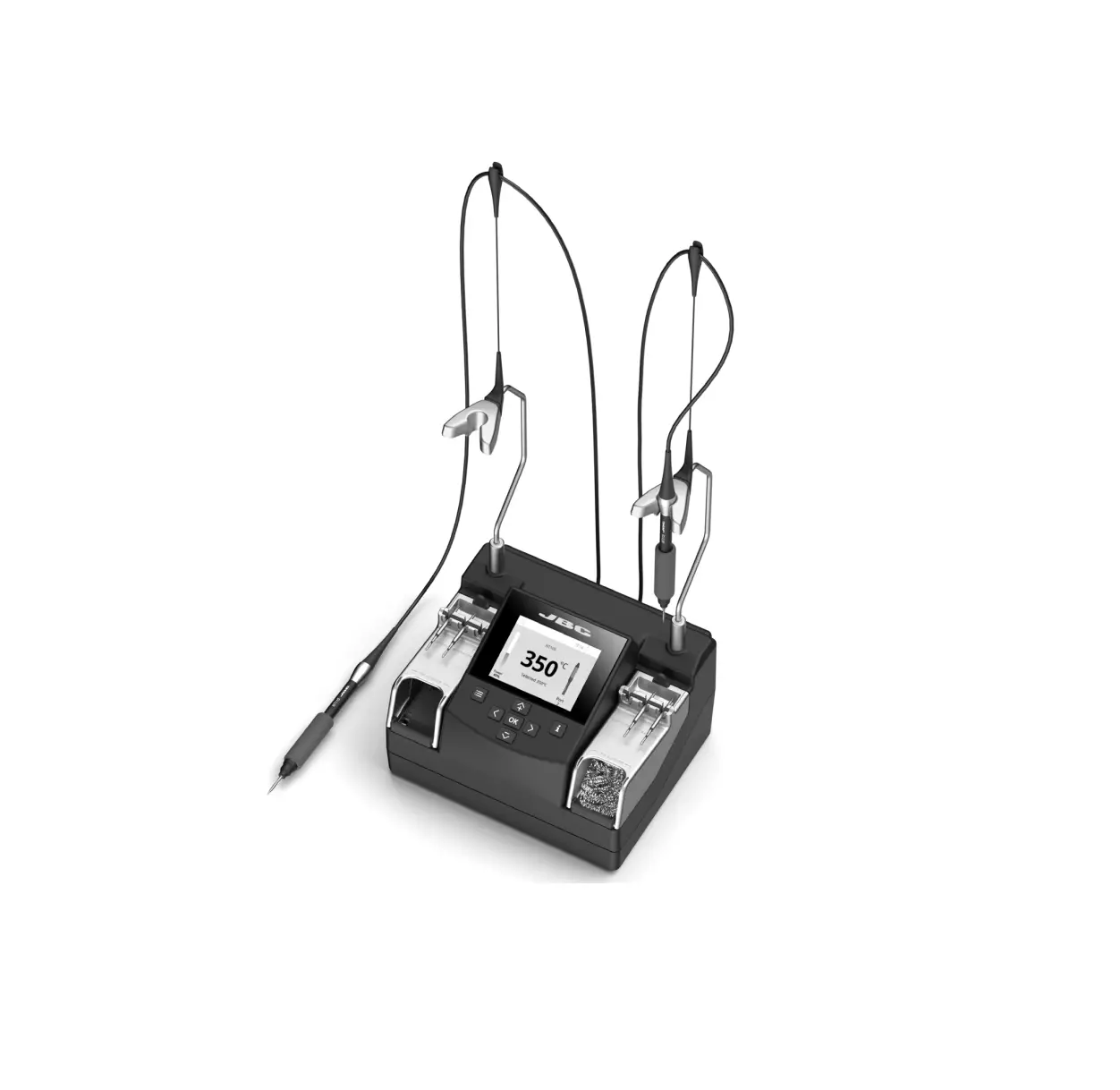
Soldering Station
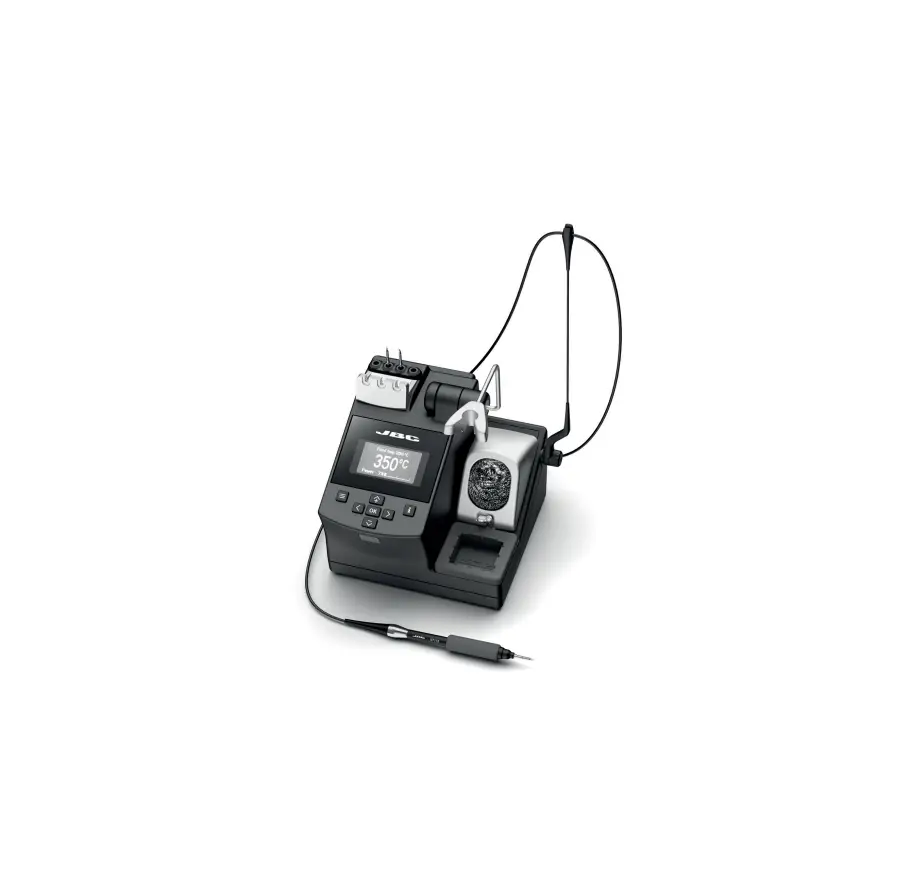
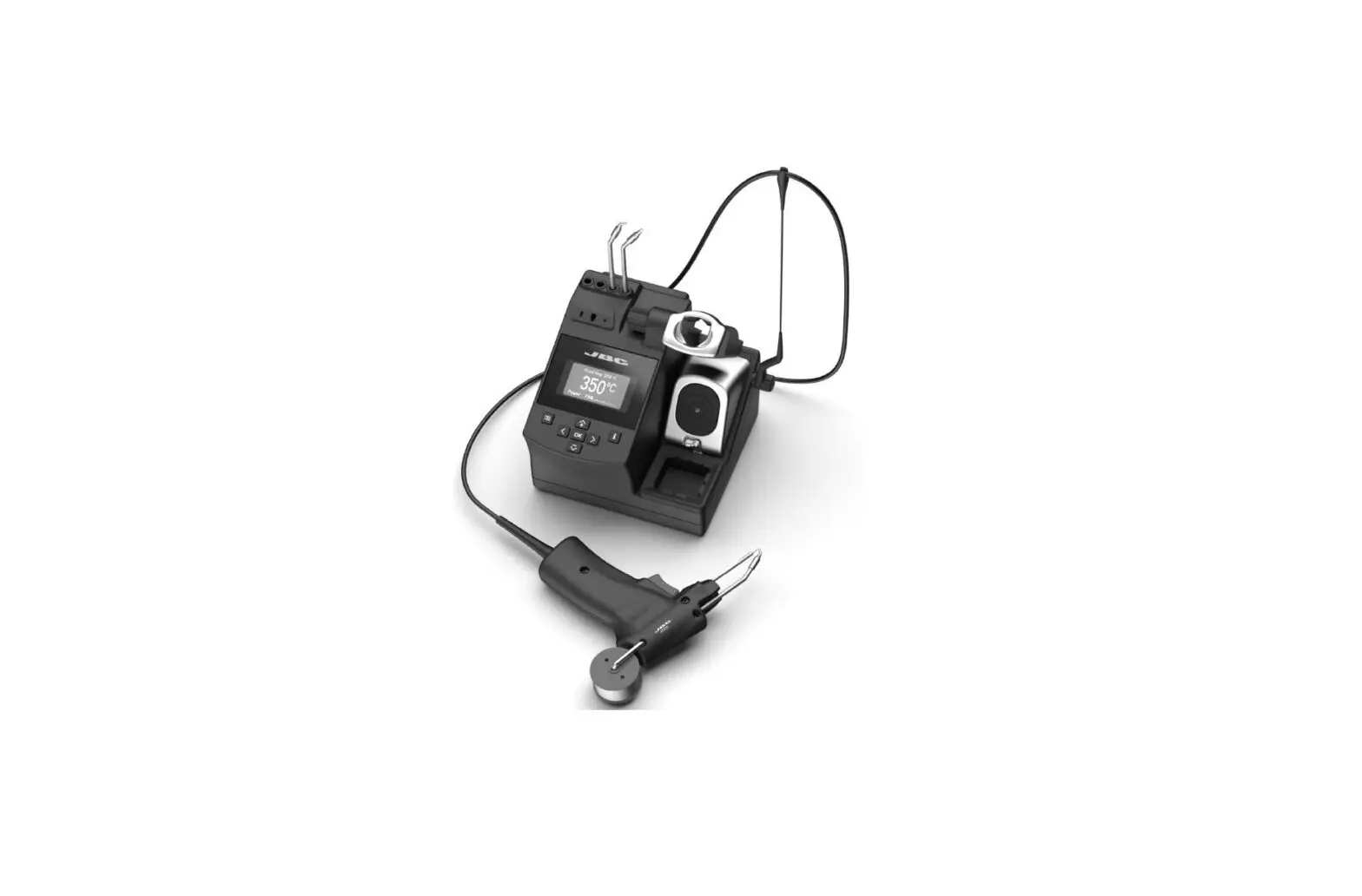
This manual corresponds to the following references:
- CD-9BQF (100V)
- CD-1BQF (120V)
- CD-2BQF (230V)
Packing List
The following items are included: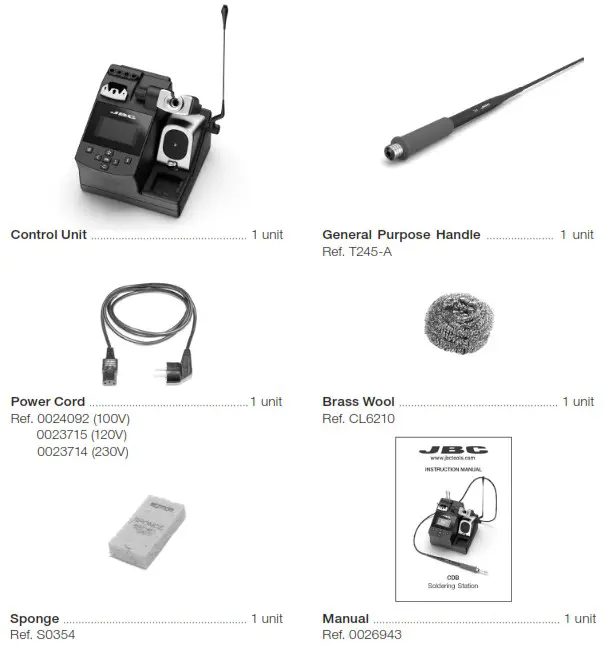
Features and Connections
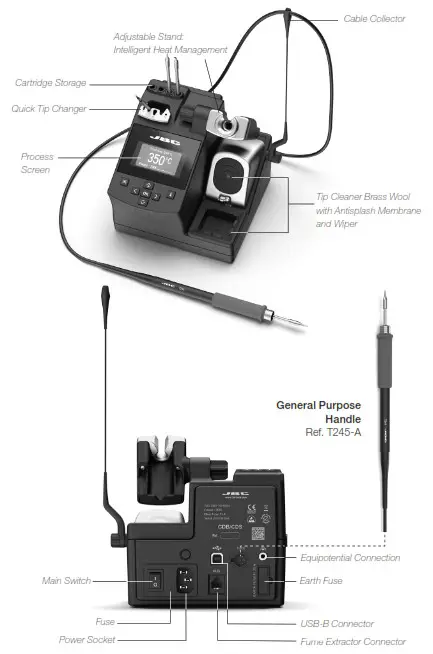
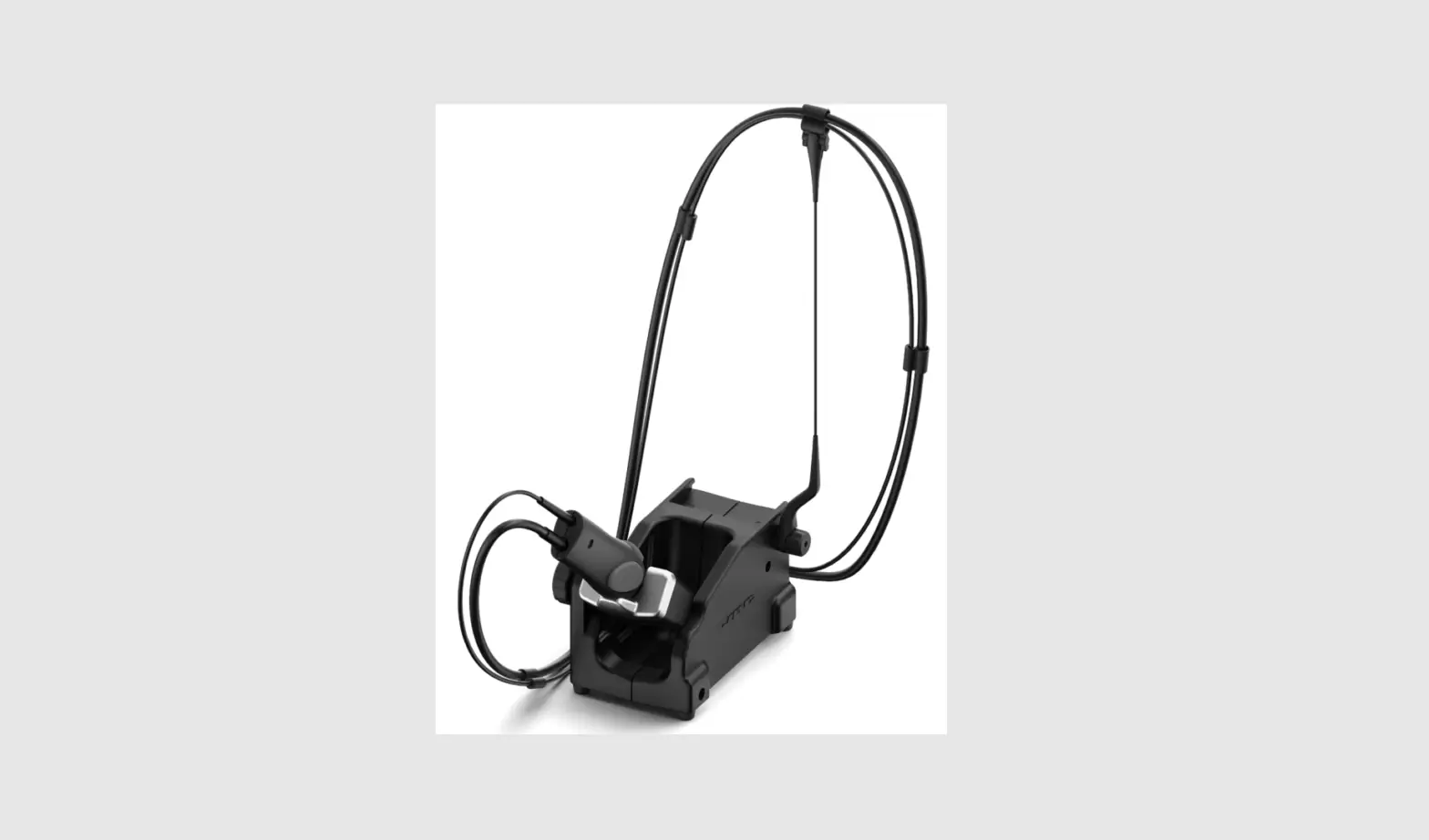
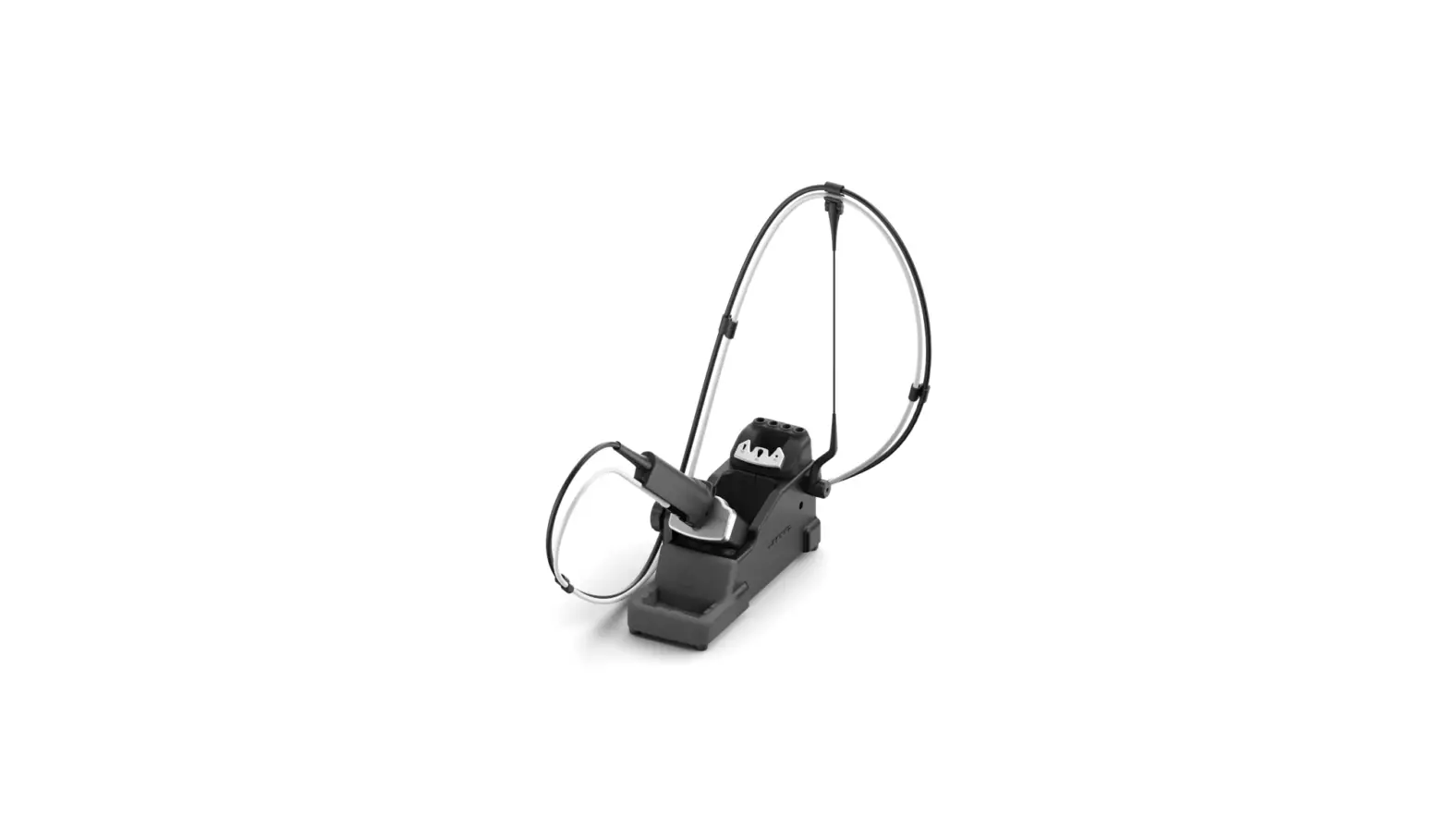
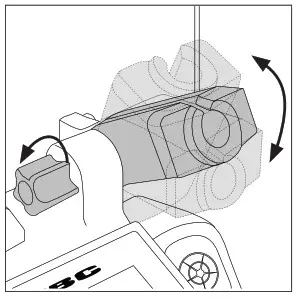
Adjustable Stand
Adjust the tool stand to suit your work position.
Cable Collector (Ref. CC1001)
The cable collector keeps the cable away from the work area and prevents that the weight of the cable from disturbing the operator while soldering.
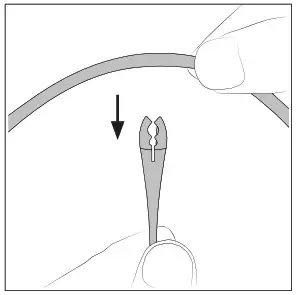 | 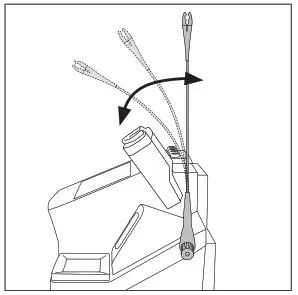 |
| Insert the cable into the clip and then insert into the cable collector. Do not leave the cable longer than necessary to reach the work area freely. | The cable collector is flexible. It accompanies and adapts to the movements during the soldering process. |
Tip Cleaner
Select the option to suit your needs and improve the thermal transfer of the tip.
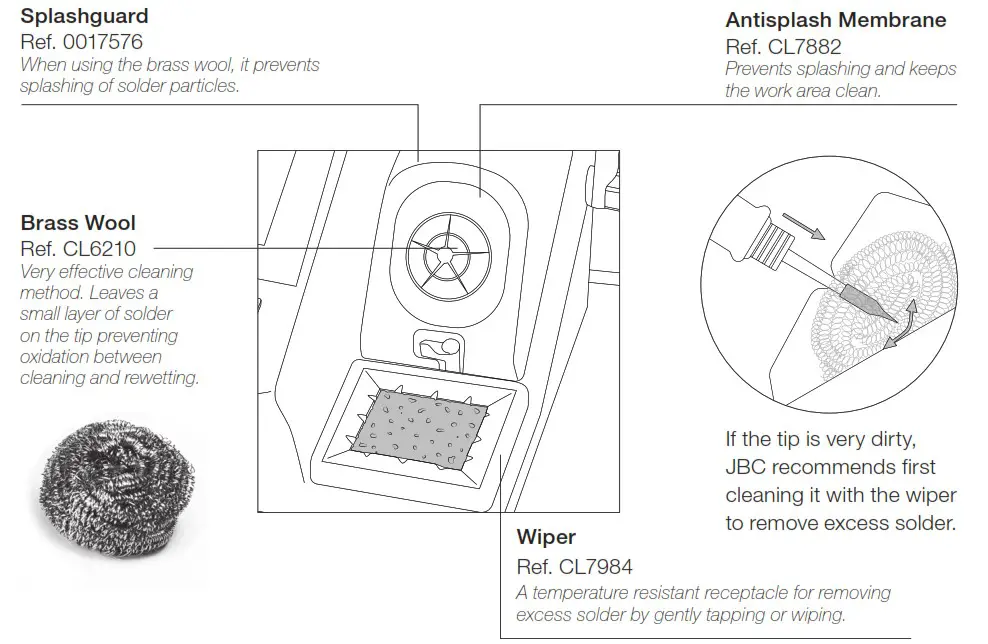
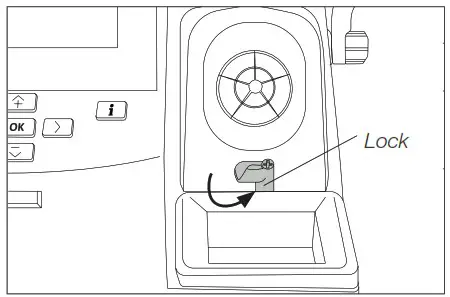
Removing the Splashguard
| 1. Unlock the splashguard. | 2. Lift off. |
 | 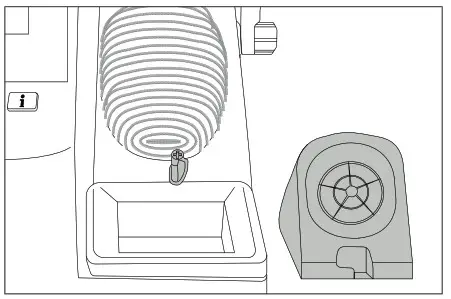 |
More cleaning options (not supplied):
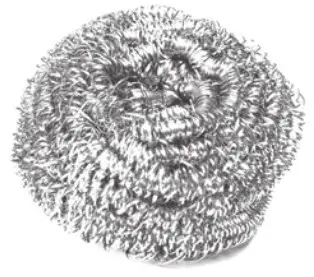 | Inox Wool Ref. CL6205 Stronger cleaning method than brass wool. | 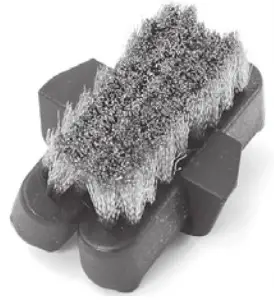 | Metal Brush Ref. CL6220 When used carefully, it provides a more thorough cleaning. |
| Wiper Ref. CL7984 | Sponge Ref. S0354 | |
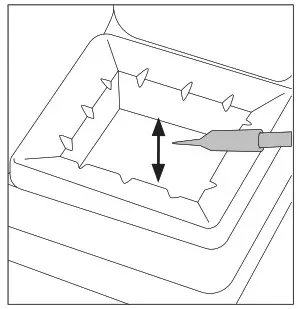 | 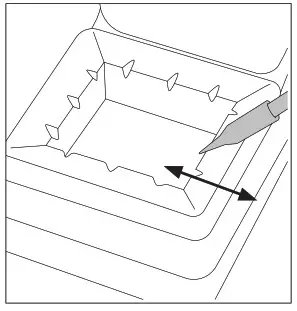 | 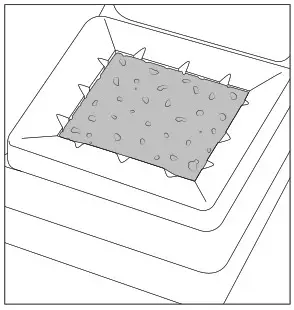 |
| Tapping: Tap gently to remove excess solder. | Wiping: Use the slots to remove remaining particles. | The softest cleaning method. Keep the sponge damp with distilled water when working to avoid tip wear. |
Changing Grips*
Replace the soft foam grips easily using the slip-on tabs. Note: Choose the correct grip depending on your handle model.
| Handles T210, T210P, T210N | Green grips T8658 | Blue grips T3310 | Black grips T3311 |
| T245, T245G, T245P | T6057 | T1528 | T1530 |
| 1. Inserting Tabs | 2. Inserting Handle | 3. Removing Tabs |
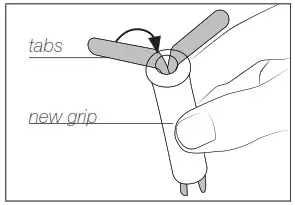 | 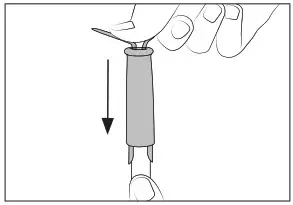 |  |
| Put the slide-on tabs into the new grip. | Push the grip with the tabs onto the handle. | Hold the grip and pull the tab. Use pliers if necessary. |
Replacing Sealing Plugs
The sealing plug prevents undesirable flux vapors or particles from entering inside the tool. Its usage is highly recommended for intensive applications when soldering is exposed to FOD environments or for applications where the soldering iron works close to vertical position. Note: Choose the correct sealing plug depending on your handle model.
Before replacing the sealing plug, unplug the power supply and make sure the device is not hot.
| Handles T210 | Sealing Plug OB1000 |
| T245, T470 | OB2000 |
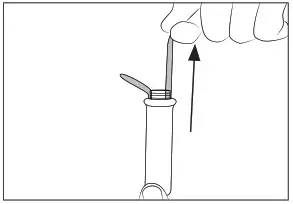
| 1. Removing Sealing Plug | 2. Mounting Position | 3. Inserting Sealing Plug |
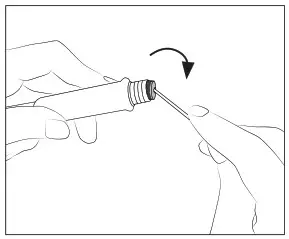 | 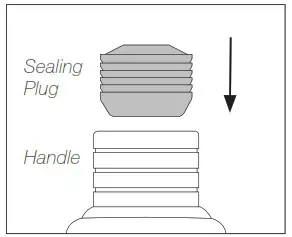 | 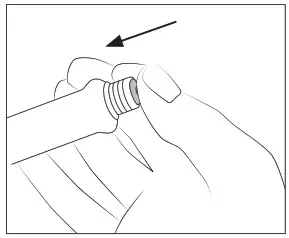 |
| Enter, not deeper than 8mm, a small shaft or screwdriver, lift and pull the sealing plug. Never use a cartridge to do this operation. | Note: The chamfered side has to be positioned towards the handle. | Push the sealing plug inside the handle until the sealing plug and handle edges are aligned. * not included, sold separately |
Quick Tip Changer
Save time and change cartridges safely without switching the station off.
| 1. Removing | 2. Inserting | 3. Fixing |
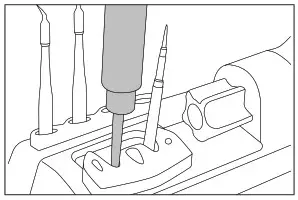 | 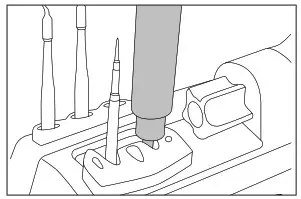 | 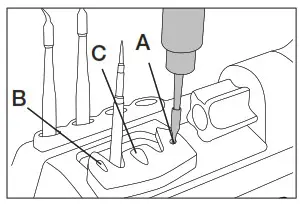 |
| Place the handpiece in the extractor and pull to remove the cartridge. | Place the handpiece on top of the new cartridge and press down slightly. | Use the holes for fixing the cartridge* as follows: A. For straight C210. B. For curved C210. C. For C245. |
*Important: It is essential to insert the cartridges as far as the mark for a proper connection.

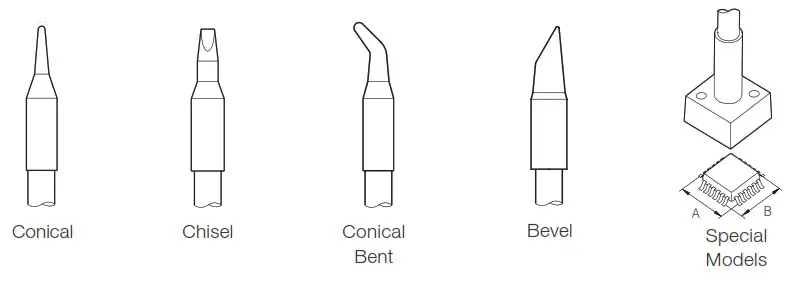
Compatible Cartridges
The CDB stations work with C245 cartridges and T245 handles.
Find the model that best suits your soldering needs in www.jbctools.com
This stations work with C245 Cartridges and T245 Handles.
Operation
The JBC Most Efficient Soldering System
This revolutionary technology is able to recover tip temperature extremely quickly. This allows the user to work at a lower temperature. As a result, tip life increases by 5.

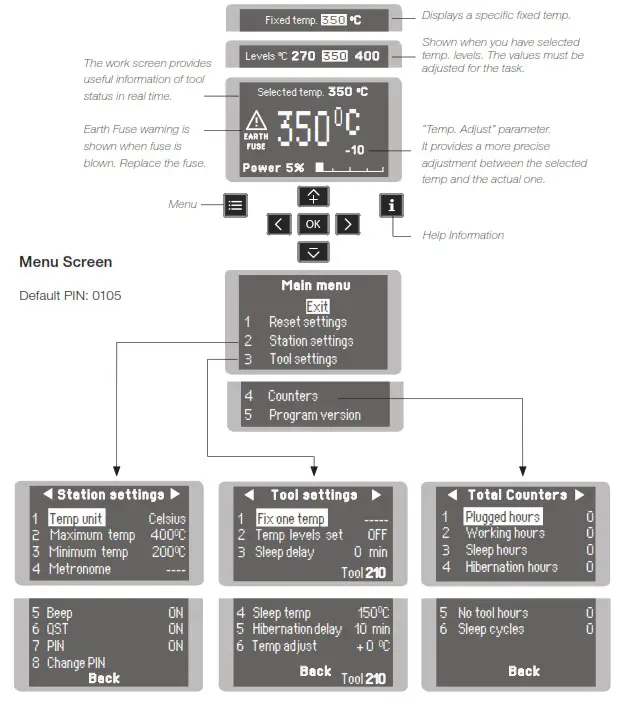
Through menu settings:
- Select temperature levels
- Fix one temperature
Control Process
Work Screen
Troubleshooting
Station troubleshooting available on the product page at www.jbctools.com
Parameters
Be careful when using these parameters as they may reduce the tip life if not used properly.
Please follow the recommended guidelines:
Station Settings
| Parameter Description | Recommendations | Warnings |
| Temperature Unit Celsius (ºC) or Fahrenheit (ºF) | N/a | |
| Maximum Temperature Set the maximum temperature to work with. Max. temp by default is 400°C (750°F). This is considered high enough to work with most lead-free applications. | The station temperature range is 90-450ºC (190-840ºF). Change the temperature limits when working with less common applications such as low / high melting point soldering (HMP) or plastics (e. g. riveting). | In most cases, working with temperatures over 400°C (750°F) can damage the PCB and its components. Even in short time periods of tip contact with the soldering joint, the flux may not work properly and could seriously reduce tip life. If the solder joint requires more power (e.g. multilayered or high dissipation boards), JBC strongly recommends using other aids like preheaters. |
| Minimum Temperature Set the minimum temperature to work with. Min. temp. by default is 200ºC (392ºF). This is considered to be a proper starting point for leaded applications. | ||
| Metronome This activates a beep sound. Frequencies vary from 1 to 50 seconds. | Useful for setting a work rate in repetitive jobs. The beep lets you know the length of time the tip must be in contact with the soldering joint. | N/a |
| Beep Enable/disable the beep sound of the keypad. | N/a | N/a |
| QST Enable/disable QST. | N/a | N/a |
| Pin Enable/disable pin prompt. | N/a | N/a |
| Change Pin Change the default security PIN number (0105). | The PIN must be entered every time a parameter is changed. | N/a |
Tool Settings
| Parameter Description | Recommendations | Warnings |
| Fix One Temperature Fix a value within the temperature range of the station (90-450ºC/190-840ºF). | Ideal for soldering more than one component at a specific temperature. The station will reject any attempt to change the temperature. | N/a |
| Temperature Levels Set Similar to “Fix one temp” parameter. In this case, the user can set up to 3 values for different power requirements. | This allows a quick change between 3 different temperatures. Set them according to the allowed values for your soldering applications. | N/a |
| Sleep Delay Set the time that the tool will remain at the selected temperature when in the stand before entering sleep mode. The tip temperature will then drop to the Sleep temperature. | Because our tools reach the working temperature from the deafult Sleep mode in only a few seconds, this parameter is preset to 0 min. Once the tool is returned to the stand the temperature will automatically drop to the sleep temperature, extending tip life and avoiding oxidation. Retinning the tip before placing the tool in the stand will protect the tip and extend its life. | Setting these parameters to higher values will unnecessarily accelerate oxidation and shorten tip life especially when working with temperatures up to 450°C (840°F). |
| Sleep Temperature This is the set temperature the tip reaches when returned to the stand. | The sleep temperatures are set to achieve a balance between preventing oxidation and reaching the working temperature in a few seconds. | |
| Hibernation Delay Set the time the tool will remain at Sleep Temperature before entering in Hibernation Mode. At this time, the power supply is cut off and the tip remains at room temperature. | This function completely protects the tip from oxidation during long periods of inactivity while the tool is in the stand. Retinning the tip before placing the tool in the stand also helps prevent oxidation and extends the life of the tip. | Increasing the default value will accelerate oxidation and shorten the tip life. |
| Temp Adjustment It provides a more precise adjustment between the selected temperature and the actual one. | Set values within ±50°C (± 90°F) to achieve zero error. JBC strongly recommends the use of TID-A or TIA-A Thermometers to obtain precise readings. | When the user changes the cartridge type, the parameter should be reset to 0°C/F or to the value needed for this cartridge. E.g. If a correction of +20°C (+36°F) is set for a thick cartridge and then the user changes to a thinner one whitout resetting the temperature adjustment, he would be working at a higher temperature than needed for this thinner cartridge, which does not need any temperature adjustment. |
USB Connector
Download the latest software from our website to improve your soldering station.
JBC Updater
www.jbctools.com/software.html
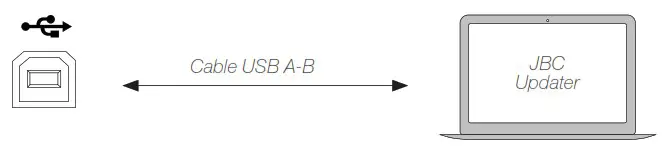
Update the station software via USB connection:
JBC Web Manager Lite
www.jbctools.com/manager.html
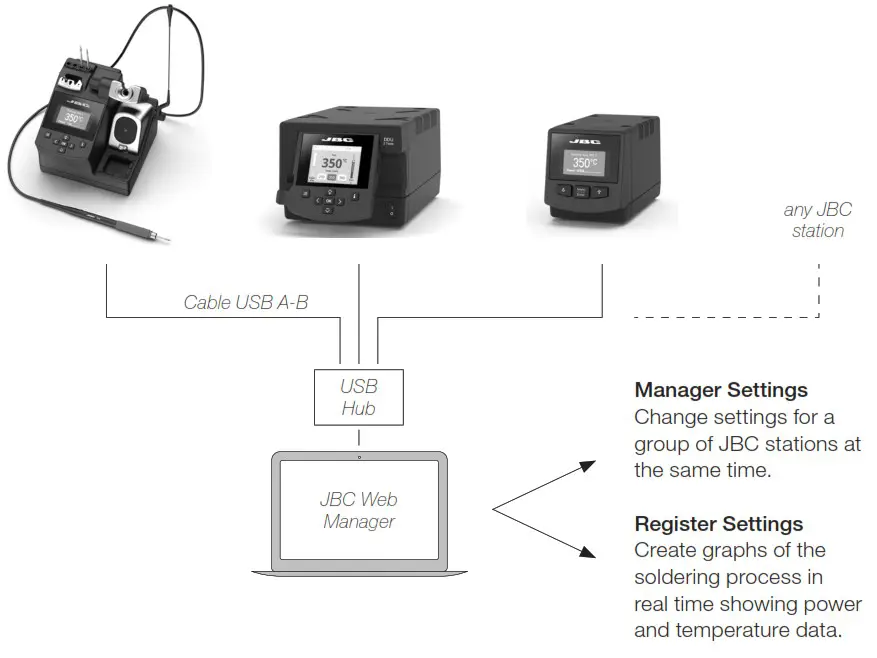
Manage and monitor as many stations as your PC can handle by using JBC Web Manager Lite. Data can be exported to another PC.
Maintenance
Before carrying out maintenance, always switch the device off and disconnect it from the mains. Allow the equipment to cool down.
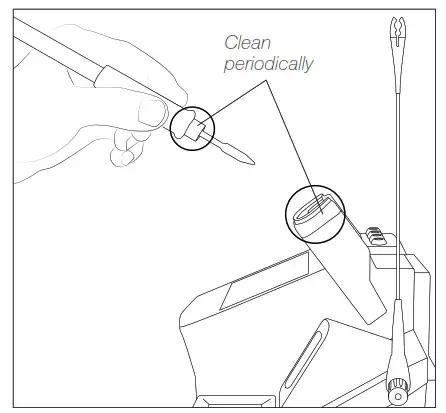
- Clean the station screen with a glass cleaner or a damp cloth. Clean periodically
- Use a damp cloth to clean the casing and the tool. Alcohol can only be used to clean the metal parts.
- Periodically check that the metal parts of the tool and stand are clean so that the station can detect the tool status.
- Maintain tip surface clean and tinned prior to storage in order to avoid tip oxidation. Rusty and dirty surfaces reduce heat transfer to the solder joint.
- Periodically check all cables and tubes.
- Replace any defective or damaged pieces. Only use original JBC spare parts.
- Repairs should only be performed by a JBC-authorized technical service.
- Replace a blown fuse as follows:
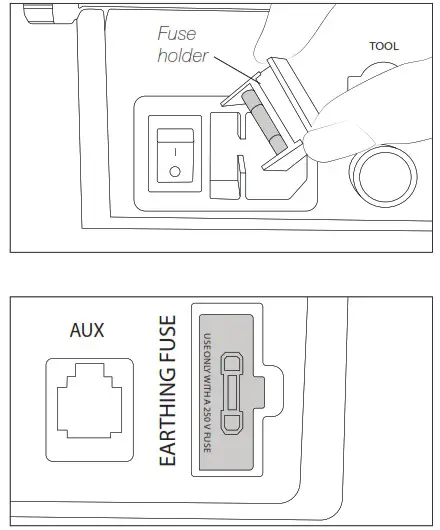
- Pull off the fuse holder and remove the fuse. If necessary use a tool to lever it off.
- Insert the new fuse into the fuse holder and return it to the station.
 When this warning appears on the main screen Earthing Fuse must be replaced
Safety
It is imperative to follow safety guidelines to prevent electric shock, injury, fire or explosion.
- Do not use the units for any purpose other than soldering or rework. Incorrect use may cause fire.
- The power cord must be plugged into approved bases. Be sure that it is properly grounded before use. When unplugging it, hold the plug, not the wire.
- Do not work on electrically live parts.
- The tool should be placed in the stand when not in use in order to activate the sleep mode. The soldering tip or nozzle, the metal part of the tool and the stand may still be hot even when the station is turned off. Handle with care, including when adjusting the stand position.
- Do not leave the appliance unattended when it is on.
- Do not cover the ventilation grills. Heat can cause inflamable products to ignite.
- Avoid flux coming into contact with skin or eyes to prevent irritation.
- Be careful with the fumes produced when soldering.
- Keep your workplace clean and tidy. Wear appropriate protection glasses and gloves when working to avoid personal harm.
- Utmost care must be taken with liquid tin waste which can cause burns.
- This appliance can be used by children over the age of eight and also persons with reduced physical, sensory or mental capabilities or lack of experience provided that they have been given adequate supervision or instruction concerning use of the appliance and understand the hazards involved. Children must not play with the appliance.
- Maintenance must not be carried out by children unless supervised.
Specifications
CDB
Soldering Station
CD-9BQF 100V 50/60Hz. Input fuse: T2A. Output: 23.5V.
CD-1BQF 120V 50/60Hz. Input fuse: T2A. Output: 23.5V.
CD-2BQF 230V 50/60Hz. Input fuse: T1A. Output: 23.5V.
- Output Peak Power: 130W
- Temperature Range: 90 – 450 °C / 190 – 840 °F
- Idle Temp. Stability (still air): ±1.5ºC / ±3ºF (Meets and exceed IPC J-STD-001)
- Temp. Accuracy: ±3% (Using reference cartridge)
- Temp. Adjustment: ±50ºC / ±90ºF (Through station menu setting)
- Tip to Ground Voltage/Resistance: Meets and exceed ANSI/ESD S20.20-2014 IPC J-STD-001F
- Earthing Fuse: F 1.25A
- Connections: USB connector station-PC RJ12 Connector
- Ambient Operating Temp: 10 – 50 ºC / 50 – 122 ºF
- Control Unit Dimensions / Weight: 170 x 176 x 145 mm / 2.74 kg (L x W x H) 6.69 x 6.93 x 5.71 in / 6.04 lb
- Total Net Weight: 3 kg / 6.61 lb
- Total Package Dimensions / Weight: 234 x 234 x 258 mm / 3.34 kg (L x W x H) 9.21 x 9.21 x 10.16 in / 7.36 lb
Complies with CE standards

Warranty
JBC’s 2 year warranty covers this equipment against all manufacturing defects, including the replacement of defective parts and labour. Warranty does not cover product wear or misuse. In order for the warranty to be valid, equipment must be returned, postage paid, to the dealer where it was purchased.
Get 1 extra year JBC warranty by registering here: https://www.jbctools.com/productregistration/ within 30 days of purchase.
This product should not be thrown in the garbage.
In accordance with the European directive 2012/19/EU, electronic equipment at the end of its life must be collected and returned to an authorized recycling facility.

www.jbctools.com
0026943-130522