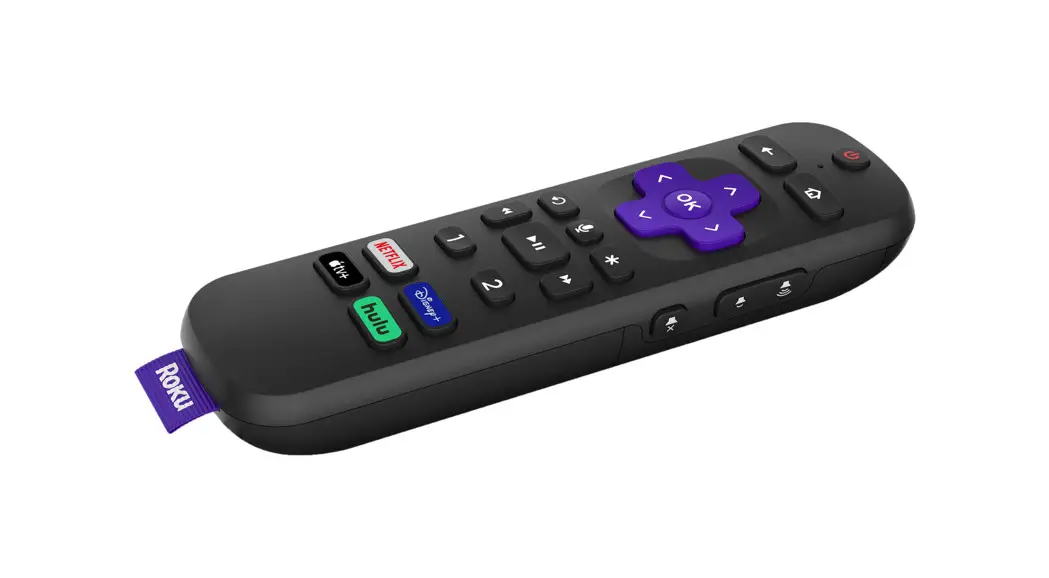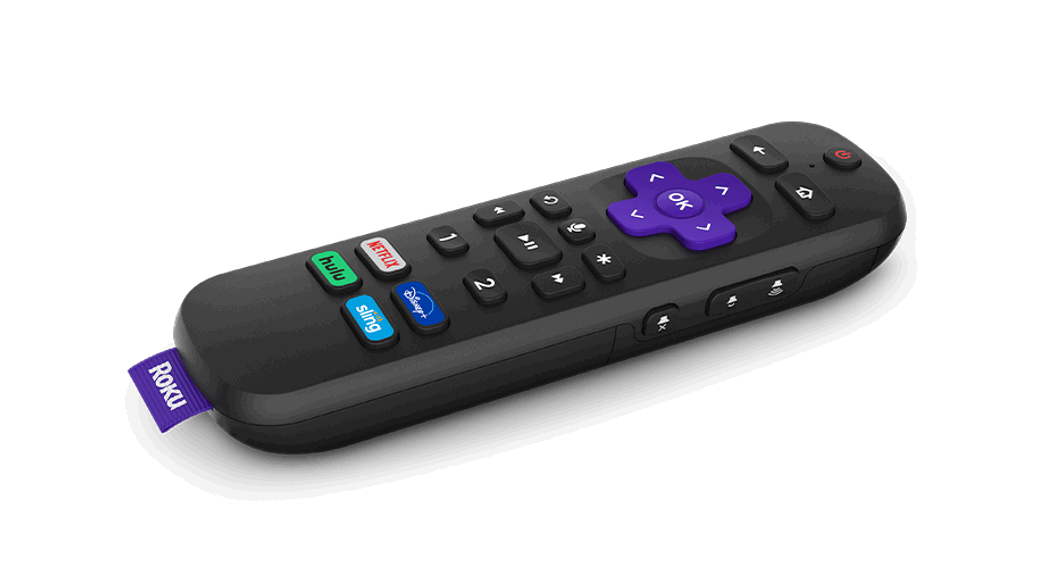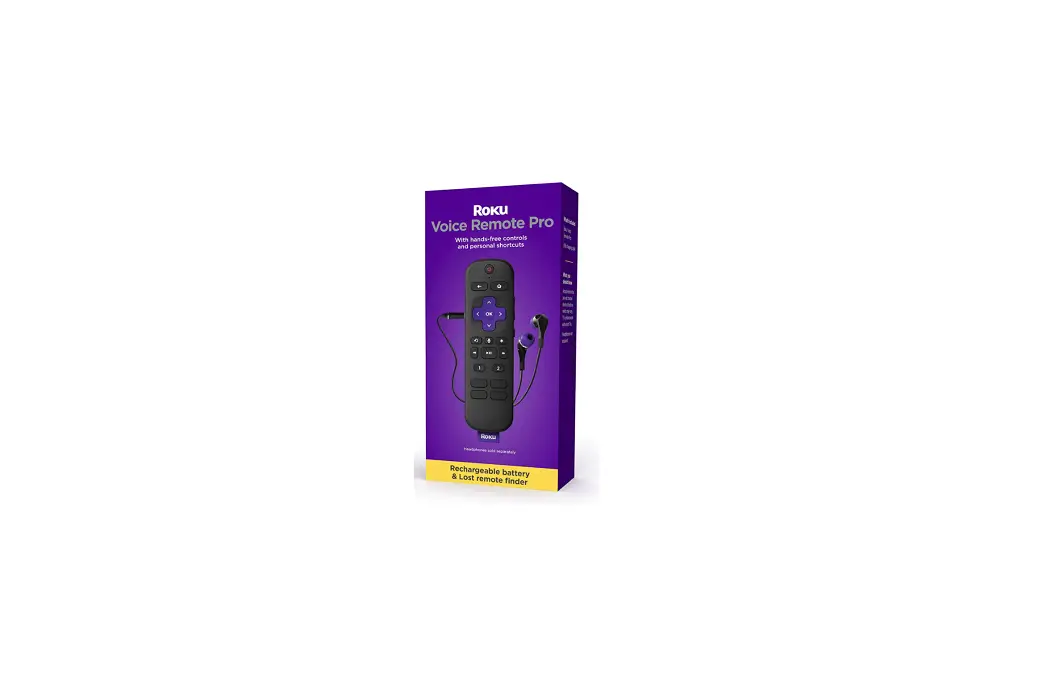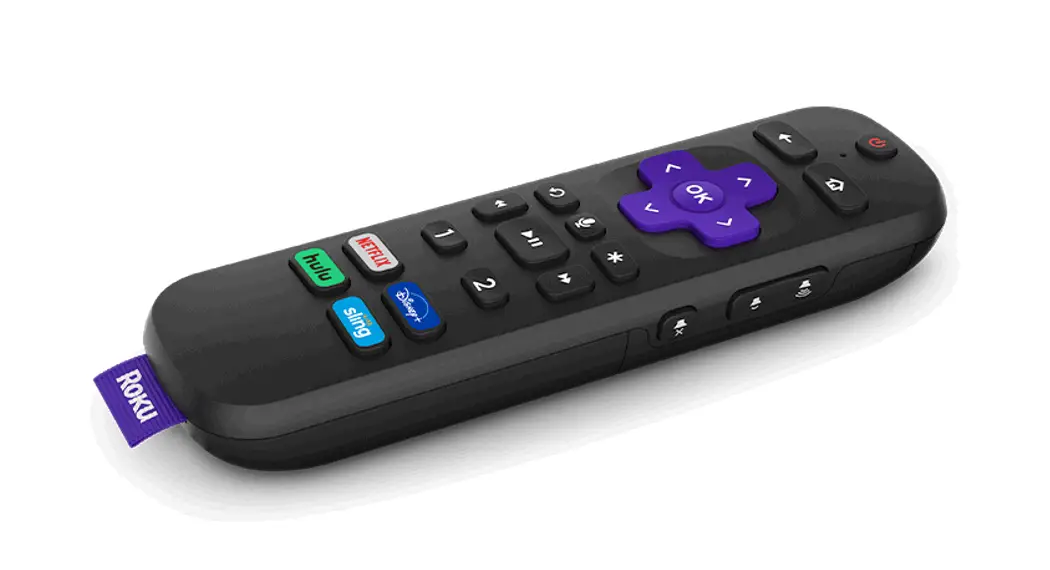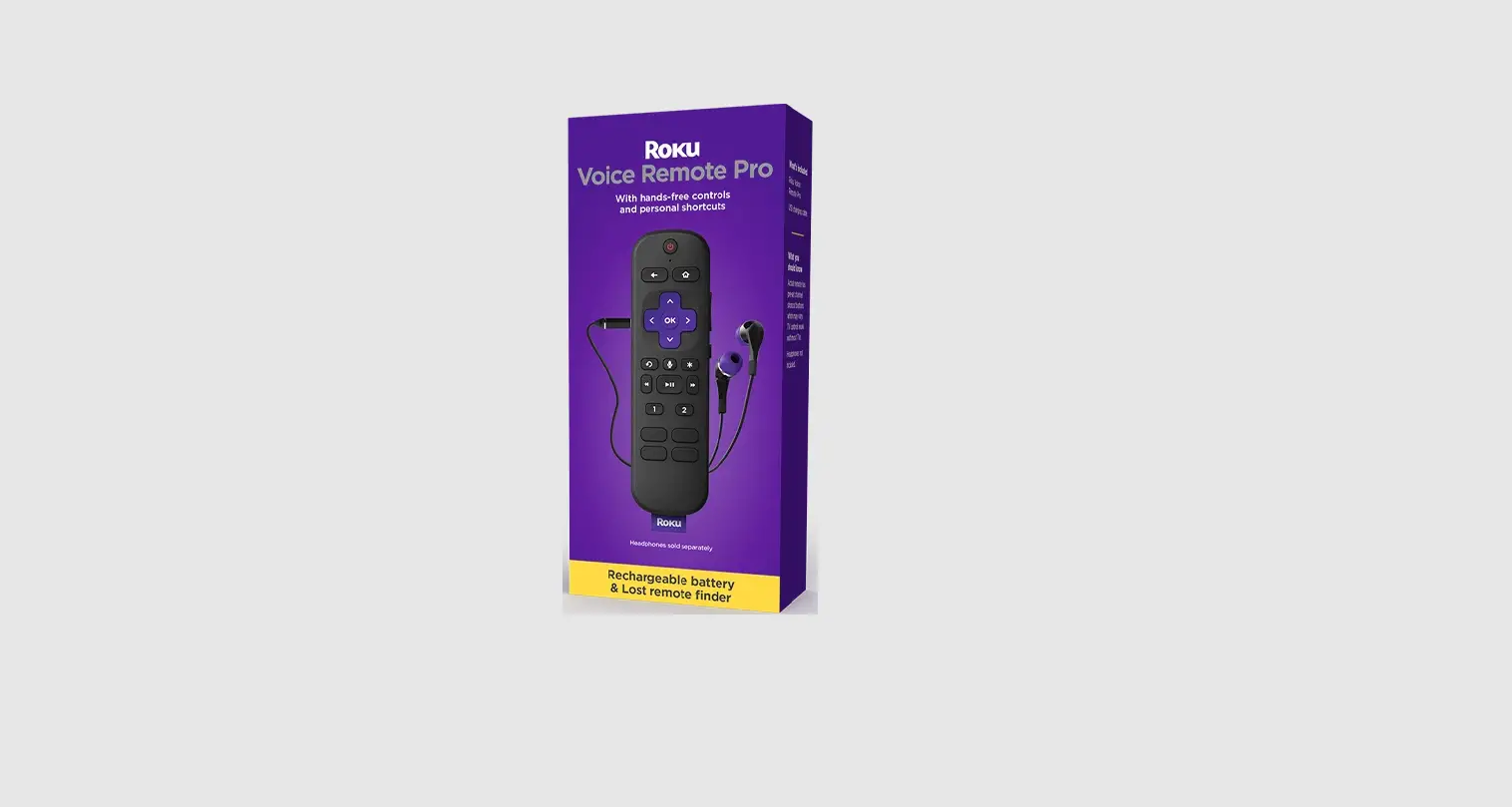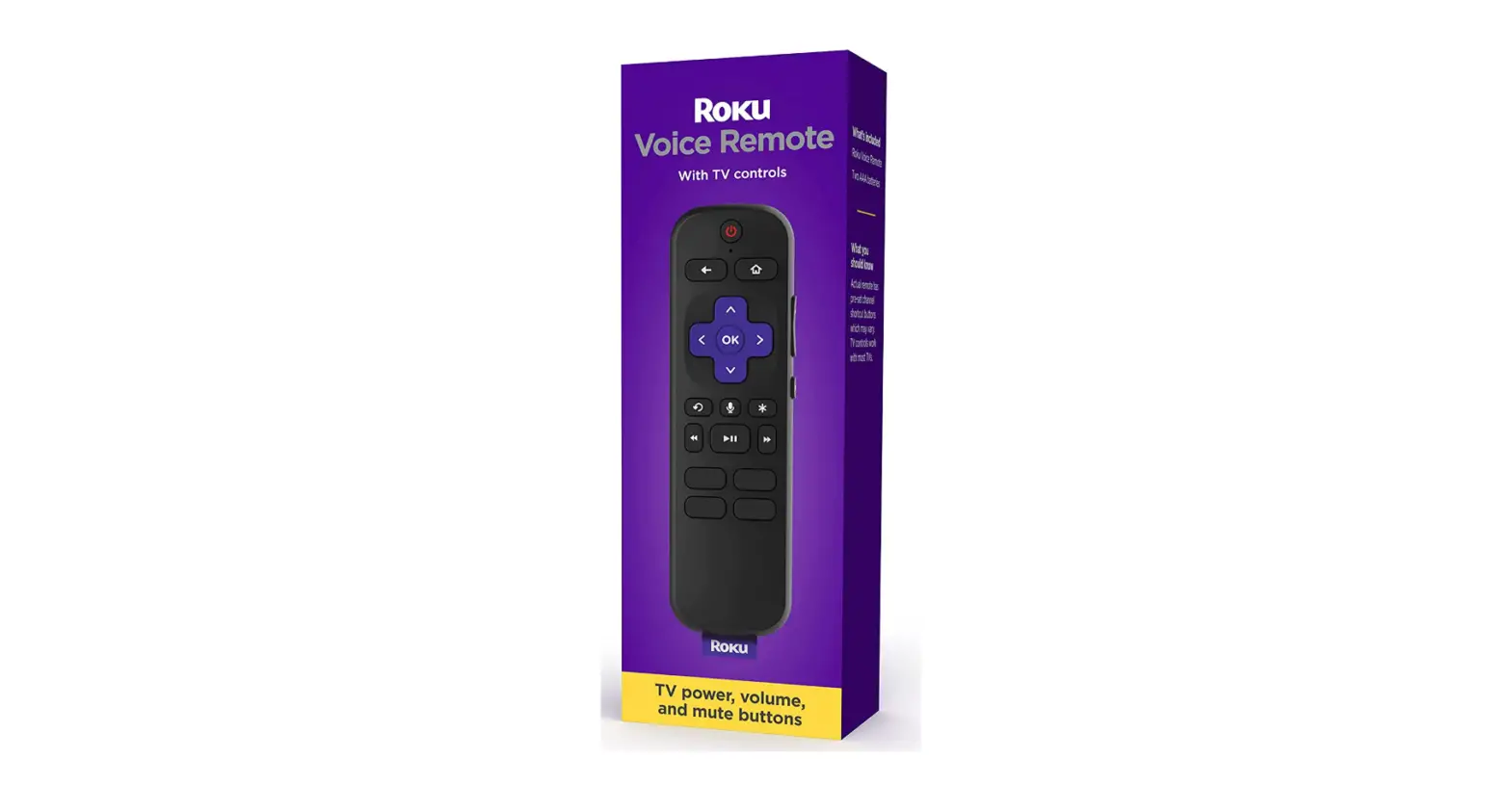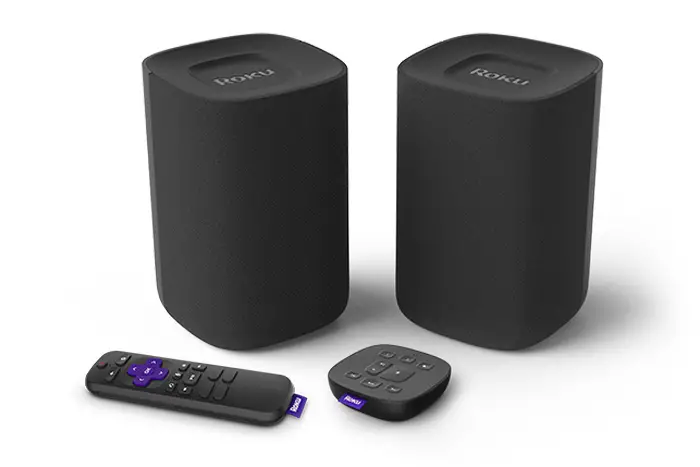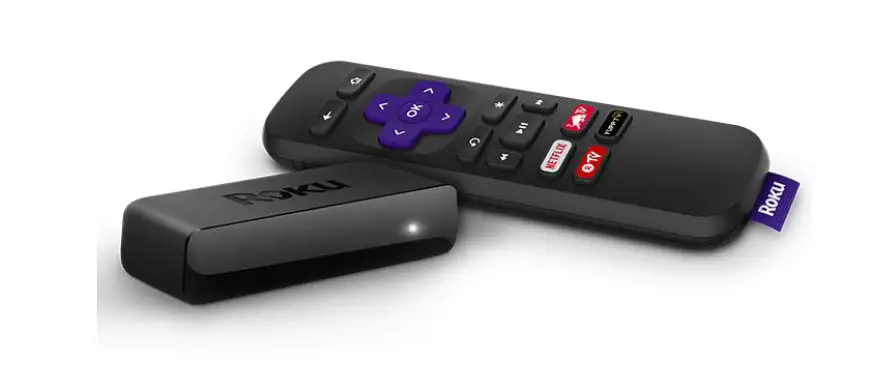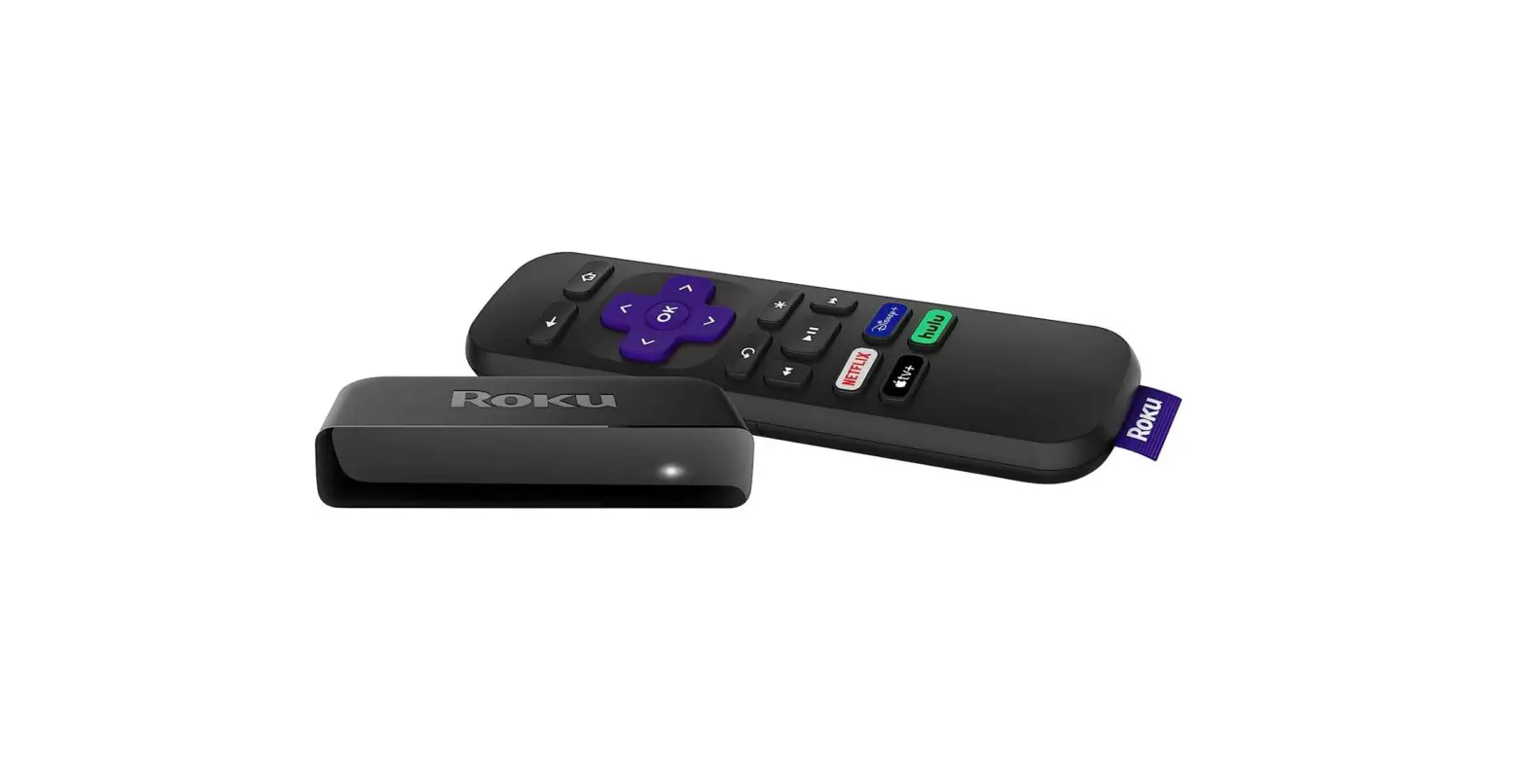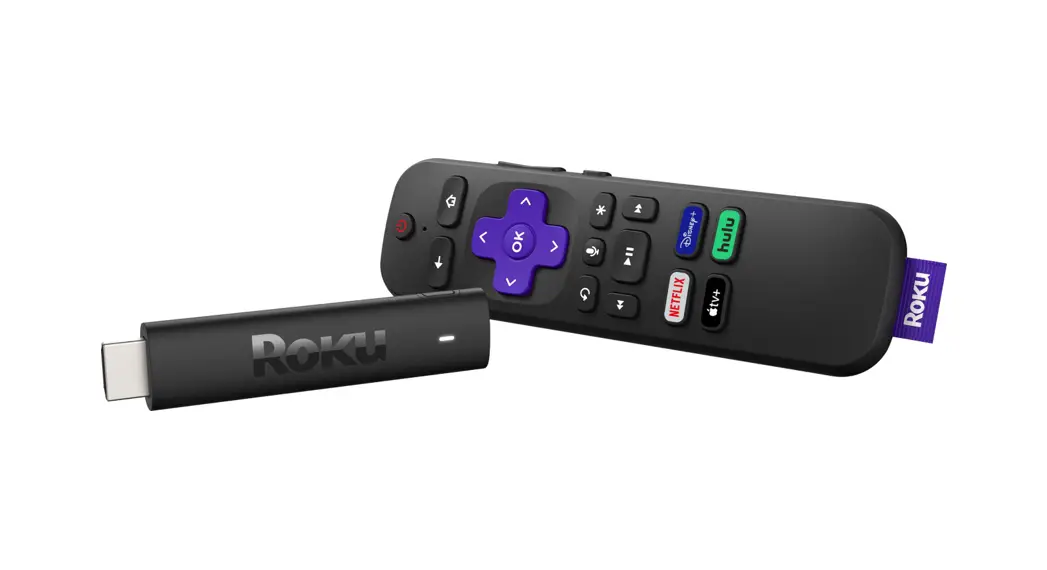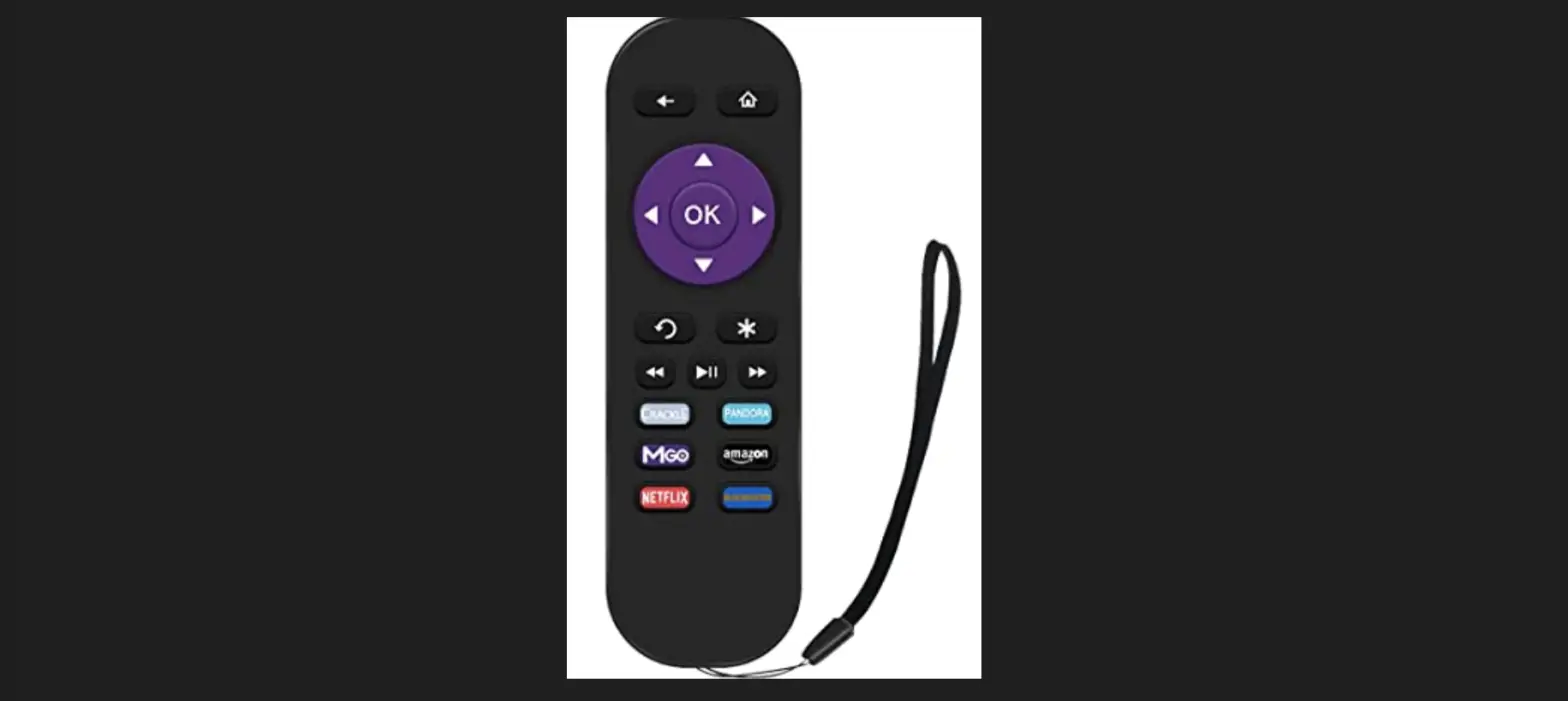

Roku R1039 voice remote pro
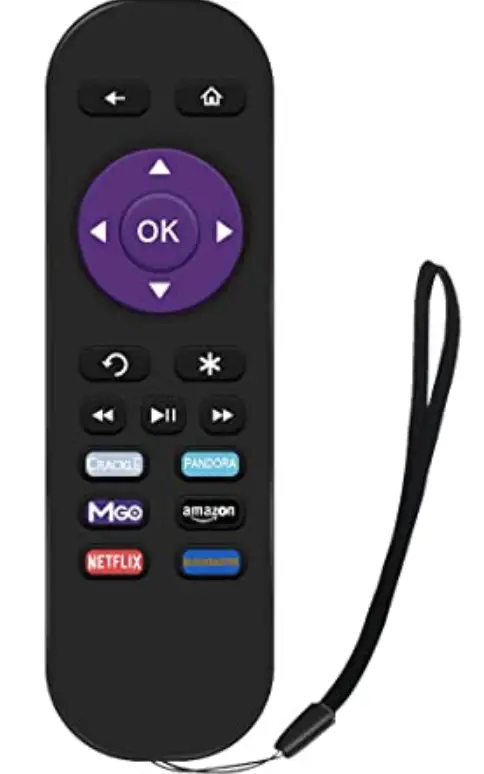
How to use your remote features
 Hands-free voice
- Say “Hey Roku” to give a voice command without reaching for your remote.
 Push-to-talk voice
- Press and hold the voice button if you don’t want to use hands-free voice.
 Personal shortcuts
- Press and hold after giving a voice command to save it for one-touch control.
 Lost remote finder
- Say “Hey Roku, where’s my remote?” or use the free Roku mobile app.
 Private listening
- Just plug headphones into the headphone jack.
- Your TV will mute automatically
 Hands-free voice
 Push-to-talk voice
 Personal shortcuts
 Lost remote finder
 Private listening
Just talk to it. It’s that easy.
 Play entertainment
- “Hey Roku, play Handmaid’s Tale on Hulu”
- “Hey Roku, play classic rock on Pandora”
 Find more to watch
- “Hey Roku, show me the news”
- “Hey Roku, search for comedies”
 Control your streaming
- “Hey Roku, pause”
- “Hey Roku, turn captions on”
 Control your TV
- “Hey Roku, turn my TV off”
- “Hey Roku, turn it up
 Play entertainment
 Find more to watch
 Control your streaming
 Control your TV
Details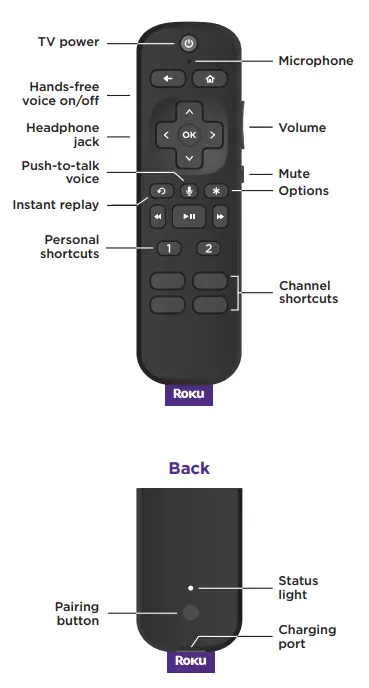
Pairing your remote
- STEP 1:
- Press and hold on your current Roku remote or the free mobile app for 5 seconds to open the setup menu.
- STEP 2:
- Select Remote to start pairing.
- STEP 3:
- Press and hold the Pairing button on your new remote for 5 seconds until the status light turns green and starts blinking.
For help pairing your remote, visit go.roku.com/remotehelp
Setting up TV controls
Own a Roku TVTM? You can skip this section.
- Press the button on your new remote.
- Go into the Settings menu and select
Remotes & Devices.
- Find your new remote under Remotes.
- Select Set up remote for TV control and follow the instructions.
Charging your remote
- Plug the USB cable into your remote and any standard USB power adaptor.
- The status light will stop blinking once your remote is finished charging.
 Roku
Roku