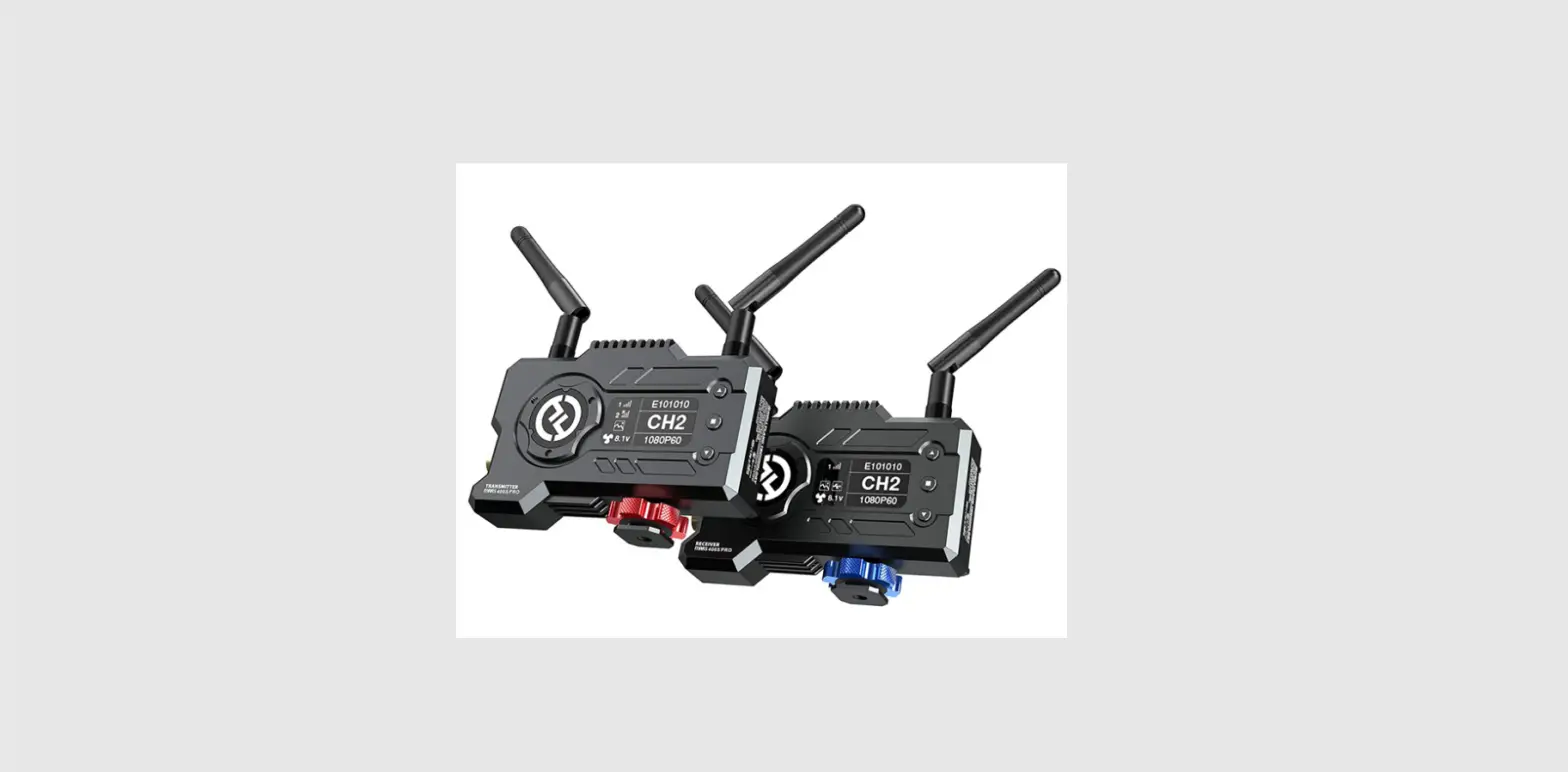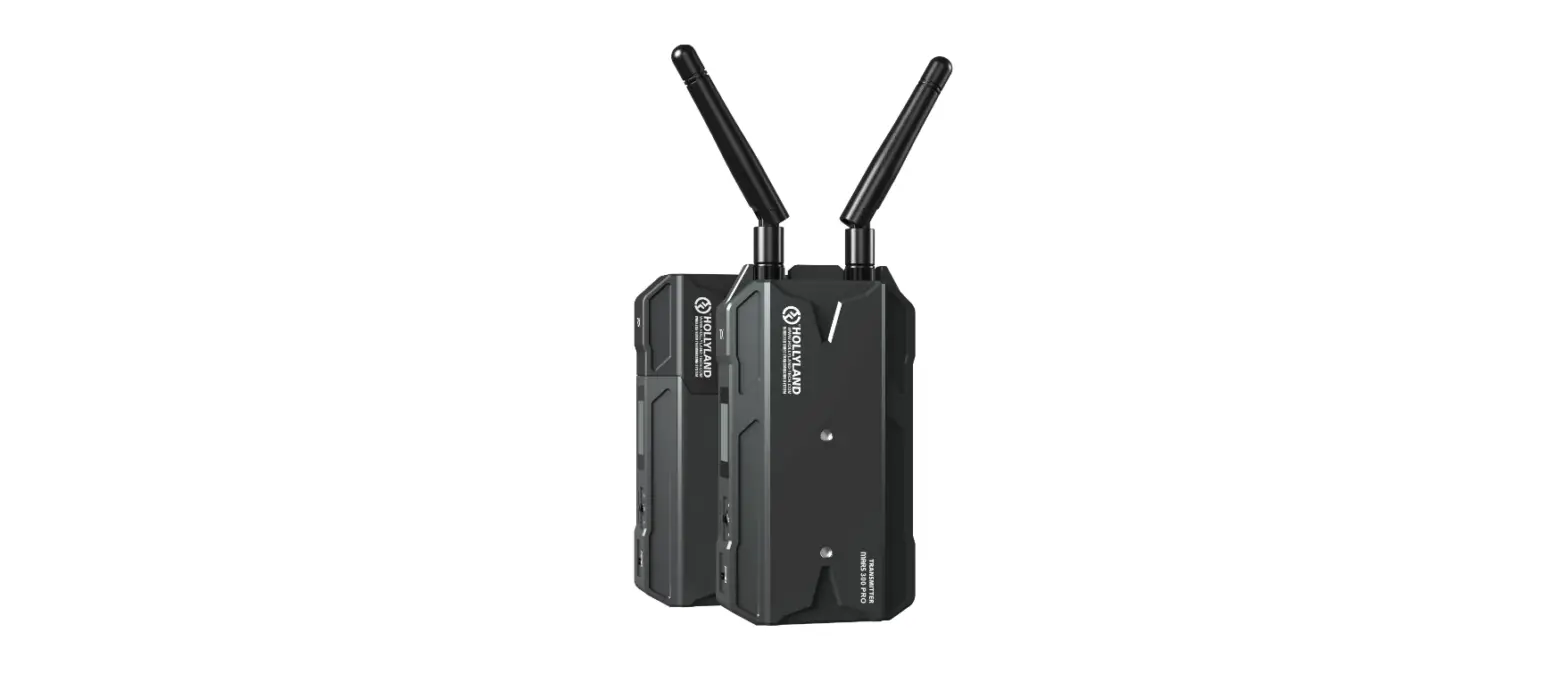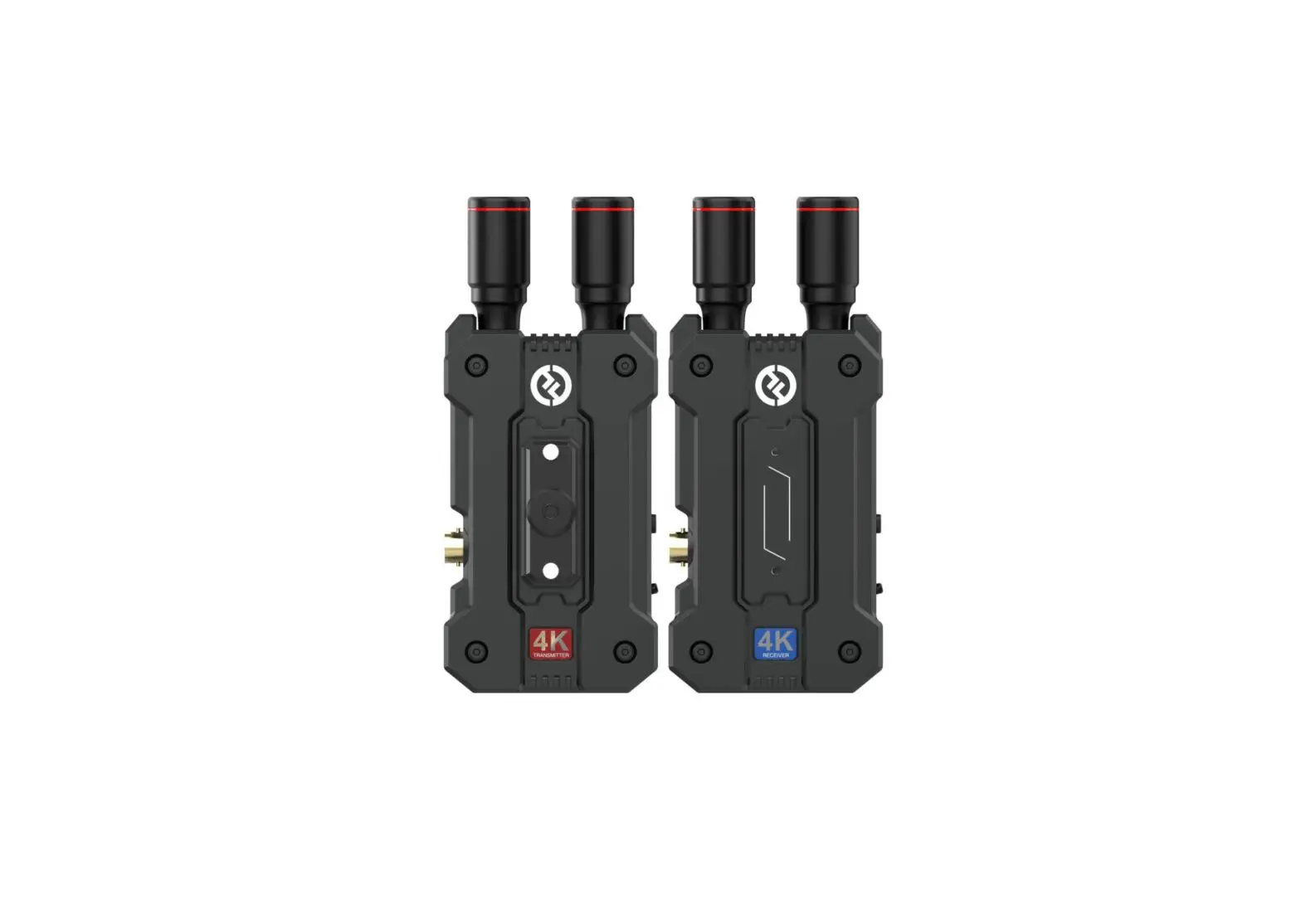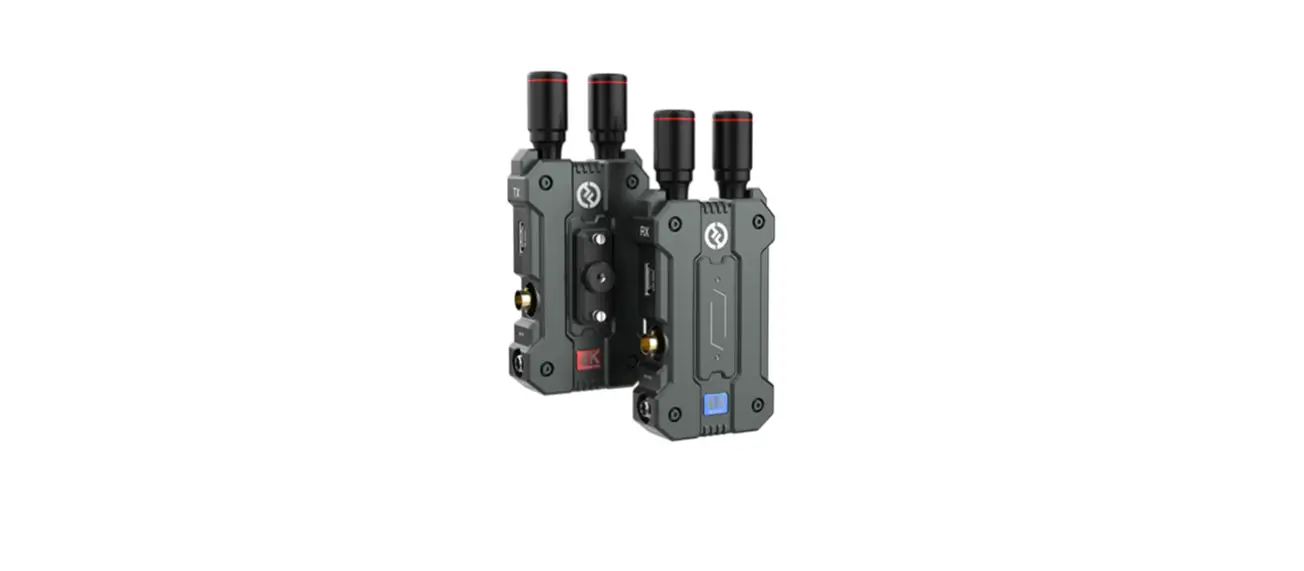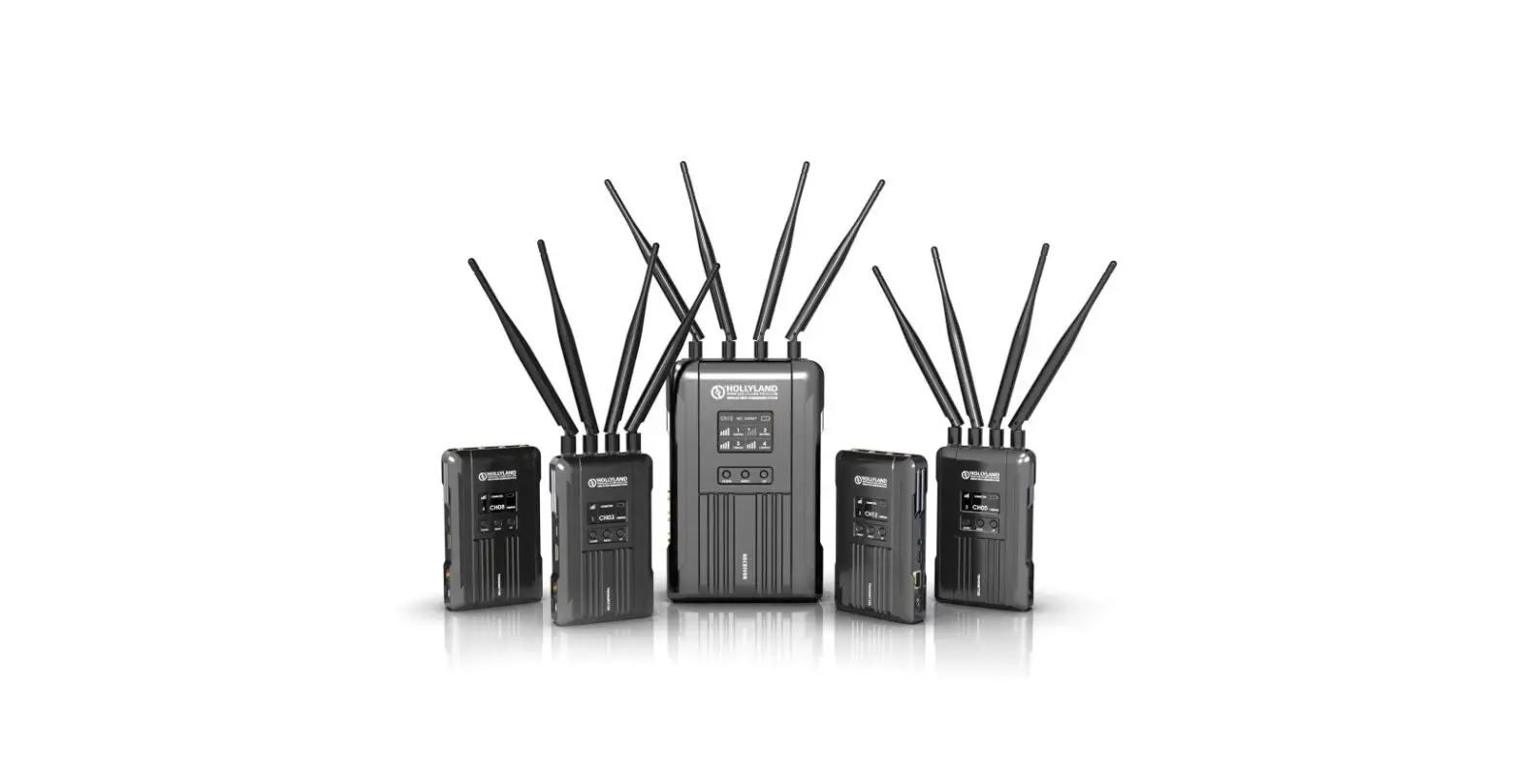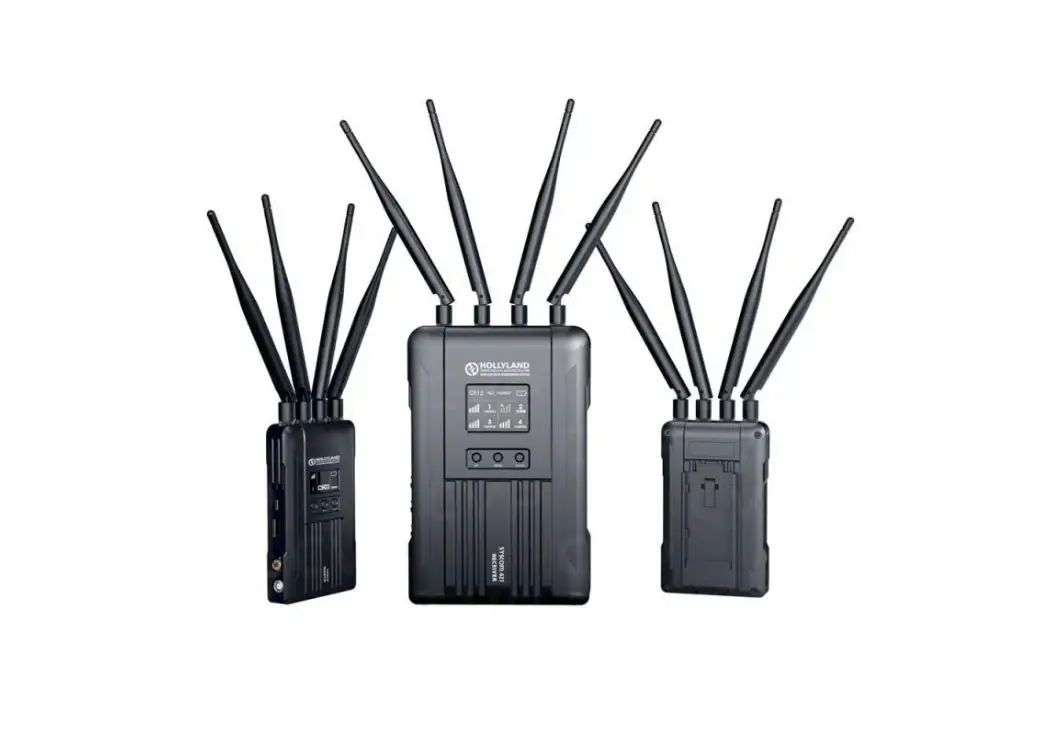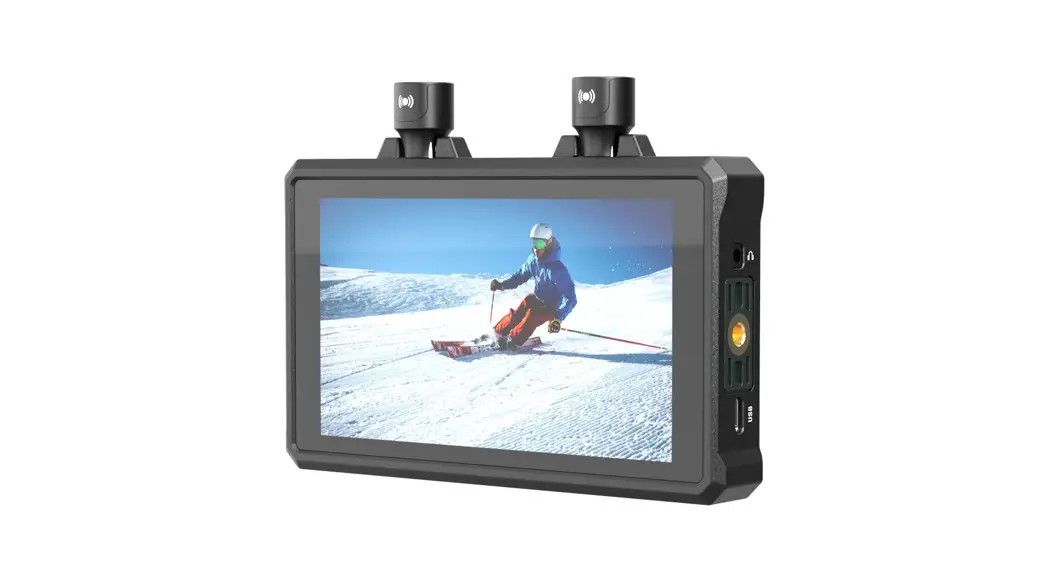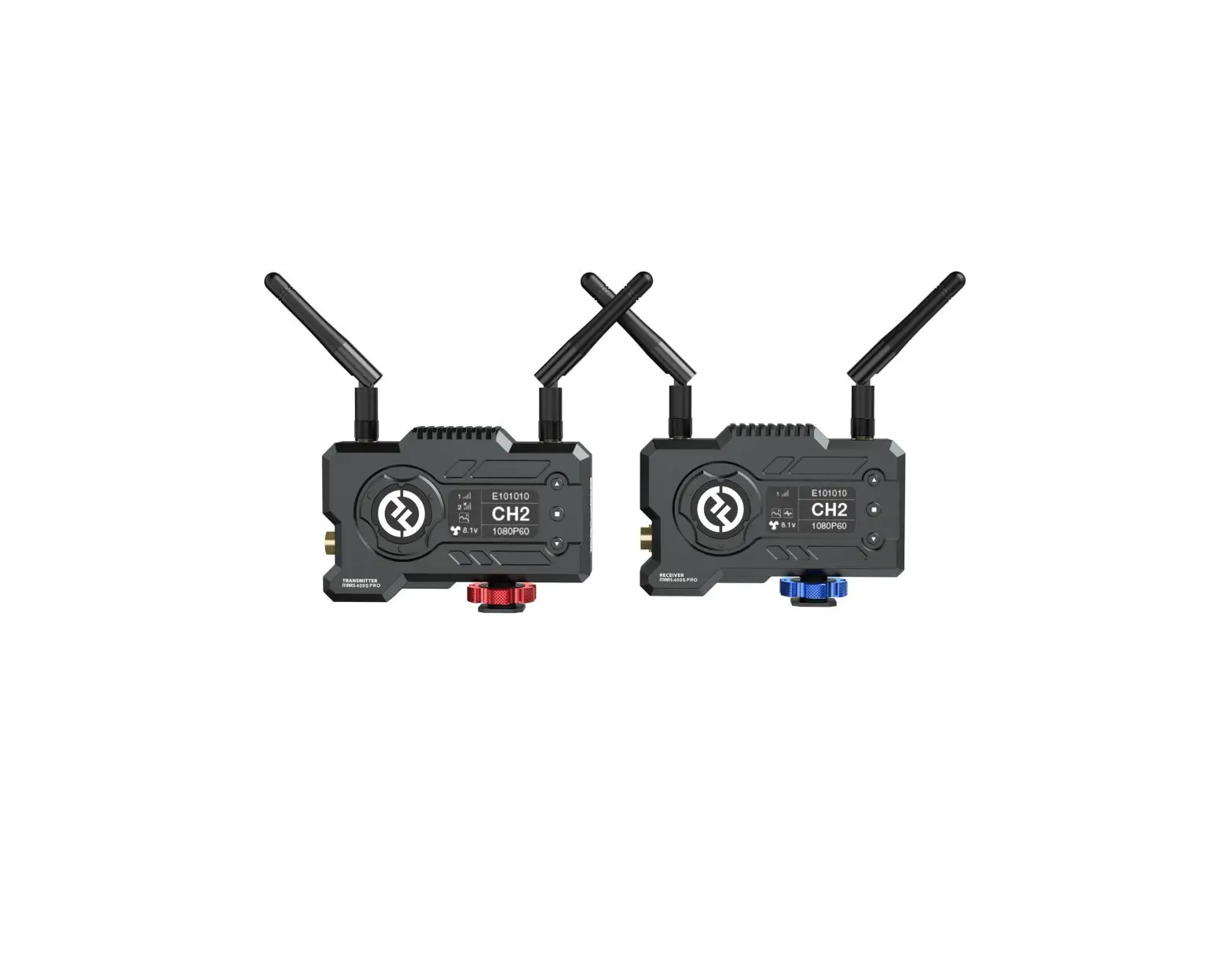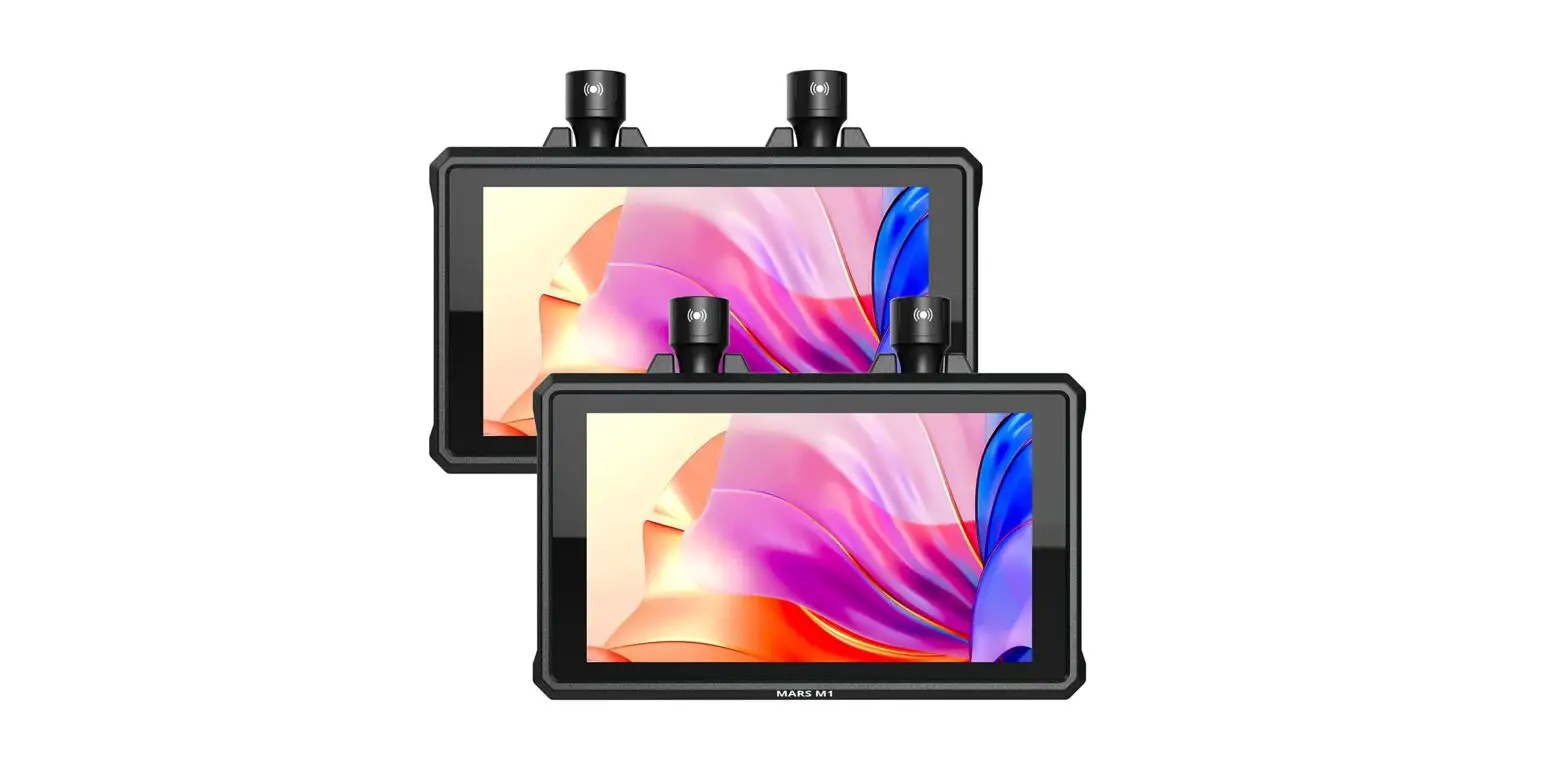

HOLLYLAND Mars M1 Wireless Video Transmission System
Introduction
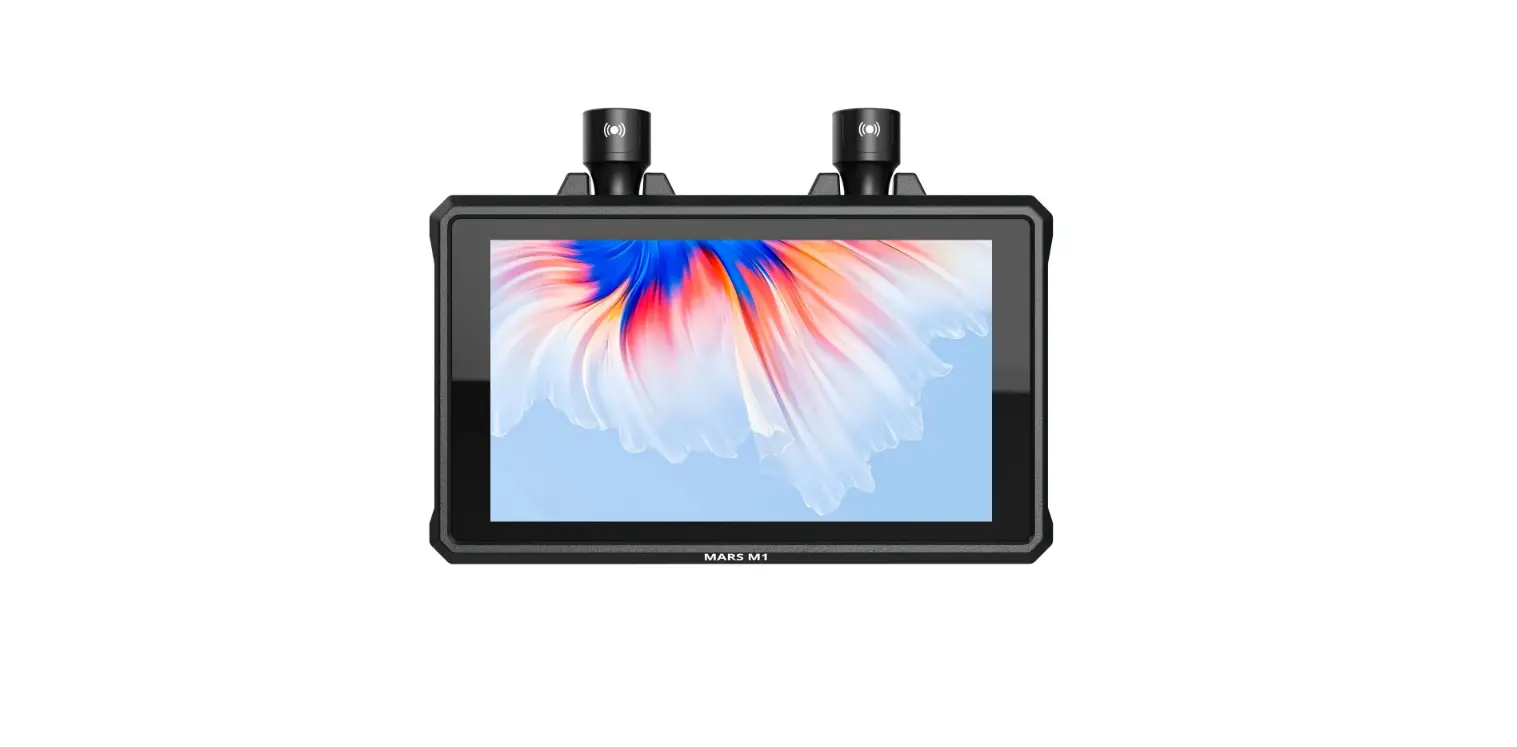
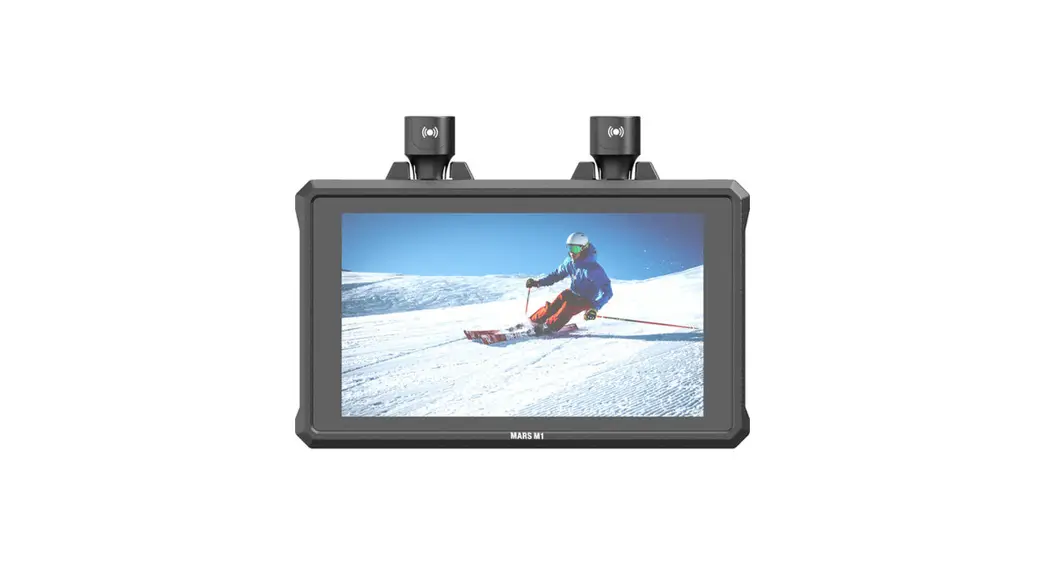
Thank you for purchasing Hollyland Mars M1 Wireless Transceiving Monitor
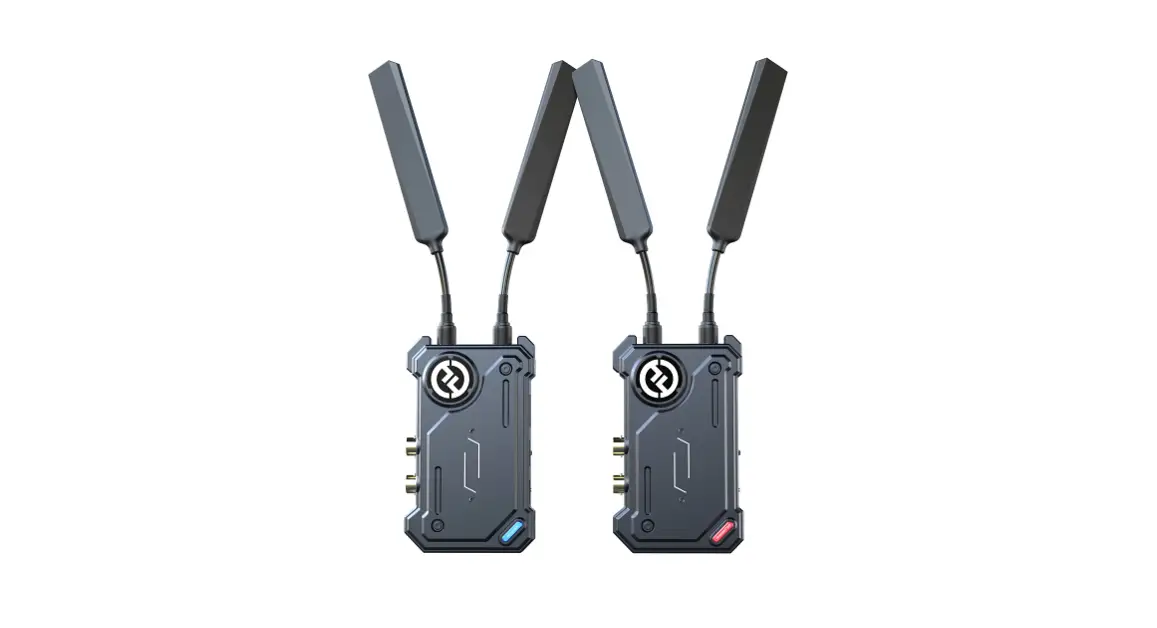
This wireless transceiving monitor system adopts the latest image encoding and decoding technology supporting 5G frequency band transmission, It can work either at the transmitting or receiving end, rendering a unique long-range and low-latency video monitoring experience.
This User Manual will guide you through the installation and use of the equipment
Packing List
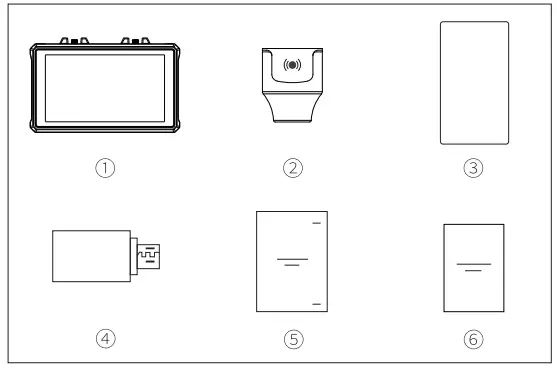
- Monitor Xl
- Lollipop Stubby Antenna X2
- Tempered Glass Film Xl
- OTG Adapter Xl
- User Manual Xl
- Warranty Card Xl
Note: The amount of the items listed above depends on the edition
Product Interfaces

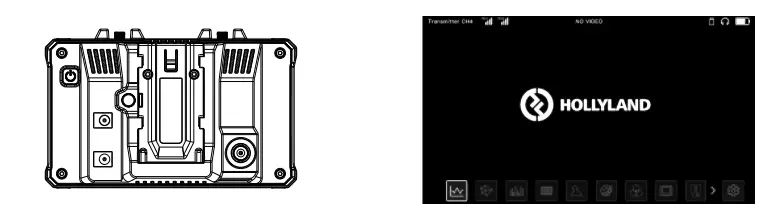
- RP-SMA Antenna Male Connector
- HDMI Input
- HDMI OutpuVLoop out
- Power Button
- DC Output (supply power to external device)
- DC Input (power supply to the monitor)
- SDI Input
- 3.5mm Headphone Jack ® 1/4 Threaded Hole
- USB Type-C Port
- 1/4 Threaded Hole
Quick Guide
Power On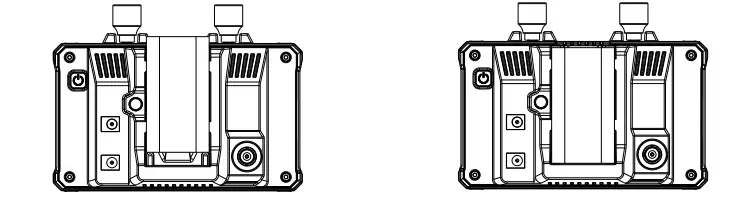
- Step 1 : lnatall the Flil70 be.ttery or oonneot to the DC power lilUpply
- Step 2: Press and hold the power button for 3 seconds to turn on the device
Setting up as Transmitting Monitor
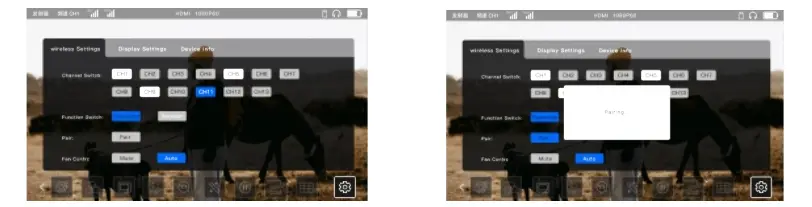
- Step 1 : Connect Iha device to the video source via the SDI or HDMI interface, wait lortha acrean to display normally.
- Step 2: Te.p on the ioon on the lower ri,;iht oorner ol the aoreen to enter the aettin<,;ia menu

- Step 3: Tap Pair to 11tart pairinlil with the receiver end; the ayatam ia compatible with any Hollyland Mars 1ieriaa receiver de.-ica
- Slap -4: The recaivarwill indicate that Iha connection i11 aucce1111lul when the pa.irinlil complete11. After proper aetup, both the Mare M1 monitor and the roceiverend will be able to display the video 11ource imege
Setting up as Receiving Monito
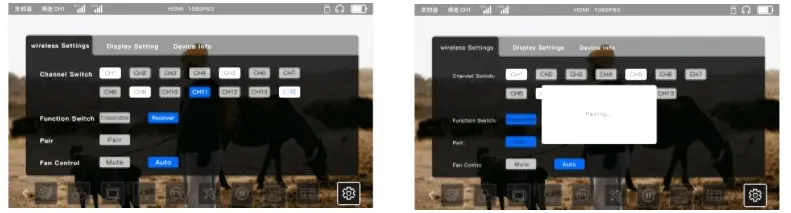
- Step 1: Tap Pair on the settings menu to start pairing
- Step 2: When the pairing completes, and if the wIith the transmitter end, wnich can be any Hollyand Mars series transmitter devIce. transmitter end has a video source input, the Mars M1 monitor as the receiving end will display thne recelved image normally.
Unlock/Lock Screen
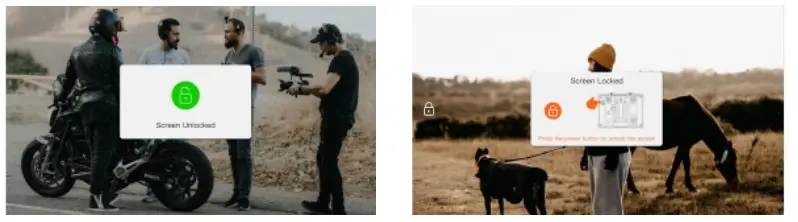
- Unlock screen: CliCk the POwer Button to unlock thedevice when it’s in the locked state
- Lock screen: vwnen the deVIce is powered up, click the Power Button to lock the screen.
Settings
Frequency Seting Tap to select the channel number in the frequency list to change the connection frequency for the device. Note: Some mobile devices do not support WiFi connection under CH3-CH10 frequency. Please switch to otner trequencies tor vvil Connection, Device Mode Switch
The Mars M1 monitor can switch between the Transmitter and Receiver modes. Tap to select the desired mode option, wait for the device to restart, and complete the mode switching.
Pairing
After the device is powered on and tne screern displays the Trequency point number, it’s ready to operate the pairing.
One-to-one pairing: Press the pairing buttons of both the transmitter and receiver at the same time too activate pairing.
One-to-two pairing: After the transmitter Is paired with receiver 1, the transmitter is then paired with receiver 2. Ihe transmitter carnnot be paired with two receivers at the same time.
Note: Compatible with Mars 300 Pro and Mars 400s Pro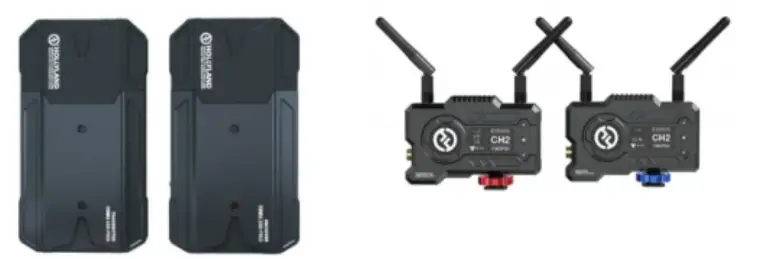
Firmware Upgrade
- Copy the firmware upgrade file to a USB disk.;
- Turn on the device, attach the USB disk with the OTG Adapter, and connect the latter to the Mars M1 monitor via the USB Type-C port,
- . Wait for the system to enter the system upgrade interface automatically;
- After the upgrade is complete, wait for the device to restart automatically to Complete the upgrade.
Note: Please ensure a stable power supply during the upgrade process to avoid power tailure
APP Operations
APP Installation and Monitoring on iOS and Android Systems
- Search the Hollyview APP on APP Store or Google Play, download and install the APP on the mobile device
- Pairing with auto-scan: Launch the APP and start auto-scanning to pair up with the Mars M1 monitor. Once paired, the APP screen will display the video image from the monitor.
- Pairing with manual ID input: Launch the APP and manually enter the device ID number to pair up. Once paired, the APP Screen will display the video image trom the monitor,
LUT Settings
Tap the LUT icon in the main menu at the bottom of the Mars M1 main screen to open the LUT settings menu and perform the following operations
Import LUT
- Put the LUT files in a USB disk formatted as FAT32, and attach it to the OTG adapter connecting to the Mars M1 monitor via the USB Type-C port.
- Tap the LUT icon in the main menu, select the ‘Import LUT’ option from the settings menu, and wait for the system to retrieve and import the LUTfiles from the USB disk
Note: The suffix of the LUTfile must be .cube, and the file name cannot exceed 128 characters. - Tap select a file for import, then tap the desired position from the F1, F2, F3, F4, or F5 buttons in the menu to locate the file
- Tap ‘Import LUT’ to import the corresponding LUTfile to the corresponding button option
RGB and BGR Color Charts: The system’s default option is the RGB color chart Tap on the toggle icon in the menu to switch to the BGR color chart.
LUT Application:
- Tap the LUT icon in the main menu activates the function. The LUTfile on the F1 button will be applied by default.
- Tap to select the corresponding LUTfile on the F2, F3, F4, or F5 button to change.
- Tap the selected F1 -F5 button again to deselect the corresponding LUT file.
- Tap on the LUT icon or elsewhere on the screen to close the LUT settings menu
Check LUT File Name: After the selected LUT file is applied, the corresponding LUT file name will be displayed on the top info bar
Note: The five camera LUT files by factory default are as follows:
- F1: Canon_C-Log.cube
- F2: Canon_C-Log2.cube
- F3 Sony_S-Log.cube
- F4 Sony_Slog2.cube
- F5 Slog3to709TypeA.cube
Parameters
| Transmitter Mode | Receiver Mode | |
| Video Input Interface | SDI input (BNC female) HDMIinput (Type-A female) | |
| Video Output Interface | HDMI output (Type-A female) | HDMI output (Type-A female) |
| Antenna Interlace | Two RP-SMA male interfaces | Two RP-SMA male interlaces |
| Power Input Interface | DC power input | DC power input |
| Power Output Interface | DC power output | DC power output |
| Headphone Jack | 3.5rnmjack | 3.5mmjack |
| Firmware Upgrade Interface | USBType-C | USBType-C |
| Screen Size | 5.5’touchscreen | 5.5″touchscreen |
| Screen Resolution | 1920×1080 pixels | 1920×1080 pixels |
| Pixel Density | 403PPI | 403PPI |
| Aspect Ratio | 16:9 | 16:9 |
| Brightness | 1000nits | 1000nits |
| Contrast Ratio | 1000:1 | 1000:1 |
| Supply Voltage Range | 7~16V DC. nominal 12V | 7~16VDC, nominal 12V |
| Power Consumption | < 14. 5W(without DC output) | < 10W(without DC output) |
| Net Weight | 380i;i (11.ntenna&excluded) | 380g (antennMe,;oluded) |
| Dimension | 1b:W,H1: 152x ex.-omrn (antennaaexcluded) | • LxWxH1 : 162,;00,;4Qmm (antennaaexcluded) |
|
Input Video Formats | HDMI | |
| 720P50/59.94/60 Hz | ||
| 1080150/59.94/60 Hz | ||
| 1 0B0P23.98/24/25/29.97/30/50 /59.94/60Hz | ||
| 3840x2160P23.98/24/25/29.97/ 30Hz | ||
| 4096x2160P23.98/24/25/29.97/ 30Hz | ||
| SOI: | ||
| 720P50/59.94/60 Hz | ||
| 1080l50/59.94/60 Hz | ||
| 1 0B0P23.98/24/25/29.97/30/50 /59.94/60Hz | ||
|
Output Video Formats | HDMI inHDMlout: | H[Mout: |
| 720P50/59.94/60 Hz | 720P50/59.94/60 Hz | |
| 1080!50/59.94/60 Hz | 108Di50/59.94/60Hz | |
| 1 0B0P23.98/24/25/29.97/30/50 /59.94/60Hz | 1080P23 .98/24/25/29.97/30/ 50/59.94/60 Hz | |
| 3840x2160P23.98/24/25l29.97/ 30Hz | 1080P50/59.94/60 | |
| 4096x2160P23.98/24/25/29.97/ 30Hz | 1080P50/59,94/60 | |
| SDI inHDMlout: | ||
| 720P50/59.94/60 Hz | 720P50/59.94/60Hz | |
| 10BOl50/59.94/60Hz | 1080i50/59.94/60Hz | |
| 1080P23.98/24/25/29.97/30/50/ 59.94/60 Hz | 1080P23 .98/24/25/29.97/30 /50/59.94/60 Hz | |
| Operating Frequency | 5.1~5.9GHz | 5.1~5.9GHz |
| Codec Technology | H.264 | H.264 |
| Bit Rate | 12Mbps | 12Mbps |
| Transmit Power | Max:.22d8rn | Max. 22dBrn |
| Receiver Sensitivity | -80d8m | -BOdBm |
| Transmission Delay | <B0rns | <80rns |
| Bandwidth | 20MHz | 20MHz |
Note: The frequency band and transmit power varies by country and region
Safety Precautions
Do not place the product near or inside heating devices (including but not limited to microwave ovens, induction cookers, electriC Ovens, electric heaters, pressure cOokers, water heaters, gas stoves) to prevent the battery from overheating and exploding.
Support
IT you encounter any problems in using the product or need any help, please contact Hollyland Support leam via the following ways IT encounter any problems in using the product or need any nelp,please TollOW these ways to get more technical support:
- Hollyland Products User Group
- HollylandTech
- HollylandTech
- [email protected]
- www.hollyland-tech.com
Statement
All copyrights belong to Shenzhen Hollyland Technology Co,.LTD. Without the written approval of Shenzhen Hollyland Technology Co,.LTD, no organization or individual may copy or reproduce part or all of the content of the text withOut authorization, and may not disseminate it in any form.
Trademark Statement
All trademarks are Owned by Shenzhen Hollyland Technology Co,.LTD.
Note: Due to product version upgrades or other reasons, this quick guide will be updated from time to time. Unless otherwise agreed, this document is provided as a guide for use only. All representations, intormation, recommendations in this document do not constitute warranties of any kind, express or implied.
FCC Requirement
Any changes or modifications not expressly approved by the party responsible for Compliance could void the user’s authority to operate the equipment. Ihis device complies with Part 15 of the FCC Rules. Operation is subject to the following two Conditions (1) this device may not cause harmful interference. (2) tnis device must accept any interference received, including interterence that may cause undesired operation.
FCC Radiation Exposure Statement:
The device has been tested and comply with FCC SAR limits.
Note: This equipment has been tested and found to comply with the limits for a Class B digital device, pursuant to Part 16 of the FC Rules. Ihese limits are designed to provide reasonable protection against harmful interterence in a residential installation. Ihis equipment generates, uses, and can radiate radi frequency energy, and it not installed and used in accordance with the instructions, may cause harmful interference to radio communications. However, there is no guarantee that interference will not occur in a particular installation. If this equipment does cause harmtul interterence to radio or television reception, which can be determined by turning the equipment off and on, the user is encouraged to try to correct the interference by one or more of the following measures
- Reorient or relocate the receiving antenna.
- Increase the separation between the equipment and receiver.
- Connect the equipment into an outlet on a circuit different from that to which the receiver is connected.
- Consult the dealer or an experienced radio/IV technician Tor neip.
This equipment complies with FCC radiation exposure limits set forth for an uncontrolled environment. This equipment shou ld be installed and operated with a minimum distance of 20cm between the radiator& your body. This transmitter must not be co-located or operating in conjunction with any other antenna or transmitter.