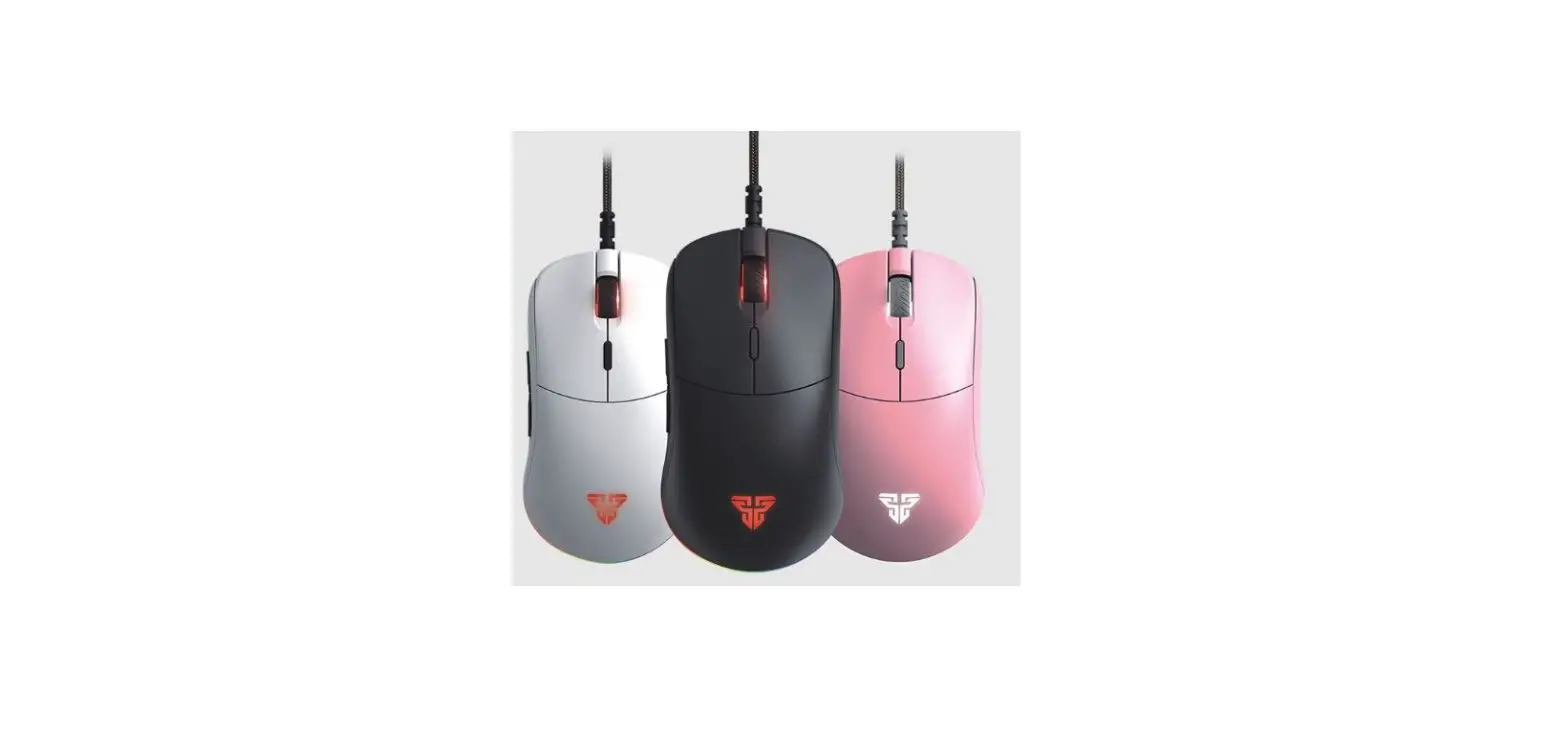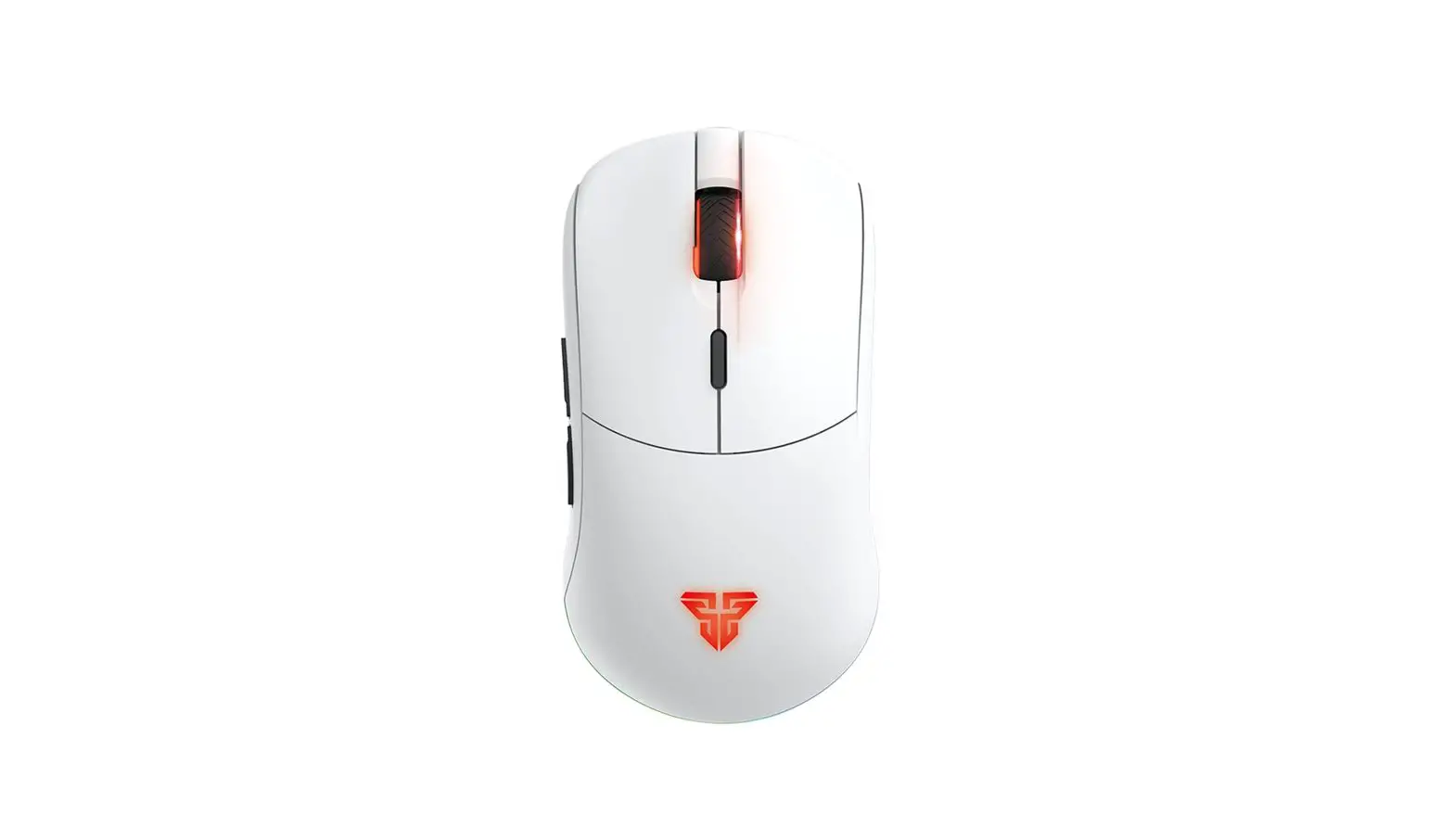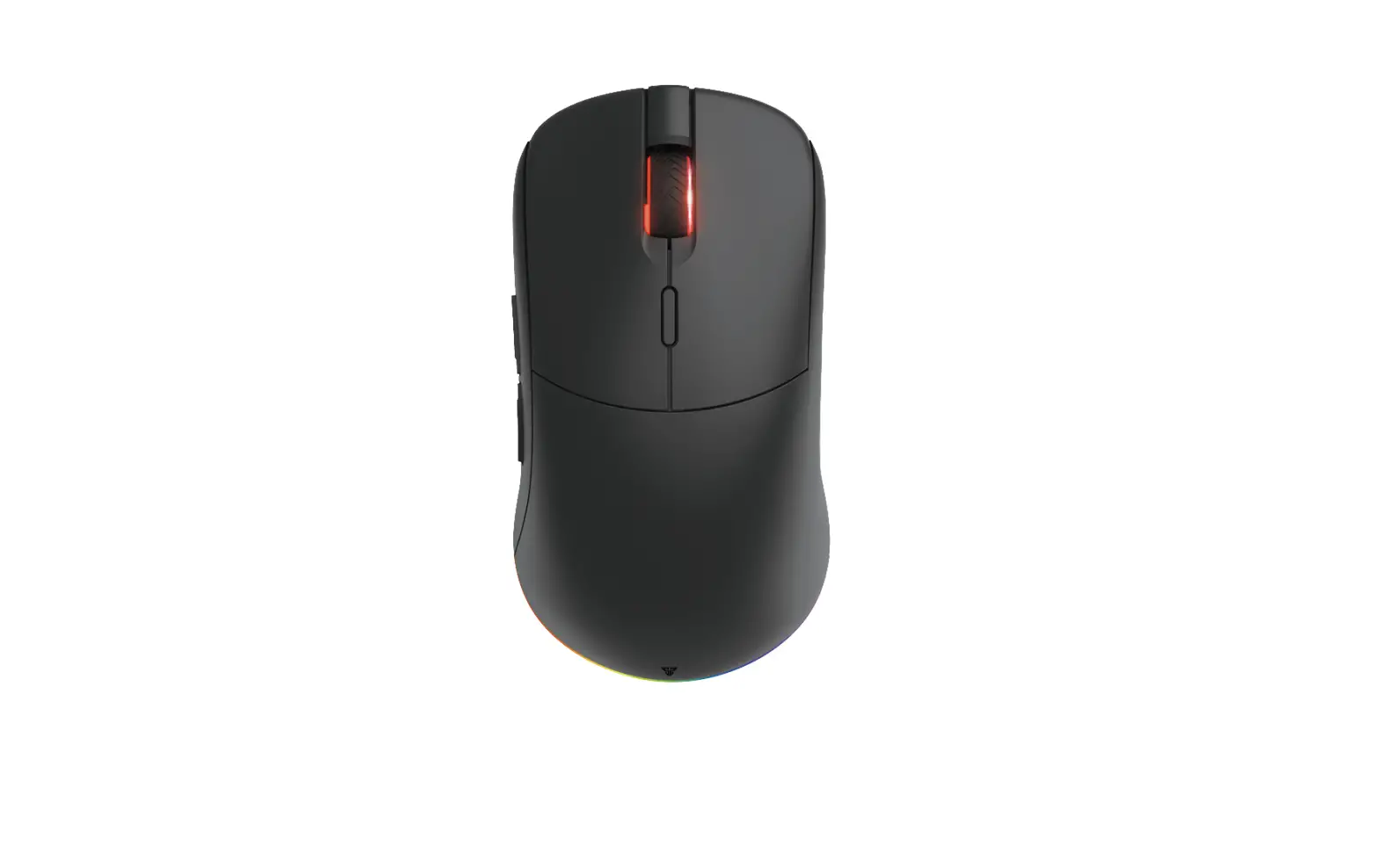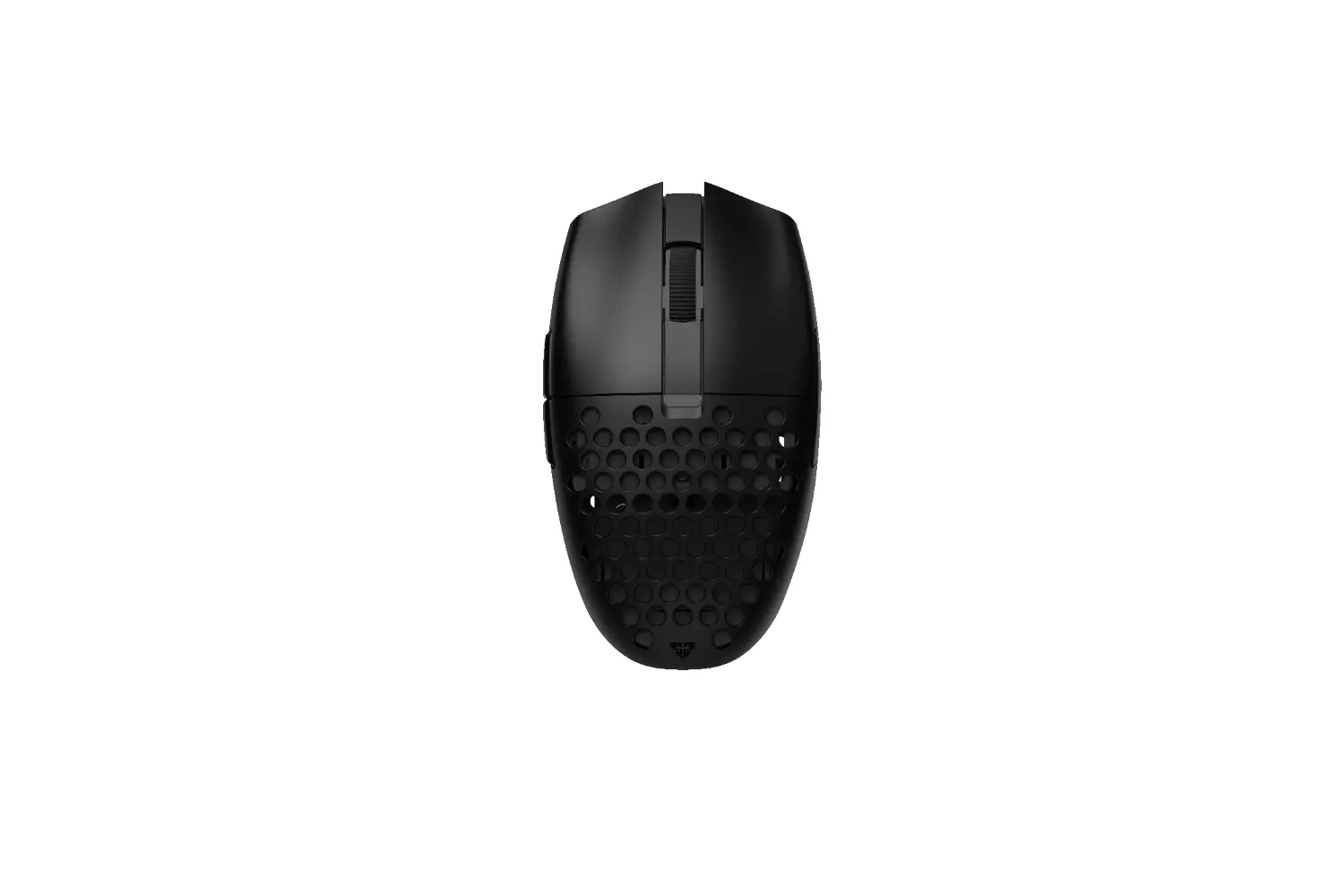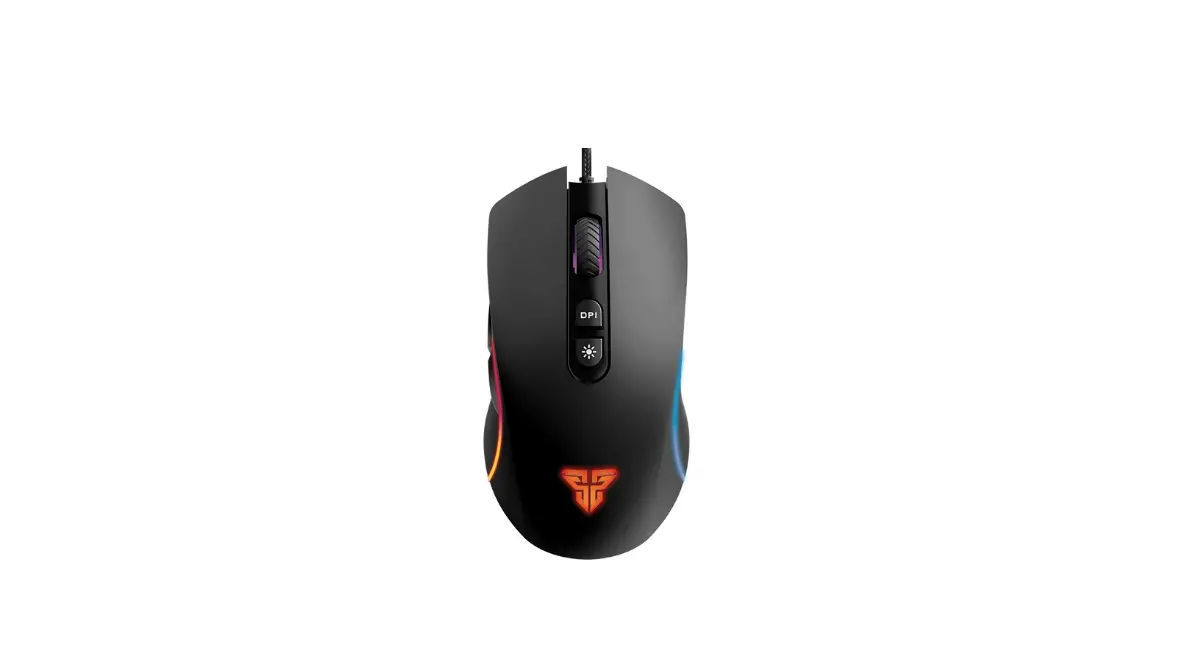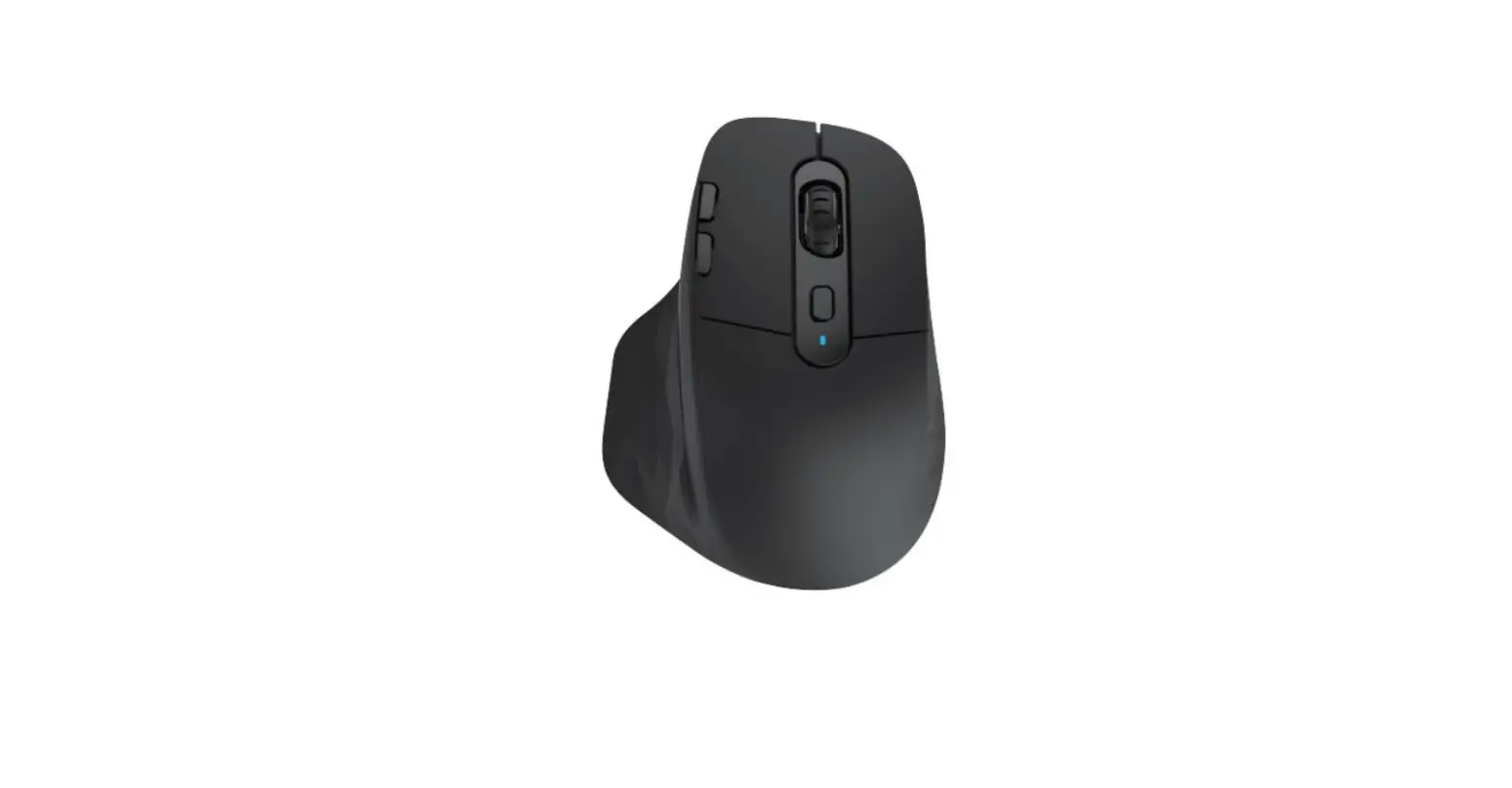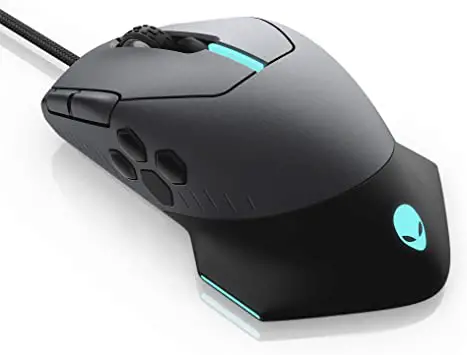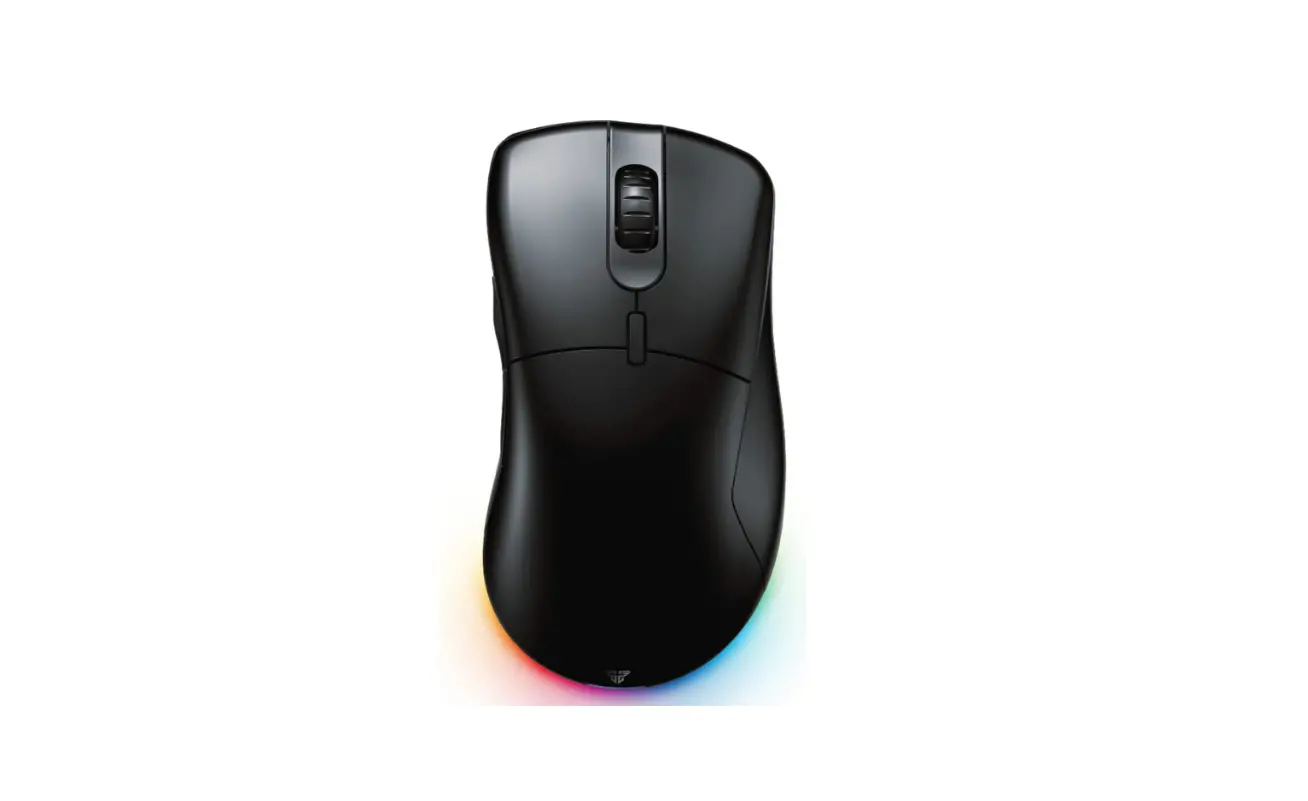

FANTECH Helios Go XD5 Pro Ergonomic Gaming Mouse
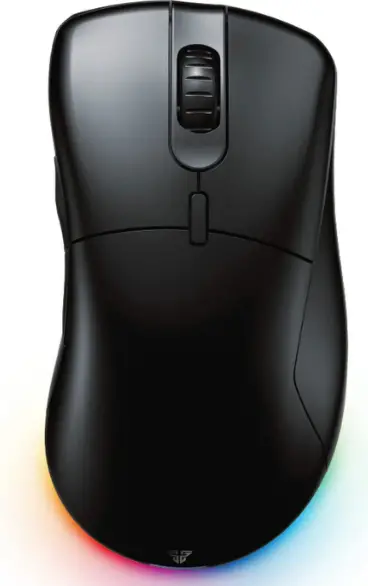
Instruction manual
Thank you for purchasing FANTECH HELIOS GO XDS PRO Ergonomic Gaming Mouse. FANTECH HELIOS GO XD5 has 80 million switches and also supports onboard memory which can move up to 4 different profiles. FANTECH HELIOS GO XDS is a plug and plays USB interface programmable mouse, no need to install any driver for your first use. For more enhanced settings and functions, you can install the software from our website www.fontechworld.com.
Technical specification@
- Pixart 3370 Gaming Optical Sensor
- lOOOHz Polling Rate
- On-the-fly Adjustable DPI (B0D-19000)
- Up to -4001PS/50g acceleration
- Kailh GMB.0 80 million clicks
- Battery capacity: 300mAh
- Battery LIfe: up to 40 hours
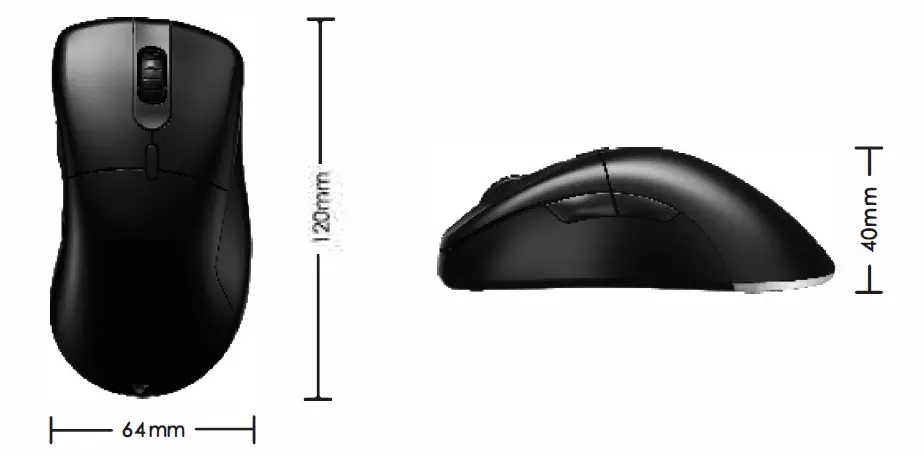
- Size: 120mm'”64mm*40mm
- l .8m Type-C par□cord
- Weight: 72gr
Size
Keys function map 
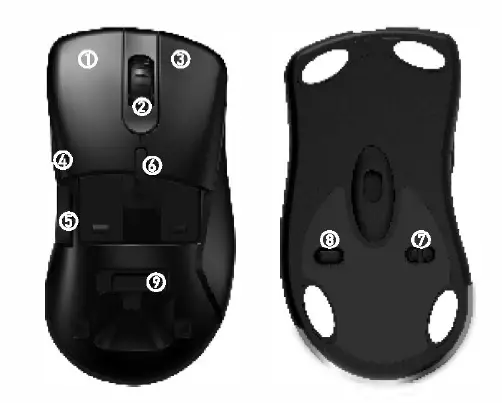
| KEY I | KEY FUNCTION MAP LEFT BUTTON |
| 2 | MID BUTTON |
| 3 | RIGHT BUTTON |
| 4 | FORWARD |
| 5 | BACKWARD |
| 6 | DPI |
| 7 | POWER SWITCH |
| 8 | LED MODE SWITCH |
| 9 | USB RECEIVER |
How to connect 
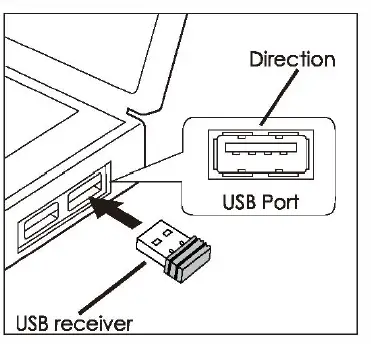
It’s plug-and-play. Connect the mouse to a computer by inserting a USB receiver into your computer’s USB port.
How to use
Power switch & LED switch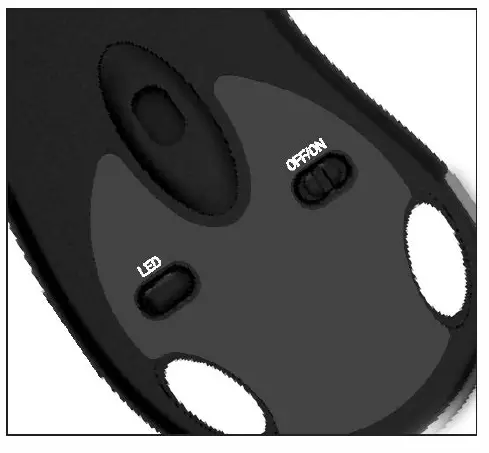
Easily power ON/OFF the mouse via the switch on the bottom. Press the LED switch to change up to 6spectrum mode, Hold the LED switch lo turn Off/On the LED
Wired mode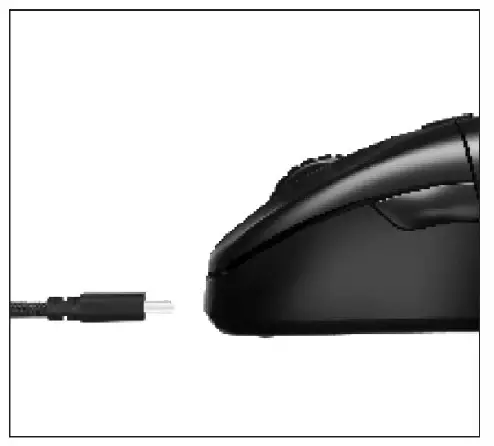
To activate the wired mode, simply disconnect the wireless receiver and connect the USB cable to the mouse. If the LED below the scroll wheel blinks red color, this indicates low battery. Connect the USB to charge the mouse.
Software
Key settings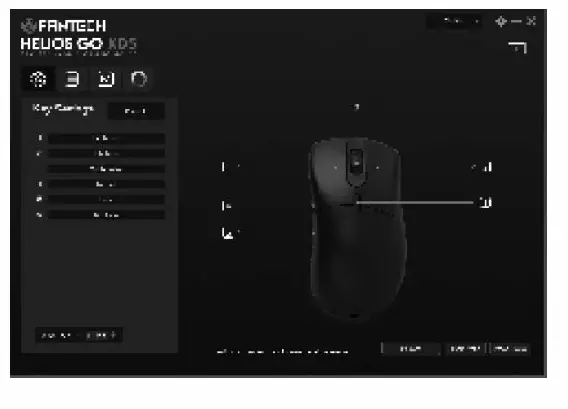
- 6 Macros button assignment
- You can set up to 4 profile
You can set debounce time from 0-30ms
Advanced settings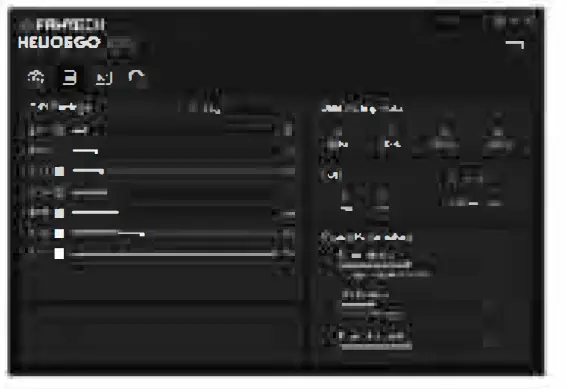
- 6 Stages DPI customization from 50-l 9000DPI.
- You can customize mouse sensitivity, scrolling speed, double – click speed on advanced setup.
- You can choose mouse LOD between 1mm to 2mm
Macro setup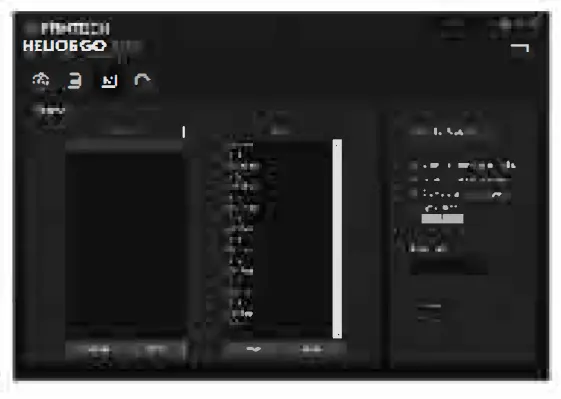
To create a new macro, follow the steps below
- Press the “New Macro” bar
- Input the “Macro Name”
- Click “Start recording” to start recording and click ”Stop recording” to stop recording. The macro key (Delay/cycle time can be edited/modified)
- After clicking “Stop Record”, click “save” to save the macro key.
Lighting setup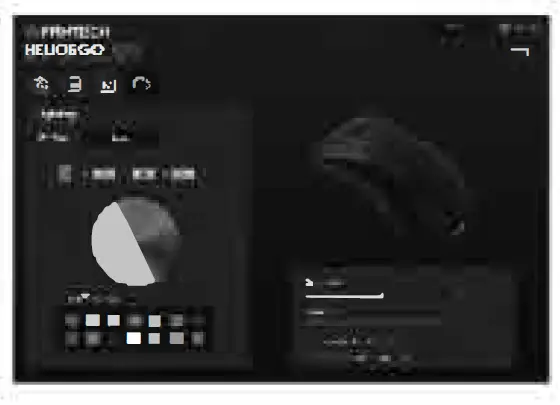
- Customize up to 7 different Spectrum modes: Steady, Breathing. Streaming, Neon, Scrolling. Colorful Breathing, LED OFF.
- Some of the spectrum modes can be customized, such as brightness and speed.
- You can set the Auto-Sleep time from l0 sec to 40 mins