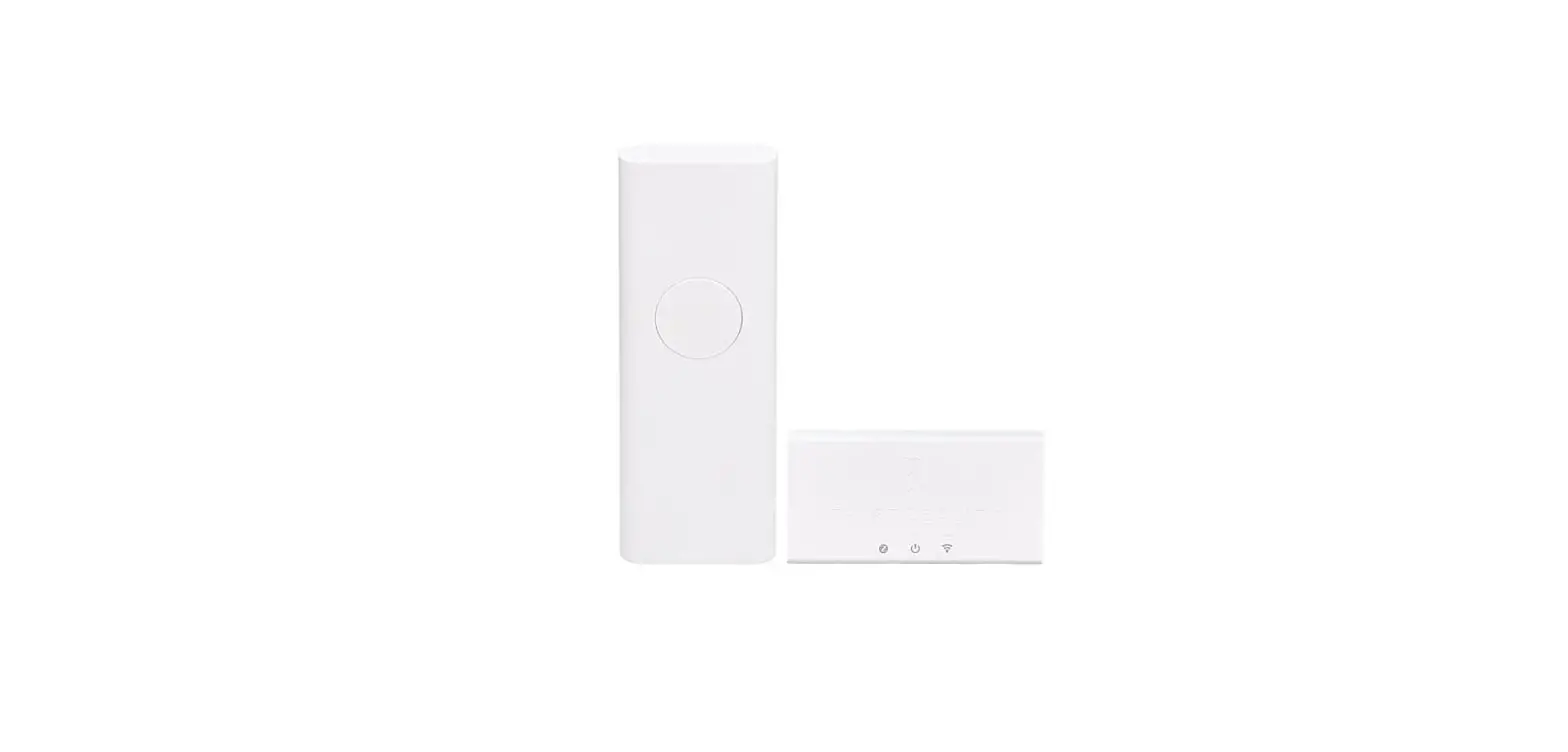
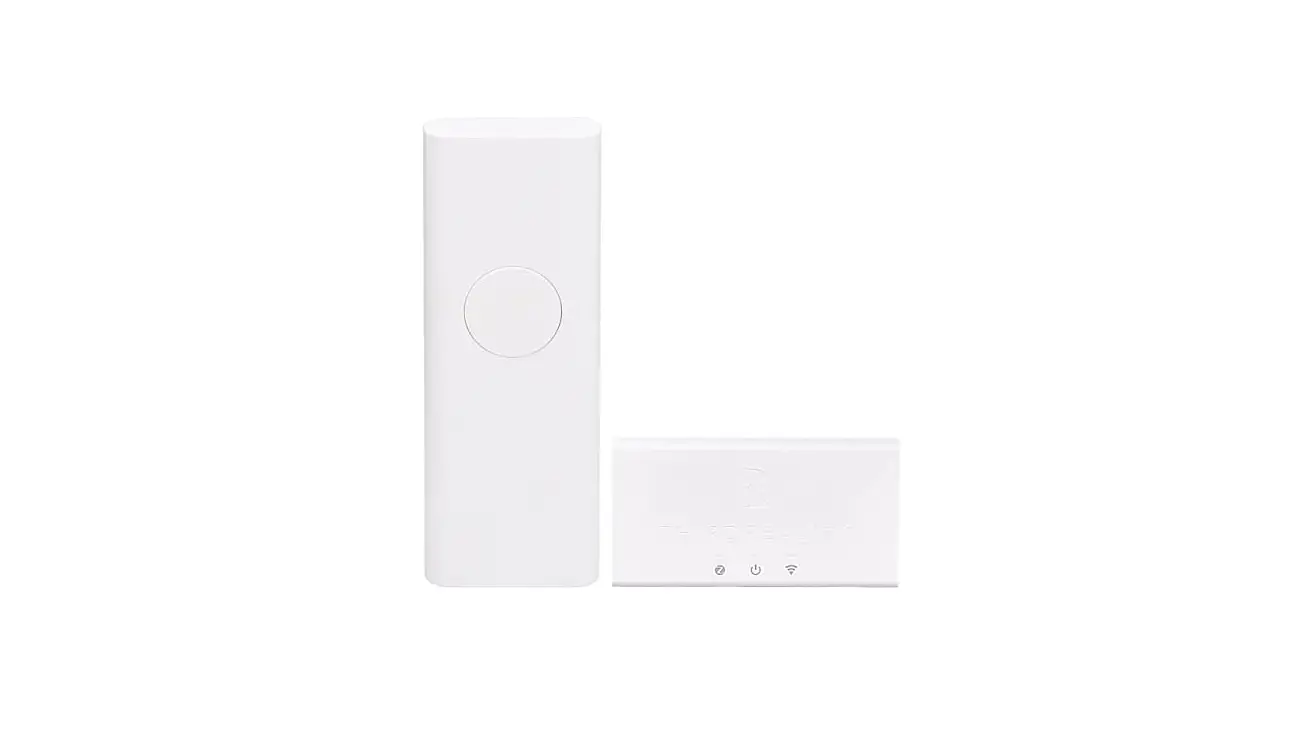
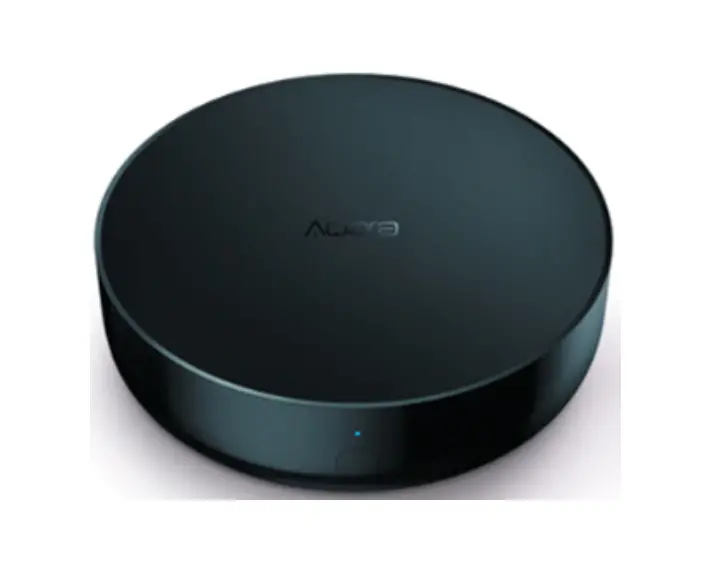
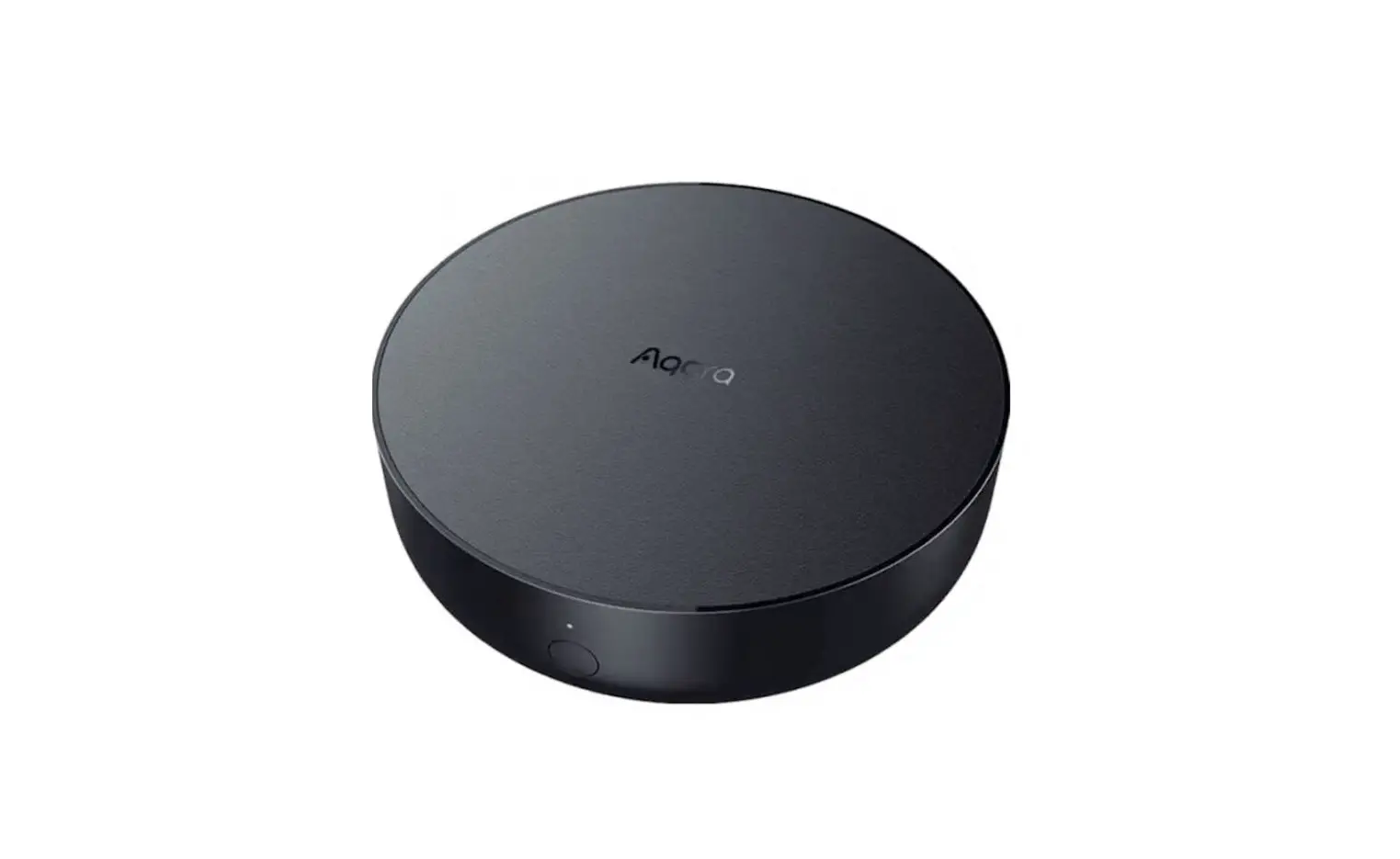
Gen2 Plus Smart Hub Smart Home Gateway
Product Information: Third Reality Smart Hub Gen2 Plus
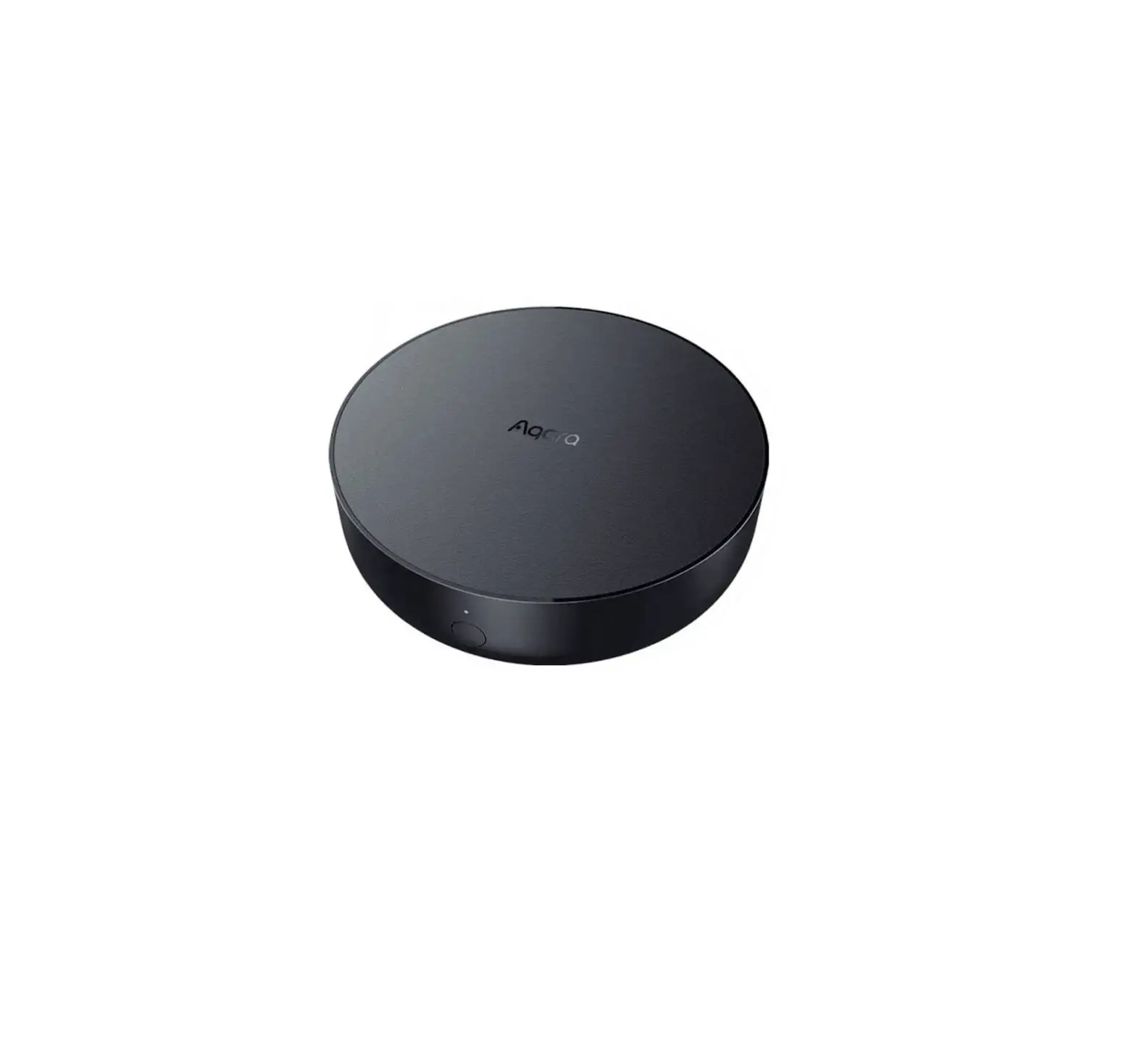
The Third Reality Smart Hub Gen2 Plus is a device that connects
and controls various smart devices in your home through the Third
Reality App. It has a USB-A port for power and supports 2.4G WiFi.
The hub also has a factory reset button and LED lights that
indicate its pairing and setup status.
LED Status
- Slow blinking in yellow: Ready to setup
- Slow blinking in blue: In setup / Offline
- Stay on blue: Setup complete / Online
- Slow blinking in green: Pairing with ZigBee devices / Software
updating
Compatibility
The Third Reality Smart Hub Gen2 Plus is compatible with Amazon
Alexa and Google Home, allowing you to control your smart devices
using voice commands.
Specifications
- Model No.: 3RSH05027BWZ
- FCC ID: 2BAGQ-3RSH05027BWZ
- Input: 5V
- Made In China
Product Usage Instructions: Third Reality Smart Hub Gen2
Plus
Step 1: Download the Third Reality App
- Visit the Apple App Store or Google Play Store and download the
Third Reality App. - Open the Third Reality App and sign up or log in. Make sure
your phone has Bluetooth enabled. - Note: We recommend creating a Third Reality account with a real
email address to avoid forgetting the password.
Step 2: Set up Third Reality Hub
- Remove the cover of the Third Reality Smart Hub Gen2 Plus and
plug it in using the USB-A port or a power adapter. - The LED light on the hub will slow blink in blue for a few
seconds and then change to yellow, indicating that the hub is in
pairing mode. If the hub is not in pairing mode, long press the
reset button for about 15 seconds until the LED light turns on red,
then release it. The LED light will slow blink in yellow,
indicating that the hub is now in pairing mode. - Log in to the Third Reality App and click the “+” icon on the
top right to add the RealityHub. - Select WiFi and initialize RealityHub. After searching for
RealityHub, you will see the corresponding Mac No. of the hub.
Note: The Third Reality Hub can only support 2.4G WiFi. - Once the setup is complete, click “Pair Device” to add other
smart devices. The LED light will stay on blue when pairing is
completed.
Step 3: Link to Amazon Alexa
- Make sure your Echo Devices, Alexa App, and Third Reality Smart
Hub Gen2 Plus are up to date. - Open the Alexa App and log in. Go to the “More” page, choose
“Skills&Games,” and search for “ThirdReality.” Follow the
prompts to enable Third Reality Skills and tap “DISCOVER
DEVICES.” - You can now control your smart devices connected to the Third
Reality Smart Hub Gen2 Plus in the Alexa App and create
routines.
Step 4: Link to Google Home
- Make sure your Google Assistant speaker, Google App, and Third
Reality Smart Hub Gen2 Plus are up to date. - Open the Google Home App and log in.
- Click the “+” icon on the top left, then choose “set up
device,” and select “Work with Google.” - Alternatively, click the home page “Settings” and choose “Work
with Google.” Search for “ThirdReality” and link your Third Reality
account by authorizing it. - You can now control your Zigbee devices connected to the Third
Reality Smart Hub Gen2 Plus in the Google Home App.
Step 5: Troubleshooting
If the Third Reality Hub shows offline on the app, there may be
network fluctuations or instability. Try reconnecting the device
and restarting the router. If the issue persists, factory reset the
device by long pressing the reset button for about 15 seconds until
the LED light turns on red, then release it. The LED light will
slow blink in yellow, indicating that the hub is now in pairing
mode.
Third Reality Smart Hub Gen2 Plus Quick Start Guide
3RSH05027BWZ
LED light
Cover
Smart Hub Gen2 Plus
Download the Third Reality APP
1. Visit the Apple APP Store and Google Play Store, download the Third Reality App.
2. Open the Third Reality APP, it will guide you through some quick steps to sign up or login.
Note: Make sure your phone has Bluetooth enabled, which is needed when adding new devices. We recommend creating a Third Reality account with real emails, so that you don’t worry about forgetting the password.
Factory Reset Button
Scan the QR code for more details 01
Set up Third Reality Hub
1. Remove the cover and direct plug in USB-A port or an power adapter.
2. When power on, the LED light on the hub is slow blinking in blue for seconds and then change to yellow, indicating that the hub is in pairing mode. Note: If the hub is not in pairing mode, long press the reset button for about 15 seconds until the LED light turns on red and then release, it will slow blinking in yellow indicating that the hub is in pairing mode.
3. Log in the Third Reality APP, click “+” on top right to add RealityHub.
4. Select WIFI and Initialize RealityHub, after “Searching for Realityhub” you will see the corresponding Mac No. of the hub. Note: Third Reality Hub can only support 2.4G
02
Model No.: 3RSH05027BWZ FCC ID: 2BAGQ-3RSH05027BWZ Input: 5V Made In China Third Reality, Inc.
WIFI MAC: XXXXXXXXXXXX
Mac No.
5. Then the “Setup Complete”, click “Pair Device” to add other smart devices.
Note: When the pair is completed, the LED light will stay on blue.
LED Status
LED Slow blinking in yellow Slow blinking in blue
Stay on blue
Indication Ready to setup In setup / Offline Setup complete / Online
Slow blinking in green
Pairing with ZigBee devices / Software updating
03
Link to Amazon Alexa
App: Alexa APP
1. Make sure the software of your Echo Devices, Alexa App are up to date.
2. Make sure the RealityHub is setup completely on the Third Reality APP.
3. Open Alexa APP and log in, go to the page “More”, choose “Skills&Games” and search “ThirdReality”, then follow the prompts to enable “Third Reality Skills” and tap “DISCOVER DEVICES”.
4. Now you can also control the smart devices which connected to Third Reality Hub in Alexa App and create routines.
04
Link to Google Home
App: Google Home APP
1. Make sure the software of Google assistant speaker, Google App are up to date.
2. Make sure the RealityHub is setup completely on Third Reality App.
3. Open the Google Home APP and login.
4. Click “+” on the top left, then choose “set up device”, choose “Work with Google”.
5. Or click the home page “Settings” and choose “Work with Google”, search “ThirdReality” and link your Third Reality account, by authorizing.
6. Now you can control the other Zigbee devices in Google Home App.
05
Troubleshooting
Factory Reset
Long press the reset button for about 15 seconds until the LED light turns on red and then release, it will slow blinking in yellow indicating that the hub is in pairing mode.
Third Reality Hub shows always offline on the app There may be network fluctuations and instability, when the device is disconnected, try to reconnect. If it still doesn’t work, try powering up the device and restarting the router.
How to change the WiFi?
Press the reset button for about 3 seconds until the LED light turns on yellow and then release, go to Third Reality App, click the edit below the WiFi icon and follow the steps to select the new WiFi.
06
Limited Warranty
For limited warranty, please visit www.3reality.com/devicesupport For customer support, please contact us at [email protected] or visit www.3reality.com For help and troubleshooting related to Amazon Alxea, visit Alexa app.
07
 Smart Hardware | IOT platform | Third Reality, inc | China