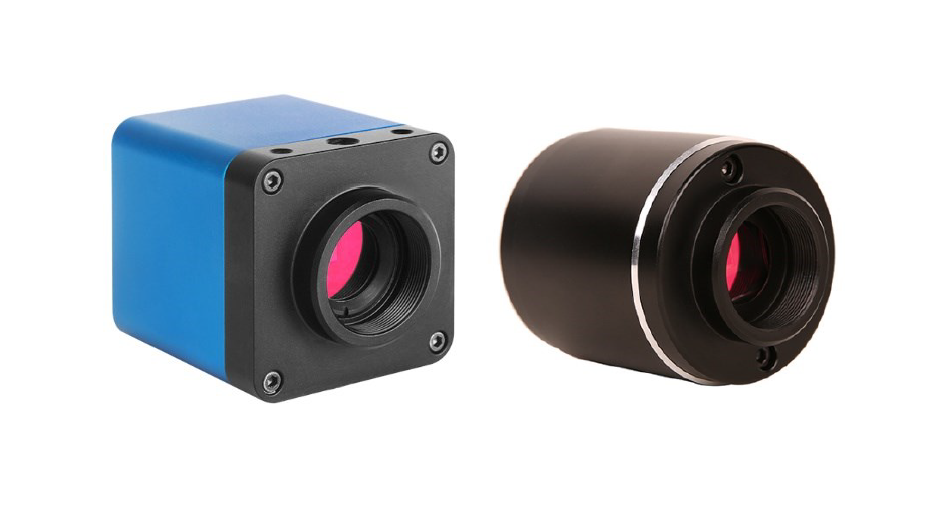

XCAMLITE1080P Series Camera
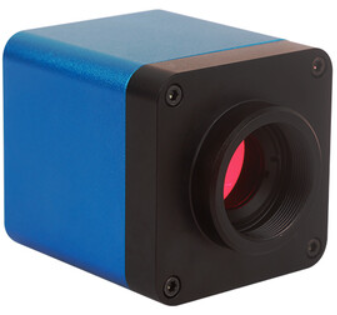
Product Information
The XCAMLITE1080P series camera is designed to capture digital images from stereo and biological microscopes with an HDMI interface. It features a Sony Starvis back illuminated CMOS sensor, FHD HDMI video outputs, SD card for captured image and video storage, and embedded XCamView software for camera control. The camera also has strong ISP and other related processing functions.
The camera’s datasheet lists the following specifications:
- Order Code: XCAMLITE1080PA
- Sensor & Size(mm): Sony IMX307(C) 1/2.8(5.57×3.13)
- Pixel(m): 2.9×2.9
- G Sensitivity: 1300mv with 1/30s
- FPS/Resolution: 60@1920*1080(HDMI)
- Binning: 1×1
- Exposure(ms): 0.01~1000
- Interface and Button: HDMI, LED, USB Mouse, DC12V, SD
- Video Output Interface: HDMI Interface
- Other Function: Video Saving, Image Capture
- Measurement Saving
- ISP Function
- Image Operations
- Embedded RTC(Optional)
- Restore Factory Settings
- Multiple Language Support: English / Simplified Chinese / Traditional Chinese / Korean / Thai / French / German / Japanese / Italian / Russian
- Operating Temperature (in Centidegree): -10~50
- Storage Temperature (in Centidegree): -20~60
- Operating Humidity: 30~80%RH
- Storage Humidity: 10~60%RH
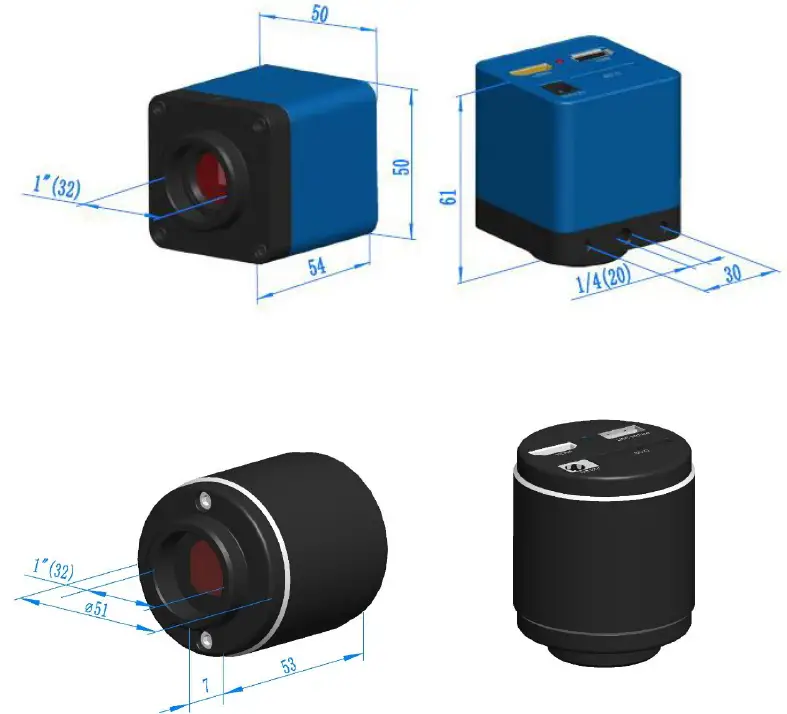
The camera’s dimensions are shown in Figure 3-1.
Product Usage Instructions
To use the XCAMLITE1080P series camera, follow these steps:
- Connect the camera to a stereo or biological microscope with an HDMI interface.
- Connect the camera to a power source using the included power adapter.
- Insert an SD card into the camera for image and video storage.
- Connect a USB mouse to the camera for easy operation with the embedded XCamView software.
- Turn on the camera and monitor to view the captured images and videos.
The camera can also be used with the included HDMI cable to connect to a standard FHD monitor. To save videos or capture images, use the video saving or image capture functions. The camera also has measurement saving, ISP function, image operations, and embedded RTC (optional) capabilities. To restore factory settings, use the appropriate function in the embedded XCamView software. The camera supports multiple languages including English, Simplified Chinese, Traditional Chinese, Korean, Thai, French, German, Japanese, Italian, and Russian.
The Application of the XCAMLITE1080P Series Camera
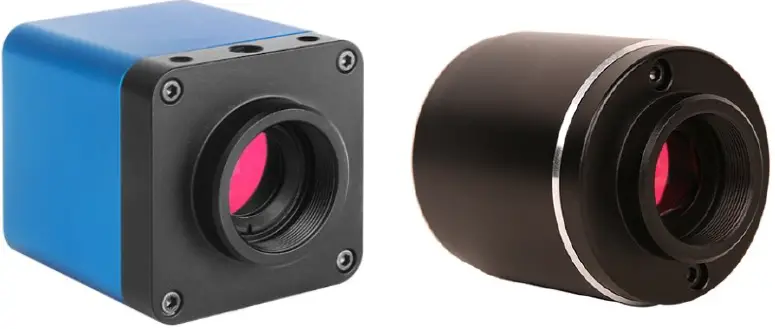 The XCAMLITE1080P series camera is intended to be used for the acquisition of digital images from the stereo microscope and biological microscope with HDMI interface. The basic characteristic is listed as below:
- Sony Starvis back illuminated CMOS sensor
- FHD HDMI video outputs
- SD card for the captured image and video storage
- Embedded XCamView for the control of the camera
- With strong ISP and other related processing functions
XCAMLITE1080P Series Camera Datasheet and Functions(1)
| Order Code | Sensor & Size(mm) | Pixel(μm) | G Sensitivity | FPS/Resolution | Binning | Exposure(ms) |
| XCAMLITE1080PA XPLITE1080PA | Sony IMX307(C) 1/2.8″(5.57×3.13) | 2.9×2.9 | 1300mv with 1/30s | 60@1920*1080(HDMI) | 1×1 | 0.01~1000 |
Available Ports on the Back Panel of the Camera Body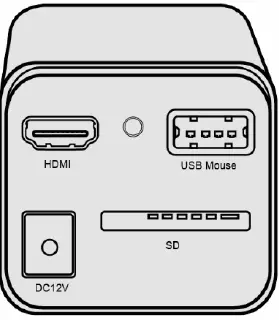
| Interface and Button | Function Description |
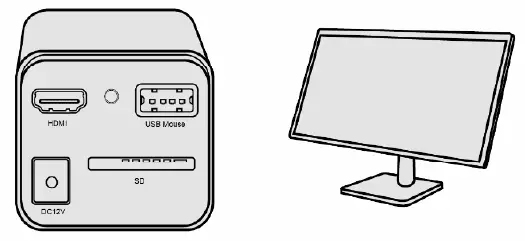
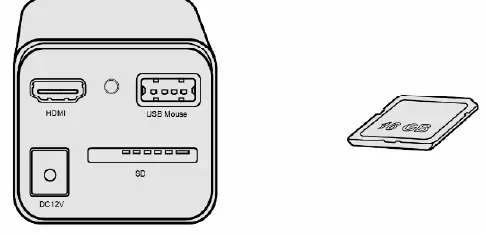
| HDMI | Comply with HDMI1.4 standard. 1080P format video output for standard FHD monitor |
| LED | LED status indicator |
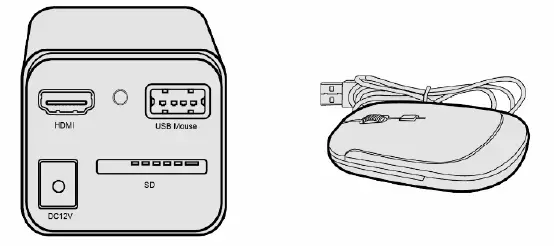
| USB Mouse | Connect USB mouse for easy operation with embedded XCamView software |
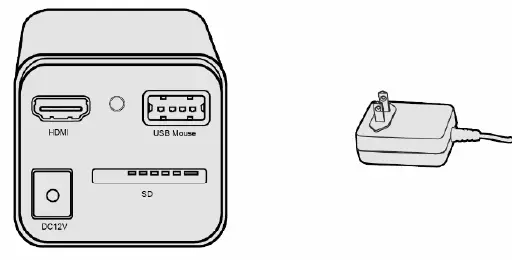
| DC12V | Power adapter connection (12V/1A) |
| SD | Comply with SDIO3.0 standard and SD card could be inserted for video and images storage |
| Video Output Interface | Function Description |
| HDMI Interface | Comply with HDMI1.4 standard; 60fps@1080P |
| Other Function | Function Description |
| Video Saving | Video format:2M(1920*1080) H264 encoded MP4 file Video saving frame rate:50~60fps (related with SD card performance) |
| Image Capture | 2M (1920*1080) JPEG image in SD card |
| Measurement Saving | Measurement information saved in different layer with image content; Measurement information is saved together with image content in burn in mode. |
| ISP Function | Exposure(Automatic / Manual Exposure) / Gain, White Balance(Manual / Automatic / ROI Mode), Sharpening, 3D Denoise, Saturation Adjustment, Contrast Adjustment, Brightness Adjustment, Gamma Adjustment, Color to Gray, 50HZ/60HZ Anti-flicker Function |
| Image Operations | Zoom In/Zoom Out, Mirror/Flip, Freeze, Cross Line, Overlay, Embedded Files Browser, Video Playback, Measurement Function |
| Embedded RTC(Optional) | To support accurate time on board |
| Restore Factory Settings | Restore camera parameters to its factory status |
| Multiple Language Support | English / Simplified Chinese / Traditional Chinese / Korean / Thai / French / German / Japanese / Italian / Russian |
| Operating Environment | |
| Operating Temperature (in Centidegree) | -10°~ 50° |
| Storage Temperature (in Centidegree) | -20°~ 60° |
| Operating Humidity | 30~80%RH |
| Storage Humidity | 10~60%RH |
Dimension of XCAMLITE1080P Series
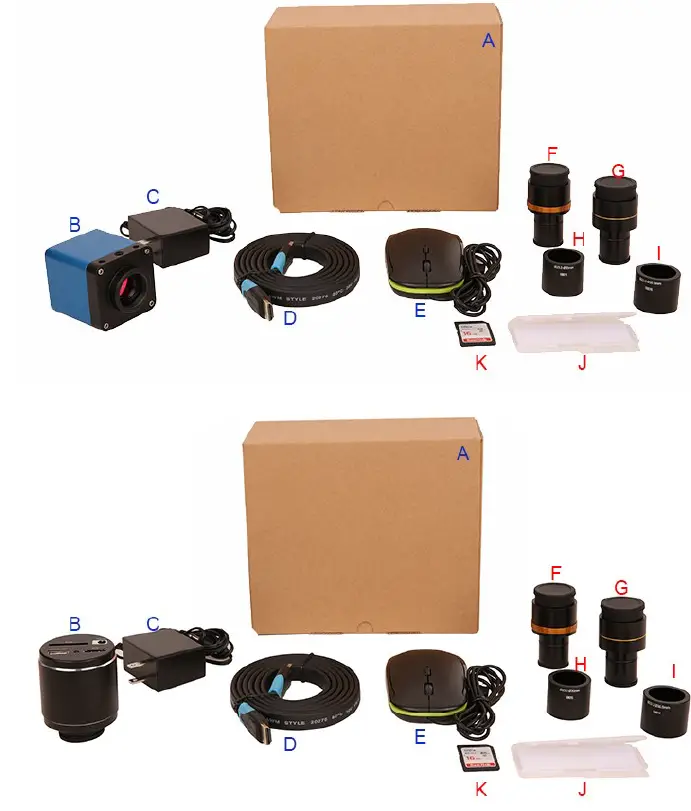
XCAMLITE1080P Series Camera Packing Information
| Standard Packing List | |||
| A | Gift box : L:17.4cm W:17.4cm H:7.6cm (1pcs, 0.54kg/ box) | ||
| B | XCAMLITE1080PA camera (square or circular shape) | ||
| C | Power Adapter: Input: AC 100~240V 50Hz/60Hz, Output: DC 12V 1A American standard: Model: POWER-U-12V1A(MSA-C1000IC12.0-12W-US): UL/CE/FCC European standard: Model: POWER-E-12V1A(MSA-C10001C12.0-12W-DE): UL/CE/FCC EMI standard: FCC Part 15 Subpart B EMS standard: EN61000-4-2,3,4,5,6 | ||
| D | HDMI cable | ||
| E | USB mouse/USB wireless mouse | ||
| Optional Accessory | |||
| F | Adjustable lens adapter | C-Mount to Dia.23.2mm eyepiece tube (Please choose 1 of them for your microscope) | 108001/AMA037 108002/AMA050 108003/AMA075 |
| G | Fixed lens adapter | C-Mount to Dia.23.2mm eyepiece tube (Please choose 1 of them for your microscope) | 108005/FMA037 108006/FMA050 108007/FMA075 |
| Note : For F and G optional items, please specify your camera type(C-mount, microscope camera or telescope camera), ToupTek engineer will help you to determine the right microscope or telescope camera adapter for your application; | |||
| H | 108015(Dia.23.2mm to 30.0mm Ring)/Adapter rings for 30mm eyepiece tube | |
| I | 108016(Dia.23.2mm to 30.5mm Ring)/ Adapter rings for 30.5mm eyepiece tube | |
| J | Calibration kit | 106011/TS-M1(X=0.01mm/100Div.); 106012/TS-M2(X,Y=0.01mm/100Div.); 106013/TS-M7(X=0.01mm/100Div., 0.10mm/100Div.) |
| K | SD card(4G or 8G) | |
XCAMLITE1080P Series Camera Application Configurations
Camera Working Standalone with Built-in XCamView Software
For this application, apart from the microscope, you only need an HDMI monitor, the supplied USB mouse and the camera embedded XCamView software. The steps to start the camera are listed as below: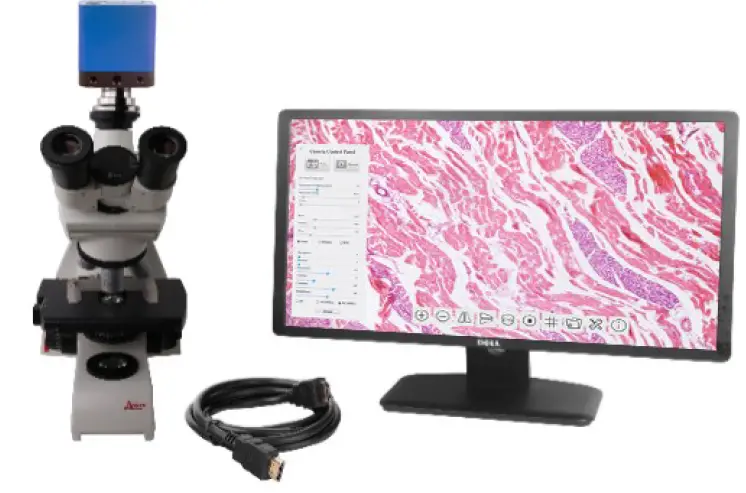
- Connect the camera to a HDMI monitor using the HDMI cable;

- Insert the supplied USB mouse to the camera’s USB port;

- Insert the supplied SD card into the HDMI camera SD card;

- Connect the camera to the power adapter and switch it on;

- Turn on the monitor and view the video in the XCamView software. Move the mouse to the left ,top or bottom of the XCamView UI, different control panel or UI will pop up and users could operate with the mouse at ease.
Brief Introduction of XCAMLITE1080P Series Camera’s UI and Its Functions
XCamView UI
The XCAMLITE1080P series camera’s UI shown in Figure 6-1 includes a Camera Control Panel on the left of the video window, a Measurement Toolbar on the top of the video window and a Synthesis Camera Control Toolbar on the bottom of the video window.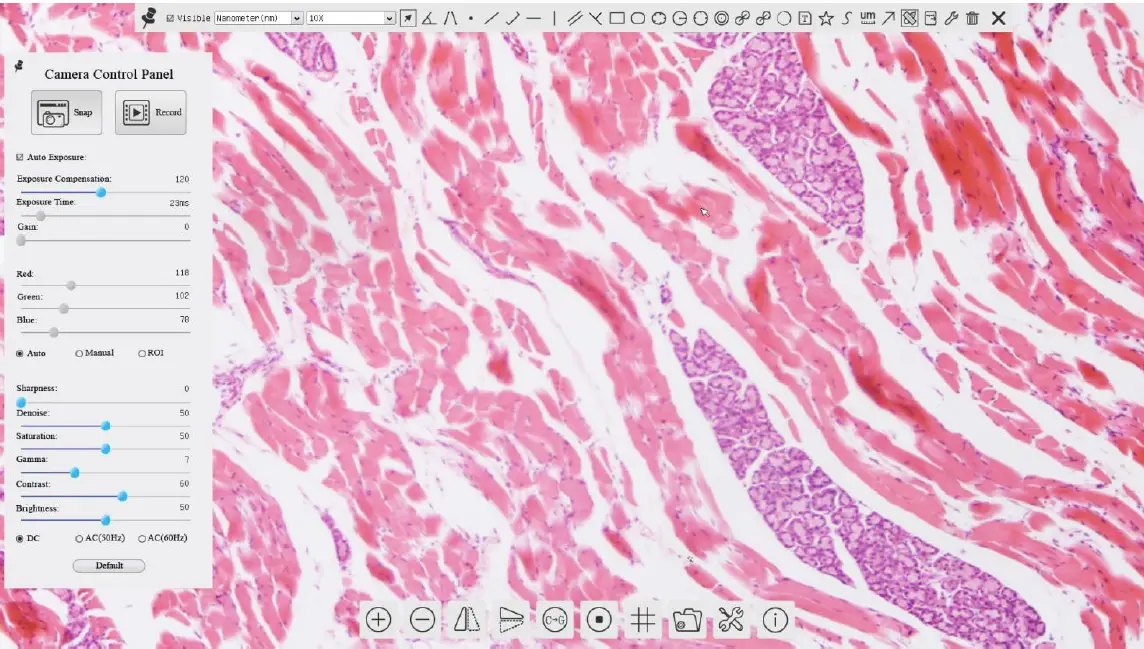
The Camera Control Panel on the Left Side of the Video Window
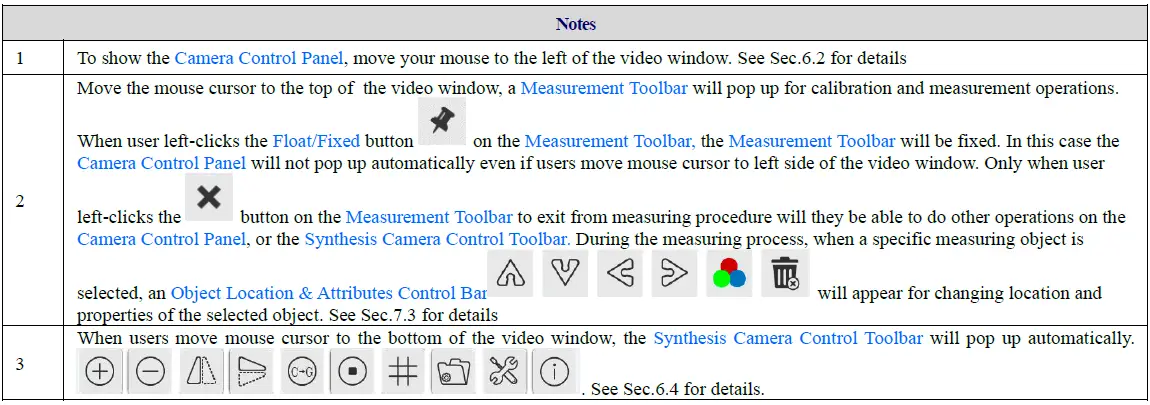
The Camera Control Panel controls the camera to achieve the best video or image quality according to the specific applications; It will pop up automatically when the mouse cursor is moved to the left side of the video window. Left-clicking button to achieve Display/Auto Hide switch of the Camera Control Panel.
| Camera Control Panel | Function | Function Description |
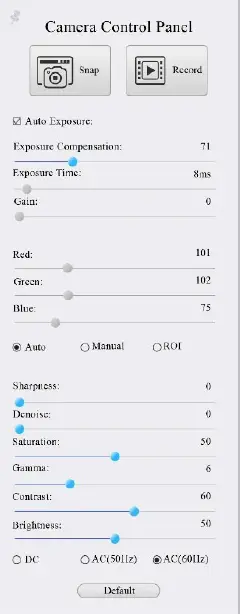 | Snap | Capture image and save it to the SD card |
| Record | Record video and save it to the SD card | |
| Auto Exposure | When Auto Exposure is checked, the system will automatically adjust exposure time and gain according to the value of exposure compensation | |
| Exposure Compensation | Available when Auto Exposure is checked. Slide to left or right to adjust Exposure Compensation according to the current video brightness to achieve proper brightness value | |
| Exposure Time | Available when Auto Exposure is not checked. Slide to left or right to reduce or increase exposure time, adjusting brightness of the video | |
| Gain | Adjust Gain to reduce or increase brightness of video. The Noise will be reduced or increased accordingly | |
| Red | Slide to left or right to decrease or increase the proportion of Red in RGB on video | |
| Green | Slide to left or right to decrease or increase the proportion of Green in RGB on video | |
| Blue | Slide to left or right to decrease or increase the proportion of Blue in RGB on the video | |
| Auto White Balance | White Balance adjustment according to the video continuously | |
| Manual White Balance | Adjust the Red or Blue item to set the video White Balance. | |
| ROI White Balance | White Balance could be adjusted when the ROI region is changed according to content inside the ROI region. | |
| Sharpness | Adjust Sharpness level of the video | |
| Denoise | Slide left or right to denoise the video | |
| Saturation | Adjust Saturation level of the video | |
| Gamma | Adjust Gamma level of the video. Slide to the right side to increase gamma and to the left to decrease gamma. | |
| Contrast | Adjust Contrast level of the video. Slide to the right side to increase contrast and to the left to decrease contrast. | |
| DC | For DC illumination, there will be no fluctuation in light source so no need for compensating light flickering | |
| AC(50HZ) | Check AC(50HZ) to eliminate flickering caused by 50Hz light source | |
| AC(60HZ) | Check AC(60HZ) to eliminate flickering caused by 60Hz light source | |
| Default | Restore all the settings in the Camera Control Panel to default values |
The Measurement Toolbar on top of the Video Window
The Measurement Toolbar will pop up when moving mouse cursor to any place near the upper edge of the video window. Here is the introduction of the various functions on the Measurement Toolbar: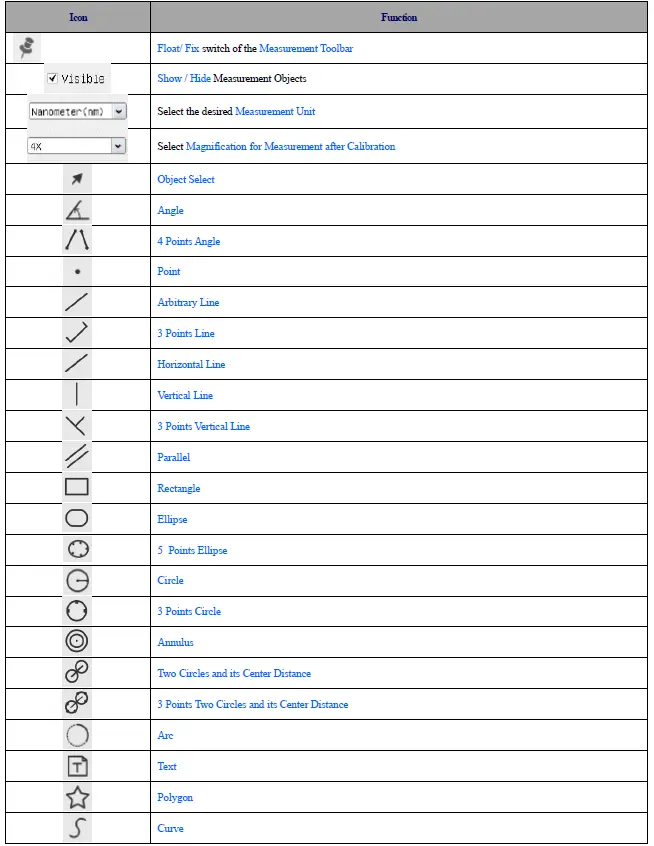
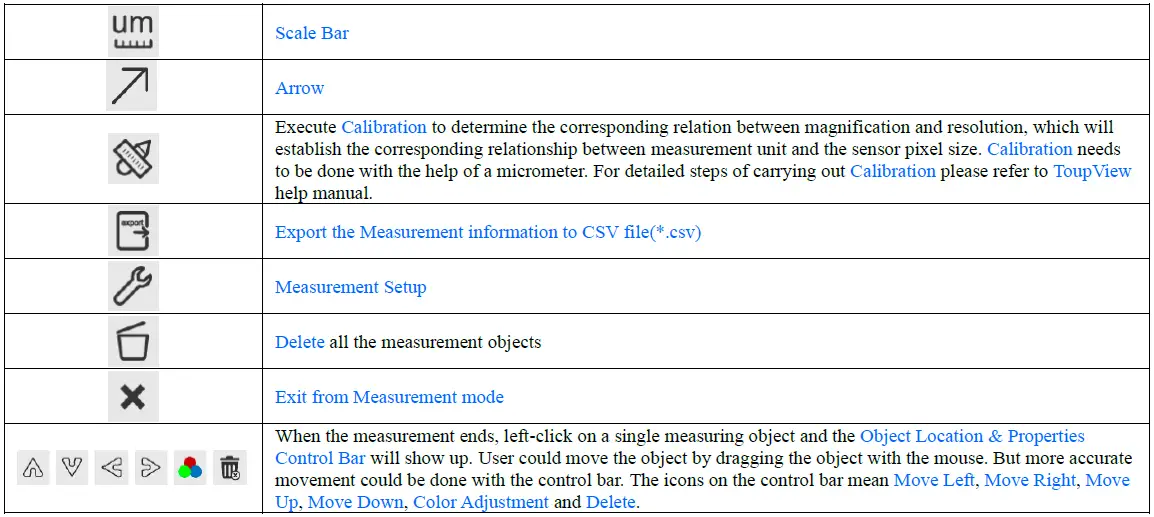 Note:
Note: 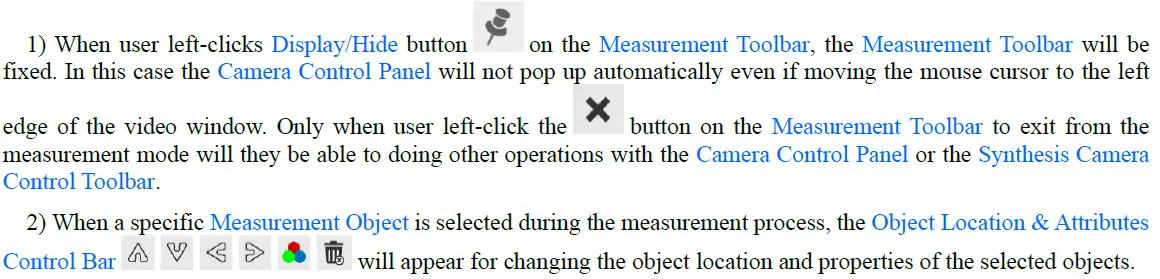
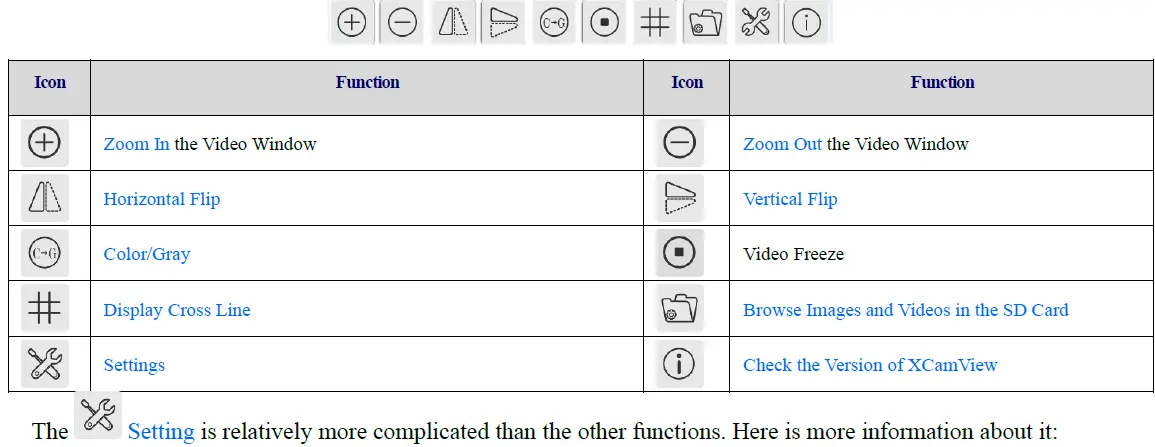
Icons and Functions of the Synthesis Camera Control Toolbar at the Bottom of the Video Window
 Setting>Measurement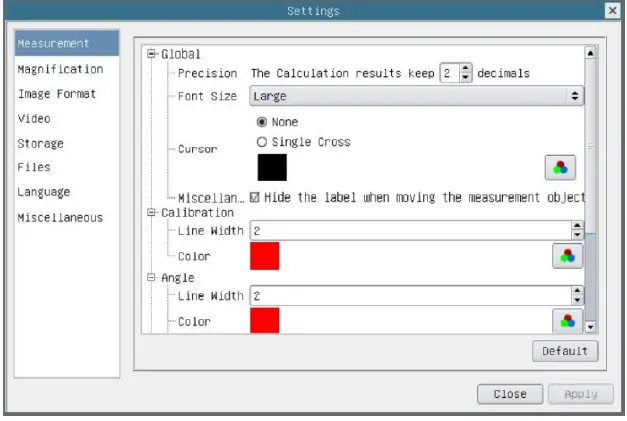
| Global | Precision | Used to set the number of digits after the decimal point of the measurement result |
| Calibration | Line Width | Used for defining width of the lines for calibration; |
| Color | Used for defining color of the lines for calibration; | |
| EndPoint | Type: Used for defining shape of the endpoints of lines for calibration: Null means no EndPoints, rectangle means rectangle type of endpoints. It makes alignment more easily; | |
| Point, Angle, Line, Horizontal Line, Vertical Line, Rectangle, Circle, Ellipse, Annulus, Two Circles, Polygon, Curve | ||
| Left-click the along with the Measurement command mentioned above will unfold the corresponding attribute settings to set the individual property of the Measurement Objects. | ||
Setting>Magnification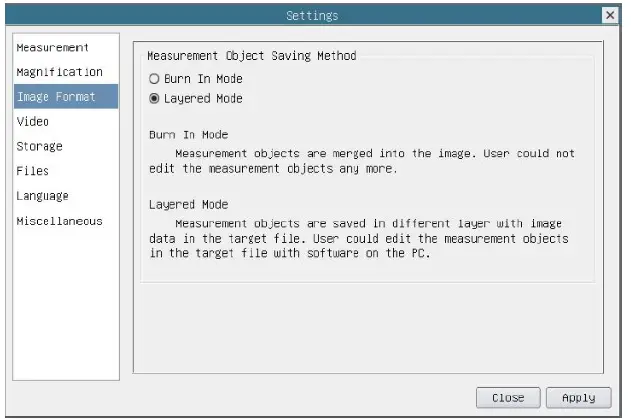
| Name | The name of the magnification, usually the magnification of the objective of the microscope is used as the magnification name when calibration, such as 4X, 10X, 100X, etc. Besides, other user-defined information could be added into the magnification name too, for example, microscope model, operator name, etc. |
| Resolution | Pixels per meter. Image device like microscopes have high resolution value; |
| Clear All | Click the Clear All button will clear the calibrated magnifications; |
| Delete | Click Delete to delete the selected magnification; |
Settings>Image Format
| Measurement Object Save Method | Burn in Mode: The measurement objects are merged into the current image. User could not edit the measurement objects anymore. This mode is not reversable. Layered Mode: The measurement objects are saved in different layer with current image data in the target file. User could edit the measurement objects in the target file with some software on the PC. This mode is reversable. |
Settings>Video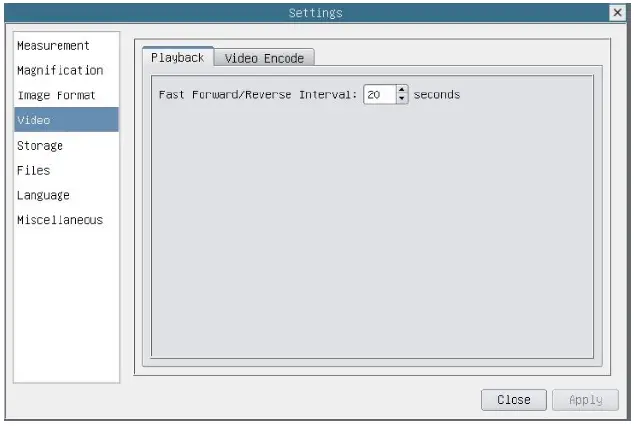
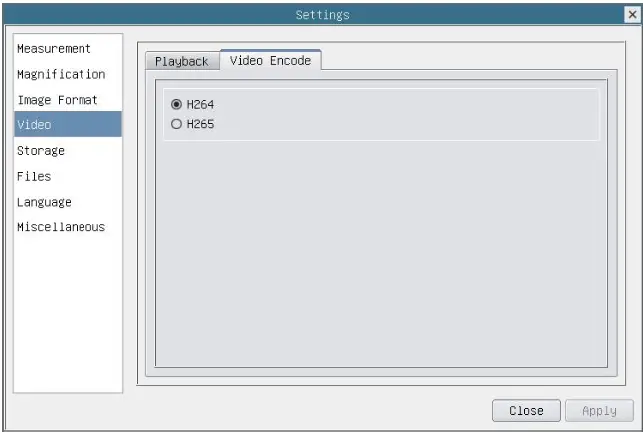
| Fast Forward/Reverse Interval | The time interval of the playback of video files. |
| Video Encode | H264: The encoding format of the video files is H264 format. H265: The encoding format of the video files is H265 format. |
Setting>Storage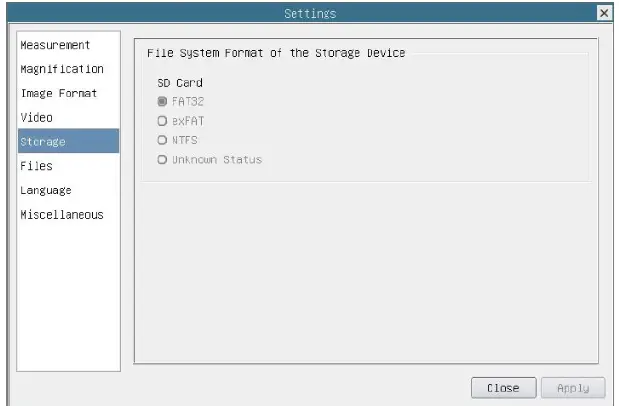
| Storage Device | SD Card: SD Card is only supported as the storage device. |
| File System Format of the Storage Device | List the file system format of the current storage device FAT32: The file system of SD card is FAT32. The maximum video file size of single file is 4G Bytes; exFAT: The file system of SD card is exFAT. The maximum video file size of single file is 4G Bytes; NTFS: The file system of SD card is NTFS. The maximum video file size of single file is 4G Bytes. Use PC to format the SD cards and switch between FAT32, exFAT and NTFS. Unknown Status: SD card not detected or the file system is not identified; |
Setting>Files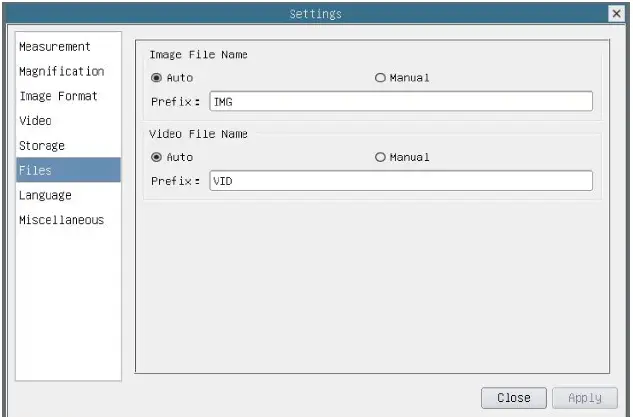
| Image File Name | Auto: The image files will be saved automatically with the specified prefix. Manual: Users has to specify the file name before image saving. |
| Video File Name | Auto: The video file will be saved automatically with the specified prefix. Manual: Users has to specify the video file name before video recording. |
| Note: The maximum video file size is 4G Bytes. Multiple video files may be generated automatically during long time video recording. | |
Setting>Language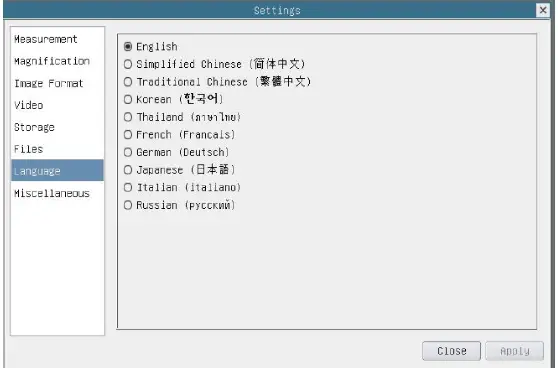
| English | Set language of the whole software into English; |
| Simplified Chinese | Set language of the whole software into Simplified Chinese; |
| Traditional Chinese | Set language of the whole software into Traditional Chinese; |
| Korean | Set language of the whole software into Korean; |
| Thailand | Set language of the whole software into Thailand; |
| French | Set language of the whole software into French |
| German | Set language of the whole software into German |
| Japanese | Set language of the whole software into Japanese |
| Italian | Set language of the whole software into Italian |
| Russian | Set language of the whole software into Russian |
Setting>Miscellaneous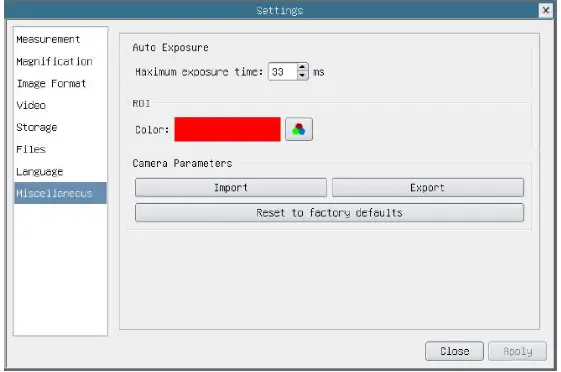
| Auto Exposure | The maximum exposure time during auto exposure process could be specified. Setting this item to a lower value could guarantee a faster frame rate during auto exposure. |
| ROI Color | Choosing the ROI rectangle line color |
| Camera Parameters Import | Import the Camera Parameters from the SD card to use the previously exported Camera Parameters |
| Camera Parameters Export | Export the Camera Parameters to the SD card to use the previously exported Camera Parameters |
| Reset to factory defaults | Restore camera parameters to its factory status; |
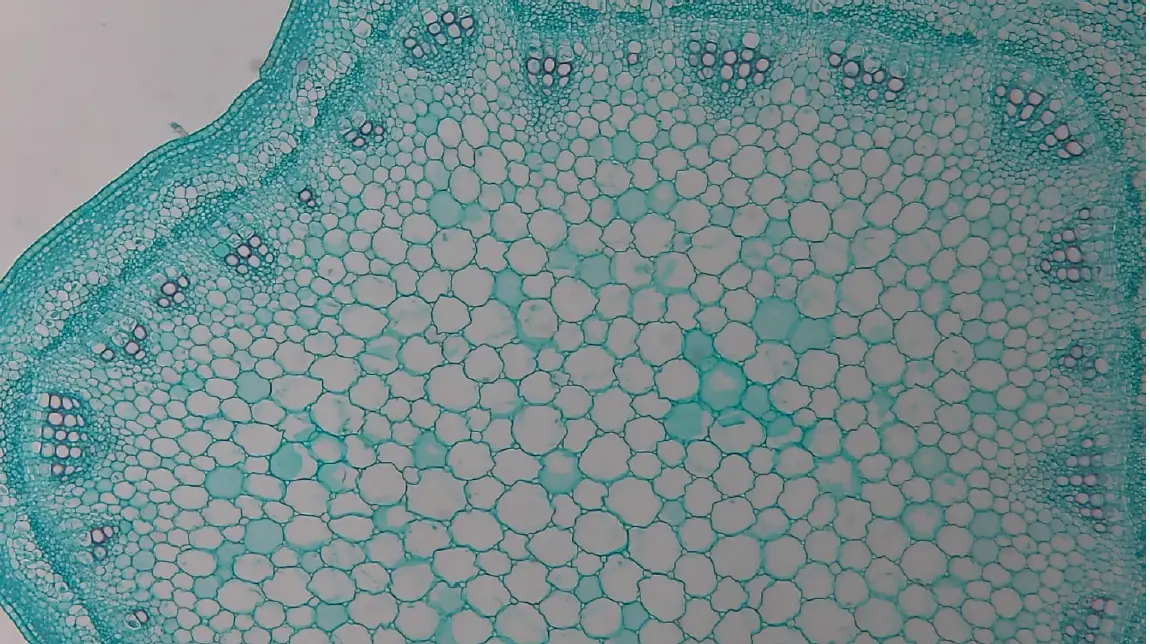
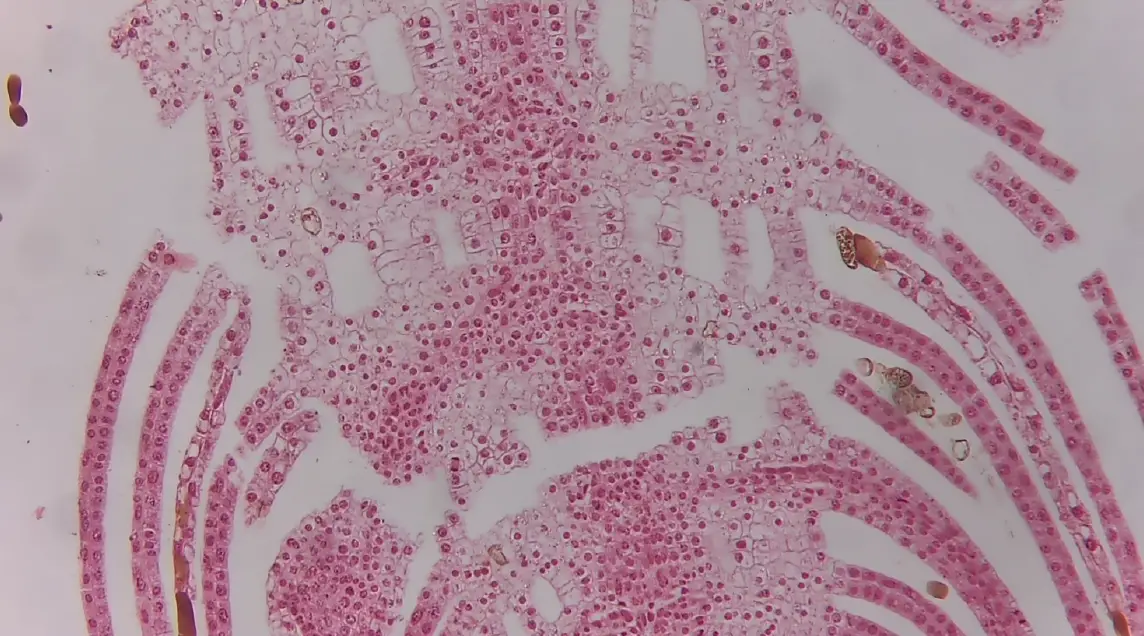
Sample Photos Captured with XCAMLITE1080P Series Camera
 Contacting Customer Service
Please contact your local distributor if you have any questions about the product.