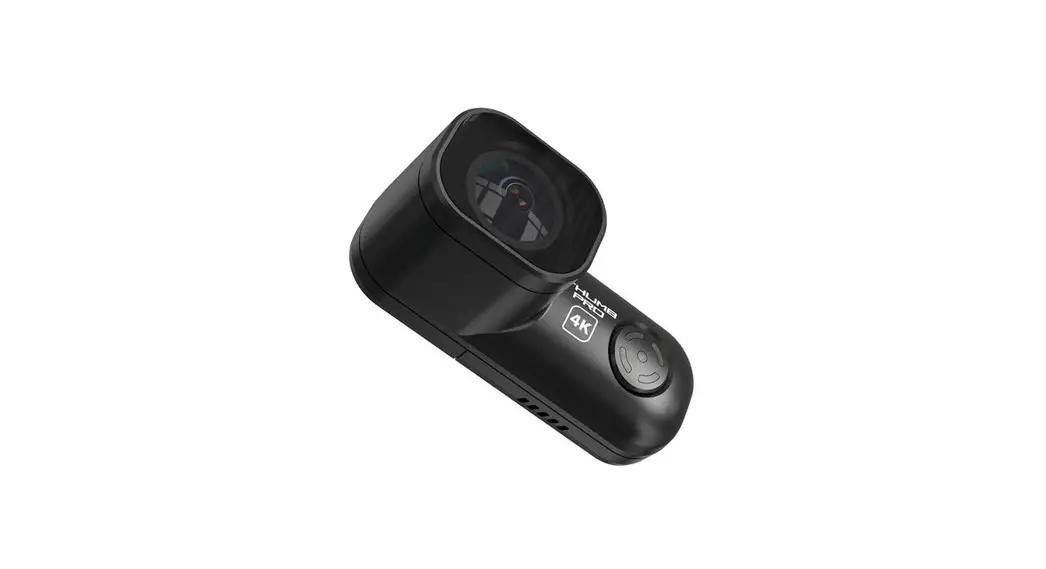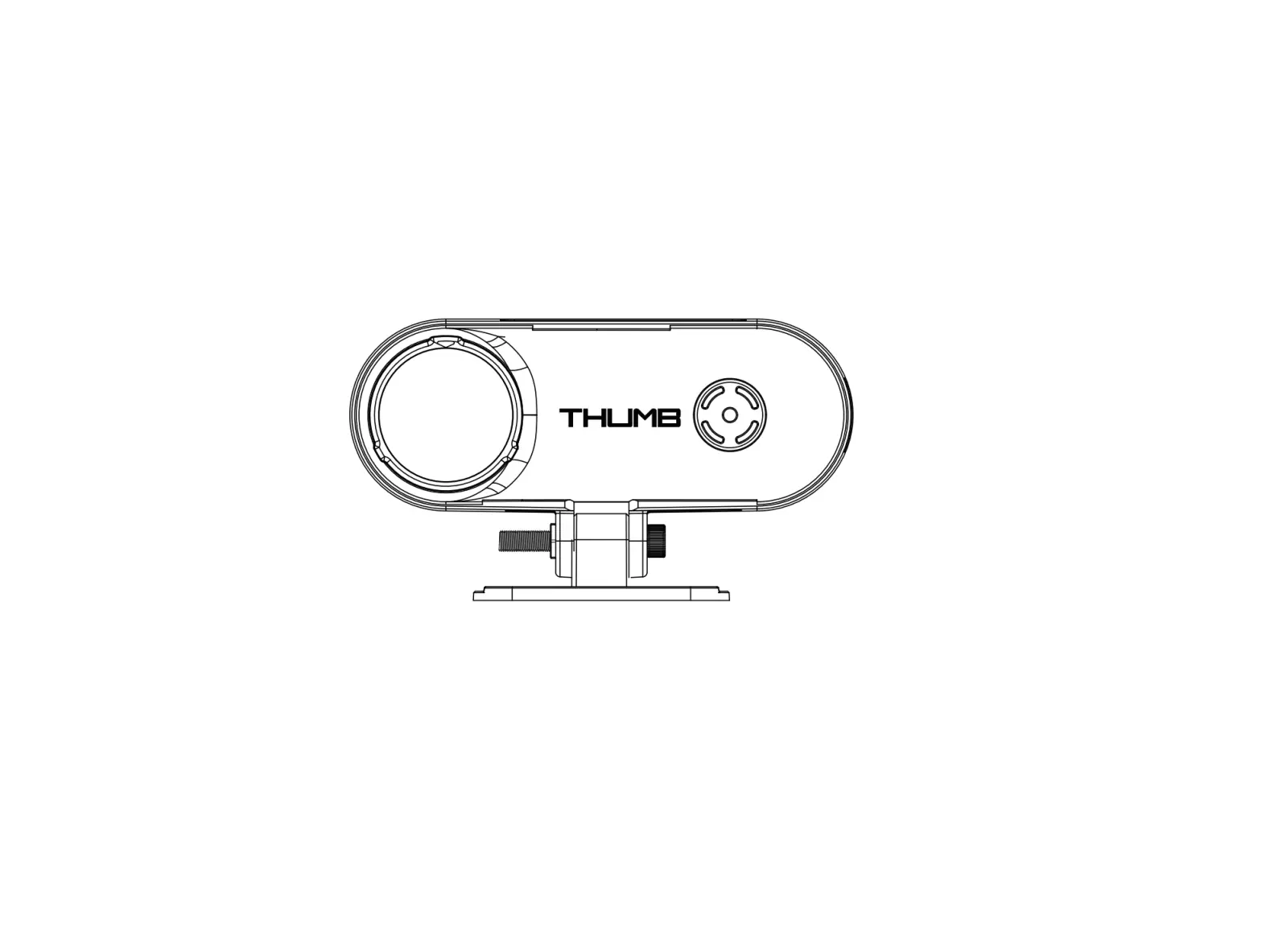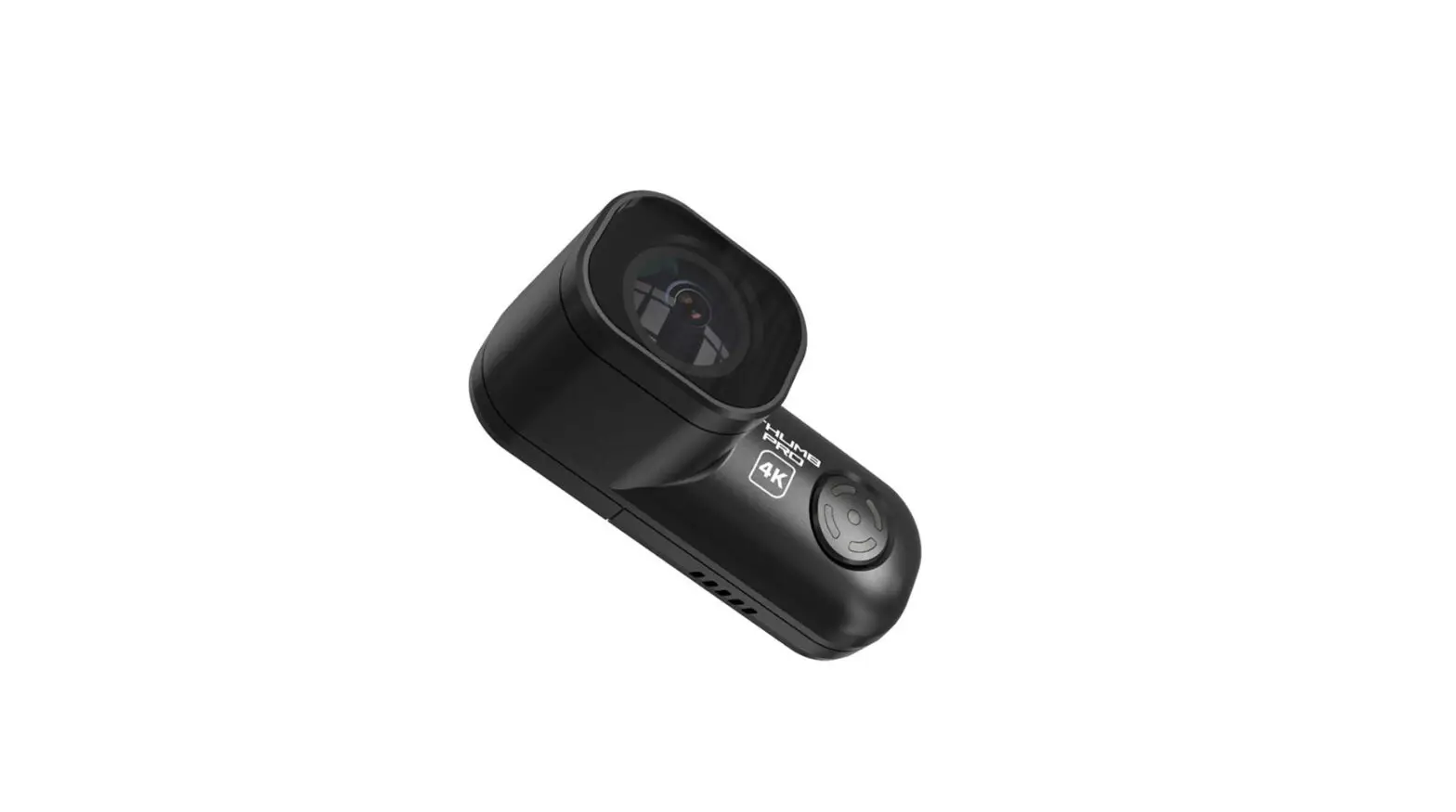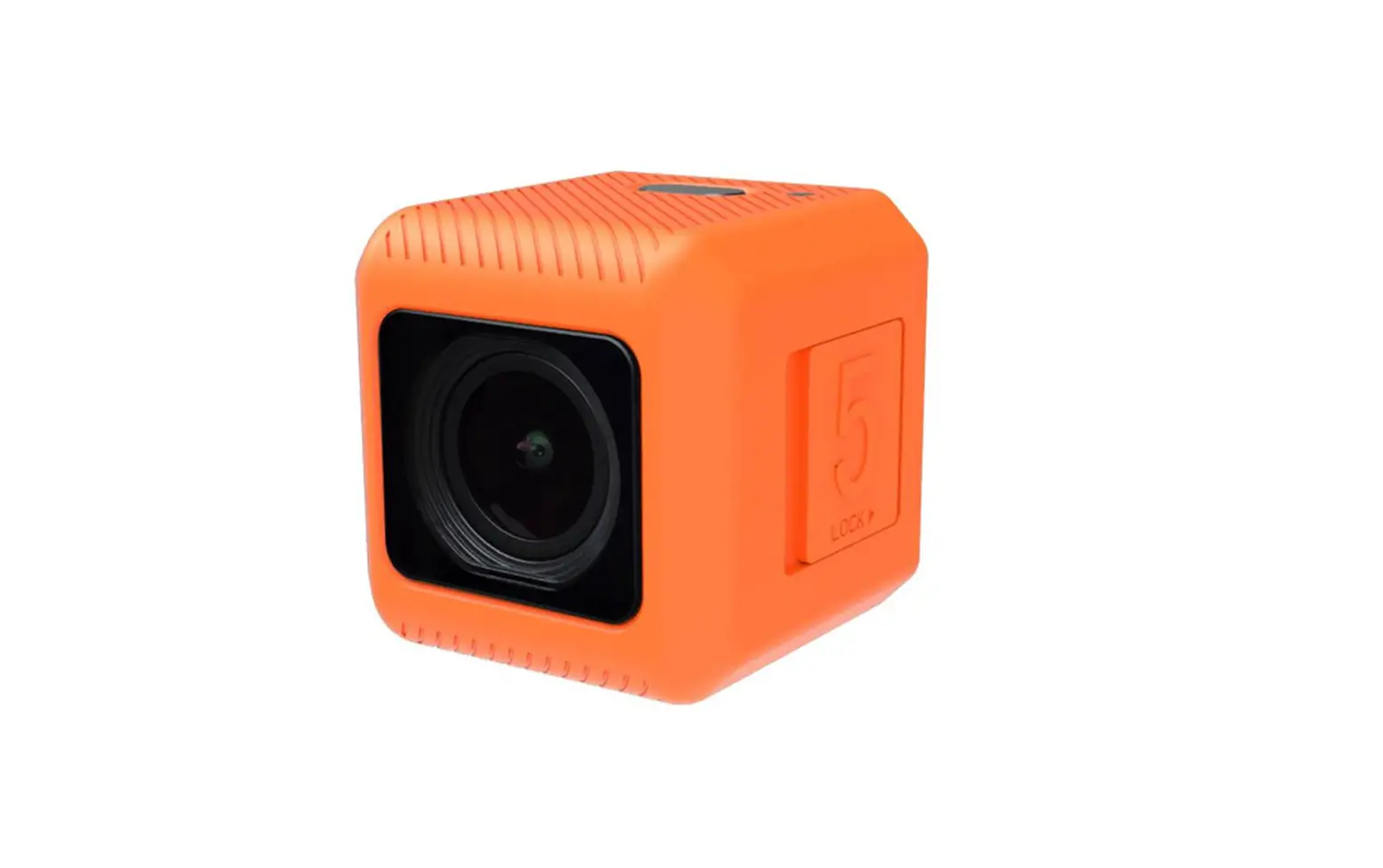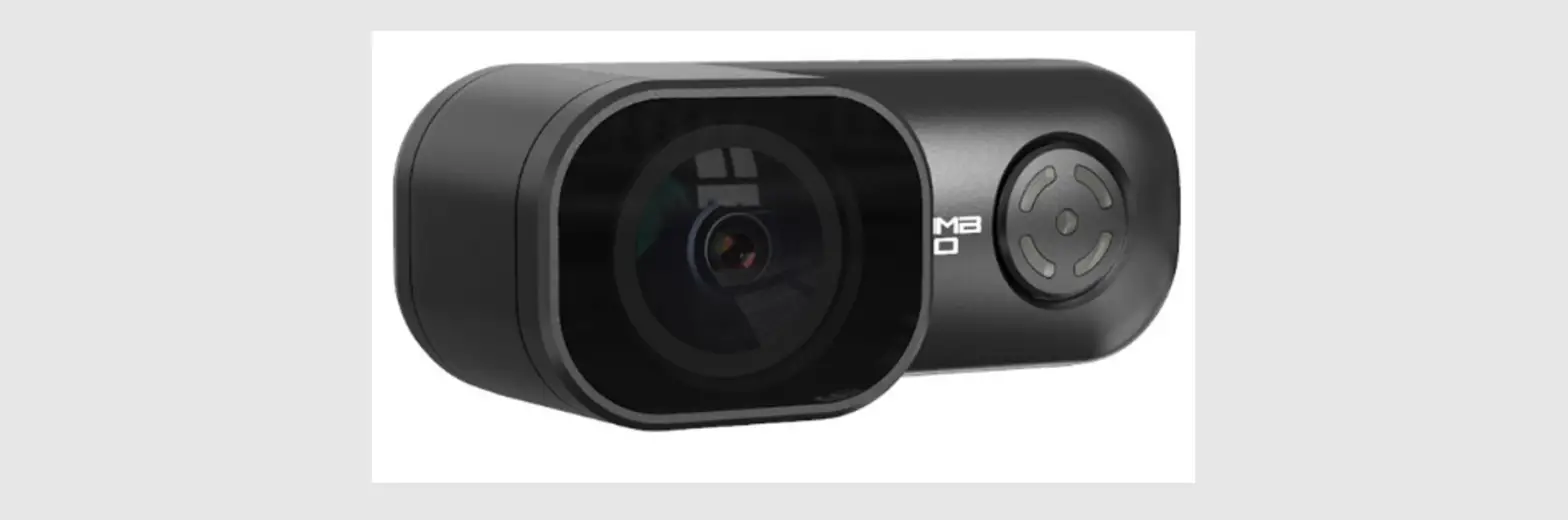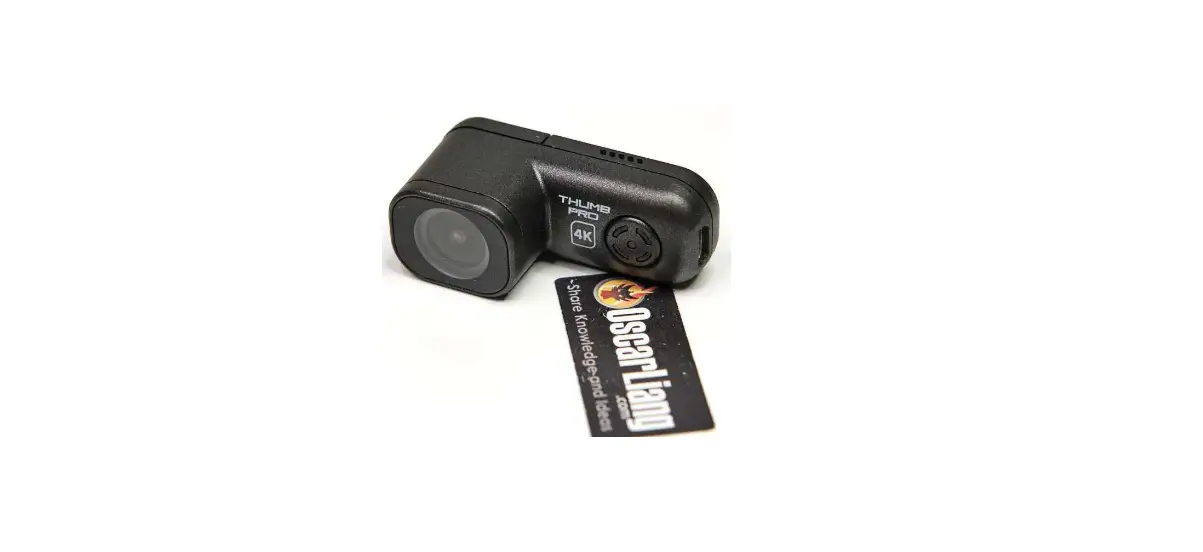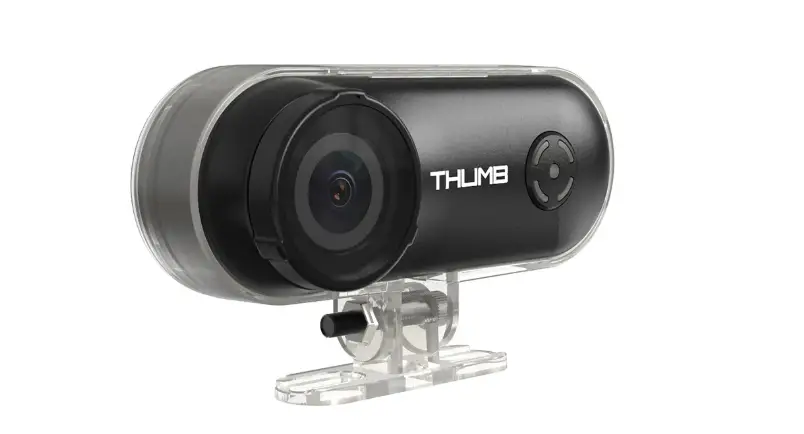

THUMB 6928352 RunCam Camera

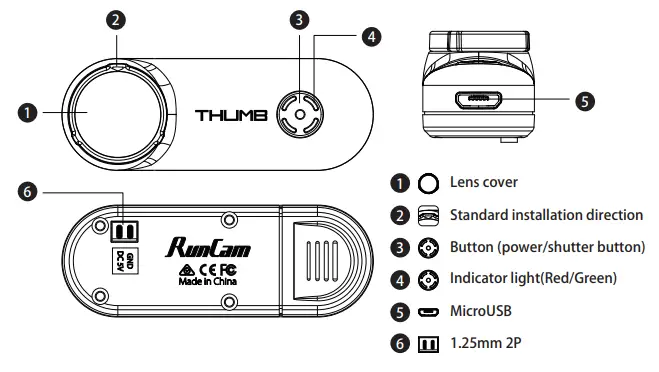
Function indication
Micro SD Card
Support up to 128G, high-speed cards (above Class10) are recommended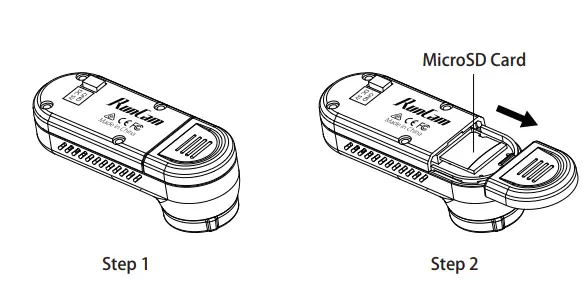
Camera connection operation
Step 1: Camera power connection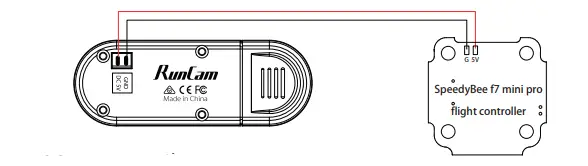
Step 2: Camera operation
Note: Boot without SD card or SD card error, the red LED will flash quickly, please try to format the SD card or change another one and power the camera on again.
Connect to the computer
After turning on Thumb, connect it to the computer with a USB cable and it will be recognized as a removable disk.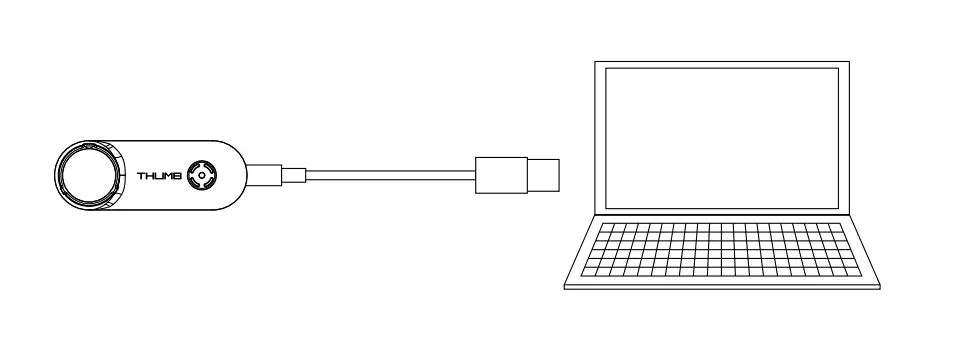
Note: If it cannot be recognized after connecting to the computer, please confirm that there is a microSD card inserted in the Runcam Thumb; if the files in the microSD card cannot be read normally, please replace the USB cable or the computer USB interface and try again.
Firmware upgrade
Firmware upgrade status (green light flashes slowly, the upgrade soon if the green light flashes quickly, the camera is shut dow completed)
Please make sure that the USB power supply or terminal power so before upgrading. Manually copy the firmware file (Thumb.bin) to the root directory MicroSD card. For specific steps, please refer to: https://runcam.com/download/Thumb. If you want your Runcam Thumb to get the latest features and pe make sure that the camera software you are using is the latest
Gyroscope Data Generated Function
Create a csvopen.txt file manually to the root directory of the camera’s microSD card.
It will take effect only after the camera is restarted. At this time, the camera will keep 1080p50fps video and gyroscope data at the same time in the SD card.
Technical Support
Please visit: https://support.runcam.com/hc/en-us
Parameters Table
| Product Name | Runcam Thumb |
| Resolution | 1080P@60FPS/1080P 50(CSV) |
| Video Format | MP4 |
| Gyro | Built-in |
| Communication Interface | Micro USB |
| Support Micro SD Card Capacity | 128G Max |
| USB Power Input/Terminal Power Supply | 5.0V |
| Power Consumption | 280ma@5V |
| Net Weight | 9.8g |
 RunCam - download