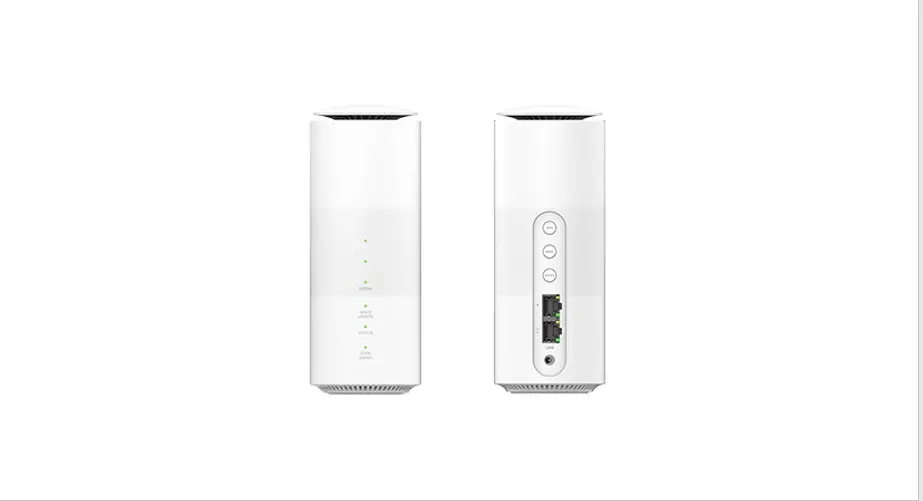
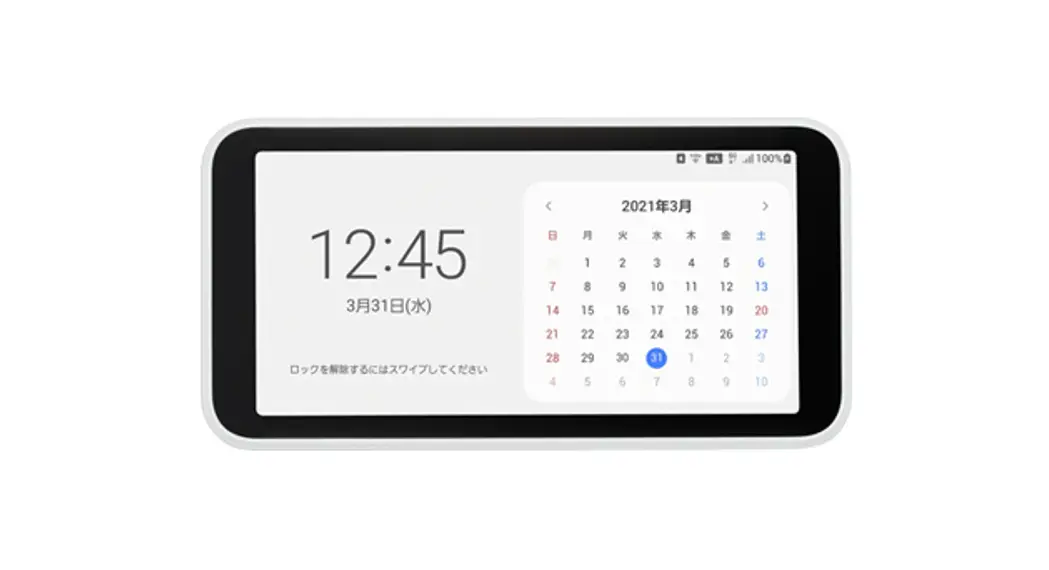
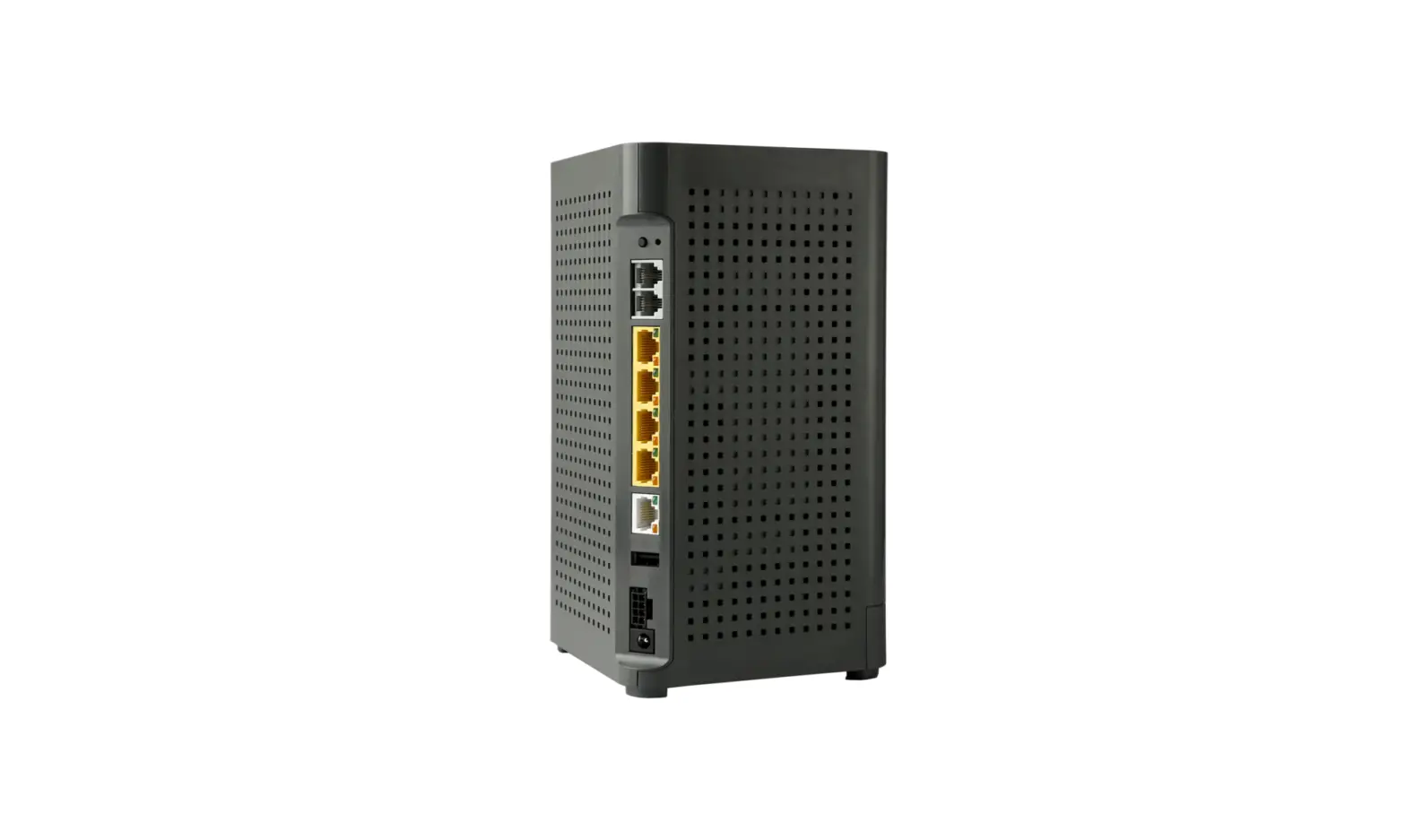
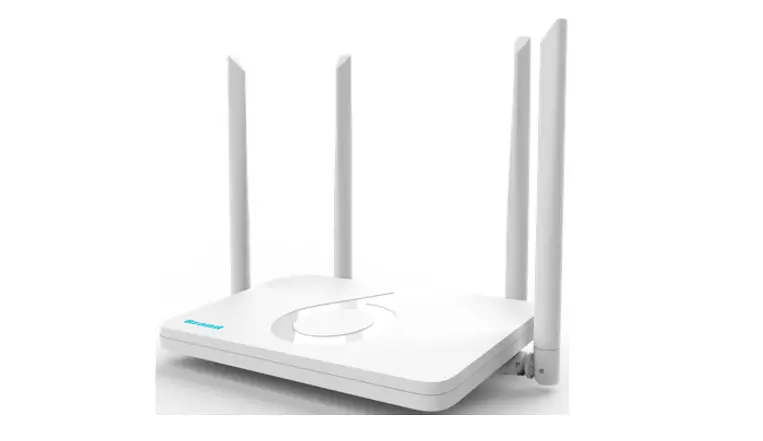
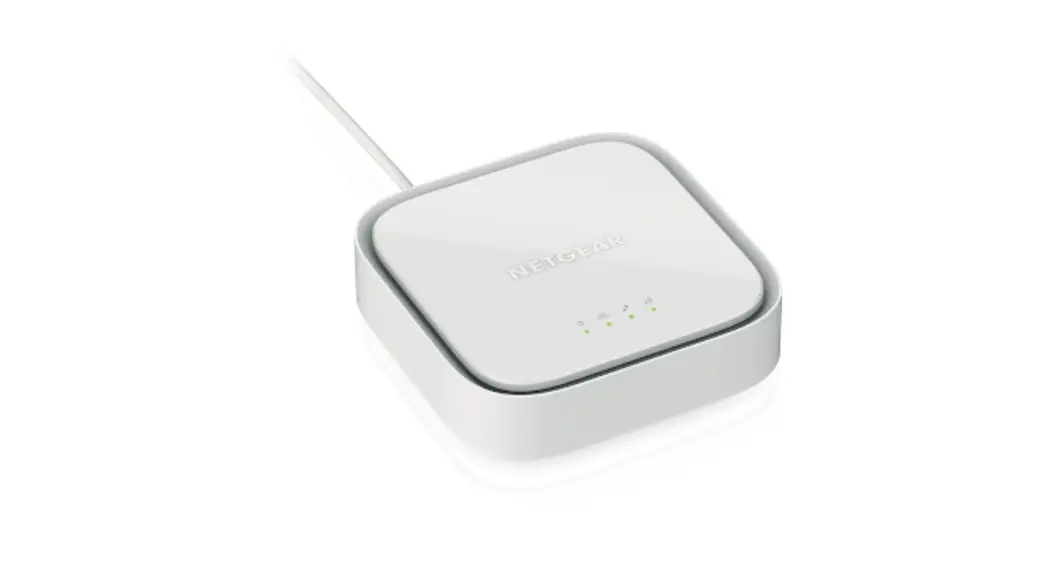
L13 Speed Wifi Home 5G
Product Information
The Speed Wi-Fi HOME 5G L13 is a wireless router that allows up
to 34 devices to connect to the internet simultaneously. It
automatically determines the most suitable network at the time to
connect and provides high-speed internet connectivity with a
maximum communication speed of 5G. The product is manufactured by
ZTE Corporation and imported by ZTE Japan. K.K. It comes with an AC
adapter, Ethernet cable, and Wi-Fi label for initial setup.
Product Usage Instructions
- Before using the product, read the Quick Start Guide and Notes
on usage (warranty) to ensure correct use. - Connect the AC adapter to the power source and the Speed Wi-Fi
HOME 5G L13 main unit. - Connect the Ethernet cable to the LAN port on the Speed Wi-Fi
HOME 5G L13 main unit and the device you want to connect to the
internet. - Turn on the Speed Wi-Fi HOME 5G L13 main unit and wait for it
to establish a connection. - Connect your device to the Speed Wi-Fi HOME 5G L13 network
using the Wi-Fi label provided. - If necessary, refer to the Full instruction manual available on
the au homepage for detailed explanations of various
functions.
Quick Start Guide
Preface
Thank you for purchasing the Speed Wi-Fi HOME 5G L13 (simply called “the product” from here on). Before using the product, be sure to read the “Quick Start Guide” (this manual) and “Notes on usage” to ensure correct use.
For Those Requiring an English Instruction Manual
Download URL: https://www.au.com/english/support/manual/
About descriptions
Illustrations and screens shown in this manual may look different from the actual ones. In some cases minor details or a part of a screen may be omitted.
In this manual, ” (Quick Start Guide)” (Japanese), ” ( ) (Notes on usage (warranty))” (Japanese), and ” (Full instruction manual)” (Japanese) are collectively referred to as “Instruction Manual”.
Company names and product names referred to in this manual are trademarks or registered trademarks of respective companies. The TM marks or ® marks may be omitted in the description.
* “The Company” as appears in the manual refers to the following companies: Sold by: KDDI CORPORATION, OKINAWA CELLULAR TELEPHONE COMPANY Manufactured by: ZTE Corporation Imported by: ZTE Japan. K.K.
* Reproduction of the content of “Instruction Manual” in part or in whole is prohibited. * The content of “Instruction Manual” is subject to change without notice. * Due to the specification changes of the operating system or termination of the services,
some features become unavailable. * Every effort has been made in the preparation of “Instruction Manual”. Should you notice any
unclear points, omissions, etc., feel free to contact us.
Note
Please read the phrases in this manual as those shown on the table below according to your carrier.
Phrase
au Style/au shop Toyota store Customer Center Repair and Delivery Support Center
au homepage
Read as your WiMAX carrier*
your WiMAX carrier* homepage
au Nano IC Card 05
au Nano IC Card 05 U
(Description on switching to +A mode (Plus Area Mode)) Note that additional fee may be applied depending on your billing plan.
(Description on switching to +A mode (Plus Area Mode)) Prescribed additional fee may be applied. For details, contact your WiMAX carrier*.
* We will let you know about the contact for WiMAX carrier when you purchase the product.
What you can do with Speed Wi-Fi HOME 5G L13
You can connect multiple wireless LAN (Wi-Fi®) devices such as PCs or smartphones up to 32 devices at the same time via wireless LAN (Wi-Fi®) function, or connect a PC using the included Ethernet cable (sample). Also, the data communication via Internet connection using 5G system, LTE system, or WiMAX 2+ system is available (best effort*1) from connected devices through the product.
*1: Communication speed may not reach the maximum value depending on connection environment. Also, communication match-up may not work properly depending on your connected device or game.
The product automatically determines the most suitable network at the time to connect.
Connecting via wireless LAN (Wi-Fi®)
In this manual, how to connect with a PC, smartphone, etc. via wireless LAN (Wi-Fi®) is described.
Connecting via Ethernet cable
(sample)
Refer to “LAN (LAN connection)” on ” (Full instruction manual)” (Japanese). * You can use the wireless LAN (Wi-Fi®)
connection and LAN connection at the same time. Up to 34 devices in total can be connected.
Packaged items
Before you start using the product, make sure that you have all the following items packaged with the product.
Speed Wi-Fi HOME 5G AC adapter L13 main unit
Ethernet cable (sample)
Wi-Fi (Wi-Fi Initial Setup) label (Japanese) (Quick Start Guide) (Japanese) () (Notes on usage (warranty)) (Japanese) * Illustrations of the product in the descriptions are sample images. They may differ from the
actual ones.
About Instruction Manual (Quick Start Guide) (Japanese), () (Notes on
usage (warranty)) (Japanese) Explains necessary information and notes you should know before using the product for the first time.
(Full instruction manual) (Japanese) ” (Full instruction manual)” (Japanese) which describes the detail explanations for various functions are available on the au homepage. https://www.au.com/support/service/mobile/guide/manual/ (Japanese)
PDF file of ” (Full instruction manual)” (Japanese) is also stored in the product. To view, connect the product and a PC, etc. via wireless LAN (Wi-Fi®) or Ethernet cable (sample) Activate a web browser Enter “http://192.168.0.1” in the address field “Help” on the upper part of the display.
Setting communication mode (WAN)
The product allows you to perform data communication via 5G system, LTE system, or WiMAX 2+ system with a wireless base station. You can select from the following communication modes for domestic use.
ST mode (Standard Connect to a 5G, LTE, or WiMAX 2+ network. Mode)
+A mode (Plus Area Mode)
Connect to a 5G, LTE, or WiMAX 2+ network. Your communication area can be wider than that in “ST mode”.
* By default, it is set to “ST mode”. Note that additional fee may be applied depending on your billing plan if you switch it to “+A mode”.
* For communication mode settings, refer to “WAN (WAN settings)” on ” (Full instruction manual)” (Japanese).
Location
You can check the signal strength by the SIGNAL/DATA USAGE lamp status. * By using Speed Wi-Fi HOME setting tool or “ZTELink JP” app installed on your smartphone,
you can check the signal strength in more detail to seek for optimal location.
Useful features of Speed Wi-Fi HOME 5G L13
Wi-Fi setting copy feature You can copy the setting of Wi-Fi router which you have used so far to the product. Changing the settings on your wireless LAN (Wi-Fi®) devices are not needed so that you can connect them simply. * For details, see “Connecting by using Wi-Fi setting copy feature” in this manual.
“ZTELink JP” app Install “ZTELink JP” app to your smartphone so that you can connect the product by scanning the QR code or by using the NFC function. After connection to the product, log in to the app so that you can check the status of the product or set some functions. * For details, see “Connecting with a smartphone using “ZTELink JP” app” in this manual.
April 2023, 1st Edition
Sold by: KDDI CORPORATION, OKINAWA CELLULAR TELEPHONE COMPANY Manufactured by: ZTE Corporation Imported by: ZTE Japan. K.K.
Names and functions of parts
Front
Back
Top
Bottom
WPS button Use to connect a WPS compatible device via wireless LAN (Wi-Fi®).
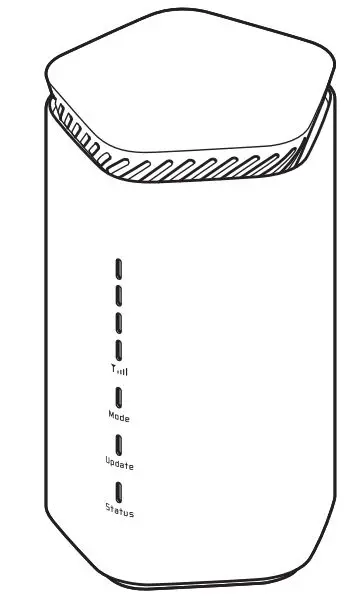
SIGNAL/DATA USAGE lamp Indicates signal strength of 5G, LTE, or WiMAX 2+ signal. Also, indicates when specified data usage amount is exceeded.
MODE/UPDATE lamp Indicates the communication mode or notification of software update.
STATUS lamp Indicates the status of the product.
MODE button Switch the communication mode.
UPDATE button Use to start software update.
LAN/WAN port Use to connect a PC, etc. via Ethernet cable (sample).
Power terminal Connect the AC adapter.
Ventilator Do not install the product with the ventilator blocked.
LAN port lamp Indicates the LAN/WAN connection status.
NFC mark Use to connect a NFC compatible device.
SIM card slot cover Open the cover to find the SIM card slot or RESET button. Close the cover when using the product.
Label Check SSID, security key (password), IMEI, etc. Do not remove it.
Terminal for inspection This is a connection terminal for inspection. Do not use this terminal, otherwise, it may cause malfunction, etc.
RESET button Reset settings to the factory default.
SIM card slot Attach the SIM card.
Main LED lamp indications
The statuses of the product are notified with the LED color and the lighting pattern. Main LED lamp indications are as follows. For indications other than listed below, refer to “LED (LED lamp indications and button operations)” on ” (Full instruction manual)” (Japanese).
SIGNAL/ DATA USAGE lamp
MODE/UPDATE lamp
STATUS lamp
LAN port lamp
SIGNAL/DATA USAGE lamp
(Turn on) (Turn on) (Turn on)
5G/LTE/WiMAX 2+ connected
Signal level: 4, 3 Signal level: 2, 1
Signal level: 0 (out of service area), SIM card is not inserted
Color for each signal level Exceeded the specified data usage limit to notify*1 (Blink)
Color for each signal level Exceeded the specified maximum data usage limit*1 (Rapid blink)
MODE/UPDATE lamp
(Turn on) (Turn on) (Blink) (Blink)
ST mode (Standard Mode) +A mode (Plus Area Mode)*2 “Auto Mode” On*2*3
Software update detected * See “Updating the software” on “Button operations” in this manual.
STATUS lamp
(Turn on) (Turn on) (Blink) (Blink) (Turn on)
WAN connected normally Launching Data communication disabled Connection error due to the SIM card not inserted/SIM card error, etc. Connection error due to out of service
LAN port lamp
(Turn on) (Blink)
Connecting to LAN/WAN port
Communicating via LAN/WAN port (Blink intermittently according to the communication speed)
*1: For settings of data usage, refer to ” (Data Usage)” on ” (Full instruction manual)” (Japanese).
*2: Note that additional fee may be applied depending on your billing plan if you switch it to “+A mode”. *3: For settings of “Auto Mode Settings”, refer to ” (Automatic Mode Settings)” on
” (Full instruction manual)” (Japanese).
Button operations
Switch the communication mode or update the software, etc. by button operation. Switching the communication mode
MODE
UPDATE
SIGNAL
MODE UPDATE STATUS
DATA USAGE
MODE UPDATE
MODE button Switch the communication mode.
MODE button
Press and hold for over approximately two seconds
MODE/UPDATE lamp (Turn on) (Turn on)
(Blink) (Blink)
Operation Switch to ST mode (Standard Mode) Switch to +A mode (Plus Area Mode)*1*2*3 “Auto Mode” On*2 “Restrict +A mode” is enabled
*1: Note that additional fee may be applied depending on your billing plan if you switch it to “+A mode”. *2: If you press and hold the MODE button for over approximately two seconds with “Auto Mode” On,
the communication mode will be switched and “Auto Mode” turns Off. *3: If “Restrict +A mode” is enabled, you cannot switch the communication mode by pressing the
MODE button. For details, refer to ” (Communication Mode)” on ” (Full instruction manual)” (Japanese).
Updating the software
MODE
UPDATE
SIGNAL
MODE UPDATE STATUS
DATA USAGE
MODE UPDATE
UPDATE button When there is software update, start updating. After updating is complete, the MODE/ UPDATE lamp turns to the normal indication.
UPDATE button
Press for over approximately one second
MODE/UPDATE lamp
(Blink) (Blink)
(Blink rapidly three times)
Operation
Update detected Updating Update failed
* For notes for updating software, see “Updating the software” on the next page.
Connecting with a WPS compatible wireless LAN (Wi-Fi®) device
WPS
STATUS
WPS button Connect with a WPS compatible wireless LAN (Wi-Fi®) device.
WPS button
Press (within approximately three seconds)
STATUS lamp (Blink)
Operation
Performing WPS connection (2.4 GHz/5 GHz)
* The WPS function of the product is enabled for approximately two minutes. Turn on the WPS function, and then complete the WPS connection procedure with a wireless LAN (Wi-Fi®) device
within approximately two minutes.
Resetting the product to the factory default state
RESET button Reset settings to the factory default. * With the power of the product turned on, press this
button with a fine-tipped object.
Bottom
RESET button
Operation
Press and
Reset the product setting to the
hold for over factory default.
approximately
three seconds
* This erases all of the settings done after you purchase the product. Please be careful to use this function.
Preparation
SIM card Your phone number, etc. is recorded in the SIM card.
au Nano IC Card 05
(Front)
(Back)
SIM lock for the product is disabled. * Note the following points, otherwise handling the SIM
card may cause malfunction or damage. Do not touch the IC (metal) part of the SIM card. Insert in the correct direction. Do not force to attach or remove.
IC (metal) part
* The STATUS lamp blinks red if the SIM card is not inserted correctly or it has anything abnormal.
* Be careful not to lose the removed SIM card. * Do not insert your SIM card with a conversion adapter attached. Doing so might
cause a malfunction. * Insert/remove the SIM card with the AC adapter disconnected. * Although the phone number is stored to the SIM card as customer information,
making/receiving calls, etc. is not available with the product.
Inserting the SIM card
1 Open the SIM card slot cover
Put your finger (nail) on the concave part on the side of the cover and pull in the direction of the arrow.
Concave part
2 Insert the SIM card into the SIM card slot
With the IC (metal) side facing up, confirm the orientation of the card with the notch as shown in the illustration, then insert the SIM card until it clicks.
Notch
IC (metal) part (Top side)
3 Align the SIM card slot cover with the SIM card slot 4 Gently press the SIM card slot cover
* To remove the SIM card, gently push the SIM card until it clicks, let it come out without releasing your finger, and then gently pull out the SIM card.
Turning the power on
1 Insert the power plug of the AC adapter into an AC 100V outlet 2 Connect the DC plug of the AC adapter to the power terminal of the
product Insert it straight all the way. · The product does not have a power button. Connecting the product to an AC outlet turns it on automatically.
Power plug 1
DC plug
Connecting with wireless LAN (Wi-Fi®) devices
You can connect with wireless LAN (Wi-Fi®) devices by any one of the following methods.
Using Wi-Fi setting copy feature
When replacing a Wi-Fi router you have used so far with the product, connection settings can be copied and use them with the product. See “Connecting by using Wi-Fi setting copy feature” on the right.
Connecting by using WPS function
Connect with a WPS compatible device. See “Connecting with a WPS compatible wireless LAN (Wi-Fi®) device”
of “Button operations” on the previous page. Connecting with “ZTELink JP” app Use “ZTELink JP” app installed in your smartphone to connect by scanning a QR code or by using the NFC function. See “Connecting with a smartphone using “ZTELink JP” app” on the right. Connecting by manual setting Use wireless LAN (Wi-Fi®), QR code, or the NFC function to connect instead of using “ZTELink JP” app. See “Connecting by manual setting” on the right.
Connecting by using Wi-Fi setting copy feature
When starting use of the product instead of a Wi-Fi router which you have used so far, the SSID and the password can be copied to the product. Changing the settings on wireless LAN (Wi-Fi®) devices are not needed so that you can connect them simply. This feature is available only when WPS function is equipped on your former Wi-Fi
router. Copying may not be available depending on the settings of Wi-Fi router.
1 Turn on the power of the product
2 Press the WPS button for over three seconds
Wi-Fi setting copy starts.
Start copying
STATUS lamp
(Blink rapidly)
WPS
STATUS
The setting copy is performed automatically in the order of 2.4 GHz to 5 GHz.
3 Perform the WPS function of the router which you have used so far
· For procedure of performing the WPS function, see the manual of the router which you have used so far.
4 Check the result of Wi-Fi setting copy
You can learn whether setting copy succeeded by the STATUS lamp status. · When the setting copy is complete, the lamp is lit for 30 seconds and then it
restarts automatically. · If you failed the setting copy, operate step 2 and step 3 again. If you failed even if
you performed the steps again, see “Connecting by manual setting” in this manual and try connection procedures using the product SSID and password.
Setting copy succeeded
Either 2.4 GHz or 5 GHz setting copy succeeded
Setting copy failed
STATUS lamp (Turn on)
STATUS lamp (Blink rapidly
three times)
STATUS lamp (Blink rapidly
three times)
5 Turn off the Wi-Fi router which you have used so far
Connecting with a smartphone using “ZTELink JP” app
Install “ZTELink JP” app to a smartphone and scan the QR code or use the NFC function for connection to connect the product. Change the display language of your smartphone to English in advance. * “ZTELink JP” app is compatible with the following versions.
Android OS: 7.0 or later, iOS: 10 or later * The QR code for 2.4 GHz/5 GHz connection is printed on the included “Wi-Fi
(Wi-Fi Initial Setup) label” (Japanese). (Only the QR code for 2.4 GHz connection is printed on the bottom of the product.) If you connect a smartphone by scanning a QR code Turn on wireless LAN (Wi-Fi®) function of the smartphone in advance.
1 Search “ZTELink JP” on Google Play Store or App Store and install it
to your smartphone
2 Start “ZTELink JP” app on your smartphone
3 Turn on the power of the product
4 Tap “Routers” “CONNECT TO ROUTER” “Scan
the QR code”
5 Scan the QR code for connecting on the “Wi-Fi
(Wi-Fi Initial Setup) label” (Japanese) or the bottom surface of main unit
If you connect a smartphone by the NFC function (Only for Android OS devices)
Turn on the wireless LAN (Wi-Fi®) and NFC function of the smartphone in advance.
1 Search “ZTELink JP” on Google Play Store and
install it to your smartphone
2 Start “ZTELink JP” app on your smartphone
3 Turn on the power of the product
4 Tap “Routers” “CONNECT TO ROUTER” “NFC”
5 Place your smartphone over the NFC mark of the product
· After that, follow the onscreen instructions of your smartphone.
When the wireless LAN (Wi-Fi) signal icon is displayed on the screen of your smartphone, the setting is complete. * You can also make a connection by tapping “Routers” “CONNECT TO ROUTER”
“Connect manually”, and then using the product network name (SSID) and security key (password). * If you do not use “ZTELink JP” app to connect to a wireless LAN (Wi-Fi®) device, see “Connecting by manual setting” in this manual.
Connecting by manual setting
Connect the product and wireless LAN (Wi-Fi®) devices via wireless LAN (Wi-Fi®) or the NFC function. Connecting via wireless LAN (Wi-Fi®) * You can see the product network name (SSID) and security key (password) on the
bottom of the product, as well as the included “Wi-Fi (Wi-Fi Initial Setup) label” (Japanese). * Set up to establish wireless LAN (Wi-Fi®) connection when the product is connected to each wireless LAN (Wi-Fi®) device for the first time. Once you set up connection, the connection for the wireless LAN (Wi-Fi®) device resumes automatically from the second time (when you set “Connect automatically”, “Save the setting”, etc. on the wireless LAN (Wi-Fi®) device).
1 Turn on the power of the product
2 On a wireless LAN (Wi-Fi®) device, turn on wireless LAN (Wi-Fi®)
function · For detailed operations of a wireless LAN (Wi-Fi®) device after the procedures above or additional information, refer to the descriptions on ” (Full instruction manual)” (Japanese) or the instruction manual of your wireless LAN (WiFi®) device.
3 Select the SSID of the product from the displayed network list, etc. 4 Enter the security key (password)
· Confirm that the connection to the product is established on the display of the wireless LAN (Wi-Fi®) device, etc.
Connecting by scanning QR code
1 Turn on the power of the product 2 On a wireless LAN (Wi-Fi®) device, turn on wireless LAN (Wi-Fi®) function
· For detailed operations of a wireless LAN (Wi-Fi®) device after the procedures above or additional information, refer to the descriptions on ” (Full instruction manual)” (Japanese) or the instruction manual of your wireless LAN (Wi-Fi®) device.
3 Using a camera or QR code scanning app, etc. on your wireless LAN
(Wi-Fi®) device, scan the QR code for connecting on the “Wi-Fi (Wi-Fi Initial Setup) label” (Japanese) or the bottom surface of main unit · Confirm that the connection to the product is established on the display of the wireless LAN (Wi-Fi®) device, etc. Connecting by the NFC function
1 Turn on the power of the product 2 On a NFC compatible device, turn on the NFC function
· For operations of a NFC compatible device or additional information, refer to the descriptions on the instruction manual of your NFC compatible device.
3 Place your NFC compatible device over the NFC mark of the product
· After that, follow the onscreen instructions of your NFC compatible device. · Confirm that the connection to the product is established on the display of the NFC
compatible device, etc.
Activating Speed Wi-Fi HOME setting tool
Make the device settings of the product from Speed Wi-Fi HOME setting tool on a web browser of a PC, etc. connected via wireless LAN (Wi-Fi®) or using the Ethernet cable (sample). The following procedure is explained for connection via wireless LAN (Wi-Fi®) as an example. *For details, refer to “Speed Wi-Fi HOME (Speed Wi-Fi HOME setting tool)” on ” (Full instruction manual)” (Japanese).
1 Turn on the power of the product 2 Activate a wireless LAN (Wi-Fi®) device and connect to the product
via wireless LAN (Wi-Fi®)
3 Activate the web browser and enter “http://192.168.0.1” in the URL
entry field The Login screen appears.
4 Click on the upper right to open the language list and select
“English”, enter password “Login”
· Default login password for Speed Wi-Fi HOME setting tool is printed on the included “Wi-Fi (Wi-Fi Initial Setup) label” (Japanese) and “URL/ PW (Setting tool URL/Password)” on the bottom of the main unit.
· When you activate it for the first time, the confirmation screen for notification of protecting personal information and that for changing the password appear. Follow the onscreen instructions.
When you log in to Speed Wi-Fi HOME setting tool successfully, the Settings or Connection screen of Speed Wi-Fi HOME setting tool appears. For detailed settings of each function, refer to ” () (Detailed settings of each function (Setting))” on ” (Full instruction manual)” (Japanese).
Checking your own phone number
You can check your own phone number in the Login screen of Speed Wi-Fi HOME setting tool.
1 Display the Login screen of Speed Wi-Fi HOME setting tool
· See “My Phone Number” in the Login screen. * Making/receiving calls, etc. is not available with the product.
Updating the software
By updating the software to the latest version, you can enjoy optimal performance or improved security, and obtain the latest add-ons. You can set to notify you of update information or update the software automatically with Speed Wi-Fi HOME setting tool. Download the latest software and update. * For updating method, see “Updating the software” on “Button operations” in this
manual. * You can also update the software using Speed Wi-Fi HOME setting tool. For details,
refer to ” (Update)” on ” (Full instruction manual)” (Japanese).
Notes · Make sure that the product is connected to the Internet before performing the update. · Charge of data communication is incurred according to your contract detail when
accessing the Internet from the product using the data communication. · When updating the software is needed, you will be notified on au homepage, etc. For
details, contact an au Style/au shop or Customer Center (157 from au mobile phone/ toll-free). Also, we may send notifications from au to the product users who need the software update so that they can use the product in good condition. · You can check the software version with “Device Information” on Speed Wi-Fi HOME setting tool. When you failed to update the software, retry in a place where the signal condition is good. · When the software update is failed, the product may become inoperative. If the product becomes inoperative, bring it to an au Style/au shop or Toyota store (except a part of shops).
Main specifications
For main specifications of the product, refer to ” (Full instruction manual)” (Japanese) available on the au homepage. https://www.au.com/support/service/mobile/guide/manual/ (Japanese)
Wi-Fi initial setup
“Wi-Fi (Wi-Fi Initial Setup) label” (Japanese) The default network name (SSID), security key (password), and the URL/password for Speed Wi-Fi HOME setting tool are printed on the included “Wi-Fi (Wi-Fi Initial Setup) label” (Japanese).
Paste the label to this position of the included ” (Quick Start Guide)” (Japanese).
Troubleshooting
Please check the following if you have trouble, for example, Internet access cannot be established, etc. even after referring to this manual or ” (Full instruction manual)” (Japanese) and making settings. * Signal strength, communication congestion, amount of contents may affect communication
status.
Cannot connect wireless LAN (Wi-Fi®) devices. 1. Check if wireless LAN (Wi-Fi®) function is enabled on the wireless LAN (Wi-Fi®) device. 2. When you cannot connect with WPS function, refer to the manual, etc. of the wireless LAN (Wi-Fi®) device. If the problem persists, set wireless LAN (Wi-Fi®) function manually.
Internet connection fails. 1. Check that you are in the service area. 2. Signal reception may be poor. Try again in a place with better reception. 3. Connection destination may be congested at certain time. Wait a while and try again. 4. Activate Speed Wi-Fi HOME setting tool and make sure that the product connects to the Internet correctly.
Communication stops intermittently. 1. Signal reception may be poor. Check in a good reception area. 2. Make sure that the product and a PC, etc. are correctly connected via wireless LAN (WiFi®) or the Ethernet cable (sample). 3. Connection destination may be congested. Wait a while and try again. 4. When the product and a PC are connected with the Ethernet cable (sample), disconnect the product from the PC and then reconnect it. If connection is not established after the above-mentioned steps are performed, disconnect the product, restart the PC, and then connect the product again.
Communication speed is slow. 1. Signal reception may be poor. Check in a good reception area. 2. Connection destination may be congested. Wait a while and try again.
* If the problem persists, try resetting the product, or removing and inserting the SIM card after turning off the power of the product and turning it on again.
* For other problems or details on the setting methods, etc., refer to ” (Troubleshooting)” on ” (Full instruction manual)” (Japanese).
For inquiries
Customer Center
For general information (toll free)
Business hours : 9:0020:00 (7 days a week)
From au mobile phones
From general subscriber phones
157
without area code
0120-977-033
For theft or loss (toll free)
Business hours : 9:0020:00 (7 days a week)
From au mobile phones
From general subscriber phones
113
without area code
0120-925-314
Repair and Delivery Support Center
(Service for members of Repair and Delivery Support)
For repair or replacement cell phone delivery service (toll free)
Business hours 9:0020:00 (7 days a week)
From au mobile phones/UQ mobile/general subscriber phones
0120-925-919
 User manual download | Support | au