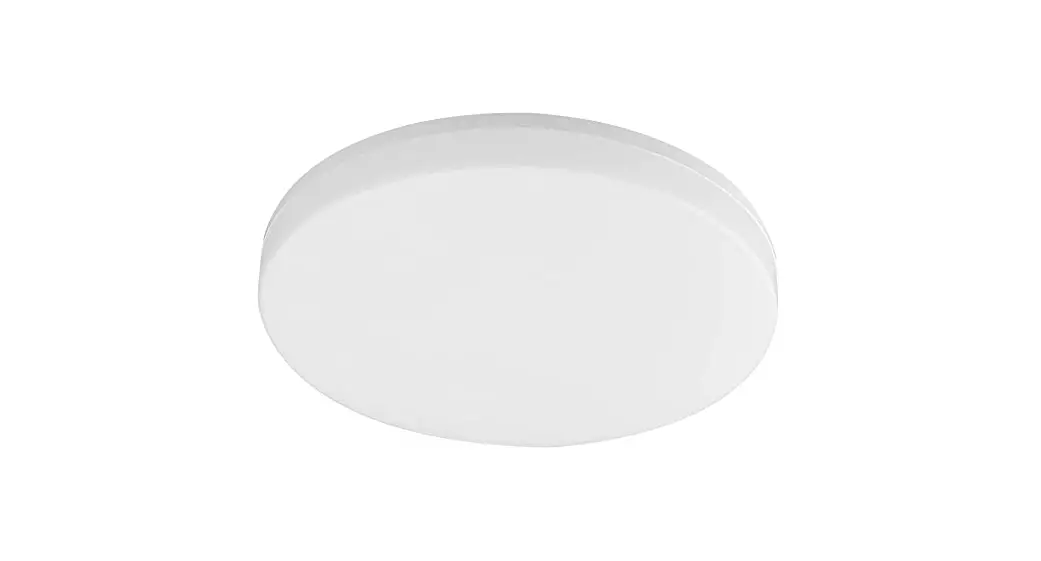
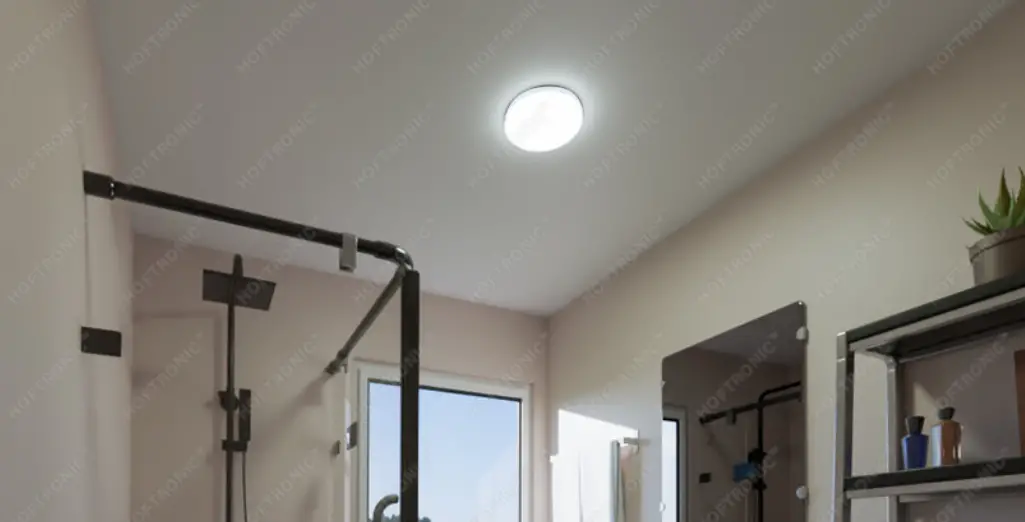
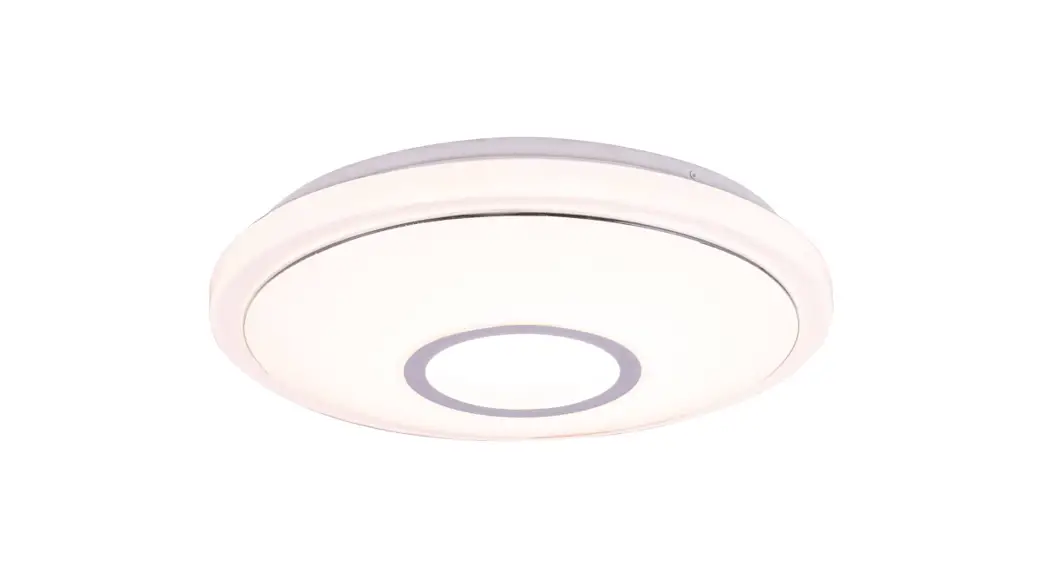
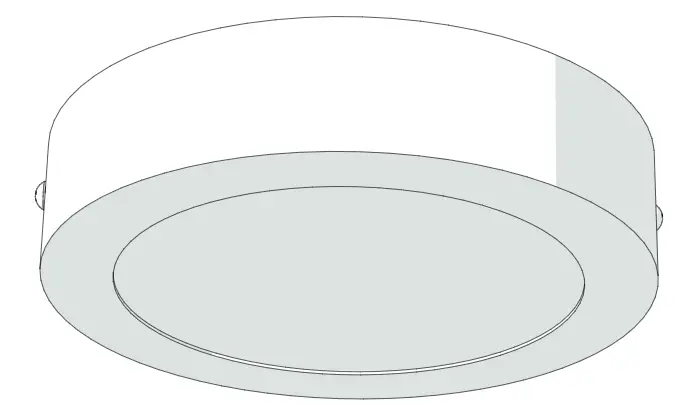
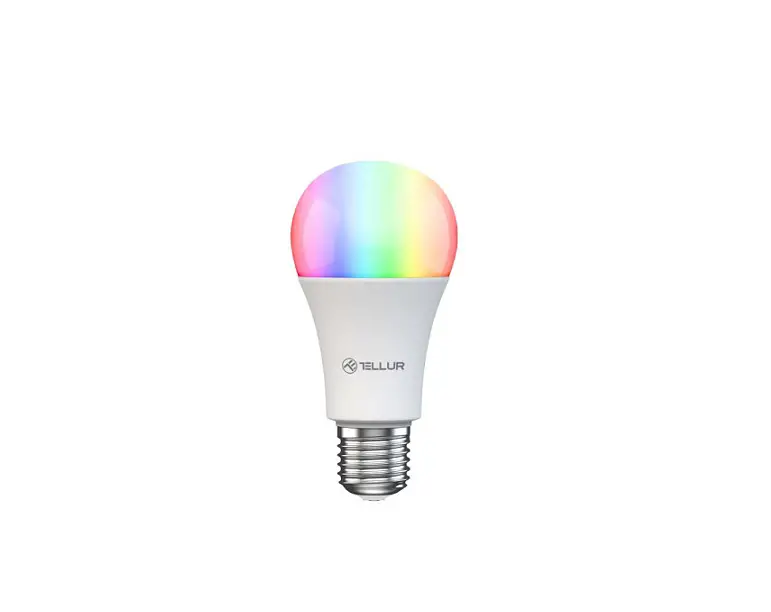
NL-12-RGB-B Smart WiFi RGB LED Ceiling Light
Product Information: LED RGB Slim Flush Mount
The LED RGB Slim Flush Mount is a ceiling light fixture that can
be controlled via the Smart Life App. The package includes two
mounting screws and wire connectors for assembly. The light fixture
has a plastic shade (B) and a main body (B) which can be separated
from the ceiling pan (A) for installation.
Hardware Contents:
- Mounting Screw X2
- Wire Connector X2
Assembly Instructions:
- Turn off the power at fuse or circuit box.
- Attach the two mounting screws (AA) to the holes on outlet box,
thread them in part way: 2 to 3 turns only. - Slide the Ceiling pan (A) until it separates from the plastic
shade (B). Pull out the Male connector from the Female
connector. - Pull out the source wires from the outlet box, thread them
through the big hole of the ceiling pan (A). Attach the ceiling pan
(A) to the outlet box by inserting two mounting screw (AA) heads
into the key holes, then slide the ceiling pan until it is locked
in place. - Connect the black wire to brown(power) wire, white wire to
blue(neutral) wire with supplied wire connectors (BB). Tuck all
wires into outlet box. Then secure the mounting screws tightly with
screwdriver (not included). Finally connect the Female Connector to
the Male Connector. - Attach the main body (B) to the ceiling pan (A) by aligning
studs and slots, then turn it clockwise until it is locked in
place. Turn on the power at fuse or circuit box.
How to Connect Smart Life App?
The Smart Life App can be used to control the LED RGB Slim Flush
Mount. Follow the instructions below:
- Download Smart Life App from Apple Store or Google Play
Store. - Register and login your account (Only support email
registration). - To connect the device:
- Click Add Device or + at the top right corner of the Home
page. - Click Auto Scan.
- To have the light fixture enter configuration mode, toggle the
wall light switch on/off three times {ON-OFF-ON-OFF-ON). The light
fixture will begin to blink rapidly. - Confirm the wifi account and password.
- Connecting 100% and Done.
LED RGB Slim Flush Mount
HARDWARECONTENTS
©
Mounting Screw X2 Wire Connector X2
IASSEMBLYlNSTRUCTlONS
Turn off the power at fuse or circuit box.
1. Attach the two mounting screws
(AA) to the holes on outlet box,
thread them in part way: 2 to 3 turns only.
2. Slide the Ceiling pan (A) until it separate from the plastic shade (B). Pull out the Male connector from the Female connector.
3. Pull out the source wires from the outlet box, thread them through the big hole of the ceiling pan (A). Attach the ceiling pan (A) to the outlet box by inserting two mounting screw (AA) heads into the key holes, then slide the ceiling pan until it is locked in place
4. Connect the black wire to brown(power) wire, white wire to blue(neutral) wire with supplied wire connectors (BB). Tuck all wires into outlet box. Then secure the mounting screws tightly with screwdriver (not included). Finally connect the Female Connector to the Male Connector.
5. Attach the main body (B) to the
ceiling pan (A) by aligning studs
and slots, then turn it clockwise until it is locked in place. Turn on the power at fuse or circuit box.
|
|
IHowtoConnect Smart LifeApp?
Smart Life App
· Make sure your mobile phone is connected to your Wi-Fi, and make sure your Bluetooth is on.
1. Download “Smart Life” App from Apple Store or Google Play Store.
2. Register and login your account (Only support email registration)
. ·- ..
“‘imco
|
..
PaW.”
000
3. Connect Device CD Auto Scan
A: Click “Add Device” or “+” at the top right corner of the Home page.
B: Click “Auto Scan”. C: To have the light fixture enter configuration
mode, toggle the wall light switch on/off three times {ON-OFF-ON-OFF-ON). The light fixture will begin to blink rapidly. D: Confirm the wifi account and password. E: Connecting 100% and Done.
.
0
·
= ” =- b’
···
Page 3 of 20
Page 4 of 20