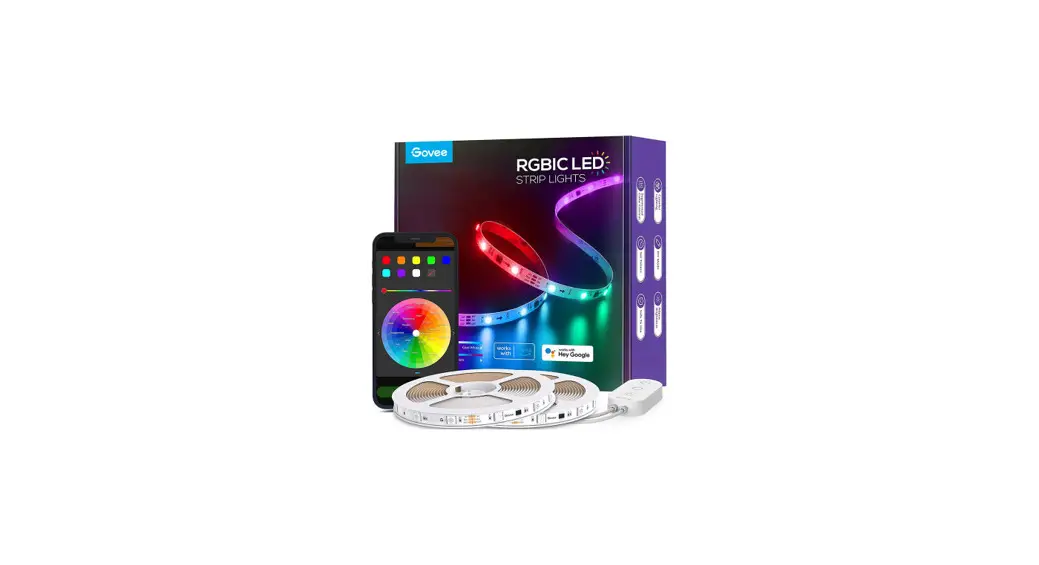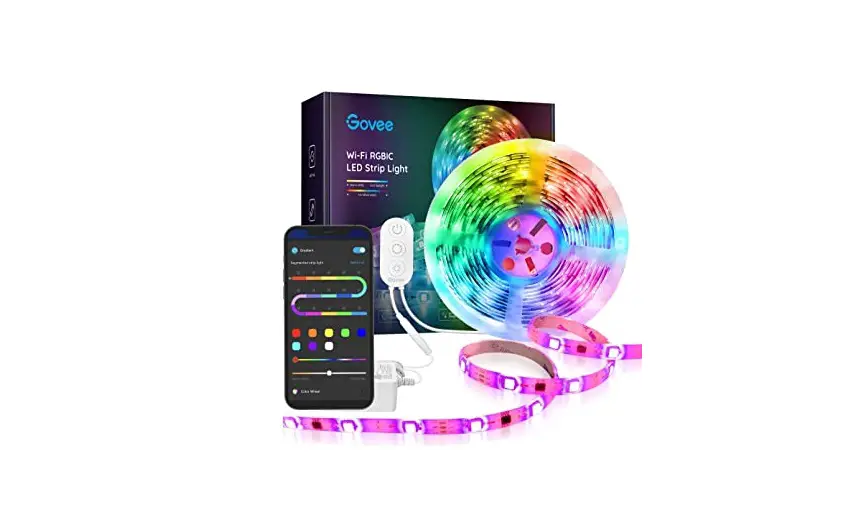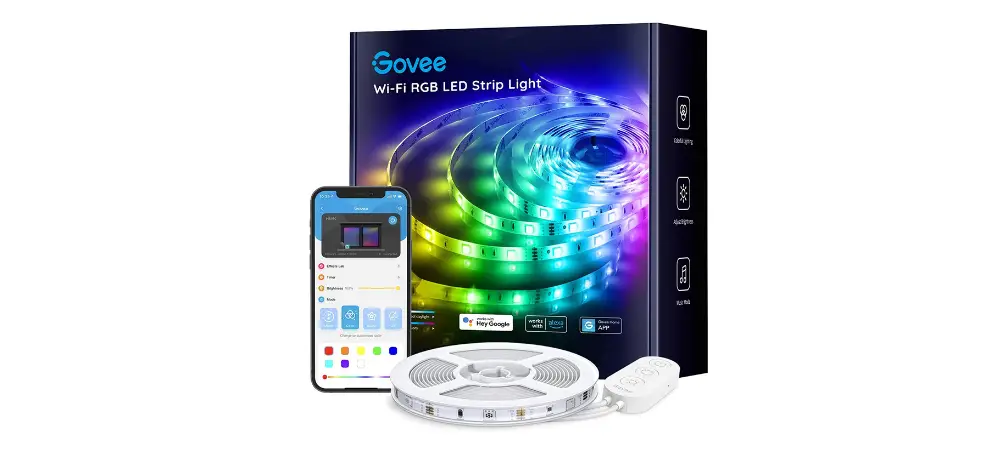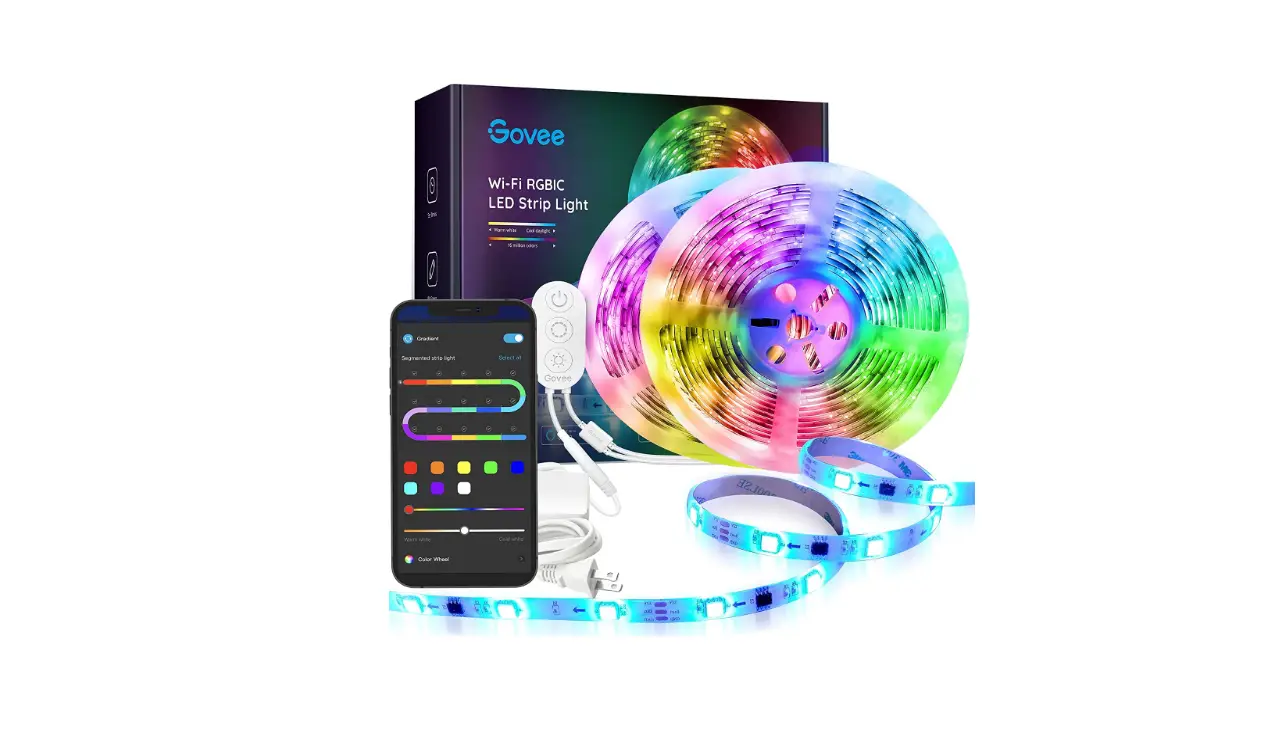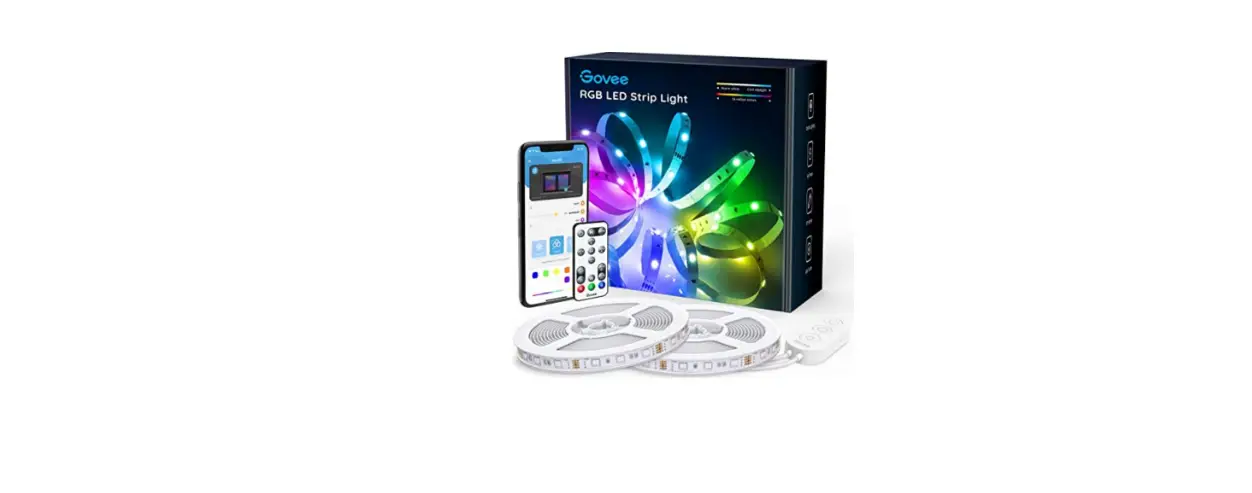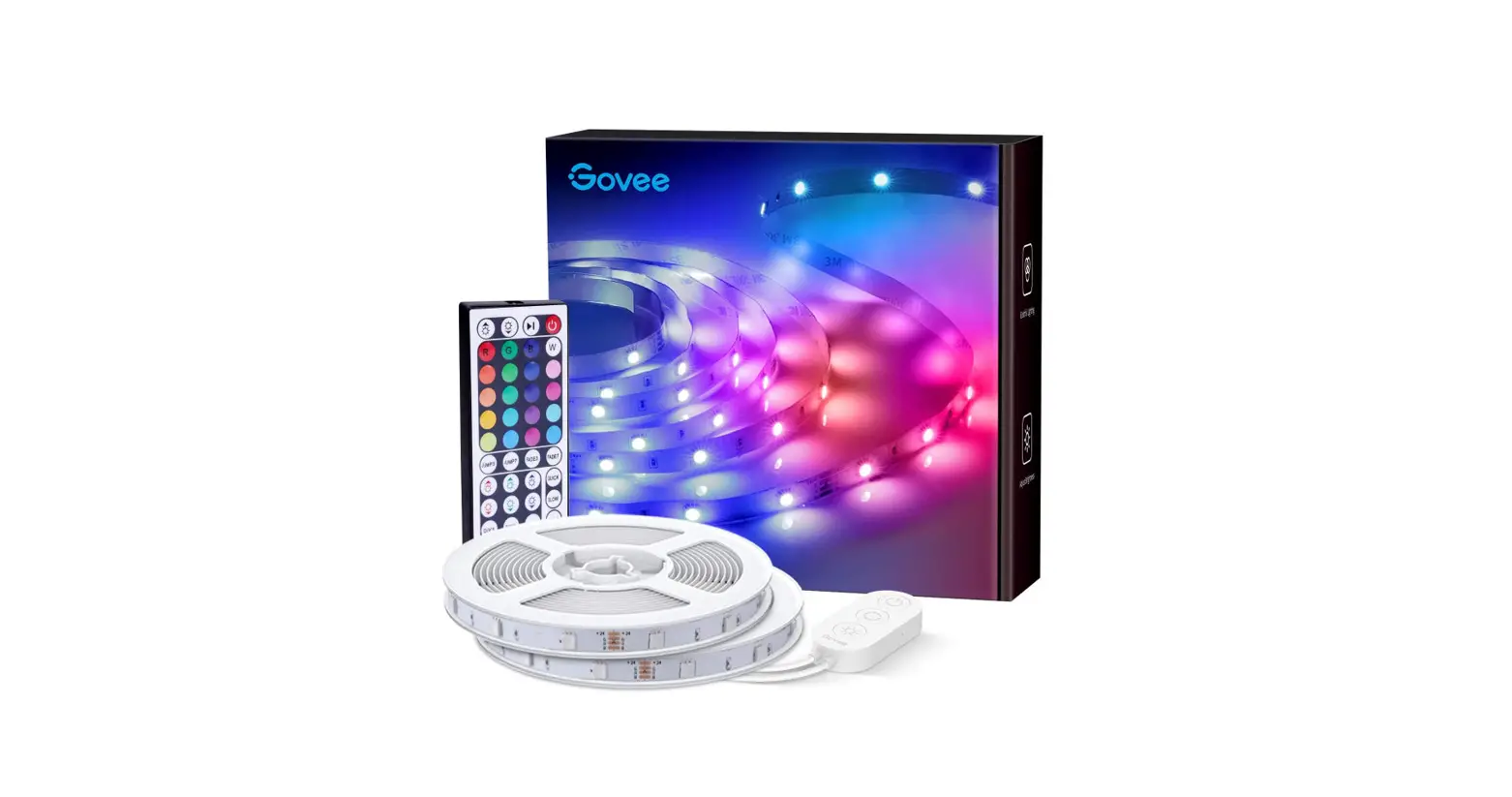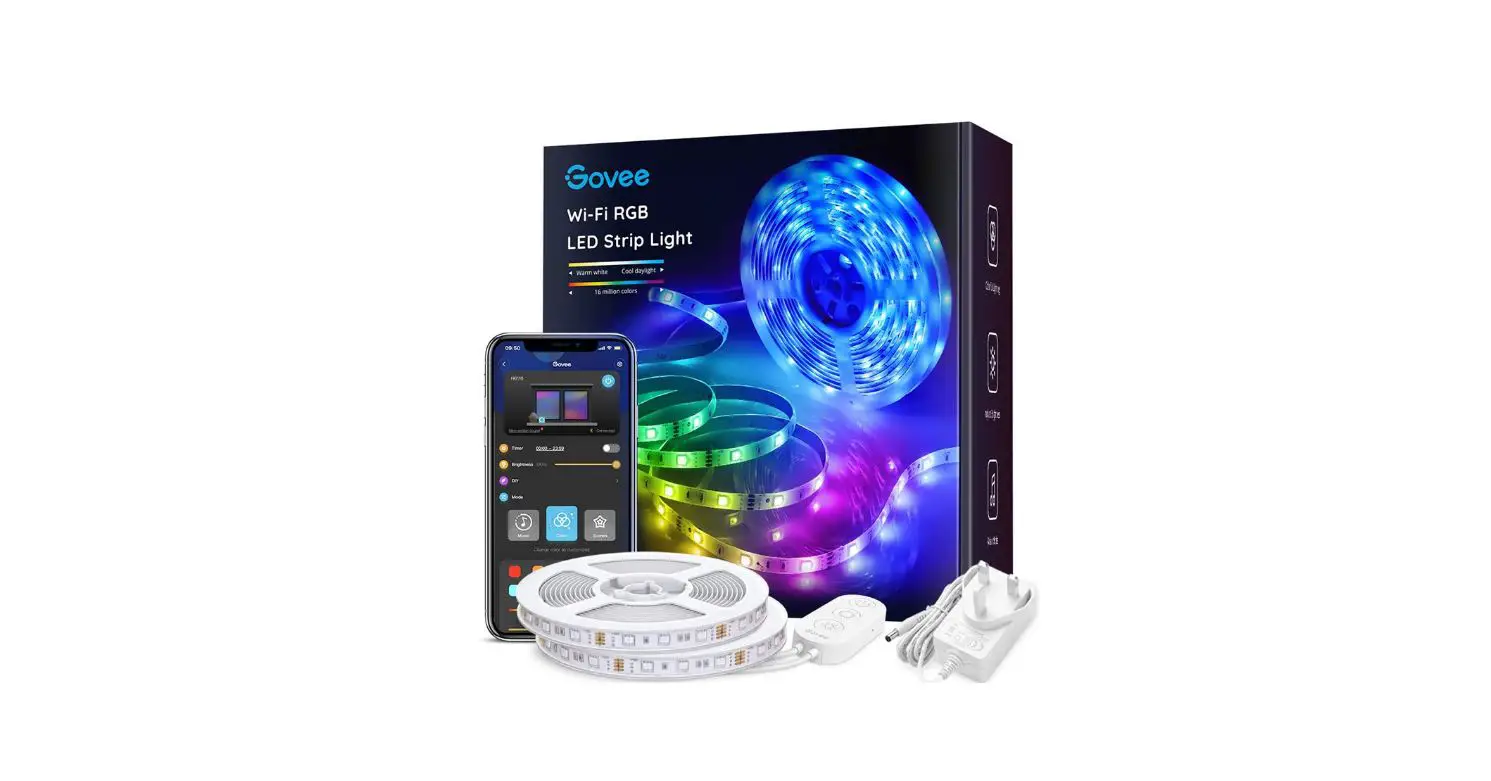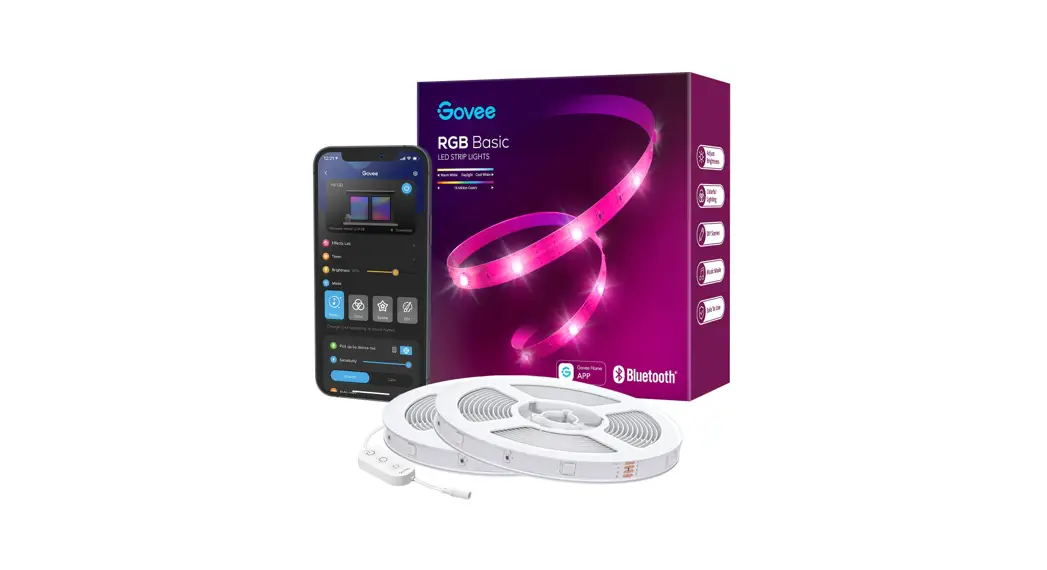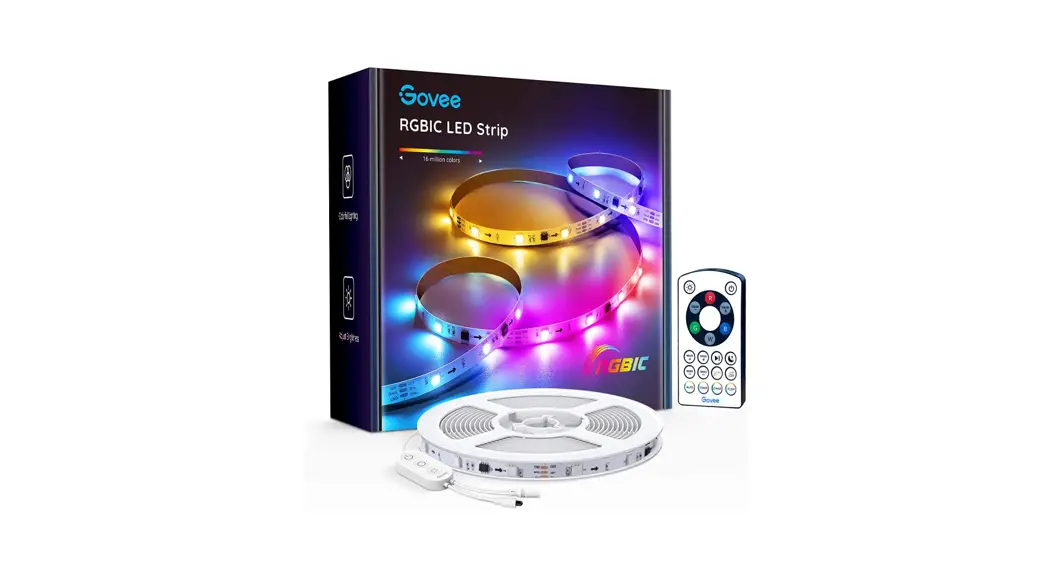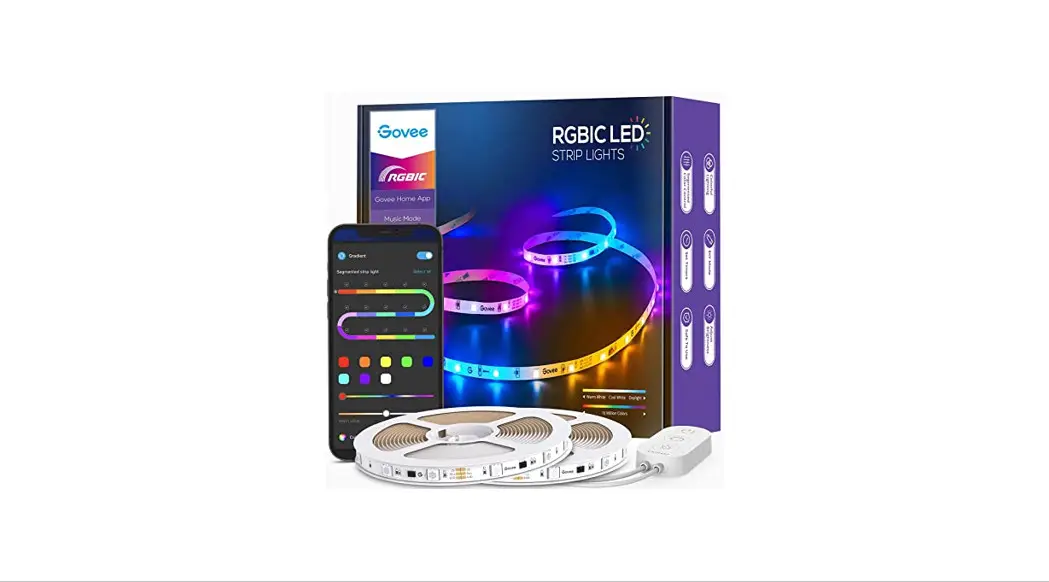

Model: H6141
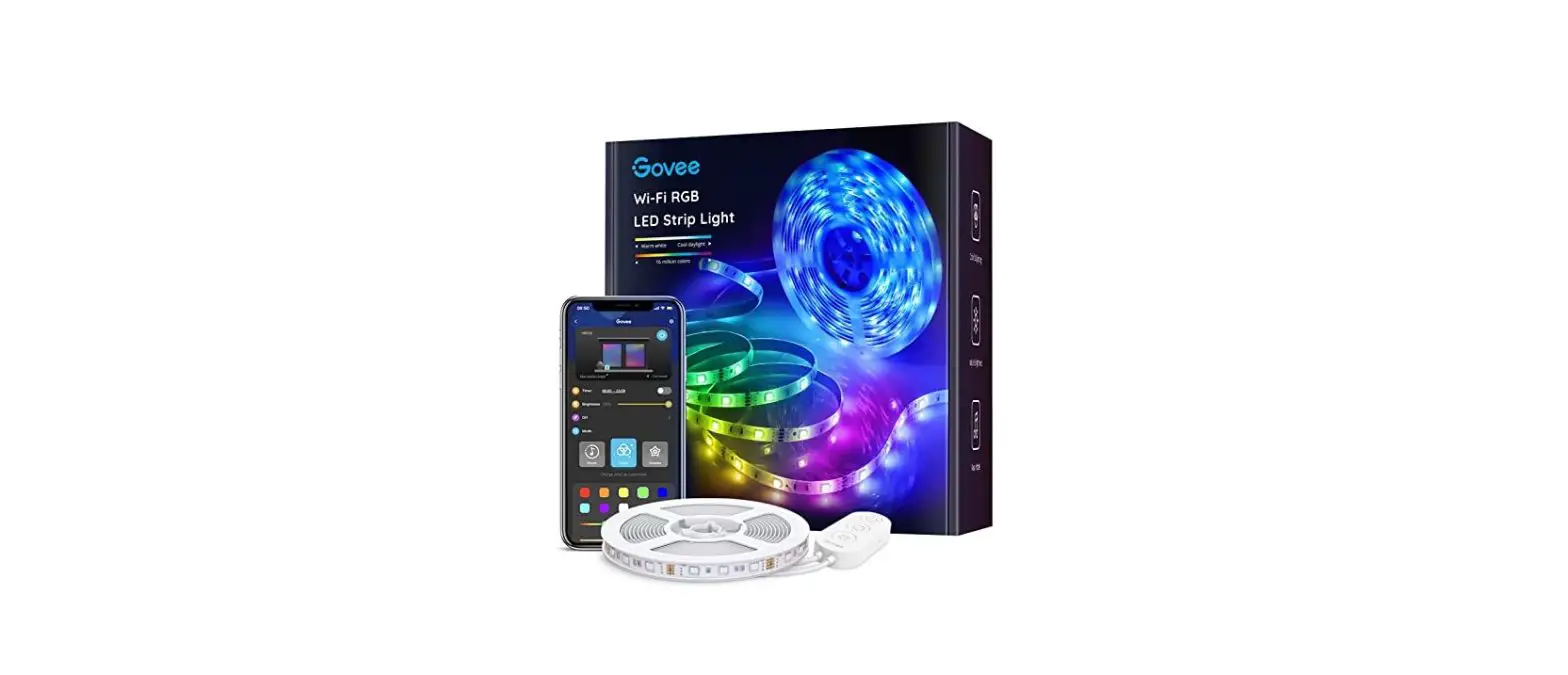
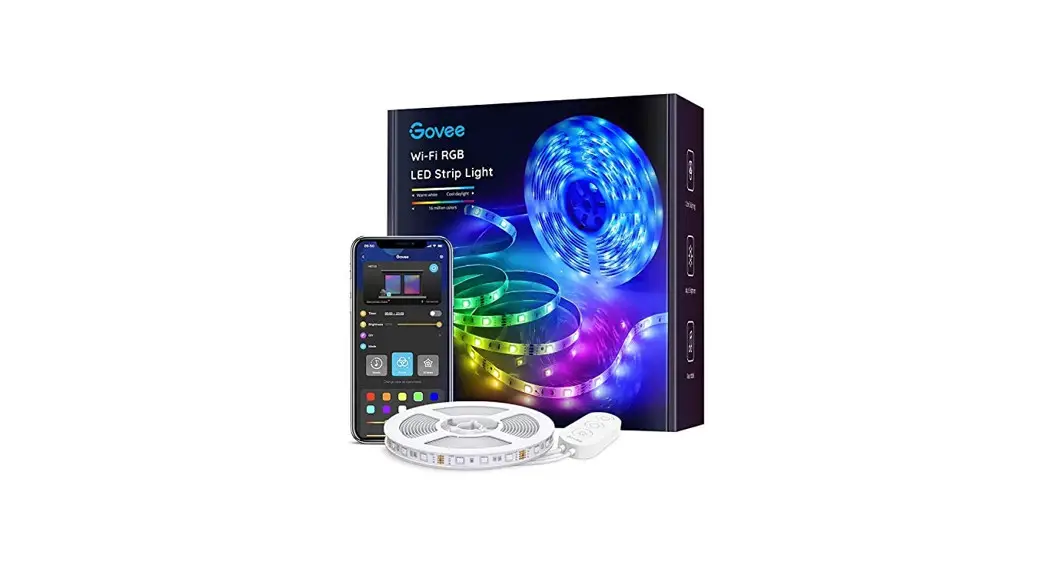
Wi-Fi RGB LED Strip Lights
User Manual
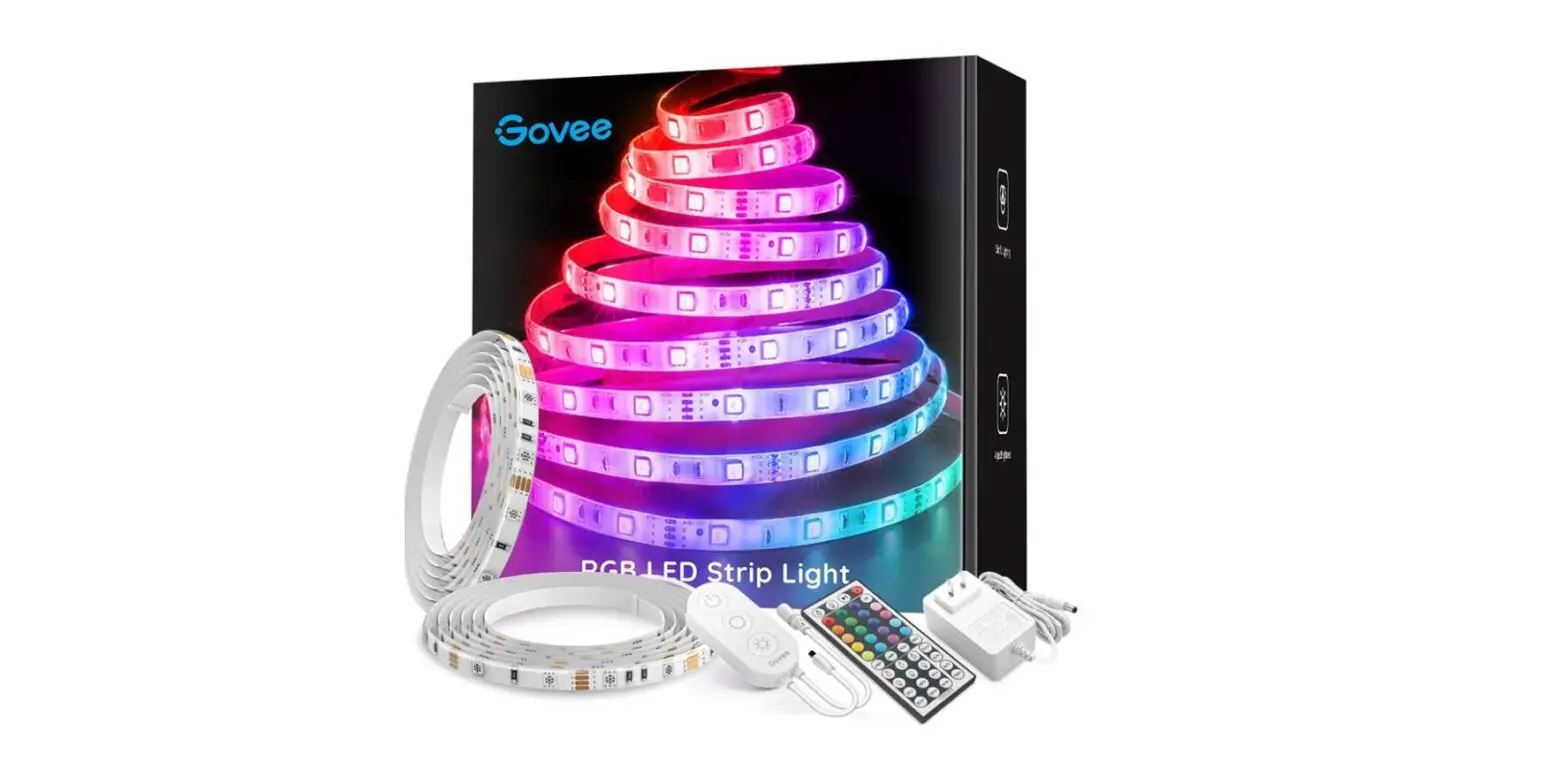
At a Glance
| Strip Lights | 1 |
| Power Adapter | 1 |
| User Manual | 1 |
| Service Card | 1 |
Specifications
| Length | 5m / 16.4ft |
| Lighting Color | RGB |
| Waterproof | No |
| Control Method | App & Control Box & VoiceControl |
| Power Supply | Adapter 12V |
Installing Your Strip Lights
1. Preparation Before Installing
a. Unpack the box and check all items listed in the packing list.
b. Power on the strip light and check whether it lights up.
2. Installing Steps
a. Wipe the surface to keep it clean and dry;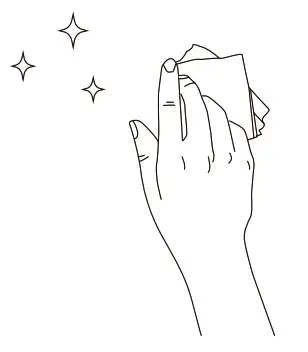
b. Reinforce via clips around corners;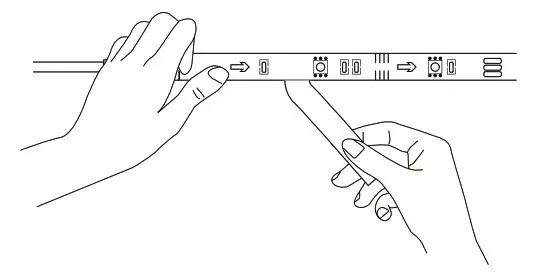
c. Peel off the protective film on the tape, stick the strip on, and press over it firmly;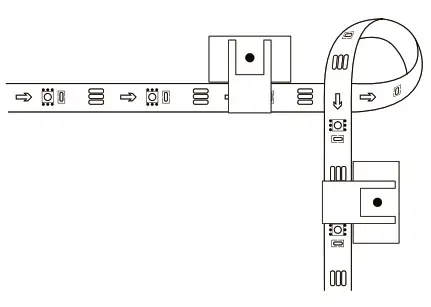
d. Peel off the protective film on the control box and stick it on;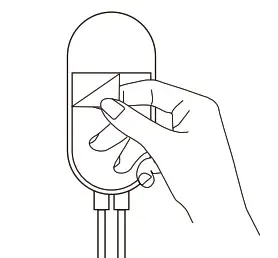
e. Power on the strip lights and start using.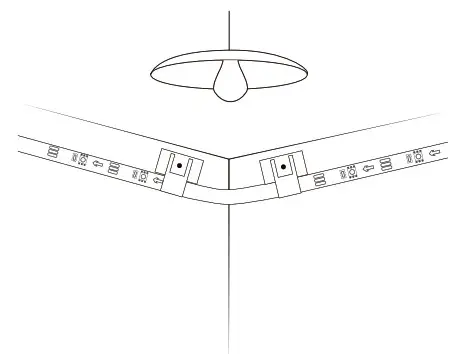
Controlling with the Control Box
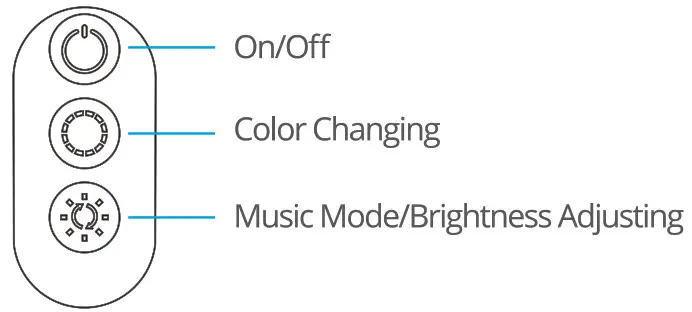
| Button | Function |
| On/Off | Turn the light on/off. |
| Color Changing | Press to cycle through 9 colors. |
| Music Mode/ | Press to enter music mode. |
| Brightness Adjusting | Press and hold to cycle through the 6 brightness levels. |
Controlling with the Remote Control
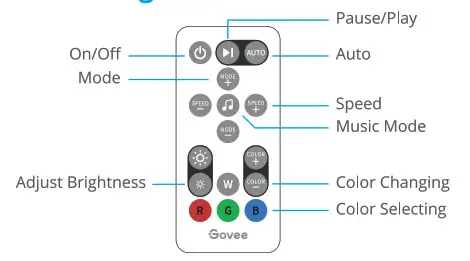
| Button | Function |
| On/Off | Press to turn the light on/off. |
| Pause/Play | Press to pause/continue the Music Mode or dynamic Scene Modes. |
| Auto | 1. Switch the Scene Mode between 7 options at random. ‘ 2. Every mode lasts for the 30s. |
| Mode | MODE +/-: Press to cycle forward or backward through 7 scene modes. |
| Music Mode | Press to enter music mode. |
| Speed | SPEED +/-: For scene mode, press it to speed up or slow down the changing of light For music mode, press it to increase or decrease the sensitivity of the mic |
| Adjust Brightness | Dim or brighten the light. |
| Color Changing | COLOR +/-: Press to cycle forward or backward through 32 colors. |
| Color Selecting | Press to change the color. R: Red, G: Green, B: Blue, W: White |
Downloading the Govee Home App
- Download the Govee Home app from App Store (i0S devices) or Google Play (Android devices).
- Notice: A smartphone running iOS 9.3 (or above) or Android 4.4 (or above) is needed.
Connecting to a Wi-Fi Network
- Turn on Bluetooth in your mobile phone.
- Open Govee Home app and tap the “+” icon in the top right corner.
- Select 1-16141″ in the device list.
- Select a 2.4GHz Wi-Fi to connect or skip the setup.
Controlling Your Strip Lights with Alexa/Google Assistant
- Wi-Fi Setting
Make sure the strip is connected to Wi-Fi, if not, please follow the steps below to set up Wi-Fi.
a.Open the app, select the strip light that has been added and tap the setting icon in the top right corner.
b.Tap ‘Wi-Fi Setting”, select an available Wi-Fi network and enter a password. Notice: Only supports 2.4GHz and 802.11 b/g/n Wi-A networks. - Works with Alexa/Google Assistant
a.Open the app, select the strip light that has been added and tap setting icon in the top right corner.
b.Tap “Using guidance” and follow on-screen instructions to complete setup.
Troubleshooting
- The adhesive tape is not strong enough.
a. Make sure the installation surface is clean and dry.
b.Firmly press over the strip after sticking.
c. Reinforce the installation via more clips and tape. - Cannot connect to Bluetooth.
a. Do not skip Bluetooth connection in the app.
b. Make sure Bluetooth in your mobile phone has been turned on.
c. It may be caused by incompatibility between the phone system and the app. Please change to another mobile phone and connect again.
d. Re-power on the strip and return on Bluetooth in your phone to try again.
e. Keep the distance between the strip and the phone less than 1 m/3.28ft while connecting.
f. Keep obstructions between the strip and the phone as few as possible.
The strip doesn’t match the same color/Some LED beads don’t light up. Please contact Govee support team in time for return. - Cannot connect to Wi-Fi.
a. Do not skip the Wi-Fi connecting steps in the app.
b.5GHz network is not supported. Please set the router to 2.4GHz and then reset it.
c. Connect your phone to Wi-Fi and check whether the network works well.
d.Make sure you have entered the correct Wi-Fi name and password.
e. Change your Wi-Fi password to a brief one. 8 numbers and letters are suggested.
f. Connect the hotspot in your phone to the strip lights and check whether the router works with the strip lights. - Cannot sync to the music beat.
a. Please keep the control box close to the sound source.
b. Clean out the sound picking hole on the control box. - Cannot connect to Alexa.
a. Pull out every connective part of the strip lights and firmly re-connect them.
b. Re-connect your phone to Wi-Fi.
c. Plug out the adapter port and re-plug it in. - The strip lights don’t work.
a. Pull out every connective part of the strip lights and firmly re-connect them.
b. Tap the On/Off button on the control box or app to check whether it is a strip quality issue.
Customer Service
 Warranty: 12-Month Limited Warranty
 Support: Lifetime Technical Support
 Email: [email protected]
  Official Website: www.govee.com

Compliance Information
EU Compliance Statement: Shenzhen Intellirocks Tech Co. Ltd. hereby declares that this device is in compliance with the essential requirements and other relevant provisions of the Directive 2014/53/EU.
A copy of the EU Declaration of Conformity is available online at www.govee.com/
EU contact address:EC REP BellaCocool GmbH (E-mail: [email protected])
Pettenkoferstrage 18, 10247 Berlin, Germany
UK Compliance Statement: Shenzhen Intellirocks Tech. Co., Ltd. hereby declares that this device is in compliance with the essential requirements and other relevant provisions of the Radio Equipment Regulations 2017 A copy of the UK Declaration of Conformity is available online at www.govee.com/
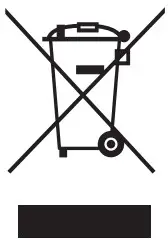
Environmentally-friendly disposal
Old electrical appliances must not be disposed of together with the residual waste, but have to be disposed of separately. The disposal at the communal collecting point via private persons is for free. The owner of old appliances is responsible to bring the appliances to these collecting points or to similar collection points. With this little personal effort, you contribute to recycling valuable raw materials and the treatment of toxic substances.
FCC Statement
This device complies with Part 15 of the FCC Rules. Operation is subject to the following two conditions: (1) This device may not cause harmful interference, and (2) This device must accept any interference received, including interference that may cause undesired operation. Warning: Changes or modifications not expressly approved by the party responsible for compliance could void the user’s authority to operate the equipment.
NOTE: This equipment has been tested and found to comply with the limits for a Class B digital device, pursuant to Part 15 of the FCC Rules. These limits are designed to provide reasonable protection against harmful interference in a residential installation. This equipment generates uses and can radiate radio frequency energy and, if not installed and used in accordance with the instructions, may cause harmful interference to radio communications. However,
there is no guarantee that interference will not occur in a particular installation. If this equipment does cause harmful interference to radio or television reception, which can be determined by turning the equipment off and on, the user is encouraged to try to correct the interference by one or more of the following measures:
- Reorient or relocate the receiving antenna.
- Increase the separation between the equipment and receiver.
- Connect the equipment into an outlet on a circuit different from that to which the receiver is connected.
- Consult the dealer or an experienced radio/TV technician for help.
FCC Radiation Exposure Statement
This equipment complies with FCC radiation exposure limits set forth for an uncontrolled environment. This equipment should be installed and operated with a minimum distance of 20cm between the radiator & your body.
Non-replaceable light source. Not intended for illumination. Only used for creating ambiance.
- Do not connect the rope light to the supply while it is in the packing or wound onto a reel;
- Do not use the rope light when covered or recessed into a surface;
- Do not open or cut the rope light;
The Bluetooth word mark and logos are registered trademarks owned by Bluetooth SIG, Inc. and any use of such marks by Shenzhen Intellirocks Tech. Co., Ltd. is under license.
CAUTION: RISK OF EXPLOSION IF BATTERY IS REPLACED BY AN INCORRECT TYPE. DISPOSE OF USED BATTERIES ACCORDING TO THE INSTRUCTIONS.
| BLE | Wi-Fi | |
| Frequency | 2.4GHz | 2.4GHz |
| Maximum Power | < 11 dBm | < 20dBm |
Govee is a trademark of Shenzhen Intellirocks Tech Co.Ltd. Copyright
©2021 Shenzhen Intellirocks Tech Co.Ltd. All Rights Reserved.
Govee Home App
https://www.govee.com/apps/qrcode
For FAQs and more information, please visit: www.govee.com