Contents hide

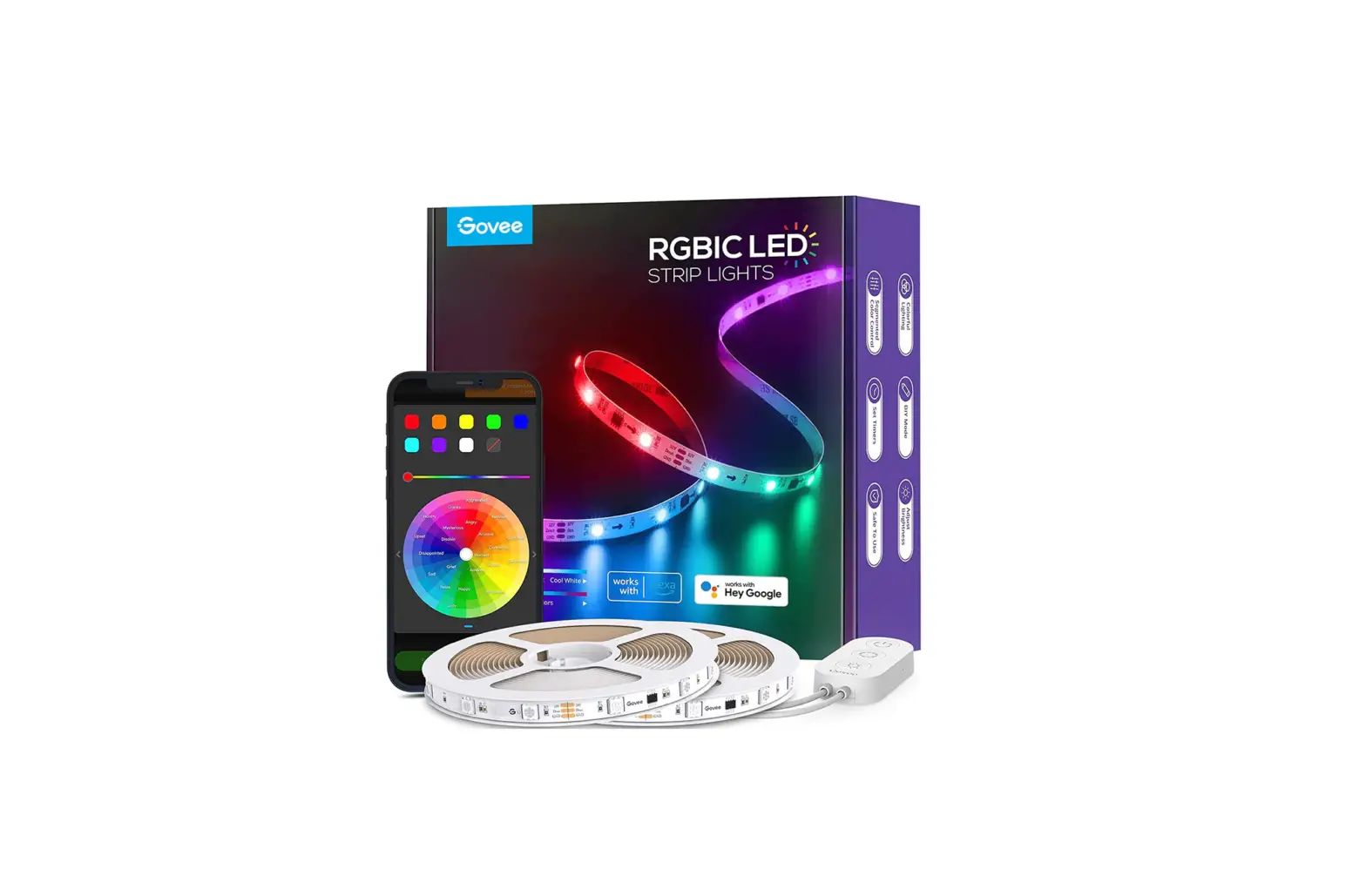
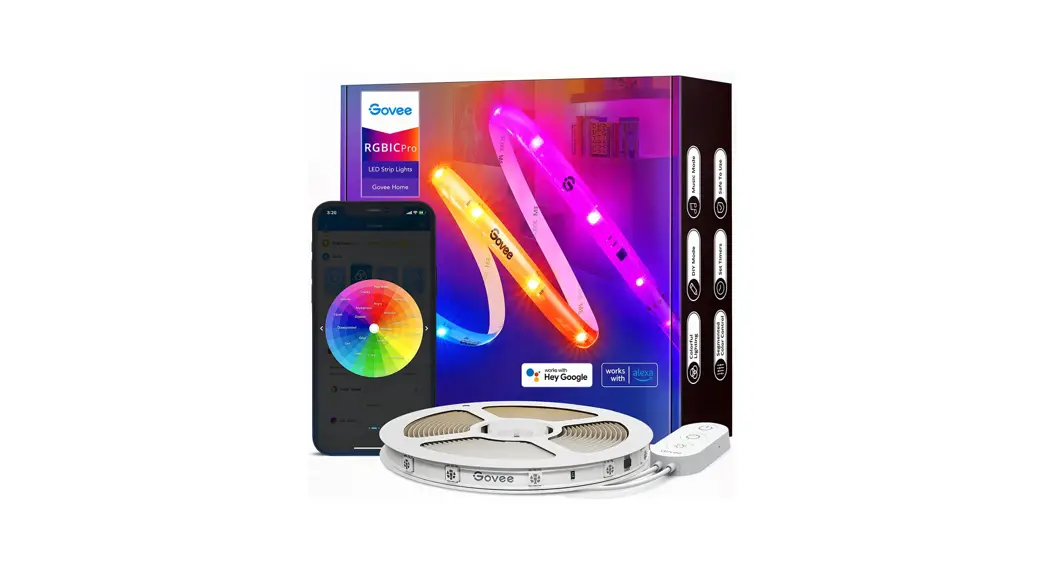
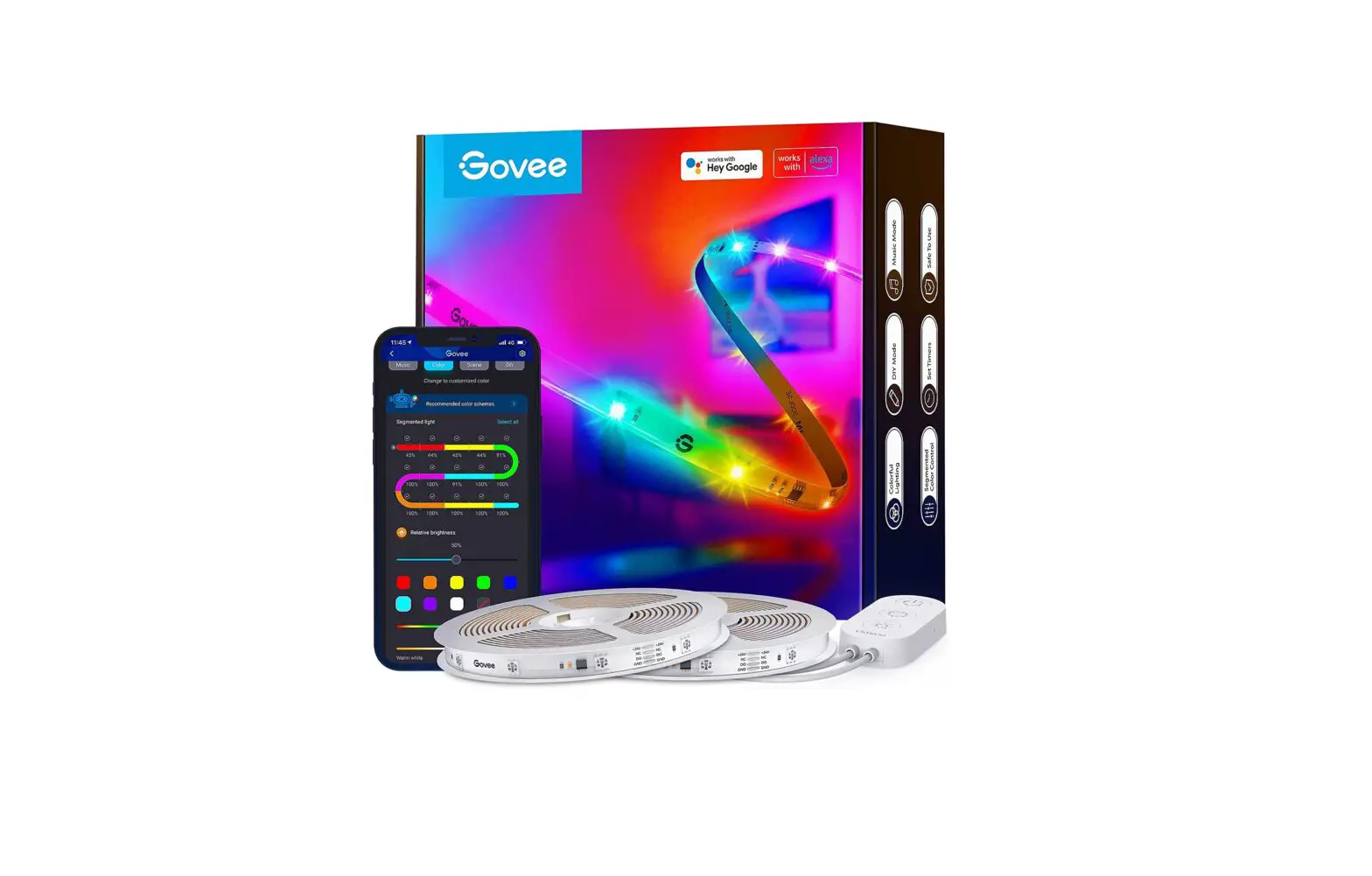
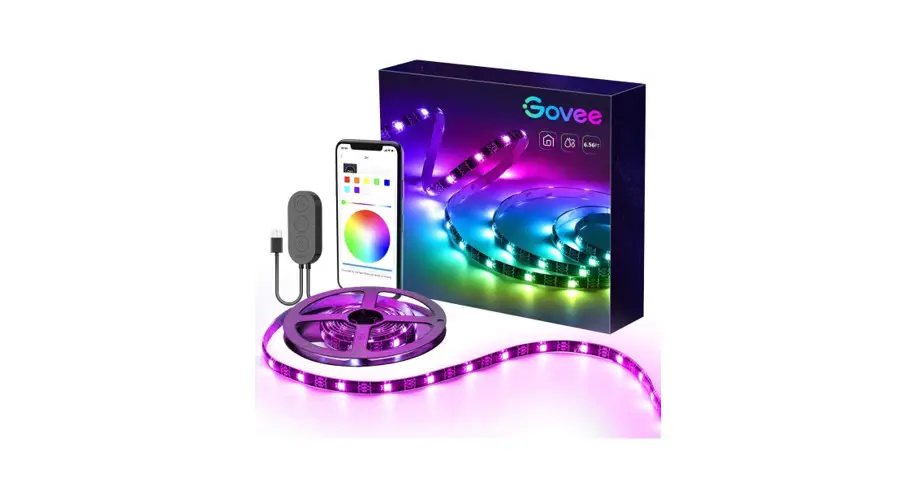
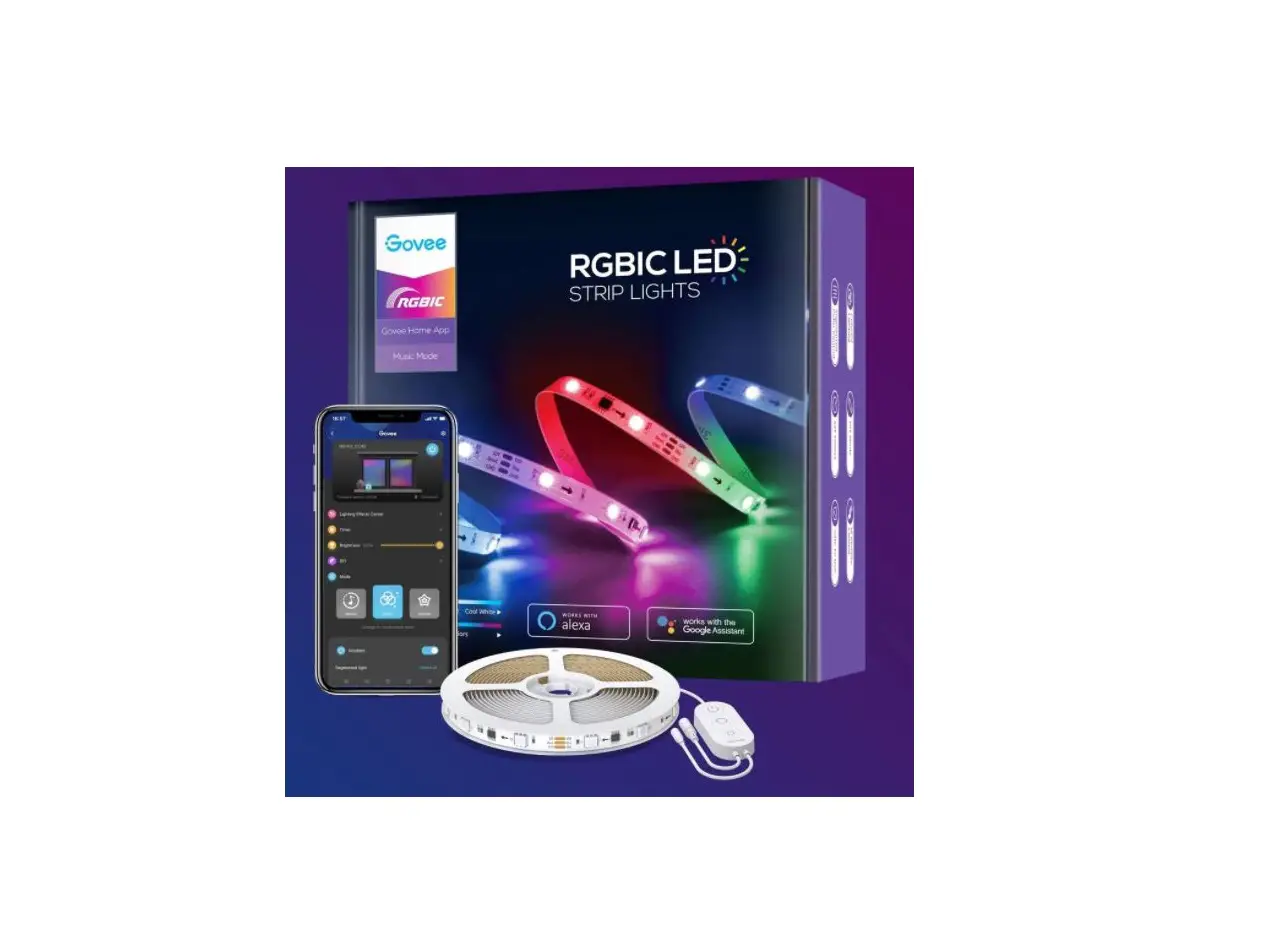
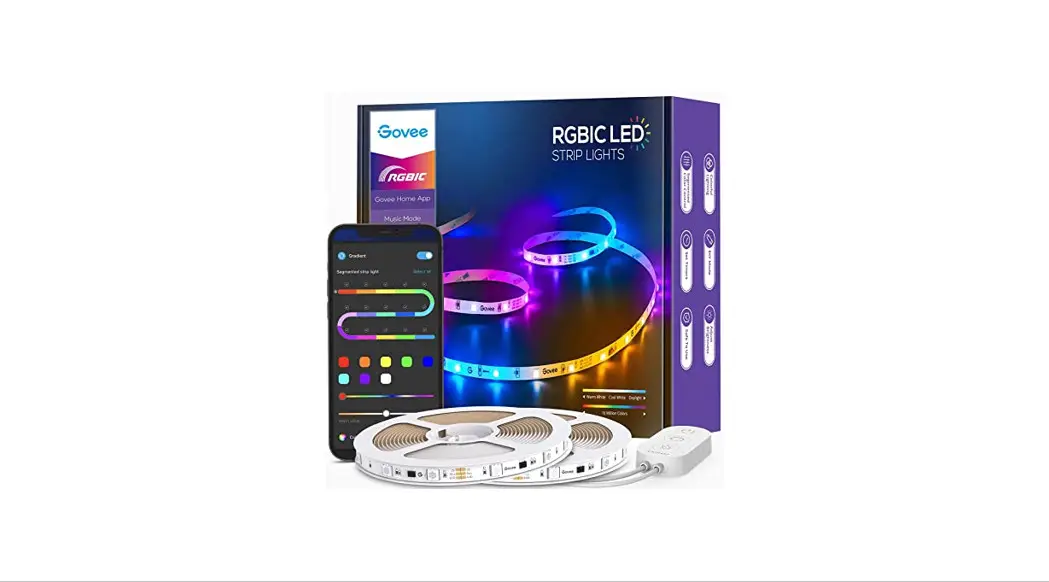
Govee H6110 RGB LED Strip Lights
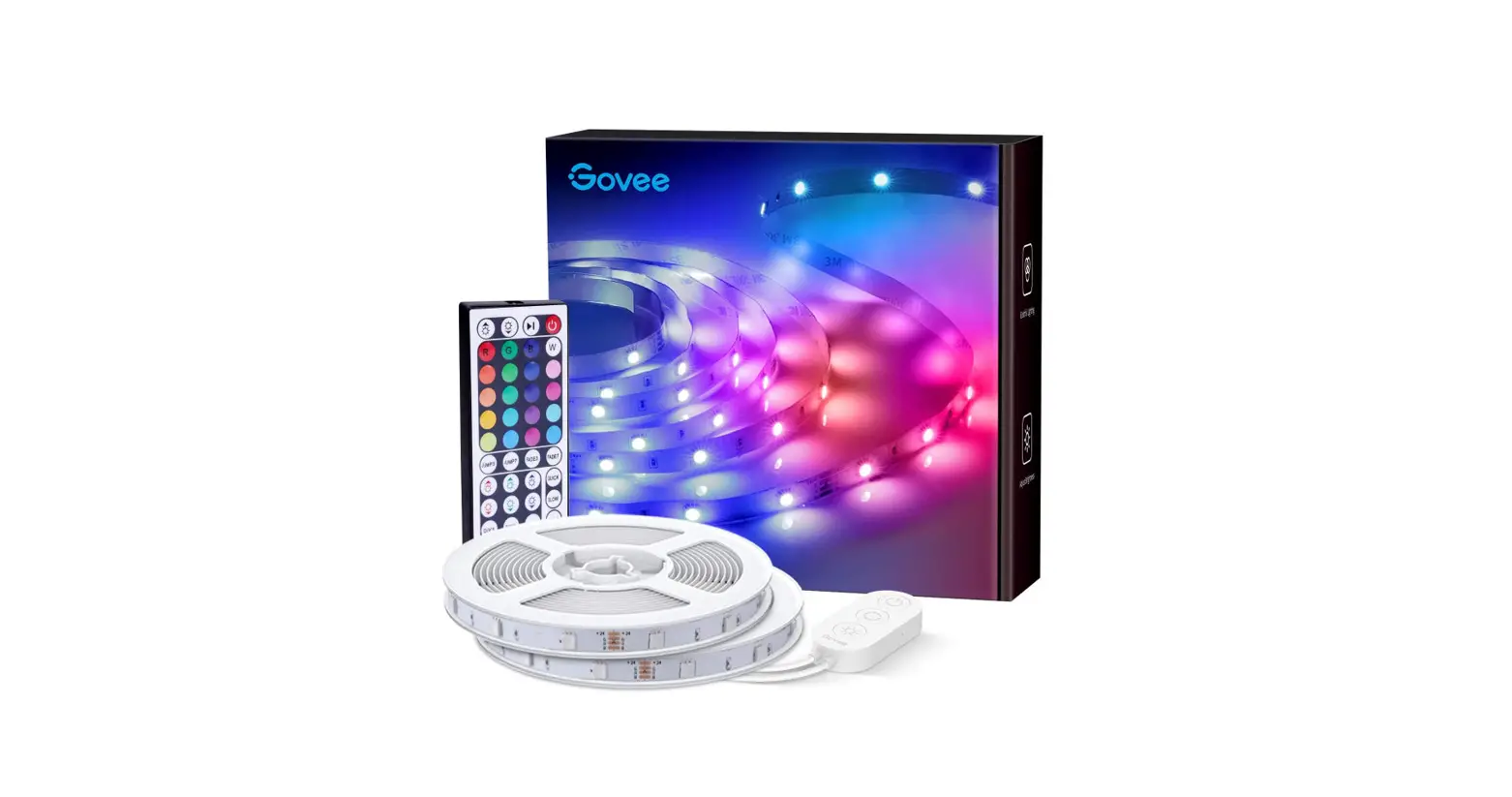
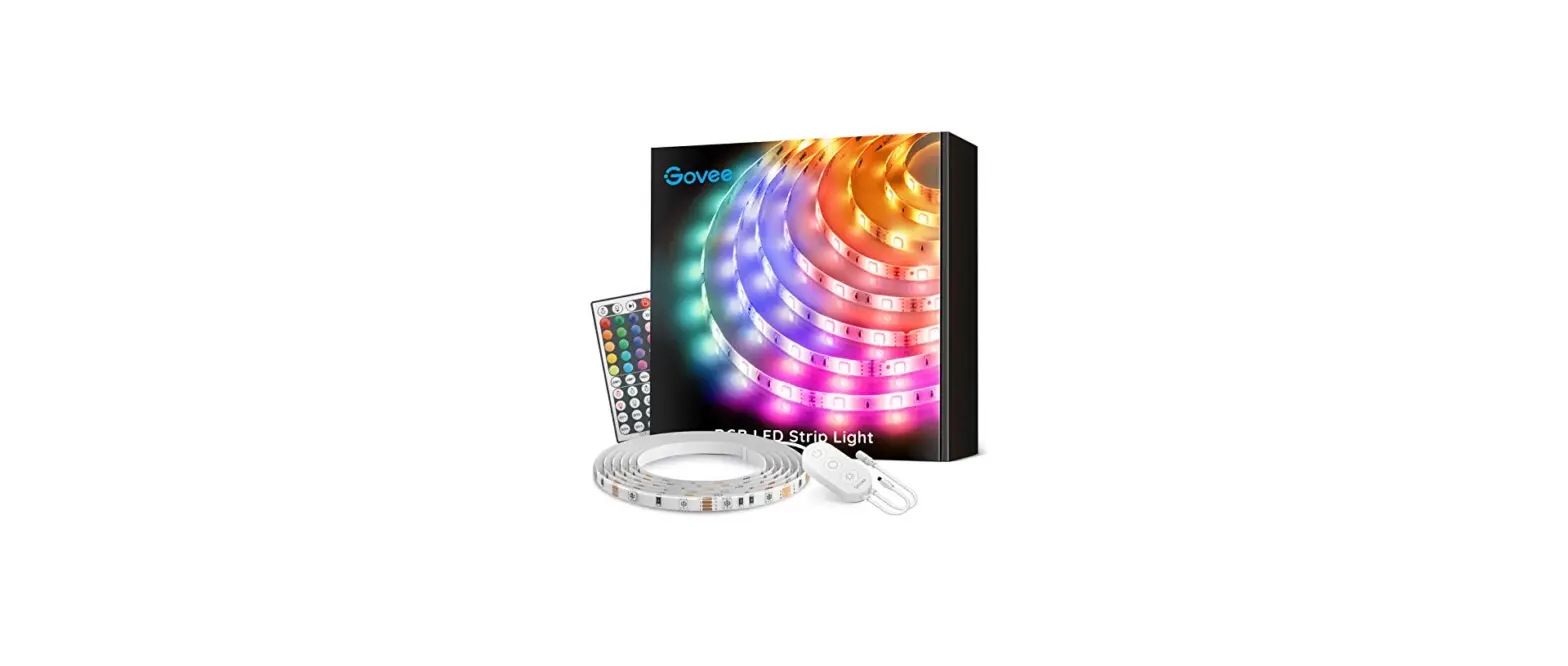
At a Glance
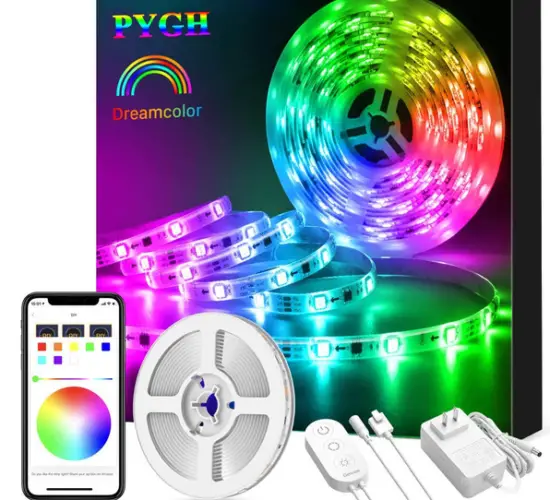
| Strip Lights | 2 |
| Power Adapter | 1 |
| User Manual | 1 |
| service card | 1 |
Specifications
| Length | 2x5m / 2>16.4ft |
| Lighting Color | RGB |
| Waterpr oof | No |
| Co11tro l Method | App & Control Box& Voice Control |
| Power Supp ly | Adapter 12v |
Installing Your Strip Lights
Preparation Before Installing
- Unpack the box and check all items listed in the packing list.
- Power on the strip lights and check whether they light up.
Installing Steps
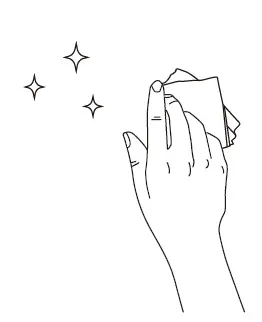
- Wipe the surface to make sure it’s clean and dry.
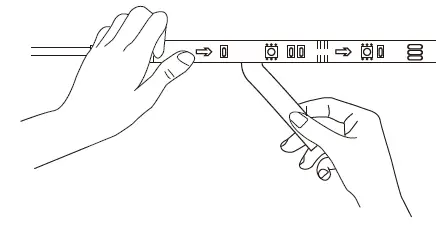
- Peel off the protective film on the tape, stick the strip on and press over it firmly.
 Reinforce via clips around corners.
 Reinforce via clips around corners.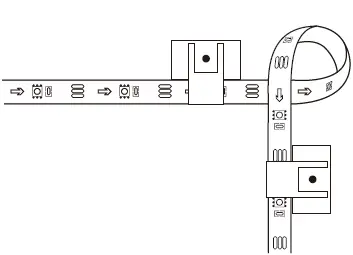
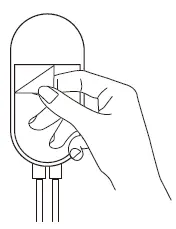
- Peel off the protective film on the control box and stick it on.
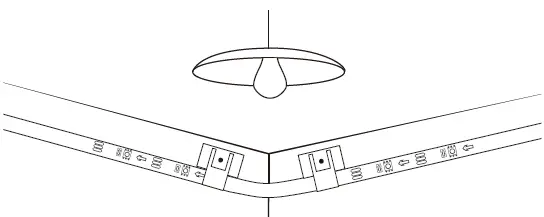
- Power on the strip lights and begin using.
Controlling with the Control Box
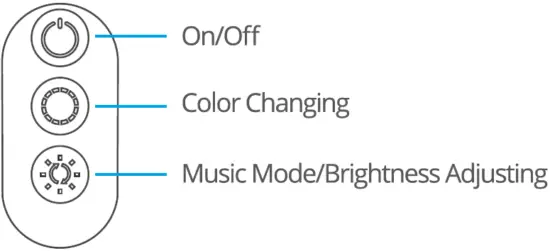
| Button | Function |
| On/Off | Turn thelight on/off. |
| Color Changing | Press to cycle tl1rough 9 colors |
| Music Mode/ Brightness Adjusting | Pressto enter music mode. Pressandholdto cyclethrough the6 brightness levels |
Downloading the Govee Home App
- Download the Govee Home app from App Store (iOS devices) or Google Play (Android devices).
- Notice: A smartphone running iOS 9.3 (or above) or Android 4.4 (or above) is needed.
Connecting to a Wi-Fi Network
- Turn on Bluetooth in your mobile phone:
- Open Govee Home app and tap” icon in the top right corner:
- Select “H6110” in the device list
- Select a 2.4GHz Wi-Fi to connect or skip the setup.
Controlling Your Strip Lights with Alexa/Google Assistant
- Wi-Fi Setting Make sure the strip is connected to Wi-Fi, if not, please follow the steps below to set up Wi-Fi.
- Open the app, select the strip light that has been added and tap setting icon in the top right corner.
- Tap “Wi-Fi Setting'”, select an available Wi-Fi network and enter password.
Notice: Only supports 2.4GHz and 802.11 b/g/n Wi-Fi networks.
- Works with Alexa/Google Assistant
- Open the app, select the strip light that has been added and tap setting icon in the top right corner.
- Tap “Using guidance” and follow on-screen instructions to complete setup.
Troubleshooting
- The adhesive tape is not strong enough.
- Make sure the installation surface is clean and dry.
- Firmly press over the strip after sticking.
- Reinforce the installation via more clips and tape.
- Cannot connect to Bluetooth.
- Do not skip Bluetooth connection in the app.
- Make sure Bluetooth in your mobile phone has been turned on.
- It may be caused by incompatibility between the phone system and the app.Please change to another mobile phone and connect again.
- Re-power on the strip and re-turn on Bluetooth in your phone and try again.
- Keep the distance between the strip and the phone less than 1m/3.28ft while connecting.
- Keep obstructions between the strip and the phone as few as possible.
- The strip doesn’t match the same color/Some lamp beads don’t light up. Please contact Govee support team in time for return.
- Cannot connect to Wi-Fi.
- Do not skip the Wi-Fi connecting steps in the app.
- 5GHz network is not supported. Please set the router to
- 4GHz and then reset it.
- Connect your phone to Wi-Fi and check whether the network works wel.
- Make sure you have entered the correct Wi-Fi name and password.
- Change your Wi-Fi password to a brief one. 8 numbers and letters are suggested.
- Connect hotspot in your phone to the strip lights and check whether the router works with the strip lights.
- Cannot sync to the music beat.
- Please keep the control box close to the sound source.
- Clean out the sound picking hole on the control box.
- Cannot connect to Alexa.
- Pull out every connective part of the strip lights and firmly re-connect them.
- Re-connect your phone to Wi-Fi
- Plug out the adapter port and re-plug it in.
- The strip lights don’t work.
- Pull out every connective part of the strip lights and firmly re-connect them.
- Tap On/Off button on the control box or app to check whether it is a strip quality issue.
Customer Service
Warranty: 12-Month Limited Warranty
Support: Lifetime Technical Support
Email:[email protected]
Official Website: www.govee.com