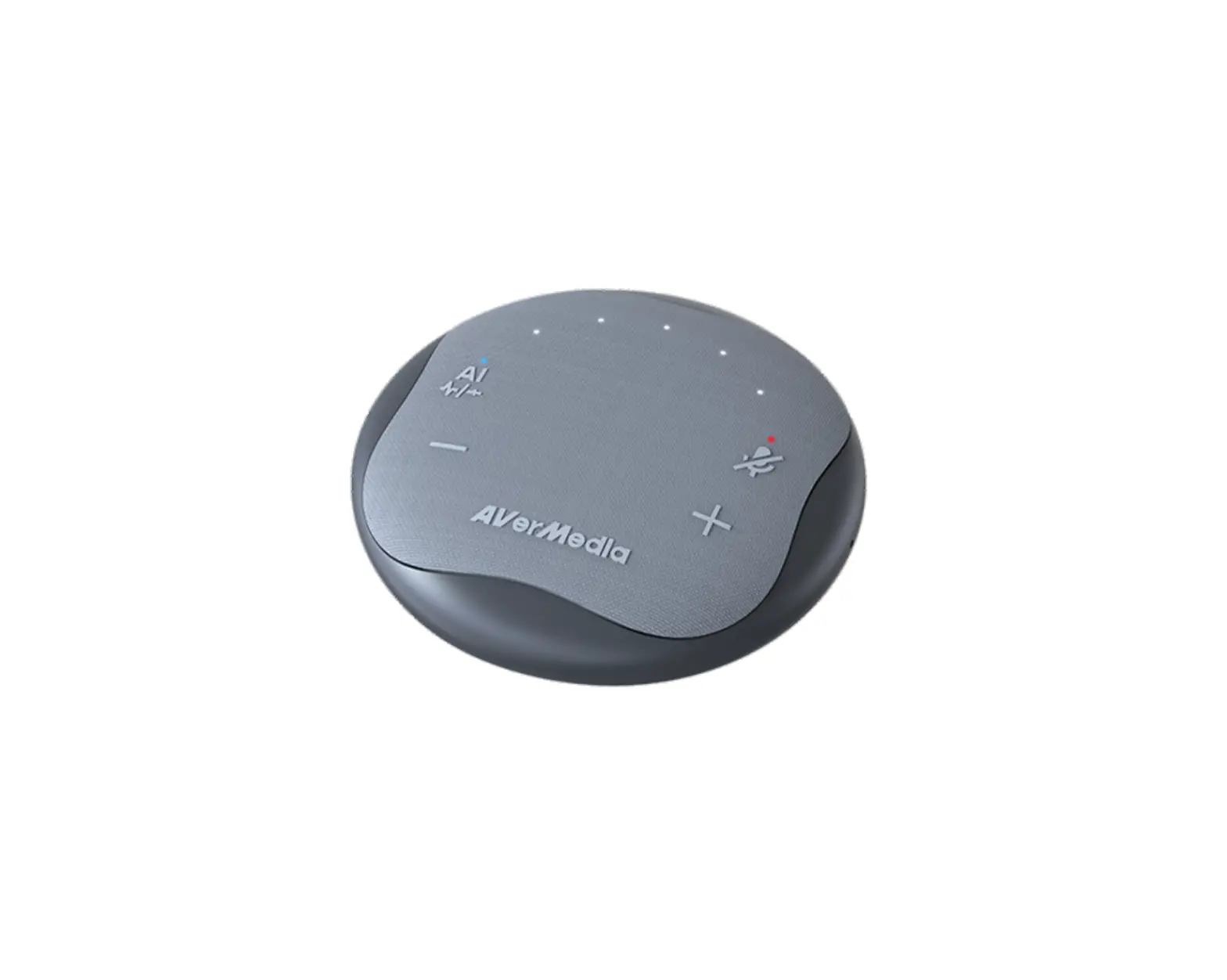
AVerMedia AS315 Pocket Speakerphone Hub
Introduction
This document is your User Guide for the Pocket Speakerphone Hub AS315. We have written this guide to provide you with the information you need to quickly and smoothly use the speakerphone.
After a quick introduction of the speakerphone and who this product is intended for, we will dive into its key features, system requirements, and technical specs and show you how to set up and install the device. Lastly, this guide will finish with a link to our technical support team and with some brief information on AVerMedia’s background.
Thank you for taking the time to use and try out our latest speakerphone, we hope you enjoy using it as much as we enjoyed making it. If you have any questions or suggestions on our products or need any further editorial assistance, please don’t hesitate to contact us.
Pocket Speakerphone Hub AS315
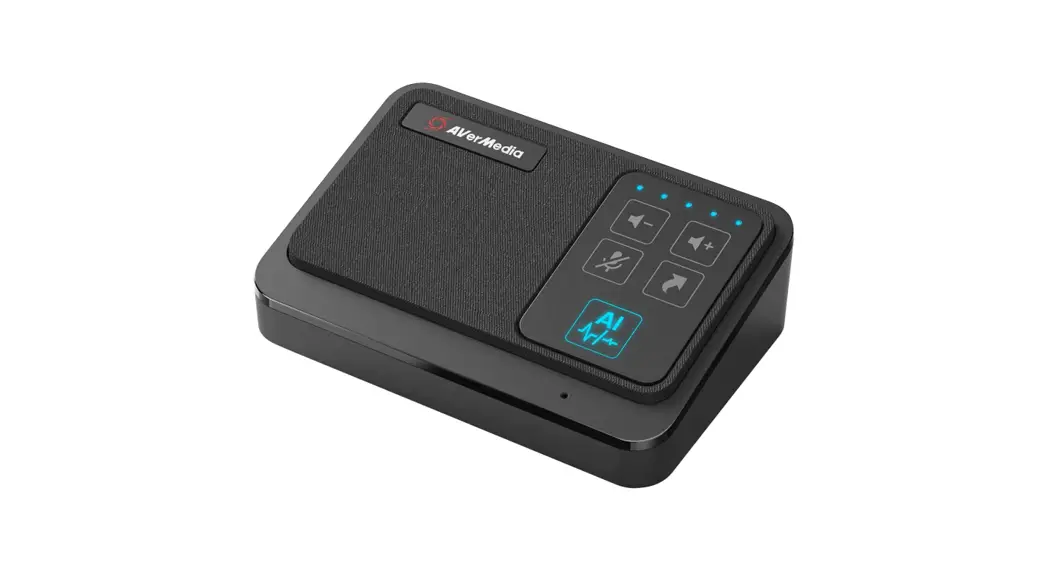
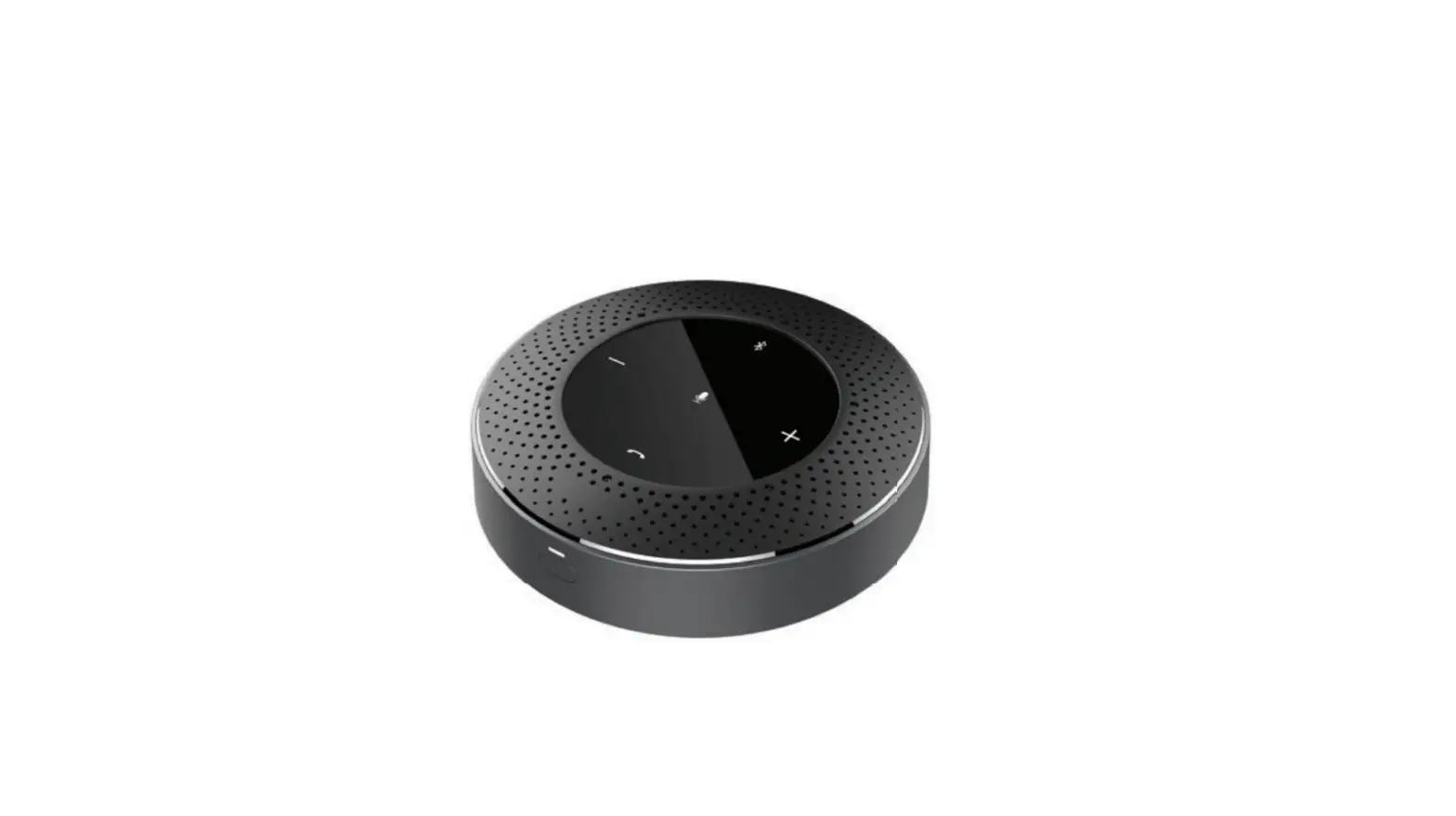
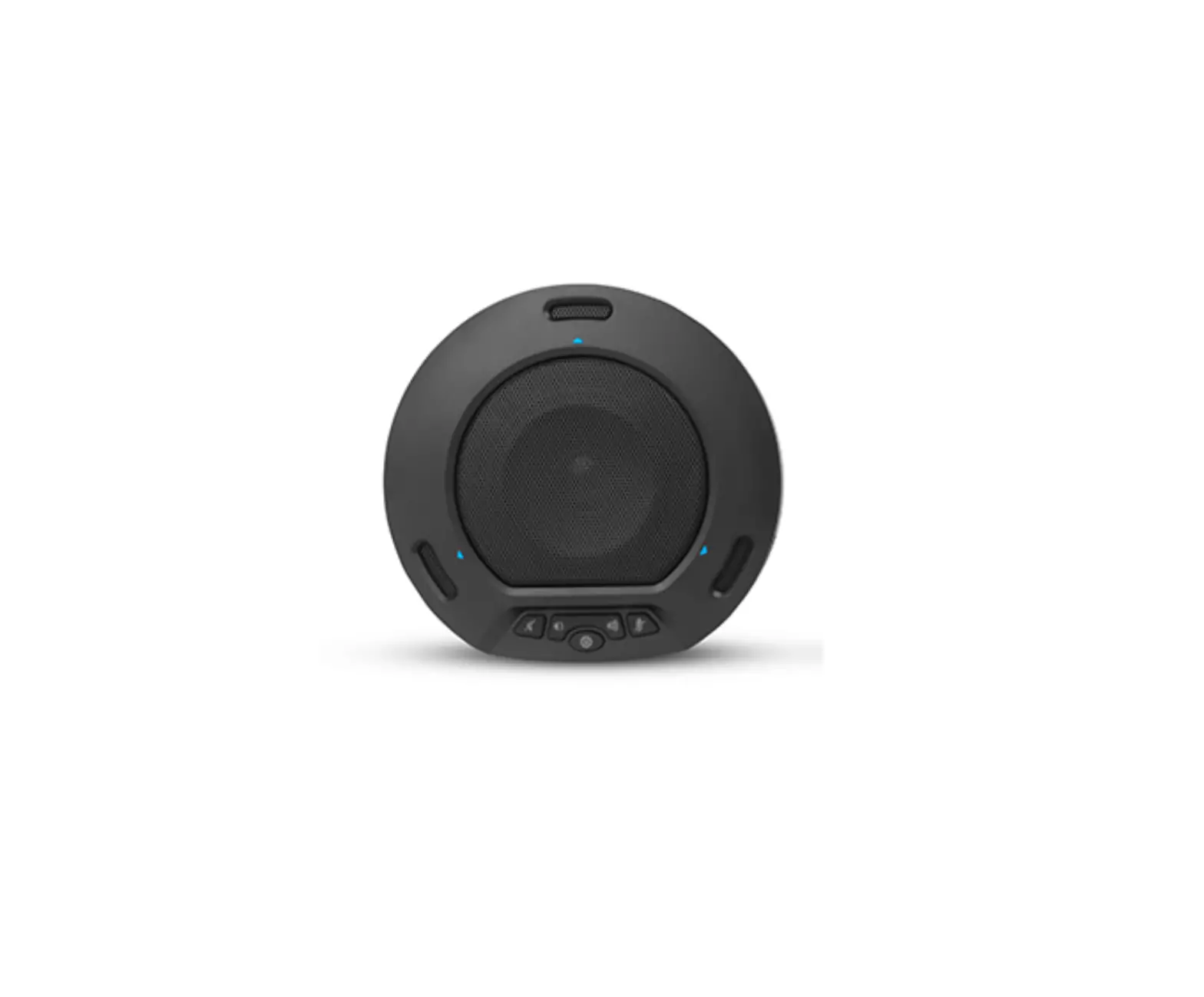
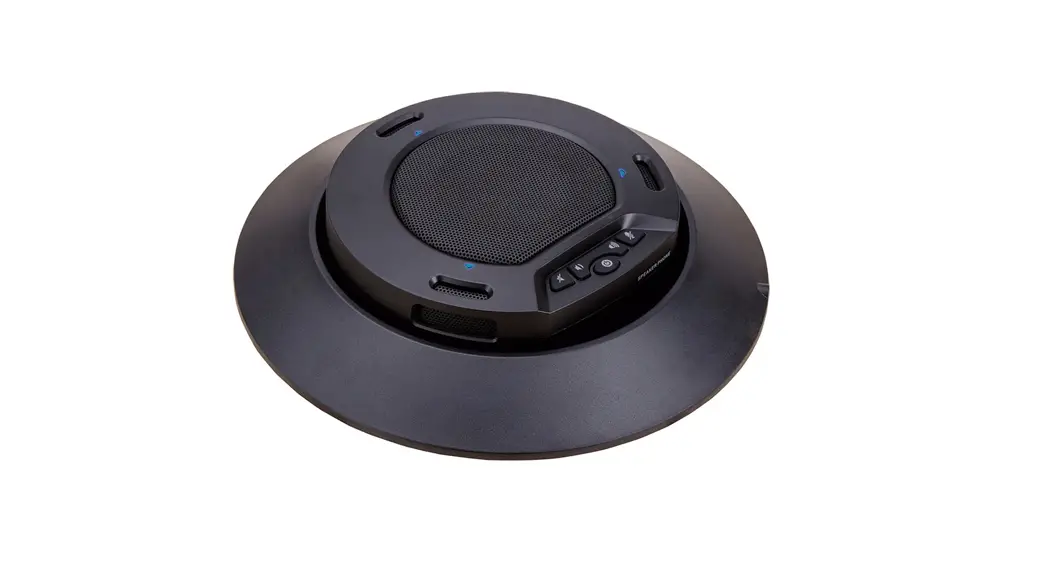
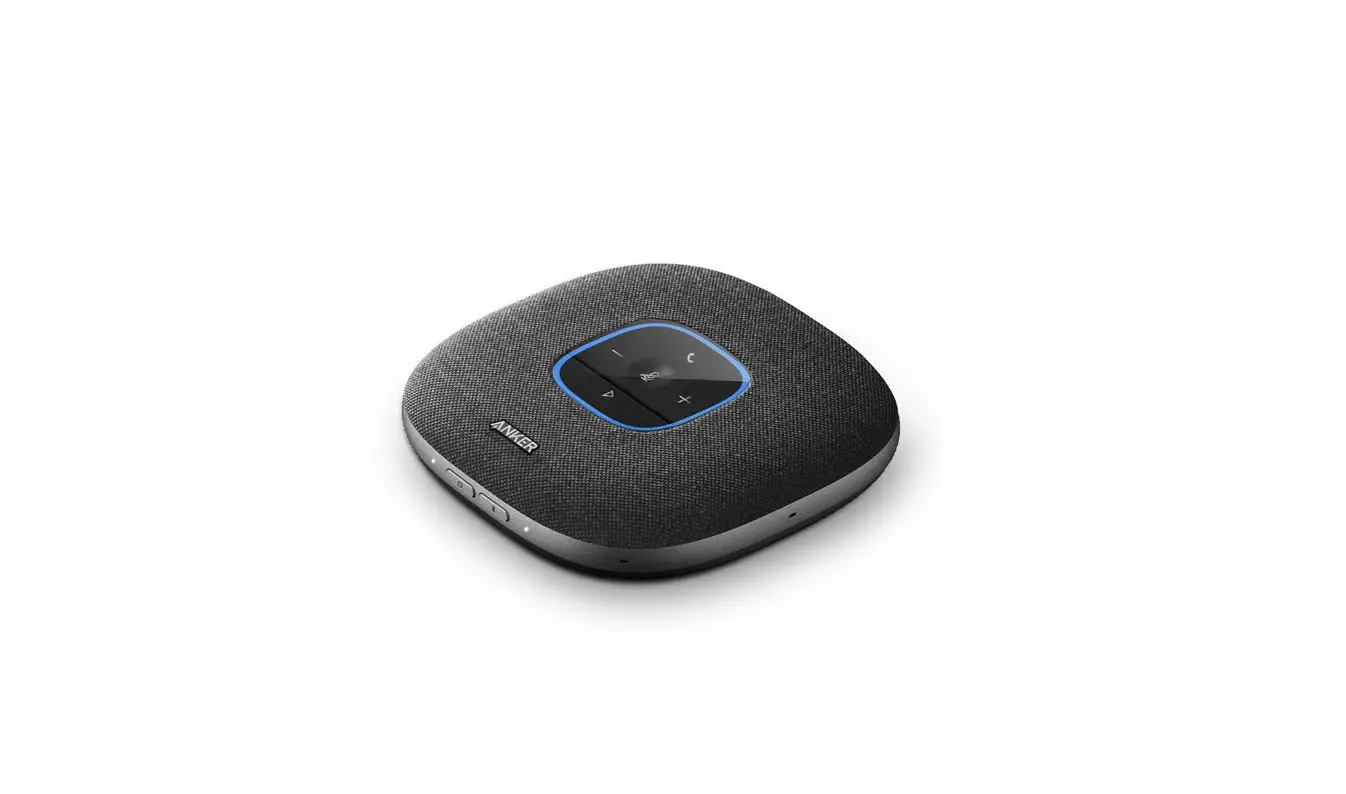
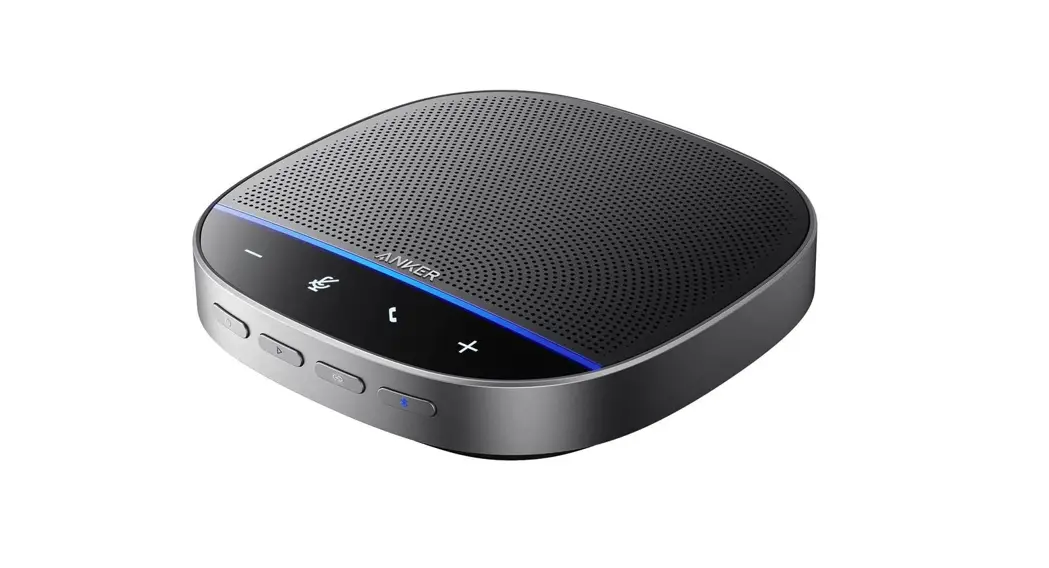
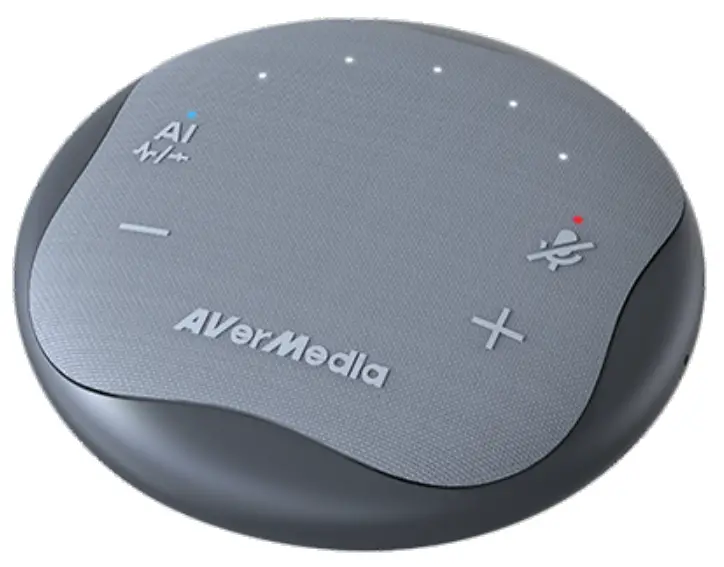
The Pocket Speakerphone Hub AS315 can be used as a multi-port hub and a speakerphone. The compact design takes up tiny space from a home office to a small huddle room. It is ultra portable for business trips that users can easily put the speakerphone hub into a bag and takes it to travel anywhere, empowering the anyplace workspace.
With an efficient cable management feature, the compact and lightweight design of the Pocket Speakerphone Hub AS315 features a collection of ports to plug in devices that will help empower the anyplace workspace and make it look organized.
It uses artificial intelligence to accurately identify and reduce common background noises in offices, such as keyboard typing sounds, coffee machine sounds, fan noise, and so on, allowing important conversations, presentations, and training lessons to proceed without interruption.
Key Features
- One cable connects the essentials you need to join a meeting and start working. Ports:
– HDMI 1.4 port (4K@30 Hz)
– USB 3.2 Gen 2 Type-A port (Super Speed 10 Gbps)
– USB 3.2 Gen 2 Type-C port (Power Delivery up to 100 W) - One click to activate AI noise reduction. With AI-powered technology, the AS315 suppresses distracting background noises.
- Keeping a clean and tidy workspace that aligns your workspace with workflow and significantly improves efficiency.
- Portable design for personal use at home, work, and on the go.
- Push to talk/mute at once. Easily mute/unmute your audio with a touch of a button.
- Avoid ear pain or hearing damage from prolonged use of headphones or earbuds.
- You can be sitting down or walking around your workspace while having a group call.
- Compatible with your favorite conferencing software.
System Requirements
Speakerphone
- Windows (include surface), macOS (MacBook and iMac), Chromebook
- Available USB Type-C port (*with DP Alt mode for HDMI output)
Compatible with 3rd Party Software
- Teams, Zoom, Google Meet, Cisco Webex, Skype, GotoWebinar, Wechat, Messenger, YouTube, Line, FaceTime
Technical Specifications
| Connection | Plug and Play (no driver needed) USB Type-C, Manageable Pigtail Cable 43 cm / 17.05 in |
| I/O Ports | 1 x HDMI 1.4 port (4K @ 30Hz) 1 x USB 3.2 Gen 2 Type-A port (10 Gbps) 1 x USB 3.2 Gen 2 Type-C port (10 Gbps; Power Delivery up to 100 W) |
| Speaker | 3 W Frequency Response: 150 Hz – 14 kHz |
| Microphone | 360°; Omnidirectional Frequency Response: 100 Hz – 7 kHz ‘Pickup Range: 3 m / 9.8 ft |
| Interface | AI Noise Reduction, Microphone Mute, Volume Up, Volume Down with LED Indicators |
| Dimensions (D x H) | 96 x 29.5 mm (3.8 x 1.2 in) |
| Weight | 145.4 g (5.1 oz) |
| What’s in the Box | AS315 Speakerphone Hub Carrying Bag Quick Guide |
*All specifications are subject to change without prior notice.
*Visit AVerMedia official website at www.avermedia.com for the latest information.
Product Overview
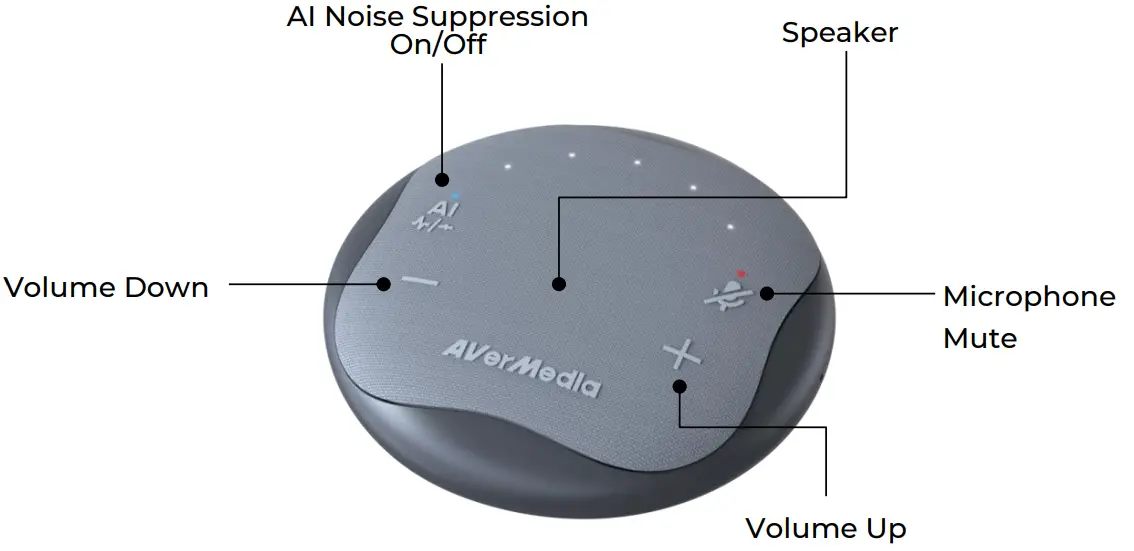
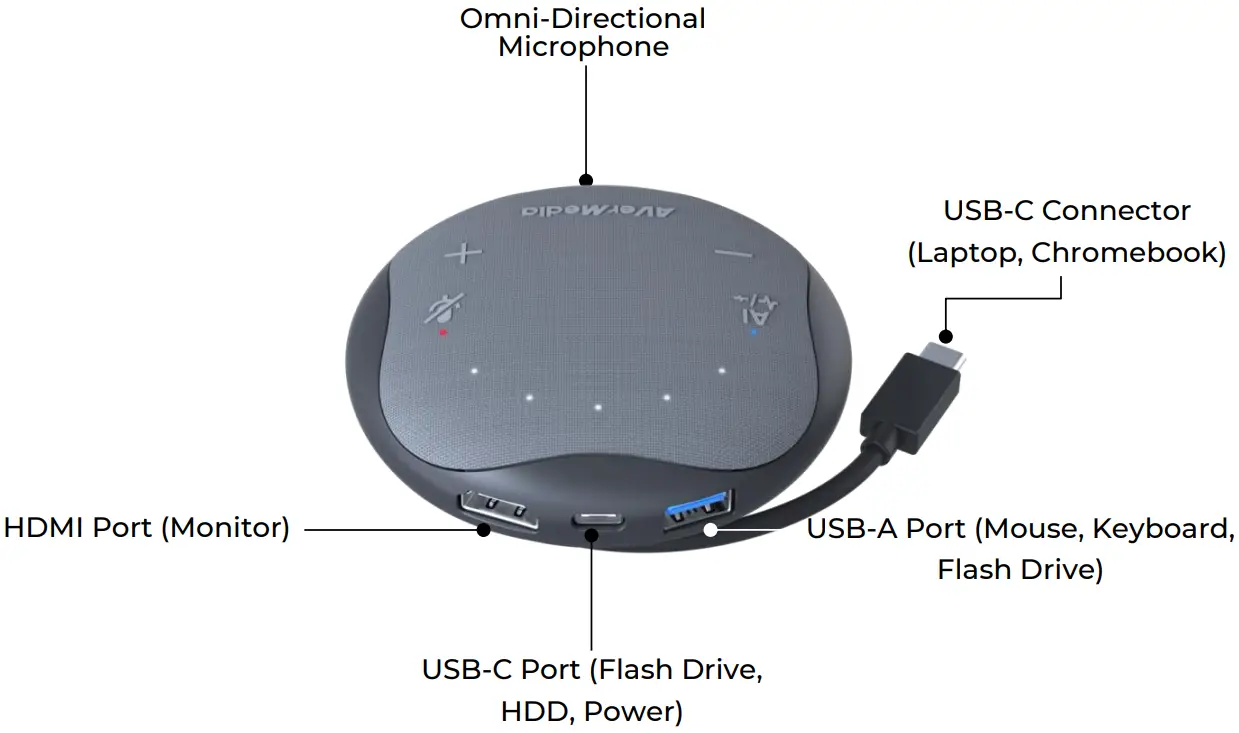
Installation
Connect AS315 to your computer via the built-in USB Type-C cable.
Once connected, the speakerphone will automatically function as your computer’s default speaker and microphone device, namely AVerMedia Speakerphone AS315.
You can also connect a monitor, keyboard, webcam, etc. to it as a docking station.
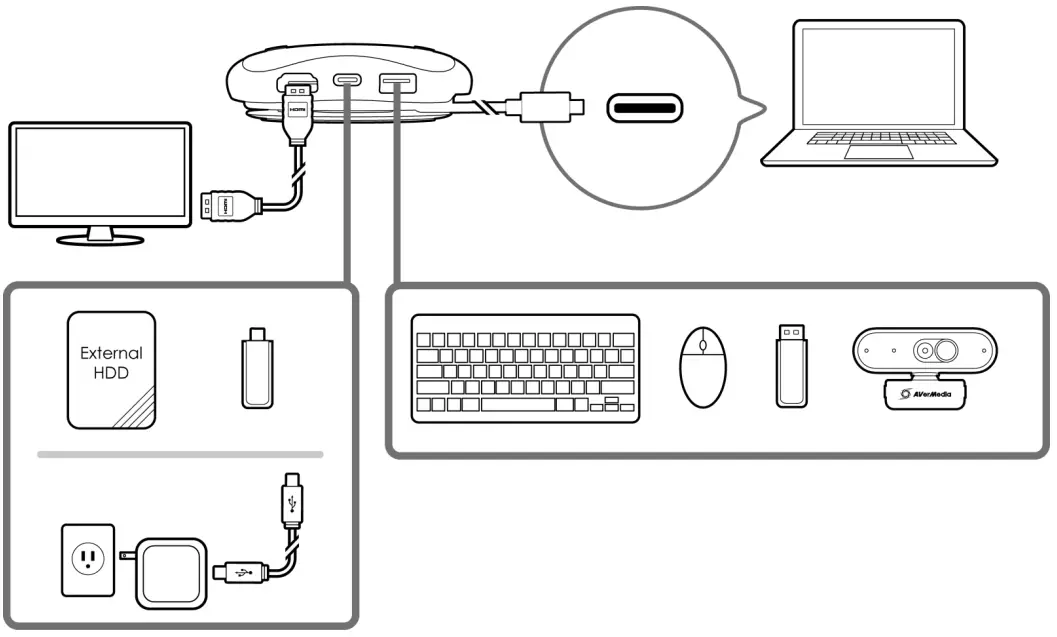
Note: Make sure your USB Type-C port supports DisplayPort Alt Mode for videos to work on AS315’s HDMI port.
LED Indicators
| Volume Indicator(s) | Status |
| Flashing white | Starting up/processing |
| Solid white (at volume level) | Ready |
| AI Indicator | Status |
| Solid blue | AI noise reduction enable |
| MIc. Mute Indicator | Status |
| Solid red | Microphone muted |
Contact Us
Please contact us here should you have any questions or suggestions.
About AVerMedia
AVerMedia empowers people to easily connect and boldly create through innovative audiovisual technology. Our solutions help people work productively, build new relationships, and expand their horizons in ways that weren’t possible before. Our products include a wide range of powerful yet easy-to-use devices such as speakerphones, video capture cards, and microphones for content creators, schools, and businesses. We also provide hardware design services for a range of AI and IoT applications, from smart retail to smart cities.
AVerMedia is guided by a philosophy of contributing to society- whether through products that change customers’ lives for the better or by ensuring our operations are socially responsible.
Connect with AVerMedia:
Website: https://www.avermedia.com/
LinkedIn: https://www.linkedin.com/company/avermedia-technologies
Appendix – F.A.Q
Is my computer’s USB Type-C port able to output videos to AS315?
Make sure the USB Type-C port in use supports DisplayPort Alt Mode, Thunderbolt 3, or 4 projection for videos to be exported through AS315 and to display on a monitor or TV.
Check if there is one of the following symbols next to the USB Type-C port:
– A lightning bolt symbol indicating Thunderbolt 3 or 4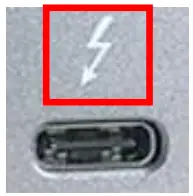
– A D-shaped icon indicating DP Alt Mode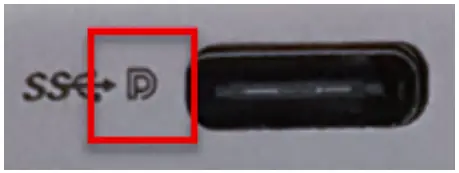
Please use genuine Apple USB power adapters to ensure stable connection and to avoid possible incompatibility with non-Apple power adapters.
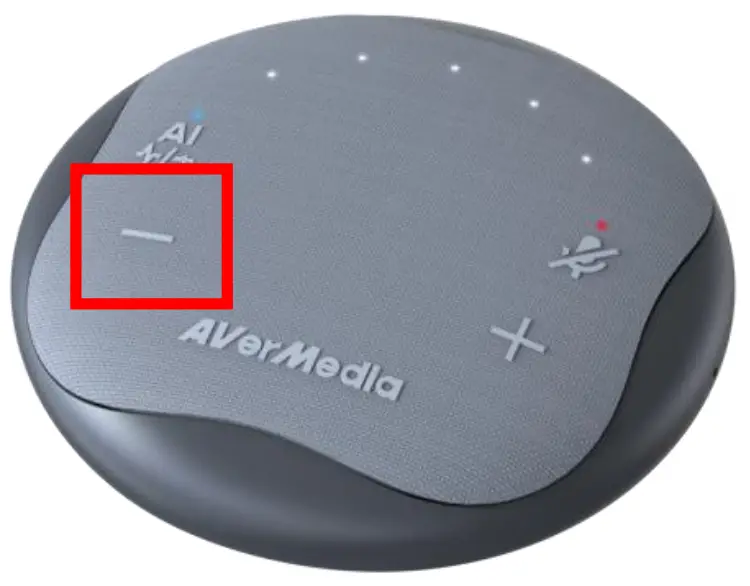
Keep pressing on the volume “-” button until all the volume indicators go off.
Another way is to mute the volume from the computer’s keyboard shortcut or system audio settings.
iPad’s design is to output sound to the audio device which gets connected at last.
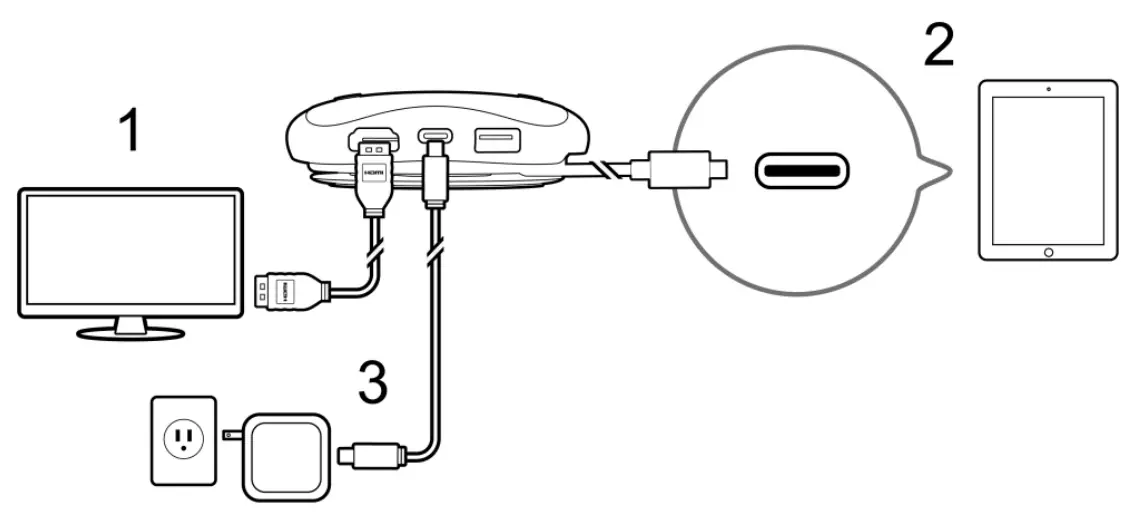
Refer to the following connection sequence, to get audio output from AS315.
I. Connect the monitor to AS315’s HDMI port.
II. Connect AS315’s built-in USB Type-C cable to the iPad.
III. If a power supply is needed, plug it into AS315 at the last step.
Speakerphone support page:
https://www.avermedia.com/Speakerphone-Support

 AVerMedia | Create and Connect