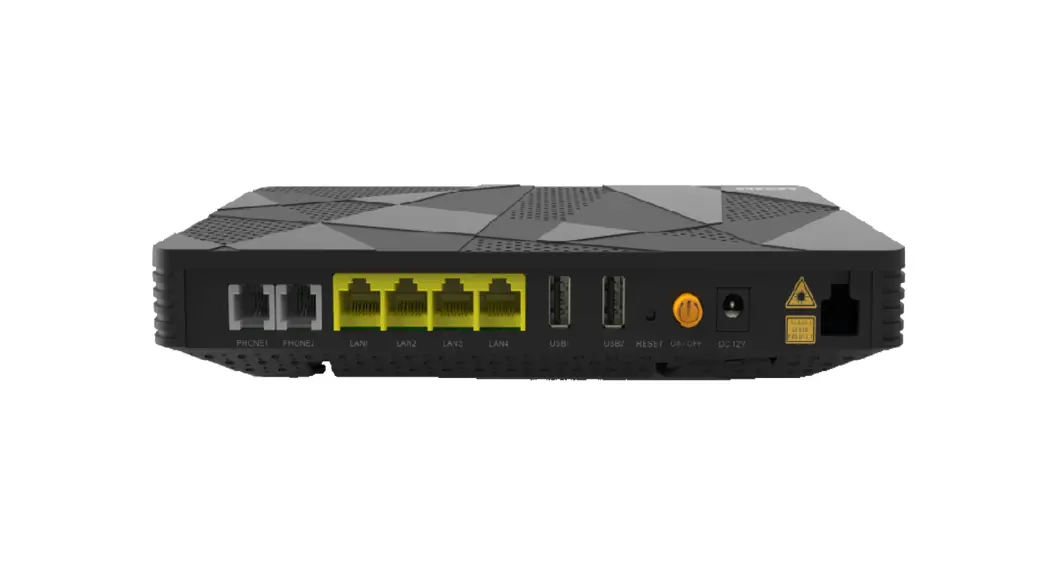
WAG-0F2W XGS-PON ONT
User Manual
Package Lists
| Item | Quantity |
| 0F2WW GPON ONT Unit | 1 |
| Power Adapter | 1 |
| RJ-45 Ethernet Cable | 1 |
| User Manual | 1 |
Product Overview
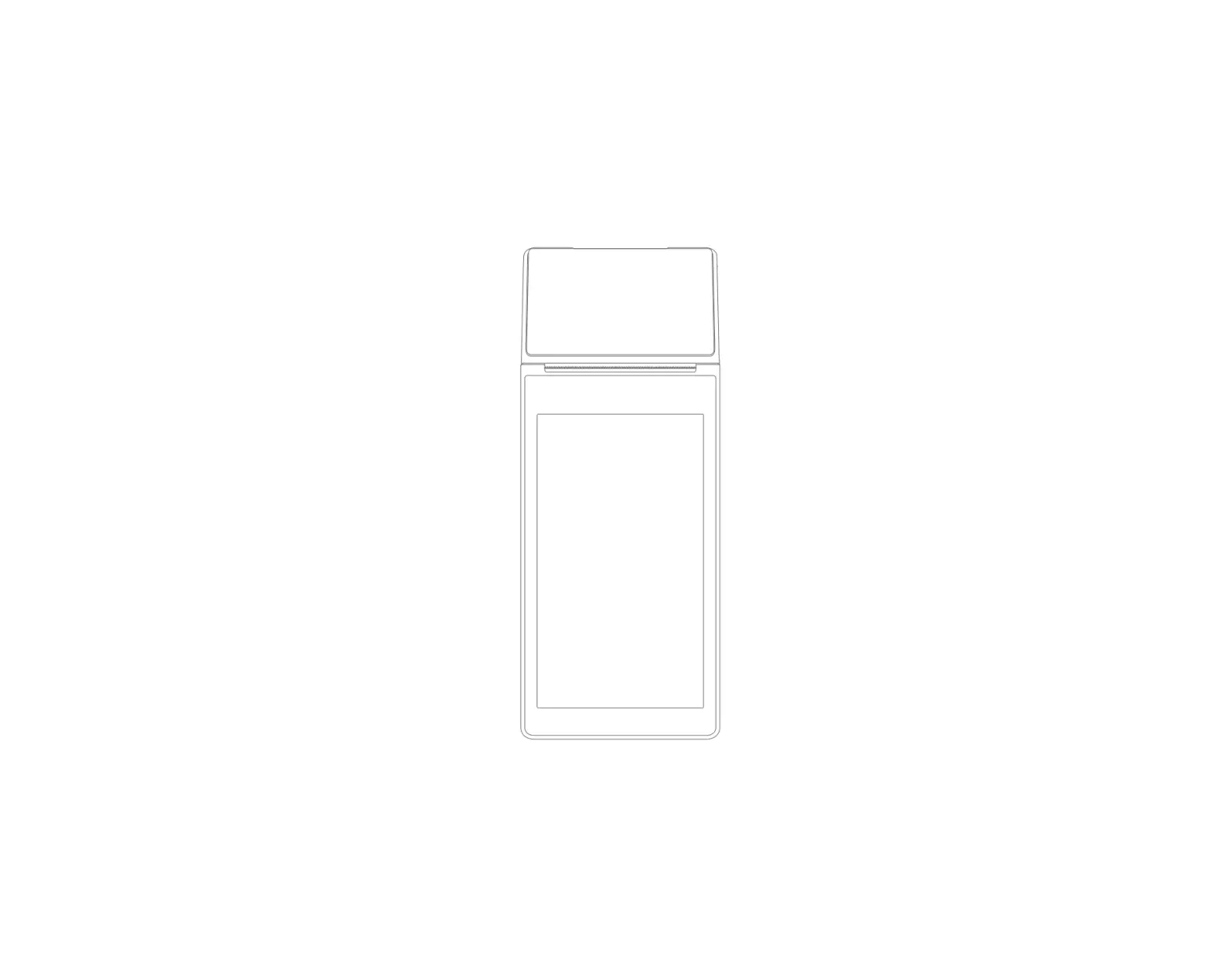
The WAG-0F2W is an ITU-T G.984 and ITU-T G.988 compliant ONT. The ONT provides four GE ports, two POTS ports, Wi-Fi 802.11ax 2×[email protected] & 802.11ax 4×4 @5GHz concurrent, two USB ports. Its characteristics of high bandwidth and low delay can meet the needs of high-end home users. And it supports desktop mounting or wall mounting.
Interface
| Device Interface | Description |
| Fiber Optical interface | 1*SC/APC optical interface for fiber connection. Supports GPON(Transmitting : 1270 nm(PON) , Receiving : 1577 nm (PON) ) |
| LAN | 4*GE Ethernet interface with RJ-45 connector, Supports 10/100/1000-Base-T, half/full duplex and flow control, auto negotiation or manual configuration and supports MDI/MDIX auto-sensing |
| Phone | 2*POTS interfaces with RJ-11 connector |
| USB | 2*USB port, 5V-1.0A, connects to a USB storage device |
| Power | 12V Power Input Interface 1* DC Jack for power input |
Technical Specification
| Item | Description |
| Dimension | 220mm×160mm×38mm (Height × Width × Depth) |
| Rated Voltage | 12V |
| Rated Current | 2A |
| Operation Temperature | 0ºC to 40ºC |
| Storage Temperature | -20ºC to 65ºC |
Safety Instructions
Please read the safety instructions carefully before using the device.
- Please keep the power adapter and cable and hands clean and dry to avoid the electric shock and other dangers.
- Please only use the standard power adapter provided in the packaging box, otherwise, the device may work abnormally or even be damaged.
- Please don’t open the cover of the device, especially when the device is powered on. It can be dangerous to do so.
- If do not use the device for a long time, please turn off the power.
- If find the device is in an abnormal state, such as too hot, strange smell or smoke, please power off the device quickly and feed back to the service provider.
- Please keep the device away from any hot source and water.
- Please don’t let anything cover the cooling holes of the device.
- Observe local equipment handling regulations and protect the environment.
- If need to clean the dust of the equipment, please cut off the power supply first and unplug the relevant connecting cable, then use dry cloth to clean, do not use any liquid.
Cable Connetion
- Connect Ethernet Cable
If needed, connect LAN port of WAG-0F2W to PC via standard RJ-45 Ethernet Cable. - Connect Fiber Optical Cable
Connect the fiber optical port of WAG-0F2W (at the bottom of the device) to GPON OLT via fiber optical cable. - Connect RJ-11 cable
If needed, connect the phone port of WAG-0F2W to wired telephone via RJ-11 cable. - Connect USB storage device
If needed, connect the USB storage device with USB port. - Connect Power Adapter
Connect the power interface of WAG-0F2W to a power outlet via the provided power adapter (Please don’t use other specifications of power adapter), then turn on the power switch of 0F2WW.
LED
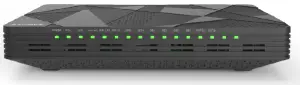
| LED | Color | State | Description |
| Power | Green | Off | The device is powered off. |
| On | The device is powered on. |
| LED | Color | State | Description |
| PON | Green | Off | The device has not started the registration process. |
| Flashing | The device is registering or upgrading. | ||
| On | The device has completed the registration process. | ||
| LOS | Red | Off | The received GPON optical power is normal. |
| Flashing | The received GPON optical power is lower than the sensitivity of the optical receiver. | ||
| Internet | Green | Off | The device has no Ethernet connection. |
| On | The device has connected to the Internet /the correct IP address has been obtained and the bridge link is normal). | ||
| GE | Green | Off | The device is not powered on or no LAN connection is established. |
| Flashing | Data is transmitted or received through this Ethernet interface. | ||
| On | The LAN connection is established but no data is transmitted/received. | ||
| POTS | Green | Off | The device is unable to register on the soft switc MMS. |
| Flashing | Voice service is being provided. | ||
| On | The device has registered on the soft switch/IMS but no voice service. | ||
| WWi2.4G | Green | Off | The WI-FI interface is disabled. |
| Flashing | Data is being transmitted. | ||
| On | The WI-FI interface is enabled. | ||
| Wifi5G | Green | Off | The WI-FI interface is disabled. |
| Flashing | Data is being transmitted. | ||
| On | The WI-FI interface is enabled. | ||
| USB | Green | Off | USB port is disconnected. |
| On | USB port has connected the USB storage device. |
| Button | Function |
| Power Button | Power on and off the WAG-0F2W device. |
| LED Button | LED ON/OFF button, press to turn all LEDs ON/OFF. |
| WiFi2.4G | WiFi 2.4G ON/OFF button, press to enable/ disable 2.4G Wifi functions. |
| WiFi5G | WiFi 5G ON/OFF button, press to enable/ disable 5G Wifi functions. |
| Reset | Reset the WAG-0F2W device. |
Wireless Configuration
Wireless Country Region is 0(US).
Logging into the Web Page
- Management IP address: 192.168.1.1, Network Mask: 255.255.255.0
- Username/Password: admin/admin
- HTTP web address: https://192.168.1.1
Step 1: Use the Ethernet cable to connect LAN port 1 of WAG-0F2W to a PC.
Step 2: Set up the PC to obtain an IP address automatically (DHCP) and make sure the IP address of the PC is in the same subnet as the management IP address of WAG-0F2W.
Step 3: Enter https://192.168.1.1 in the address bar of the web browser to log into the local web page.
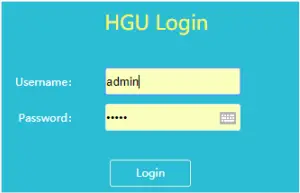
Step 4: On the login screen, enter the username(admin) and password(admin), and then click Login. After the authentication is successful, the management web page is displayed.
NOTE:
- If you do not perform any operation within 5 minutes after login, you will be forced to exit the webpage automatically and required to re-log into the web page.
- The login interface will be locked for 1 minute if a wrong user name or password is entered three times consecutively.
- DO NOT connect the Ethernet cable to port(s) that are bound to the OTHER bridge service. A PC won’t be able to obtain an IP address via DHCP nor access the 0F2WW web page. By default, LAN port 4 is configured with the OTHER bridge service.
SSID Configuration
You can configure 2.4G SSID name via: Network->WLAN Setup->WLAN 2.4G Setup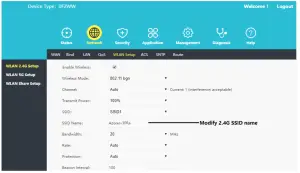 You can configure 5G SSID name via: Network->WLAN Setup->WLAN 5G Setup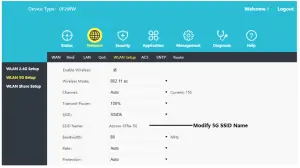
FCC Warning Statement
Changes or modifications not expressly approved by the party responsible for compliance could void the user’s authority to operate the equipment. This equipment has been tested and found to comply with the limits for a Class B digital device, pursuant to Part 15 of the FCC Rules. These limits are designed to provide reasonable protection against harmful interference in a residential installation. This equipment generates uses and can radiate radio frequency energy and, if not installed and used in accordance with the instructions, may cause harmful interference to radio communications. However, there is no guarantee that interference will not occur in a particular installation. If this equipment does cause harmful interference to radio or television reception, which can be determined by turning the equipment off and on, the user is encouraged to try to correct the interference by one or more of the following measures:
- Reorient or relocate the receiving antenna.
- Increase the separation between the equipment and receiver.
- Connect the equipment into an outlet on a circuit different from that to which the receiver is connected.
- Consult the dealer or an experienced radio/TV technician for help.
This device complies with 15 of the FCC Rules. Operation is subject to the following two conditions: (1) This device may not cause harmful interference, and (2) this device must accept any interference received, including interference that may cause undesired operation.
RF Exposure Statement
To maintain compliance with FCC’s RF Exposure guidelines, This equipment should be installed and operated with minimum distance of 20 cm the radiator your body. This device and its antenna(s) must not be co-located or operated in conjunction with any other antenna or transmitter.