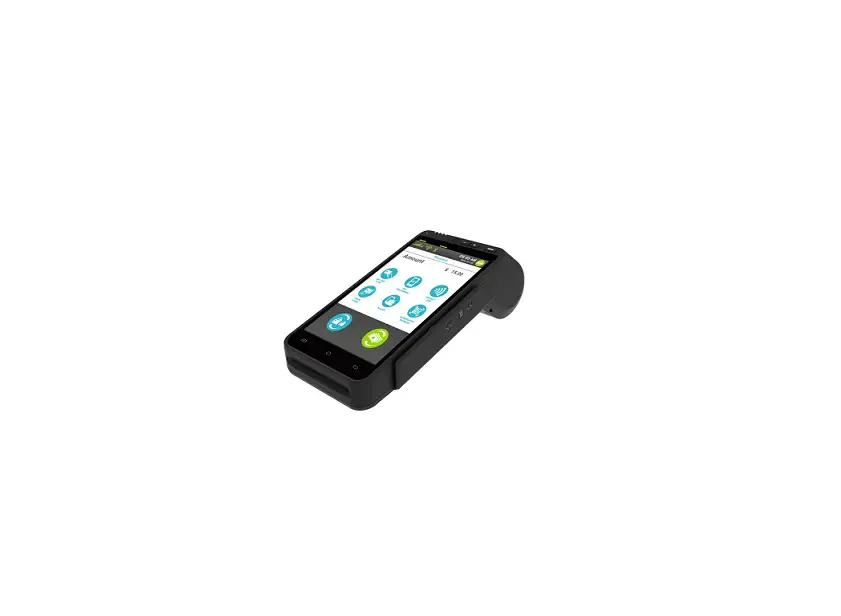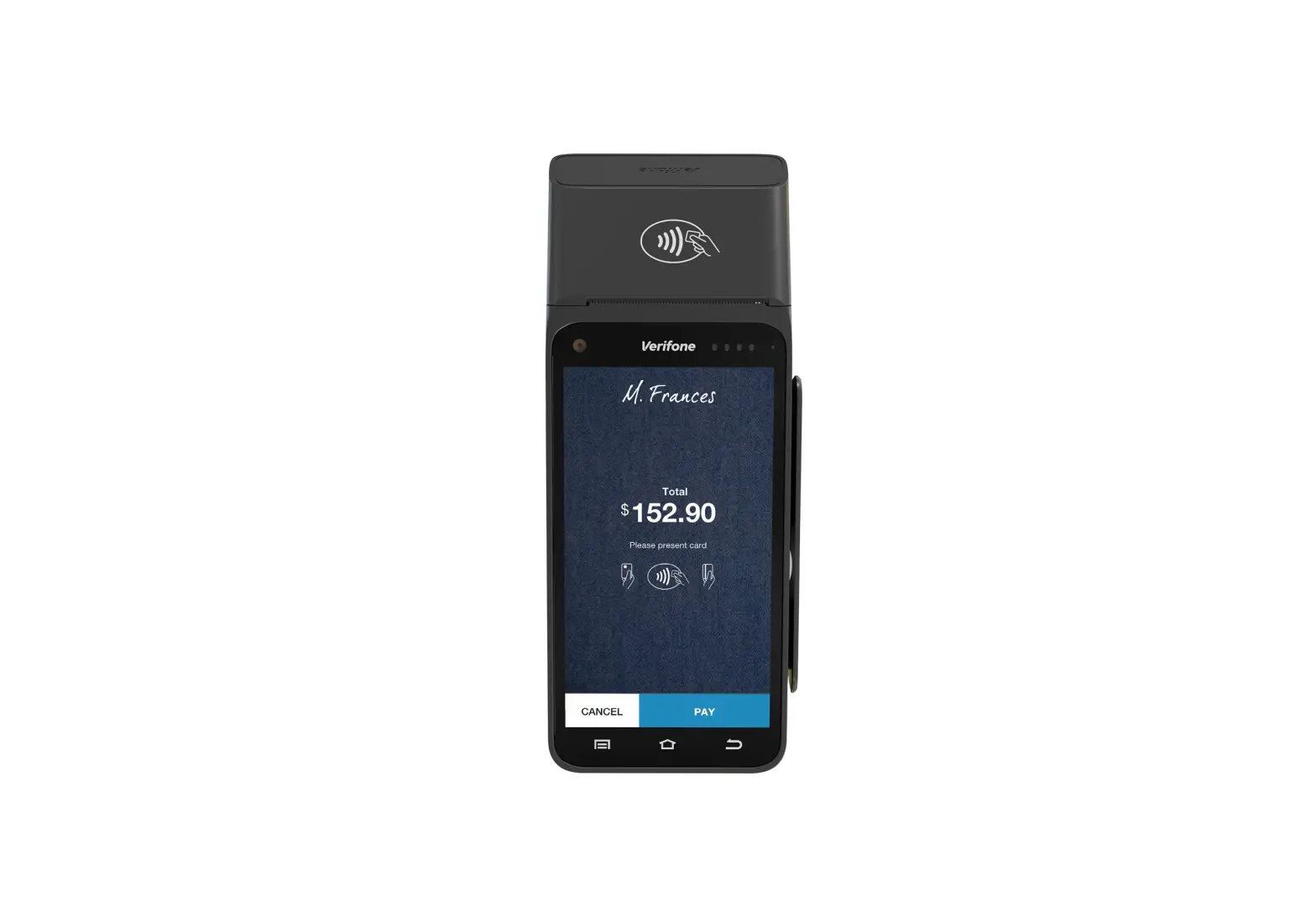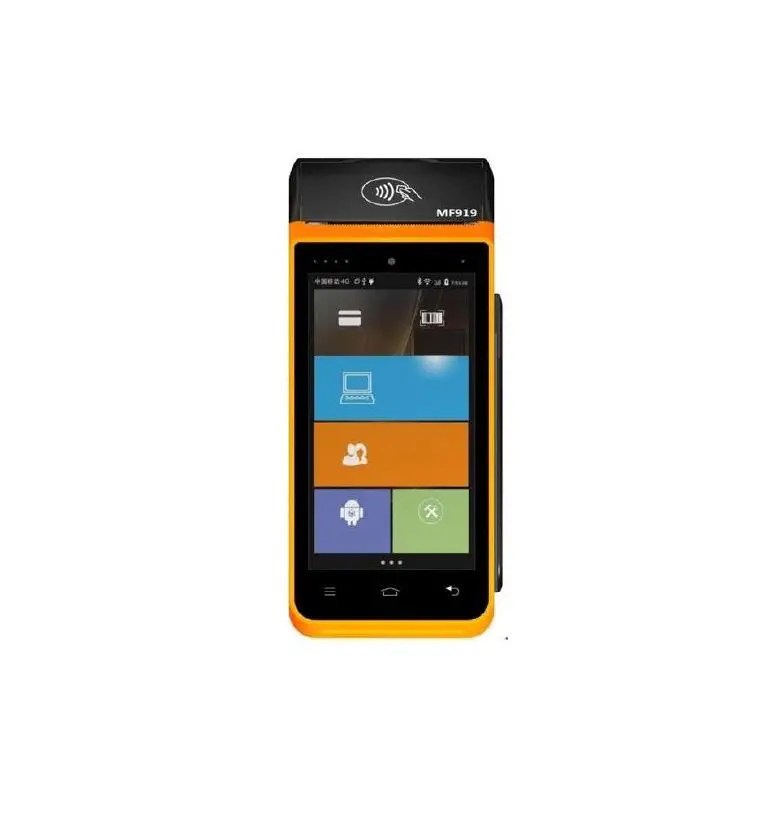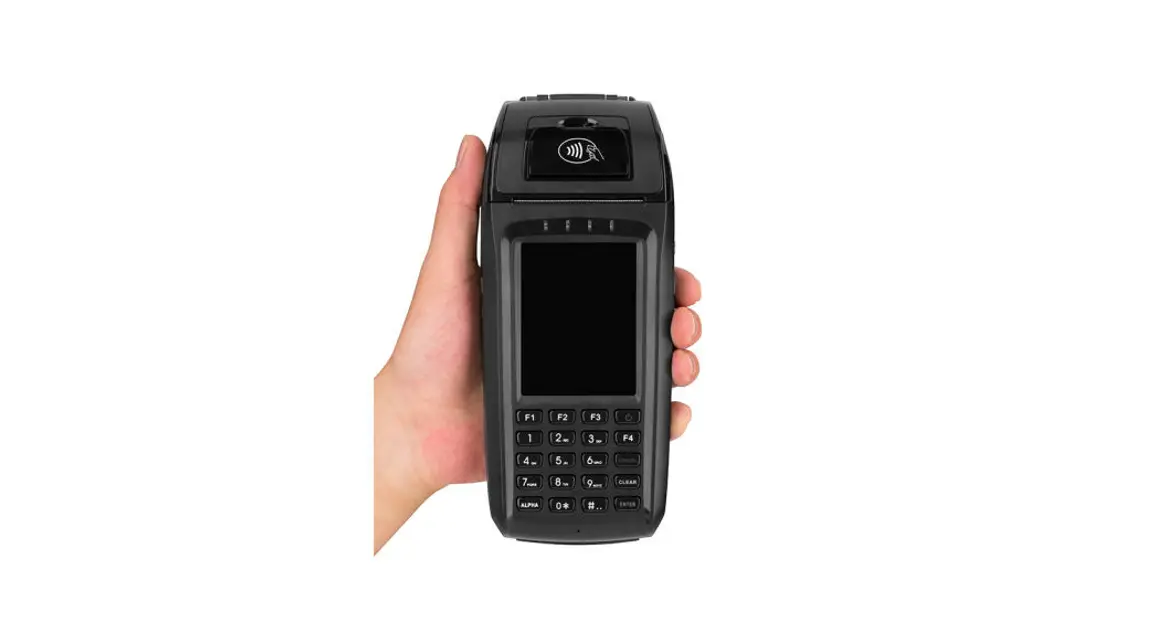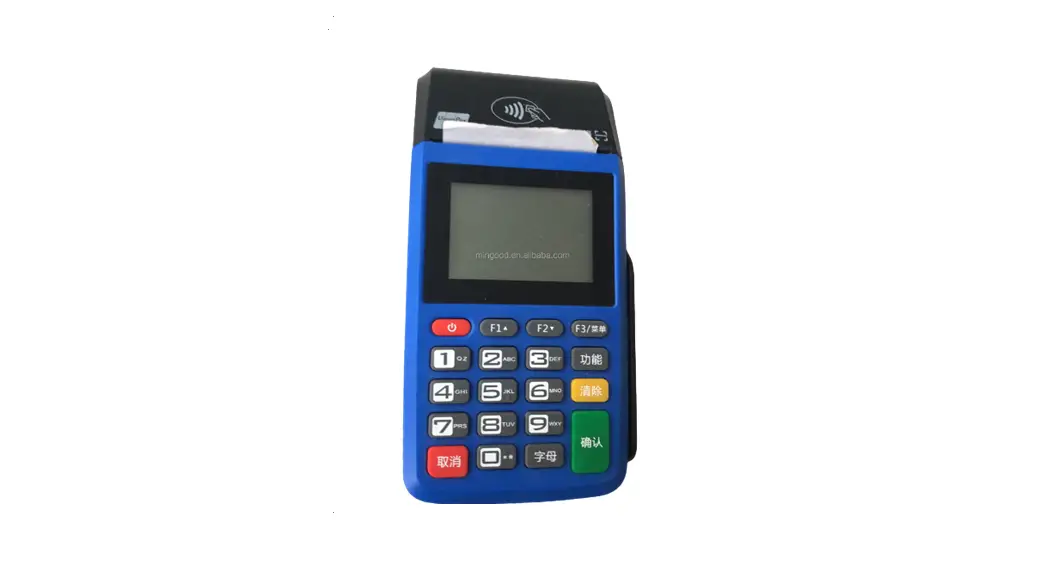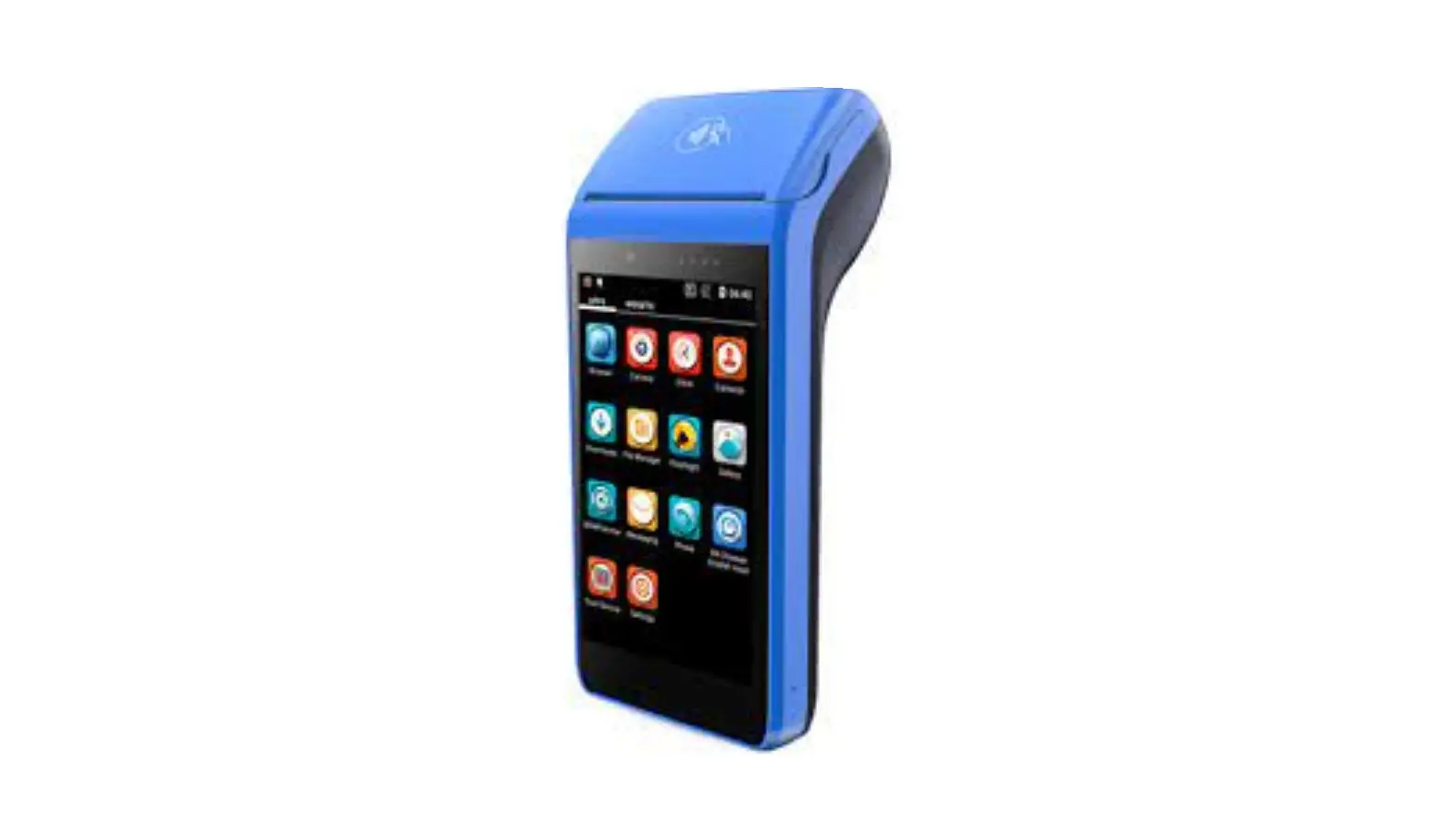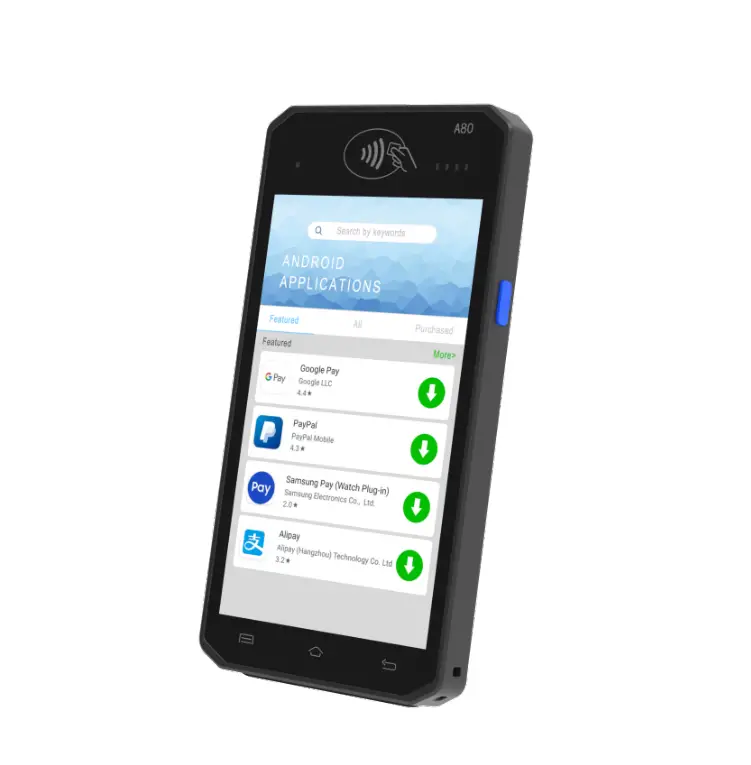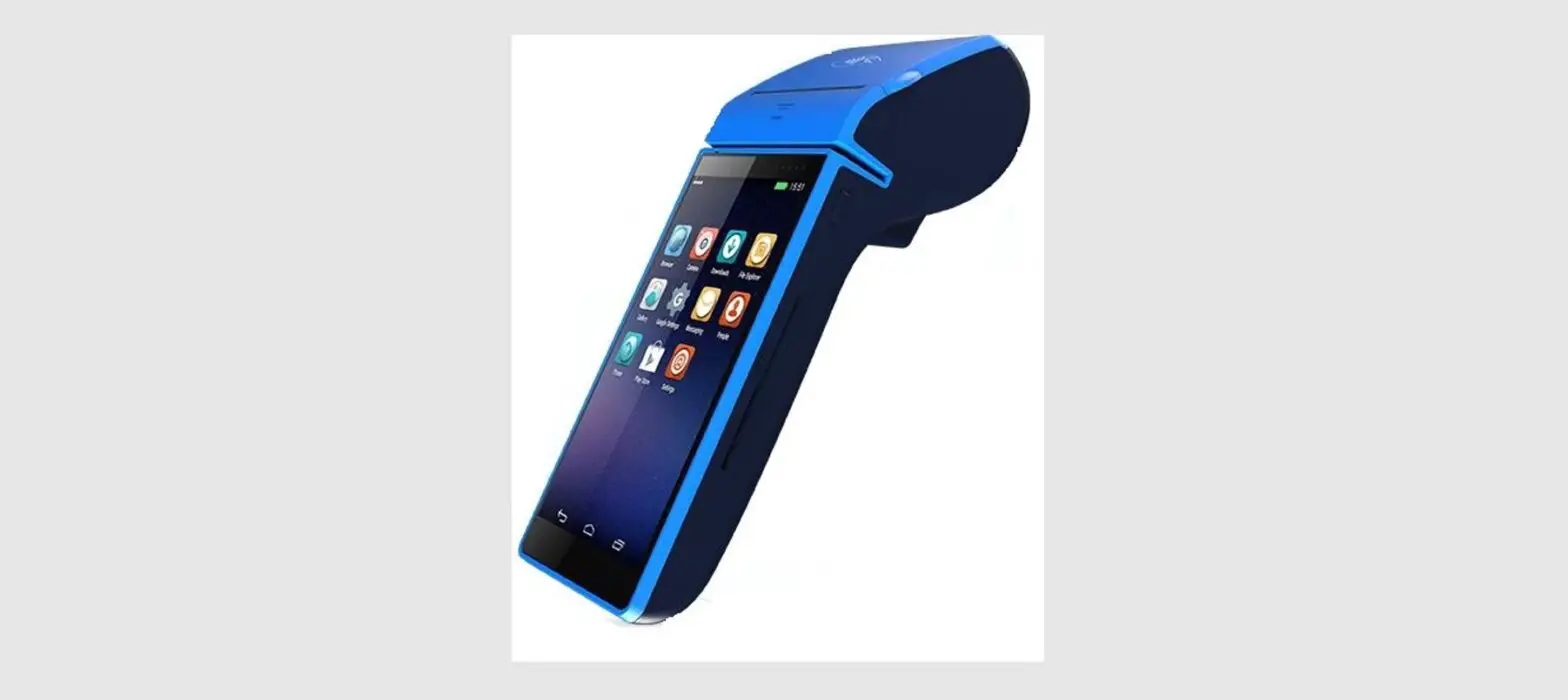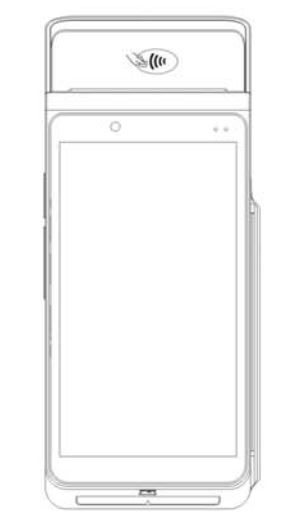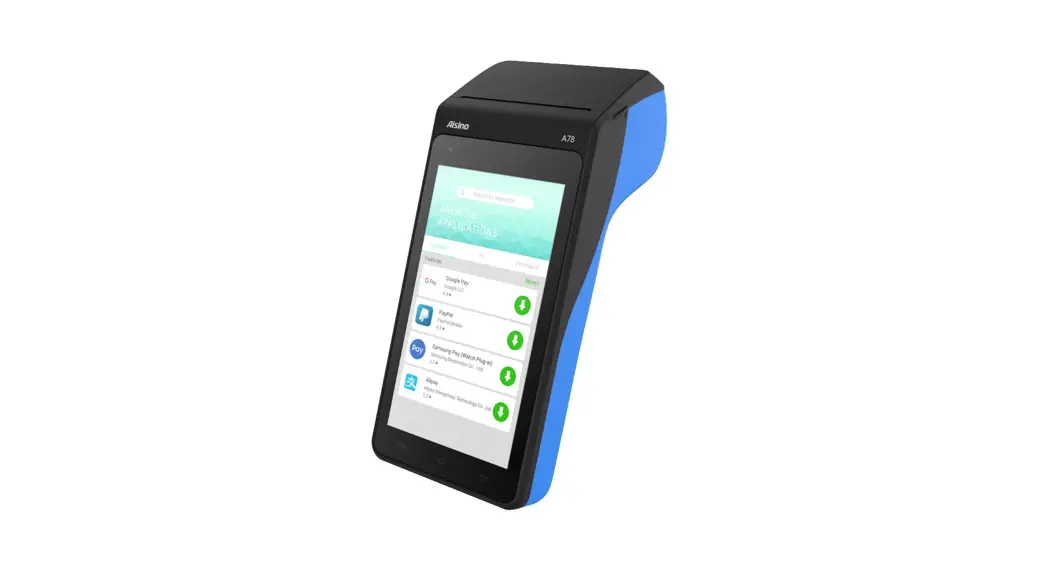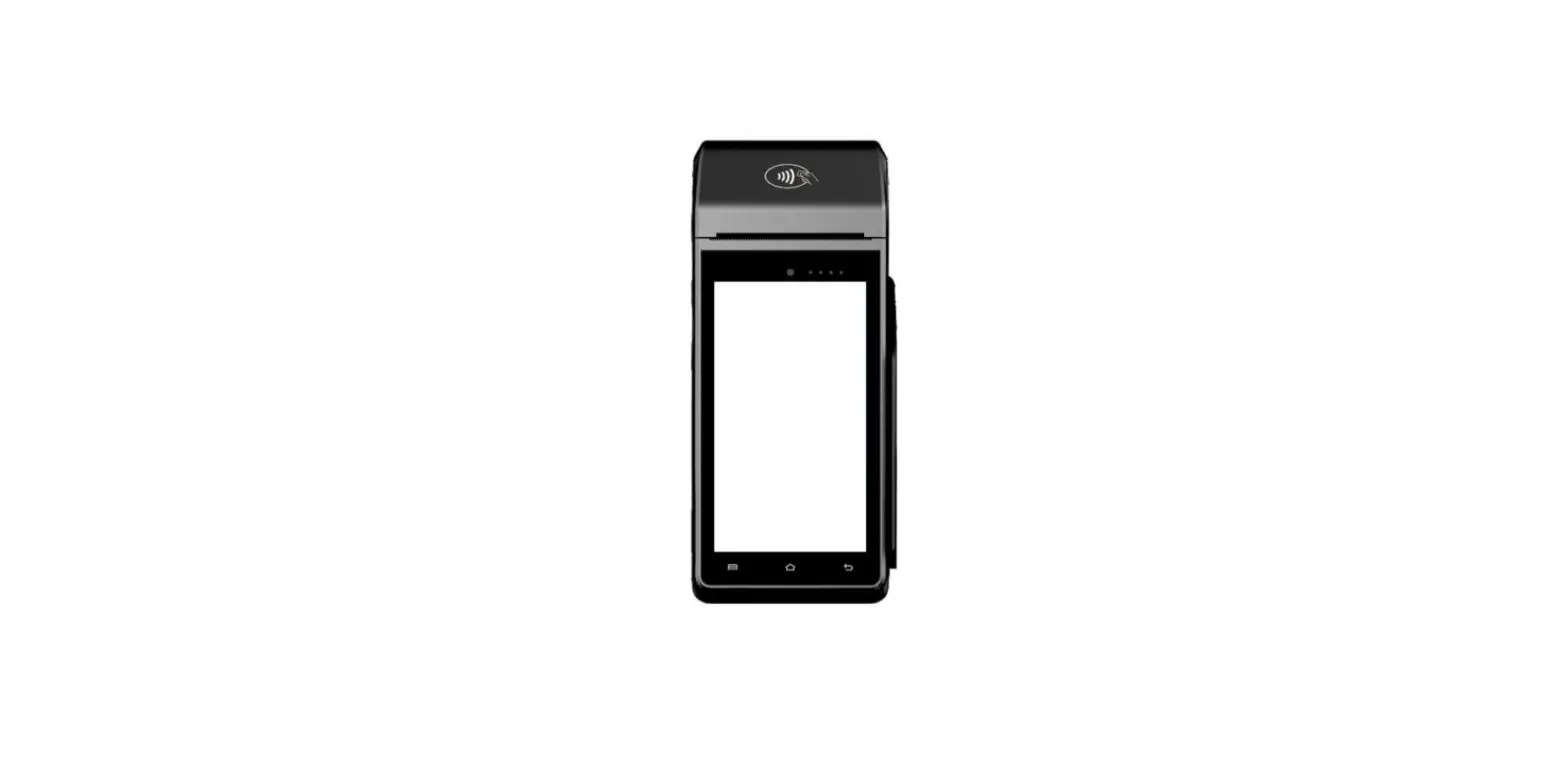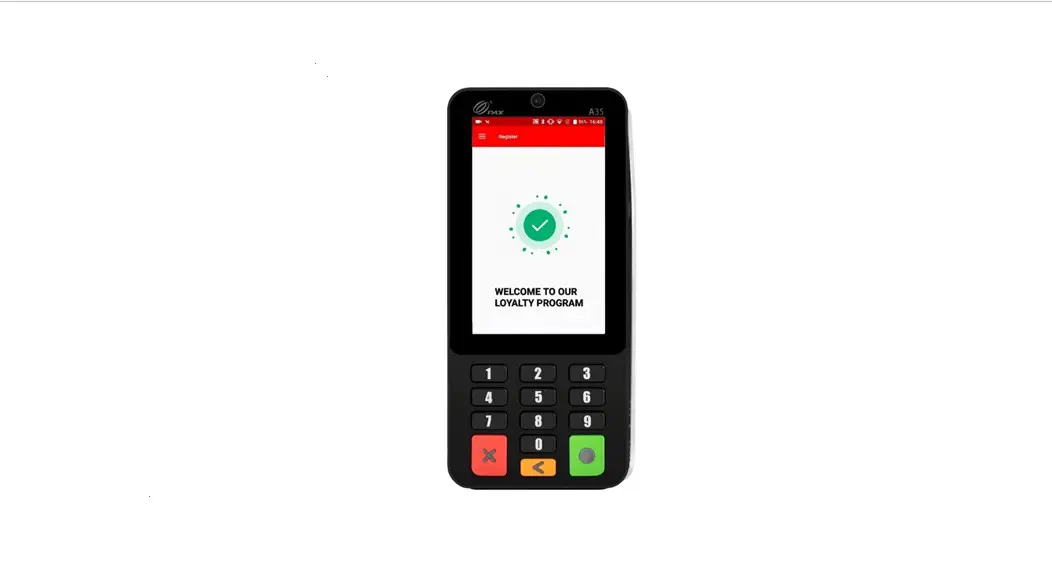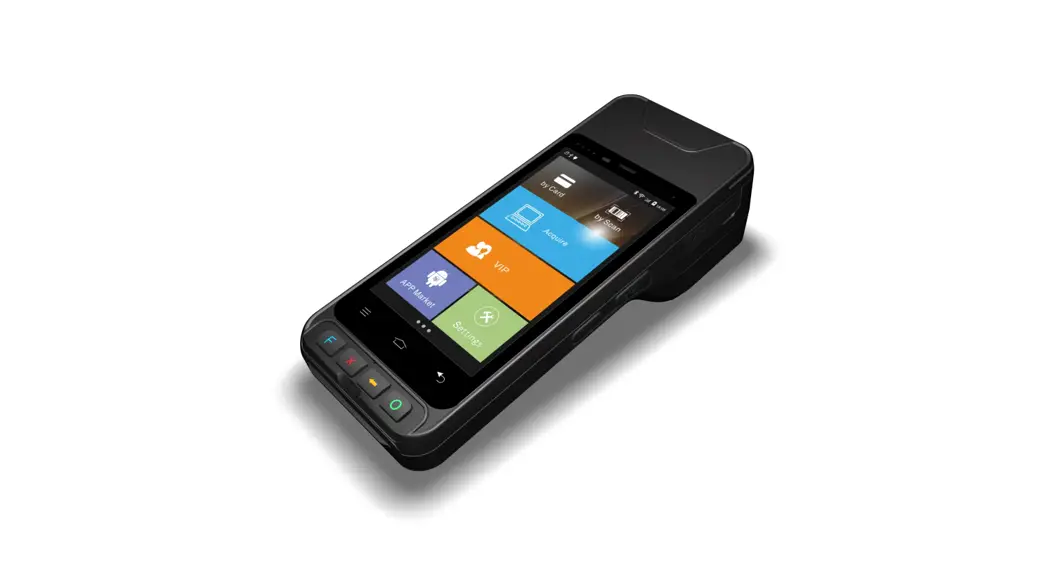
 POS10Q User Manual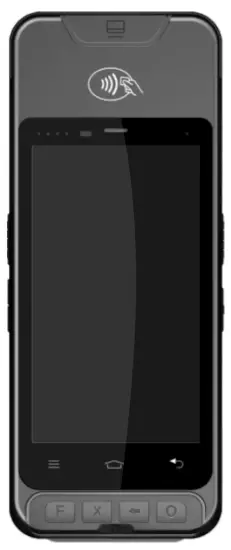
Packing list
Please check if all the mentioned components are present in the box after it is opened for the first time. Please contact your seller if any of the items are missing or if there is a shortage of the number of items mentioned below.
| POS machine | let |
| Power adapter | 1piece |
| Product Manual (including certification of quality) | copy |
| Printing paper | 1 roll |
| Main battery | 1piece |
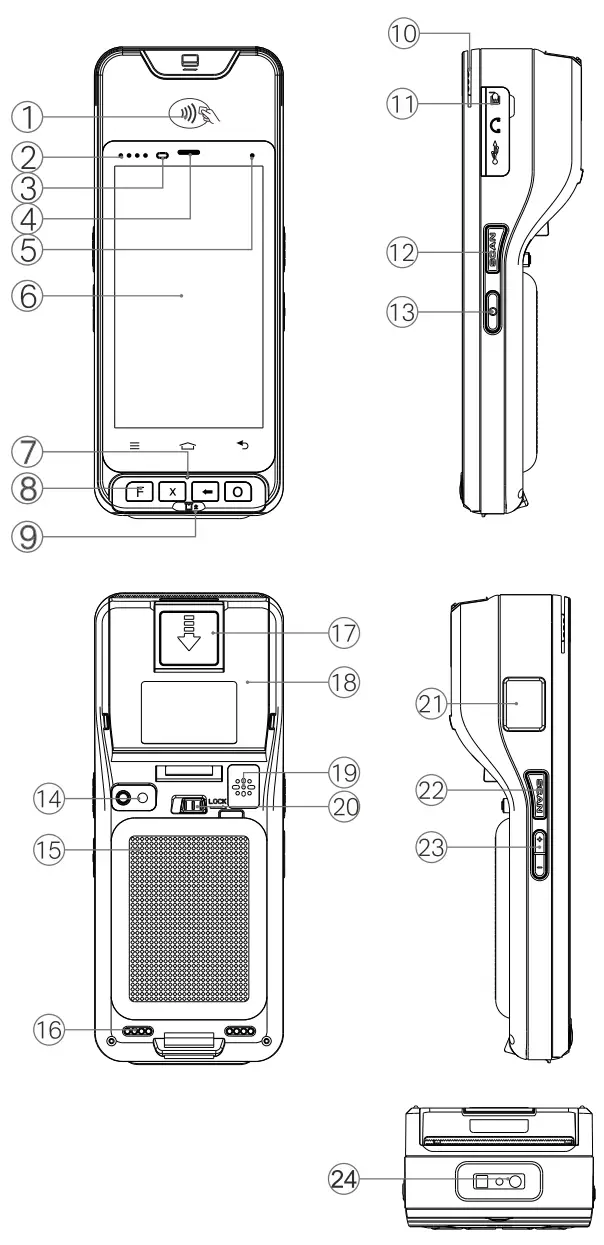
Product diagram
- RF card reading area
- RF indicator light
- Proximity light sensor
- Earpiece
- Status light
- Display screen
- Microphone
- Function key
- 1C card slot
- Magnetic card slot
- USB cover
- Scan Button
- Power Button
- Rear camera
- Battery cover
- POGO pin
- Paper pin opener
- Paper home cover
- Loudspeaker
- Battery cover button switch
- Fingerprint engine
- Scan Button
- Volume key
- Scan engine
Product specification
| Basic Characteristics | OS | Android 8.1 |
| CPU | High-performance Quad-Core processor + special secure CPU | |
| Display | 5 inch IPS color screen 720*1280 | |
| Panel | Ultra sensitive capacitive touch screen | |
| Memory | 1GB/2GB DDR3 RAM, 8GB/16GB EMMC | |
| Dimensions | 82.7 x 201.1 x 52.9 mm | |
| Buttons | Front: User define button x 1, Cancel button x 1, Confirm button x 1, Clear button x 1; Side: SCAN button x 2, Volume button, ON / OFF button | |
| Barcode Scanner | 2D Scanner | Optional, Support for Dedicated 2D Barcode Scanner and QR Reader in addition to the camera |
| Power | Main battery | Rechargeable 7.4V, lithium-polymer battery |
| Radio Communication | WiFi | 802.11 b/g/n wireless communication |
| BT | Bluetooth 4.0 | |
| Wireless communication | 4G universal, Unicom 4G, Telecom 4G (FDD-LTE), 3G compatible | |
| Payment | Mag. card reader | Track 1/2/3, Bi-directional, IS07811 standard |
| IC card reader | Smart IC card reader, IS07816, EMV/PBOC3.0 standard | |
| NFC card reader | Support IS014443 Type A/B, Mifare / Felica card, Conform to qPBOC Ll &L2 standard | |
| Printer | Built-in high-speed thermal printer supports graphic printing Scroll width/diameter: 58mm/30mm | |
| Expansion and peripherals | Camera | Rear camera: 5MP |
| GPS | Optional, GPS, Supports A-GPS, GNSS, Bei-Dou Satellite Navigation system | |
| Extended Memory | TF card, up to 128GB | |
| SIM / SAM card | Support 2 SIMs, 1 PSAM or 1 SIM, 2 PSAMs | |
| Peripheral Ports | 1 Micro USB 2.0 | |
| Audio | Speaker; (optional) Microphone; (optional) Earpiece | |
| Fingerprint | Optional dedicated fingerprint module, FBI certified | |
| Vibration | build-in vibrating motor (optional) |
| Accessories | Standard | Input AC 100V-240V, Output DC 12V/1A |
| Optional | USB Cable, Wrist Strap, Pouch | |
| User Environment | Operating Temperature | 0 °C – 50 °C |
| Storage Temperature | -20°C – 60 °C | |
| Humidity | 5% – 95% (non condensing) |
Install printing paper
- Open the print compartment cover;
- Insert the paper correctly according to the instruction in the print compartment, and leave a few centimeters of paper on the outside;
- Put down the paper compartment cover, ensure that it’s justified and not shaken, and push in in the direction shown in the figure;
- Pull the printing paper gently to confirm that the printing paper is firmly installed, and use the cutting blade to tear off the excess printing paper outside the printer;
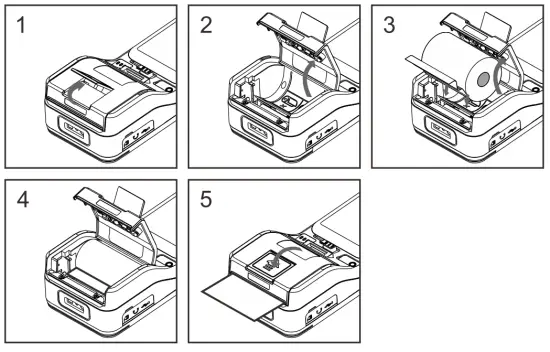
Note: When installing thermal paper, the side coated with the thermal medium (the outer surface of the paper roll) is facing the heating head of the printer (as Figure 3), otherwise the characters will not be printed correctly!
nstall SIM/ SAM/ TF card
Take off the cover to expose the SIM card holder and TF cardholder, as above picture.
Open the TF buckle, the side of the TF with the chip contacts facing down, push it from right to left, and fasten the buckle. Put the side of the SIM card with the chip contacts down, push it into the SIM card holder from top to bottom, and insert it to the bottom to ensure good contact. After confirming the proper installation, close the cover.
Note:
Ensure that the device is turned off when installing or removing the SIM or TF card, otherwise, the card may be damaged. SIM or TF card cannot be pasted with stickers, labels, and other media that would affect the thickness of the card, otherwise, it may cause the loading or removal of SIM/TF card unsuccessful. 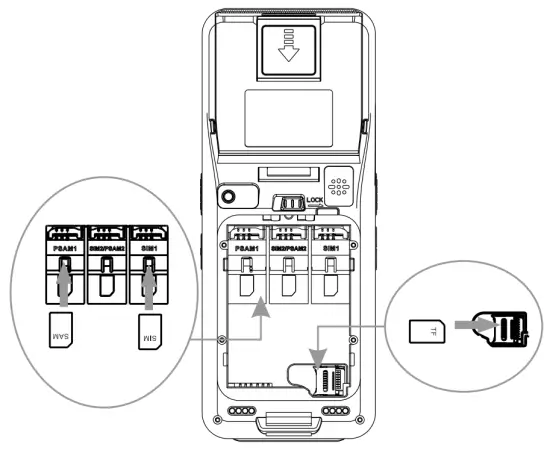
Using IC card, MSR, NFC card
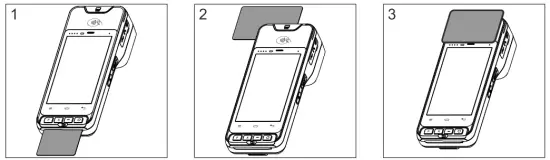
- When inserting the IC card, put the IC card contact surface (chip) up and insert it in the direction of the IC card arrow.
- When swiping the card, the magnetic side of the card faces the left side and the magnetic track toward the display screen. the card should be inserted tightly to the card slot, swiped at a constant speed. Please swipe from top to bottom, or from bottom to top.
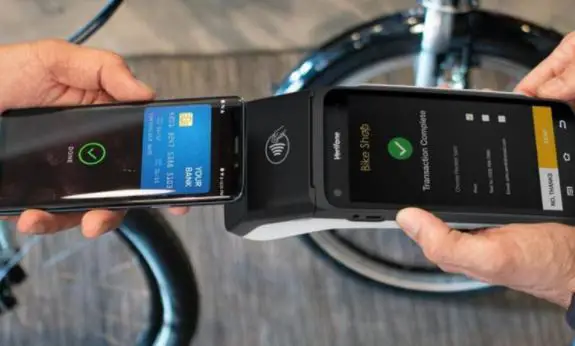
- When using an NFC card, put the card in the card reading area above the LCD surface to perform the card transaction operation.
Starting up & Shutdown
Power on: when the device is power-off, press and hold the power button, after 2 seconds, you will see the startup screen and the boot is successful. then you can release the power button.
Shutdown: when the device is power-on, press and hold the power button for more than 2 seconds. When you see the shutdown prompt interface, release the power button. At this time, click Shutdown on the prompt interface to shut down;
note:
- If you encounter a crash, please unplug the battery and then plug it again, or press and hold the power button for more than 10 seconds to shut down.
- Please ensure that important transaction operations have been completed before shutting down to avoid unnecessary data loss.
Troubleshooting
If you are facing challenges or issues while using the device, please try the following troubleshooting steps.
| Issue | Solution |
| No display on the screen | 1. Check for the battery power. 2. Check whether the device has been switched on. |
| Swiping the card during payment not successful | 1. Please check whether there is any foreign matter in the terminal card slot. 2. Please ease swipe the magnetic stripe of the card in the correct manner and with constant speed. Also, try swiping the card many times in the reverse direction to see if it is back to normal. 3. Please check whether the card has weak magnetism or degaussing causing it to fail. Or try to use another card. |
| Magnetic stripe data read error | 1. Swipe the card with a constant speed and tightly towards the bottom of the card slot. 2. The magnetic stripe should face towards the screen and down, aligning with the card slot. 3. Try to reverse swipe the card from the bottom to the top. |
| IC card data read error | 1. Check the IC card chip and insert it into the bottom of the device in the card slot. (as shown in the picture earlier) 2. Check if the IC card chip has been damaged. |
| NFC IC card data read error | 1. Confirm if the card has the function of NFC/Contactless payment 2. Check if the card is correctly placed above the NFC card reading area as shown in the picture earlier. 3. Make sure the card / mobile phone is held stably at the NFC reading area. |
| Communica- on failure | 1. Check if the inserted SIM card and the card touchpoints are clean. 2. Check if the mobile signal is strong enough. It is recommended to do transactions above 4 lattices. 3. Reboot the device and try to re-establish the communication. 4. Make sure the terminal connects well with WIFI. |
| Printer not working | 1. Confirm that the paper cassette cover is closed correctly. 2. Make sure to use the correct printing paper. Also, place the paper properly in the paper compartment. |
If the above steps do not solve your problem, please contact your local vendor or our customer support service.
Safety Instructions
| Attentions | Matters need attention |
| Safety warning | 1. Plug the AC plug into an AC outlet corresponding to the mentioned input on the accessory power adapter. 2. Do not use in places where there is any potential explosive gas. 3. Non-professional persons should not open the power adapter. |
| Important safety and security instructions | 1. Avoid installation or use during thunderstorms, since there is the danger of lightning strike. 2. If you find any abnormal smell, overheating or smoke, please cut off the power immediately. 3. Check whether the IC card interface has any foreign objects. 4. Check whether the magnetic card slot has an abnormal condition such as an extra magnetic head. 5. Check the appearance of the product, such as display screen, keyboard, and other areas, to see if it has been rebuilt. |
| Suggestion | 1. Do not use near water or moisture to avoid liquid entering the device. 2. Do not use in extreme cold and hot environments such as near-fire or lighted cigarettes. 3. Do not throw, drop or bend the device. 4. Try to use in a clean and dust-free environment to avoid small items falling into the device. 5. Do not use it near medical equipment without permission. |
| Warning | This is the grade A product. In the living environment, the product may cause wireless interference. In this case, users may need to take effective measures for interference. |
| Disclaimer | Fujian More fun Electronic Technology Co., Ltd is not responsible for the following behaviors: damage caused by not using and maintaining the device under the conditions described in the Manual Guide. |
List of Hazardous Substances in products
| Item name | Toxic and hazardous substances or elements | |||||
| Lead (Pb) | Mercury (Hg) | Cadmium (Cd) | Hexavalent chromium (Cr(V1)) | Polybrominated biphenyls (PBB) | Polybrominated diphenyl ethers (PBDE) | |
| printing Circuit board component | Ο | Ο | Ο | Ο | Ο | |
| The LCD module | Ο | Ο | Ο | Ο | Ο | |
| Metal parts | Ο | Ο | Ο | Ο | Ο | Ο |
| Plastic components | Ο | Ο | Ο | Ο | Ο | Ο |
| Packaging materials | Ο | Ο | Ο | Ο | Ο | Ο |
| Power adapter | Ο | Ο | Ο | Ο | Ο | Ο |
| The lithium battery | Ο | Ο | Ο | Ο | Ο | Ο |
| 0: means the toxic and hazardous substance in all homogeneous material of the component is under the limited requirements specified in GB/T 26572-2011 X: means the toxic and hazardous substance contained at least one homogeneous material of the component exceeds the limited requirements specified in GB/T 26572-2011. But the components of ‘X’ are in excess of the fact that there is no mature alternative technology in the industry.  | ||||||
Product warranty card
Dear customer, In accordance with the((Terms of Service)), when the product is under the full warranty conditions and requires repair or replacement, please prepare the product and product warranty card or the effective purchase invoice and contact the customer service center. If you cannot provide an effective purchase invoice, please make sure to complete the relevant information on the warranty card.
| User Name | Contact Telephone | ||
| Purchase Date | Purchase Channel(agent) | ||
| User Address | |||
| Product Model | Terminal KSN and SN number | ||
Terms of Service
- If any fault occurs in the product within the warranty period of one year from the date of purchase, the user can avail of free maintenance services under the normal working conditions as per the product warranty.
- If a fault occurs in the product after the warranty period, the user can avail of the maintenance services at an appropriate cost.
- Damage to the product due to improper handling, or repair is done without the approval of the company, and Force Majeure are not covered under the product warranty.
- To ensure a smooth customer experience during the maintenance, please do not tear or remove the label on the back of the product.
- For the product maintenance or replacement, you must show “Product warranty Card” or the effective purchase invoice.
- The warranty period begins on the date of the customer purchasing the product. If no proof of purchase is available, the warranty period begins after 3 months of the date of the product mentioned on the product or in the agreement.
Service Notice:
- The cost of the return delivery freight will be equally borne between the customer and the company.
- Please contact your seller or customer service when you encounter problems while using the product.
- If you want to know about our products, please visit our website: http://www.morefun-et.com.
Any changes or modifications not expressly approved by the party responsible for compliance could void the user’s authority to operate the equipment.
This device complies with part 15 of the FCC Rules. Operation is subject to the following two conditions: (1) This device may not cause harmful interference, and (2) this device must accept any interference received, including interference that may cause undesired operation.
Note: This equipment has been tested and found to comply with the limits for a Class B digital device, pursuant to part 15 of the FCC Rules. These limits are designed to provide reasonable protection against harmful interference in a residential installation. This equipment generates, uses, and can radiate radio frequency energy and, if not installed and used in accordance with the instructions, may cause harmful interference to radio communications. However, there is no guarantee that interference will not occur in a particular installation. If this equipment does cause harmful interference to radio or television reception, which can be determined by turning the equipment off and on, the user is encouraged to try to correct the interference by one or more of the following measures:
- Reorient or relocate the receiving antenna.
- Increase the separation between the equipment and receiver.
- Connect the equipment into an outlet on a circuit different from that to which the receiver is connected.
- Consult the dealer or an experienced radio/TV technician for help.
Warning
SAR tests are conducted standard operating positions accepted by the FCC with the device transmitting at its highest certified power level in all tested frequency bands, although the SAR is determined at the highest certified power level, the actual SAR level of the product while operating can be well below the maximum value. Before a new device is available for sale to the public, it must be tested and certified to the FCC that it does not exceed the exposure limit established by the FCC, Tests for each device are performed in positions and locations as required by the FCC.
For body-worn operation, this device has been tested and meets the FCC RF exposure guidelines when used with an accessory designated for this product or when used with an accessory that contains no metal. Non-compliance with the above restrictions may result in a violation of RF exposure guidelines.