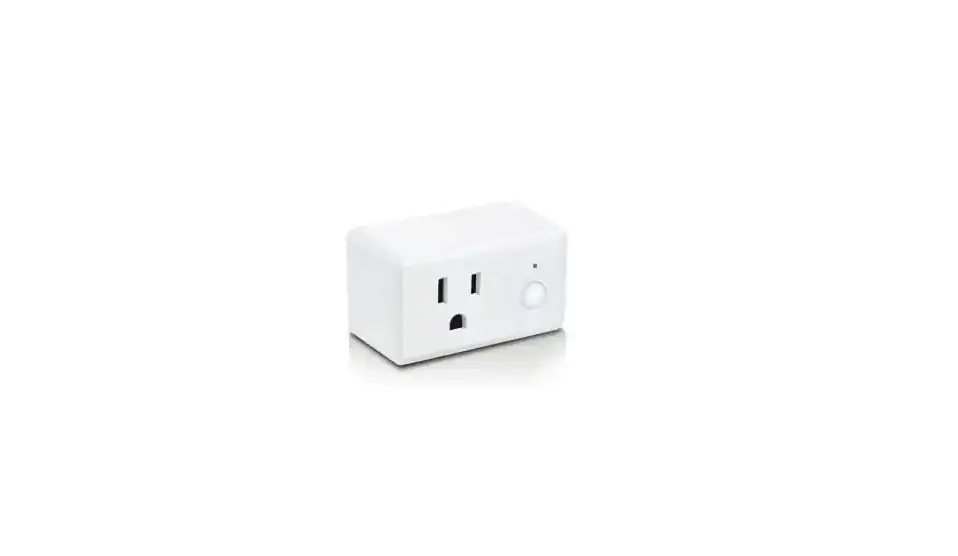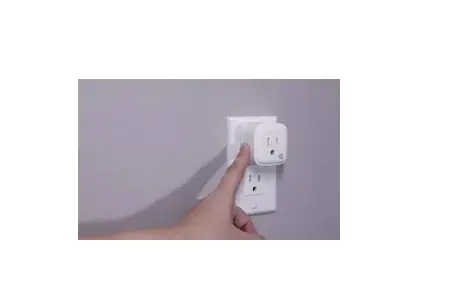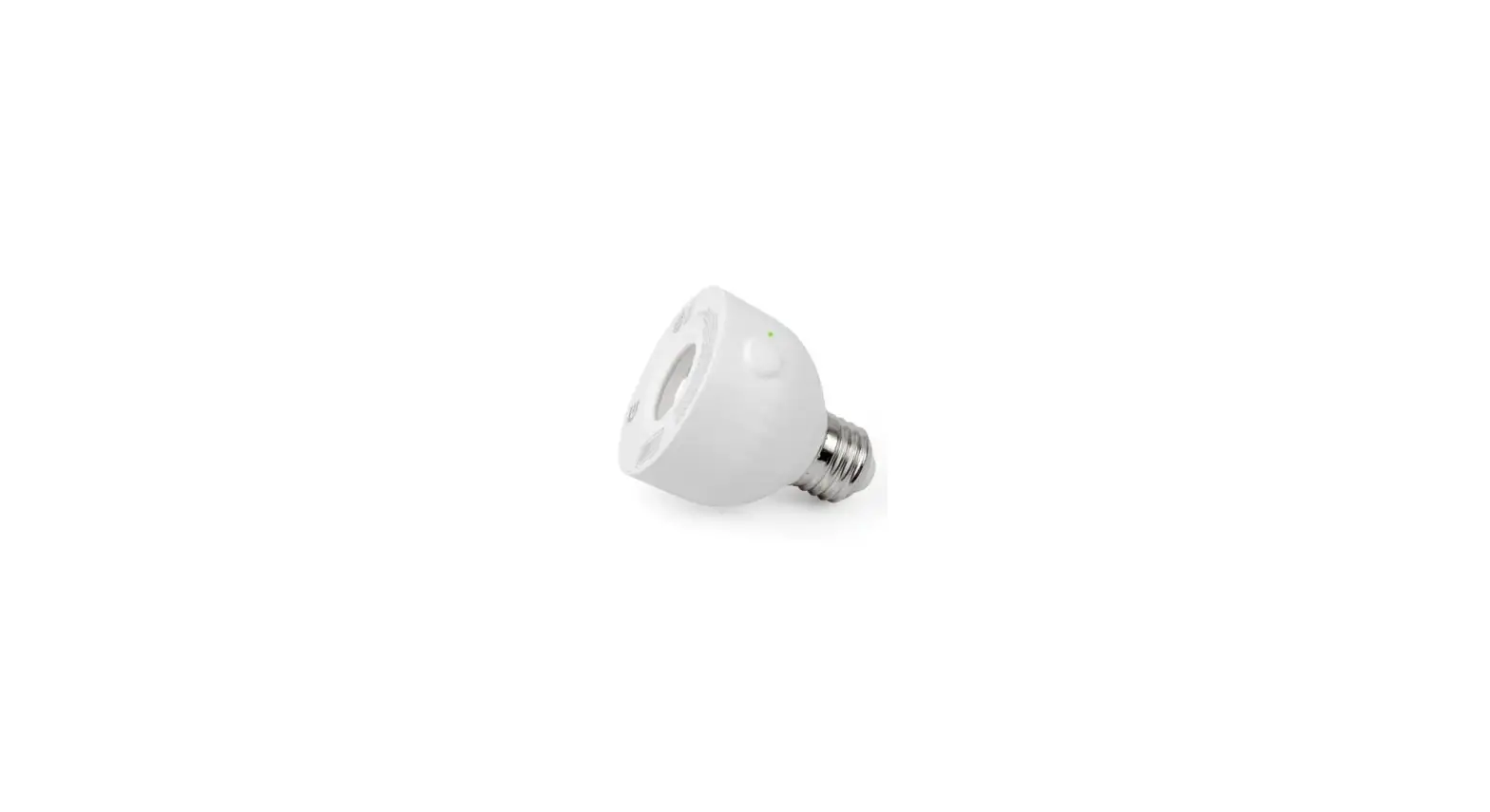
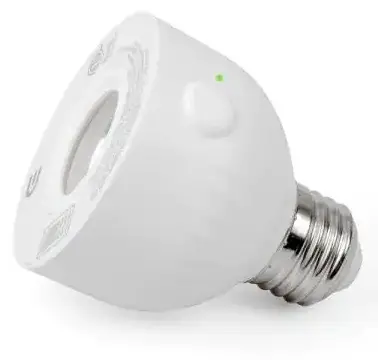
Commercial Electric HPLA11CWB Smart Socket
THANK YOU
We appreciate the trust and confidence you have placed in Commercial Electric through the purchase of this Smart Socket. We strive to continually create quality products designed to enhance your home. Visit us online to see our full line of products available for your home improvement needs. Thank you for choosing Commercial Electric!
Safety Information
WARNING: SUITABLE FOR OUTDOOR AND WET LOCATIONS. DO NOT IMMERSE IN WATER.
The max load of the device is 60W under LED bulbs. To avoid damage, do not exceed the 60W LED bulbs. Do not use with incandescent bulbs. If a direct short is created on the output, the Smart Socket will be damaged and no longer function. Do not disassemble the product or make repairs yourself. You run the risk of electric shock and voiding the limited warranty. If you need service, please contact Customer Service.
FCC Regulation
Supplier’s Declaration of Conformity
47 CFR § 2.1077 Compliance Information
Responsible Party
Leedarson America, Inc. 300 Technology Court SE Suite 100; Smyrna,
GA 30082 1-678-293-8382
Unique Identifier: HPLA11CWB (SKU # 1006367938)
Contains FCC ID: 2AB2Q-LA02301
This equipment complies with FCC radiation exposure limits set forth for an uncontrolled environment. This equipment should be installed and operated with a minimum distance of 20 cm between the radiator and any part of your body.
This device complies with Part 15 of the FCC Rules. Operation is subject to the following two conditions: (1) this device may not cause harmful interference, and (2) this device must accept any interference received, including interference that may cause undesired operation.
Note: This equipment has been tested and found to comply with the limits for a Class B digital device, pursuant to part 15 of the FCC Rules. These limits are designed to provide reasonable protection against harmful interference in a residential installation. This equipment generates, uses, and can radiate radio frequency energy and, if not installed and used in accordance with the instructions, may cause harmful interference to radio communications.
However, there is no guarantee that interference will not occur in a particular installation. If this equipment does cause harmful interference to radio or television reception, which can be determined by turning the equipment off and on, the user is encouraged to try to correct the interference by one or more of the following measures:
- Reorient or relocate the receiving antenna.
- Increase the separation between the equipment and receiver.
- Connect the equipment into an outlet on a circuit different from
- Consult the dealer or an experienced radio/TV technician for help.
Wireless Protocol
The WIFI certified logo is a certification mark of Wi-Fi Alliance.
Apple and the Apple logos are trademarks of Apple, Inc., registered in the U.S., and other countries. App Store is a service mark of Apple Inc. Google and Google Play are trademarks of Google LLC.
Warranty
1 YEAR LIMITED WARRANTY
This product is guaranteed to be free of defects in materials and workmanship for 1 year from the date of purchase. Guarantee does not include normal wear and tear.
Package Contents
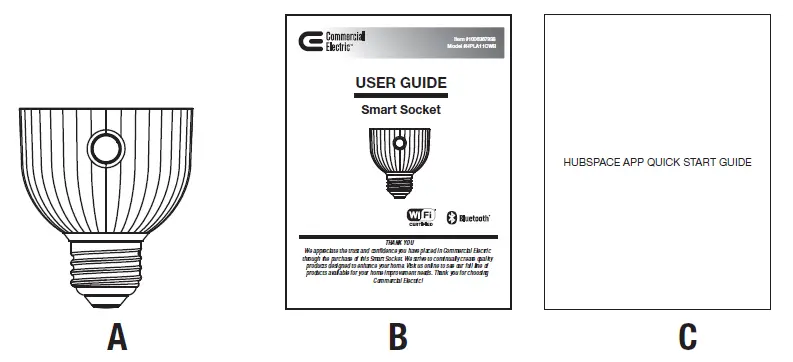
| Part | Description | Quantity |
| A | Smart Socket | 1 |
| B | User Guide | 1 |
| C | Quick Start Guide | 1 |
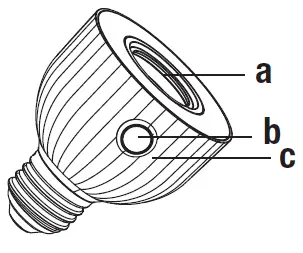
| Part | Description |
| a | Bulb Scoket (E26) |
| b | Power Button |
| c | Indicator Light |
Installation
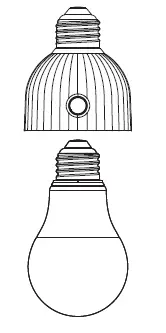 Screw in the E26 base LED bulb into the Smart Socket.
 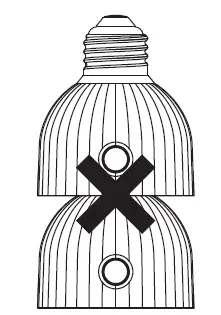 Do not insert socket in a row
 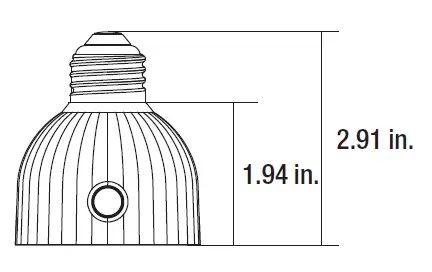 NOTE:
NOTE:
- Does not work with incandescent, tungsten, or halogen bulb. Only works with LED bulb with
- Max. load power 60W.
- Install the smart socket with bulb base upwards for outdoor usage.
Operation
.Download the Hubspace™ app from the App Store or the Google Play Store Create an account to sign in or log in if you already have an account.
Connect your socket to power and follow the instructions on the app screen.
NOTE:
- This Hubspace device requires a 2.4GHz Wi-Fi channel. Hubspace only shows Wi-Fi networks that your device can use.
- If you do not see your Wi-Fi network name when you attempt to connect your devices, please check your router settings or move your product closer to your Wi-Fi router
Tap the ‘+’ button in the upper right corner to add your socket.
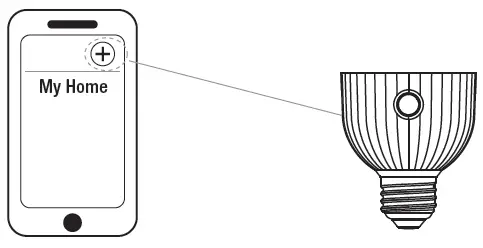 NOTE: Bluetooth access is required for device setup.
Scan the QR code on the socket or in the Quick Start Guide. 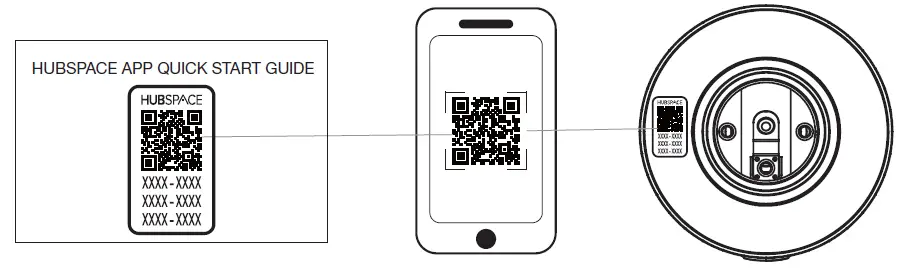 NOTE: If the QR code cannot be scanned, you can enter the code manually. Tap Enter Code and follow the instructions.
Using your Smart Socket
- a) Turn your Smart Socket on or off from the Home page on the Hubspace app.
- b) To set a schedule or timer, tap the name of the smart socket on the Home page. You will see options for setting Schedules and Auto-Off Timers.
Set up your Voice Assistant
You can connect your smart socket to Google Home and Alexa from the Hubspace app. Or, you can sign in to Alexa app or Google Home and connect to your Hubspace devices from there.
Specification
LED Indicator
| LED State | Socket State | Meaning | Action To Take |
| Orange Quick Blink | Off | Wi-Fi is not connected. | Set up Wi-Fi for the product. If you have already set up Wi-Fi for this product, wait for it to connect. Check the Hubspace app for connectivity status. |
| Orange/Green Quick Blink | On |
| LED State | Socket State | Meaning | Action To Take |
| Off | Off | The socket is off. |
No action required. |
| Green | On | The socket is on. | |
| Red | Off | There is a WiFi error. | Go to the device settings in the app and set up WiFi again. Check that your WiFi Access Point is allowing the device to join the network. |
| Orange | On |
| Input | 120VAC, 60Hz |
| Output | 120VAC, 60Hz, 60W LED bulb Maximum load |
| Network Wireless Type | 2.4GHz, IEEE 802.11b/g/n |
| Operating Temperature | -22° F(-30°C)–113° F(45°C) |
| Operating Humidity | 5-85% RH, Non-condensing |
| Certification | FCC, ETL |
Troubleshooting
| Problem | Solution |
| What devices can be controlled with the Smart Socket? | You can control any E26 LED bulb (less than max load 60W) in accordance with the Smart incandescent, tungsten, or halogen bulb. |
| Problem | Solution |
| My Hubspace device is not connecting to Wi-Fi. | Make sure your device is connected to a power source. Your Internet connection or Wi-Fi network may be down. |
| My device cannot nd any Wi-Fi networks. | Make sure you have a 2.4GHz capable Wi-Fi network within range of the device you are trying to add. |
| My device is in a location that does not have Wi-Fi. Can I still use it with the Hubspace app? | Yes. Use the app on a phone with an Internet connection like LTE. The phone must be within Bluetooth range of your Hubspace device and have Bluetooth enabled. |
| I cannot nd the QR code. | It is on the socket housing. A copy of the QR code is also included in your device’s documentation. |
| The QR code has become damaged. How do I add the device? | Under the QR code are numbers. You can enter those in manually instead of scanning the code. |
| I lost my QR code. How do I add a device? | 1. Make sure the device is connected to power. 2. In the Hubspace app, tap +, then Add Device. 3. On the Scan Device screen, tap the Search button in the lower right corner. 4. Follow the instructions on-screen. |
| A device is on another account. How do I transfer it? | Scan the QR code and it will transfer to your account. |
| Problem | Solution |
| My device is of ine for long periods of time. | Make sure your Wi-Fi signal strength is suf cient. You may need to move your router, use mesh Wi-Fi, or Wi-Fi extenders. |
| The device is on and I scanned the QR code, but the app cannot connect to it. | Turn off Bluetooth on your phone and turn it back on. Then, scan the QR code. If the problem persists, turn your phone off and on, then try again. |
| Can I scan the same QR code to add multiple products? | No. Each product has a unique QR code. |
Questions, problems, missing parts? Before returning to the store, call Hubspace Customer Service
8 a.m. – 7 p.m., EST, Monday-Friday, 9 a.m. – 6 p.m., EST, Saturday
1-877-592-5233
HOMEDEPOT.COM/Hubspace
Retain this manual for future use.