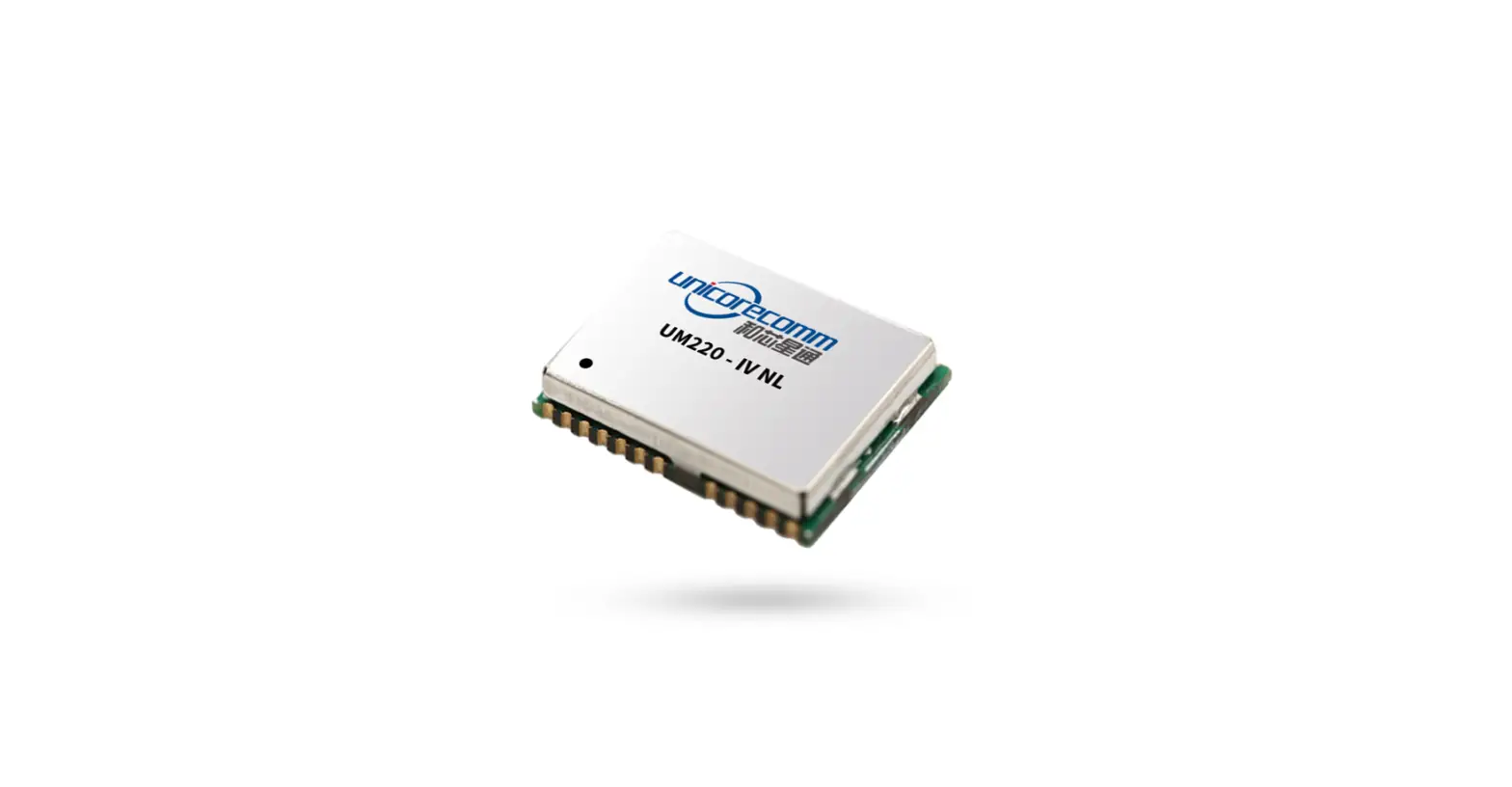
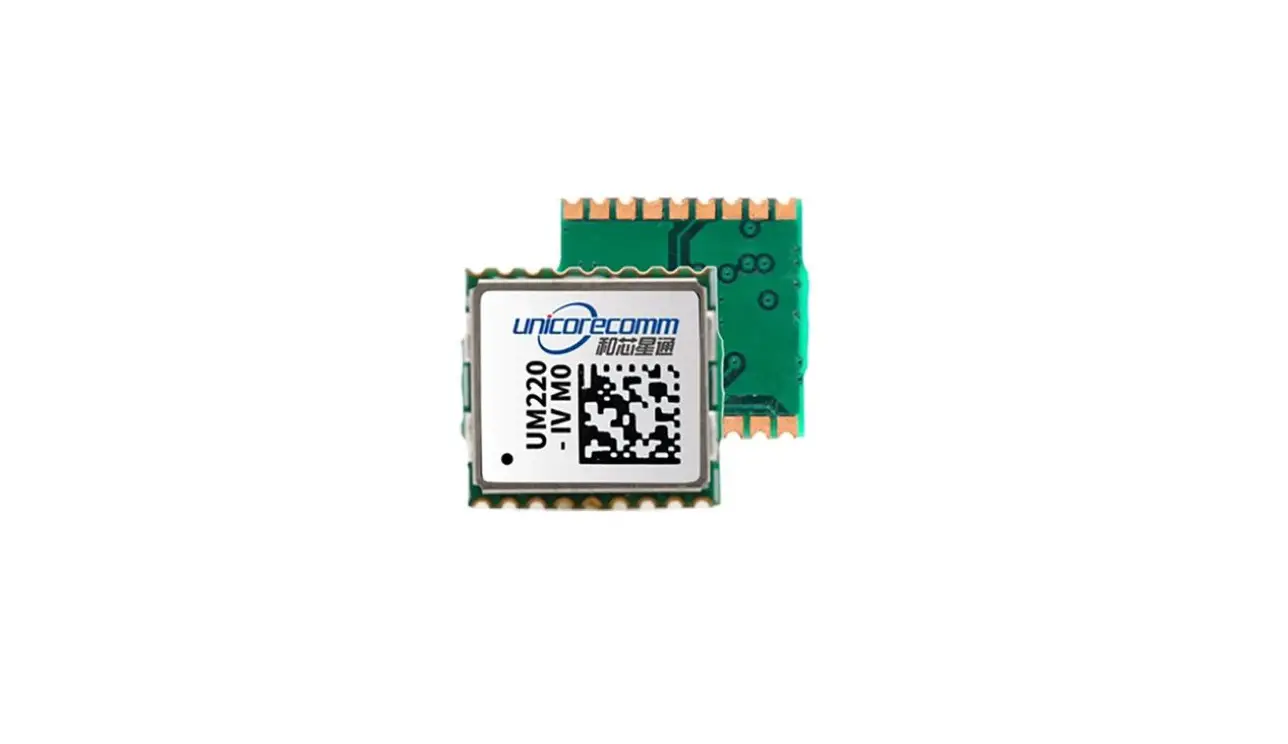
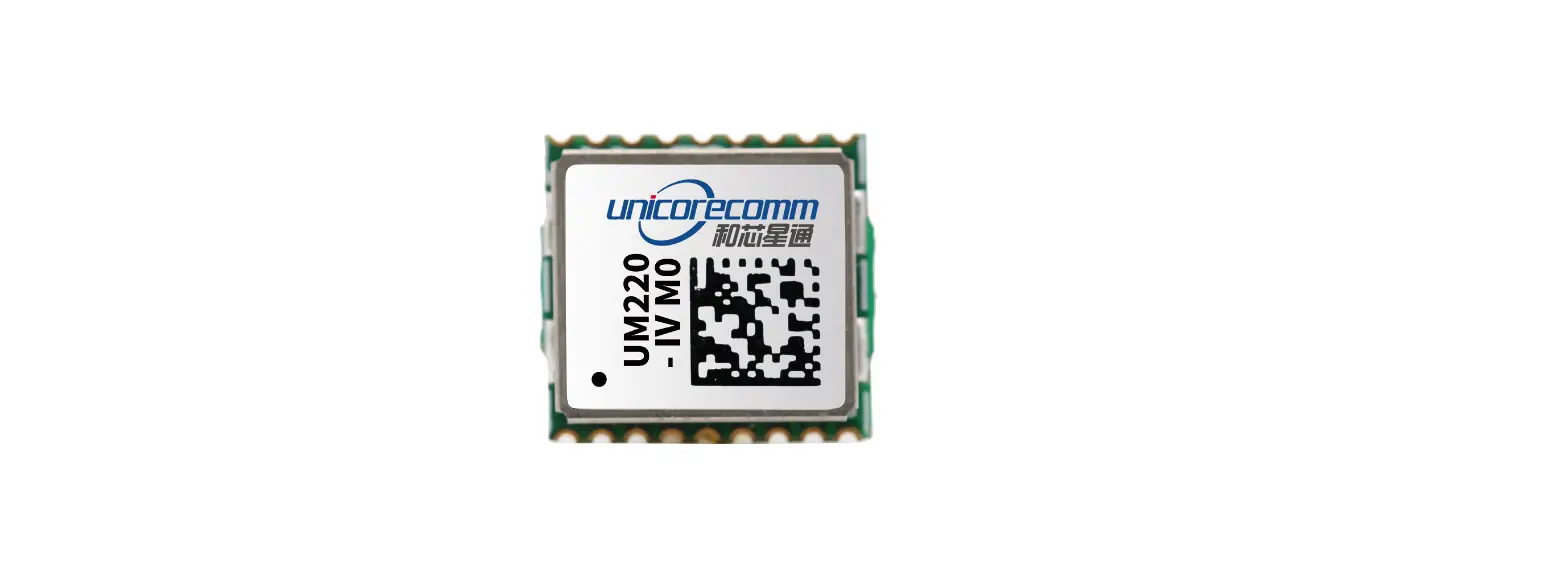
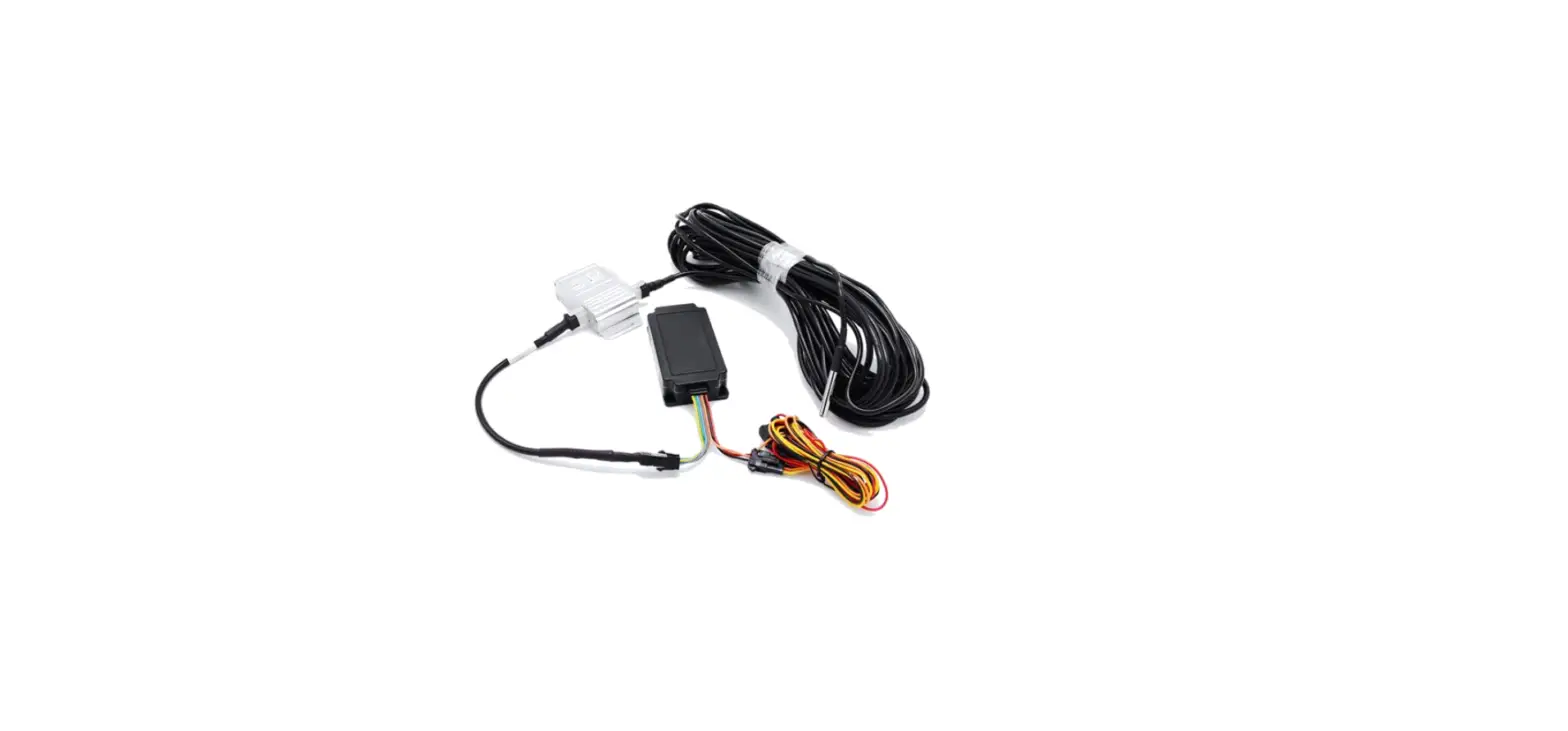
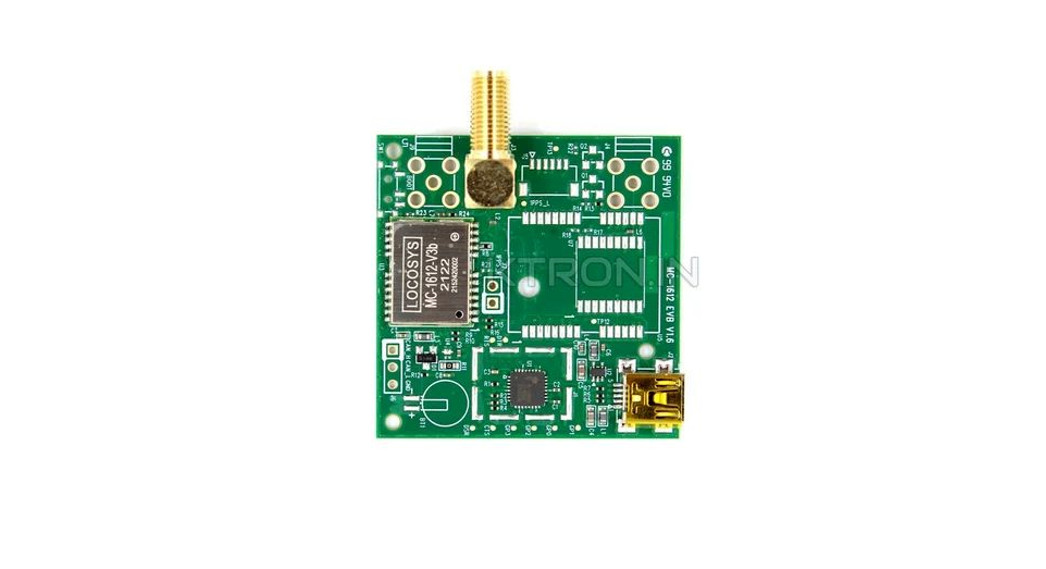
Product Information:
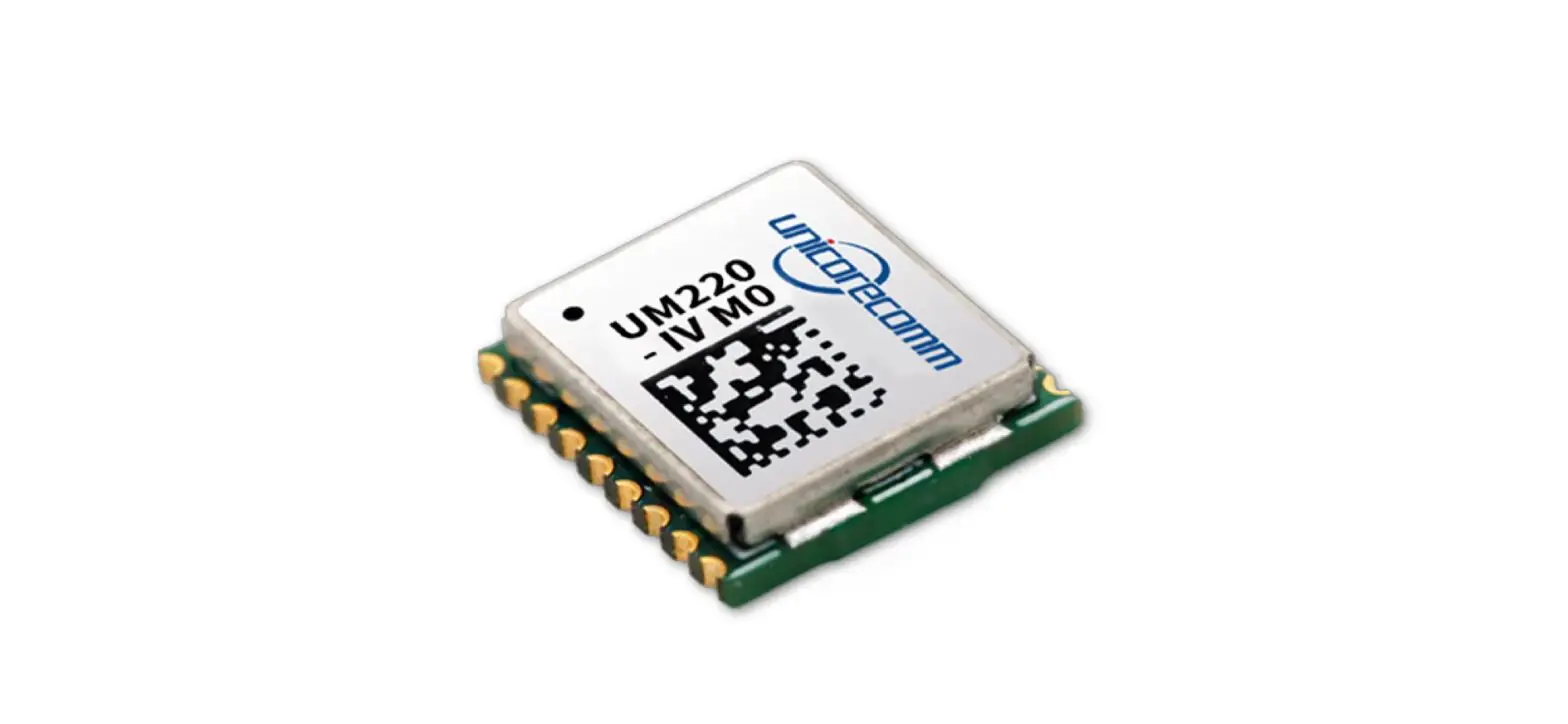
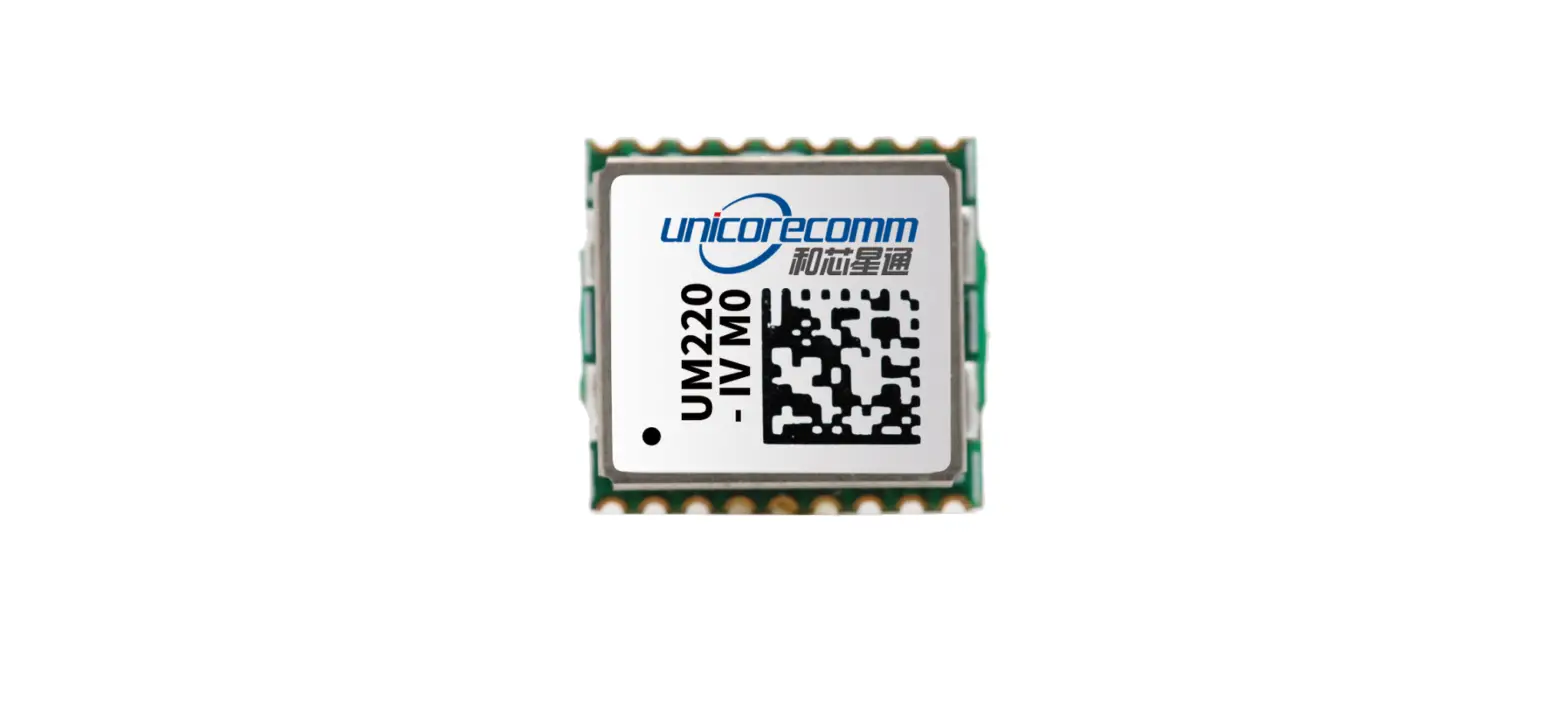
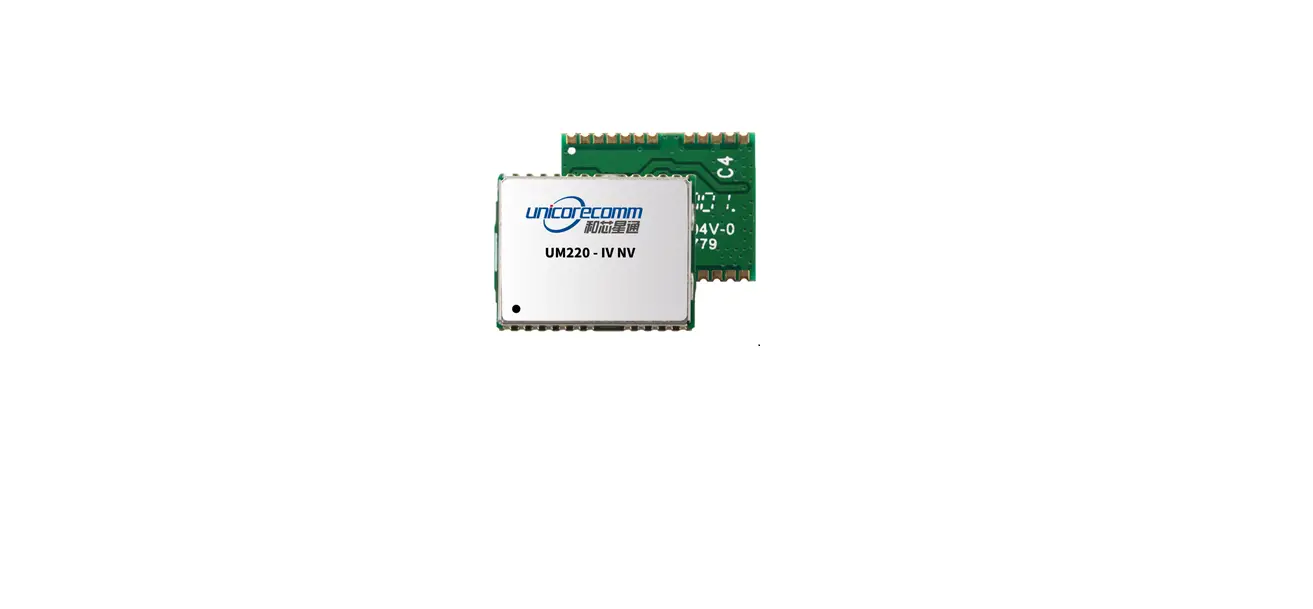
The UM220-IV N Navigation and Positioning Module Evaluation Kit
is a product offered by Unicore Communication, Inc. This kit is
designed to provide evaluation and testing capabilities for the
UM220-IV N module. The kit includes a user manual and can be used
together with the UPrecise_User Manual.
Revision History:
- R1.0 – First release (Apr. 2023)
Legal Rights Notice:
This manual and the information contained within it are the
property of Unicore Communication, Inc. All rights, including
copyrights, patents, trademarks, and other proprietary rights, are
fully reserved by Unicore. The manual does not grant or transfer
any rights or interests to the reader.
Disclaimer:
This manual is provided “as is” and is believed to be accurate
at the time of publication or revision. However, Unicore does not
make any commitments or warranties regarding the fitness for a
particular purpose, accuracy, reliability, or correctness of the
information. Product specifications, descriptions, features, and
user guide may change without prior notice.
Product Usage Instructions:
Target Audience:
This manual is intended for technicians who are familiar with
GNSS (Global Navigation Satellite System) modules. It may not be
suitable for general readers.
Contents:
- Overview: Provides an introduction to the
UM220-IV N Navigation and Positioning Module Evaluation Kit. - EVK Introduction: Provides detailed
information about the evaluation kit. - Interfaces & Indicators: Describes the
interfaces and indicators available on the kit. - Installation & Configuration: Explains the
installation process and provides instructions for configuring the
kit.
Installation:
To install the UM220-IV N Evaluation Kit, follow these
steps:
- Ensure that you have all the necessary components and
accessories. - Choose a suitable location to set up the kit.
- Connect the necessary cables and power supply to the kit.
- Verify that all connections are secure.
SD Card Instructions:
To use the SD card with the kit, follow these instructions:
- Ensure that the SD card is compatible with the kit.
- Insert the SD card into the designated slot on the kit.
- Follow any additional instructions provided in the user manual
for using the SD card.
INSTALLATION AND OPERATION
QUICK GUIDE
WWW.UNICORECOMM.COM
UM220-IV N
Navigation and Positioning Module Evaluation Kit
Copyright© 2009-2023, Unicore Communications, Inc. Data subject to change without notice.
Revision History
Version
Revision History
R1.0
First release
Date Apr. 2023
Legal right notice
This manual provides information and details on the products of Unicore Communication, Inc. (“Unicore”) referred to herein.
All rights, title and interest to this document and the information such as data, designs, layouts contained in this manual are fully reserved, including but not limited to the copyrights, patents, trademarks and other proprietary rights as relevant governing laws may grant, and such rights may evolve and be approved, registered or granted from the whole information aforesaid or any part(s) of it or any combination of those parts.
Unicore holds the trademarks of “”, “UNICORECOMM” and other trade name, trademark, icon, logo, brand name and/or service mark of Unicore products or their product serial referred to in this manual (collectively “Unicore Trademarks”).
This manual or any part of it, shall not be deemed as, either expressly, implied, by estoppel or any other form, the granting or transferring of Unicore rights and/or interests (including but not limited to the aforementioned trademark rights), in whole or in part.
Disclaimer
The information contained in this manual is provided “as is” and is believed to be true and correct at the time of its publication or revision. This manual does not represent, and in any case, shall not be construed as a commitments or warranty on the part of Unicore with respect to the fitness for a particular purpose/use, the accuracy, reliability and correctness of the information contained herein.
Information, such as product specifications, descriptions, features and user guide in this manual, are subject to change by Unicore at any time without prior notice, which may not be completely consistent with such information of the specific product you purchase.
Should you purchase our product and encounter any inconsistency, please contact us or our local authorized distributor for the most up-to-date version of this manual along with any addenda or corrigenda.
i
Foreword
UM220-IV N EVK Quick Guide
This document provides information of Unicore’s UM220-IV N evaluation kit (EVK). It can be used together with UPrecise_User Manual.
Target Readers
This manual is written for technicians who are familiar with GNSS modules. It is not for general readers.
ii
Contents
1 Overview …………………………………………………………………………………………………… 1 2 EVK Introduction ………………………………………………………………………………………… 1 3 Interfaces & Indicators ………………………………………………………………………………… 2 4 Installation & Configuration …………………………………………………………………………. 3
4.1 Installation …………………………………………………………………………………………………….3 4.2 SD Card Instructions ………………………………………………………………………………………4
4.2.1 Contents of the SD Card Folder…………………………………………………………………………….4 4.2.2 Data Storage Instructions ……………………………………………………………………………………5 4.2.3 Firmware Upgrade Instructions ……………………………………………………………………………6
I
UM220-IV N EVK Quick Guide
1 Overview
UM220-IV N evaluation kit (hereinafter referred to as EVK) is mainly used to test and evaluate the function and performance of UM220-IV N module for user convenience.
The delivered package contains:
Table 1-1 UM220-IV N EVK Package
Type
Contents
Number
Main device
UM220-IV N EVK Suite
1
Accessory
GNSS antenna – OSAnm10854G
1
Accessory
Micro-B USB cable
1
2 EVK Introduction
The figure below shows the appearance of UM220-IV N EVK Suite.
Figure 2-1 UM220-IV N EVK Suite
1
3 Interfaces & Indicators
The interfaces and indicators on UM220-IV N EVK is shown below. For the detailed description, see Table 3-1.
Figure 3-1 Interfaces & Indicators on UM220-IV N EVK
Table 3-1 Interfaces & Indicators on UM220-IV N EVK
Interface/ Indicator
Type
Description
S1
Reset
Reset the module by inserting and removing the jumper cap
S2
Antenna feed
Control the antenna feed on and off by the jumper cap
The indicator lights up when powered on,
L1
Power/1PPS indicator
and flashes when the 3D positioning is
effective.
ANT
RF signal input connector
Antenna signal input
FWD
Direction signal connector
Reserved for odometer directional signal input. UM220-IV N EVK does not support this interface.
Reserved. The indicator flashes when
L2
Speed pulse signal indicator receiving the speed pulse signal. UM220-IV
N EVK does not support this interface.
SPD
Speed pulse signal connector
Reserved for odometer speed pulse signal input. UM220-IV N EVK does not support this interface.
USB
Micro-B USB connector
Power supply (+5V) and data communication
SD-card
SD card slot
Insert an SD card
UART
Communication DB9 connector
Backup serial communication interface with RS232
2
UM220-IV N EVK Quick Guide
4 Installation & Configuration
4.1 Installation
Step 1: Make sure to take full anti-static measures, such as wearing anti-static wrist straps and grounding the workbench. Step 2: Select the GNSS antenna with appropriate gain (the GNSS systems and frequencies supported by the antenna should be in line with the module), fix it in the non-blocking area, and connect the antenna to the ANT port on the EVK. Step 3: Connect the EVK to the PC using the Micro-B USB cable. Step 4: Open the UPrecise software on the PC. Step 5: Configure the receiver through UPrecise to display the constellation view, data stream, tracking status, etc. For more information, please refer to UPrecise_User Manual.
Antenna PC
Figure 4-1 Installation of the EVK
3
4.2 SD Card Instructions
There is an SD card slot on the UM220-IV N EVK, which is used for data storage and firmware upgrade.
You can also use UPrecise to store data and upgrade the firmware. For more
information, see UPrecise_User Manual.
4.2.1 Contents of the SD Card Folder
Before using the SD card, you need to copy the zipped folder “UM220-IVN_EVK_Suite_V2.0_sdcard” to the card. The folder contains the following items:
Figure 4-2 Contents of the SD Card Folder
1. The “bootloader” folder contains the loader file for firmware upgrade.
Unicore has already provided the loader file, which can be used directly.
2. The “firmware” folder is used to store the firmware file. 3. The “Log” folder is used for data storage. 4. The “config.ini” is the configuration file, of which the contents are as follows:
4
UM220-IV N EVK Quick Guide
Figure 4-3 Contents of the config.ini File
Table 4-1 Description of the config.ini File
Contents
Description
[config] SingleFileSize = 512000000StartRecordStyle = new WorkBaudrate = 115200
/
The size of a single file. If the file size exceeds the specified number, a new file will be created. (Hexadecimal format is not supported; please convert the size to a decimal number.)
The recording style after starting up (new or append): Append = log data in the existing file; New = log data in a new file
The working baud rate of UM220-IV N module
LogFileName = log update = 0
The name of the log file
1 = Upgrade the firmware; 0 = Do not upgrade the firmware
4.2.2 Data Storage Instructions
Step 1: Insert the SD card into the PC, and copy the zipped folder “UM220-IVN_EVK_Suite_V2.0_sdcard” to the card.
Step 2: Unzip the folder and open the “config.ini” file, then set the “update” value to 0, set the “WorkBaudrate” the same as that of the UM220-IV N module and set other parameters as needed (see Table 4-1 for more information).
5
Step 3: Remove the SD card from the PC, insert it into the EVK, and power on the EVK1. Step 4: Waiting for a while and you can get the logged data in the SD card. During the process, you may use the Micro-B USB cable to connect the EVK to PC in order to check the status of data transmission with a port monitor tool.
4.2.3 Firmware Upgrade Instructions
Step 1: Insert the SD card into the PC, and copy the zipped folder “UM220-IVN_EVK_Suite_V2.0_sdcard” to the card. Unzip the folder and open “bootloader” to make sure that it contains the loader file. Then, put the firmware file2 in the “firmware” folder.
For the bootloader and firmware folders, only one file can be stored in each folder.
Step 2: Open the “config.ini” file, and set the “update” value to 1. Step 3: Remove the SD card from the PC, insert it into the EVK, and power on the EVK. Step 4: During upgrade, the indicator L1 is off. After the upgrade is finished, the light turns on. You may also use the Micro-B USB cable to connect the EVK to PC in order to check the status of upgrade with a port monitor tool.
1 If the antenna is not connected, the EVK will output debug information; if you need the positioning information, please connect the antenna before powering on. 2 Please contact Unicore to get the latest firmware.
6
Unicore Communications, Inc. 7
F3, No.7, Fengxian East Road, Haidian, Beijing, P.R.China, 100094 www.unicorecomm.com Phone: 86-10-69939800 Fax: 86-10-69939888 [email protected]
www.unicorecomm.com
 和芯星通北斗导航芯片-北斗导航模块北斗高精度定位板卡国内外领先的芯片、OEM板卡和产品解决方案提供商