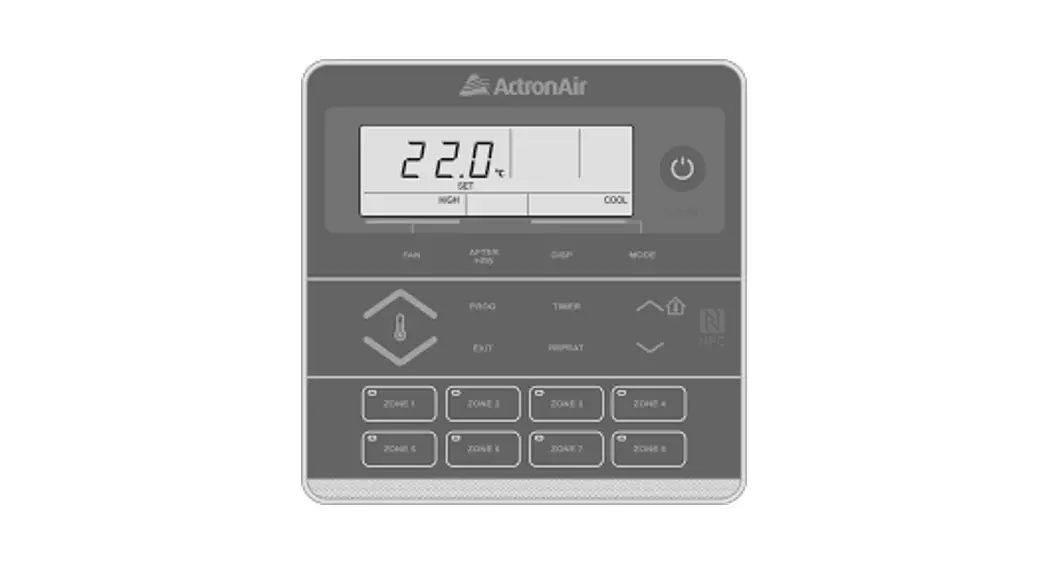
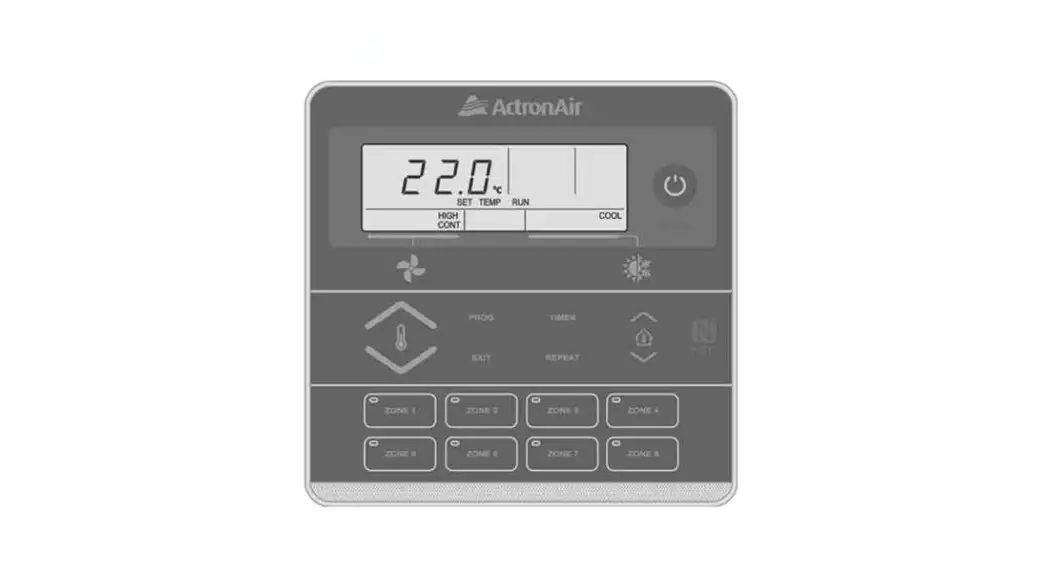
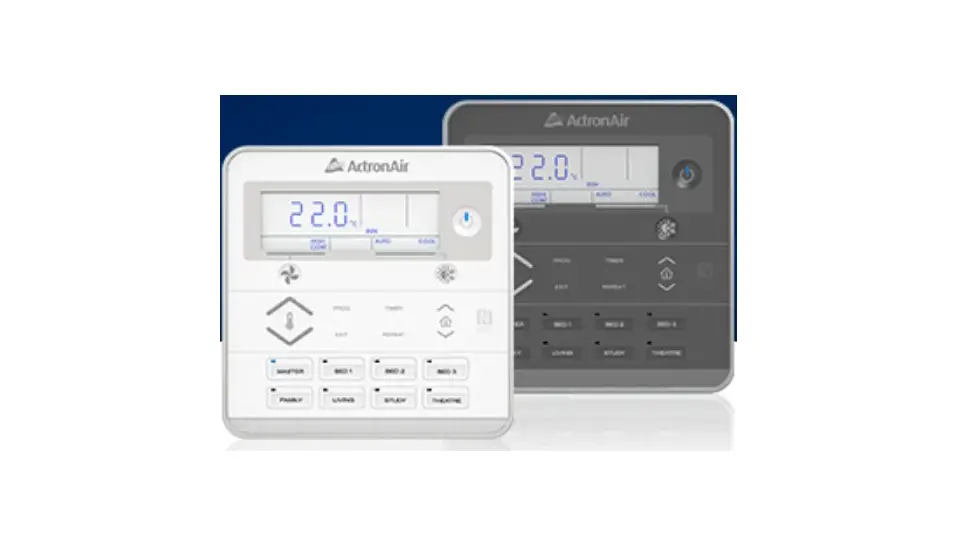
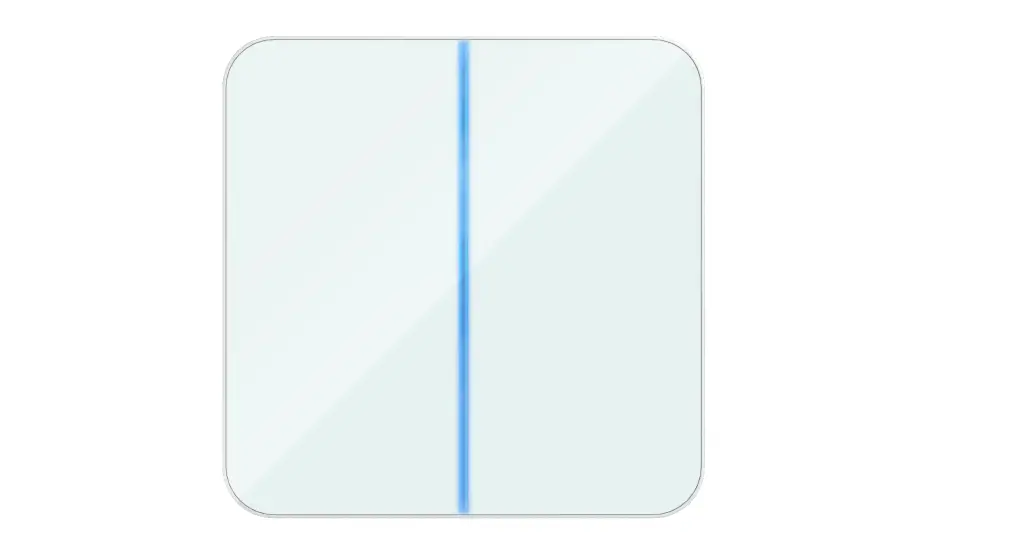
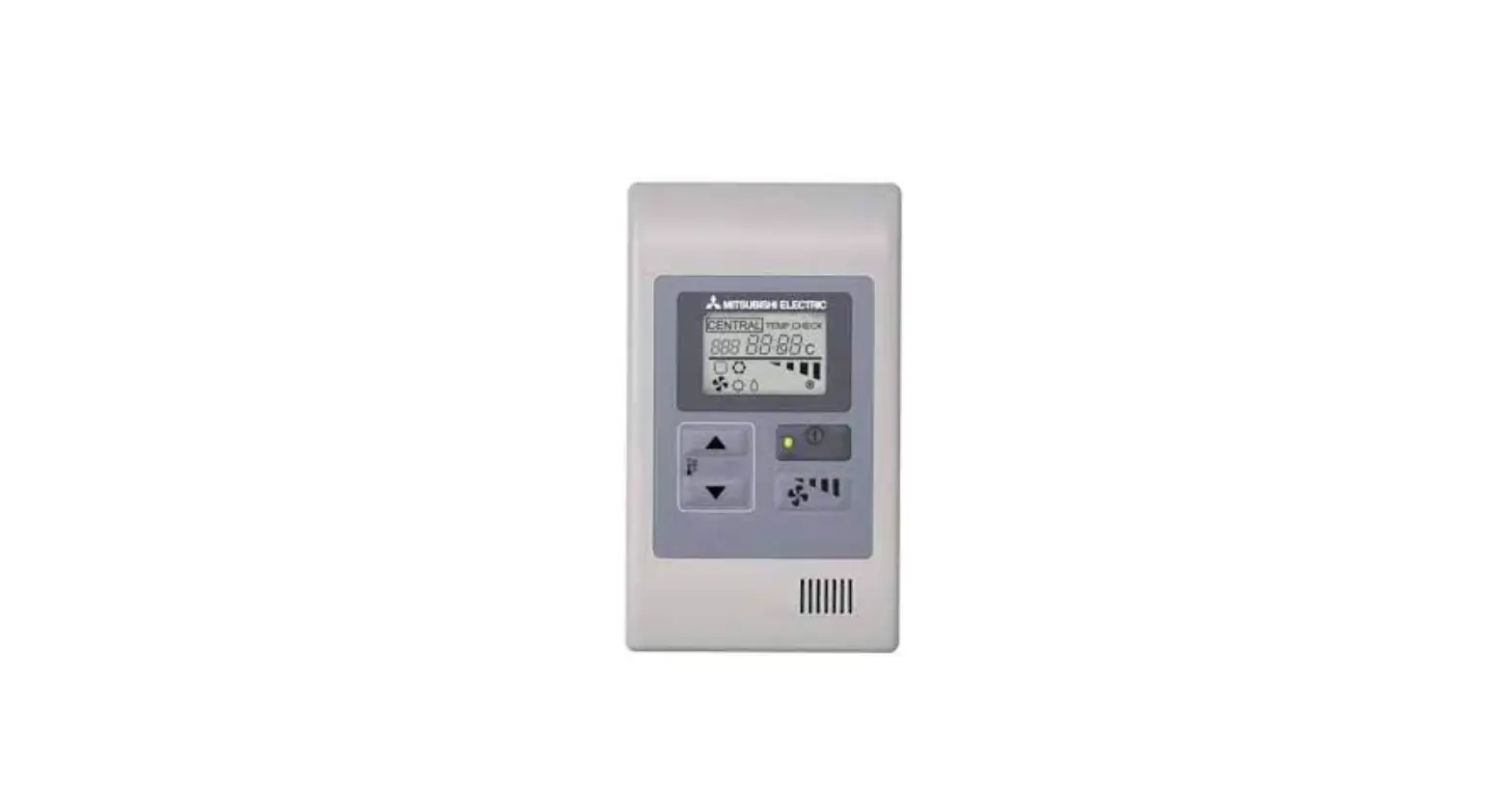
LC7-2G Wall Control
Product Information: Wall Control
The Wall Control is a device that allows you to control your
ActronAir air conditioning unit. It comes in two models: LC7-2W and
LC7-2G. The control interface is connected to the wall control
terminal block on the Indoor board via screwed terminals and Cat5e
UTP (AWG24) Data Cable. It is important to follow the safety
precautions and installation guide provided in the manual before
operating the air conditioning unit.
Specifications
Do not use ActronAir 4 Core Data Cable Part Numbers: 4070-003 /
AMDC4 or Non-Twisted Pair multi core cable.
Installation
The installation process involves the following steps:
- Read all instructions in the manual before operating the air
conditioning unit. Failure to do so may result in damage to the
unit and void your warranty. - Turn off the power supply to the unit and follow necessary
LOCK-OUT / TAG-OUT (LOTO) procedures to ensure that power supply is
not re-energised accidentally. - Ensure that this unit is not installed on voltages other than
specified. - Make sure that the unit installation complies with all relevant
council regulations and building code standards. All electrical
wiring must be in accordance with current electrical authority
regulations and all wiring connections must follow the electrical
diagram provided. - WH&S rules and regulations must be observed and will take
precedence during installation process. - Only use this Control Interface with an ActronAir air
conditioner as described in this installation guide. - Remove back cover, mount back cover to the wall, and the bottom
of the Control Interface. Do this procedure alternately between the
four slots until the back cover of the plasterboard mounting
bracket (not supplied) is recommended to mount the back cover to
the wall. Make sure that the Control Interface is centered and
leveled on the wall before tightening the screws. - Wire the Wall Control in accordance with the provided wiring
diagram. - Select zone buttons.
- Attach the front cover. Ensure protective film is removed from
inside of the front cover before attaching. Front cover can be
removed even after installation. Press at the bottom of the control
interface and pull the front cover.
Wiring Diagram
The wiring diagram for single Wall Control to Indoor Board is
provided in the manual.
WALL CONTROL
Installation Instructions
Control Model Number LC7-2W LC7-2G
IMPORTANT NOTE:
Please read this manual carefully before installing or operating your air conditioning unit.
Installation Guide
LC7-2 Control Interface
Table of Contents
01. Safety Precautions ……………………………………………………………………………………….. 02 02. Specifications ……………………………………………………………………………………………… 02 03. Installation …………………………………………………………………………………………………. 03 04. Wiring Diagram……………………………………………………………………………………………. 04
04.01. Single Wall Control to Indoor Board ……………………………………………………………….04 04.02. Multiple Wall Control……………………………………………………………………………………04 05. Controller Assignment………………………………………………………………………………….. 05 06. Sensor Enable/Calibration……………………………………………………………………………… 05 07. Enabling Zones and Assigning Sensors …………………………………………………………….. 06 08. Minimum and Maximum Zone Positions …………………………………………………………… 06 09. Advance Series Self-Learn Mode (EVV Indoor Models) ……………………………………….. 07 09.01. Initiating Self-Learn Mode …………………………………………………………………………….07
01. Safety Precautions
1. Read all instructions in this manual before operating the air conditioning unit. Failure to do so may result in damage to the unit and void your warranty.
2. Turn off the power supply to the unit and follow necessary LOCK-OUT / TAG-OUT (LOTO) procedures to ensure that power supply is not re-energised accidentally.
3. This control interface is connected to the wall control terminal block on the Indoor board via screwed terminals and Cat5e UTP (AWG24) Data Cable. Ensure that this unit is not installed on voltages other than specified.
4. Make sure that the unit installation complies with all relevant council regulations and building code standards. All electrical wiring must be in accordance with current electrical authority regulations and all wiring connections must follow the electrical diagram provided.
5. WH&S rules and regulations must be observed and will take precedence during installation process. 6. Only use this Control Interface with an ActronAir air conditioner as described in this installation guide.
02. Specifications
· Voltage: 12VDC +/- 10% (LC7-2 control connects directly to the Indoor board) · Data: Cat5e UTP (AWG24) Data Cable, Maximum Cable Length up to 100m · Operating conditions: -10 to 60°C, < 90% RH non-condensing · Storage conditions: -20 to 70 °C, < 90% RH non-condensing · Dimensions – mm: 130 x 130 x 14.5 (W x H x D)
NOTE Do not use ActronAir 4 Core Data Cable Part Numbers: 4070-003 / AMDC4 or Non-Twisted Pair multi core cable.
02
LC7-2 Control Interface Insert
Document: 9590-3024 Ver. 4 230608
Installation Guide
LC7-2 Control Interface
03. Installation
1. Remove back cover, as shown in the diagram below
2. Mount back cover to the wall
· Insert and gently twist screwdriver into the slot at the top · Mount the back cover to the wall with screws (not
and the bottom of the Control Interface. Do this procedure
supplied) via screw holes. If required, the use of a
alternately between the four slots until the back cover of the plasterboard mounting bracket (not supplied) is
control separates.
recommended to mount the back cover to the wall.
· Use large enough flat blade screwdriver to fit into the slot in · Ensure that the Control Interface back cover is aligned
order to avoid damaging the Control Interface.
and leveled on the wall before tightening the screws.
SLOTS
BACK COVER
LC7-2 BACK COVER
PLASTERBOARD MOUNTING BRACKET
1
2
3 4
PCB CASING
5
SCREW HOLES
SLOTS
3. Connect wiring at the back of Control Interface · Ensure that all wiring is tightly connected. All wiring must be
in accordance with the provided wiring diagram.
POWER 485 A 485 B GND
BROWN-WHITE / ORANGE – WHITE
BLUE / WHITE BLUE BROWN / ORANGE
4. Attach PCB casing to the back cover · Attach the PCB casing by aligning with the back cover
mounted on the wall. · Ensure the PCB casing makes a `click’ sound after
mounting.
BACK COVER
WALL CONTROL WIRING
POWER: – BROWN / ORANGE 485 A: – BLUE 485 B: – BLUE-WHITE GND: – BROWN-WHITE / ORANGE-WHITE NOT USED: – GREEN / GREEN-WHITE
CUT OFF AND DO NOT CONNECT GREEN/GREEN-WHITE PAIR
1 2 3 4 5
PCB CASING
5. Select zone buttons
6. Attach the front cover, as shown in the diagram
· Remove the relevant zone buttons for zone name to be
below
allocated and attach to wall control. · Ensure the buttons make a `click’ sound when attached to the
PCB casing.
IMPORTANT
Ensure protective film is removed from inside of the front cover before attaching.
PCB CASING
· After attaching the front cover, check that the Control Interface is aligned and leveled on the wall.
ZONE BUTTONS
BUTTON PAD
1 2 3 4 5
BACK COVER
NOTE
Front cover can be removed even after installation. Press at the bottom of the control interface and pull the front cover.
1 2 3 4 5
BACK COVER AS MOUNTED ON THE WALL
LCLR7-72-1W
PROG EXIT
TIMER REPEAT
FRONT COVER
LC7-2 Control Interface Insert
03
Document: 9590-3024 Ver. 4 230608
Installation Guide
LC7-2 Control Interface
04. Wiring Diagram
04.01. Single Wall Control to Indoor Board
WC-1 Power
485 A 485 B
WALL CONTROL WIRING
POWER: 485 A: 485 B: GND:
– BROWN / ORANGE – BLUE – BLUE-WHITE – BROWN-WHITE / ORANGE-WHITE
NOT USED: – GREEN / GREEN-WHITE
BR / OR BL
BL-WH BR-WH / OR-WH
BR / OR BL
BL-WH BR-WH / OR-WH
CUT OFF GR / GR-WH
04.02. Multiple Wall Control 04.02.01. Star Wall Control to Indoor Board
WALL CONTROLLER +12V A B G
INDOOR CONTROL
BOARD
WALL CONTROLLER +12V A B G
WC-1 Power
485 A 485 B
BR / OR BL
BL-WH BR-WH / OR-WH
WC-1 Power
485 A 485 B
BR / OR BL
BL-WH BR-WH / OR-WH
WC-1 Power
485 A 485 B
BR / OR BL
BL-WH BR-WH / OR-WH
CUT OFF GR / GR-WH
CUT OFF GR / GR-WH
BR / OR BL
BL-WH BR-WH / OR-WH
INDOOR CONTROL
BOARD
CUT OFF GR / GR-WH
WALL CONTROL WIRING
POWER: – BROWN / ORANGE
485 A:
– BLUE
485 B:
– BLUE-WHITE
GND:
– BROWN-WHITE / ORANGE-WHITE
NOT USED: – GREEN / GREEN-WHITE
04.02.02. Series Wall Control to Indoor board
WALL CONTROLLER +12V A B G
WC-1 Power
485 A 485 B
BR / OR BL
BL-WH BR-WH / OR-WH
WC-1 Power
485 A 485 B
BR / OR BL
BL-WH BR-WH / OR-WH
BR / OR BL
BL-WH BR-WH / OR-WH
INDOOR CONTROL
BOARD
CUT OFF GR / GR-WH
CUT OFF GR / GR-WH
WALL CONTROL WIRING
POWER: – BROWN / ORANGE
485 A:
– BLUE
485 B:
– BLUE-WHITE
GND:
– BROWN-WHITE / ORANGE-WHITE
NOT USED: – GREEN / GREEN-WHITE
WC-1 Power
485 A 485 B
BR / OR BL
BL-WH BR-WH / OR-WH
CUT OFF GR / GR-WH
Item
Description
ID Control Bord to WC-1
Indoor PCB to Wall Controller 1
ID Control Bord to WC-2, ID Control Bord to WC-3
Indoor PCB to Wall Controller 3 (last controller)
*Maximum Daisy Chain connection is up to 2 Wall Controllers.
04
LC7-2 Control Interface Insert
Document: 9590-3024 Ver. 4 230608
Maximum Cable Length 100 m
75m (Daisy Chain)*
Installation Guide
LC7-2 Control Interface
05. Controller Assignment
NOTE
For installations where an LC7-2 is being installed with a Neo Wall Control, C-1 will always need to be assigned to the Neo Wall Control.
Upon initial start up of the system, all connected LC7-2 controls (up to 3) will display C-0. After 3 seconds, an auto-
assignment process will take place with the auto-assigned control ID displayed on the screen C-1, C-2 and C-3. The user
can change the control assignment between C-1 and C-3 with the
or buttons. For the system to function
correctly, a C-1 control must be present, with each control requiring a unique control assignment. The displayed text will
remain on the control until user acknowledges the assignment by pressing the PROG button to enter the Home Screen.
NOTE
If the C-0 display did not change, check the wiring between the controller and Indoor Unit Board. This may be caused by:
· Loose or interchanged wire connection or (between Controller and Indoor Unit Board) · No communication between the controller and Indoor Unit Board due to faulty cable
Upon subsequent power cycles, all controls will show their control ID for 3 seconds before proceeding to the home screen.
Manual Control Assignment
1. Press and hold the REPEAT and TIMER buttons for 3 seconds then release to enter Service Menu.
2. Press the PROG button to enter Service Menu 01.
3. Press the
or
buttons to select the appropriate control assignment.
4. Press the PROG button to accept the selection.
5. Press the EXIT button once to return to Main Screen.
NOTE
In the case of disconnecting the C-1 control from the system, the other LC7-2 controls will show an error code (E56 – No main wall control detected). To troubleshoot this error code:
· Troubleshoot C-1 LC7-2 control – check the wiring and connection of the control. If E56 is still being displayed on C-2 and C-3, connect a replacement LC7-2 control. During its first power on cycle, it will auto assign itself to the vacant address.
06. Sensor Enable/Calibration
1. Press and hold the REPEAT and TIMER buttons for 3 seconds then release to enter Service Menu. 2. Press the button to scroll through to Service Menu 02. 3. Press the PROG button to enter Service Menu 02.
NOTE The display will toggle between sensor name (CS1 – Wall Control Sensor 1) and actual temperature reading. By default, all connected sensors are enabled, displayed ON, and have a calibration factor of 0. CS1/CS2/CS3 represent wall control sensors and rS1/rS2 represents remote sensor.
4. Press the
or buttons to select the appropriate sensor to calibrate or turn ON or OFF.
5. Press the PROG button to enter Wall Control Sensor settings.
6. Press the
or
buttons to change the temperature offset of Wall Control Sensor.
NOTE
Offset range is ±9.9, with 0.1 increments per
or
The button may be pressed to enable/disable sensor.
buttons press.
7. Press the PROG button to accept changes. 8. Repeat steps 4-7 to enable/disable and calibrate all applicable sensors. 9. Press the EXIT button twice to return to Main Screen.
LC7-2 Control Interface Insert
05
Document: 9590-3024 Ver. 4 230608
Installation Guide
LC7-2 Control Interface
07. Enabling Zones and Assigning Sensors
NOTE
On initial power-up, an automatic zone detection takes place. If zones do not appear on the control upon commissioning, cycling power will enable another automatic zone detection.
1. Press and hold the REPEAT and TIMER buttons for 3 seconds then release to enter Service Menu. Press the button to scroll through to Service Menu 14.
2. Press the PROG button to enter Service Menu 14. Press the
or
buttons to change the zone you wish to
enable or the required zone button on zone pad. Display will show zone number, enabled ON or OFF and number of
assigned sensors to that zone. Selected zone will also be indicated by the zone’s LED on the zone pad.
NOTE
ZONE 1 settings appear by default. Zone 1 is ON by default.
3. Press the PROG button to enter ZONE 1 settings. Press the
or
For this example, switch on ZONE 1.
4. Press the PROG button to assign a sensor to the selected zone. Press the available sensors. For this example, select zone control sensor C – 1.
buttons to toggle between ON and OFF.
or
buttons to cycle through
NOTE
The sensors are determined by what appears on the display screen.
Control Name Description
Sensor Name
C-1
Wall Control 1
RS1
C-2
Wall Control 2
RS2
C-3
Wall Control 3
RS3*
*No RS3 on CMI
Description Remote Sensor 1 Remote Sensor 2 Remote Sensor 3
5. Press the PROG button to select a second sensor. By default, the value is —,indicating that there is no assigned
second sensor. Press the
or buttons to cycle through available sensors. If a second sensor is selected,
the zone temperature will be averaged between the two sensors.
6. Press the PROG button to return to zone selection screen. Repeat steps 3-5 to configure zones. Press the EXIT button to return to Main Screen.
08. Minimum and Maximum Zone Positions
1. Press and hold the REPEAT and TIMER buttons for 3 seconds then release to enter Service Menu. Press the button to scroll through to Service Menu 15.
2. Press the PROG button to enter Service Menu 15. Press the
or buttons to change zones or press the
required zone button on zone pad. Display will show zone number, enabled ON or OFF and number of assigned
sensors to that zone. Selected zone will also be indicated by the zone’s LED on the zone pad.
NOTE ZONE 1 settings appear by default. Detected Zones are ON by default.
3. Press the PROG button to enter the selected zone’s settings. Display will show the zone OPEN percentage and HIGH.
By default this will be 100. Press the
or
buttons to change value.
NOTE
OPEN and HIGH range is 5-100%, with 5% increments per the
or buttons press.
06
LC7-2 Control Interface Insert
Document: 9590-3024 Ver. 4 230608
Installation Guide
LC7-2 Control Interface
4. Press the PROG button to accept changes. Display will show the zone CLOSE percentage and LOW. By default this will
be 0. Press the
or buttons to change value.
NOTE CLOSED and LOW range is 0-45%, with 5% increments per the
or buttons press.
5. Press the PROG button to accept changes and return to the zone selection screen. Press the EXIT button to return to Service Menu.
09. Advance Series Self-Learn Mode (EVV Indoor Models)
1. Ensure all connected zones have been detected or enabled. 2. Before activating, ensure the following:
· Return air filter, box and grille are properly installed. · All doors or any other restrictions that may obstruct the air path back to the return and grille are open. · Adjustable outlets should be in open position and System Air Balance should be complete.
09.01. Initiating Self-Learn Mode
1. System should be in the OFF MODE before activating self-learn mode.
2. Press and hold the FAN button and button for 5 seconds or until the word Lrn appears on the display and release.
3. Press the FAN button once and release. 4. AUTO will flash on the controller display during operation of self-learn mode.
NOTES · If a self-learn passes PAS will display on the wall controller.
· If a self-learn fails, FAL will display on the wall controller.
Note: Refer to Service Manual for troubleshooting.
· To return to Main Menu, press EXIT. · To cancel Self-learn Mode, press button or EXIT.
LC7-2 Control Interface Insert
07
Document: 9590-3024 Ver. 4 230608
actronair.com.au 1300 522 722
©Copyright 2019 Actron Engineering Pty Limited ABN 34 002767240. ®Registered Trade Marks of Actron Engineering Pty Limited. ActronAir is constantly seeking ways to improve the design of it’s products, therefore specifications are subject to change without notice.
Document: 9590-3024 Ver. 4 Issue Date: 06/2023