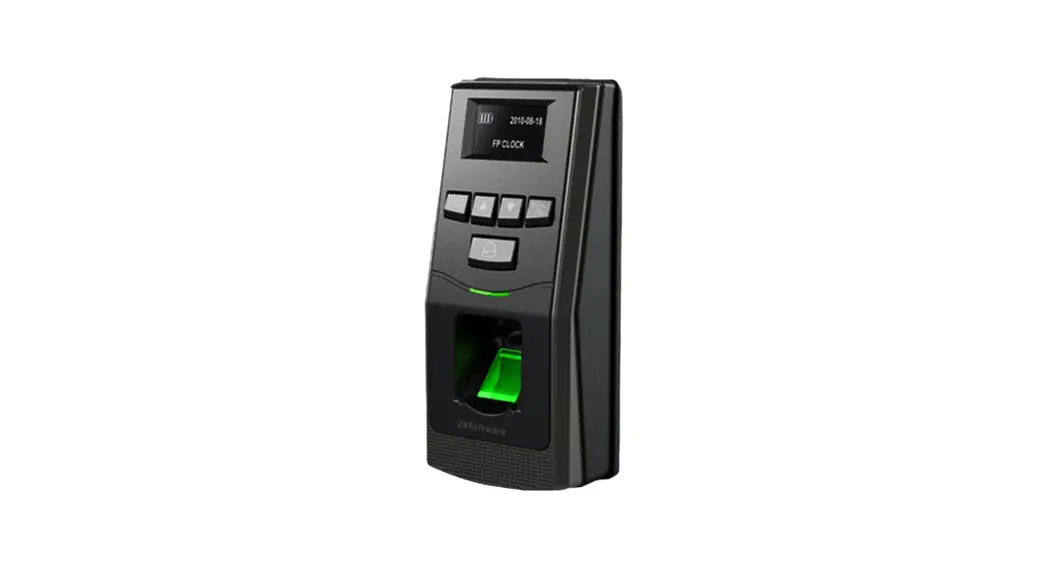
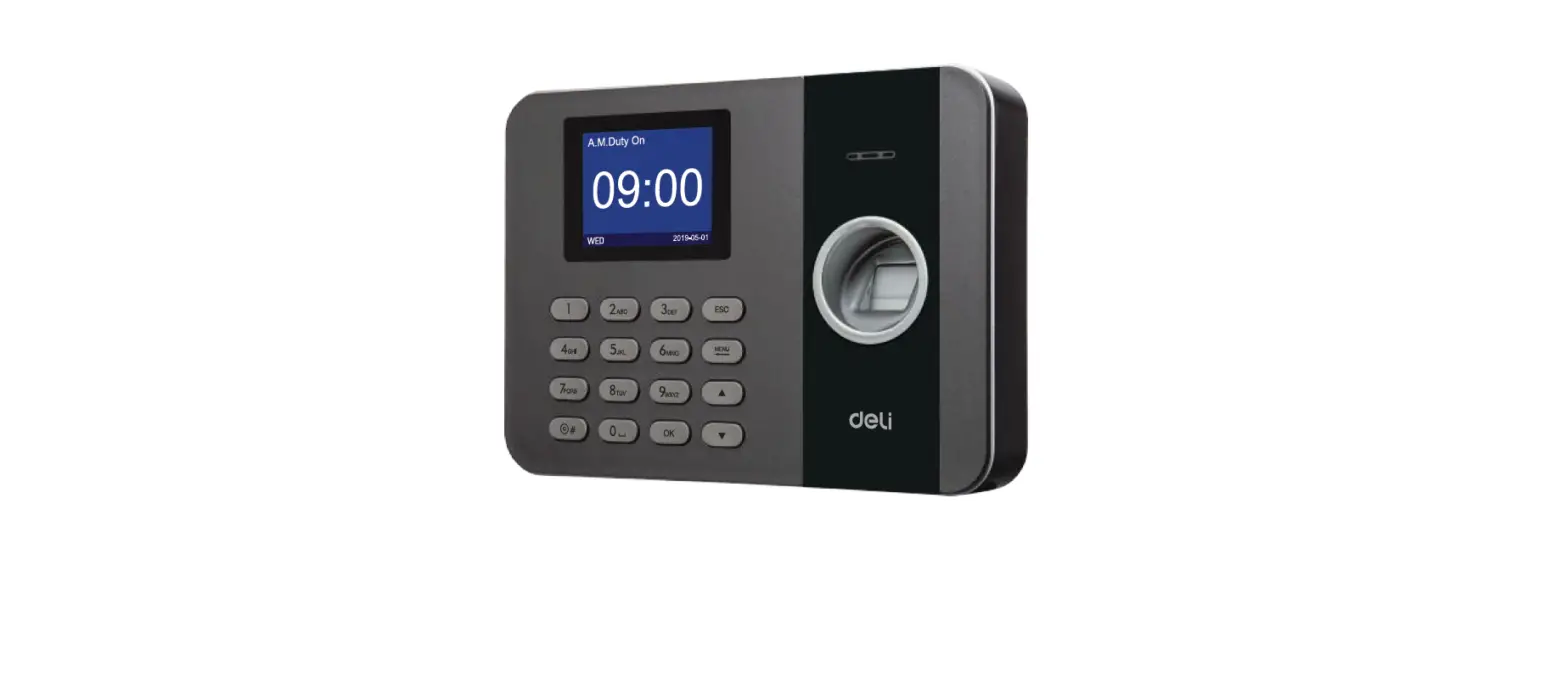
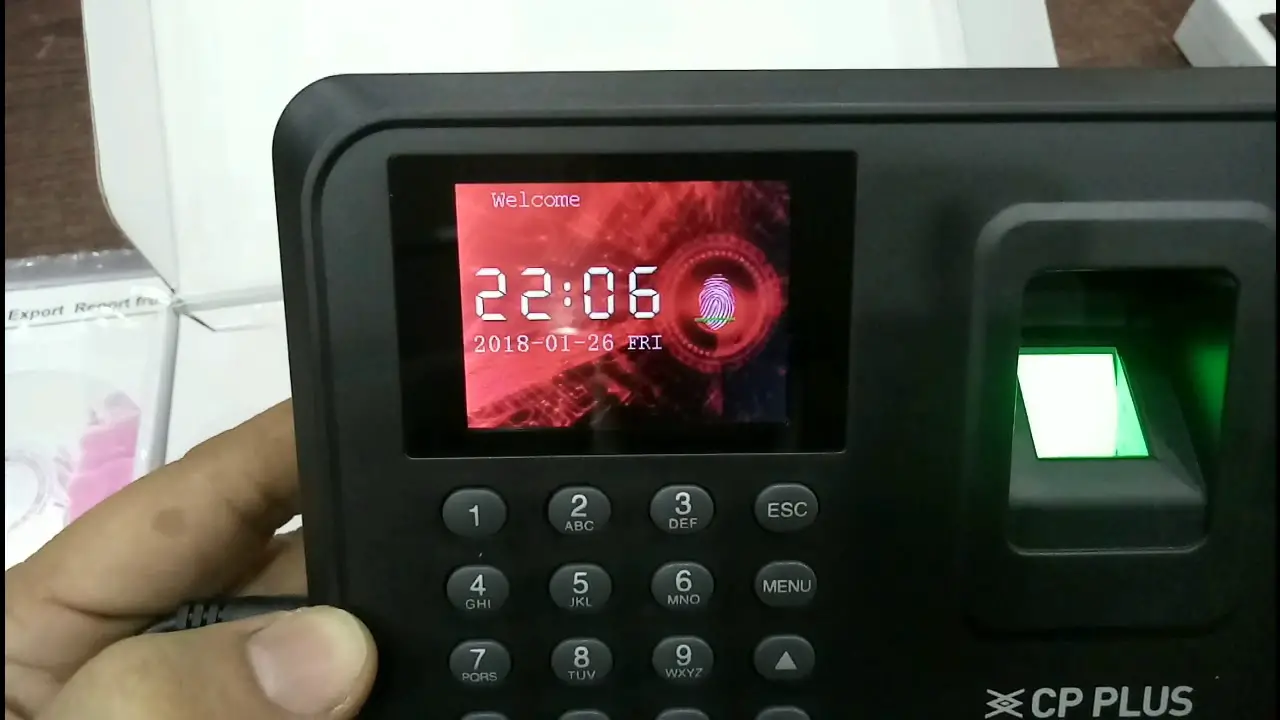
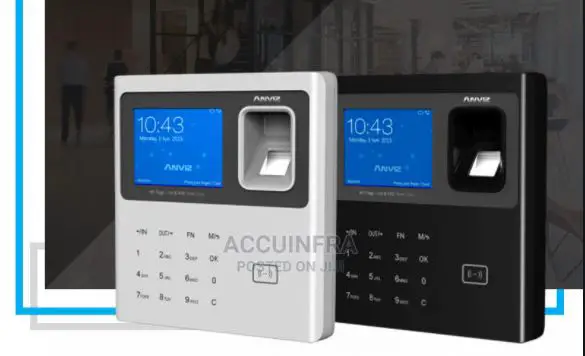
ZK_PA22 Wifi Biometric Fingerprint Attendance System
Product Information
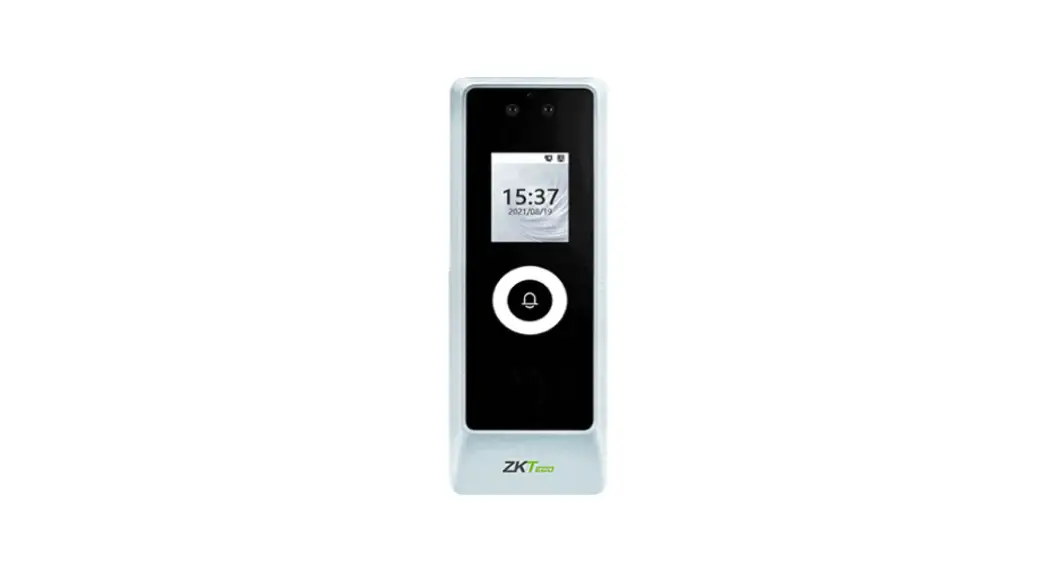
The PA22 is a device manufactured by ZKTeco. It is a palm
recognition system with a 2.4-inch TFT LCD screen. The device
features a keypad and RF card area, LED indicator, near-infrared
palm recognition sensor, reset button, speaker, tamper switch, USB
slot, terminal block, and back plate mounting hole. Its dimensions
are approximately 3.18″ x 2.21″ x 1.61″ (80.7mm x 56.1mm x
41.0mm).
Product Usage Instructions
Device Installation
To install the PA22 on the wall:
- Attach the mounting template sticker to the wall and drill
holes according to the template. - Fix the back plate on the wall using wall mounting screws.
- Attach the device to the back plate from top to bottom.
- Fasten the device to the back plate with a security screw.
Standalone Installation
To set up the PA22 as a standalone device:
- Connect the wireless router to the PA22.
- Connect the door sensor, lock, bell, alarm, and exit button to
the corresponding terminals on the device. - Connect the power supply (12V DC adapter) to the PA22.
Ethernet Connection
To connect the PA22 to the software over Ethernet:
- Connect one end of an Ethernet cable to RJ45-1 on the
PA22. - Connect the other end of the Ethernet cable to the network
cable adapter. - Connect the network cable adapter to the software.
- Configure the IP address and subnet mask according to the
provided instructions.
To connect the door sensor, exit button, alarm, and bell to the
PA22:
- Connect the AUX, GND, BELL-, BELL+, SEN, GND, BUT, NO1, COM1,
NC1, ALAL+ terminals on the device to their corresponding
components. - Connect the power supply (12V DC adapter) to the PA22.
Lock Relay Connection
To connect a lock relay to the PA22:
- If the lock relay shares power with the device:
- Connect the AUX, GND, BELL-, BELL+, SEN, GND, BUT, NO1, COM1,
NC1, ALAL+ terminals on the device to their corresponding
components. - Connect the lock relay’s power supply (12V DC adapter) to the
PA22.
- Connect the AUX, GND, BELL-, BELL+, SEN, GND, BUT, NO1, COM1,
- If the lock relay does not share power with the device:
- Connect the AUX, GND, BELL-, BELL+, SEN, GND, BUT, NO1, COM1,
NC1, ALAL+ terminals on the device to their corresponding
components. - Connect a separate power supply (12V DC adapter) to the lock
relay.
- Connect the AUX, GND, BELL-, BELL+, SEN, GND, BUT, NO1, COM1,
RS485 Connection
To connect an RS485 fingerprint reader to the PA22:
- Connect the 485B, 485A, GND, TXD, RXD, GND, WD1, WD0 terminals
on the device to their corresponding components on the fingerprint
reader. - Connect the power supply (12V DC adapter) to the PA22.
Note: Always follow the provided instructions and do not reverse
any connections.
Quick Start Guide
PA22
Version: 1.0
Due to the regular upgrades of systems and products, ZKTeco could not guarantee exact consistency between the actual product and the written information in this manual.
Device Overview
Front
Side
2.4 Inch TFT LCD
Back
Keypad & RF Card Area
LED Indicator
Near-infrared Palm Recognition Sensor
Reset Button Speaker
Tamper switch
Bottom
USB Slot
Terminal Block
Back Plate Mounting Hole
Wiring Hole
1
Device Dimensions
3.18″ (80.7mm)
0.76″ (19.4mm)
2.21″ (56.1mm)
6.29″ (159.8mm)
4.97″ (126.1mm)
1.61″ (41.0mm)
Device Installation
Install on the Wall
1. Attach the mounting template sticker to the wall, and drill the holes according to the mounting paper.
2. Fix the back plate on the wall with using wall mounting screws. 3. Attach the device to the back plate from top to bottom. 4. Fasten the device to the back plate with a security screw.
1
2
3
4
1
Baseline
47.24″ (1.2m)
2
2
Terminal Block
4 Pin Cable Connectors
8 Pin Cable Connectors 7 Pin Cable Connectors 2 Pin Cable Connectors 12 Pin Cable Connectors
RJ45-1 RJ45-2 RJ45-3 RJ45-6
AUX GND BELLBELL+ SEN GND BUT NO1 COM1 NC1 ALAL+
Ethernet
Auxiliary In Bell Sensor Button Lock
Alarm
485B 485A GND TXD RXD GND WD1 WD0
RS485B
RS232 Wiegand Out
BEEP GLED RLED IWD1 IWD0 GND 12VOUT
BEEP Green LED Red LED Wiegand In
Power Out
GND +12V
Power In
3
Standalone Installation
Wireless Router
TCP/ IP
Door Sensor Lock
Bell ALARM Alarm
Exit Button
4
Power Connection
Without UPS
GND
+12V DC
12V DC Adaptor
With UPS (Optional)
GND +12V DC
Recommended Power Supply: 12V±10%, at least 3000MA. Use an AC adapter with a higher current ratings to share the power with other devices.
5
Ethernet Connection
LAN Connection
Connect the device and the software over an Ethernet cable. An example is shown below:
RJ45-1
1
1
RJ45-2
2 3 4
5
6
RJ45-3
7 8
4
RJ45-6
Network Cable Adaptor
Default IP address: 192.168.1.201 Subnet mask: 255.255.255.0
IP address: 192.168.1.130 Subnet mask: 255.255.255.0
Click [Comm.] > [Ethernet] > [IP Address], input the IP address and click [M/OK]. Note: In LAN, the IP addresses of the server (PC) and the device must be in the same network segment when connecting to ZKBio Access IVS software.
Door Sensor, Exit Button, Alarm & Bell Connection
AUX GND BELL-
1
BELL+ SEN GND BUT NO1 COM1
12
NC1 ALAL+
Bell Door Sensor
Exit Button
Alarm GND
+12V DC
12V DC Adaptor
6
Lock Relay Connection
The system supports both Normally Opened Lock and Normally Closed Lock. The NO Lock (Normally Opened when powered) is connected with “NO” and “COM” terminals, and the NC Lock (Normally Closed when powered) is connected with “NC” and “COM” terminals. The power can be shared with the lock or can be used separately for the lock, as shown in the example with NC Lock below:
Device Not Sharing Power with the Lock
AUX GND BELL-
1
BELL+ SEN GND BUT NO1 COM1
12
NC1 ALAL+
+12V DC
GND
12V DC Adaptor
DO NOT REVERSE THE CONNECTION.
FR107
V- V+ NC COM NO
Magnetic Lock
Device Sharing Power with the Lock
AUX GND BELL-
1
BELL+ SEN GND BUT NO1 COM1
12
NC1 ALAL+
1
GND
2
+12V
DO NOT REVERSE THE CONNECTION.
FR107
V- V+ NC COM NO
Magnetic Lock
AC Adapter DC 12V, 3A
7
485485+ GND +12V GND
RS485 Connection
RS485 Fingerprint Reader Connection
12V DC Adaptor
485B 485A
1
GND TXD RXD GND
8
WD1 WD0
RS485 Fingerprint Reader
DIP Settings
1. There are six DIP switches which are located on the back of RS485 fingerprint reader: switches 1 to 4 are for RS485 address, switch 5 is reserved, switch 6 is for noise reduction on long RS485 cable.
2. If the RS485 fingerprint reader is powered from the terminal, the length of wire should be less than 100 meters or 330 feet.
3. The number 6 switch should be turned on if the cable length exceeds 200 metres or 600 feet as shown below.
Distance: more than 200 meters
8
BEEP GLED WD1 WD0 GND +12V
Wiegand Output Connection
485B
485A
1
GND
TXD
RXD
GND
8
WD1
WD0
1
GND
2
+12V
AC Adapter DC 12V, 3A
?
READER 1
Controller
Wiegand Input Connection
BEEP
BEEP
1
GLED
GLED
RLED
RLED
IWD1
DATA1
IWD0
DATA0
7
GND
GND
12VOUT
+12V
Wiegand Reader
9
Device Operation
User Registration
When there is no super administrator set in the device, click [M/OK] to enter the menu. Add a new user and set their User Rule to Super Admin, then the system will ask for the administrator’s approval before allowing them to access the menu. For security reasons, we highly recommend that you register a super administrator promptly. Click [M/OK] > [User Mgt.] > [New User] to register a new user. The options includes entering the User ID and Name, setting User Role, registering Palm, Card Number, Password, and setting Access Control Role. The following takes the registered palm as an example.
Note: While registering, please keep the yellow circle at the bullseye position as much as possible.
10
Ethernet and Cloud Server Settings
Click [M/OK] > [COMM.] > [Ethernet] to set the network parameters. If the TCP/IP communication of the device is successful, the icon will be displayed in the upper right corner of the standby interface. Click [M/OK] > [COMM.] > [Cloud Server Setting] to set the server address and server port, i.e., the IP address and port number of the server after the software is installed. If the device communicates with the server successfully, the icon will be displayed in the upper right corner of the standby interface.
Wireless Network Settings
To configure the Wi-Fi, click [M/OK] > [COMM.] > [Wireless Network]. When the Wi-Fi connection is enabled, select the searched network. Enter the password, and click [Connect to WIFI (OK)]. The connection is established, with Wi-Fi icon displayed on the status bar.
11
Access Control Setting
Click [M/OK] > [Access Control] to enter the access control management interface and set relevant parameters for the access control.
12
Attendance Record
Click [M/OK] > [Attendance Search] > [Attendance Record] to enter the records query interface, input the user ID and select the time range. The corresponding attendance logs will then be displayed.
13
ZKTeco Industrial Park, No. 32, Industrial Road, Tangxia Town, Dongguan, China. Phone : +86 769 – 82109991 Fax : +86 755 – 89602394 www.zkteco.com
Copyright © 2023 ZKTECO CO., LTD. All Rights Reserved.
 ZKTeco | Home Page