Contents hide

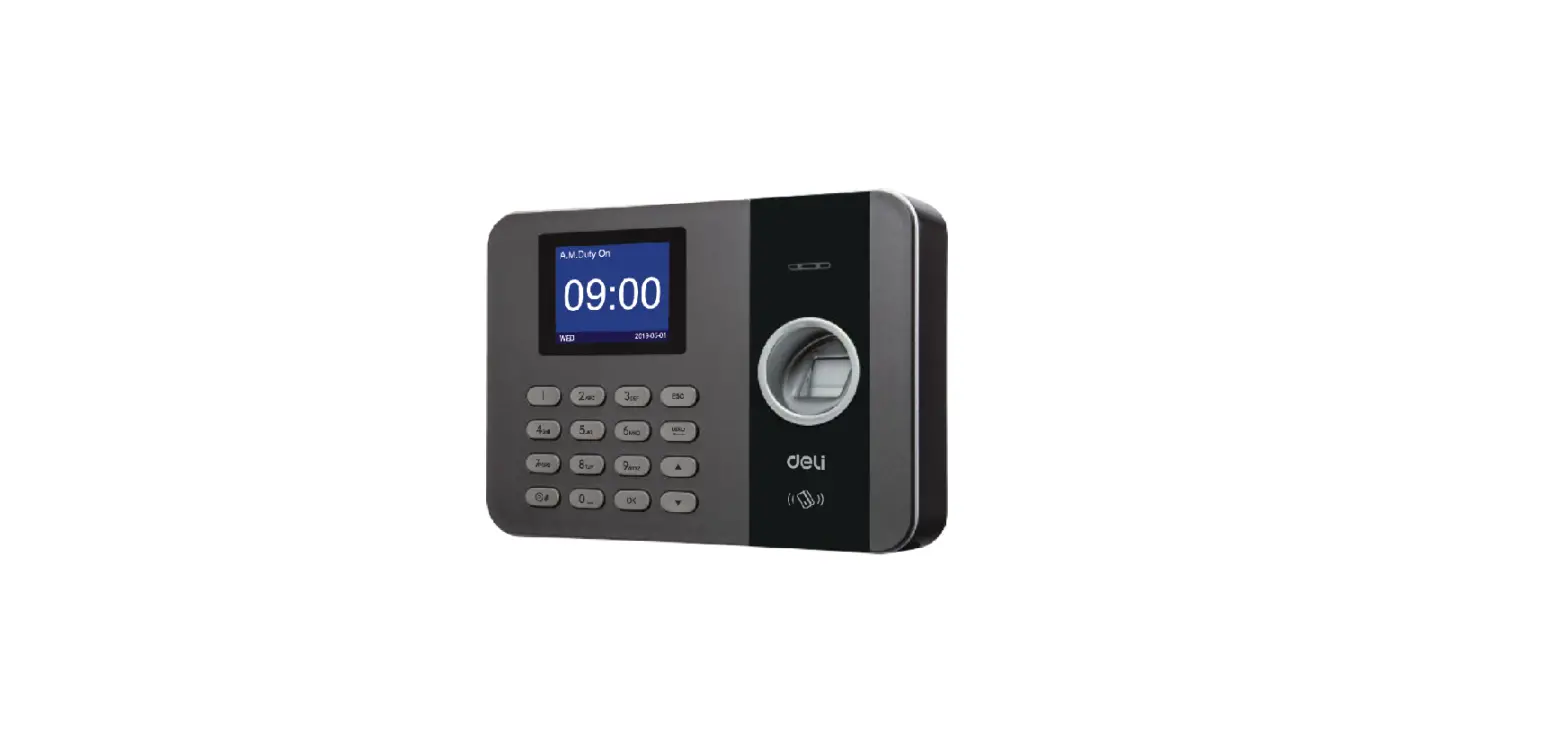
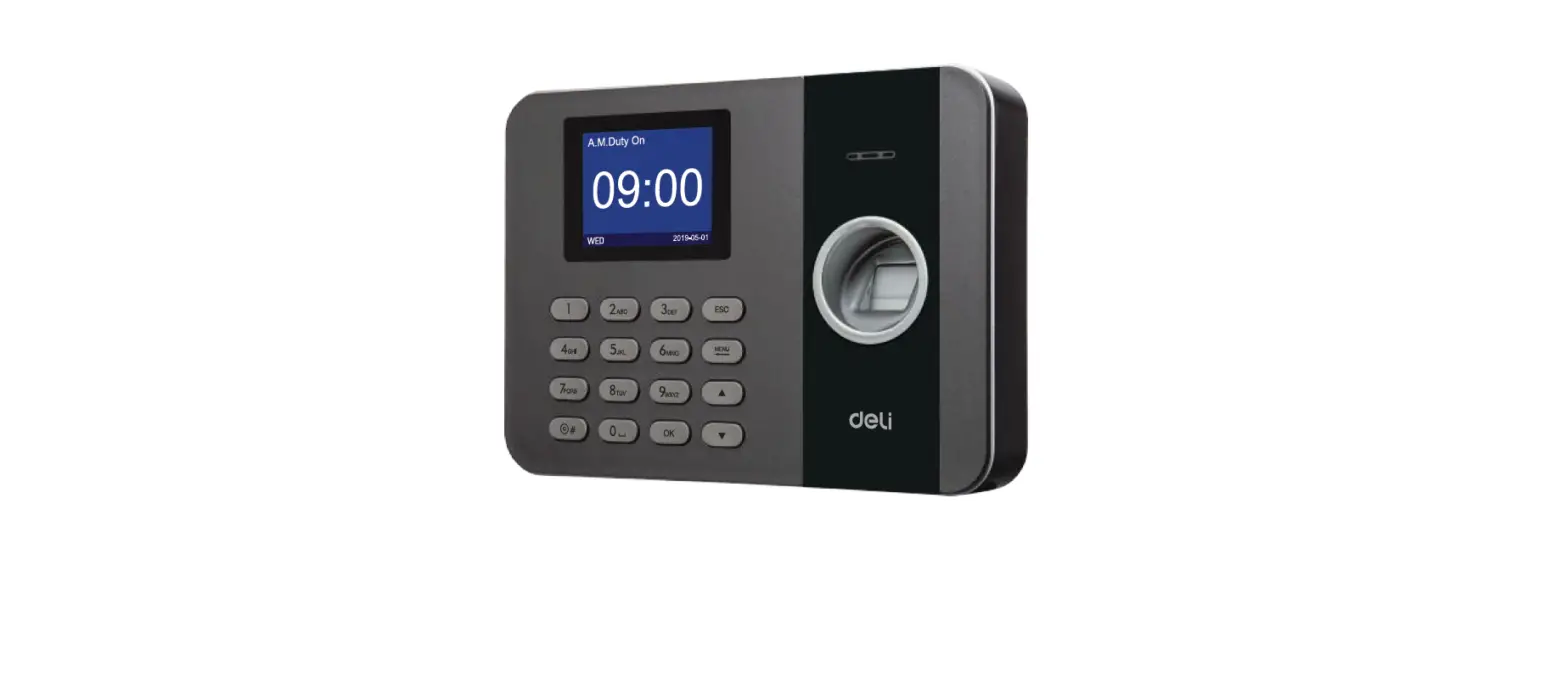
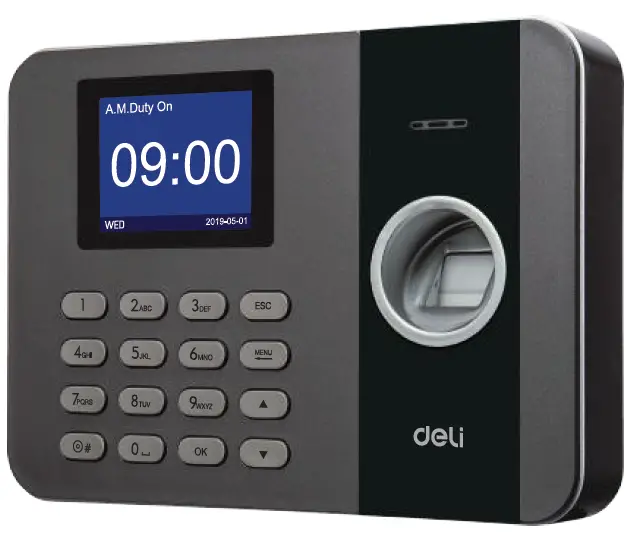
E3960 Fingerprint Attendance Machine
Product Information
- Product Name: Fingerprint Time Attendance Machine
- Model Number: 3747a3960
- Manufacturer: Deli Group Co., Ltd.
- Manufacturing Date: [Insert Date]
- Version: 1.0
Product Usage Instructions
- To use the attendance machine, connect it to a Local Area Network (LAN) and manage attendance with the Attendance System. Attendance reports can be downloaded with this attendance machine via USB flash drive without requiring software installation.
- Please use a USB flash drive in FAT32 format. If the Attendance Machine does not recognize your USB flash drive, please first convert the USB flash drive to FAT32 format and try again.
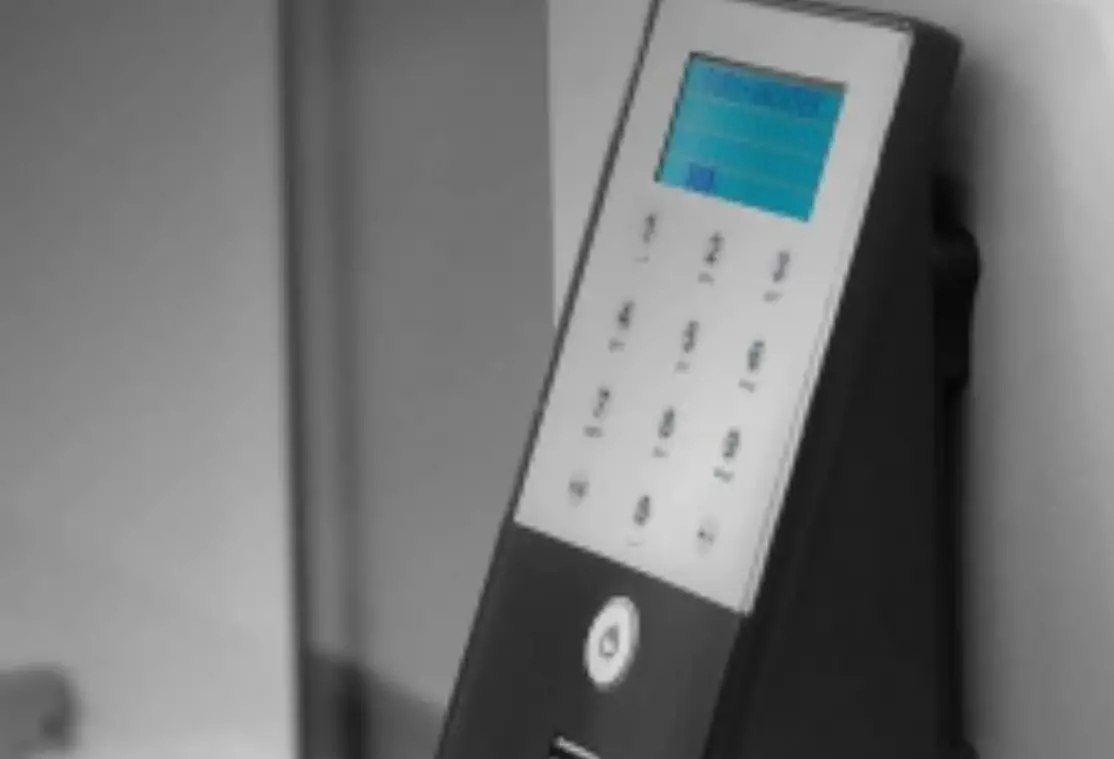
- Refer to the actual product for reference on the keys on the keyboard.
- To set up department settings, press [MENU] to enter the main menu, select Department, and press [OK] to enter the modification interface. Enter the department name with the T9 input method, then press [OK] to save.
- To set up user restriction, press [MENU] to enter the main menu, select User, and configure as required. Press [ESC] to save and exit. Configure user ID, name, shift, department, fingerprint, password and private settings as needed.
- To set attendance rules, refer to the actual product.
- To set shifts, press [OK] to enter Shift Time Zone interface, and press [+] and [-] keys to select the shift to be modified. Press [OK] to enter the shift edition interface, and press [ESC] to return to the previous menu after editing.
- To arrange shifts for employees, there are two methods. Method 1 is scheduling by department, where you need to press the numeric keys to enter the number of the department to be edited, and press [OK] to enter the department shift schedule interface. Method 2 is scheduling by user, where you need to press the numeric keys to enter the employee number of the user to be edited, then press [OK] to enter the user schedule interface.
- To download and view the report, insert a USB flash drive into the machine’s USB slot. Press [+] to select Report and press [OK] to enter. Select the table to be downloaded, then press [OK] to enter the download time period input interface. Press the numeric keys to input the time period to be downloaded, then press [OK] to start the download.
It is recommended that you download the relevant information with a USB flash drive and edit it on a computer before uploading it to the attendance machine.
 Deliworld - Best Bulk Office Stationery Supplier/Company | Deli Group