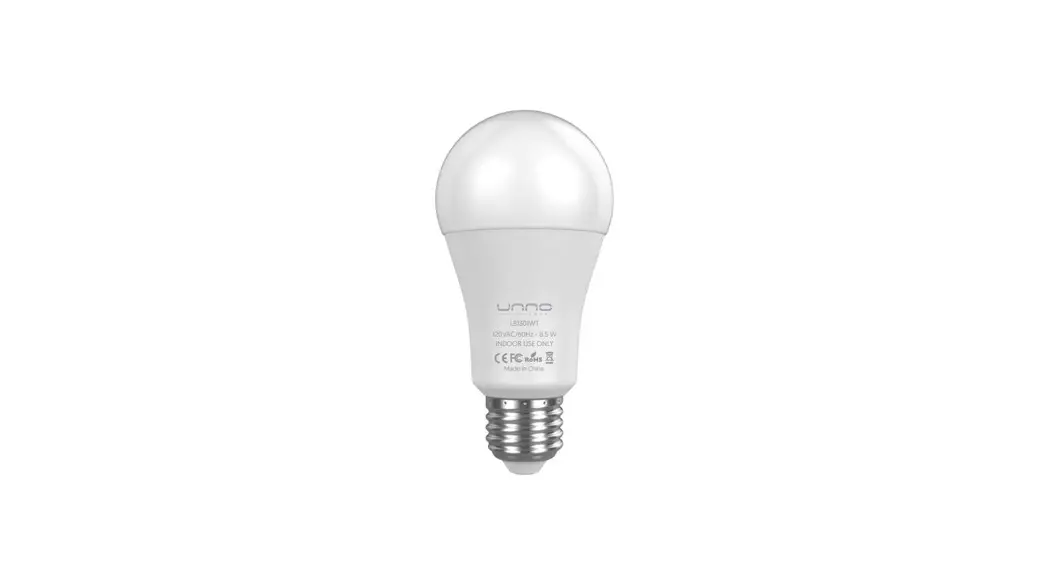

Smart Jigsaw Light
User Manual
Ⅰ. Device Connection Interface
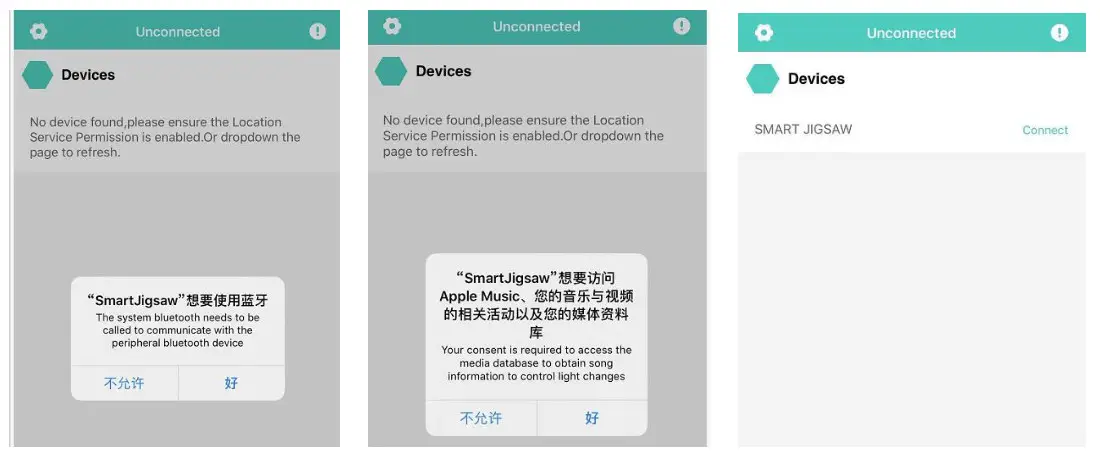
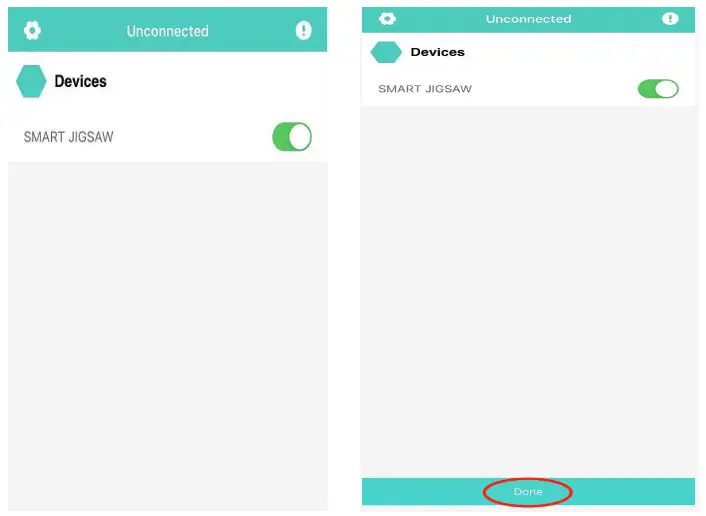
Open the APP –> The system automatically prompts to connect to Bluetooth –> Click “OK” to allow the app to use the Bluetooth function –> Enter the device connection interface –> Pull down to refresh the device list –> Click “CONNECT” to connect to the product –> Click “DONE” to enter APP
Ⅱ. Static Color Interface
- Slide to select your favorite color on the color disk–> Slide the button to set the brightness
- Six fixed colors –> Click the corresponding fixed color –> The lighting effect changes to the corresponding color Six DIY colors –> Click
 the customized box to enter the color dialog box –> Select the color, and then click “Confirm” –> The customized color has been successfully added
 - Long press the customized color for 3 seconds to cancel the color.
 the customized box to enter the color dialog box –> Select the color, and then click “Confirm” –> The customized color has been successfully added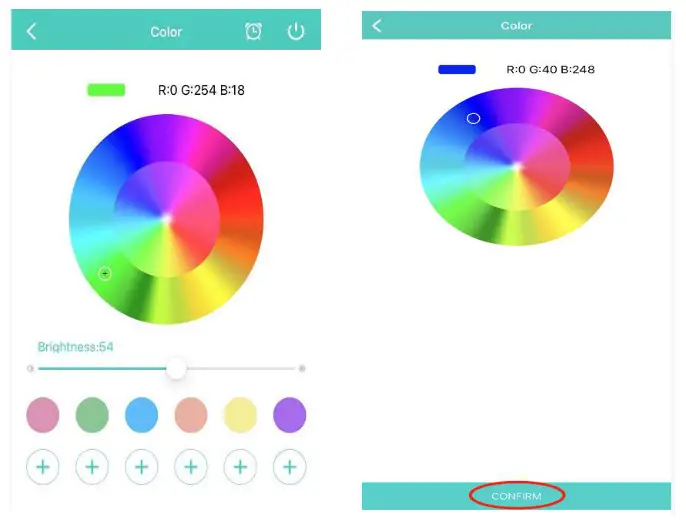
Ⅲ. Dynamic Effect Interface
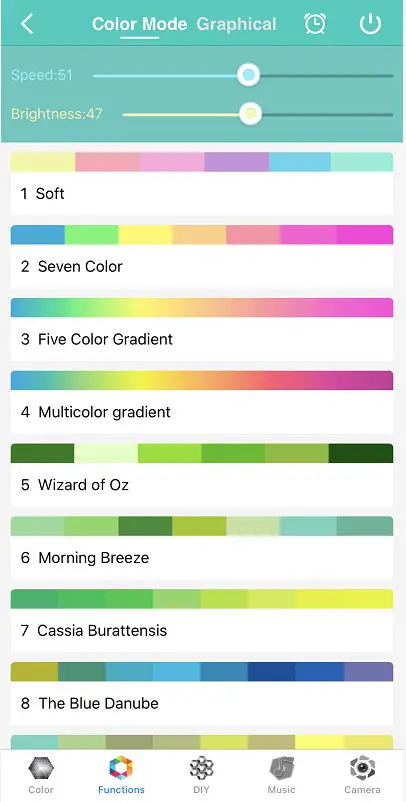
- Dynamic lighting effect interface –> Click the color bar to select the corresponding dynamic effect (75 dynamic modes in total)

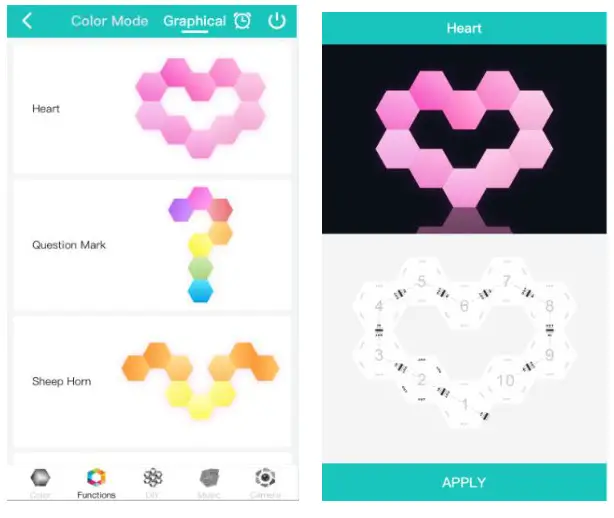
- Pattern lighting effect interface–>Click the corresponding graphic–>Connect the lamps according to the connection diagram->Click “APPLY” to execute the corresponding dynamic lighting effect (a total of 25 patterns)
Ⅳ. DIY Dynamic Effect Interface
- DIY dynamic effect interface –> Click the “lighting effect” drop-down box to select your favorite dynamic effect –> Click
 to add a desired color on the color disk –> Click “CONFIRM” to confirm the color –> Click “RUN” to execute the customized dynamic effect
 - Long press the customized color for 3 seconds to cancel the color
- Slide the button to set the overall brightness and speed of the light
 to add a desired color on the color disk –> Click “CONFIRM” to confirm the color –> Click “RUN” to execute the customized dynamic effect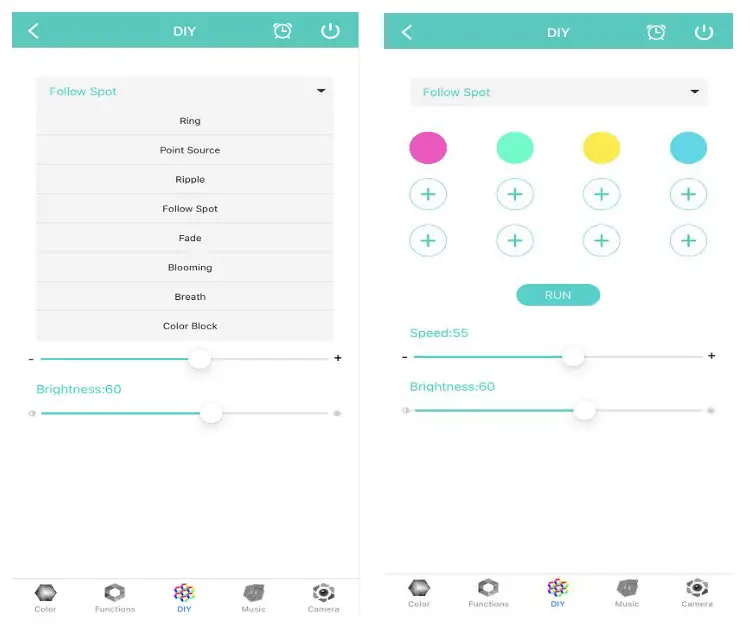
Ⅴ. Music Rhythm Interface
- Music mode interface–>Click
 to select the music you like from the phone–>Click the color ring to change the dynamic
lighting effect (the light changes the brightness and frequency according to the strength of the music rhythm, a total of 4 lighting effects are available)
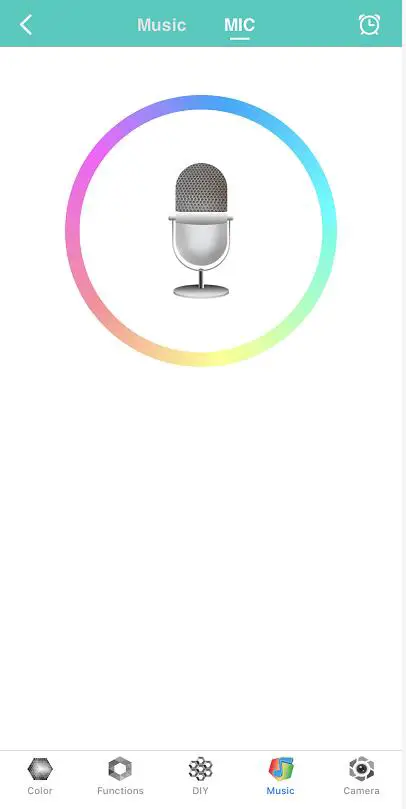
- Microphone mode interface–>The brightness and change speed of the light will change with the intensity and rhythm of the outside sound–>Click the color ring to change the dynamic lighting effect. (a total of 4 lighting effects are available)
 to select the music you like from the phone–>Click the color ring to change the dynamic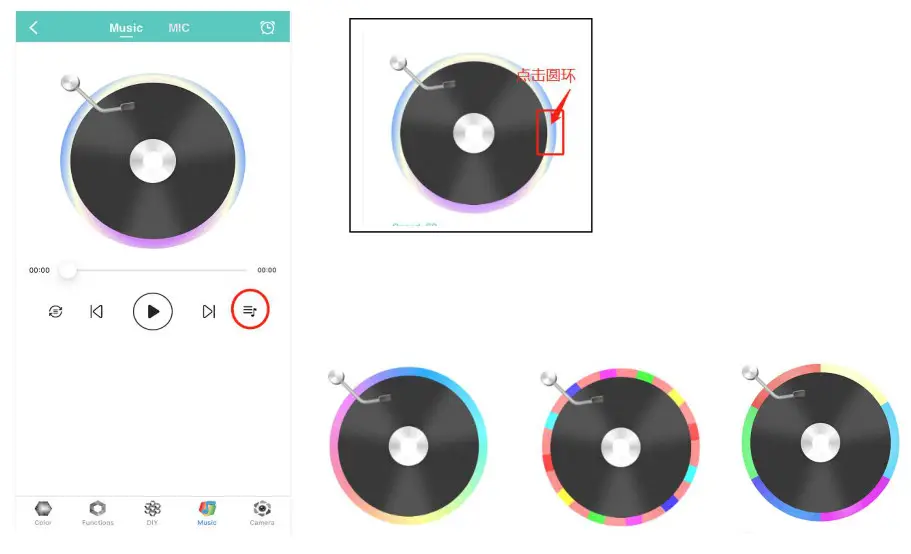
NOTE: Click the microphone icon in the middle to stop or start receiving sound.
Ⅵ. Color Catcher Interface
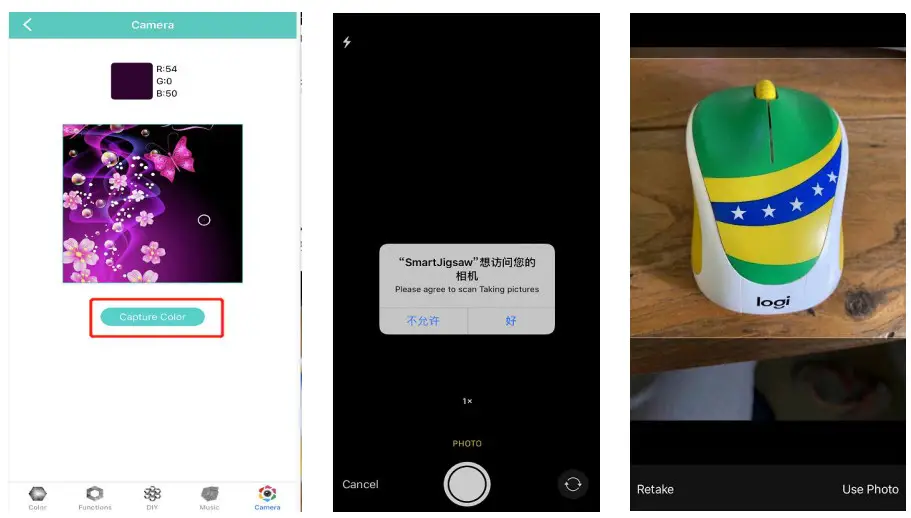
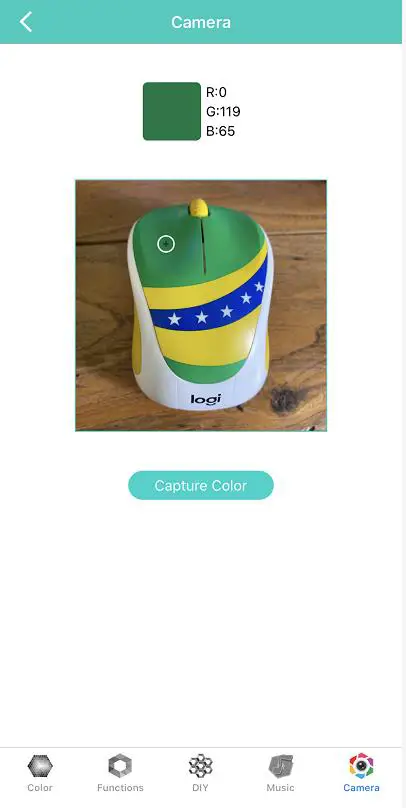
- Camera color interface –> Click “capture color” to open the phone camera –> Enable the phone camera and click “OK” –> Take a picture –> Use the picture to click “USE PHOTO” / Retake click “RETAKE” – >Select the color on the photo, Smart jigsaw light will change color accordingly.
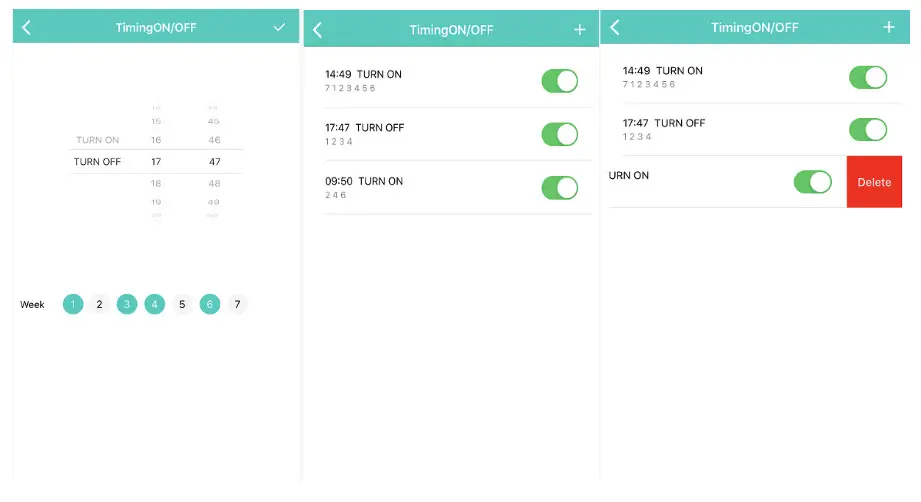
Ⅶ. Timing function interface
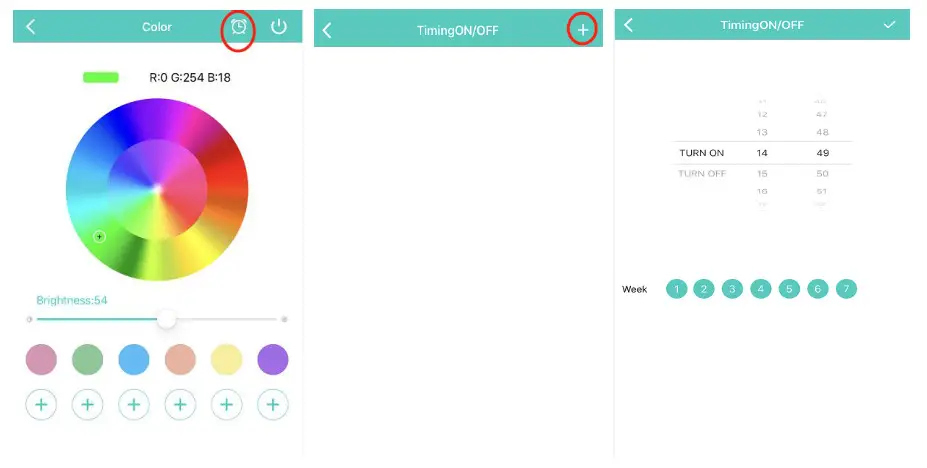
- Timing function–>Click the alarm clock icon
 in the upper right corner to enter the time setting interface–>Click “+” to add timing–>Choose “TURN ON” or “TURN OFF”–>Choose repeat cycle–>Click” √”to Confirm
 - Swipe left to delete scheduled tasks.
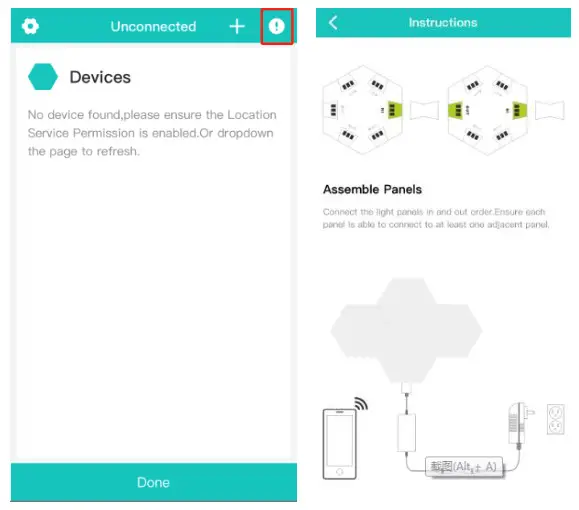
Ⅷ. Manual Function
Click “!” in the upper right corner of the connection interface–>The product installation manual pops up
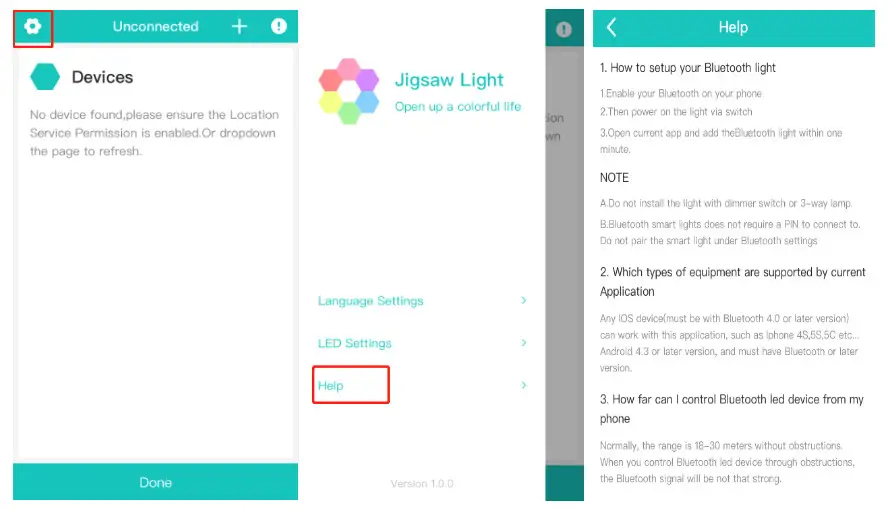
Ⅸ. Help Instructions
Click  on the upper left corner of the connection interface –> Select “Help” –> Pop up the product installation manual.
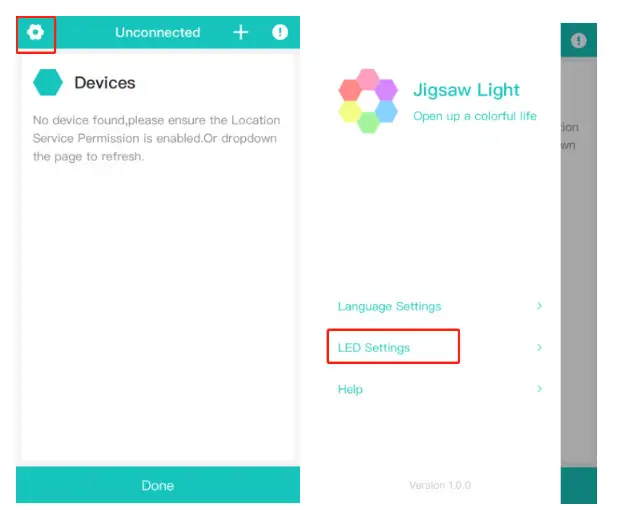
Ⅹ. Setting The Number of Jigsaw Light Modules
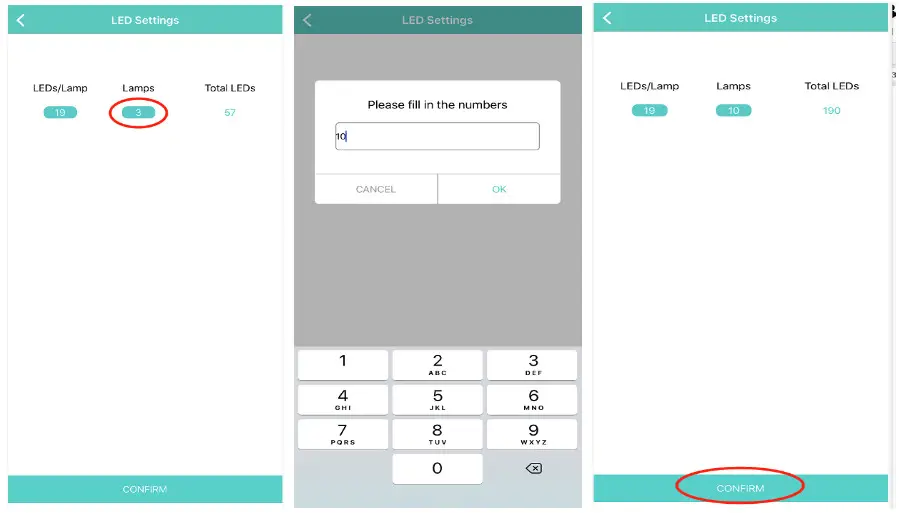
Click on the upper left corner of the connection interface –> Select “LED Settings” –> Click the number in the “Lamps” box –> Fill in the number of jigsaw light modules in the pop-up box –> Click “CONFIRM” to complete the setting.
Ⅺ. Trouble shooting
- Part of the smart jigsaw light modules does not light up
The default number of modules set by the APP is 3. When the actual number of modules is greater than 3, some of the smart jigsaw light modules will not light up. When the set quantity is less than the actual quantity, some indicators will not light up. This is because the control information cannot be transmitted to the tail lights.
At this time, you only need to set the number of lights to be consistent with the actual number of modules. After pressing “Confirm”, the module will light up.
Please refer to the manual: Ⅹ. Setting The Number of Jigsaw Light Modules Cannot drop down the music playlist When the music rhythm mode is used, the mobile phone and the controller continuously receive and send information, which takes up a lot of memory, causing the playlist pull-down command to fail to execute.
At this time, return to the connection interface, pull down to refresh the interface, the app is disconnected, and the memory is cleared. Click “connect”, reconnect to the APP, return to the music rhythm interface, and the playlist can be used ormally. - Timing cannot take effect
In music rhythm mode, the rhythm and brightness information will be sent continuously. Therefore, at the moment when the application is closed regularly, new brightness and rhythm commands will also be received at the same time, and the controller will default to the start command. Therefore, the APP continues to execute the new brightness and rhythm commands without turning off the smart jigsaw lights.
NOTE: This equipment has been tested and found to comply with the limits for a Class B digital device, pursuant to part 15 of the FCC Rules. These limits are designed to provide reasonable protection against harmful interference in a residential installation. This equipment generates uses and can radiate radio frequency energy and, if not installed and used in accordance with the instructions, may cause harmful interference to radio communications. However, there is no guarantee that interference will not occur in a particular installation. If this equipment does cause harmful interference to radio or television reception, which can be determined by turning the equipment off and on, the user is encouraged to try to correct the interference by one or more of the following measures:
– Reorient or relocate the receiving antenna.
– Increase the separation between the equipment and receiver.
– Connect the equipment into an outlet on a circuit different from that to which the receiver is connected.
– Consult the dealer or an experienced radio/TV technician for help
Changes or modifications not expressly approved by the party responsible for compliance could void the user’s authority to operate the equipment.
This device complies with Part 15 of the FCC Rules. Operation is subject to the following two conditions:
(1) this device may not cause harmful interference.
(2) this device must accept any interference received, including interference that may cause undesired operation.
Light Up Your Colorful World
[email protected]