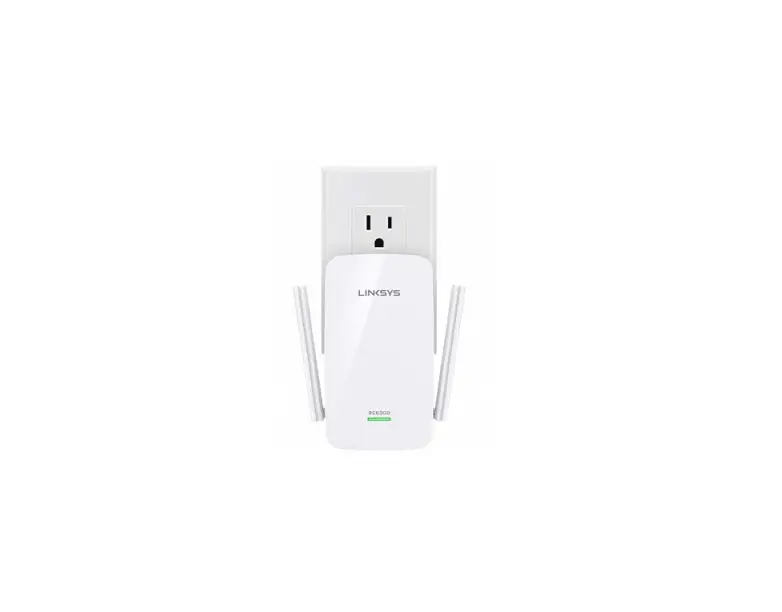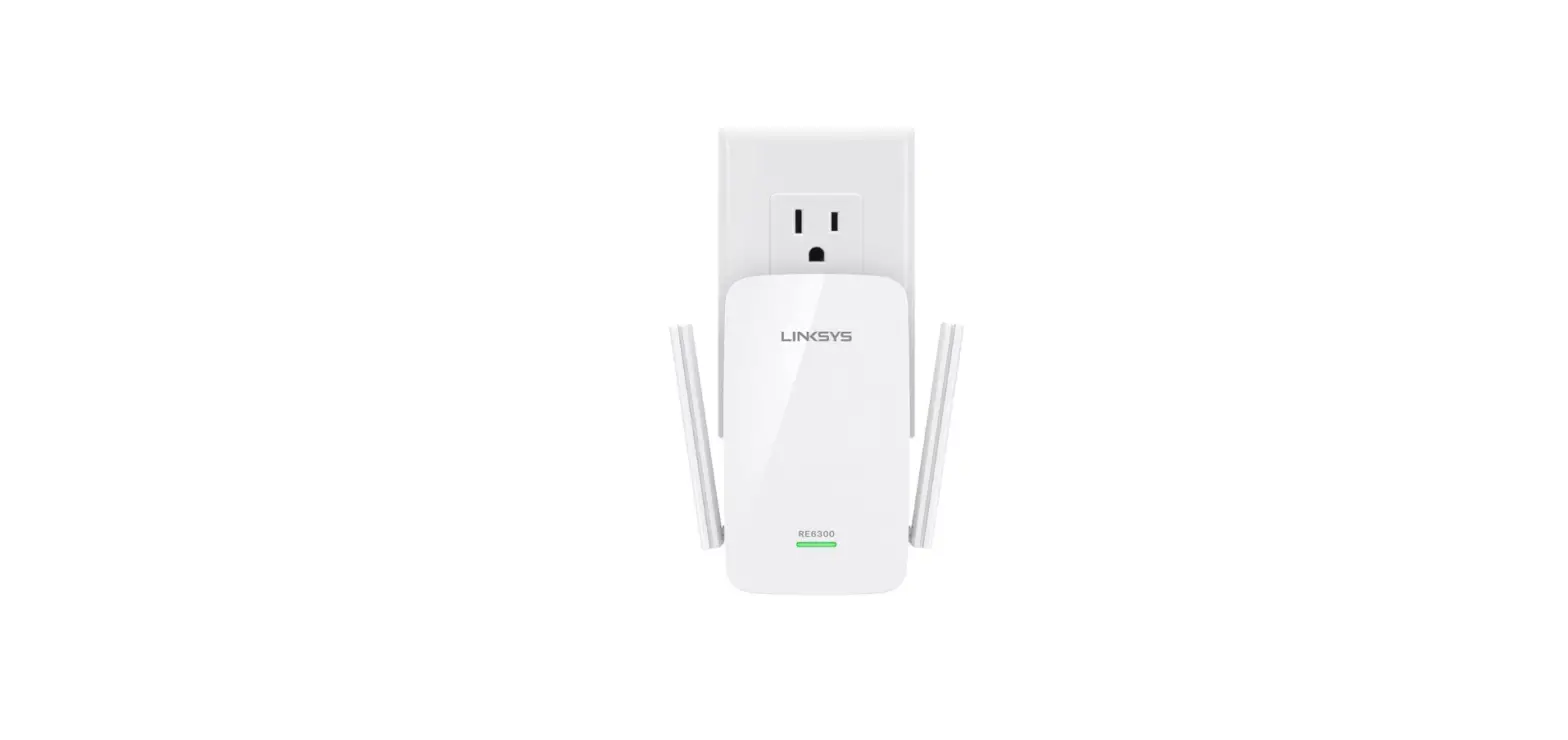

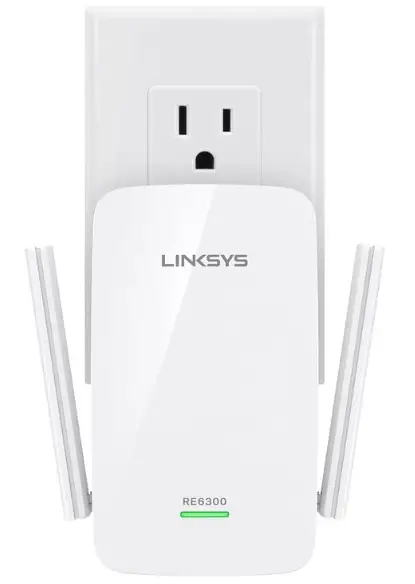
Linksys RE6300 WiFi Extender, WiFi 5 Range Booster
Specifications
- Product Dimensions
4.74 x 2.64 x 1.58 inches - Item Weight
0.352 ounces - Data Transfer Rate
750 Megabits Per Second - Frequency Band Class
Dual-Band - Compatible Devices
Router - Brand
Linksys
Introduction
Wi-Fi dead zones on a home’s second floor, patio, garage, and other areas are all eliminated by the new Linksys AC750 Boost Dual-Band Wi-Fi Range Extender with Exclusive Spot Finder Technology. Your Wi-Fi signal coverage will be increased by up to 1,000 square feet with a straightforward setup that includes Push Button Connect and Spot Finder Technology for optimal placement and performance. The simultaneous usage of two bands is maximized by cross-band technology, and the Wi-Fi signal is focused and amplified via beam shaping. With two movable, external antennas, you can increase your Wi-Fi coverage in big, multi-story homes with Wi-Fi speeds up to N300 & AC433 Mbps. Using the Gigabit Ethernet port will give you improved wired speeds for a Smart TV, gaming console, Blu-ray player, or another Wi-Fi device. complies with all WiFi Routers.
With the Linksys AC750 BOOST Wi-Fi Range Extender, dead spots can be eliminated and the Wi-Fi signal from your current router can be strengthened (RE6300). The range extender has straightforward setup options that make it easy to find the best location in relation to your router. It supports all Wi-Fi routers, including those made by service providers, and offers seamless content sharing, uninterrupted online gaming, and streaming of movies and music.
What’s In the Box?
- Product
- Manual
Product Overview
Frontview
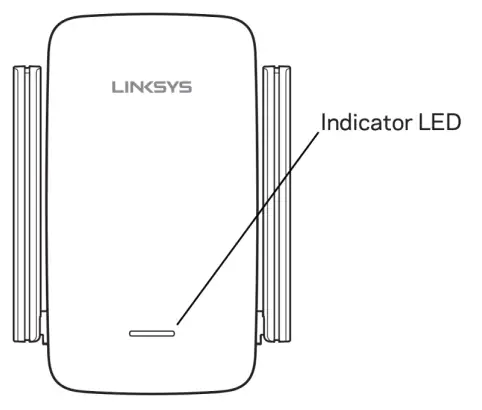
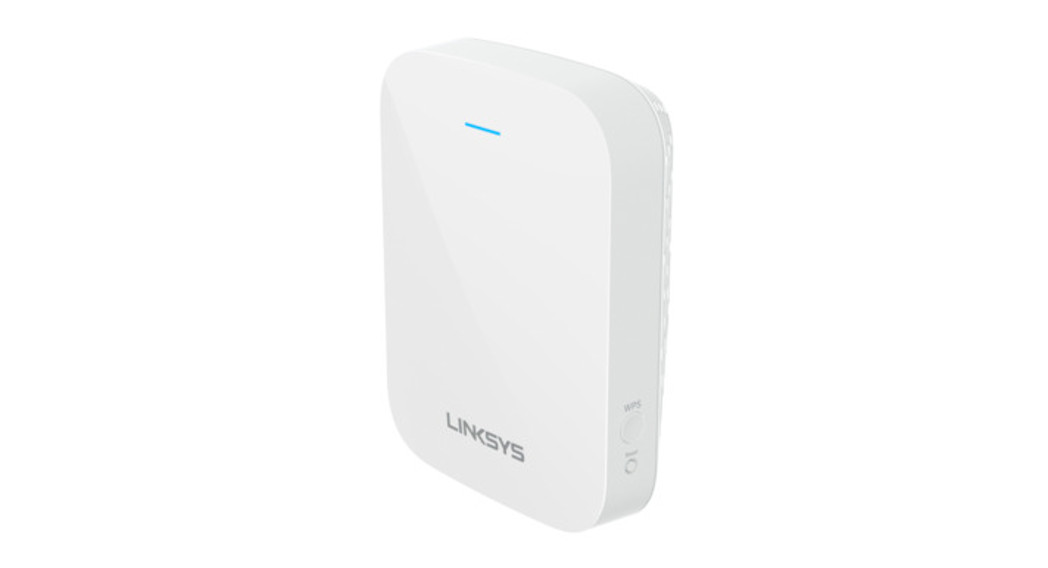
The light on the front of the range extender gives you information about power, updating, and signal strength.
Side View
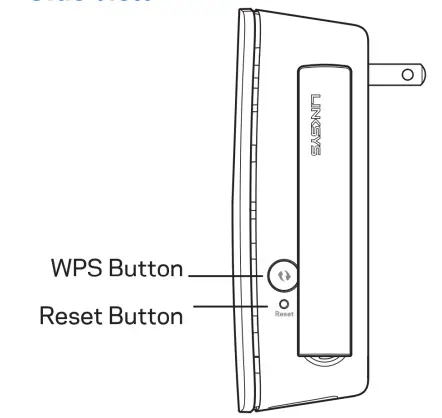
Wi-Fi Protected Setup” Button and LED (1-Use Wi-Fi Protected Setup to automatically and securely add compatible wireless devices to your network. Refer to Using Wi-Fi Protected Setup on page Reset Button (2)-Press and hold until the power light on the front of the range extender blinks to reset to factory defaults. You can also restore the defaults from the Administration > Factory Defaults screen in the extender’s settings interface.
Bottom view
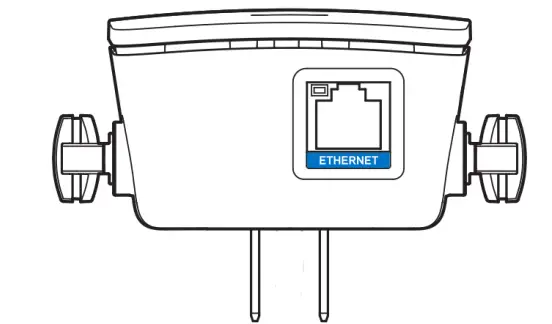
Ethernet (blue-Connect wired devices to your wireless network with Ethernet (network) cables. The green light turns on when an Ethernet device is connected and active on this port. The light blinks when the extender is sending or receiving data over the Ethernet port.
How to Install the Range Extender
Before starting setup, make sure your router has a working Internet connection.
Wi-Fi Protected Setup (WPS)
Does your router have a WPS button?
Wi-Fi Protected Setup (WPS) is a simple way to connect Wi-Fi devices with Push Button Connect. Routers that support VWPS have a button that might look like one of these symbols
If your router has a WPS button, continue with W-Fi Protected Setup below. If not, or if you are not sure, continue with the browser-based setup.
Note
The WPS button will not work if you have disabled WPS on your router.
- Plug the range extender into an electrical outlet close to your router. You can move the range extender to an ideal location later in step 5. After being plugged in, the indicator LED on the front of your range extender will blink green for up to a minute.
- Wait for the indicator LED on the front of your range extender to blink amber before going to step 3. This. can takeup to a minute.
- Extend your 2.4 GHz networks.
Press the WPS button on your router. Within the next two minutes complete step 3b.
Press the WPS button on the side of your range extender. The WPS button will light up and the indicator LED on the front of your range extender will blink green.
Watch the indicator LED on the front of your range extender to verify whether the connection was successful.
If it turns solid green the connection was successful. Move to step4.
If it blinks amber step 3 or tries browser-based setup. - Extend your 5 GHz network
You may skip this step if your router does not have a 5 GHz network or if you don’t want to extend that network.
Press the WPS button on the side of your router again. Within the next two minutes complete step 4b.
Press the WPS button on your range extender again.
The WPS button will go up and the indicator LED on the front of your range extender will start to blink green.
Watch the indicator LED on the front of your range extender to verify whether the connection was successful.
If it turns solid green, the connection was successful.
If it starts to blink amber before it turns solid green, the connection failed.
You may try again by repeating step 4. - Move your range extender to an ideal spot.
Unplug your range extender and plug it back in midway between your router and the area without Wi-Fi. Using your mobile device or laptop, be sure you have at least two bars (around 50%) of your router’s Wi-Fi signal at that location. If you don’t have two bars, move the range extender closer to the router. - Check indicator LED for connection quality.
It can take up to a minute for the ranger extender to boot up after moving it. During this period you will see the blinking green LED once again.
Solid green Ready to use.
Solid amber Weak connection to the router. Find an outlet closer to your router
Blinking amber.Not connected to the router. Find an outlet closer to your router. - Connect your Wi-Fi devices to the extended network you just created.
Select the extended network on your device’s Wi-Fi manager. Extended networks are identified by”Ext” added to the end of your main network names.
Fast and simple setup
The AC750 BOOST is simple to set up. Simply activate the range extender’s Push Button Connect feature to have it instantly sync with your router. Place the range extender then close to the location where there is a poor Wi-Fi signal. The ideal placement will be indicated by a green light, while the improper placement will be indicated by an amber light.
You can also use your smartphone, laptop, or tablet with SpLinksys ot Finder Technology to check that you’ve selected the optimum spot in your house for the range extender. A browser-based configuration function called Spot Finder Technology offers a distinctive visual representation of the distance between your AC750 BOOST and your router.
Suitable for All Wi-Fi Routers
Each and every Wi-Fi router, even those made by service providers, is compatible with the AC750 BOOST. Easily increase Wi-Fi range without changing any network settings.
Frequently Asked Questions
When you set this up, the setup program will tell you if the unit is too far or too close to the router. It will work on different floors, I have mine on the second floor and the router is in the basement.
Yes, I never directly connected. Instructions are good about setting up and it will automatically find the router and even tell you if moving the Linksys unit further/closer will give you a better signal.
If you mean to connect this range extender to another extender, just make sure to choose the first extender’s SSID during setup so it’ll connect to the extended network.
I had trouble setting up this wifi extender so I called their customer service, after talking with them for over an hour I was informed that I would need to purchase their “network safety program” for it to work. I promptly returned the extender.
Hi. We’ll double-check this with our engineering team to make sure. We’ll give you feedback as soon as we have the correct information.
I did not purchase the unit shown, but since it is a Range Extender as well, and if like the one I got, nothing else was needed. You just need an outlet somewhere between the original router and where you want to extend to. Set up is the only learning curve I had to learn about with mine. Only using it once or twice, I’m not sure I’ll remember what I learned, but at least it wasn’t too difficult to learn what had to be done. However, I was still under warranty, so I may not get the needed support in case I forgot if I need to re-set up the unit after the warranty.
Please drop us a message on our Facebook page instead so we can understand your concern better and assist you accordingly. For reference, include the link to this post when you reach out.
If the wireless signal from the Zoom modem is strong at 60 feet away or halfway between the modem and the place where you need to extend the signal to, then yes you may use this. The extender should be placed in the middle of the two locations. Using a router is also a good option because it will allow you to have more wired ports as well as an additional wireless access point
Yes, William. This unit will work with the Linksys WRT1200AC AC1200 Dual-Band Smart Wi-Fi Wireless Router.
Assuming your neighbor allows you to connect the Linksys AC1200 to his WiFi network, then any WiFi-enabled device should be able to connect with the correct login information. However, note that issues have been noted in some reviews concerning the reliability of the Linksys AC1200.
Yes, the Linksys RE6300 can extend your T-Mobile 5G Wi-Fi.
The antennas are not removable. So no you can not replace them.
No, it does not. You *can* use ethernet for the initial setup or to connect a non-wifi device to the wireless network. However, upon factory reset there are open wireless networks to connect and configure the repeater, no wired connection is necessary.
You can use the spot finder to help ensure your Linksys range extender is in the right spot. For assistance, please check our Amazon profile for our Email address and share more details with the link to this post for our reference.
Yes, Stan. You can set the unit on either a wireless extender or a wired access point mode. Please reach out to our Facebook Support page for more details.
No, it won’t clone the name, it will always add ext. It is technically a separate network address, so needs a separate name. Yes, you can use multiple devices in the same house, but not in serial. This is to say, every extender device must extend the original source and cannot extend each other.
Yes, Autogenous. The Linksys RE6350 range extender work works with any Wi-Fi router, including your service provider’s router.