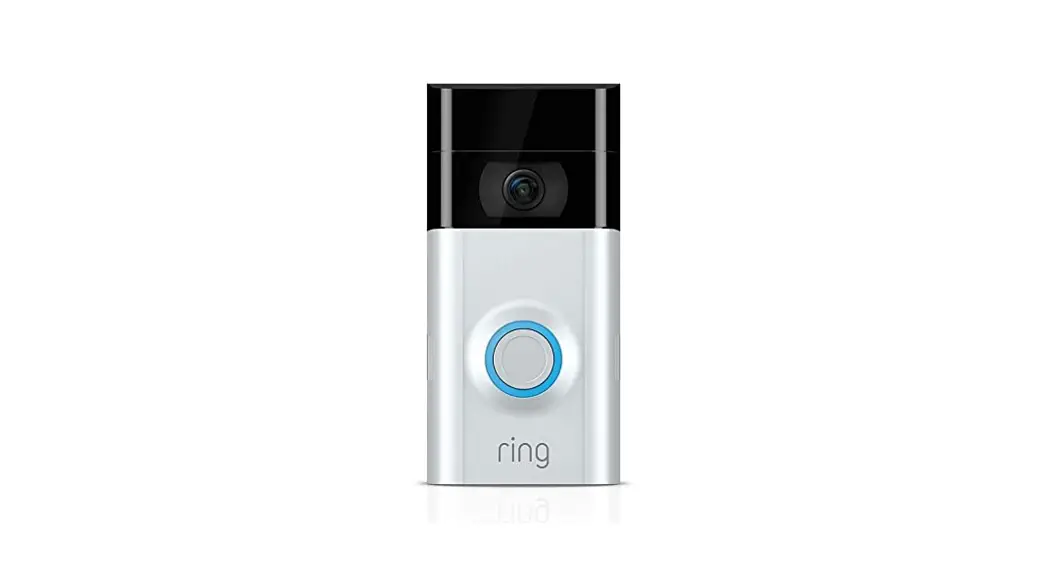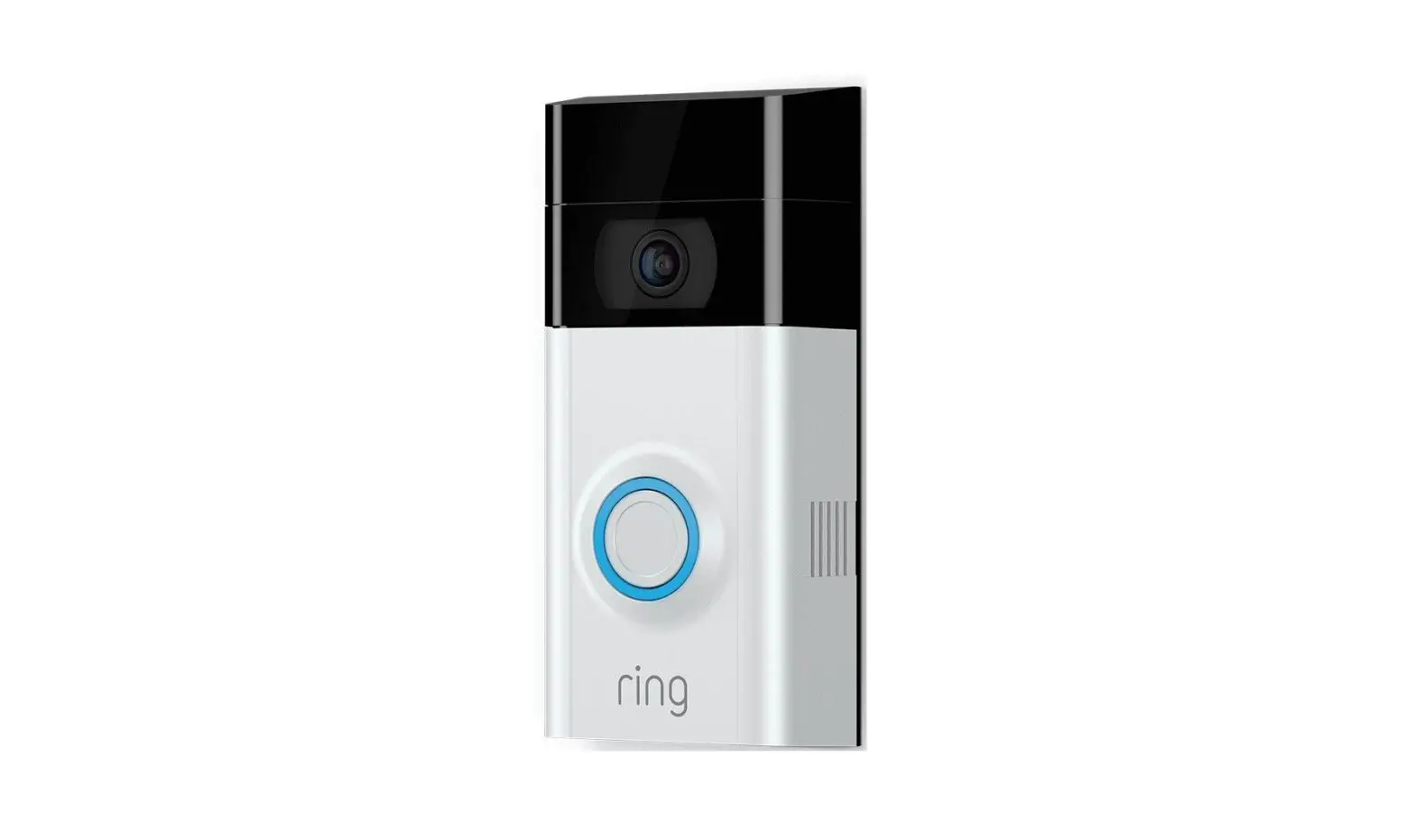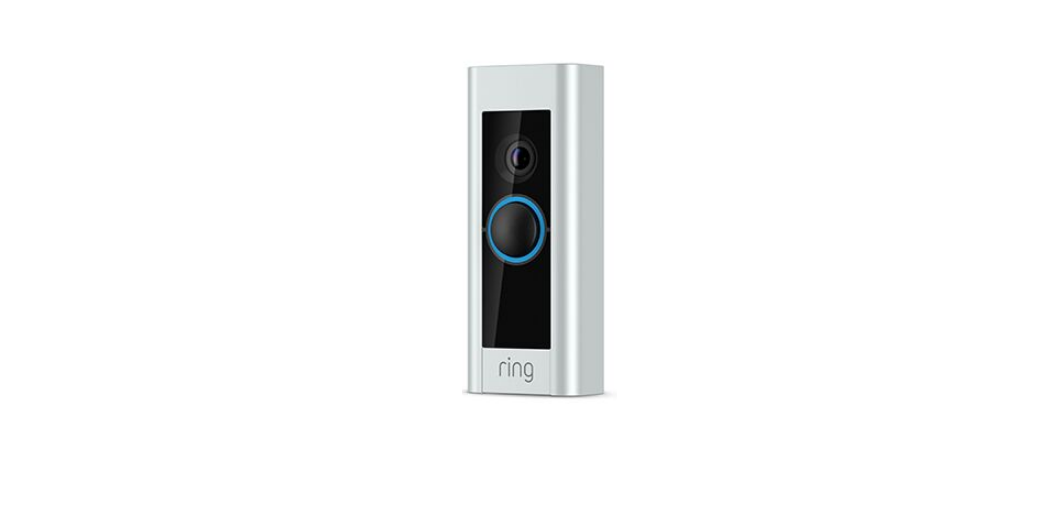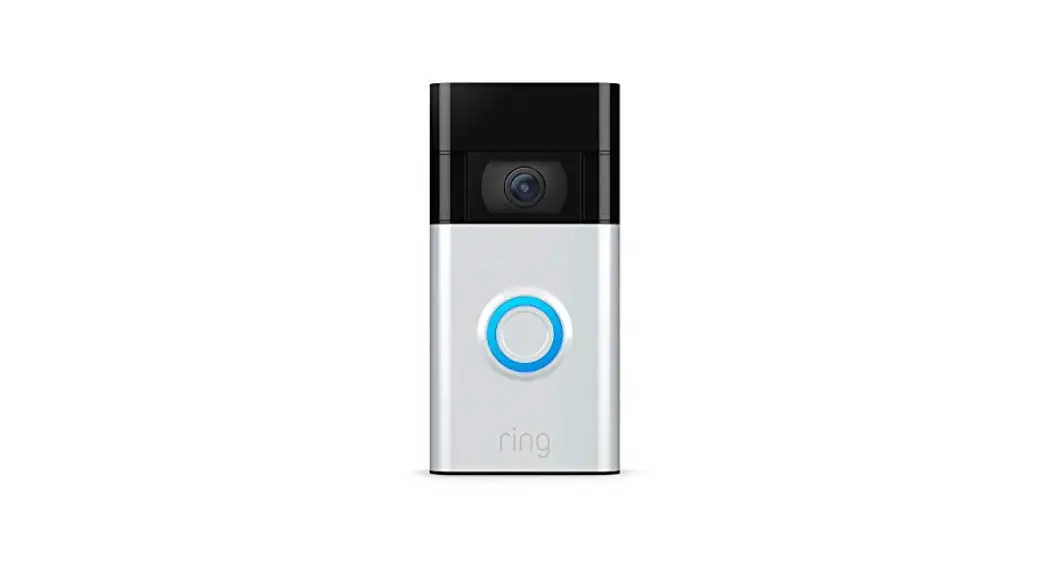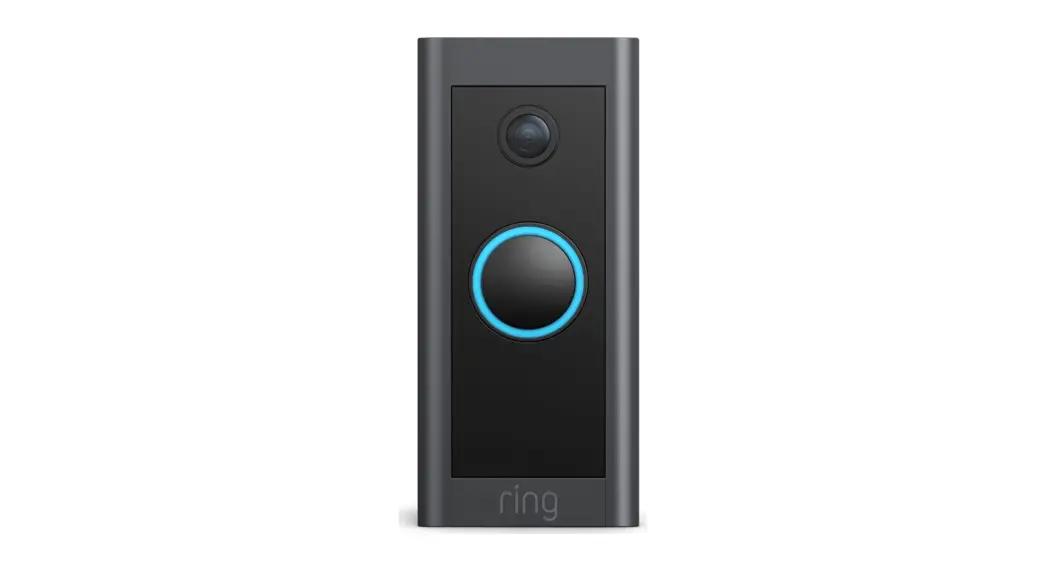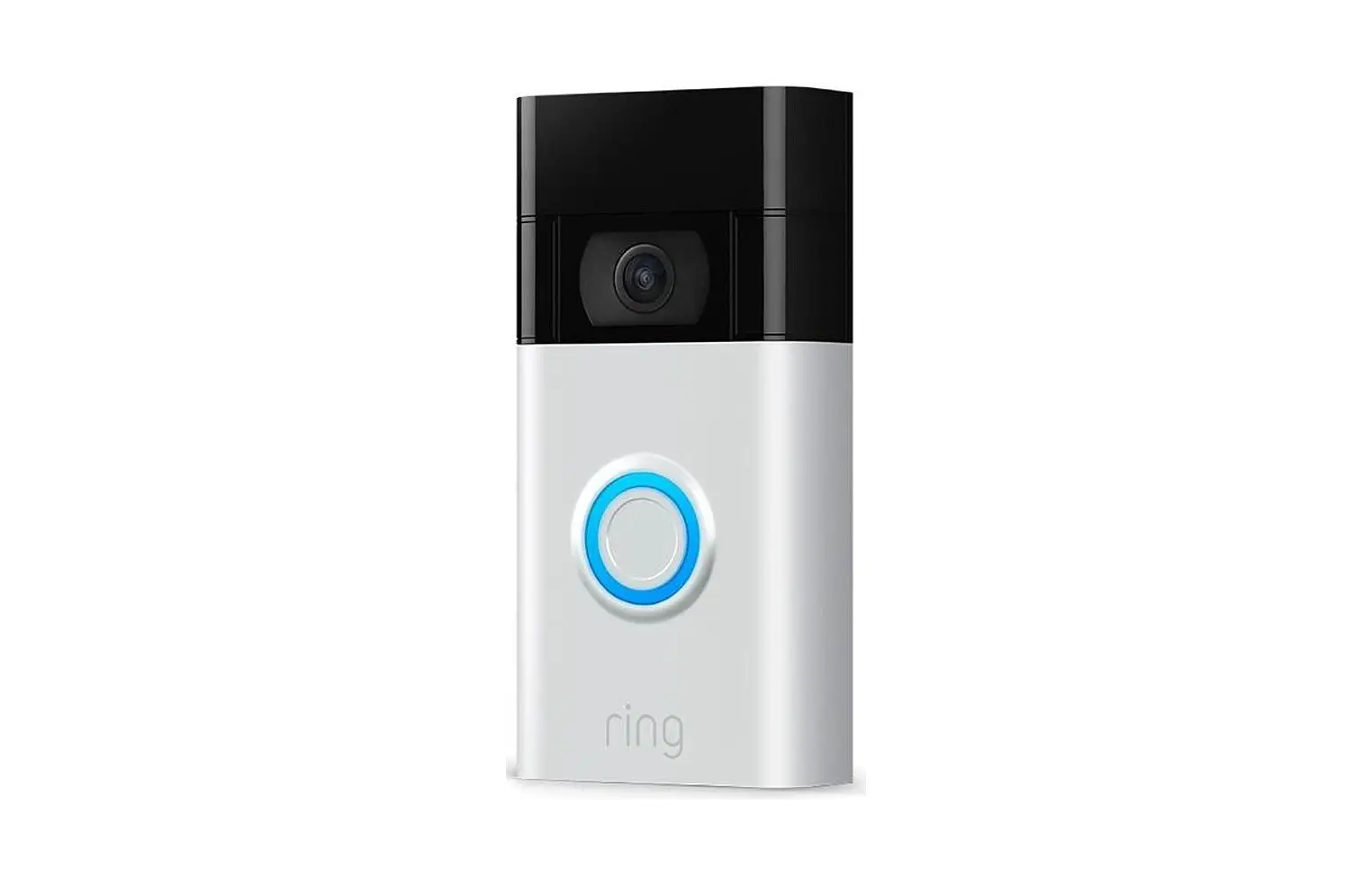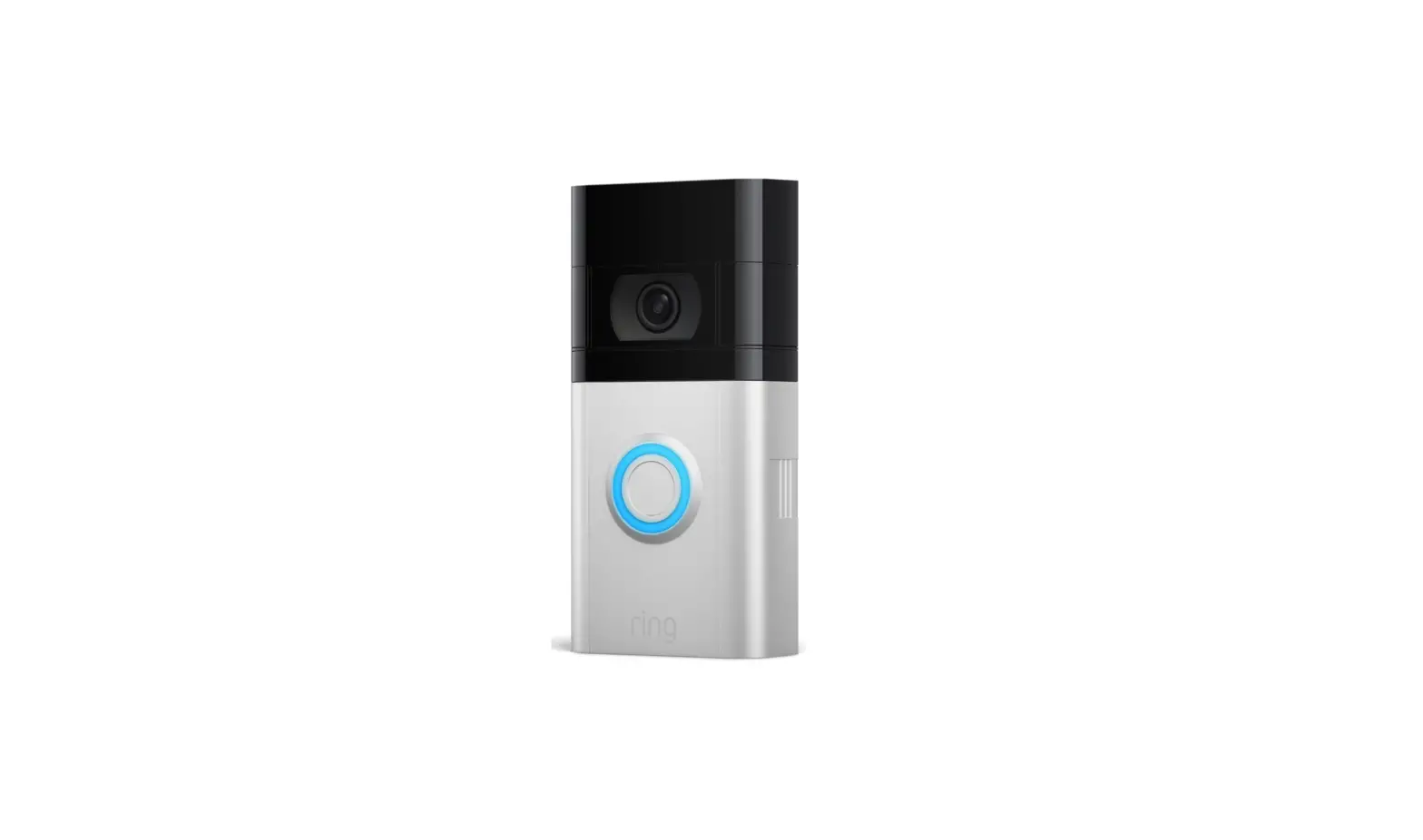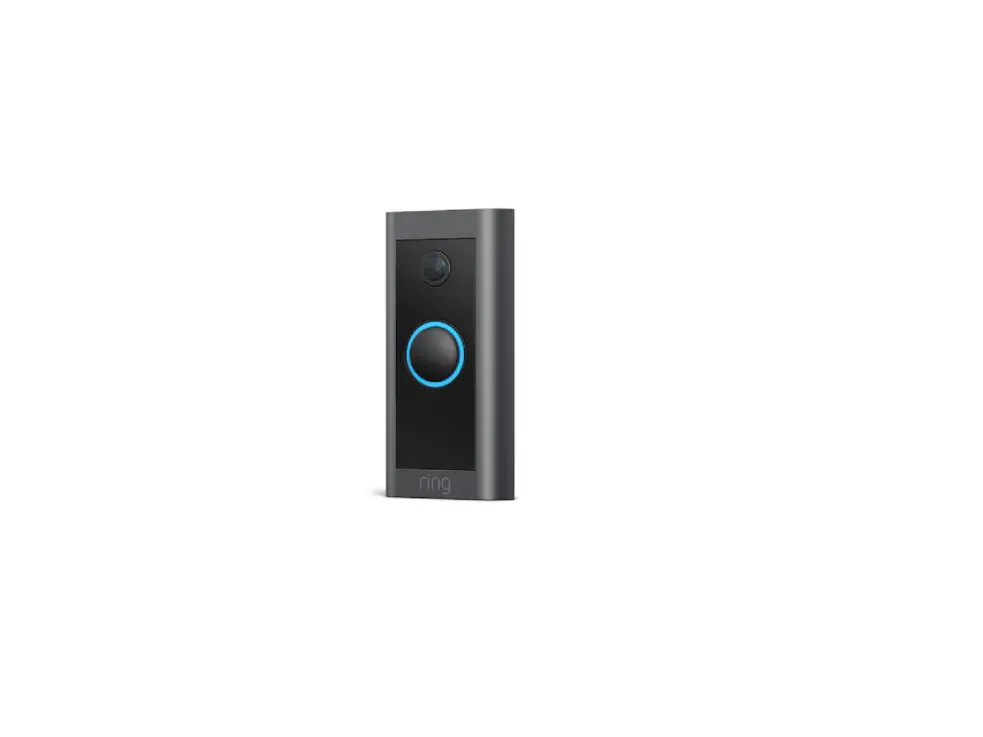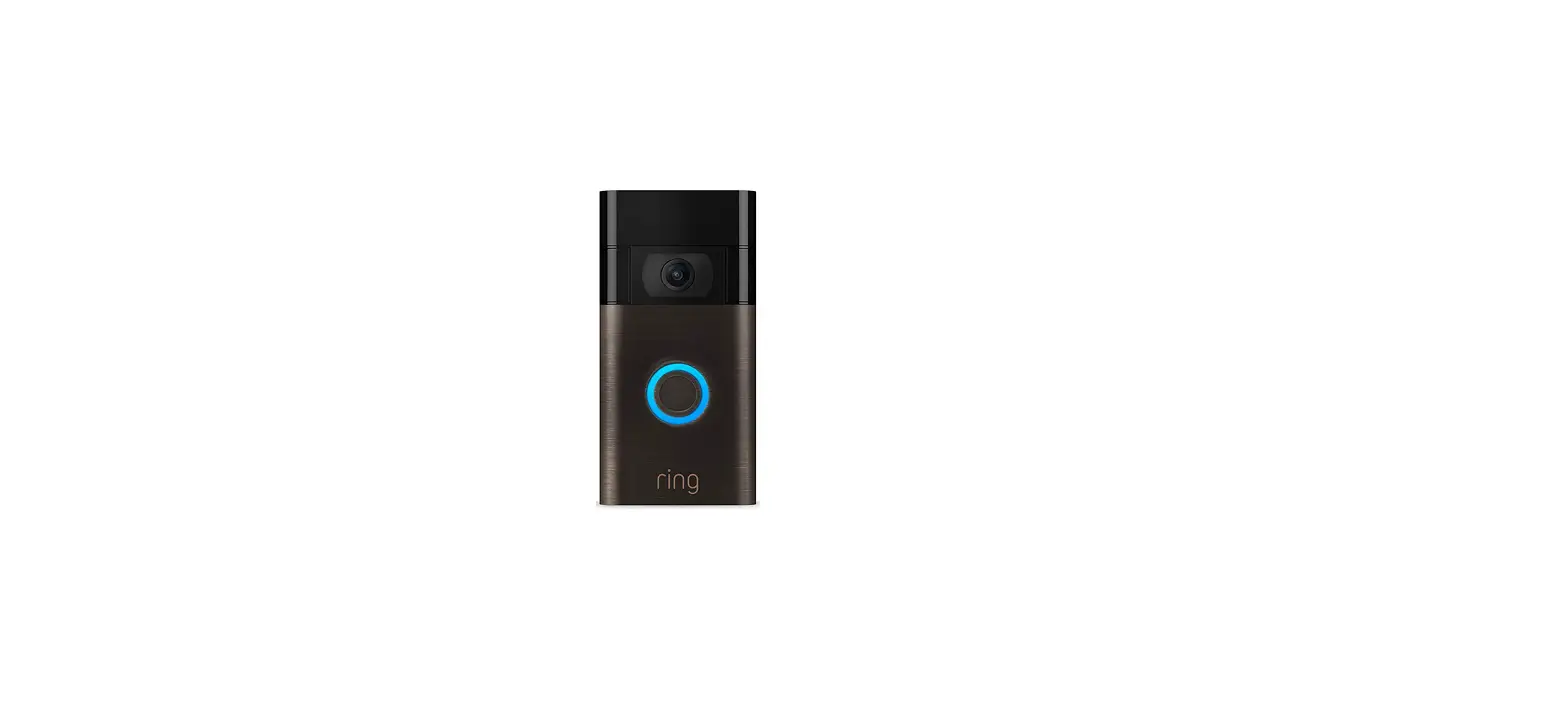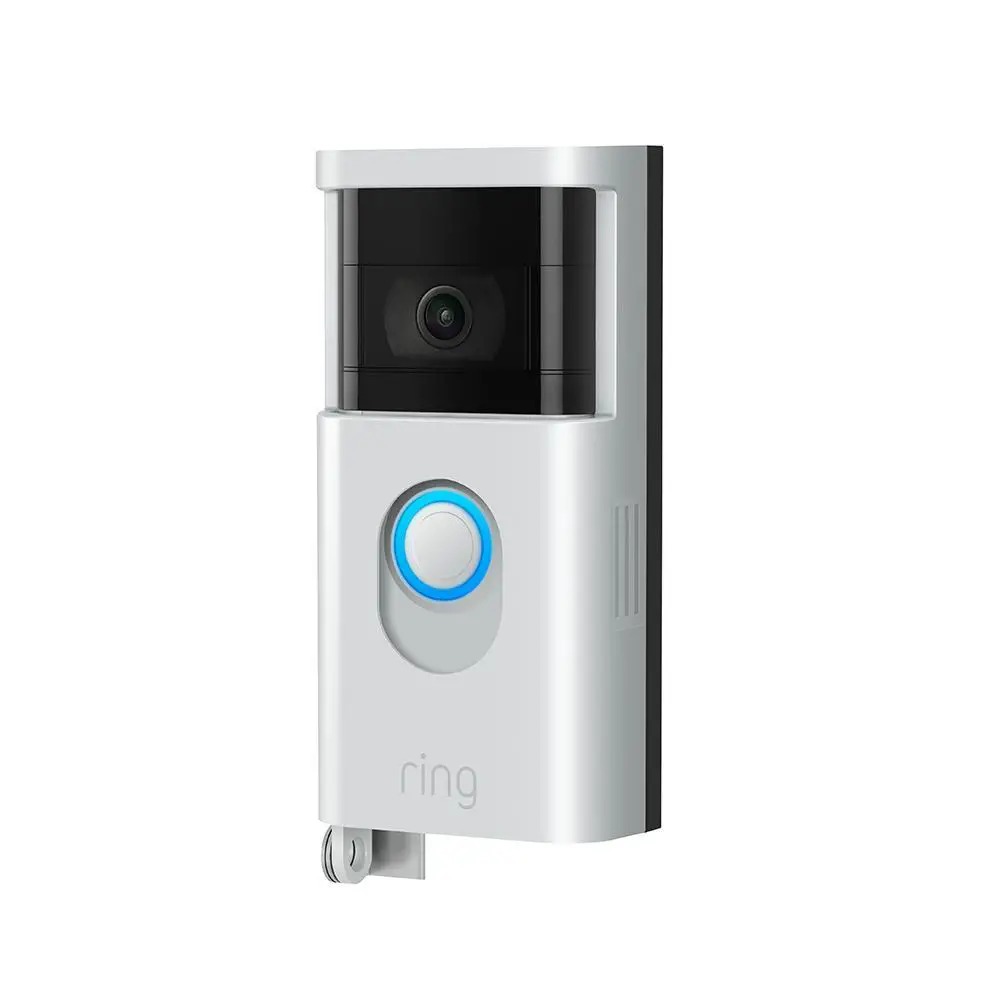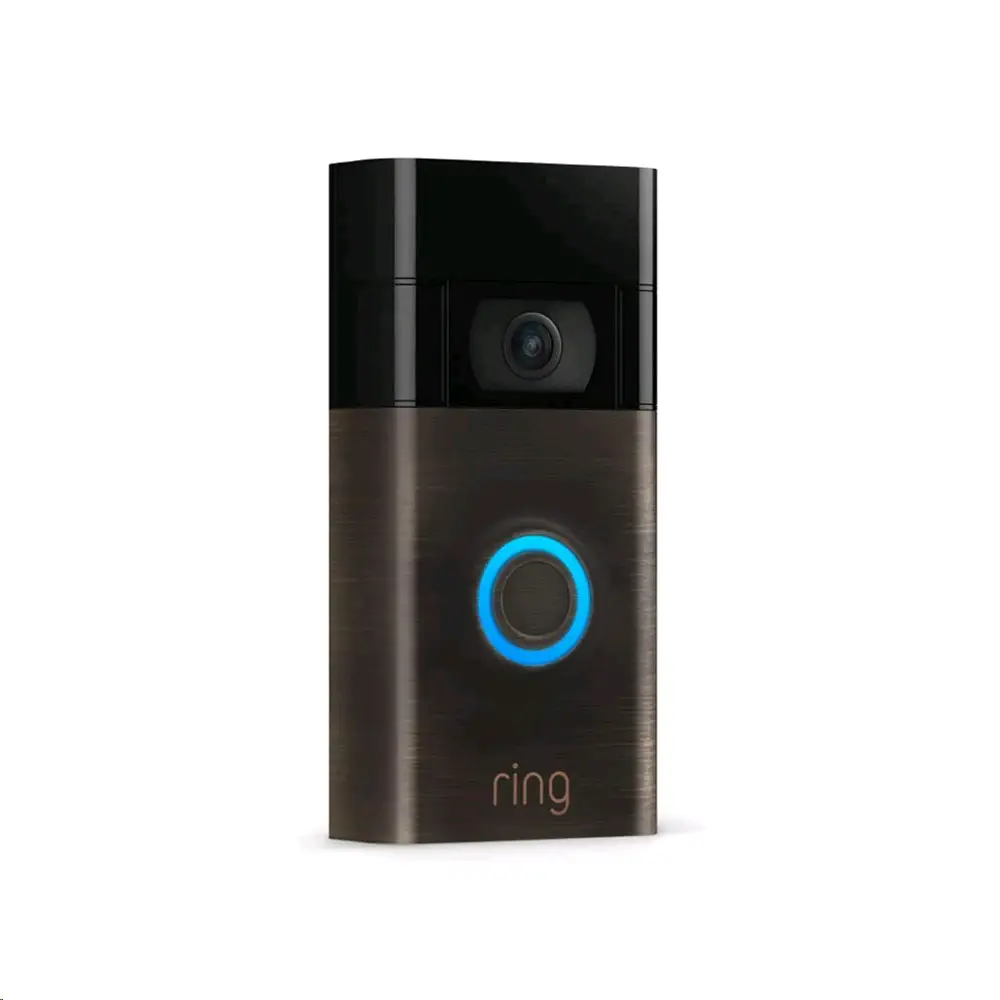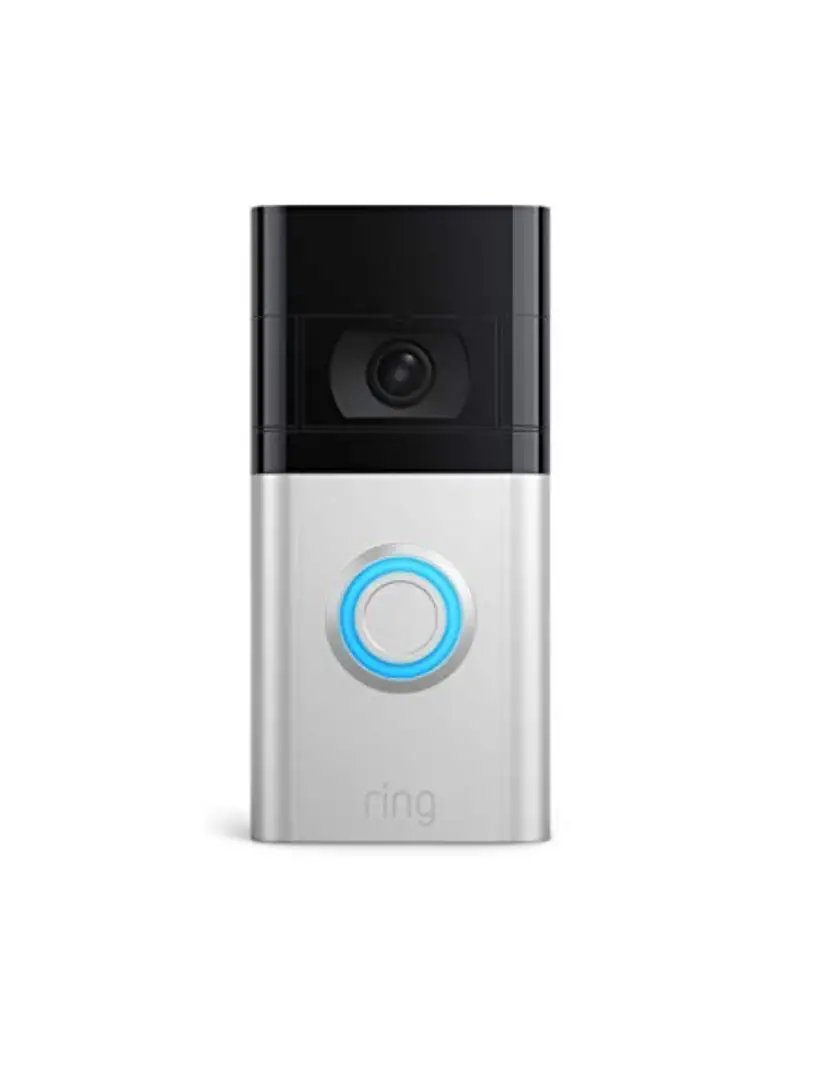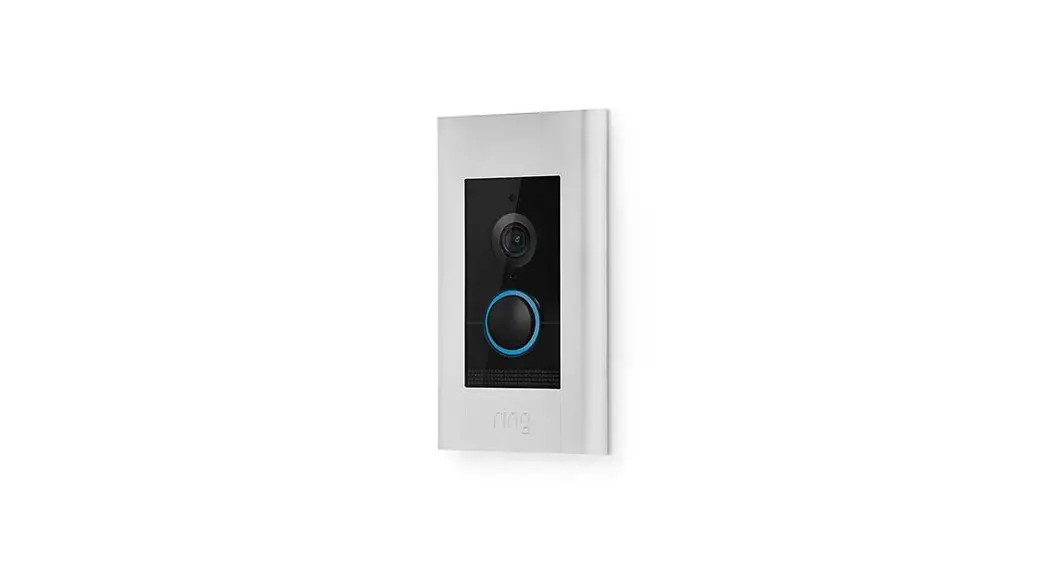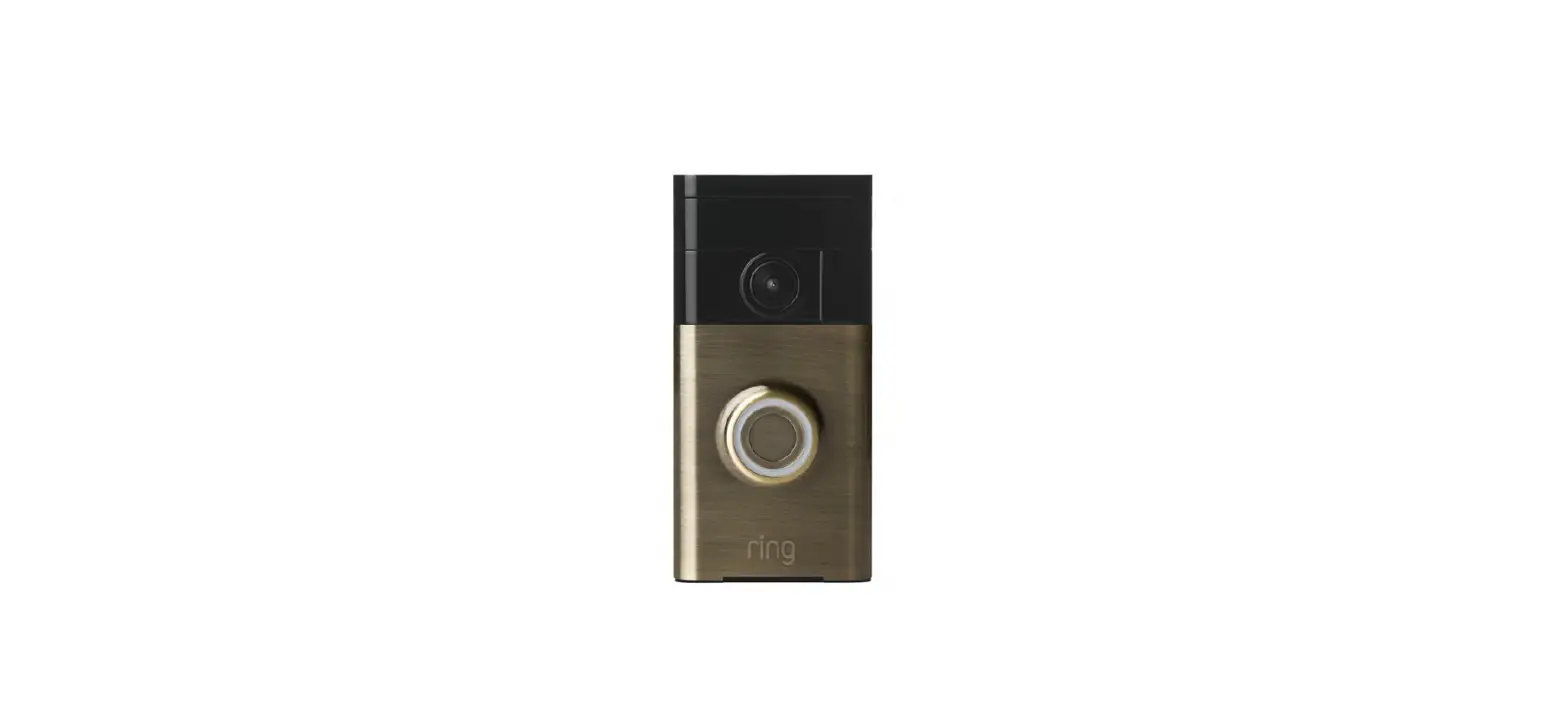

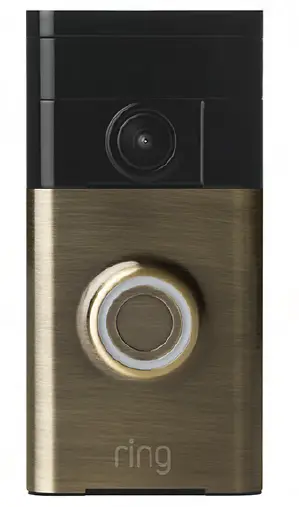
ring video doorbell 2 with HD
CREATING AN ACCOUNT
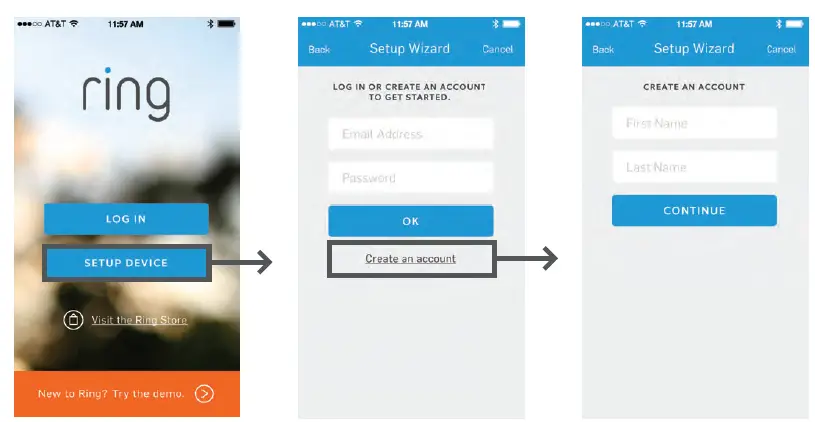
- Download the Ring App from the Apple App Store or Google Play Store by searching for Ring Video Doorbell.
- Launch the app and click on the Setup Device button.
- Then click on Create an Account at the bottom of the screen.
- Enter your first and last name, email address and password.

WI-FI SETUP
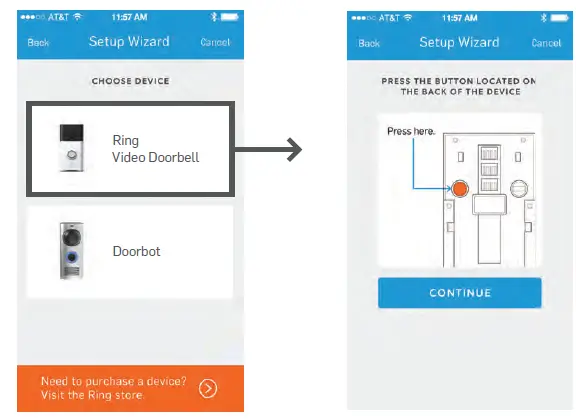
- Immediately following the account creation process, you will be prompted to select a device to connect. Please choose the Ring Video Doorbell.
- You will then be prompted to put the device into setup mode. Do so by pressing the orange button located on the back of the device and pressing Continue.
- You will notice the LED ring spin white on the front of your Ring Video Doorbell. This is an indication that your device is in setup mode. This pattern should continue throughout the duration of the Wi-Fi setup process.

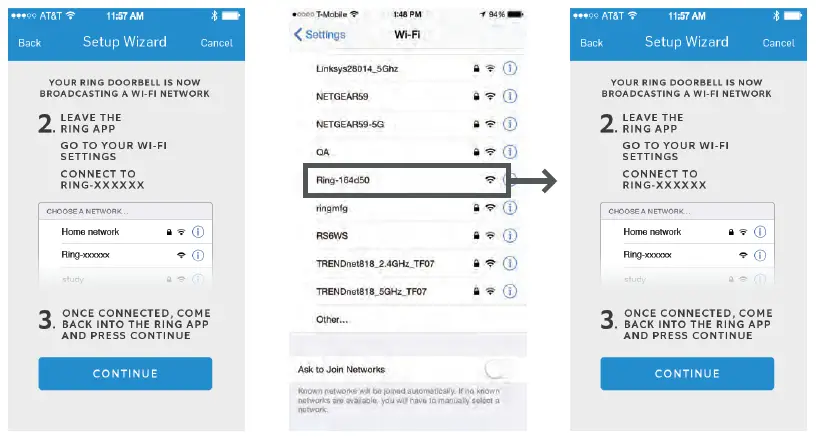
WI-FI SETUP CONTINUED – iOS ONLY - After putting the Ring Video Doorbell in setup mode, you will be prompted to go into your smartphone’s or tablet’s Wi-Fi Settings. labeled Ring-xxxxxx
- In the list of available networks, find and select the network labeled Ring-xxxxxx
- After successfully connecting to the Ring network, return to the Ring app and select Continue.
If setting up on an Android device, the above series of Wi-Fi Setup steps (#4-6) are automated. If your Android device fails to connect, please refer to the last page of this document for solutions.
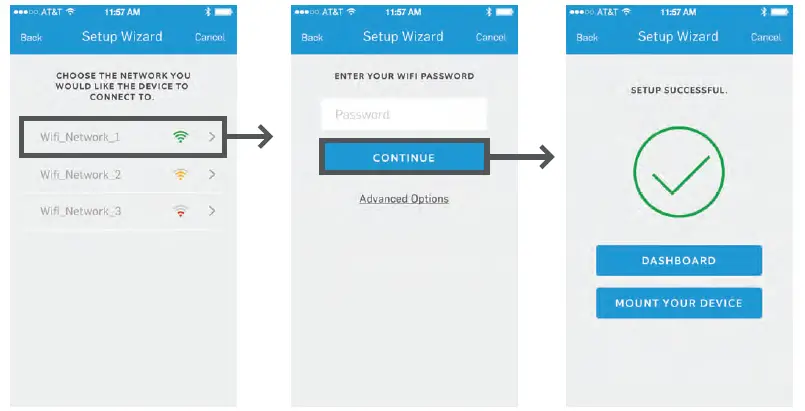
- You will then be prompted to connect your Ring Video Doorbell to the Wi-Fi network of your choice. If the network requires a password, you will be prompted to enter the password during this step.
- Once you input the network’s password, the Ring Video Doorbell will connect to the chosen Wi-Fi network.
- Once you successfully connect your Ring Video Doorbell to your network, your unit will undergo a firmware update. The LED ring on the front of the device will display a white intermittent flashing light sequence. Once all LED activity has ended, the firmware update is complete.

ACCEPTING A CALL
- Press the front button on the Ring Video Doorbell.
- The LED ring will spin blue.
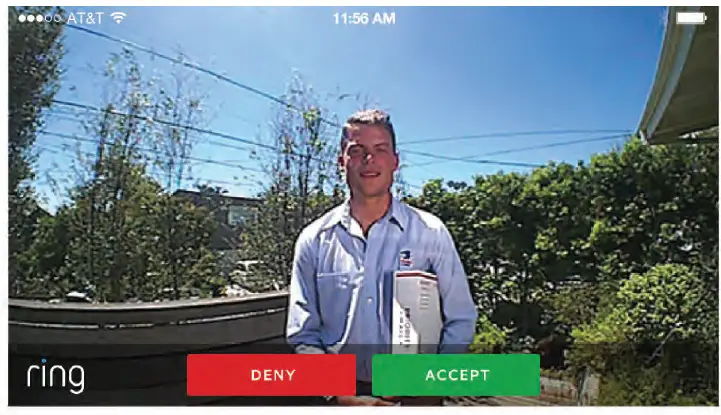
- You will then receive a push notification on your smartphone or tablet. Swipe across the notification to open the app. (If you do not receive a push notification after pressing the button on your Ring Video Doorbell, please check your device’s notification settings to ensure the Ring app’s notifications are turned On.)
- You should now see the live video feed. Press the Accept button to answer the call. If you press Decline, the visitor will not know you chose to decline the call.

IN-CALL EXPERIENCE
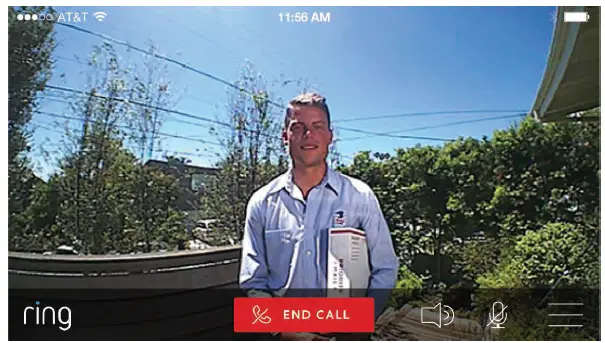
- Test the Ring Video Doorbell’s audio at a distance from the doorbell to avoid feedback.
- If you do hear feedback due to proximity, disable the speaker and microphone.

- If you do hear feedback due to proximity, disable the speaker and microphone.
SHARING A USER
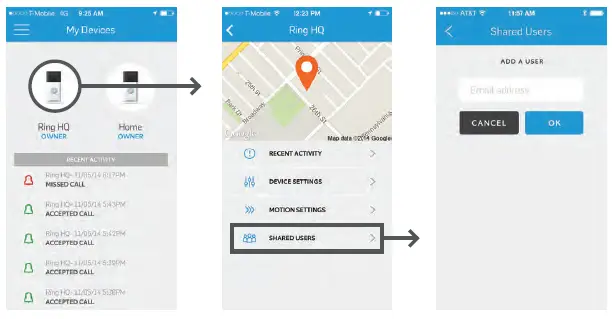
- Once logged into the Ring App and on the My Devices Screen, click on the device that is intended to be shared.
- On the device screen, select Shared Users at the bottom.
- Once on the Shared Users screen, simply enter the email address of the person you wish to share the device with.
- If the user already has a Ring App with a shared email address, the newly shared user will automatically get access to the shared device.
- If the user does not have a Ring Account, the newly shared user will get an email with instructions for downloading the app.

MOTION DETECTION
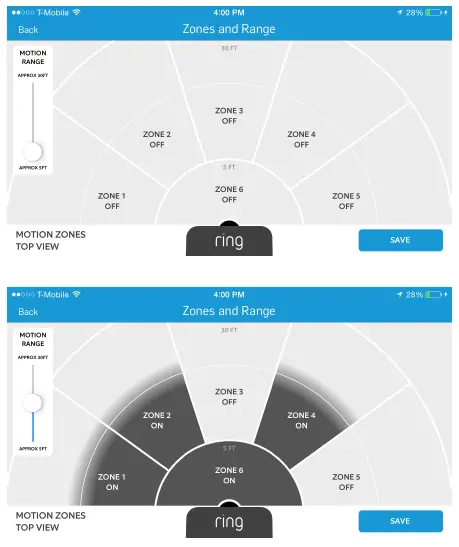
- Access the Motion Detection Settings by going to the Device Dashboard and clicking on Motion Settings.
- Select Zones and Range to specify the detected locations and distance of all motion events.
- Select to enable or disable multiple zones, you will receive notifications only for the zones that are enabled.
- Select Smart Alert to set time increments between notifications for repeated or continuous motion (e.g. kids are playing soccer on your lawn).
CHECK OUT THE MOTION TUTORIAL
VIDEO CLOUD RECORDING
- View recordings of all activity from your Ring Video Doorbell
- You can view recordings directly from your Ring App (iOS or Android by clicking on the chevron symbol (>) next to each individual event.
- Download recordings in mp4 format directly to your phone to share with your friends and family.
- recordings may take between 5 minutes to 1 hour to appear in your recent activity feed.
- Conveniently access recent activity from your desktop computer.

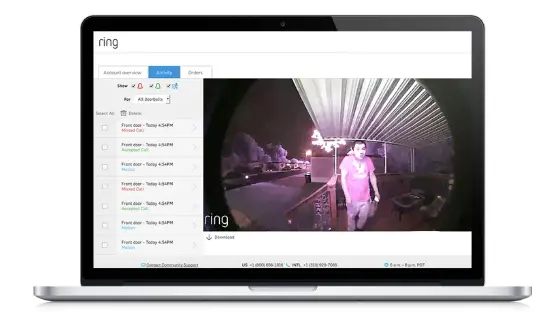
PLANS AND PRICING
Ring Video Doorbell customers enjoy a one-month free trial of Cloud Video Recording with their purchase. Once the free trial has ended you’ll be able to enjoy 6 months of recordings for just$3/month or $30/annually.
TROUBLESHOOTING
ARE YOU USING AN ANDROID DEVICE DURING SETUP?
- Prior to your next Wi-Fi setup attempt, go to the Wi-Fi Settings screen on your Android device.
- Find the list of available Wi-Fi networks that your Android device can connect to.
- If you see a network labeled Ring-xxxxxx, click on the network and when prompted, choose Forget Network.
- Find the Advanced Wi-Fi Settings screen.
- Locate the option labeled: Scanning Always Available. Please make sure this option is Off.
- Locate the option labeled: Auto Switch to Mobile Network. Make sure this option is On.
VIDEO QUALITY ISSUES?
- The Ring Video Doorbell utilizes adaptive bandwidth techniques to adjust the quality of the video streamed to a smartphone or tablet.
- When our servers detect situations where the video quality is beginning to degrade, the device will stream video at a lower bit rate and frame rate to ensure the
call is not dropped.
Please do not hesitate to reach out to a member of our PR team if you have any questions at all. The PR team can be reached at [email protected].